Honeywell Xenon 1900 Barcode Scanner Instruction Manual
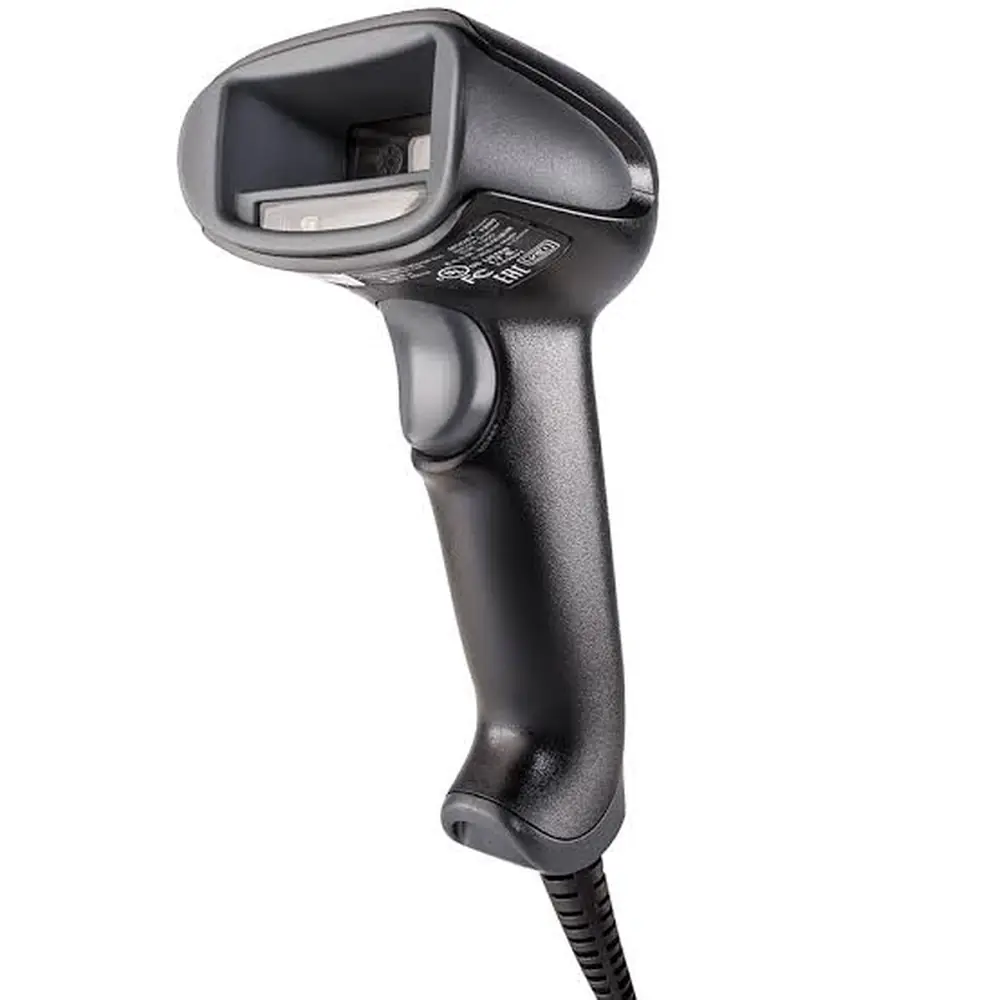
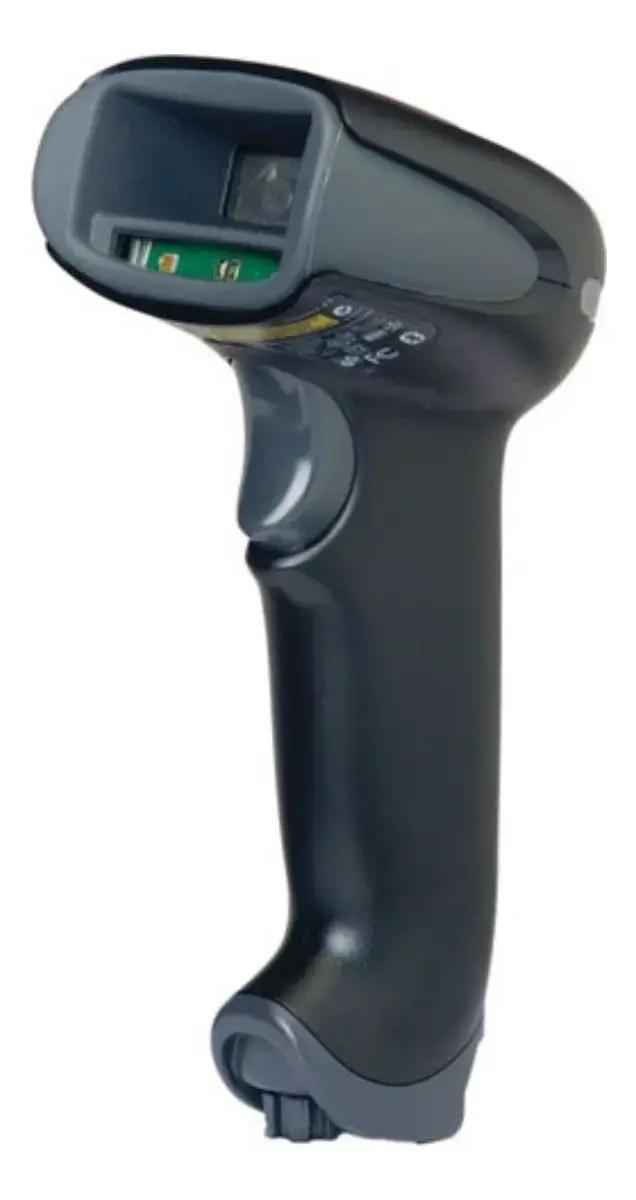
Honeywell Xenon 1900 Barcode Scanner






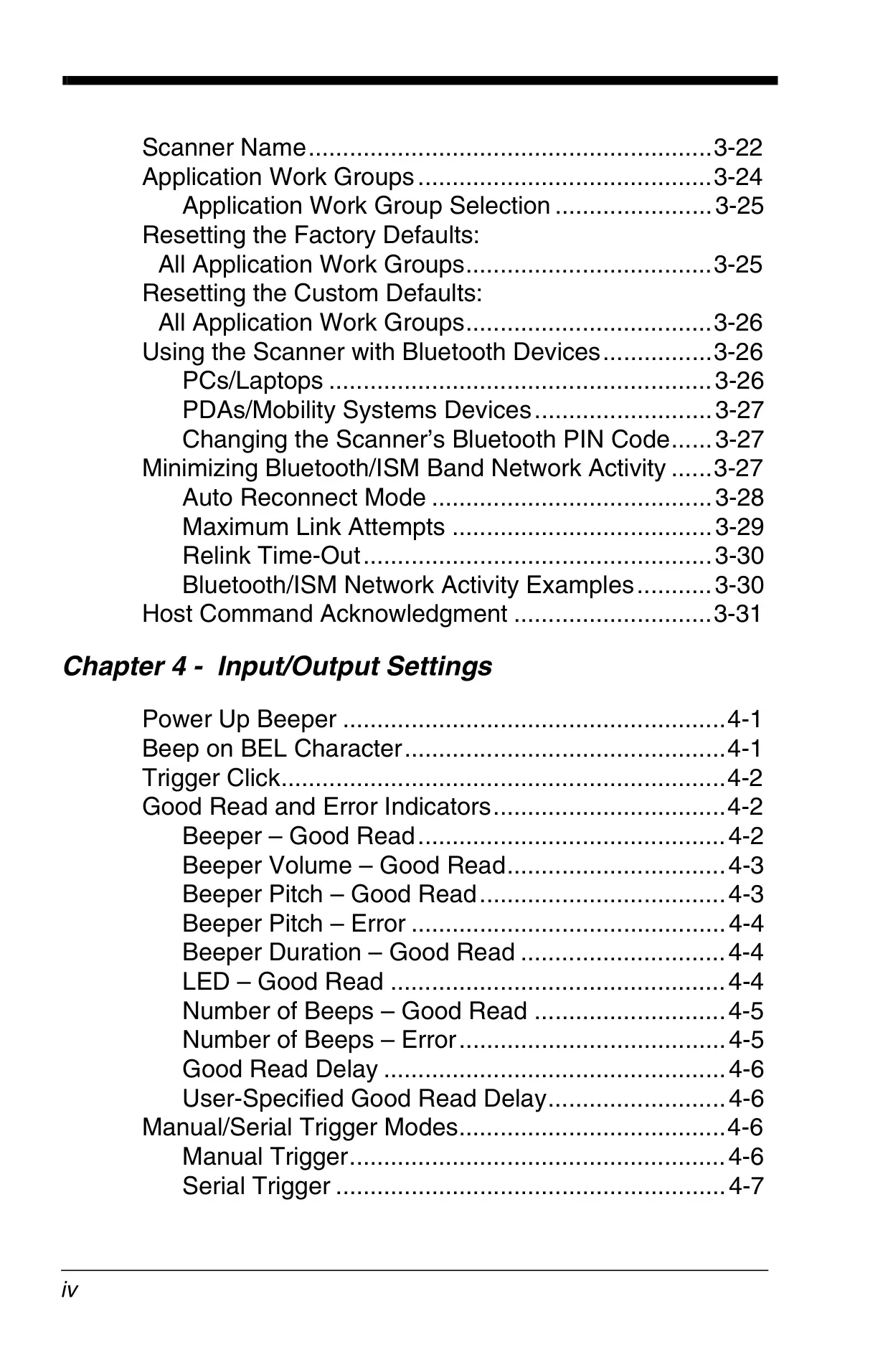
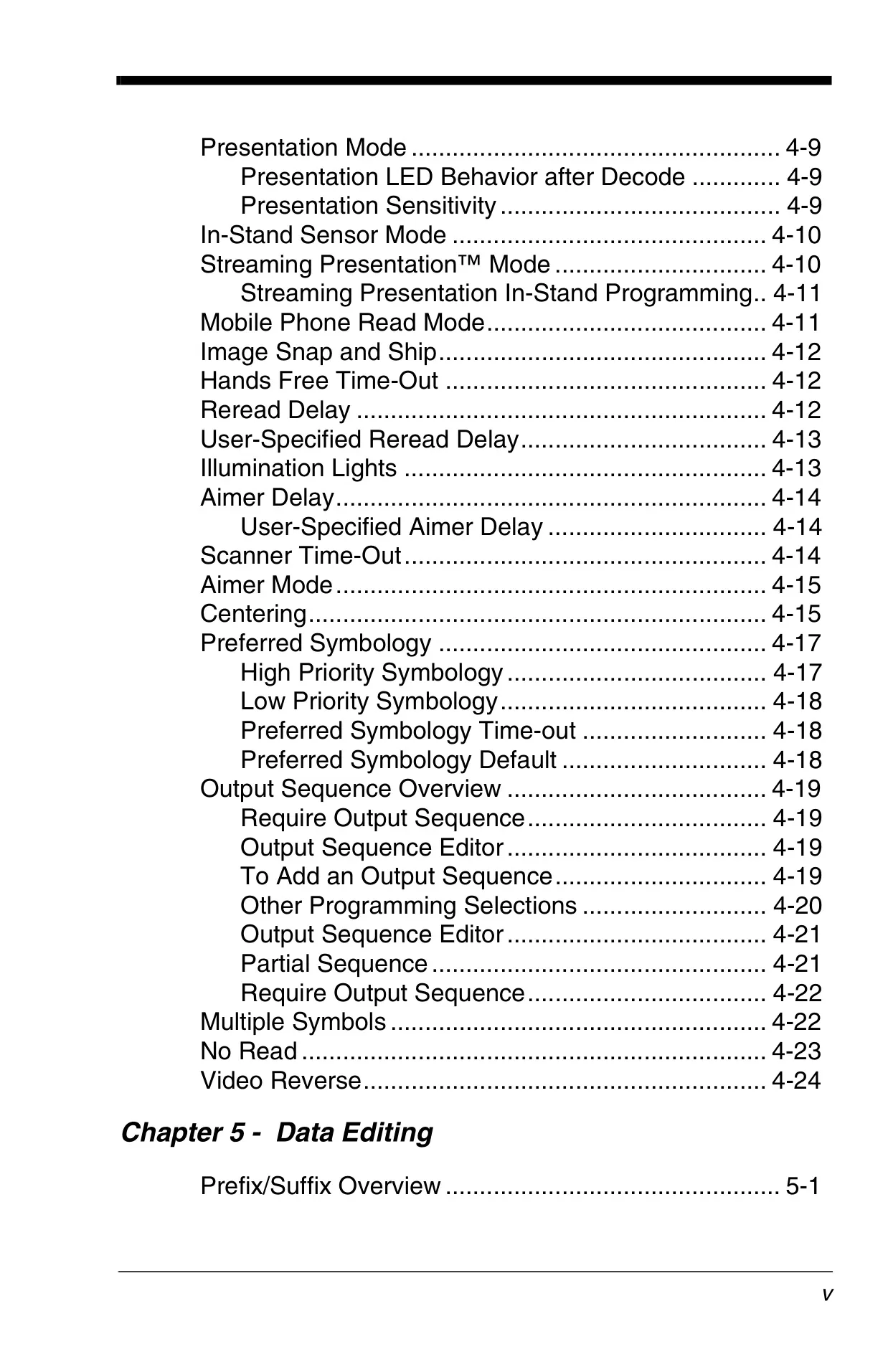
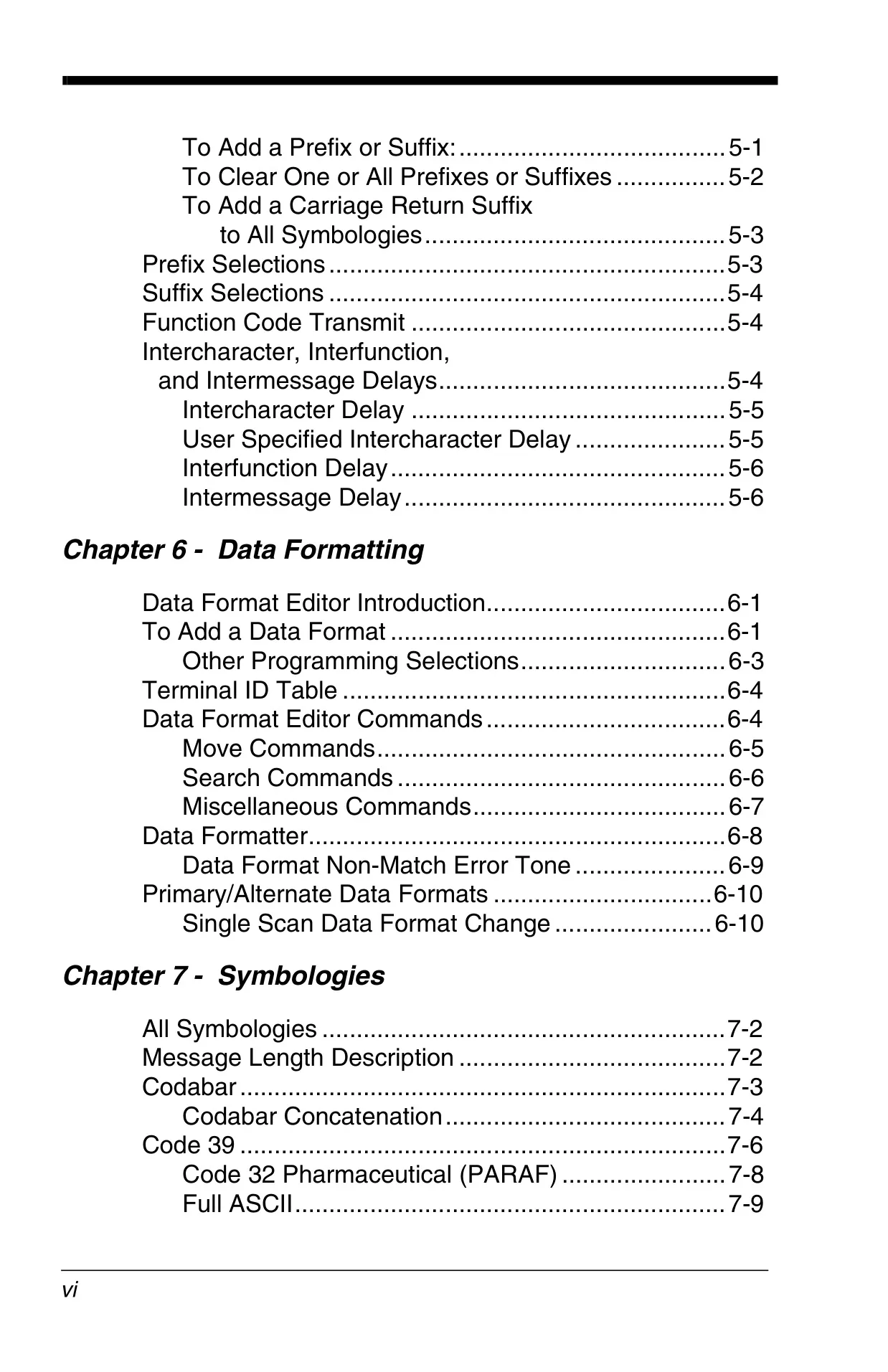
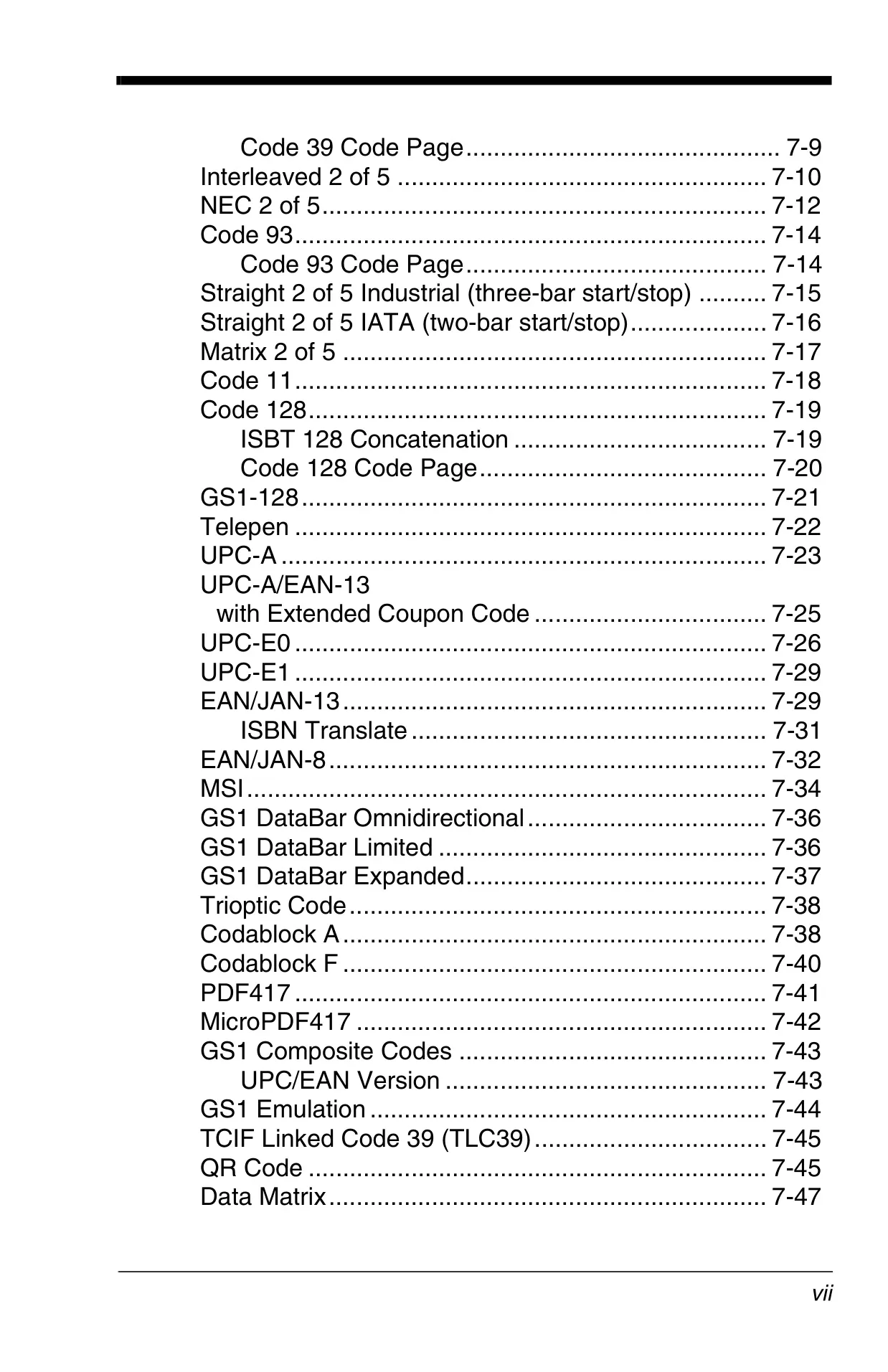







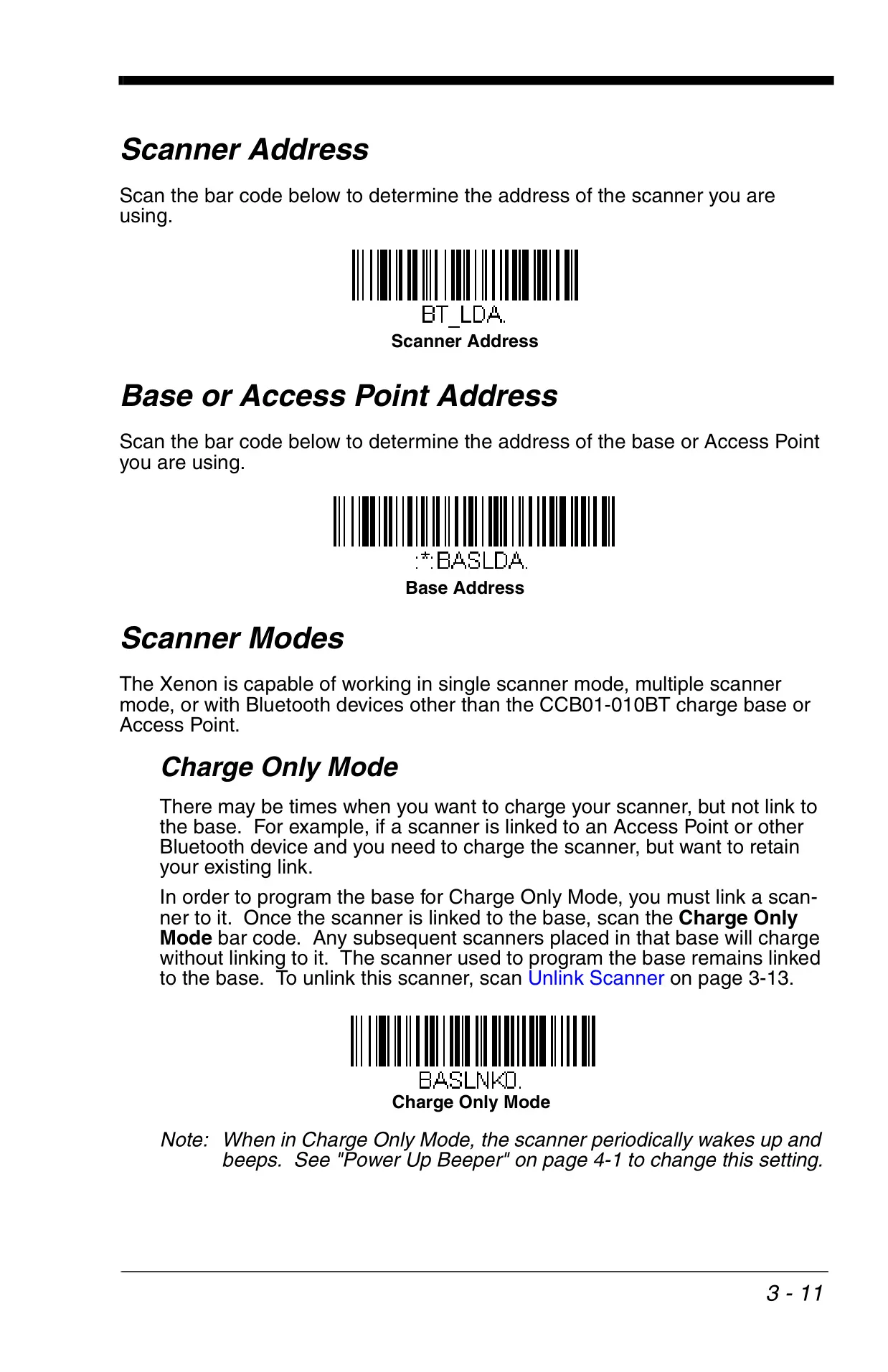
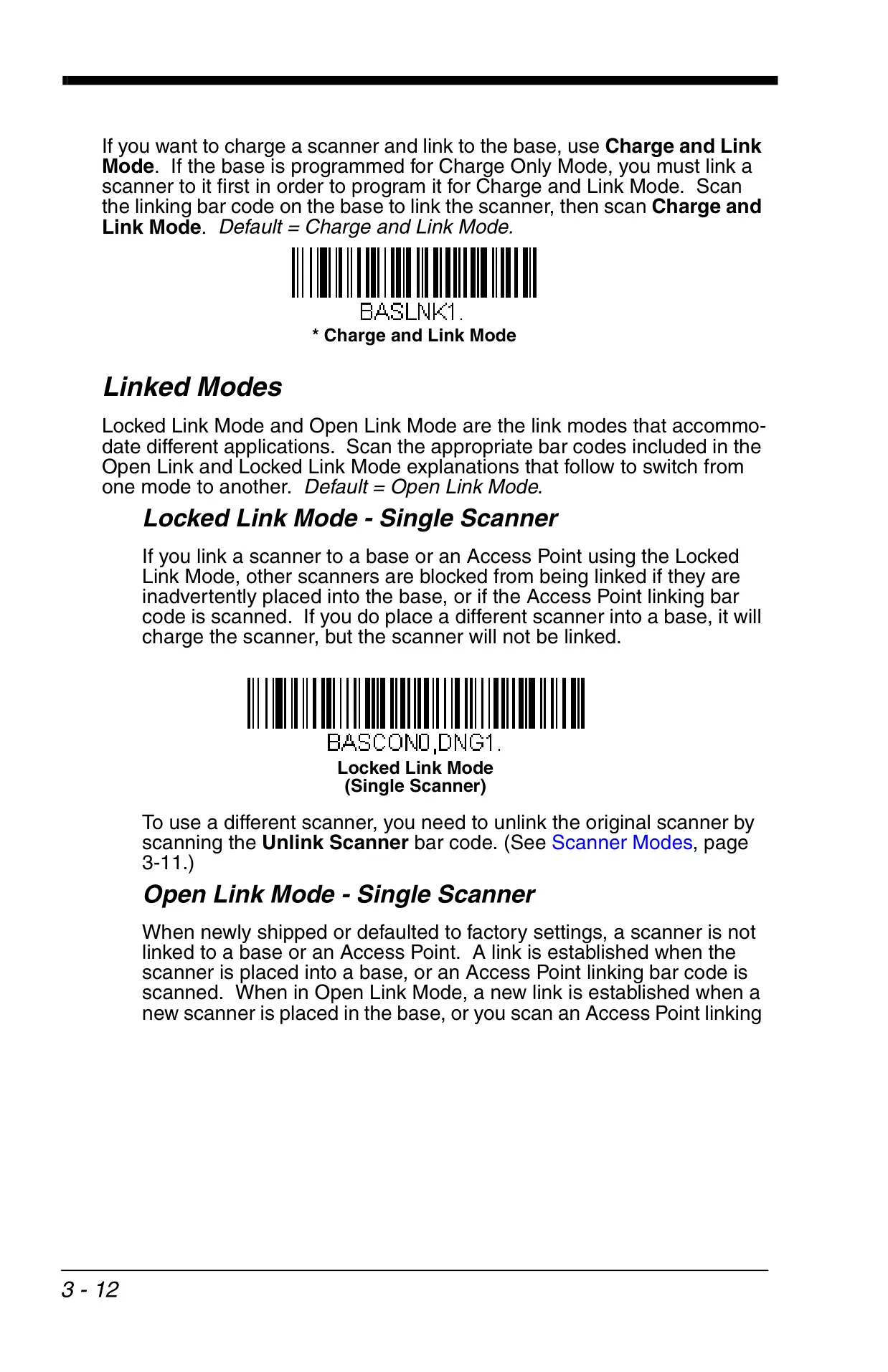
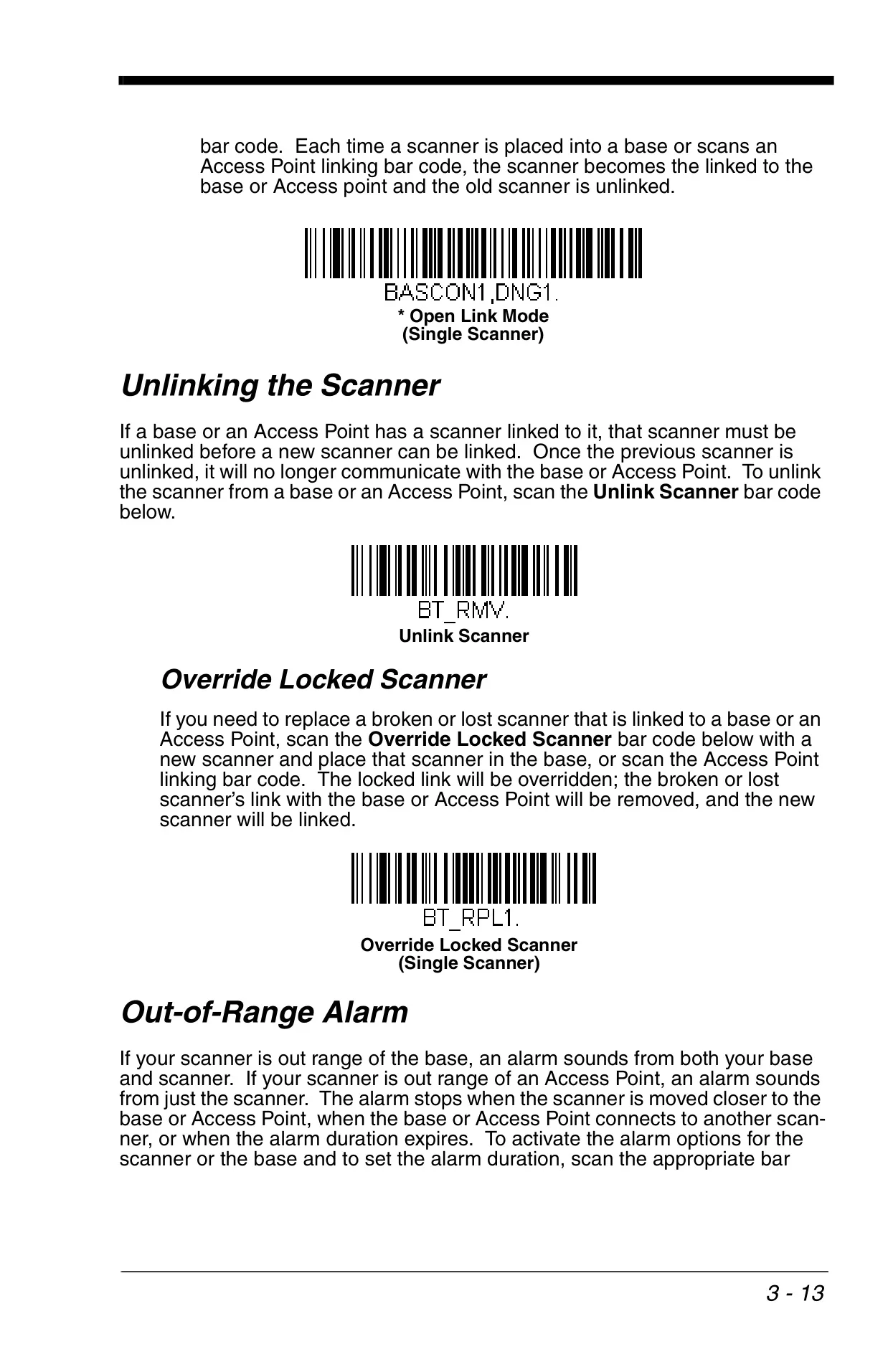
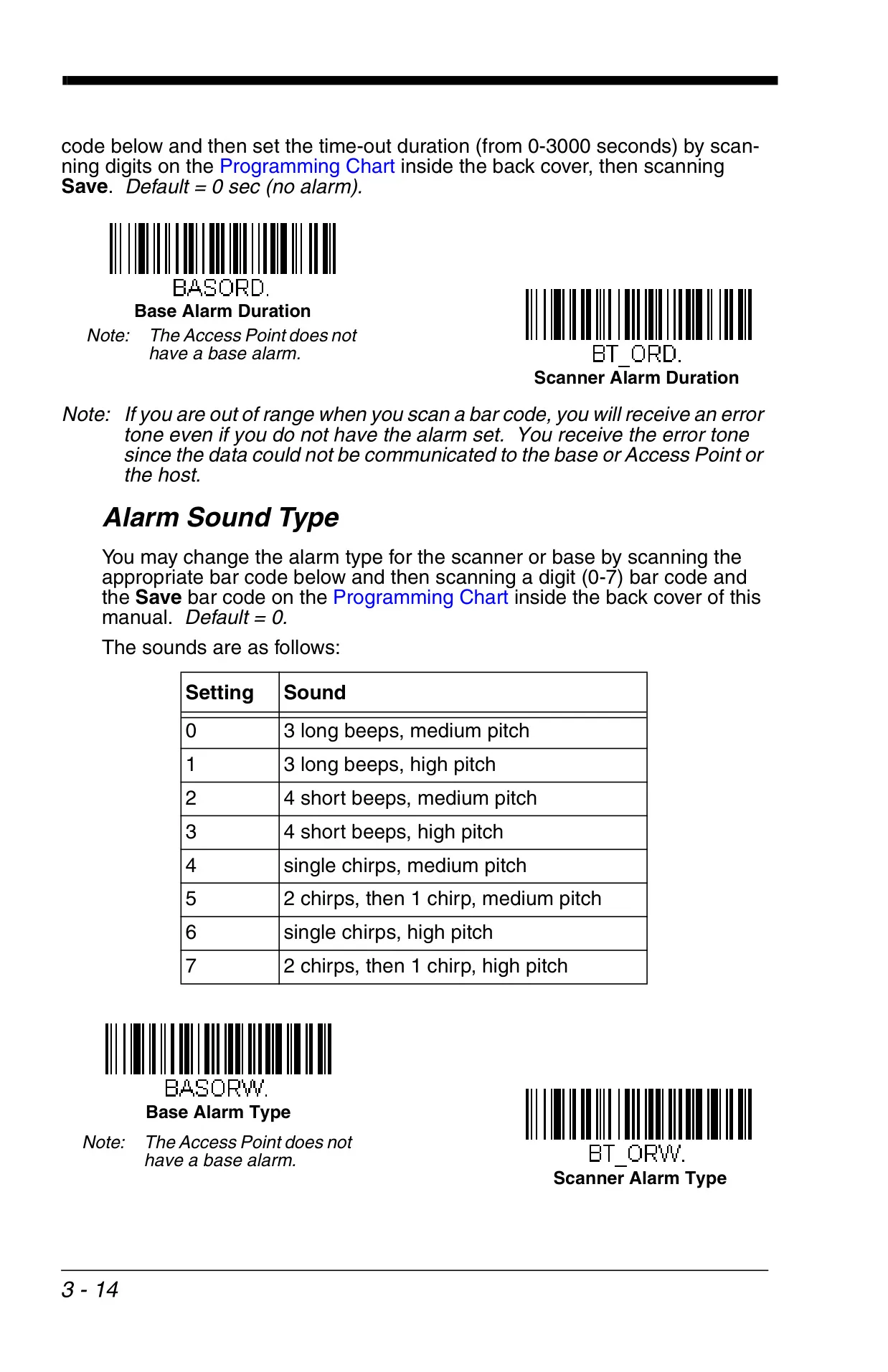






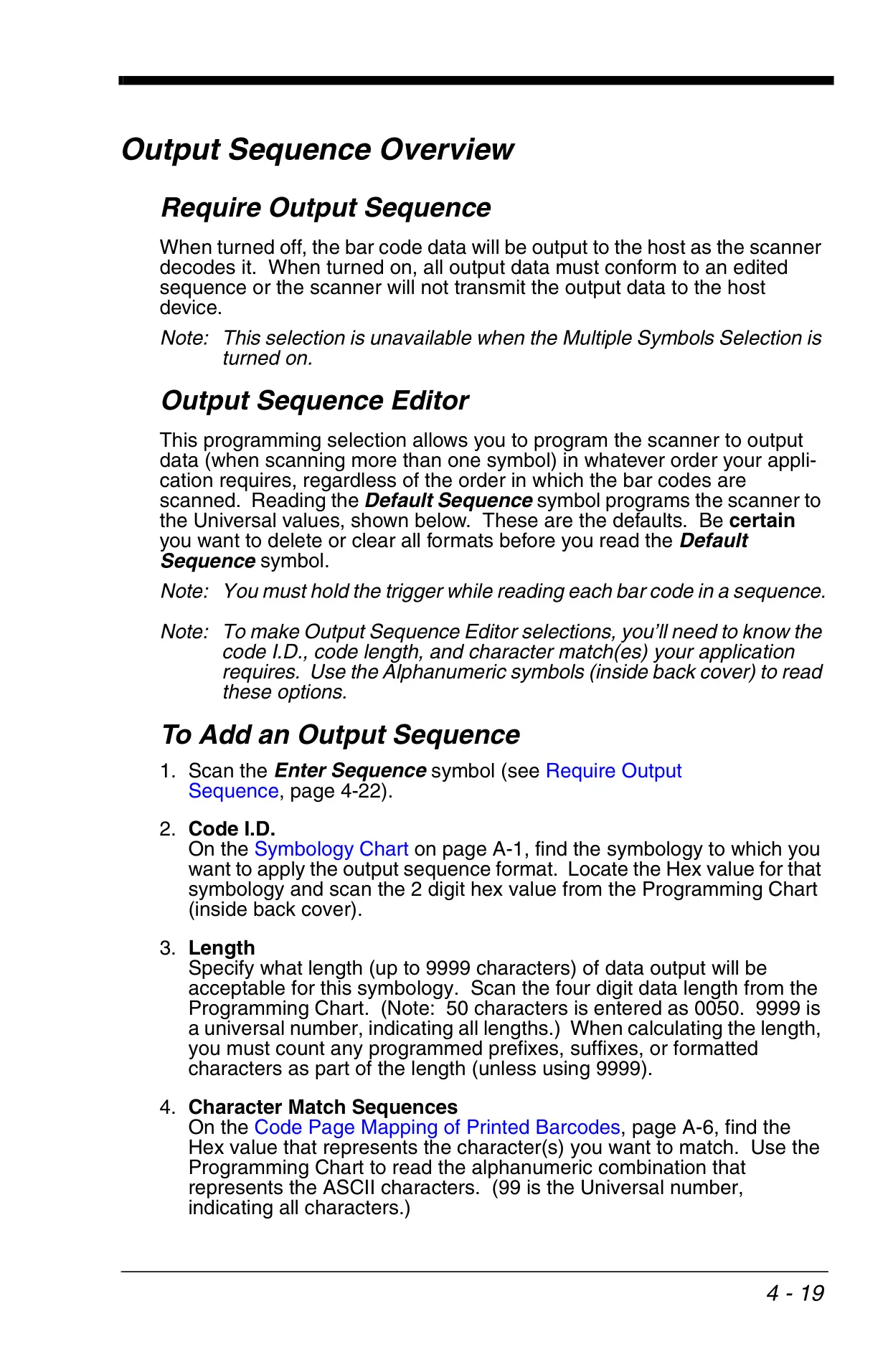
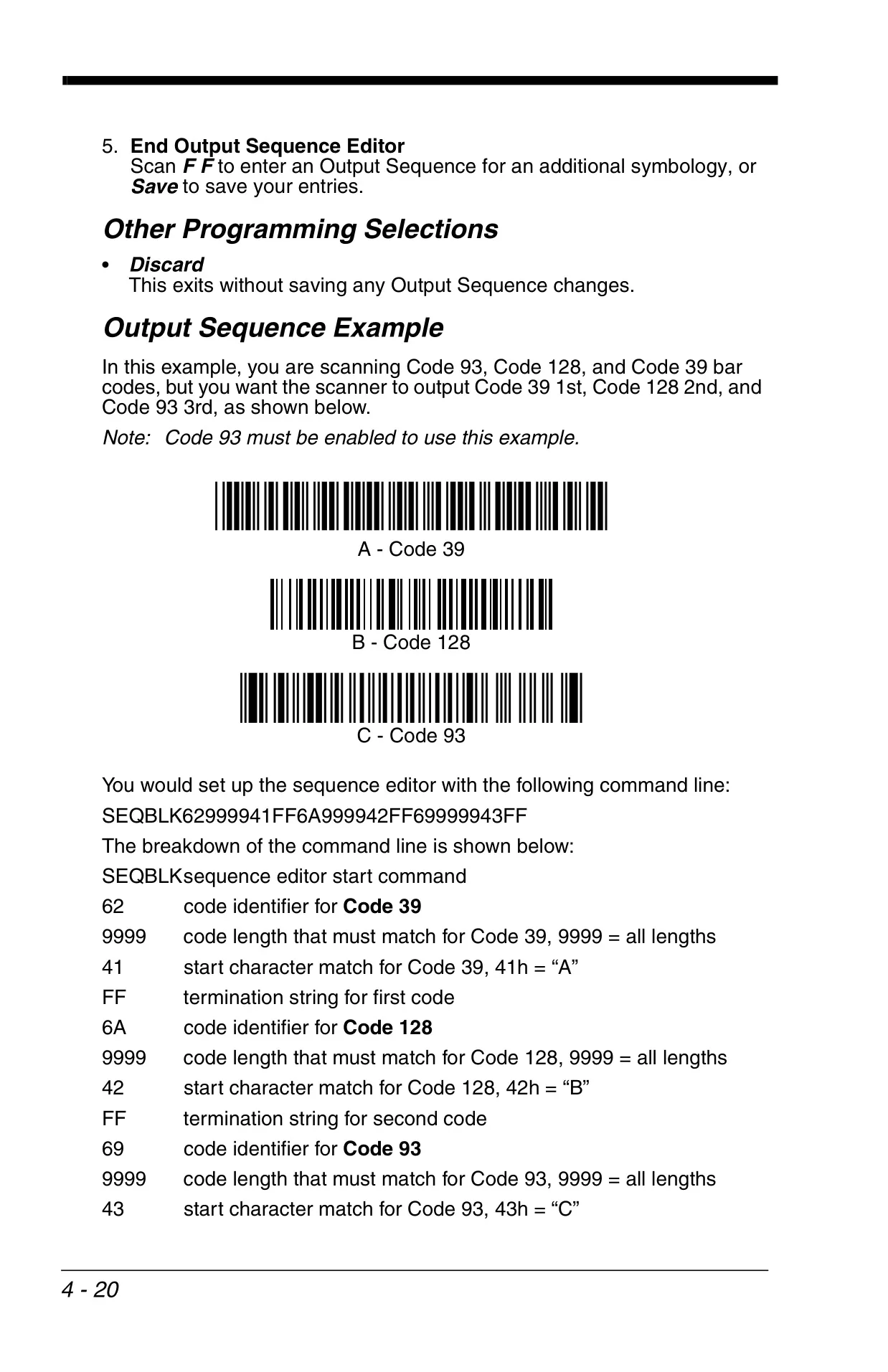
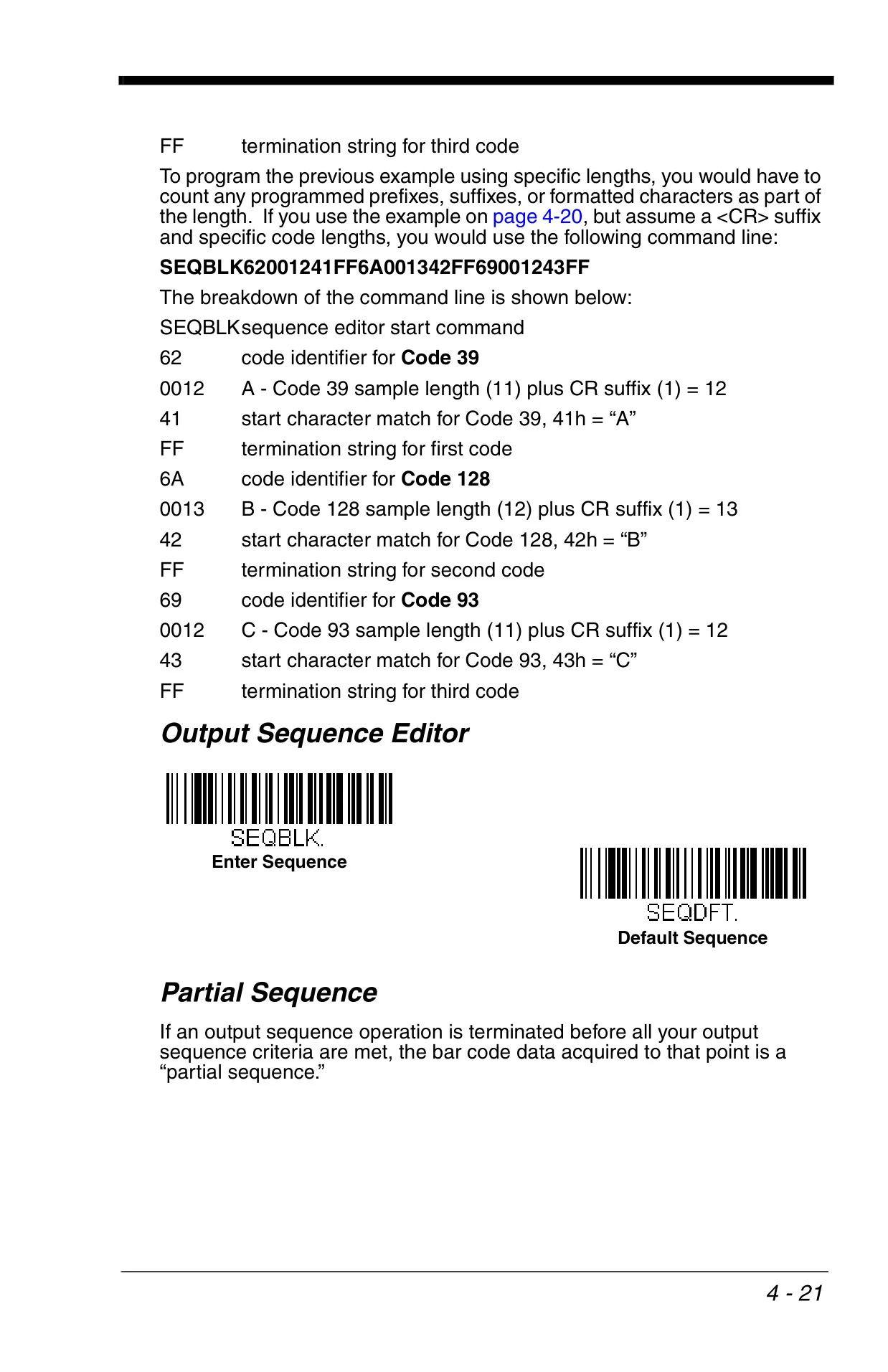
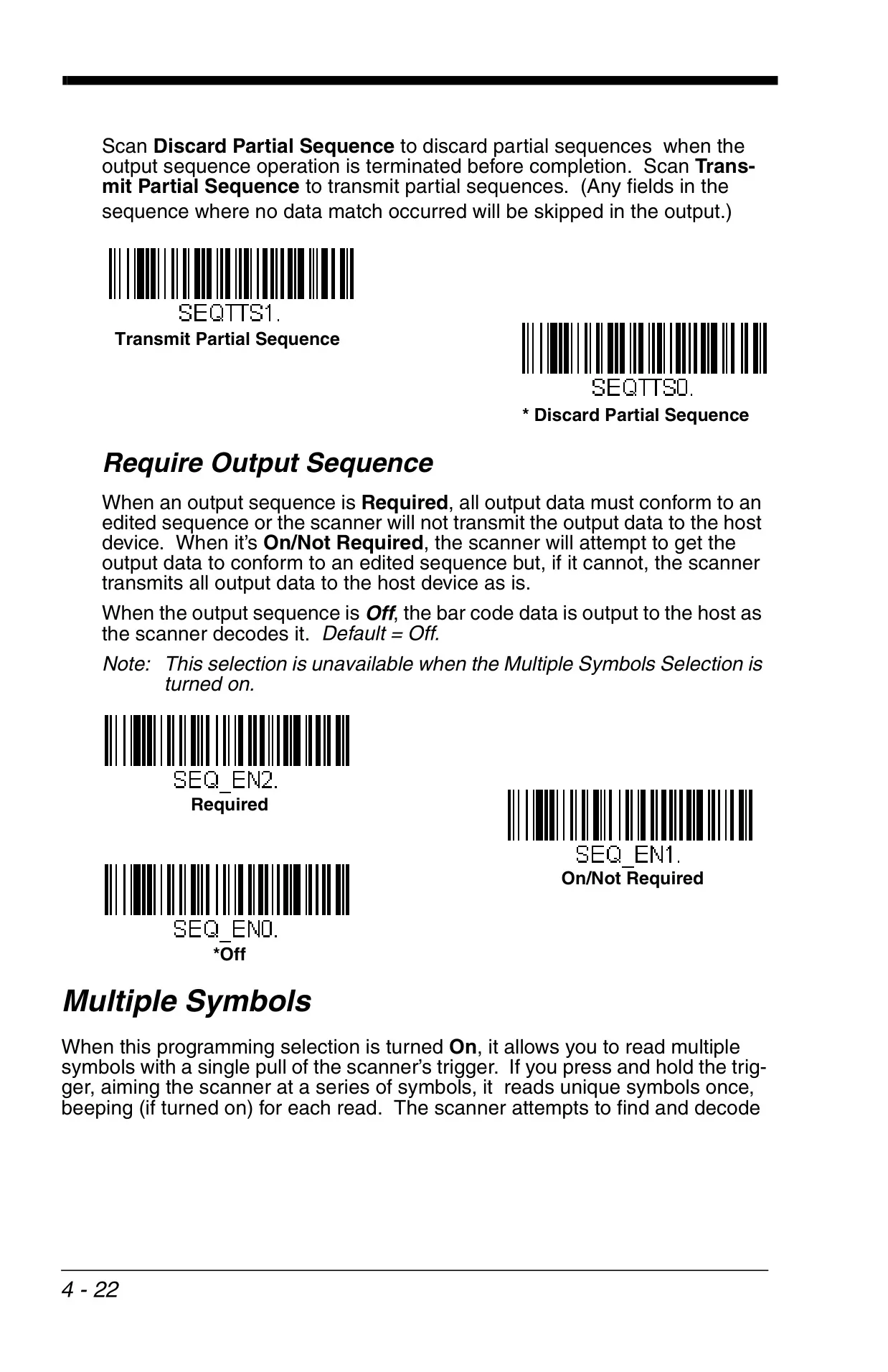











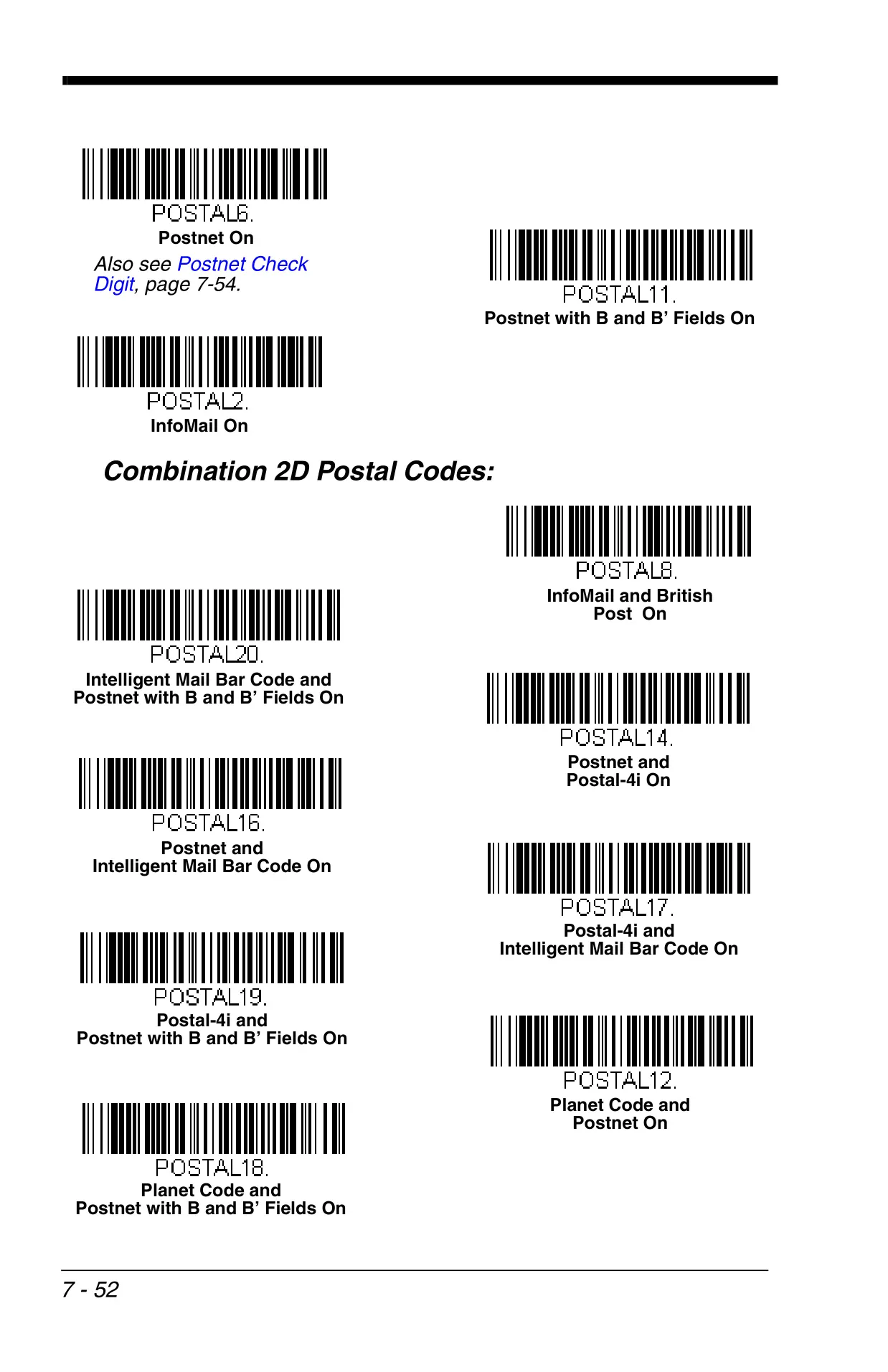
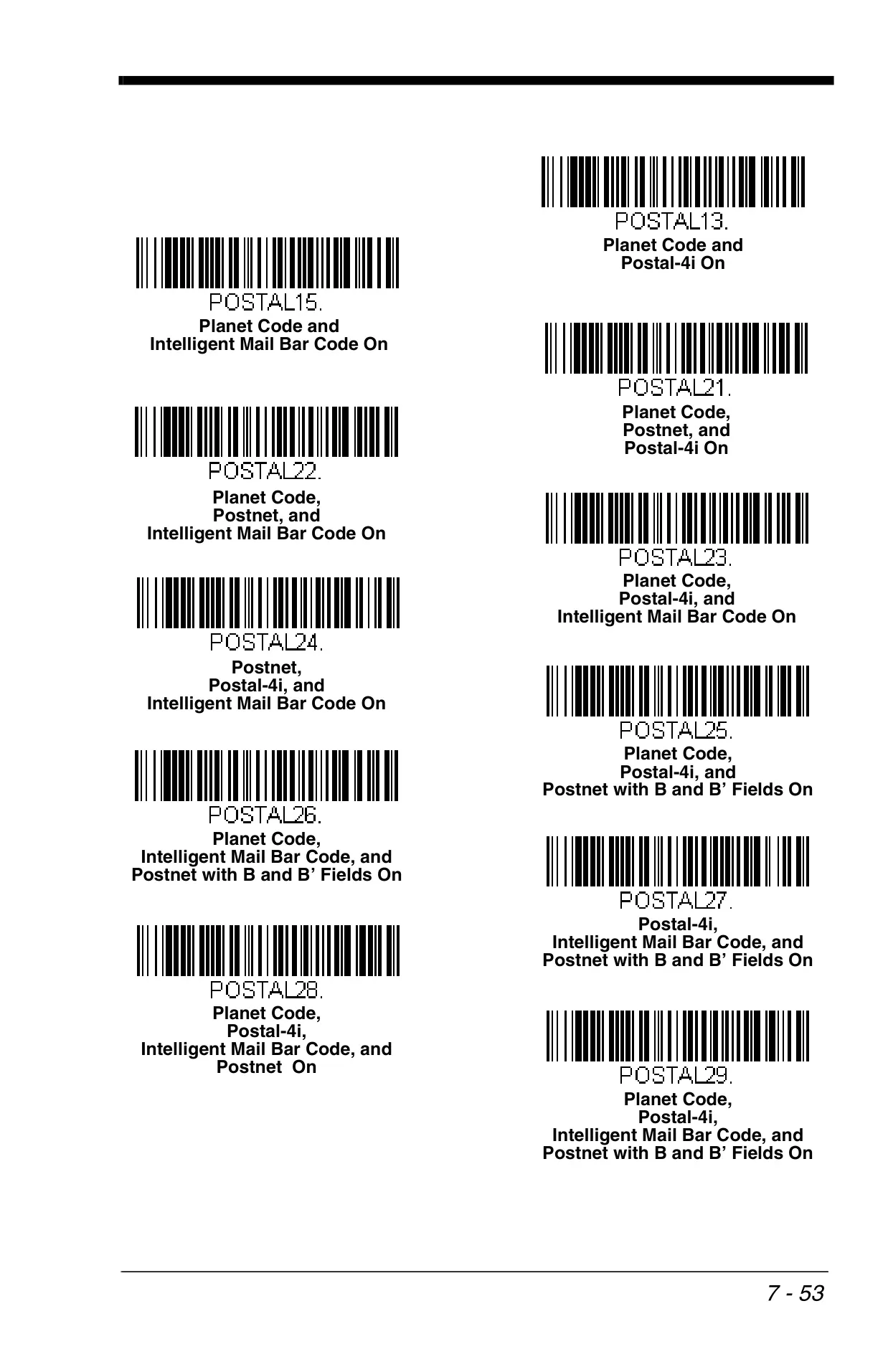
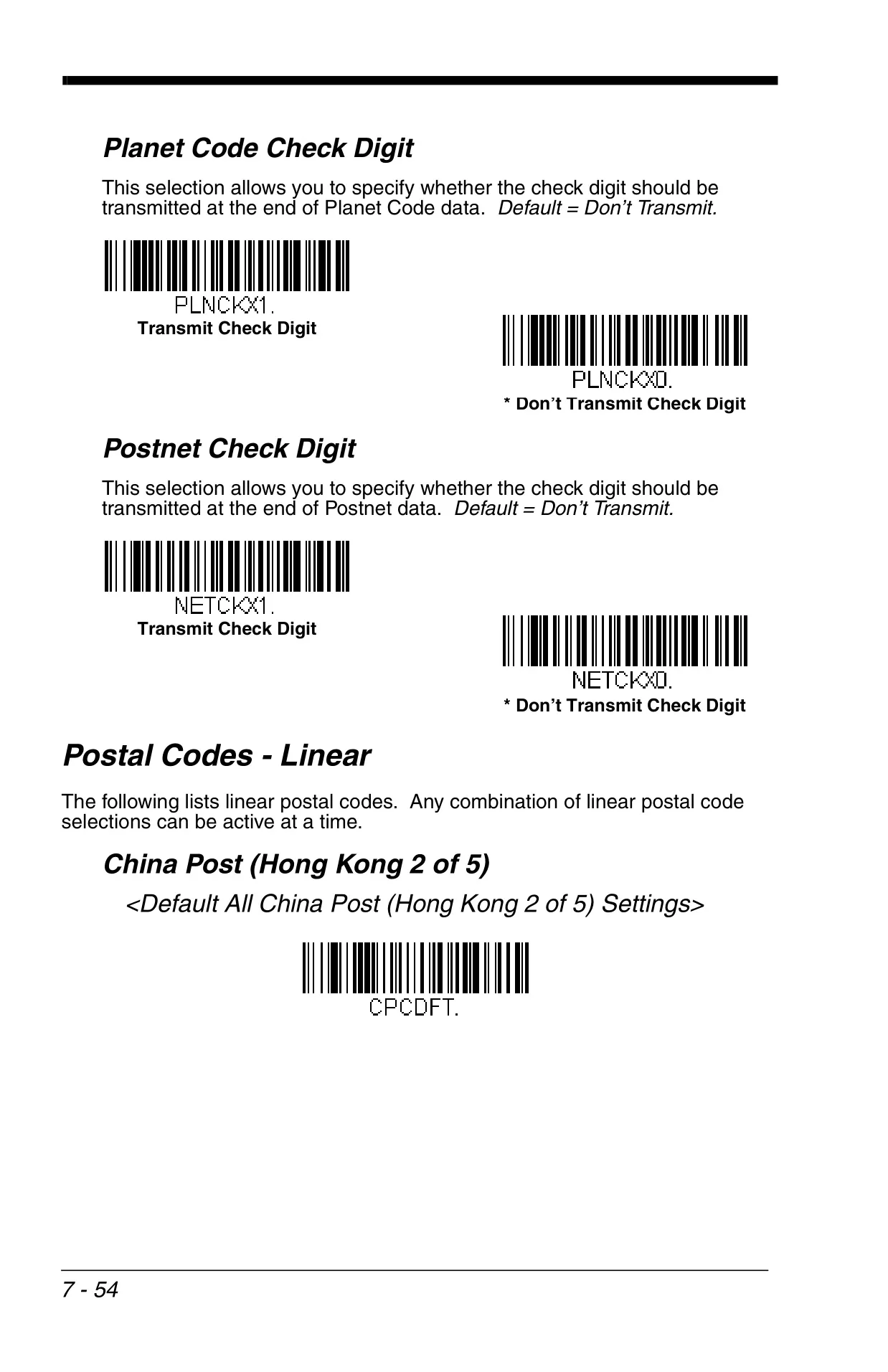
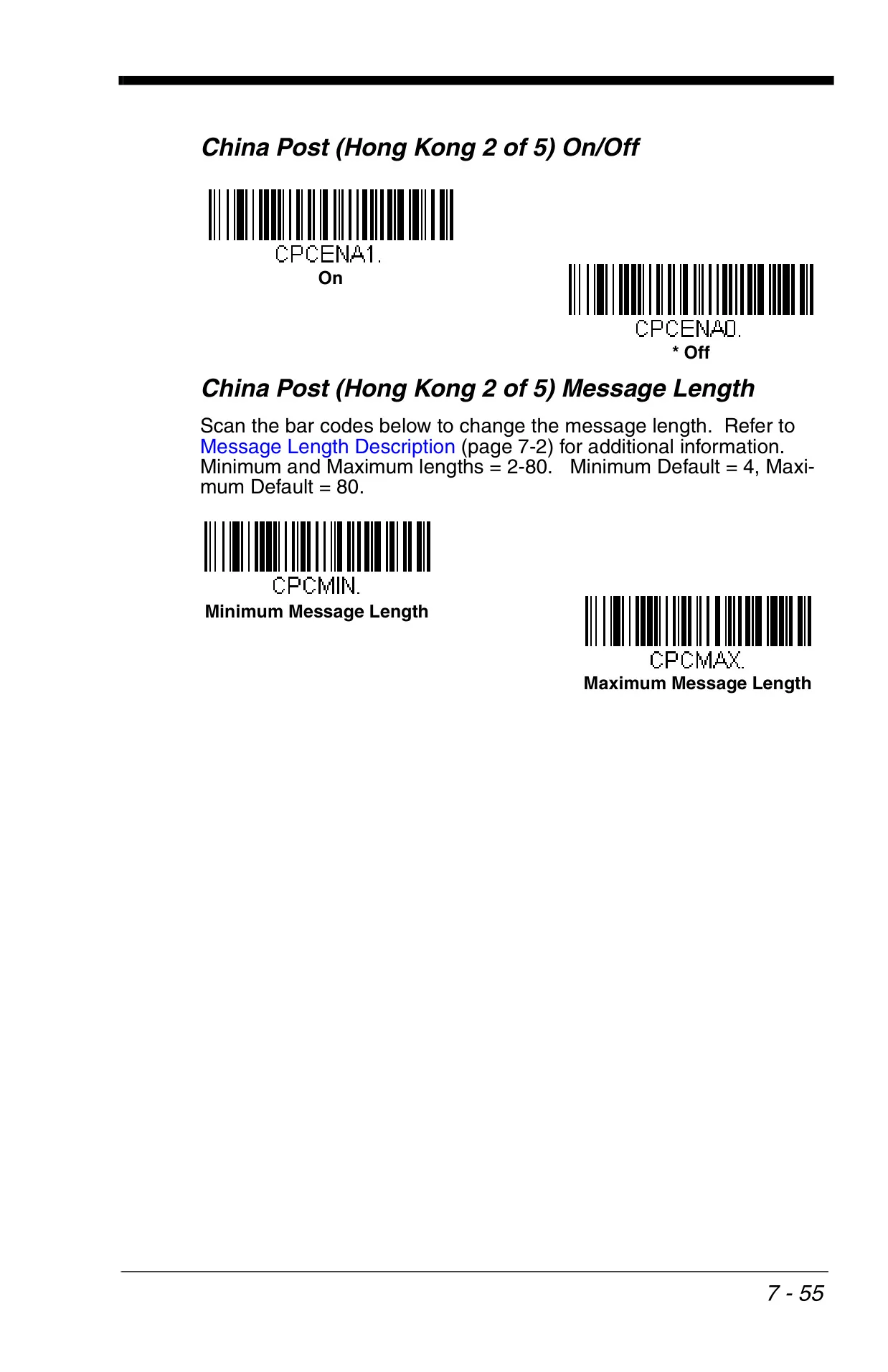











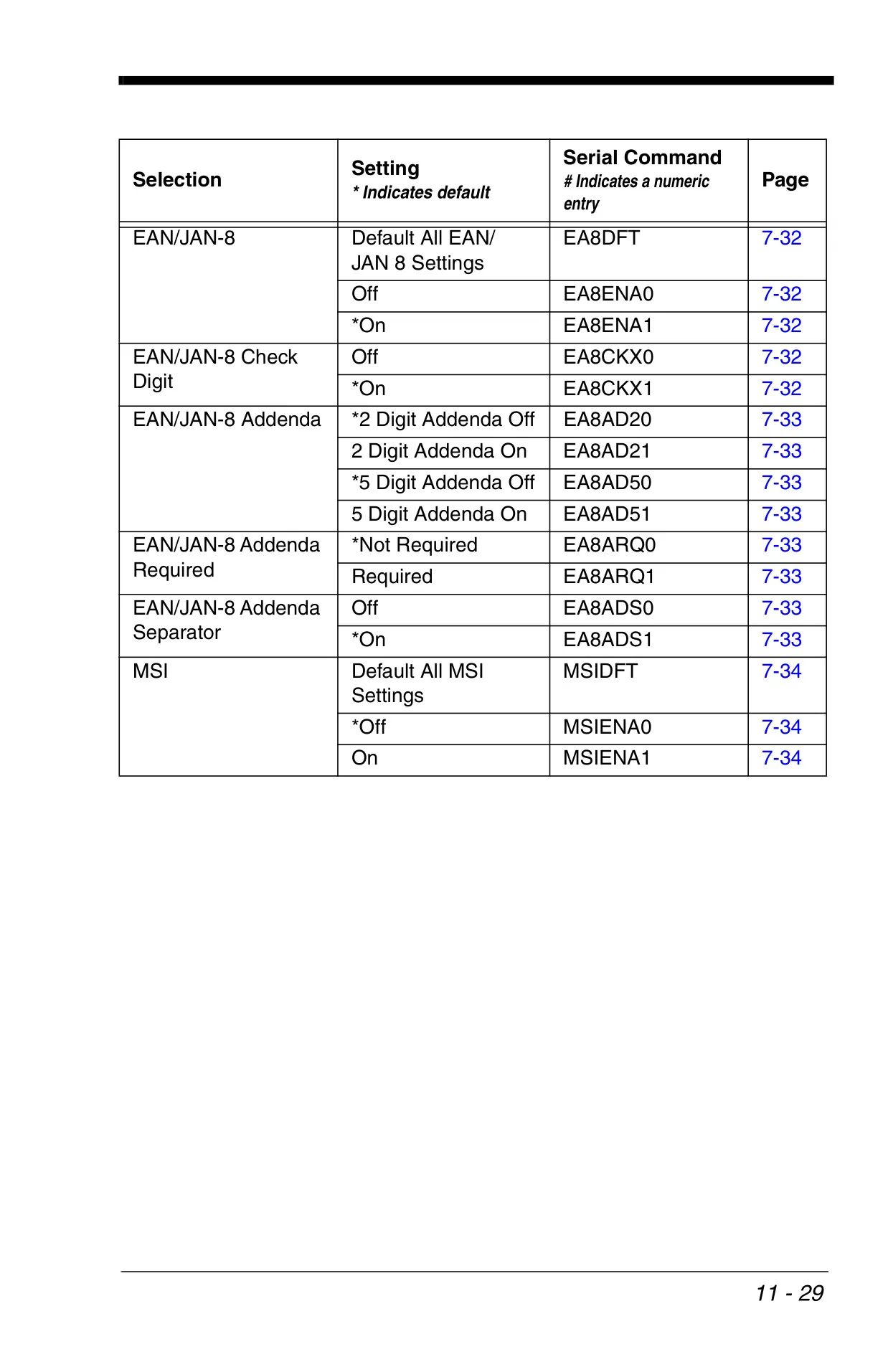
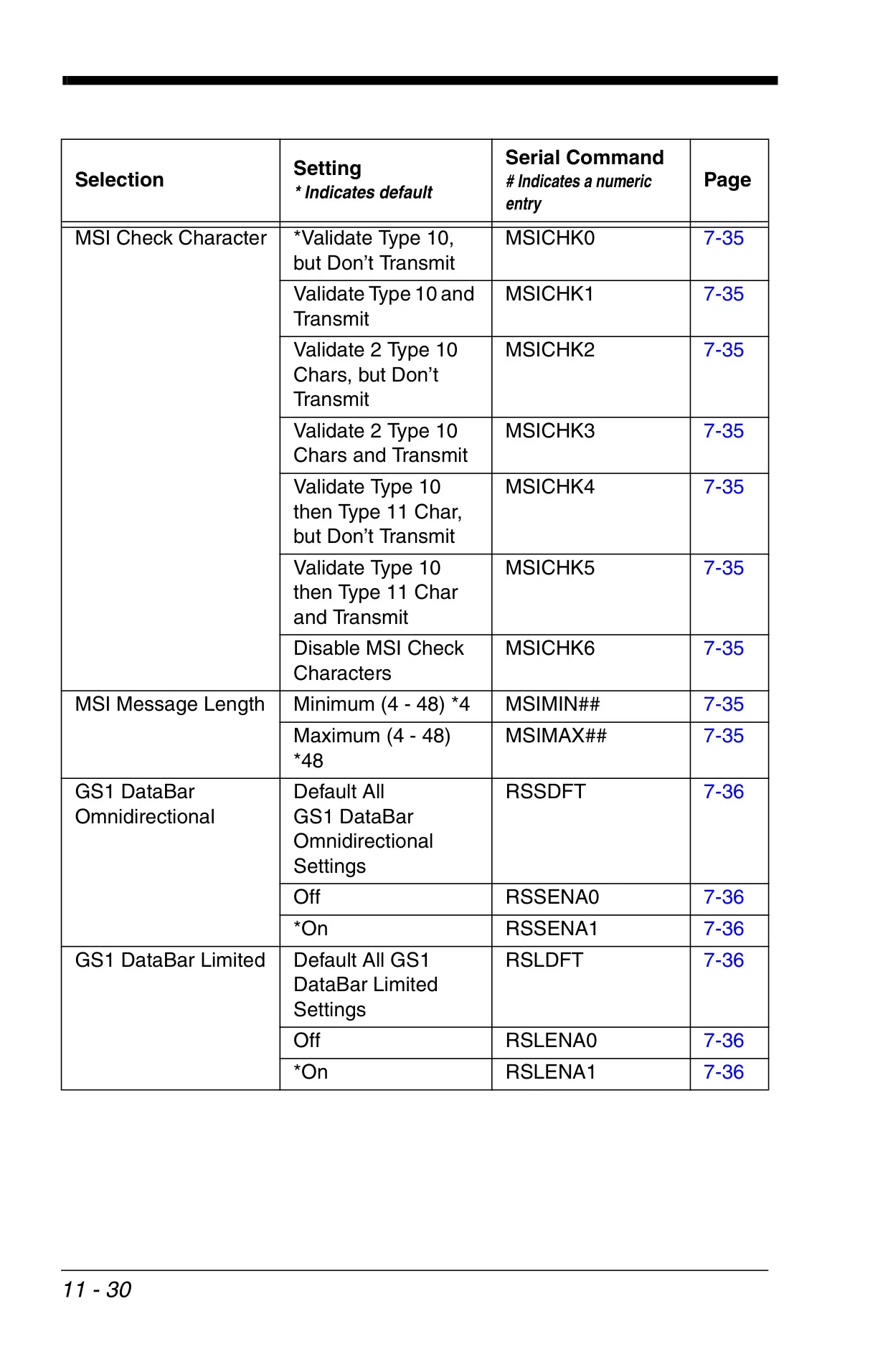
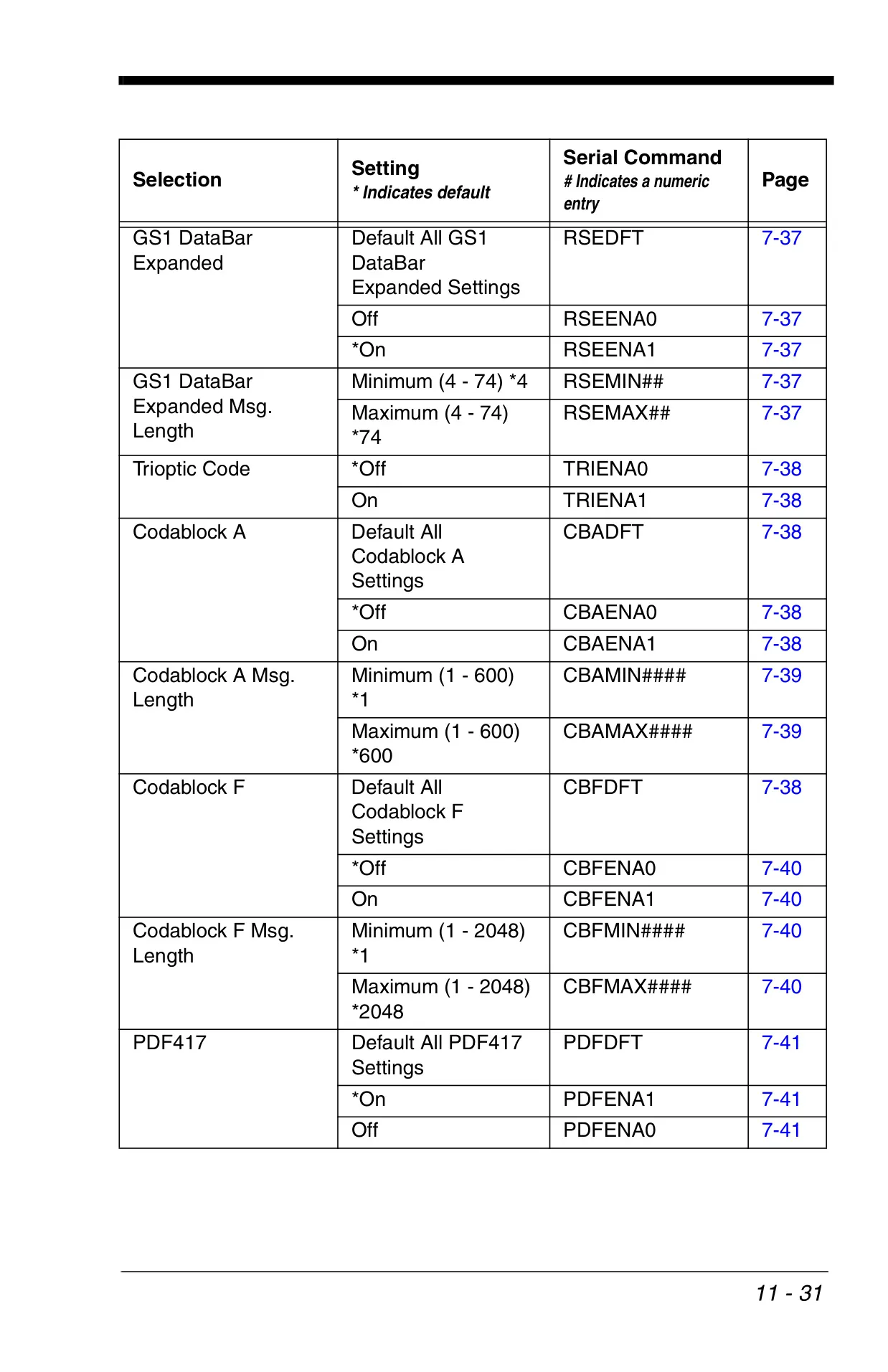
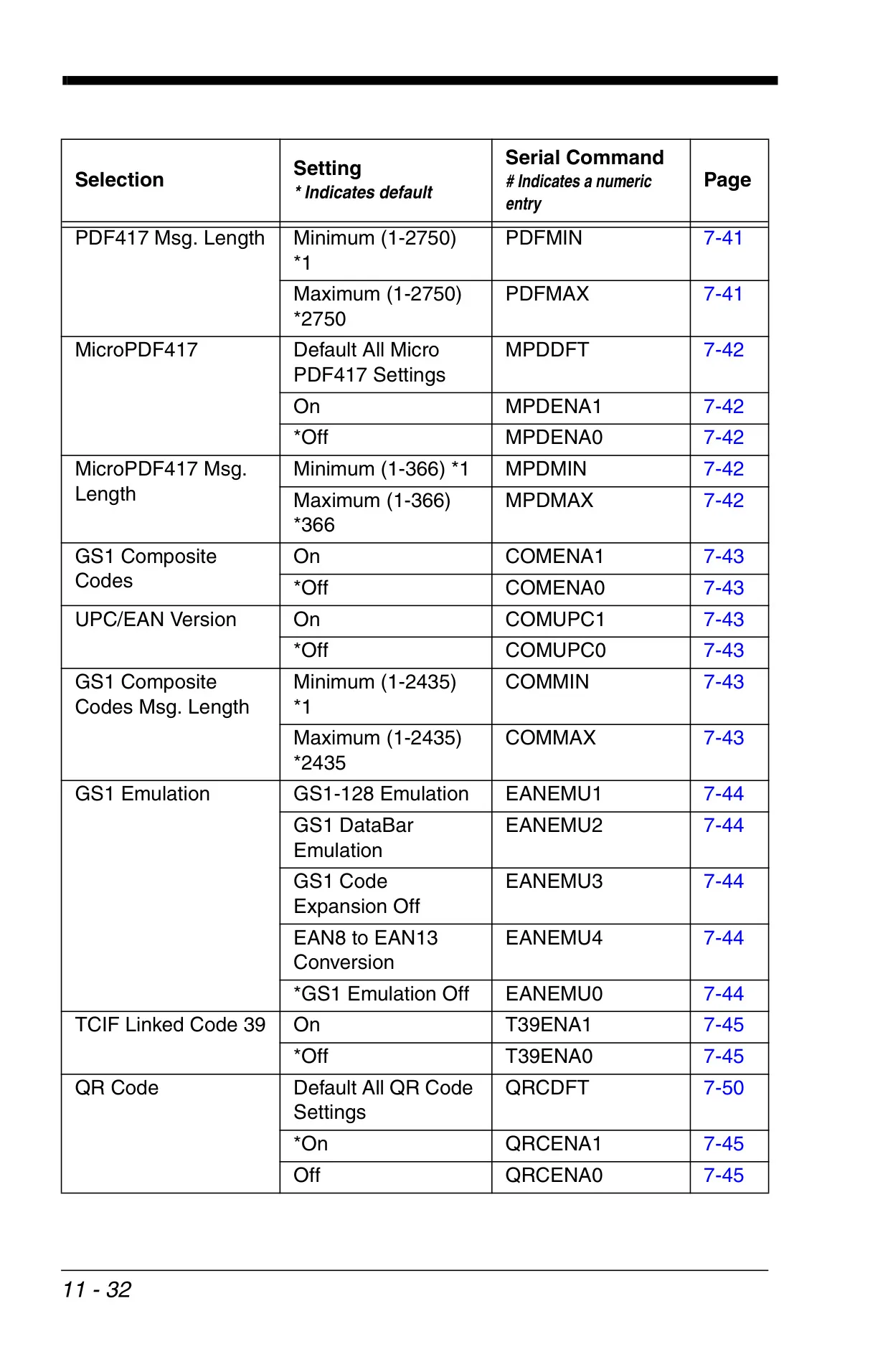
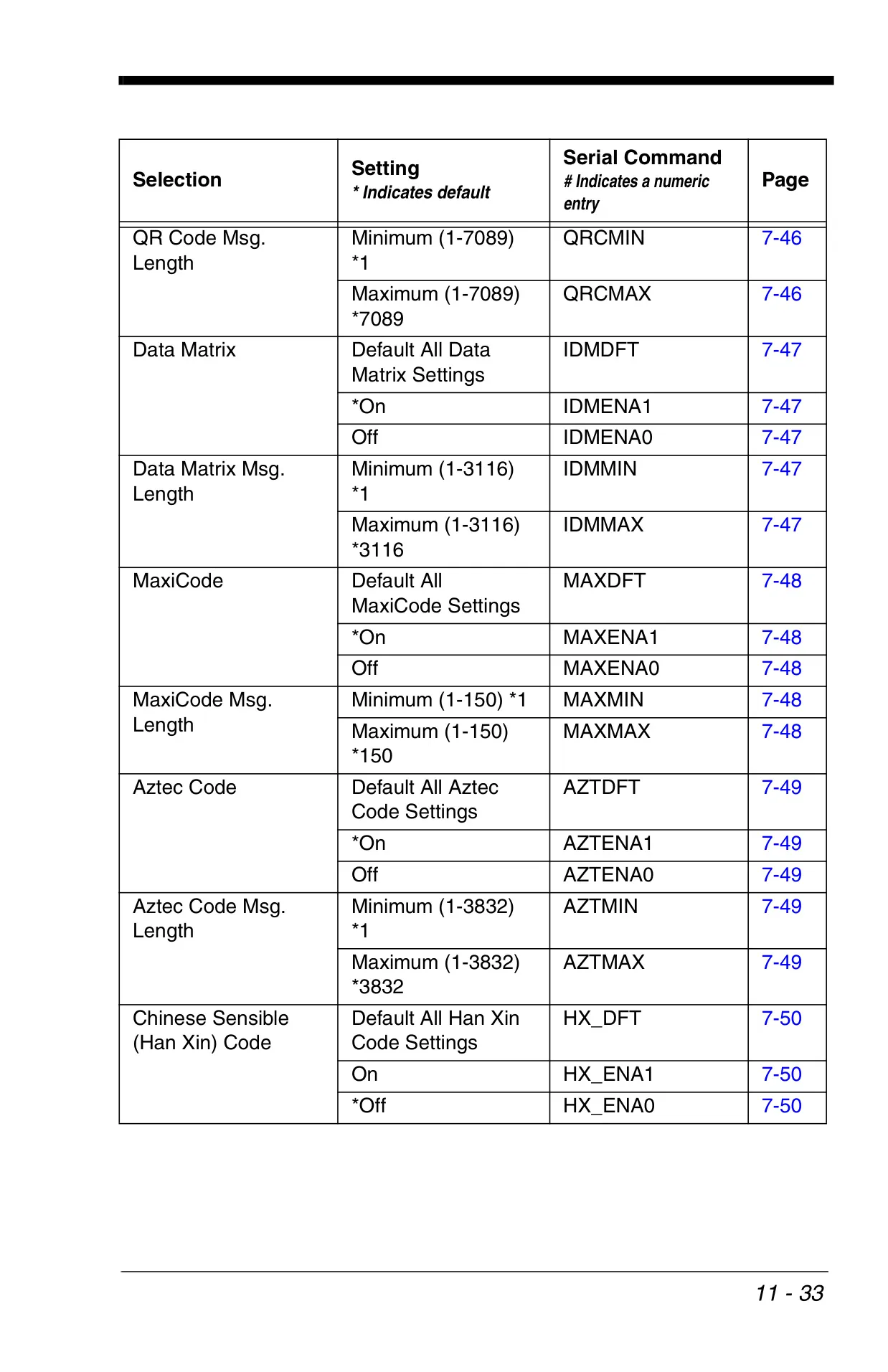
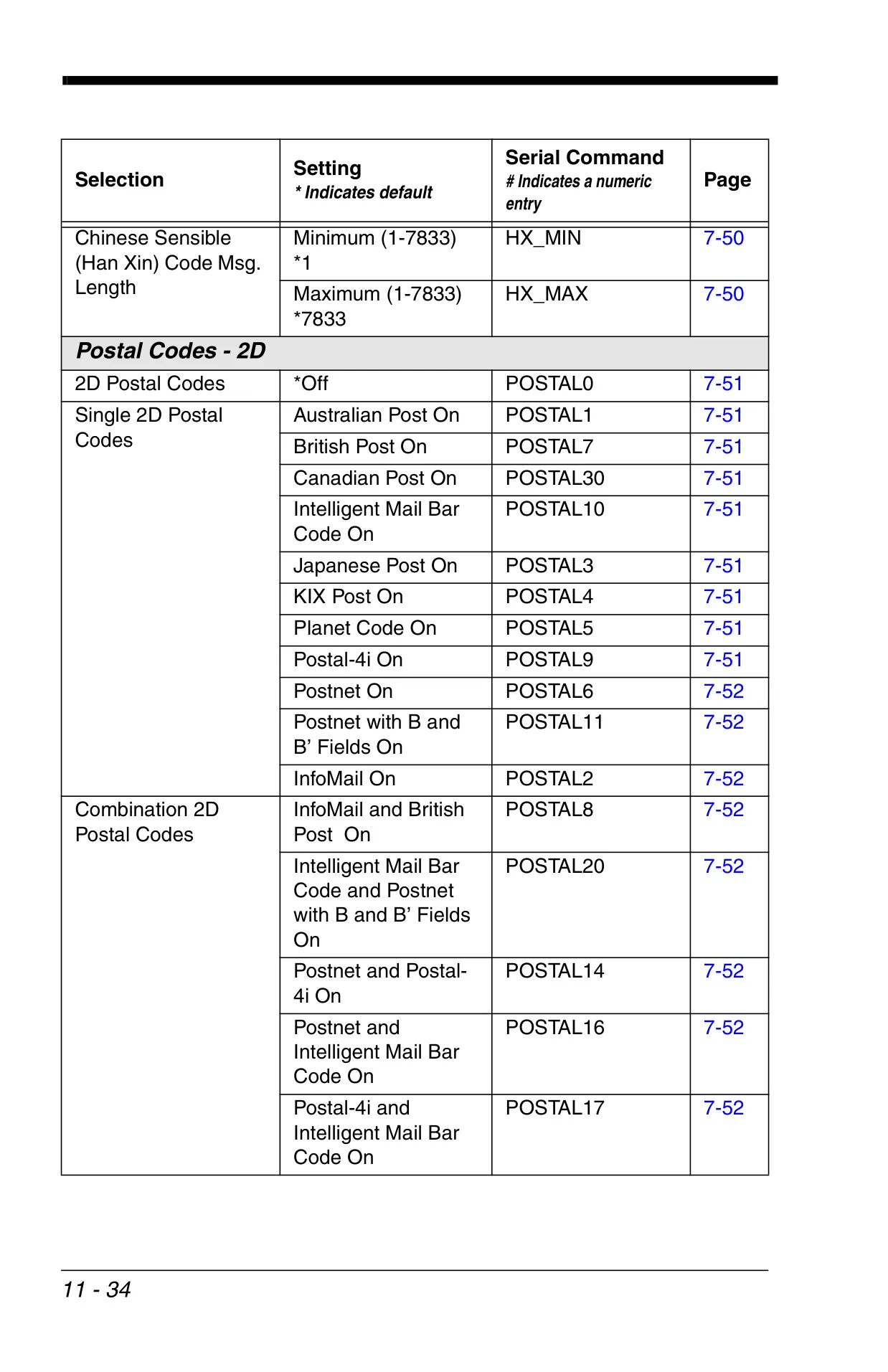
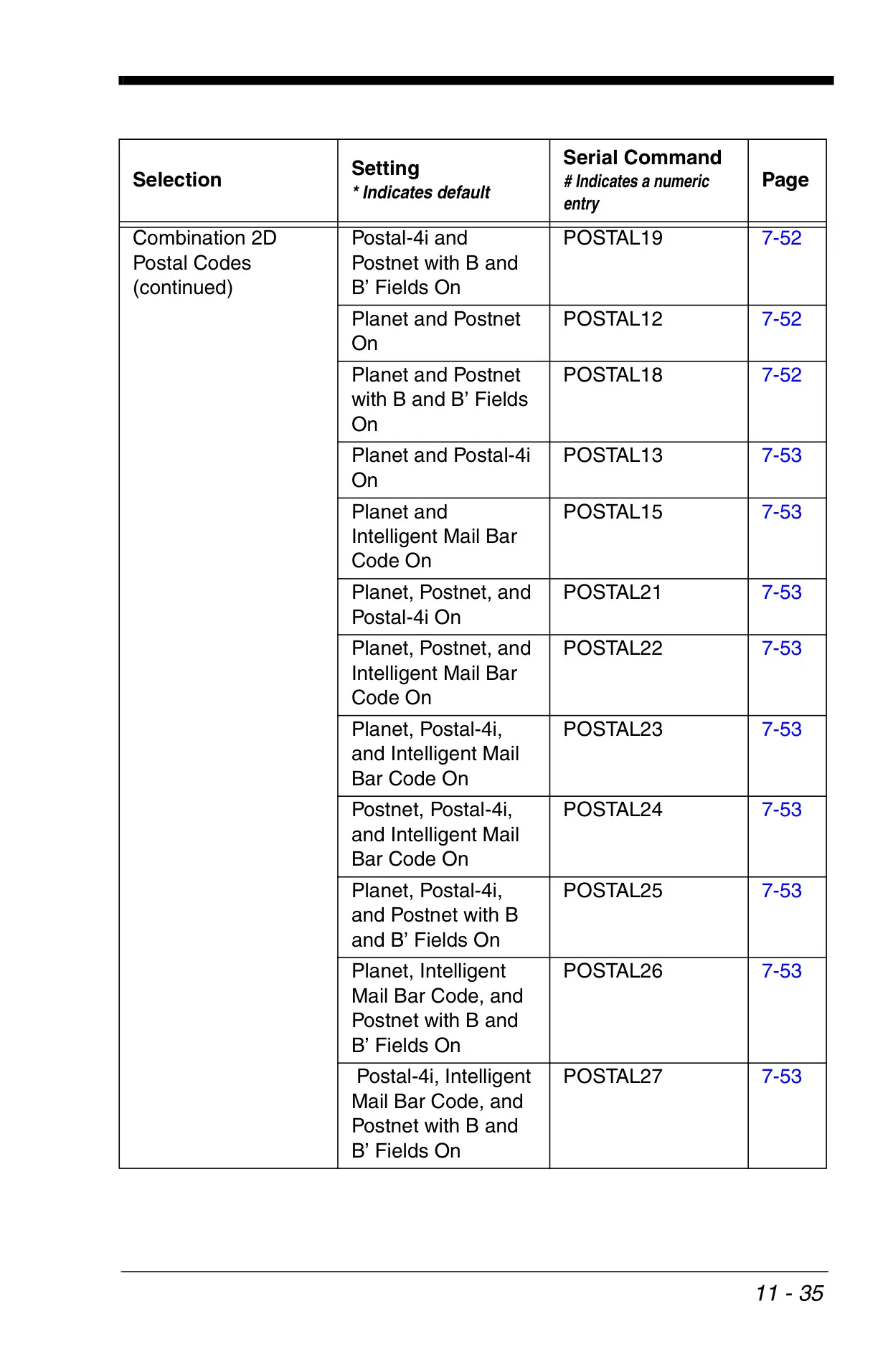
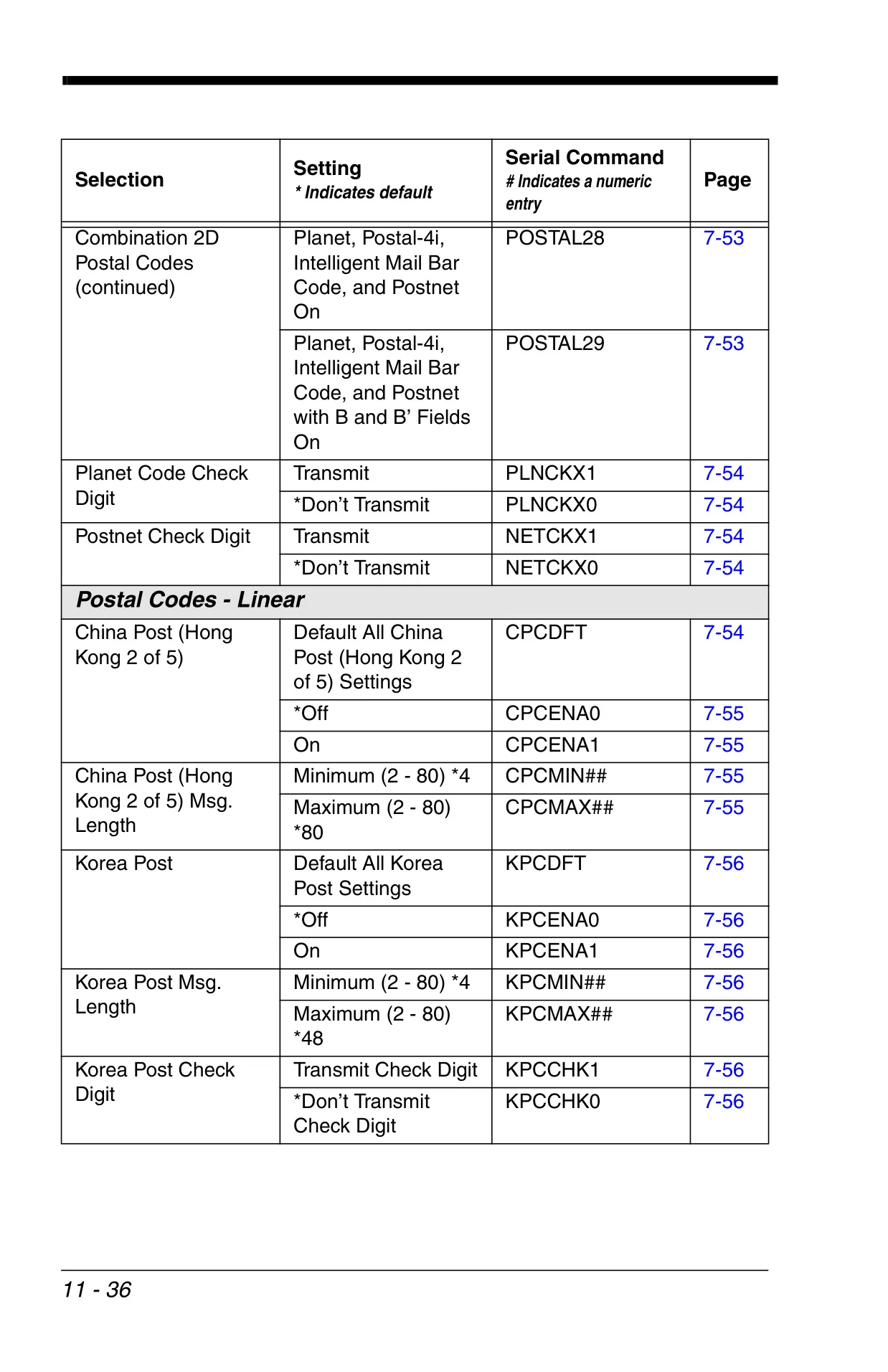











Honeywell Xenon 1900 Instructions
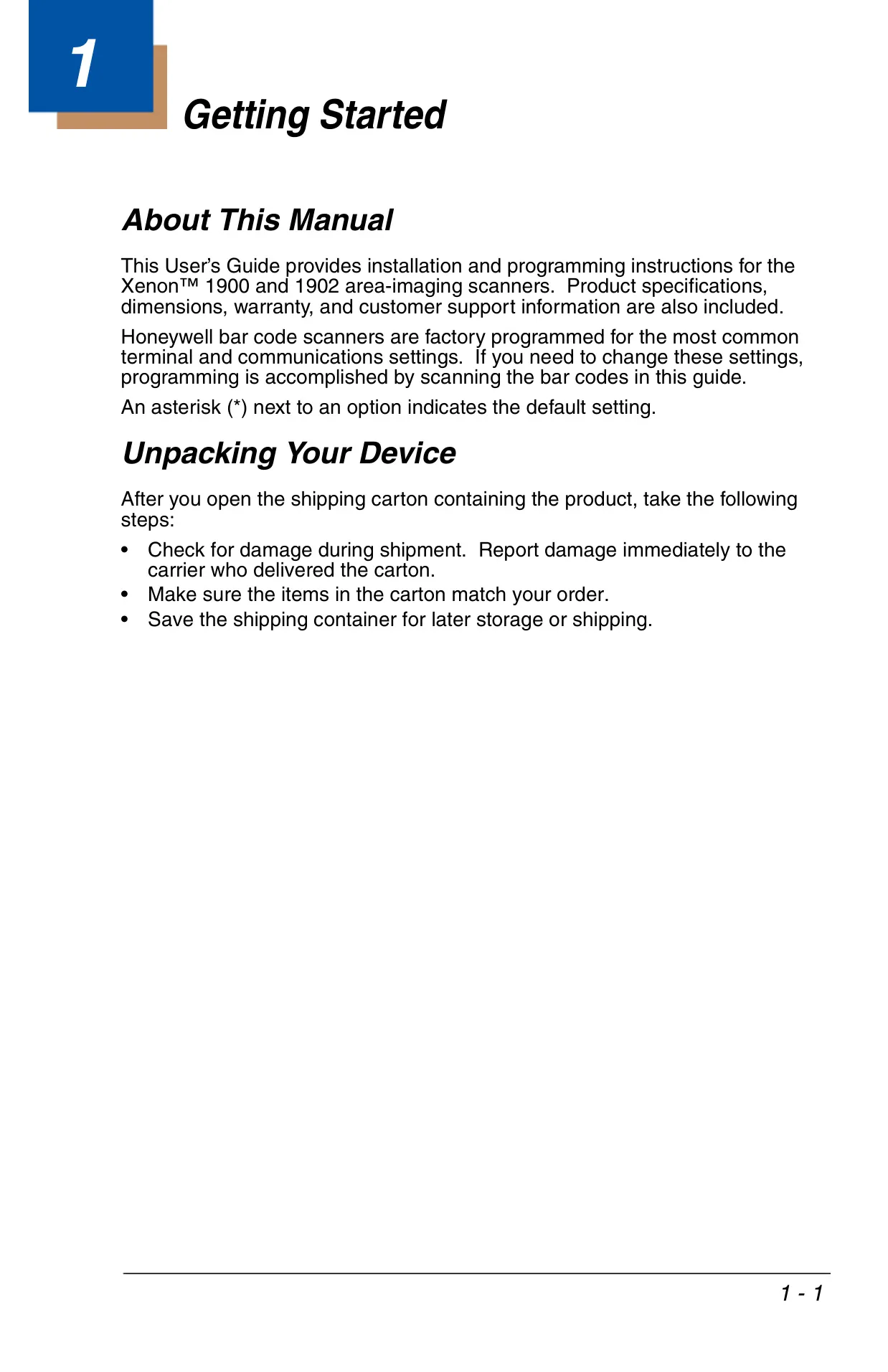
Here we offer the Honeywell Xenon 1900 Barcode Scanner manual completely free and in English. We have cataloged this manual in the Barcode Scanners section on Manualverse, and it has been rated by 1 users with an average rating of 5. If you have any specific questions about Honeywell Xenon 1900 Barcode Scanner, we suggest checking the Frequently Asked Questions (FAQs) section of this manual.
Product Images
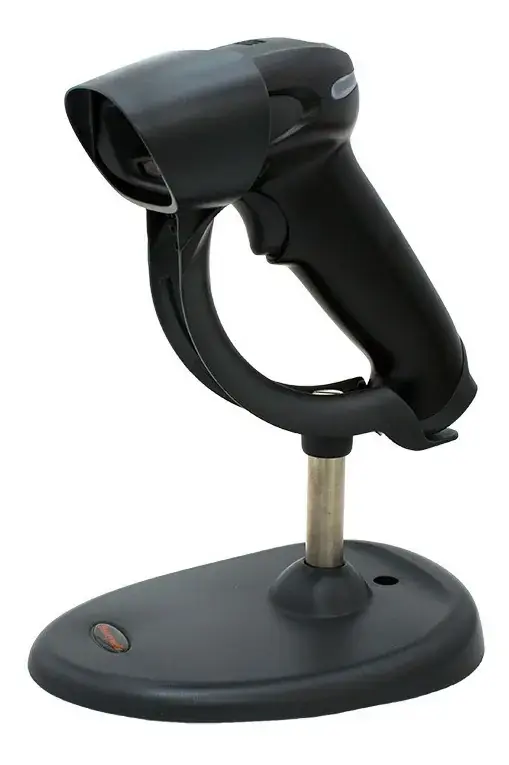
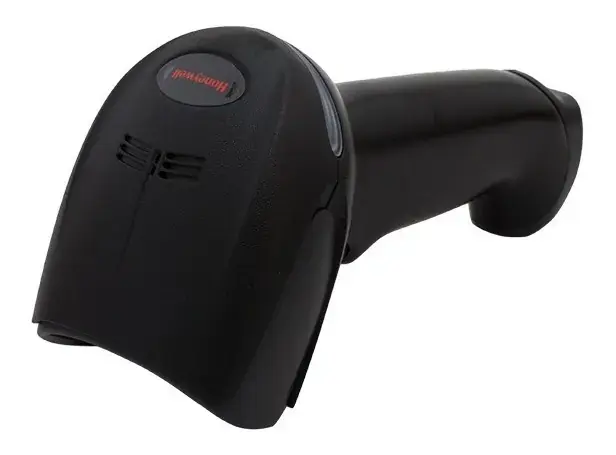
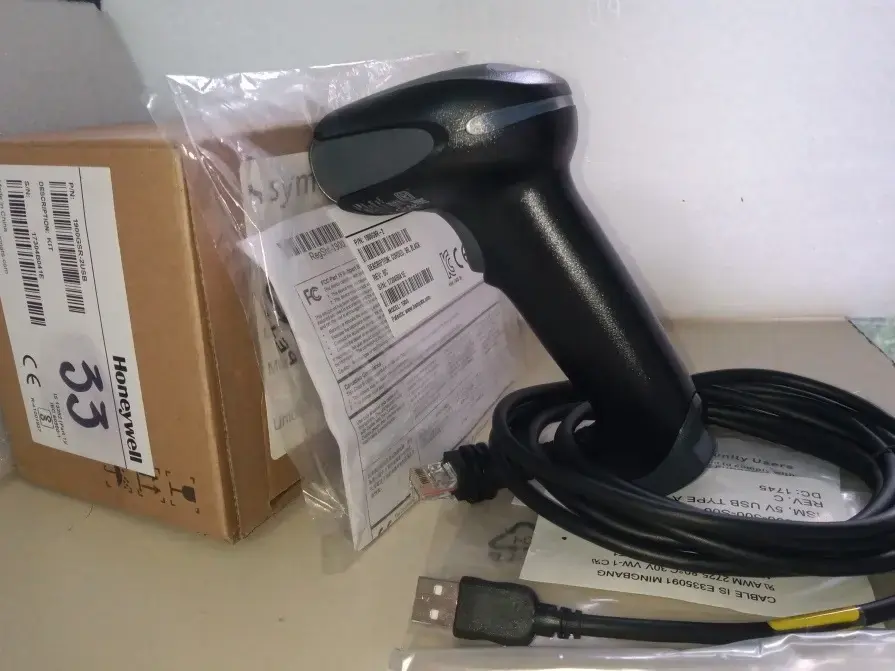
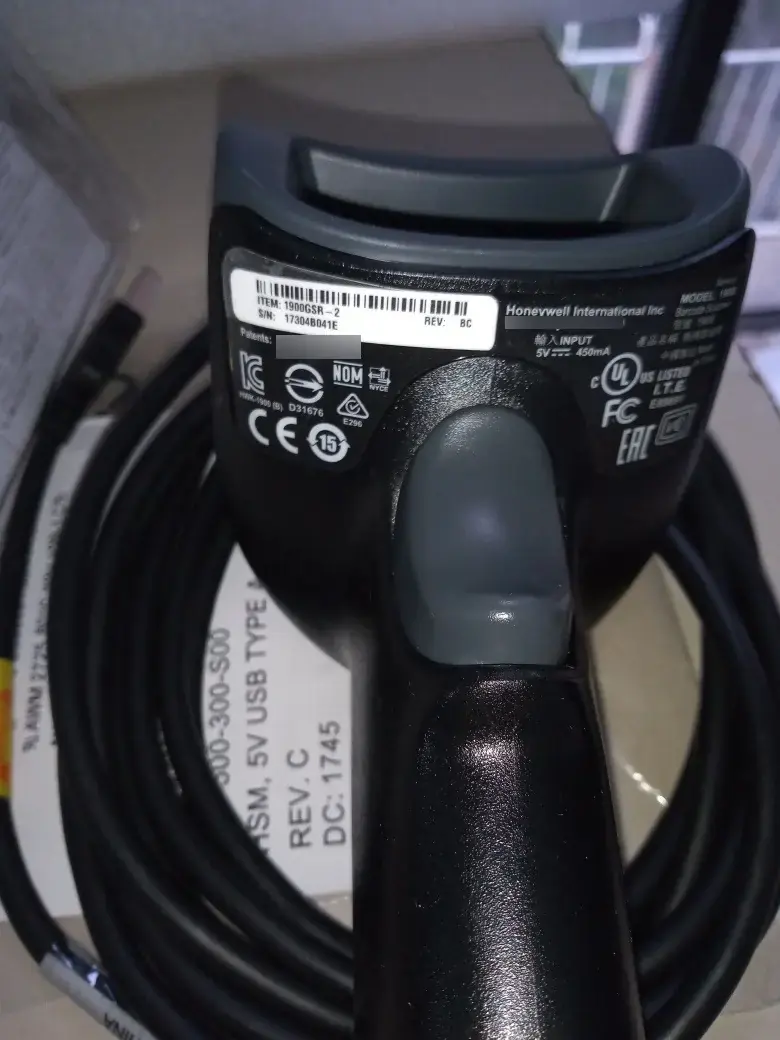
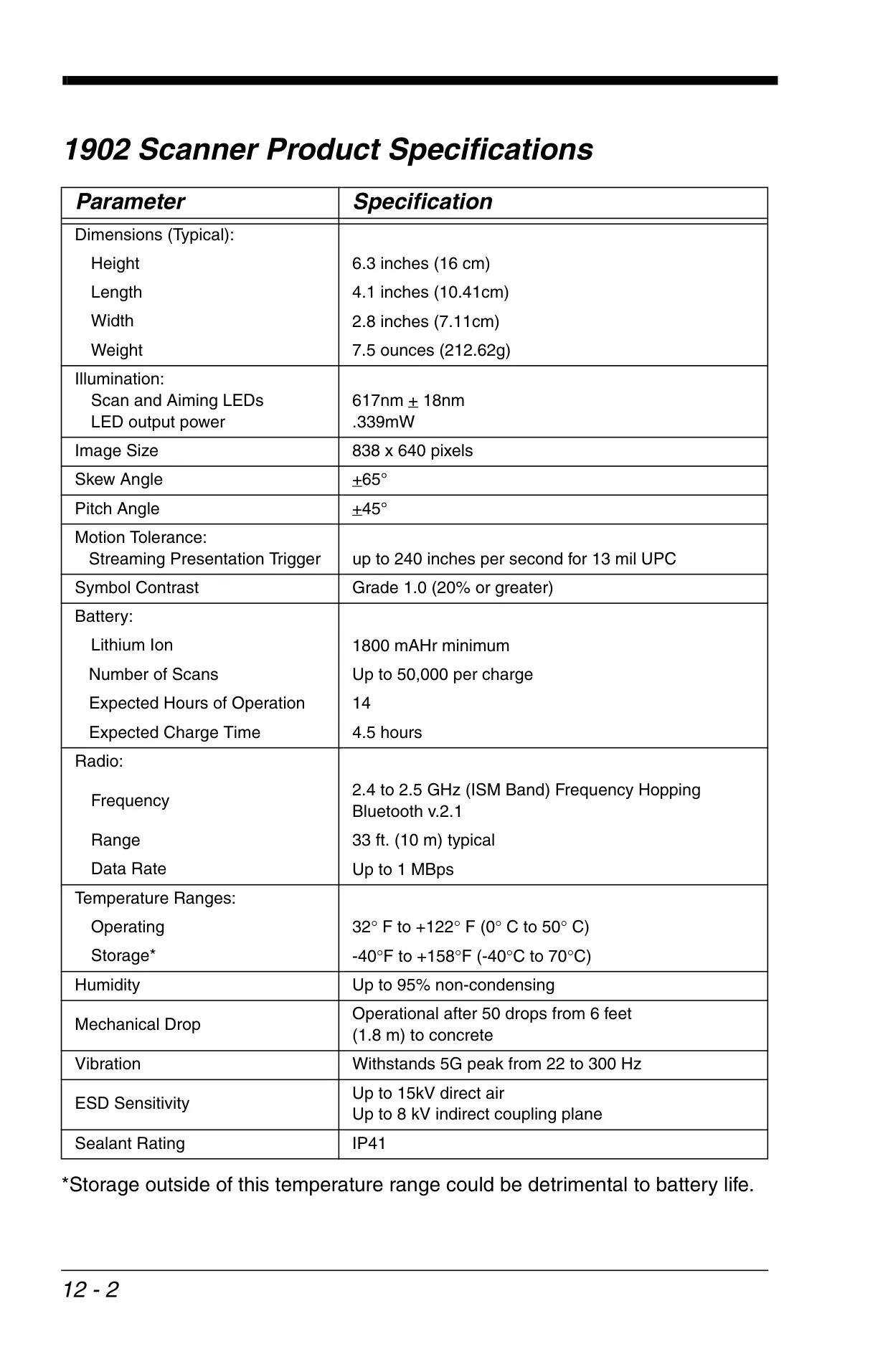
Honeywell Xenon 1900 Barcode Scanner Specifications
| Parameter | Specification |
|---|---|
| Dimensions (Typical): | |
| Height | 6.3 inches (16 cm) |
| Length | 4.1 inches (10.41 cm) |
| Width | 2.8 inches (7.11 cm) |
| Weight | 5.2 ounces (147.42 g) |
| Illumination: | |
| Scan and Aiming LEDs | 617nm +/- 18nm |
| LED output power | .339mW |
| Image Size | 838 x 640 pixels |
| Skew Angle | +/- 65° |
| Pitch Angle | +/- 45° |
| Motion Tolerance: Streaming Presentation Trigger | up to 240 inches per second for 13 mil UPC |
| Symbol Contrast | Grade 1.0 (20% or greater) |
| Voltage Requirements | 4 - 5.5 VDC at input connector |
| Current Draw @5VDC: Scanning | 450mA, 2.3W |
| Current Draw @5VDC: Standby | 90mA, .45W |
| Power Supply Noise Rejection | Maximum 100mV peak to peak, 10 to 100 kHz |
| Temperature Ranges: | |
| Operating | +32°F to +122°F (0°C to 50°C) |
| Storage | -40°F to +158°F (-40°C to 70°C) |
| Humidity | 0 to 95% non-condensing |
| Mechanical Drop | Operational after 50 drops from 6 feet (1.83m) to concrete at 23°C |
| Vibration | Withstands 5G peak from 22 to 300 Hz |
| ESD Tolerance | Up to 15kV direct air, Up to 8 kV indirect coupling plane |
Honeywell Xenon 1900 Details
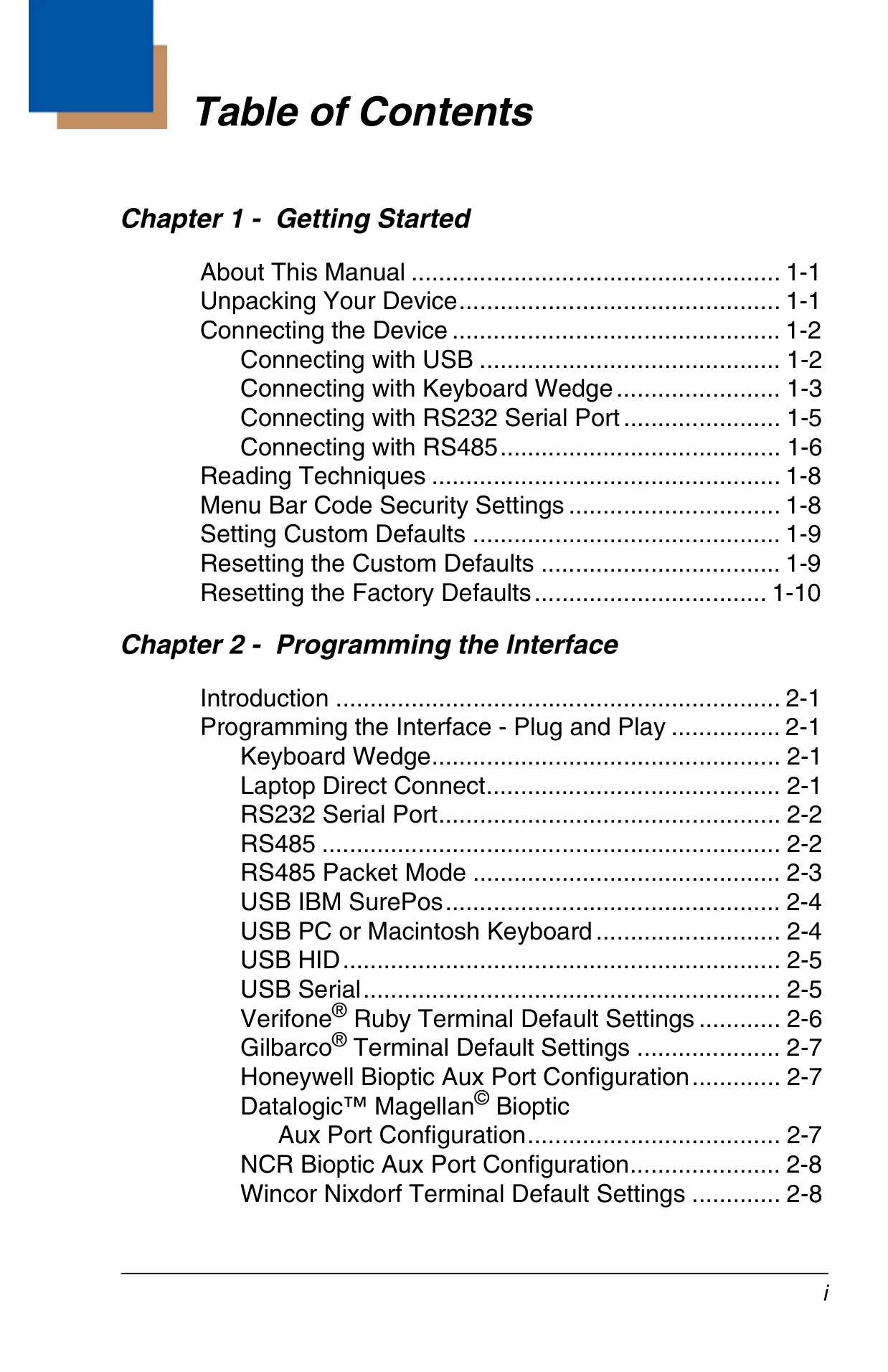
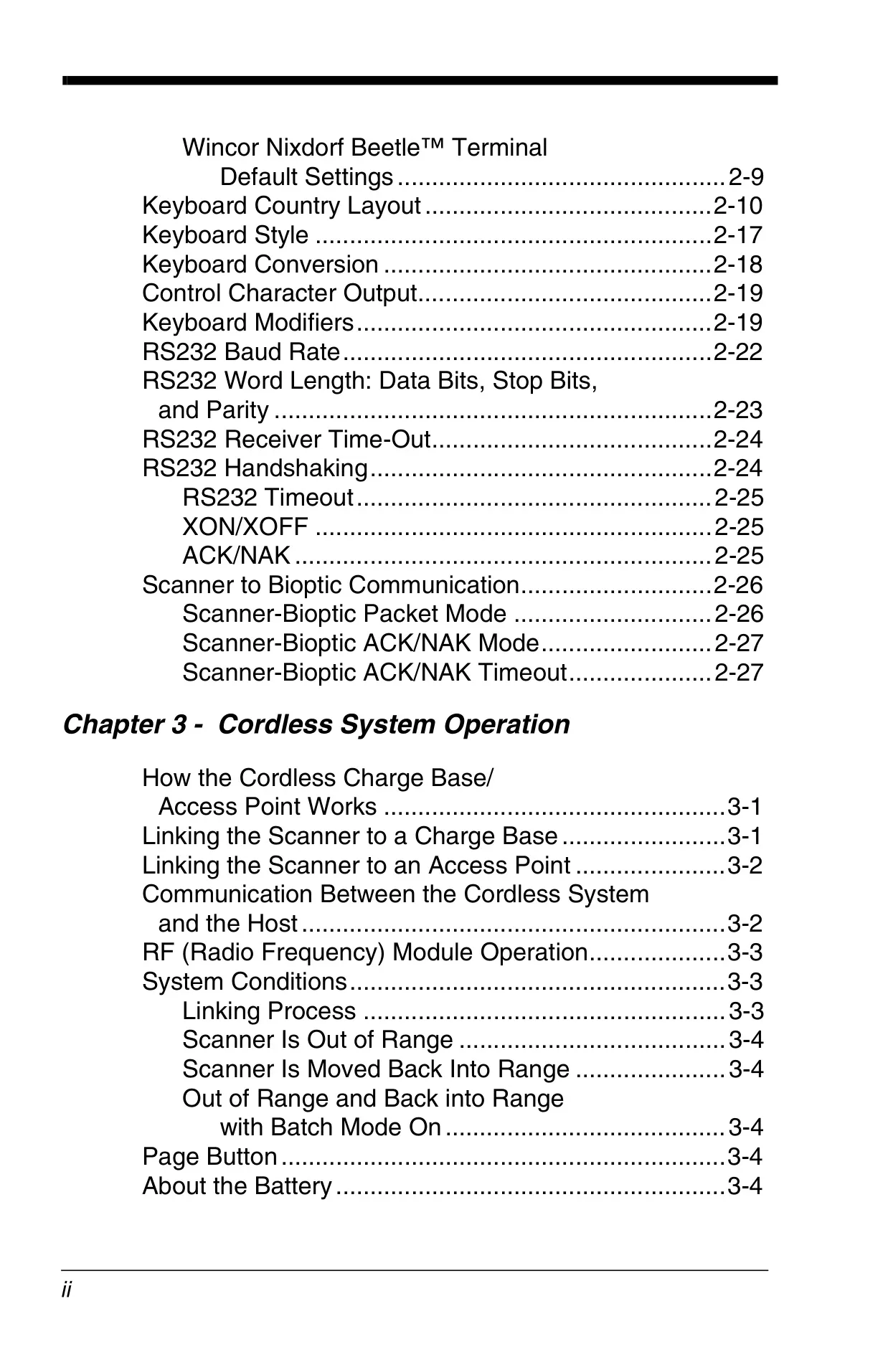
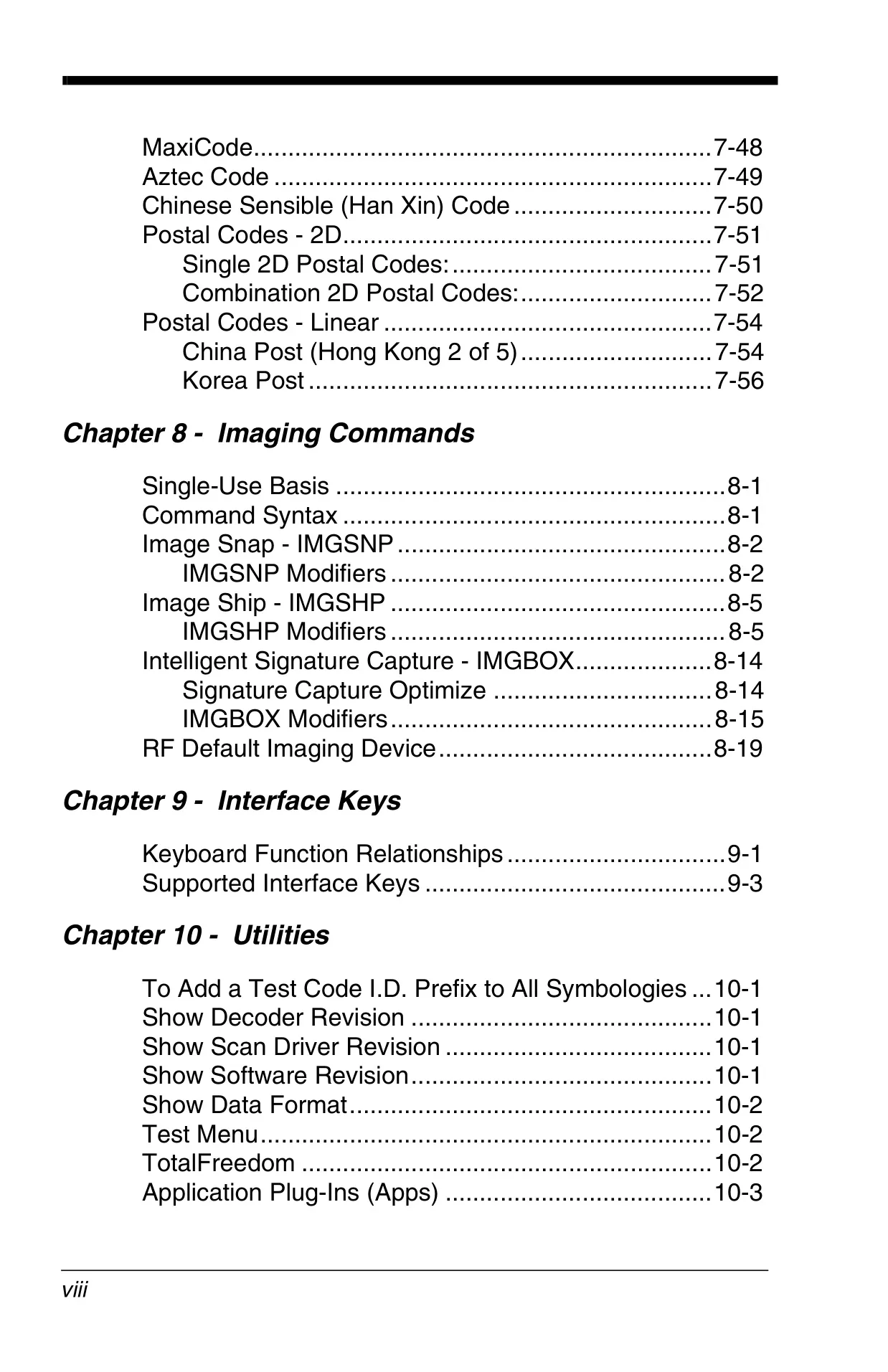
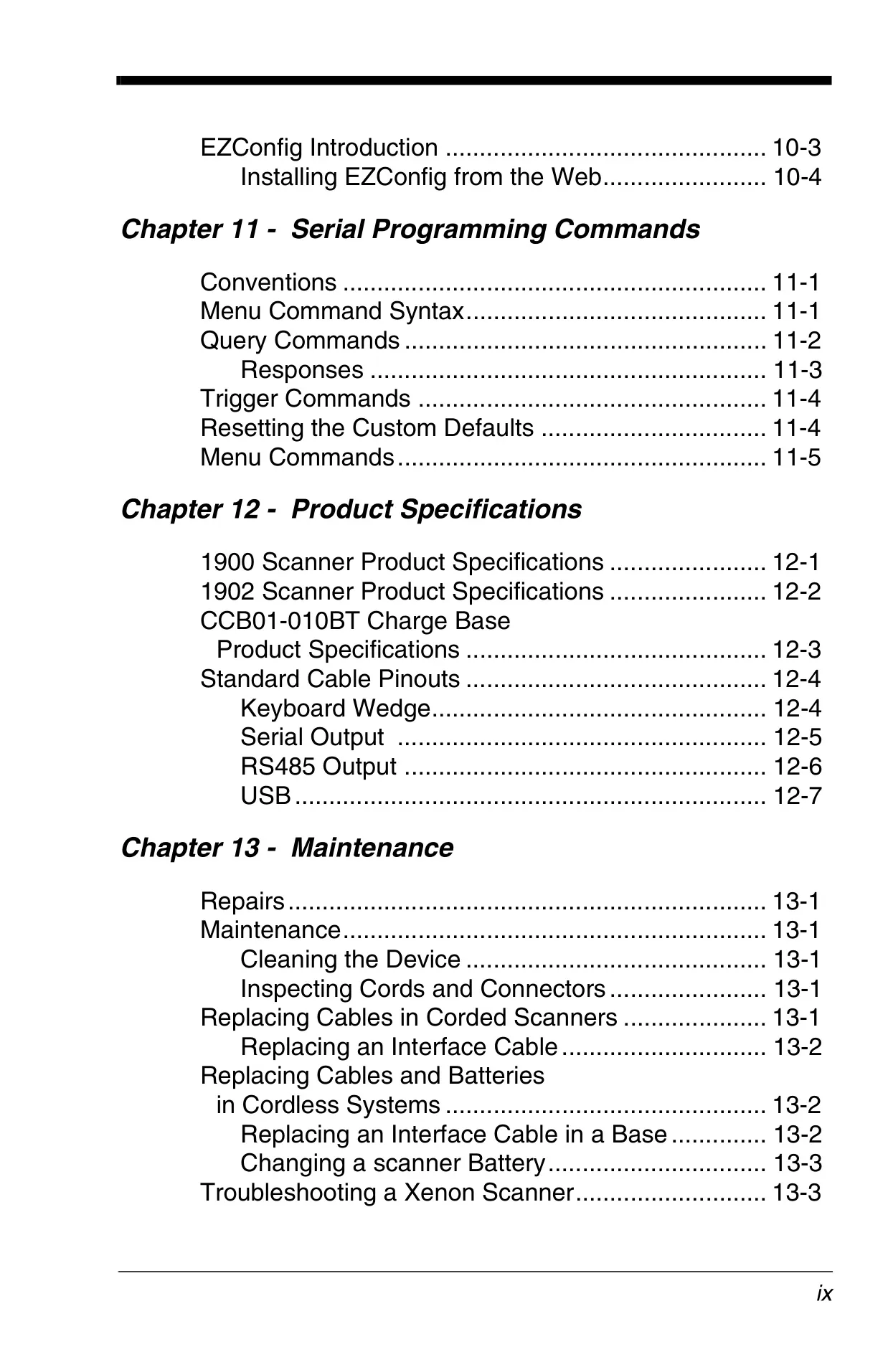
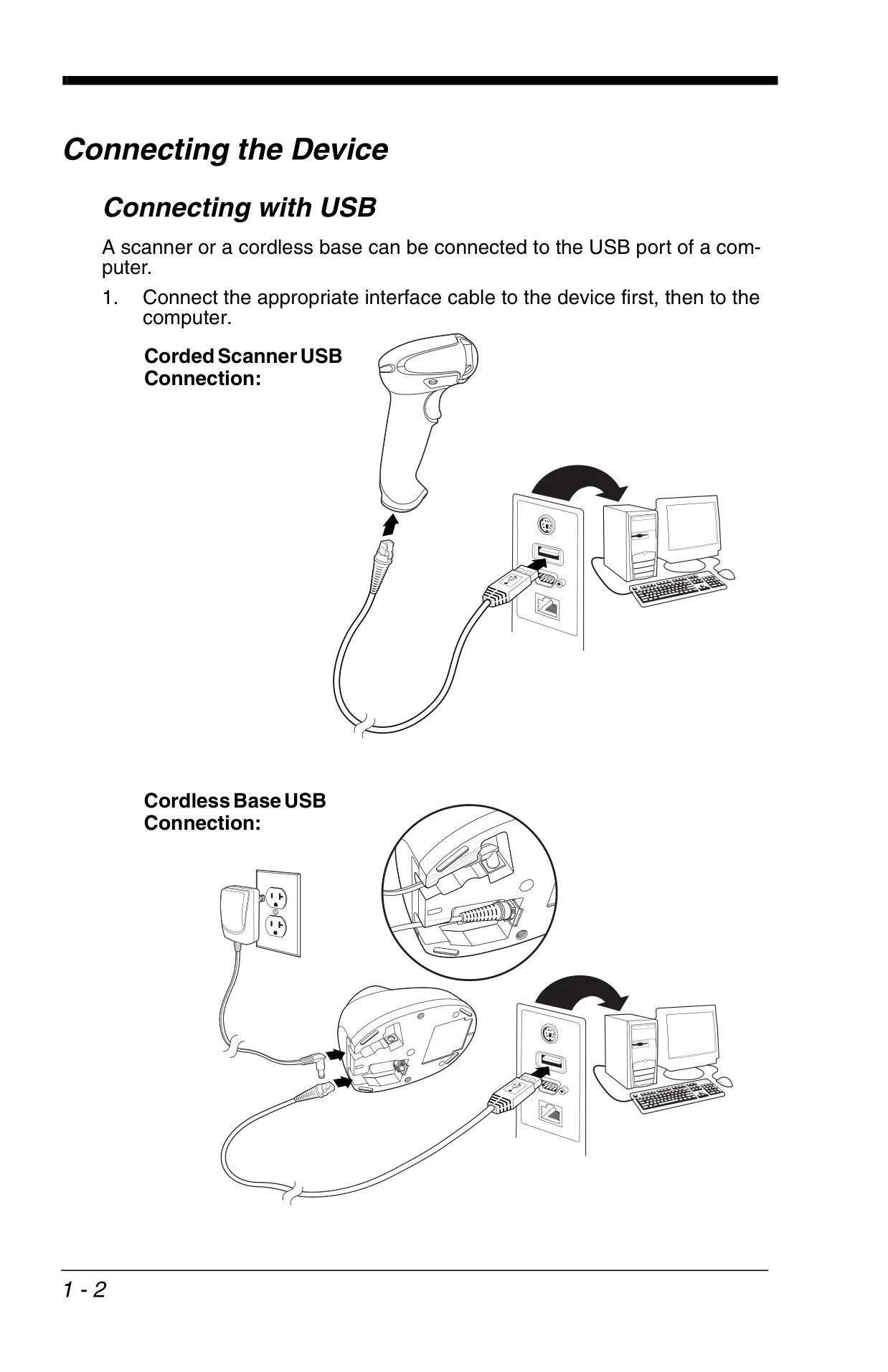
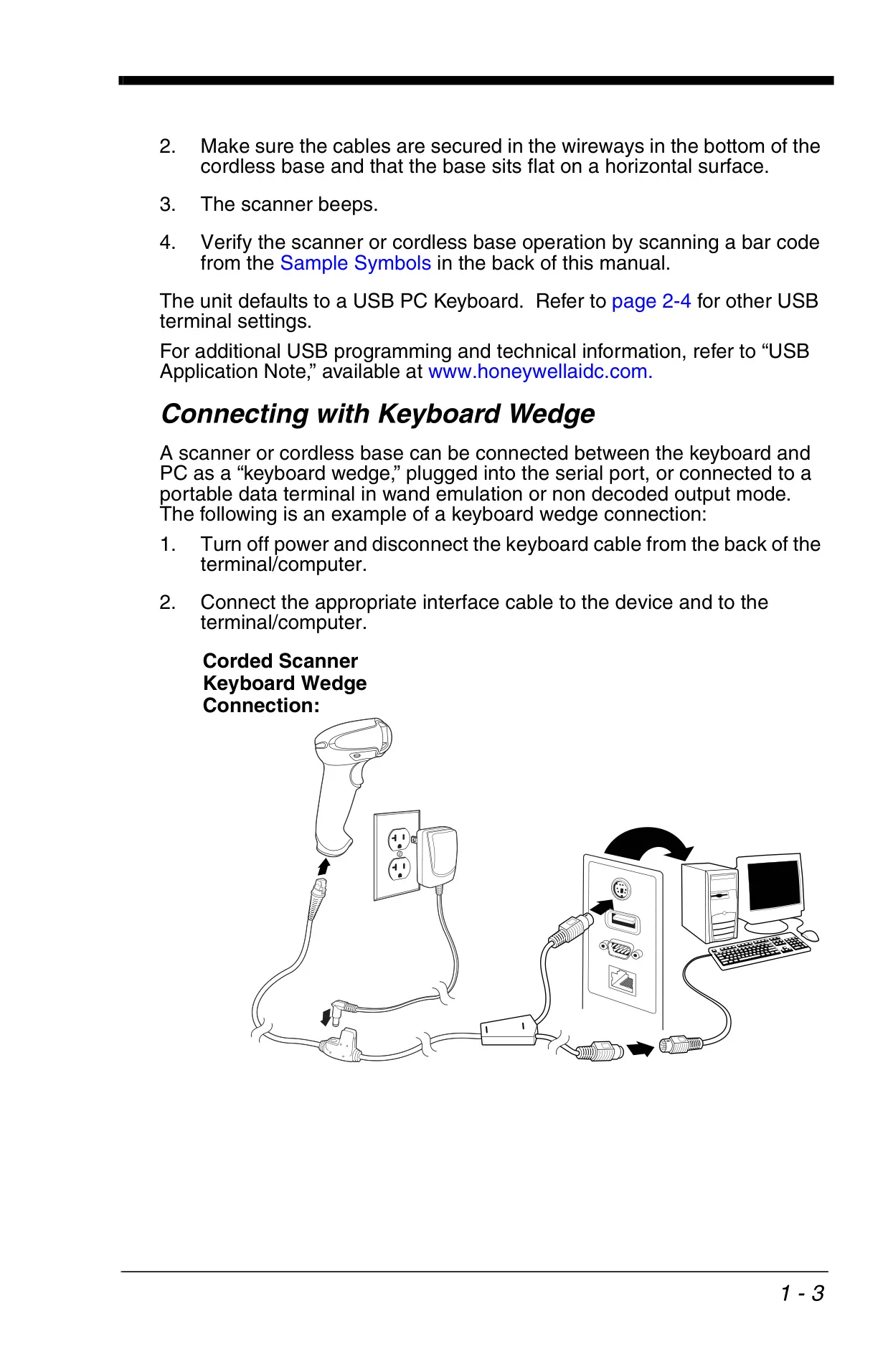
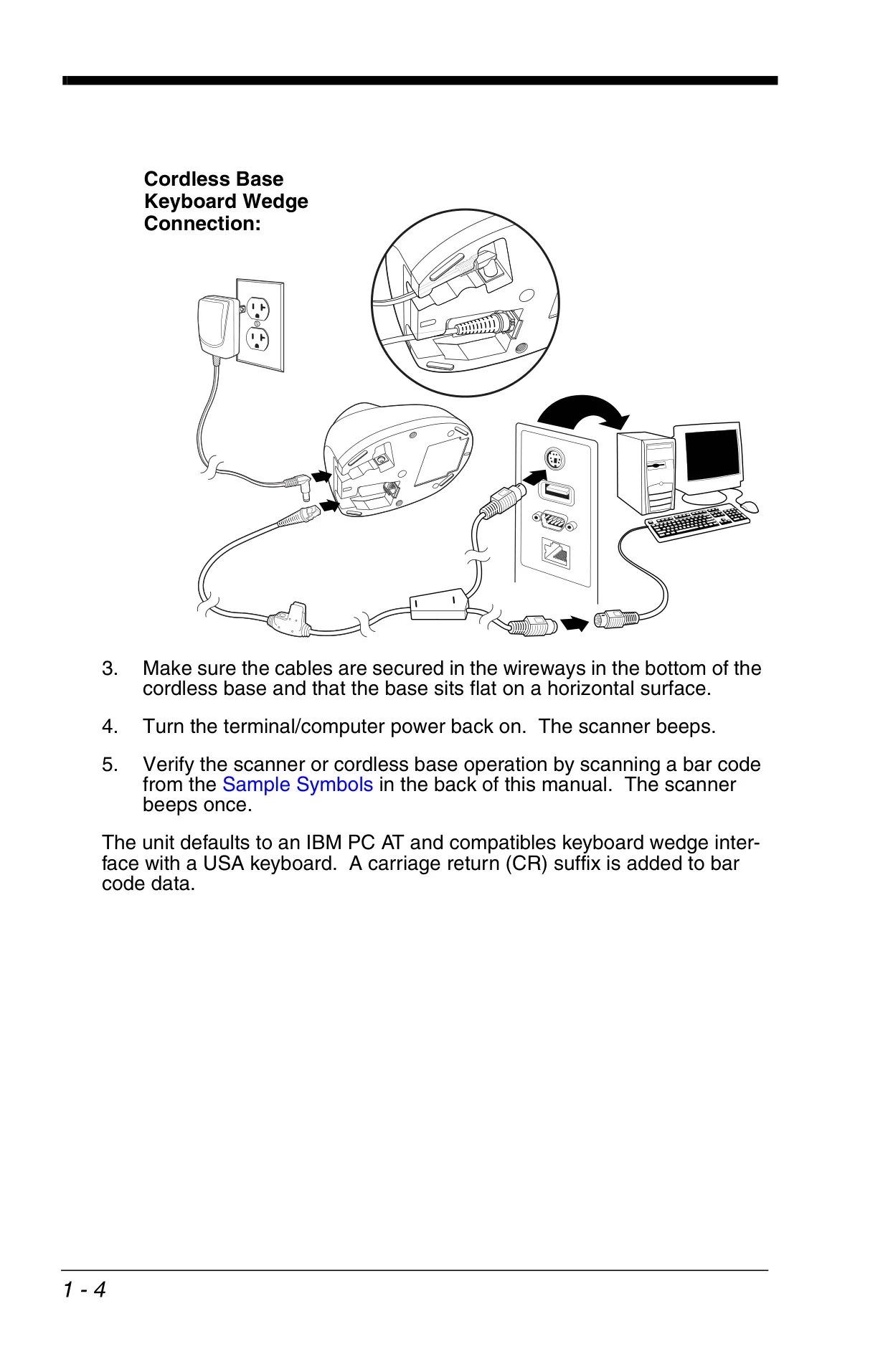
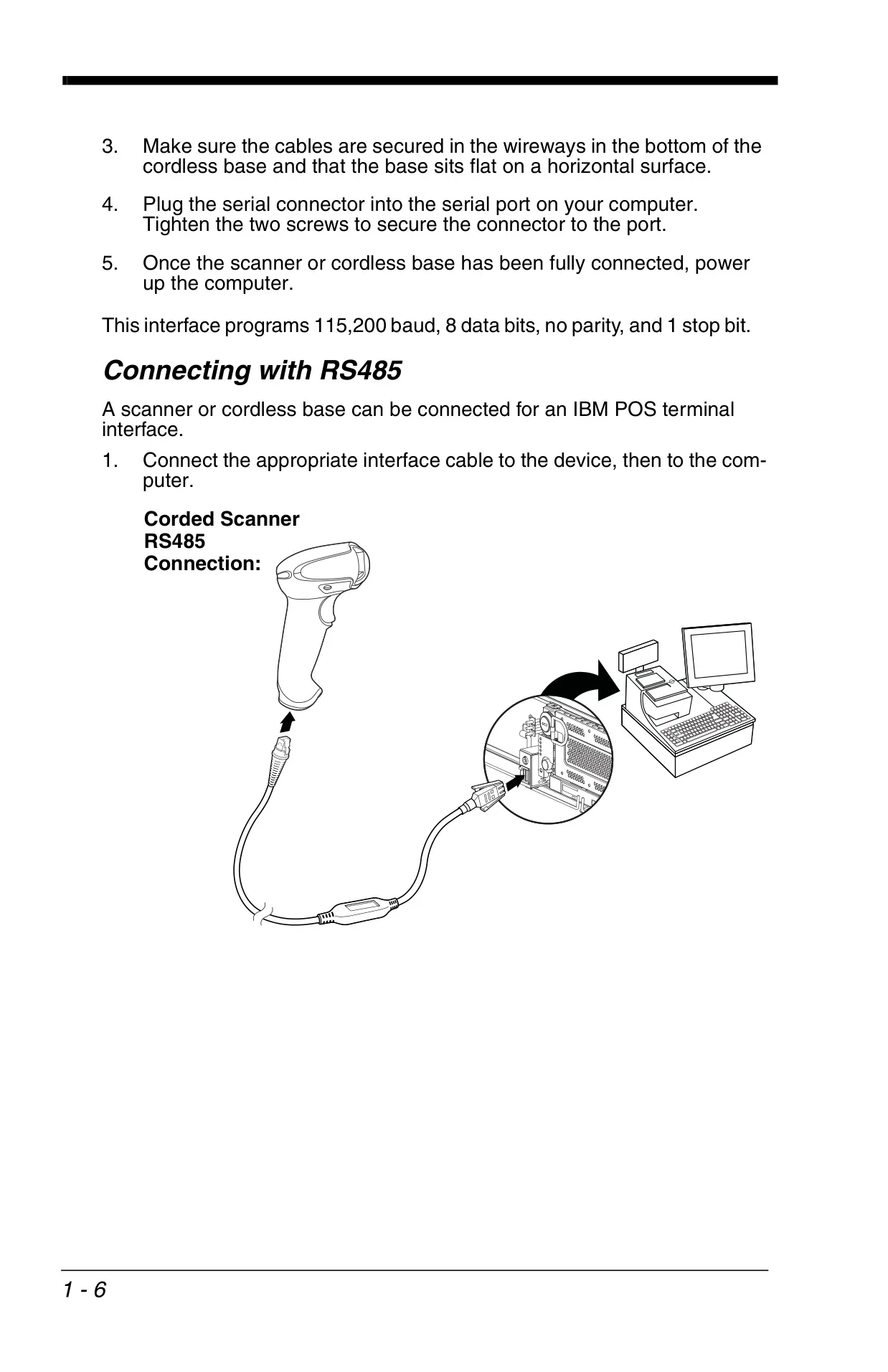
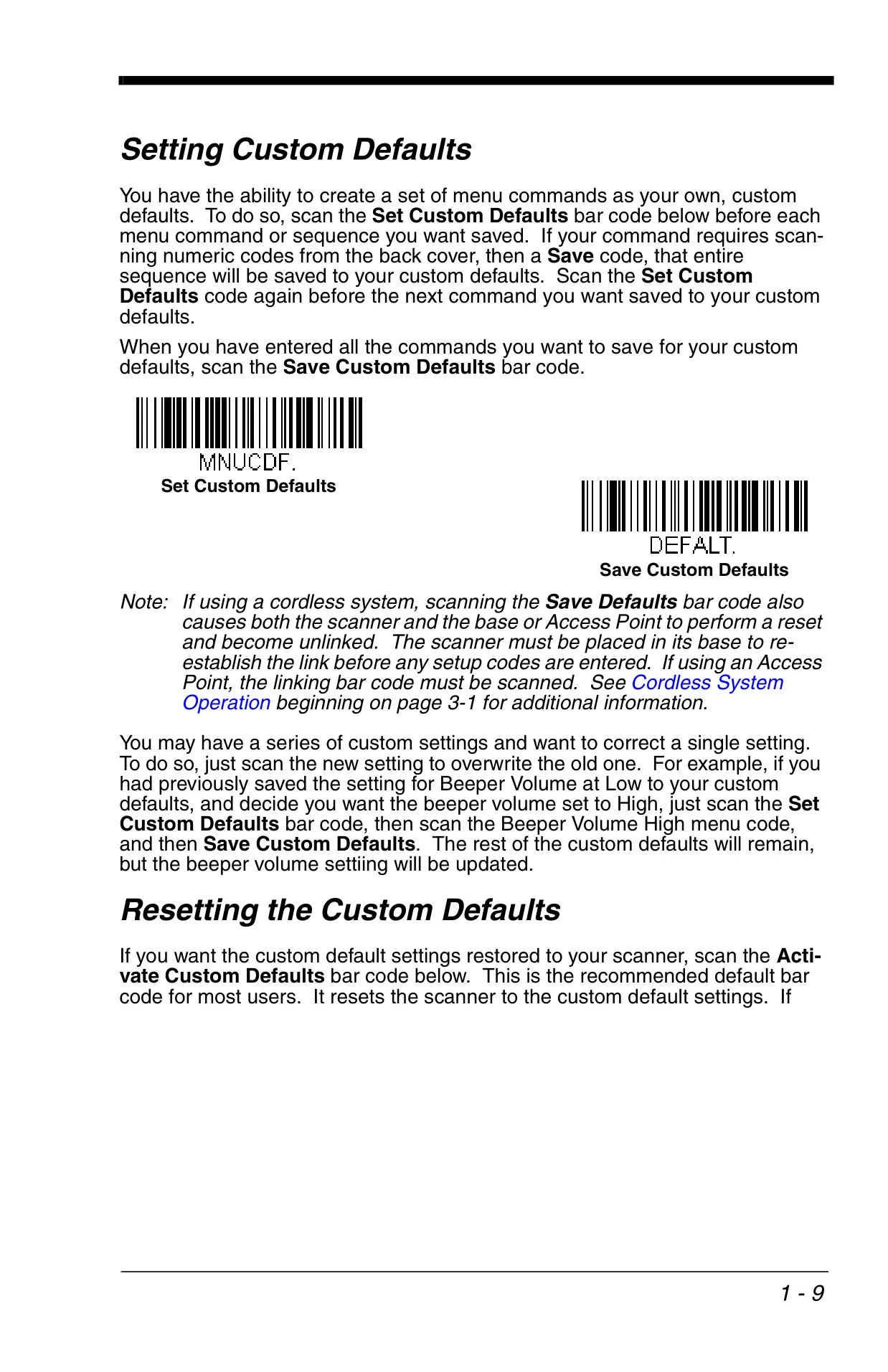
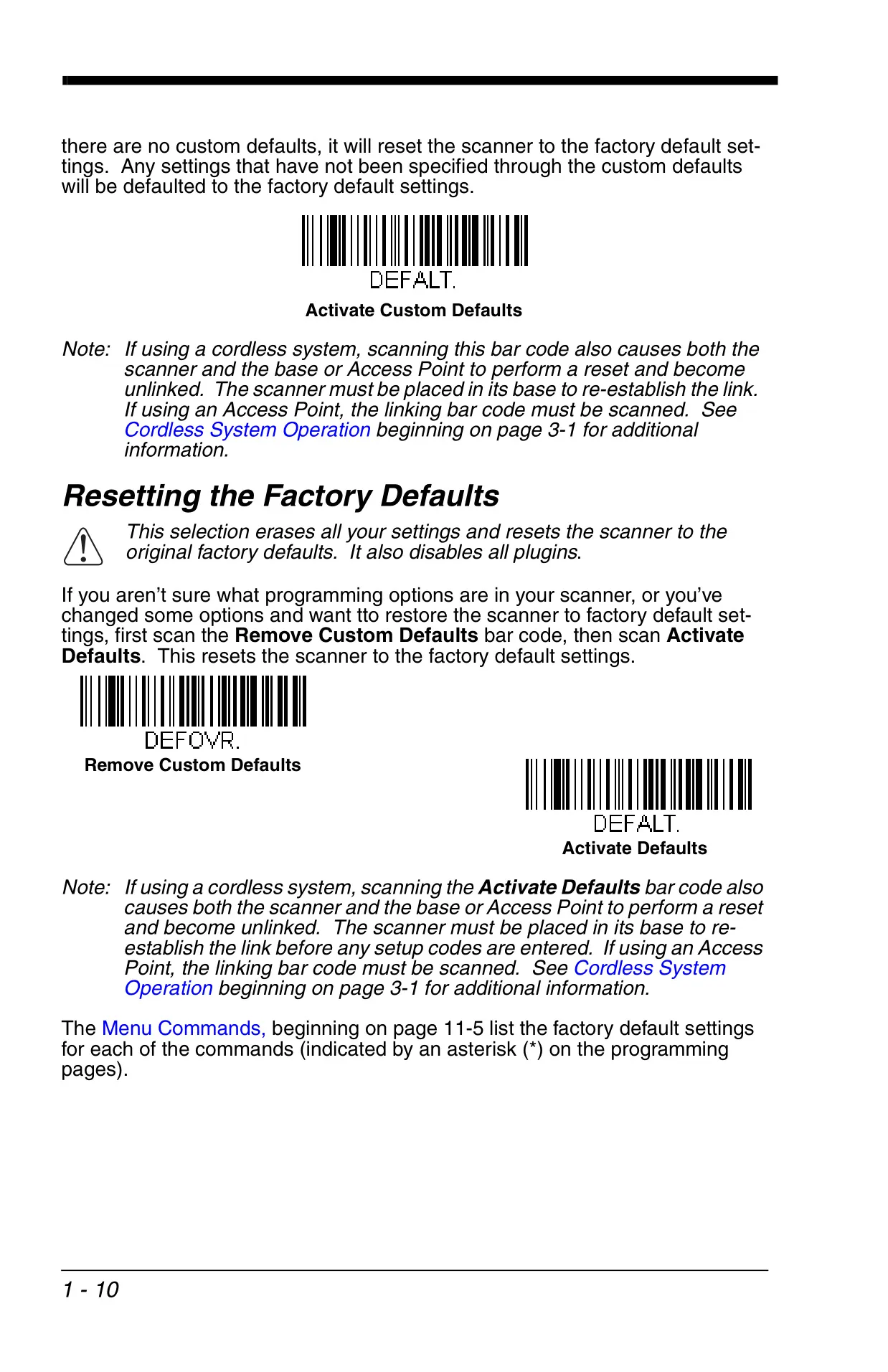
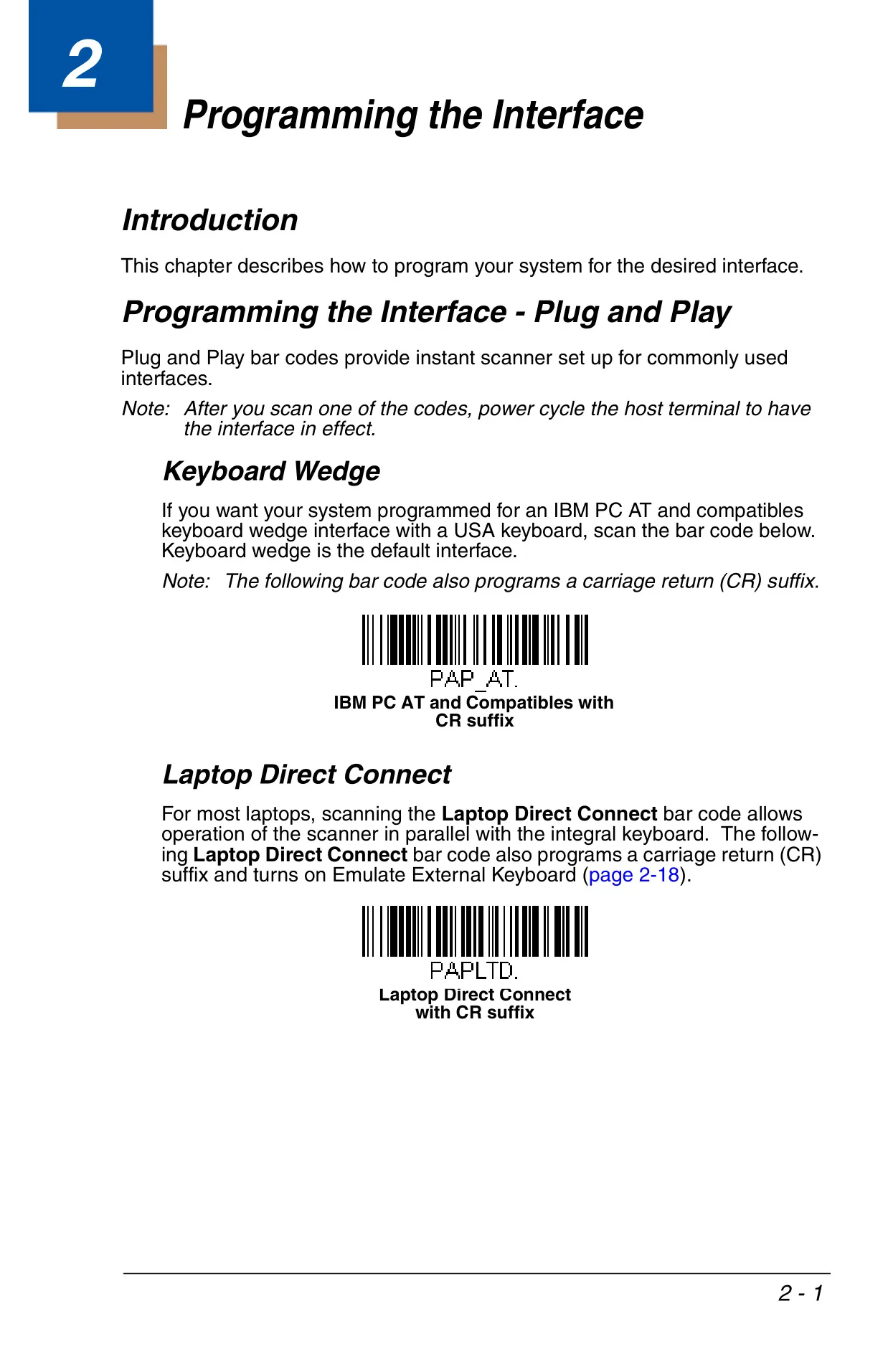
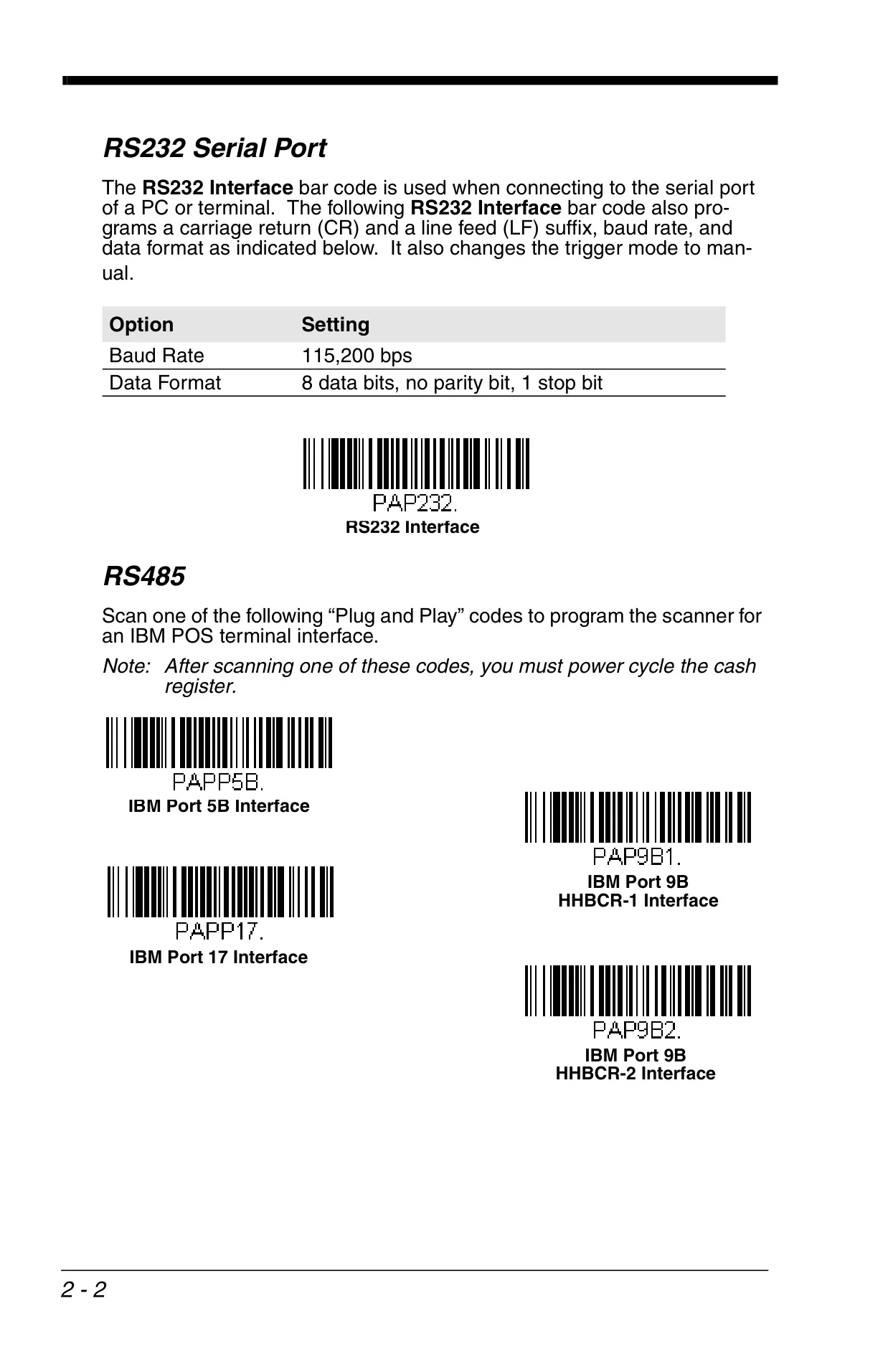
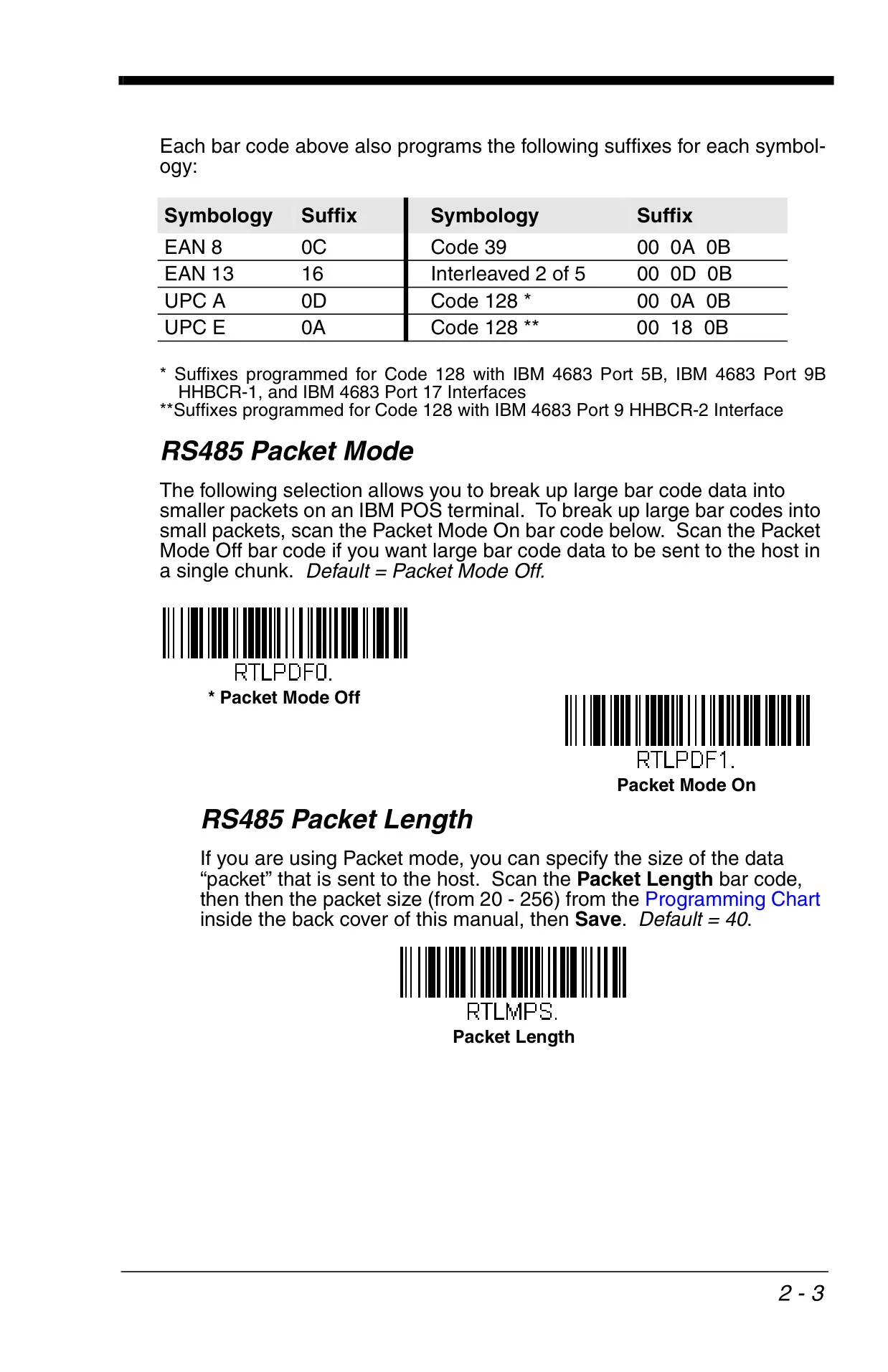
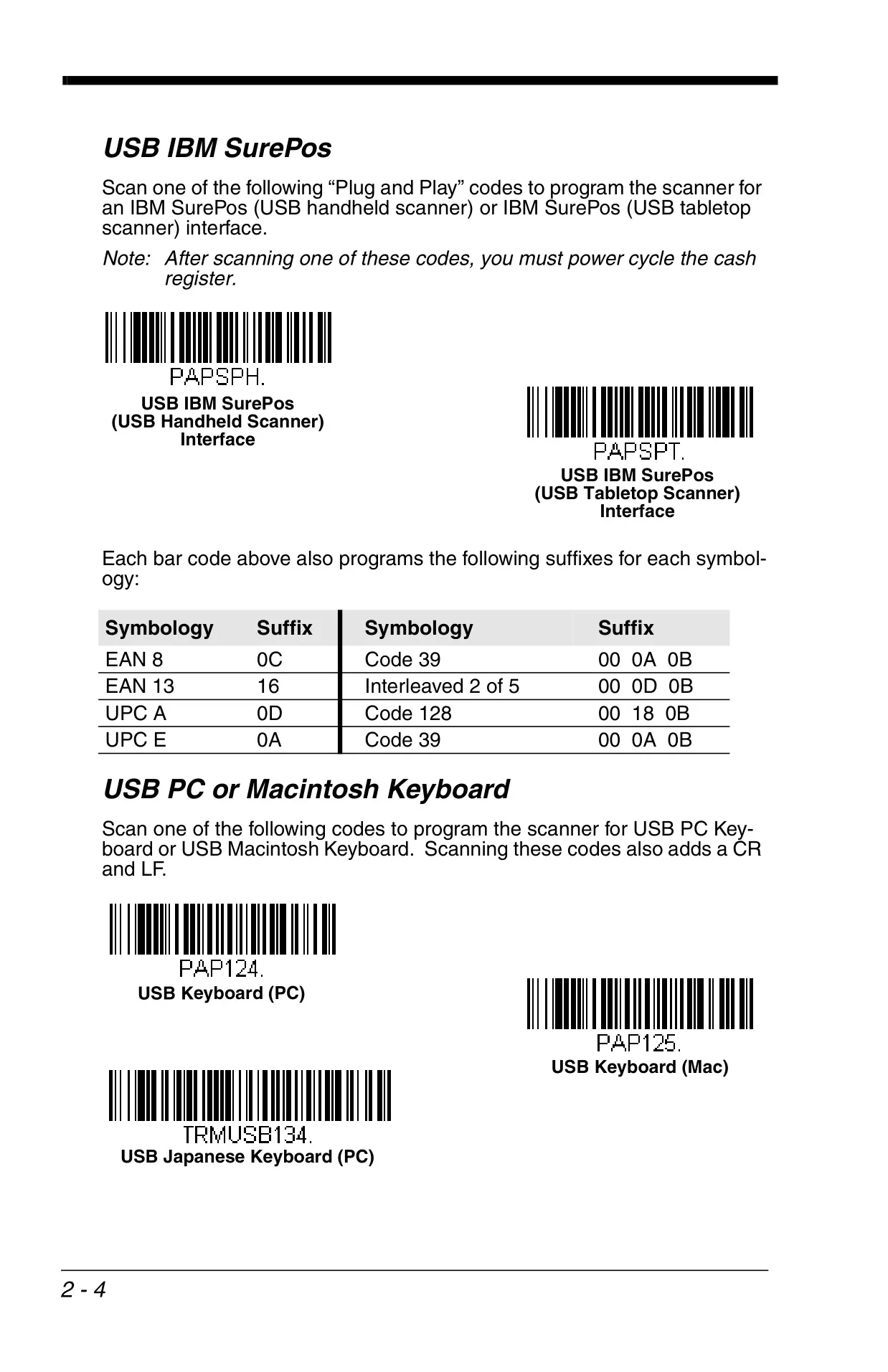
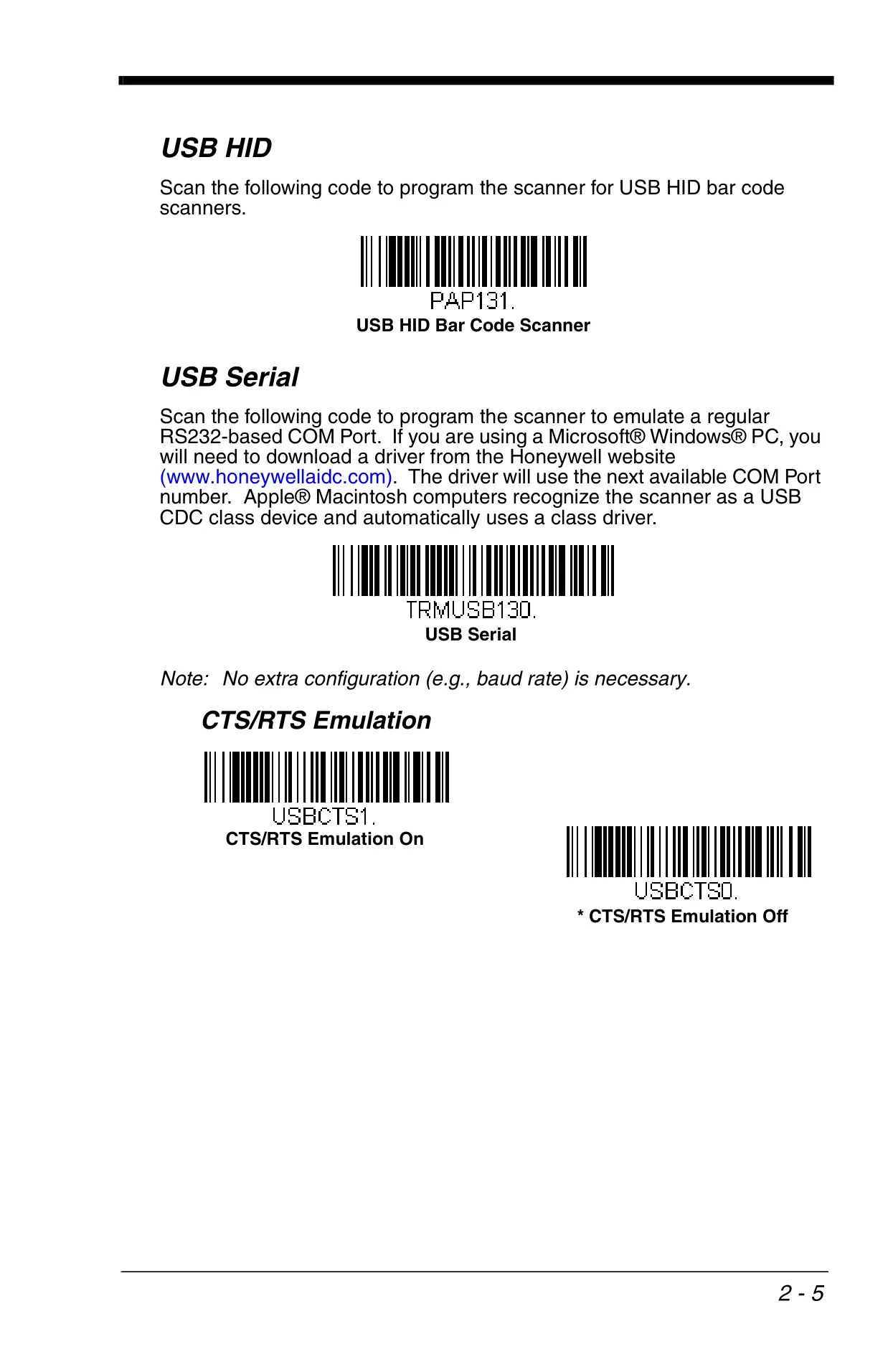
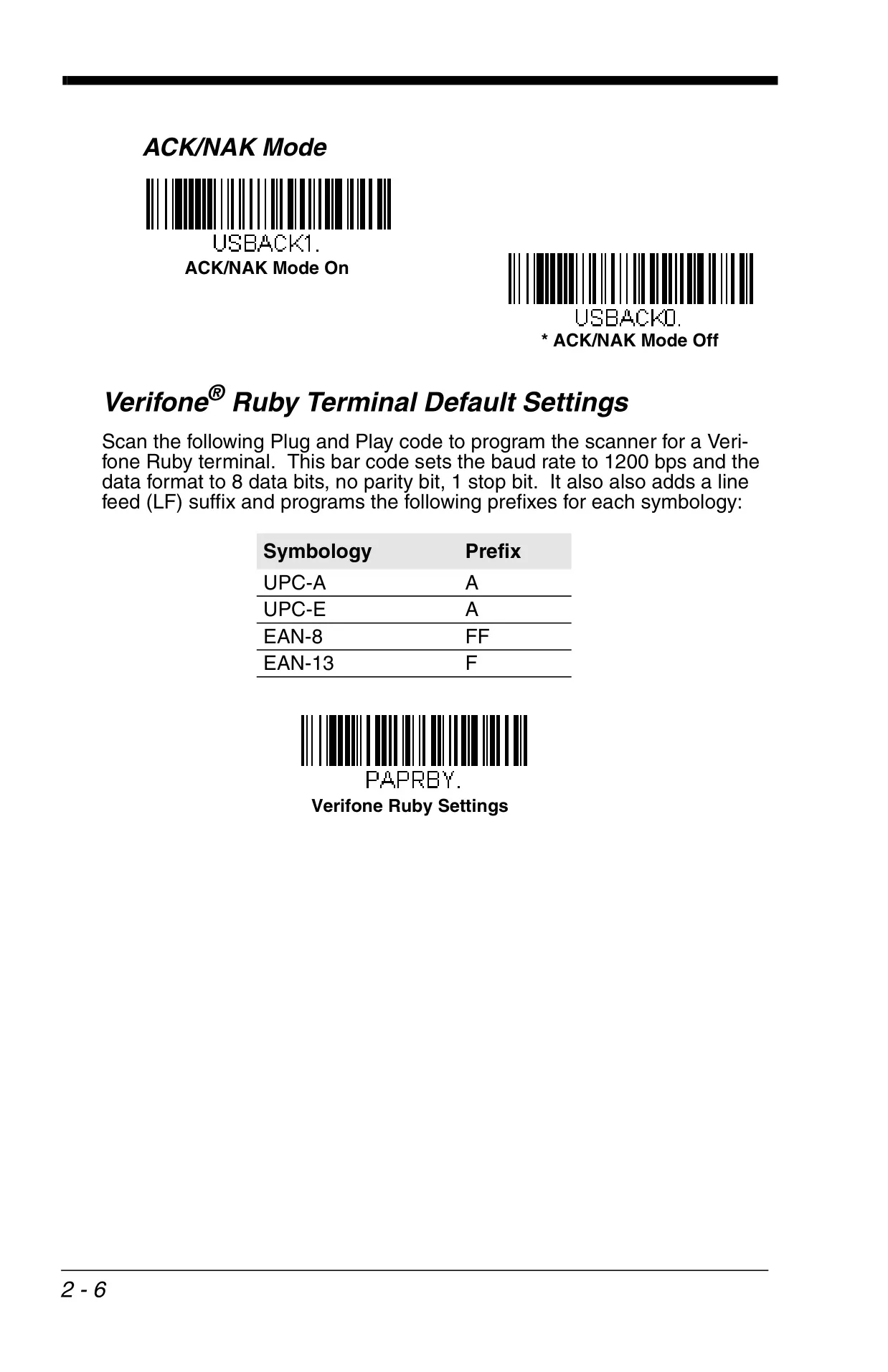
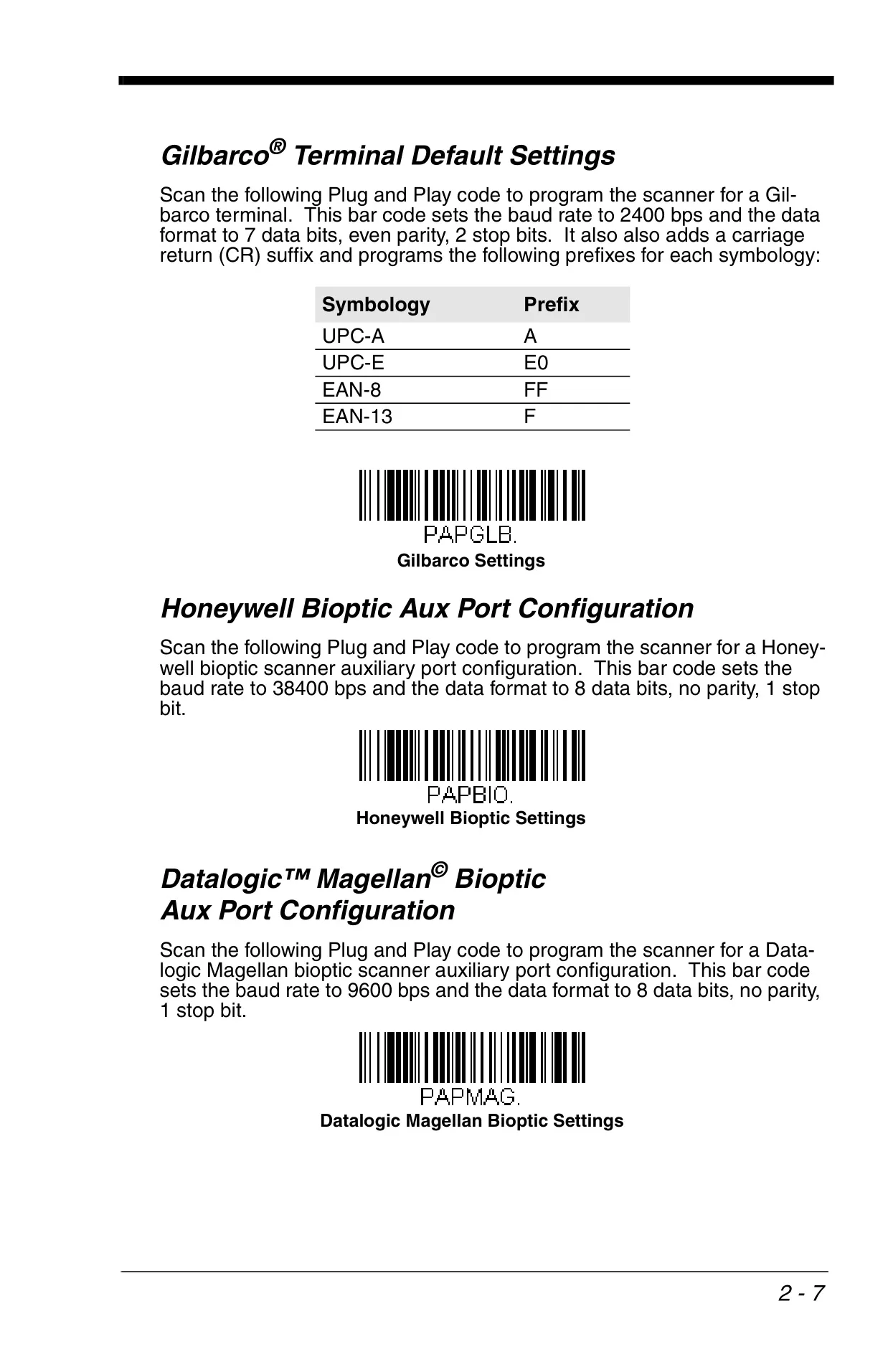
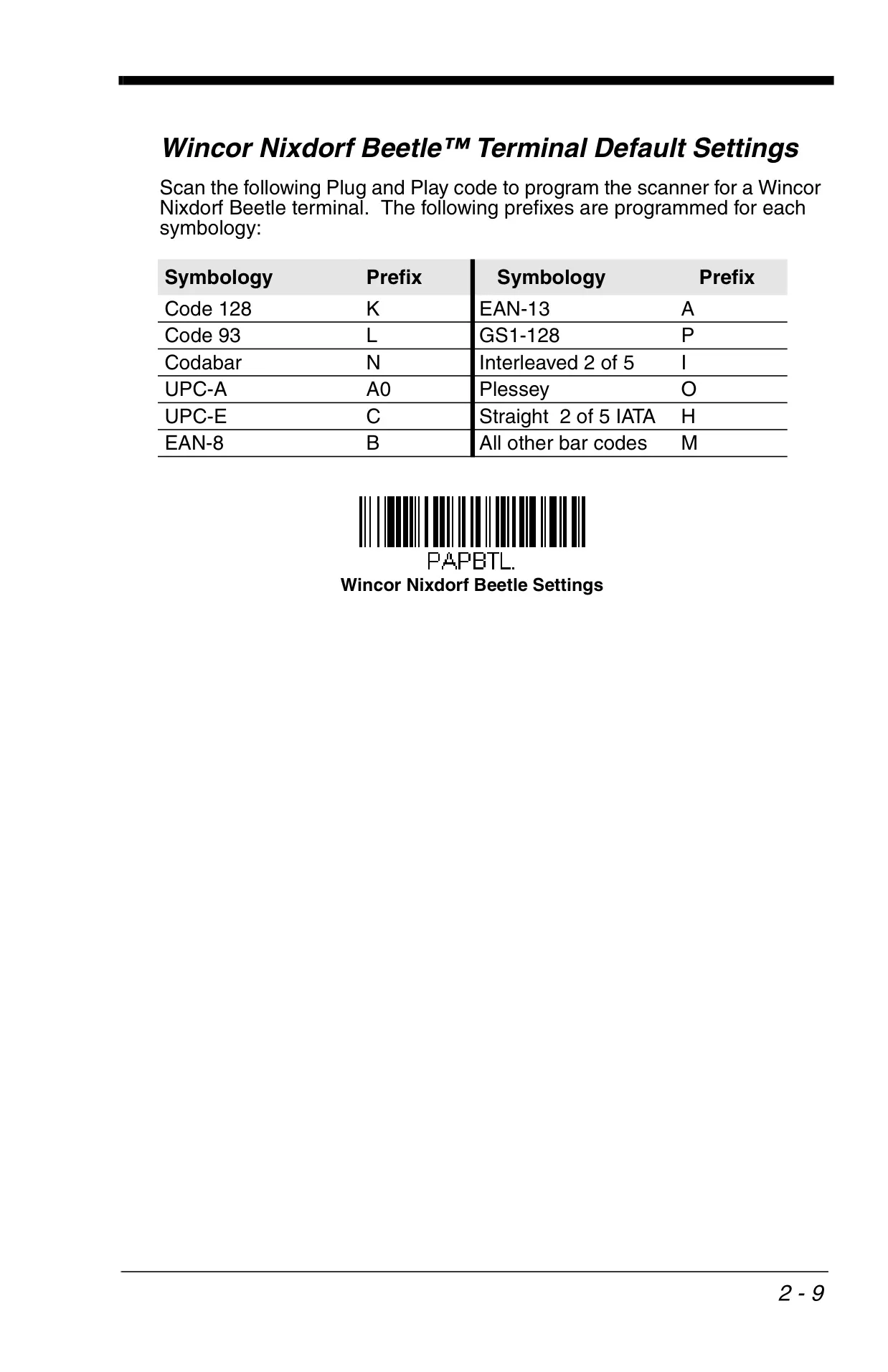
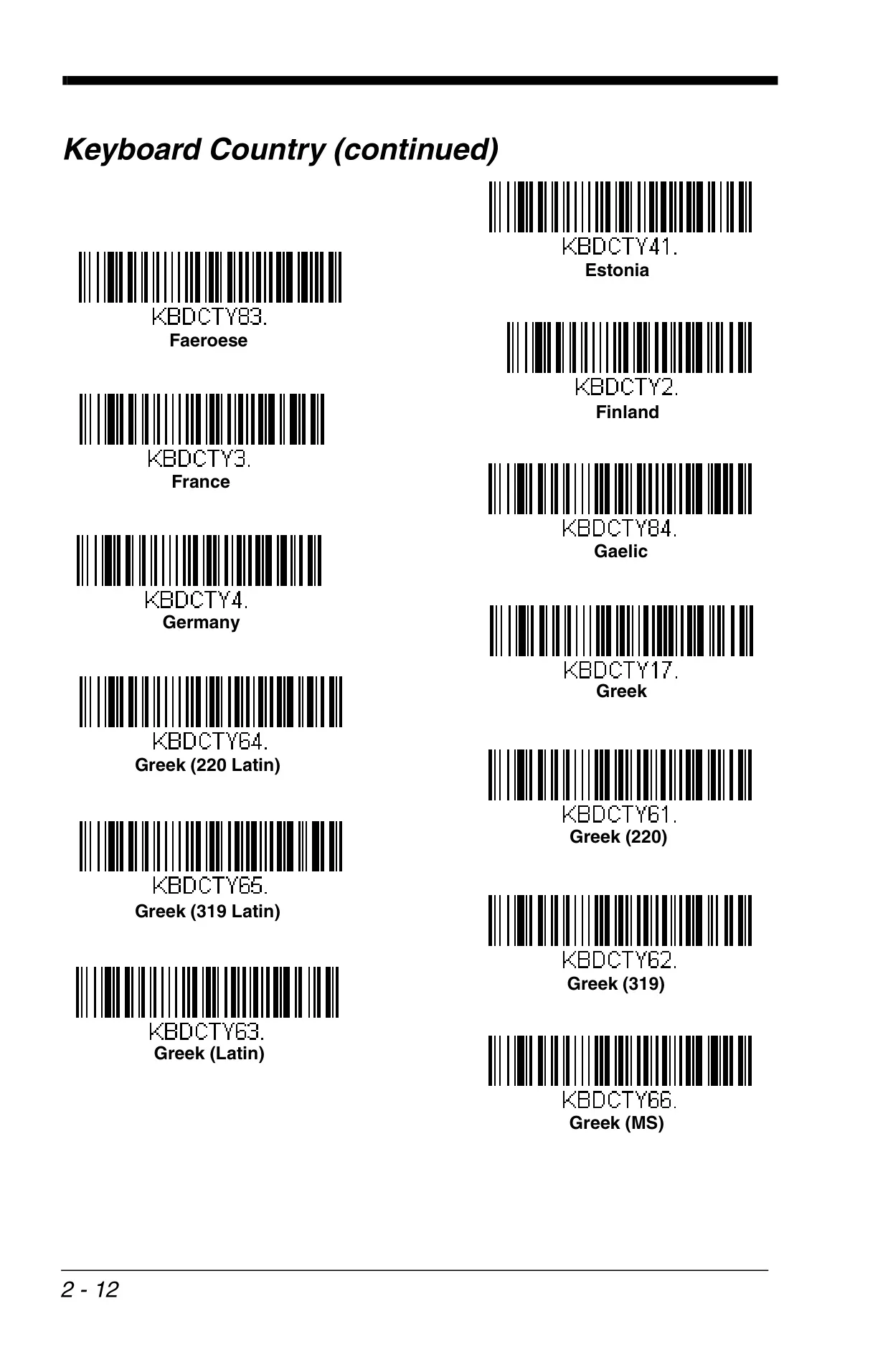
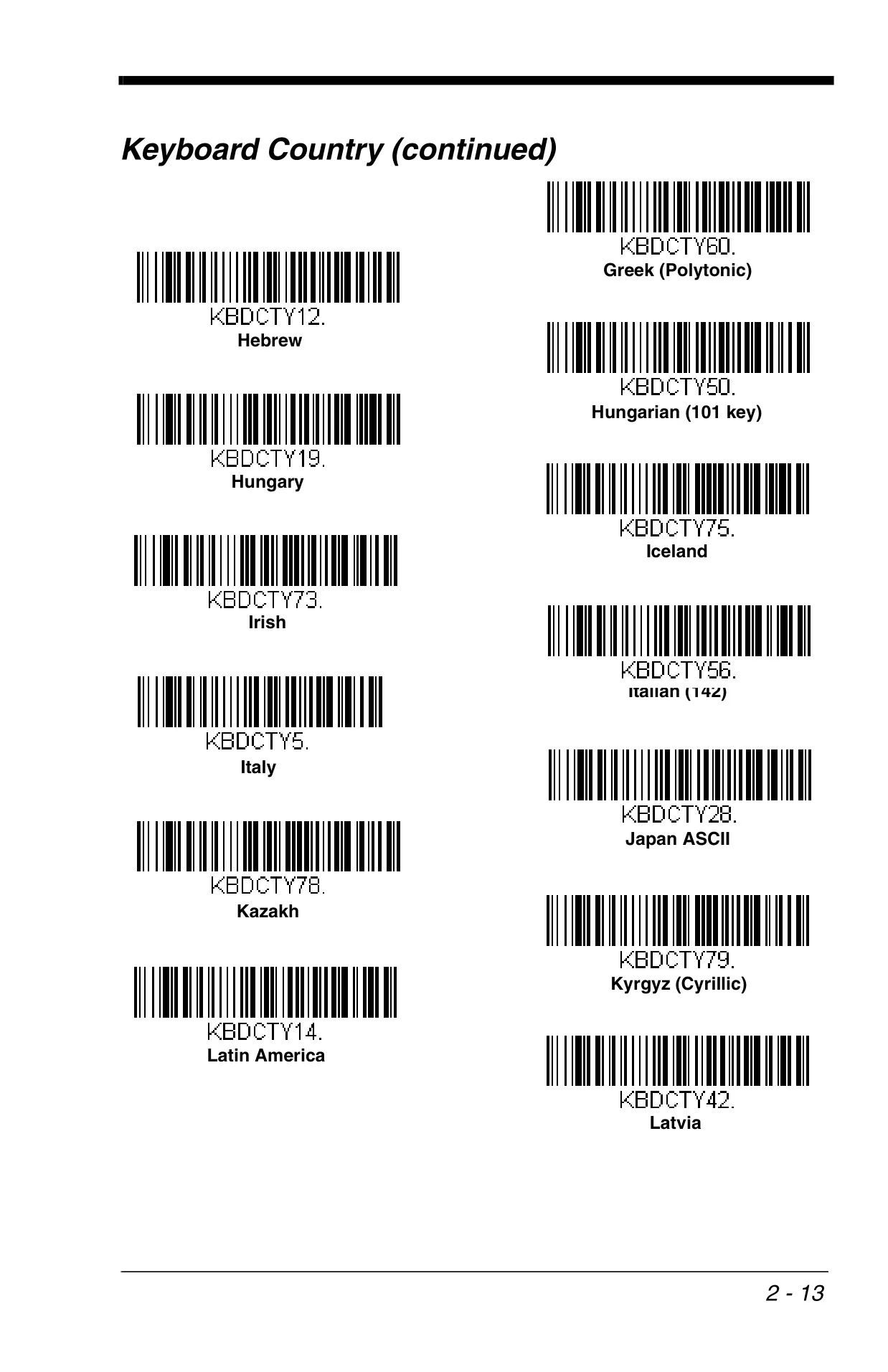
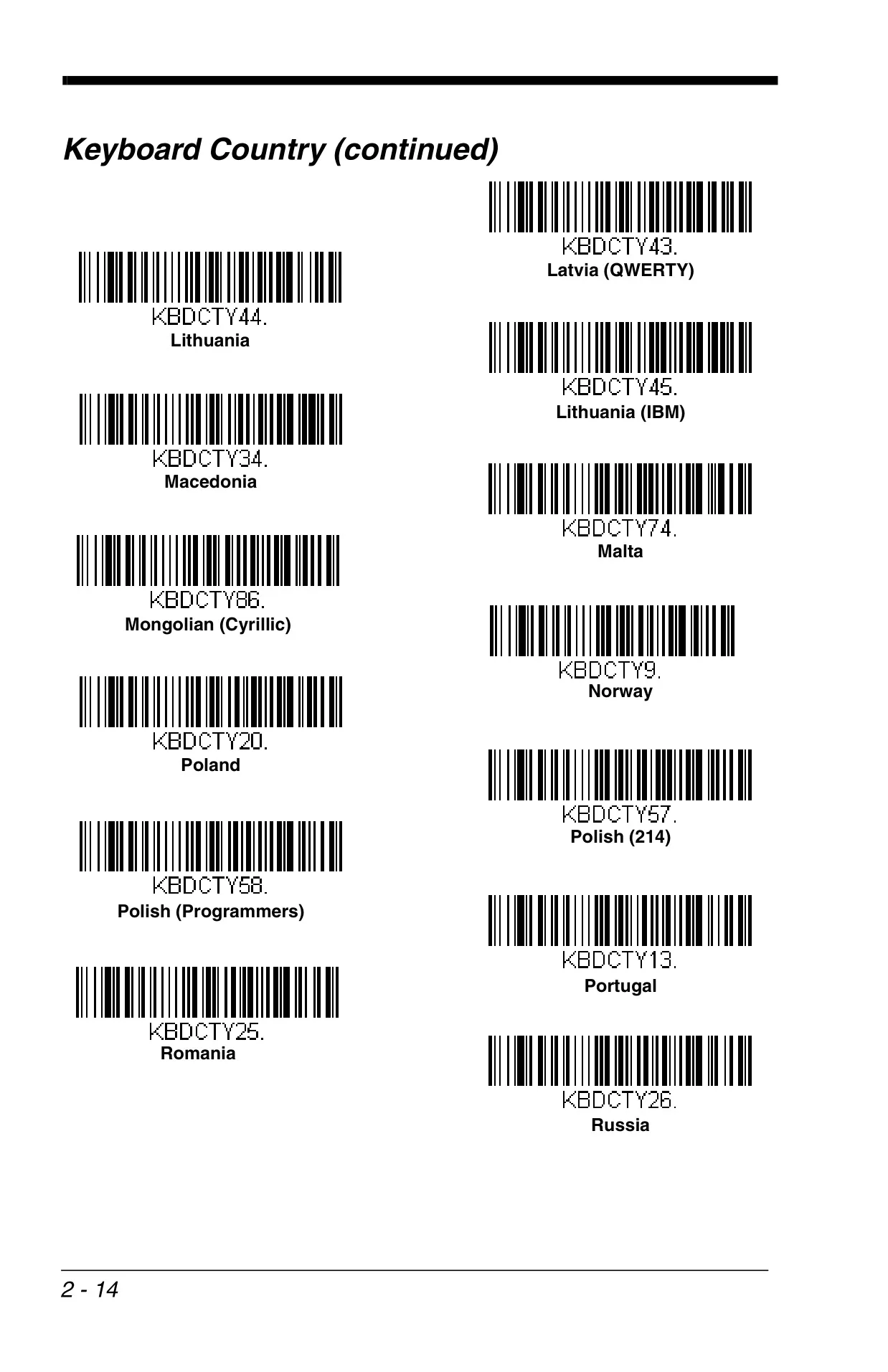
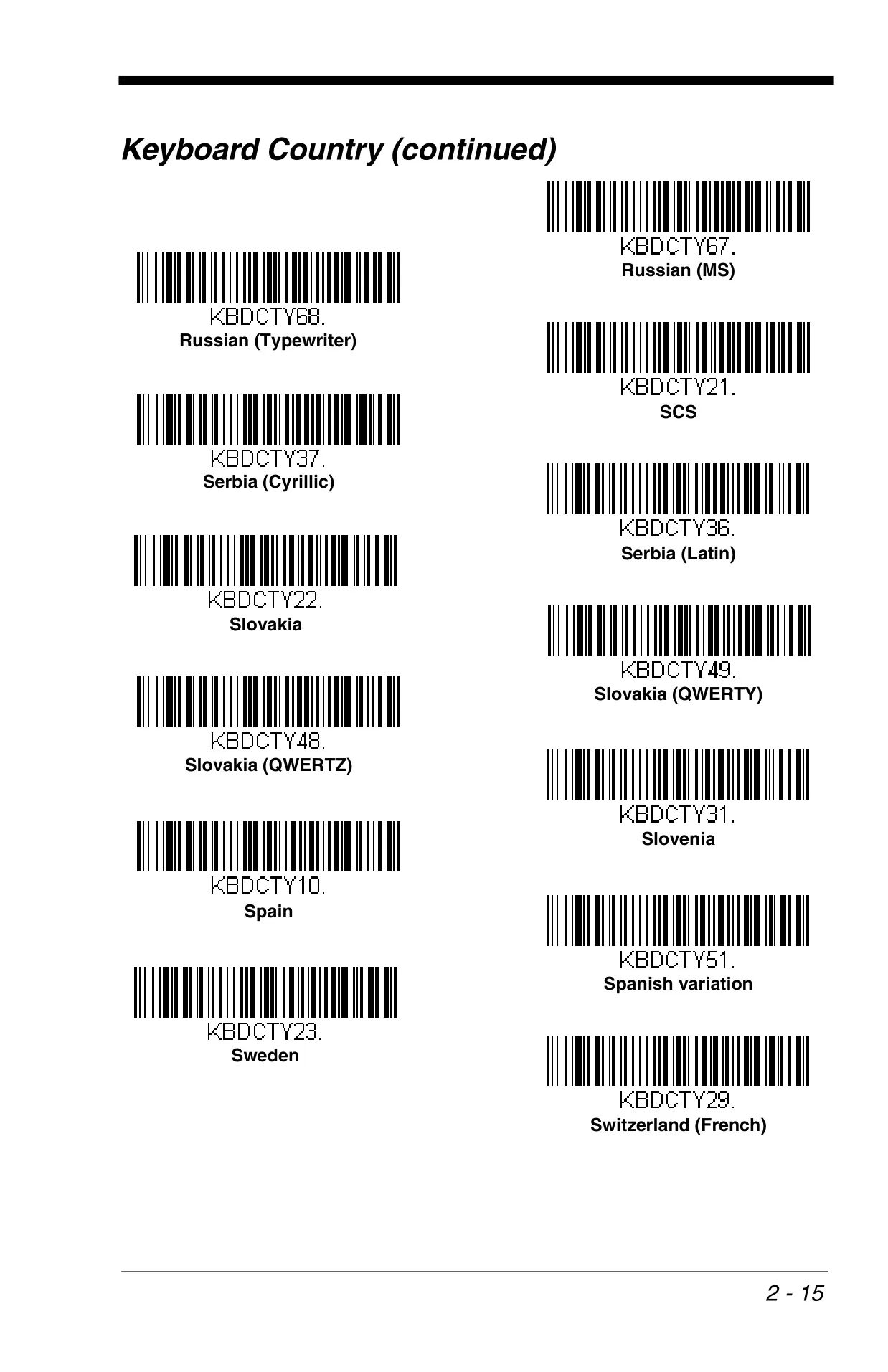
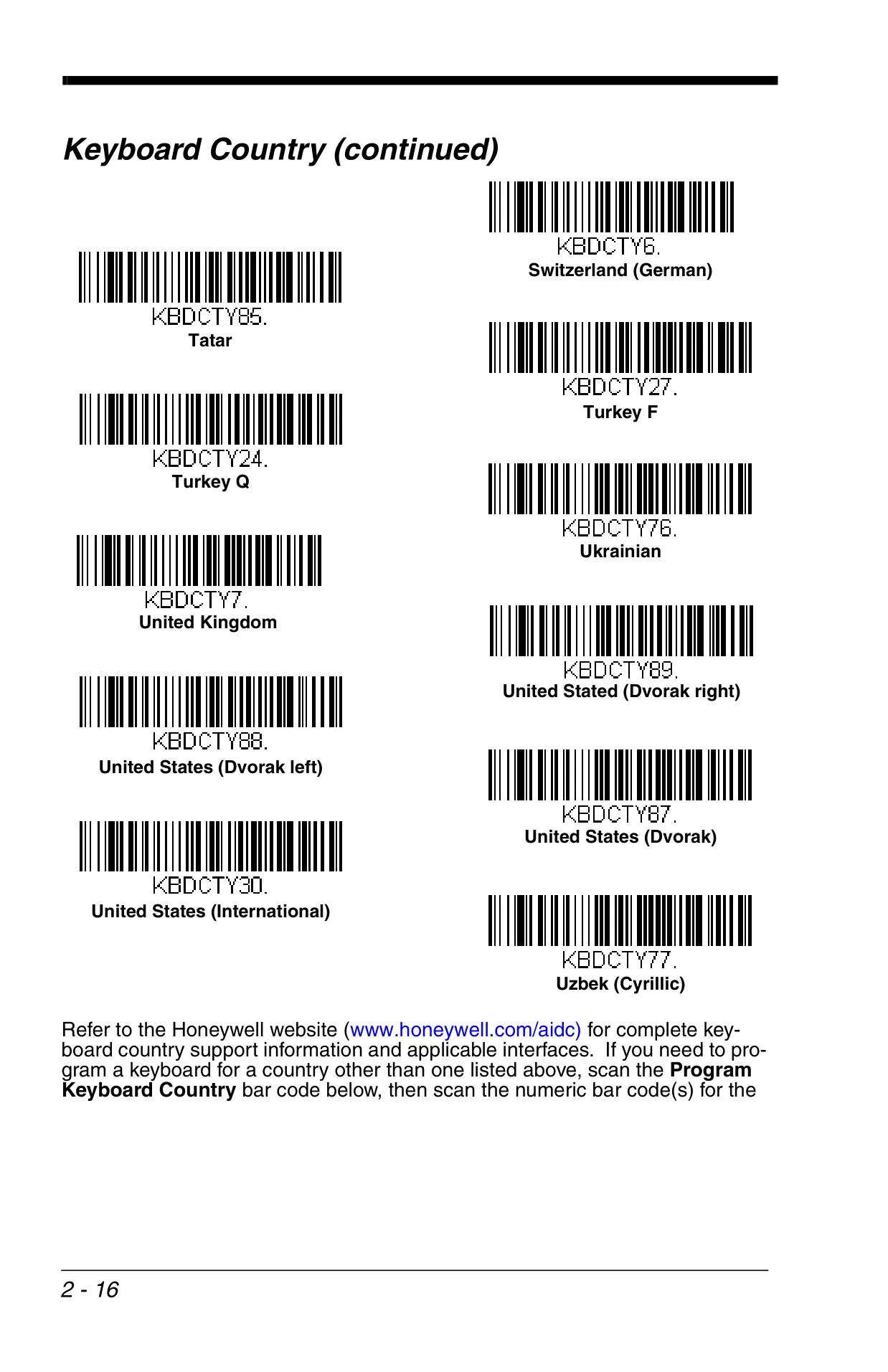
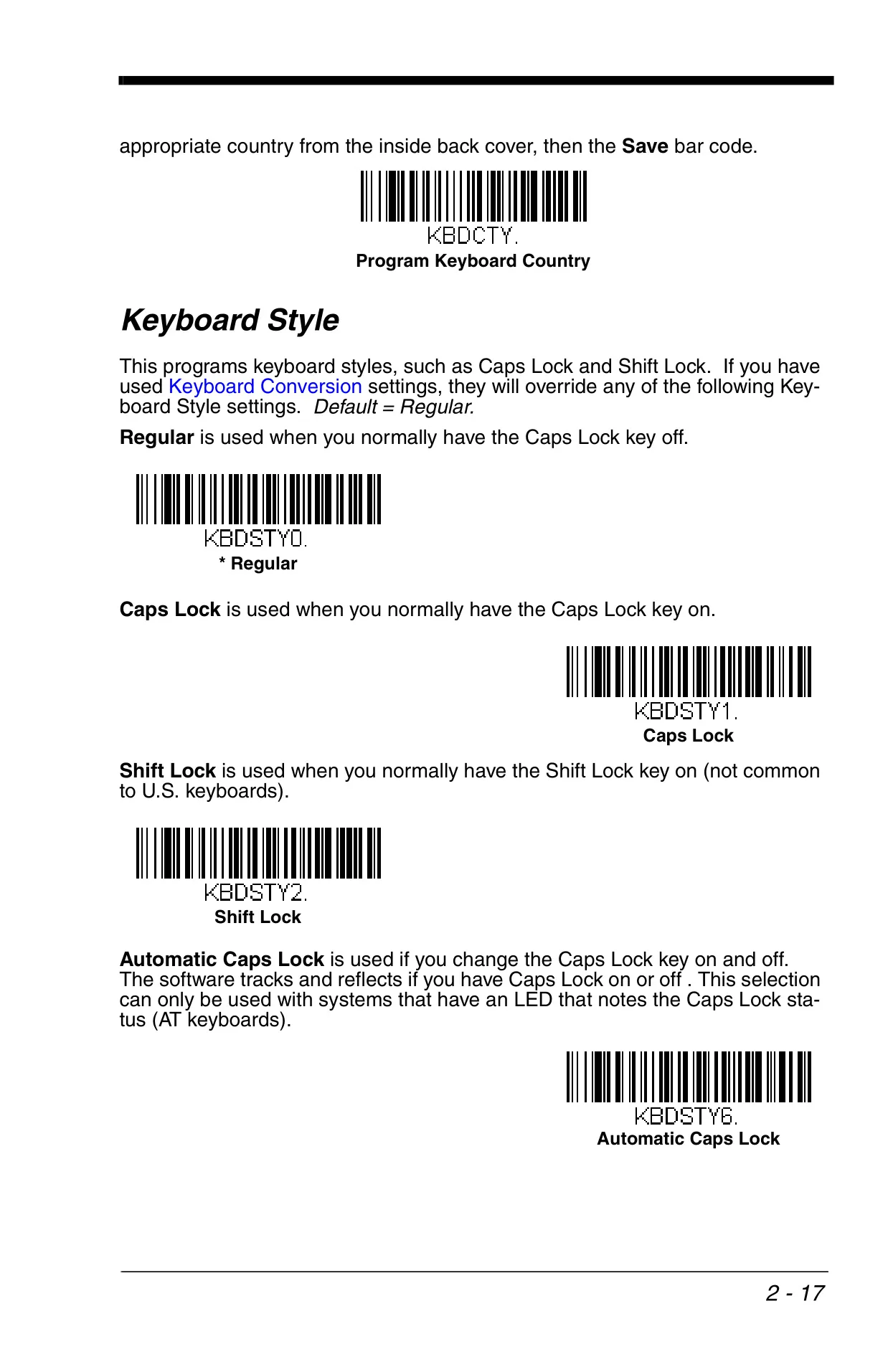
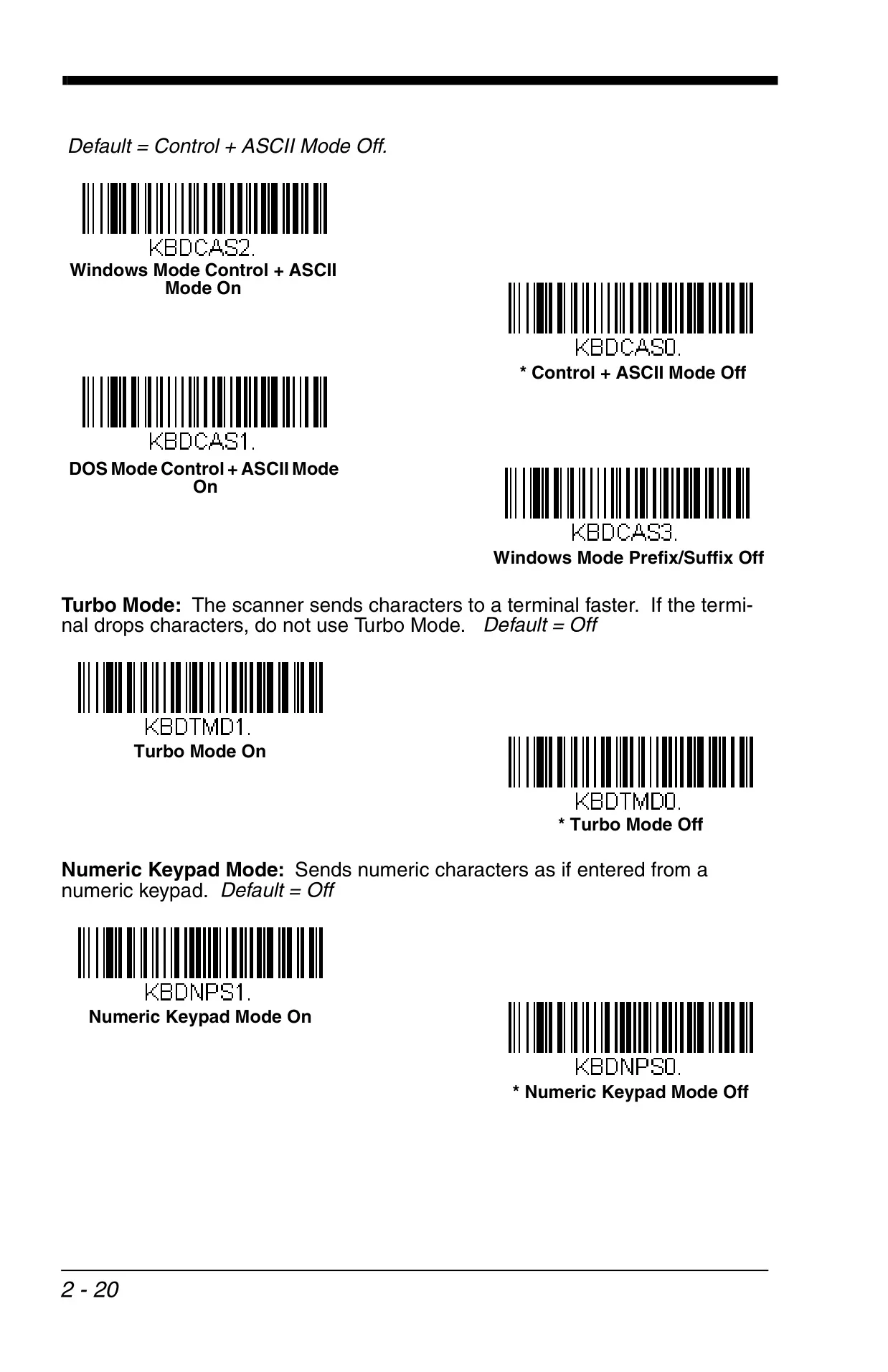
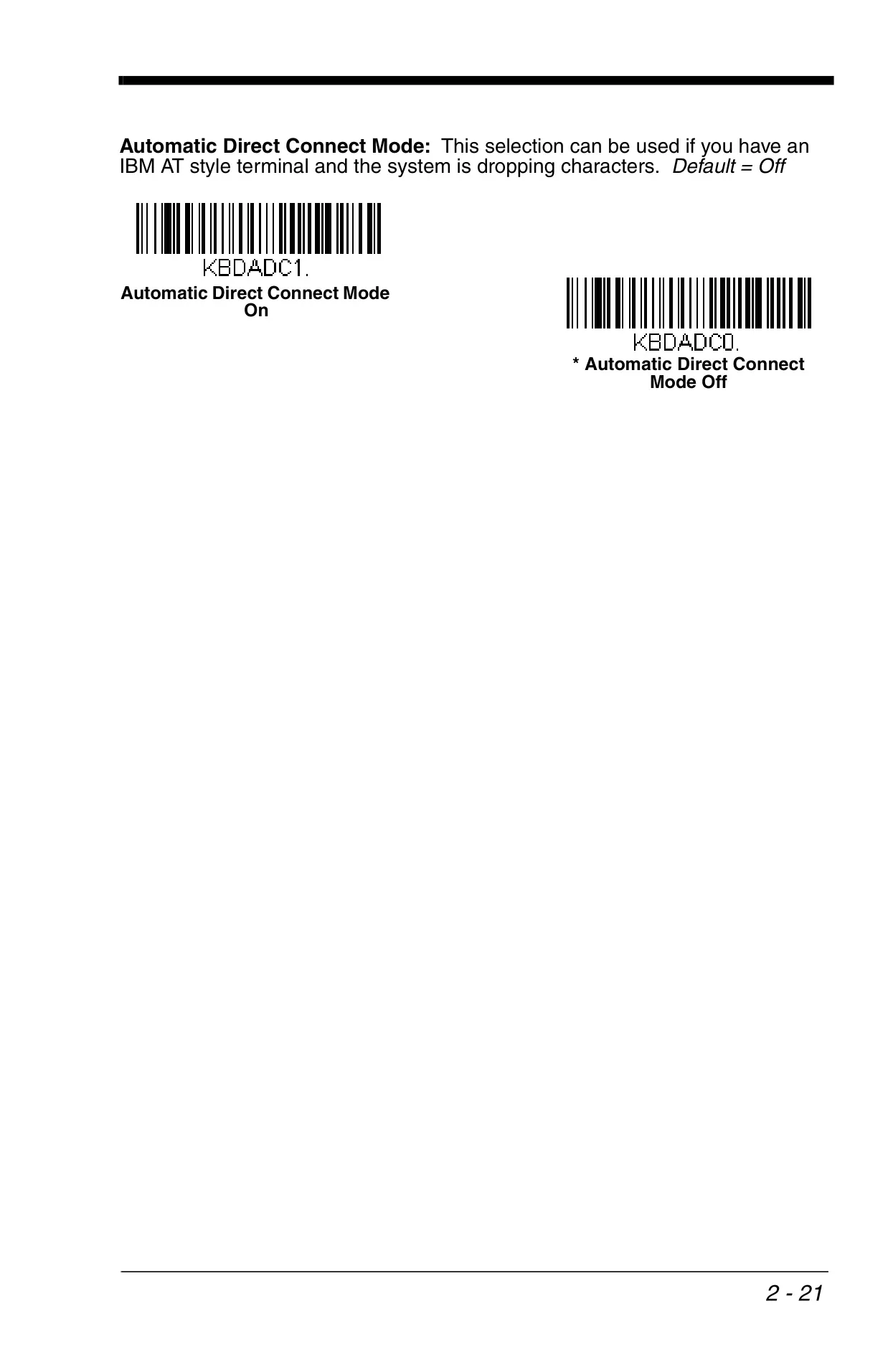
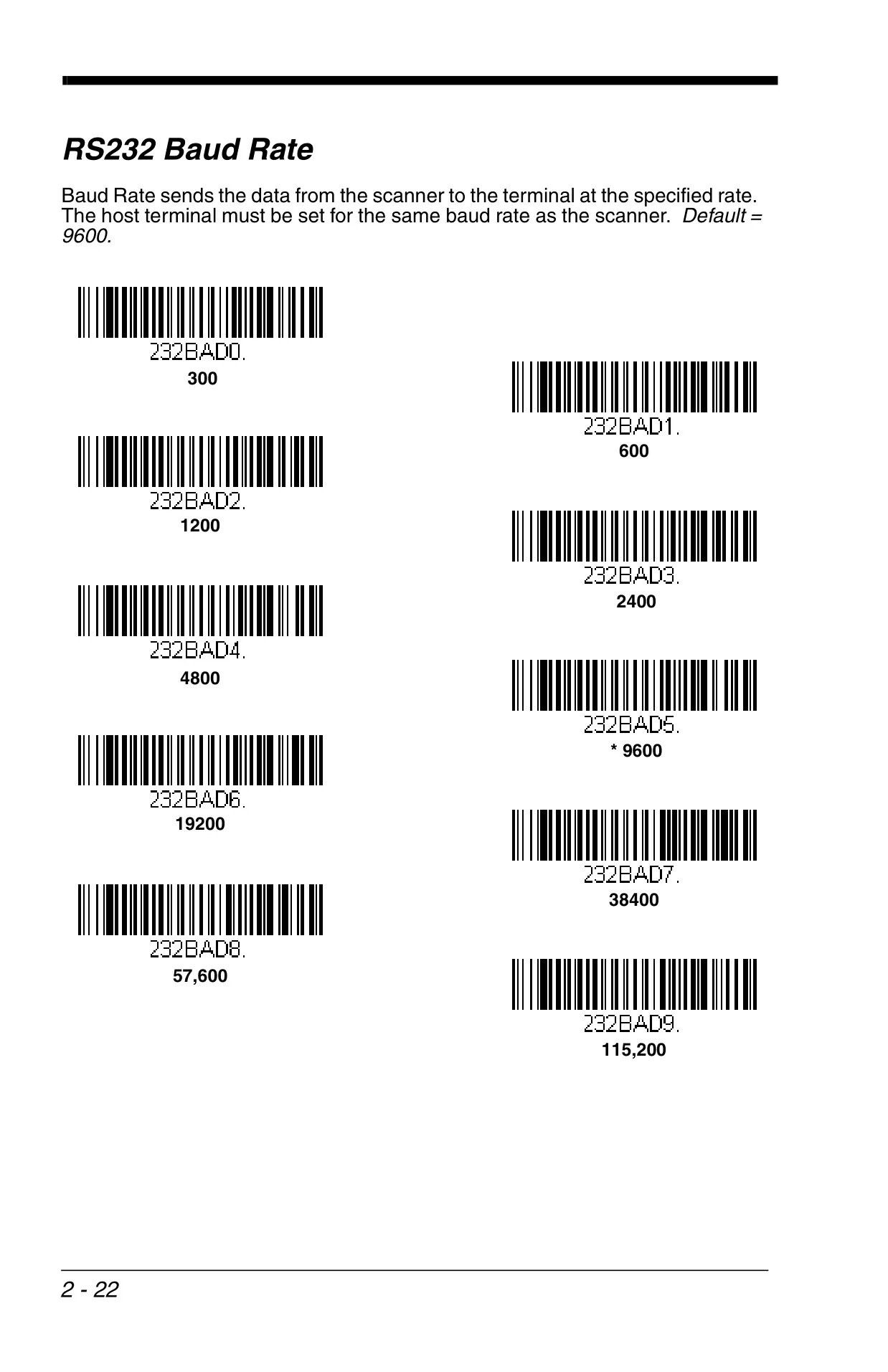
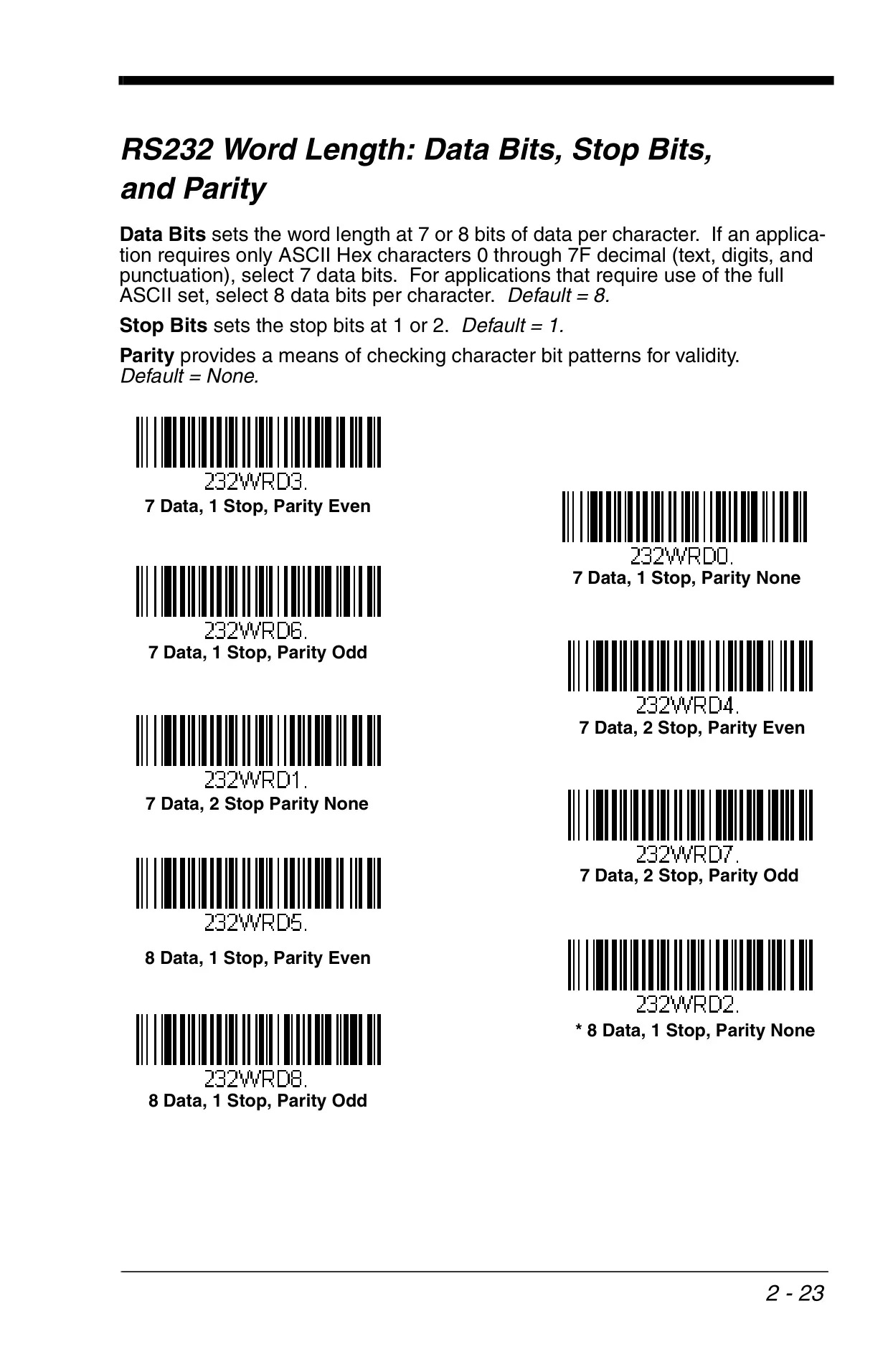
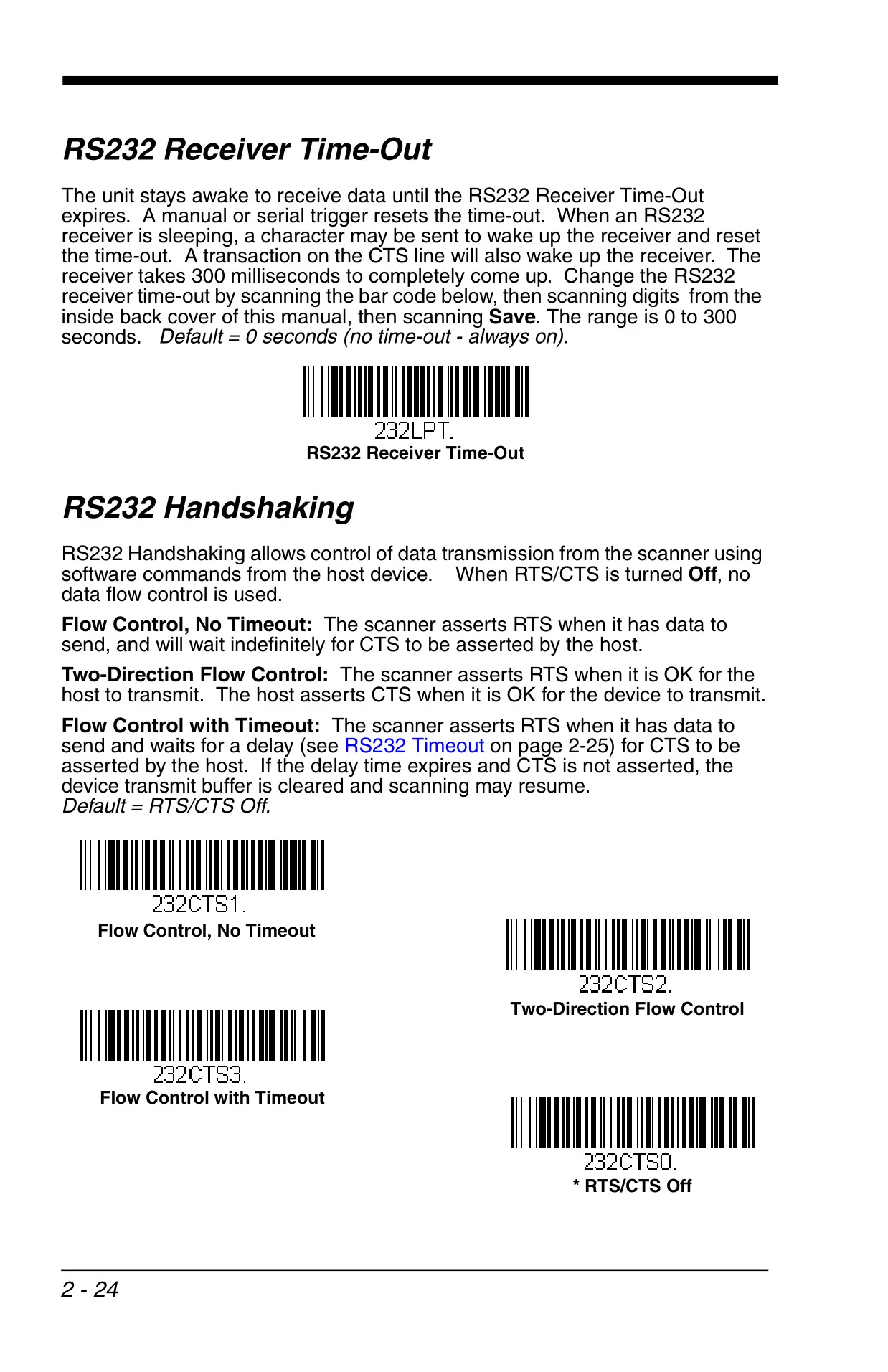
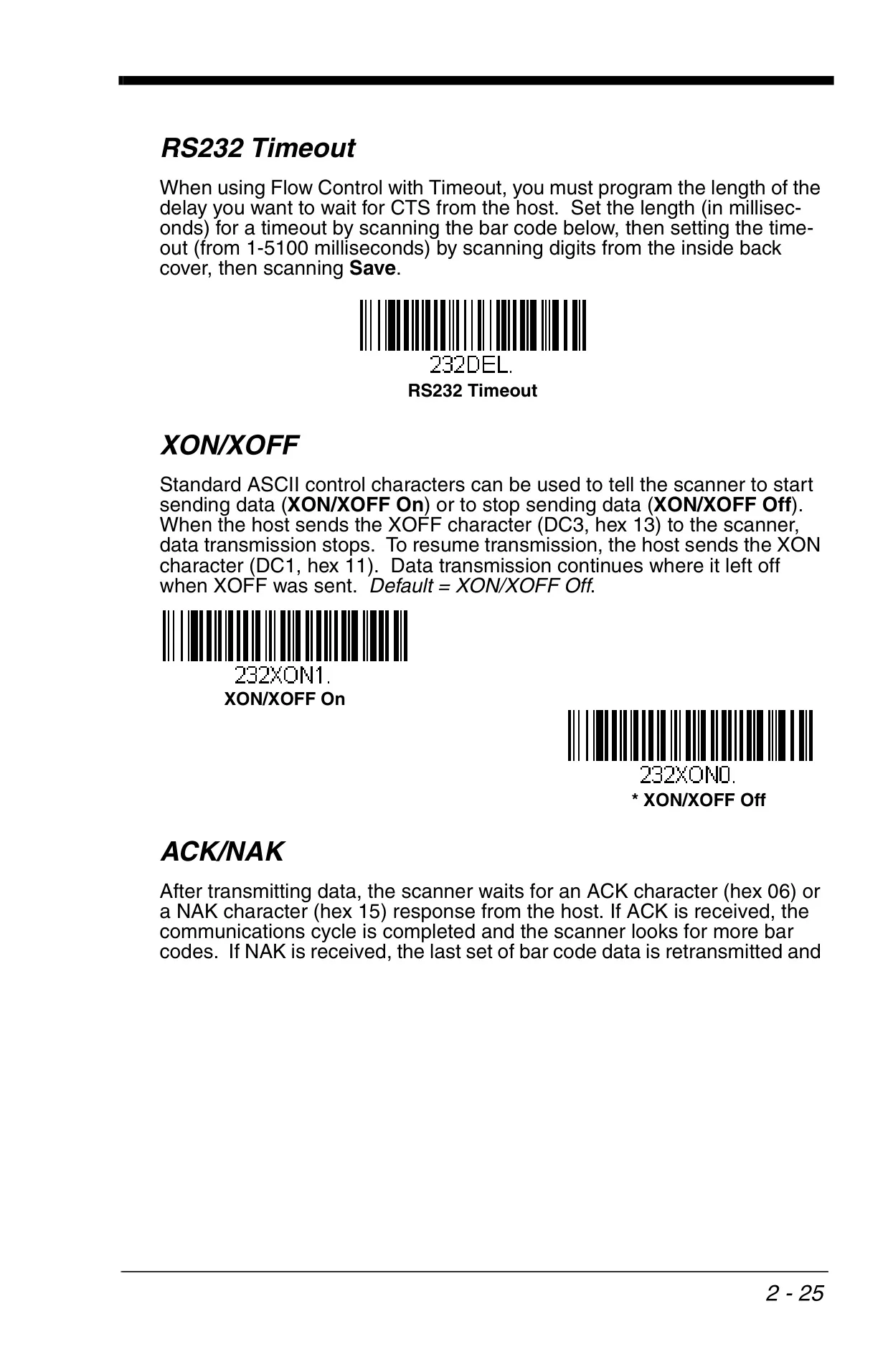
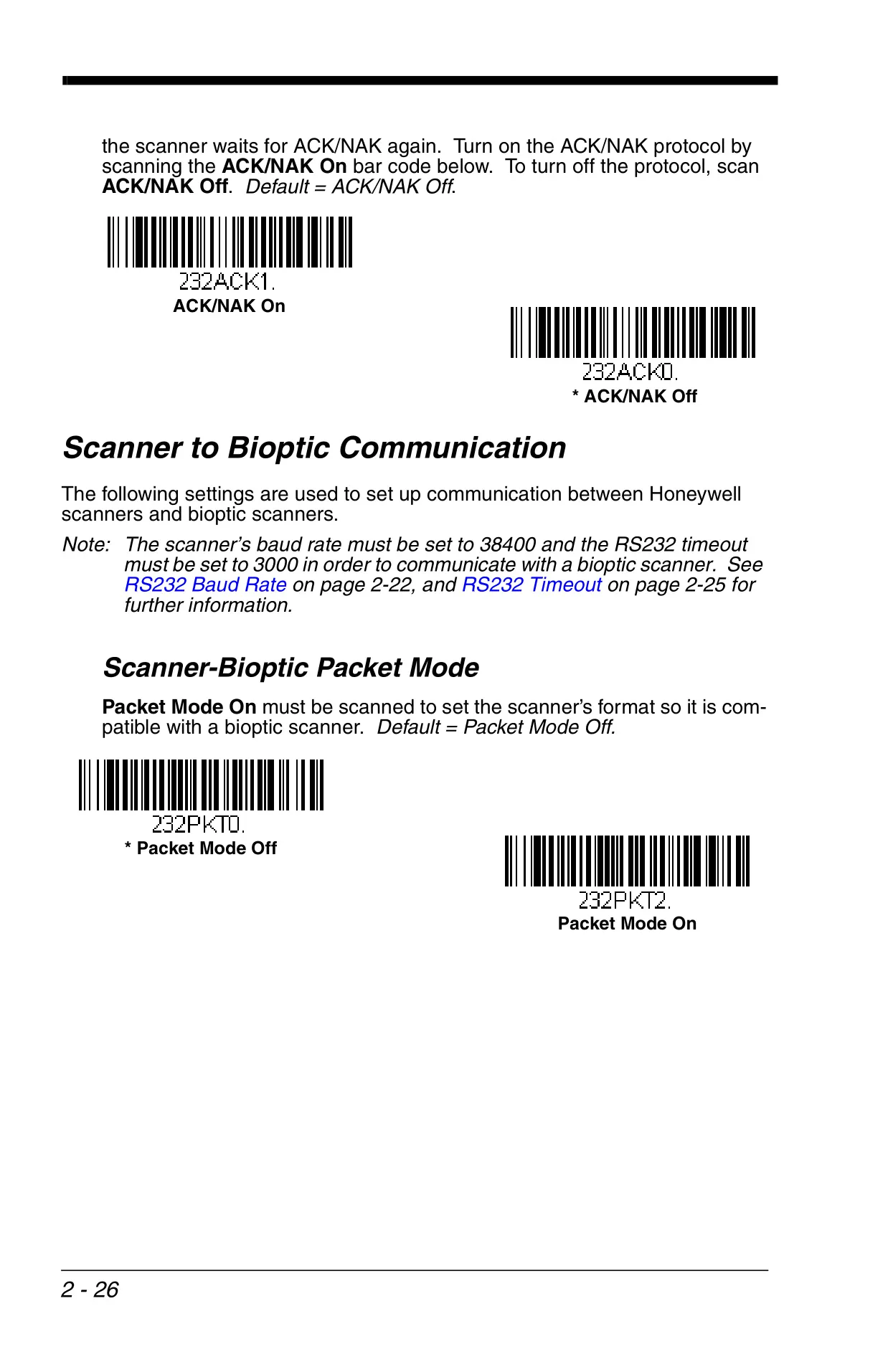
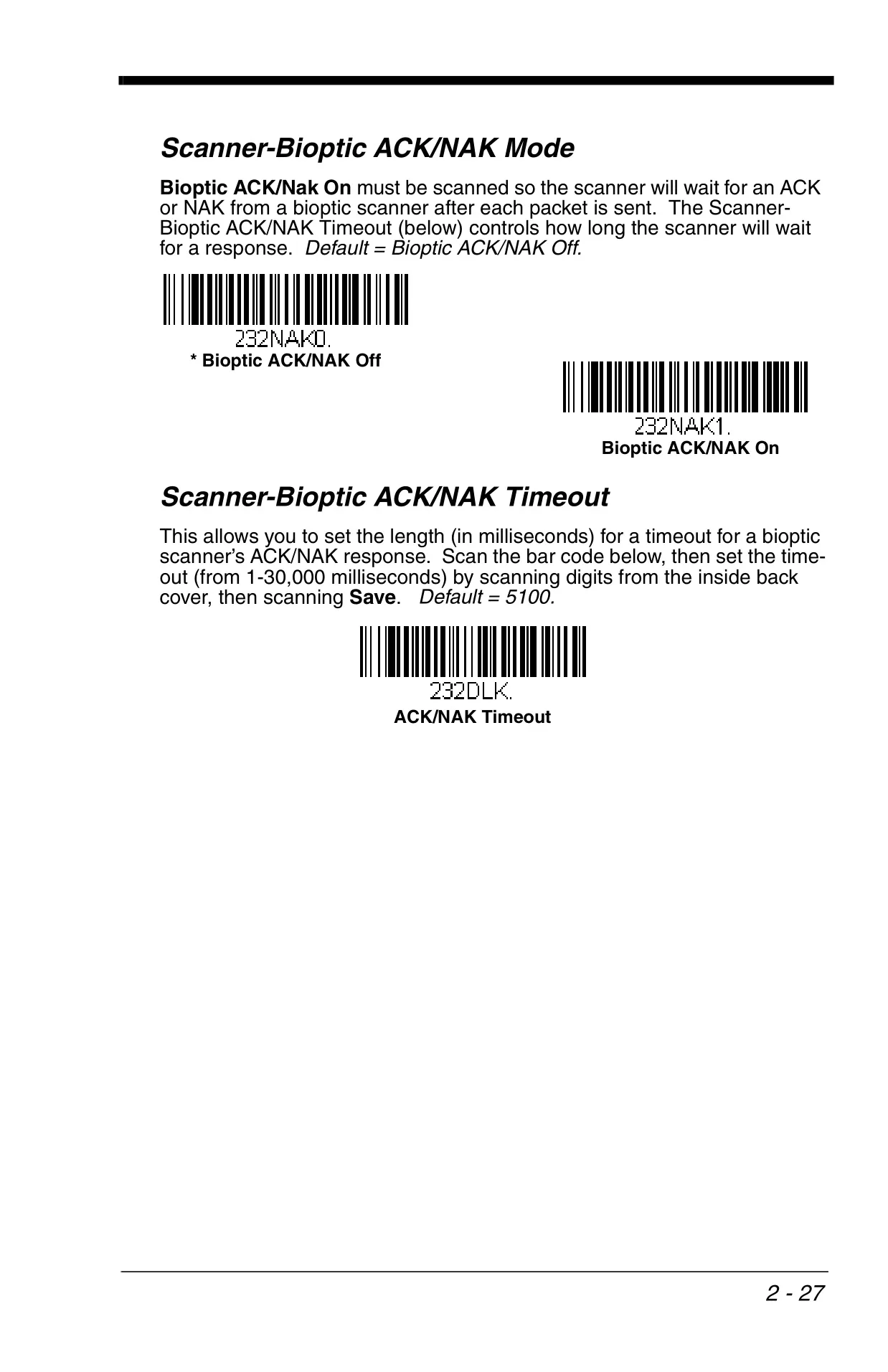
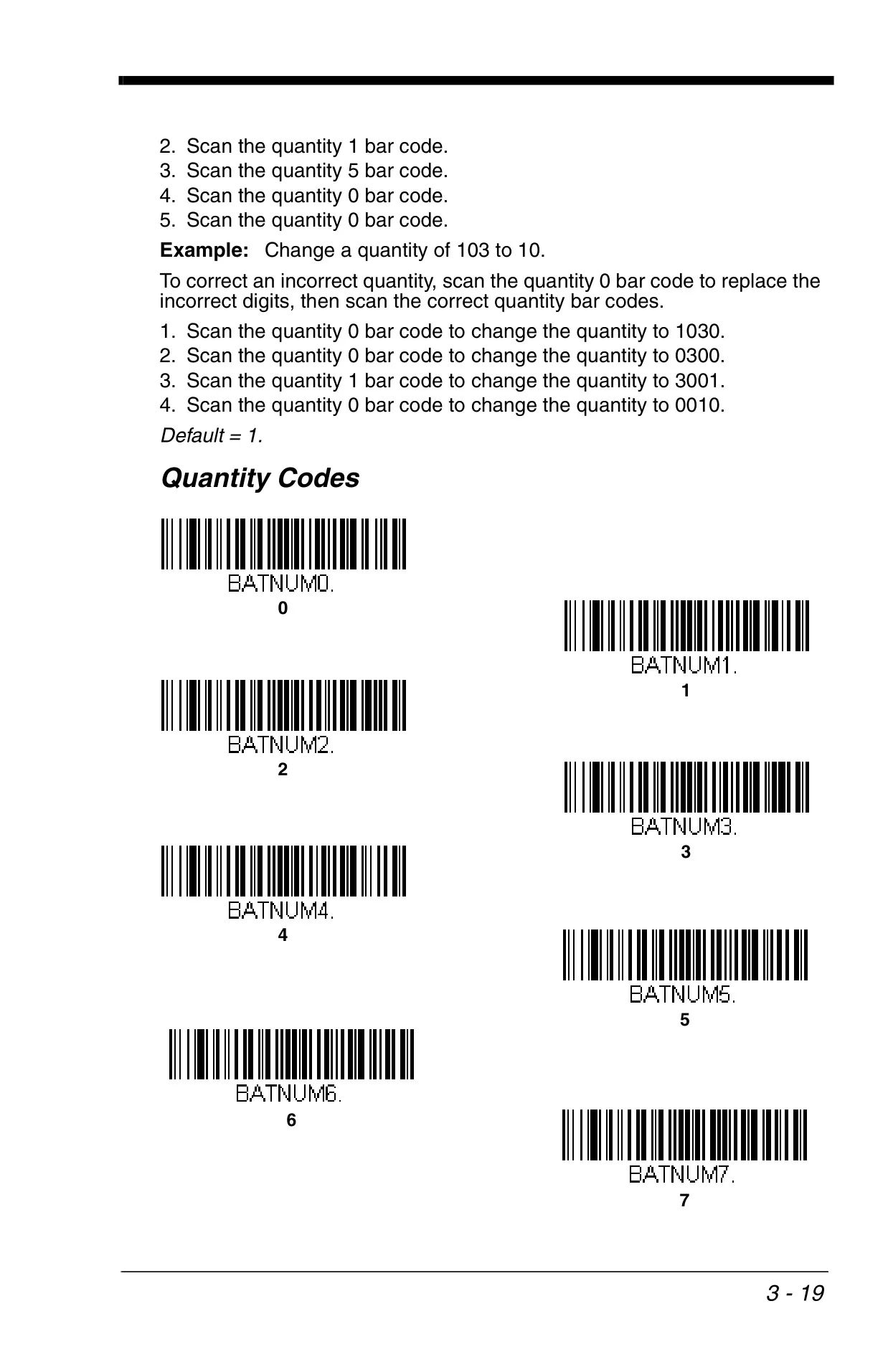
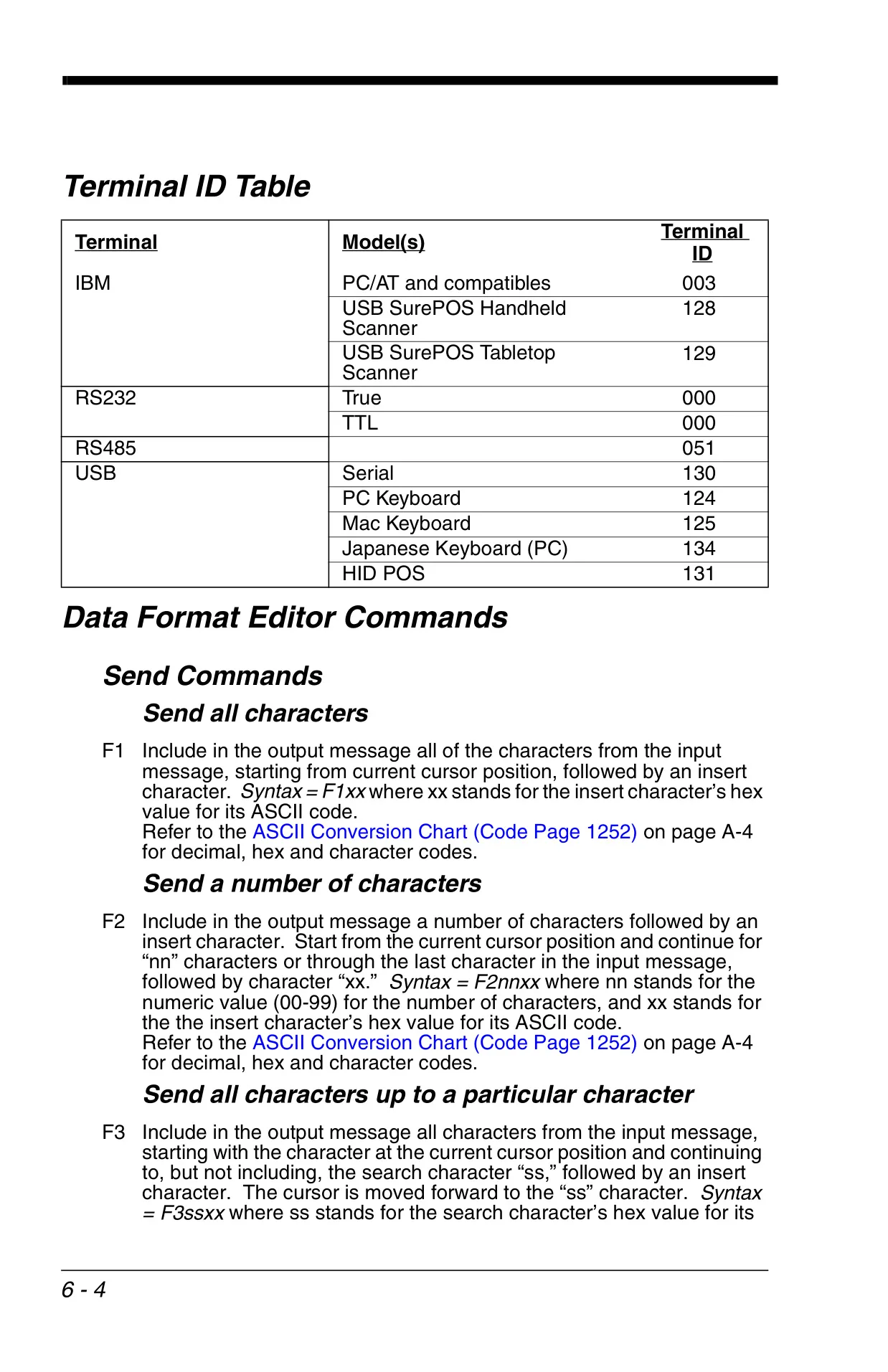
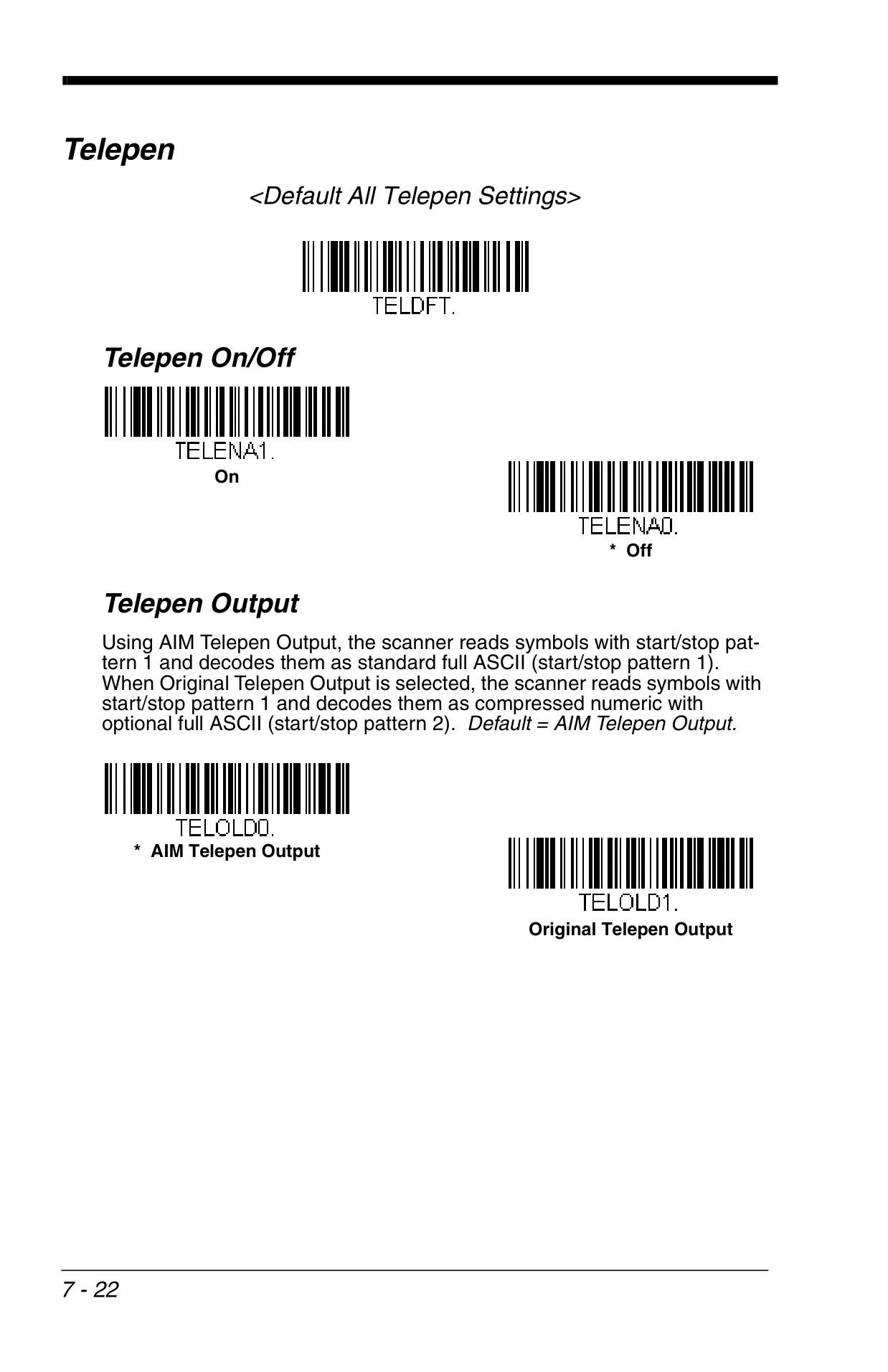
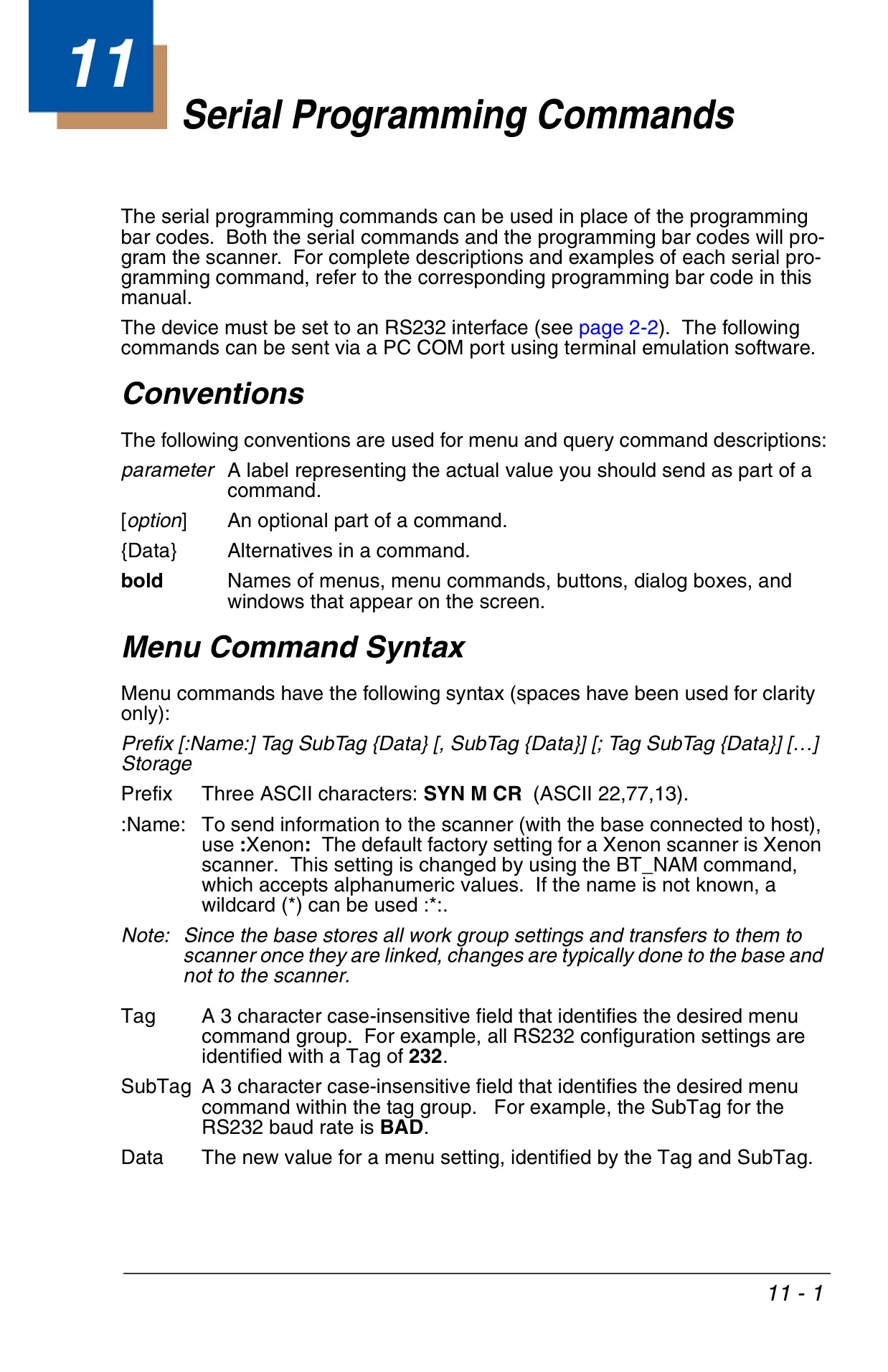
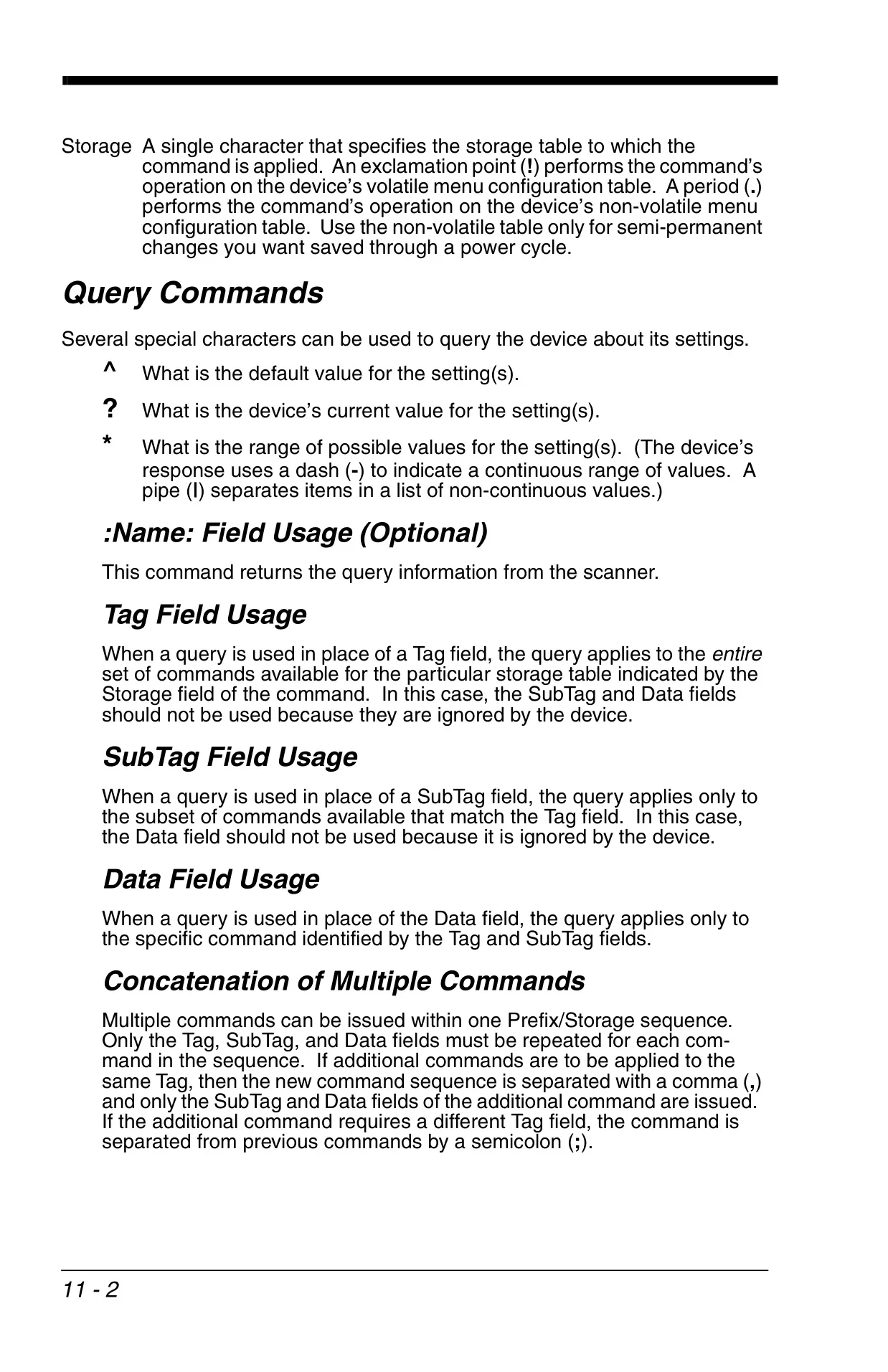
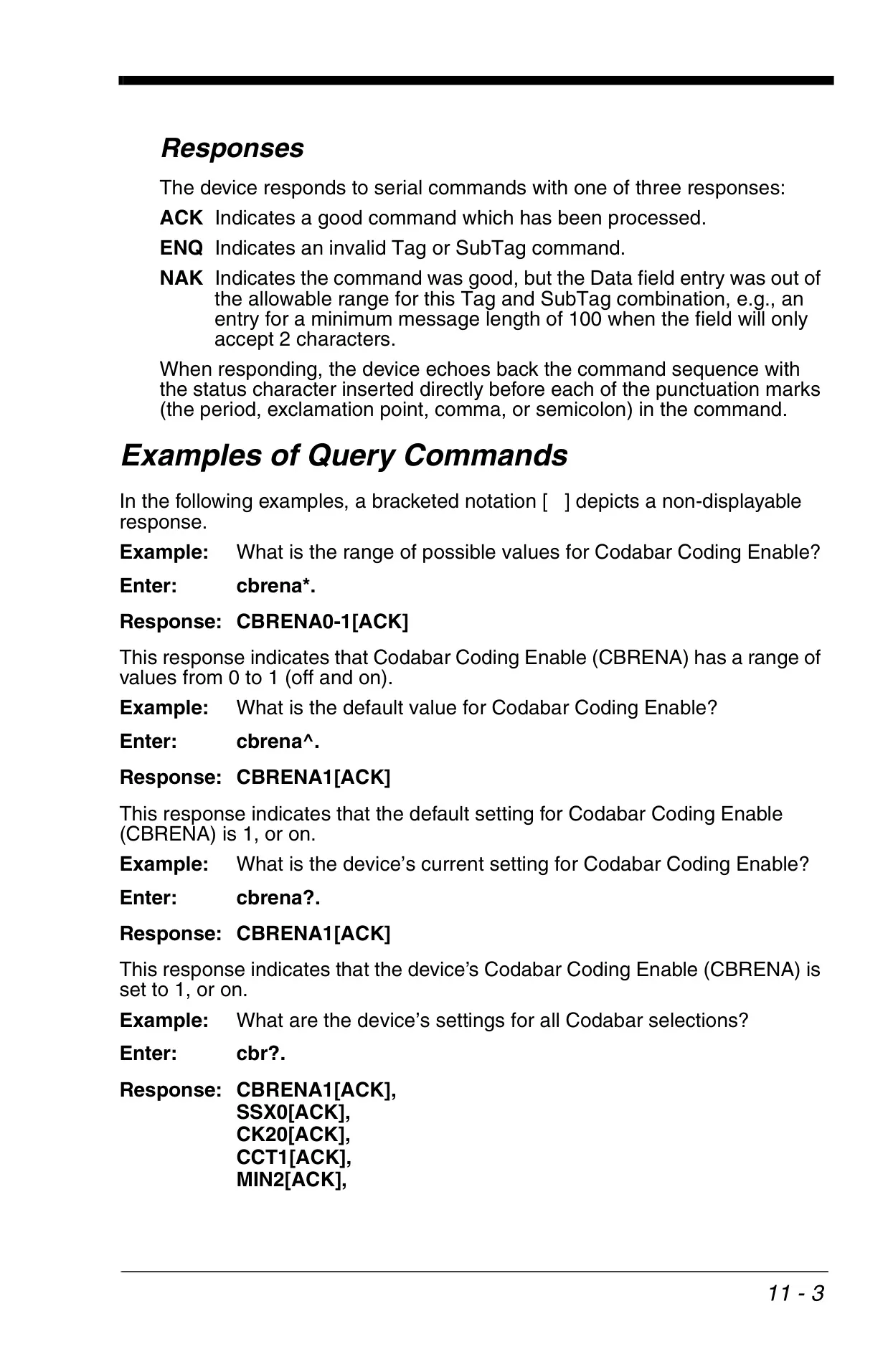
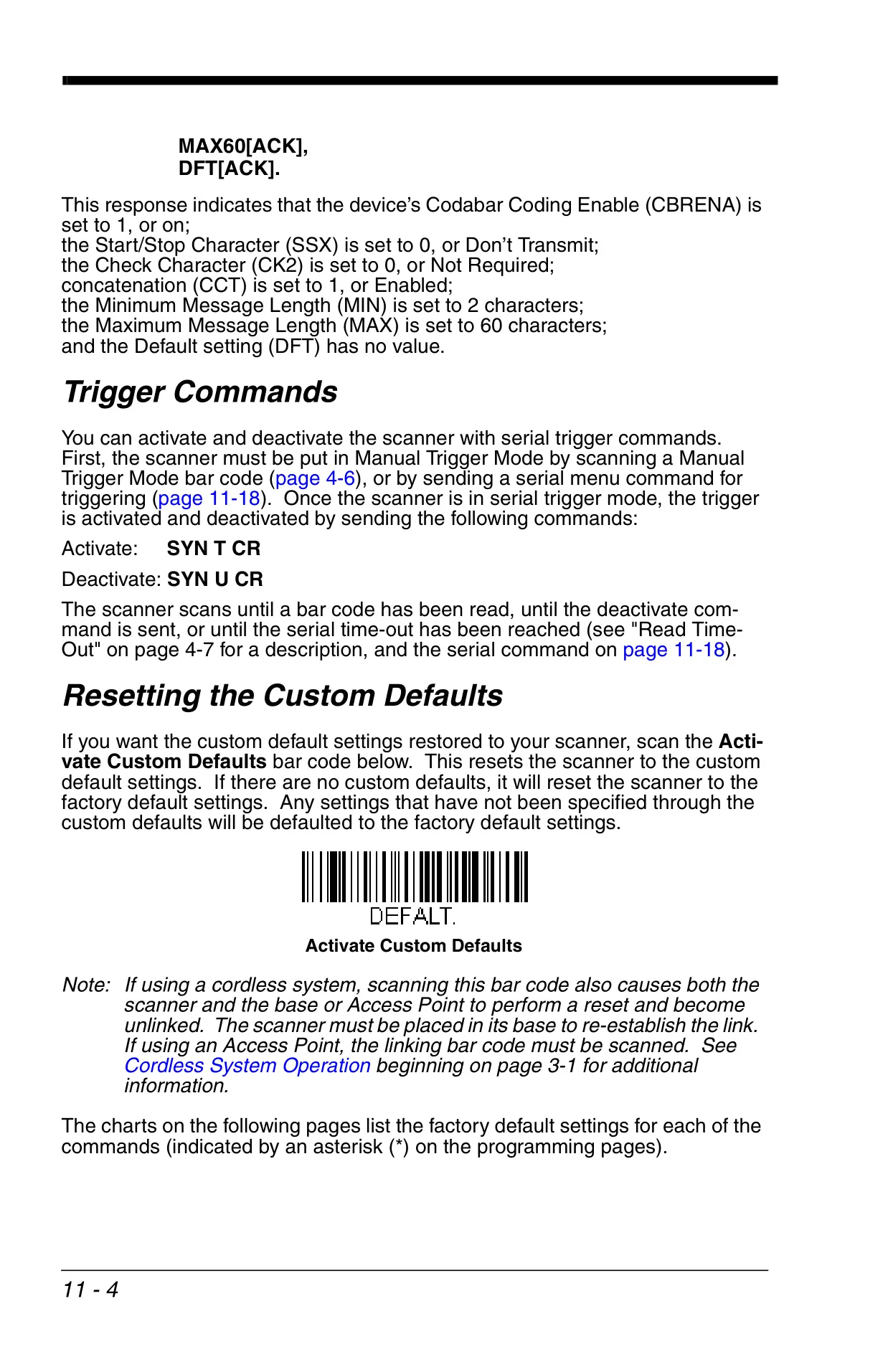
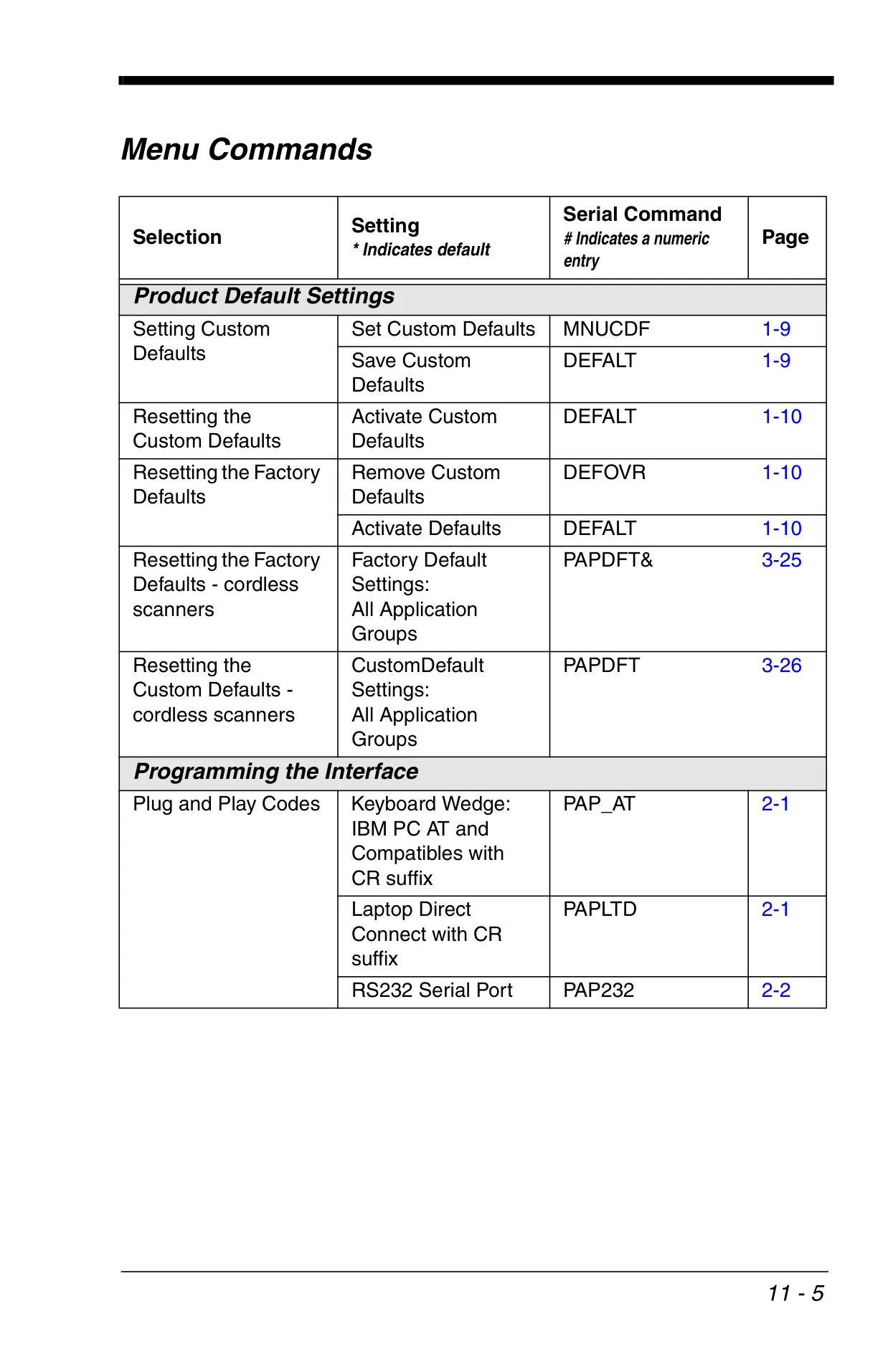
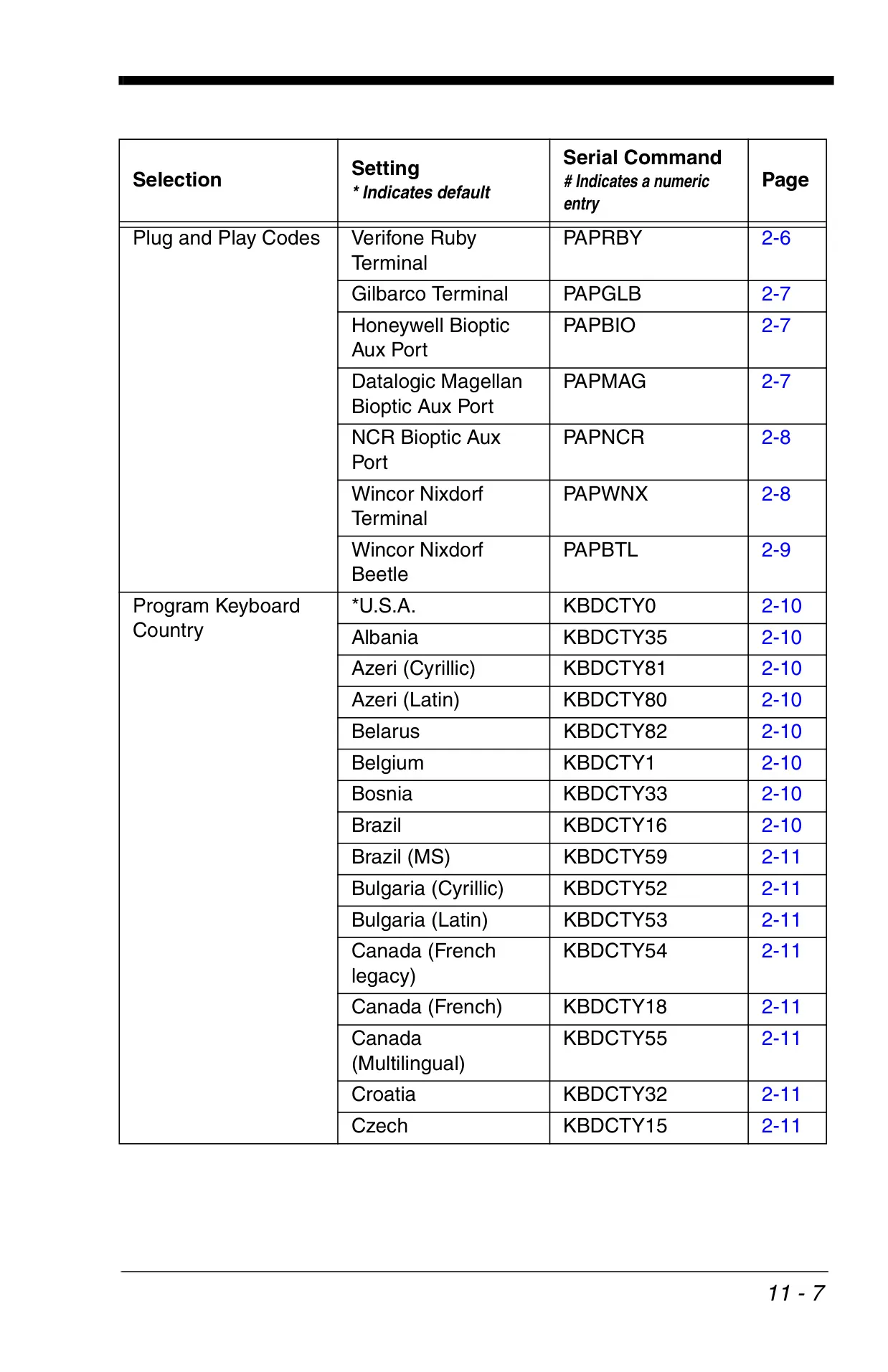
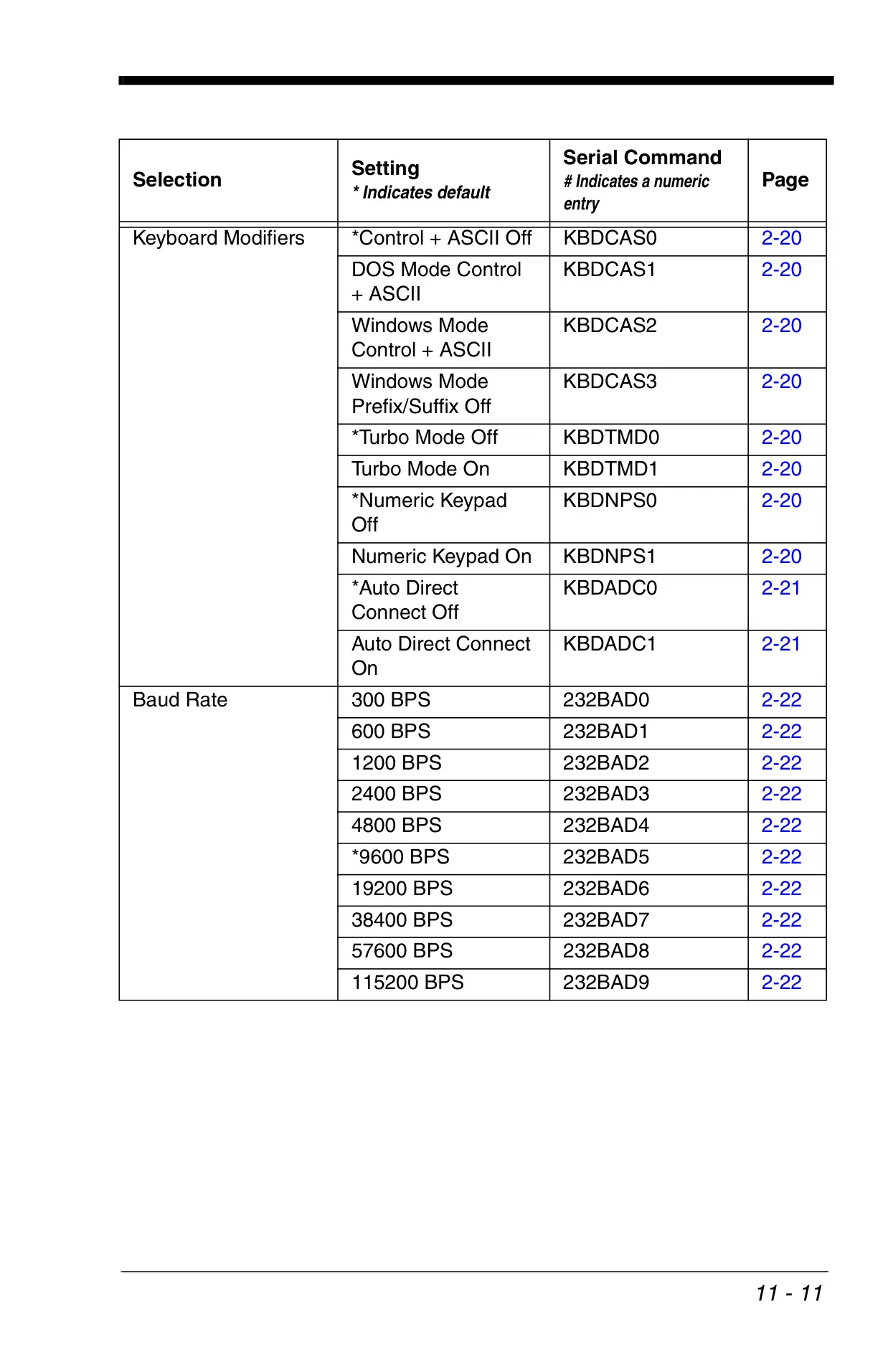
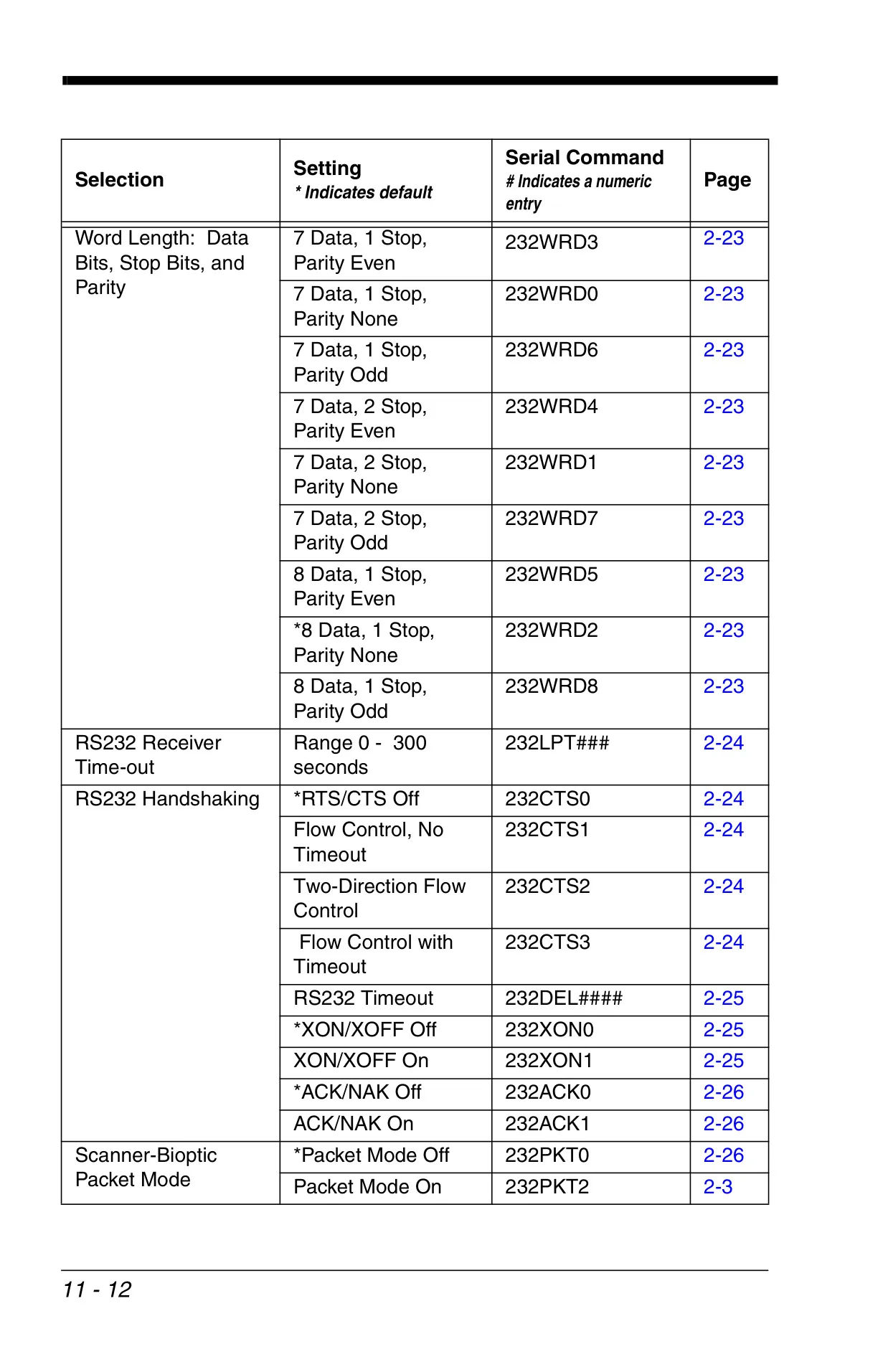
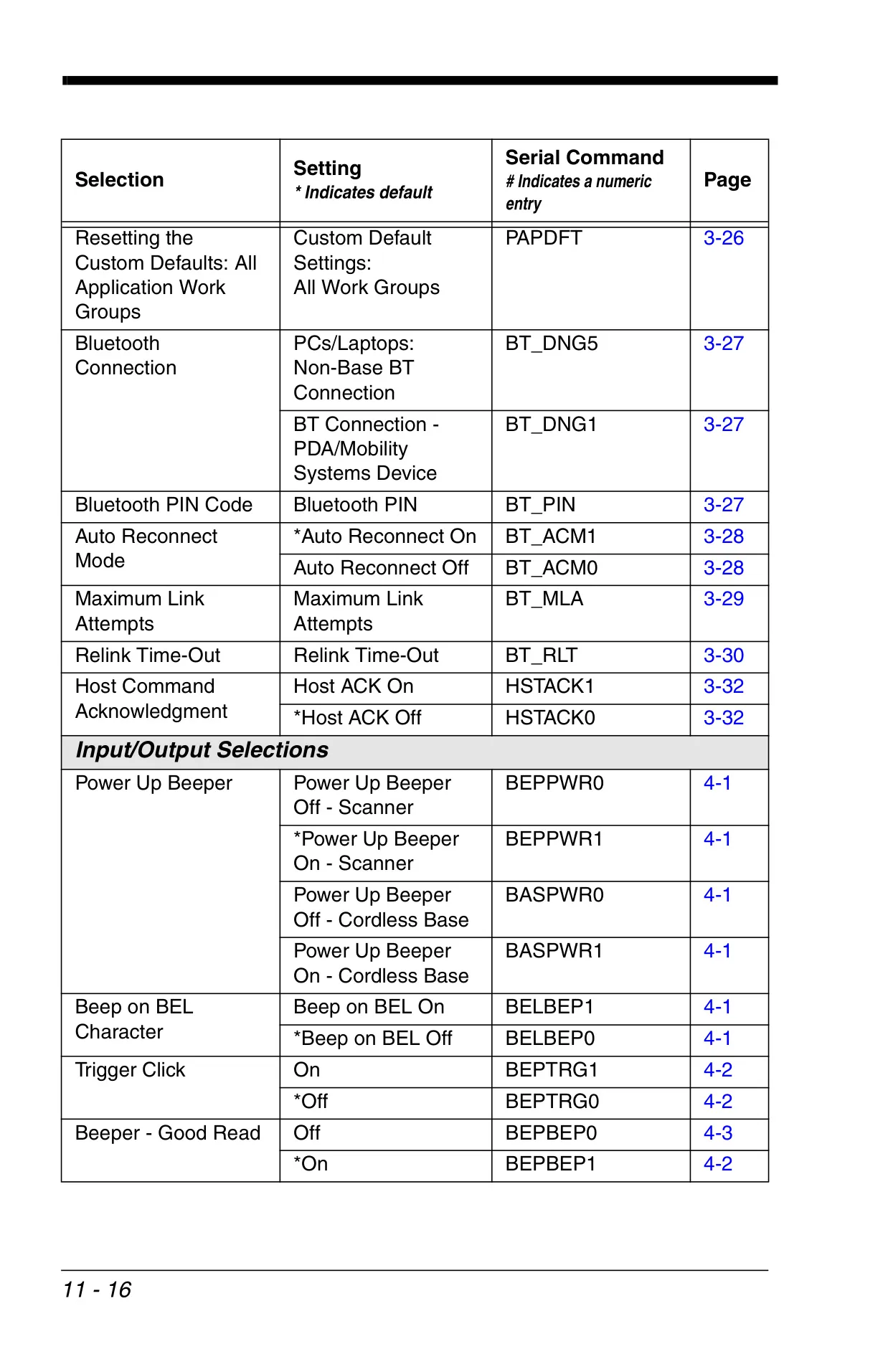
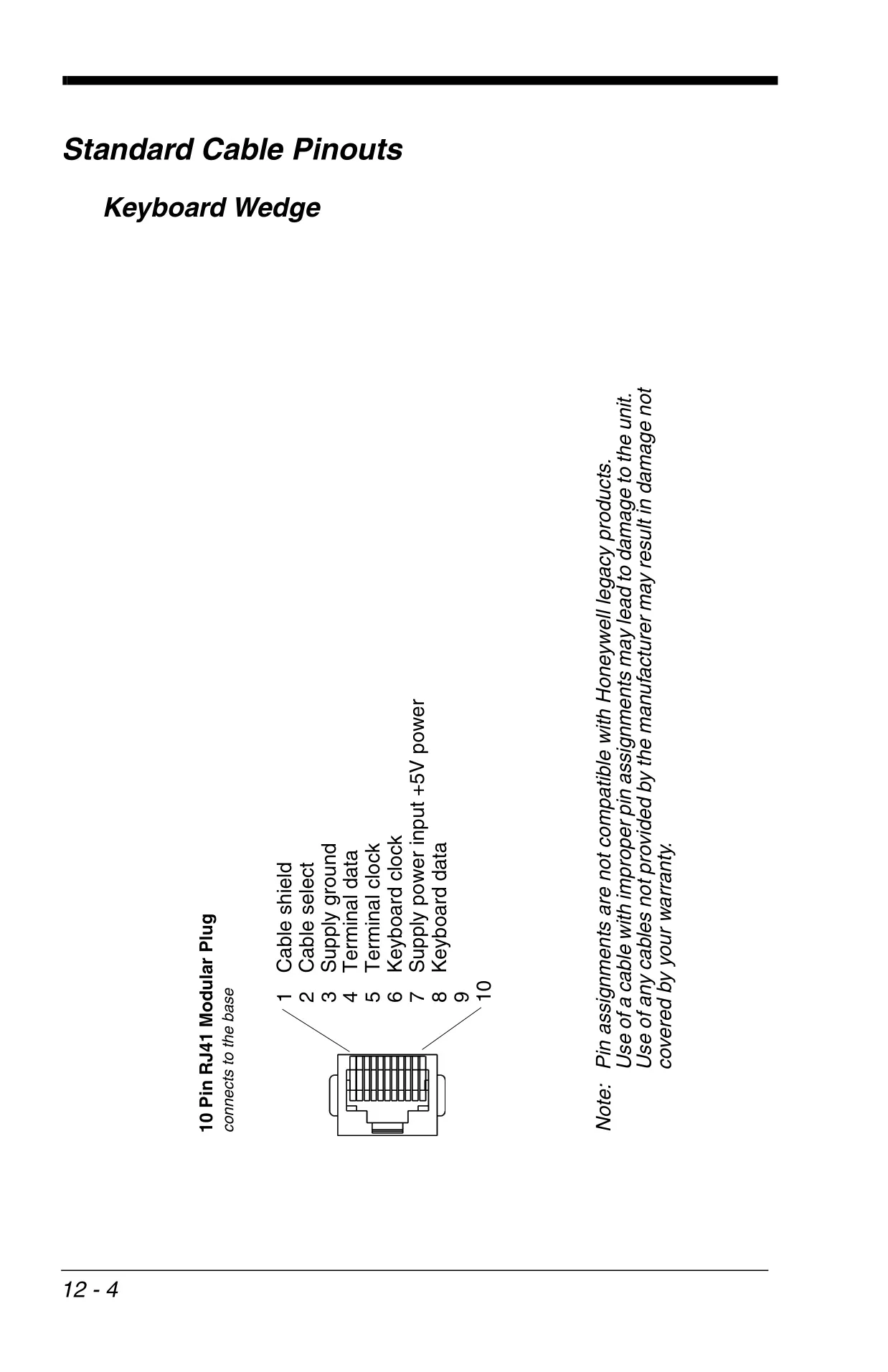
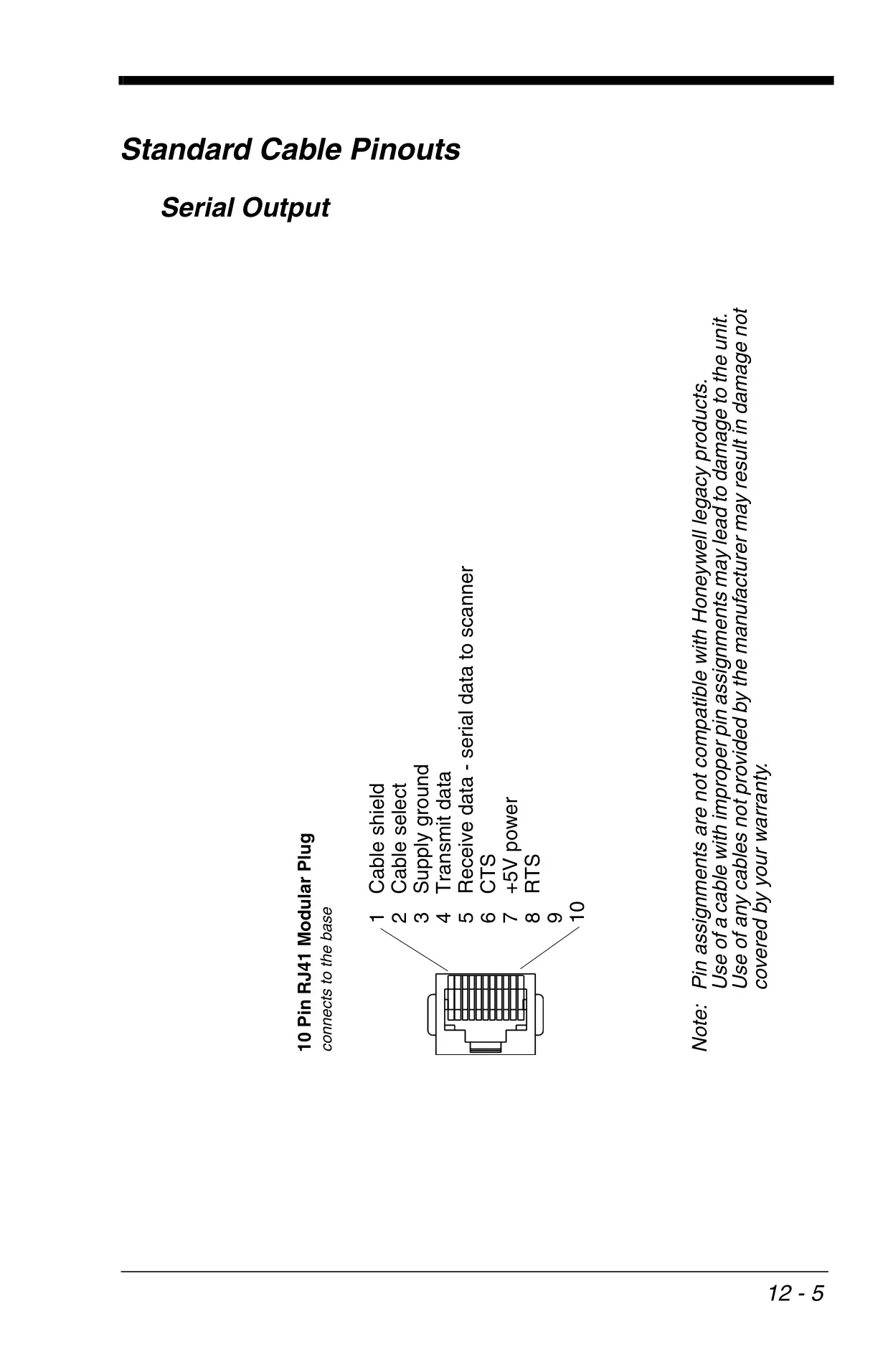
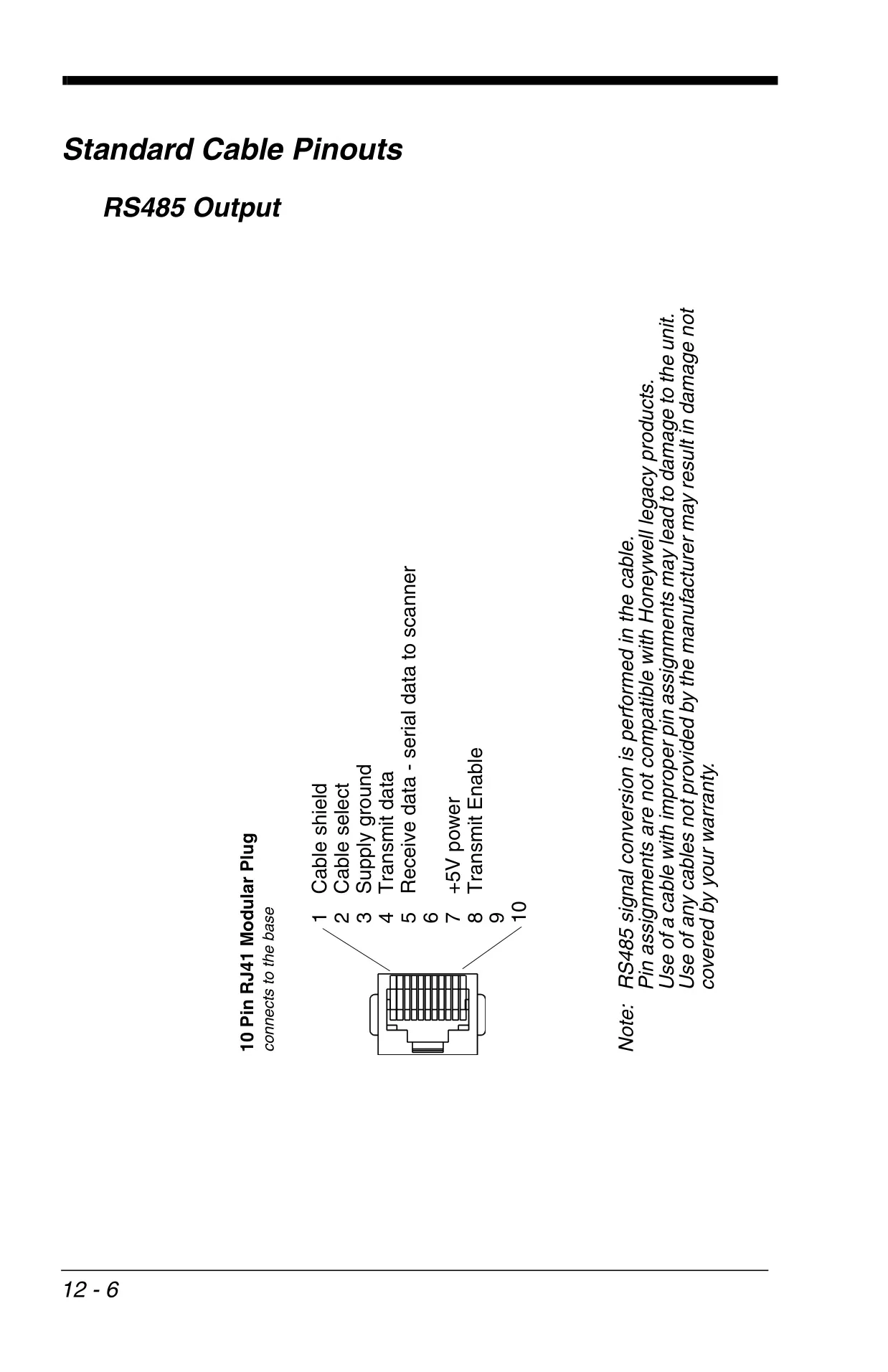
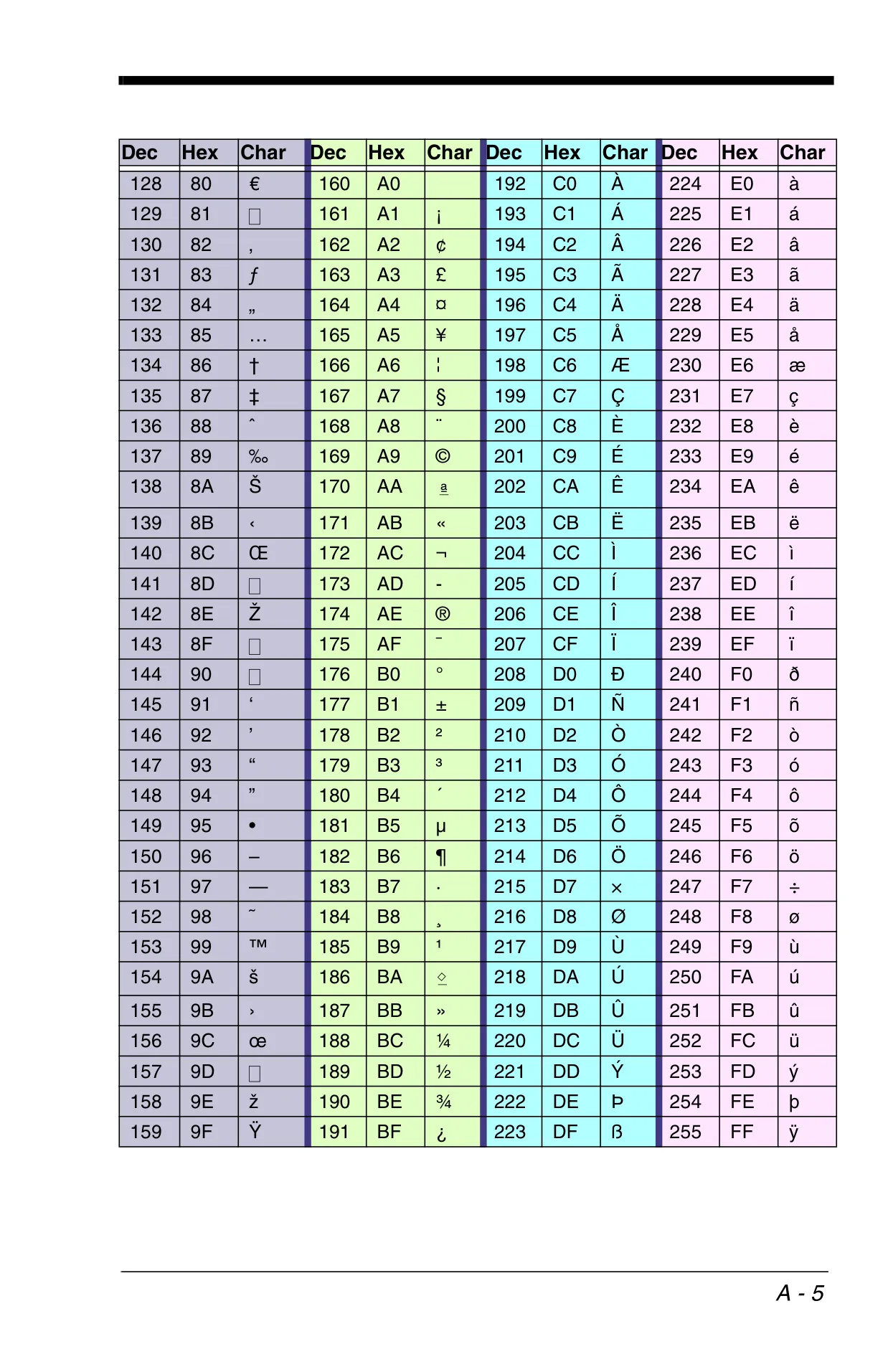
The Honeywell Xenon 1900 series scanners offer flexible host integration, supporting a wide array of connectivity options. Users can seamlessly connect the device via multiple interfaces including USB (PC Keyboard, Mac Keyboard, HID, Serial emulation), Keyboard Wedge, RS232 Serial Port, or RS485. This extensive compatibility ensures the scanner can be integrated into virtually any existing system. Initial setup is simplified through "Plug and Play" bar codes, which instantly configure the scanner for common terminal types like IBM PC AT, IBM SurePos, Verifone Ruby, and Gilbarco terminals, significantly reducing deployment time.
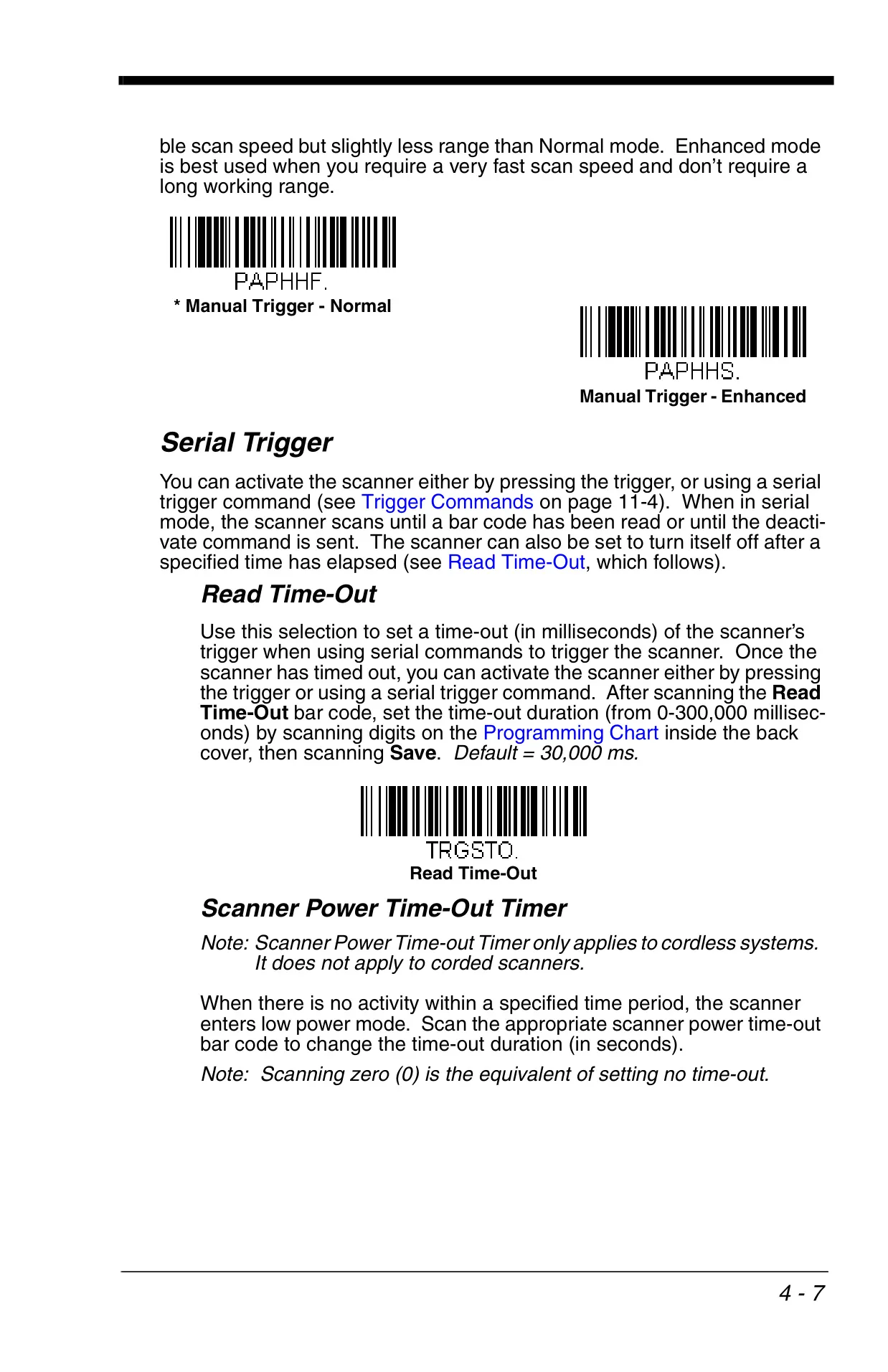
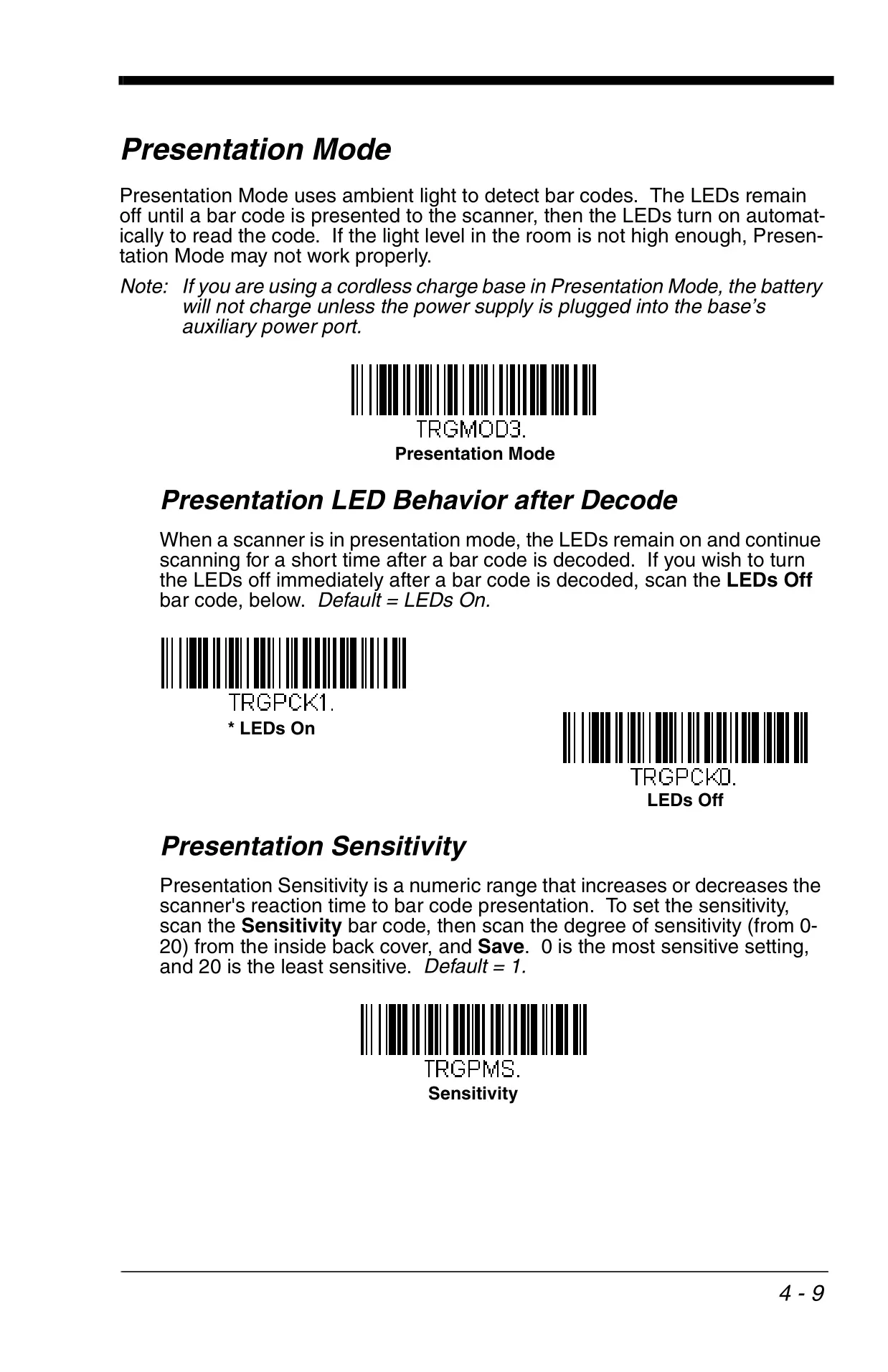
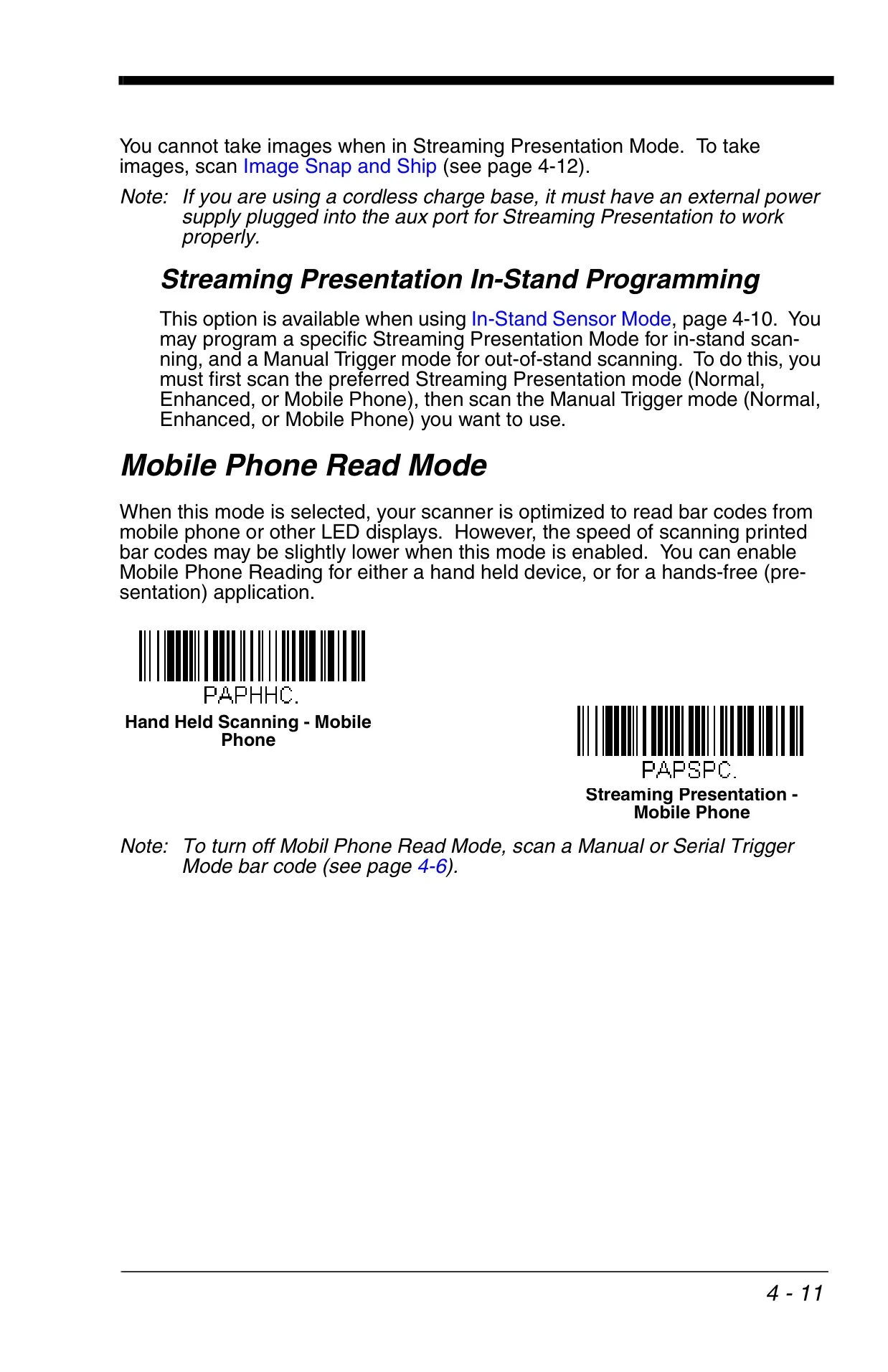
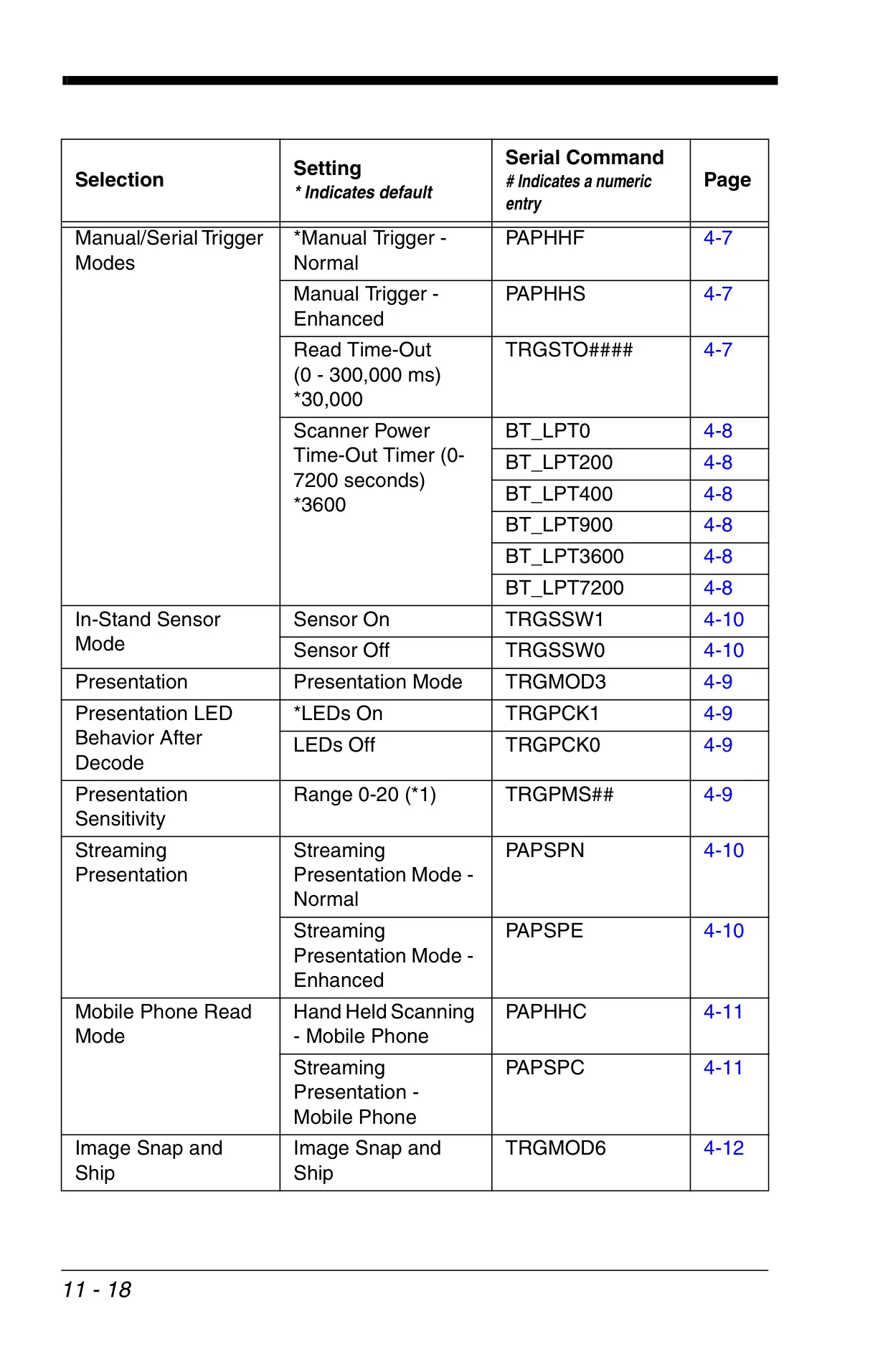
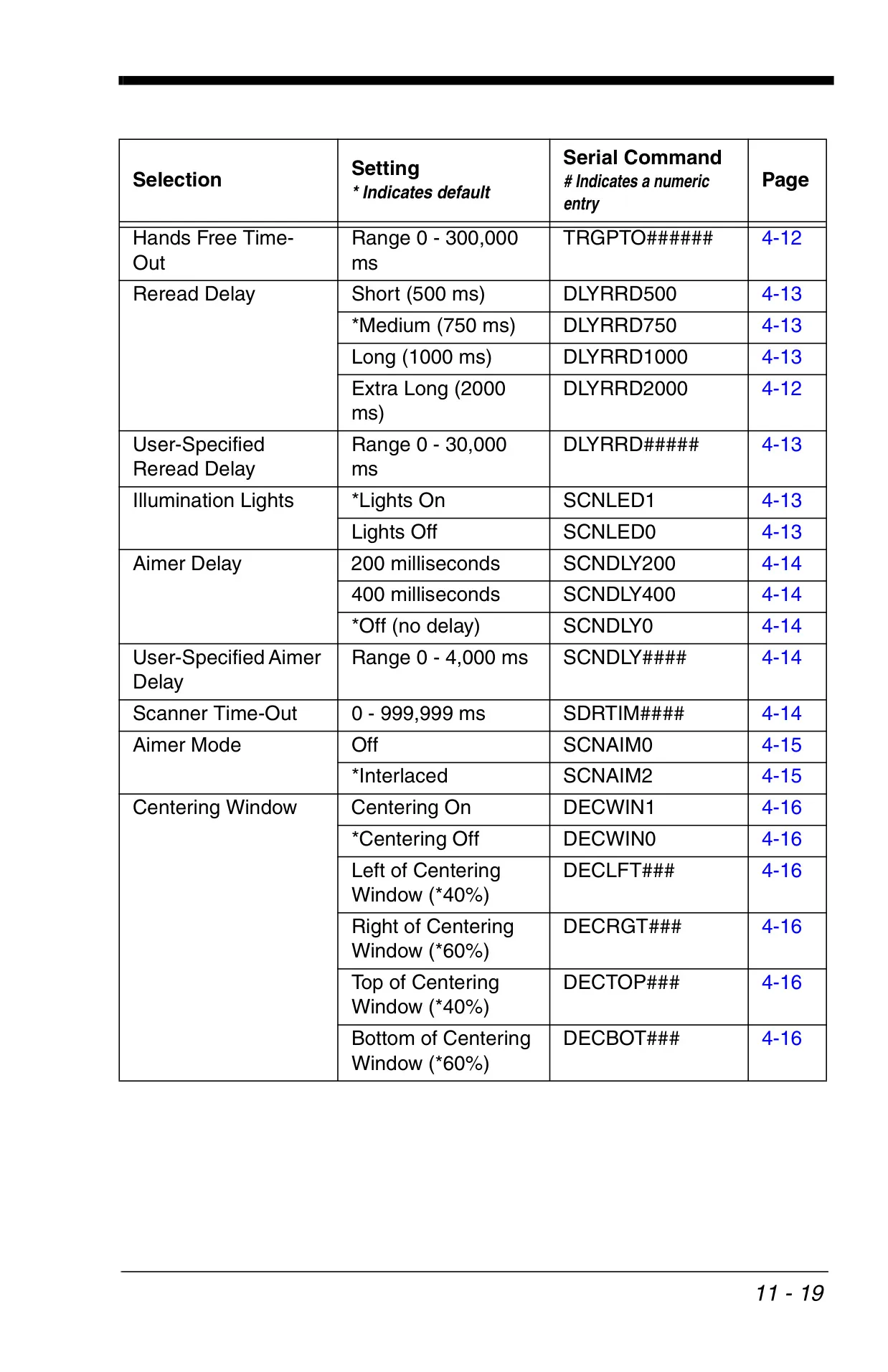
Beyond basic manual triggering, the Xenon 1900 boasts sophisticated operational modes to enhance efficiency. Presentation Mode allows the scanner to automatically detect and read barcodes using ambient light, while Streaming Presentation™ Mode keeps the illumination on for continuous, high-speed scanning. For optimizing readability from digital displays, Mobile Phone Read Mode is available. Additionally, the scanner's capability for Image Snap and Ship extends its utility beyond barcodes to capturing and transferring images.
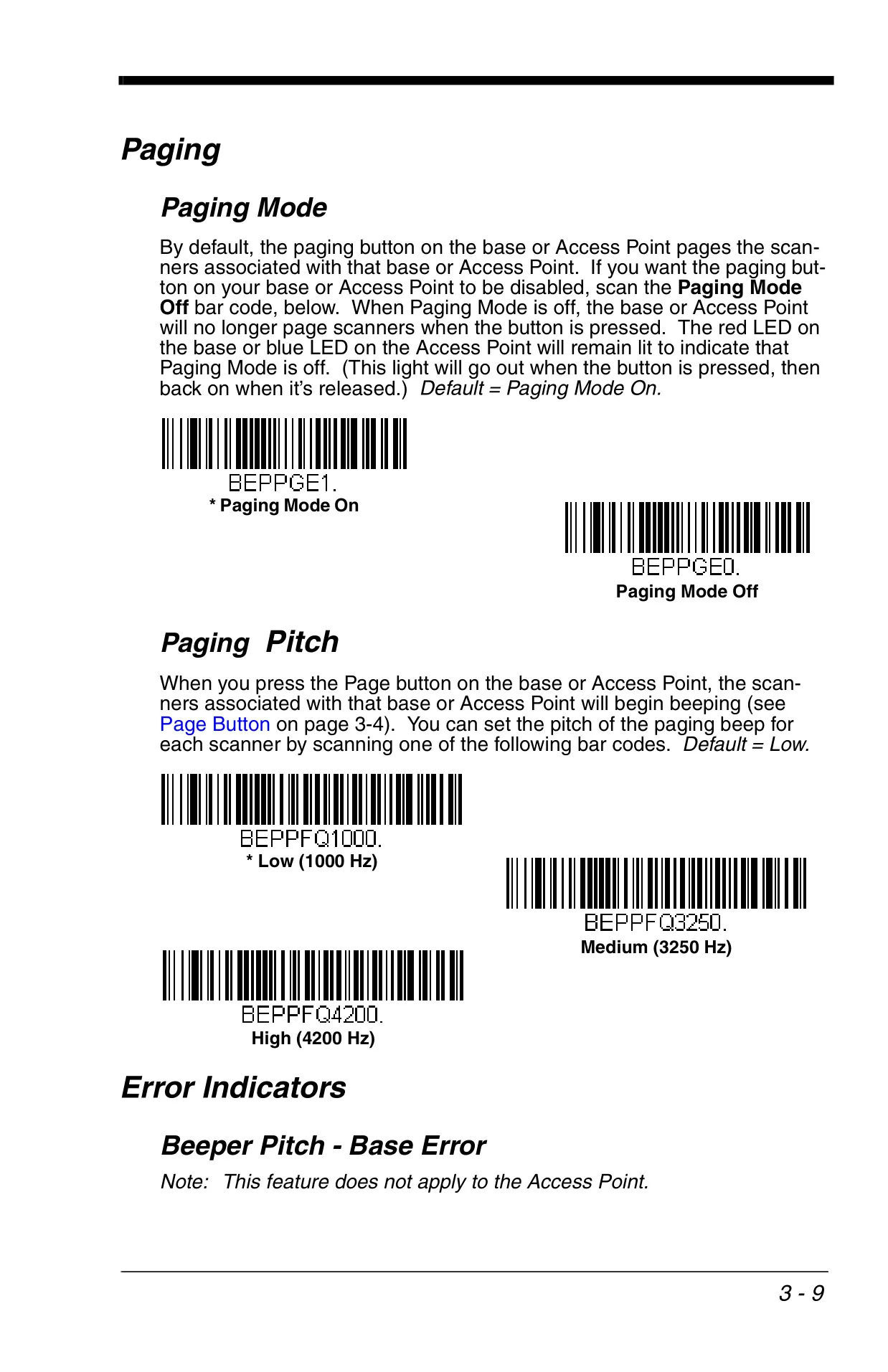
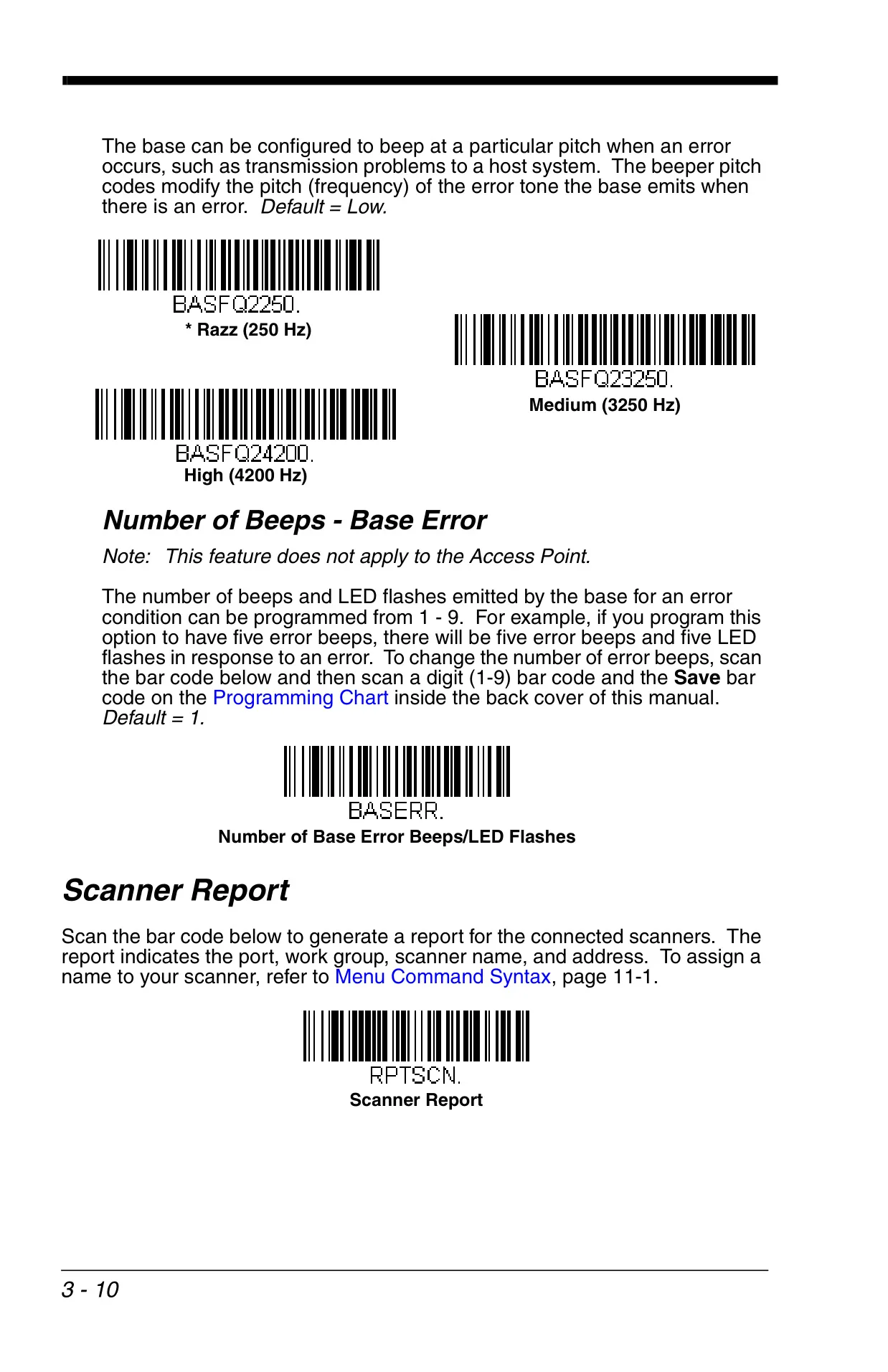
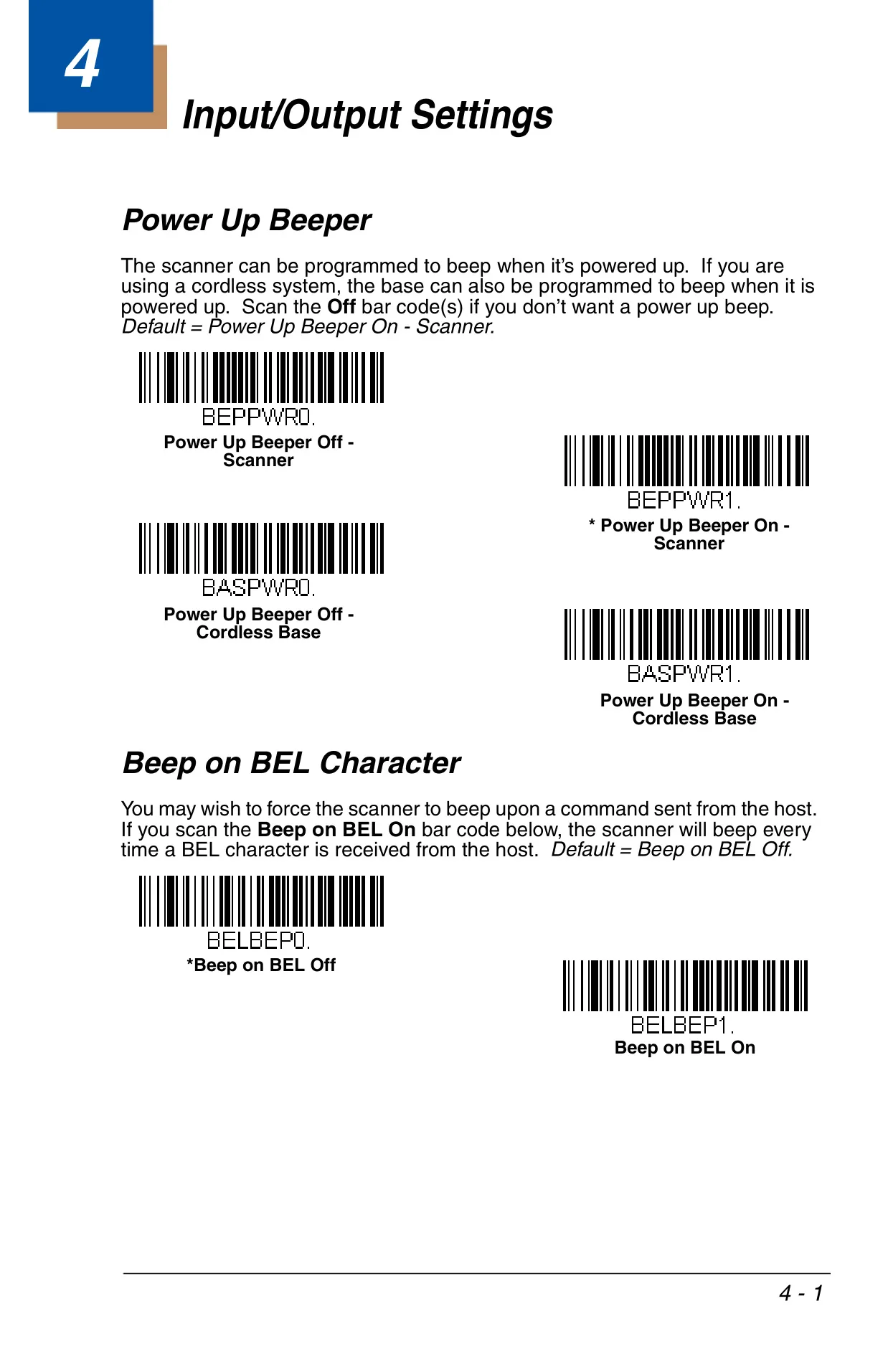
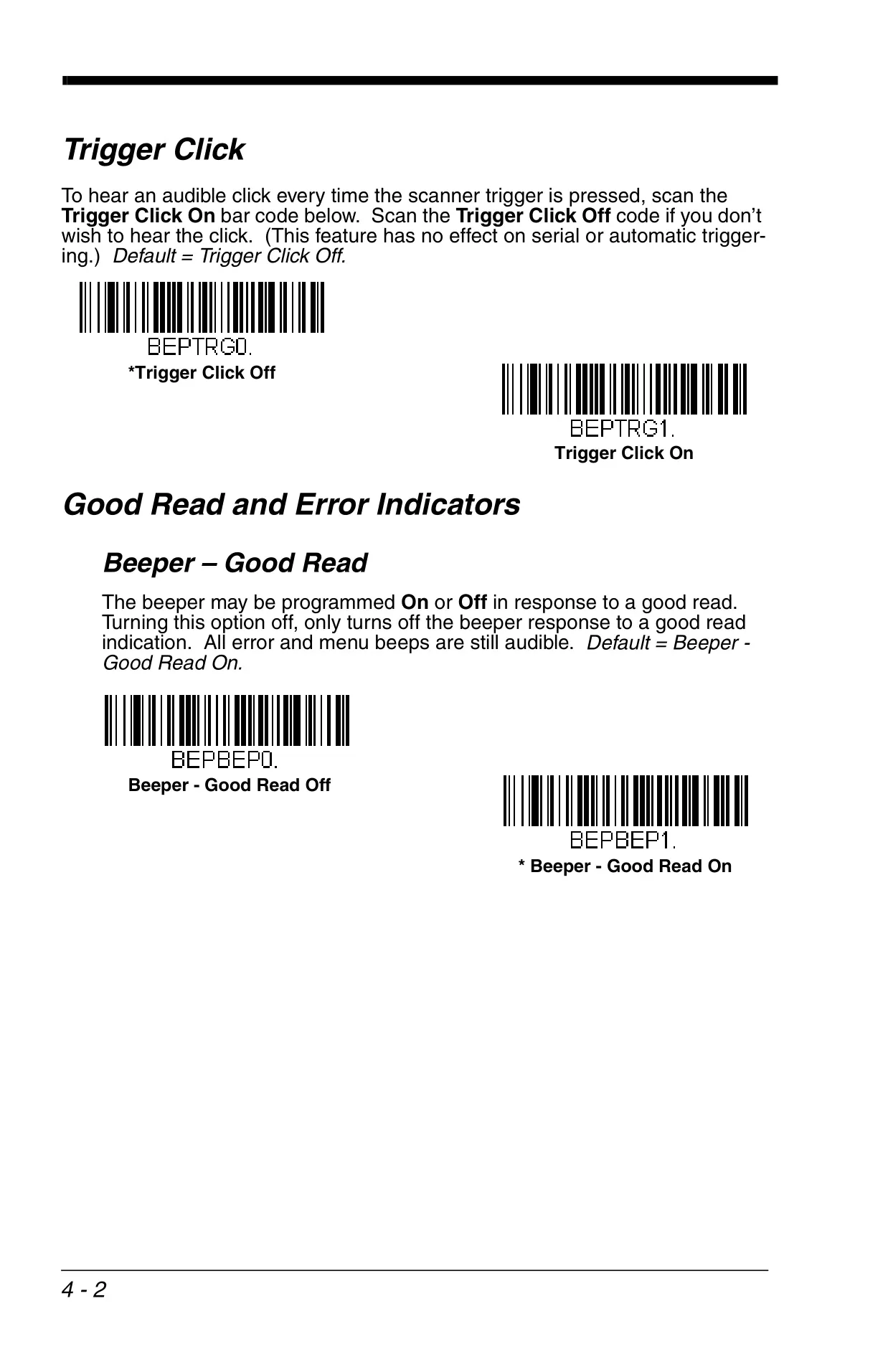
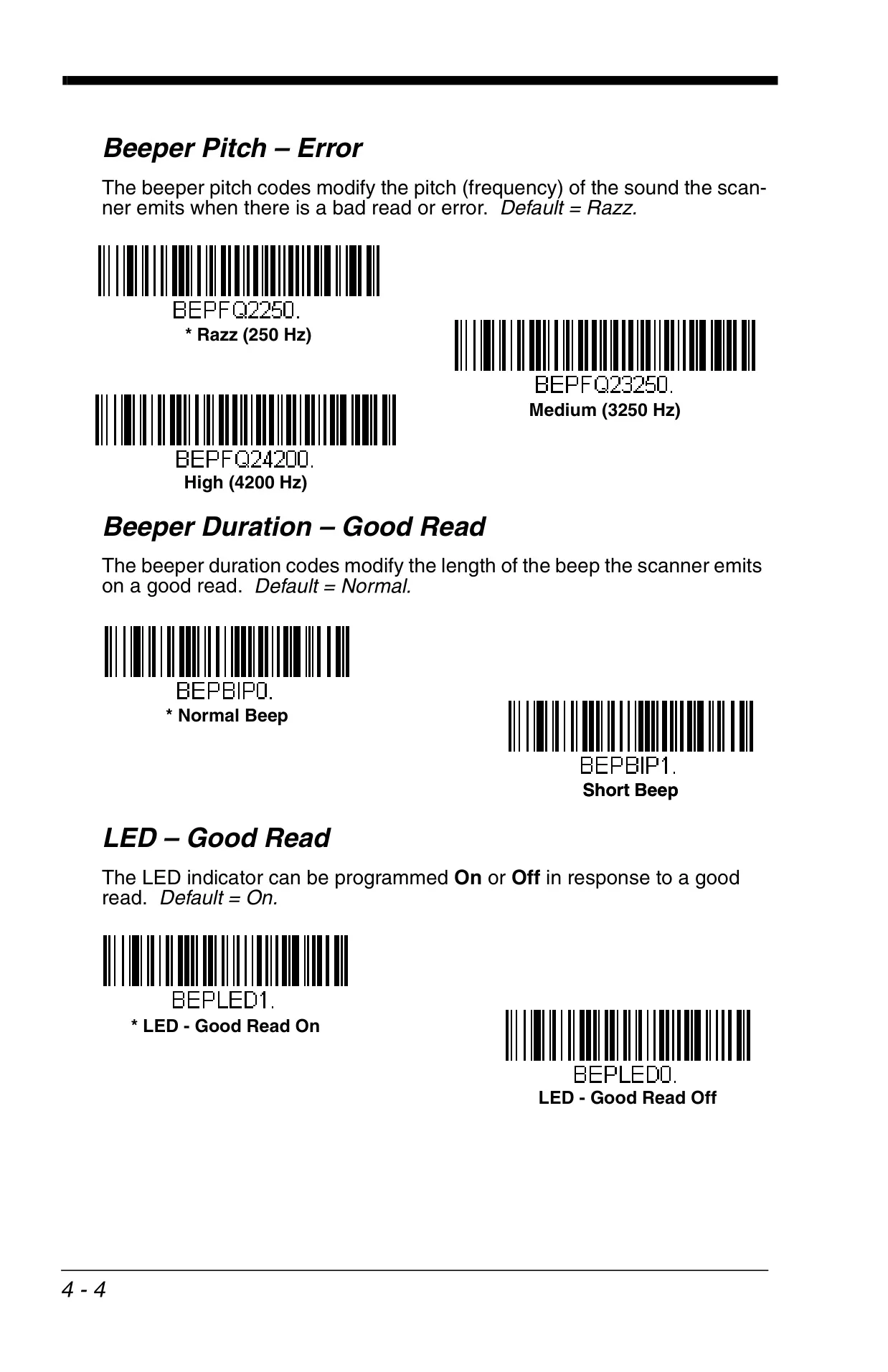
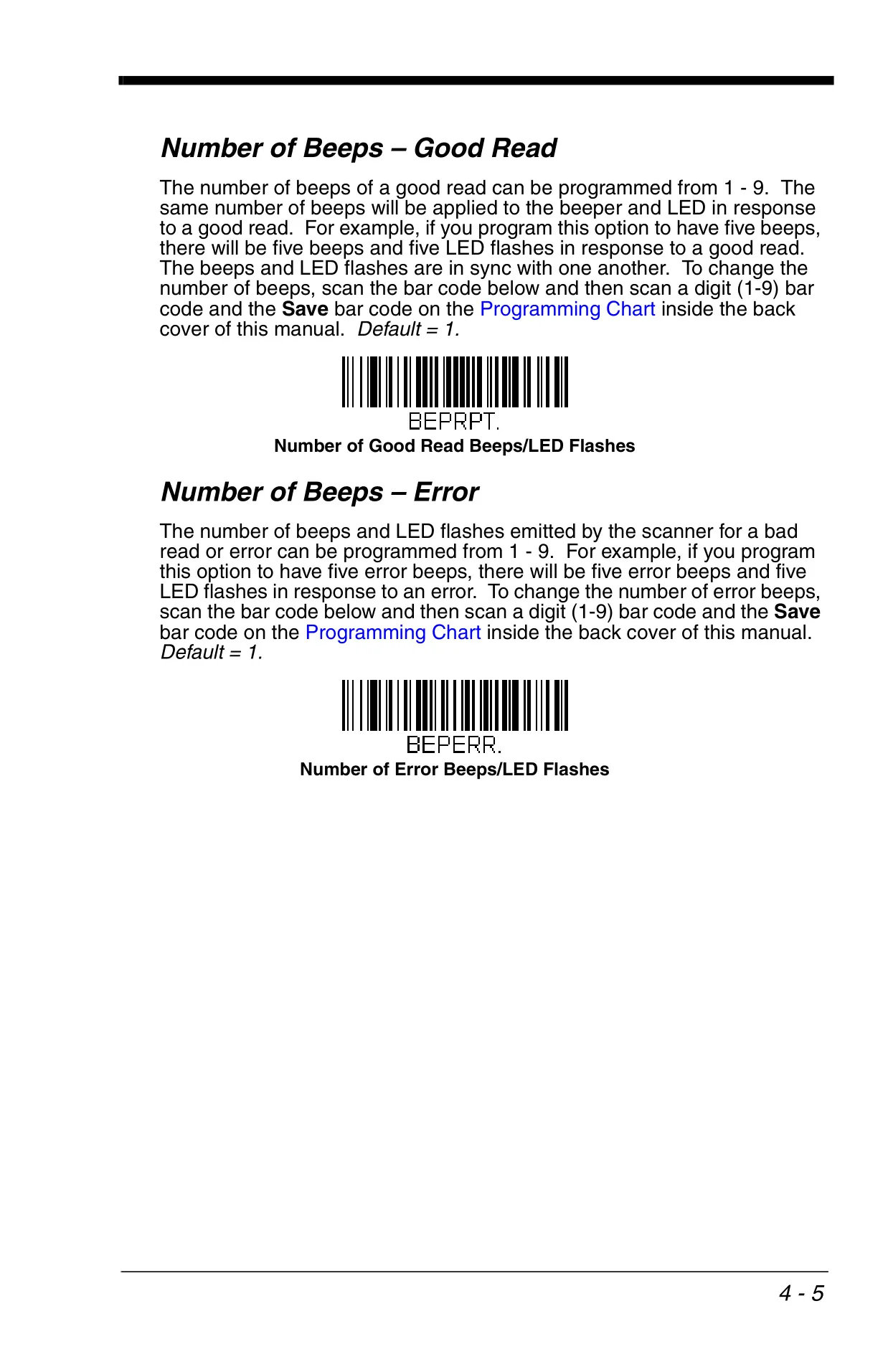
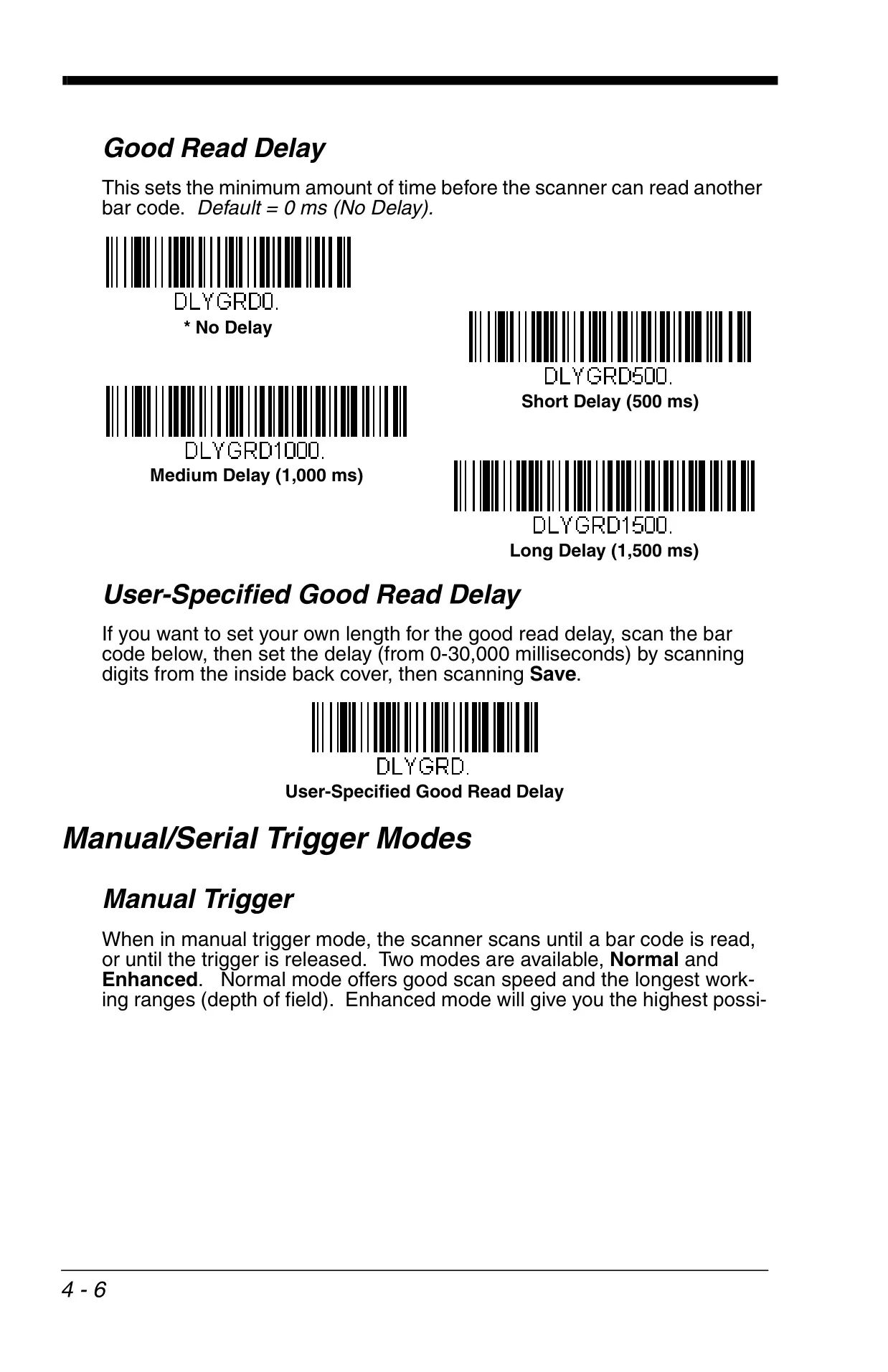
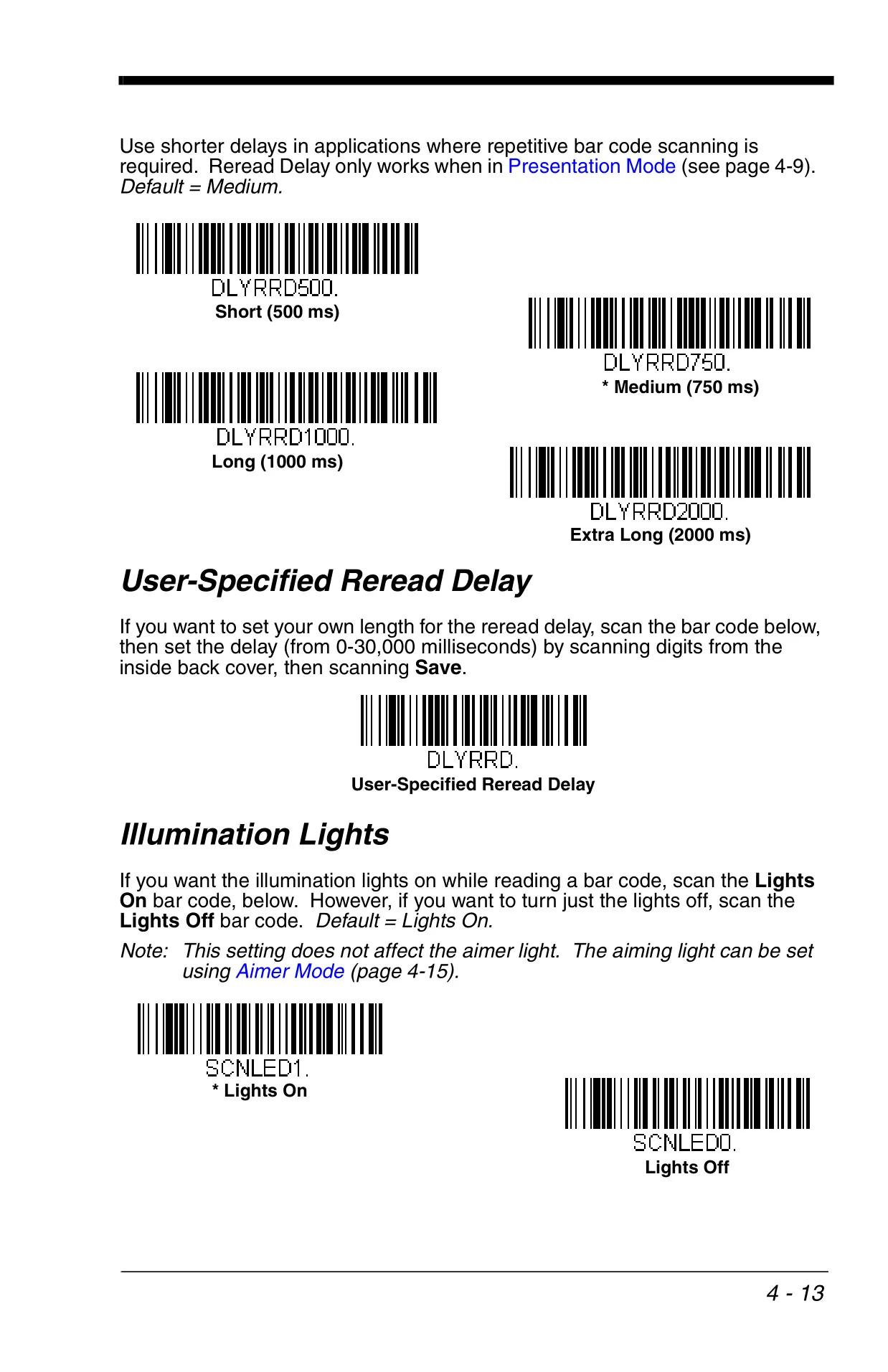
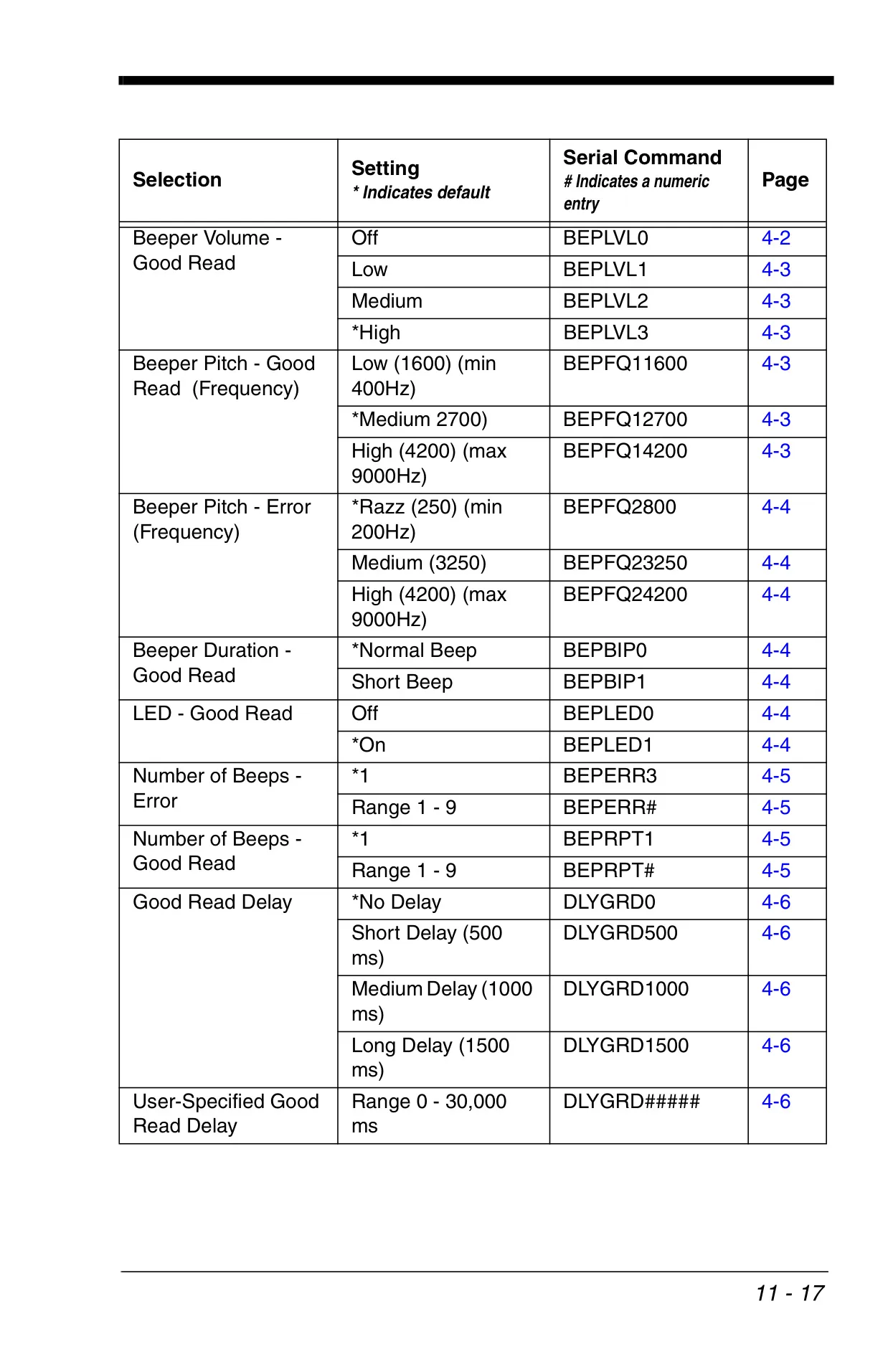
The device provides extensive options for customizable user feedback. The beeper's volume, pitch, and duration can be finely adjusted for both successful reads and error indications, complementing the visual feedback from the LED indicators. Features such as "Trigger Click" offer audible confirmation when the trigger is pressed, while "Good Read Delay" helps prevent accidental re-reads of the same barcode, collectively improving operational accuracy and user experience.
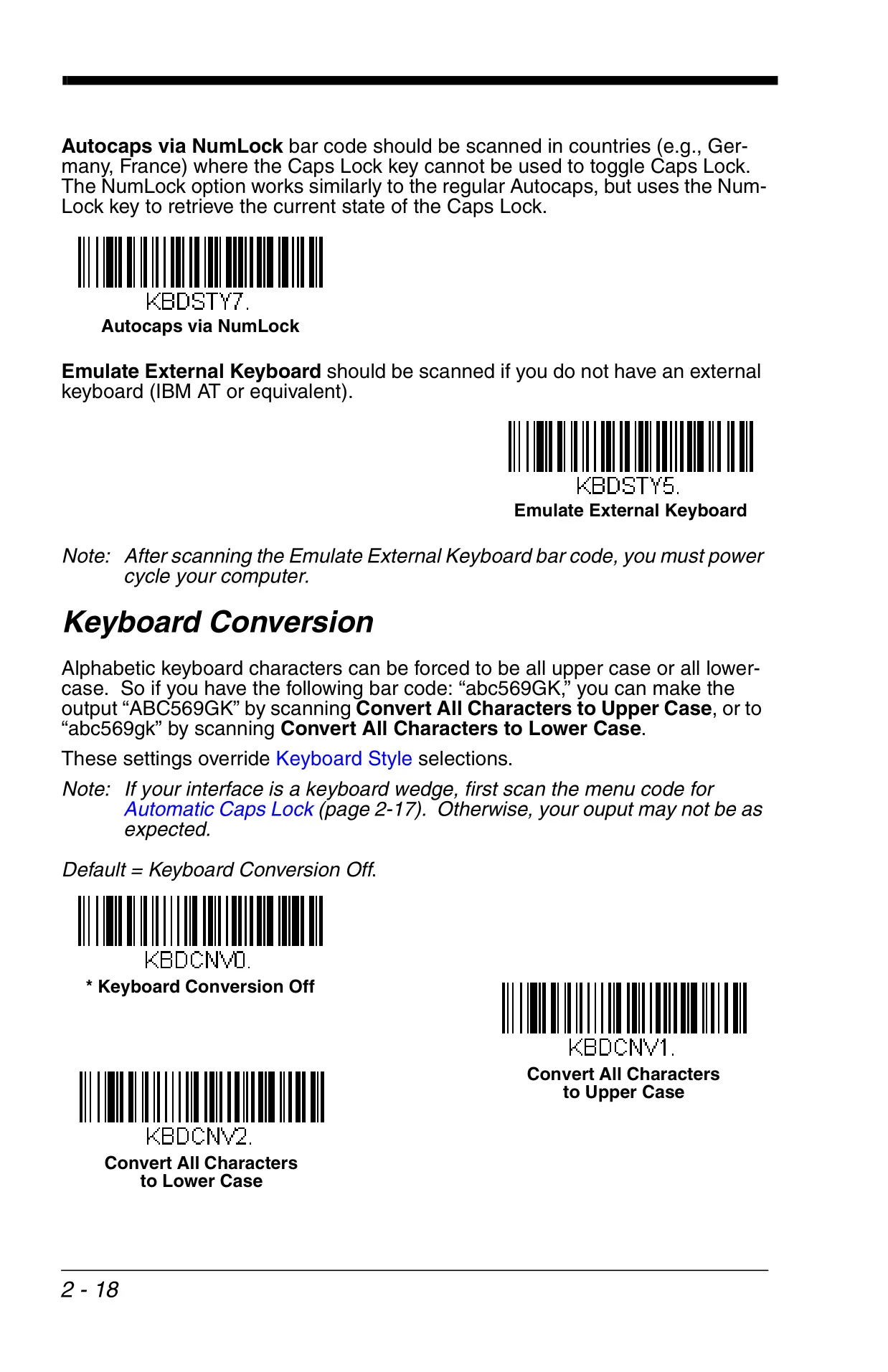
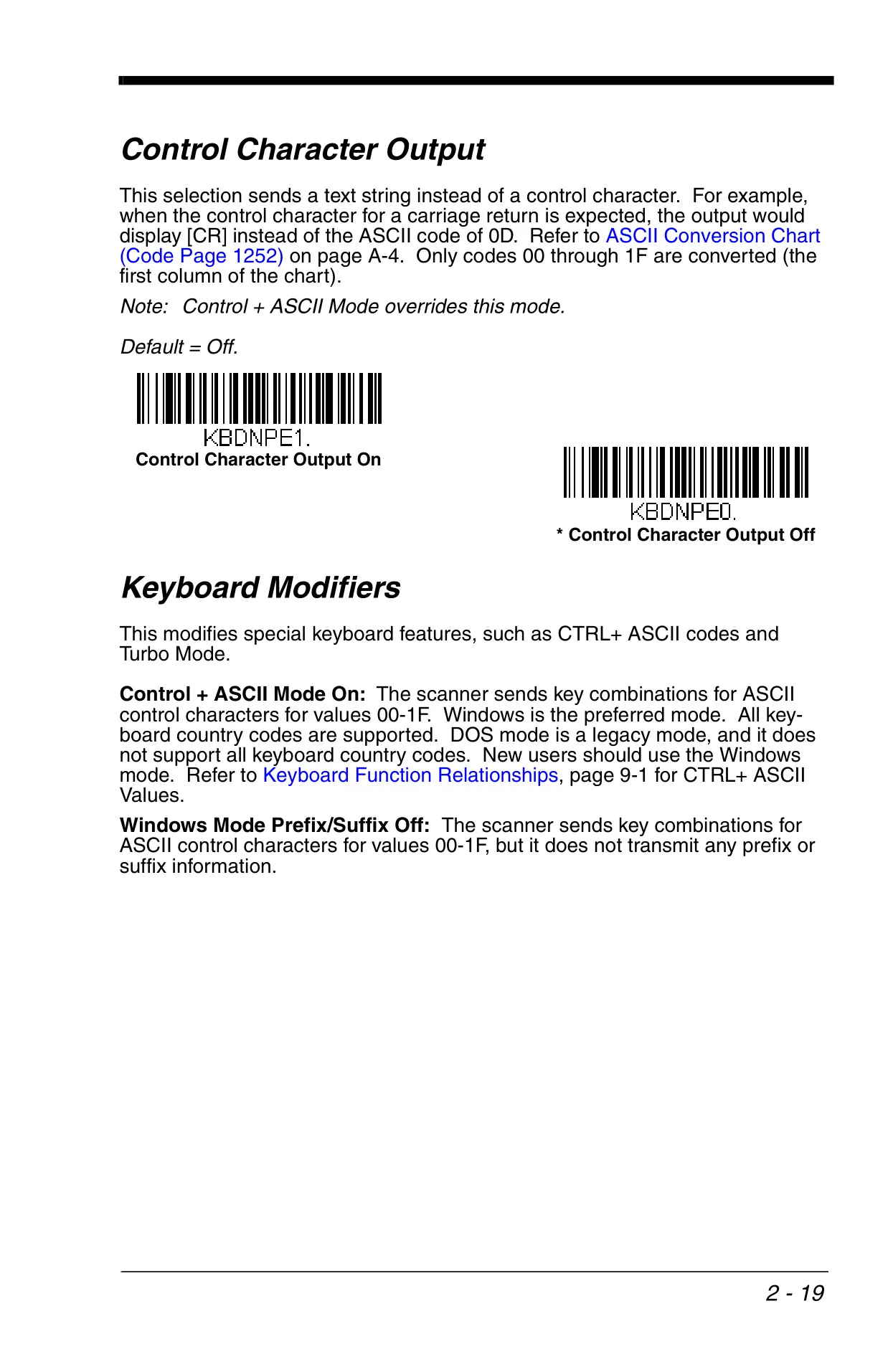
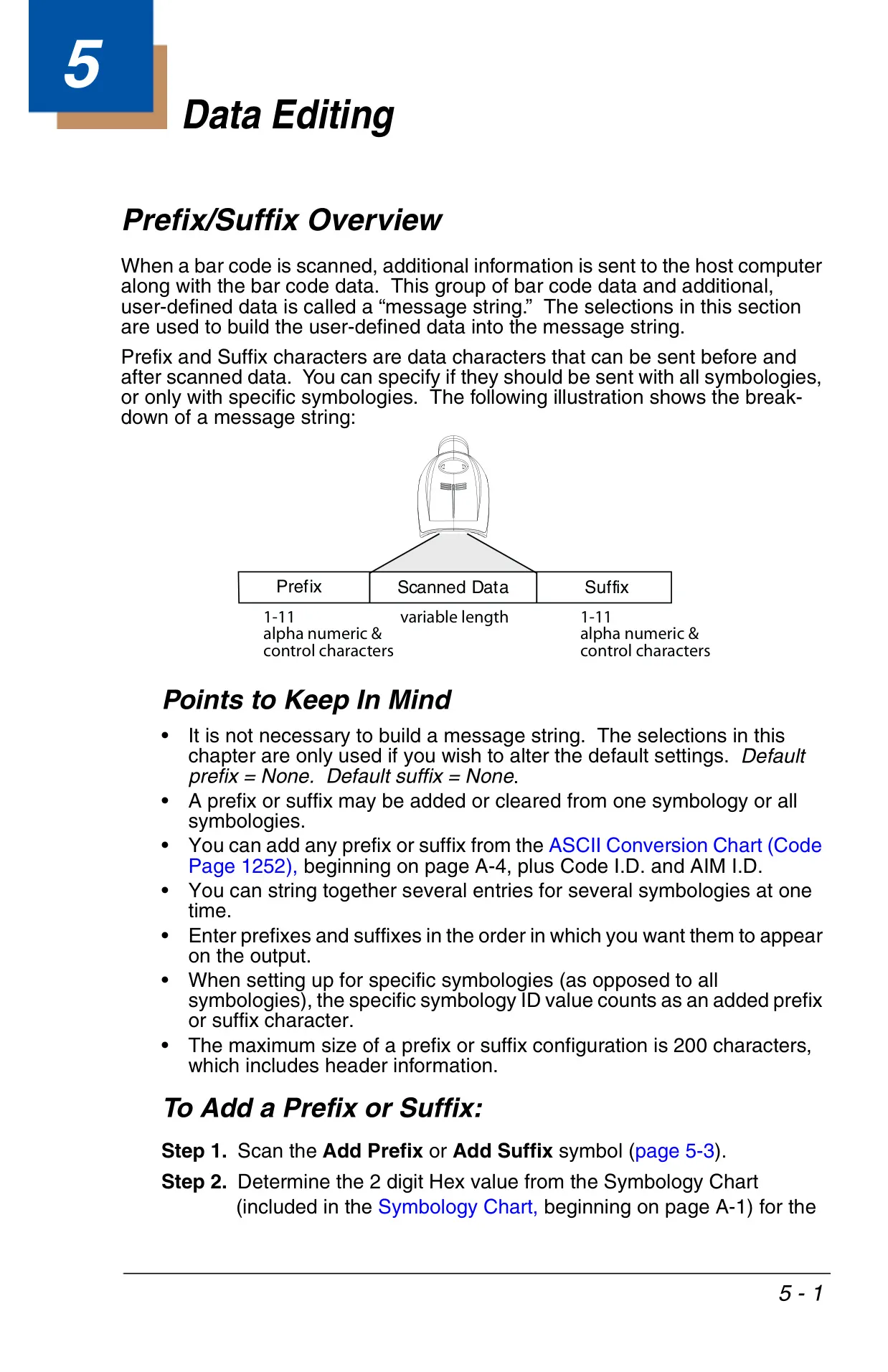
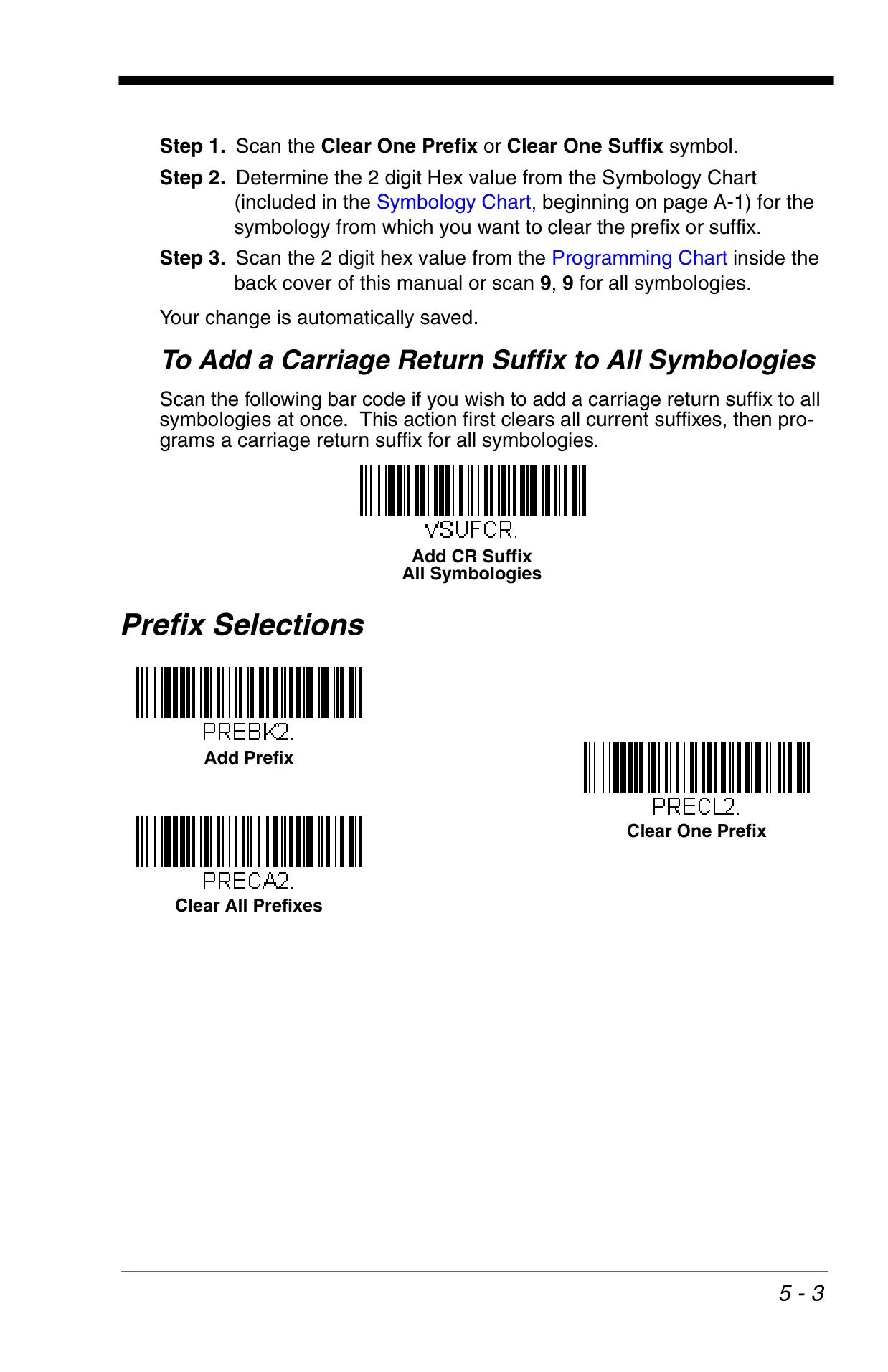
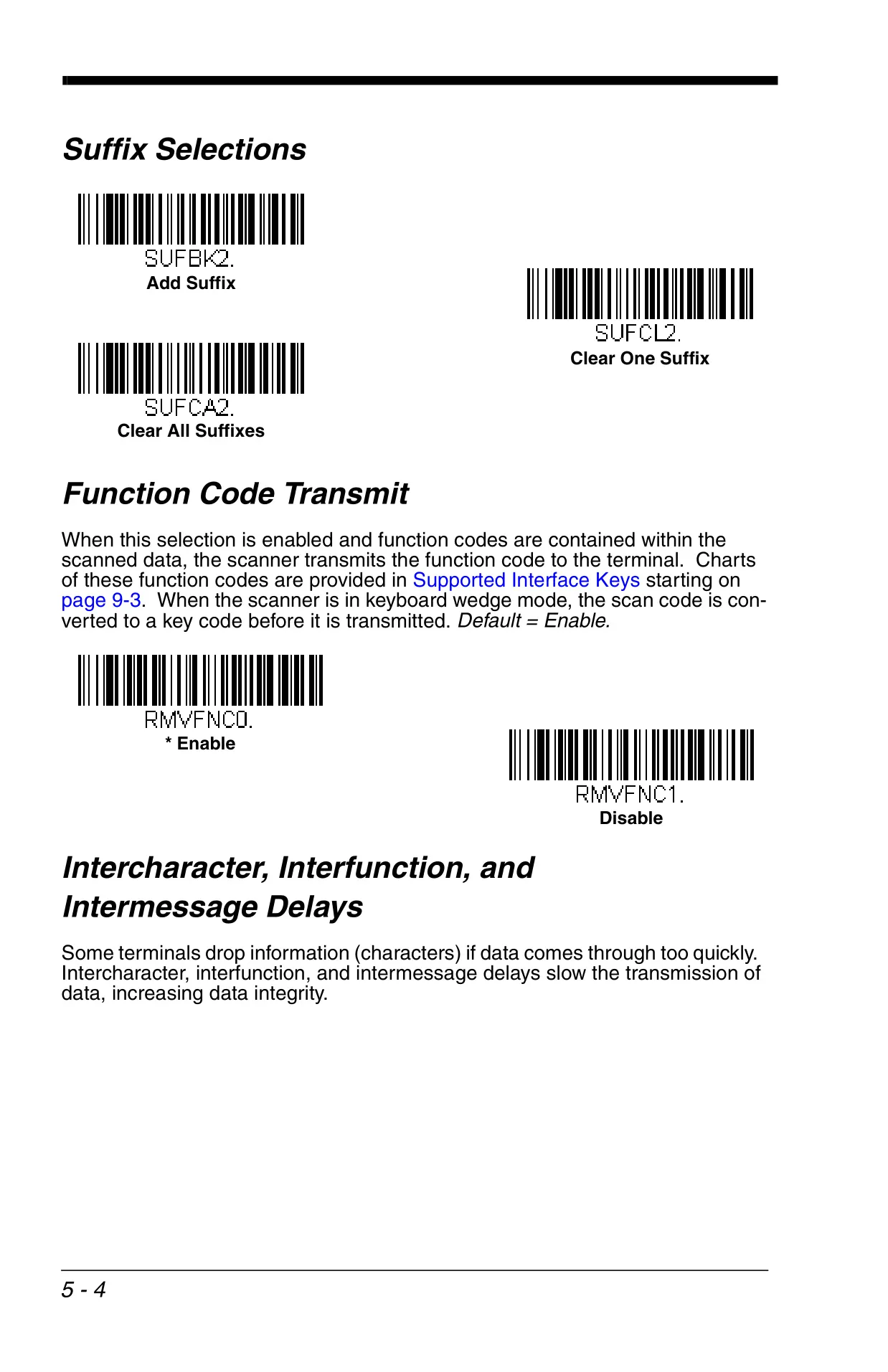
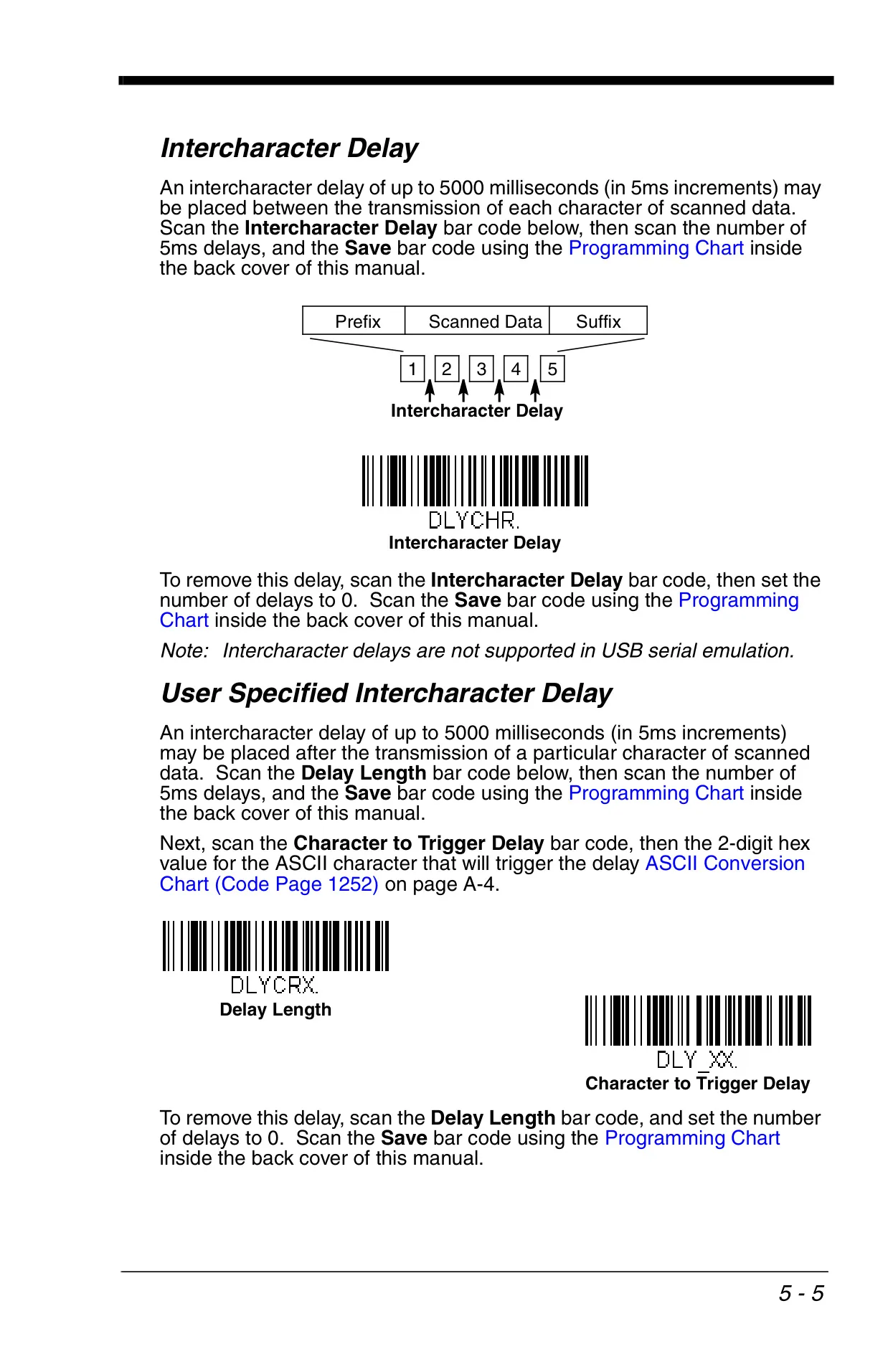
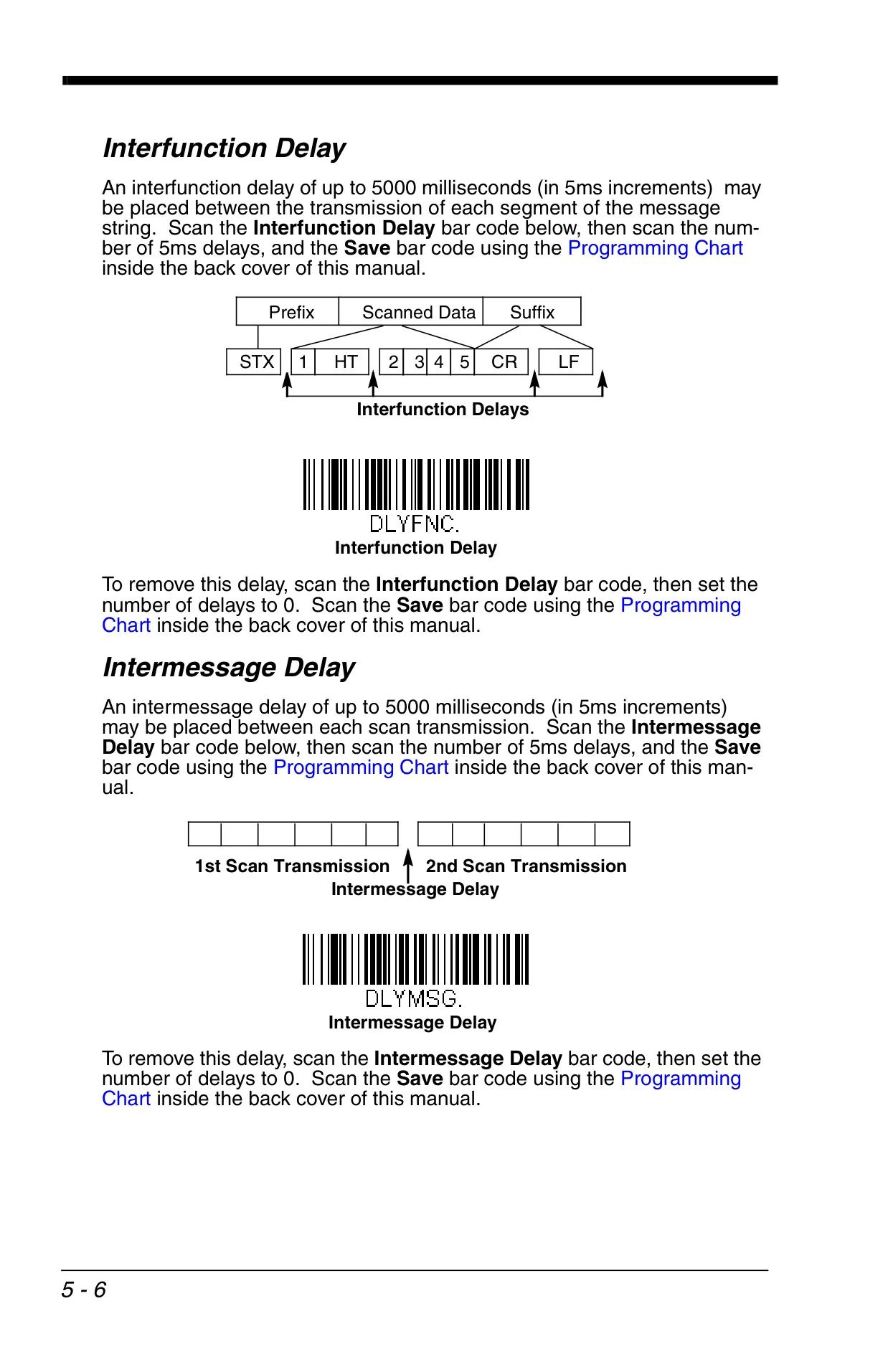
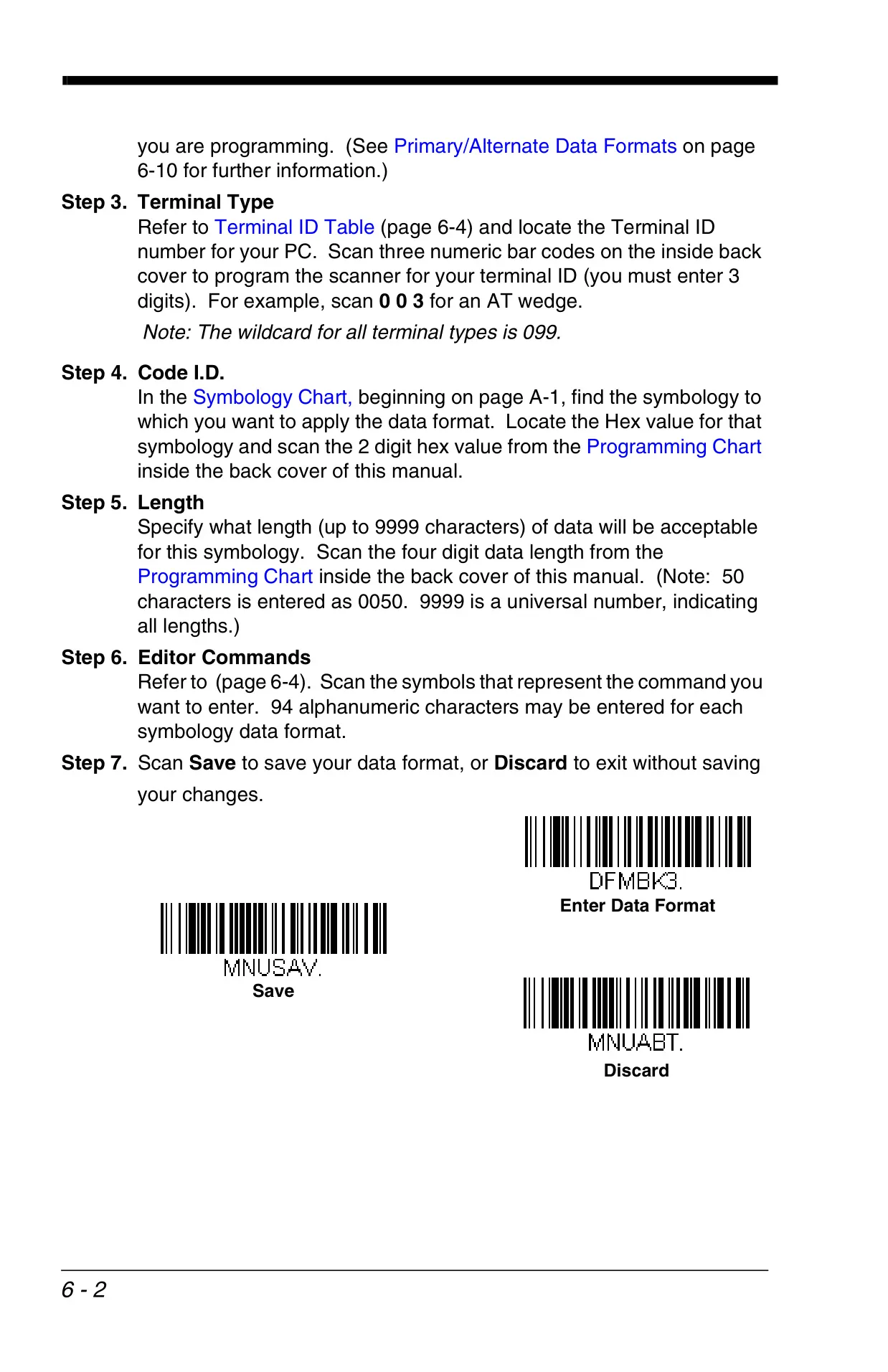
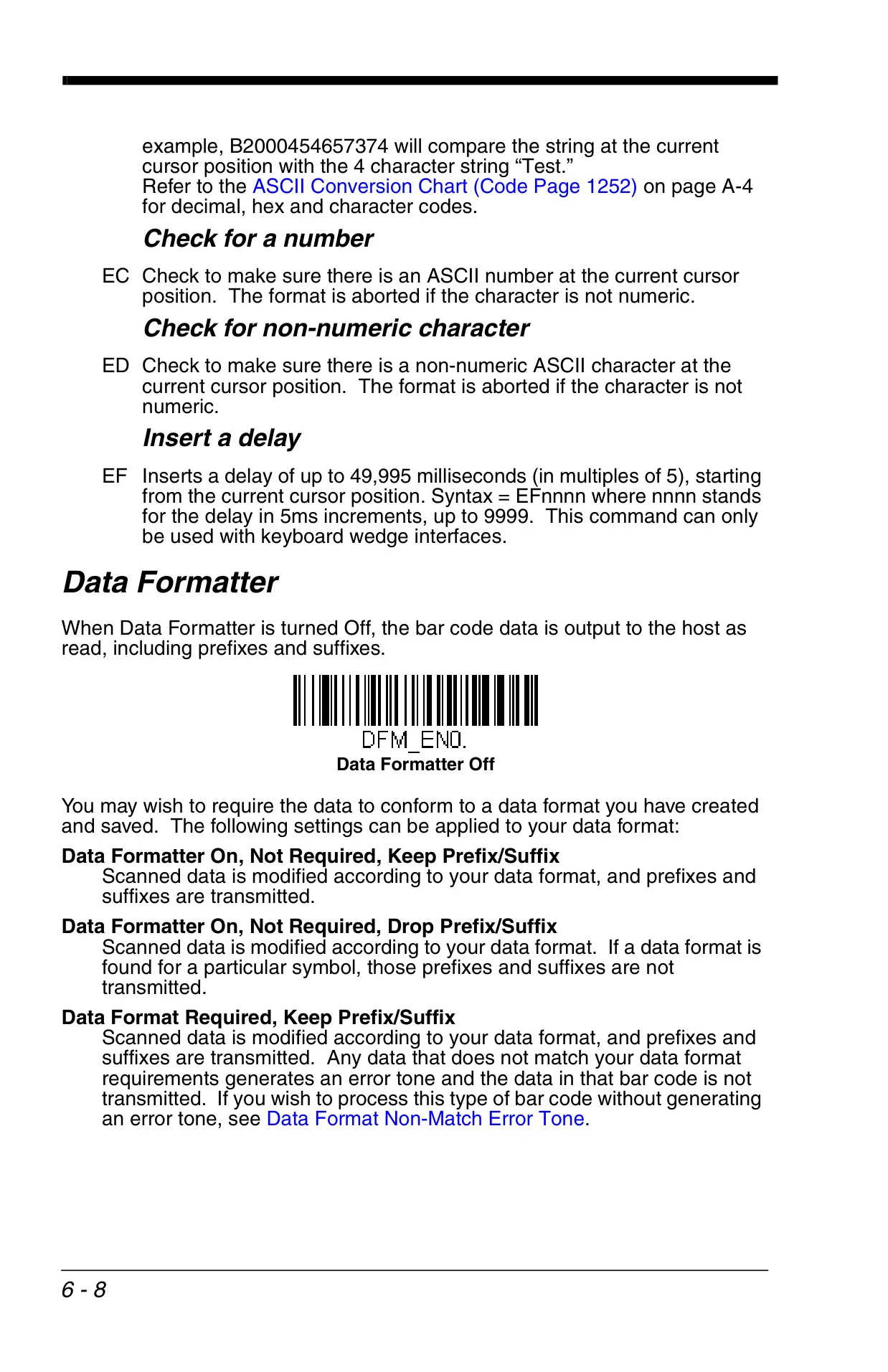
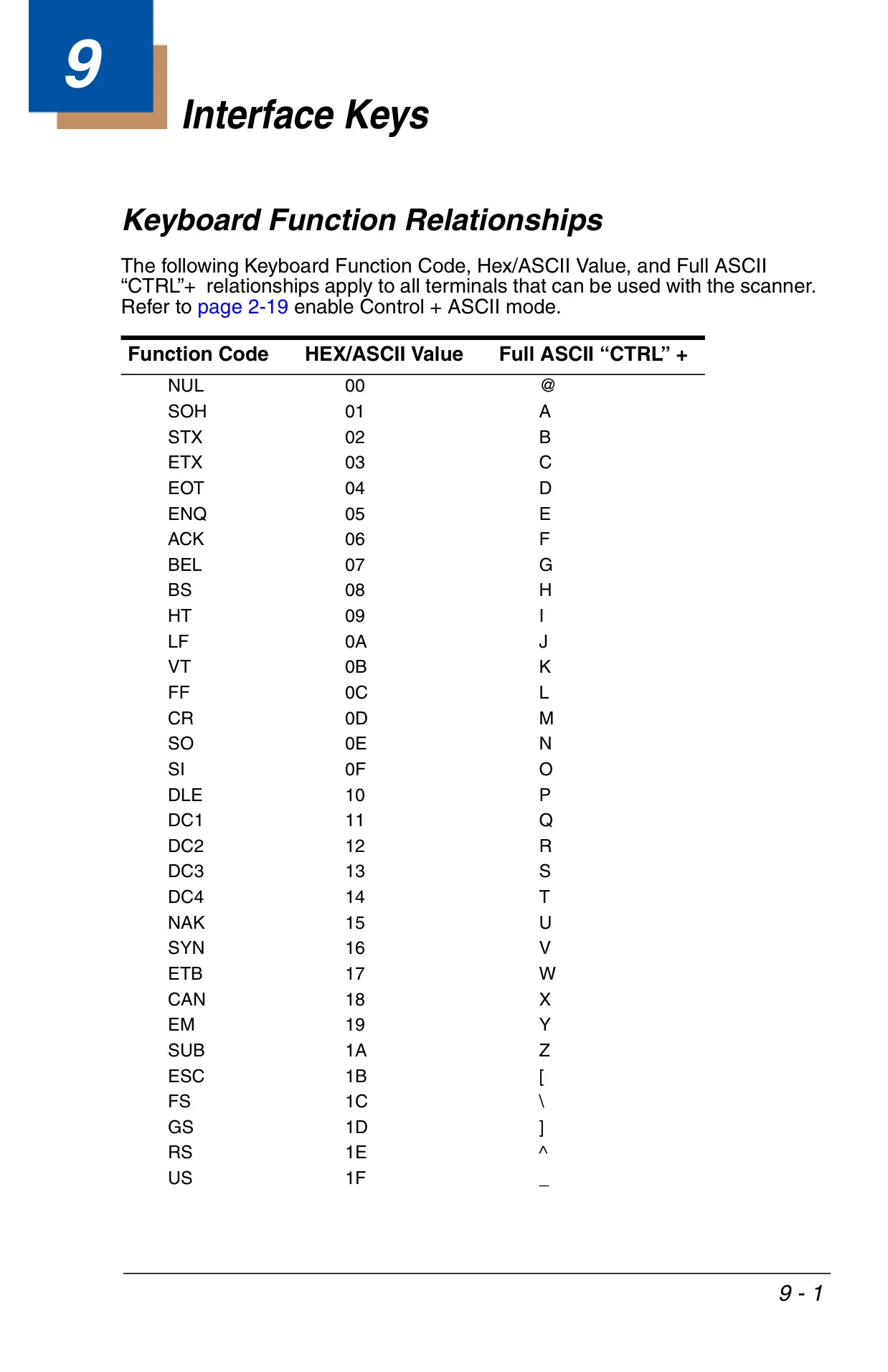
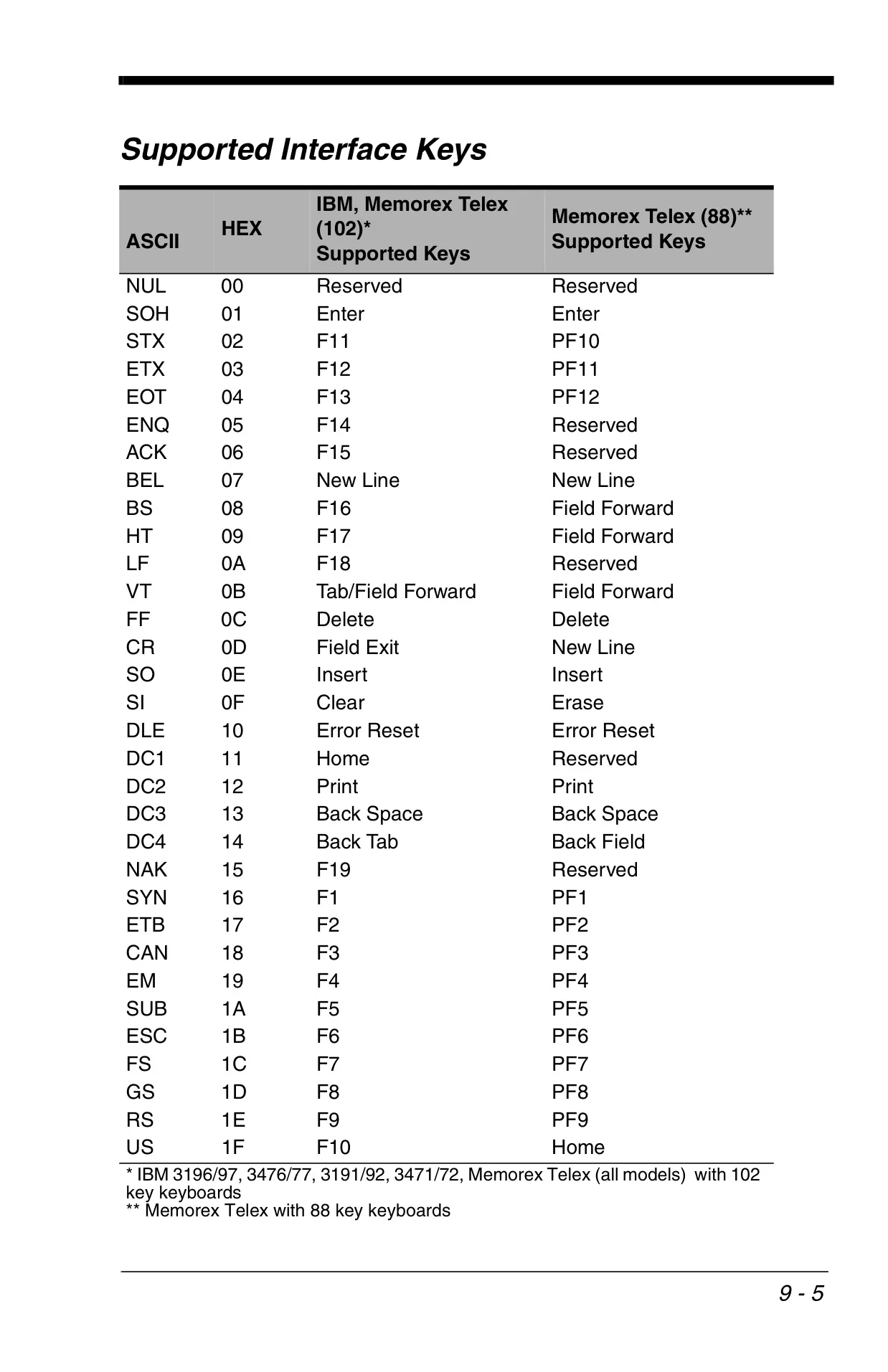
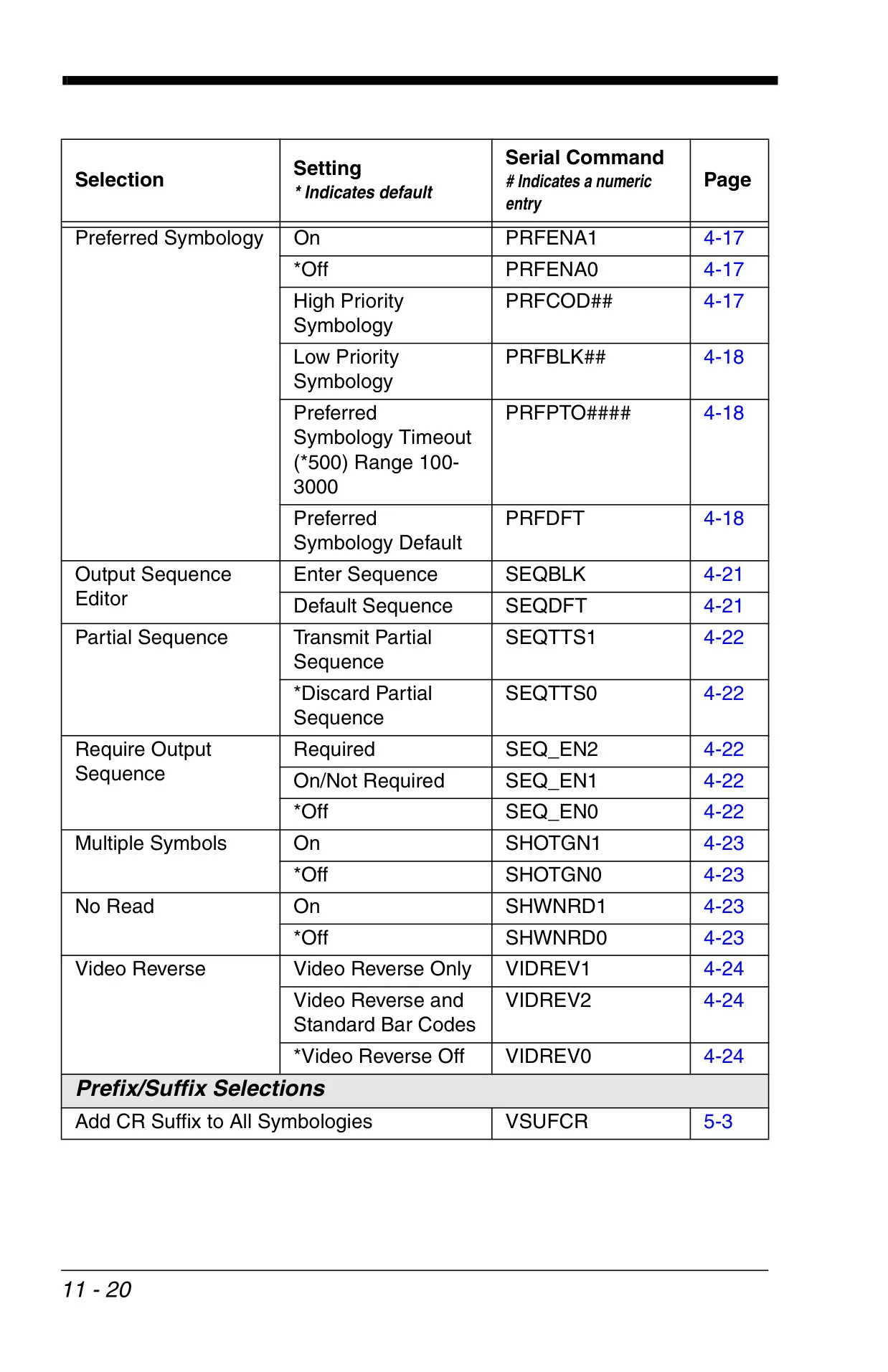
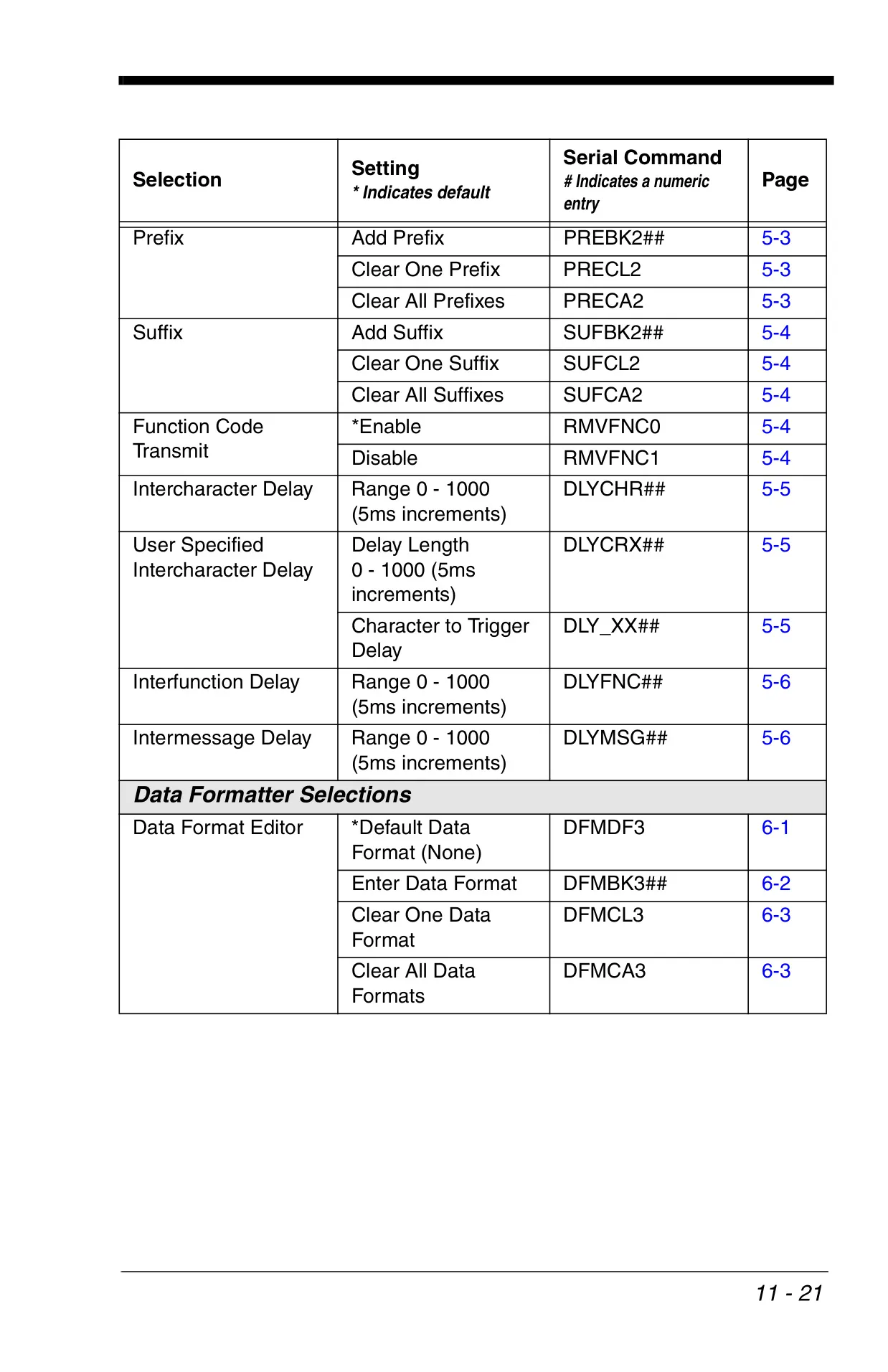
For advanced data management, the Xenon 1900 features powerful data editing and formatting capabilities. Users can define and apply custom prefixes and suffixes to scanned data, either universally or for specific symbologies. The scanner also supports the transmission of function codes and allows for adjustable intercharacter, interfunction, and intermessage delays to match diverse host system requirements, ensuring data integrity during transmission.
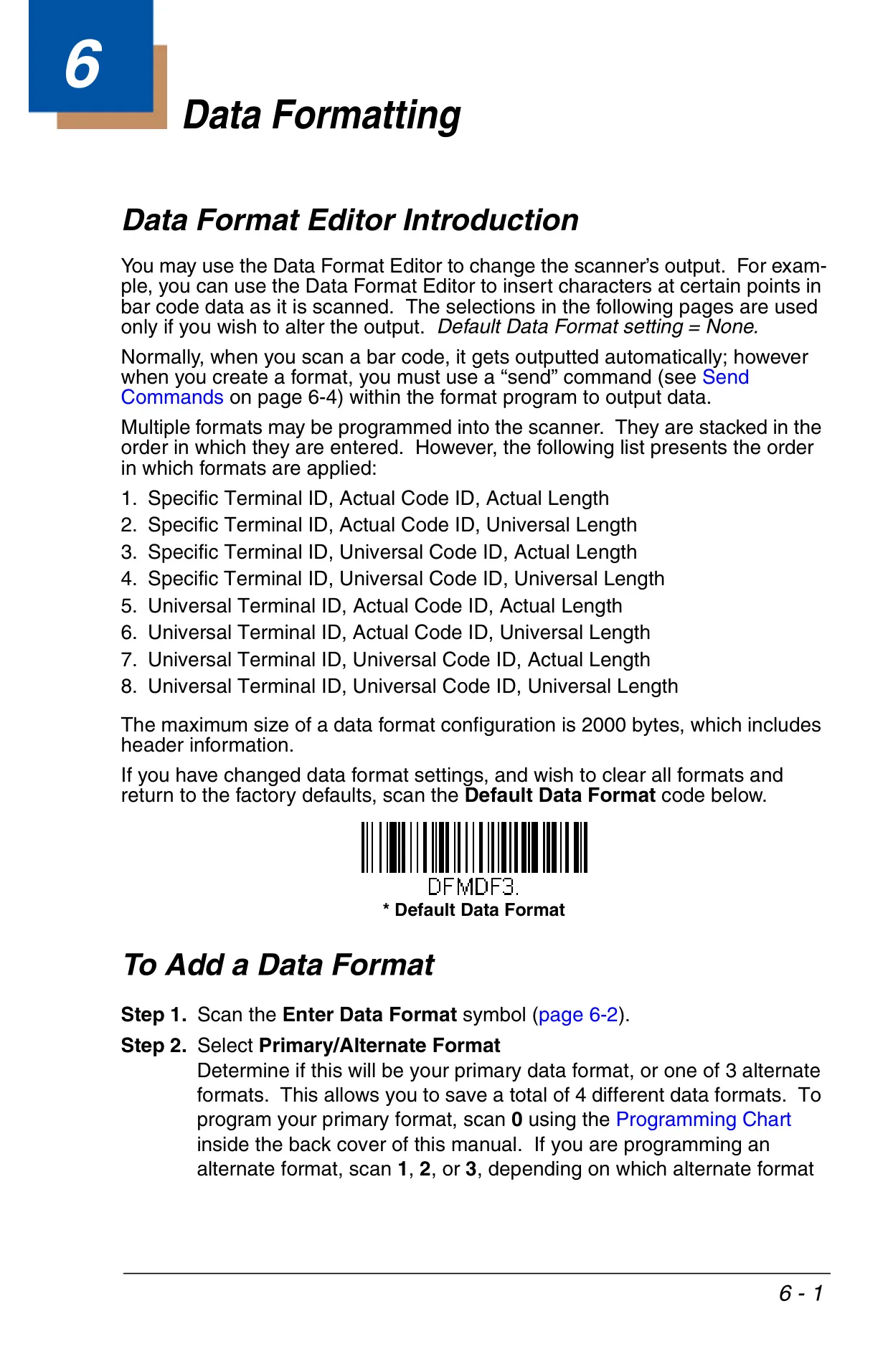
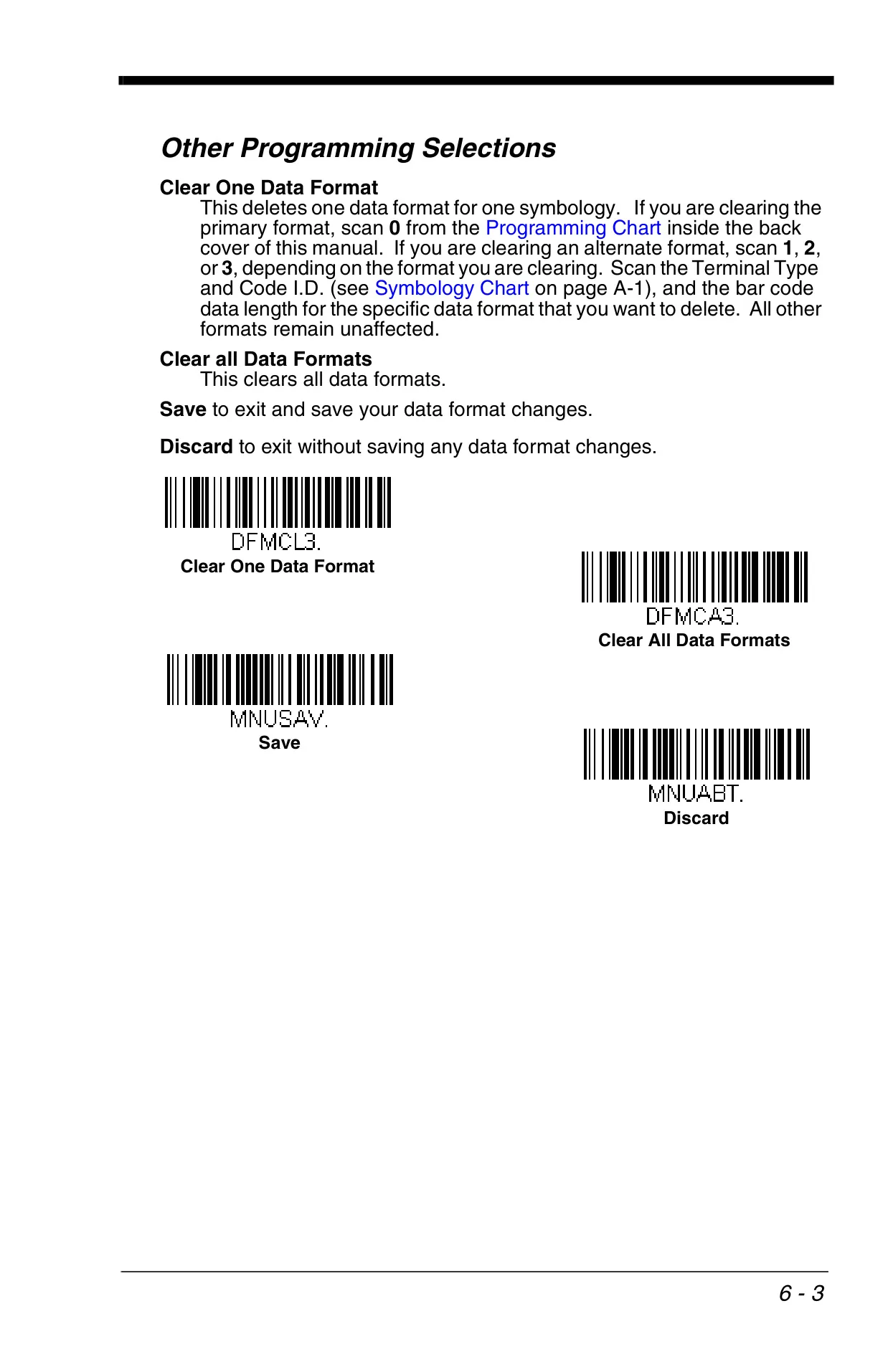
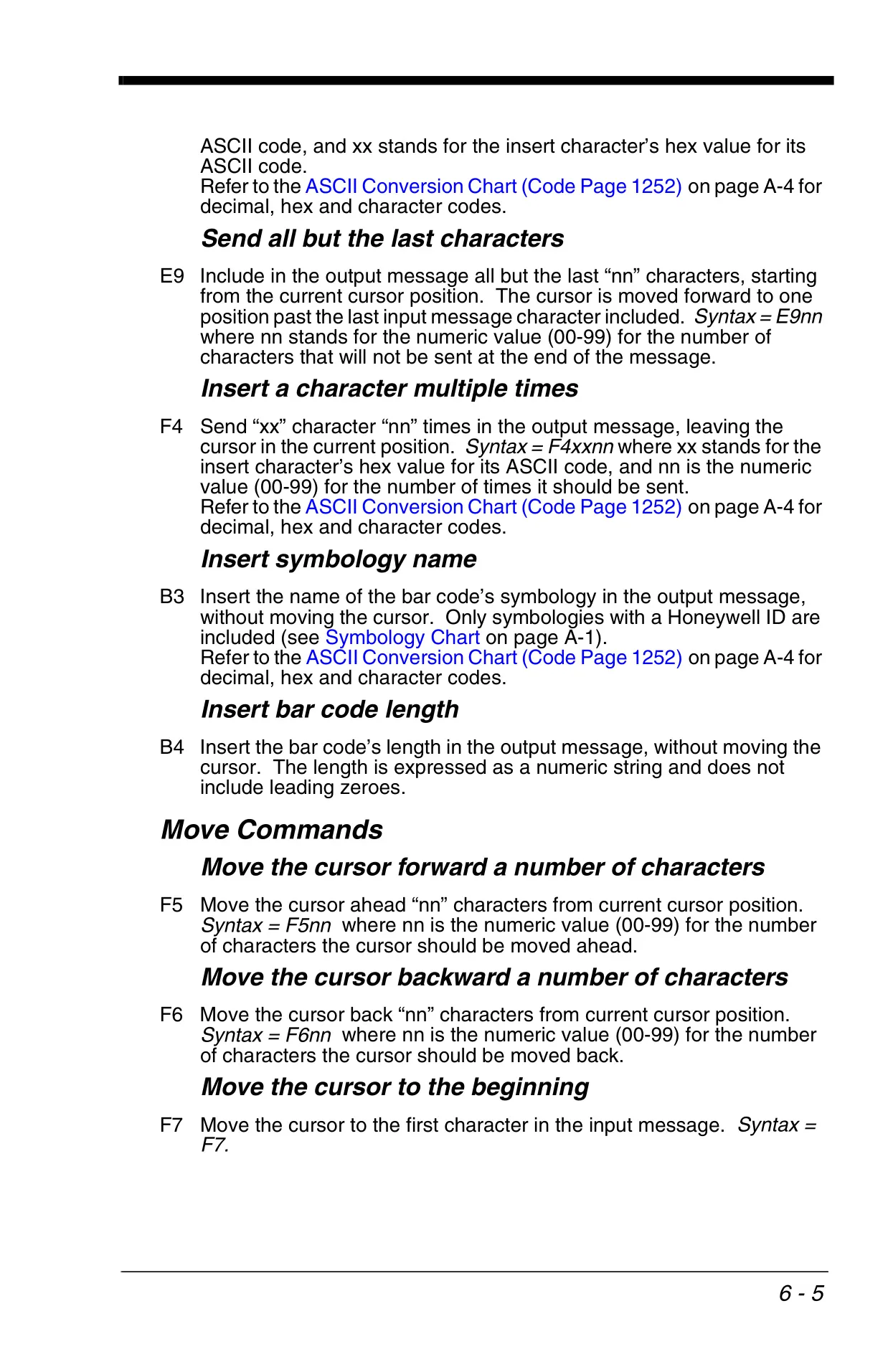
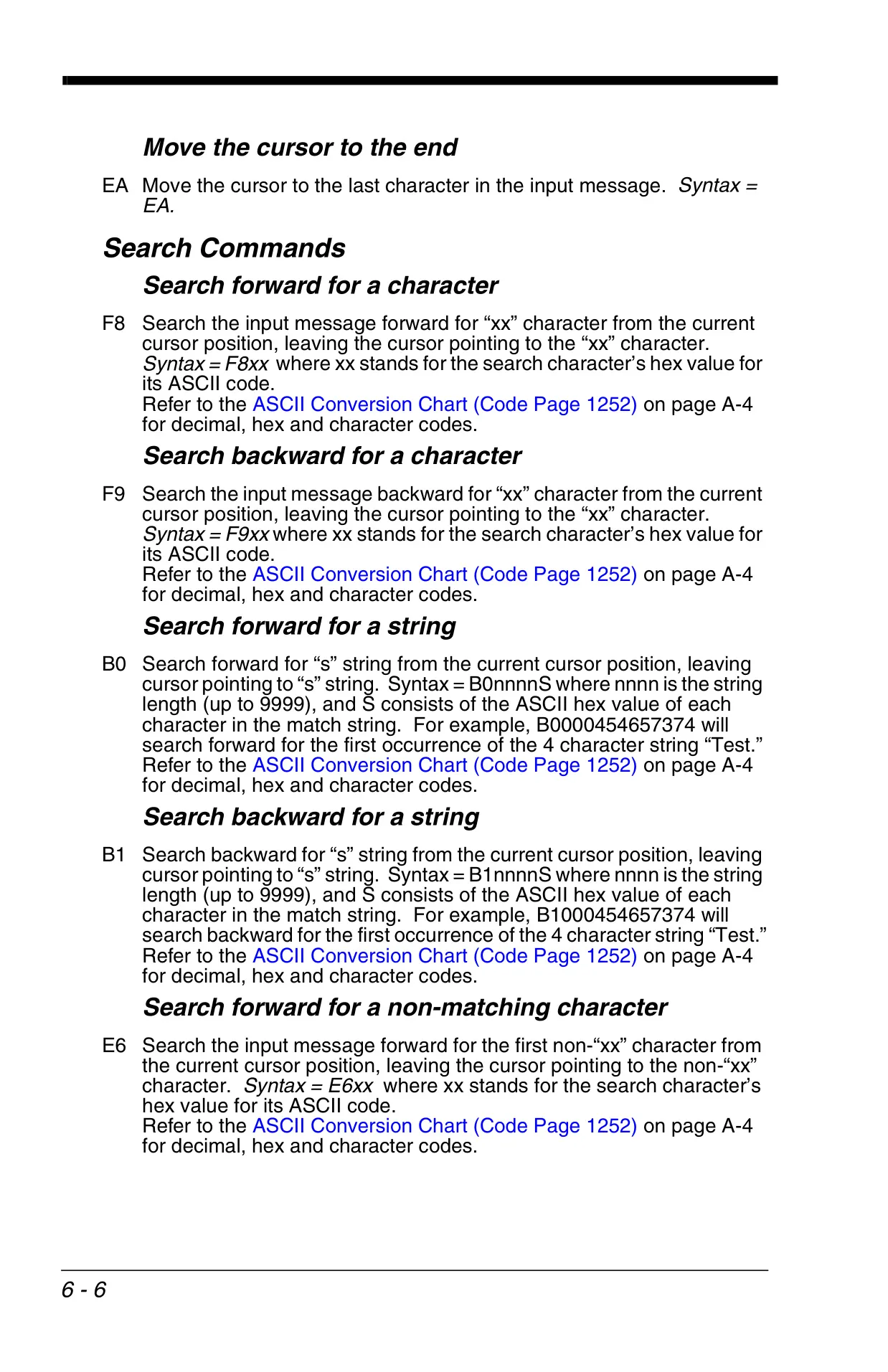
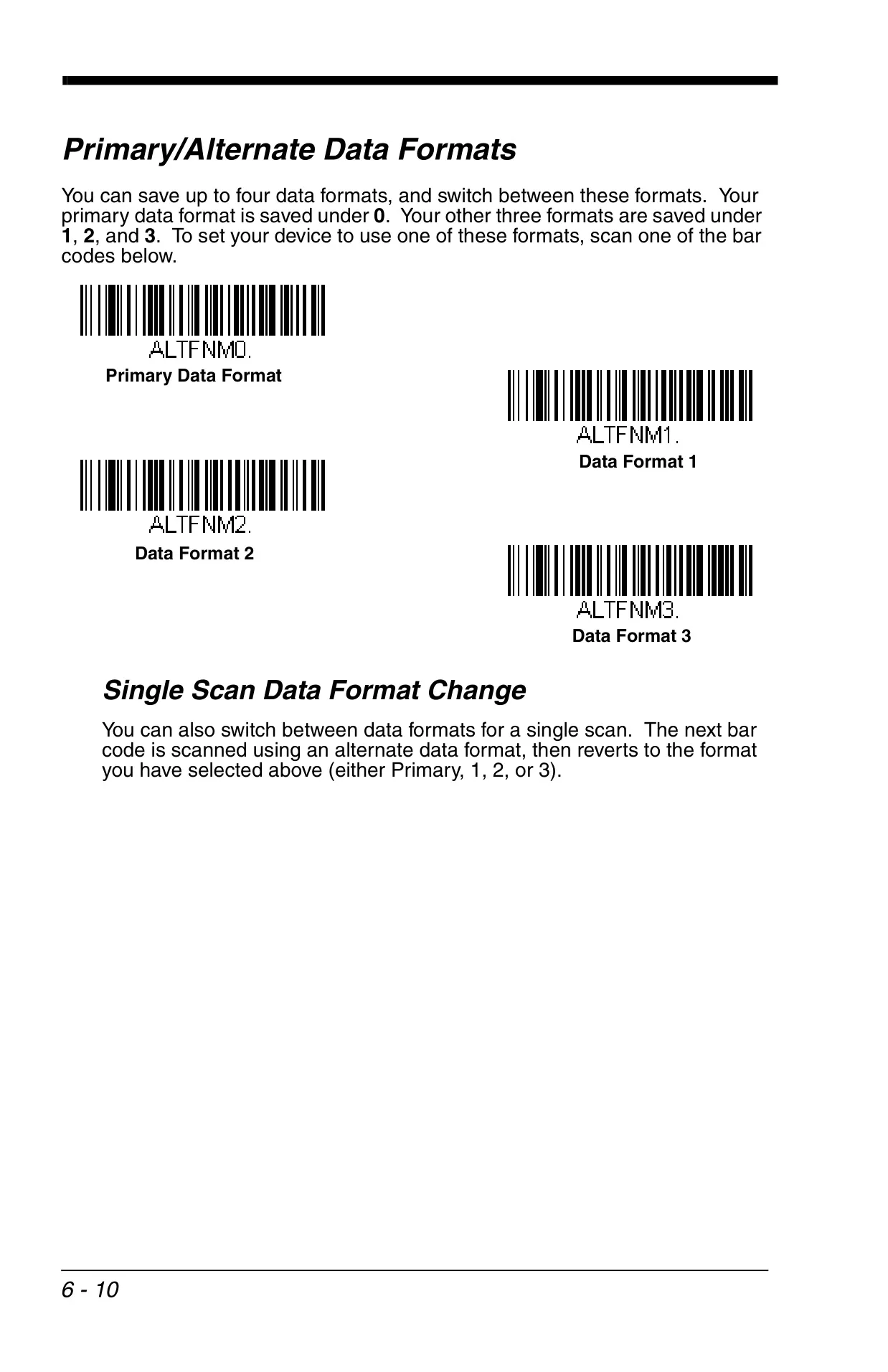
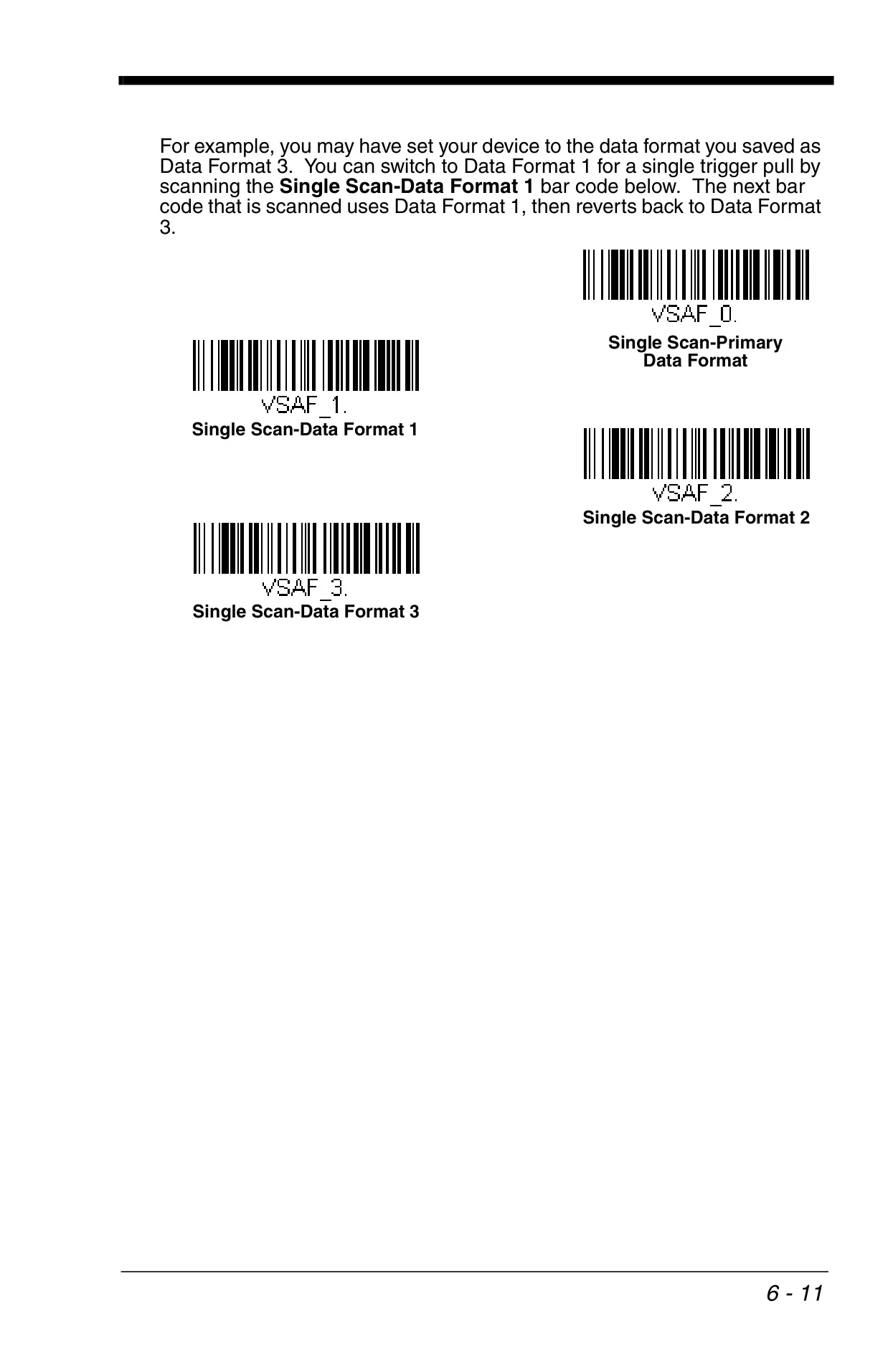
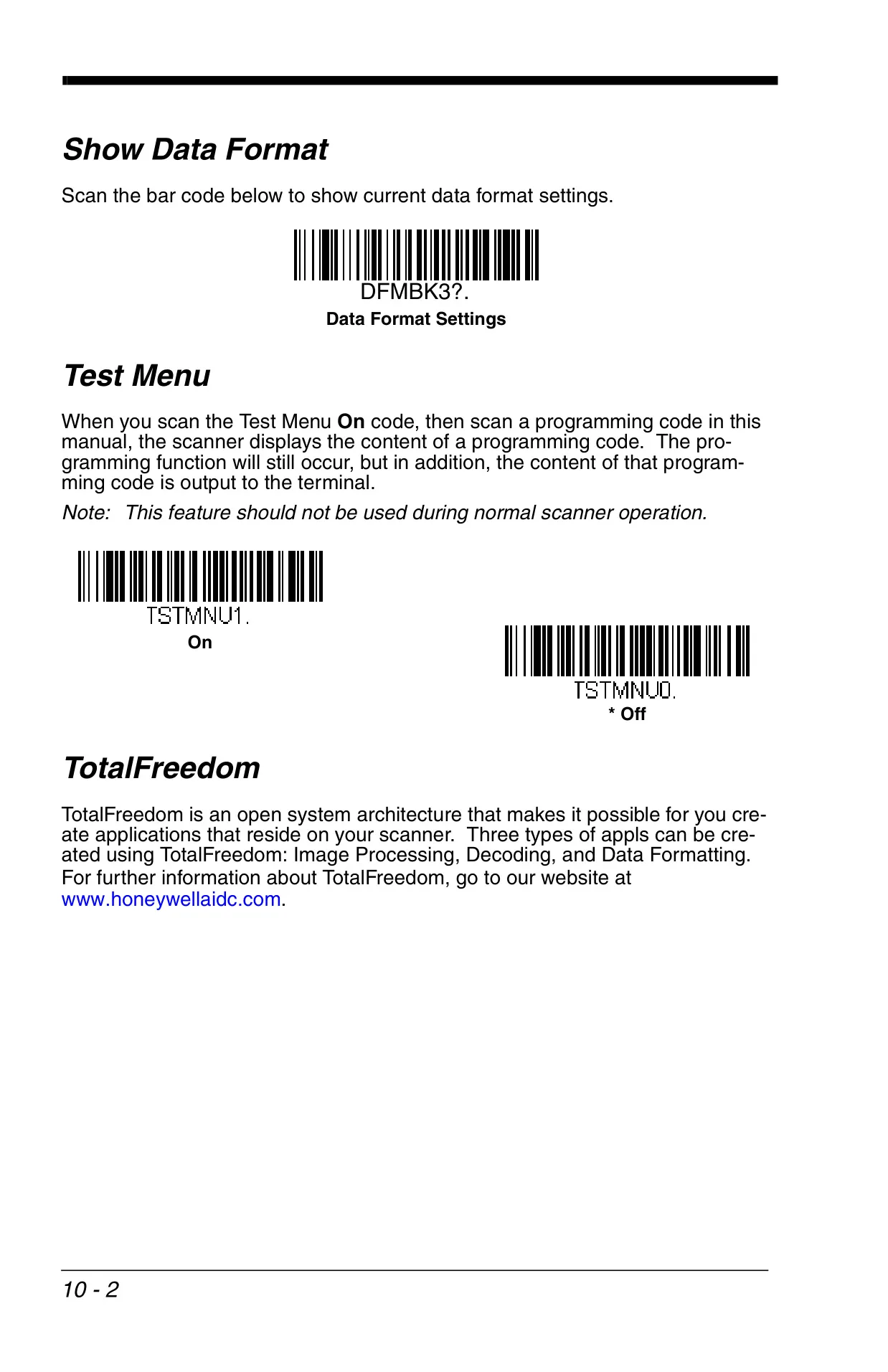
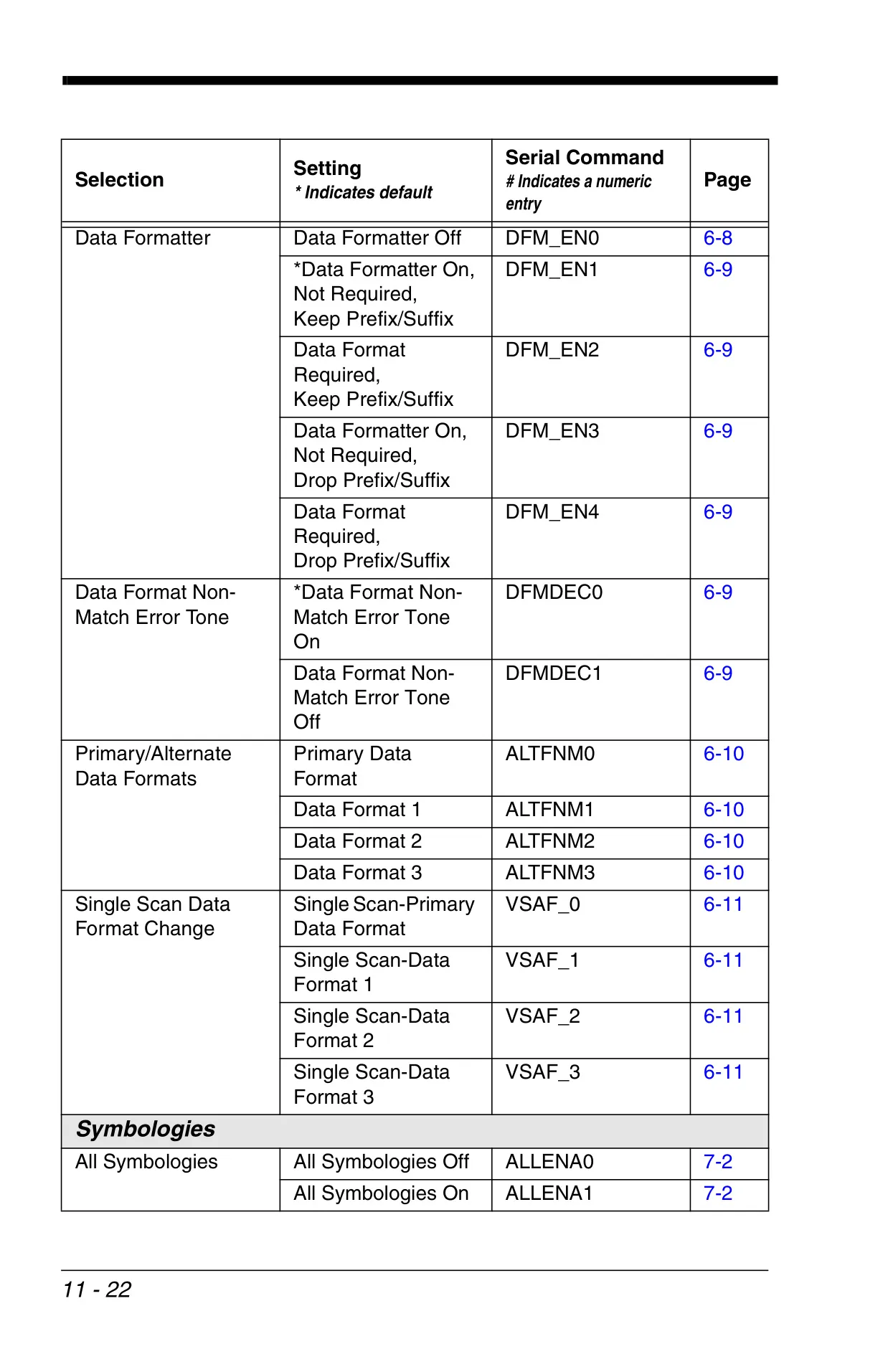
The advanced Data Format Editor provides intricate control over output data. It enables users to manipulate scanned data by inserting characters, suppressing specific data segments, and applying conditional formatting rules. This powerful tool ensures that the barcode data is delivered to the host system in the exact format required, enhancing compatibility and automating data entry processes.
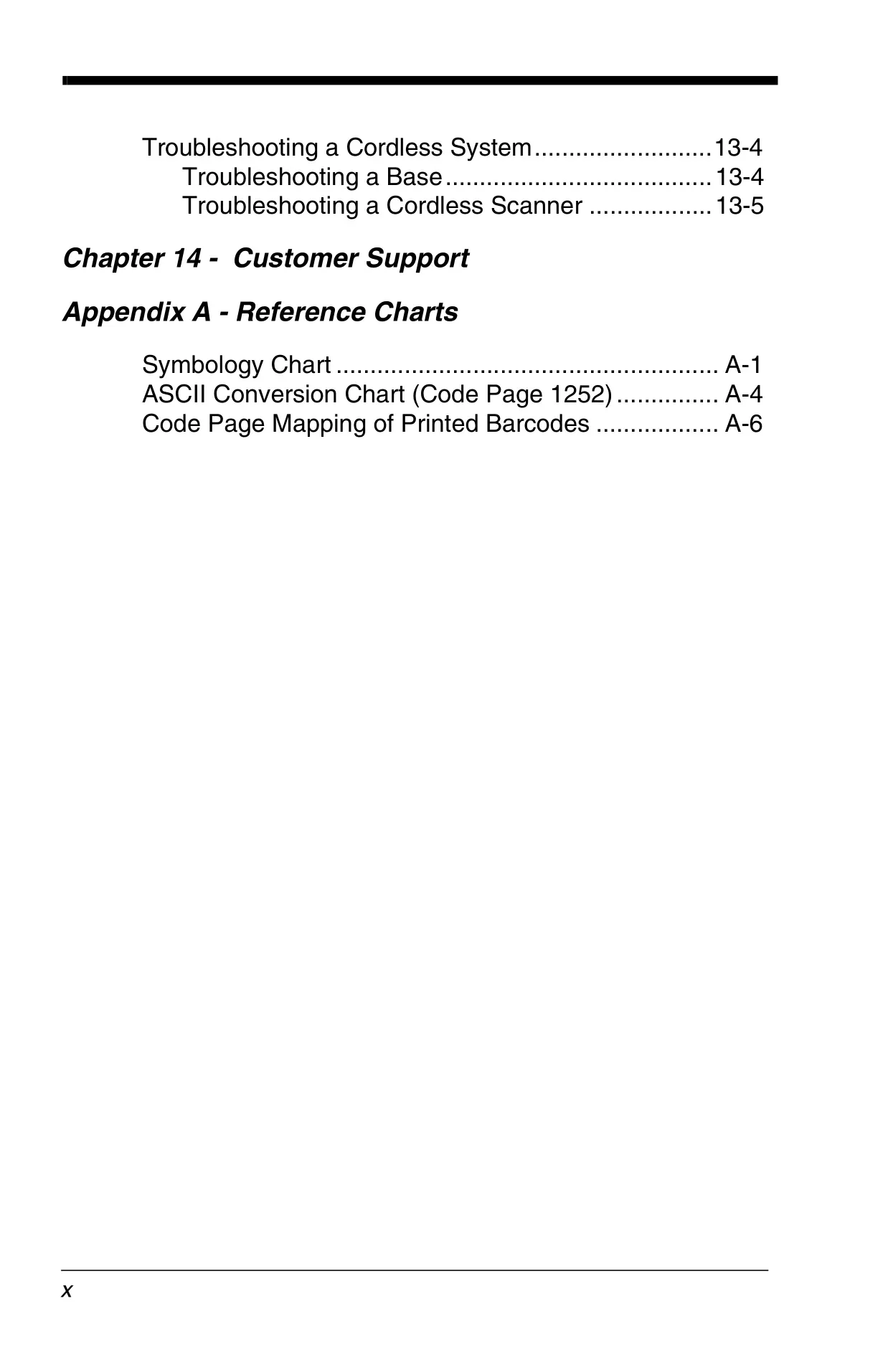
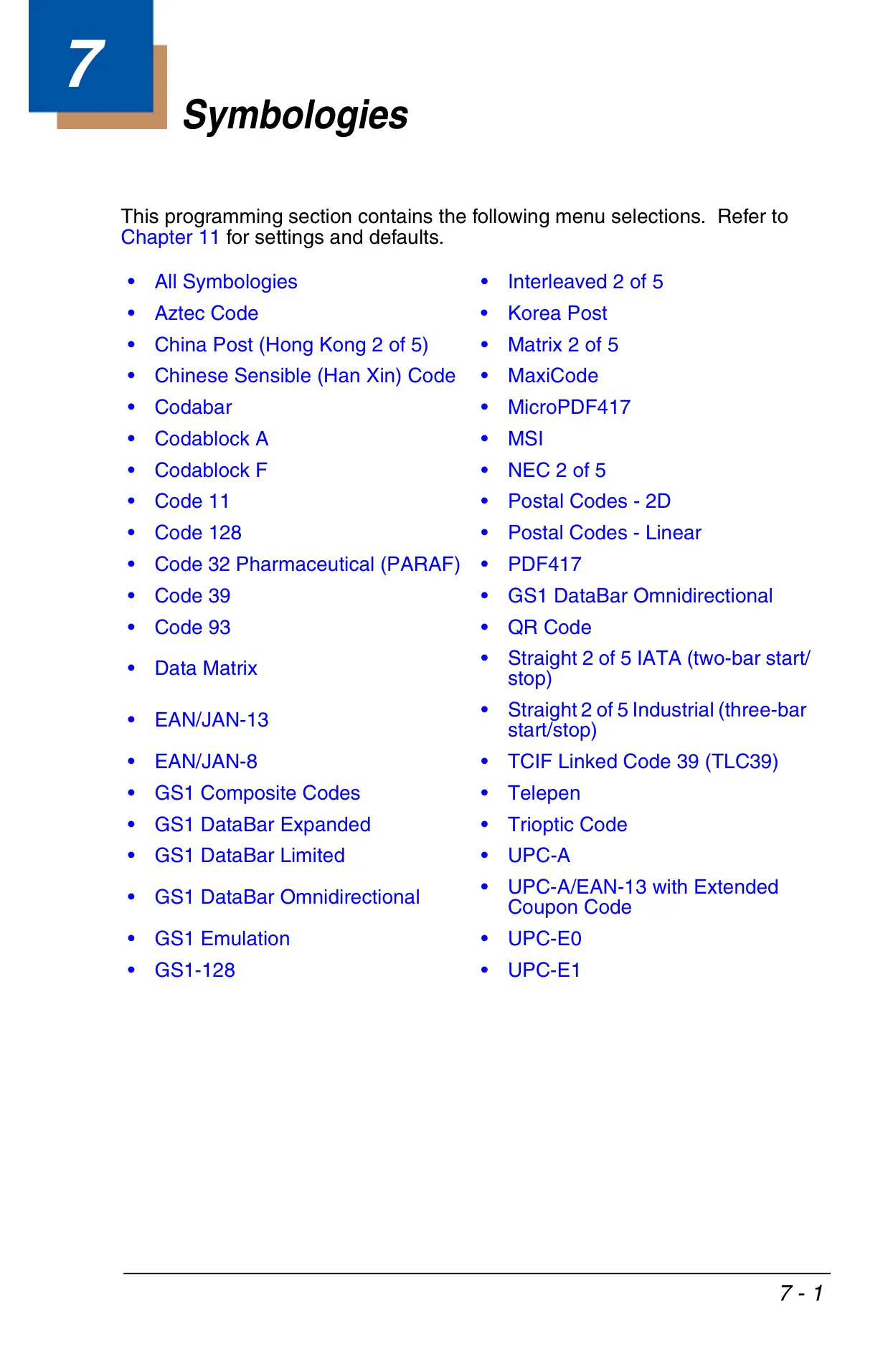
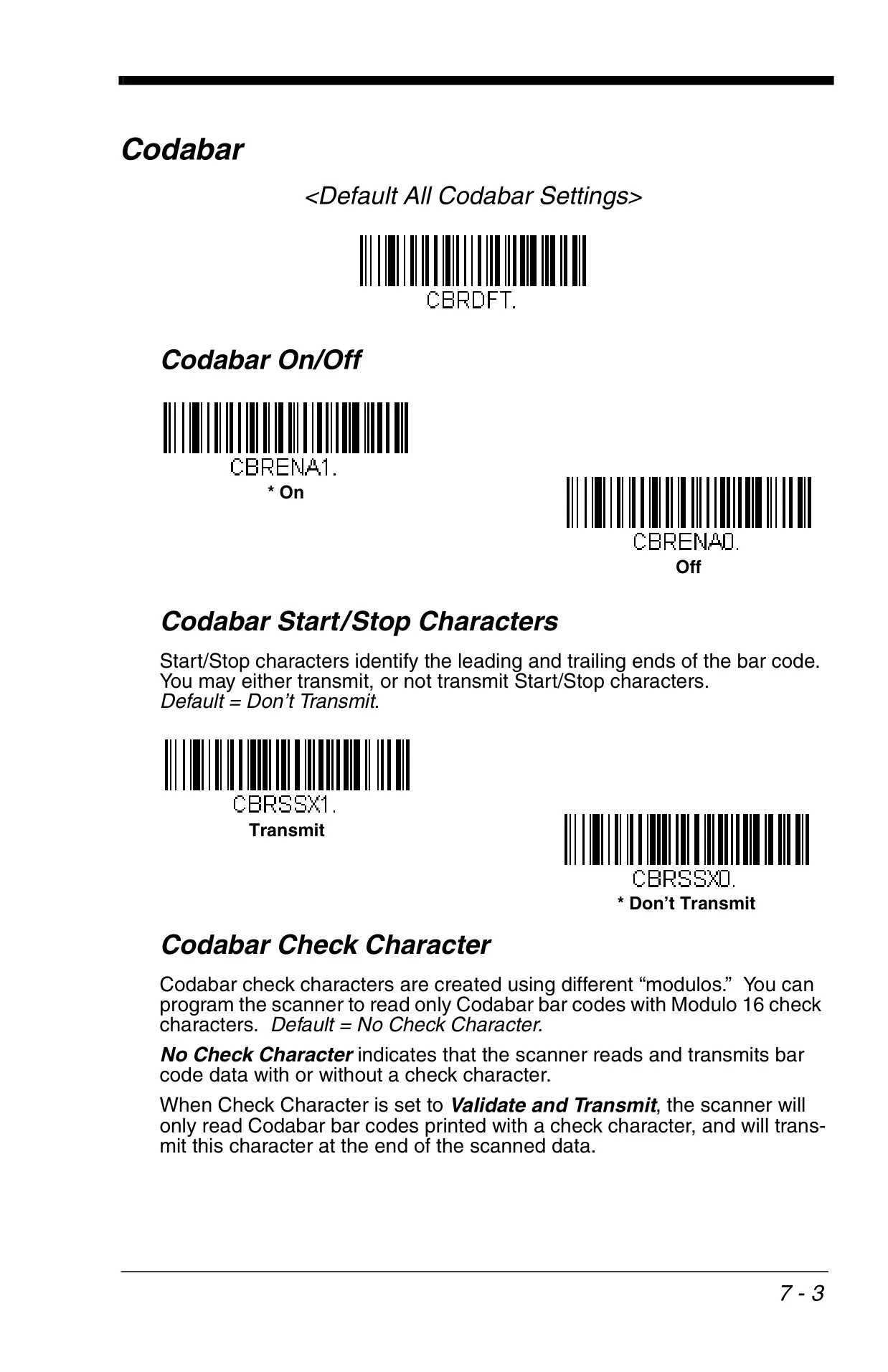
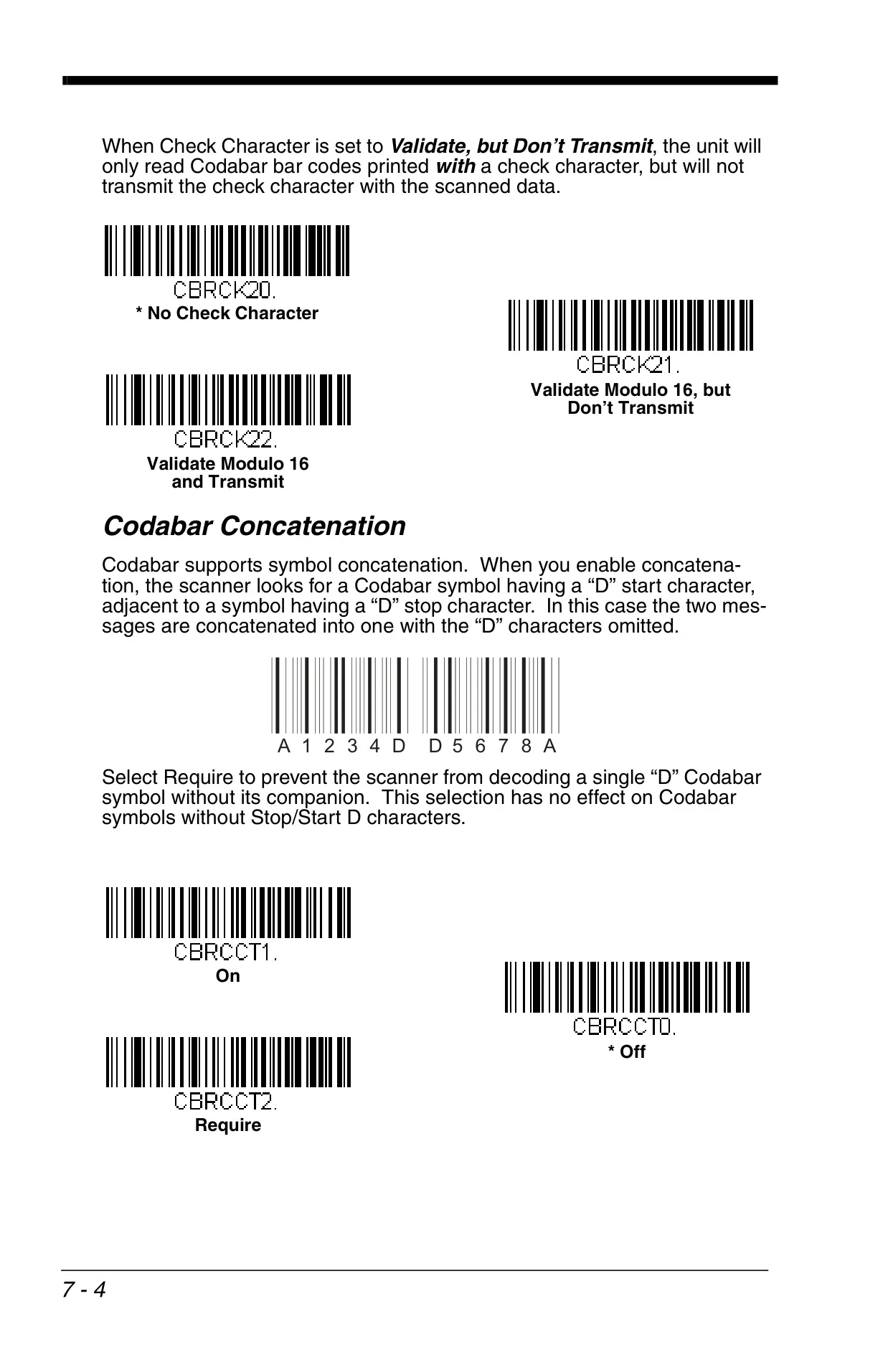
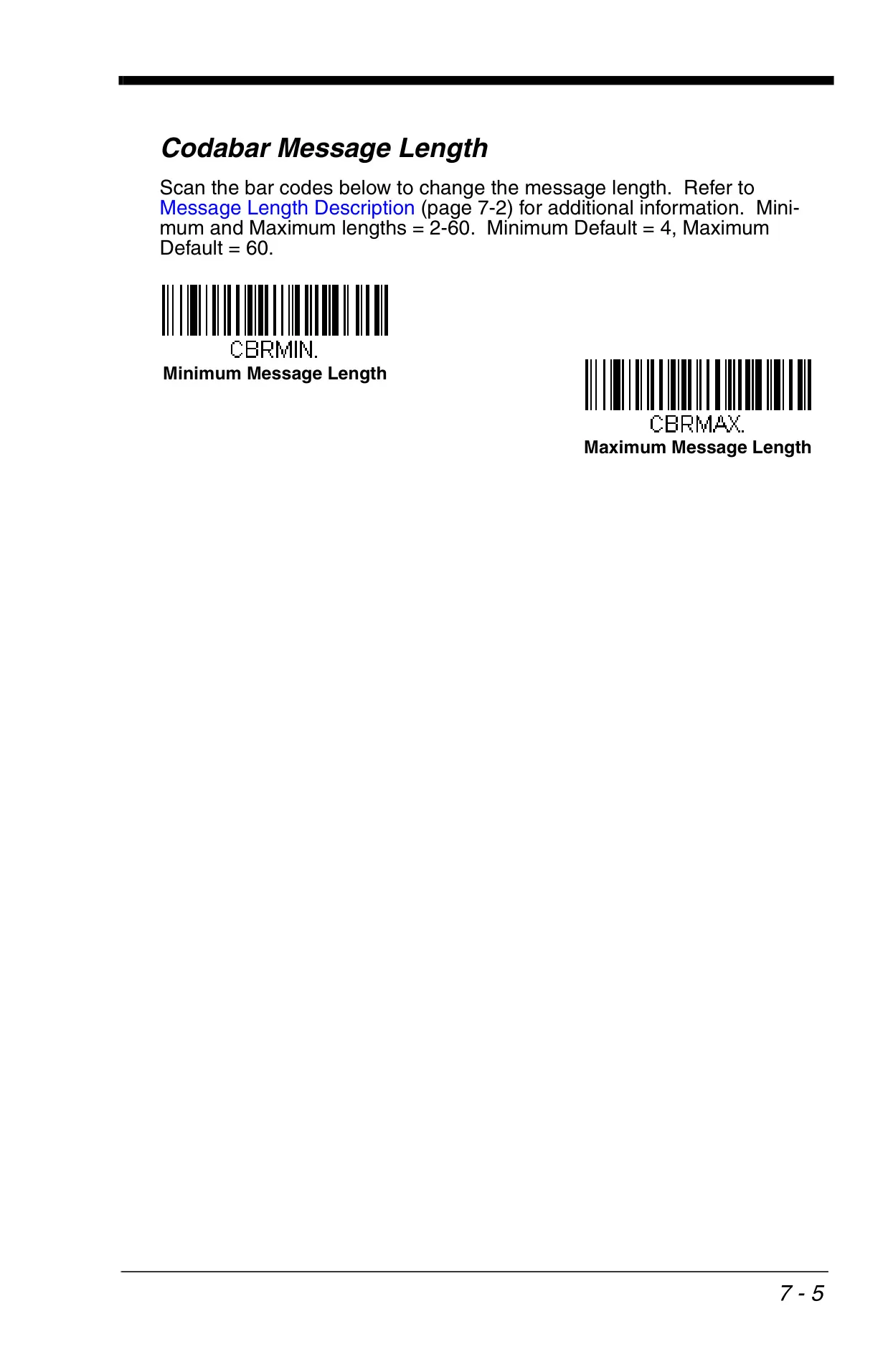
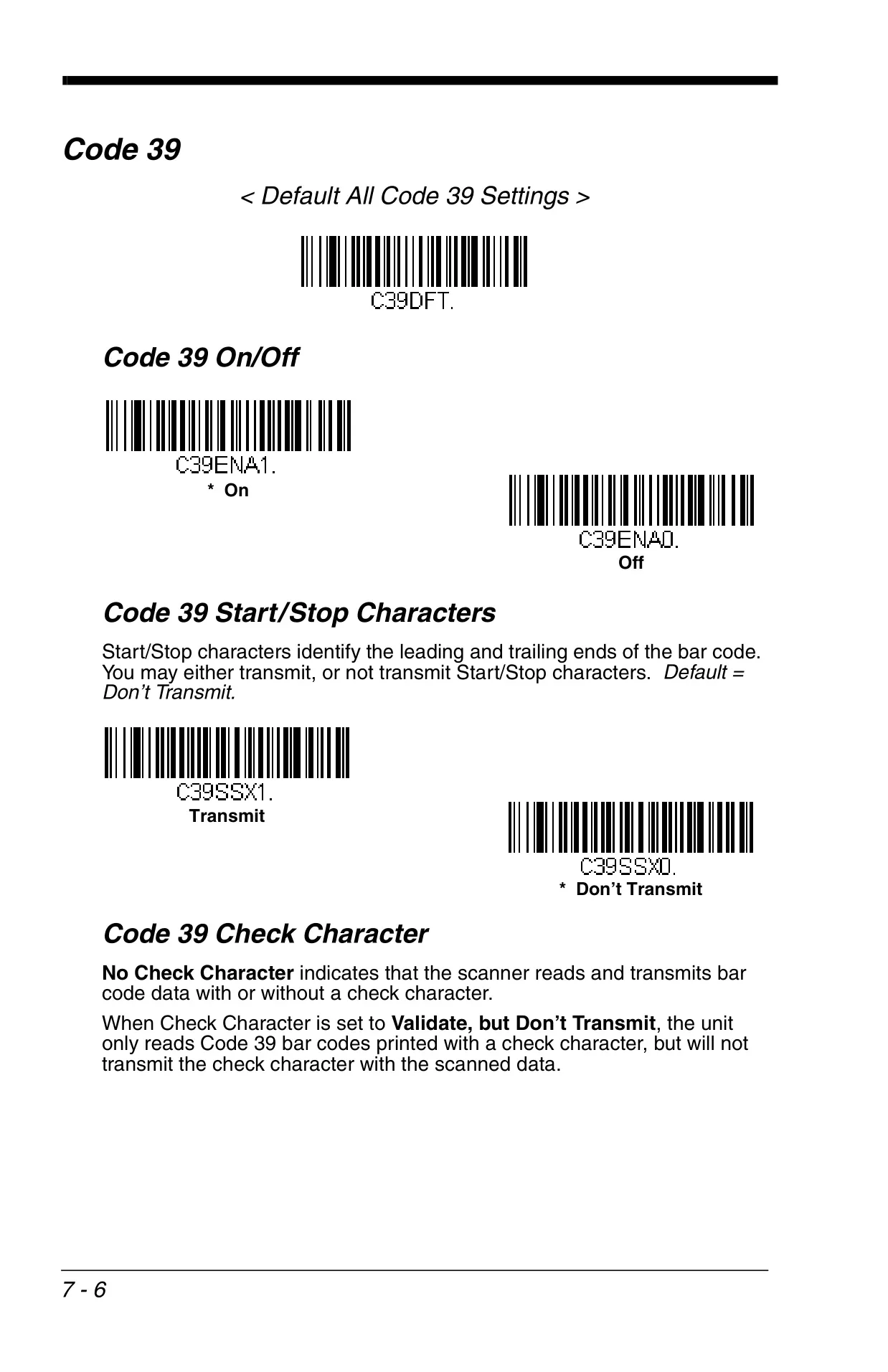
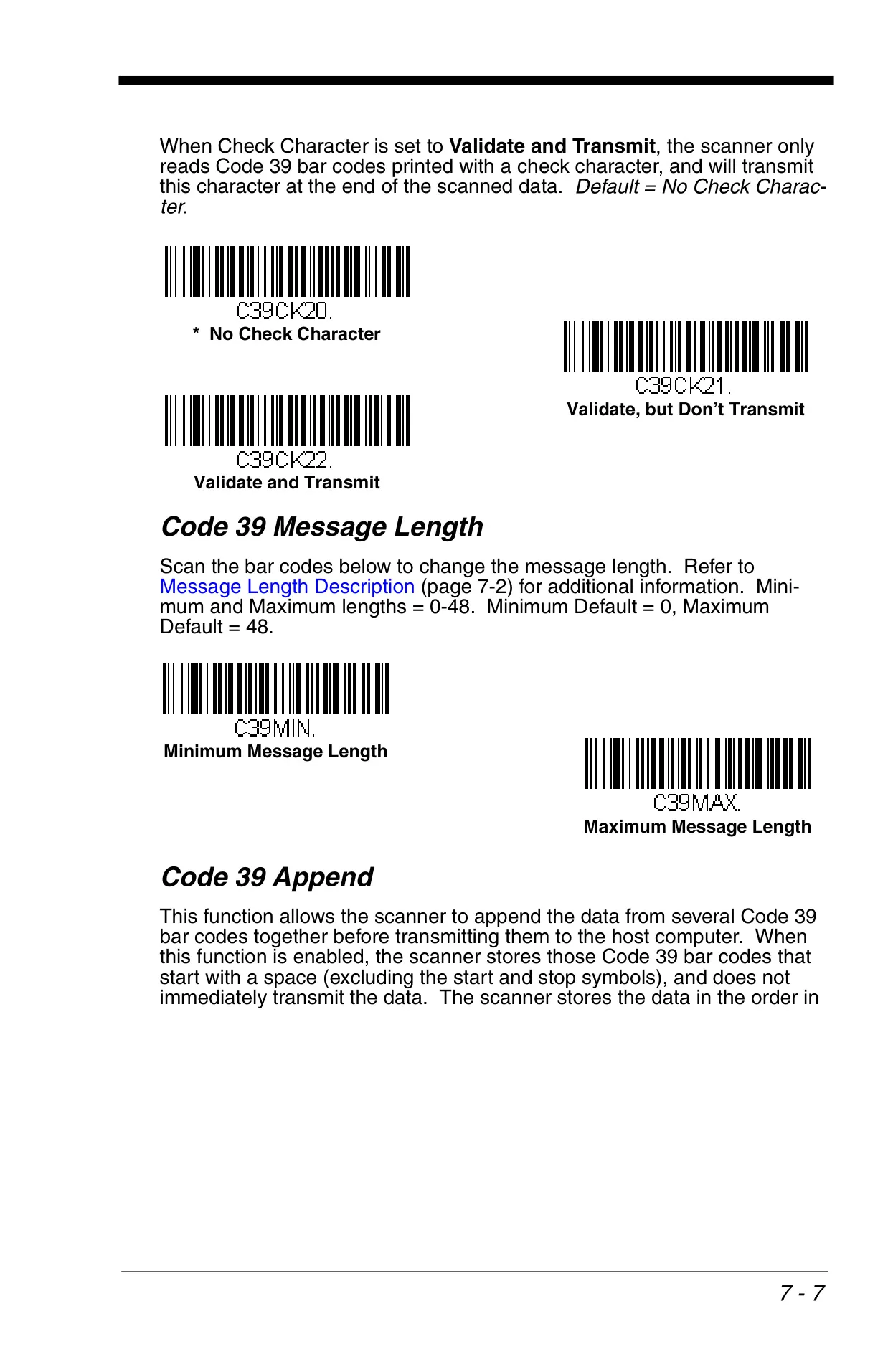
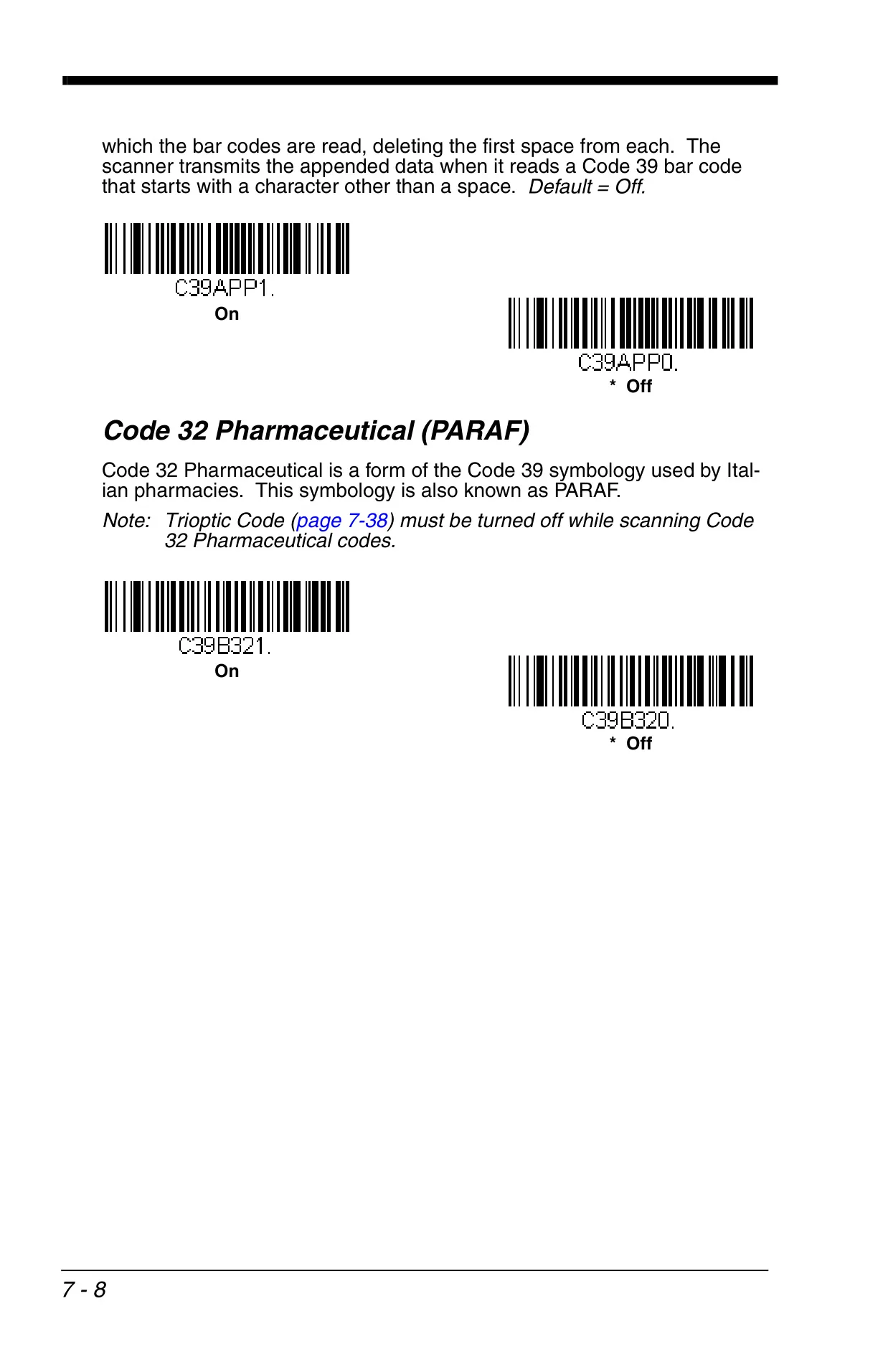
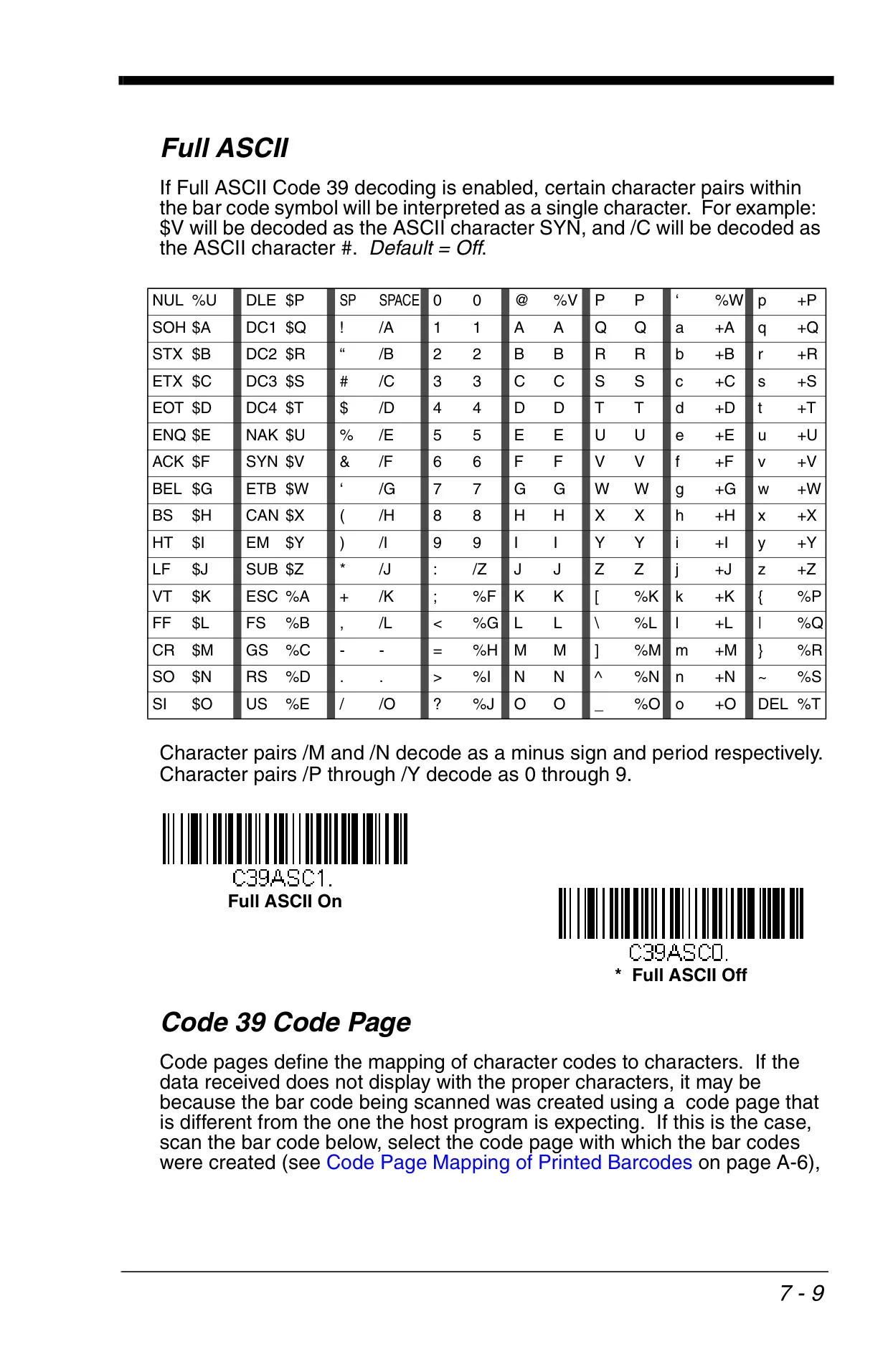
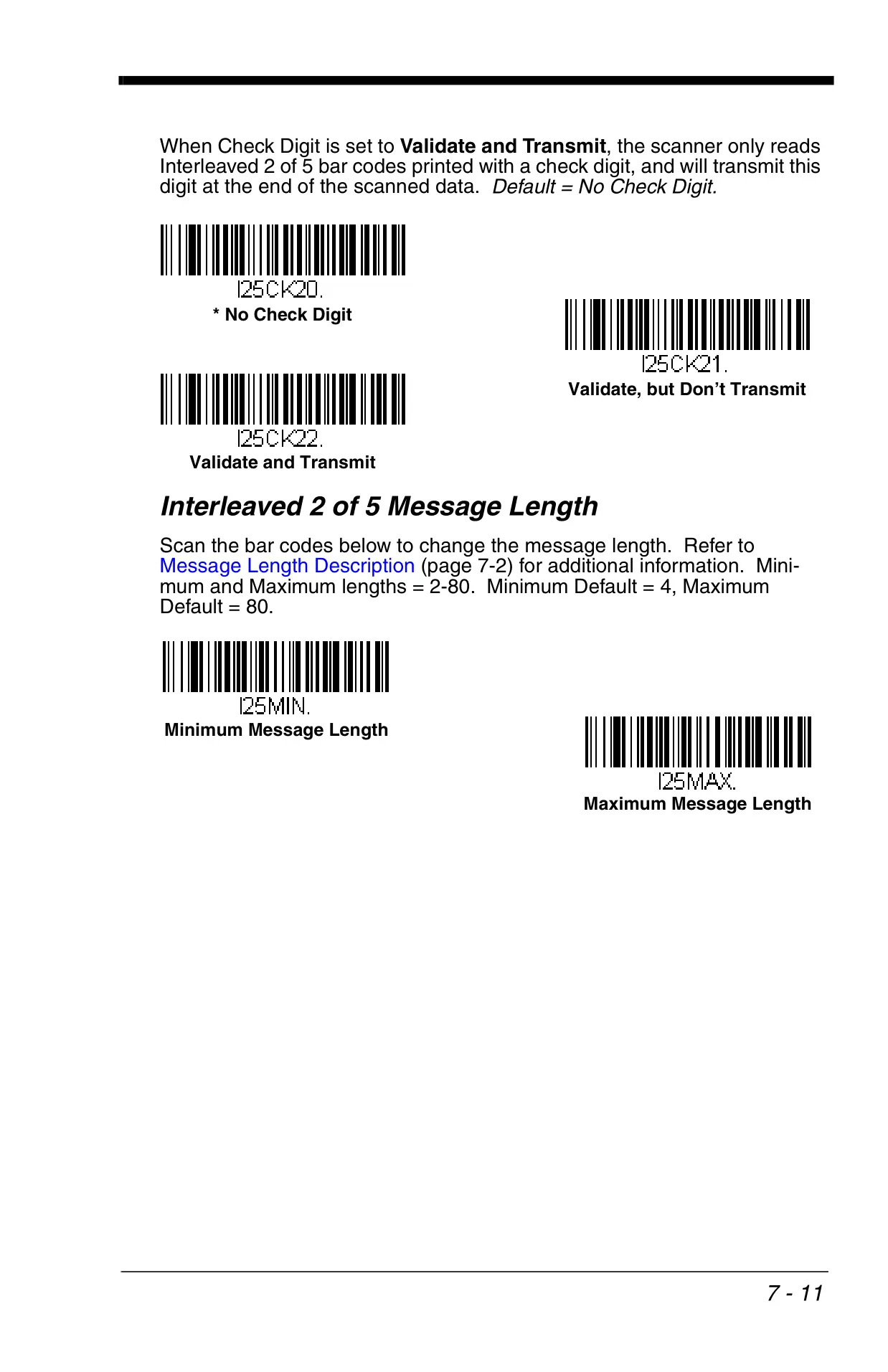
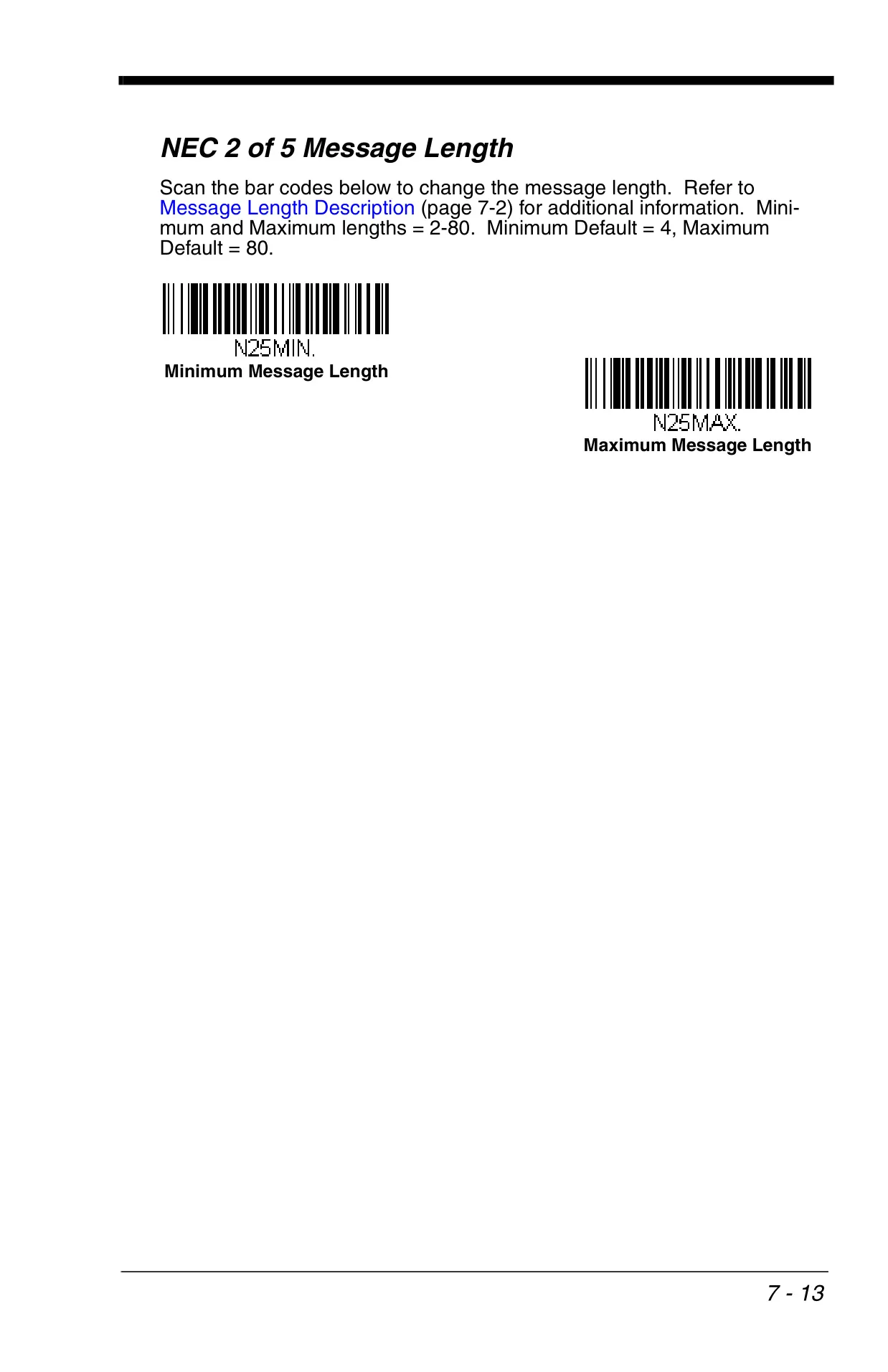
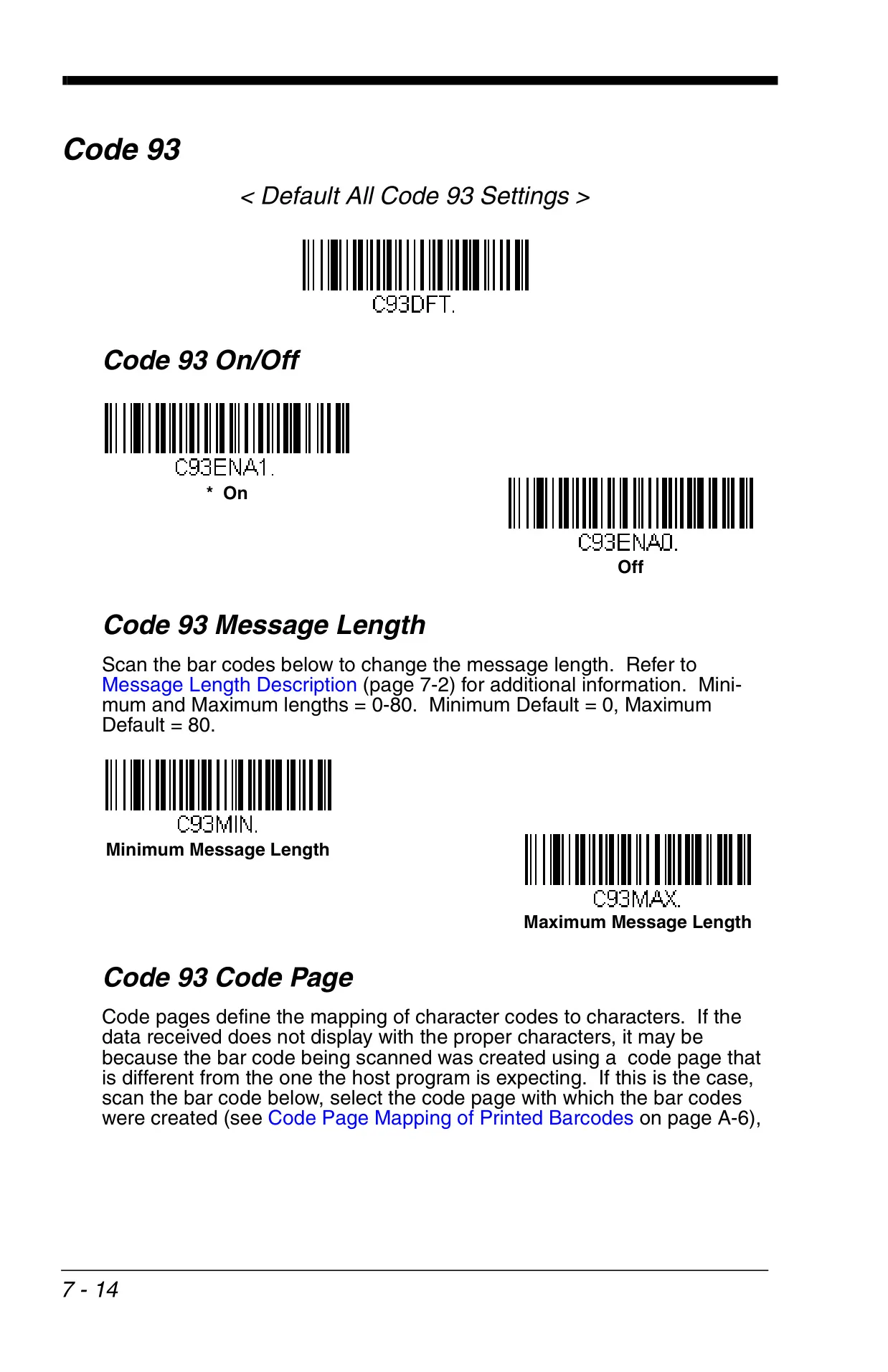
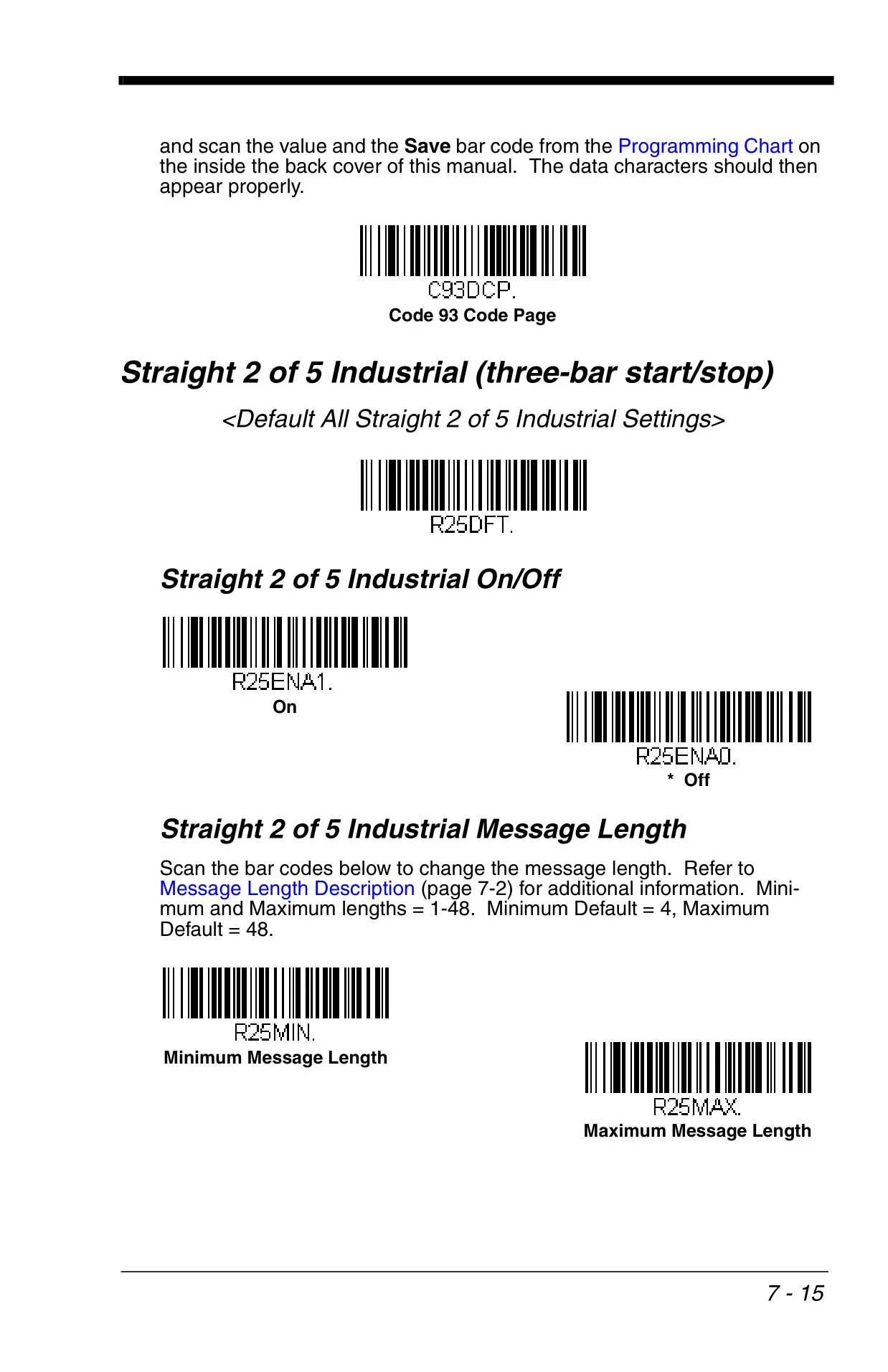
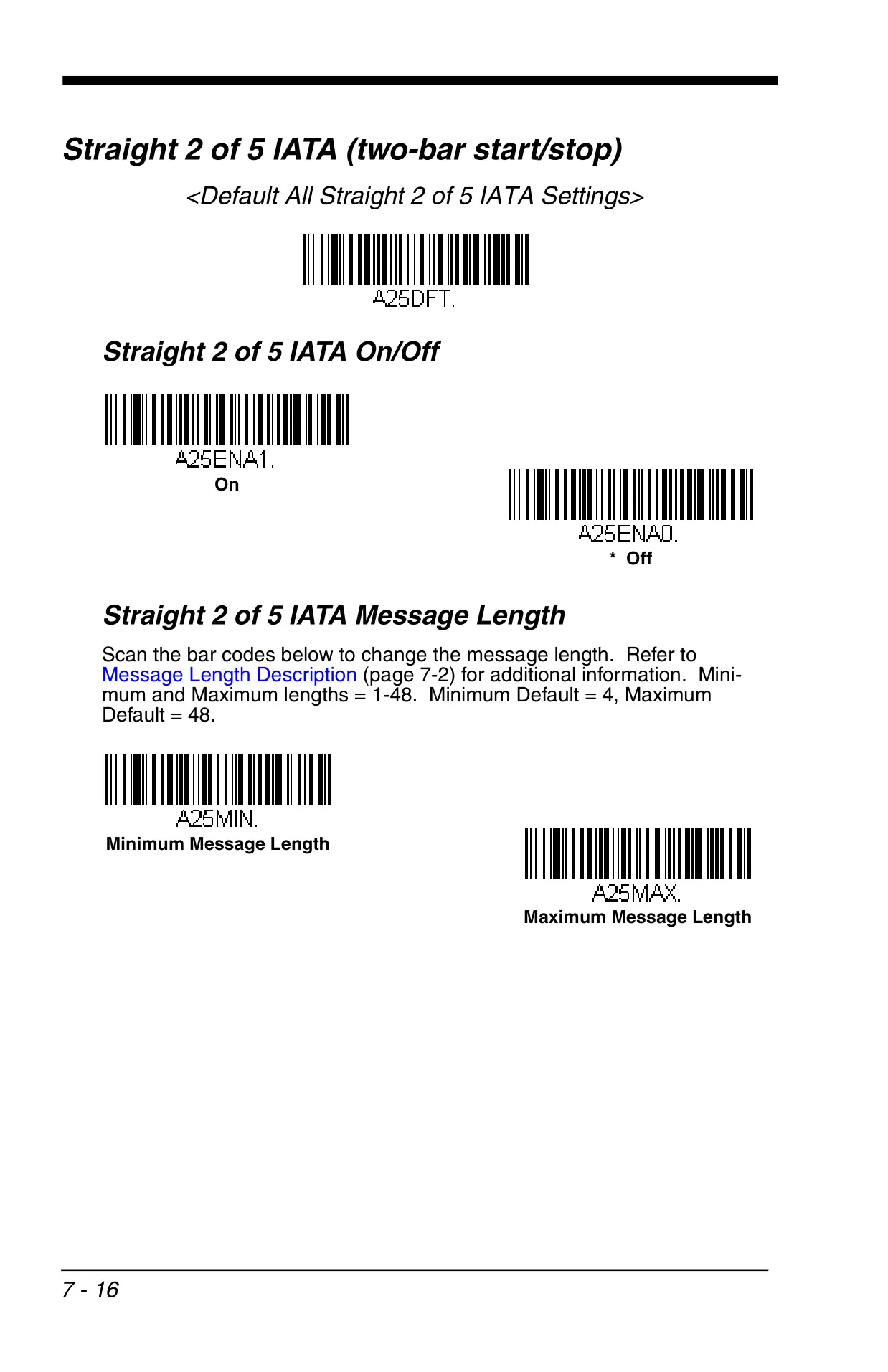
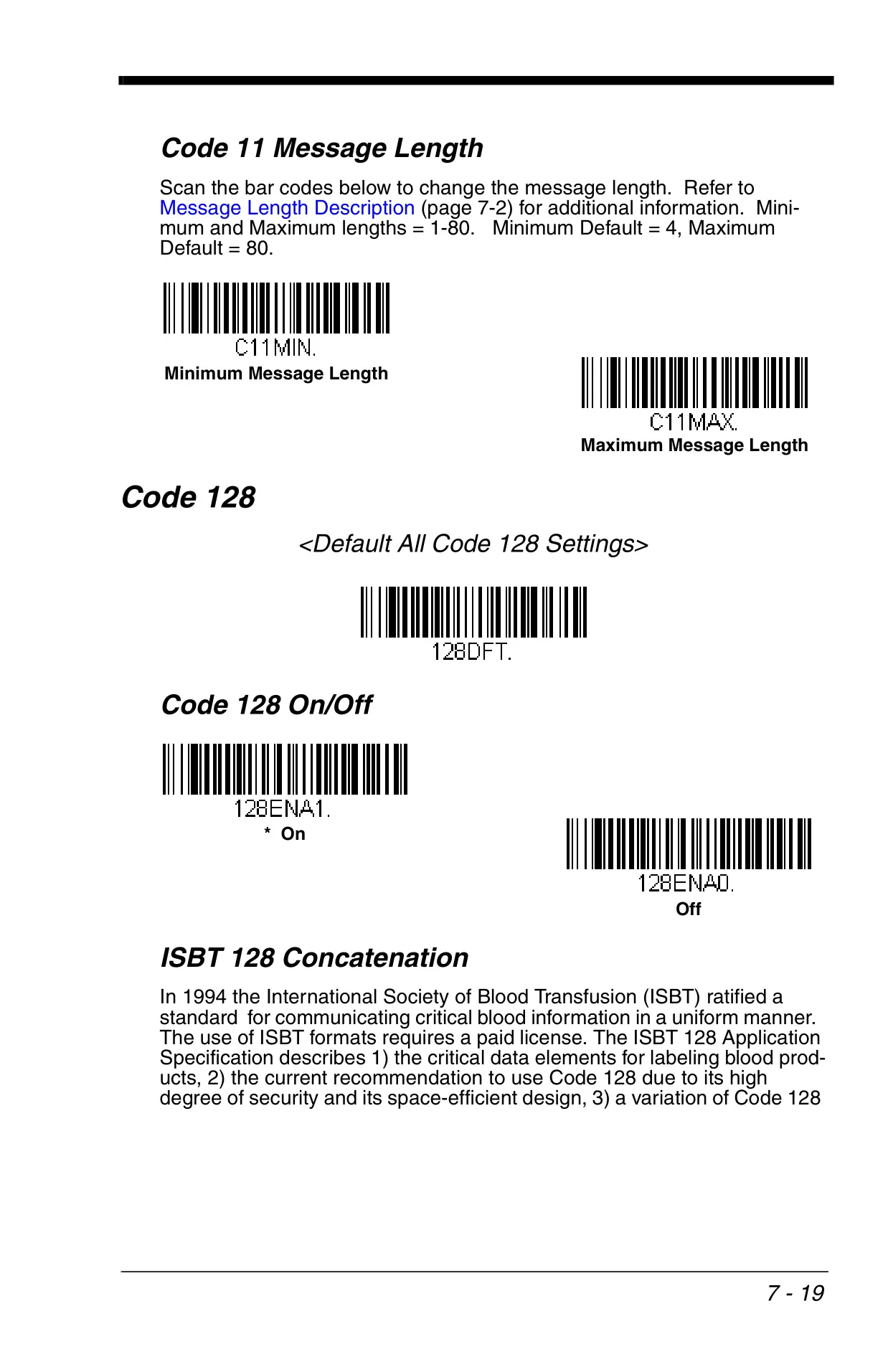
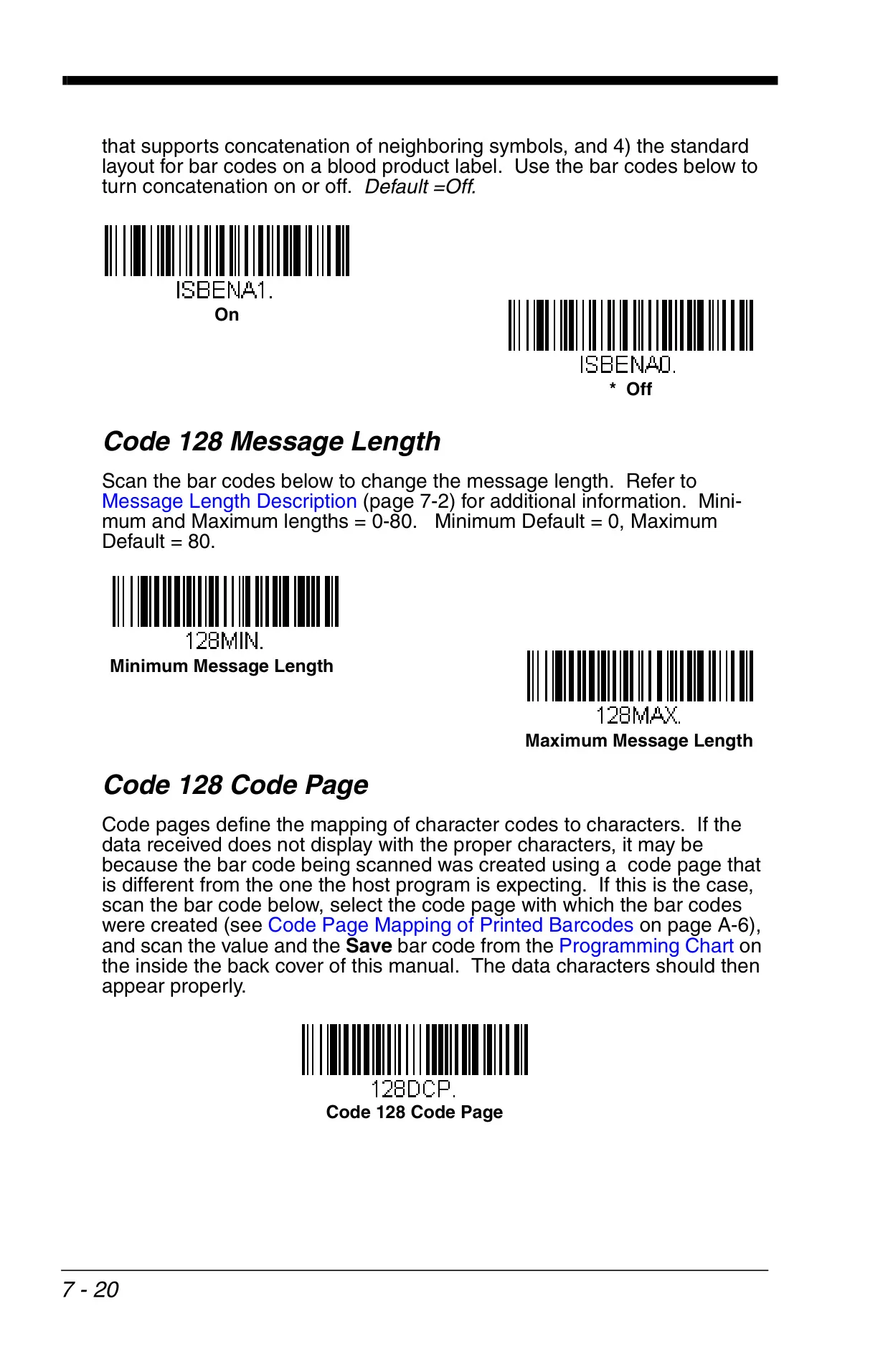
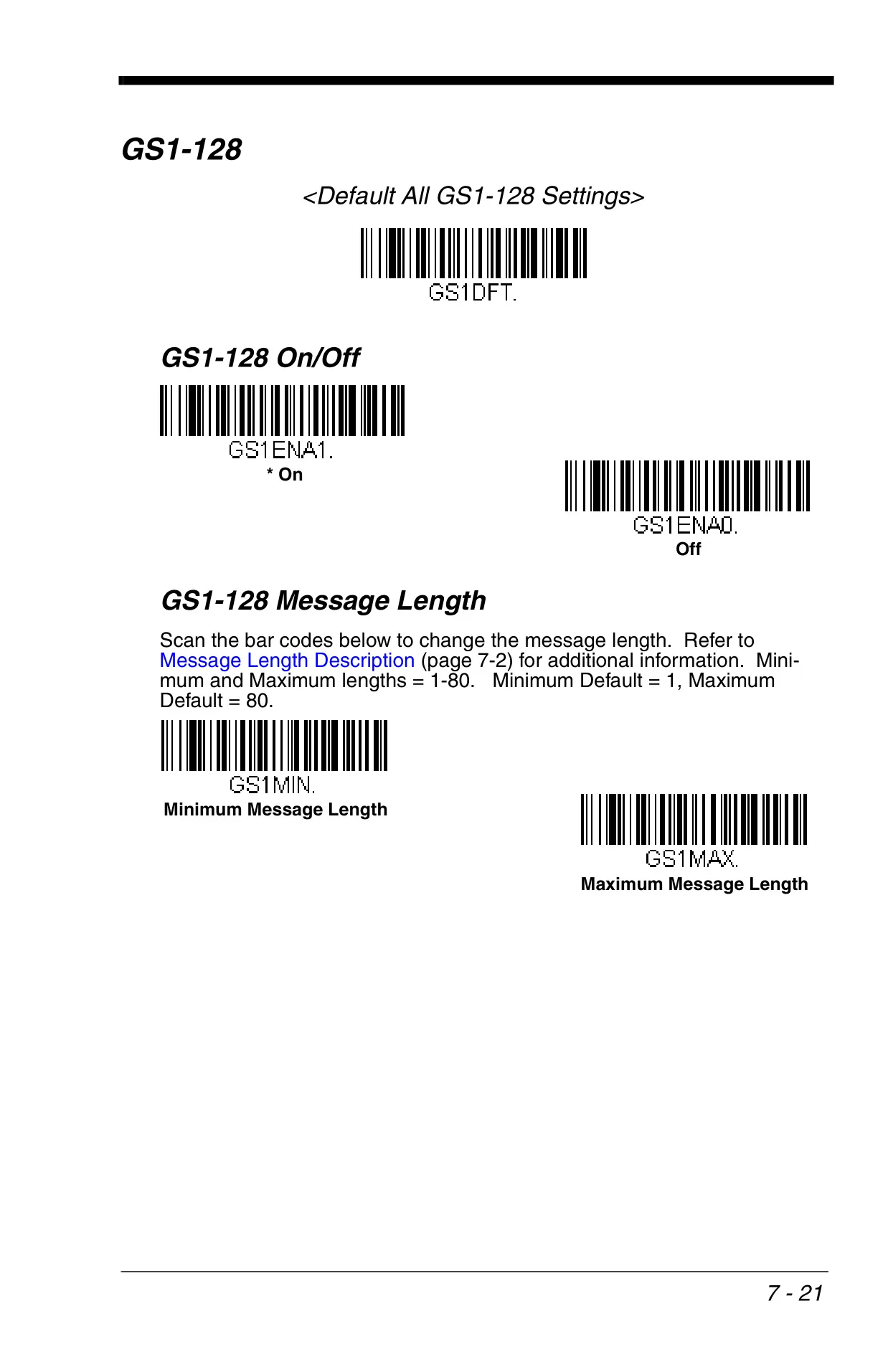
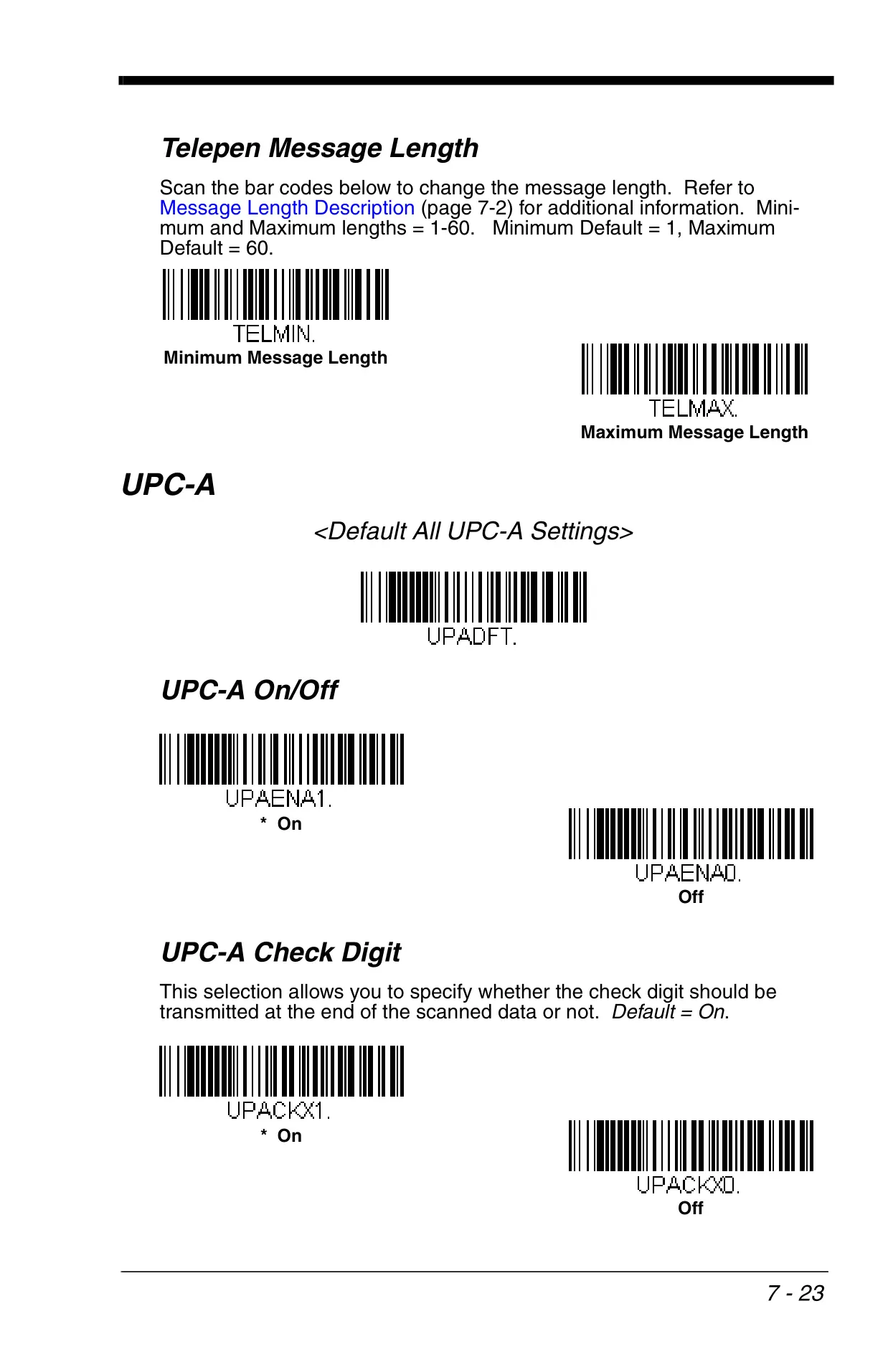
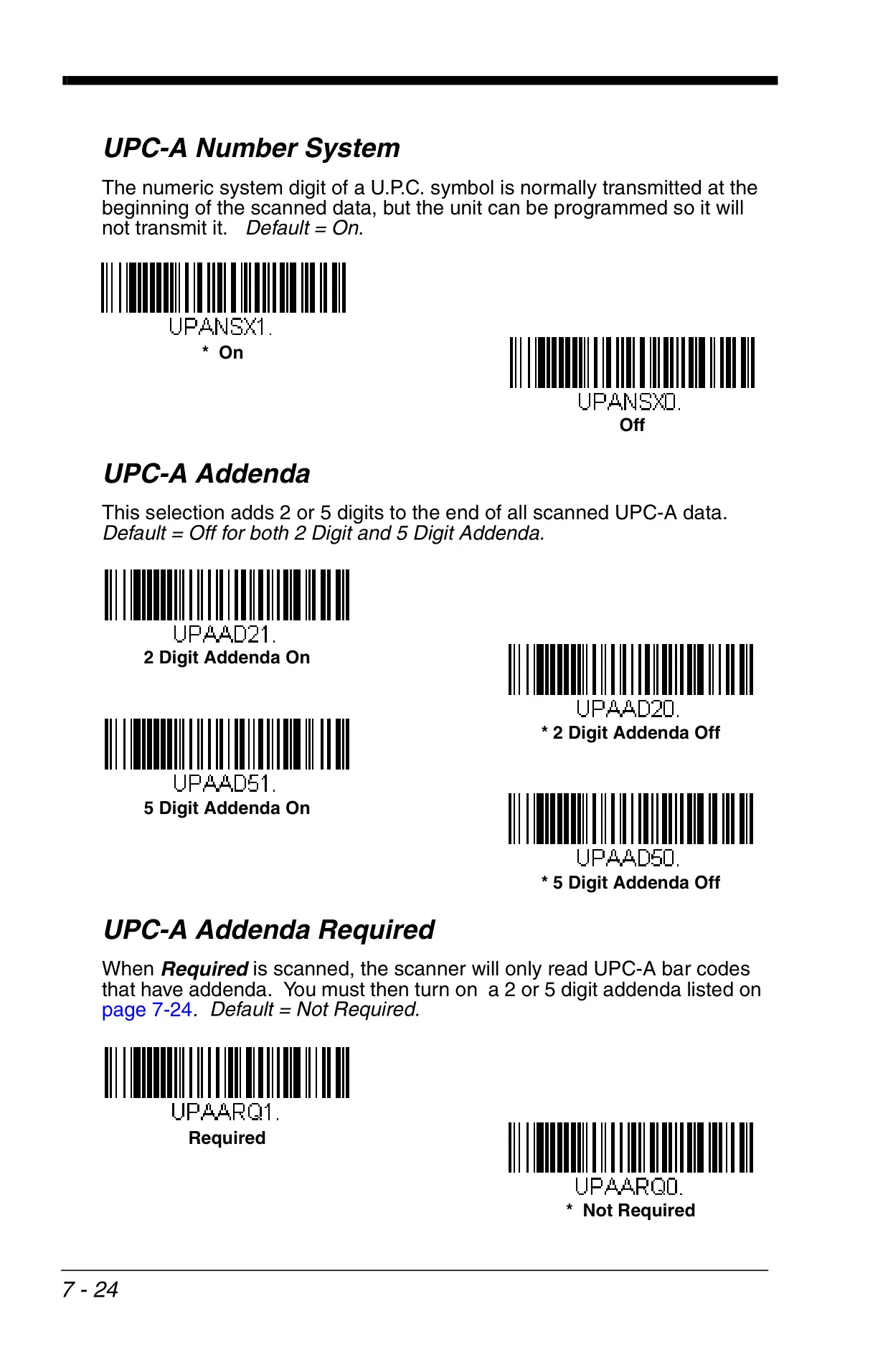
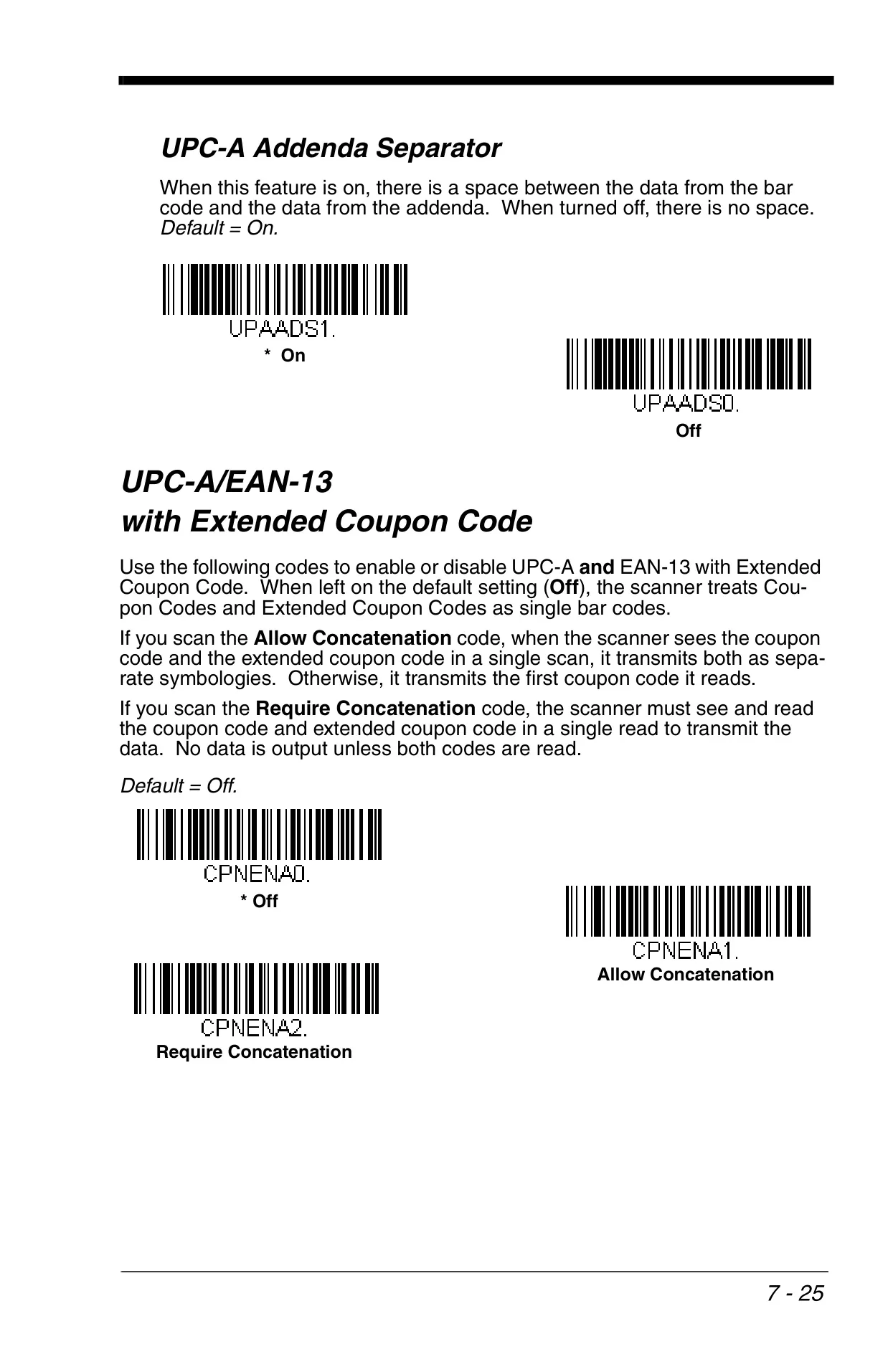
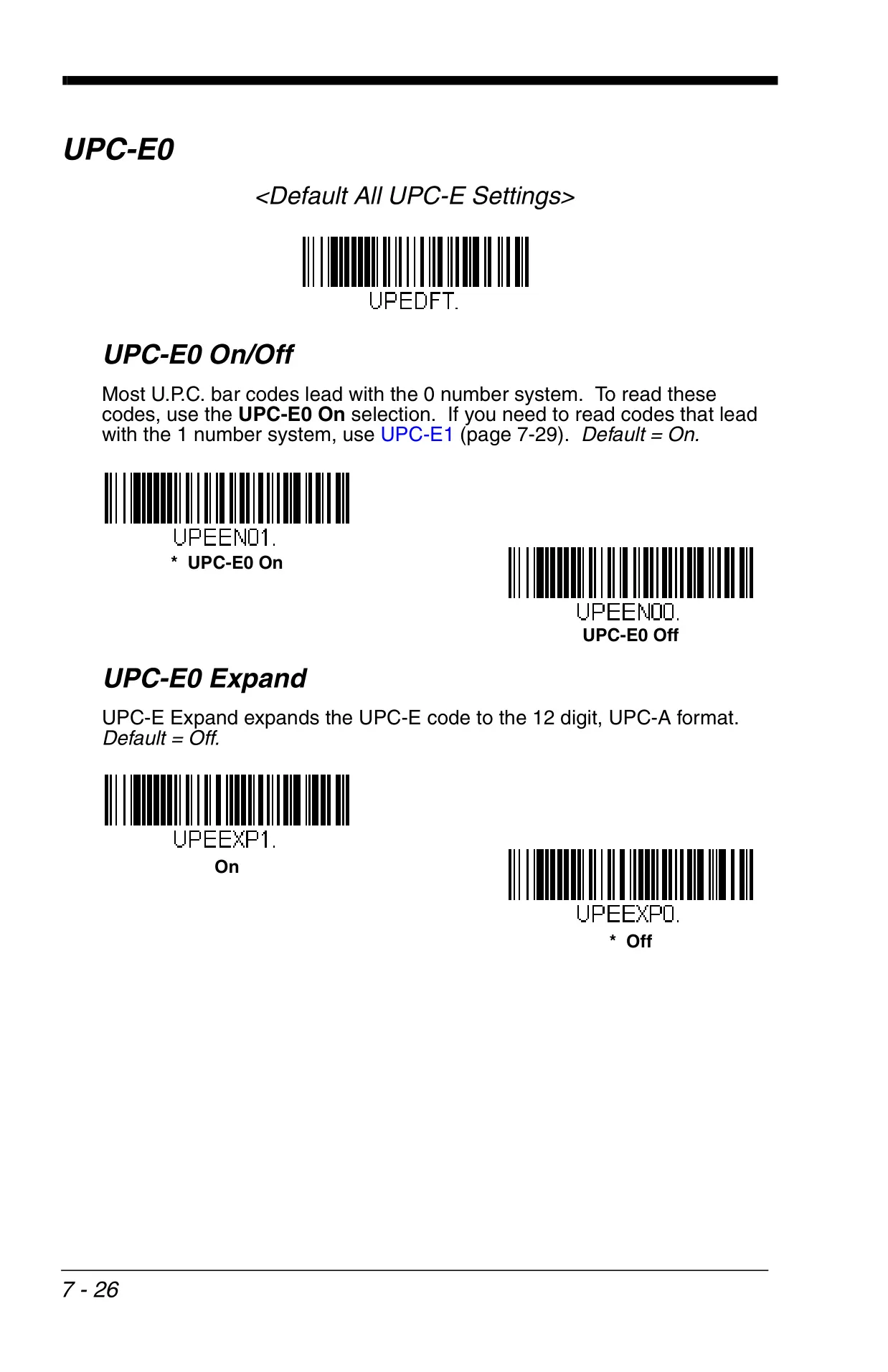
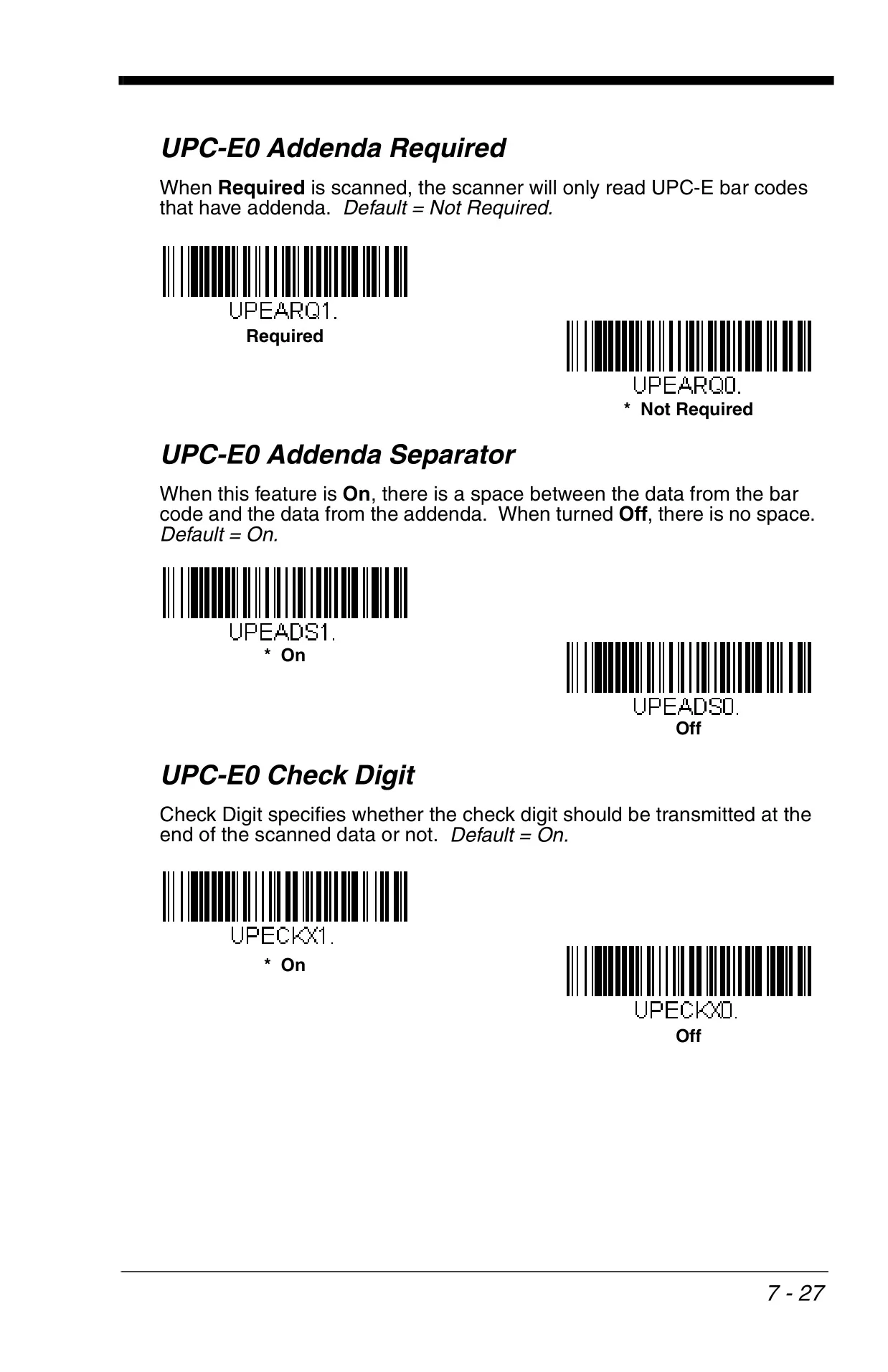
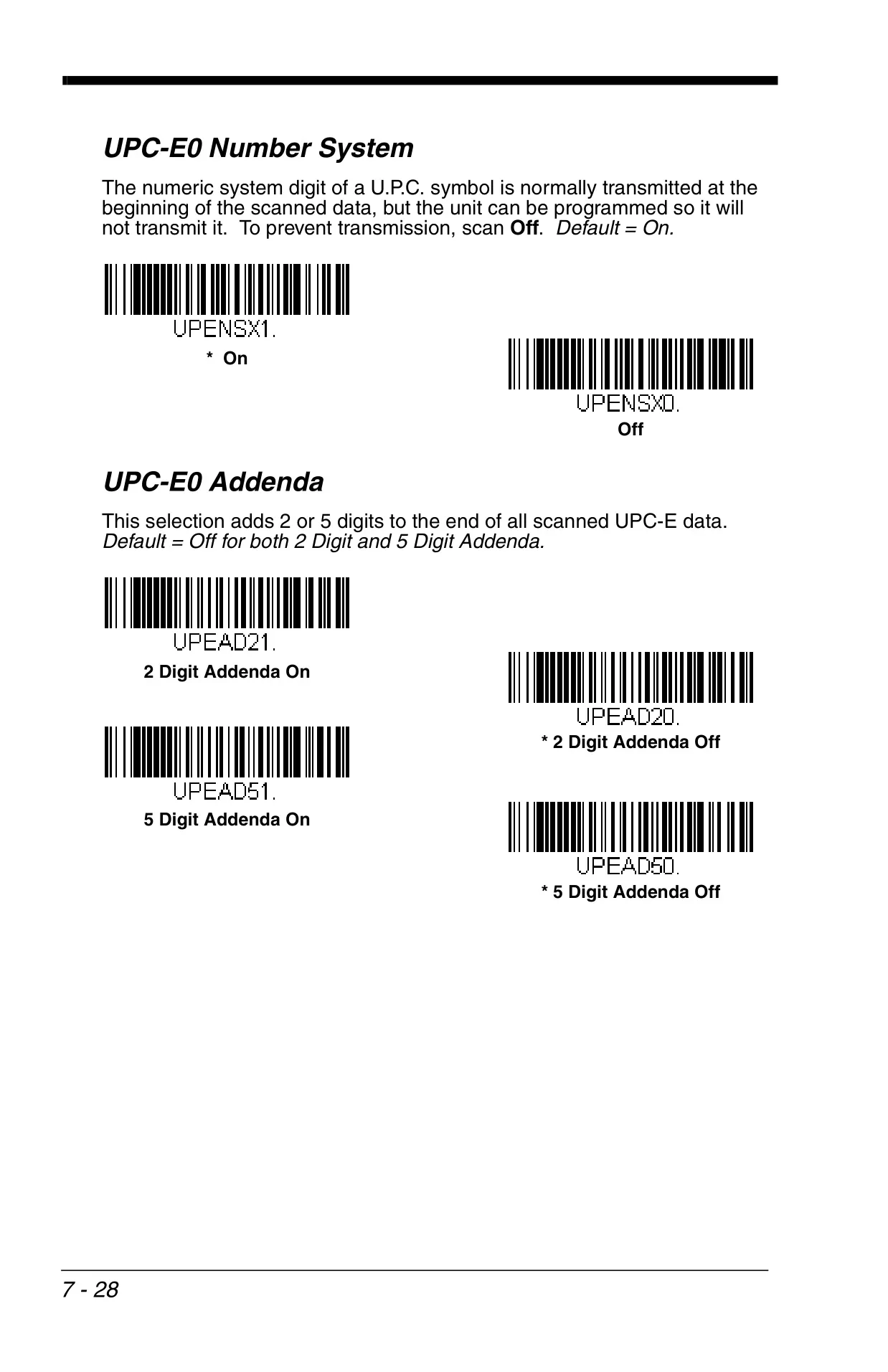
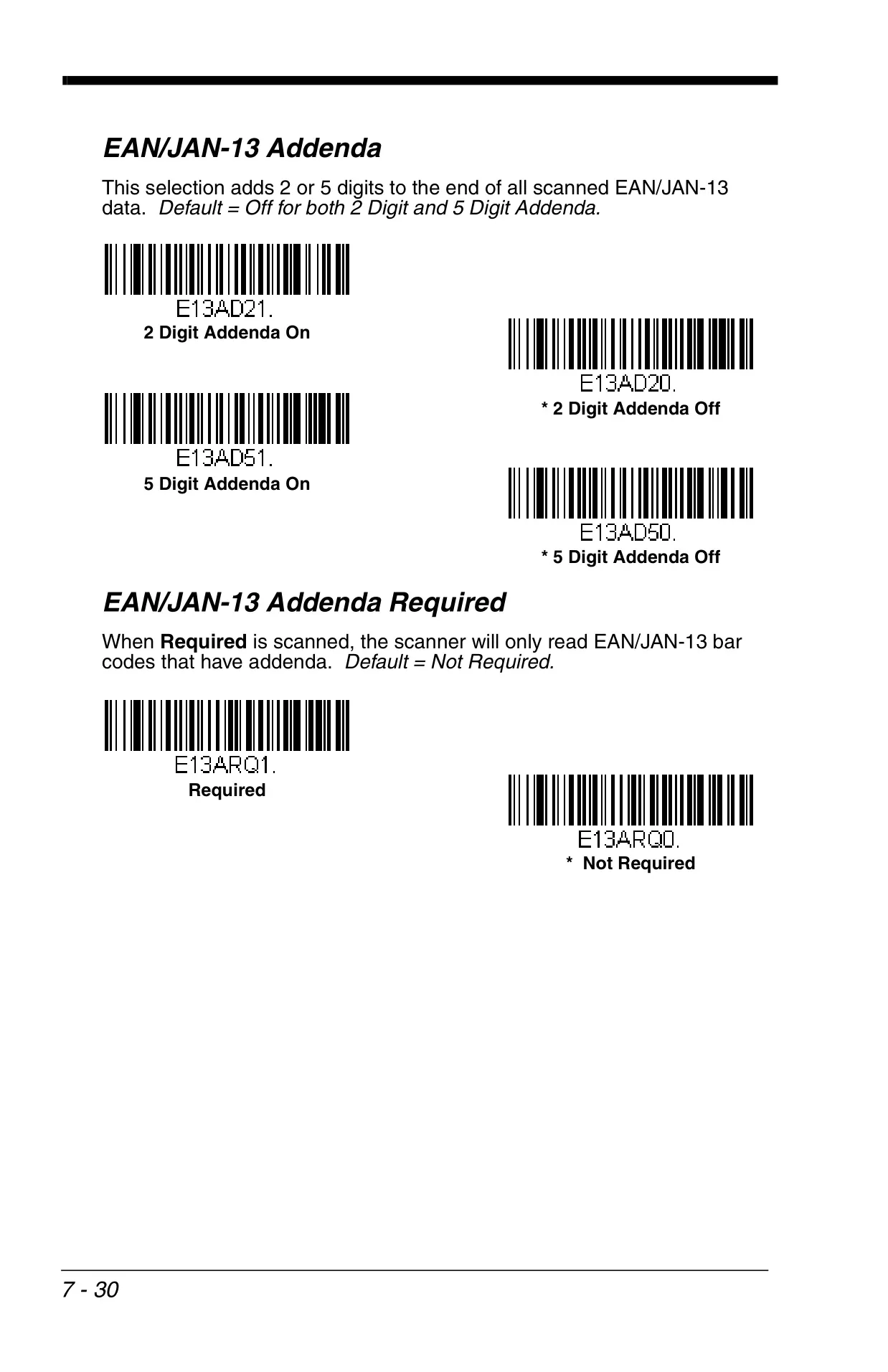
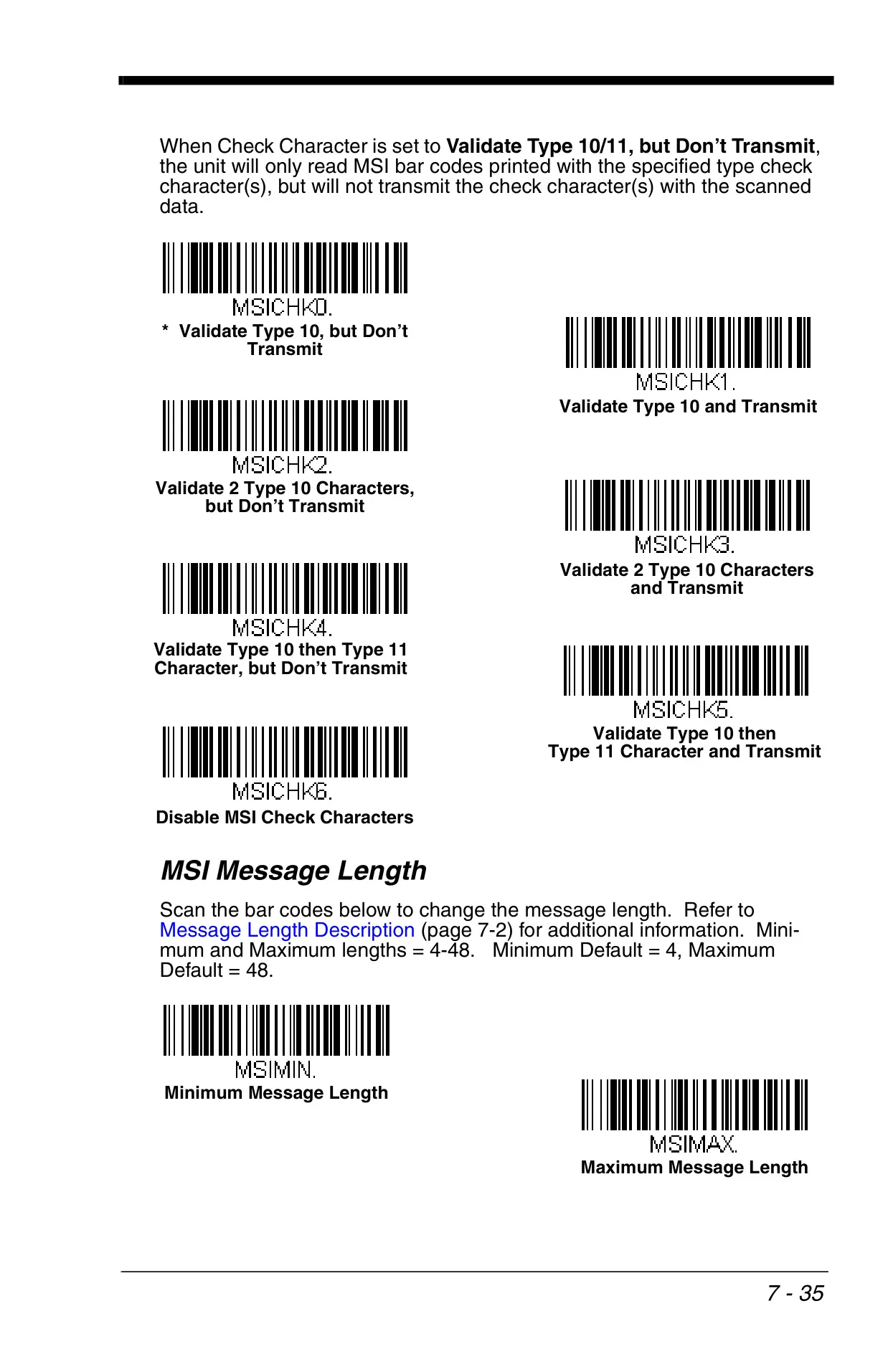
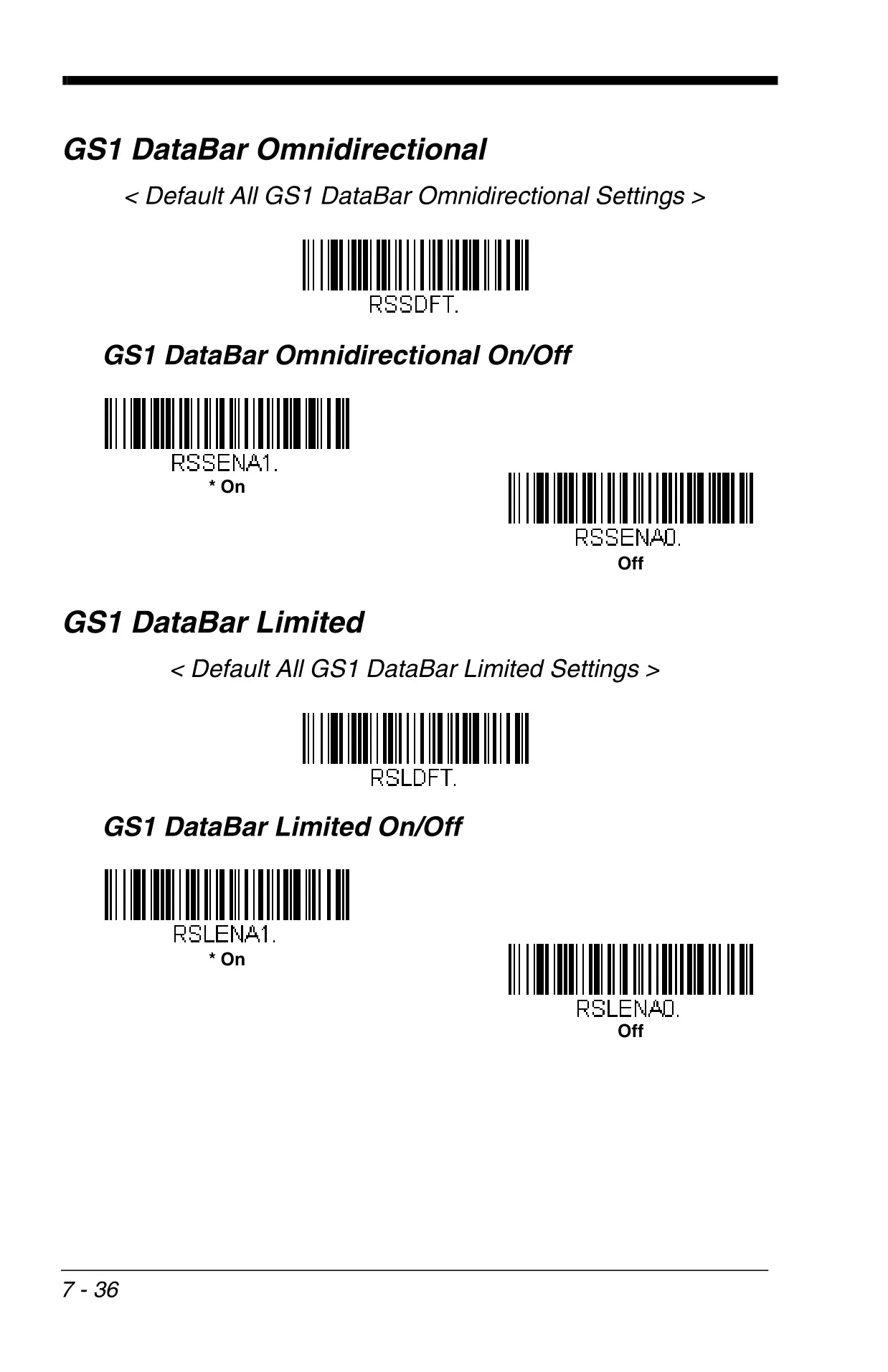
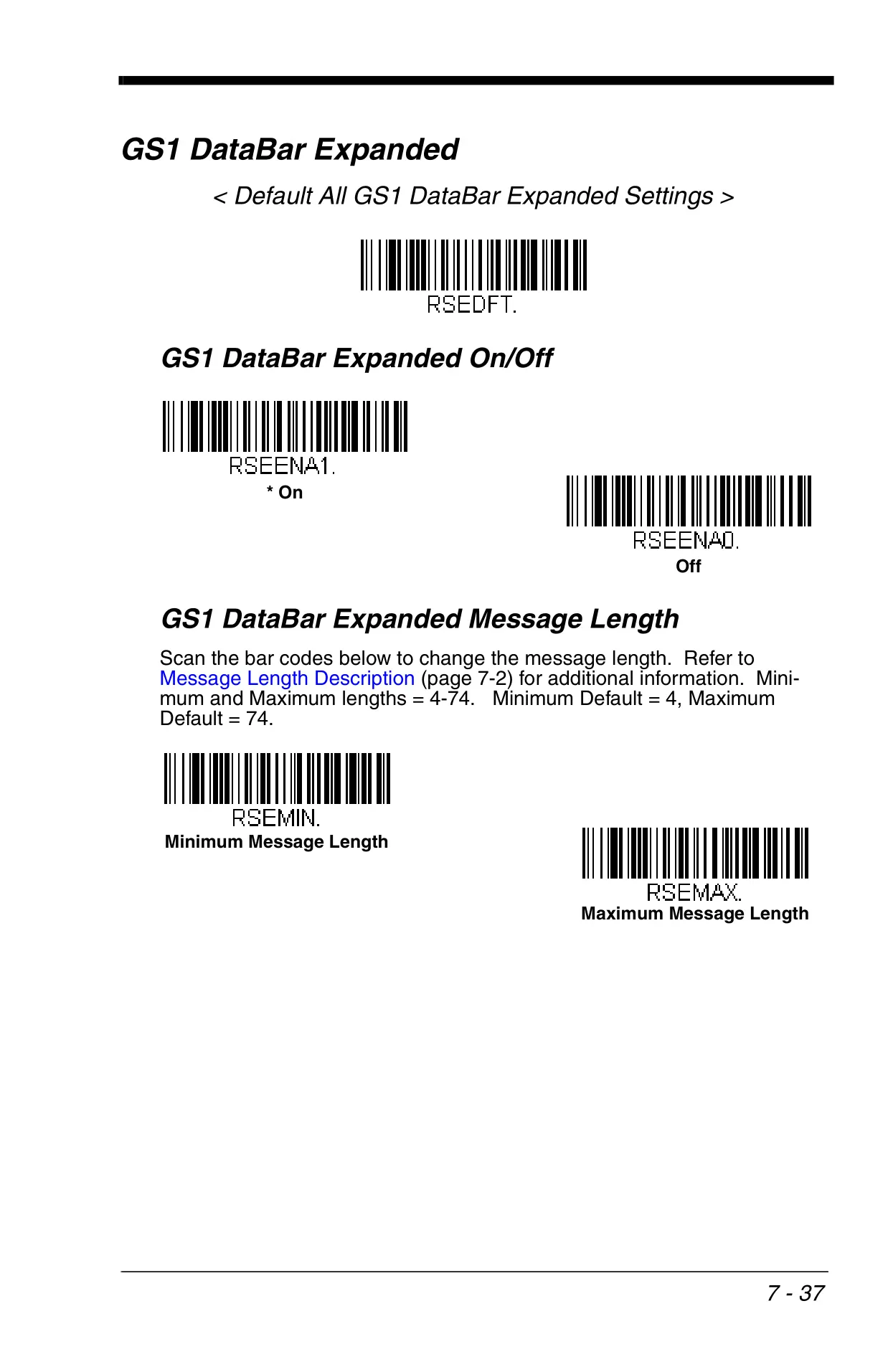
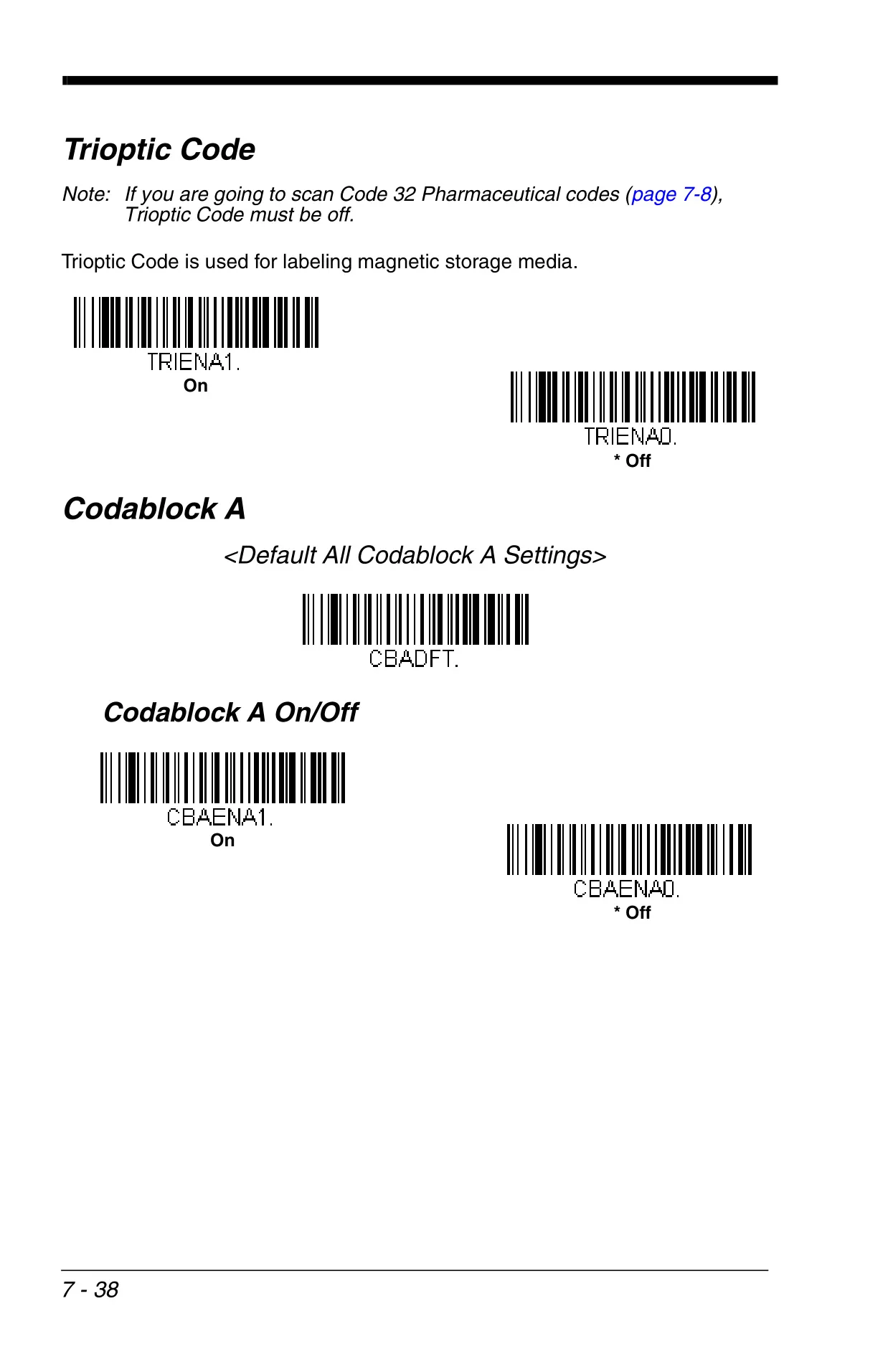
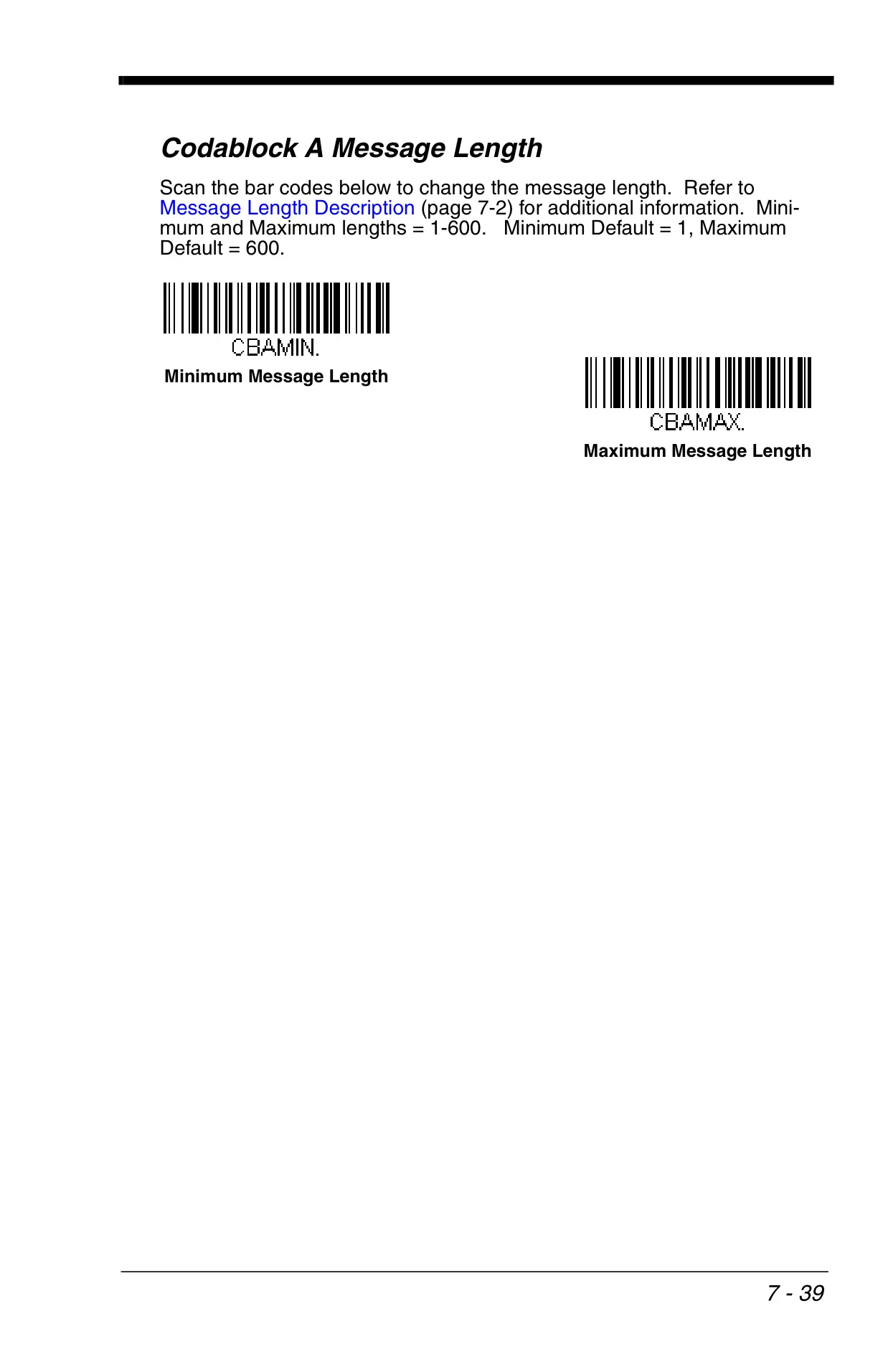
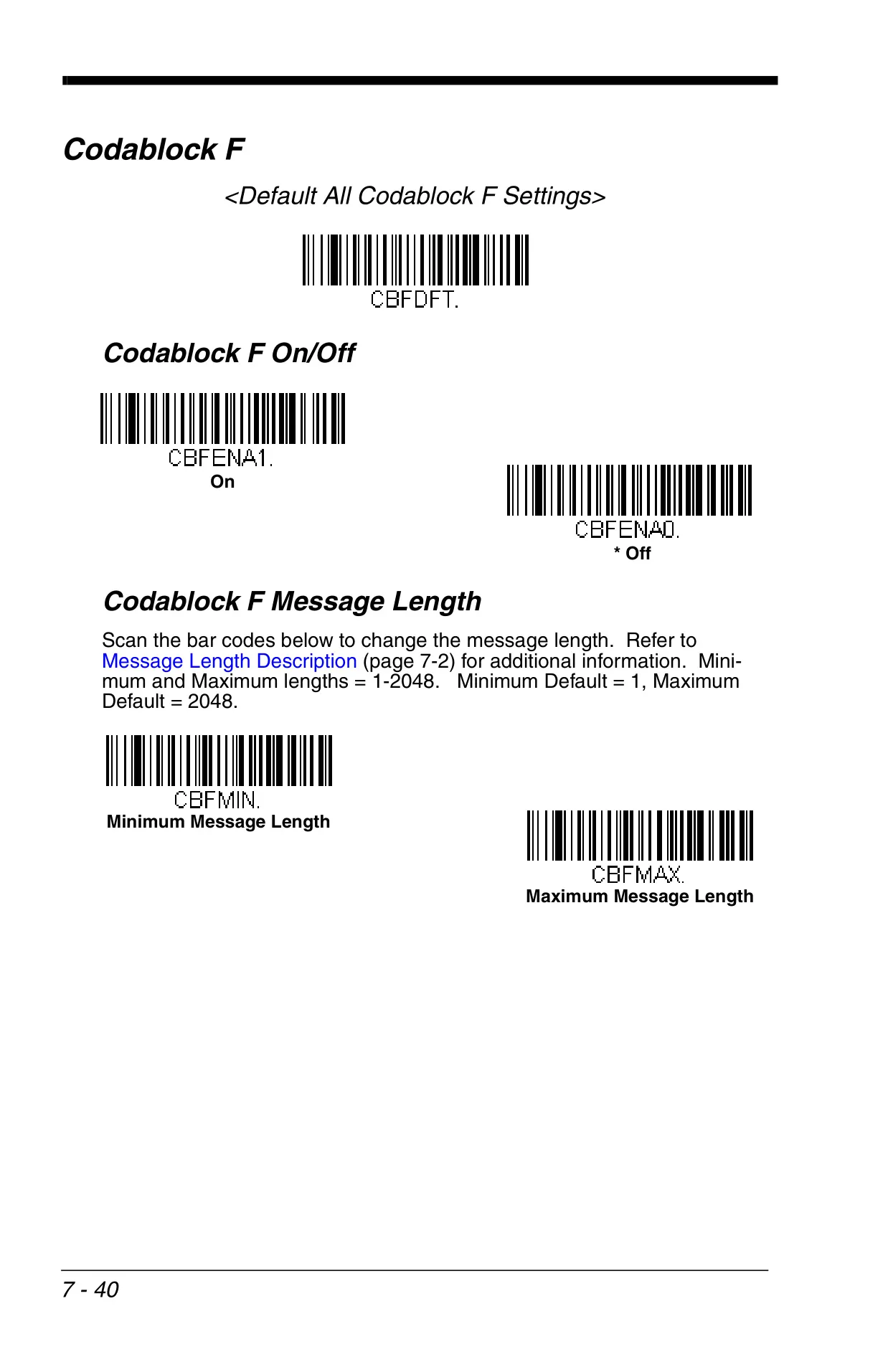
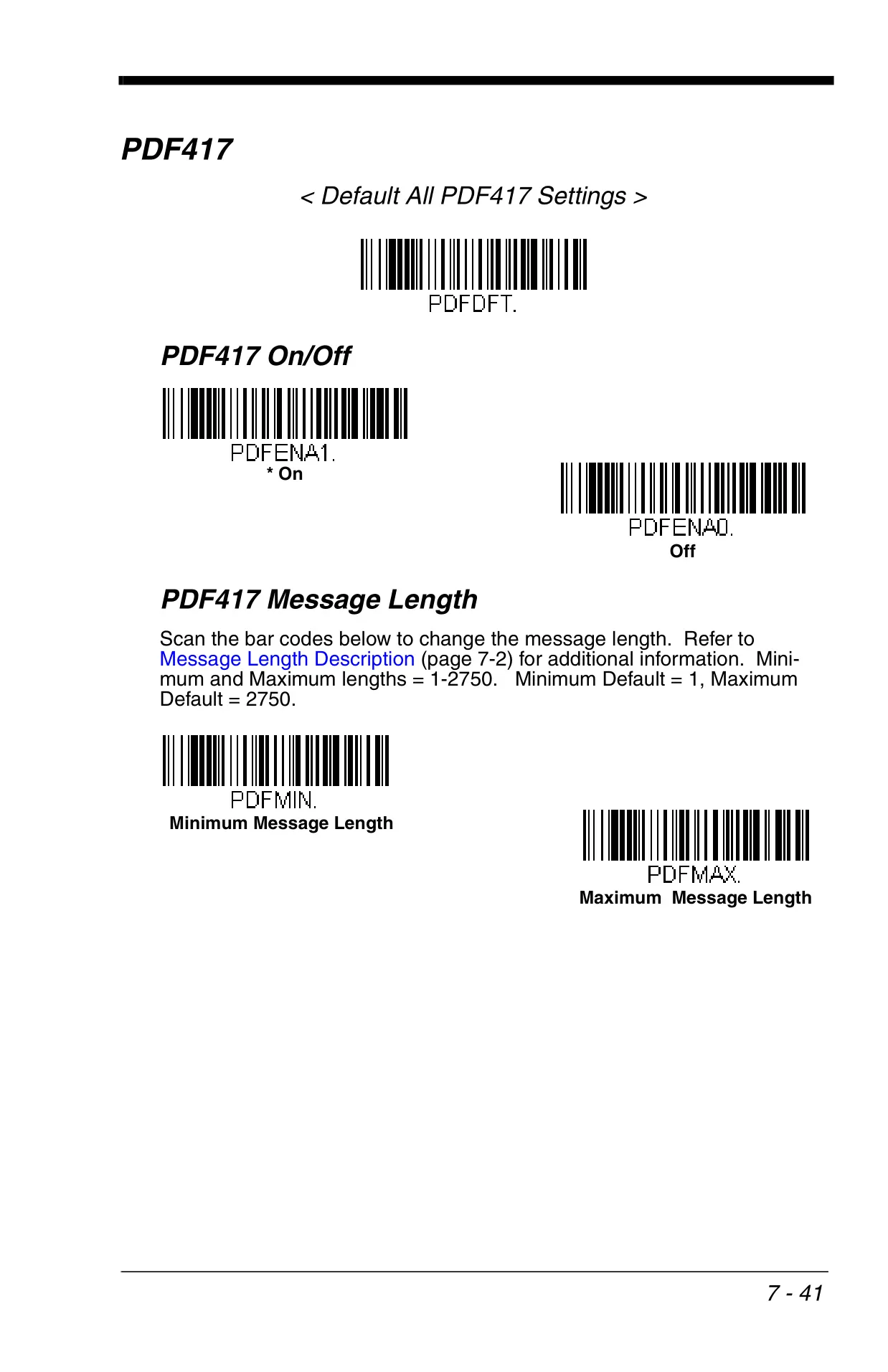
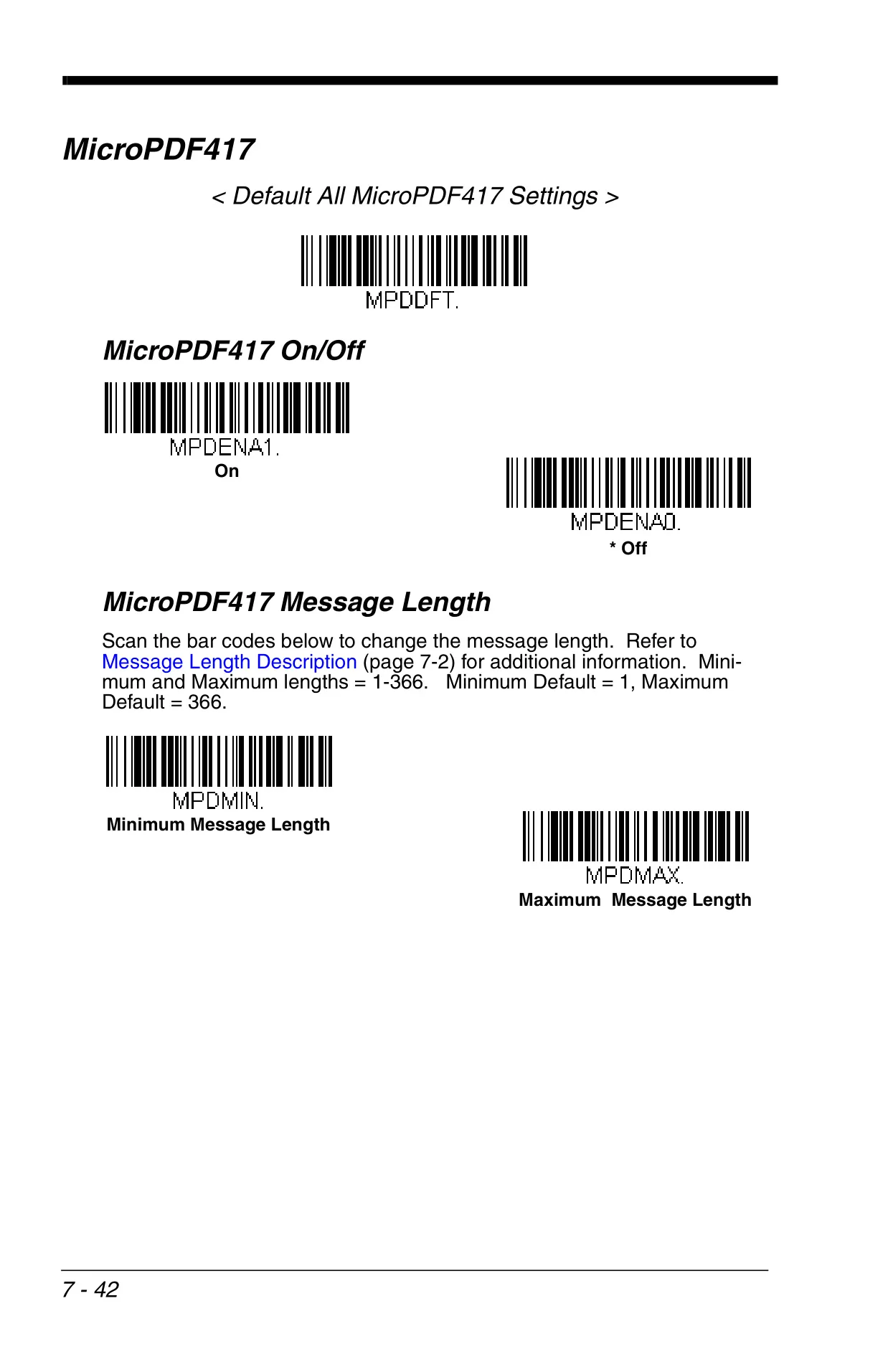
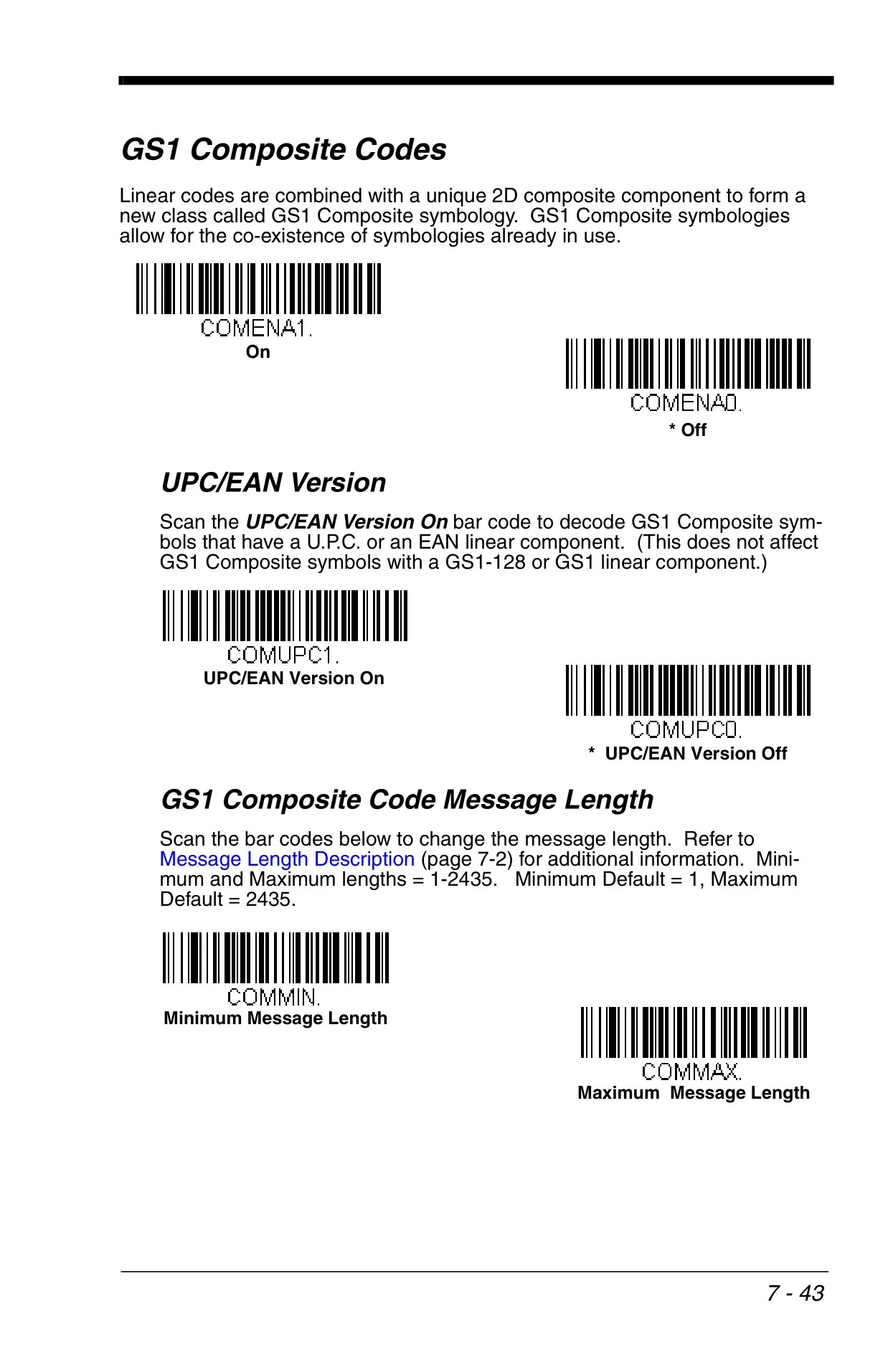
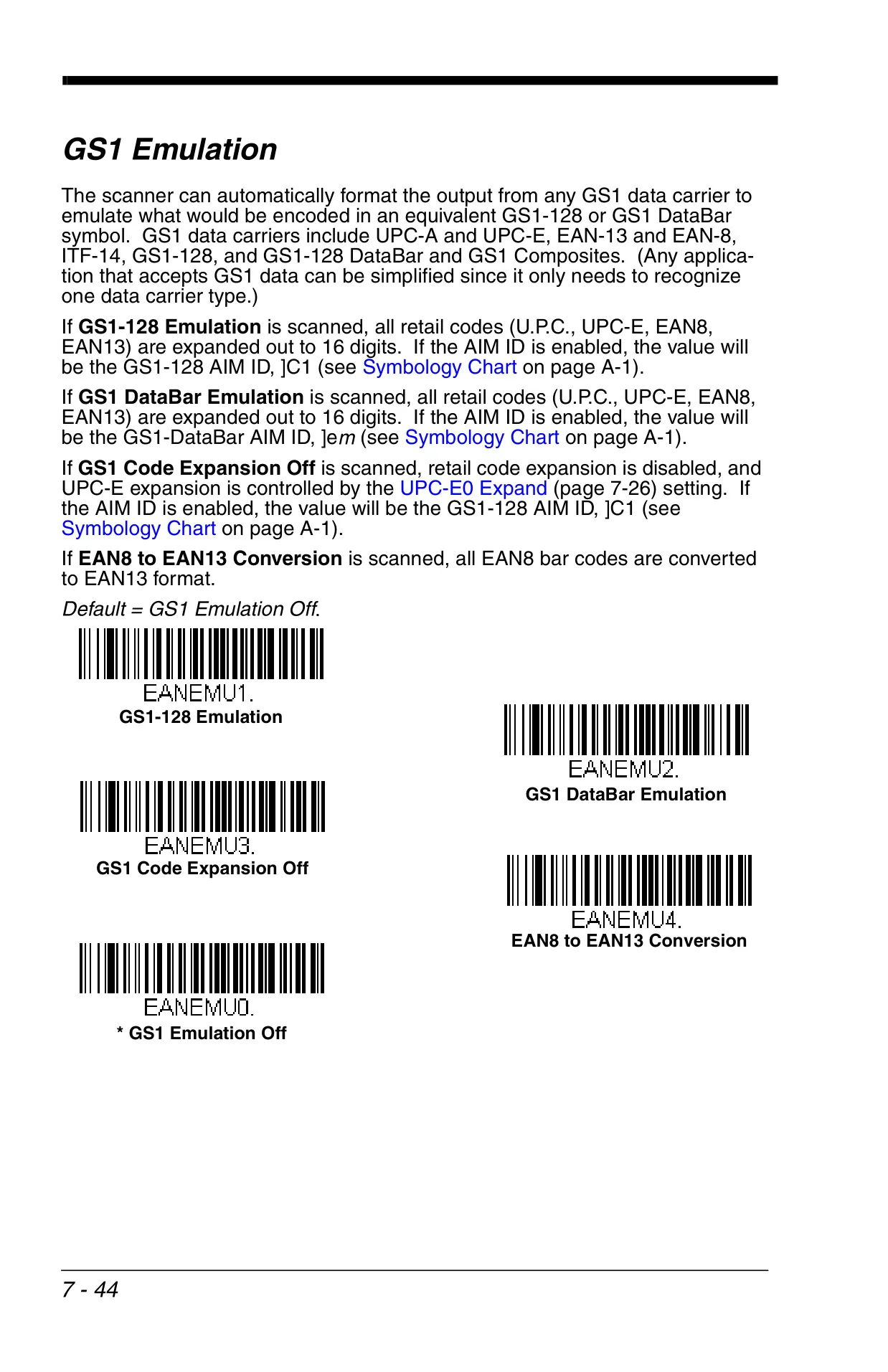
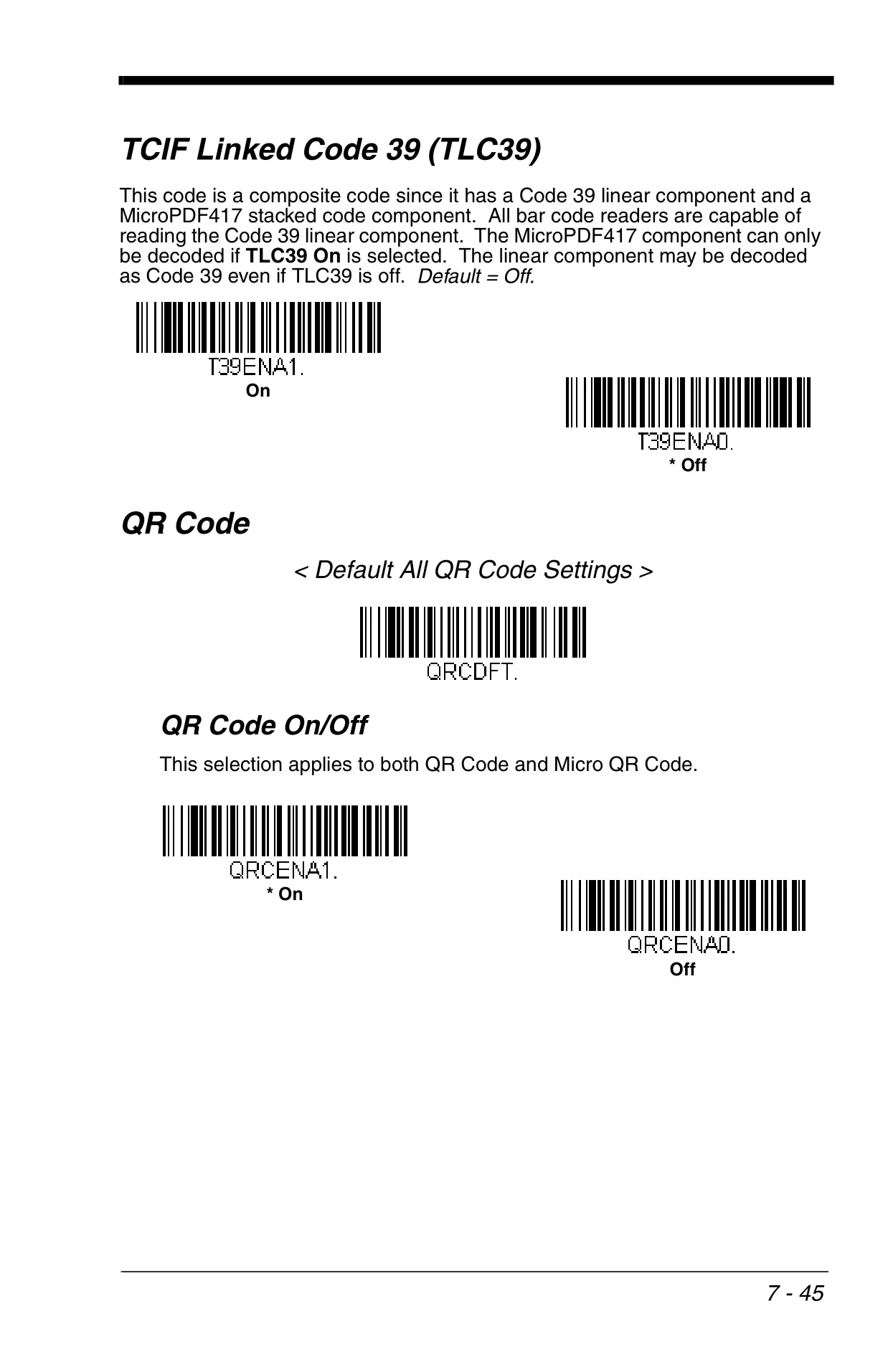
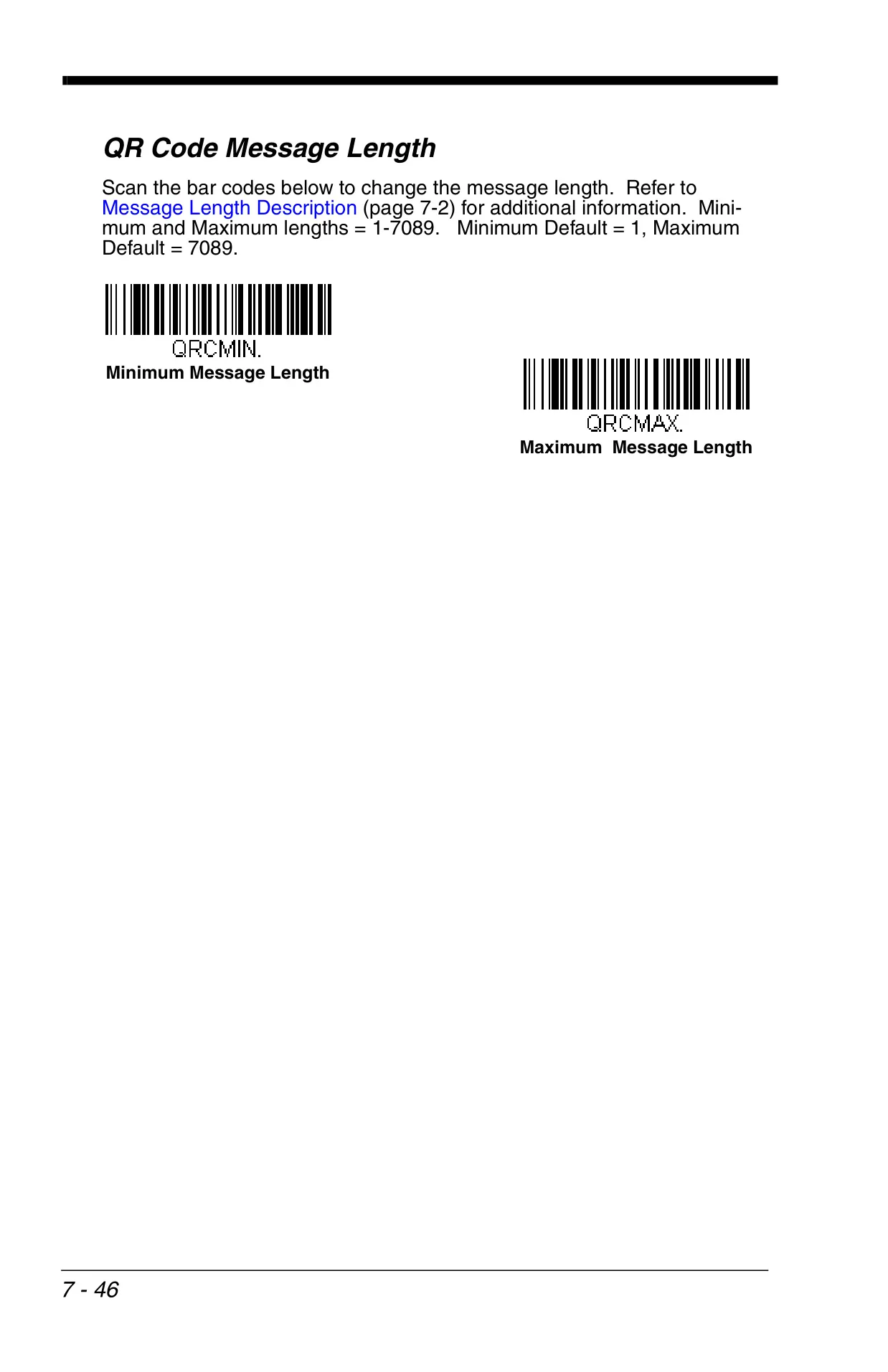
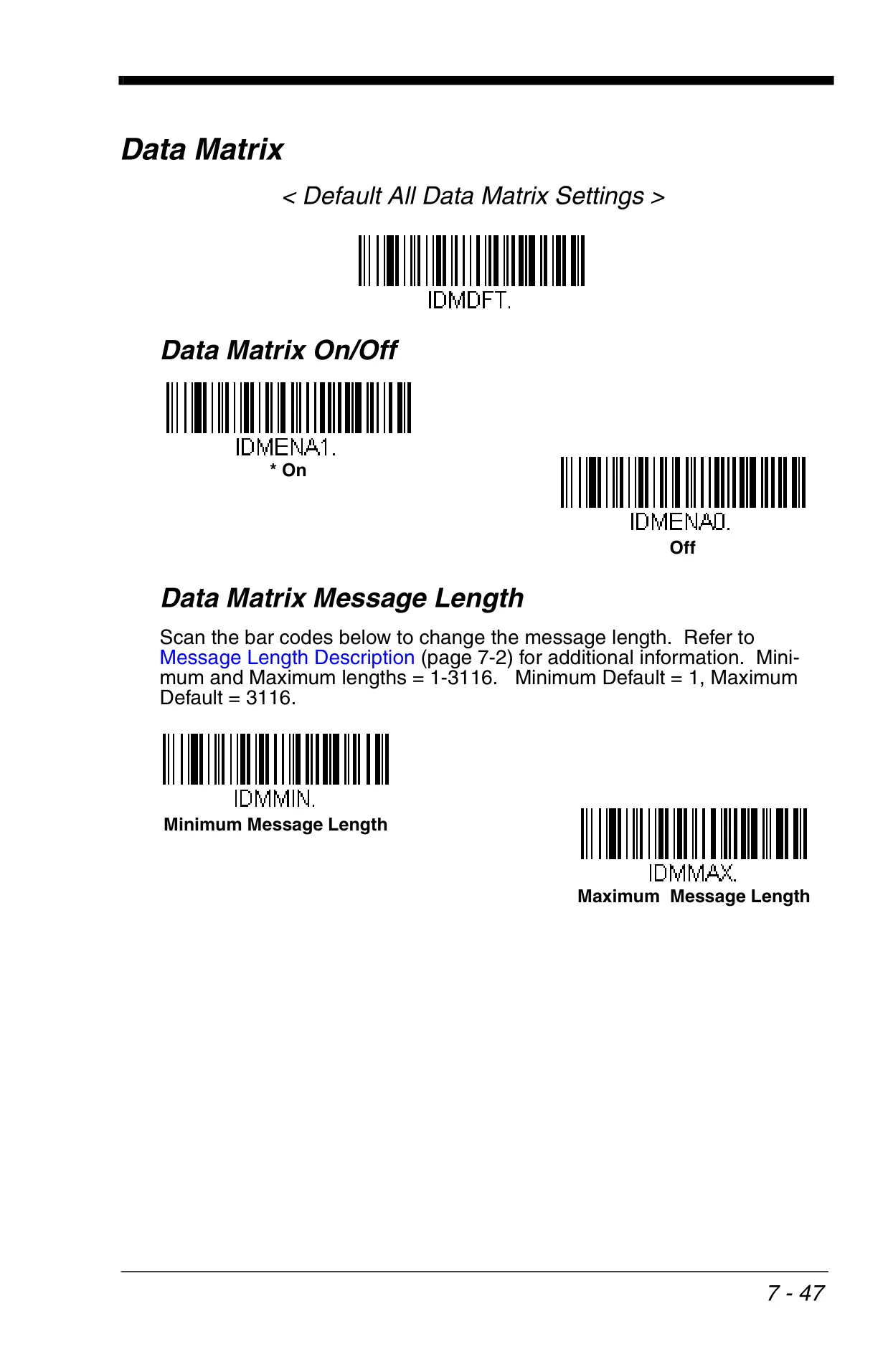
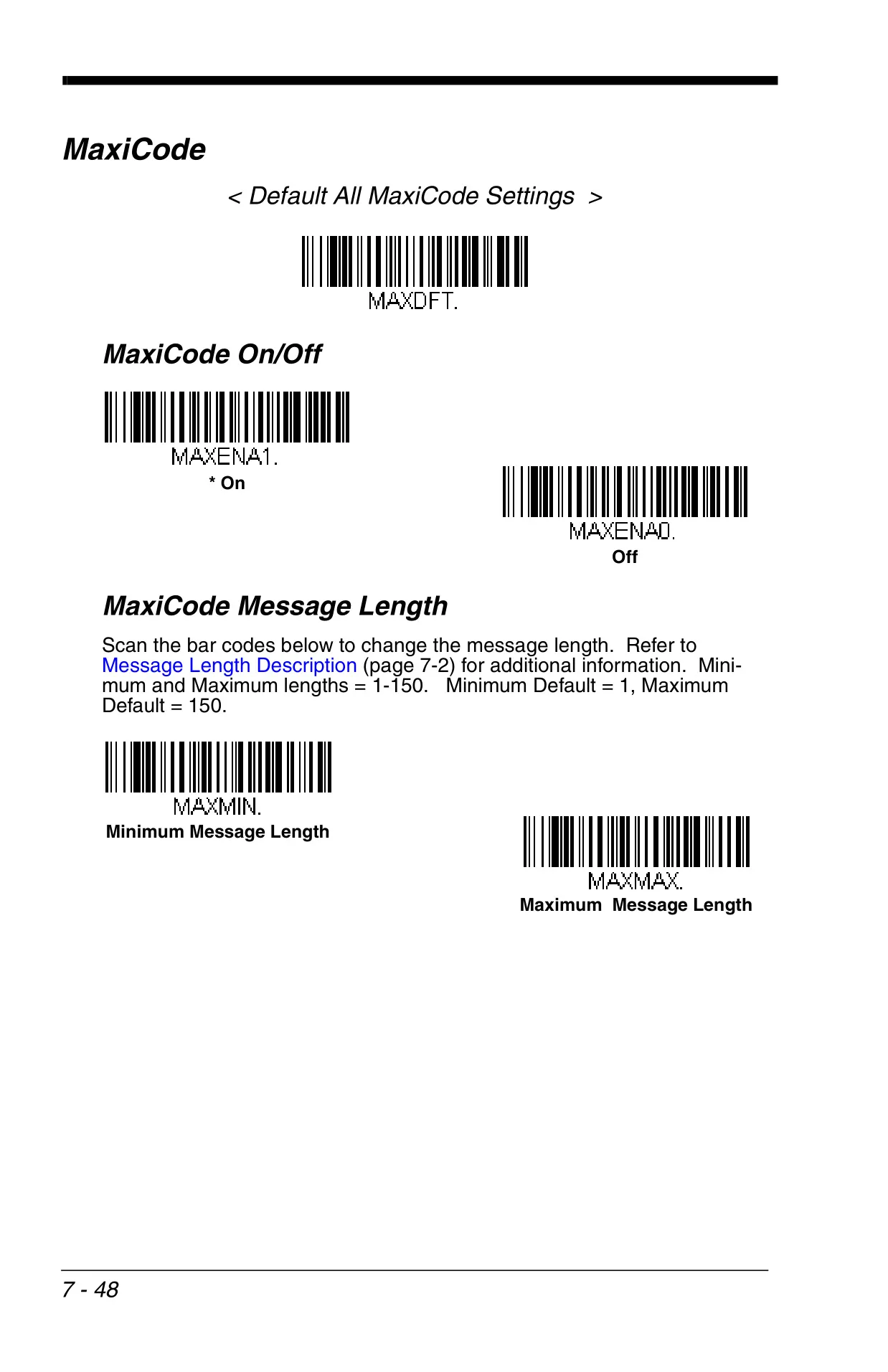
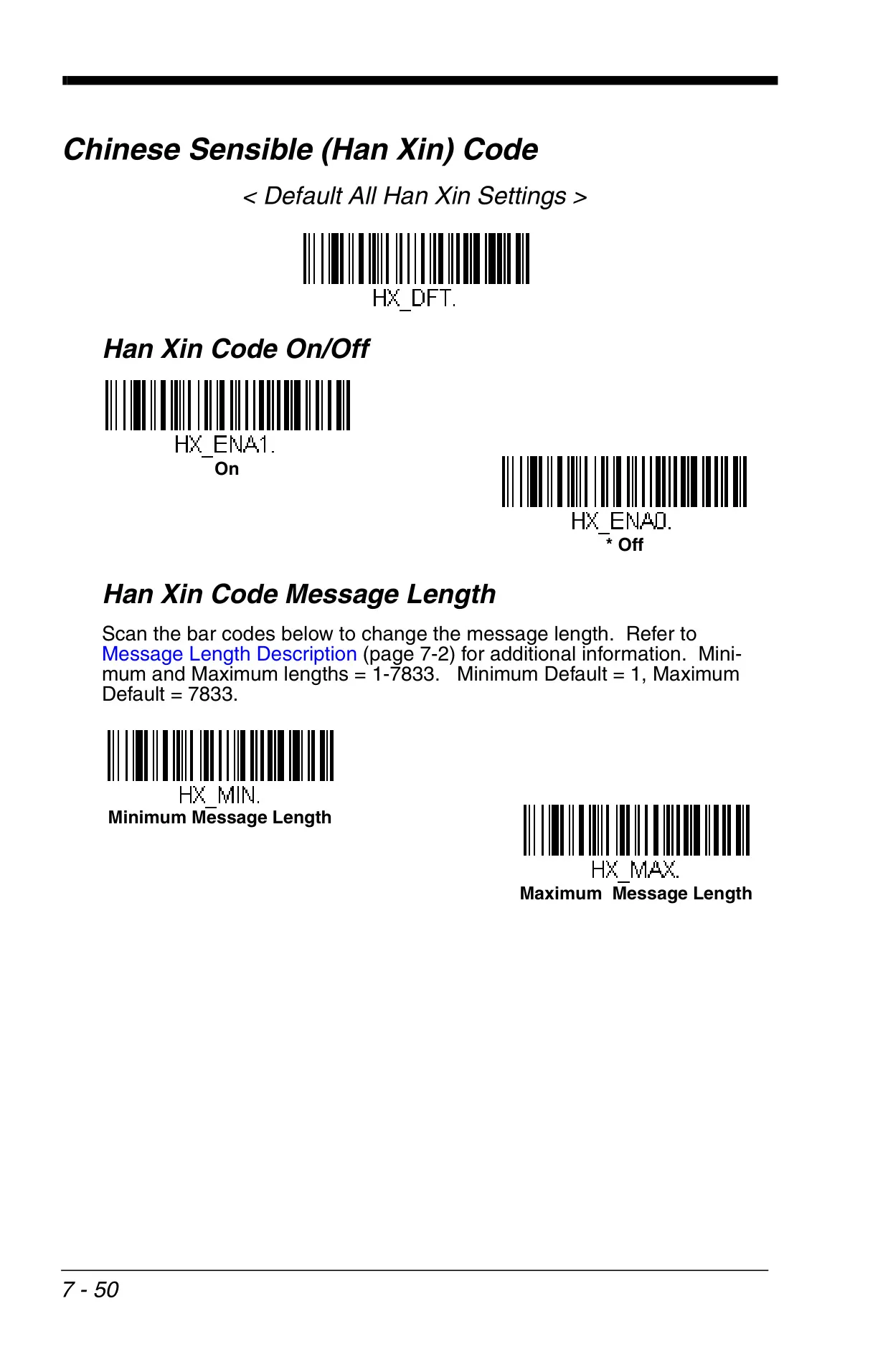
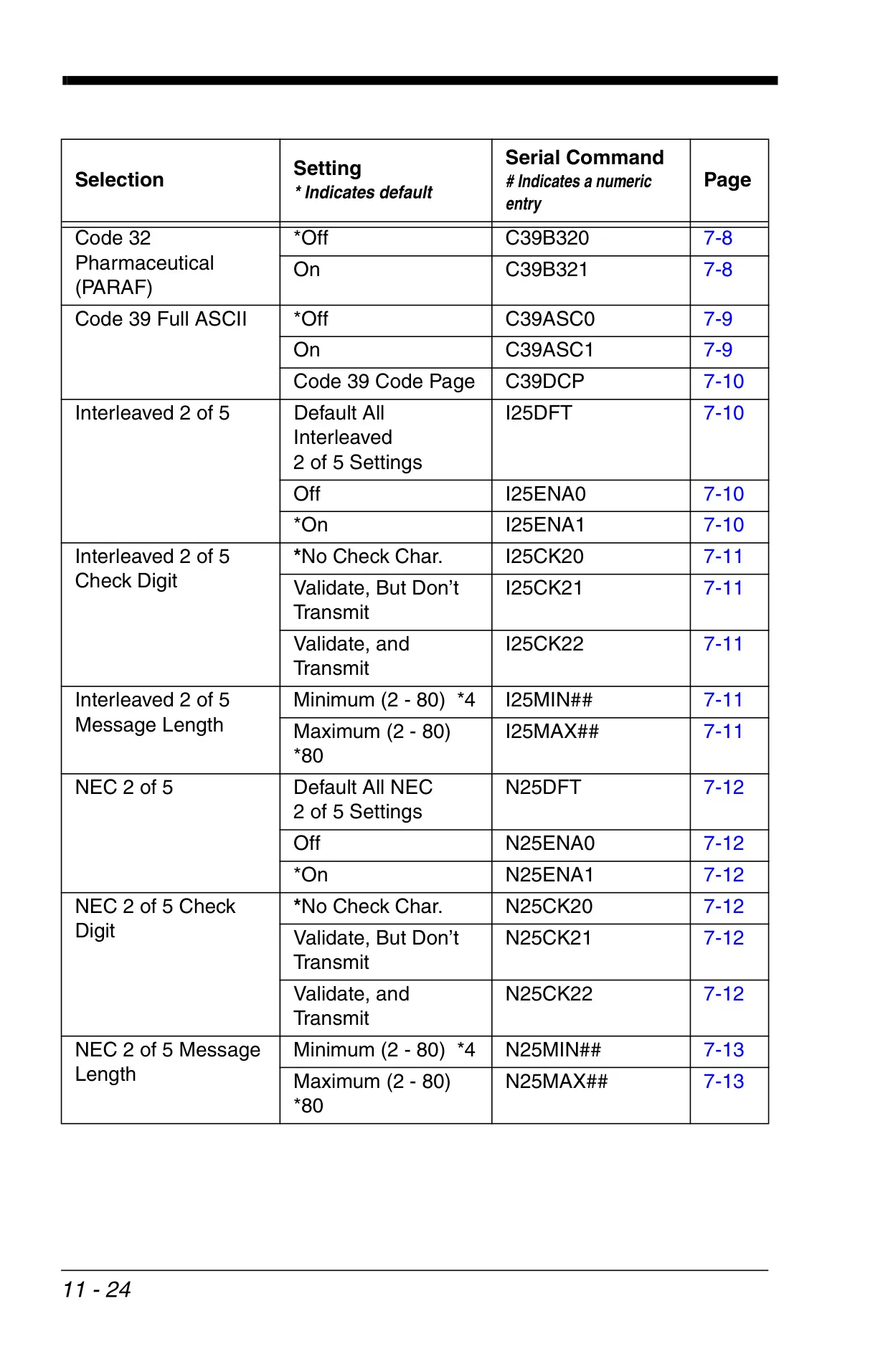
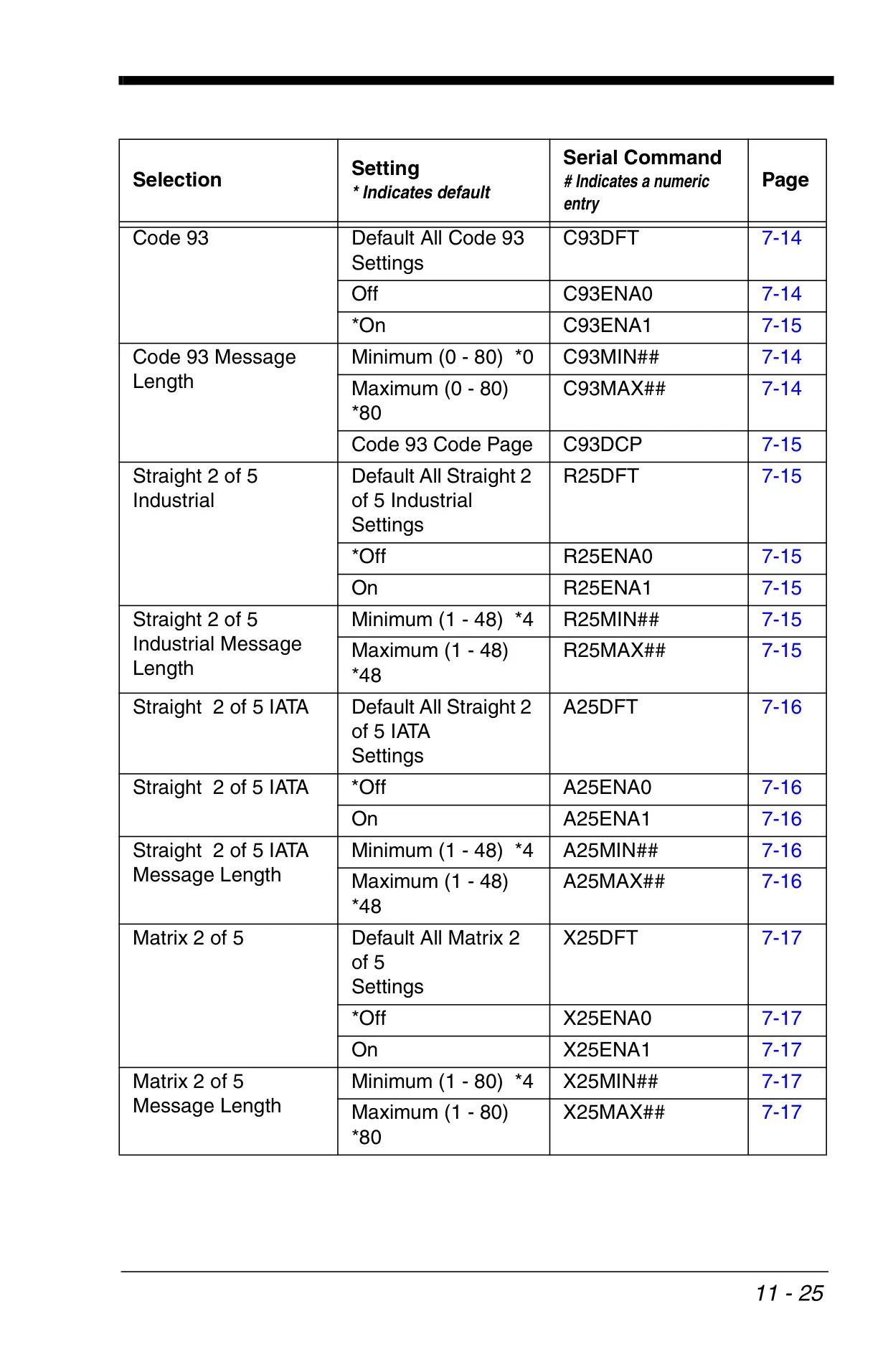
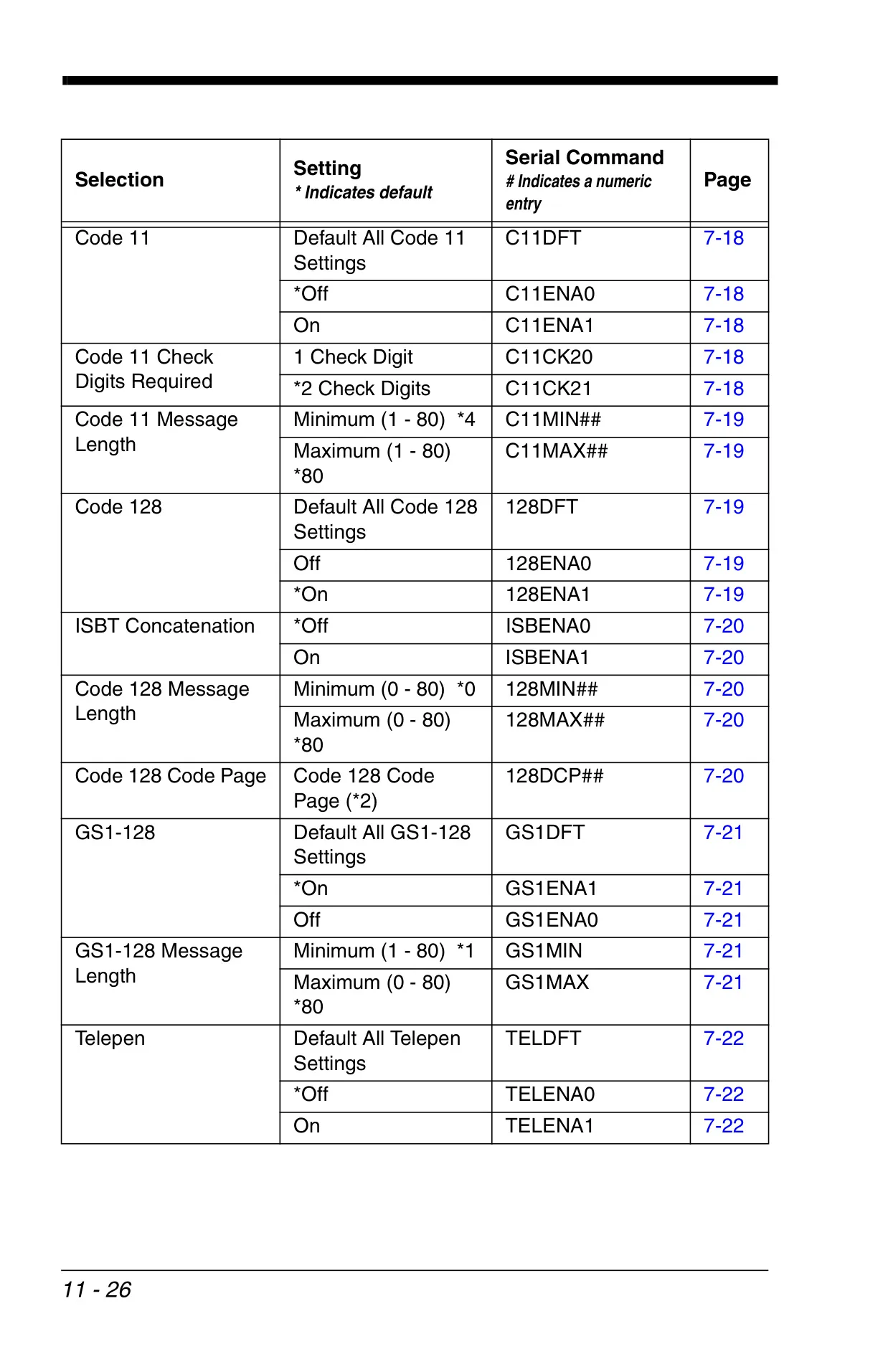
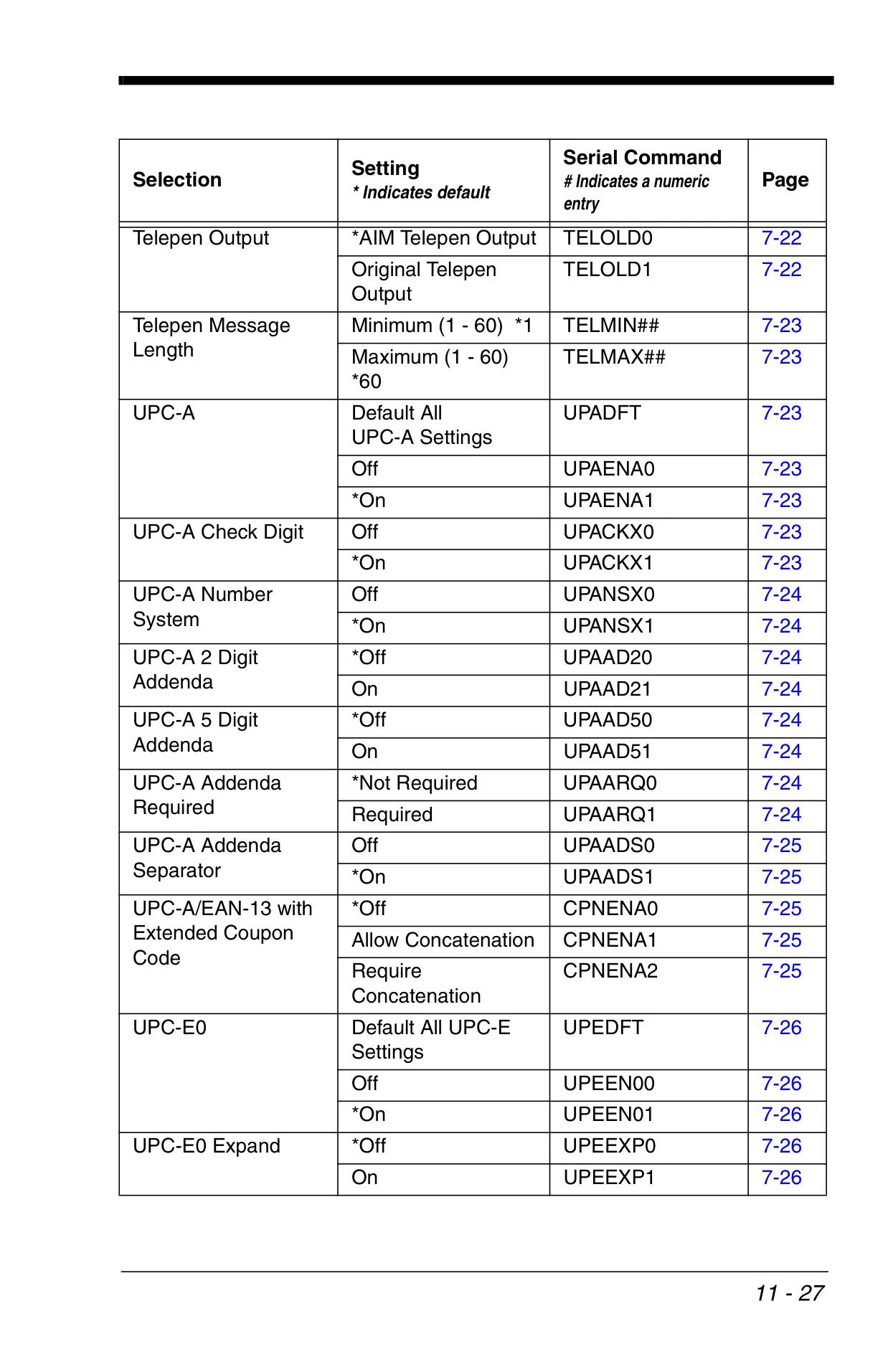
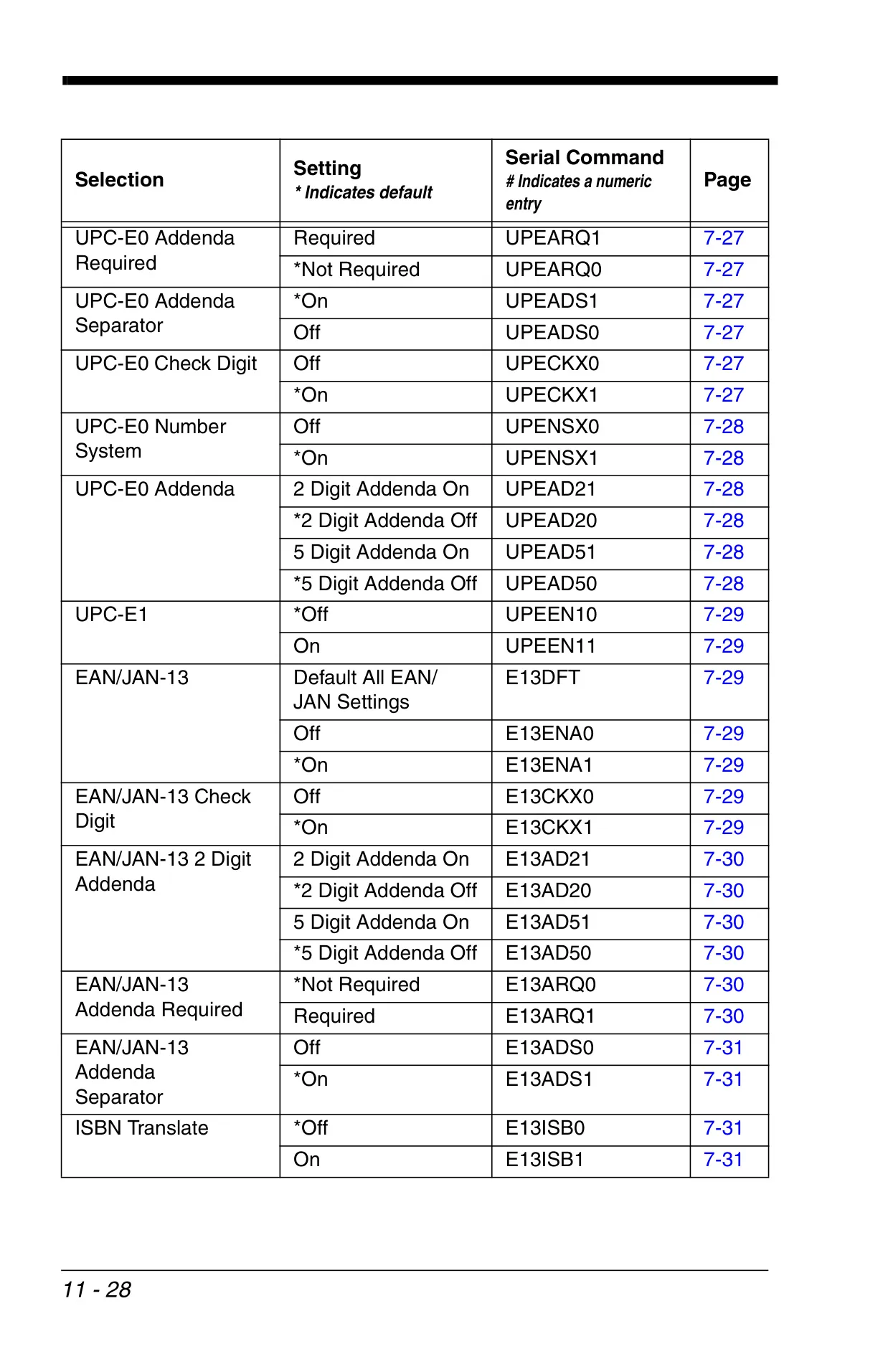
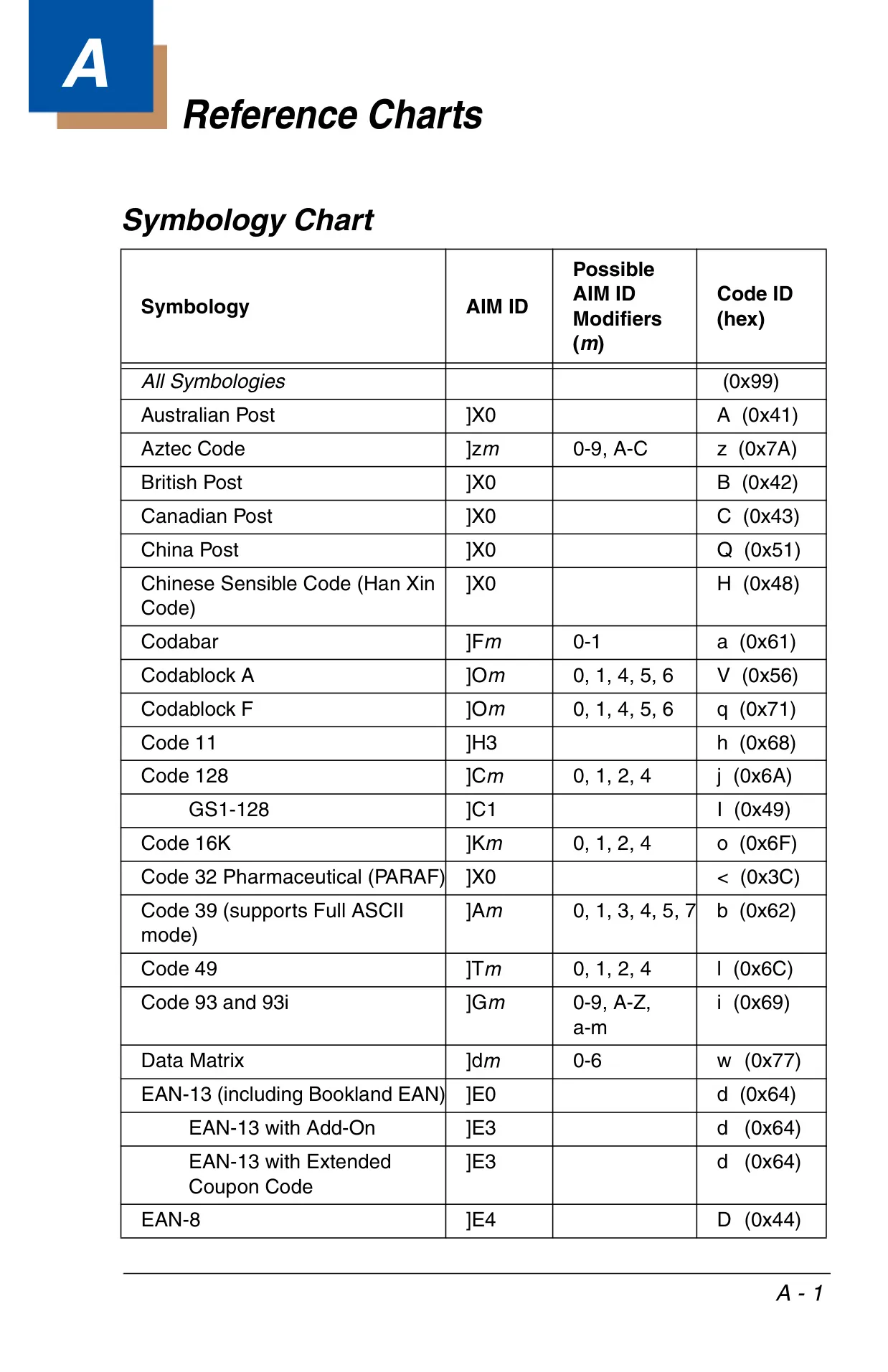
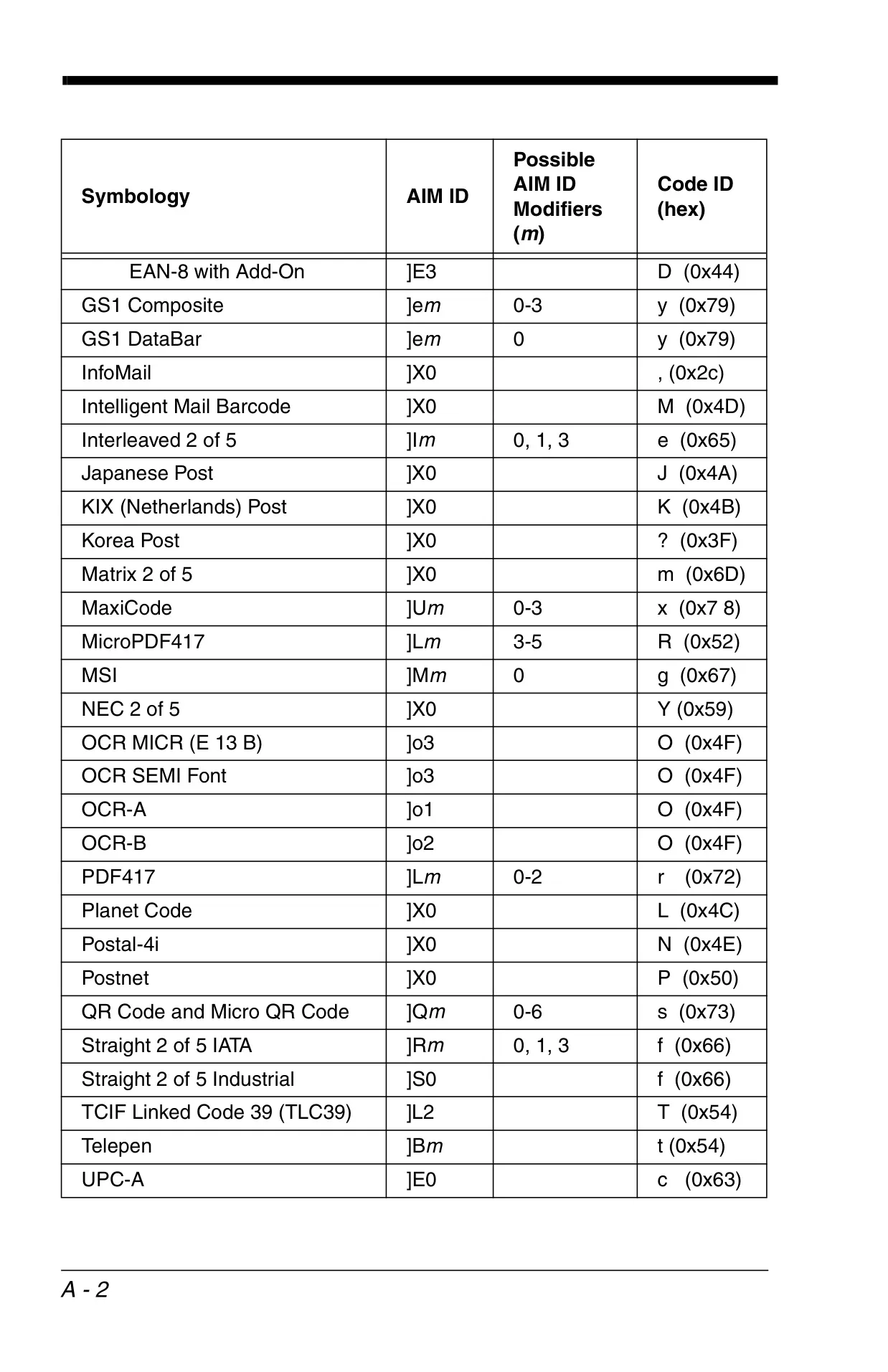
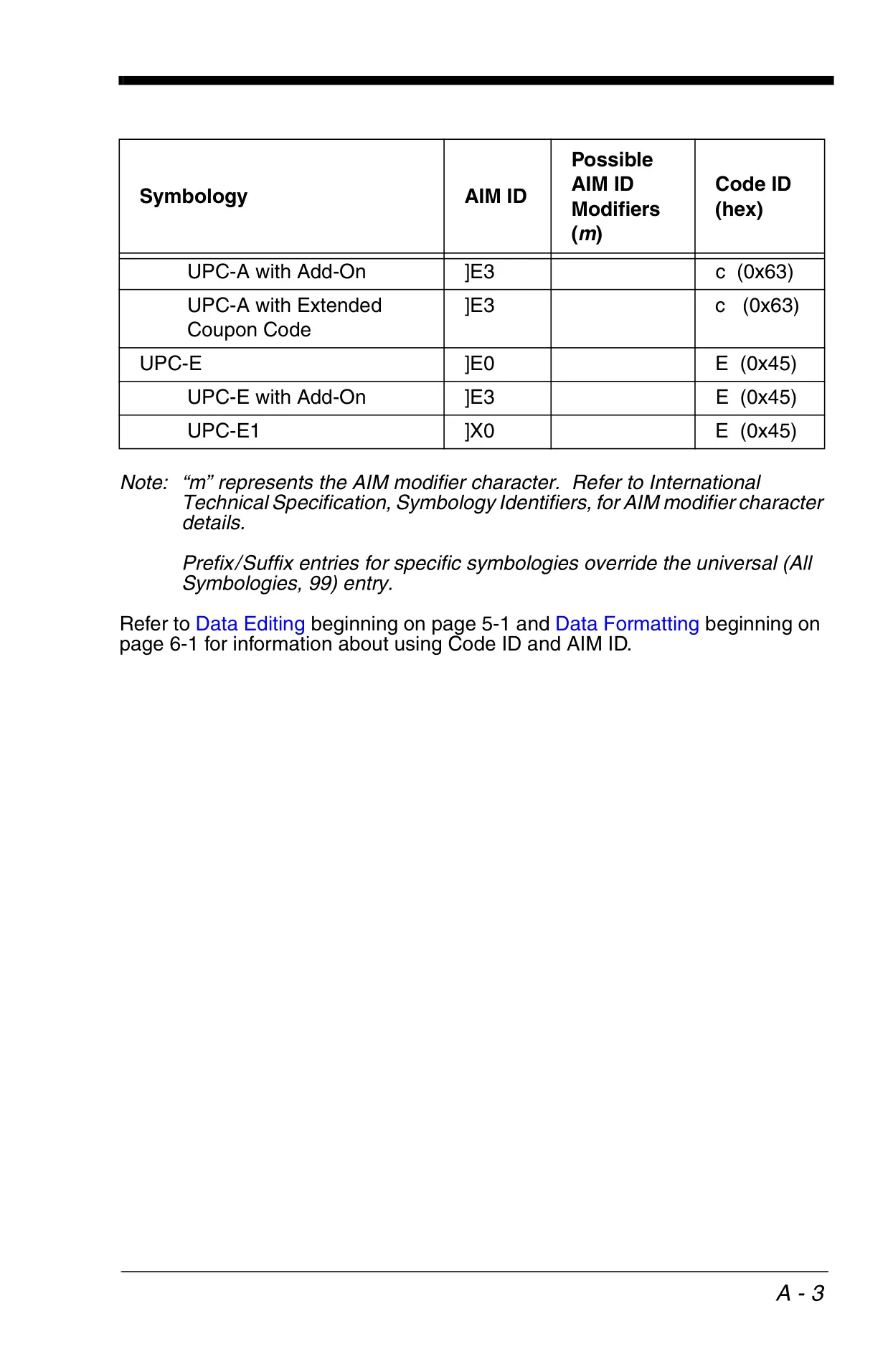
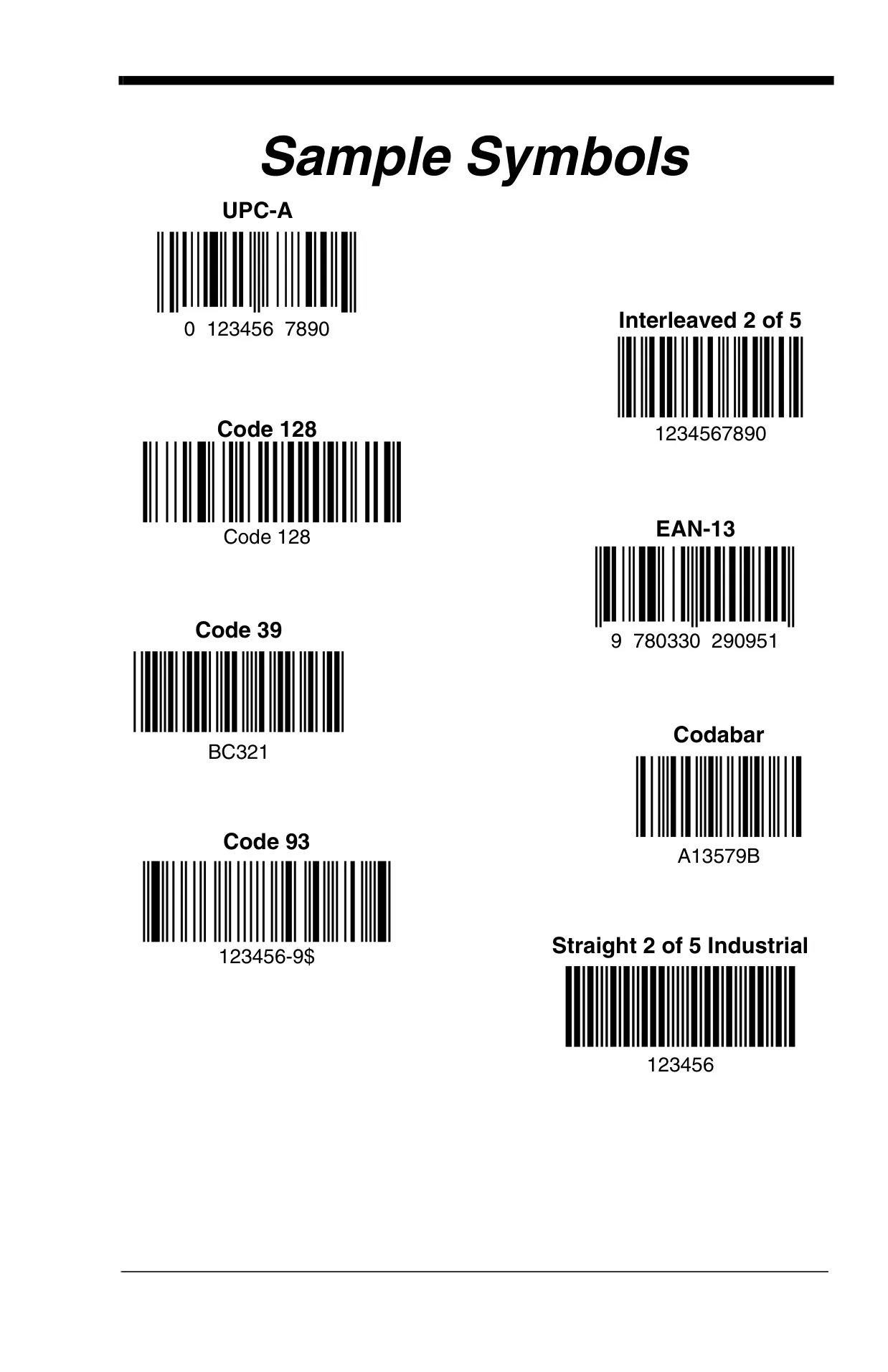
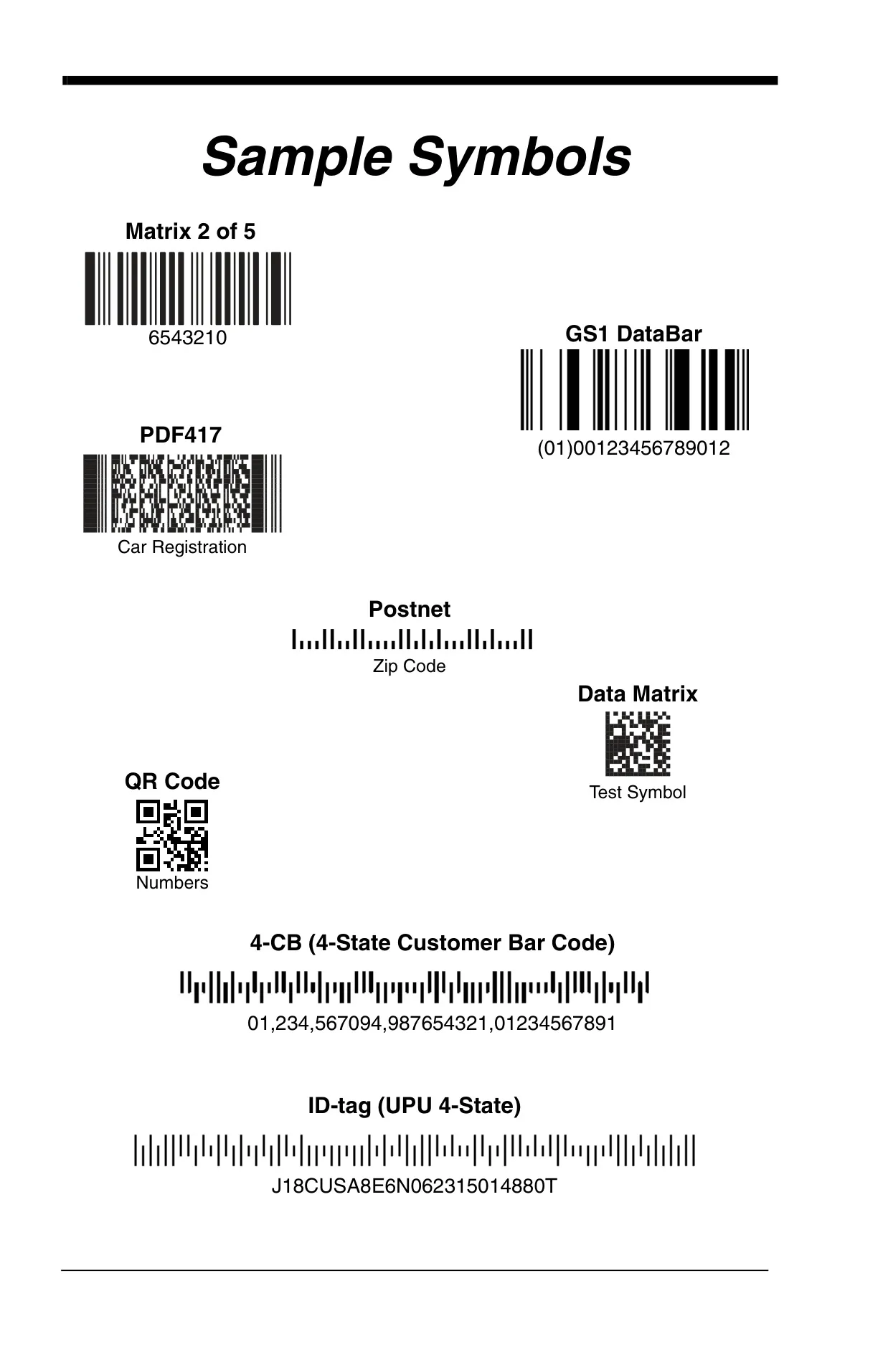
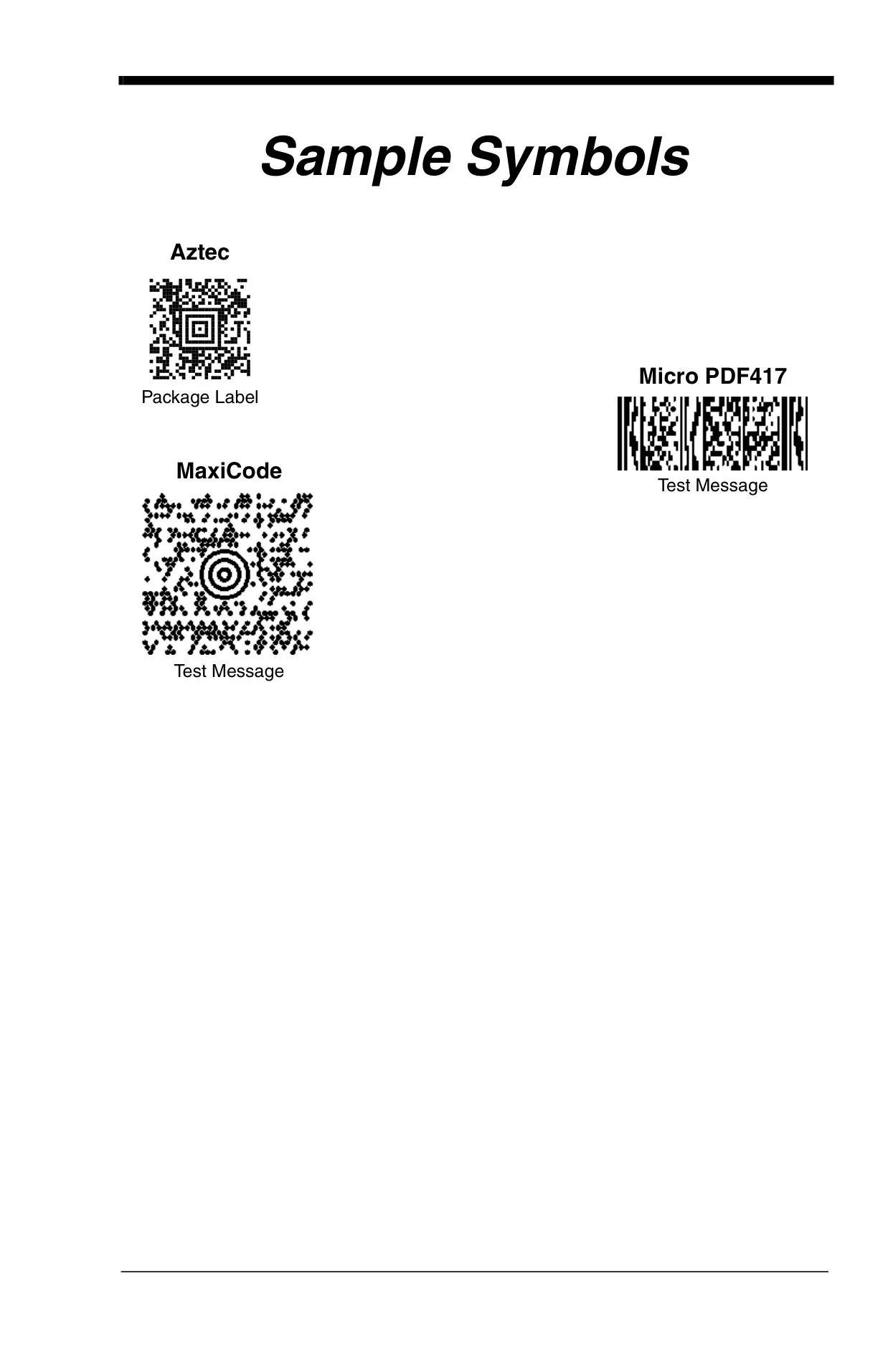
The scanner offers robust support for a broad spectrum of 1D and 2D barcode symbologies, including Codabar, Code 39, Interleaved 2 of 5, Code 128, GS1-128, PDF417, QR Code, Data Matrix, and Aztec Code. Each symbology comes with granular control options such as check characters, message length restrictions, and concatenation capabilities, allowing for fine-tuned decoding performance to meet specific industry standards and application demands.
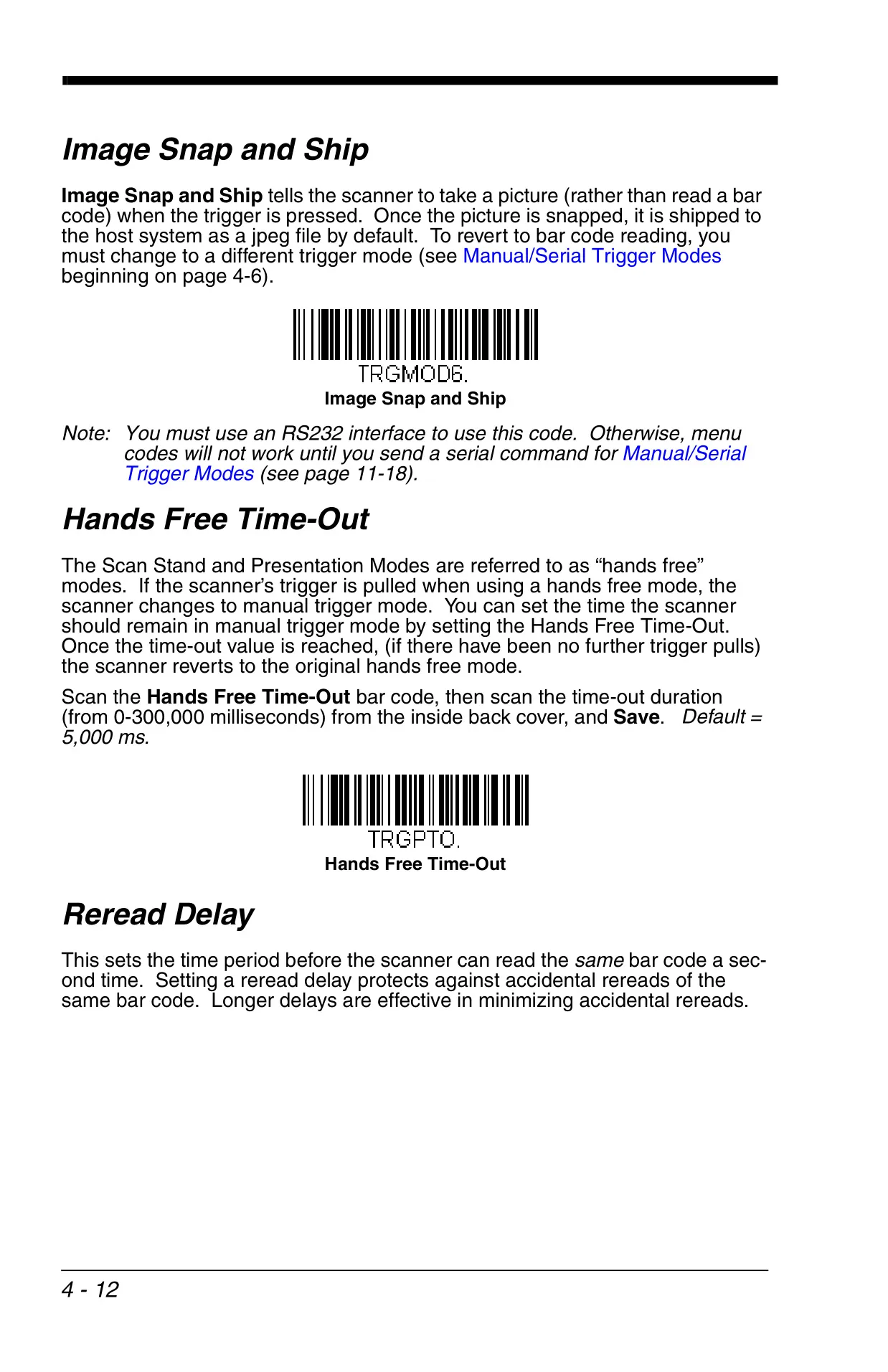
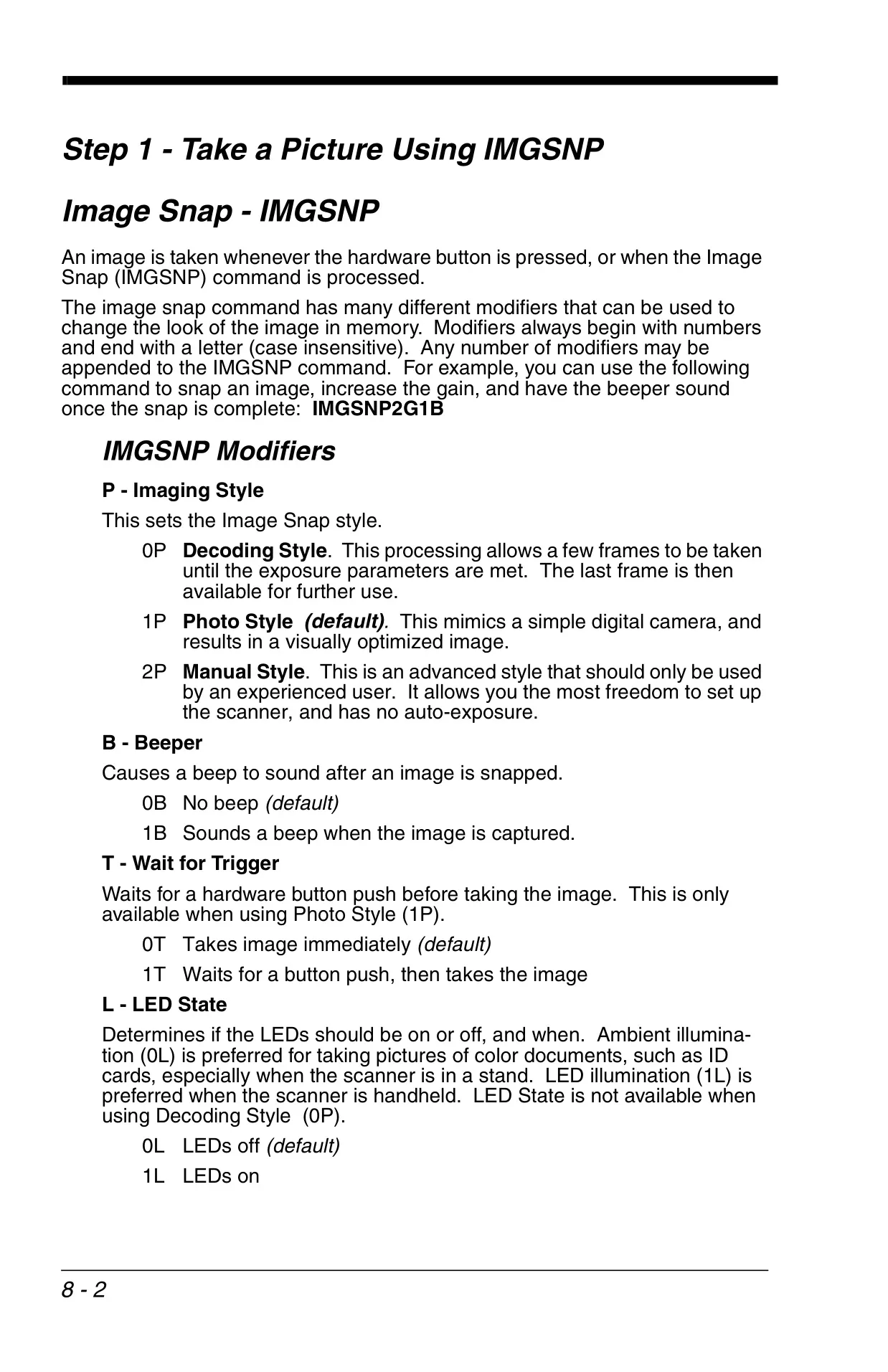
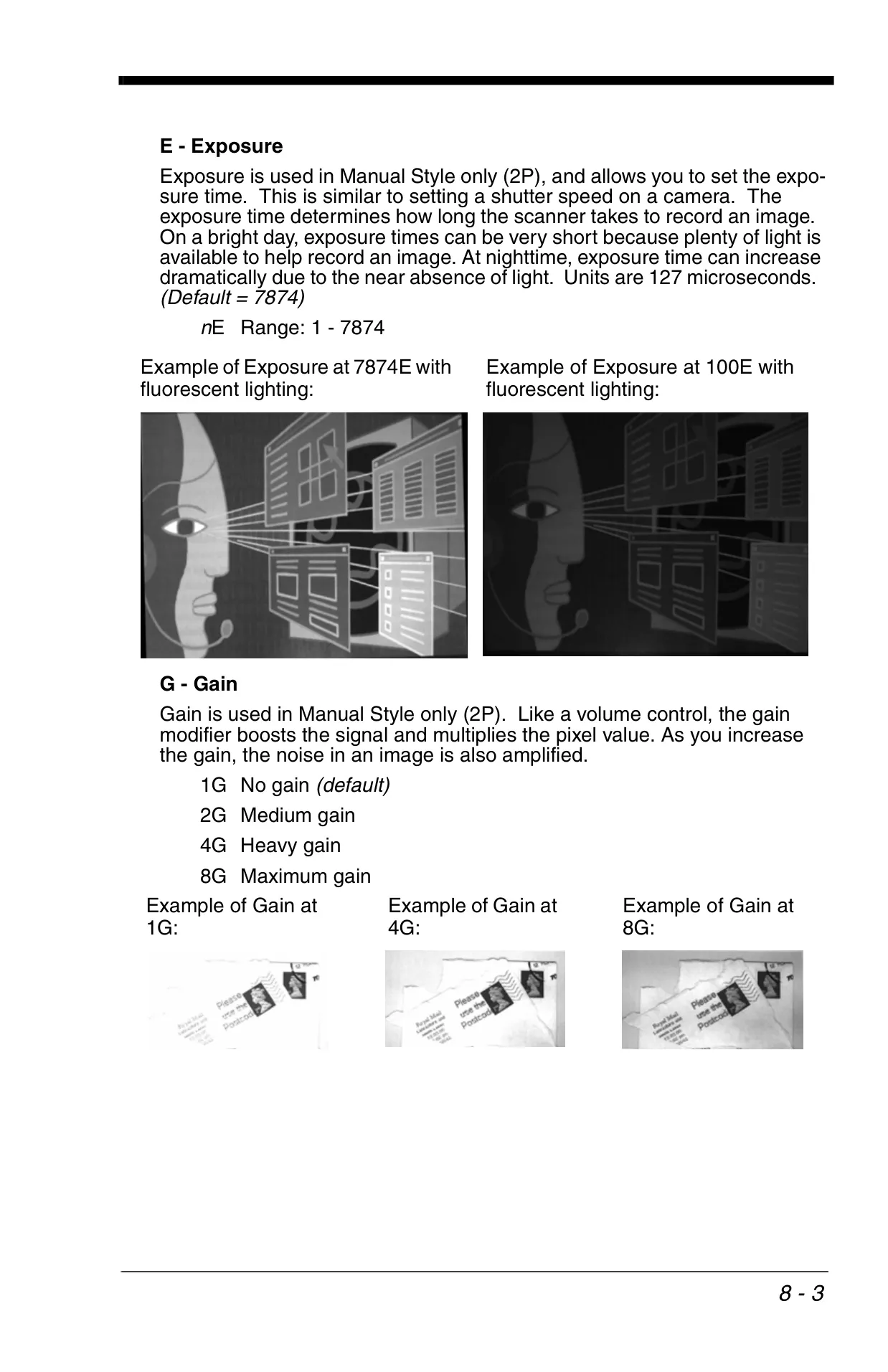
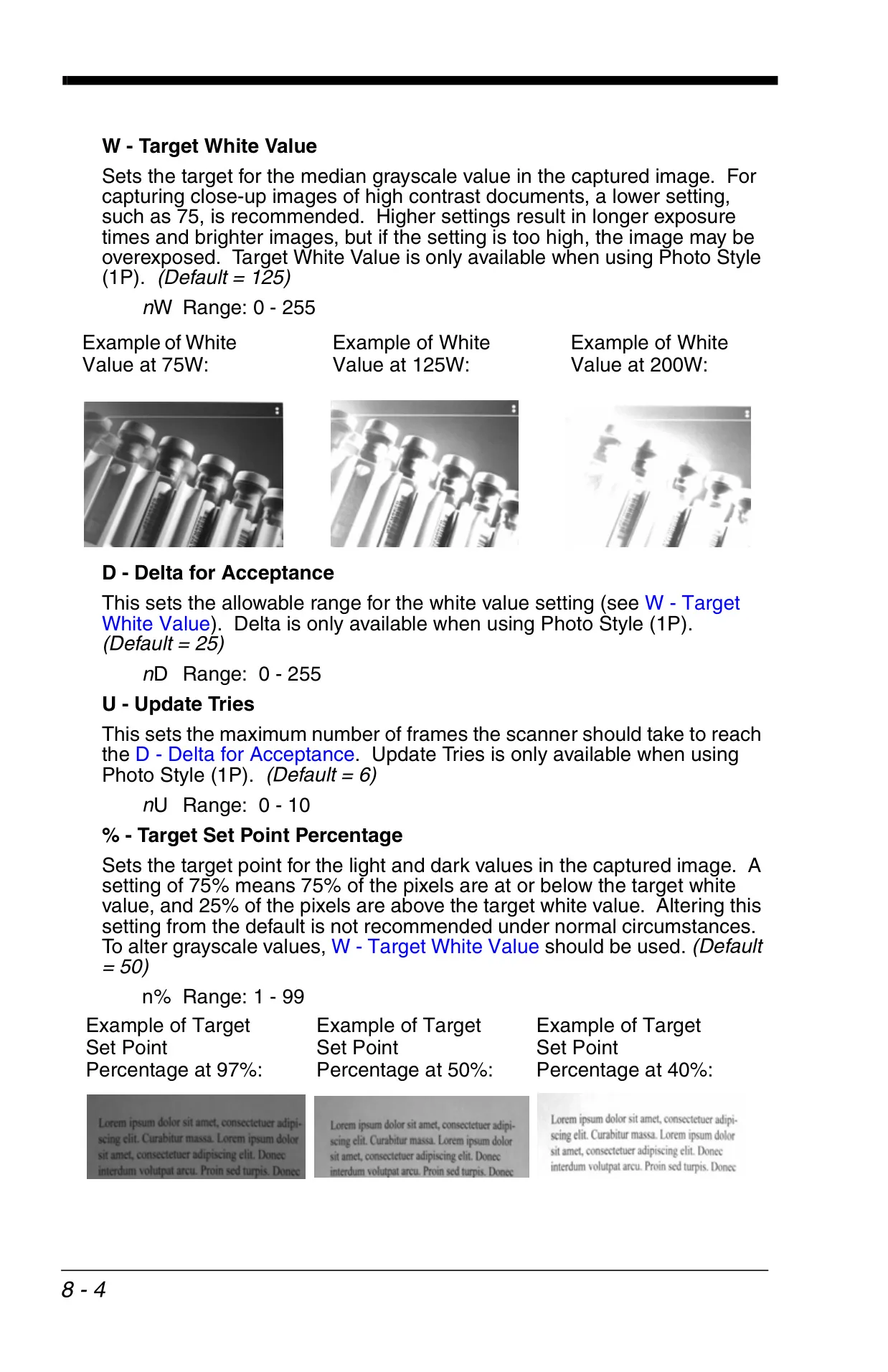
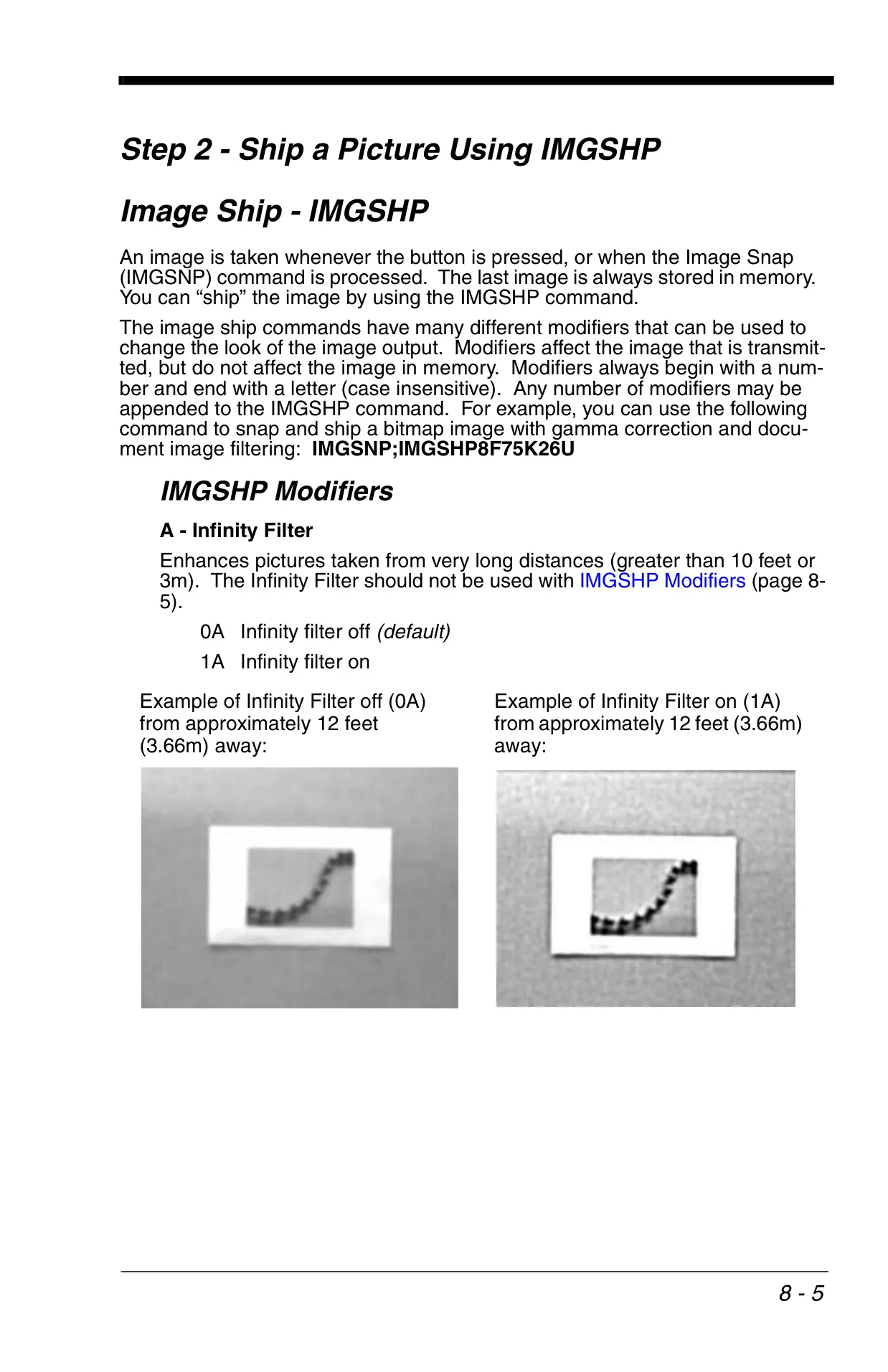
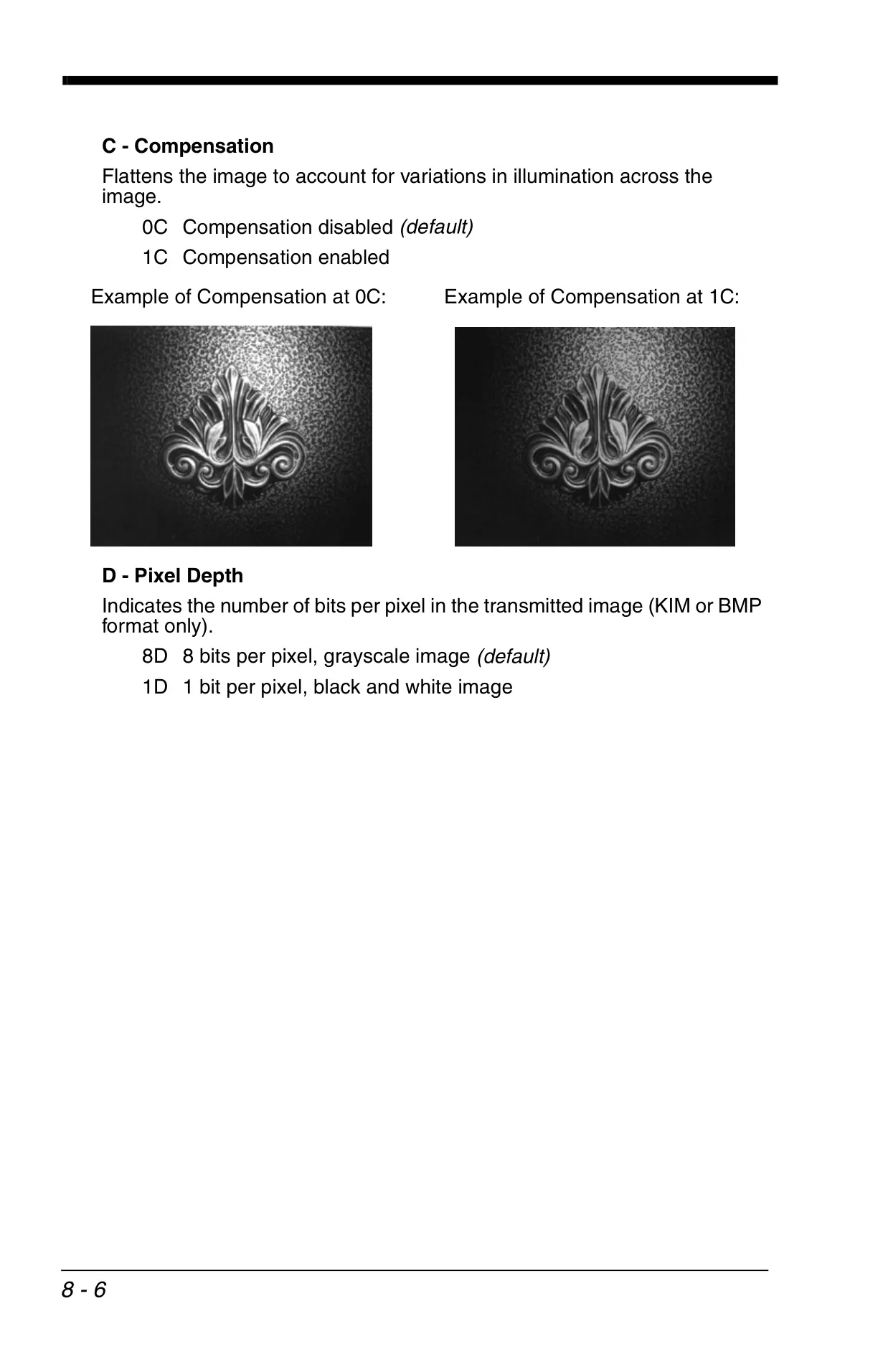
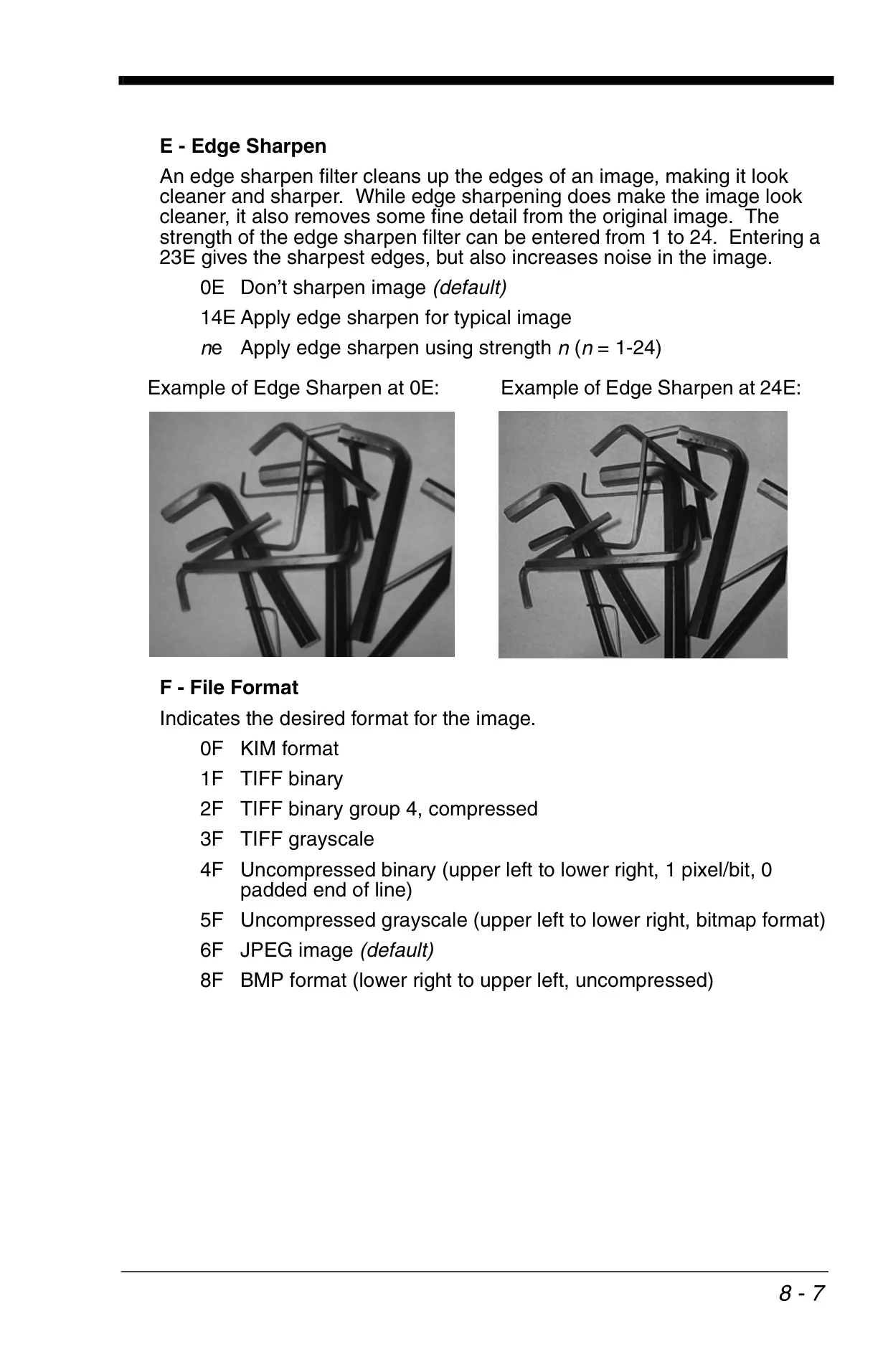
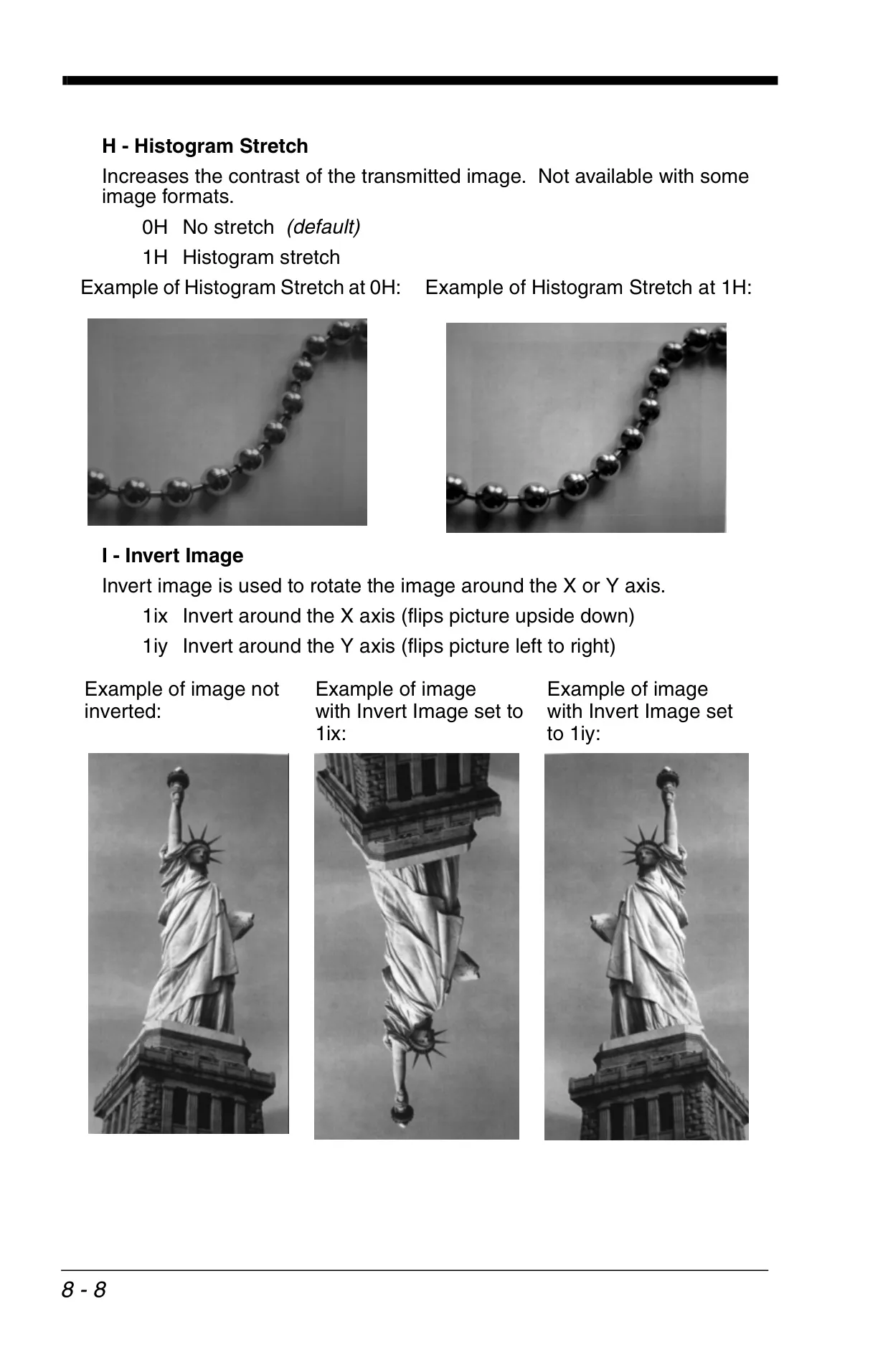
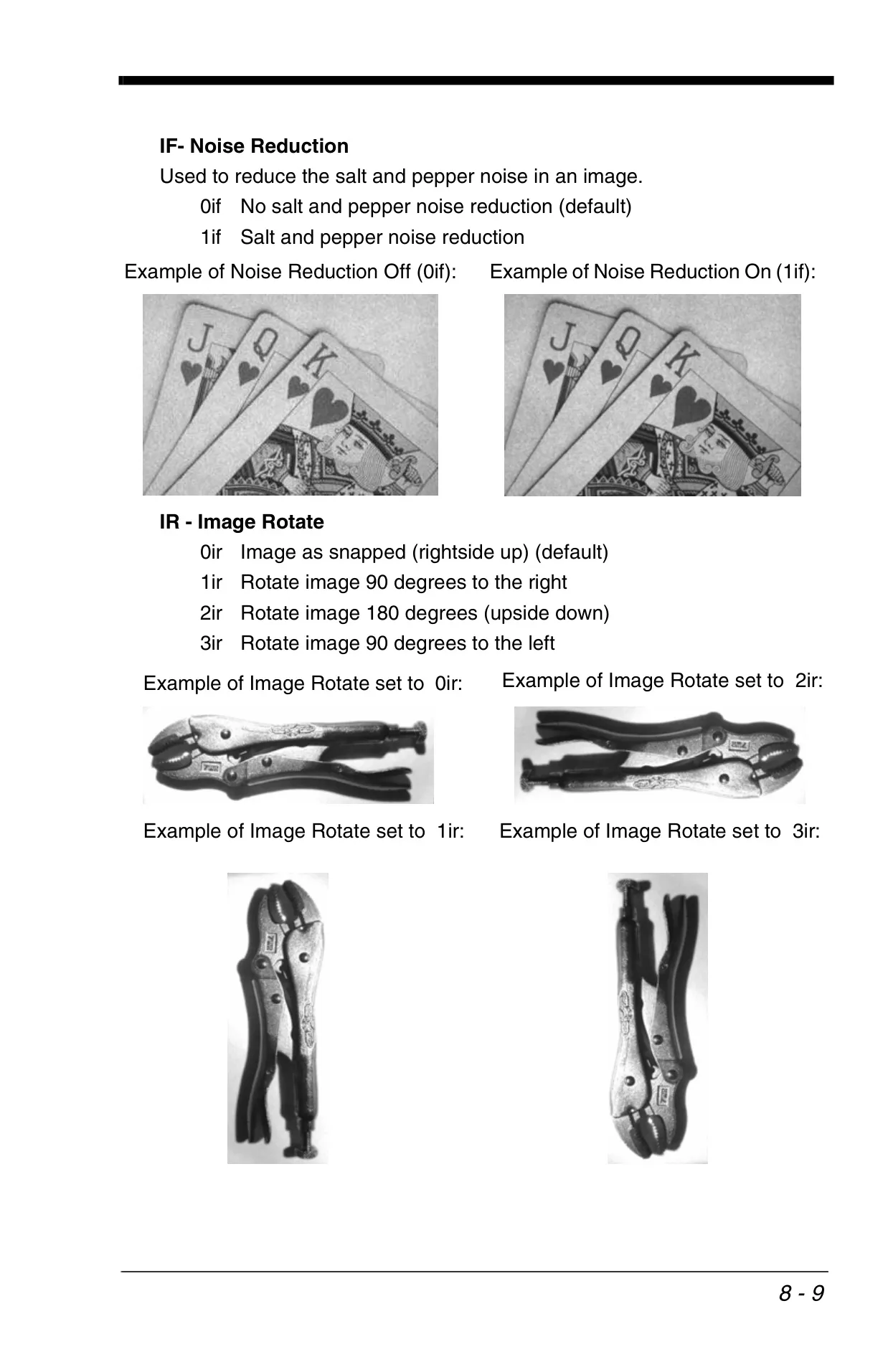
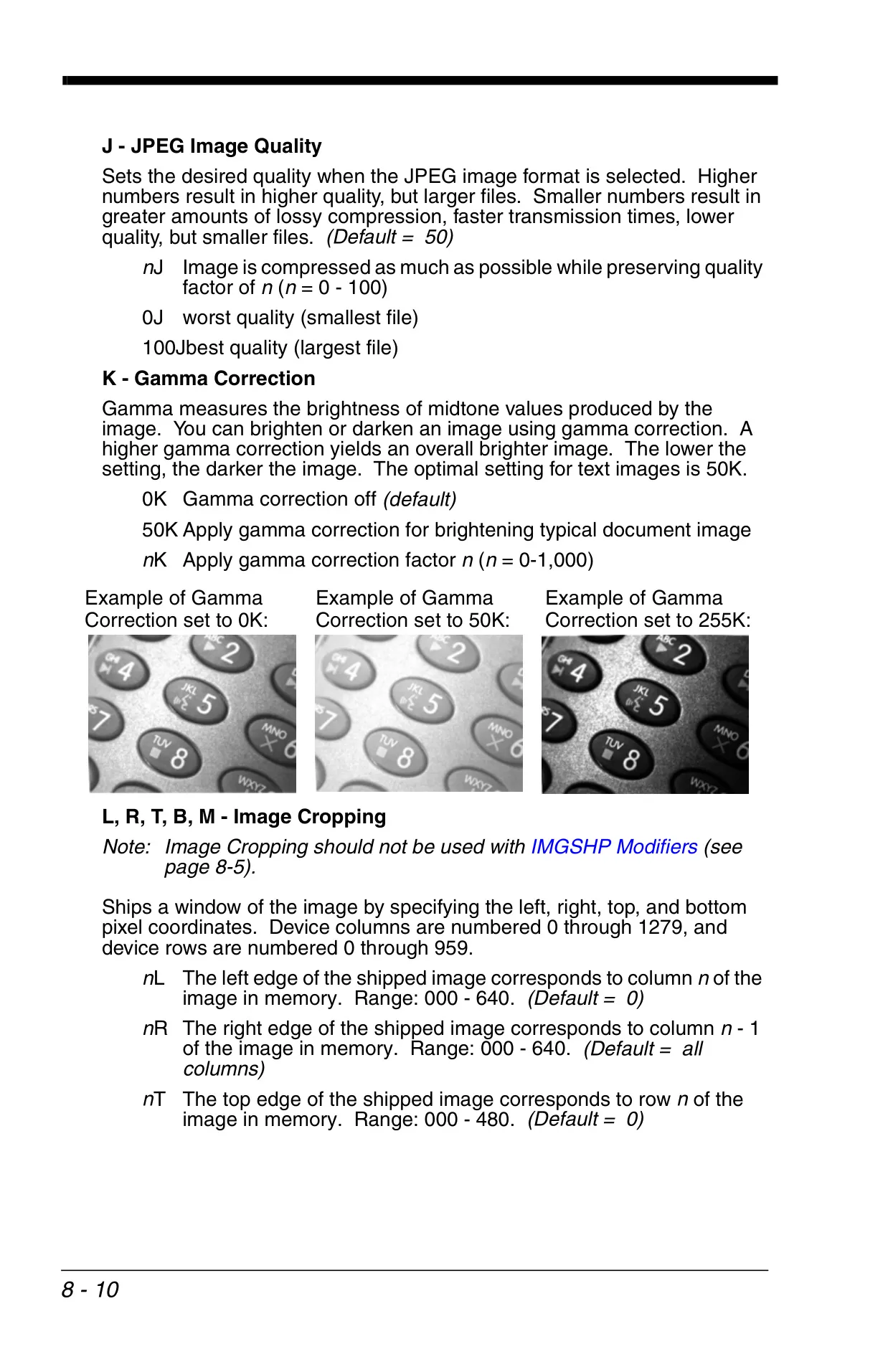
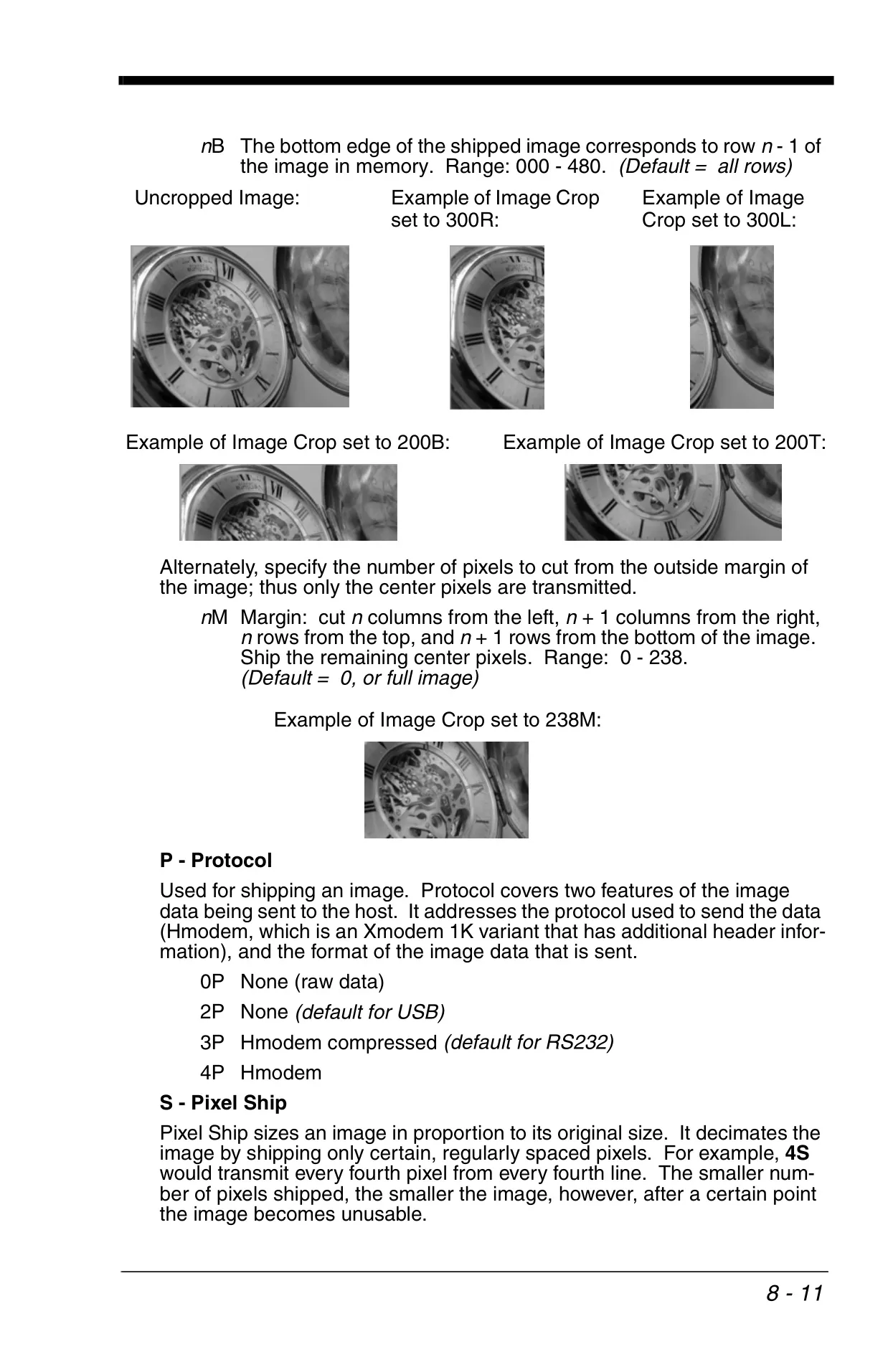
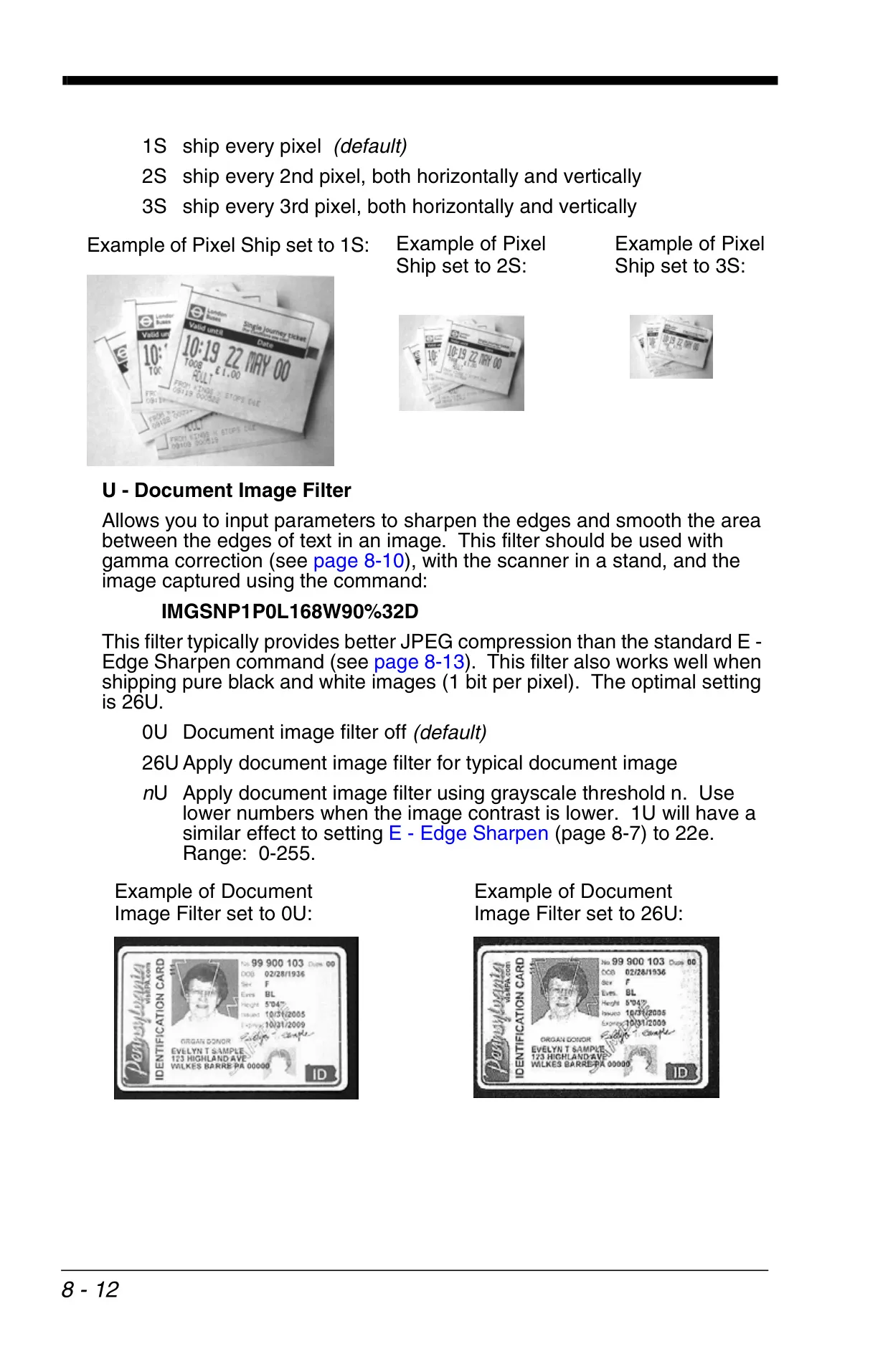
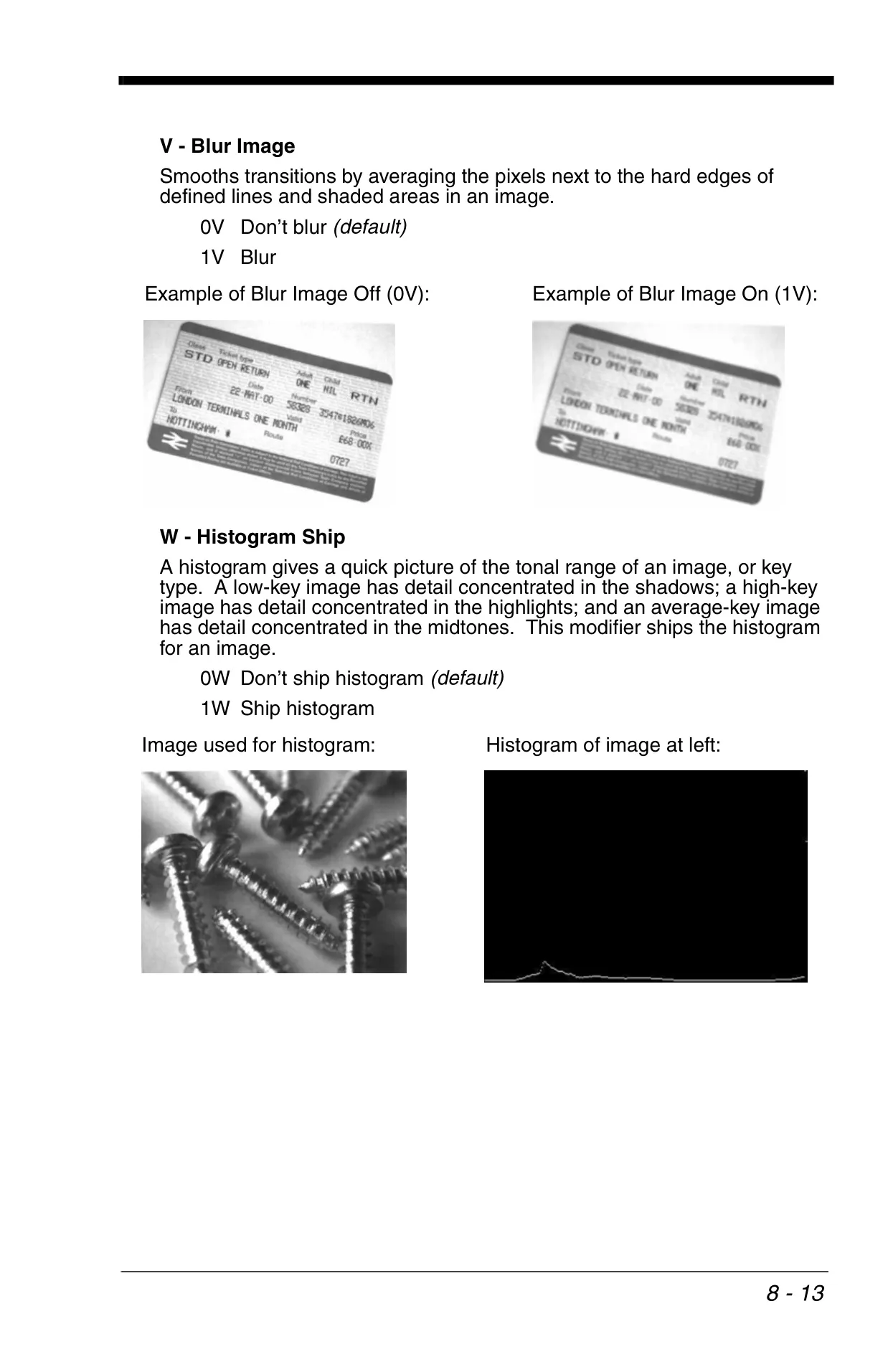
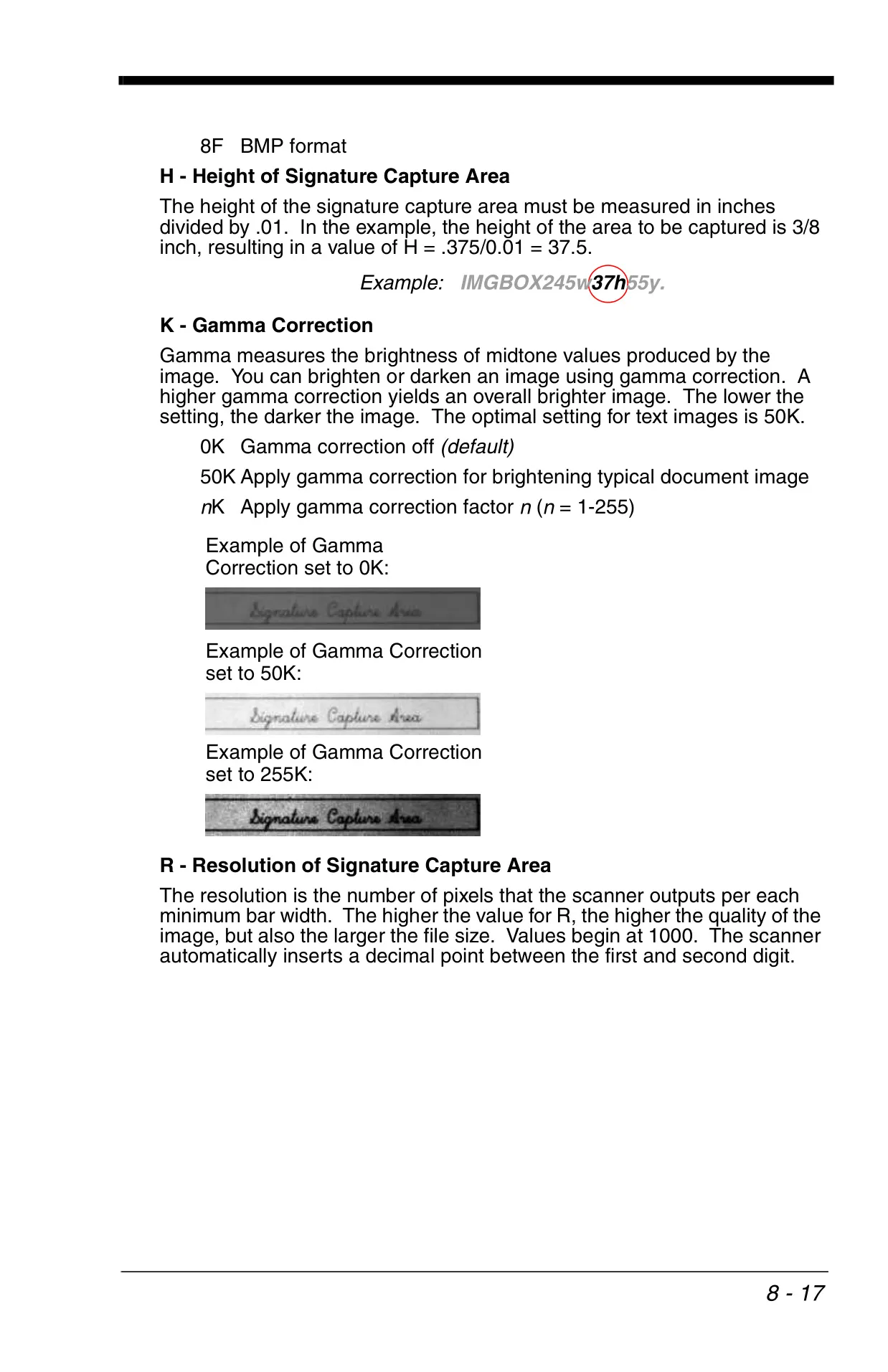
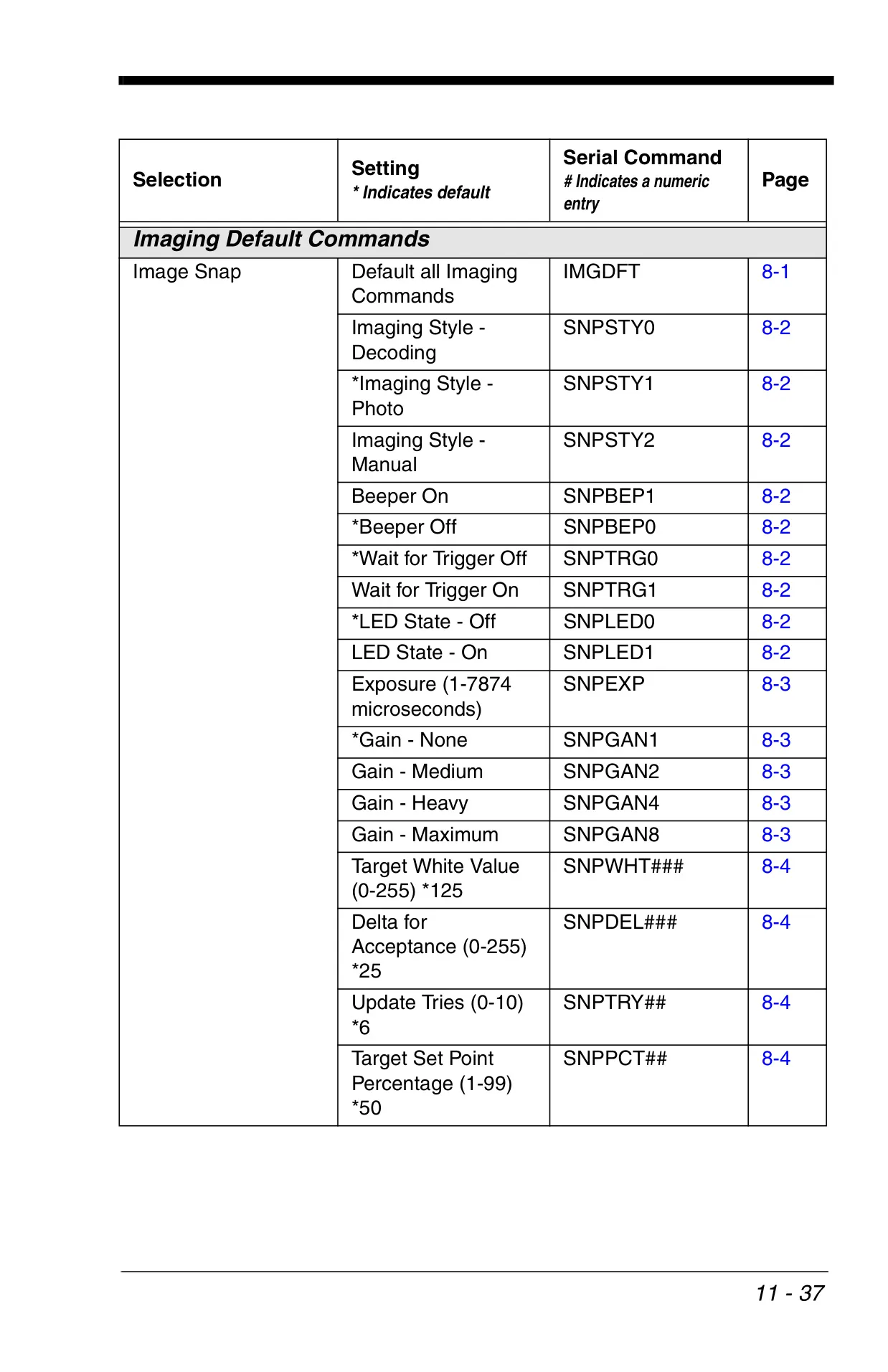
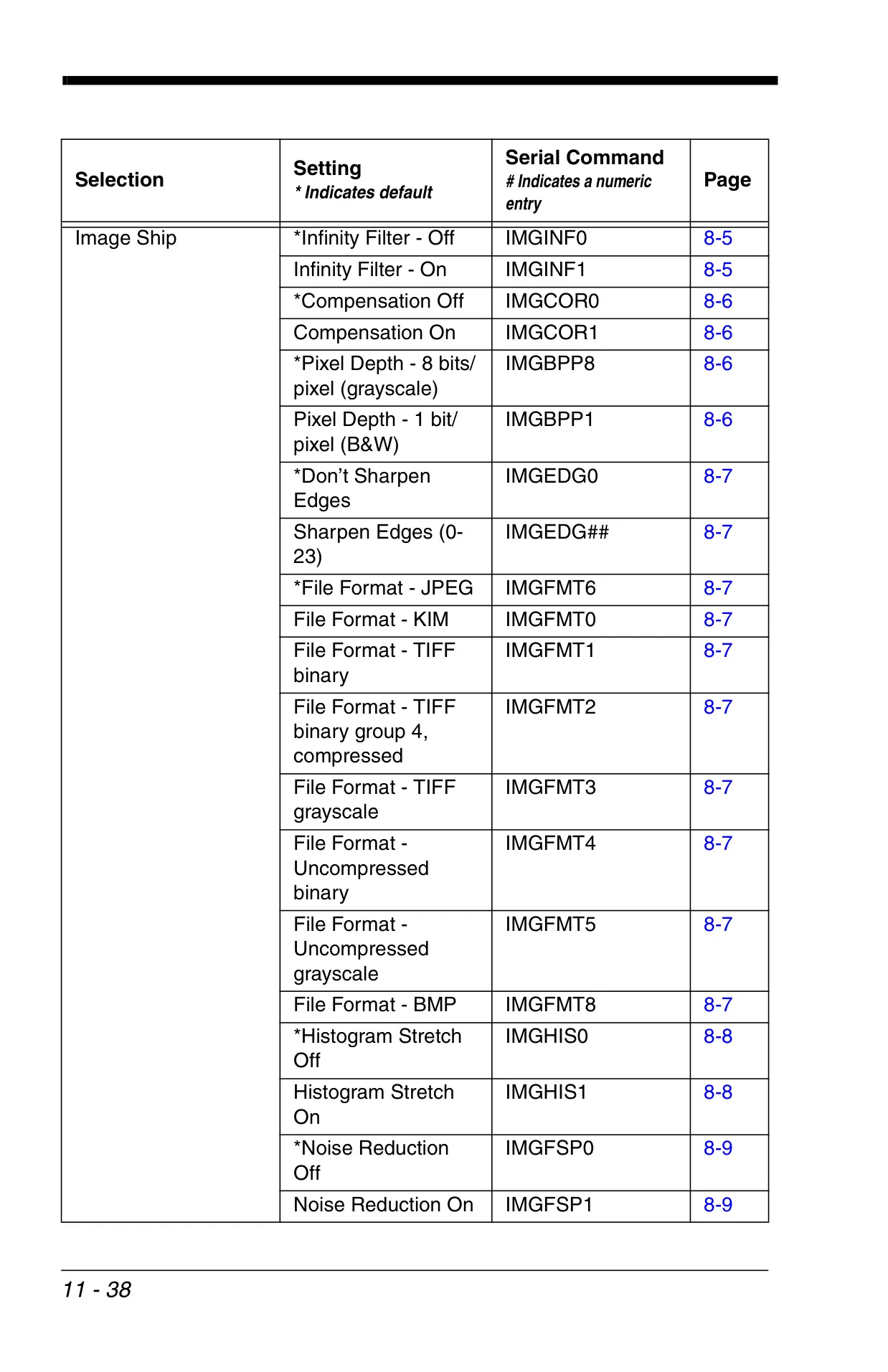
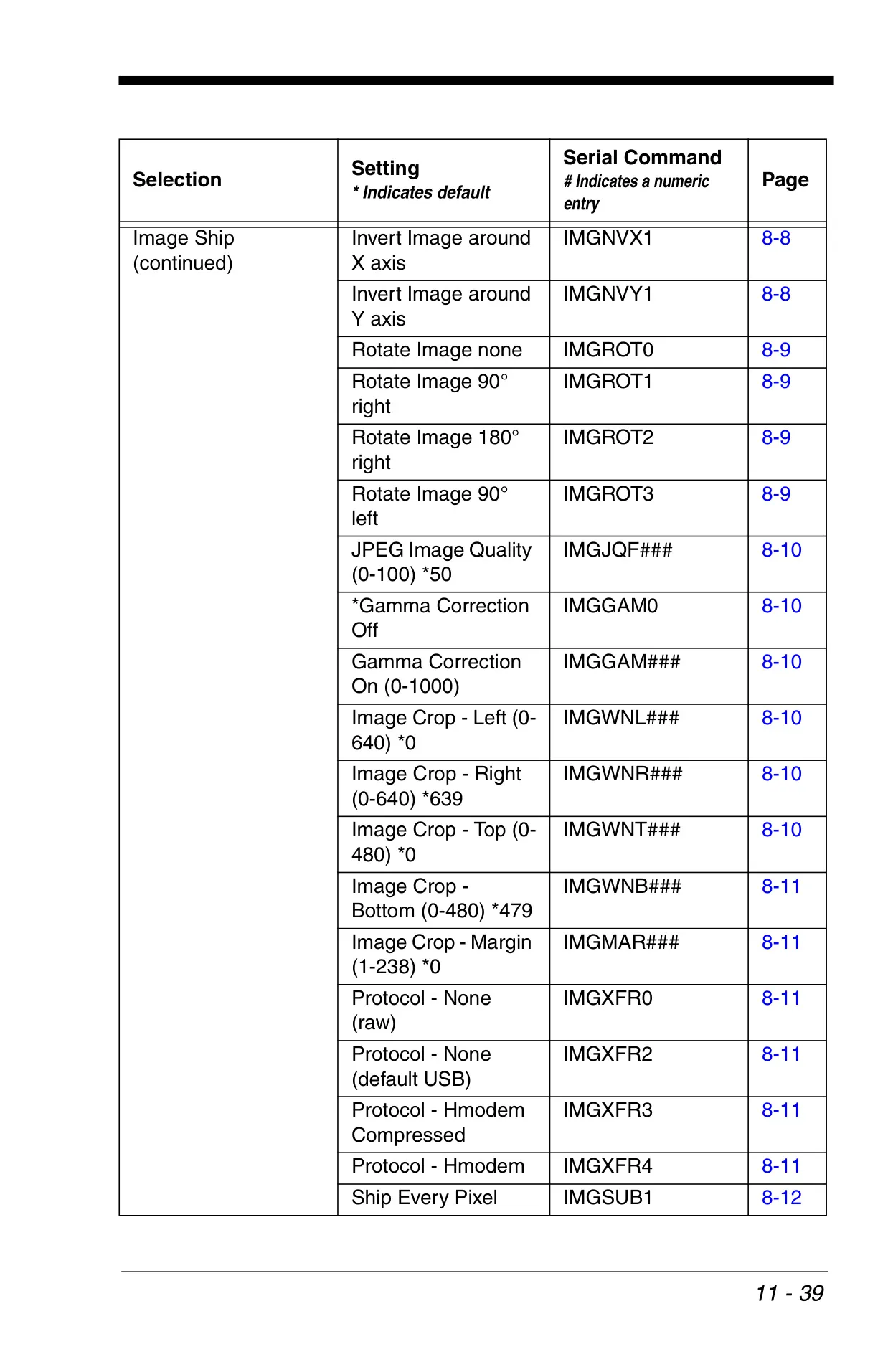
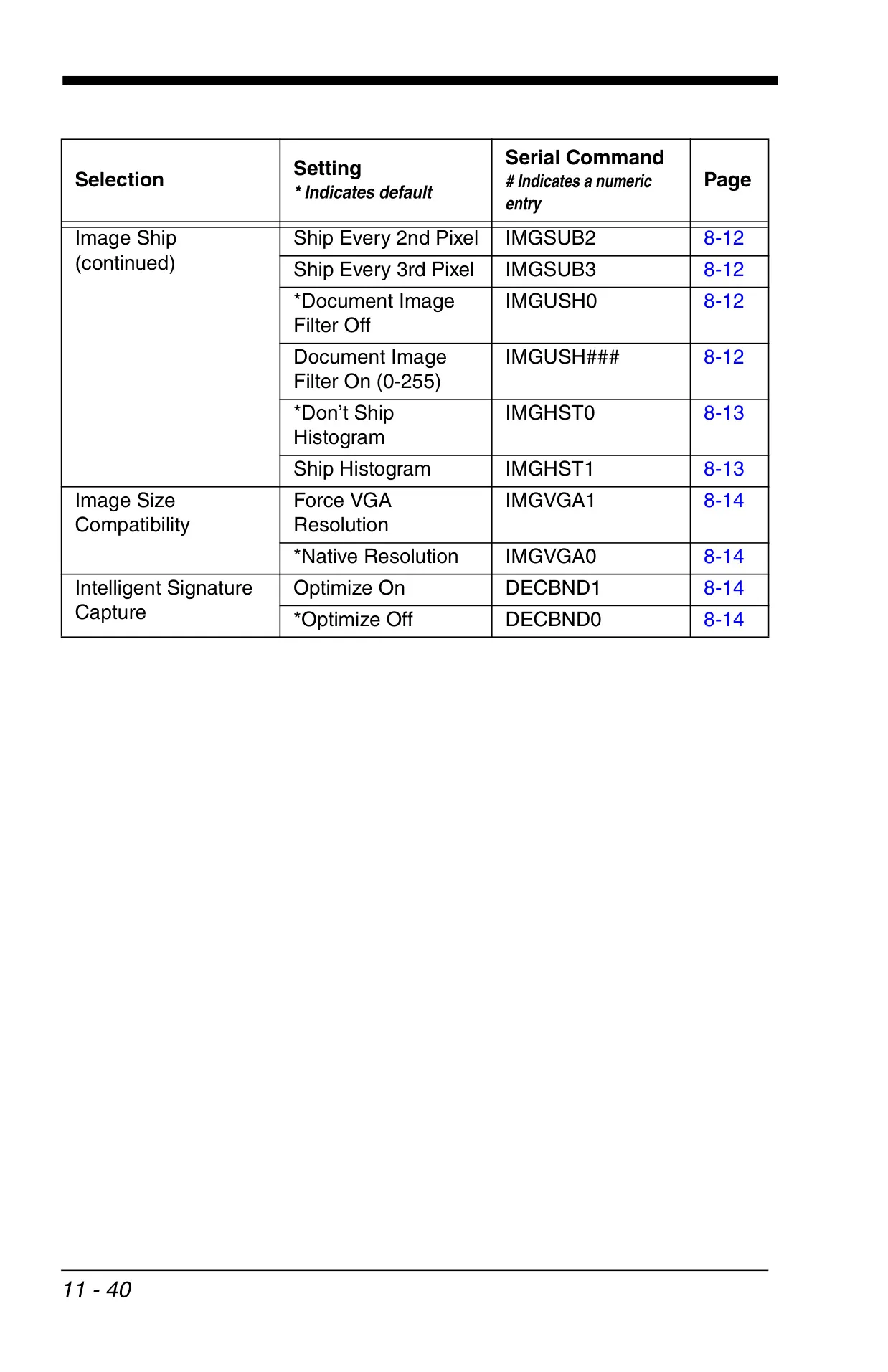
For applications requiring more than just barcode decoding, the Xenon 1900 facilitates intelligent image capture. The Image Snap - IMGSNP command captures an image, and Image Ship - IMGSHP transfers it. Various modifiers are available to control imaging style (Photo, Manual), adjust exposure and gain, apply gamma correction, and utilize filters like edge sharpen and noise reduction, providing comprehensive control over the final image output quality and characteristics.
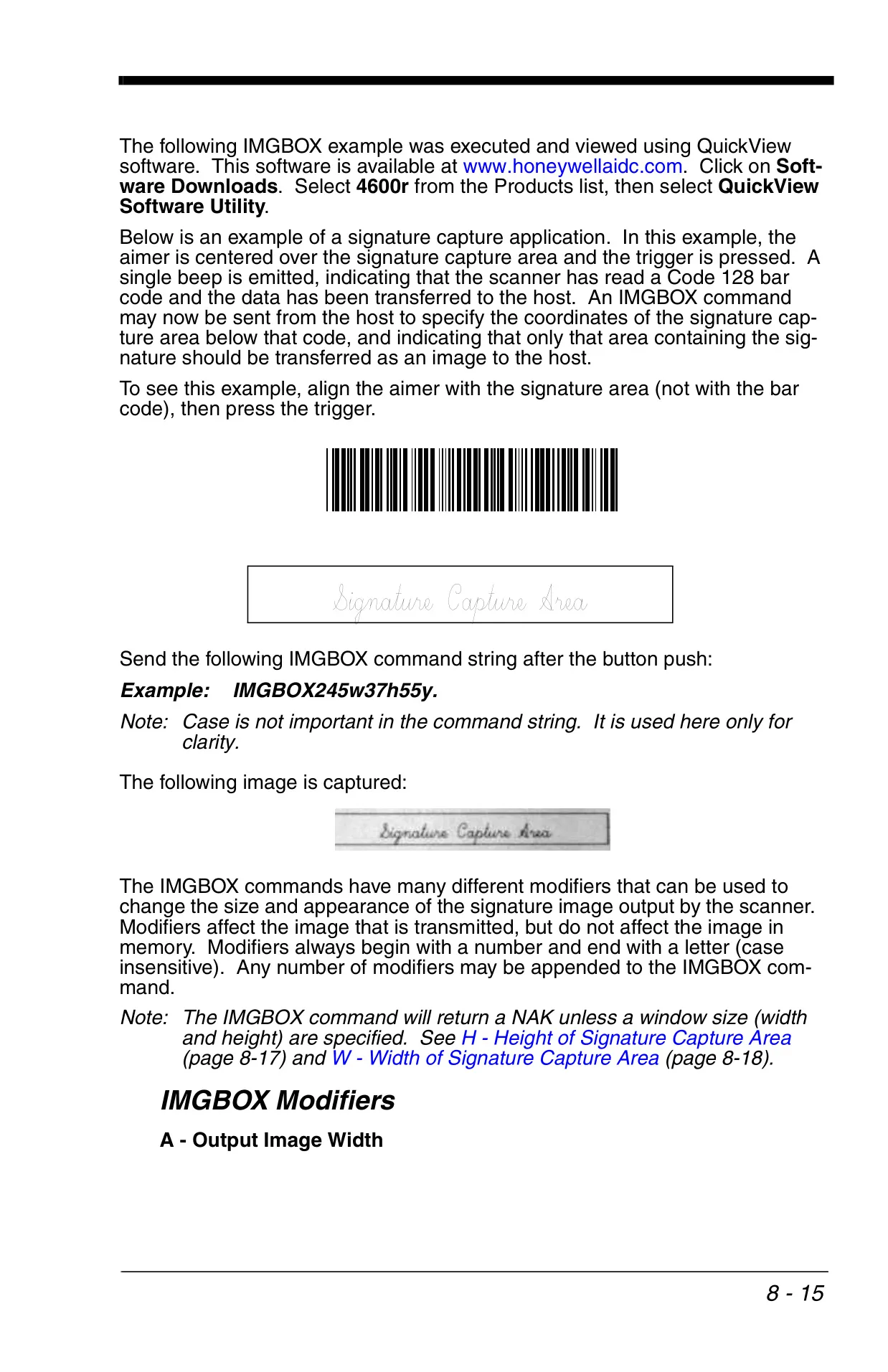
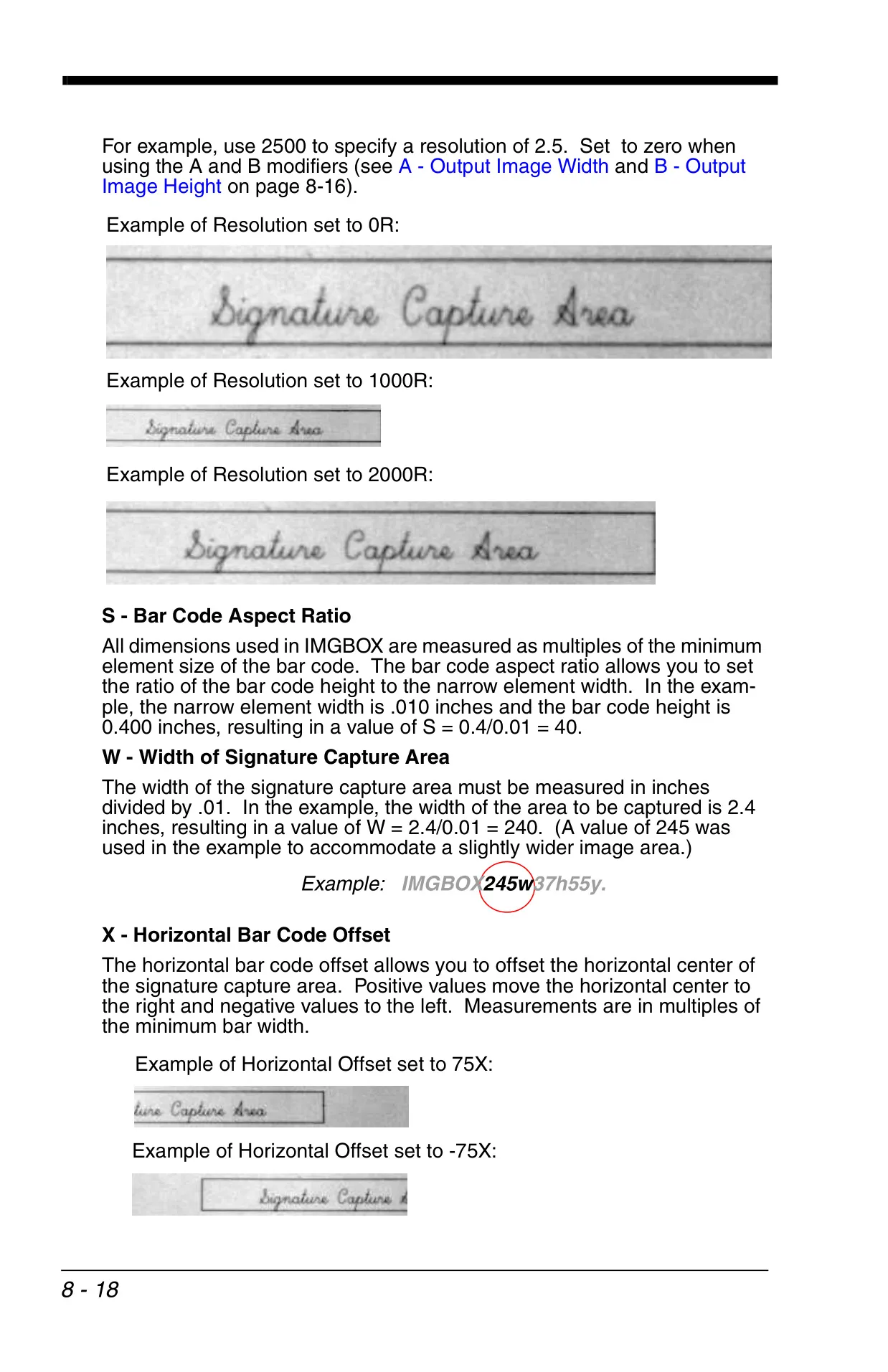
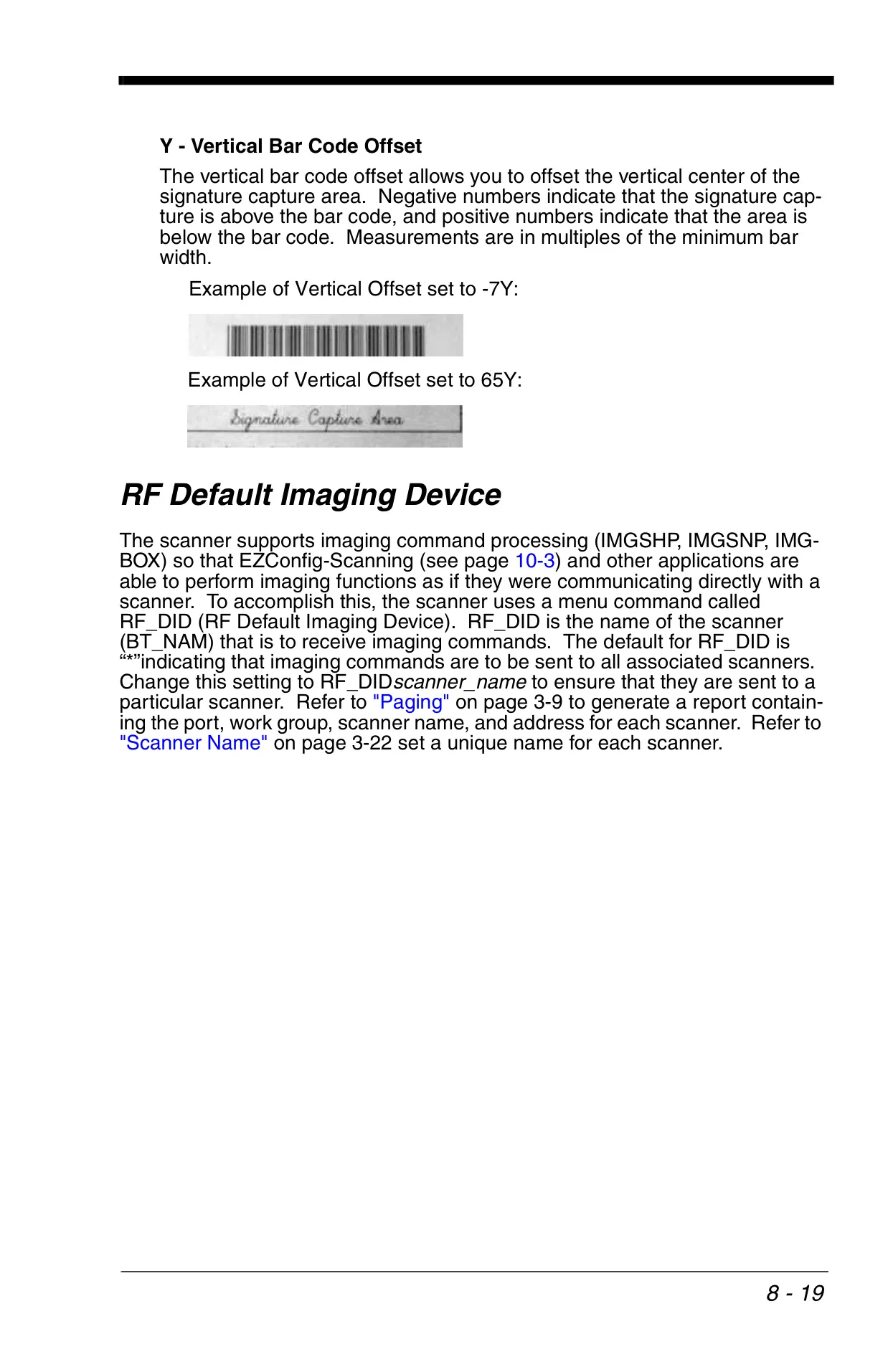
A specialized feature for document processing is Intelligent Signature Capture (IMGBOX). This allows users to define a precise signature capture area relative to a barcode on a form. Modifiers for output image width, height, resolution, and horizontal/vertical offsets enable tailoring the capture to specific forms, making the Xenon 1900 an efficient tool for digitizing signed documents or other specific regions of interest.
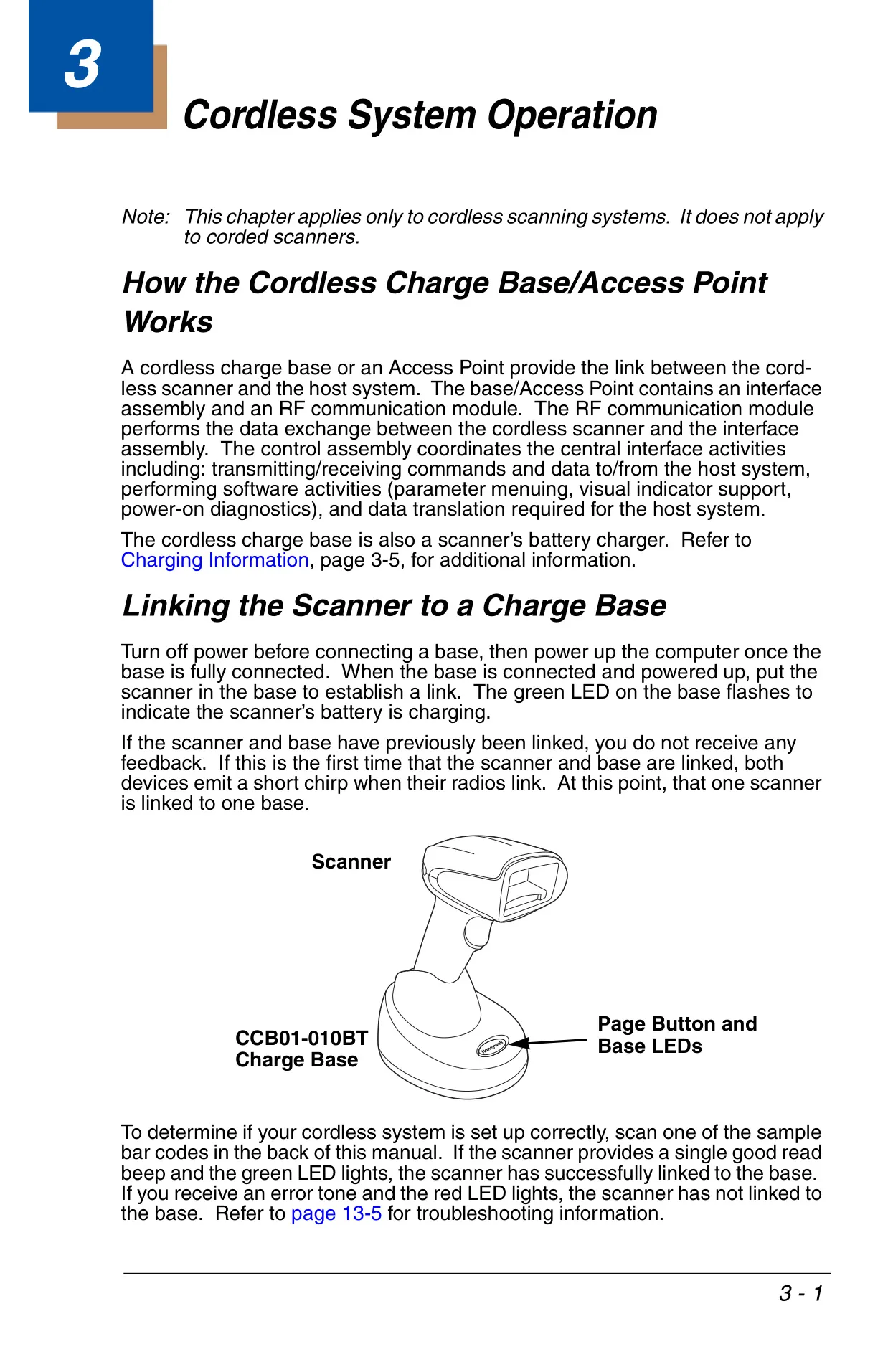
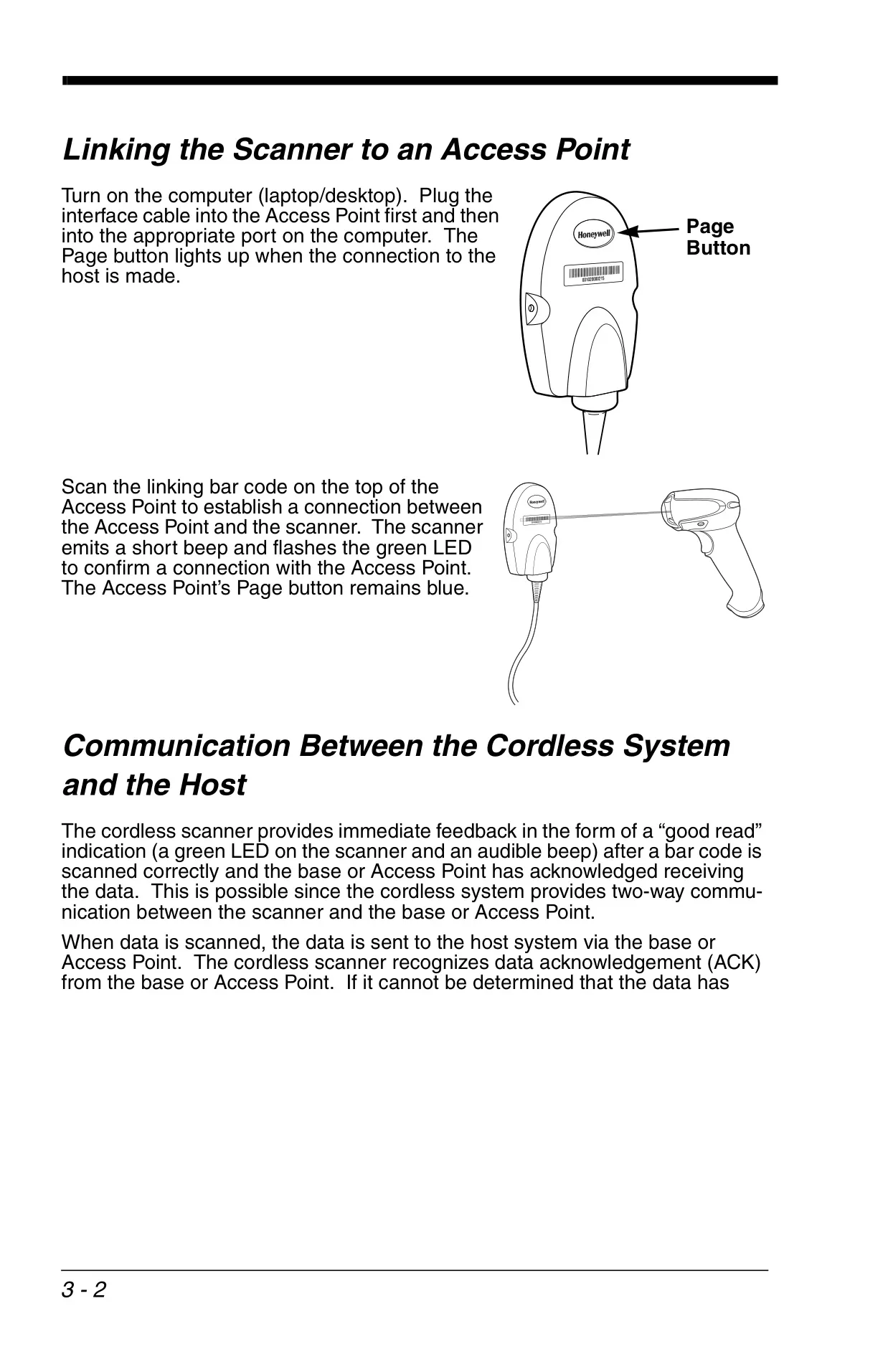
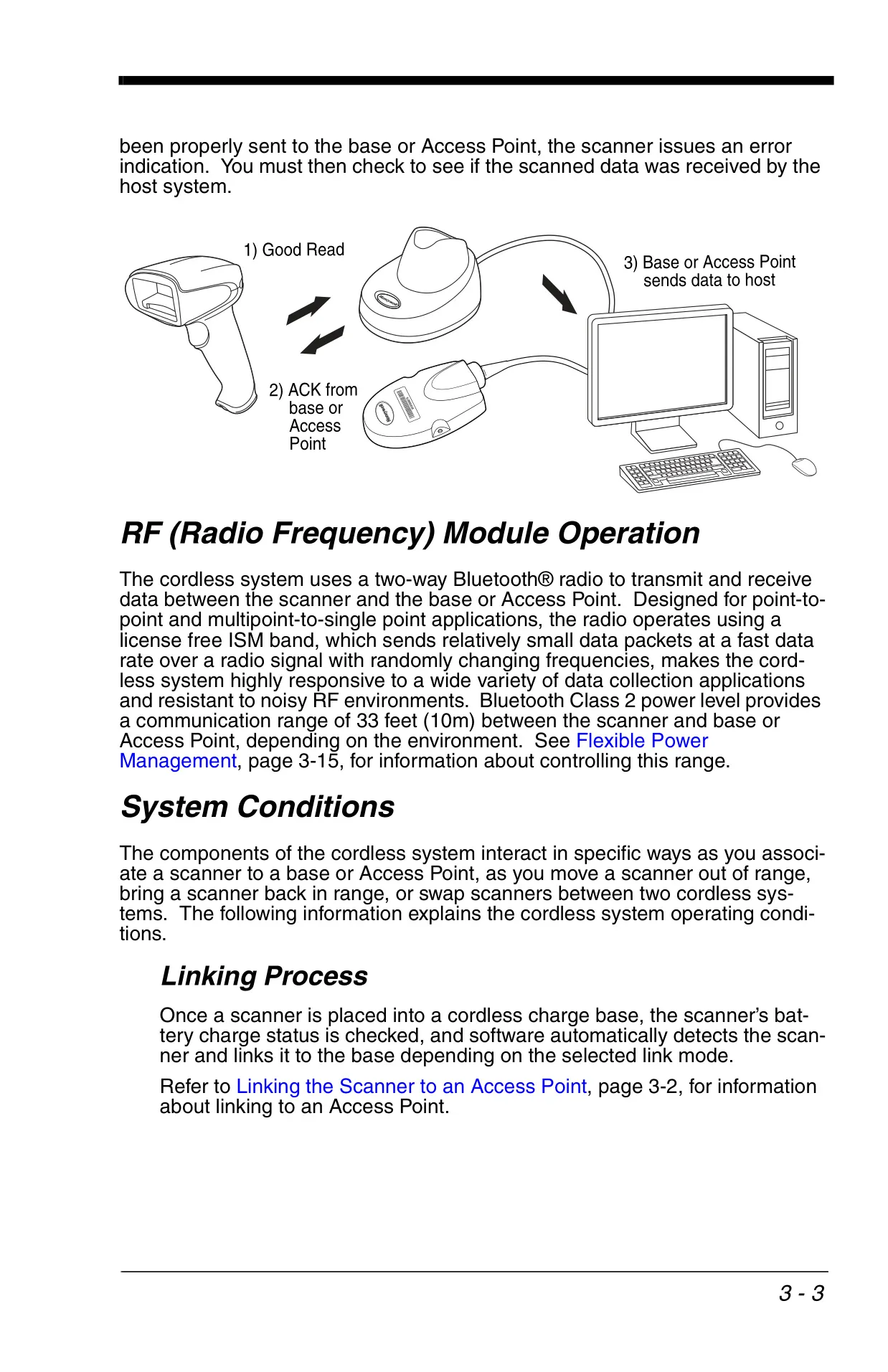
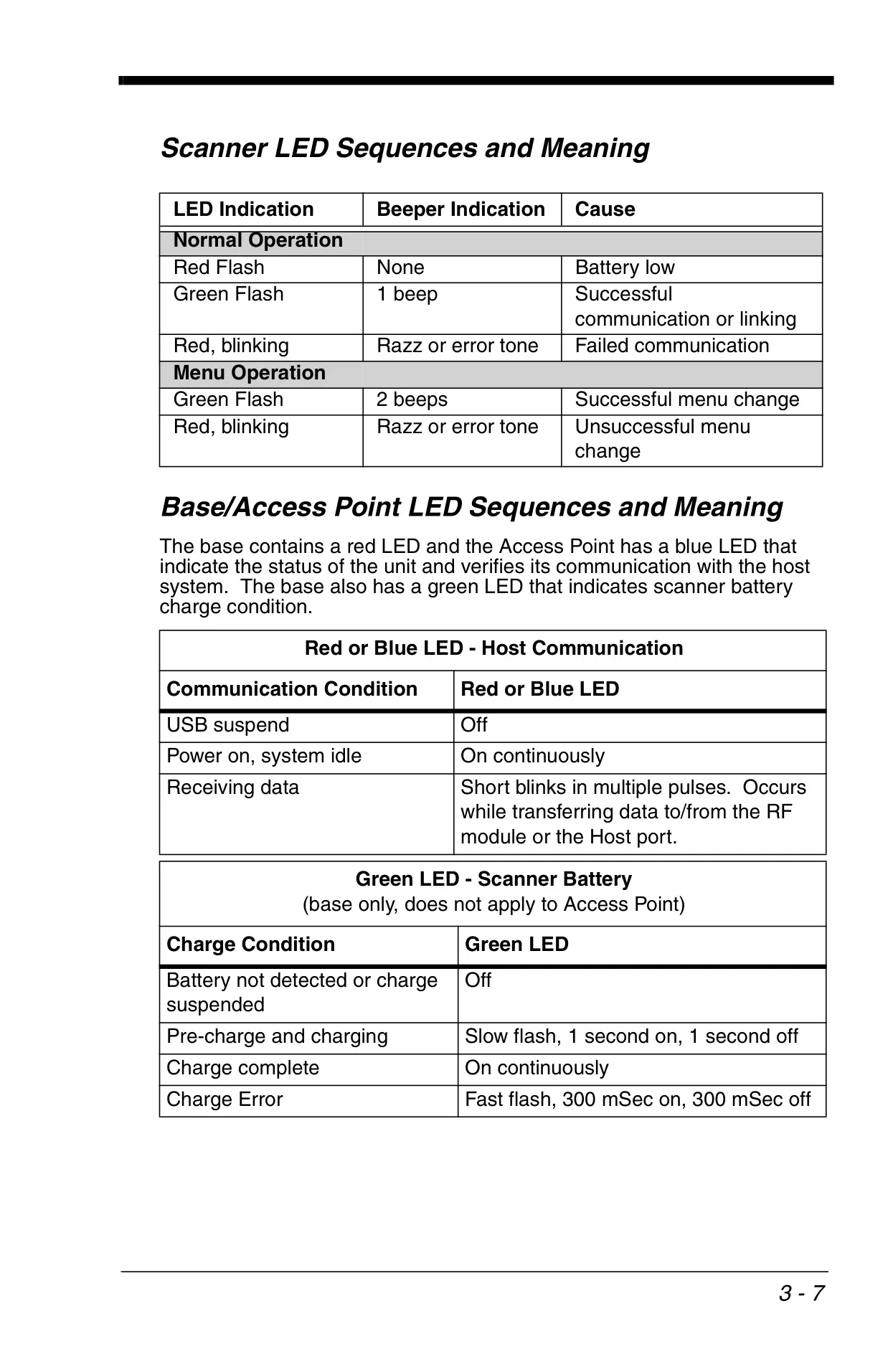
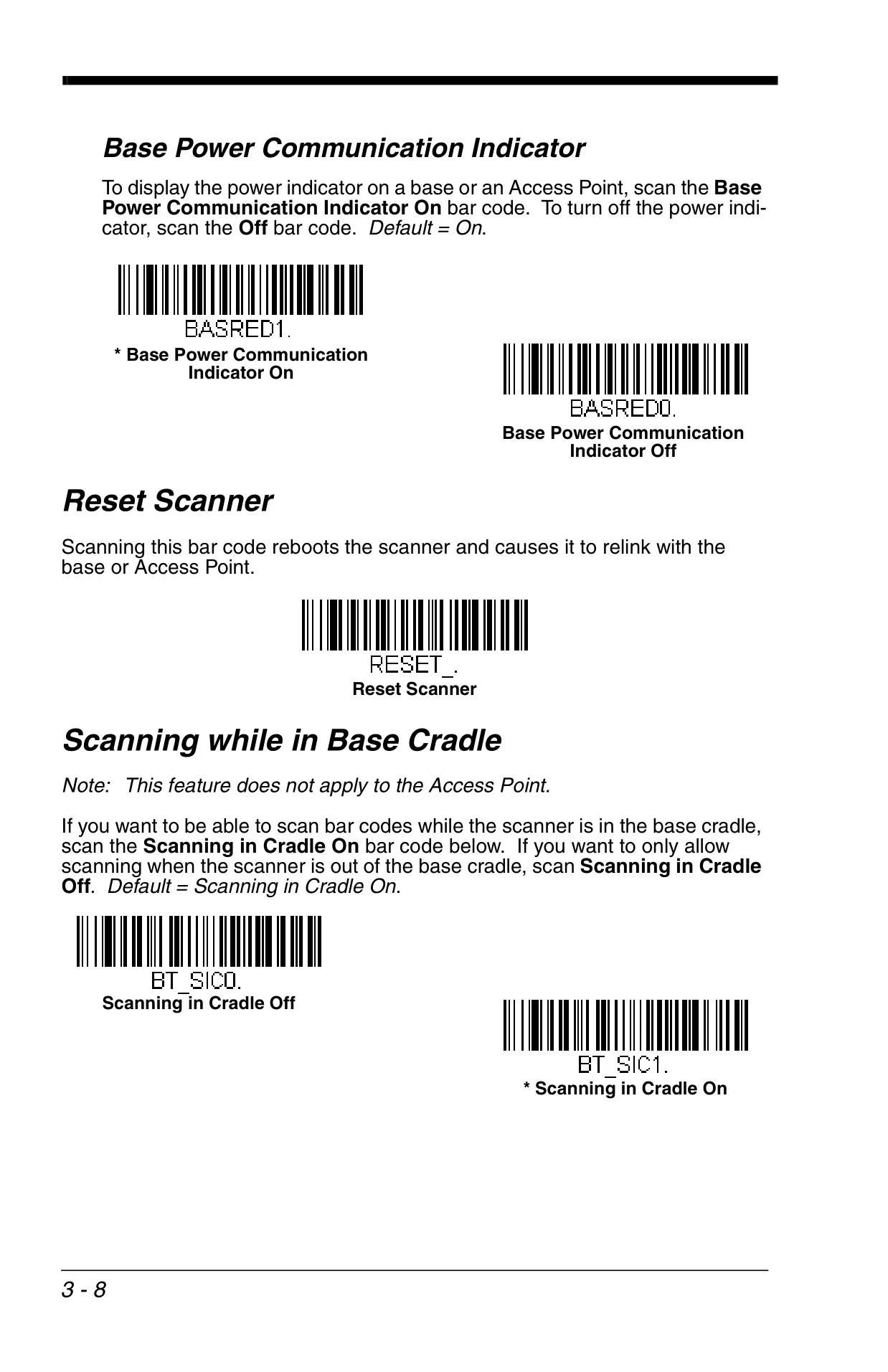
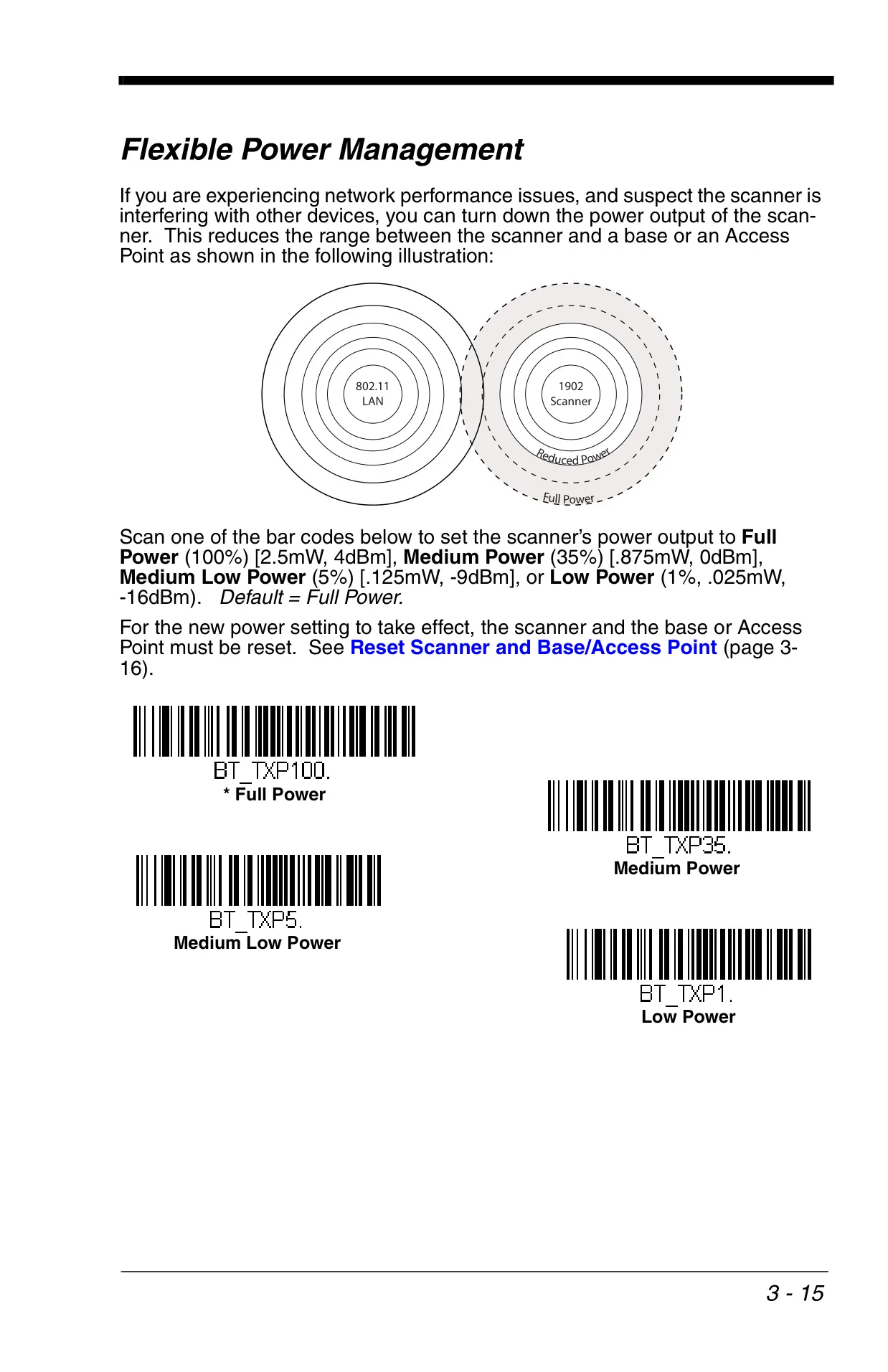
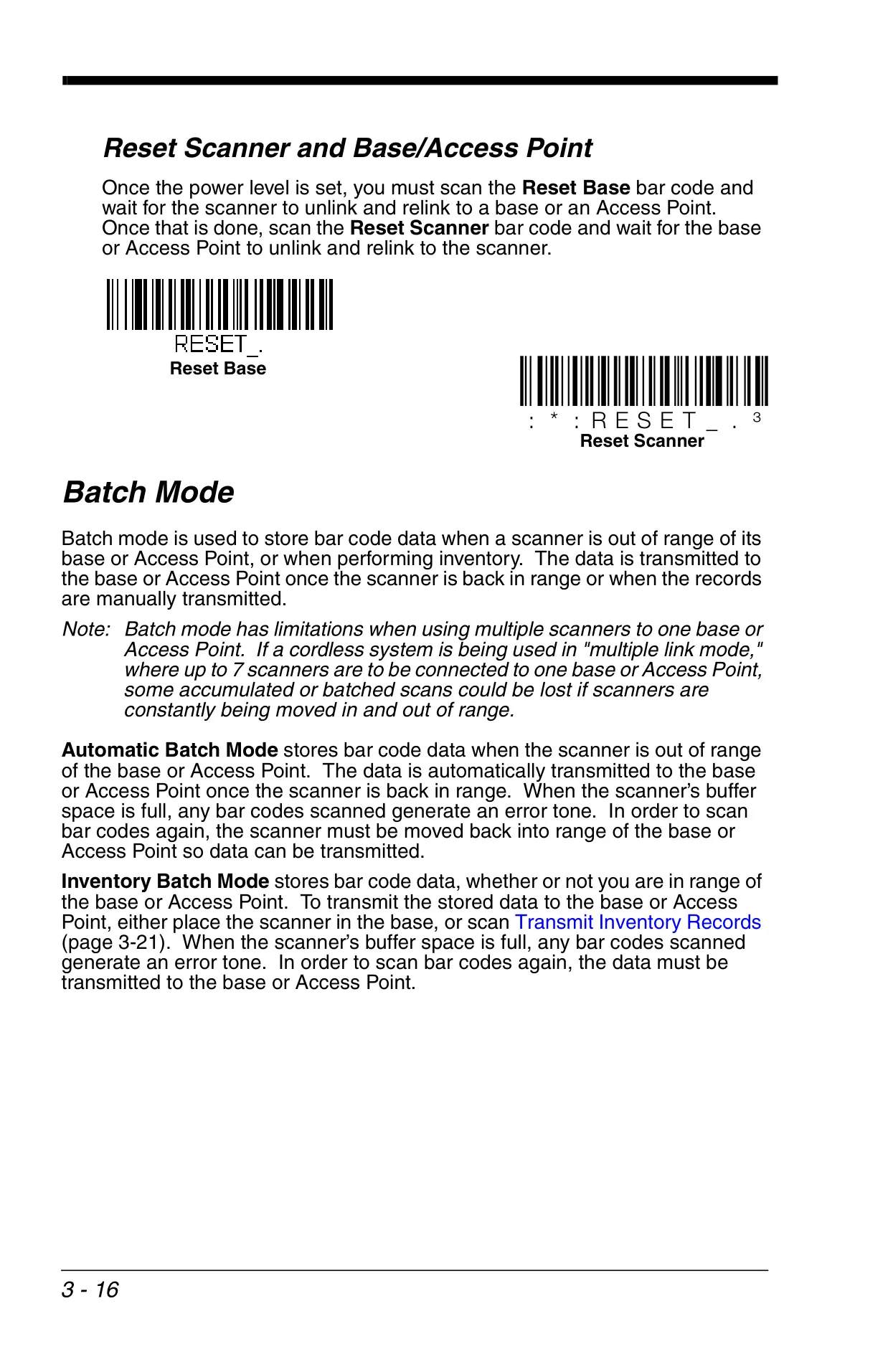
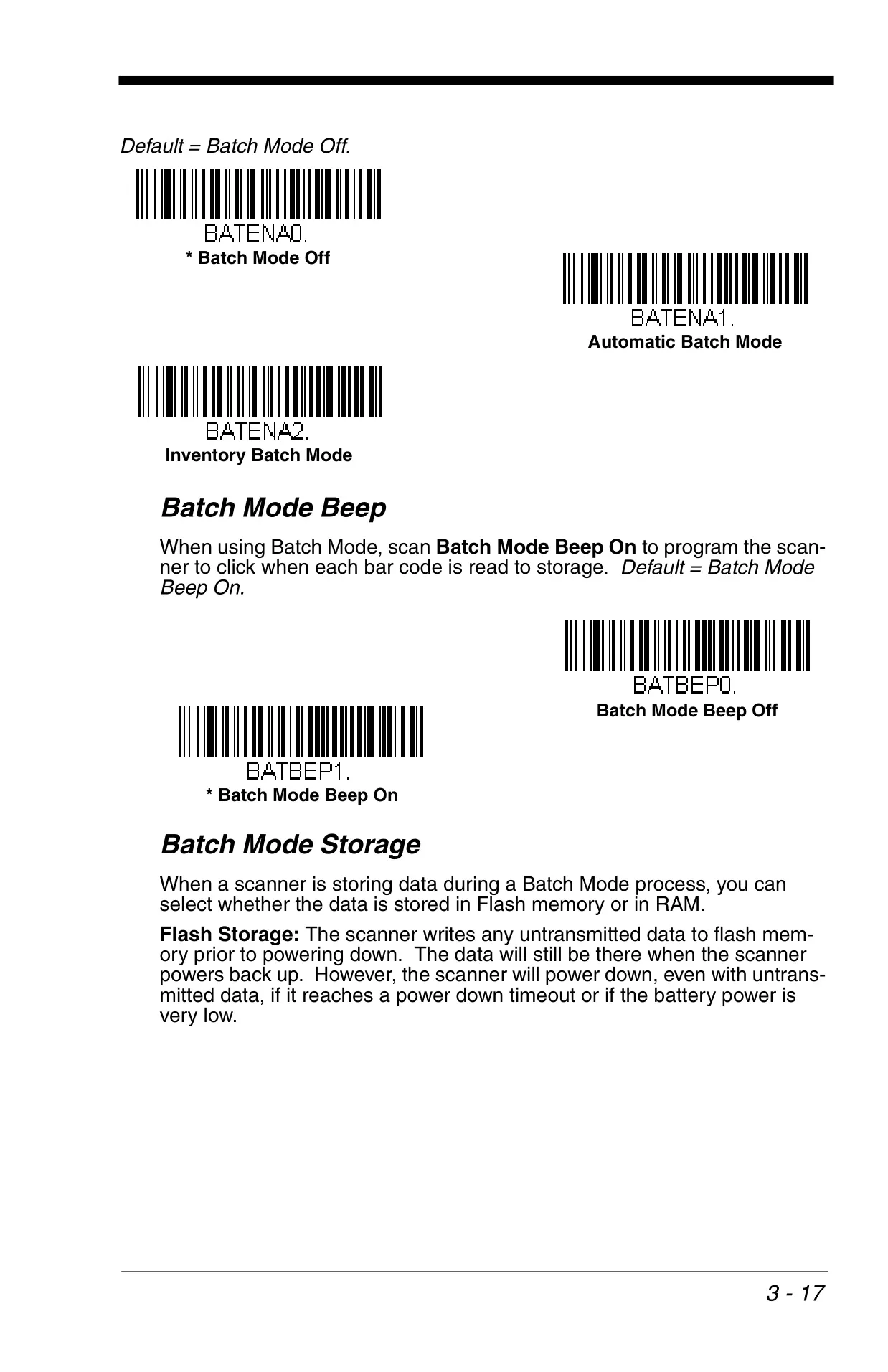
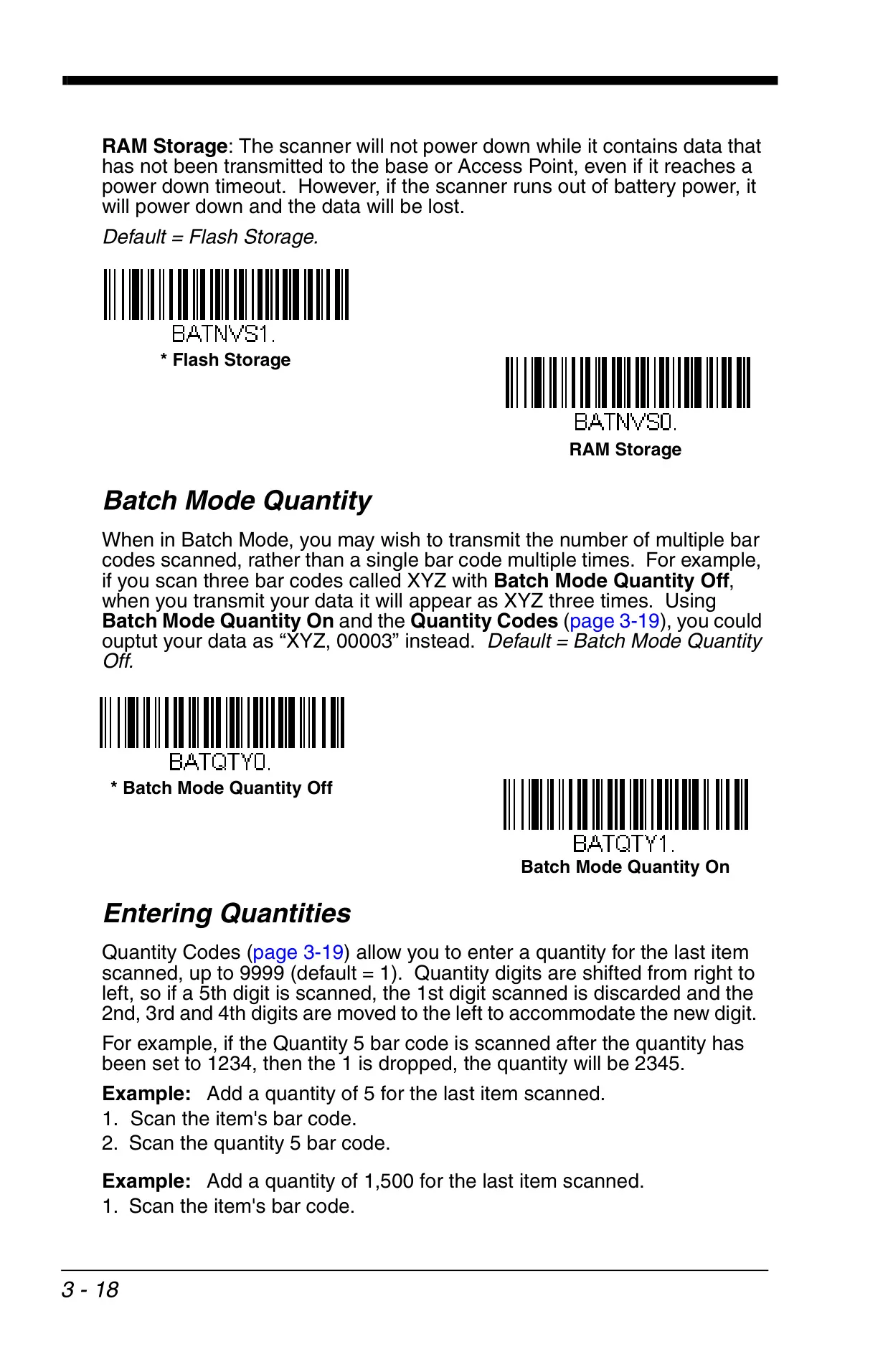
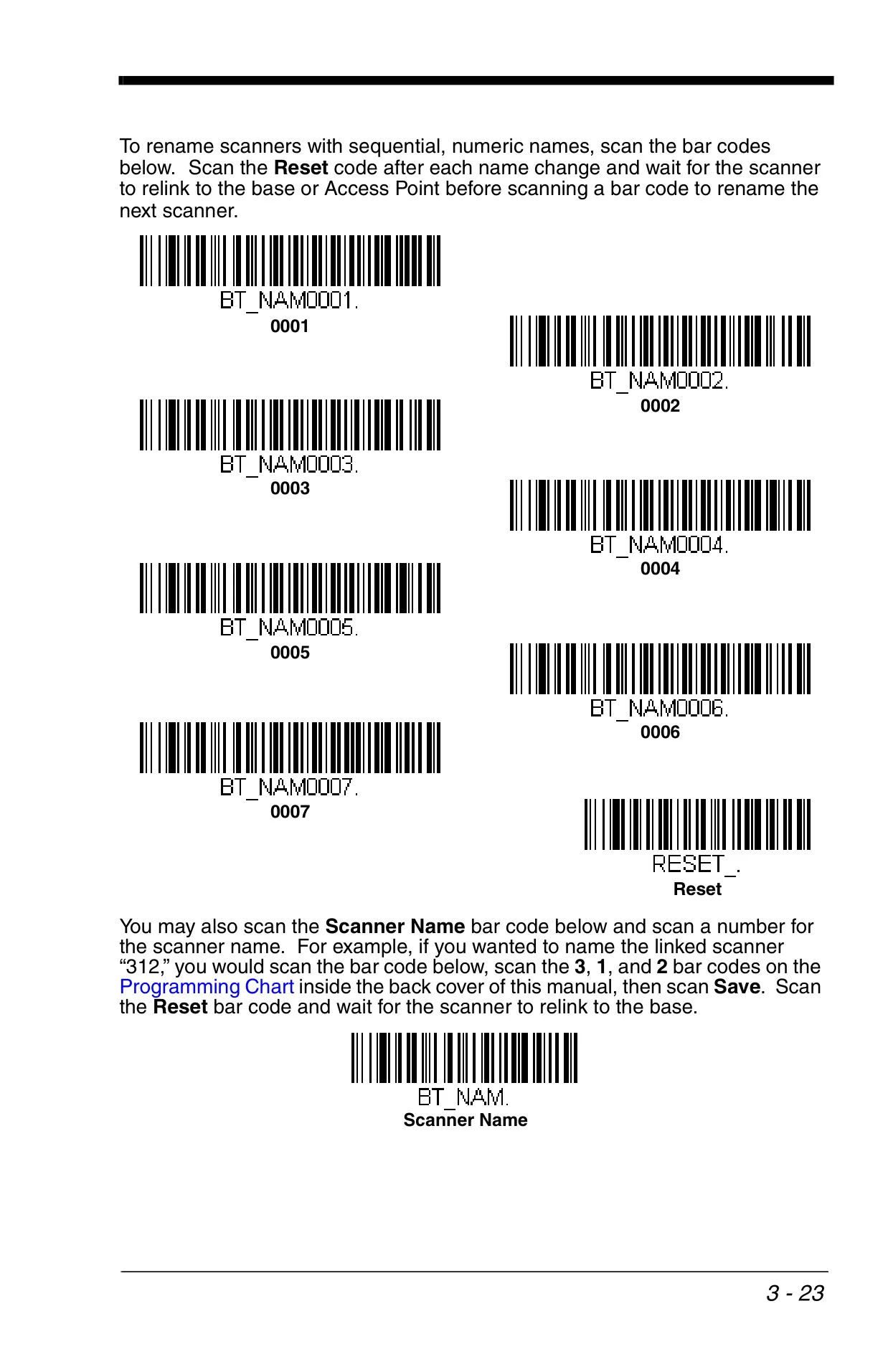
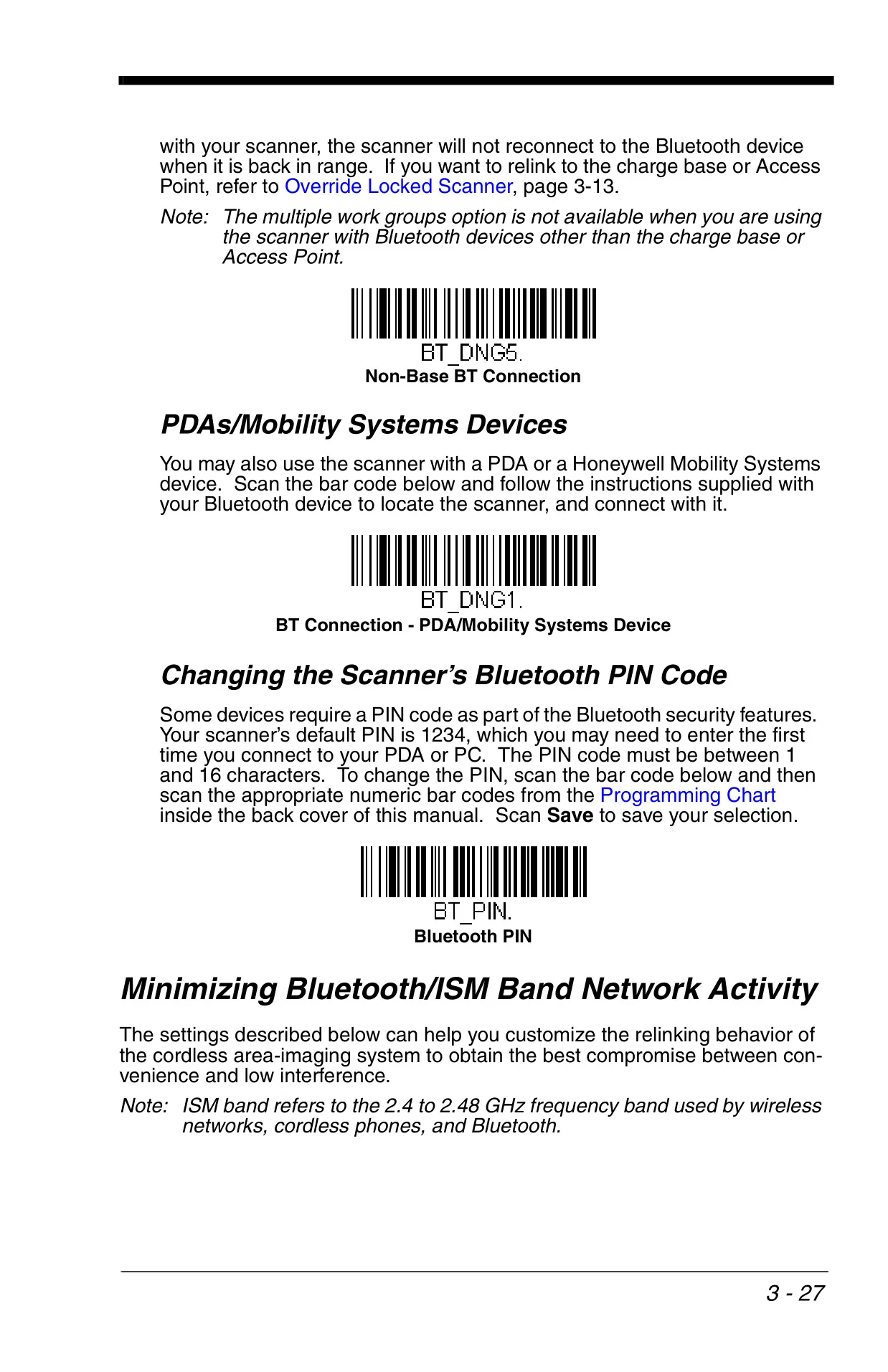
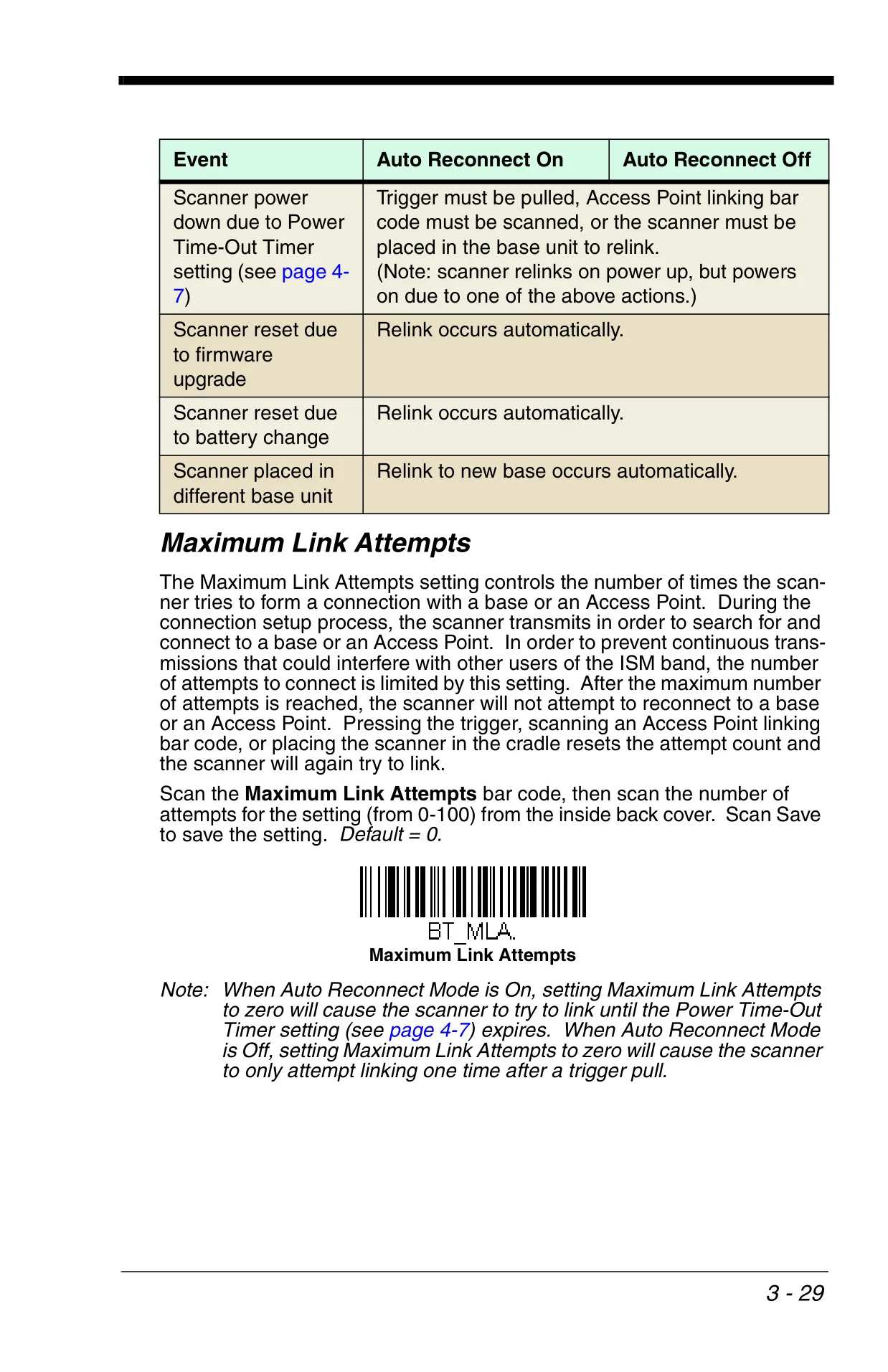
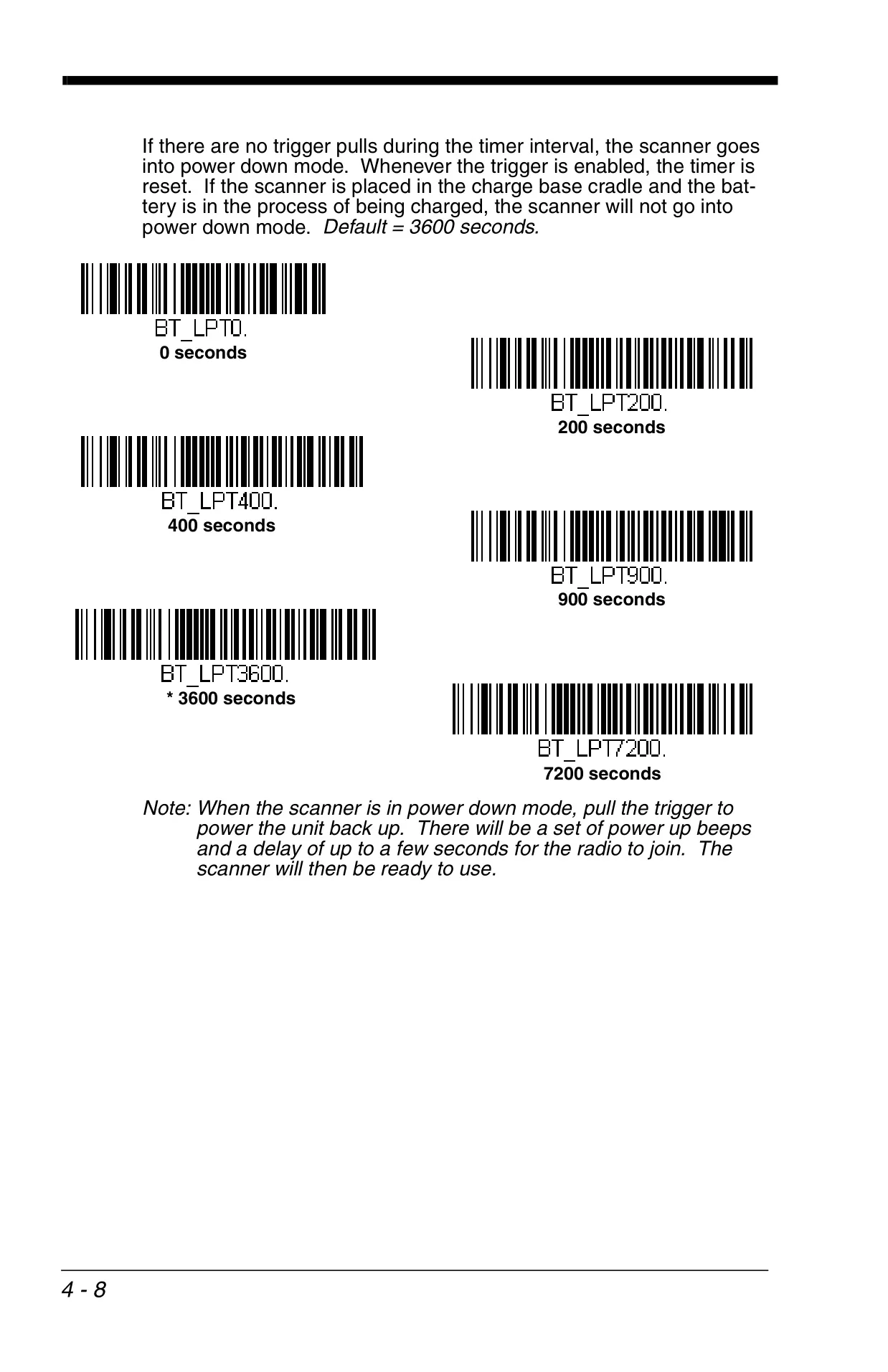
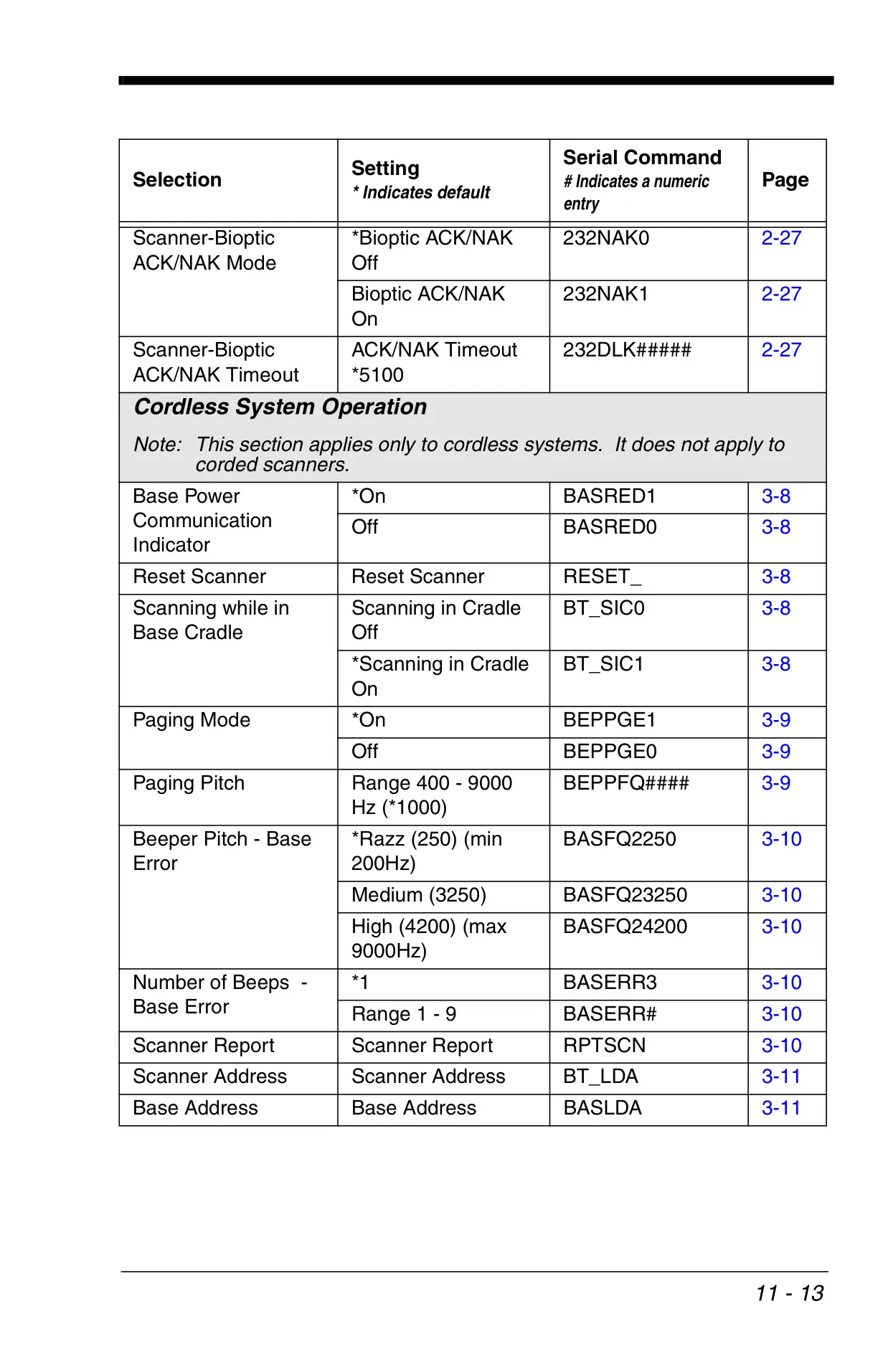
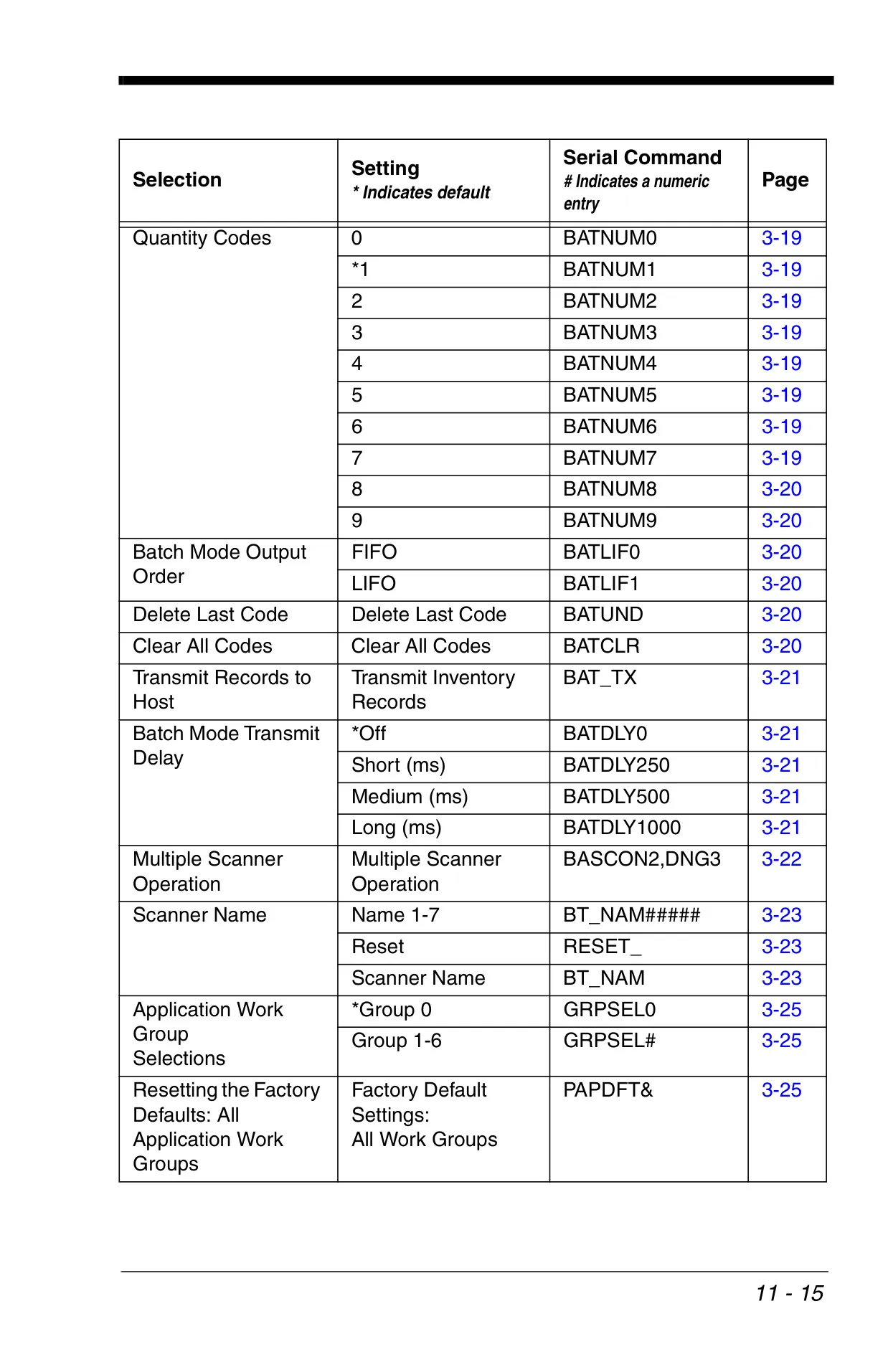
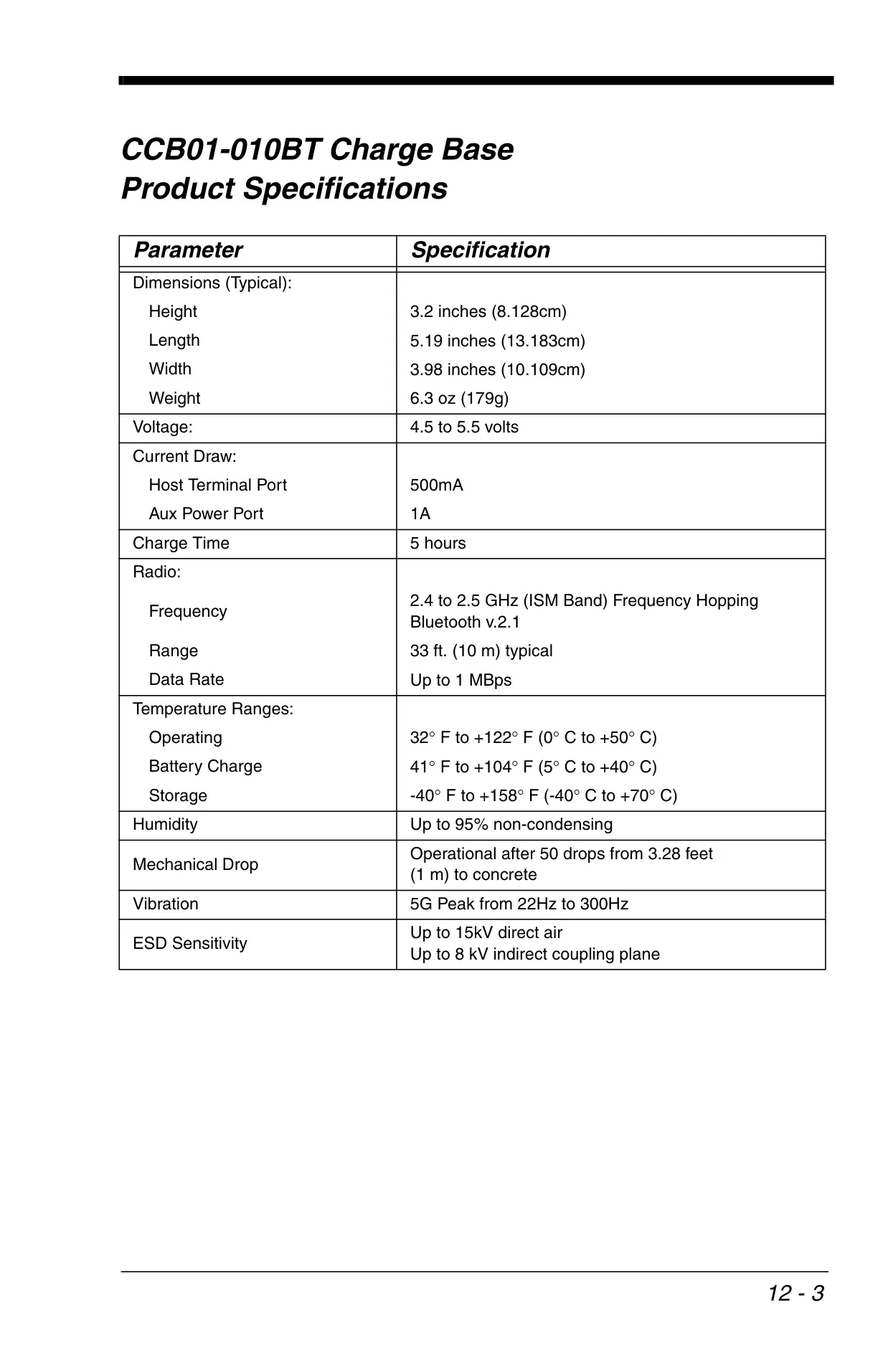
For the cordless Xenon 1902 model, wireless features significantly enhance mobility. Leveraging Bluetooth radio technology, it communicates with a charge base or access point within a typical range of 33 feet (10m). Features like flexible power management, out-of-range alarms, and Batch Mode—for storing barcodes when out of range—ensure uninterrupted data collection and reliability in mobile environments.
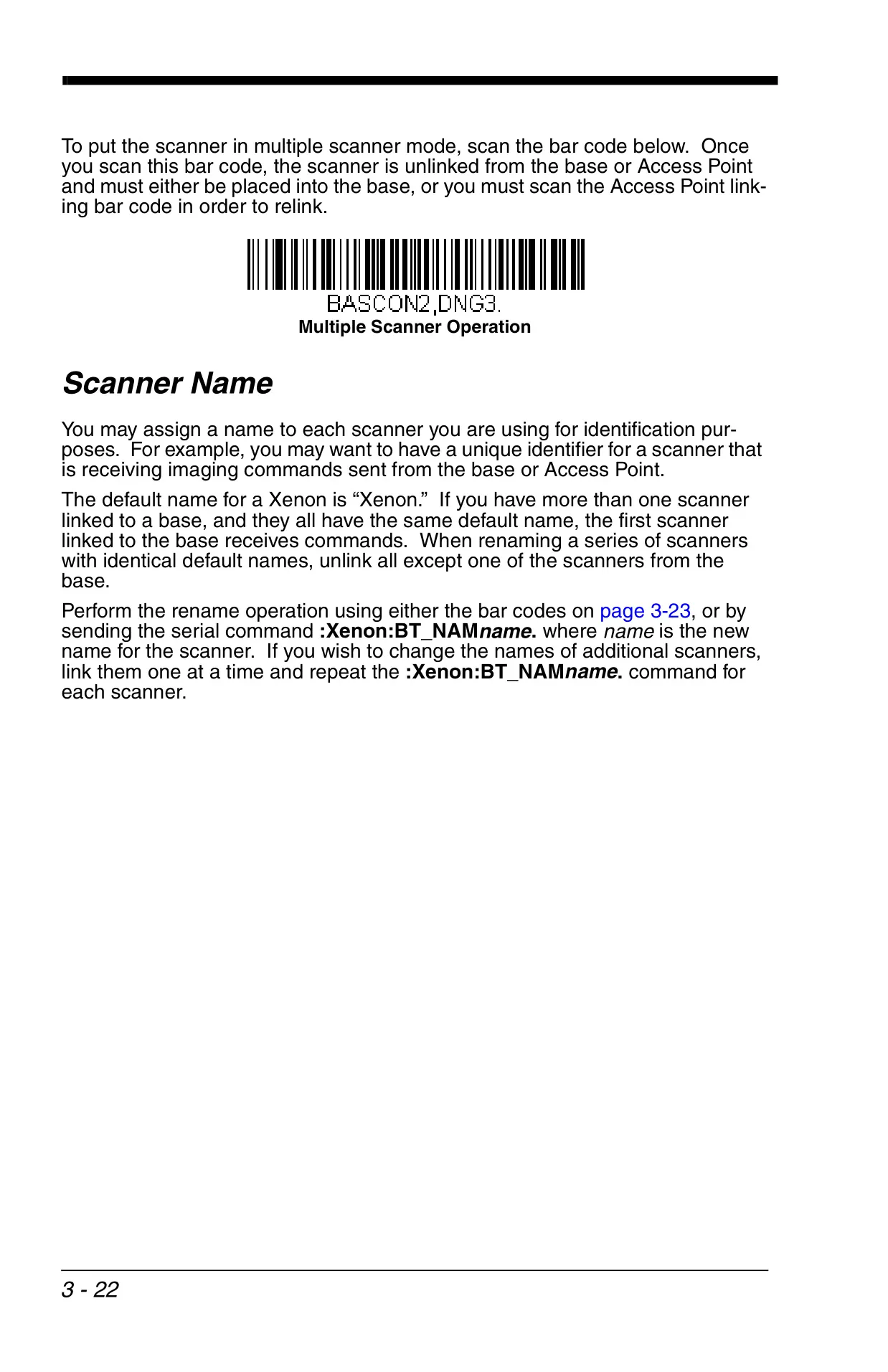
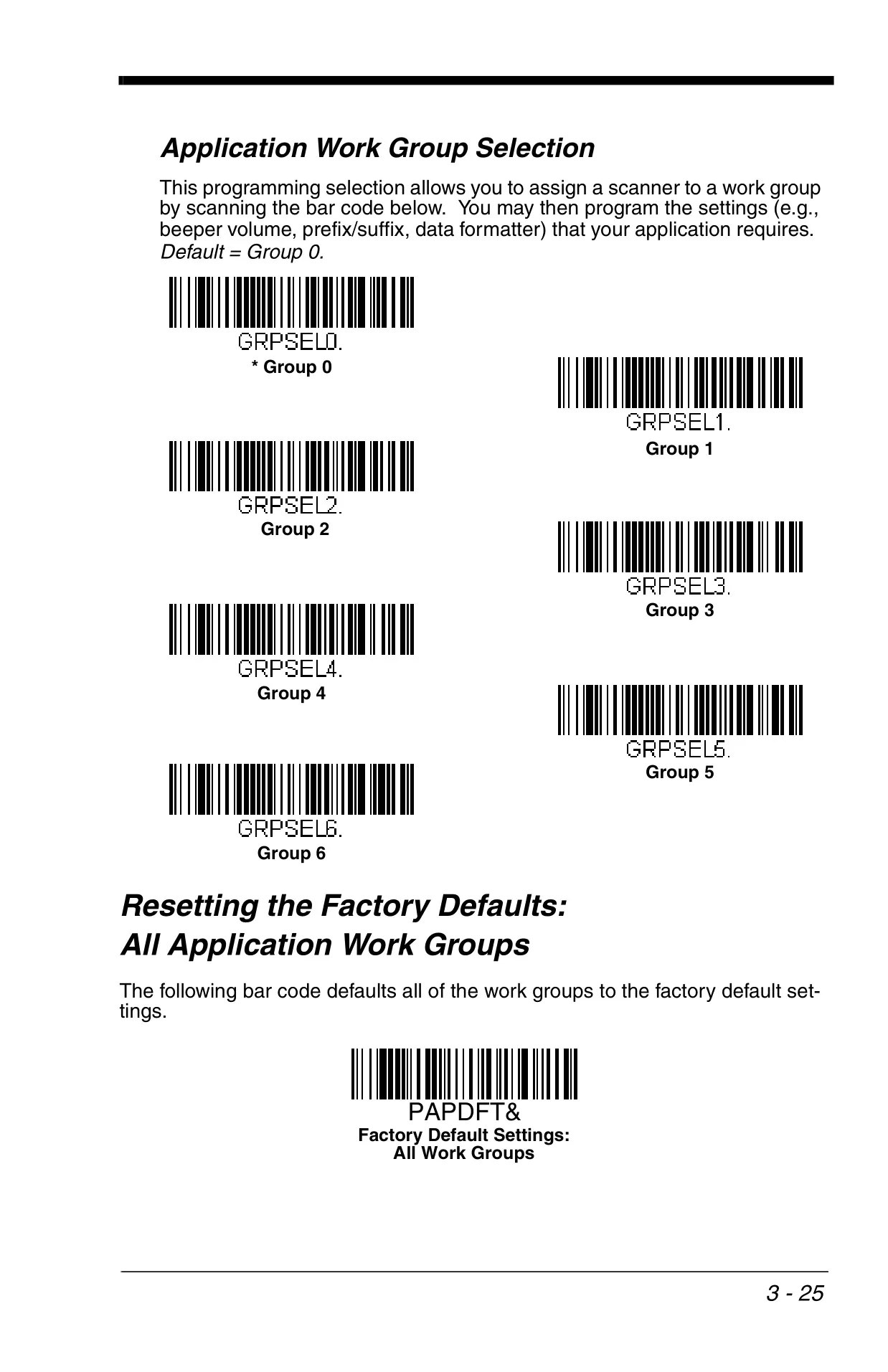
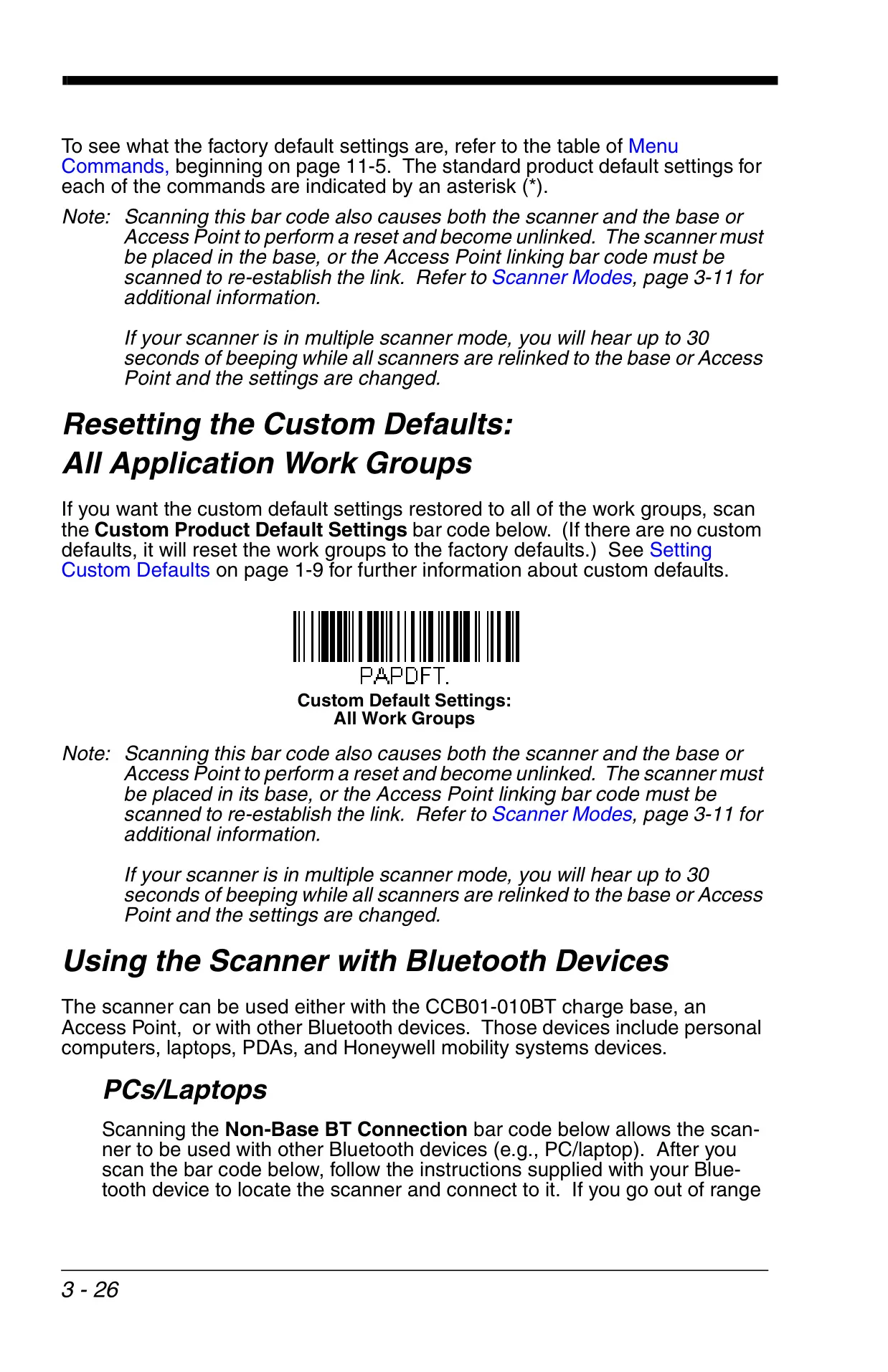
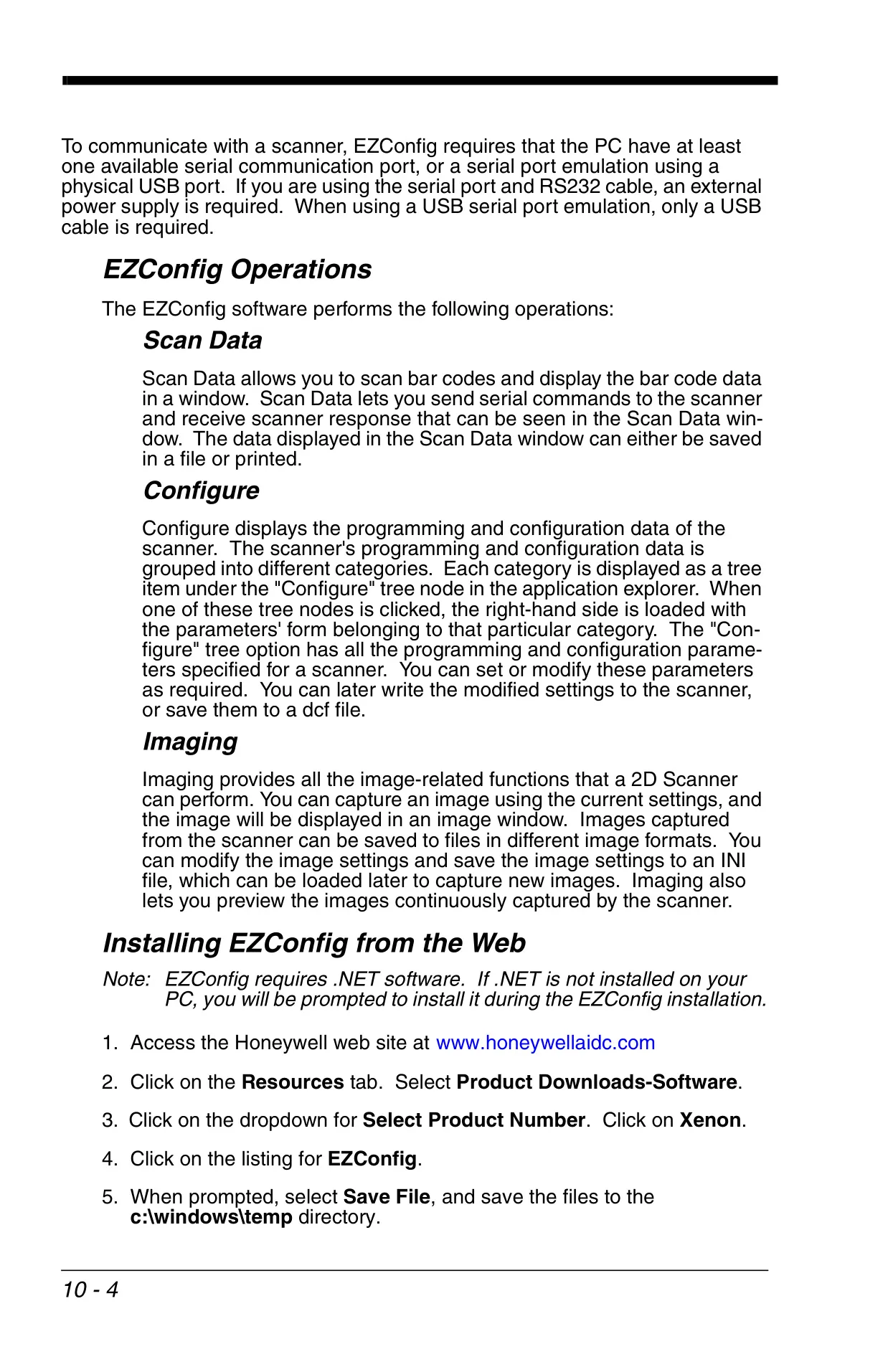
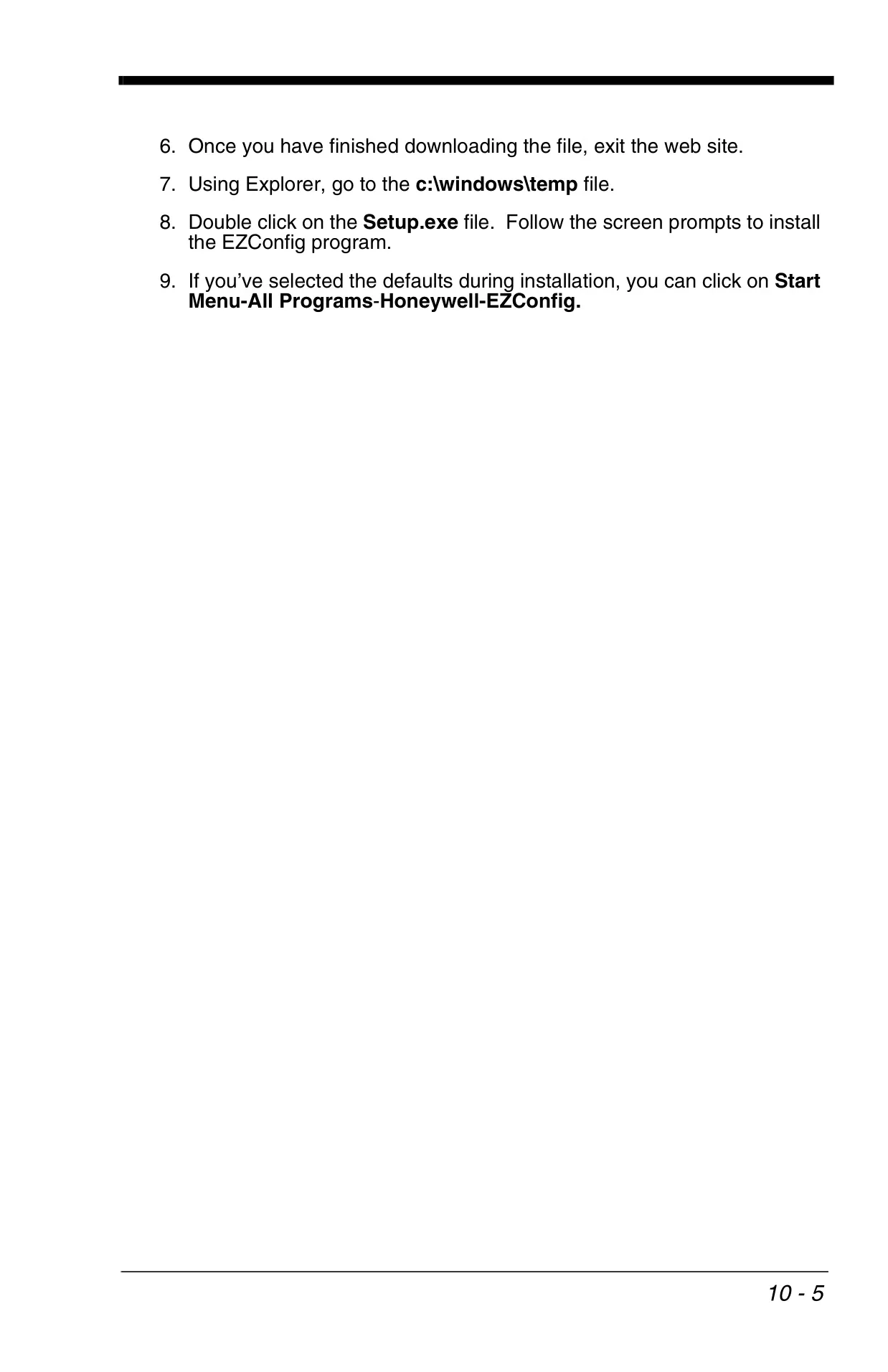
For complex deployments, the system supports multiple scanner operation, allowing up to 7 scanners to link to a single base or access point. Application Work Groups enable independent programming of settings for different sets of scanners. Furthermore, Honeywell's EZConfig utility offers a powerful PC-based solution for firmware upgrades, parameter changes, and generating customized programming barcodes, greatly simplifying large-scale scanner management and customization.
Frequently Asked Questions (FAQs)
Can't find the answer you need? Here are some frequently asked questions about the Honeywell Xenon 1900 Barcode Scanner, and we answer them below.