Honeywell TH6320WF2003 T6 Pro Smart Instruction Manual
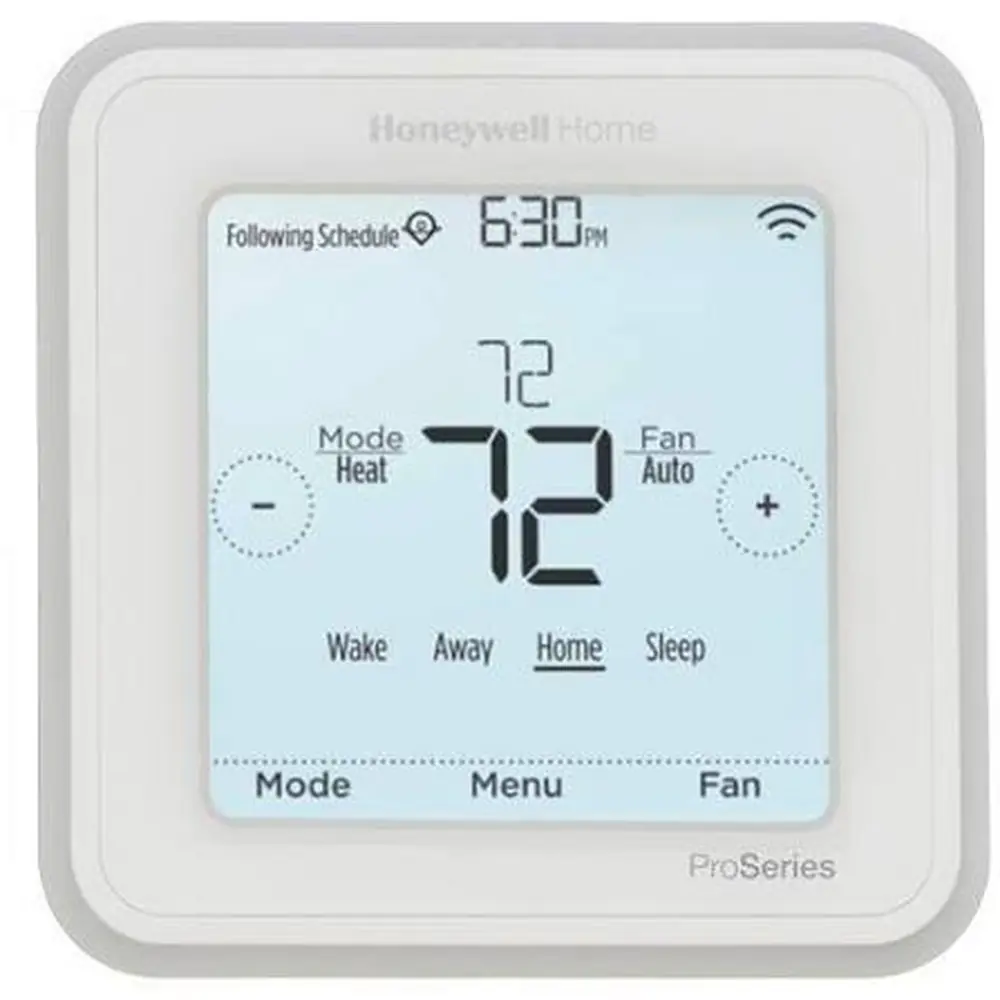
Honeywell TH6320WF2003 T6 Pro Smart
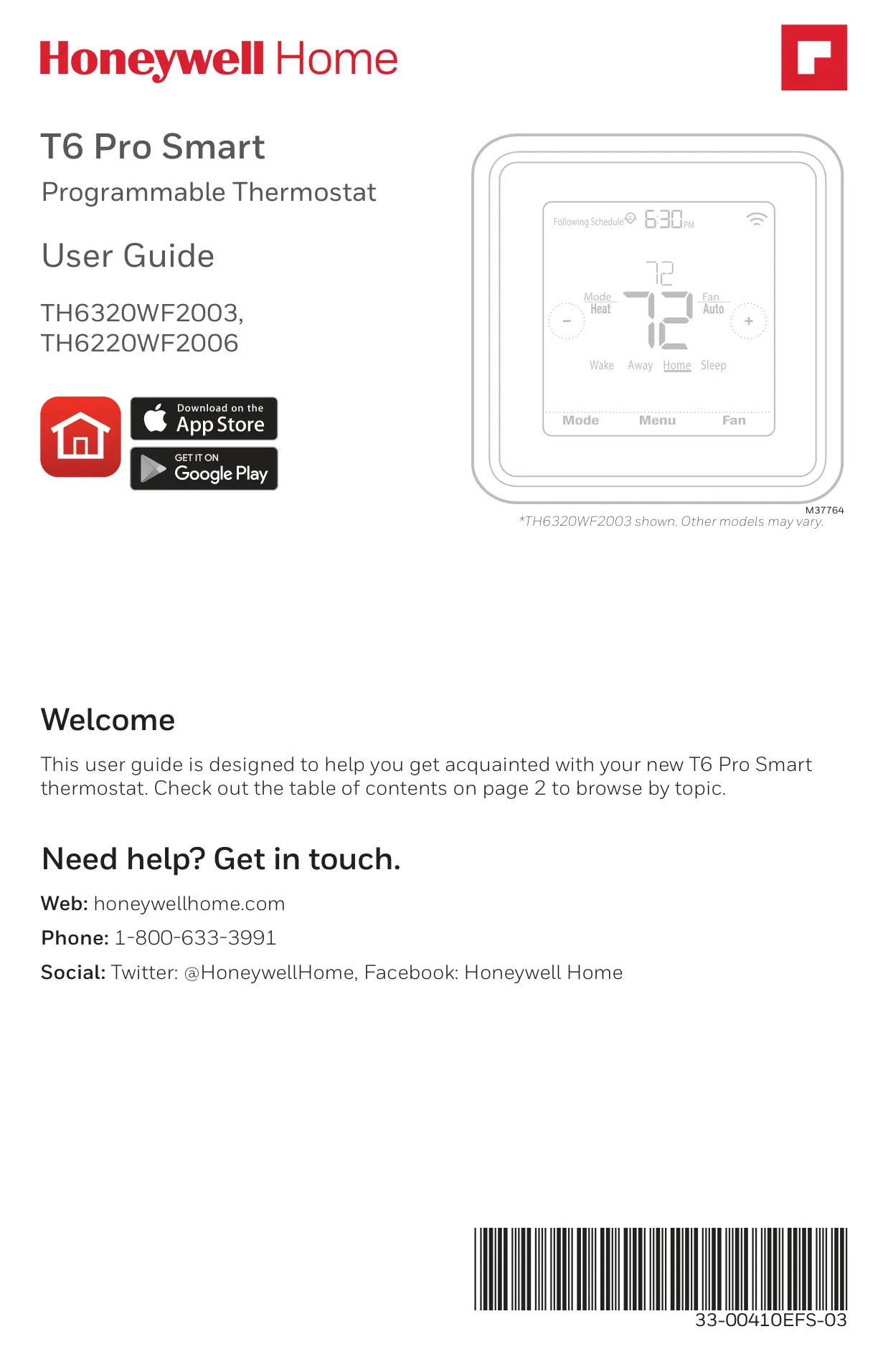

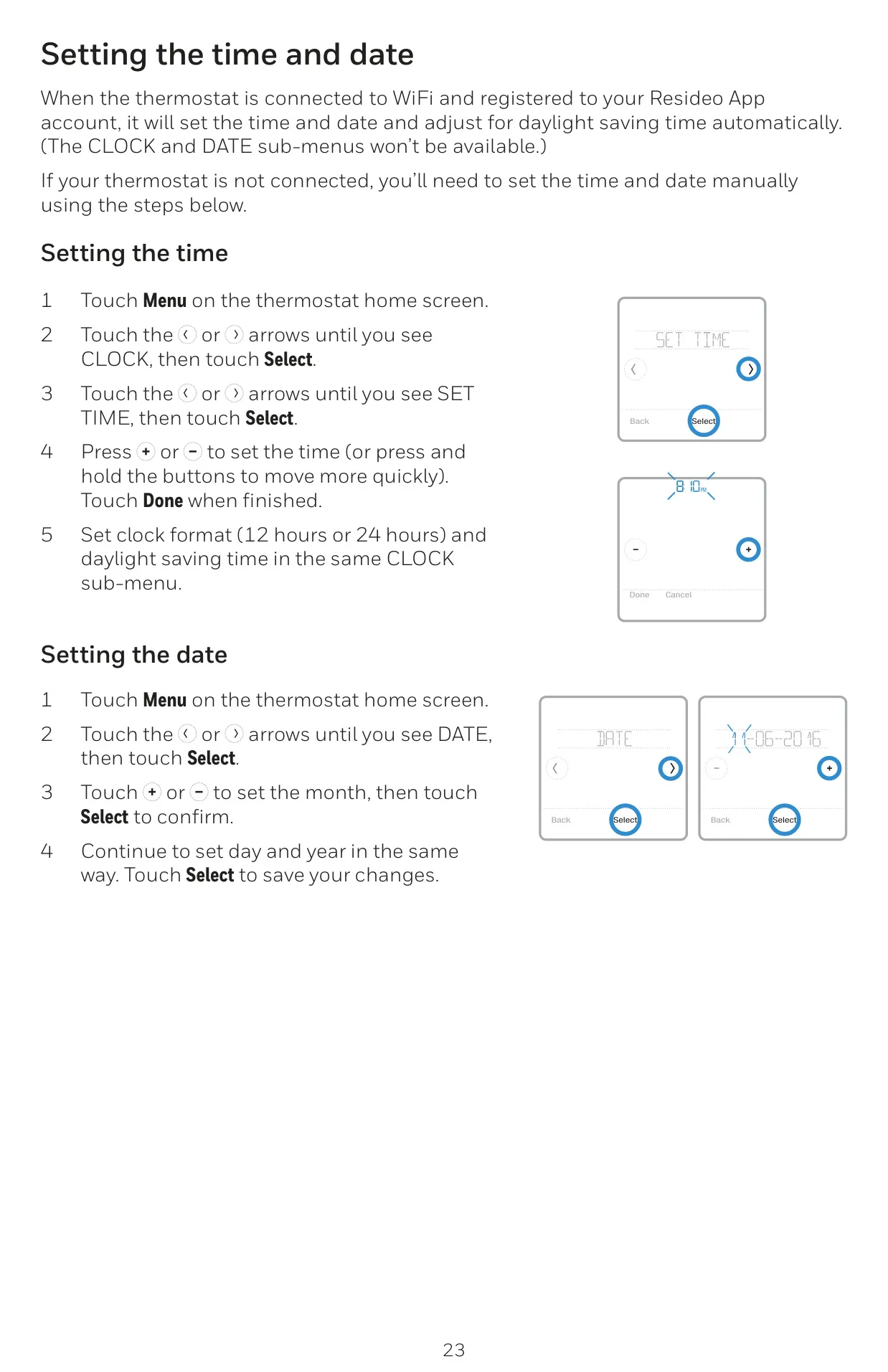
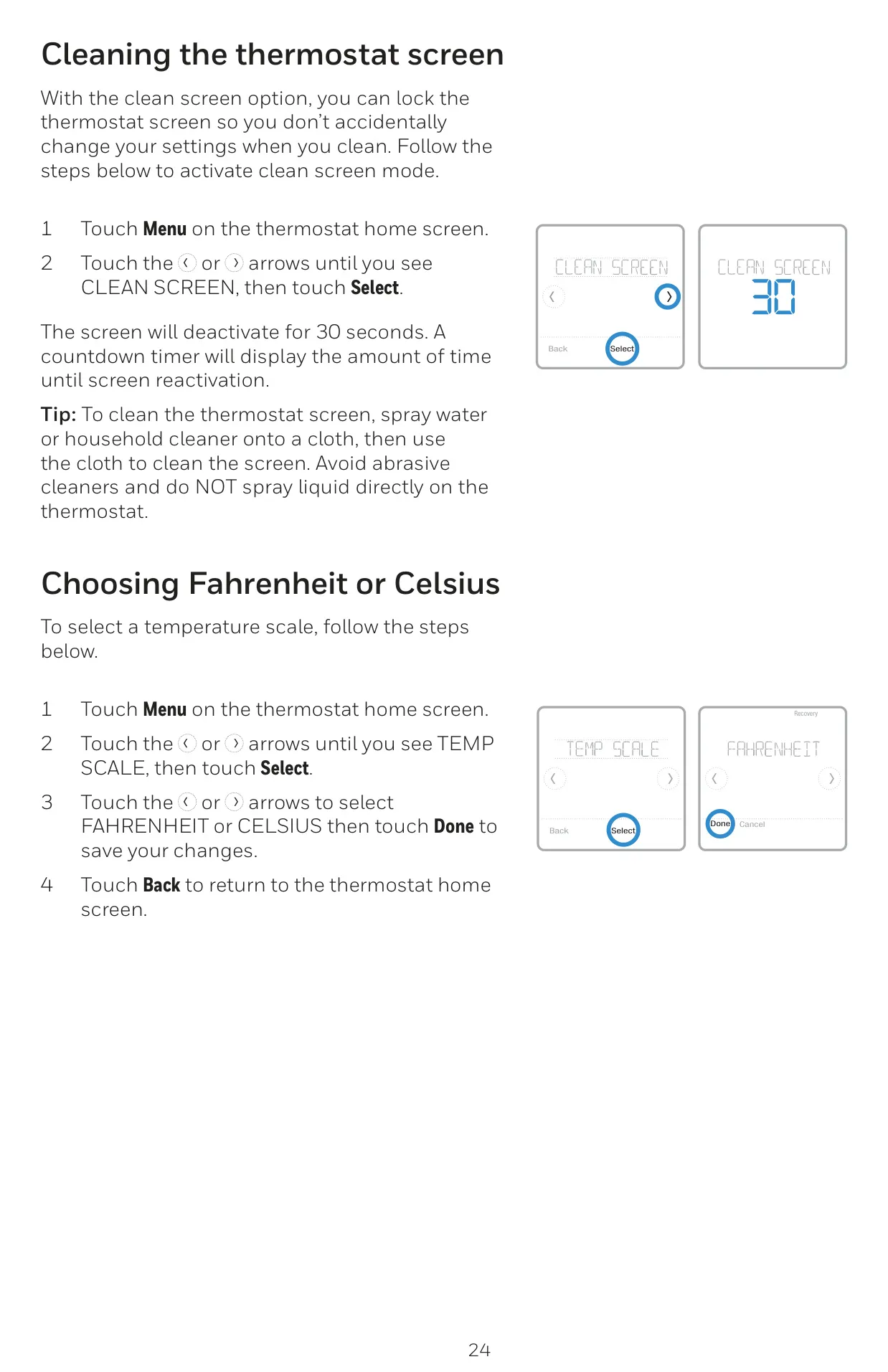
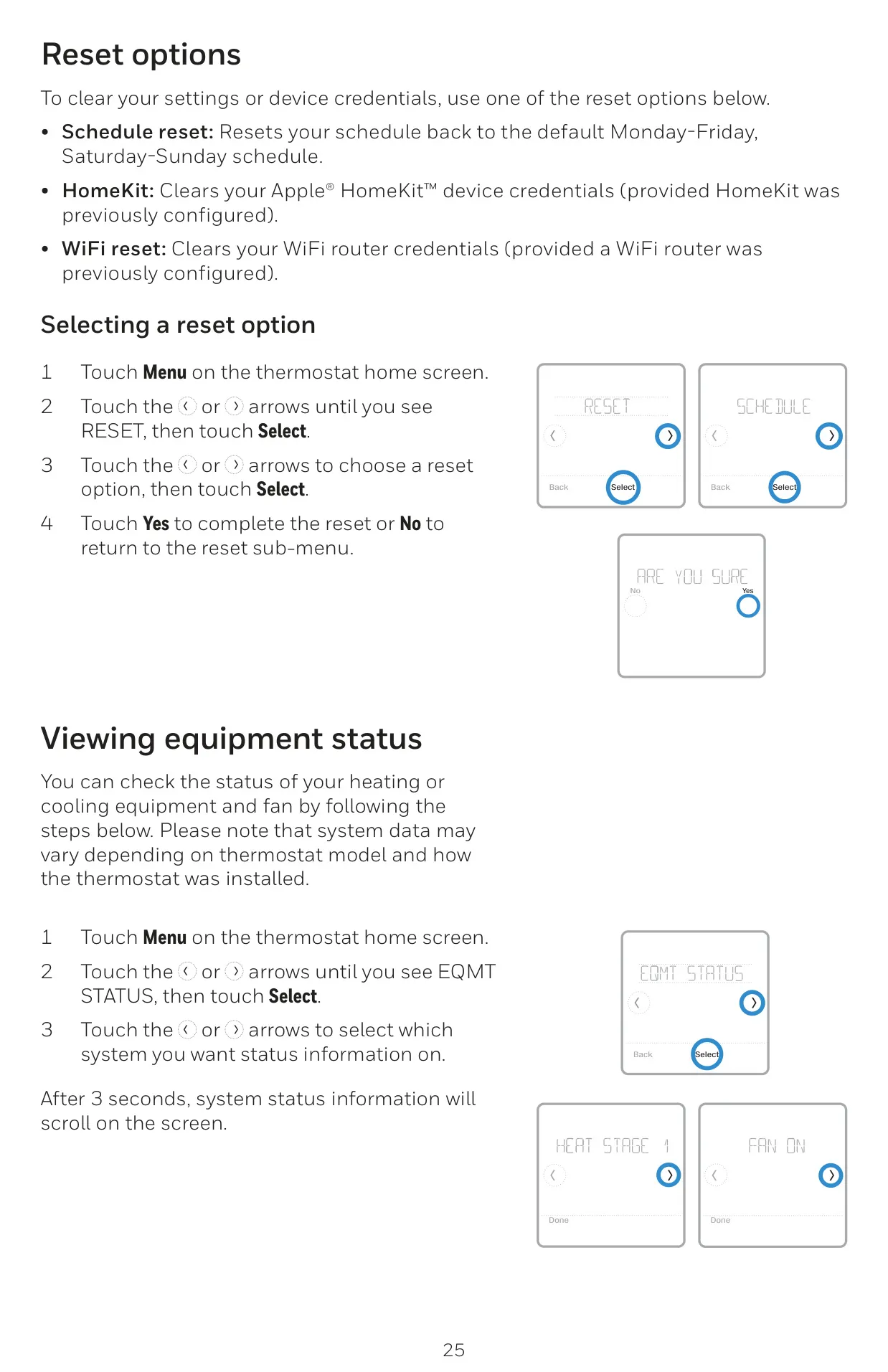
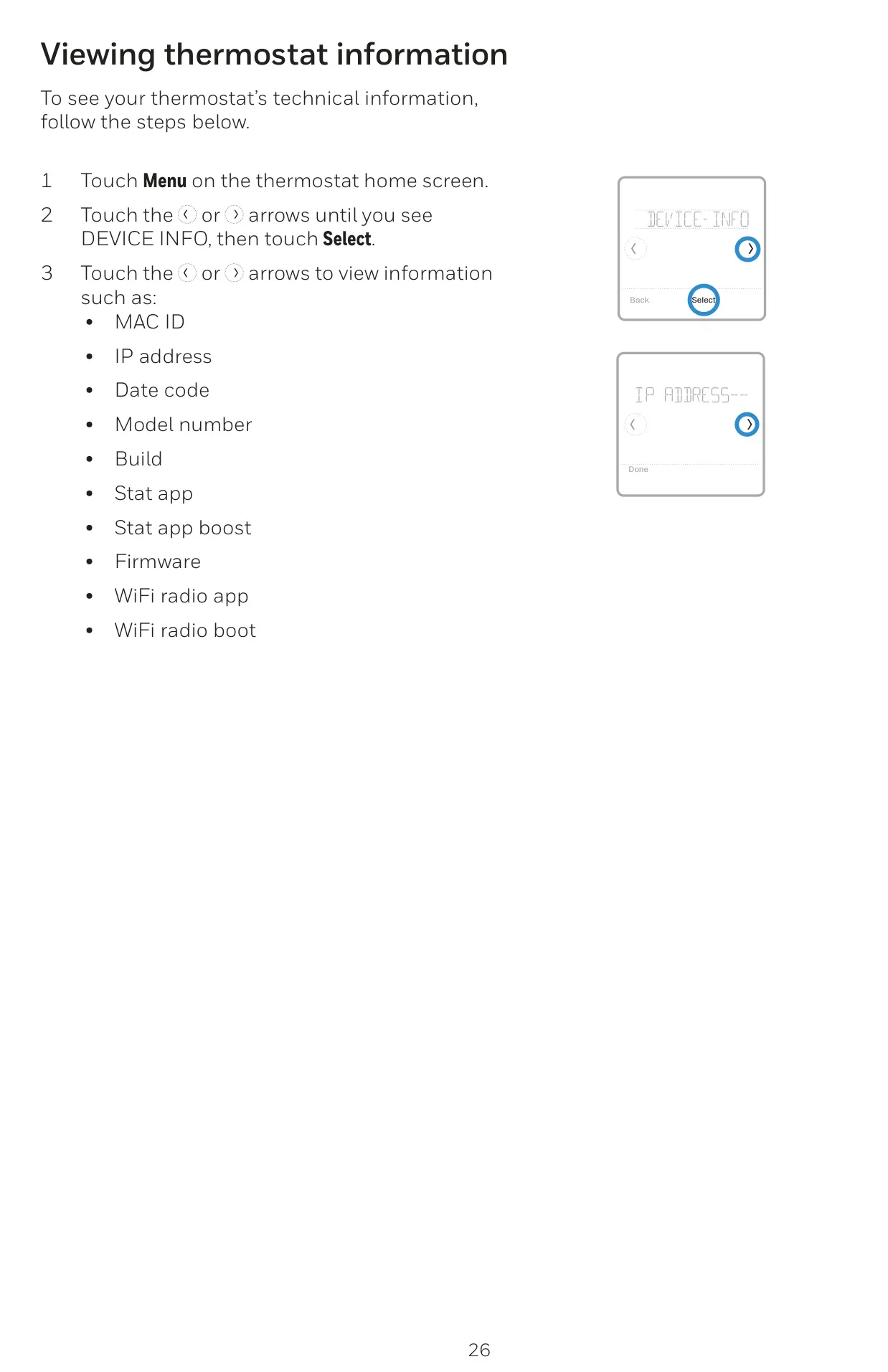



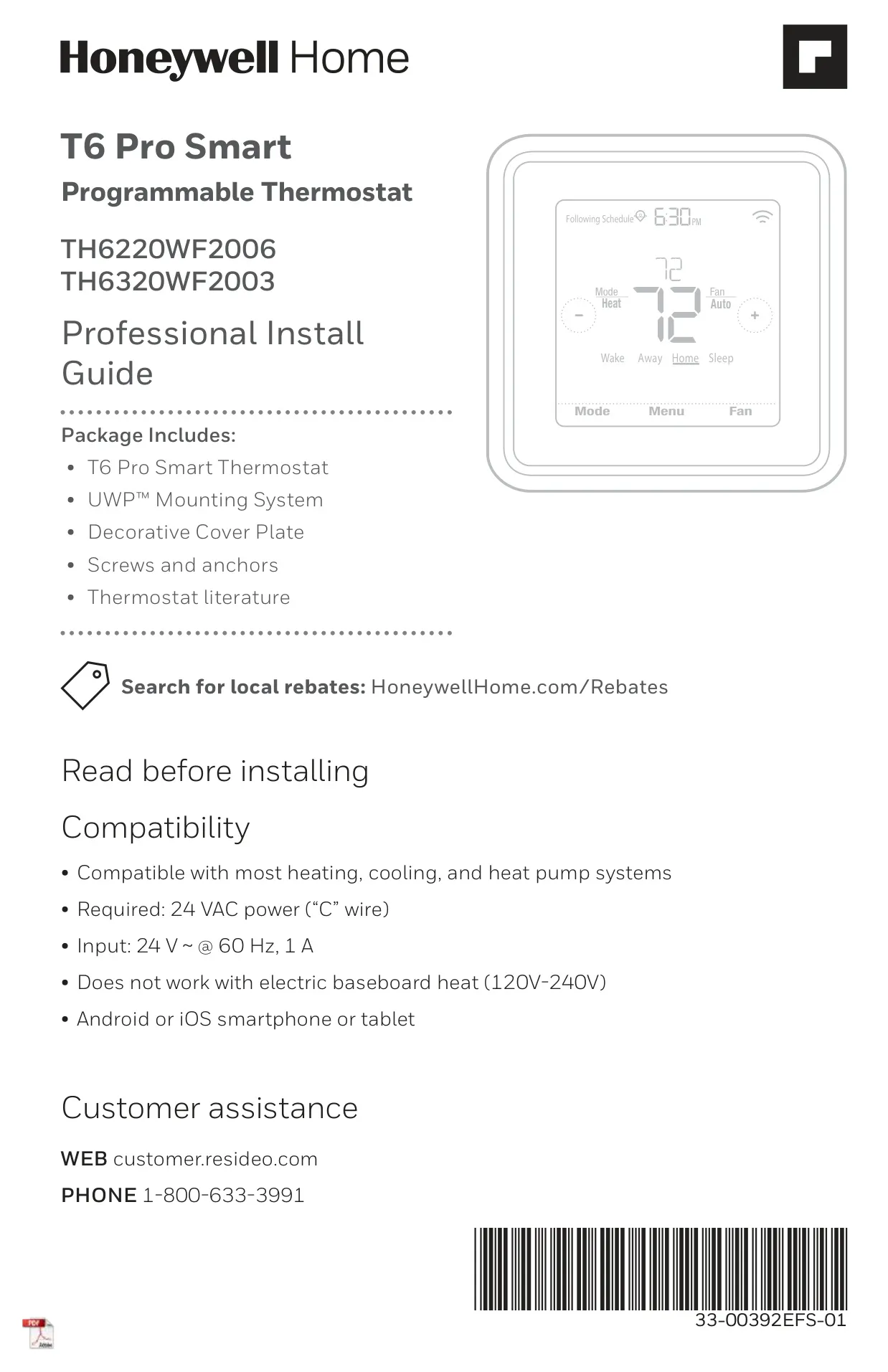
Honeywell TH6320WF2003 T6 Pro Smart
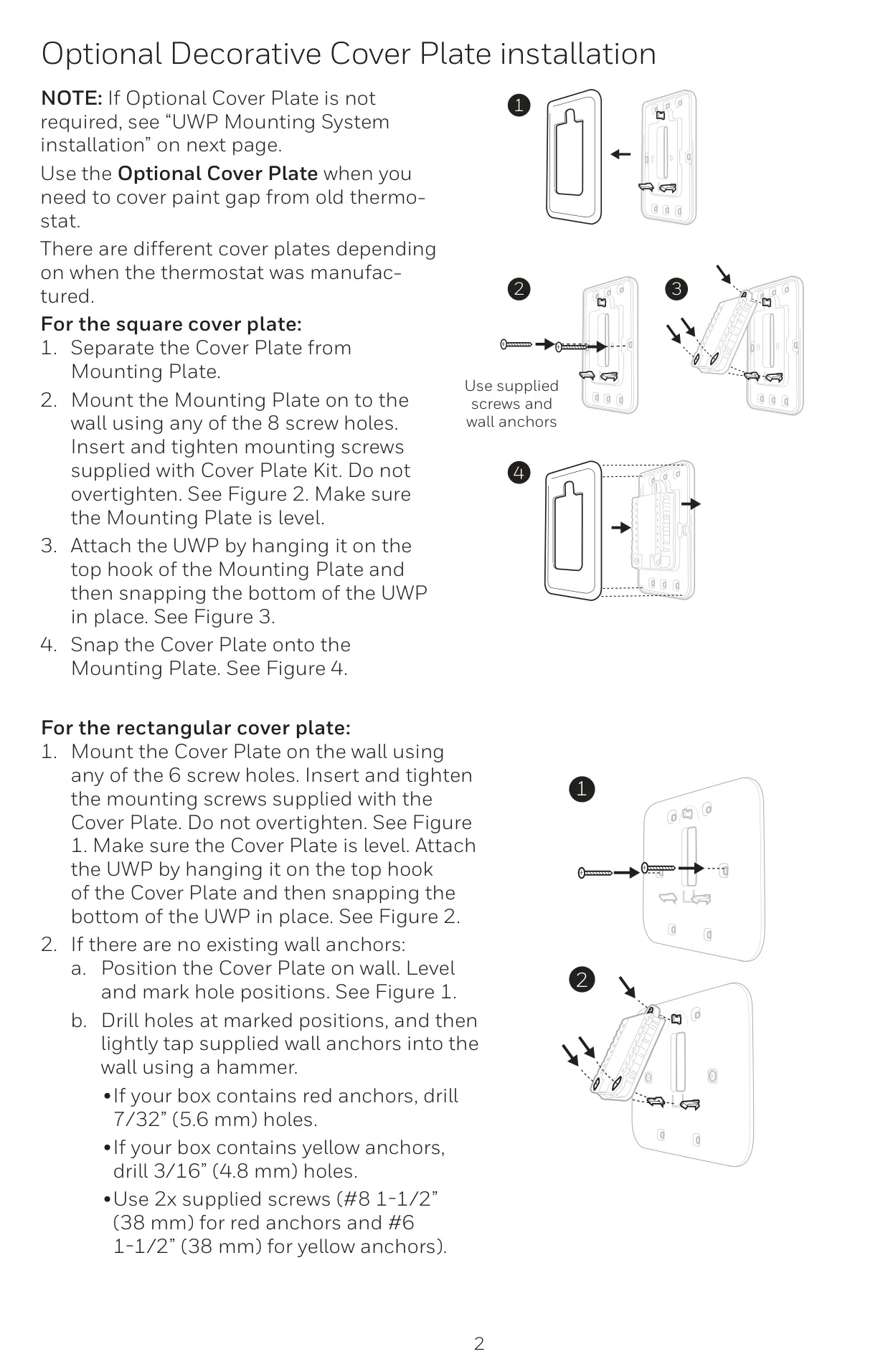

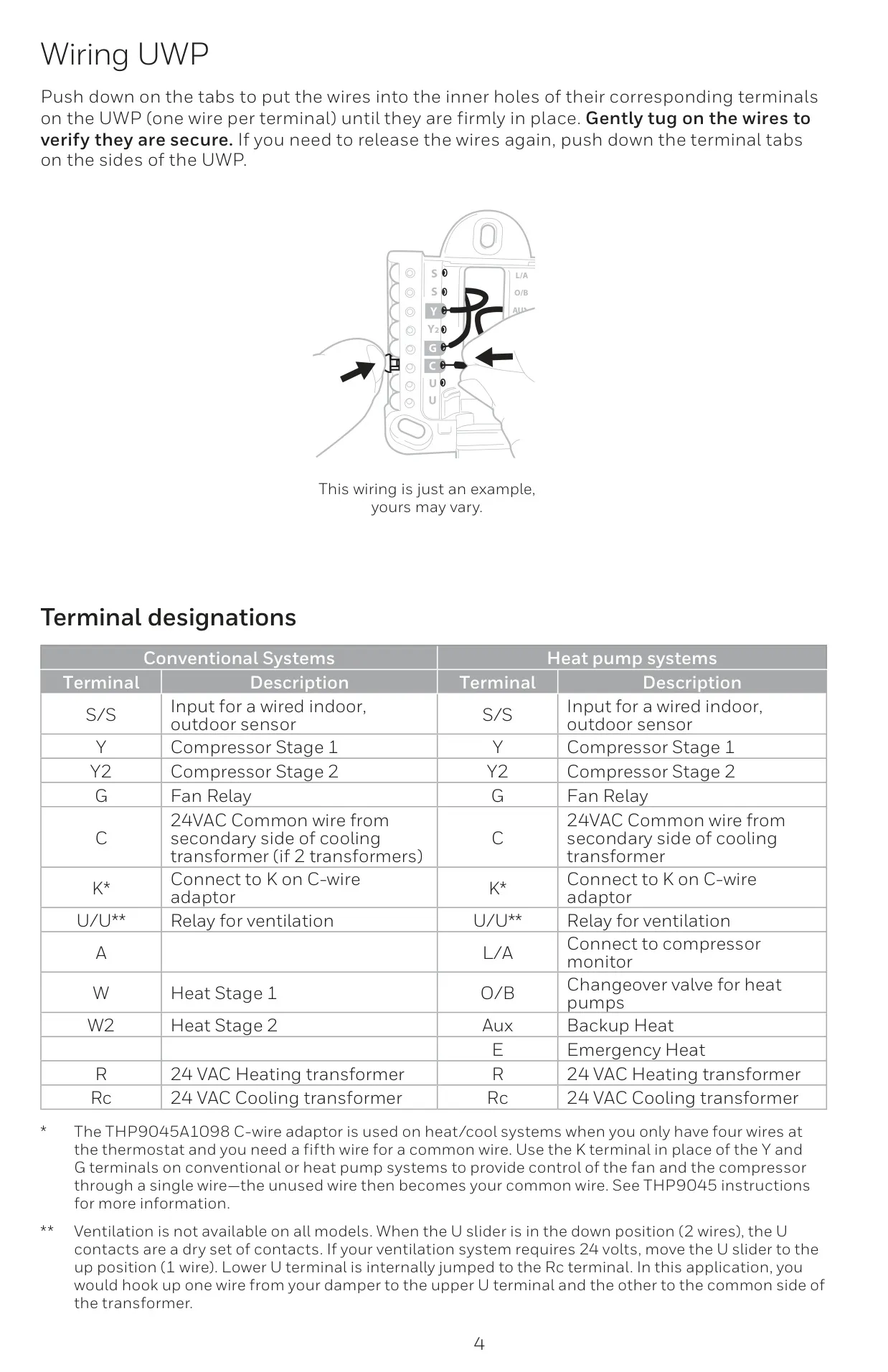
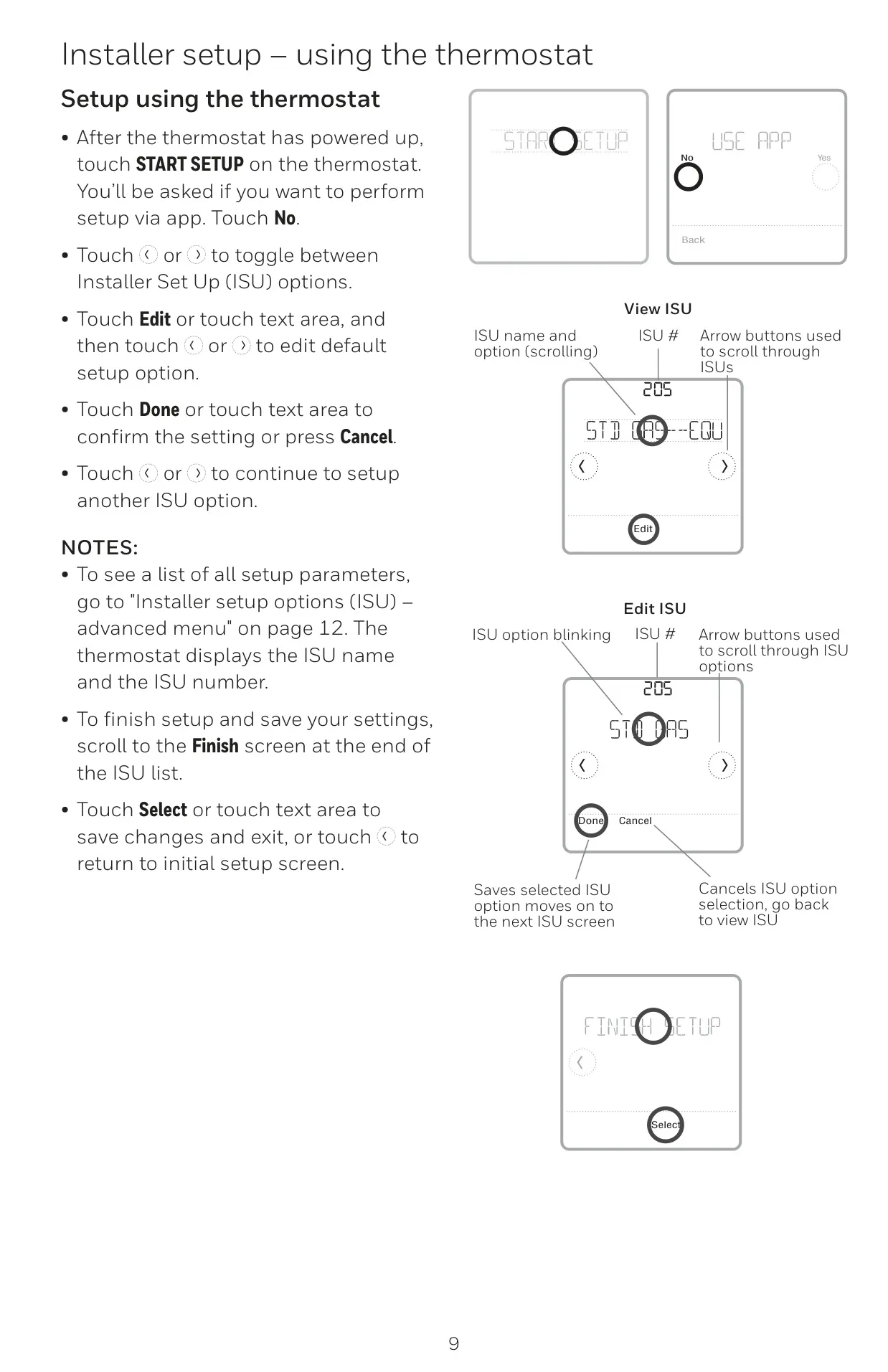
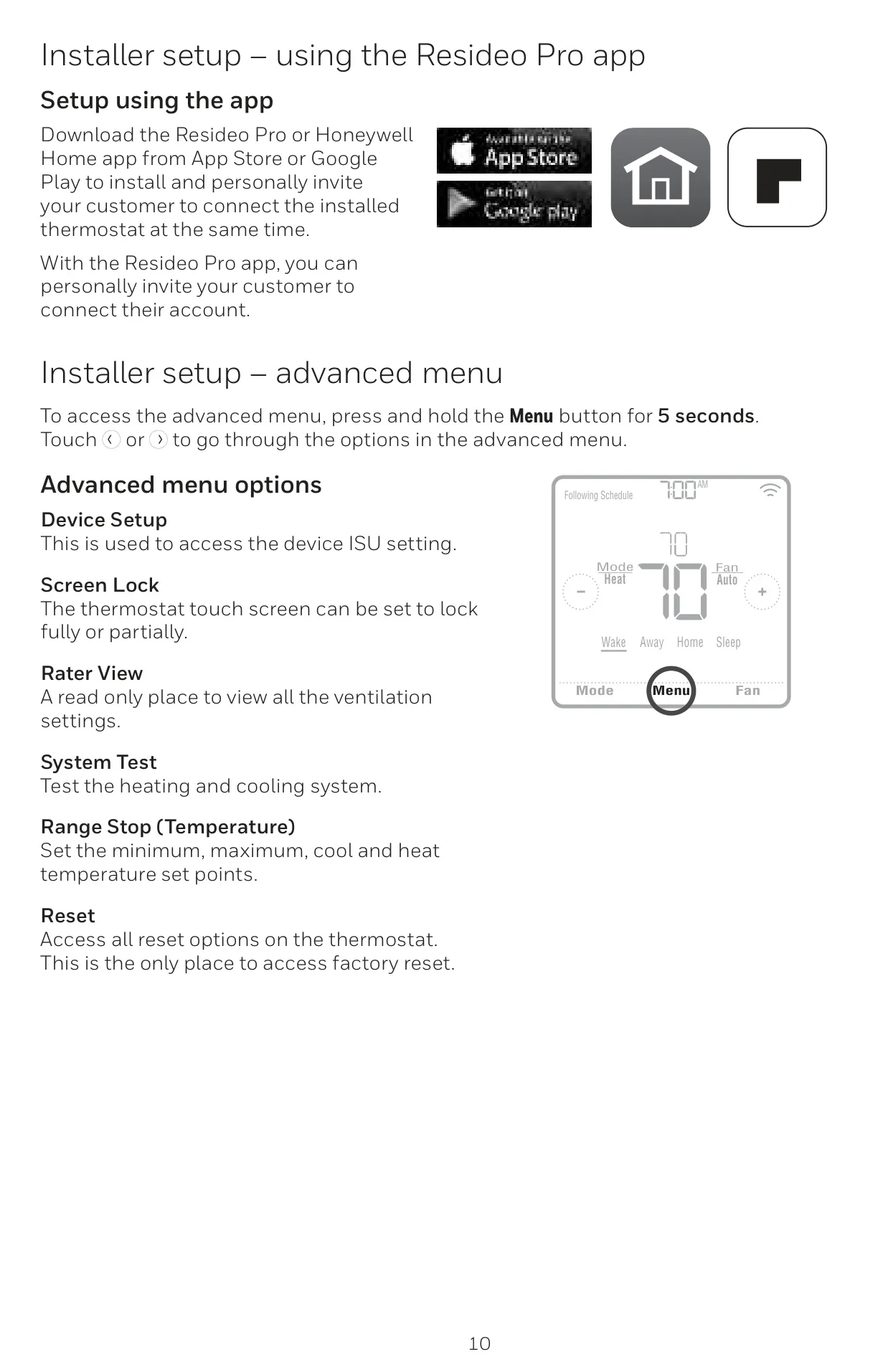
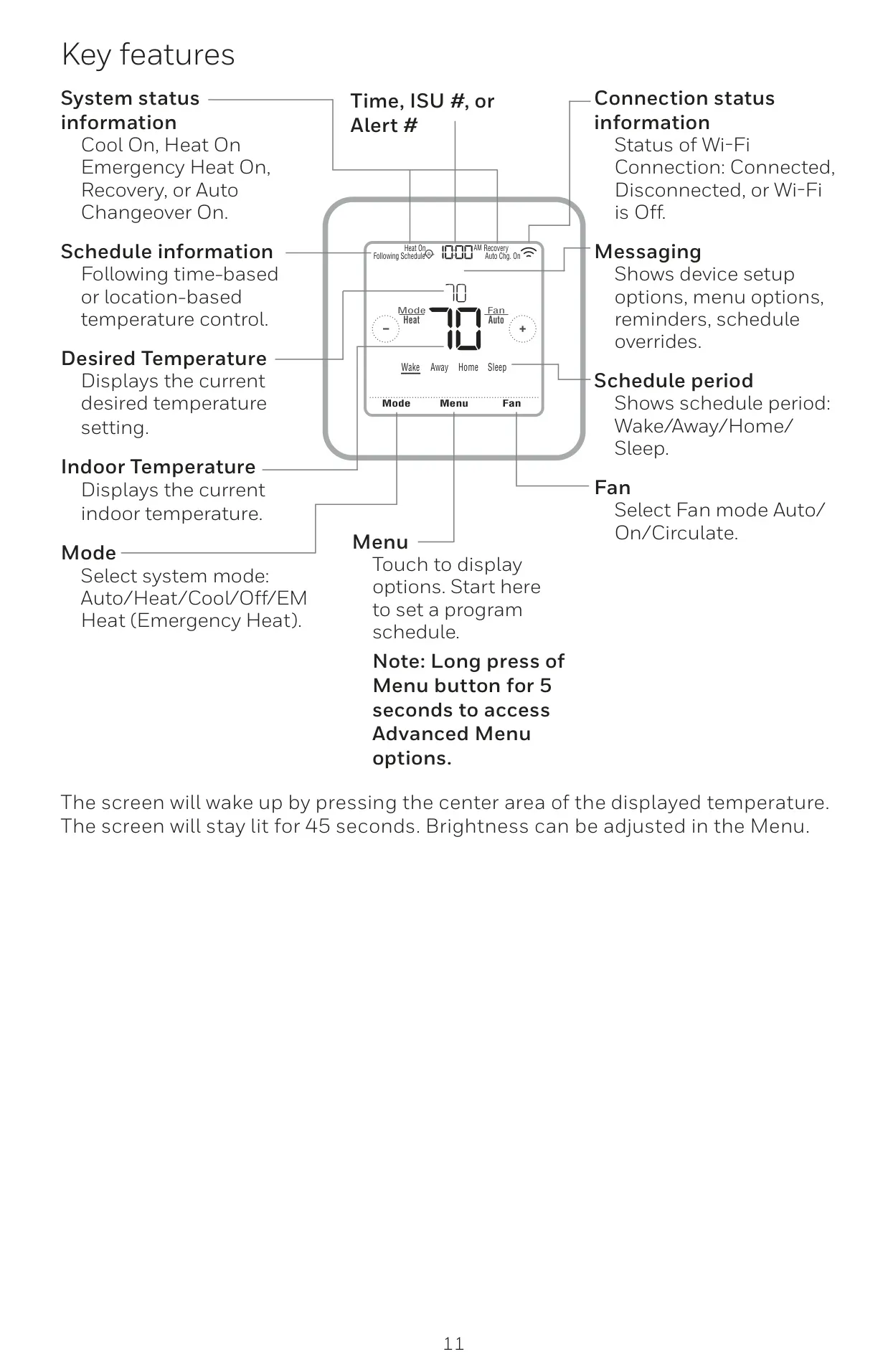
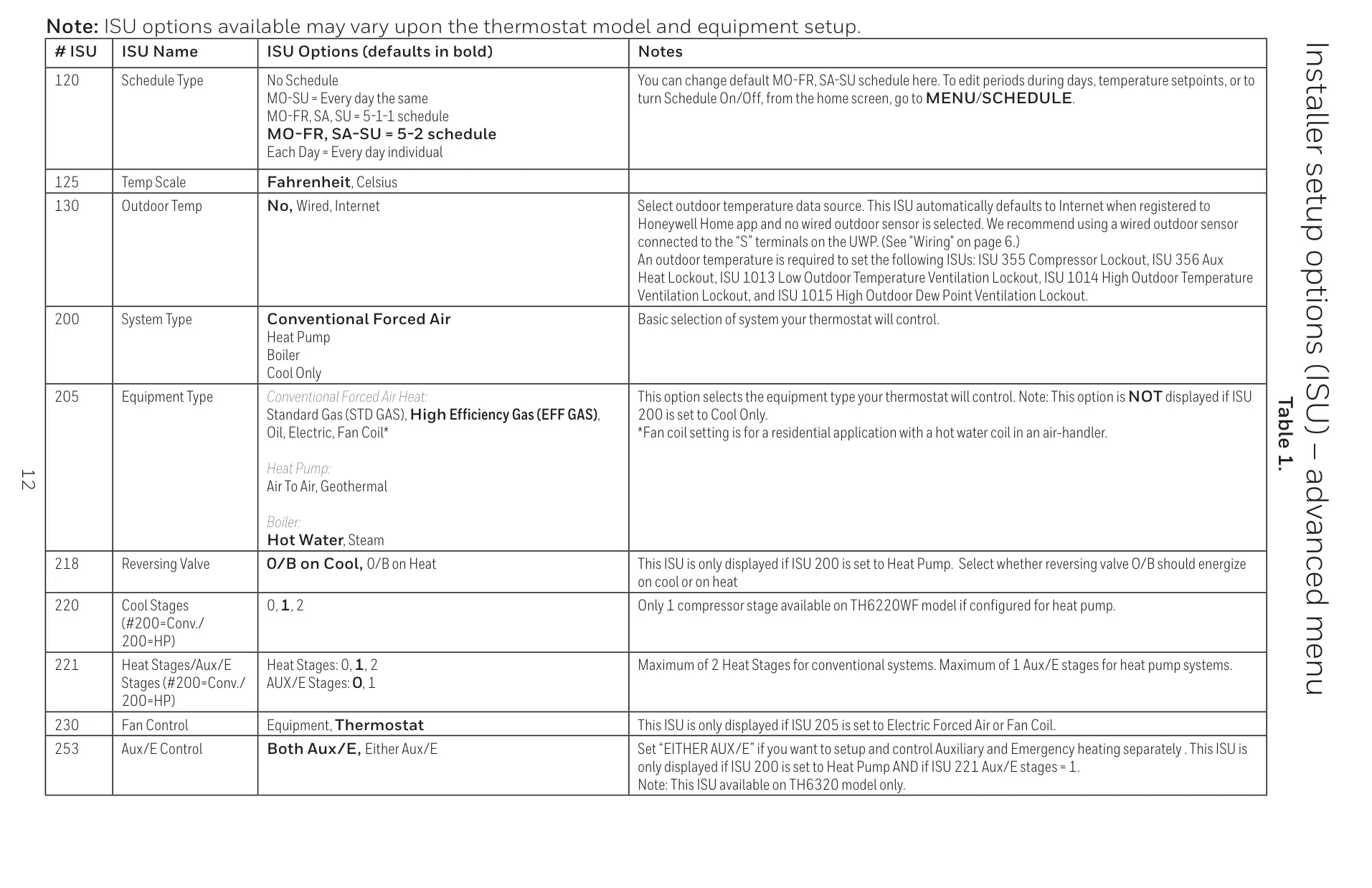
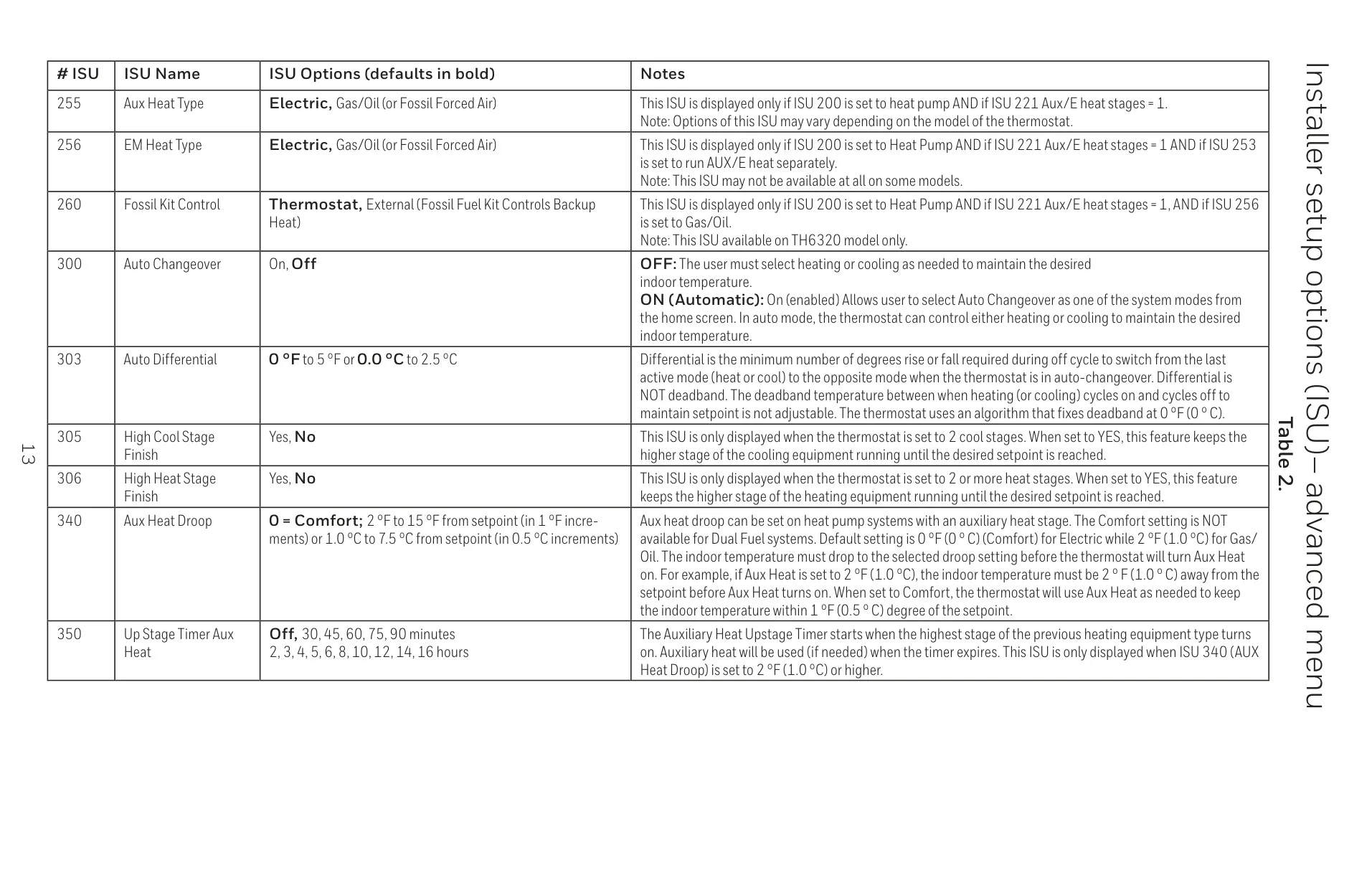
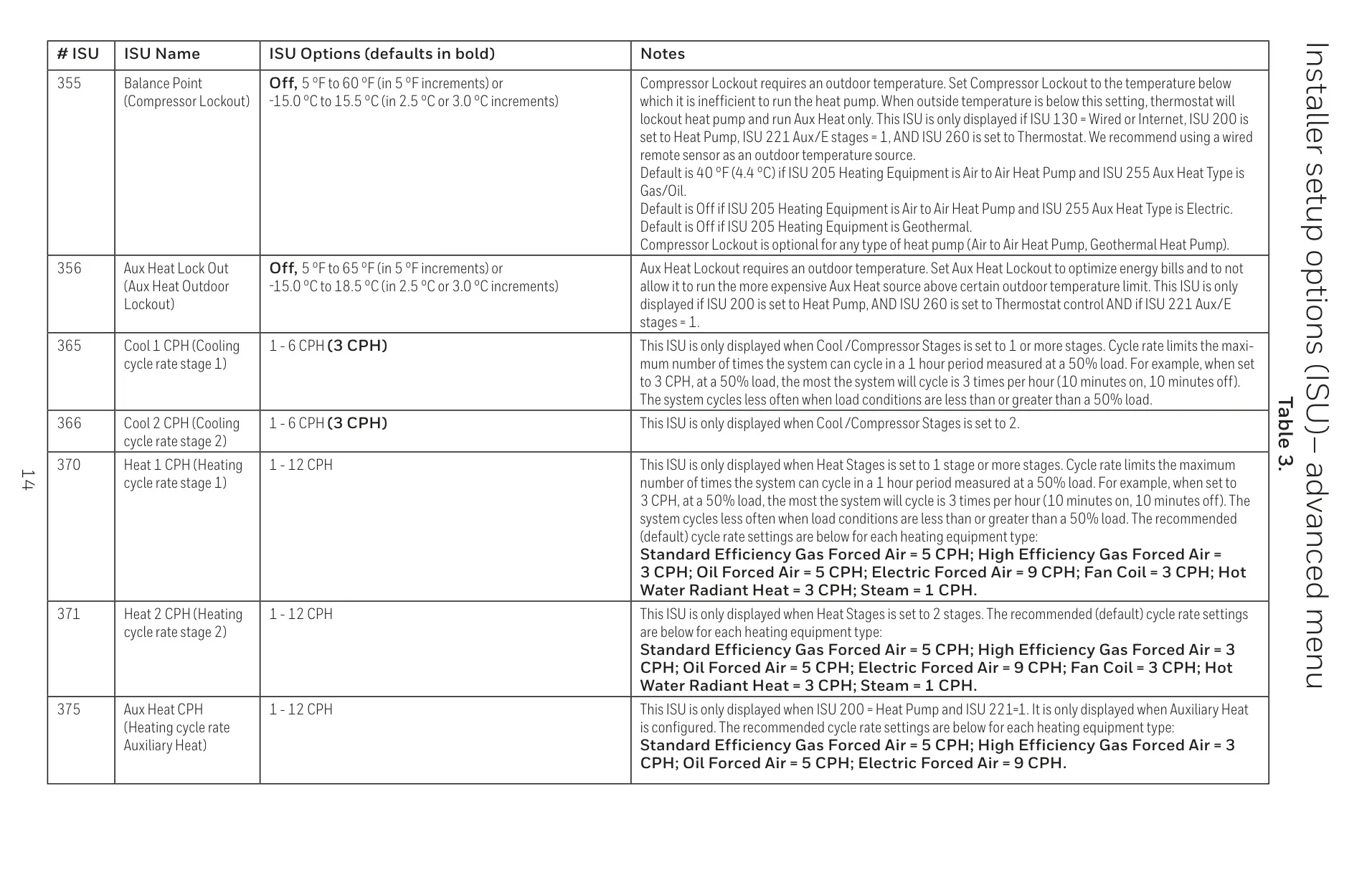
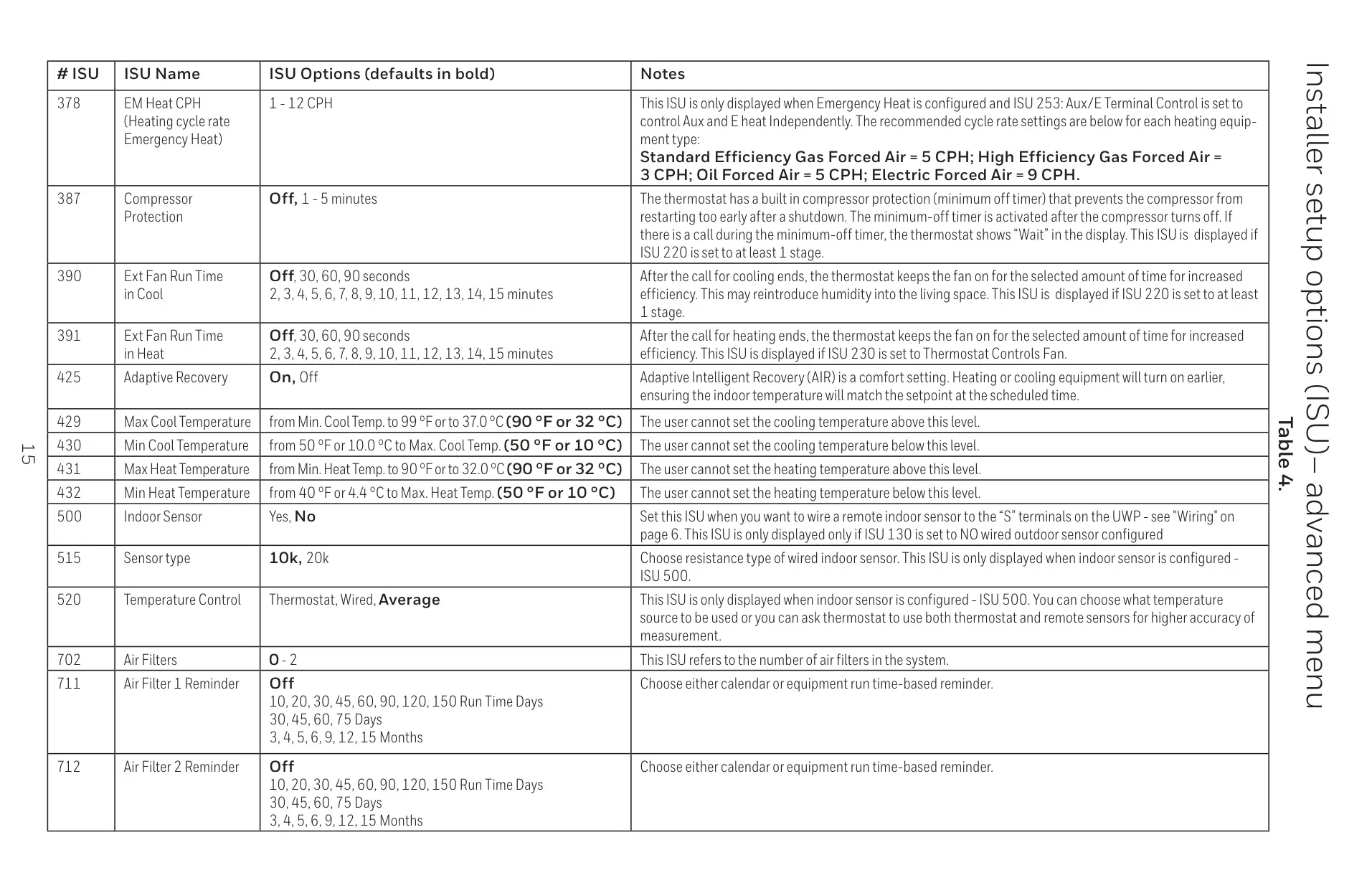
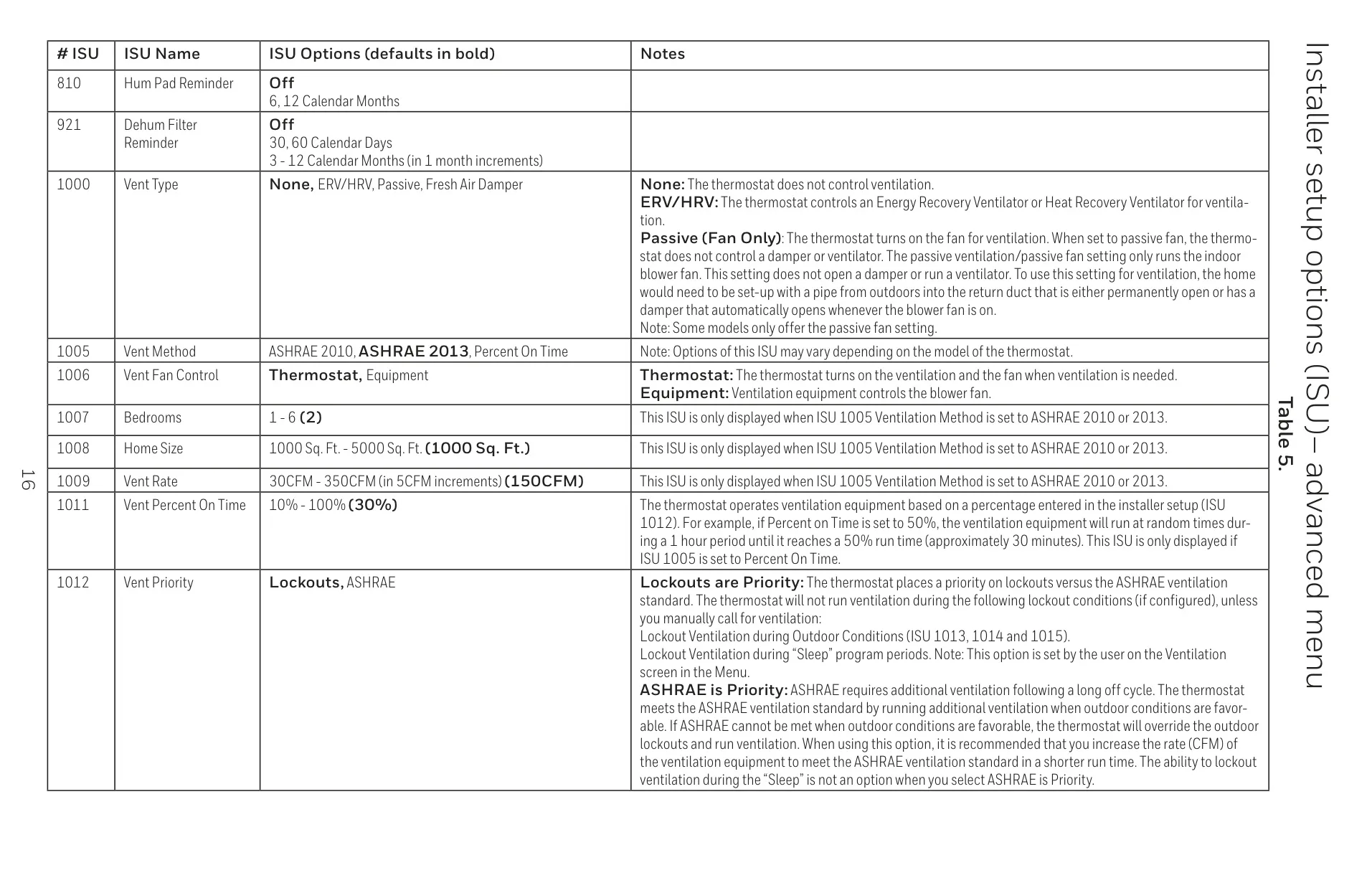


Honeywell TH6320WF2003 Instructions
Here we offer the Honeywell TH6320WF2003 T6 Pro Smart manual completely free and in English. We have cataloged this manual in the Thermostats section on Manualverse, and it has been rated by 1 users with an average rating of 5. If you have any specific questions about Honeywell TH6320WF2003 T6 Pro Smart, we suggest checking the Frequently Asked Questions (FAQs) section of this manual.
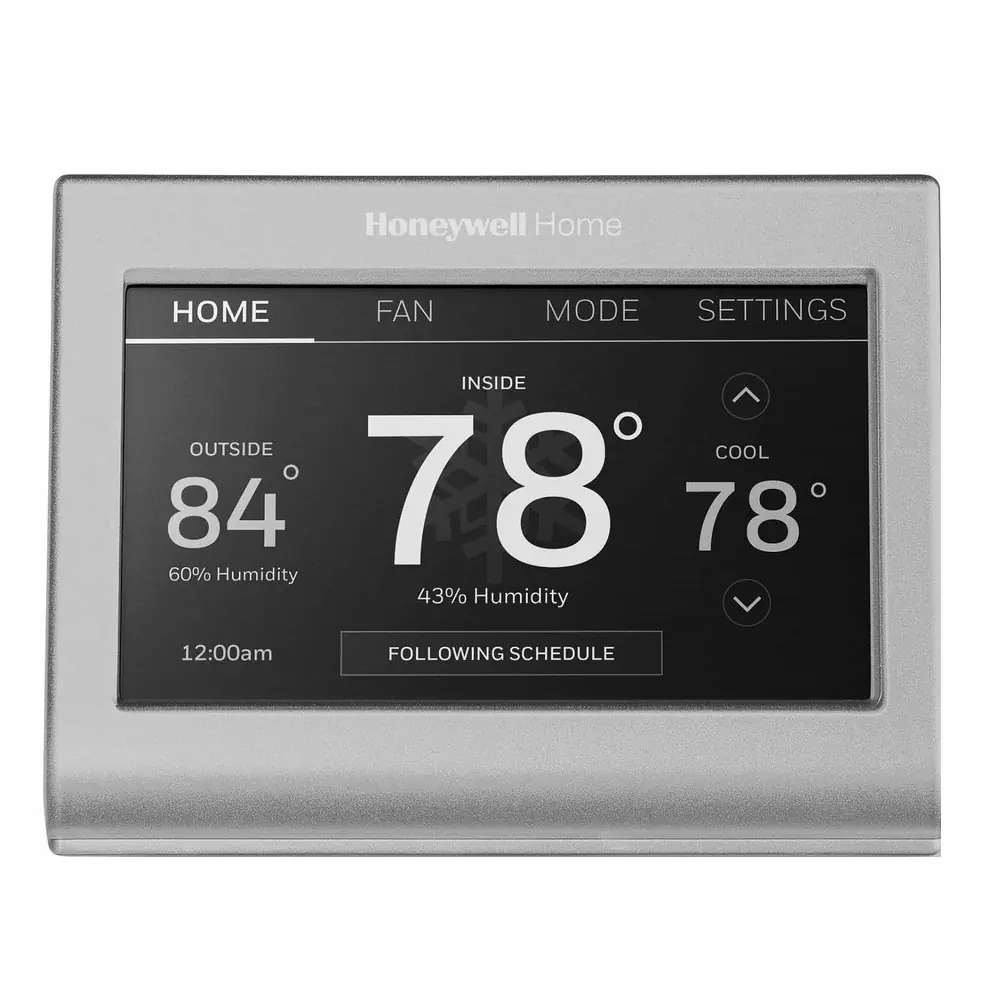
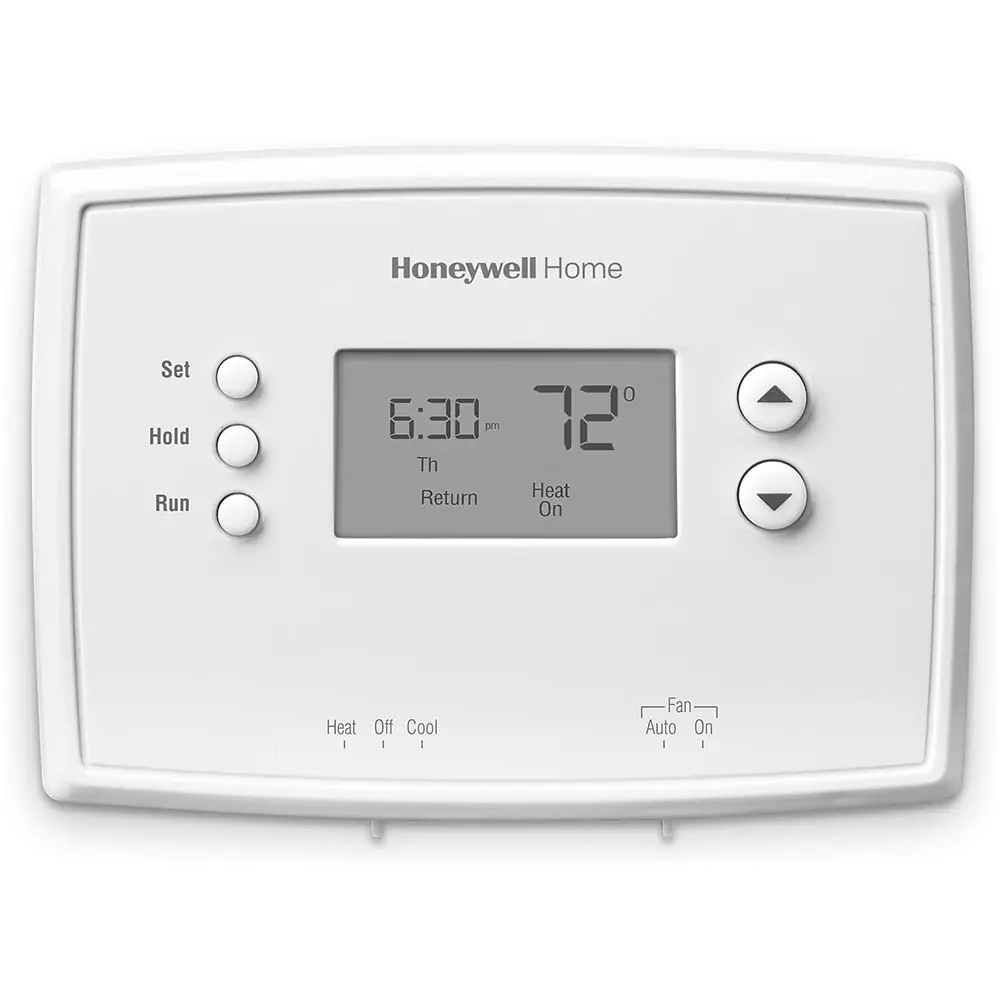
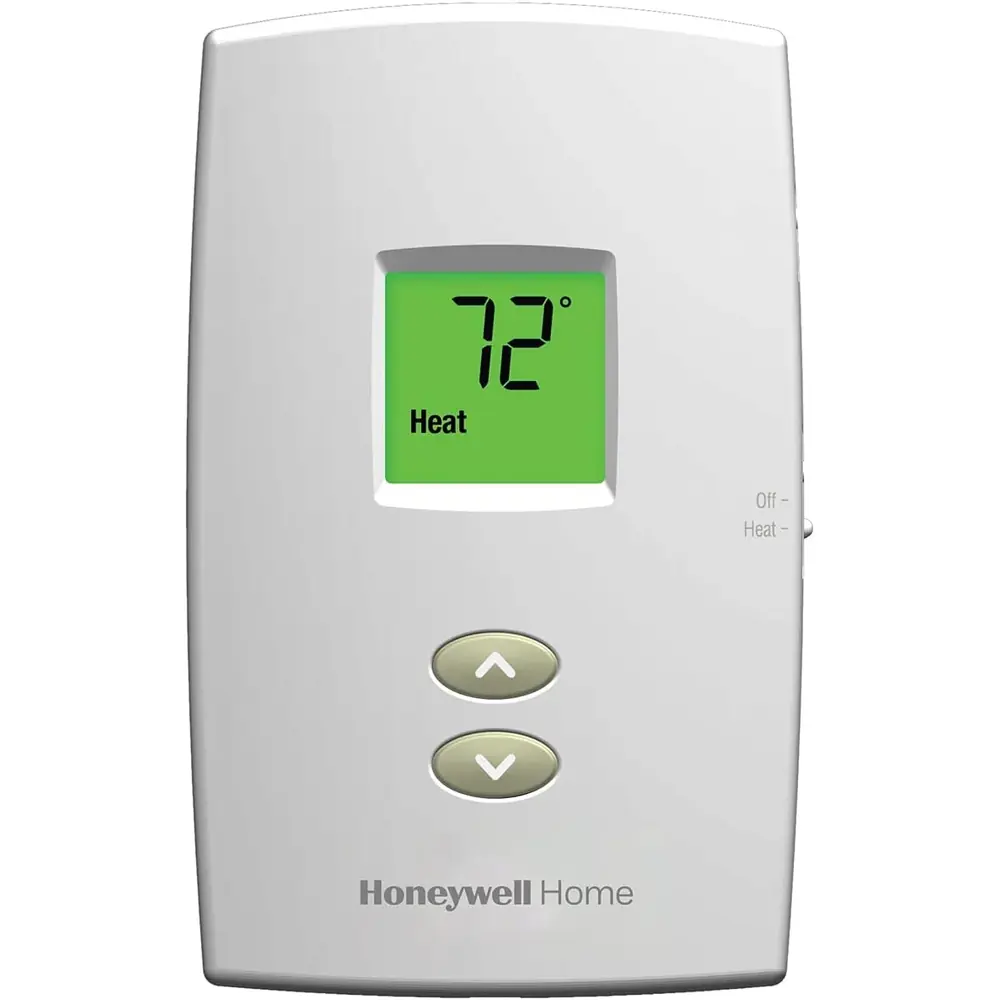
Product Images
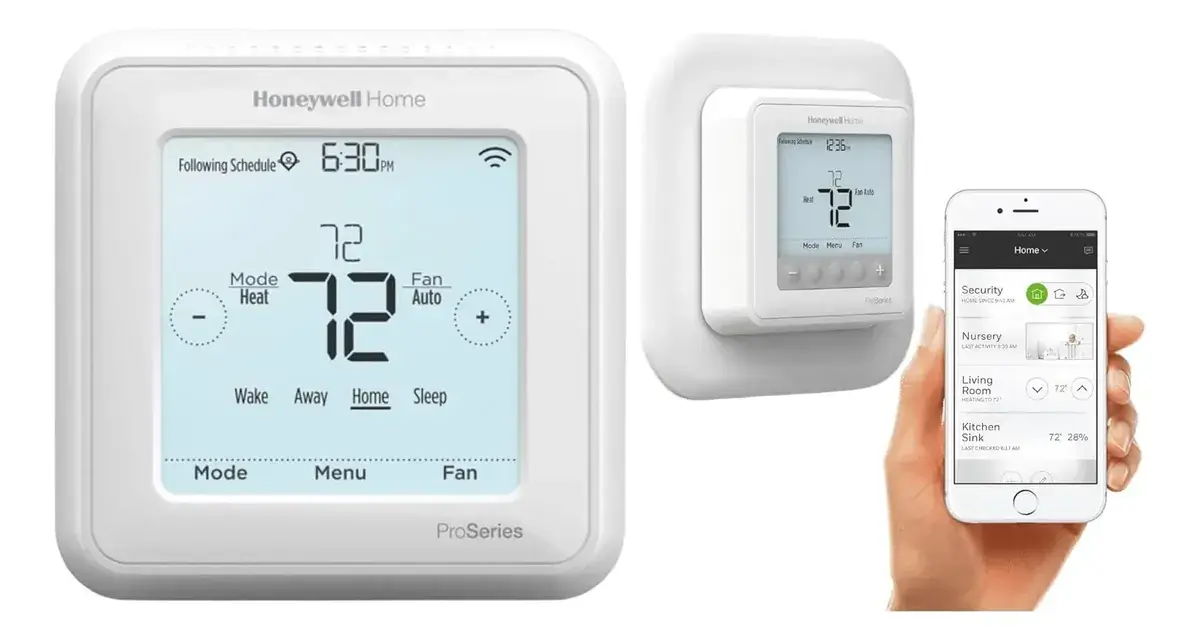
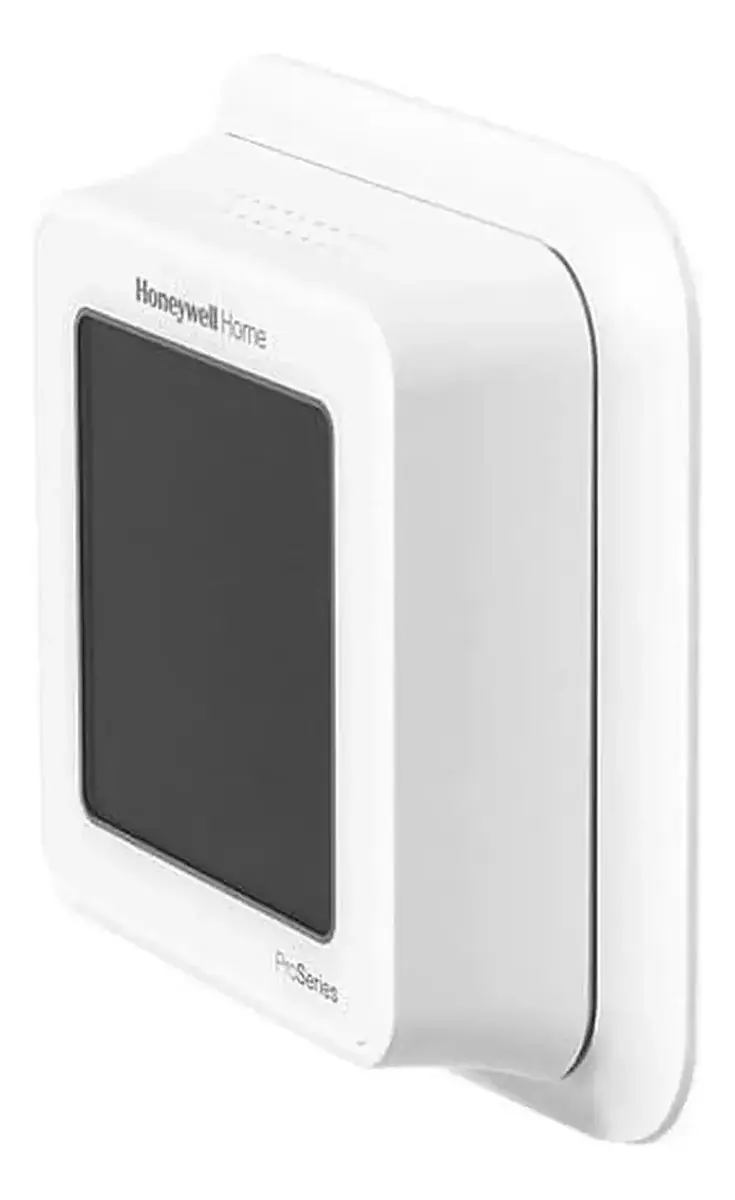
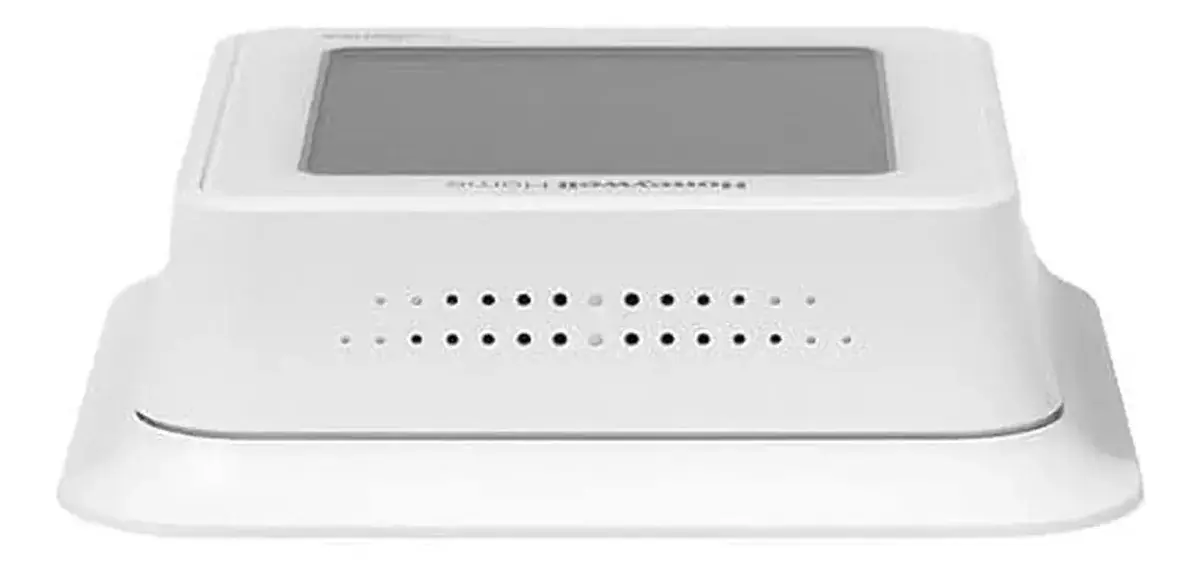
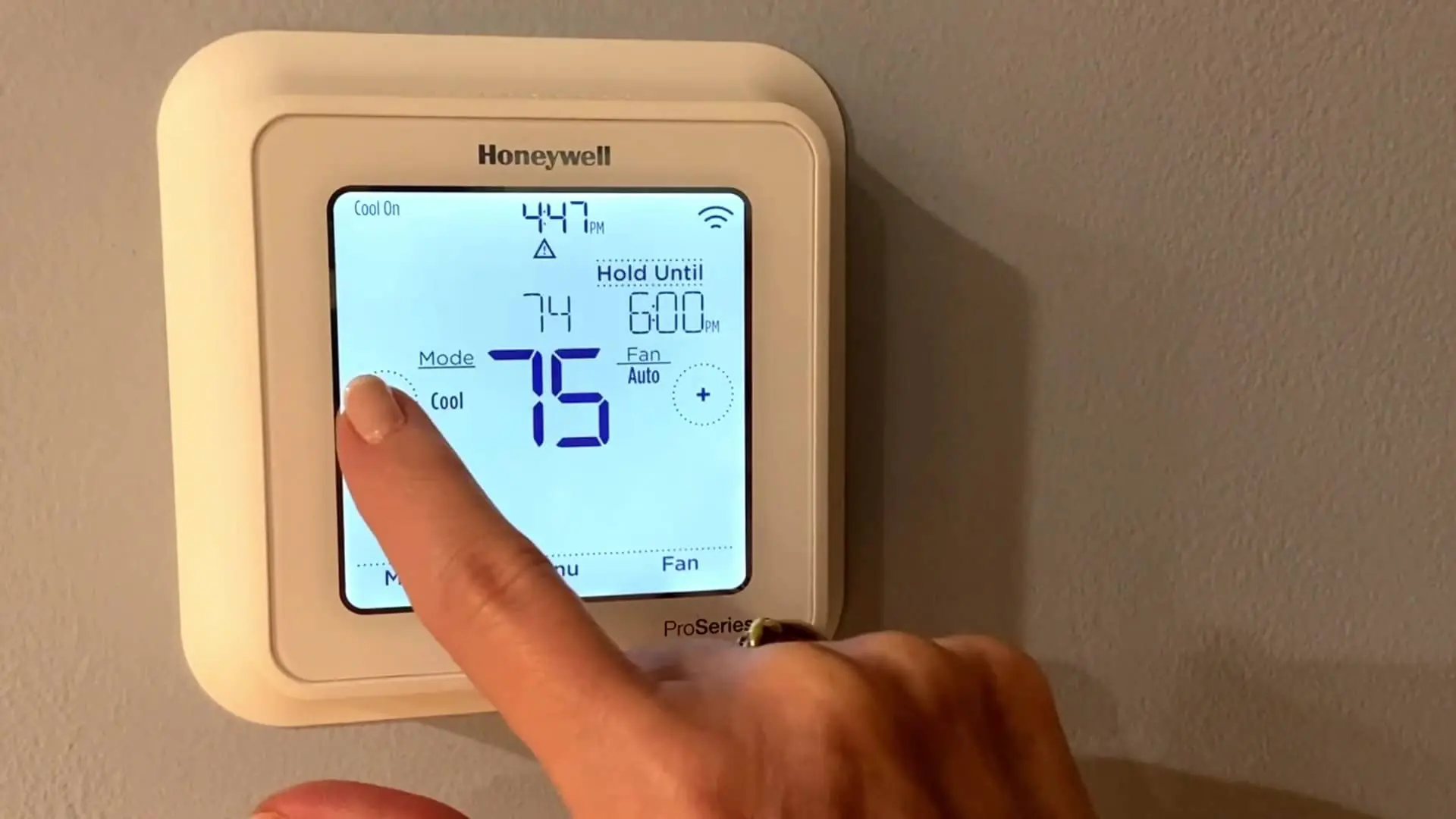
Honeywell TH6320WF2003 T6 Pro Smart Specifications
| Feature | Specification |
|---|---|
| Model | TH6320WF2003 T6 Pro Smart |
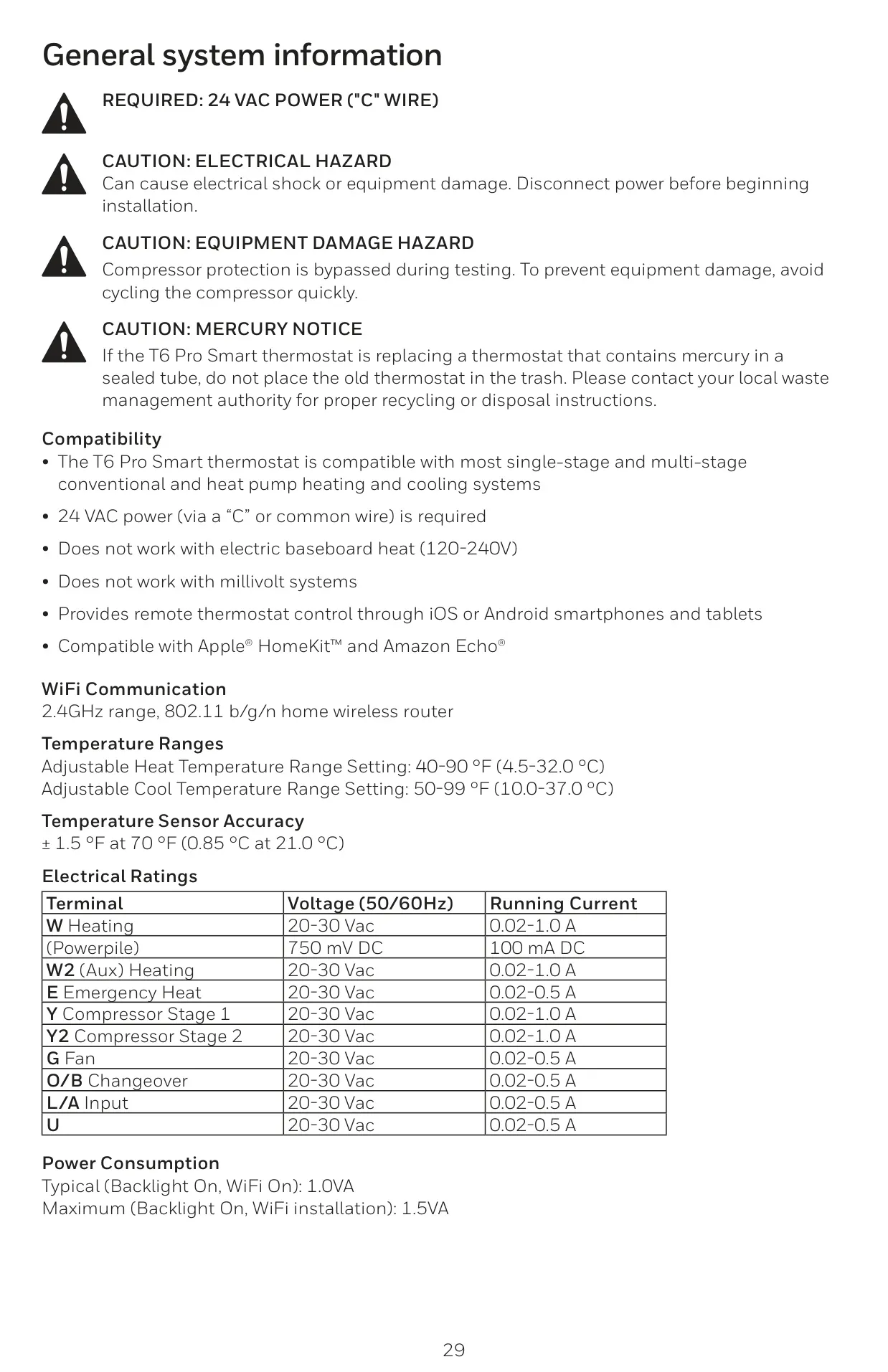
| Compatibility | Most single-stage and multi-stage conventional & heat pump systems; 24 VAC power ("C" wire) required; Not compatible with electric baseboard heat (120-240V) or millivolt systems. |
| Remote Control | iOS or Android smartphones/tablets via Resideo App |
| Smart Home Integration | Apple® HomeKit™ and Amazon Echo® compatible |
| WiFi Communication | 2.4GHz range, 802.11 b/g/n home wireless router |
| Input Power | 24 V ~ @ 60 Hz, 1 A |
| Adjustable Heat Temperature Range | 40-90 °F (4.5-32.0 °C) |
| Adjustable Cool Temperature Range | 50-99 °F (10.0-37.0 °C) |
| Temperature Sensor Accuracy | ± 1.5 °F at 70 °F (0.85 °C at 21.0 °C) |
| Operating Ambient Temperature | 37 °F to 102 °F (2.8 °C to 38.9 °C) |
| Operating Relative Humidity | 5% to 90% (non-condensing) |
| Shipping Temperature | -20 °F to 120 °F (-28.9 °C to 48.9 °C) |
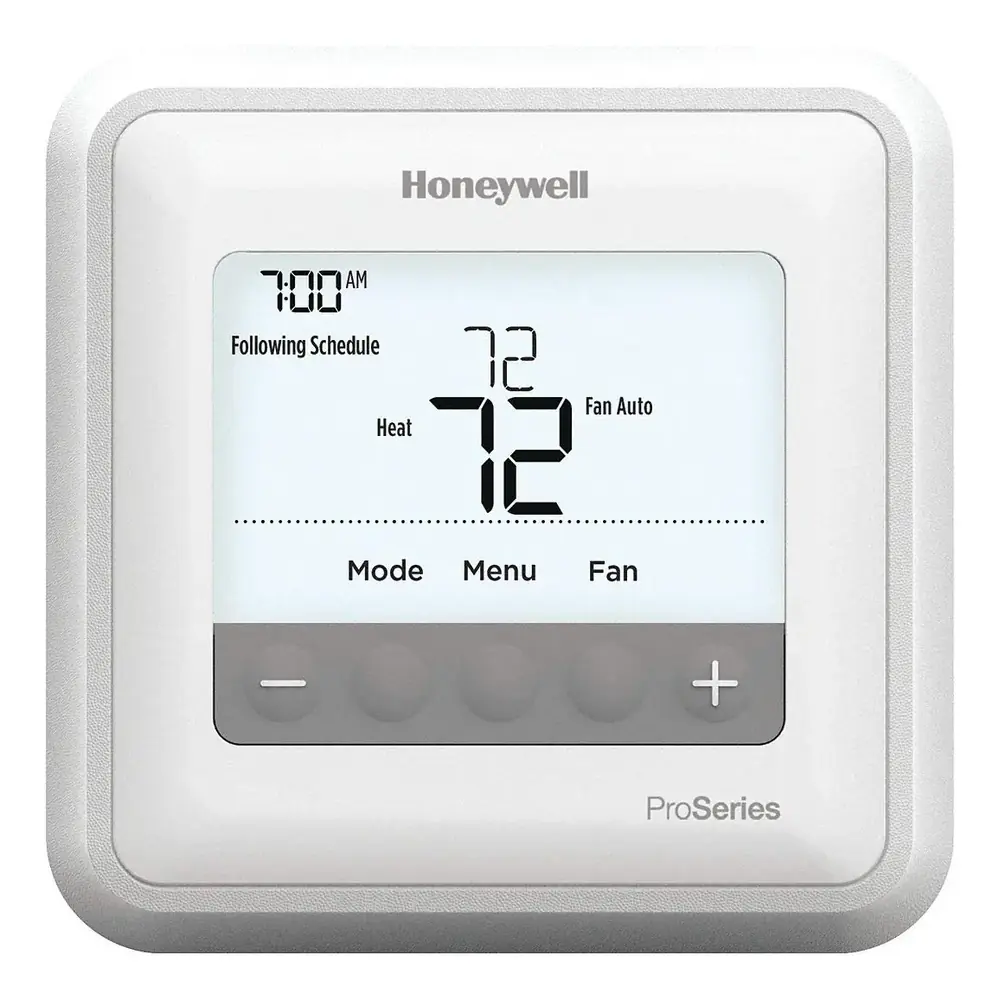
| Physical Dimensions (H x W x D) | 4-5/64 x 4-5/64 x 1-1/16 inches (104 x 104 x 27 mm) |
| Power Consumption (Backlight On) | 1.48 VA (Typical: 1.0 VA with WiFi On) |
| Power Consumption (Backlight Off) | 0.88 VA |
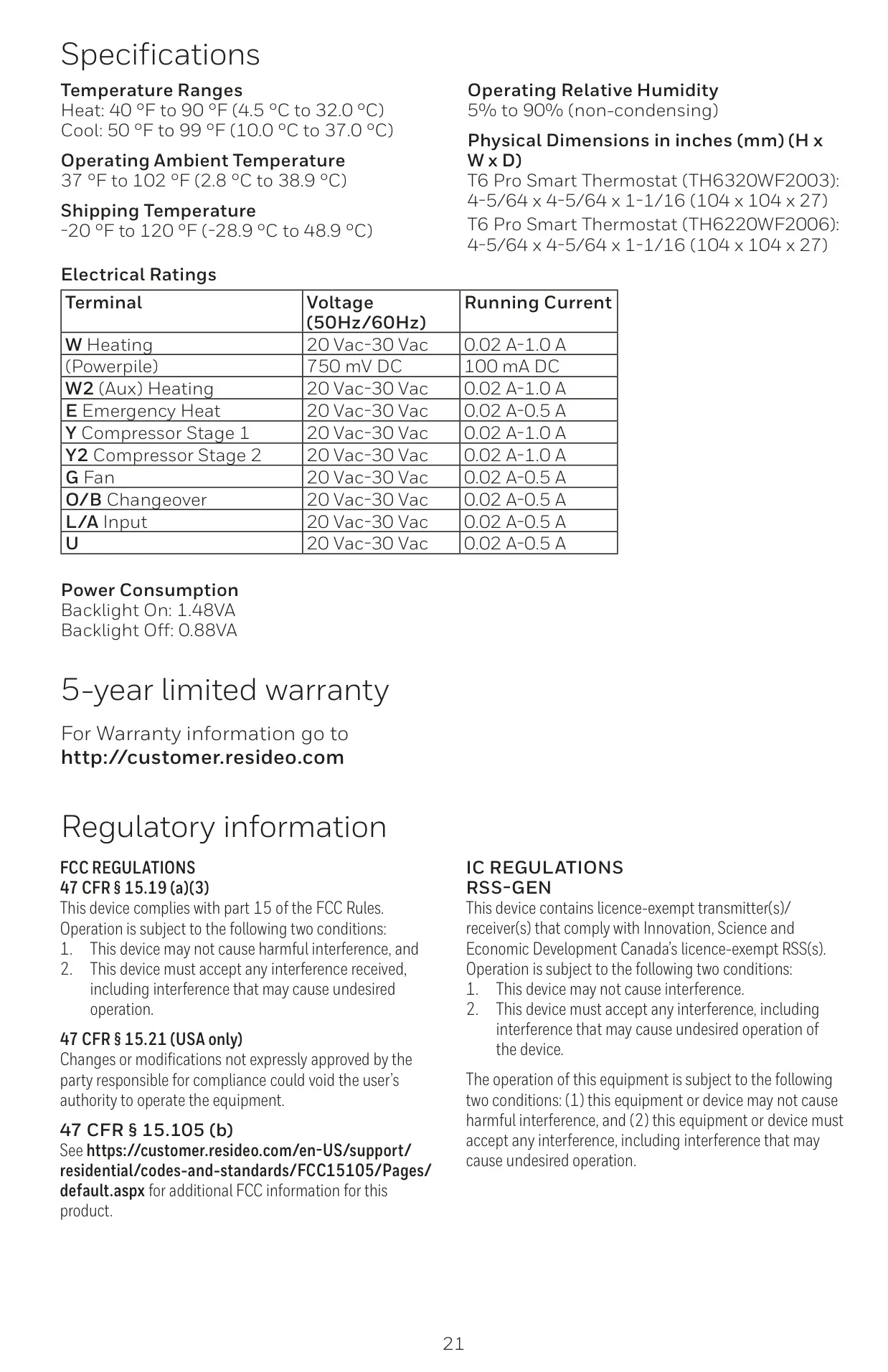
| Electrical Ratings: W (Heating) | 20-30 Vac; 0.02-1.0 A |
| Electrical Ratings: W2 (Aux Heating) | 20-30 Vac; 0.02-1.0 A |
| Electrical Ratings: E (Emergency Heat) | 20-30 Vac; 0.02-0.5 A |
| Electrical Ratings: Y (Compressor Stage 1) | 20-30 Vac; 0.02-1.0 A |
| Electrical Ratings: Y2 (Compressor Stage 2) | 20-30 Vac; 0.02-1.0 A |
| Electrical Ratings: G (Fan) | 20-30 Vac; 0.02-0.5 A |
| Electrical Ratings: O/B (Changeover) | 20-30 Vac; 0.02-0.5 A |
| Electrical Ratings: L/A (Input) | 20-30 Vac; 0.02-0.5 A |
| Electrical Ratings: U | 20-30 Vac; 0.02-0.5 A |
| Electrical Ratings: Powerpile | 750 mV DC; 100 mA DC |
Honeywell TH6320WF2003 Details
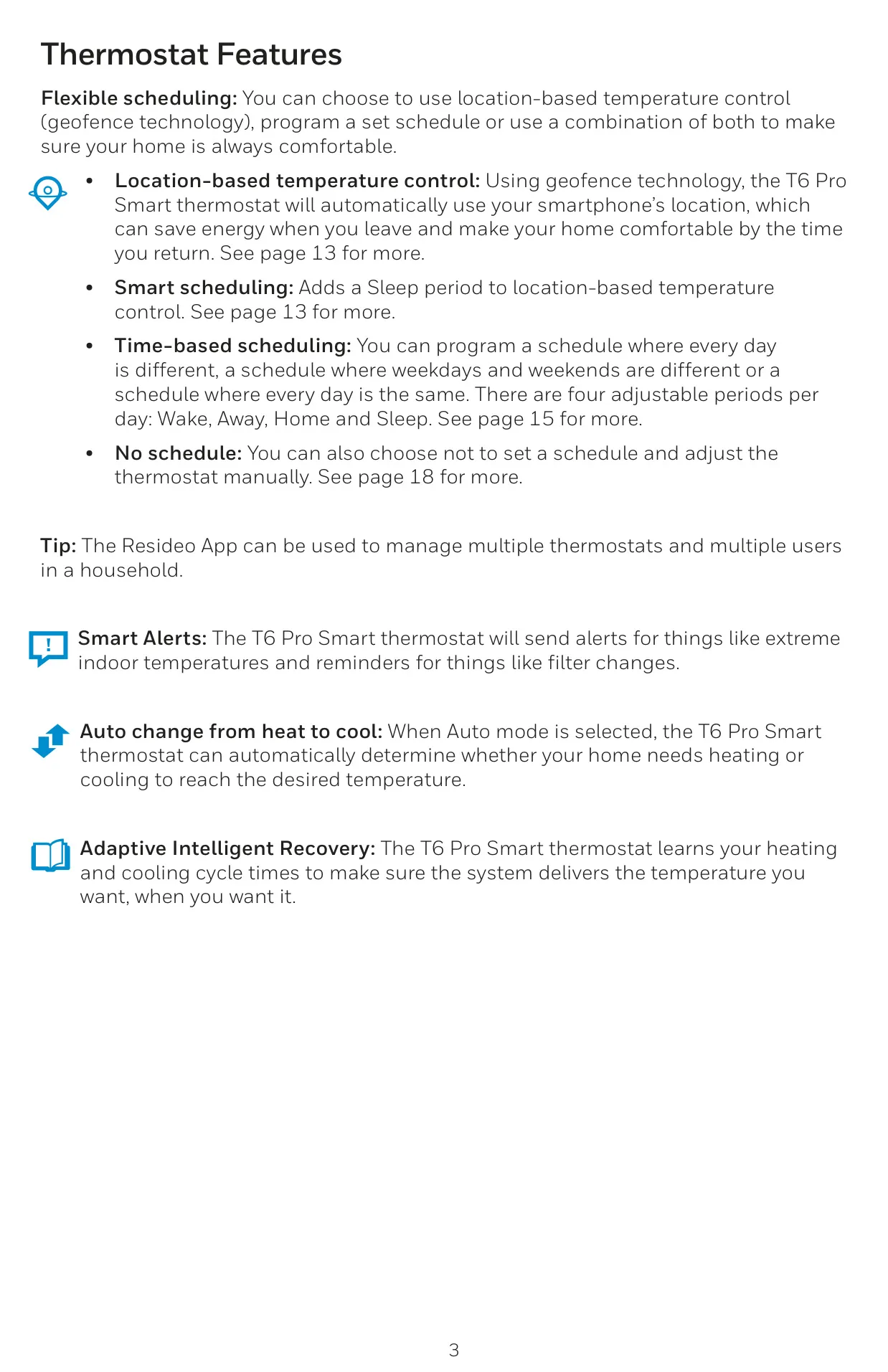
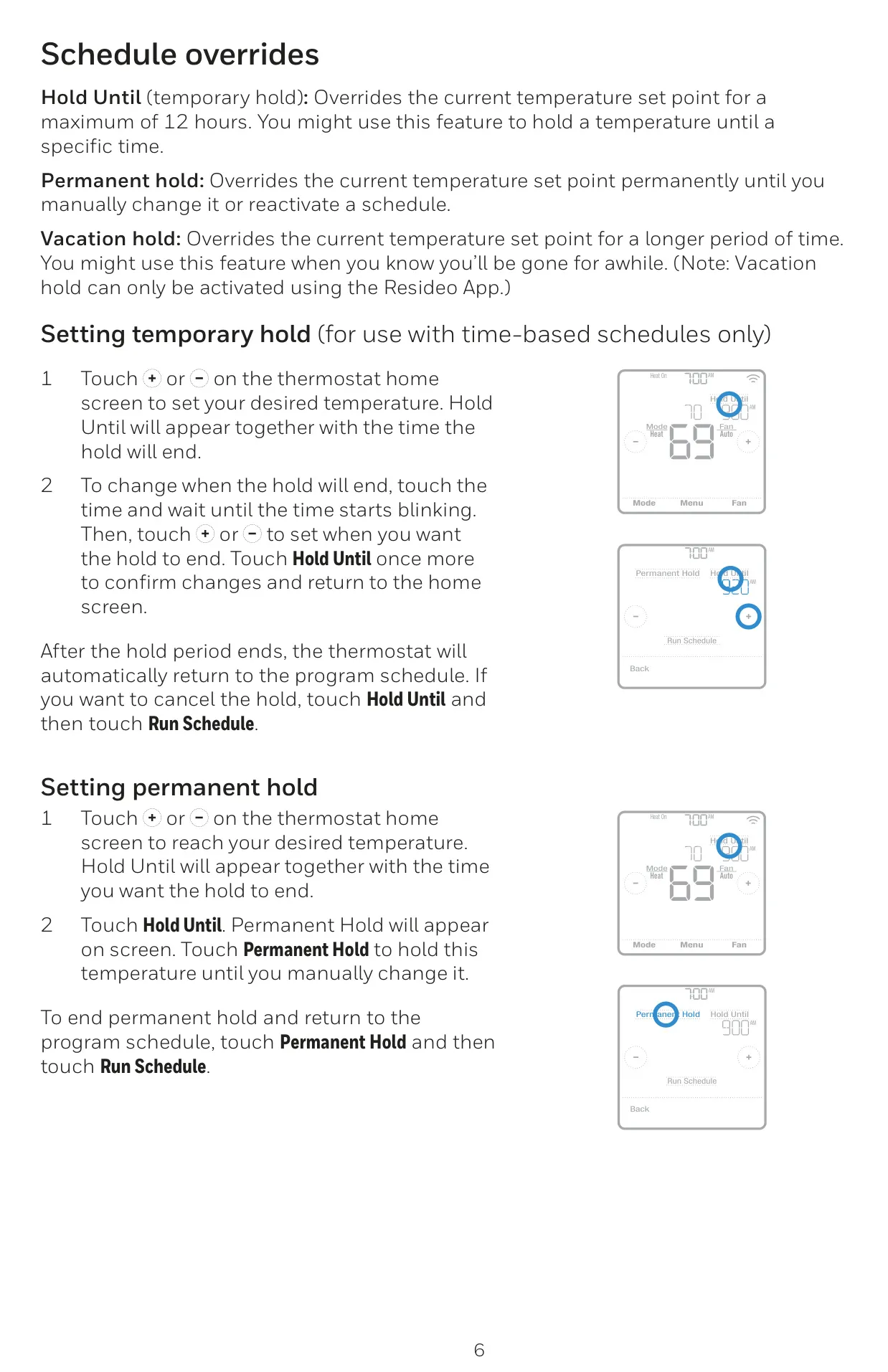
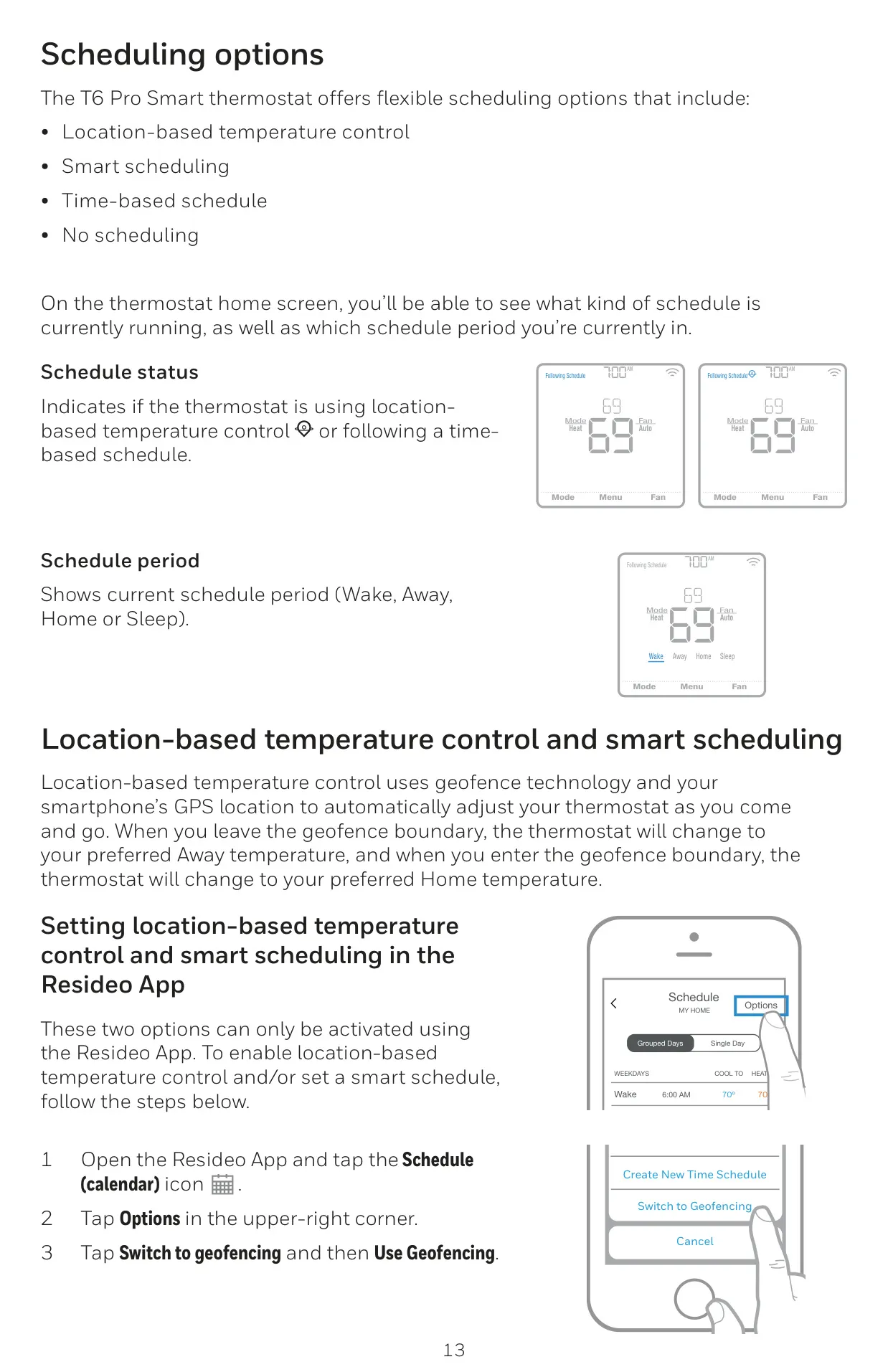
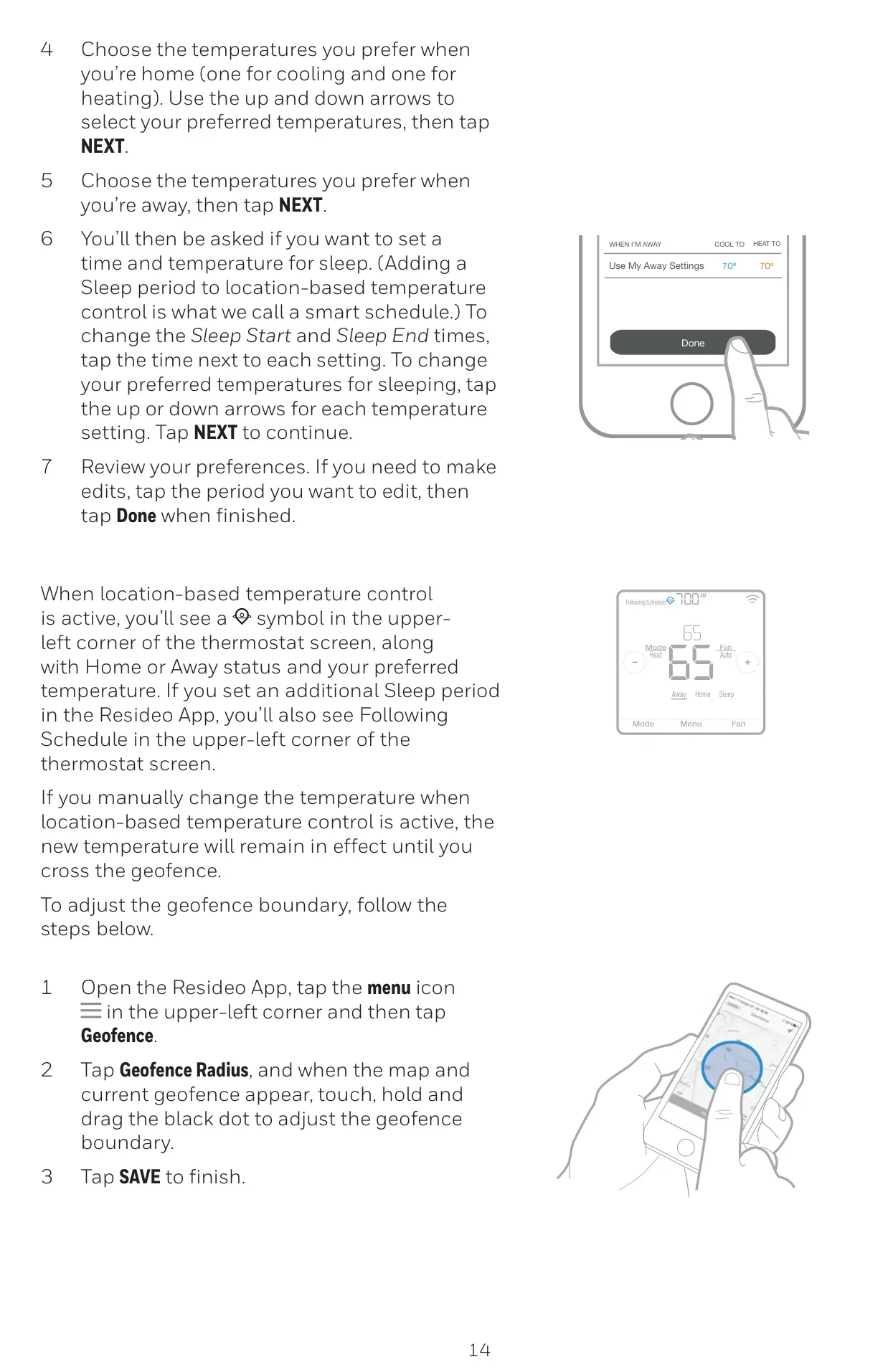
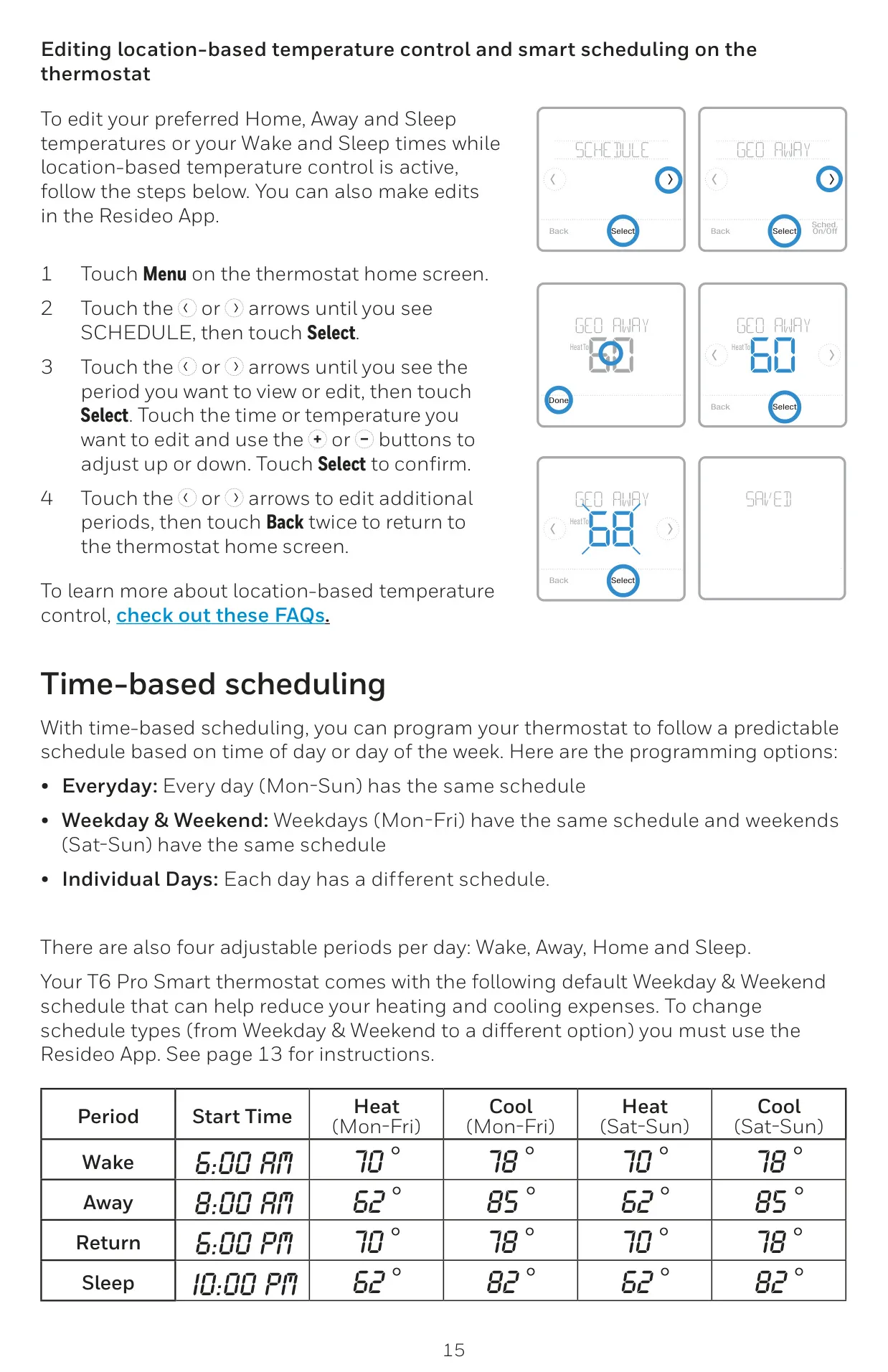
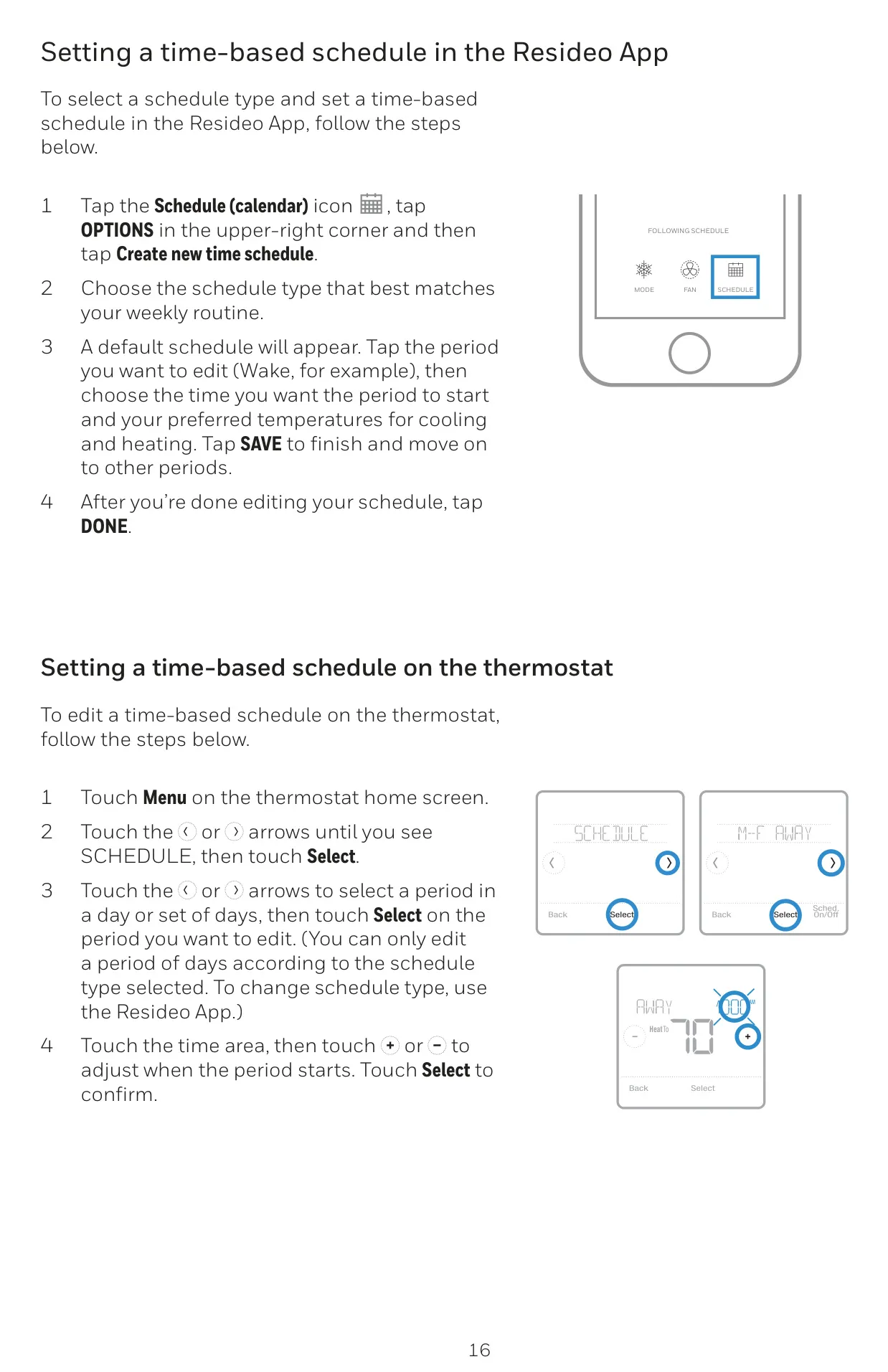
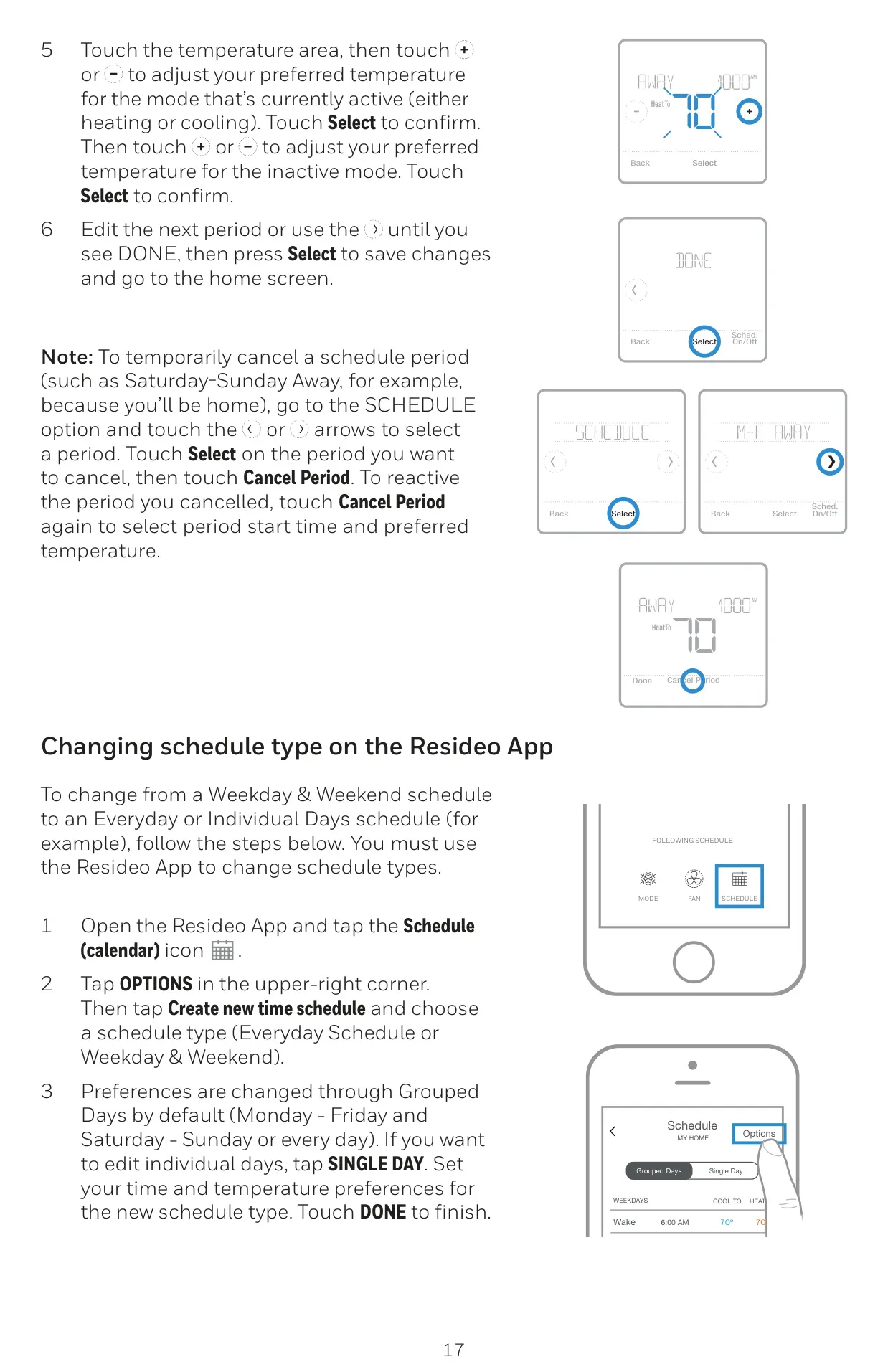
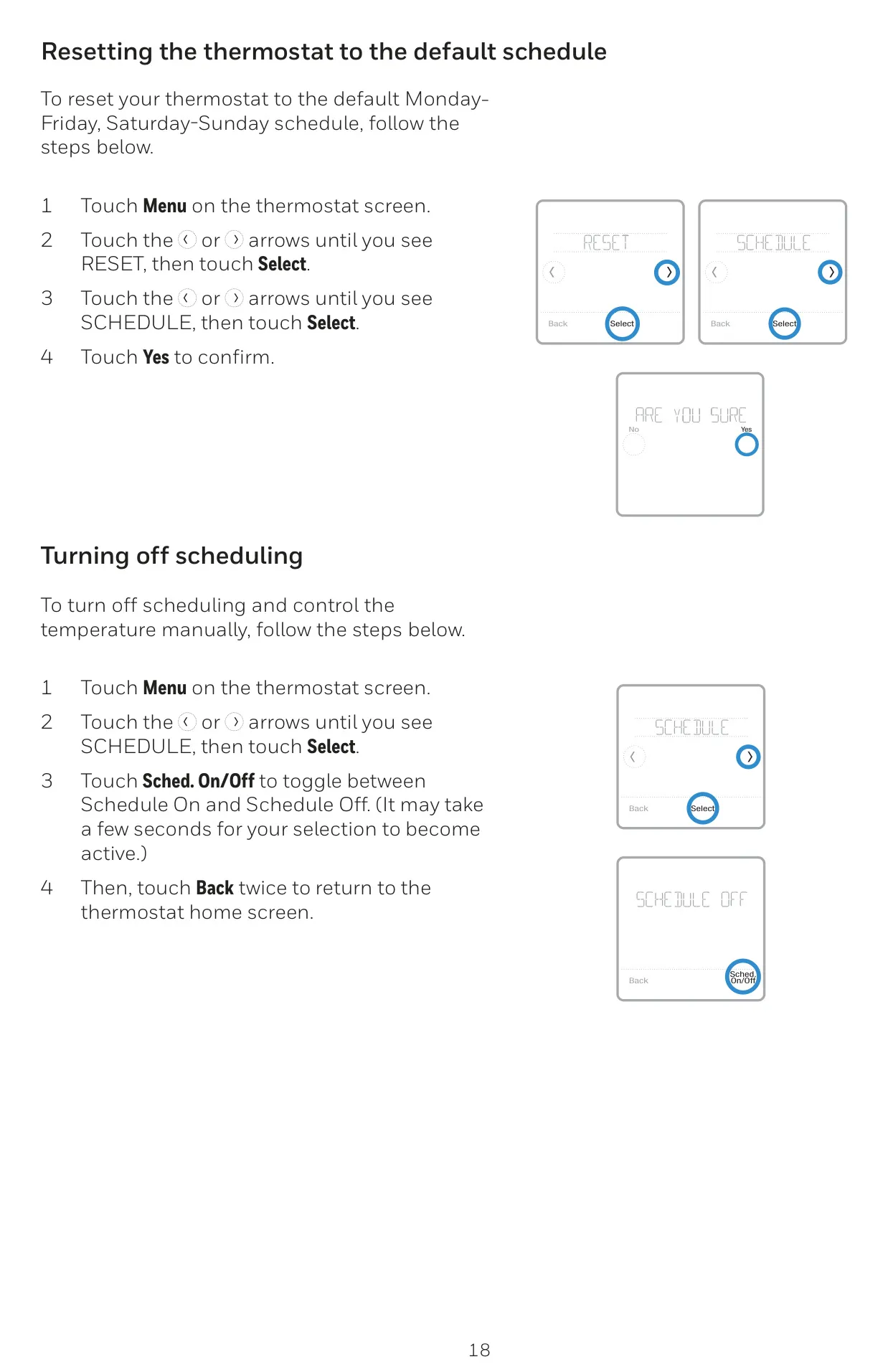
The Honeywell TH6320WF2003 T6 Pro Smart thermostat offers a comprehensive suite of features designed for optimal home comfort and energy efficiency, all managed with remarkable flexibility. Its standout capability is the flexible scheduling, allowing users to choose between location-based temperature control using geofence technology, smart scheduling that combines geofencing with a Sleep period, or traditional time-based schedules for predictable routines. This adaptability ensures your home is comfortable precisely when needed, saving energy when you're away.
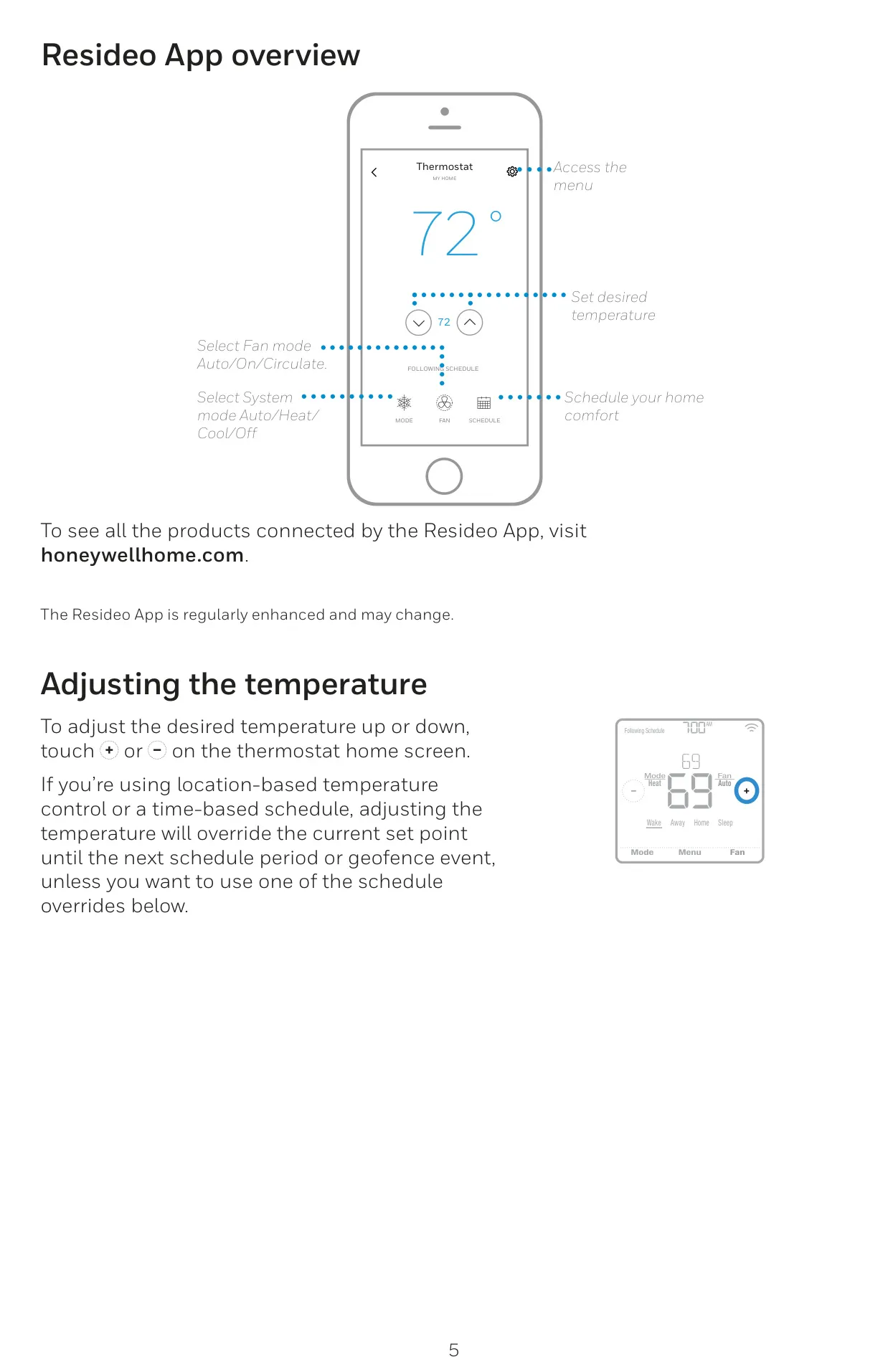
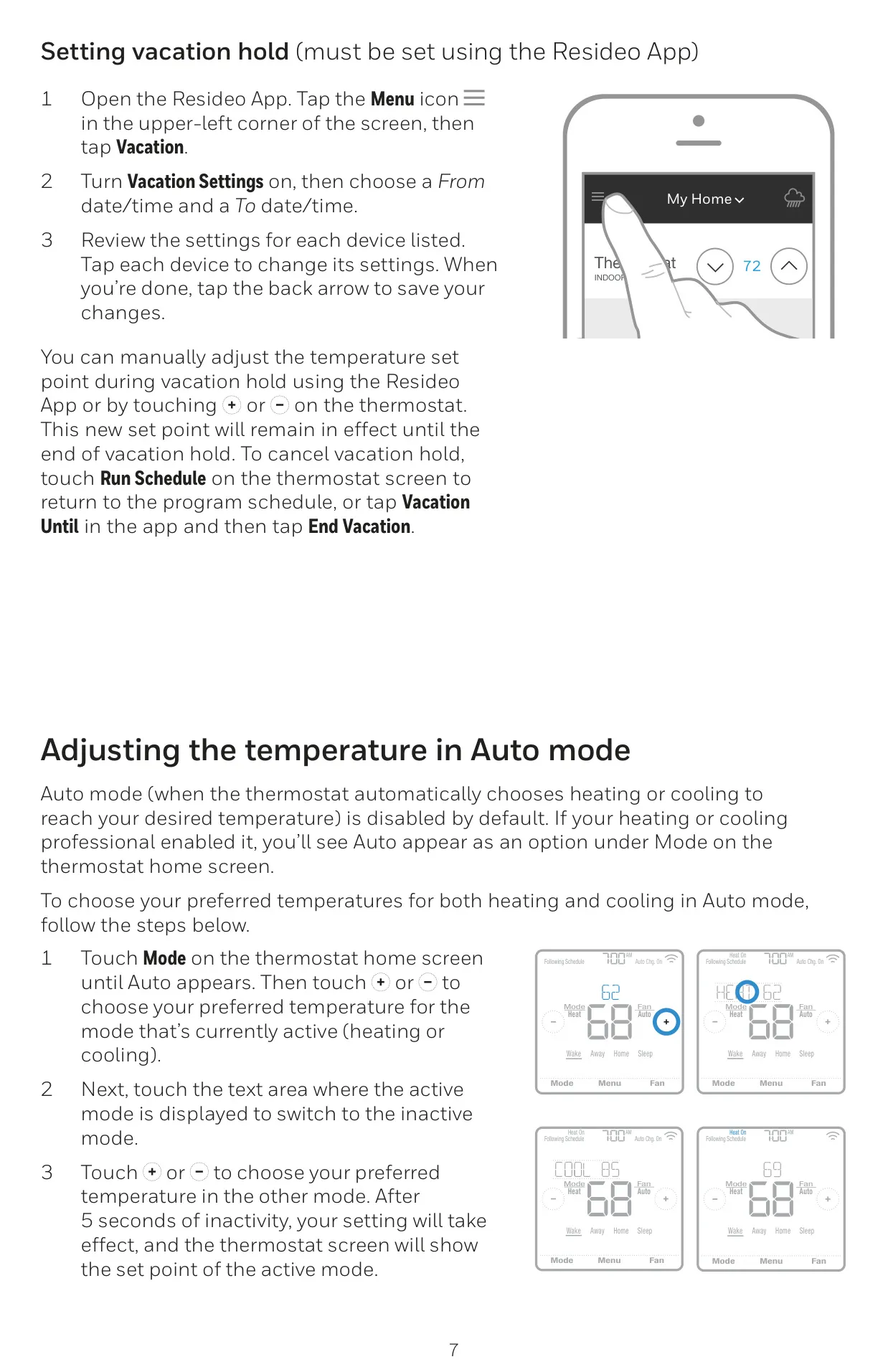
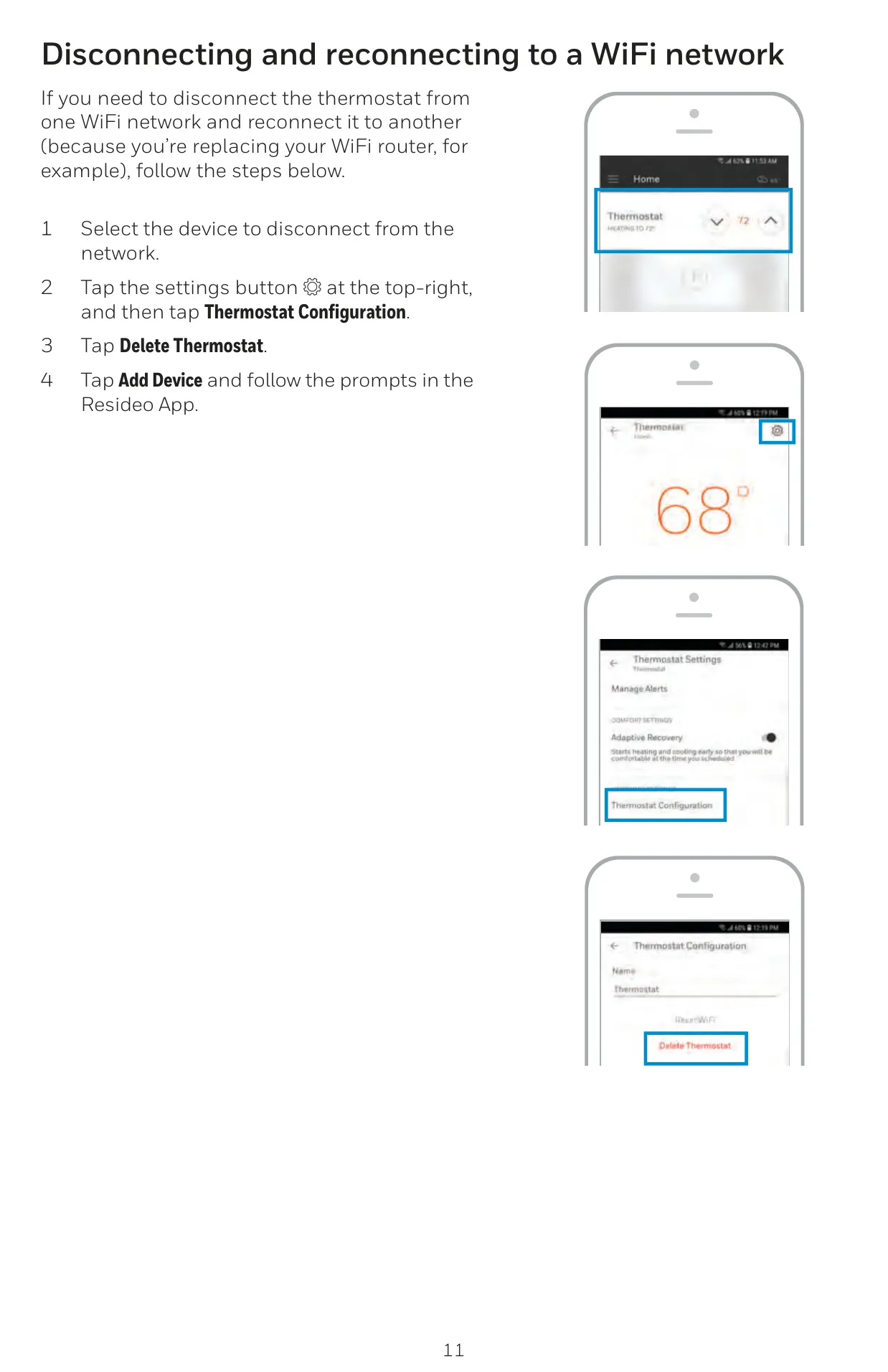
The device is deeply integrated with the Resideo App, which serves as a central hub for managing its advanced functionalities. Through the app, users can effortlessly manage multiple thermostats and users within a household, activate location-based control, set vacation holds, and modify scheduling types. This connectivity transforms the thermostat from a simple controller into a smart home orchestrator, enhancing convenience and giving users complete control from anywhere.
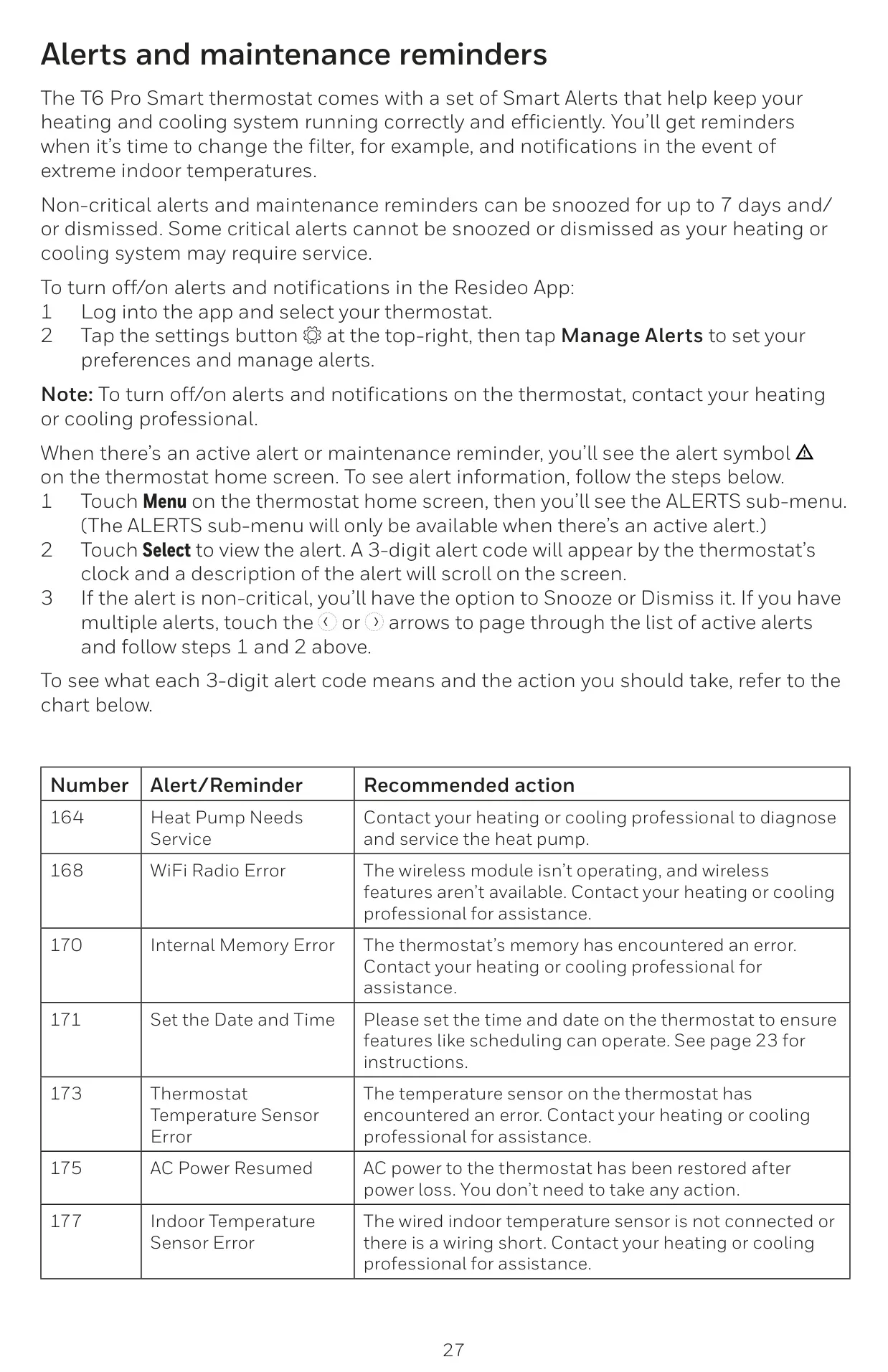
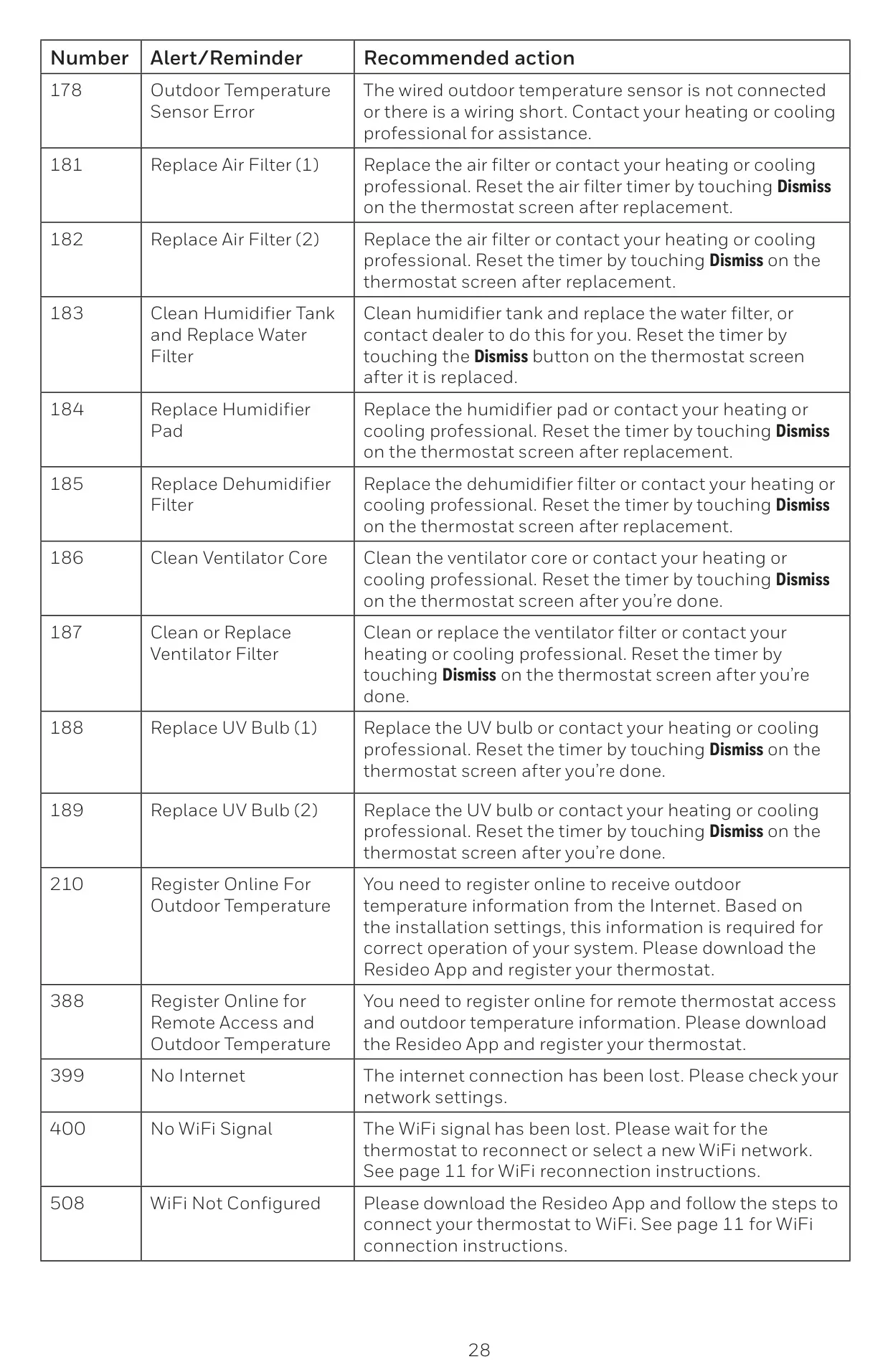
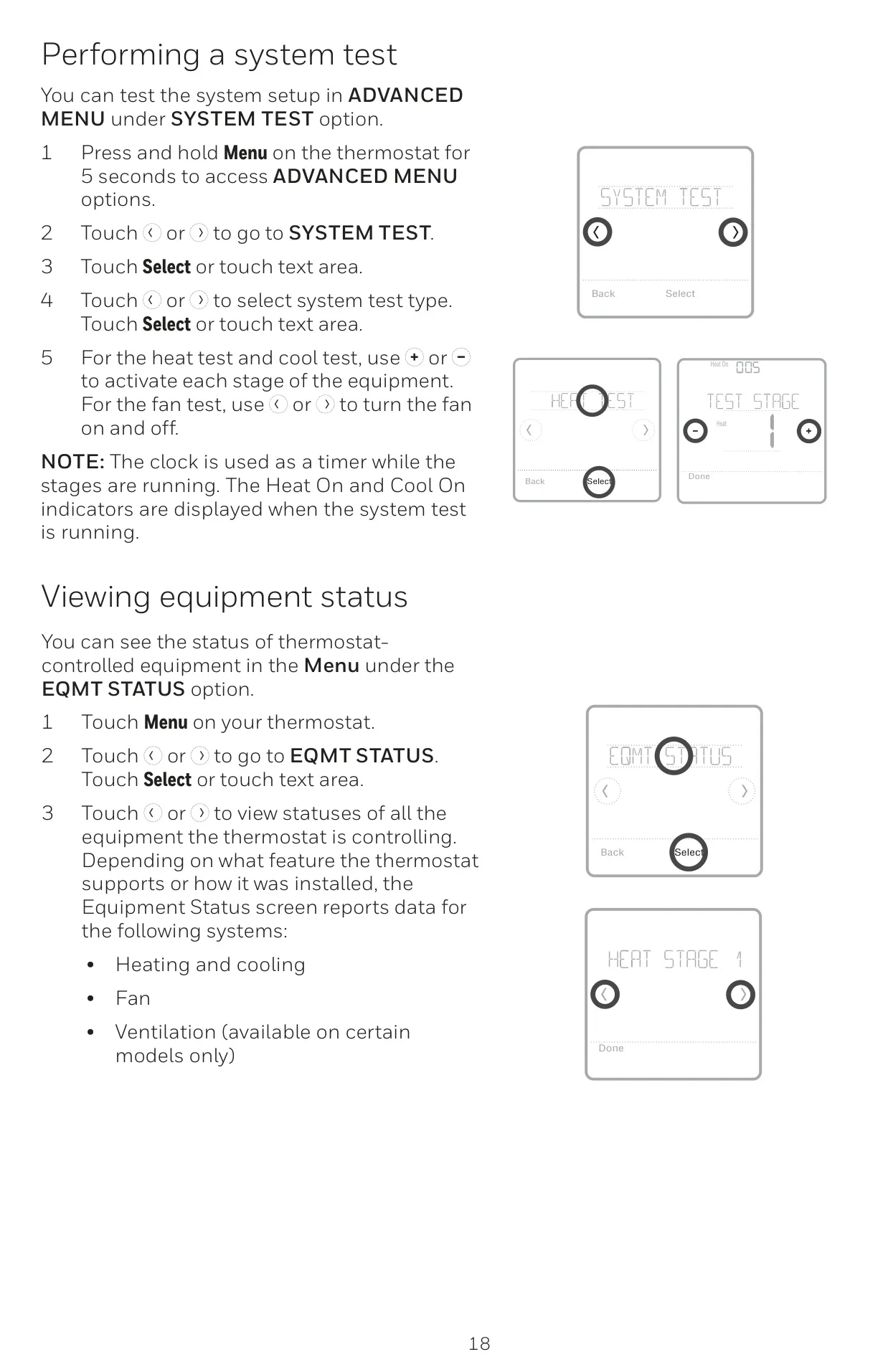
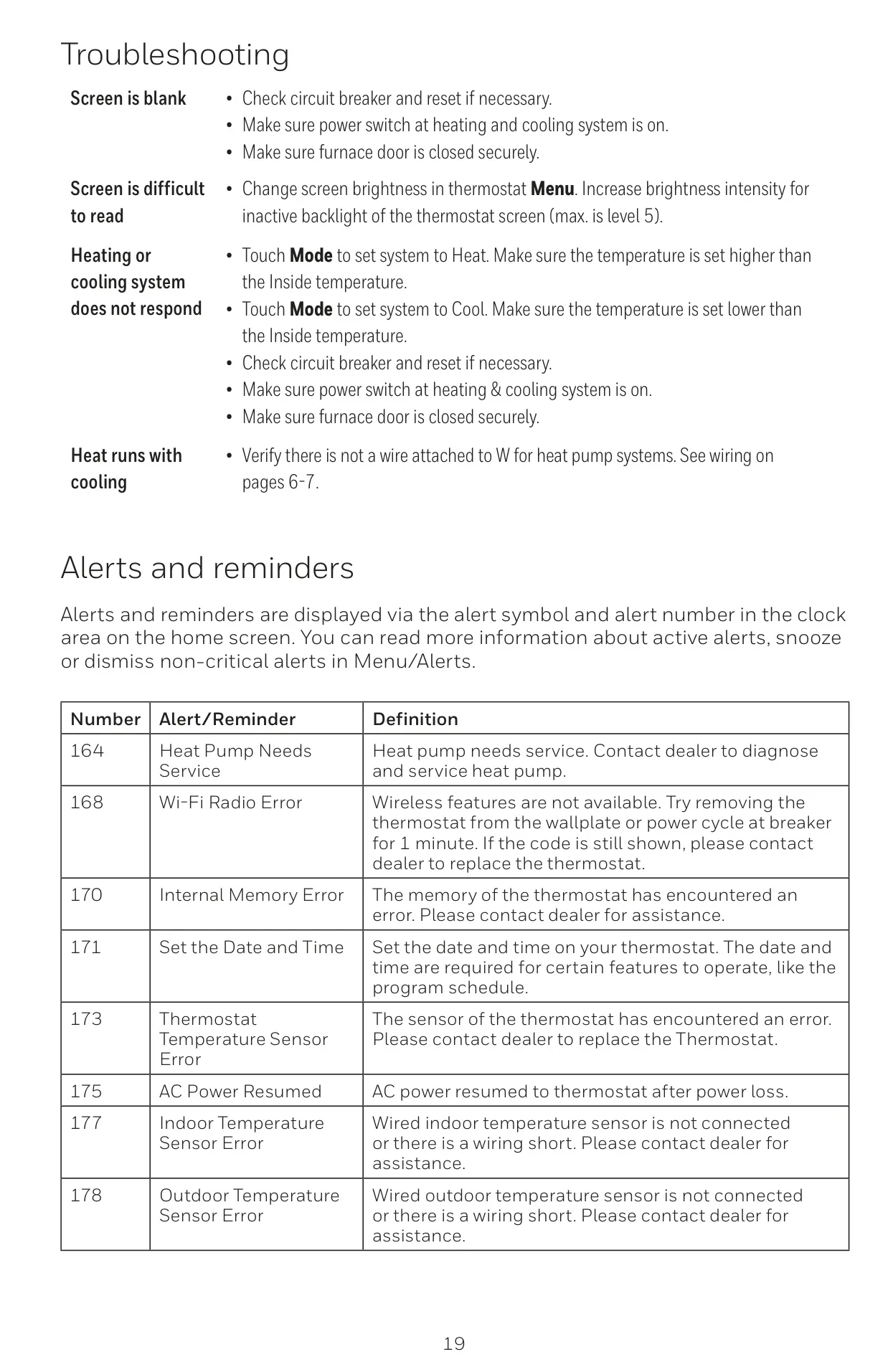
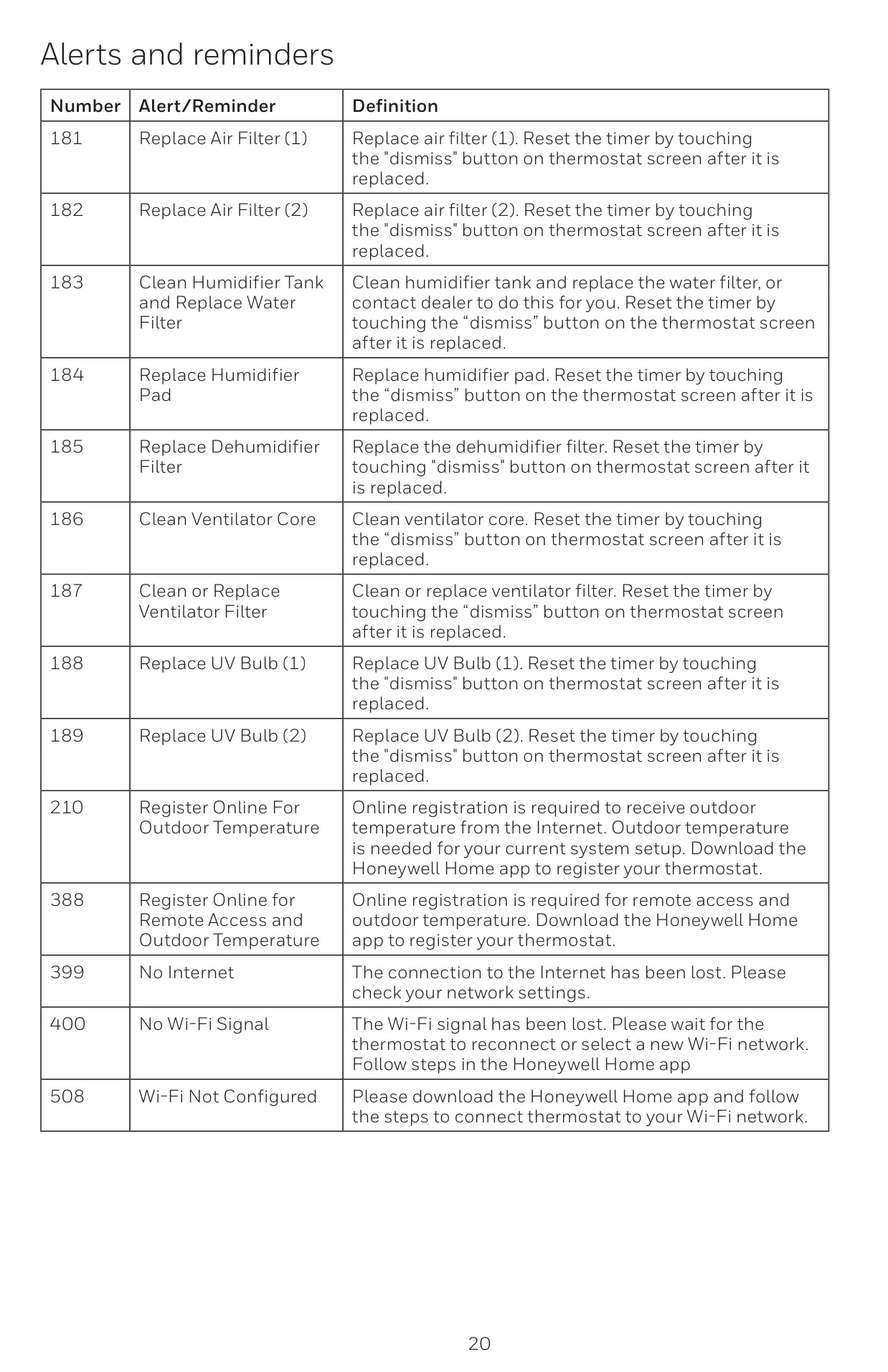
Beyond scheduling, the T6 Pro Smart keeps you informed with Smart Alerts and maintenance reminders. It sends notifications for crucial events like extreme indoor temperatures or routine tasks such as air filter changes, ensuring your heating and cooling system operates efficiently. These proactive alerts help prevent potential issues and maintain optimal system performance, reducing unexpected repairs and ensuring consistent comfort.
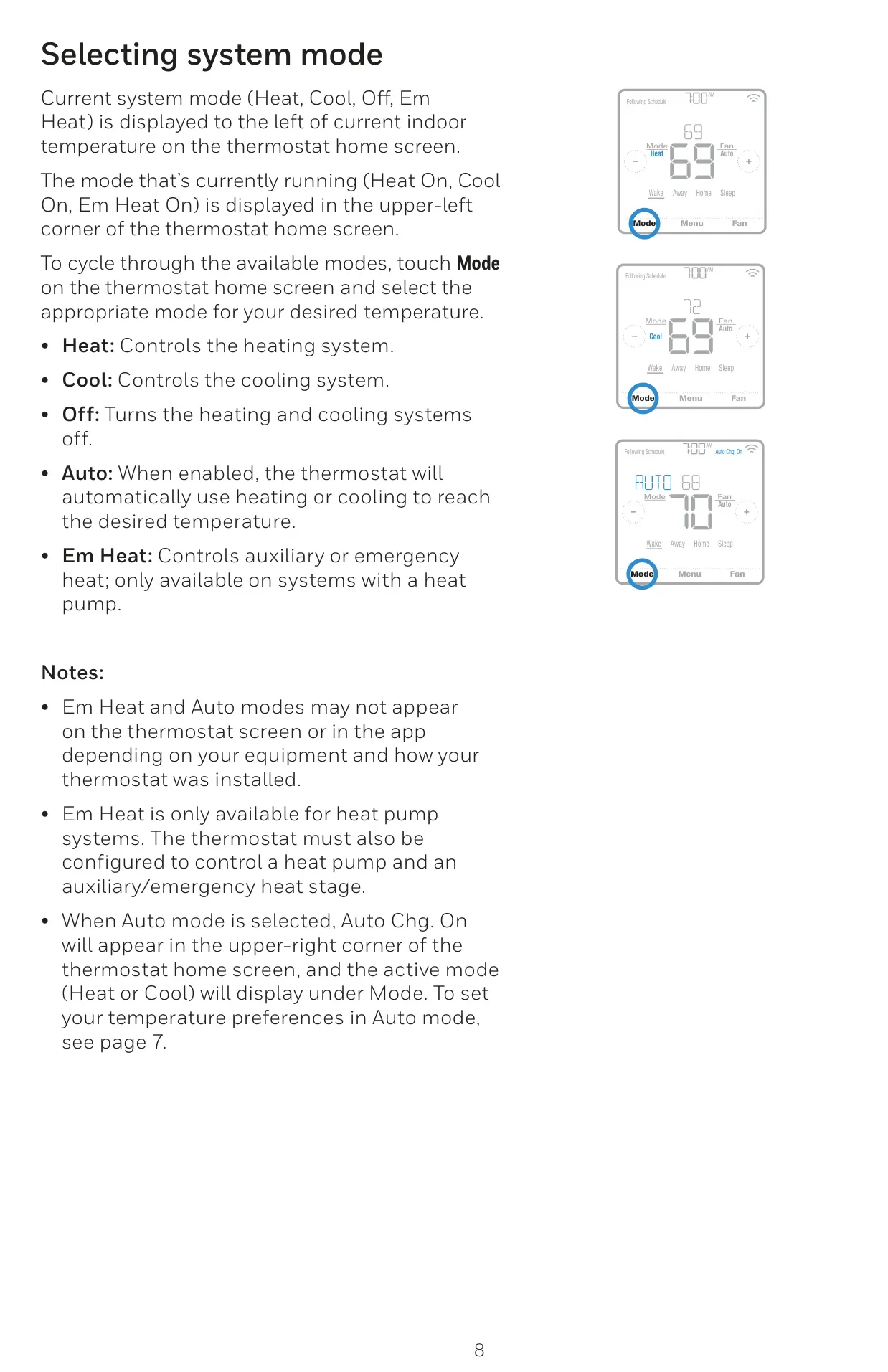
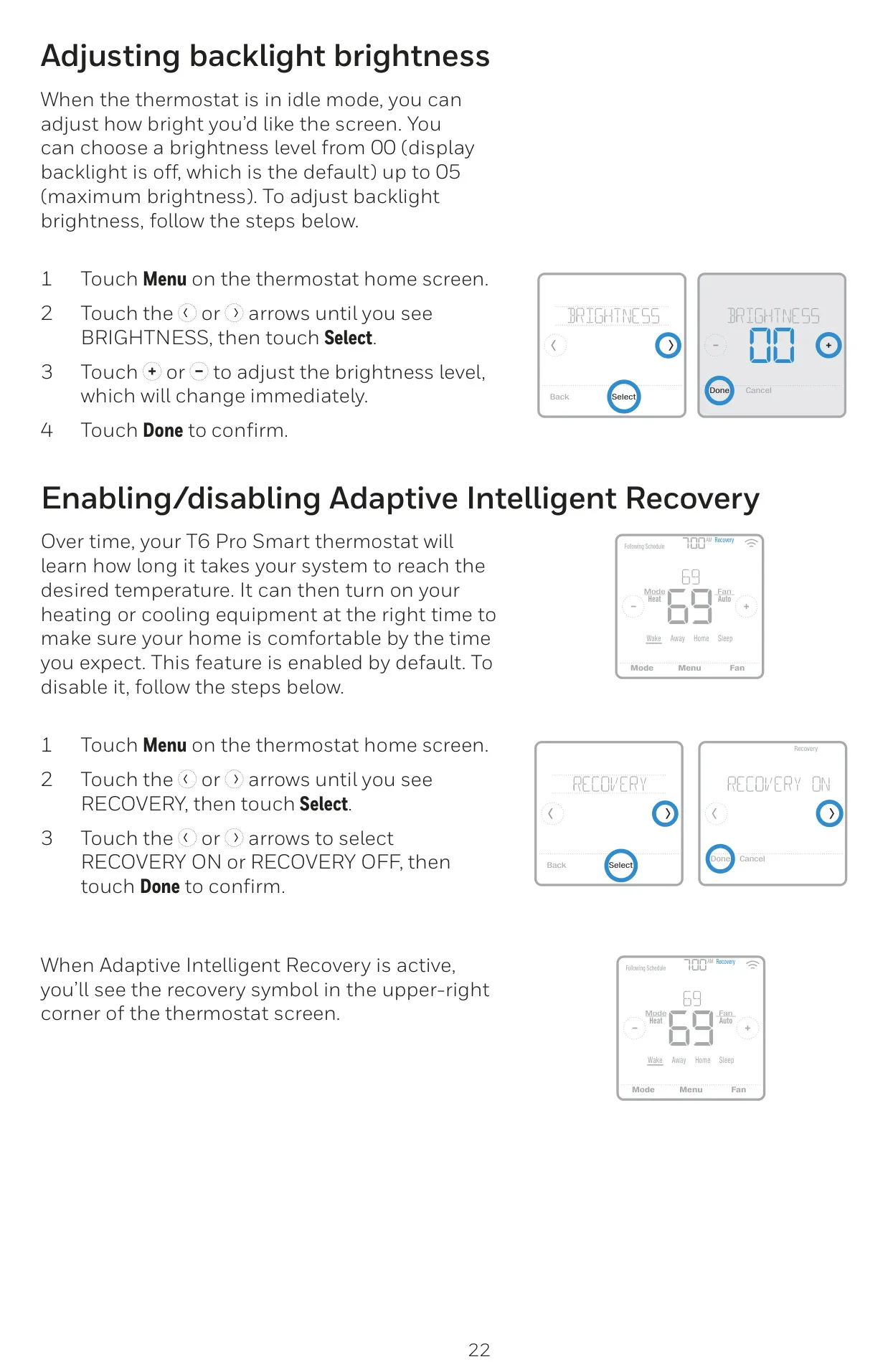
For enhanced system intelligence, the thermostat includes Adaptive Intelligent Recovery. This feature learns the unique heating and cooling patterns of your home, activating your HVAC equipment precisely when needed to achieve the desired temperature by your scheduled time. It removes the guesswork from temperature management, ensuring comfort without unnecessary energy expenditure.
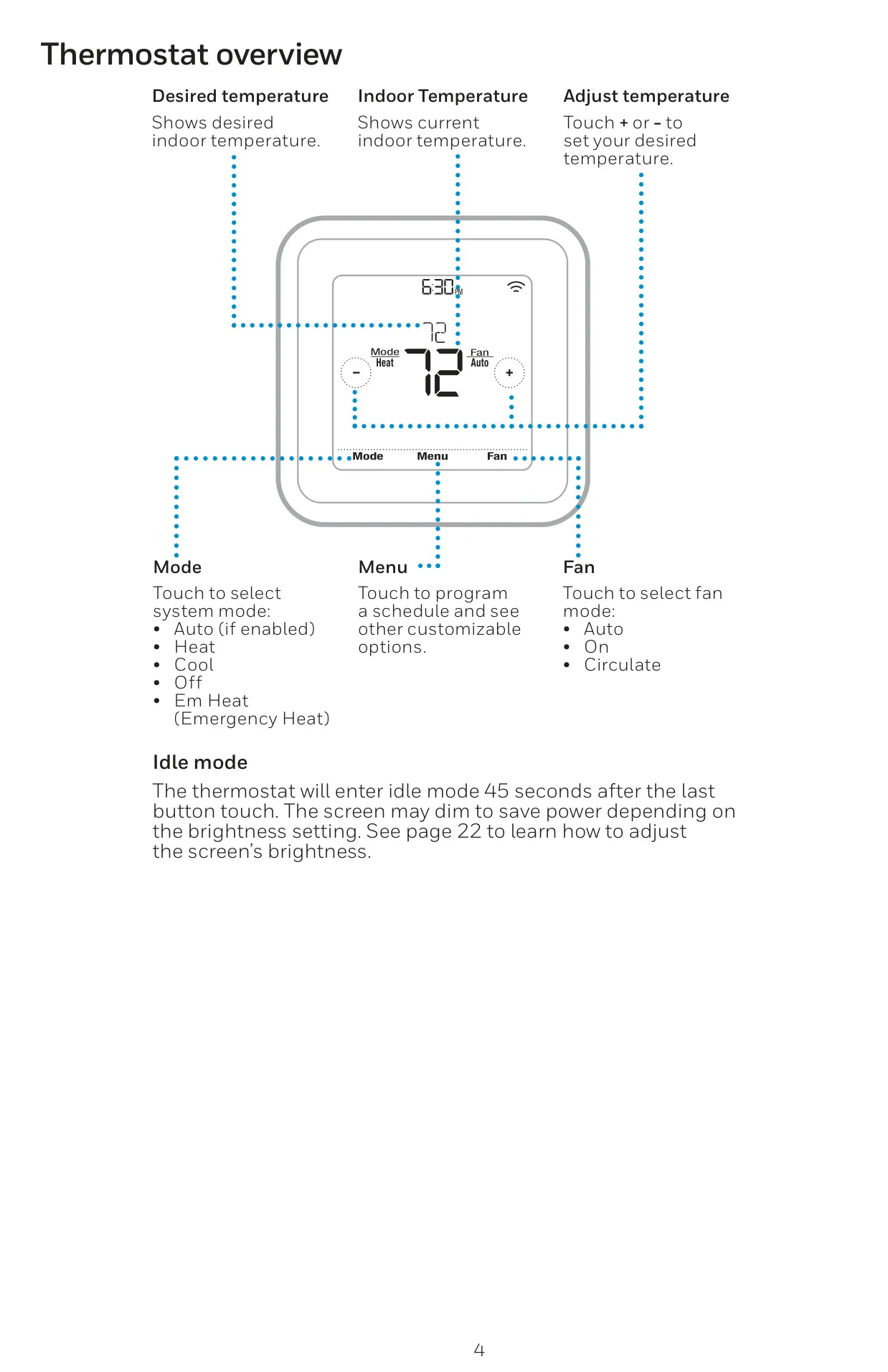
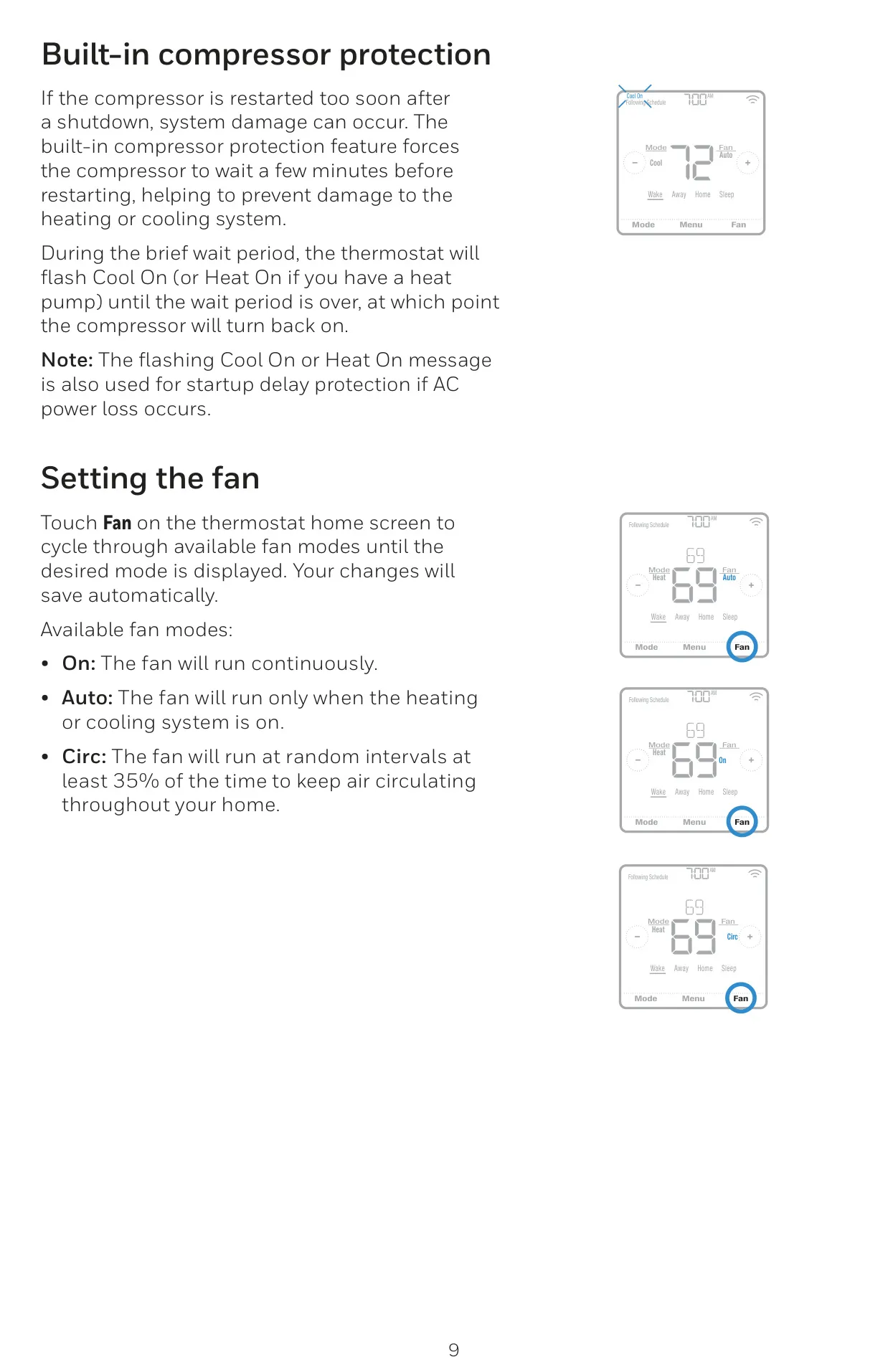
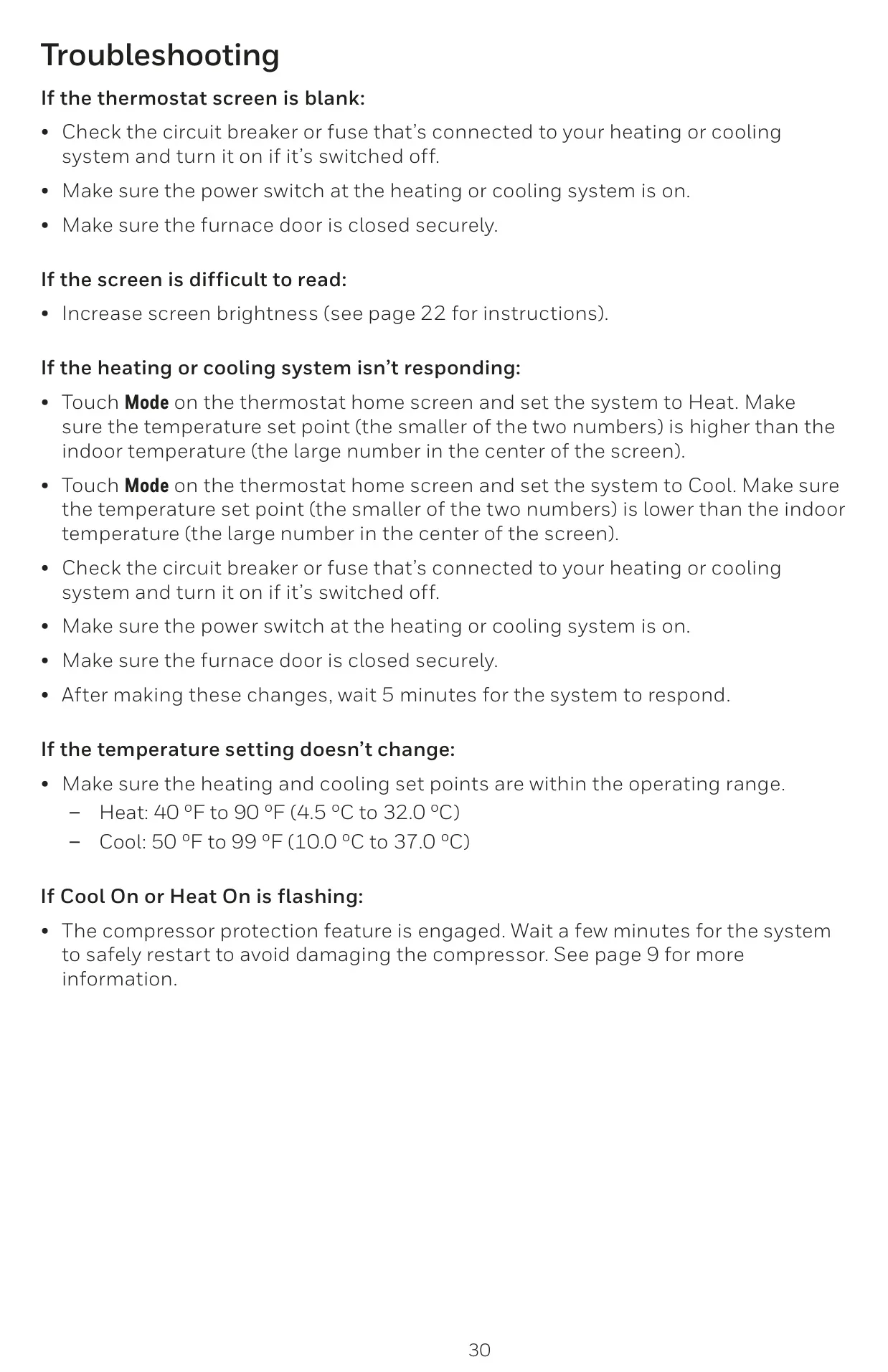
The T6 Pro Smart also prioritizes system longevity with its built-in compressor protection, which prevents damage by implementing a short delay before restarting the compressor after a shutdown. This crucial mechanism safeguards your equipment, extending its lifespan and reducing maintenance costs. Furthermore, it offers versatile fan control with "On," "Auto," and "Circulate" modes to manage air distribution throughout your home effectively.
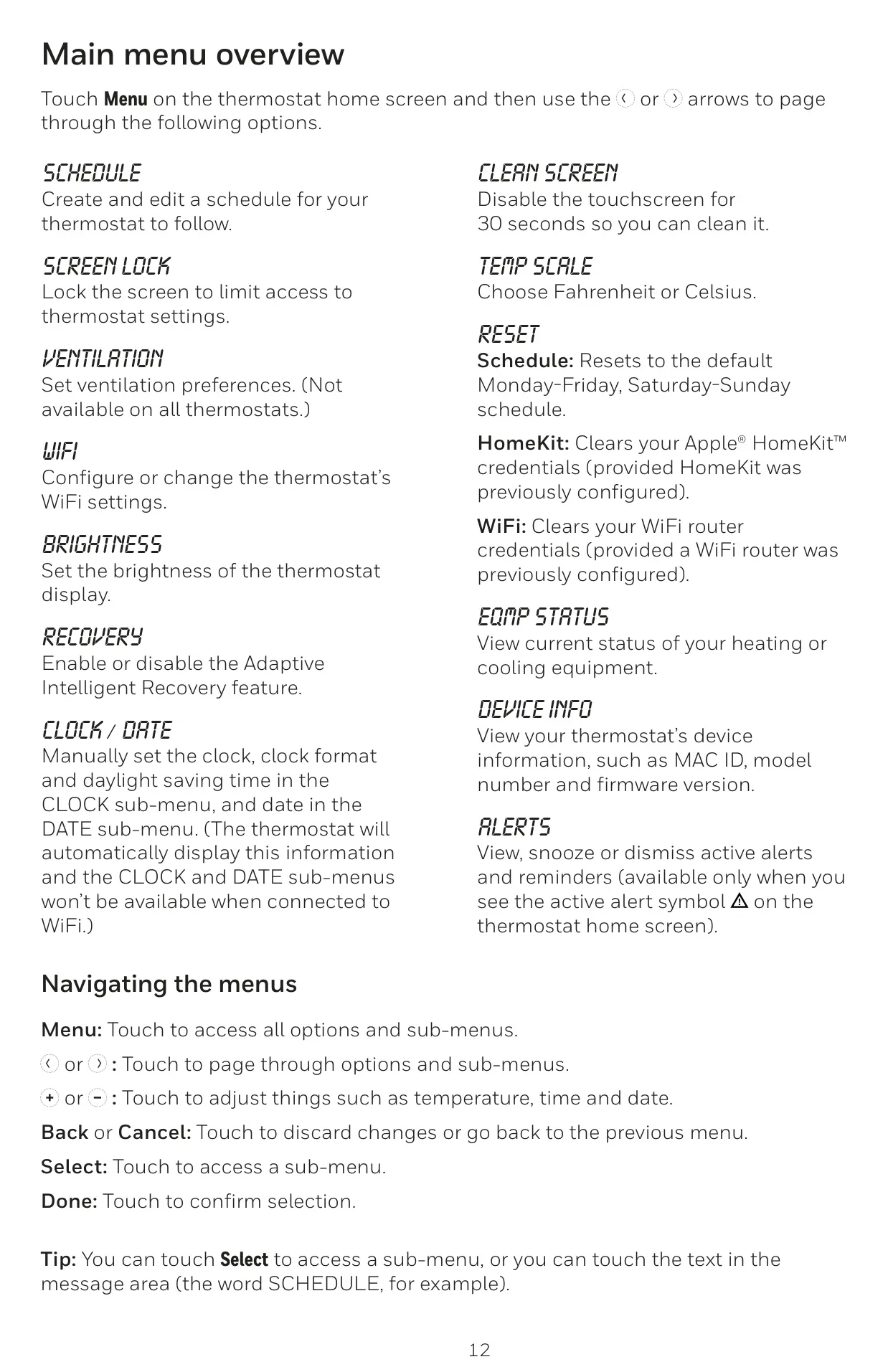
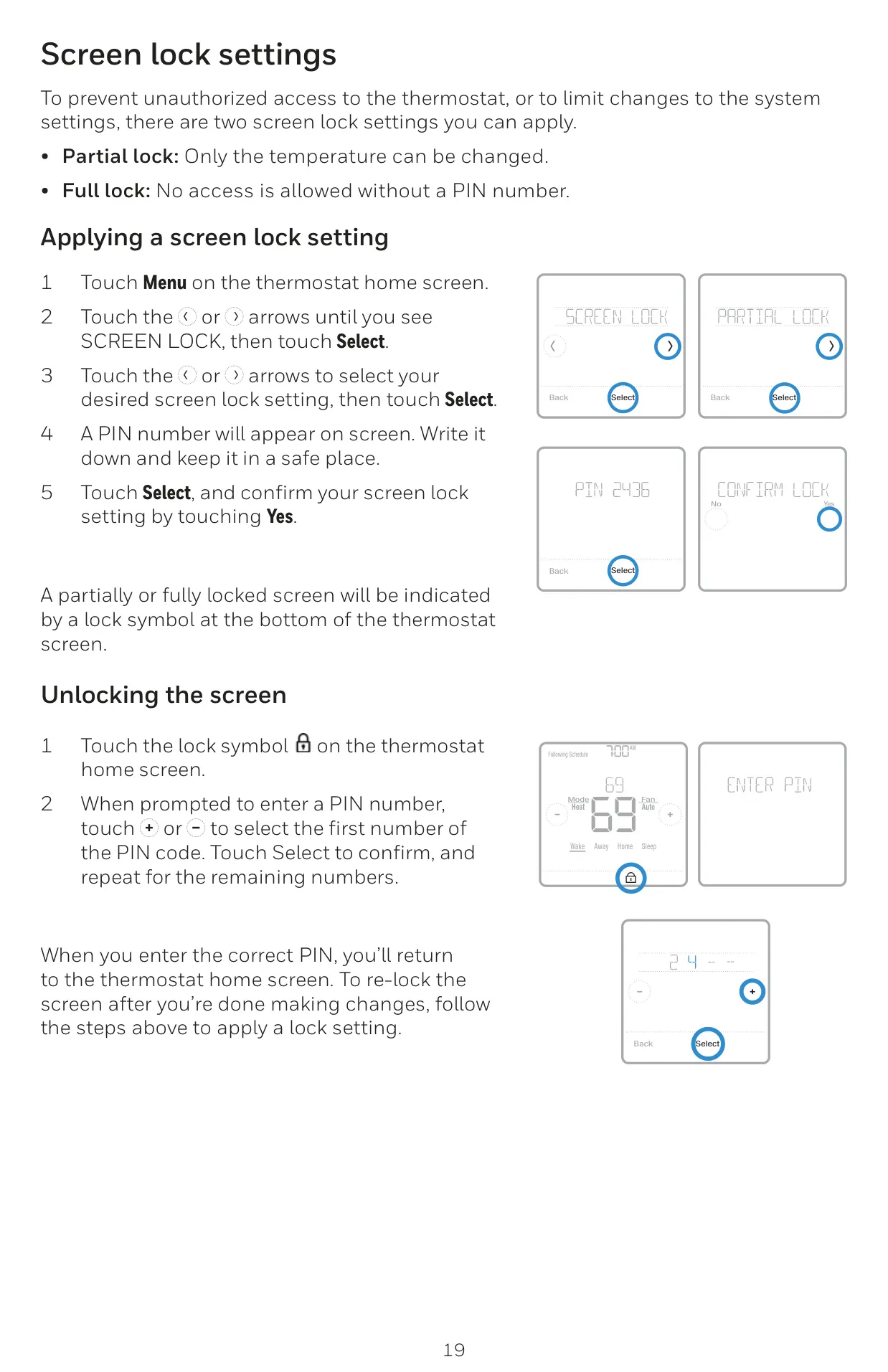
User interface and customization are also well-thought-out. The thermostat provides screen lock settings, including partial (temperature only) and full (PIN-protected) options, for added security and control. A convenient "Clean Screen" mode temporarily deactivates the touchscreen, allowing for easy cleaning without altering settings. Users can also adjust the backlight brightness and choose between Fahrenheit or Celsius display, tailoring the device to their preferences.
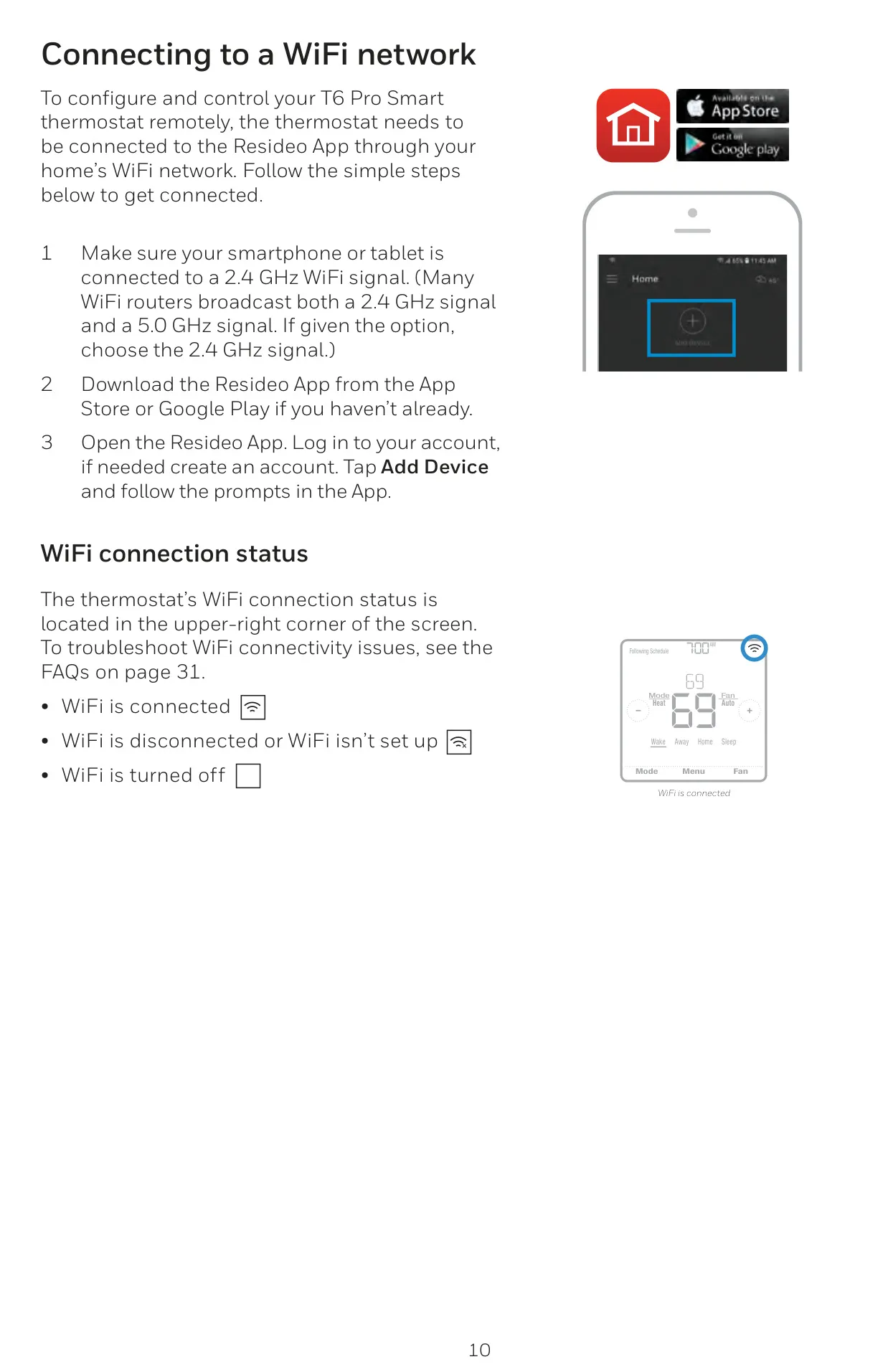
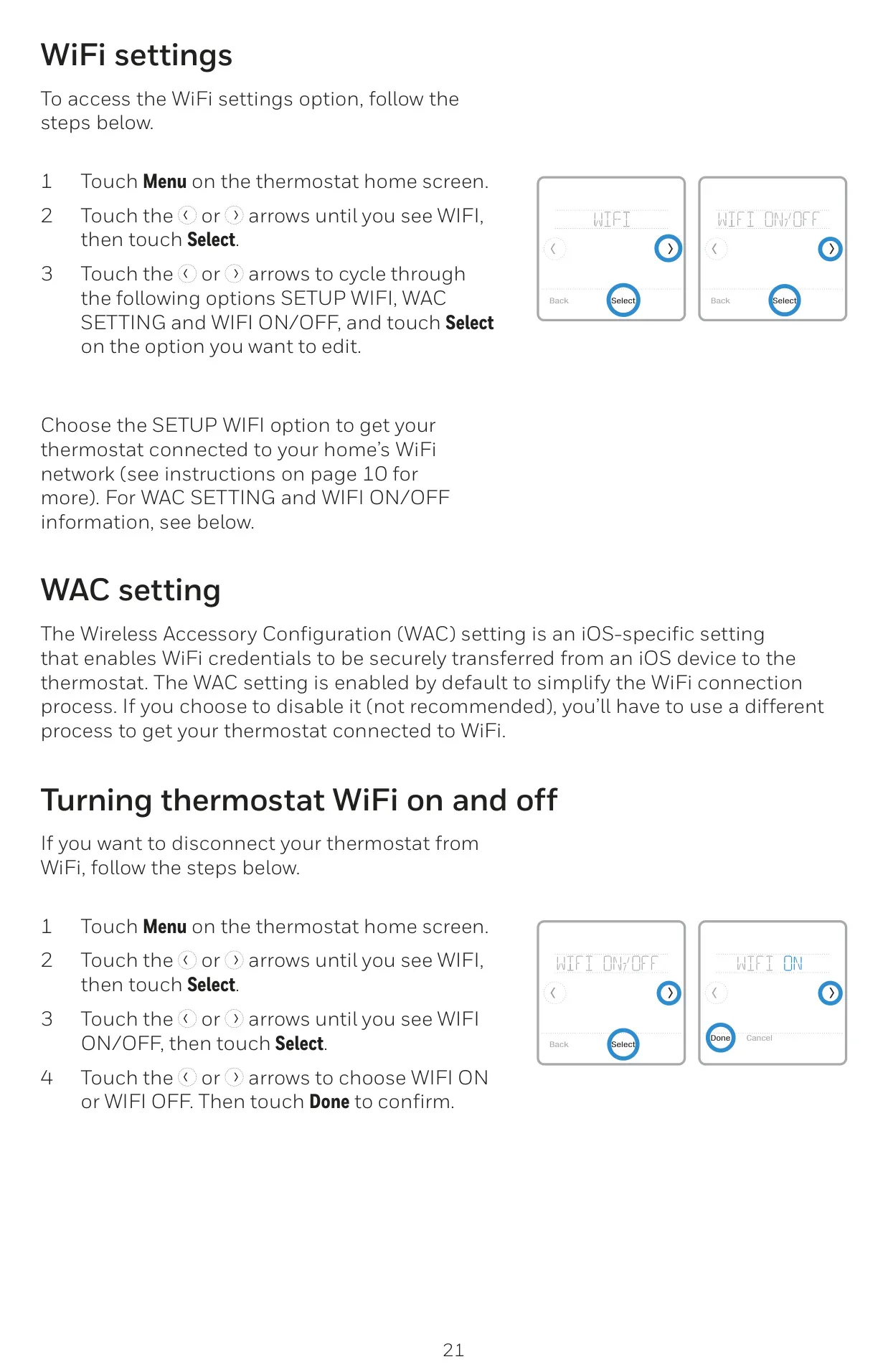
Connectivity is seamless, with easy WiFi configuration through the Resideo App, displaying connection status directly on the screen. Once connected, the thermostat automatically sets the time and date, including adjustments for daylight saving, removing the need for manual updates. This level of automation underscores its "smart" capabilities, providing a hassle-free experience for homeowners.
Frequently Asked Questions (FAQs)
Can't find the answer you need? Here are some frequently asked questions about the Honeywell TH6320WF2003 T6 Pro Smart, and we answer them below.