Garmin Approach R10 Launch Monitor Instruction Manual
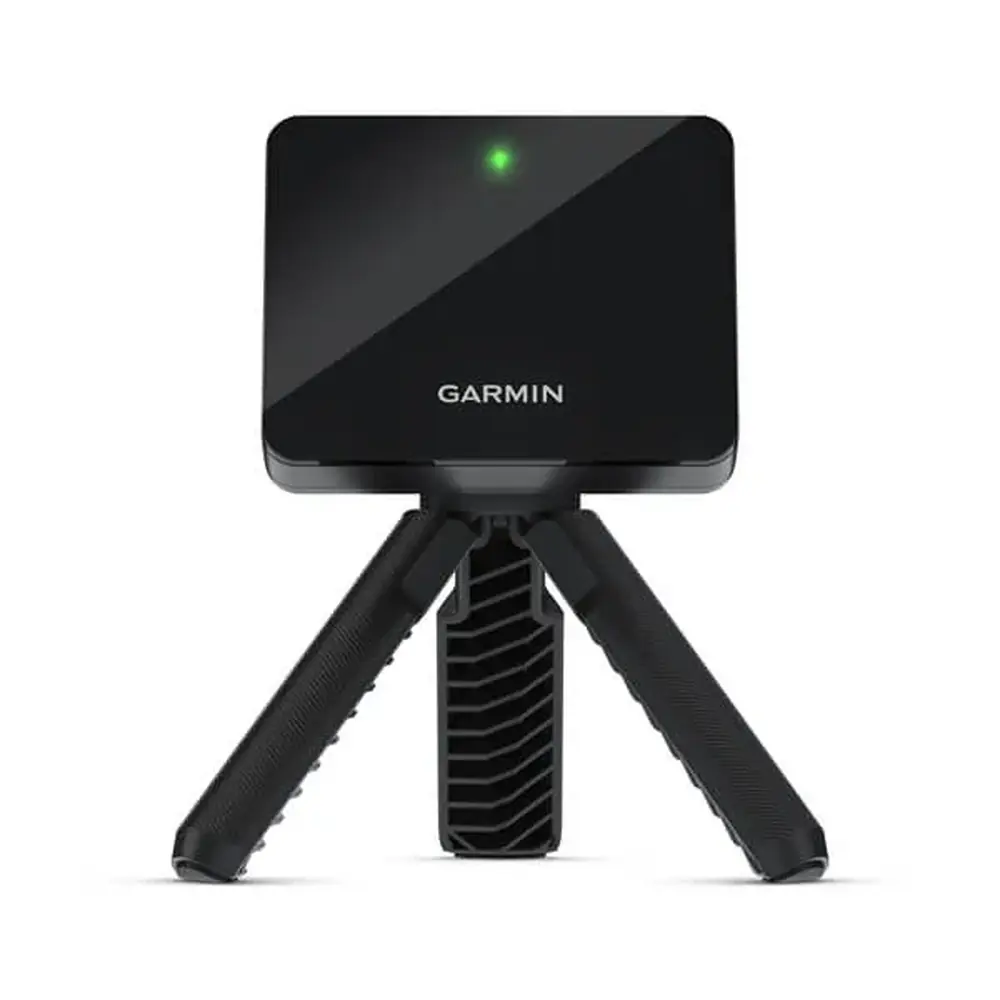
Garmin Approach R10 Launch Monitor









Garmin Approach R10 Instructions
Here we offer the Garmin Approach R10 Launch Monitor manual completely free and in English. We have cataloged this manual in the Launch Monitors section on Manualverse, and it has been rated by 1 users with an average rating of 5. If you have any specific questions about Garmin Approach R10 Launch Monitor, we suggest checking the Frequently Asked Questions (FAQs) section of this manual.
Product Images
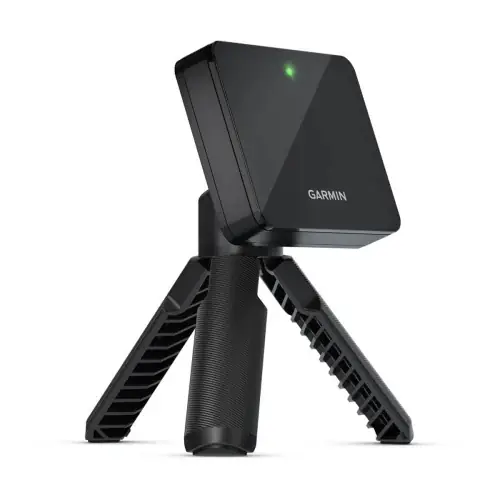
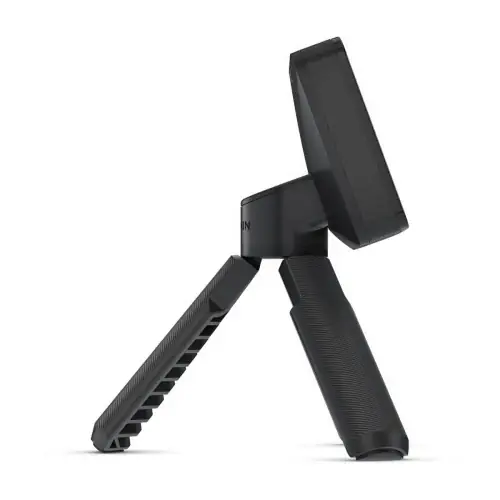
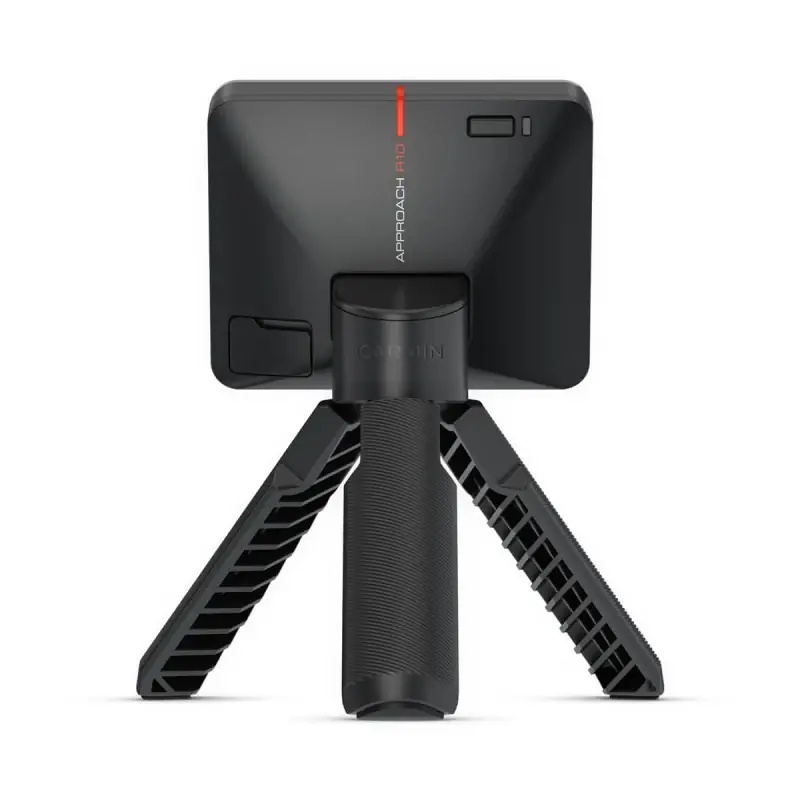

Garmin Approach R10 Launch Monitor Specifications
| Feature | Specification |
|---|---|
| Product Type | Portable golf launch monitor (internal radar) |
| Battery Type | Rechargeable, built-in lithium-ion battery |
| Battery Life | Up to 10 hours |
| Low Battery Alert | App message when remaining battery is below 10% |
| Operating Temperature Range | -10 ºC to 55 ºC (14 ºF to 131 ºF) |
| Charging Temperature Range | 0 ºC to 45 ºC (32 ºF to 113 ºF) |
| Wireless Frequency/Protocol 1 | 2.4 GHz @ 6.2 dBm maximum |
| Wireless Frequency/Protocol 2 (Radar) | 24 GHz @ 20 dBm maximum |
| Phone Connectivity | Bluetooth technology |
| Water Rating | IEC 60529 IPX7 (incidental exposure up to 1 m for up to 30 min) |
| Charging/Data Port | USB port under weather cap |
| Power Sources | AC adapter or computer USB port |
| Controls | Single button |
| Indicators | Status LED and charge LED |
| Mount | Magnetic tripod mount (one-way installation) |
| Placement Distance Behind Tee | 1.8 m to 2.4 m (6 ft to 8 ft) |
| Minimum Tee-to-Net Distance (Indoors) | 2.4 m (8 ft) |
| Hitting Area | 0.6 x 0.6 m (2 x 2 ft), beginning 1.8 m (6 ft) from the device |
| Maximum Lateral Tee Offset | 0.3 m (1 ft) on either side of the target line |
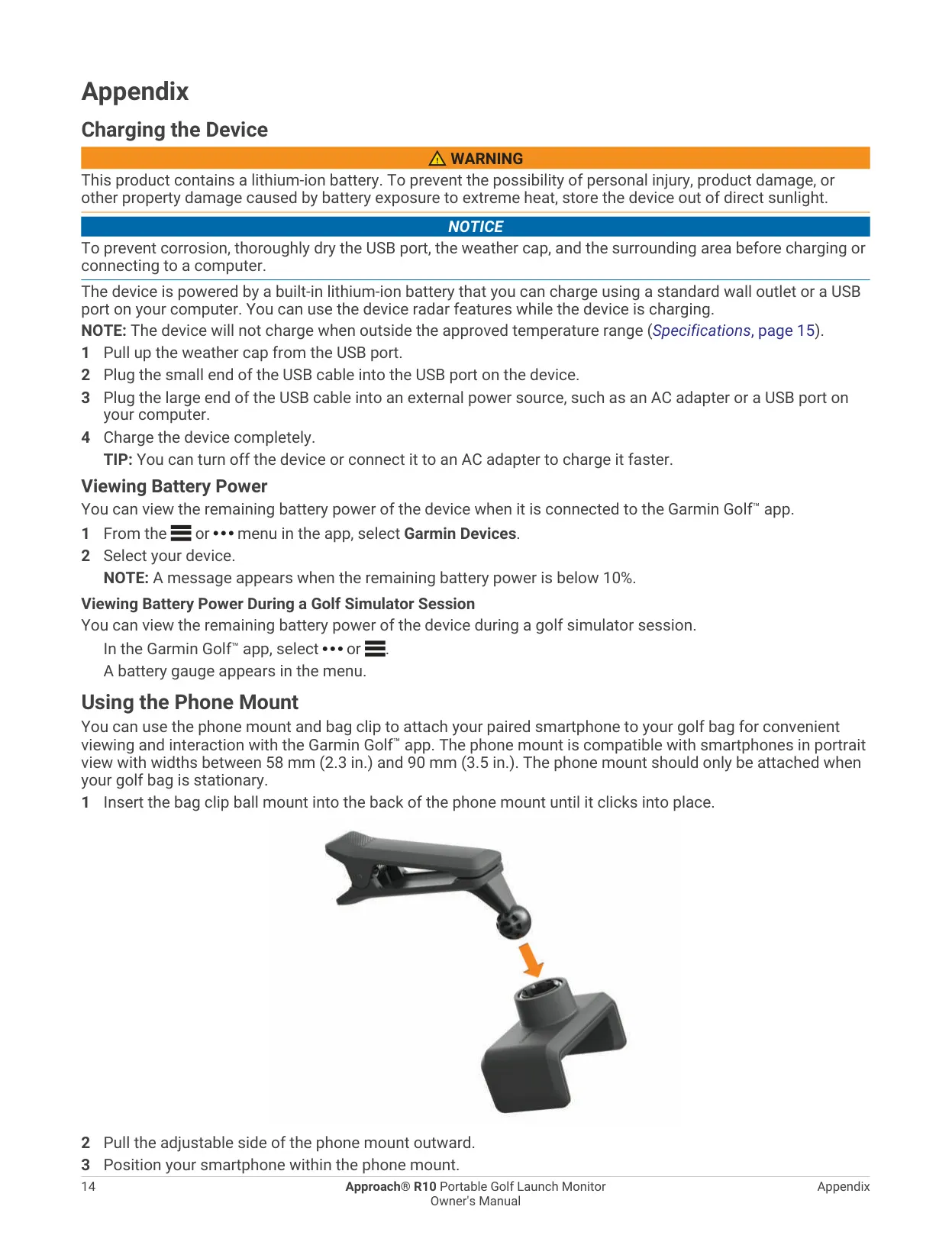
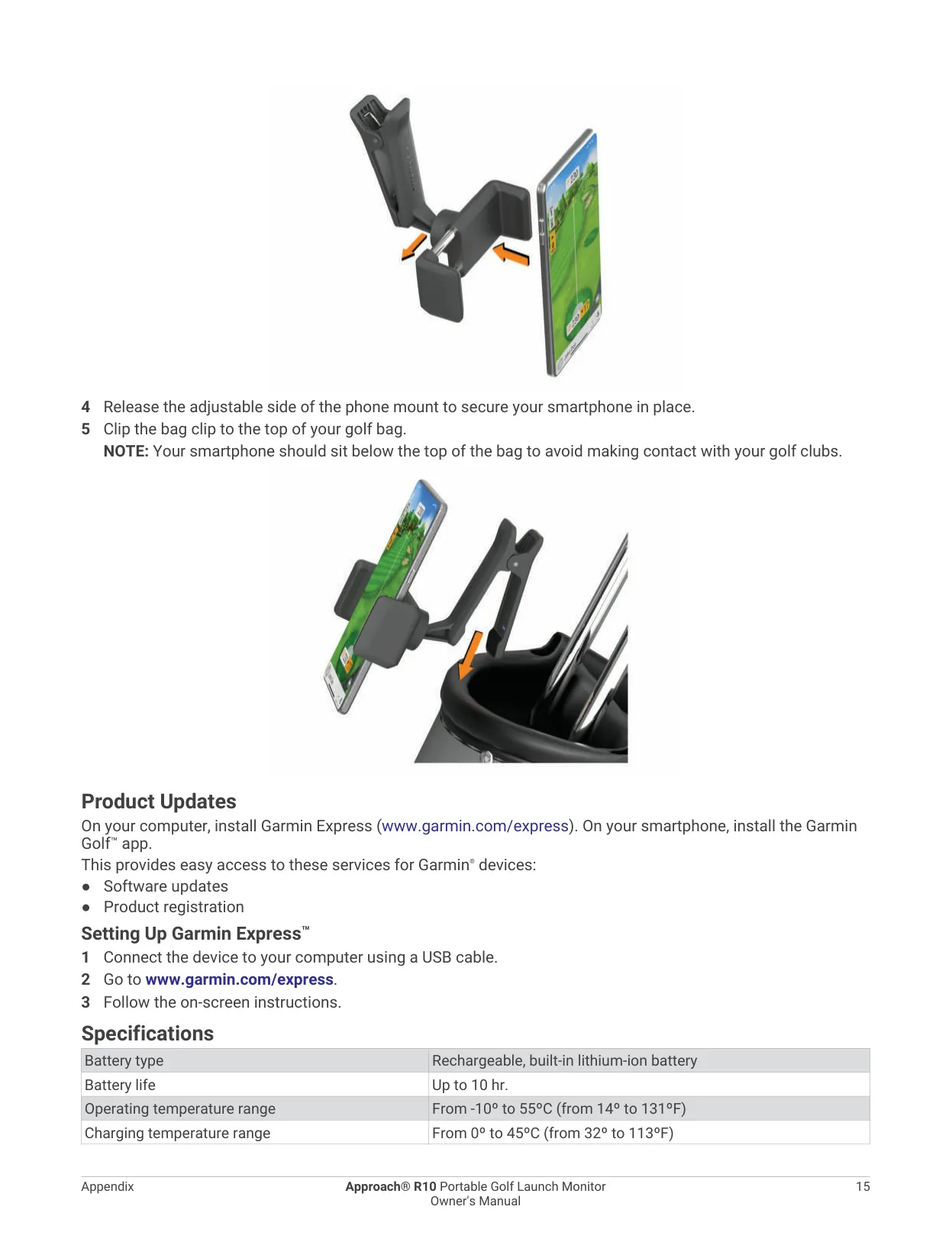
| Phone Mount Compatibility | Smartphones in portrait view, 58 mm to 90 mm (2.3 in. to 3.5 in.) wide |
| Compatible Apps | Garmin Golf, Home Tee Hero, compatible third-party simulators |
| Virtual Courses | Over 43,000 courses rendered in 3D (Home Tee Hero) |
| Software Updates | Garmin Express (computer) or Garmin Golf app |
| Long-Term Storage Charge | At least 50% |
Garmin Approach R10 Monitor Details
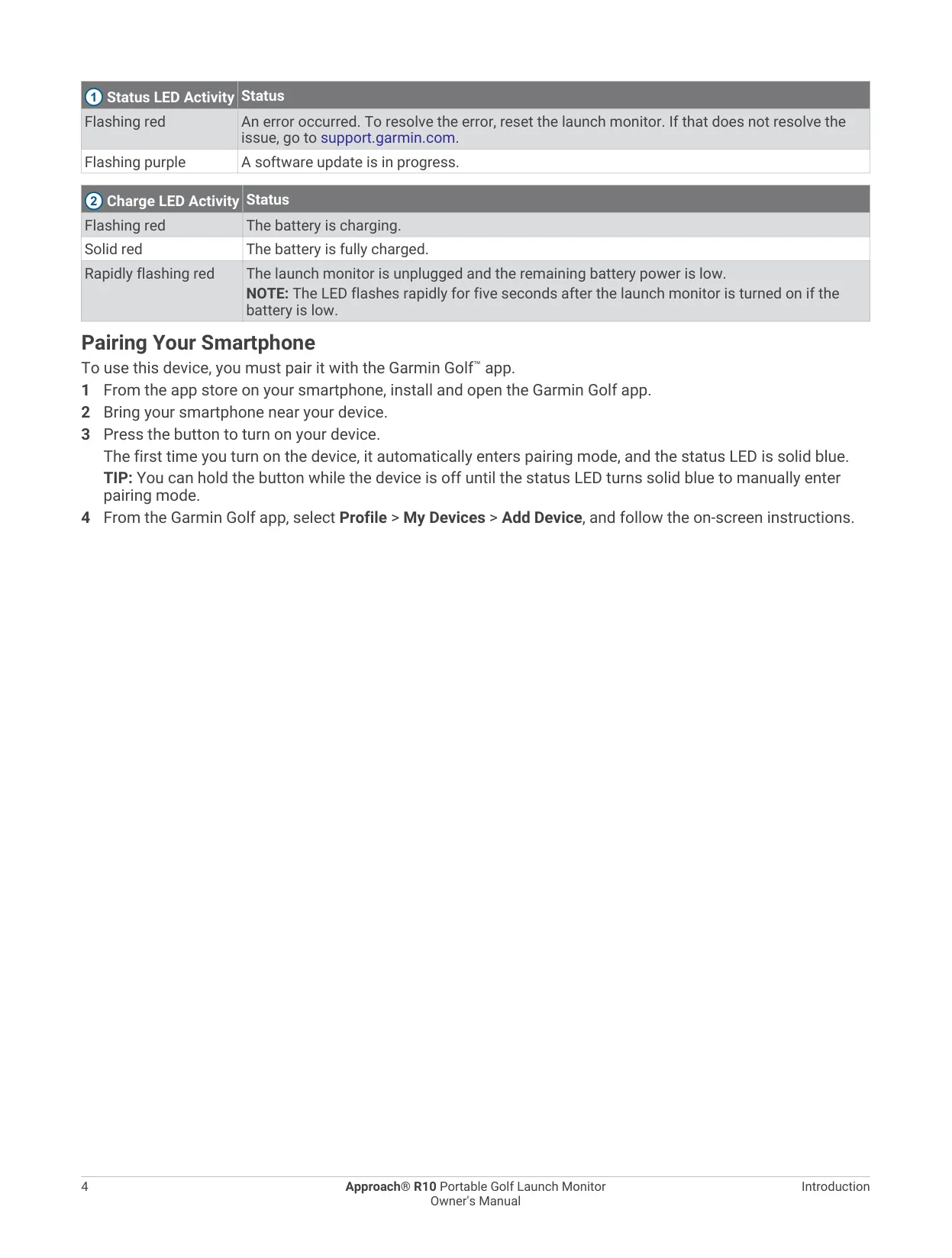
The Garmin Approach R10 has a single button for power and pairing. Press it to turn the device on, and hold it for one second to turn it off. If you hold it while the device is off, the unit enters pairing mode and the status LED turns solid blue. The status LED also shows the other states. It flashes blue while reconnecting, flashes white in standby and stays solid white in mass storage mode. It flashes green when the device is ready for a shot, stays solid red when busy, flashes red after an error and flashes purple during software updates.
A separate charge LED shows the battery state. It flashes red while charging, stays solid red when the battery is full and flashes rapidly when the battery is low. You pair the device in the Garmin Golf app under Profile, My Devices, Add Device. The app stores detailed statistics, syncs with Garmin Connect and can be mirrored to a compatible smart TV through your phone's screen mirroring feature. A battery gauge also appears in the app menu during simulator sessions.
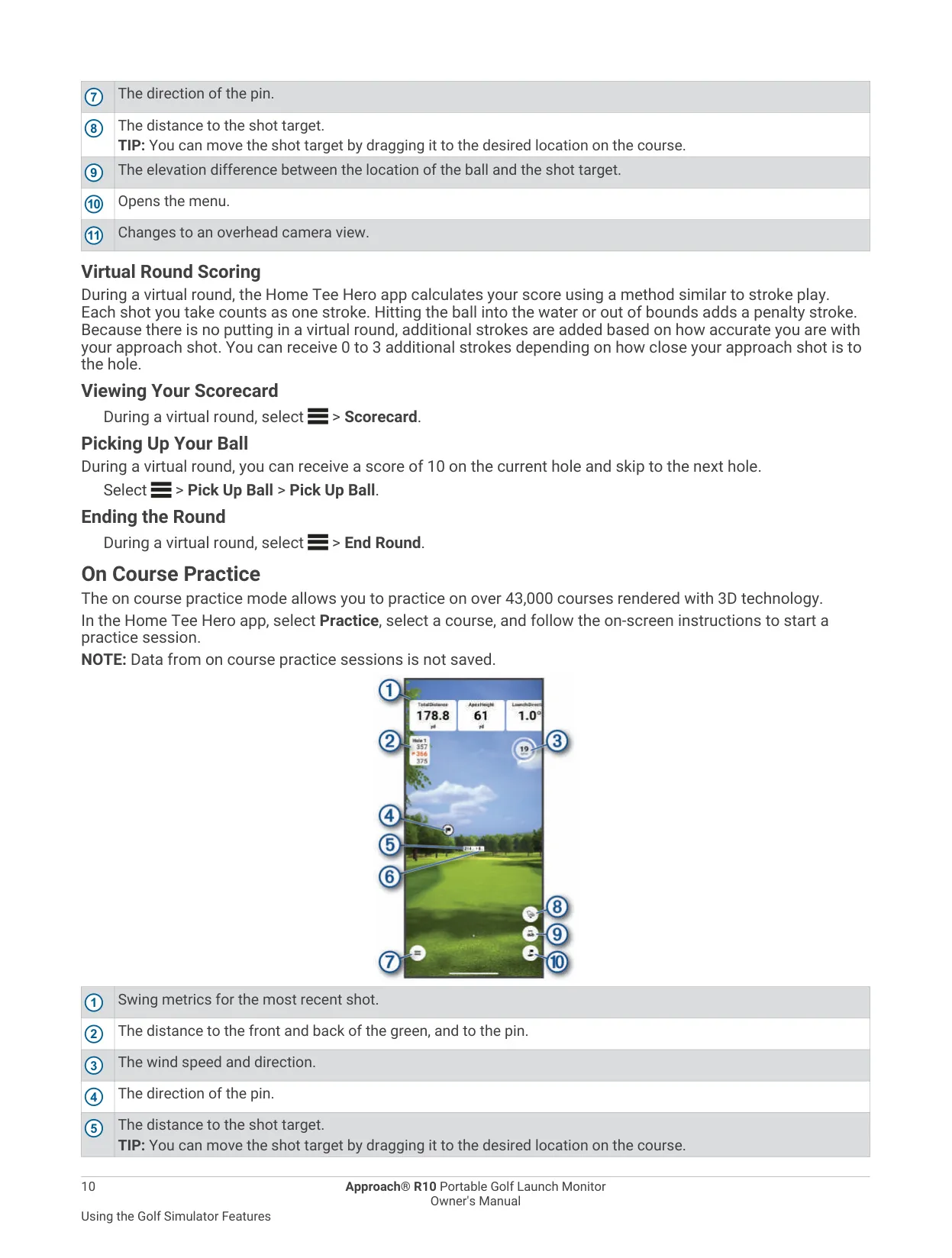
A Garmin Golf subscription unlocks Home Tee Hero, where you can play virtual rounds. Scoring is similar to stroke play, and water or out-of-bounds shots add a penalty stroke. Because there is no putting, the app adds 0 to 3 strokes depending on how close your approach shot lands to the hole. The on-screen display shows the distances to the green and pin, wind, elevation difference and a target you can drag. The Pick Up Ball option records a 10 and moves you to the next hole. On Course Practice mode does not save any data.
When you start a session, you can choose the weather conditions: Course Location (Home Tee Hero only), Your Location (requires location permission) or Custom values. If these settings don't match where you usually play, carry distances may seem wrong. Subscribers can also play the Weekly Tournament on a different course each week. You can play it as many times as you like, and all scores go to a global leaderboard.
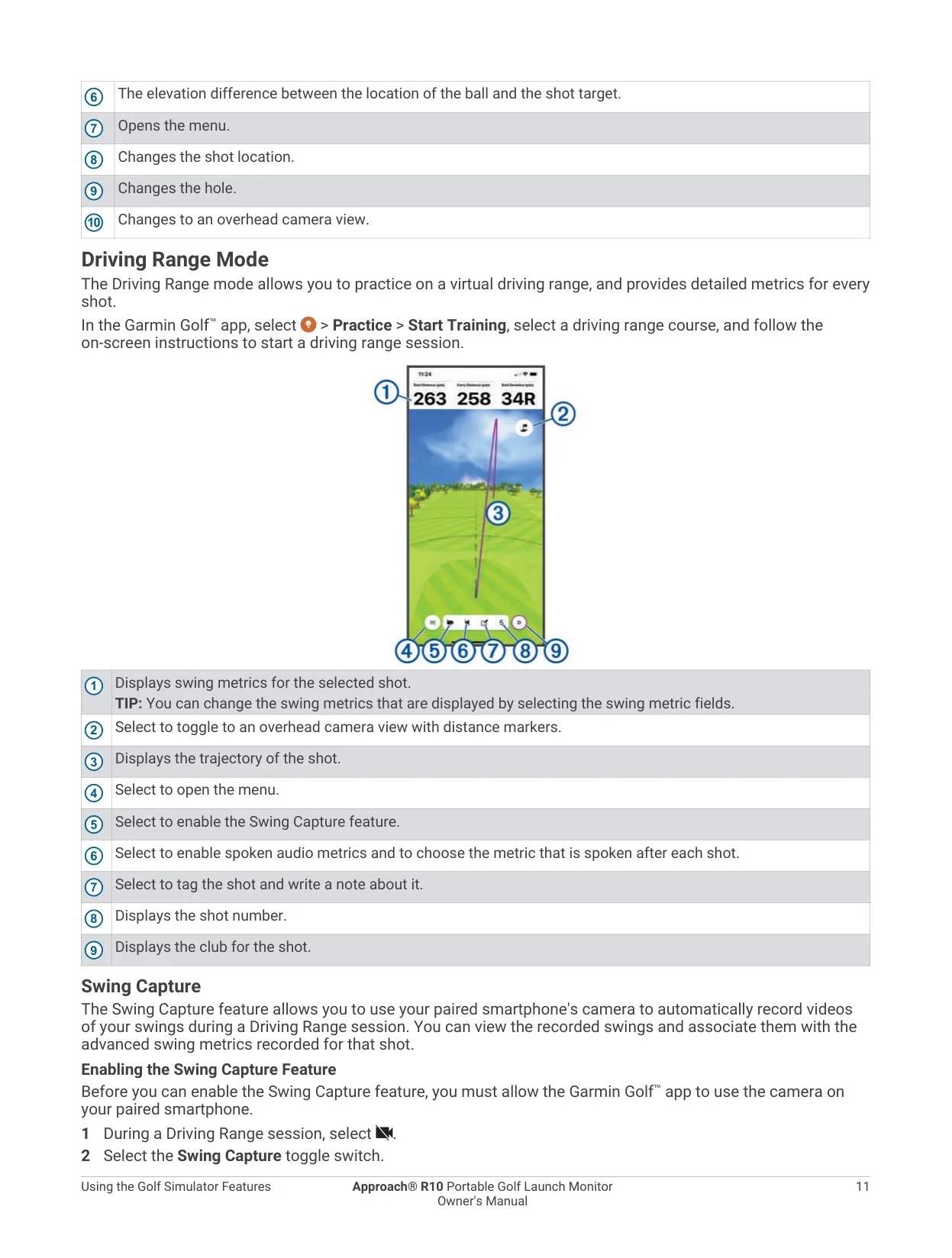
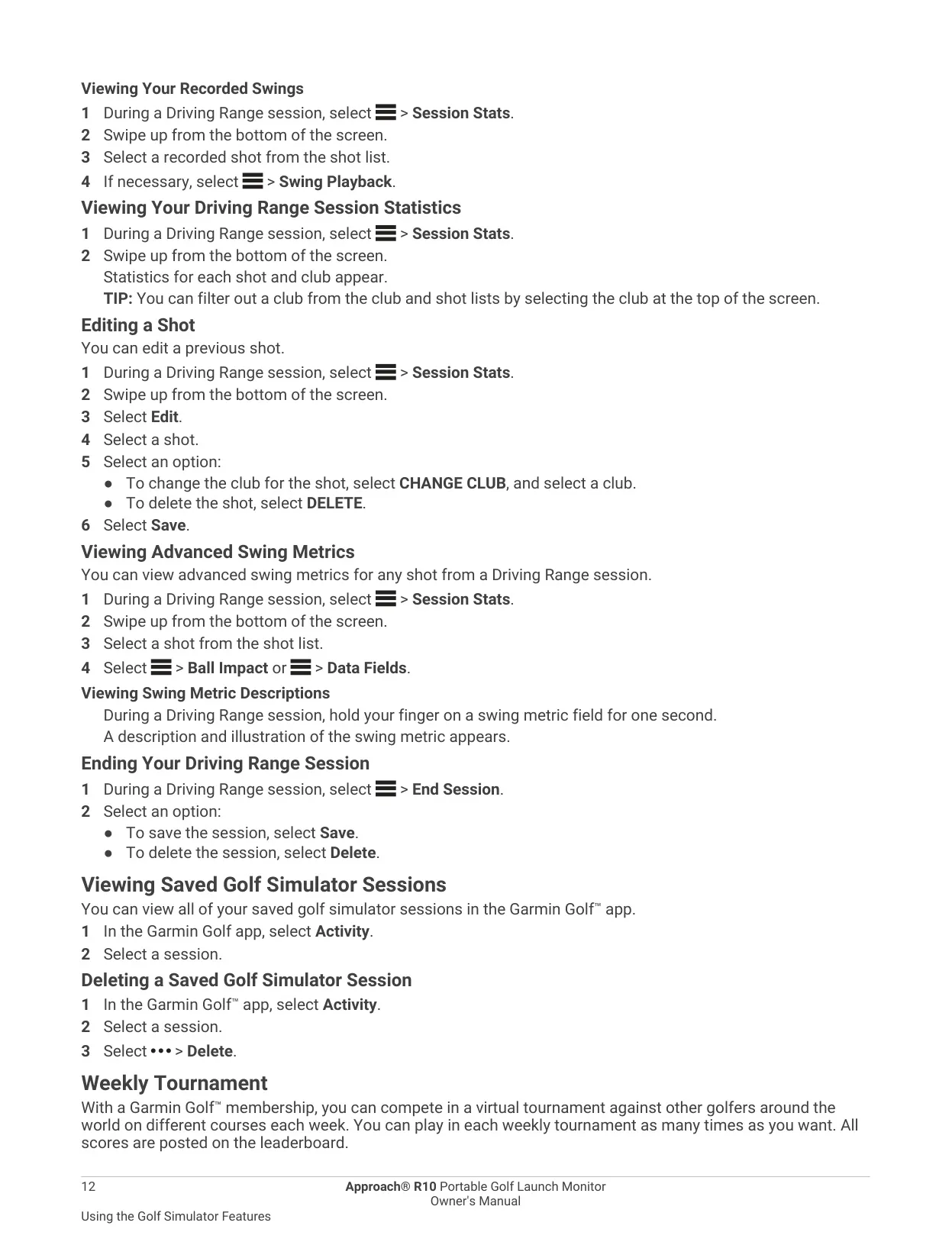
Driving Range mode gives you metrics for every shot, with fields you can customize. It also shows the shot trajectory, an overhead view with distance markers, the selected club and spoken audio metrics. You can tag shots and add notes to them. Swing Capture uses your phone's camera to record each swing and links the video to that shot's advanced metrics. Hold any metric for one second to see a description and illustration. In the session stats, you can change a shot's club, delete shots or filter by club.
Recorded shots can also be sent to compatible third-party simulator software through the Other Simulators menu. The radar keeps working while the device charges, and charging is faster when the device is off or connected to an AC adapter. To check alignment, hit a short, straight shot with a sand wedge and compare it to the launch direction shown in the app. To reset the device, hold the button until the LED turns off. Resetting does not erase your data.
To clean the device, use a cloth and a mild detergent solution. Avoid solvents and insect repellents. Dry the USB port completely before charging to prevent corrosion, and keep the weather cap tightly closed. Store the device in its case with the front facing down so the button is not pressed. Keep in mind that the magnetic mount may interfere with medical devices and laptop hard drives.
Frequently Asked Questions (FAQs)
Can't find the answer you need? Here are some frequently asked questions about the Garmin Approach R10 Launch Monitor, and we answer them below.