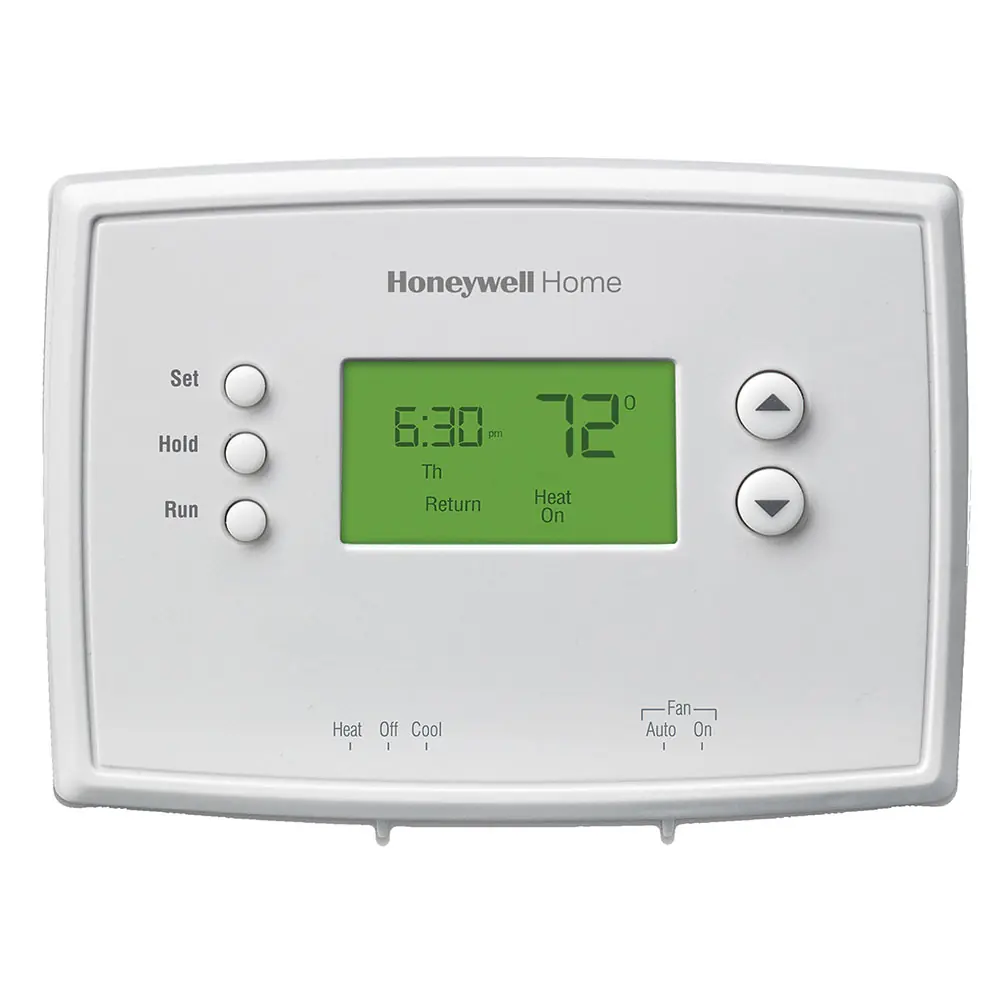
Honeywell RTH8800WF Thermostat Instruction Manual
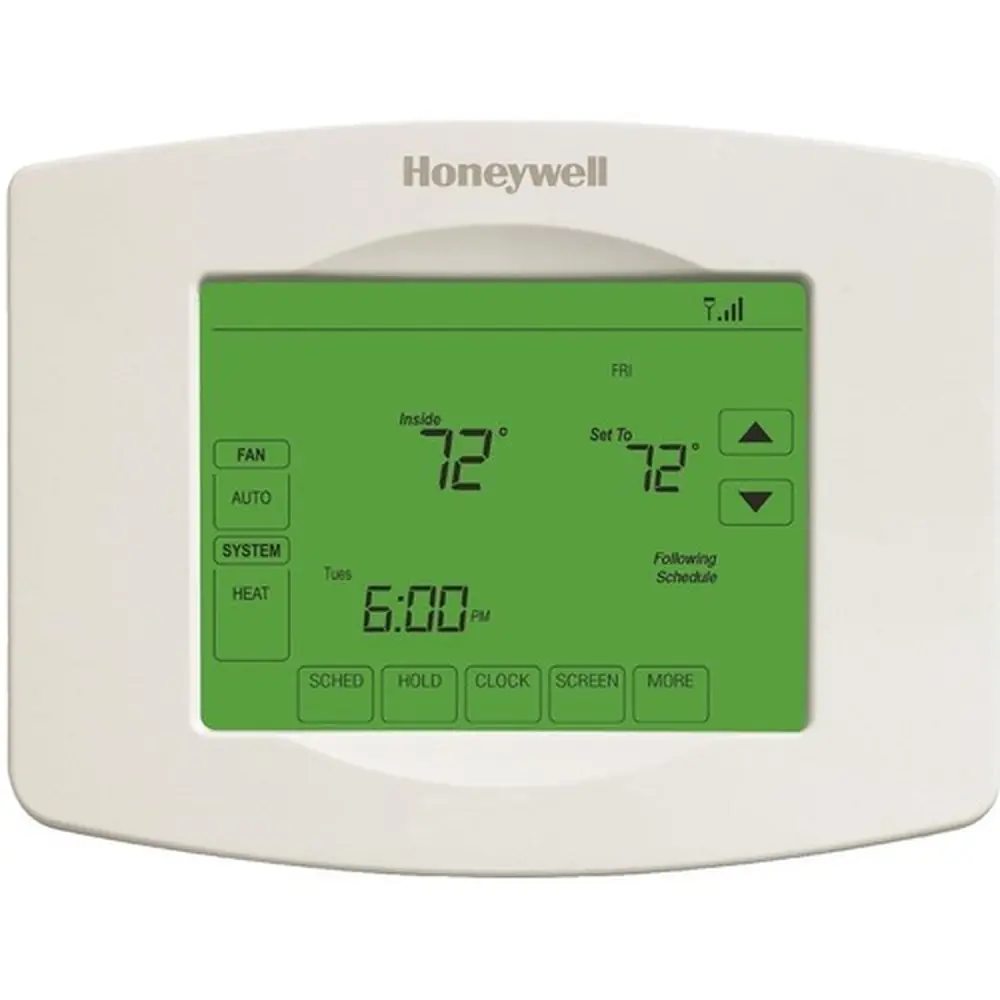
Honeywell RTH8800WF Thermostat
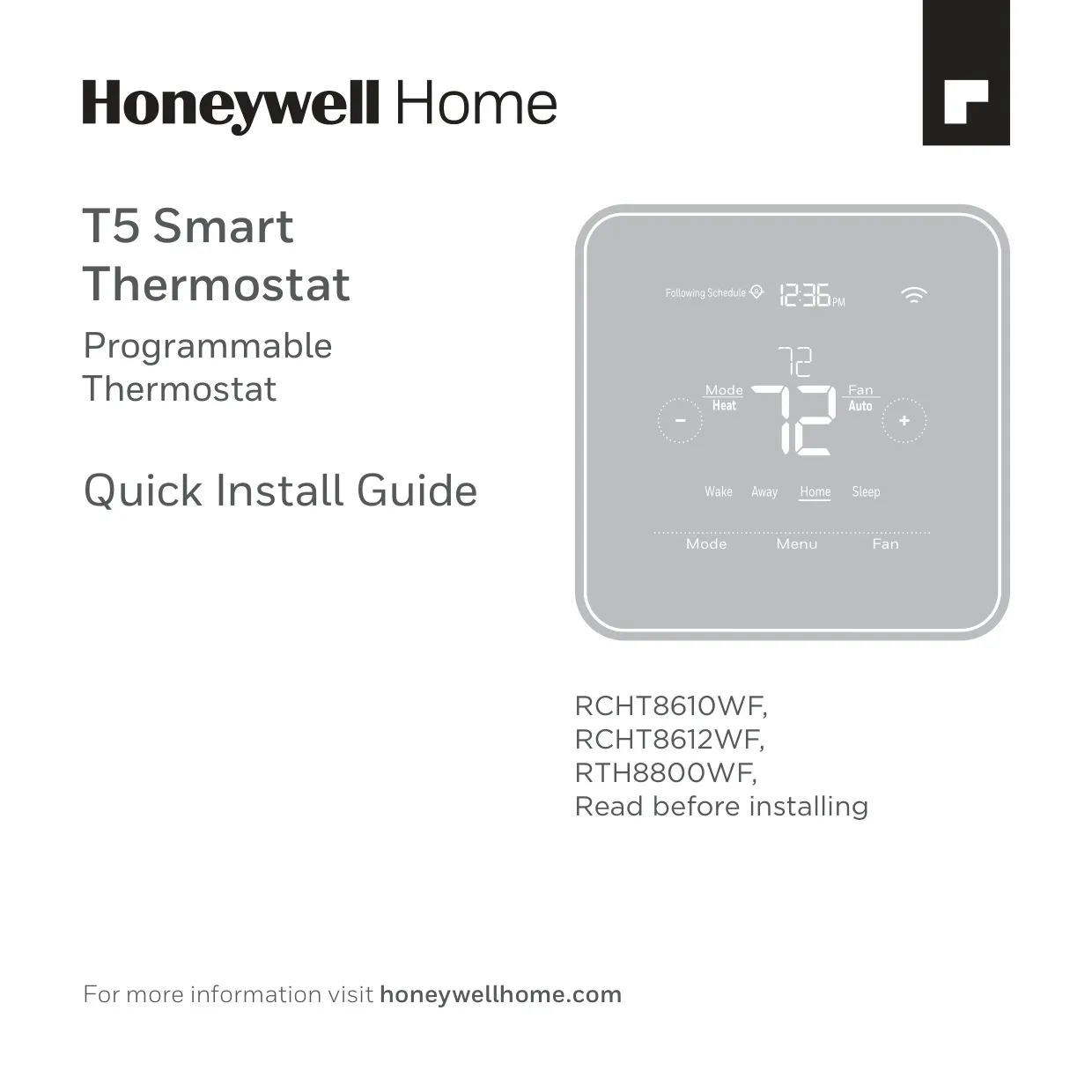


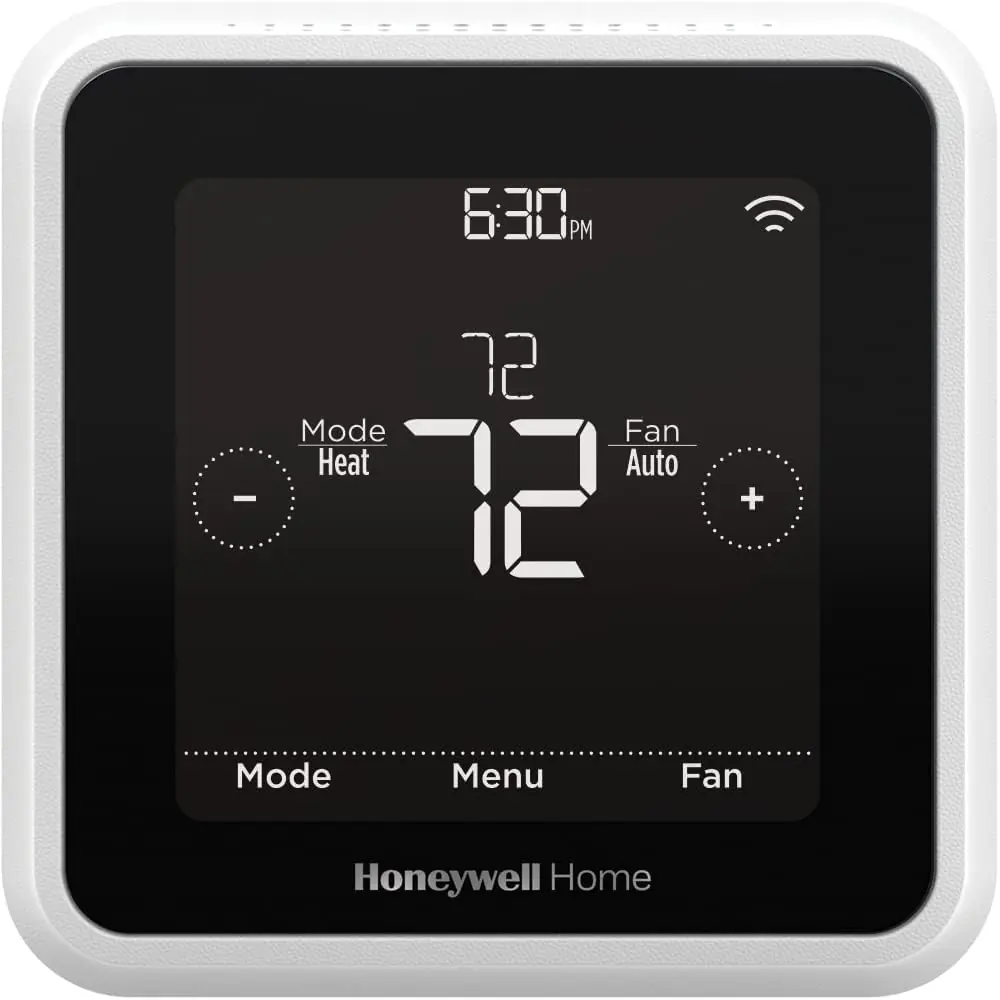
Honeywell RTH8800WF Instructions
Here we offer the Honeywell RTH8800WF Thermostat manual completely free and in English. We have cataloged this manual in the Thermostats section on Manualverse, and it has been rated by 1 users with an average rating of 5. If you have any specific questions about Honeywell RTH8800WF Thermostat, we suggest checking the Frequently Asked Questions (FAQs) section of this manual.
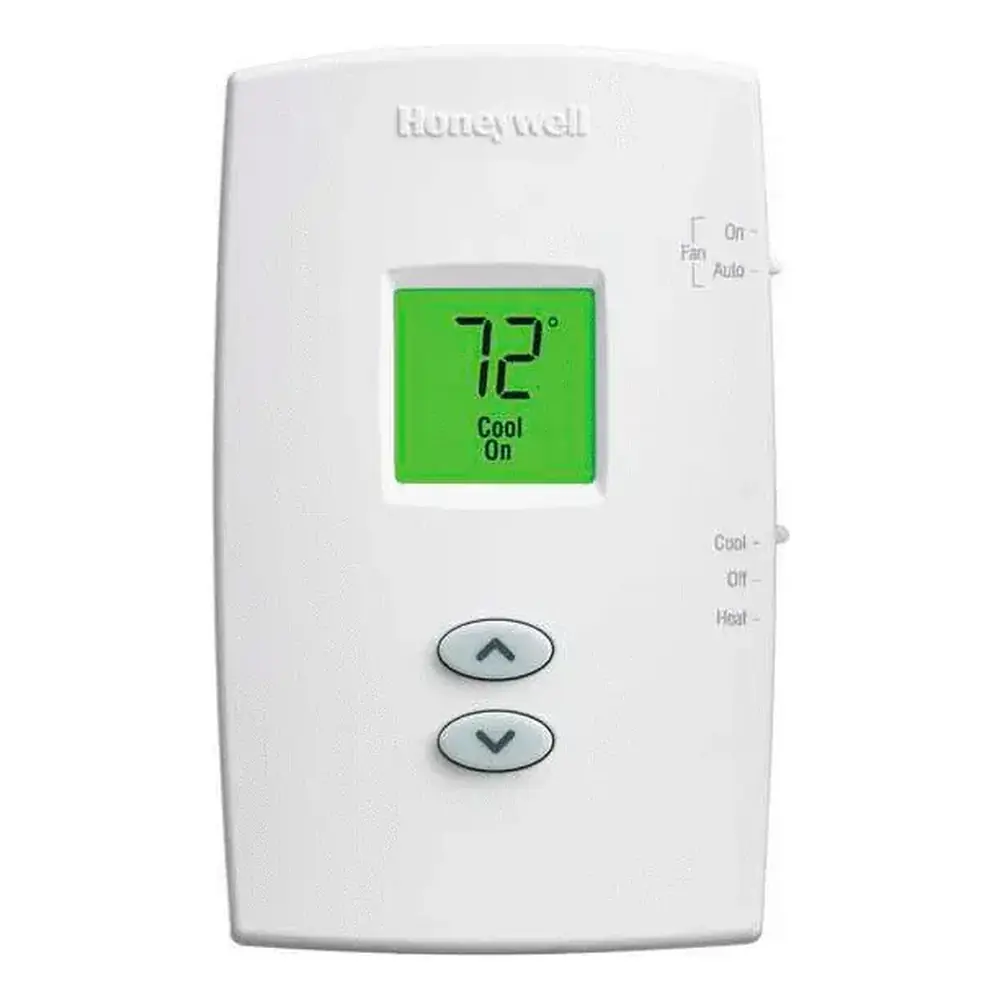
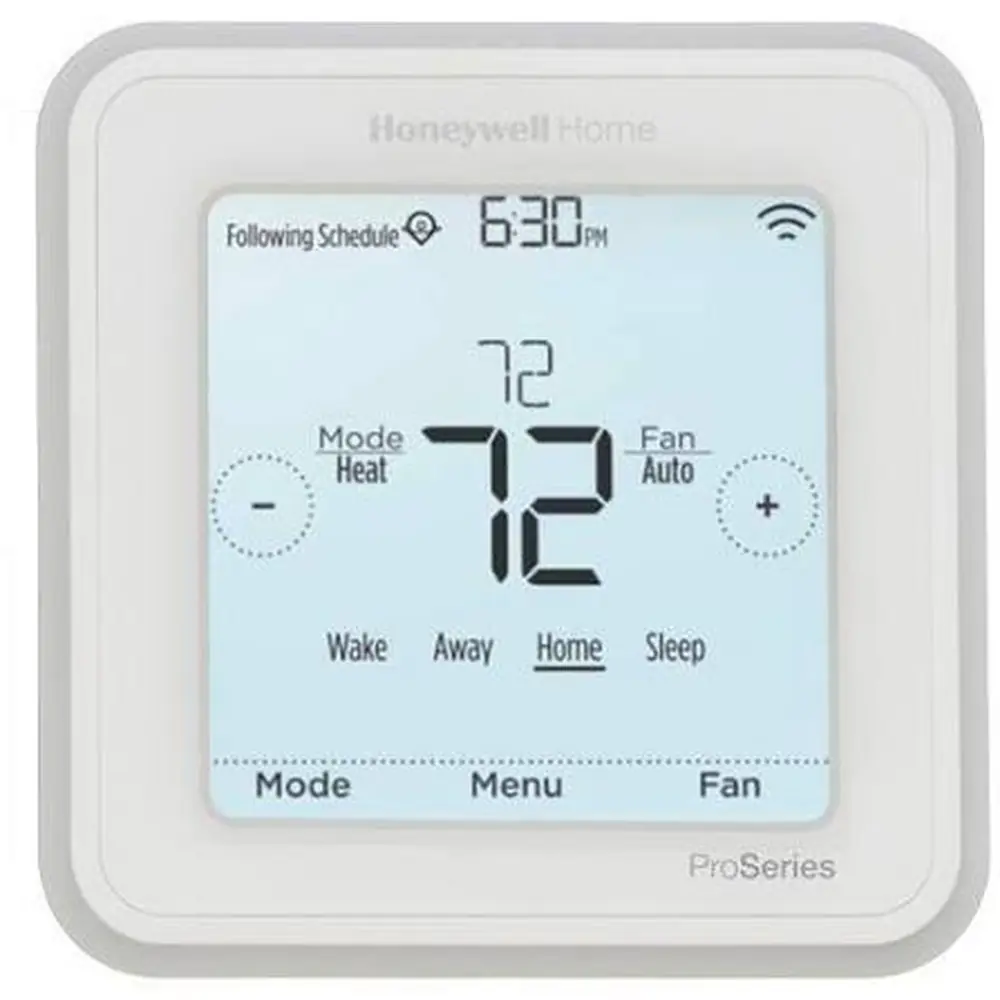
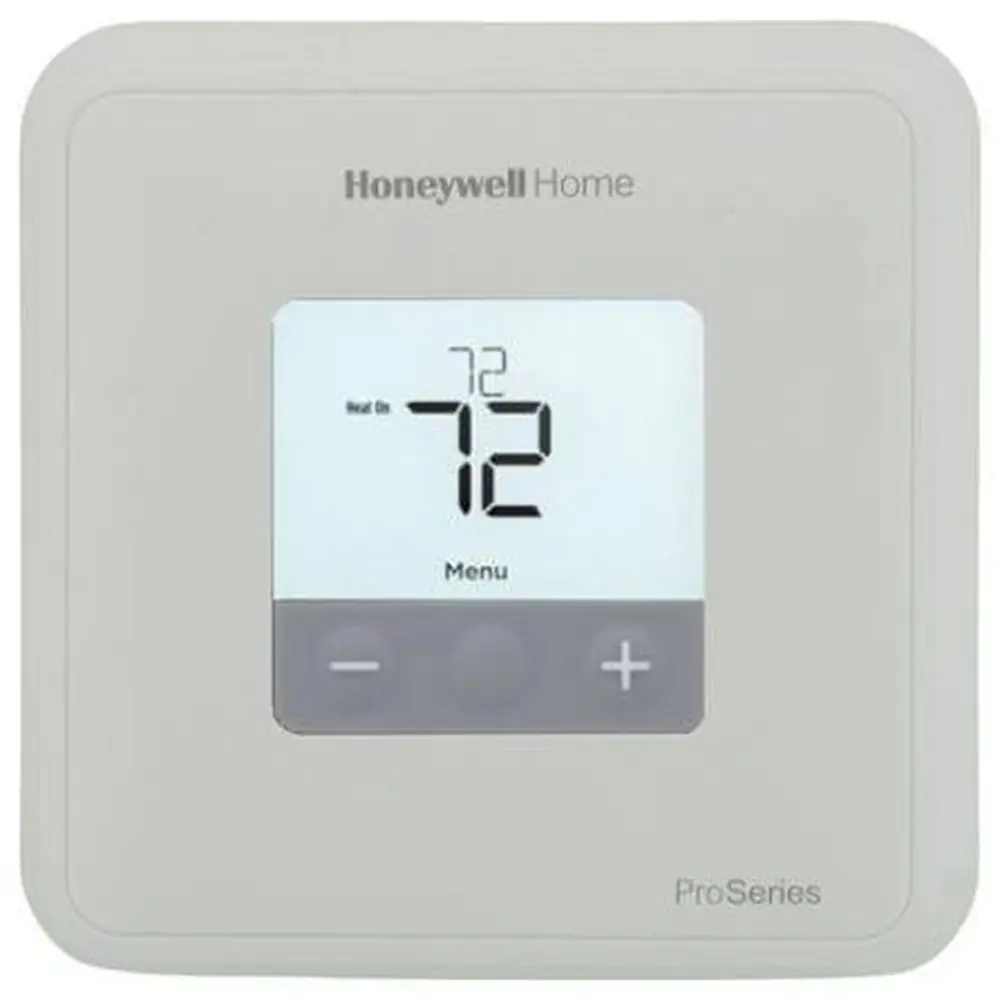
Product Images
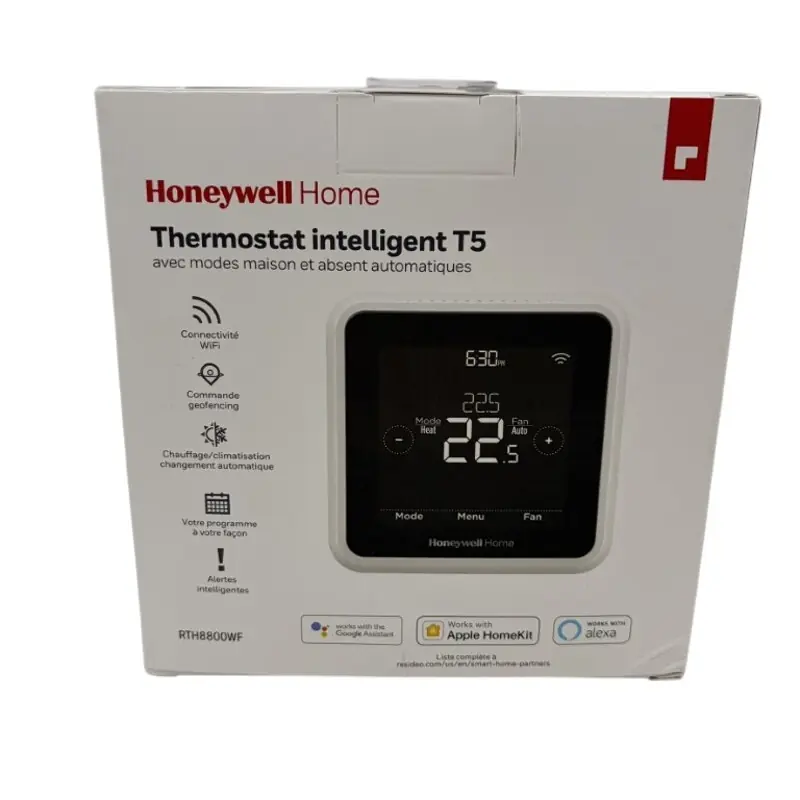
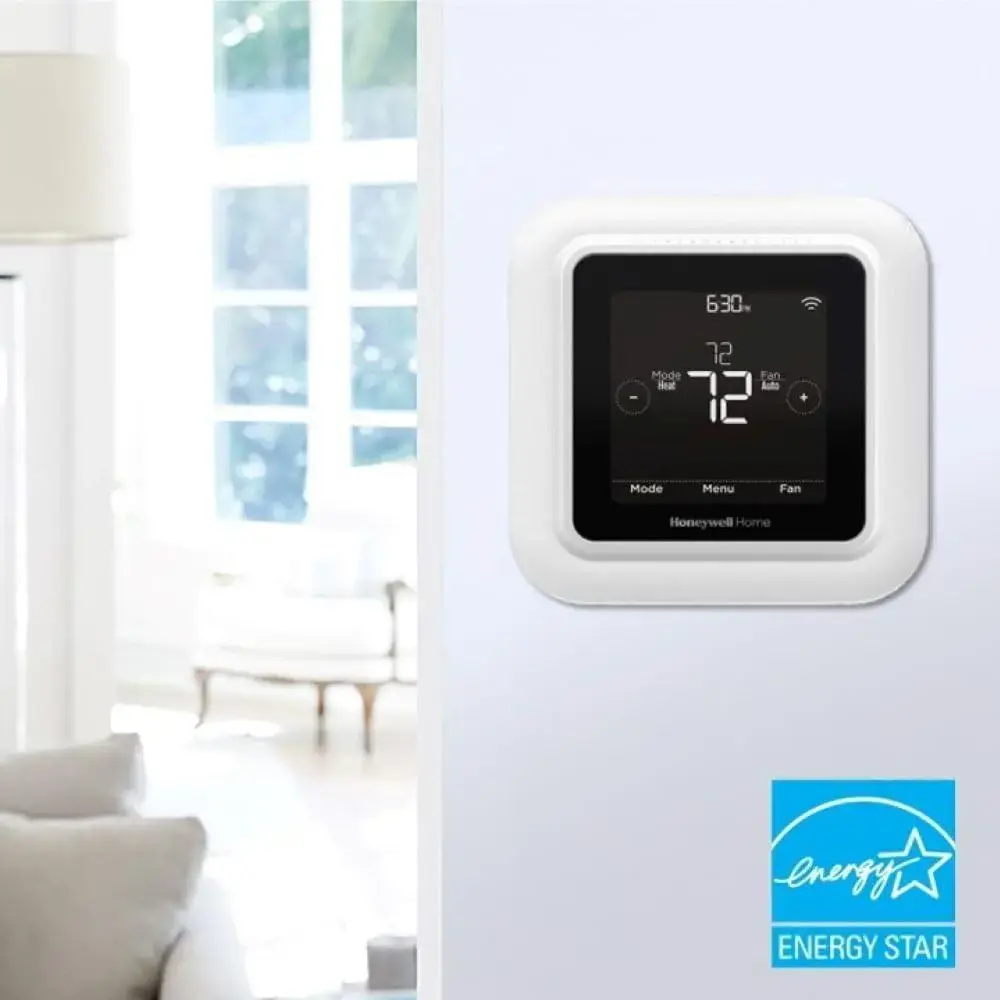
Honeywell RTH8800WF Thermostat Specifications
| Feature | Specification |
|---|---|
| Model Number | RTH8800WF (part of T5 Smart Thermostat series) |
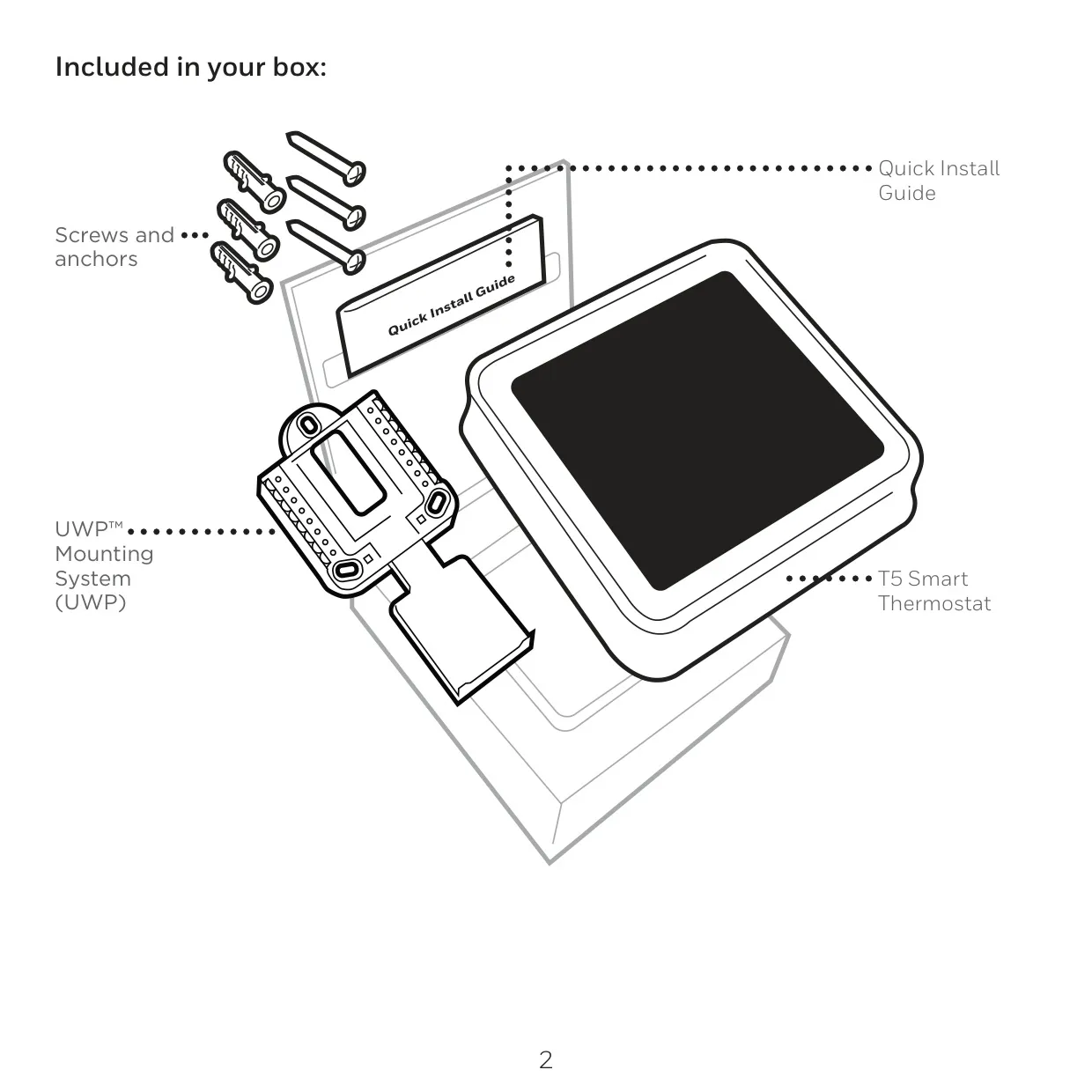
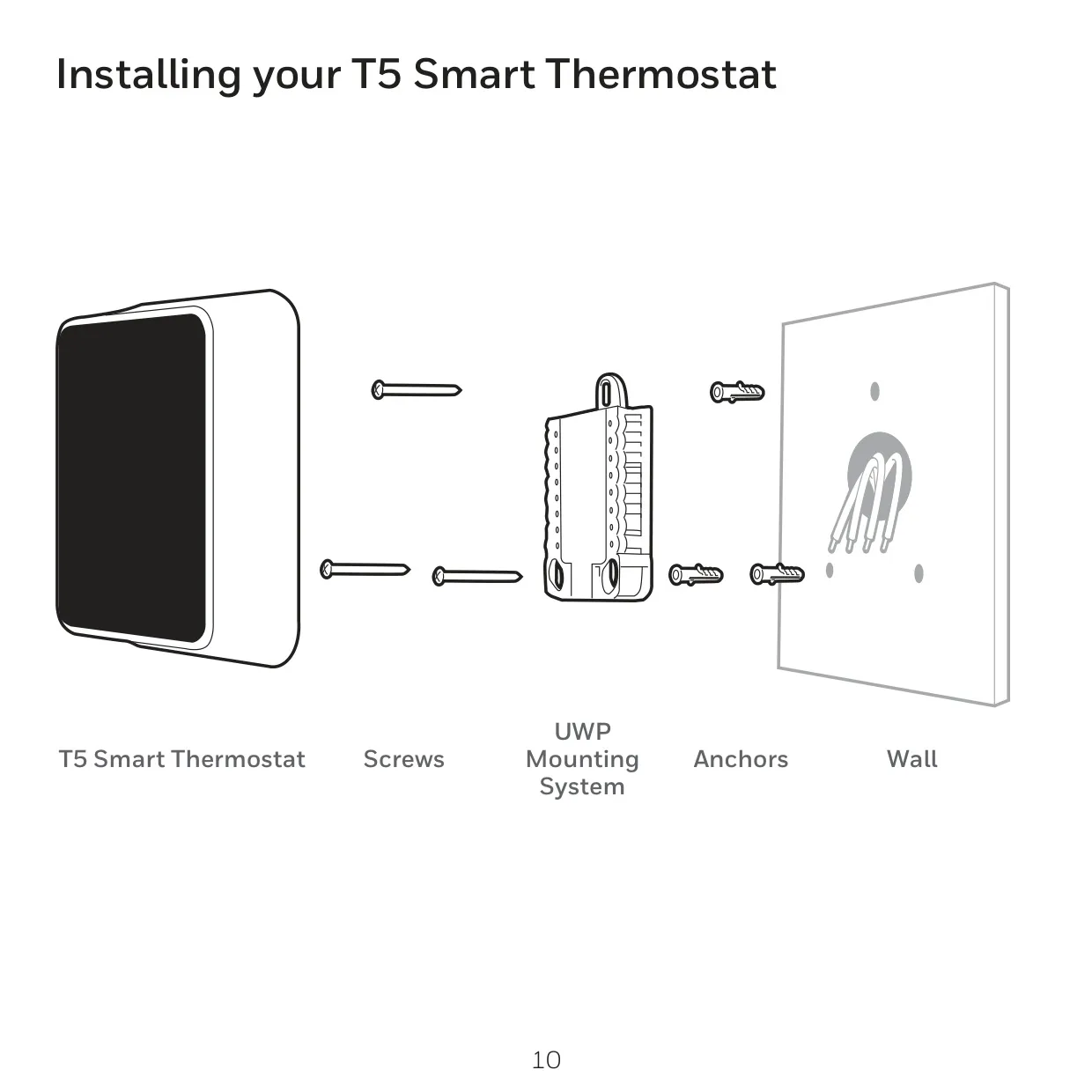
| Included in Box | Screws and anchors, UWP™ Mounting System (UWP), Quick Install Guide, T5 Smart Thermostat |
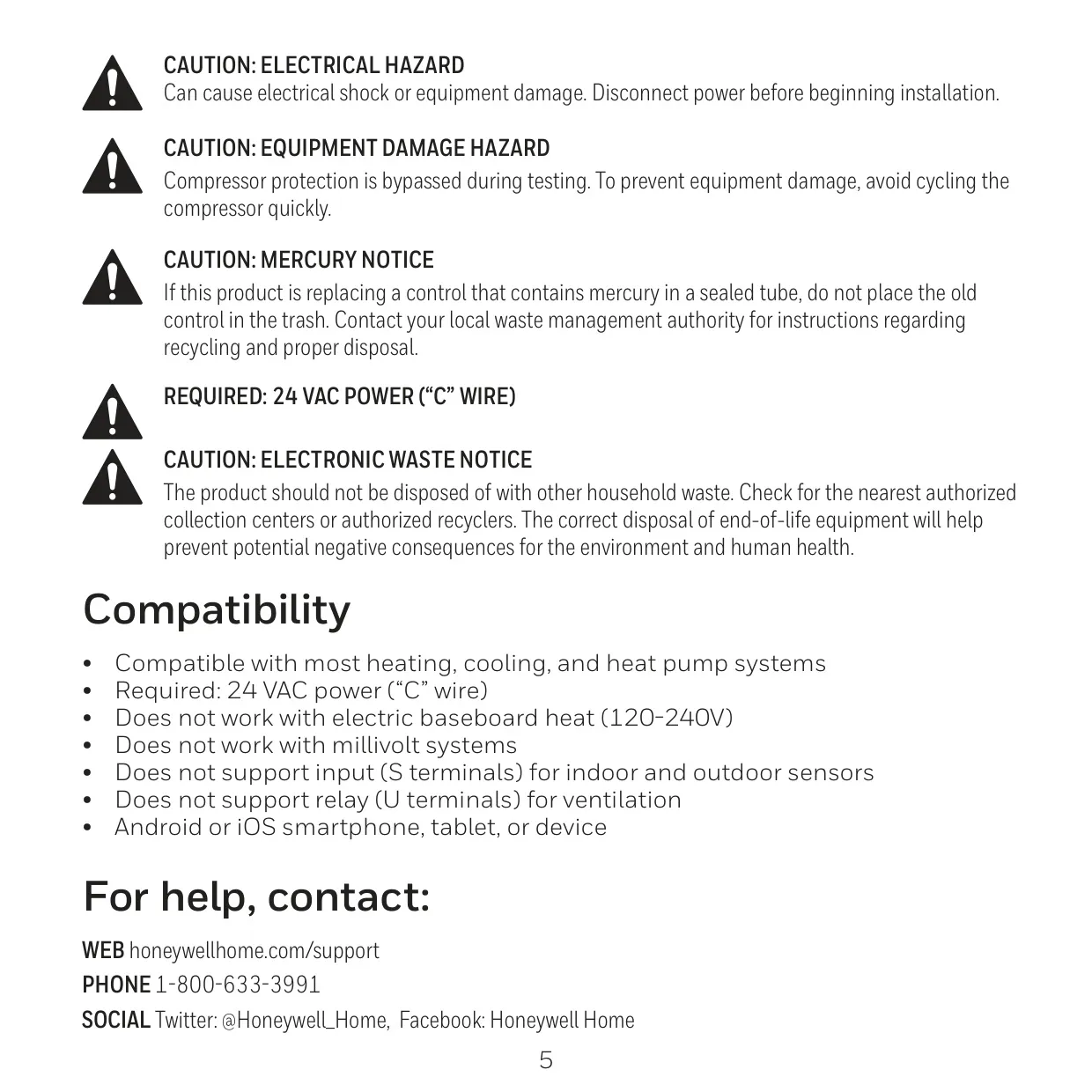
| Power Requirement | 24 VAC (requires "C" wire) |
| Compatibility | Most heating, cooling, and heat pump systems |
| Incompatibility | Electric baseboard heat (120-240V), Millivolt systems, S terminals (indoor/outdoor sensors), U terminals (ventilation) |
| Connectivity | Wi-Fi (2.4GHz range), Requires Android or iOS smartphone/tablet for app setup |
| Smart Home Integration | Apple HomeKit support |
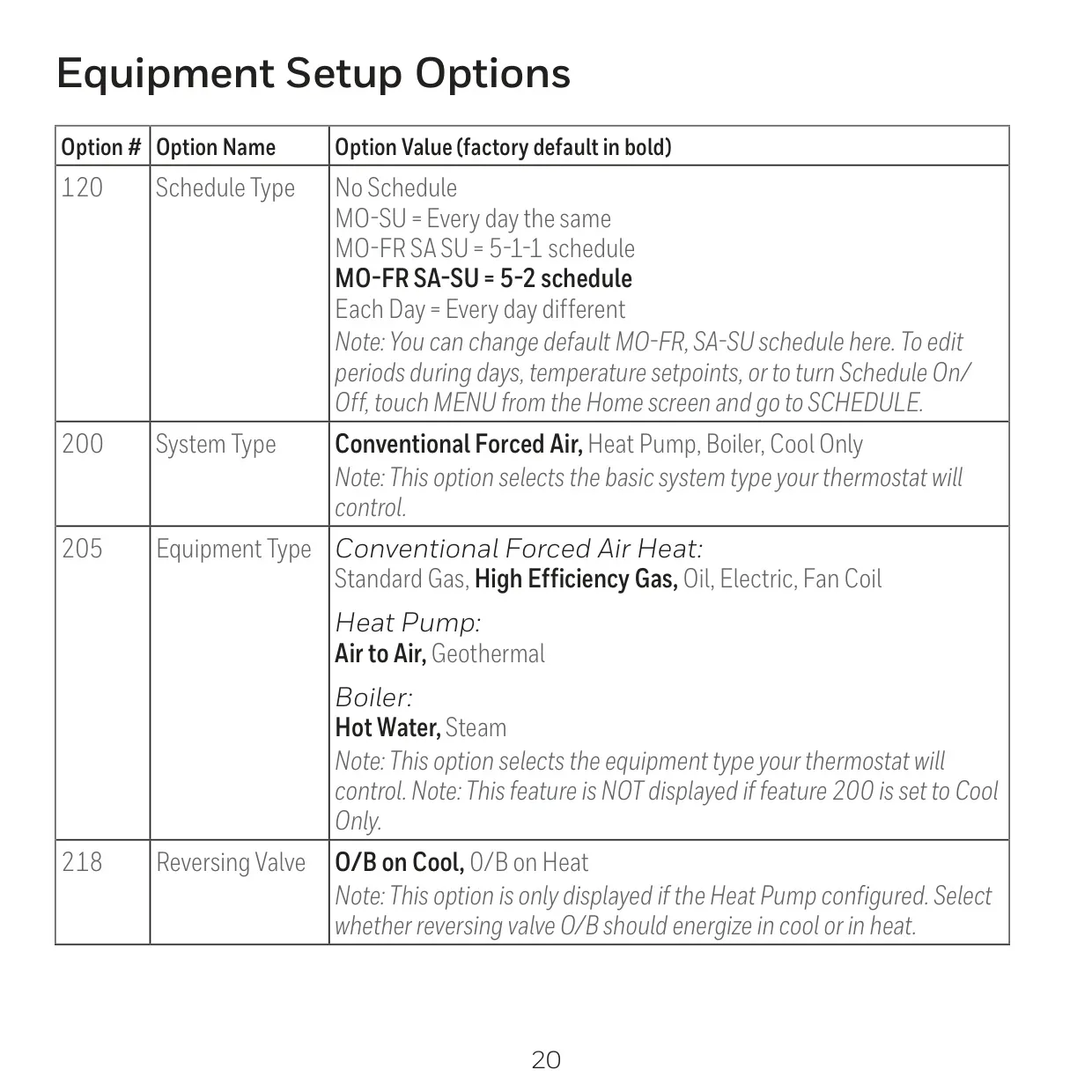
| Programming Options | Location-Based, Smart, Time-Based (MO-SU, MO-FR SA SU, MO-FR SA-SU (default), Each Day), No Schedule |
| System Types Supported (Option 200) | Conventional Forced Air (Default), Heat Pump, Boiler, Cool Only |
| Equipment Types Supported (Option 205) | Conventional Forced Air: Standard Gas, High Efficiency Gas (Default), Oil, Electric, Fan Coil; Heat Pump: Air to Air (Default), Geothermal; Boiler: Hot Water (Default), Steam |
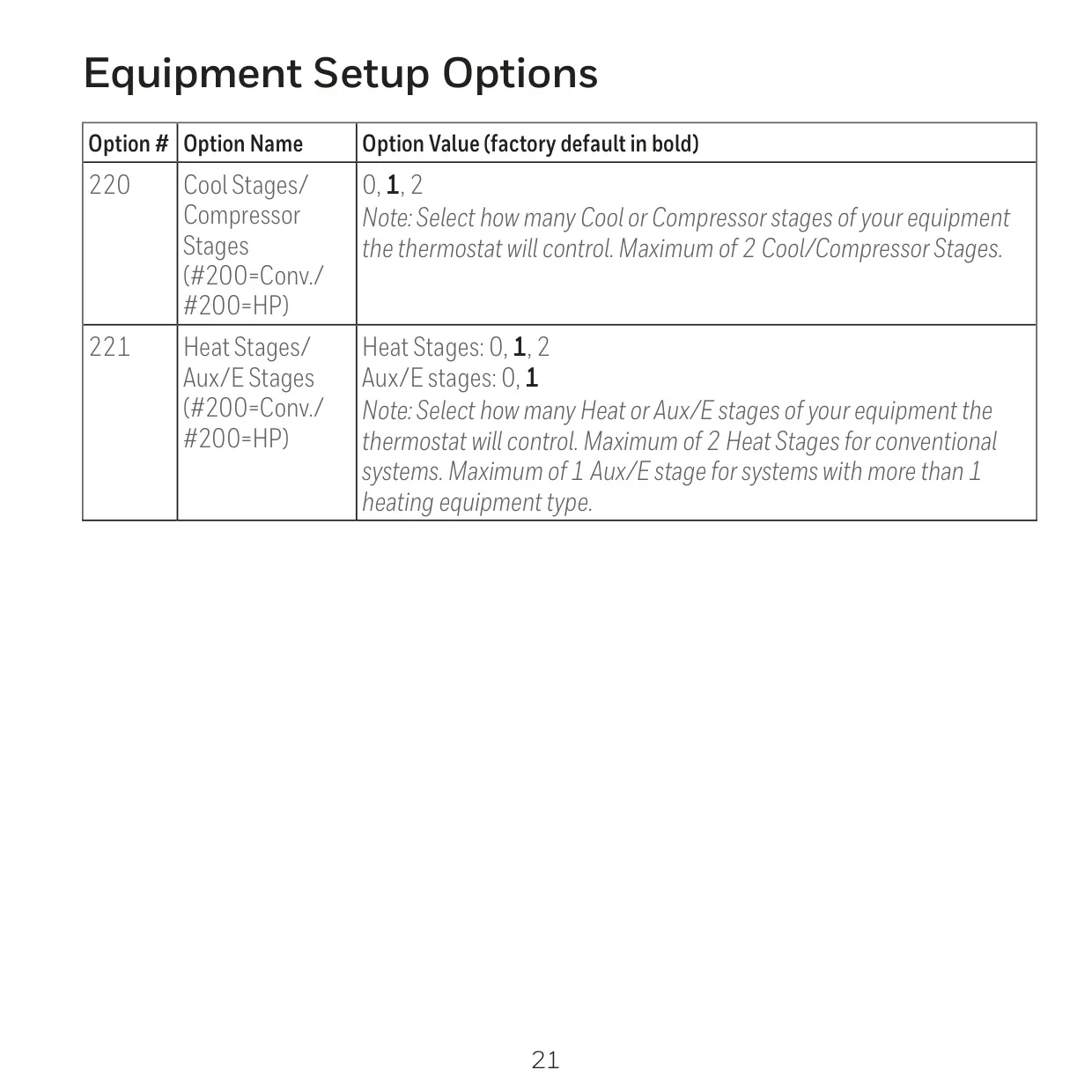
| Cool Stages / Compressor Stages (Option 220) | 0, 1 (Default), 2 (Max 2 stages) |
| Heat Stages / Aux/E Stages (Option 221) | Heat Stages: 0, 1 (Default), 2 (Conventional); Aux/E Stages: 0, 1 (Default) (Systems with >1 heating equipment) |
| Reversing Valve (Option 218, Heat Pump only) | O/B on Cool (Default), O/B on Heat |
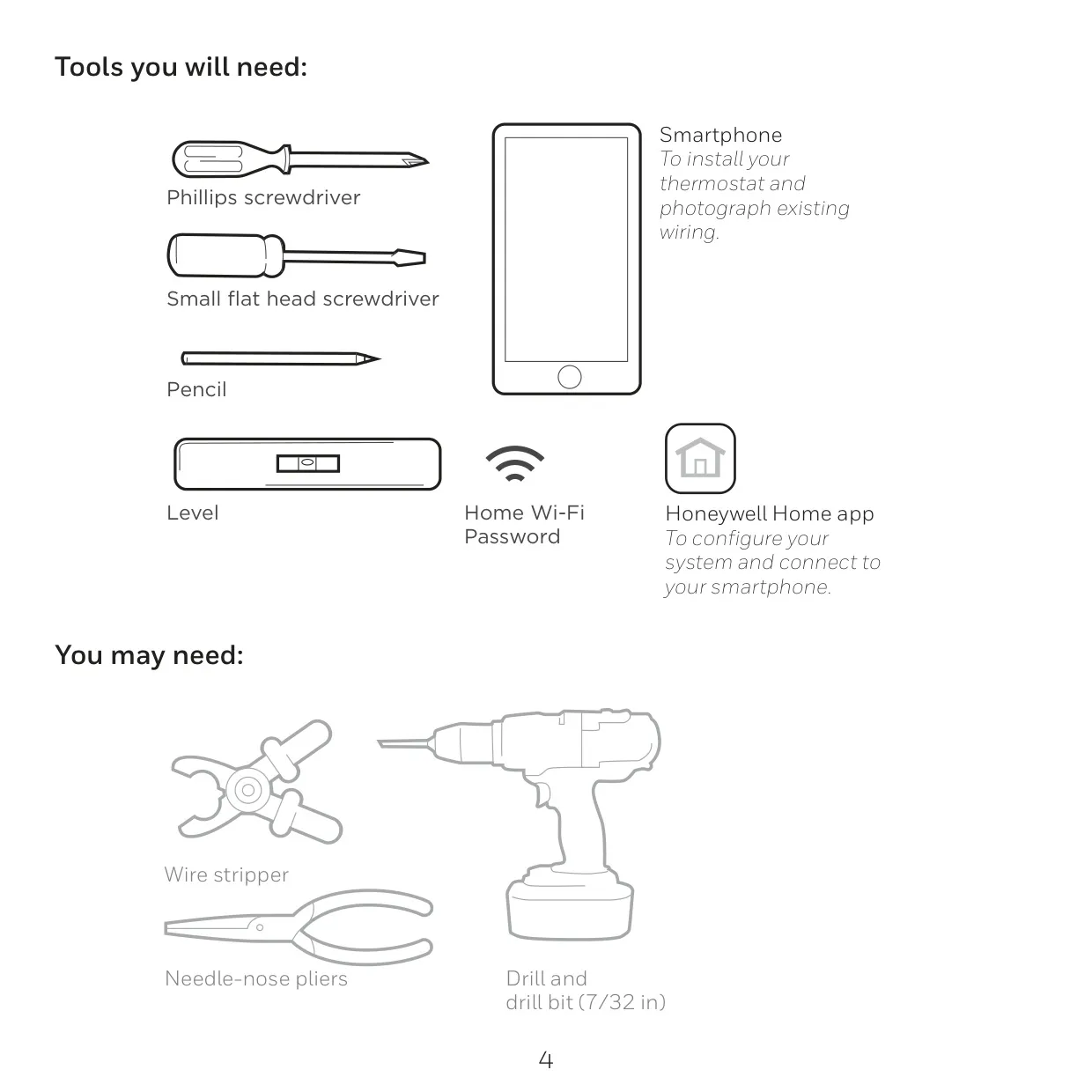
| Installation Tools Needed | Phillips screwdriver, Small flat head screwdriver, Pencil, Level, Home Wi-Fi Password, Smartphone, Honeywell Home app |
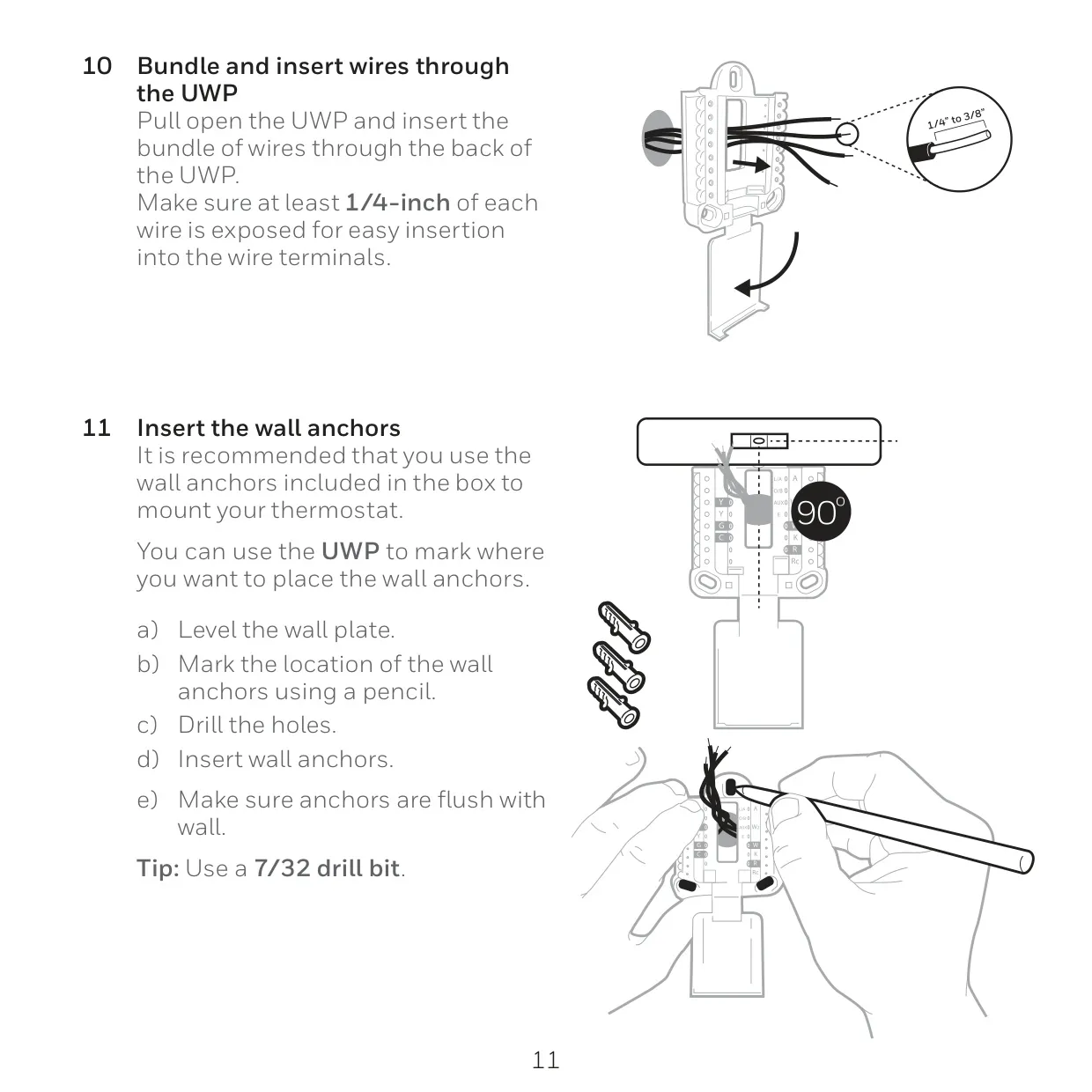
| Optional Installation Tools | Wire stripper, Needle-nose pliers, Drill and 7/32 in drill bit |
| Warranty | 2-Year Limited Warranty |
Honeywell RTH8800WF Thermostat Details
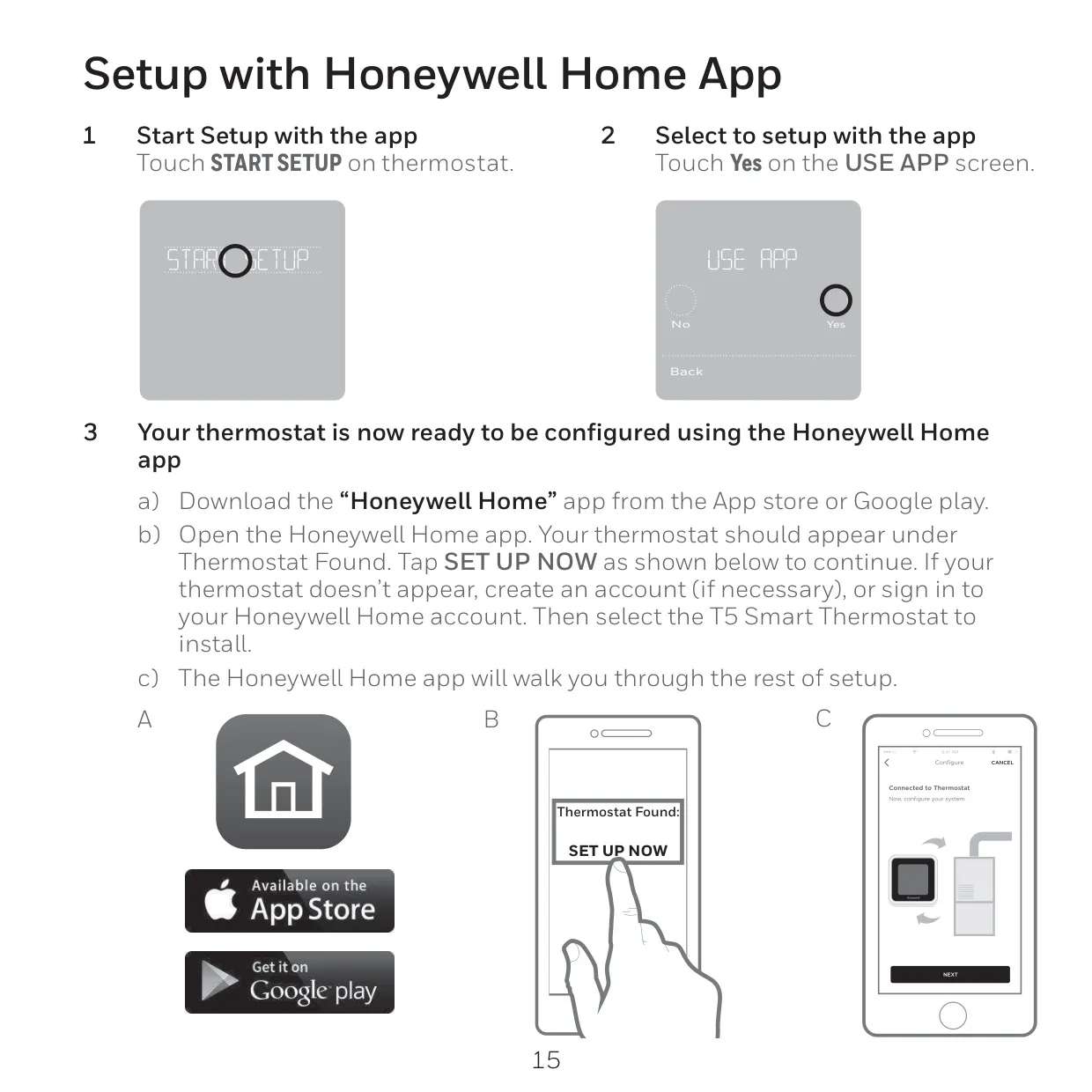
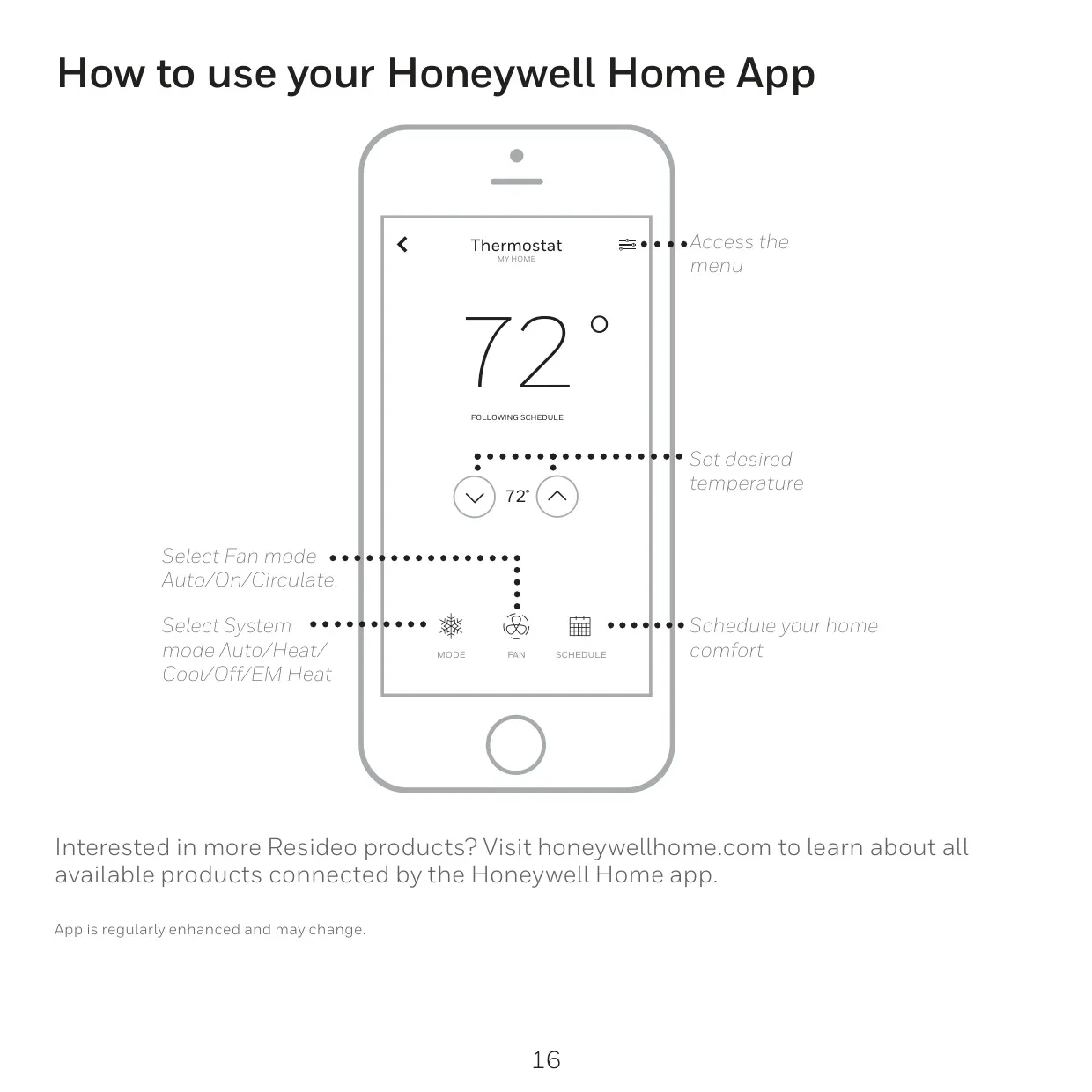
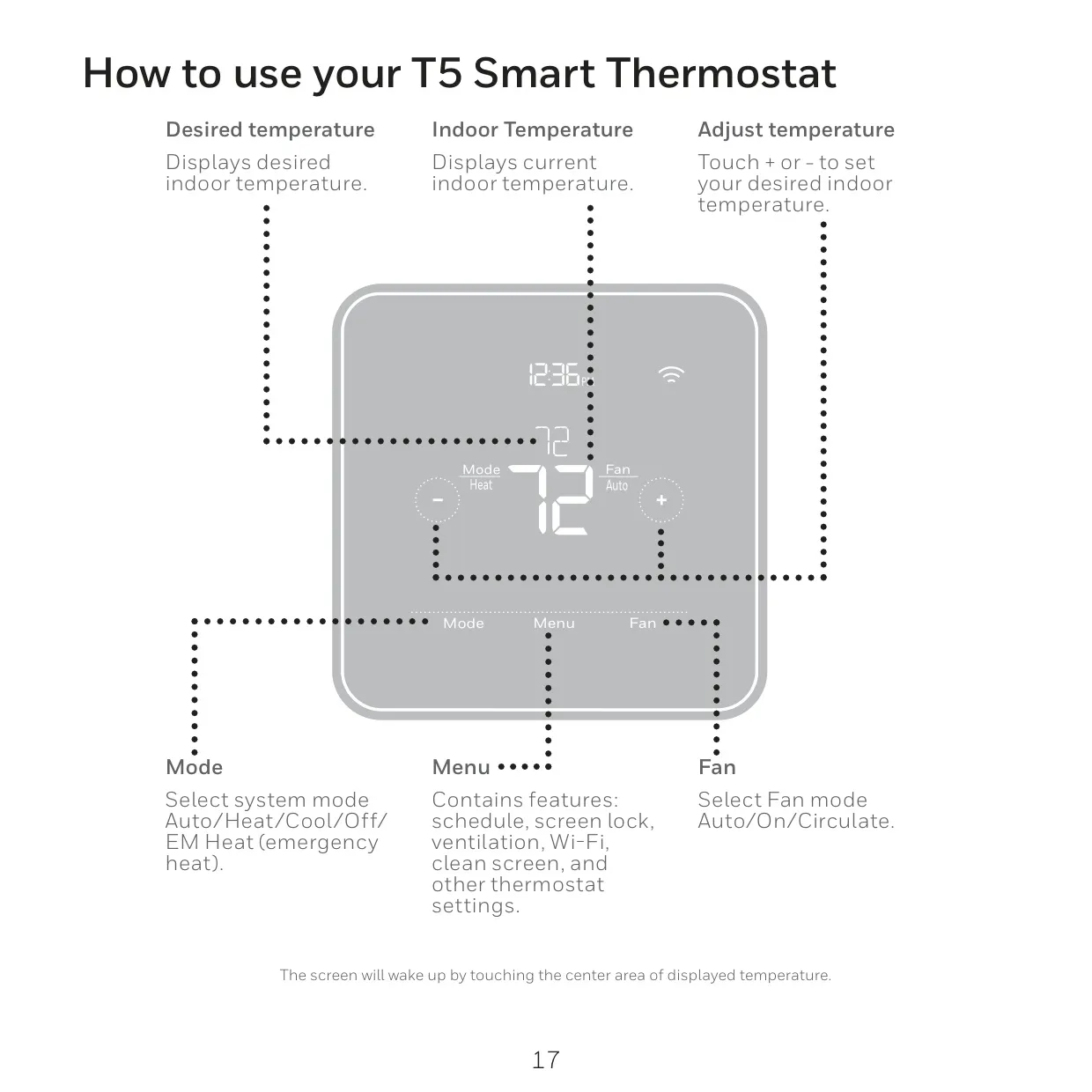
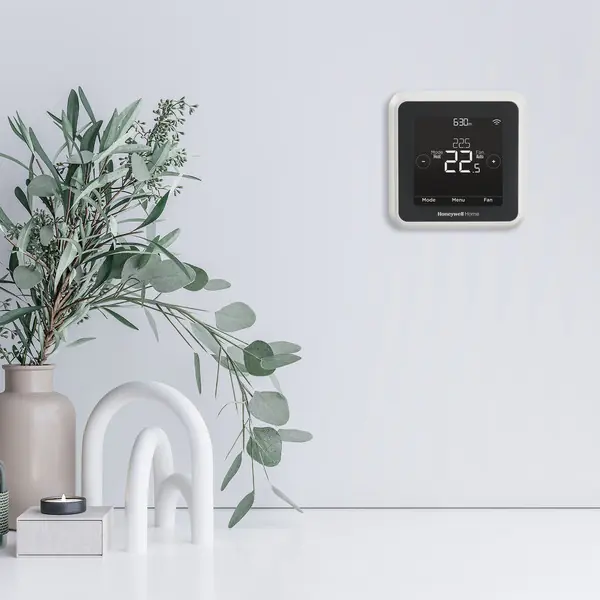
The Honeywell RTH8800WF, a T5 Smart Thermostat, offers a suite of advanced features designed to enhance home comfort and energy efficiency. Beyond its core specifications, this device integrates seamlessly into modern smart homes, primarily through the intuitive Honeywell Home app. Users can manage settings and temperatures remotely, ensuring optimal climate control whether they are at home or away.
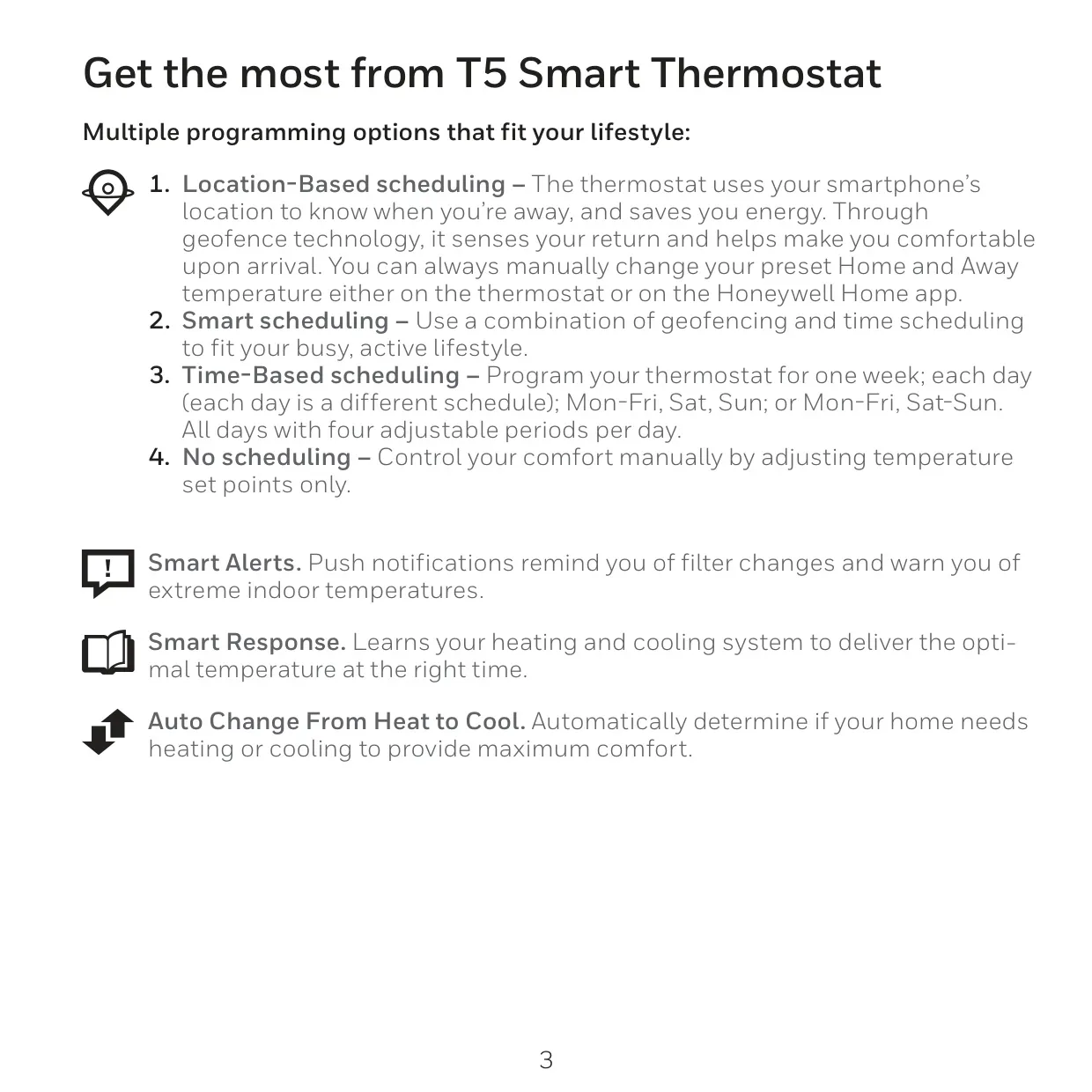
One of its standout capabilities is its diverse scheduling options. The thermostat supports location-based scheduling, utilizing your smartphone's geofence technology to detect your presence, saving energy when you're out and preparing your home for comfort upon your return. This intelligent feature can be manually overridden at any time, providing flexible control over your environment.
In addition to geofencing, the RTH8800WF allows for smart scheduling, blending location awareness with traditional time-based programming. For those who prefer a structured approach, time-based scheduling offers daily, 5-1-1 (Mon-Fri, Sat, Sun), or 5-2 (Mon-Fri, Sat-Sun) programming, with four adjustable periods per day. Alternatively, users can opt for no scheduling, controlling comfort entirely through manual temperature adjustments.
The thermostat also includes crucial smart functionalities such as Smart Alerts, which send push notifications for timely filter changes and warn of extreme indoor temperatures, helping maintain system health and prevent discomfort. Its Smart Response feature learns the unique characteristics of your heating and cooling system to deliver the desired temperature precisely when needed, optimizing performance and energy use.
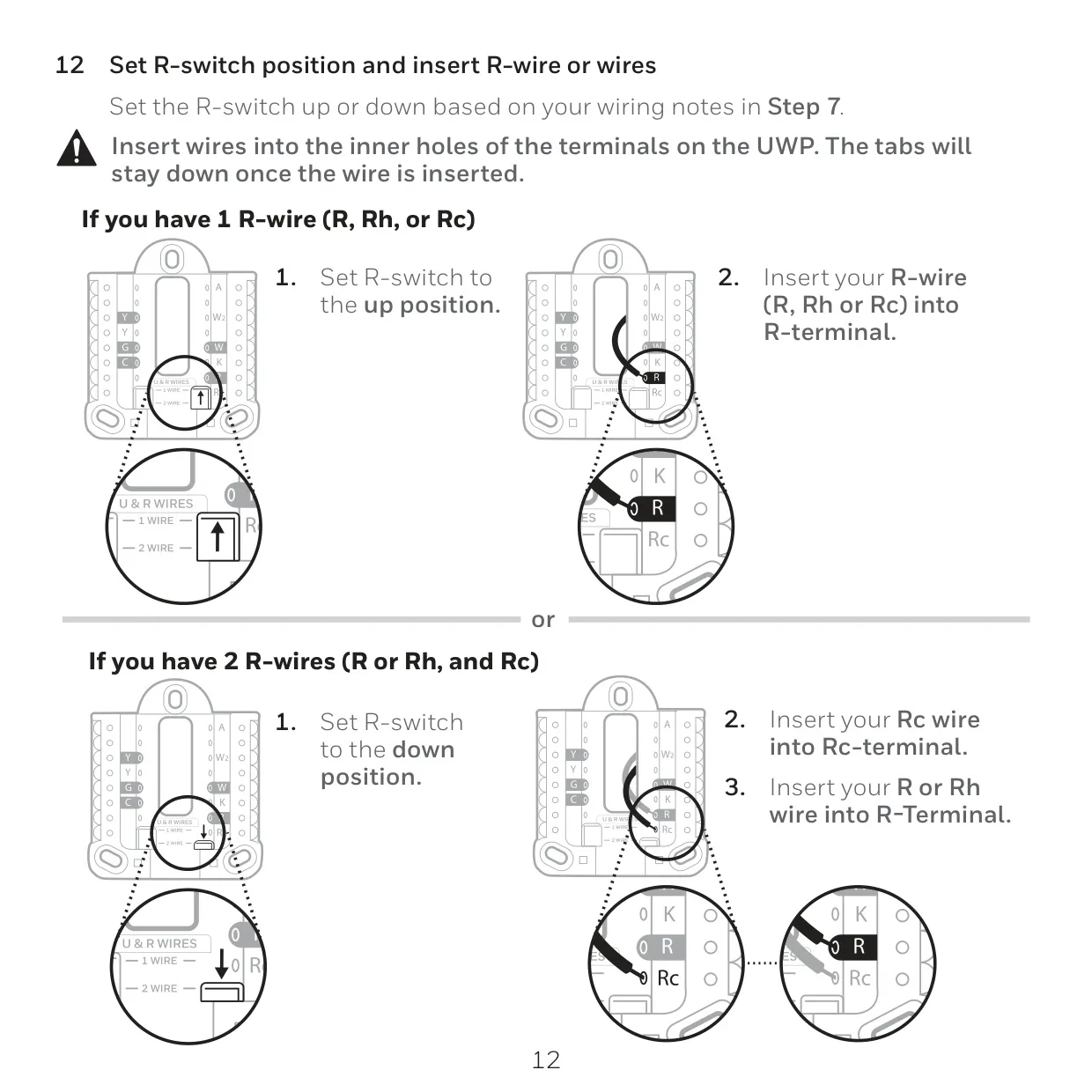
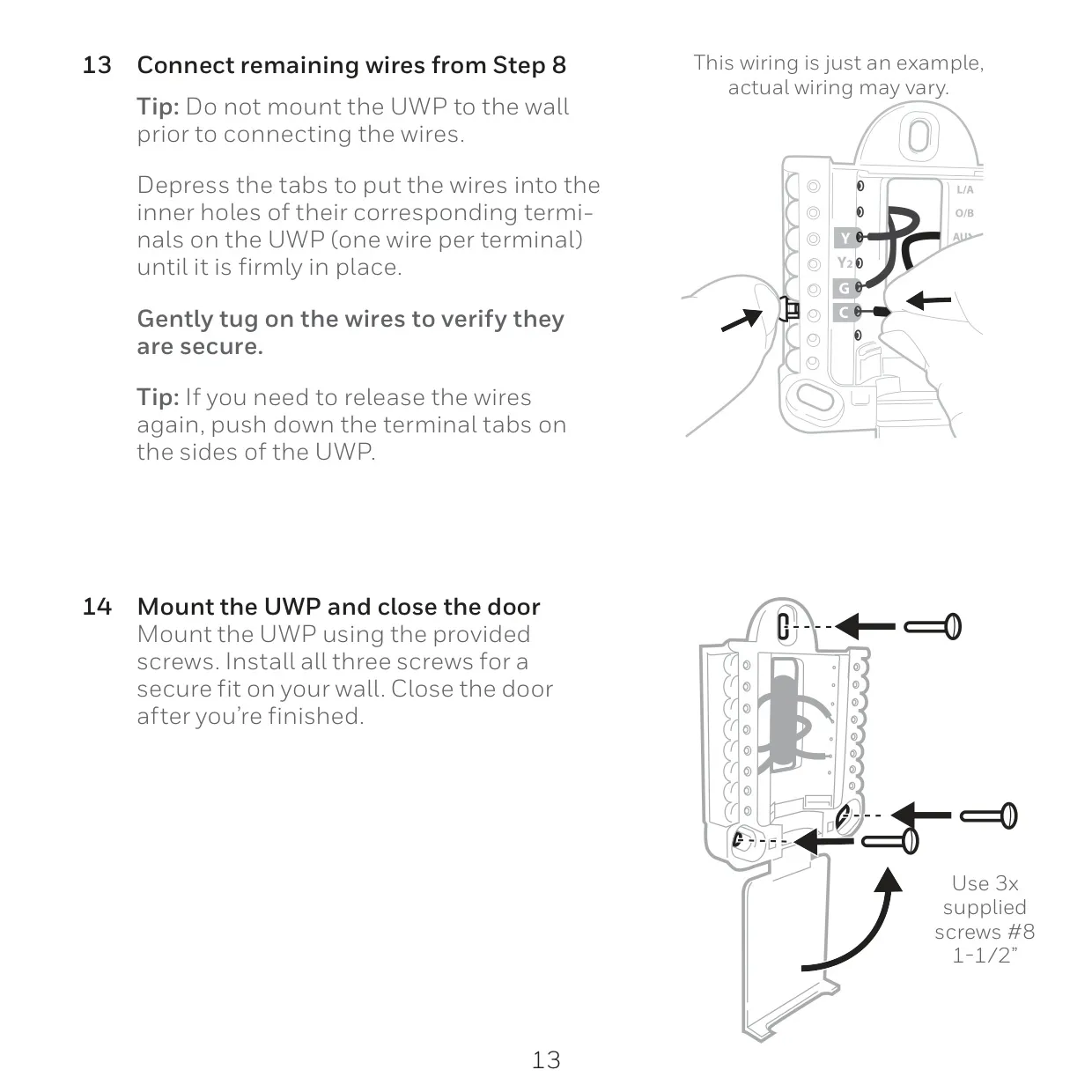
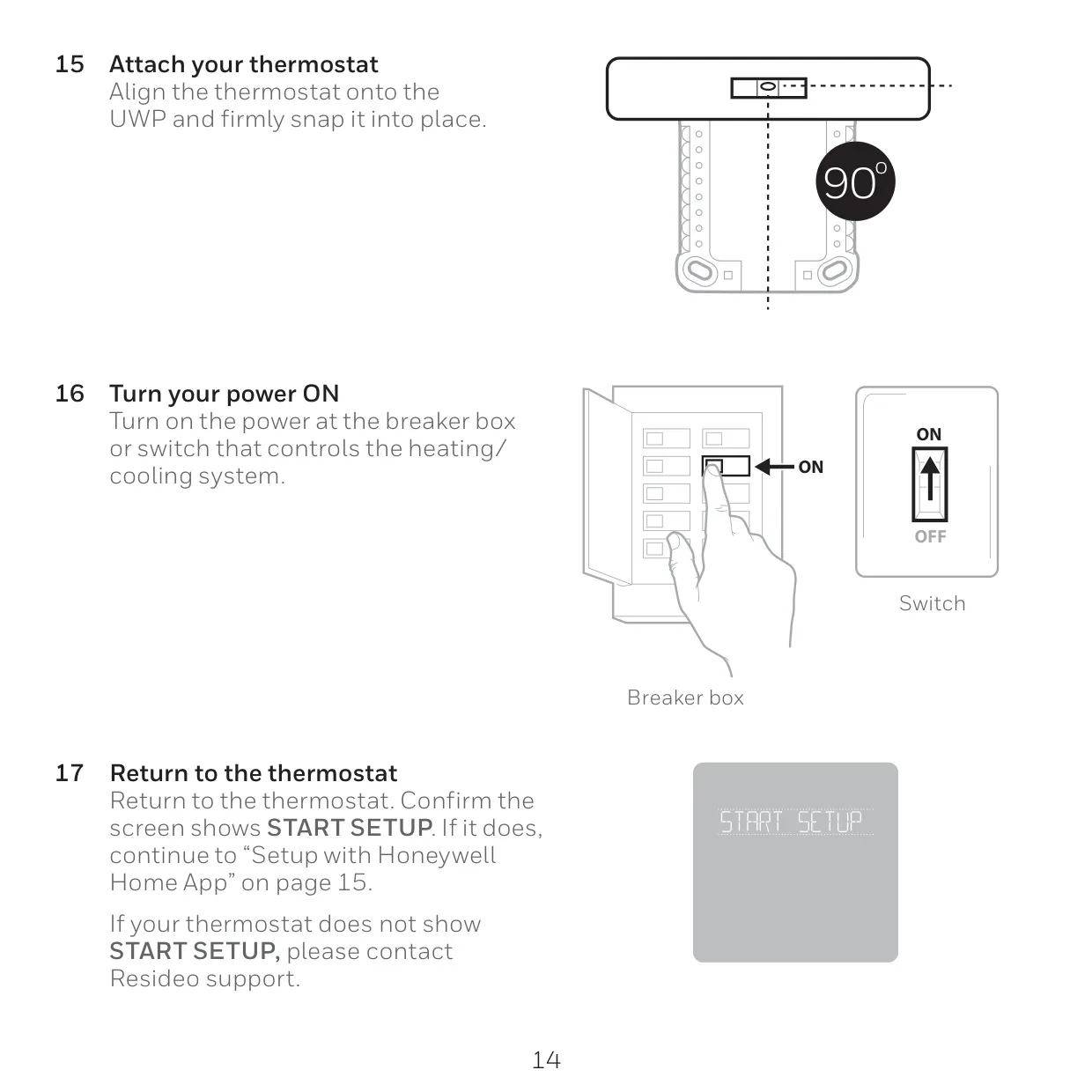
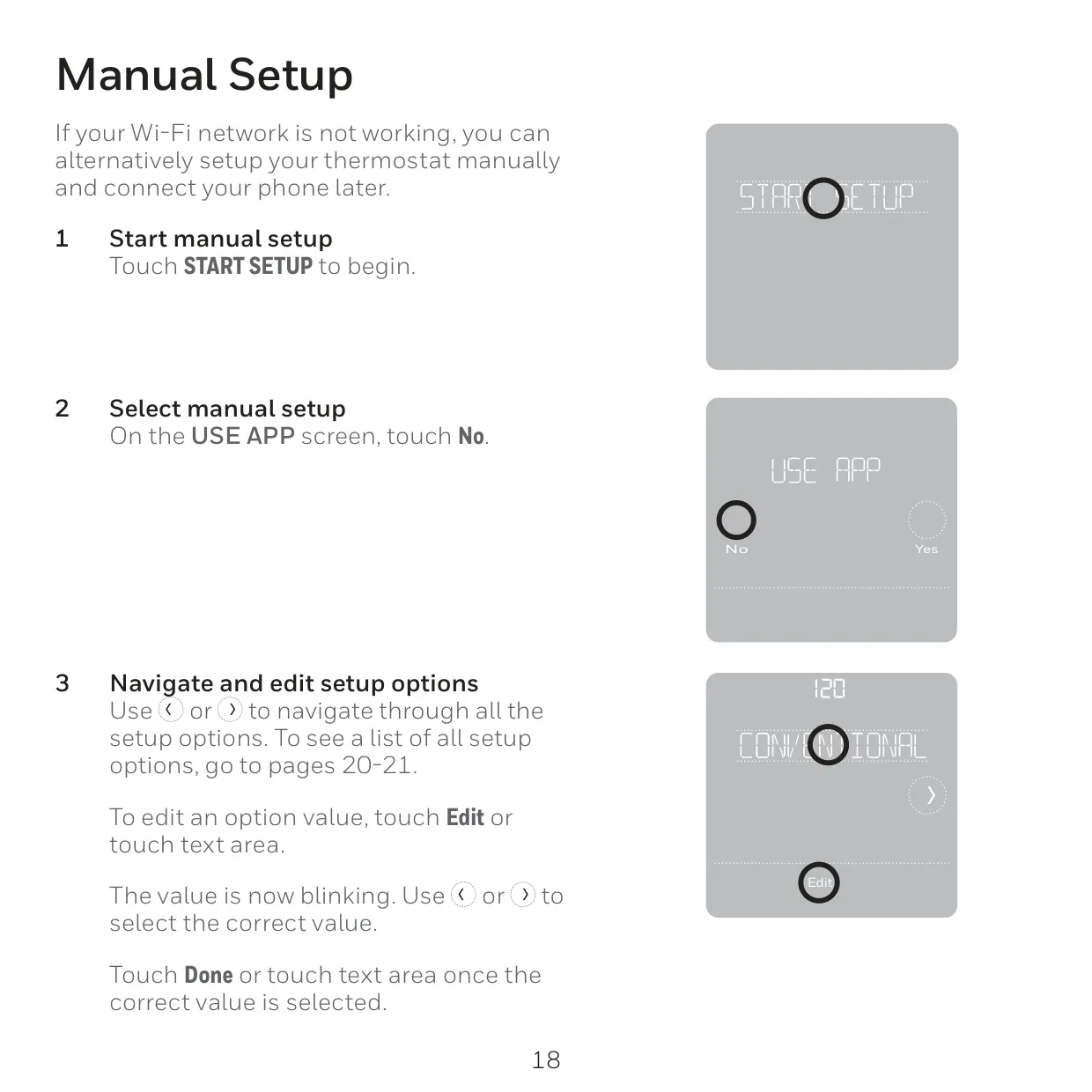
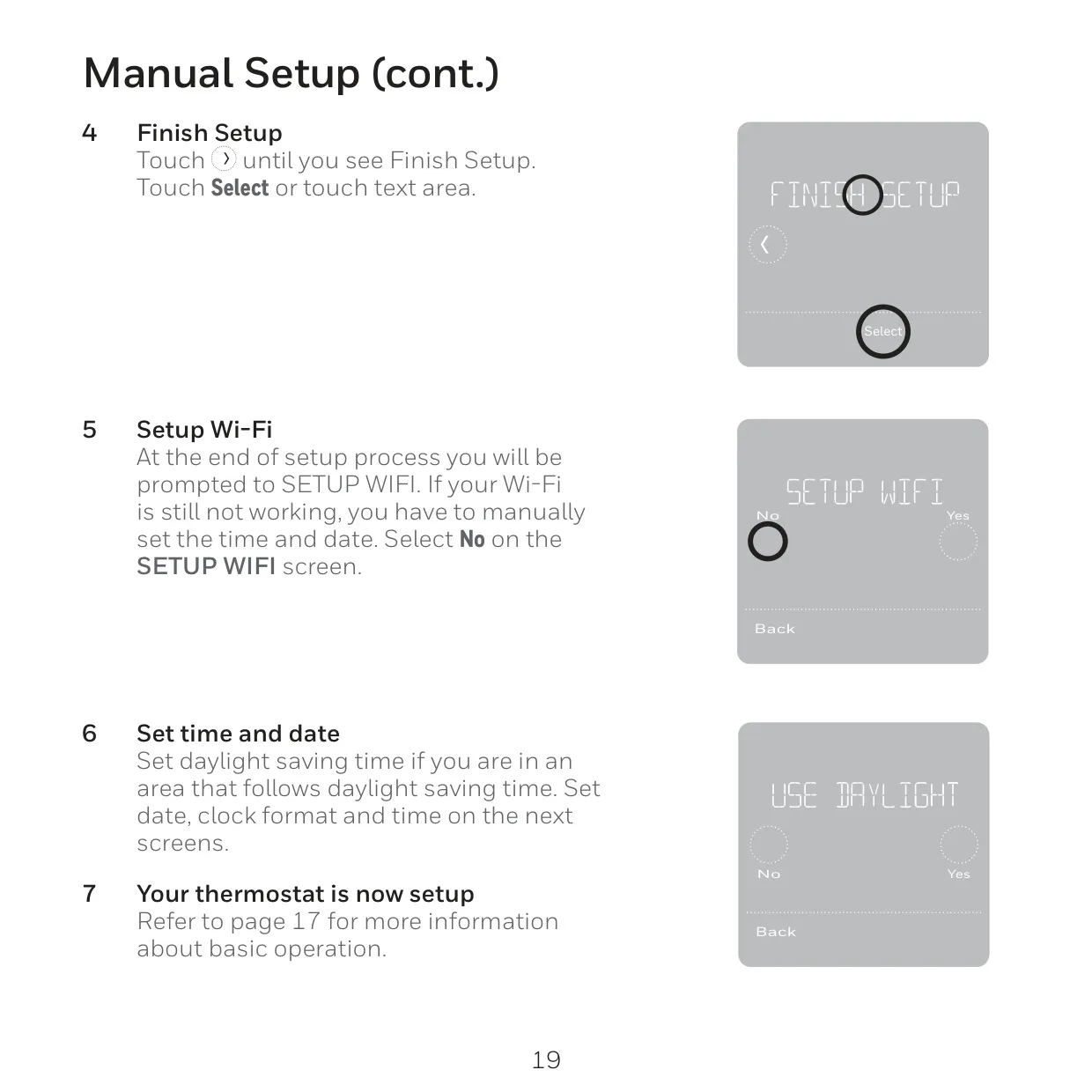
For ultimate convenience, the RTH8800WF incorporates Auto Change From Heat to Cool, which automatically switches between heating and cooling modes to maintain your preferred comfort level without manual intervention. Installation is streamlined by the UWP™ Mounting System, with clear instructions for wiring and securing the device, ensuring a robust connection and easy setup, either guided by the app or manually if Wi-Fi is unavailable.
Frequently Asked Questions (FAQs)
Can't find the answer you need? Here are some frequently asked questions about the Honeywell RTH8800WF Thermostat, and we answer them below.