Keychron K2 Keyboard Instruction Manual
Keychron K2 Keyboard





Keychron K2 Keyboard Instructions
Here we offer the Keychron K2 Keyboard manual completely free and in English. We have cataloged this manual in the Keyboards section on Manualverse, and it has been rated by 1 users with an average rating of 5. If you have any specific questions about Keychron K2 Keyboard, we suggest checking the Frequently Asked Questions (FAQs) section of this manual.
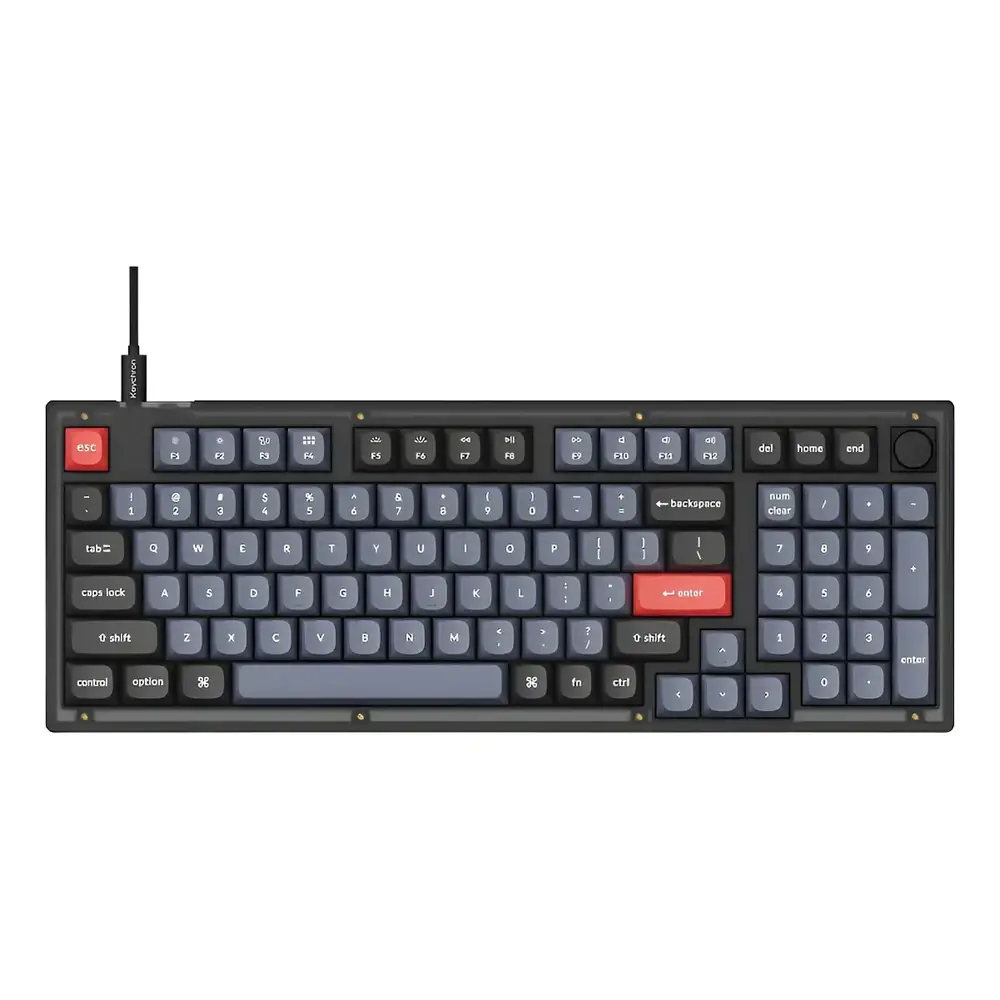
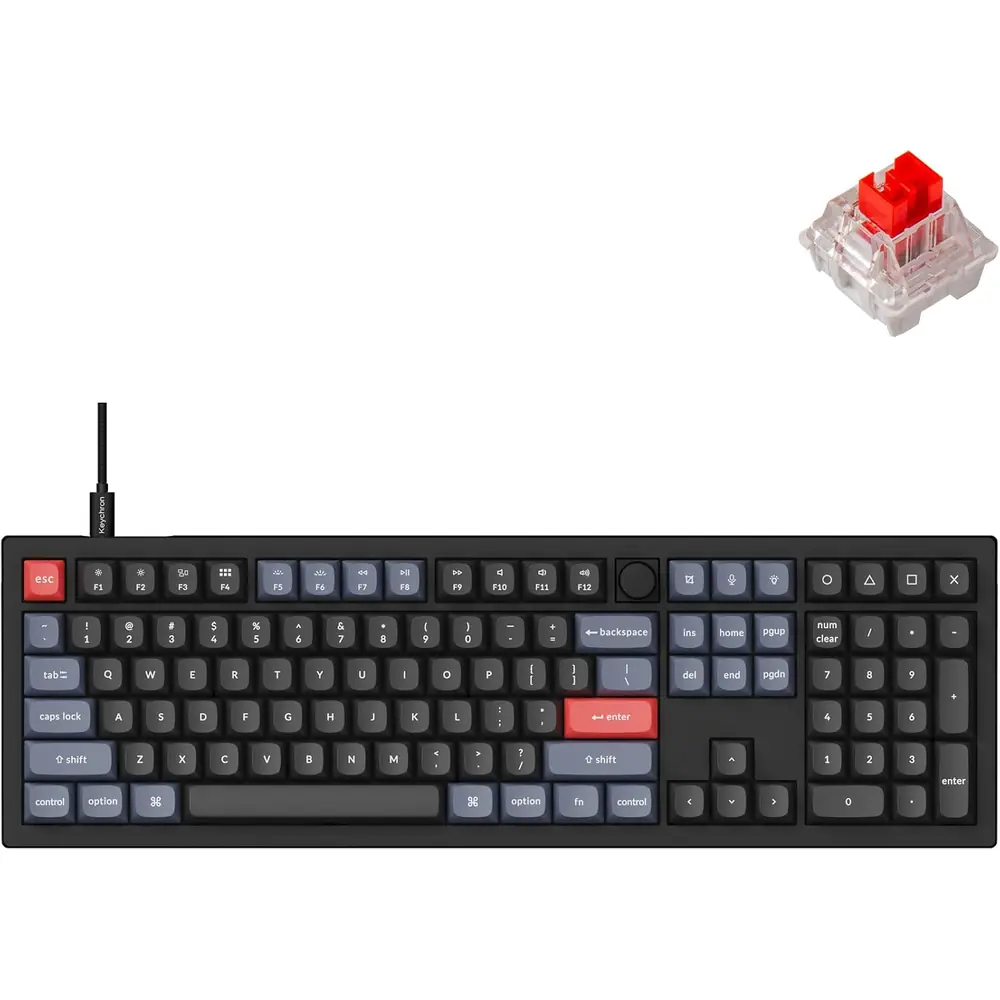
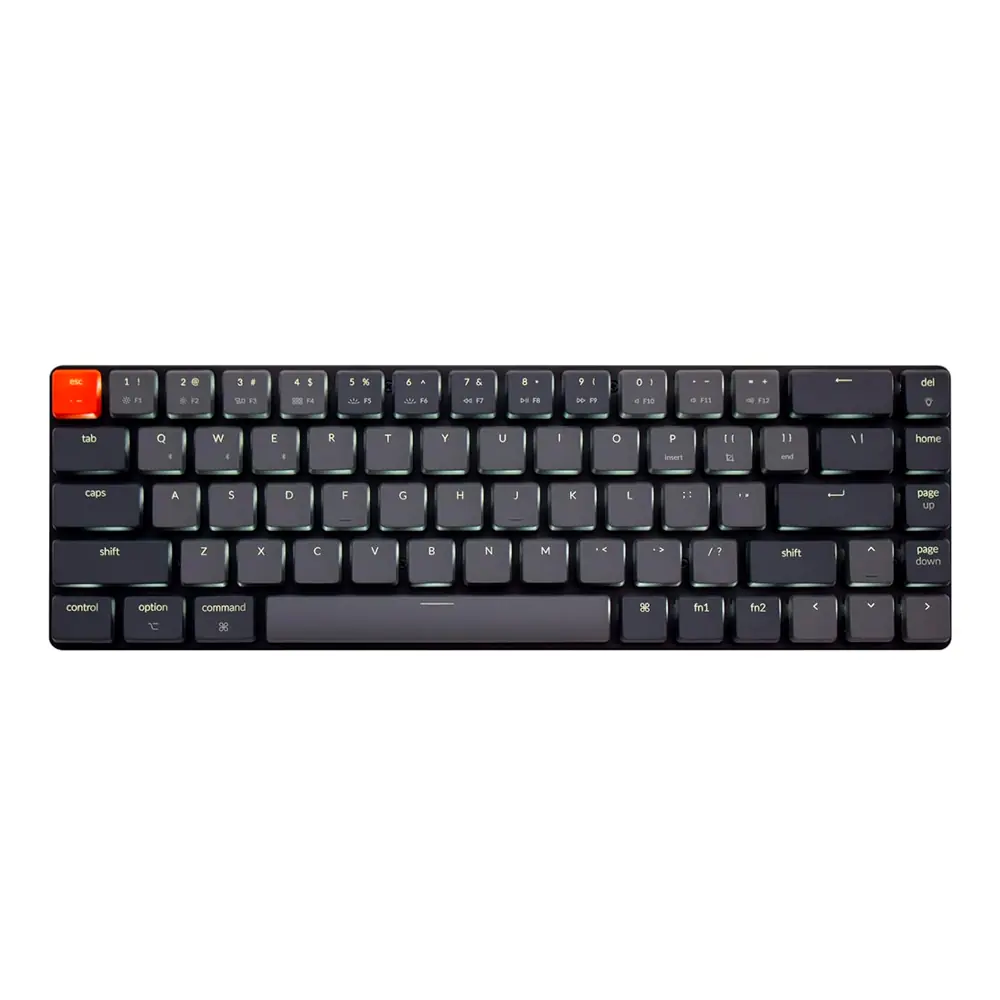
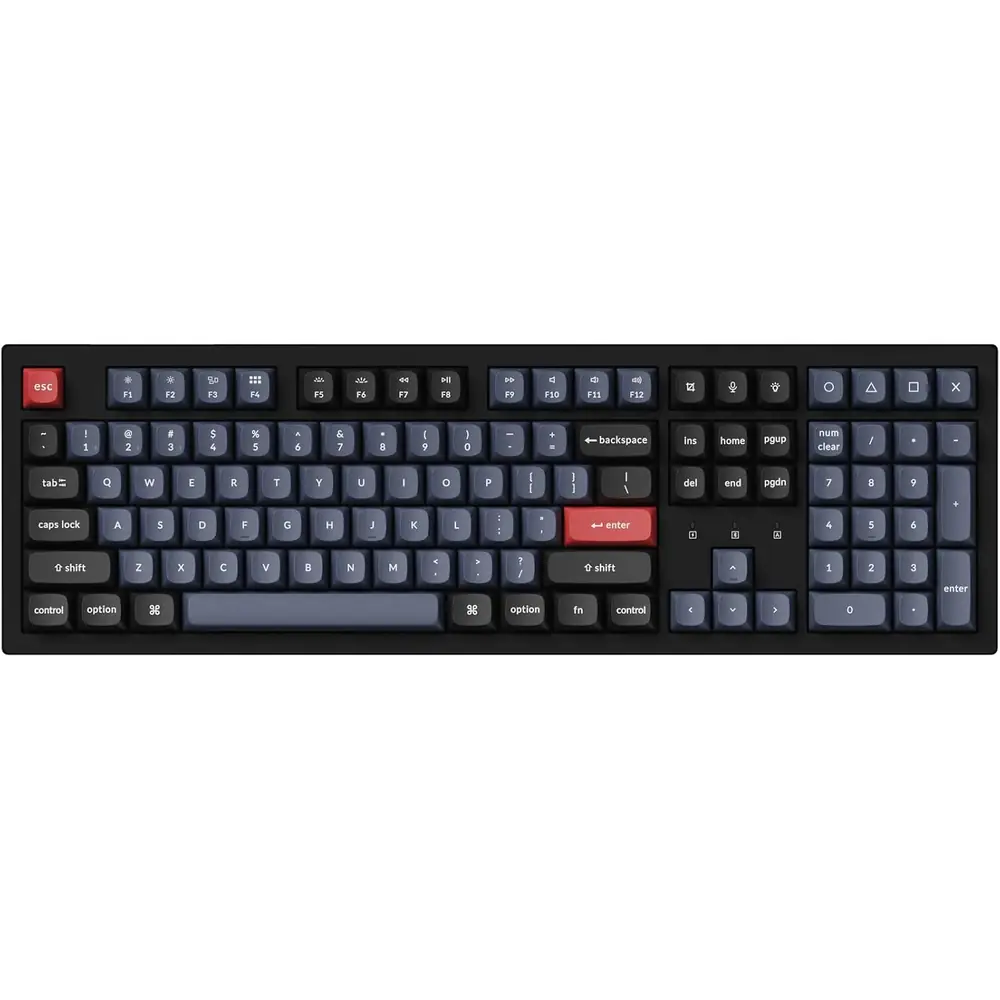
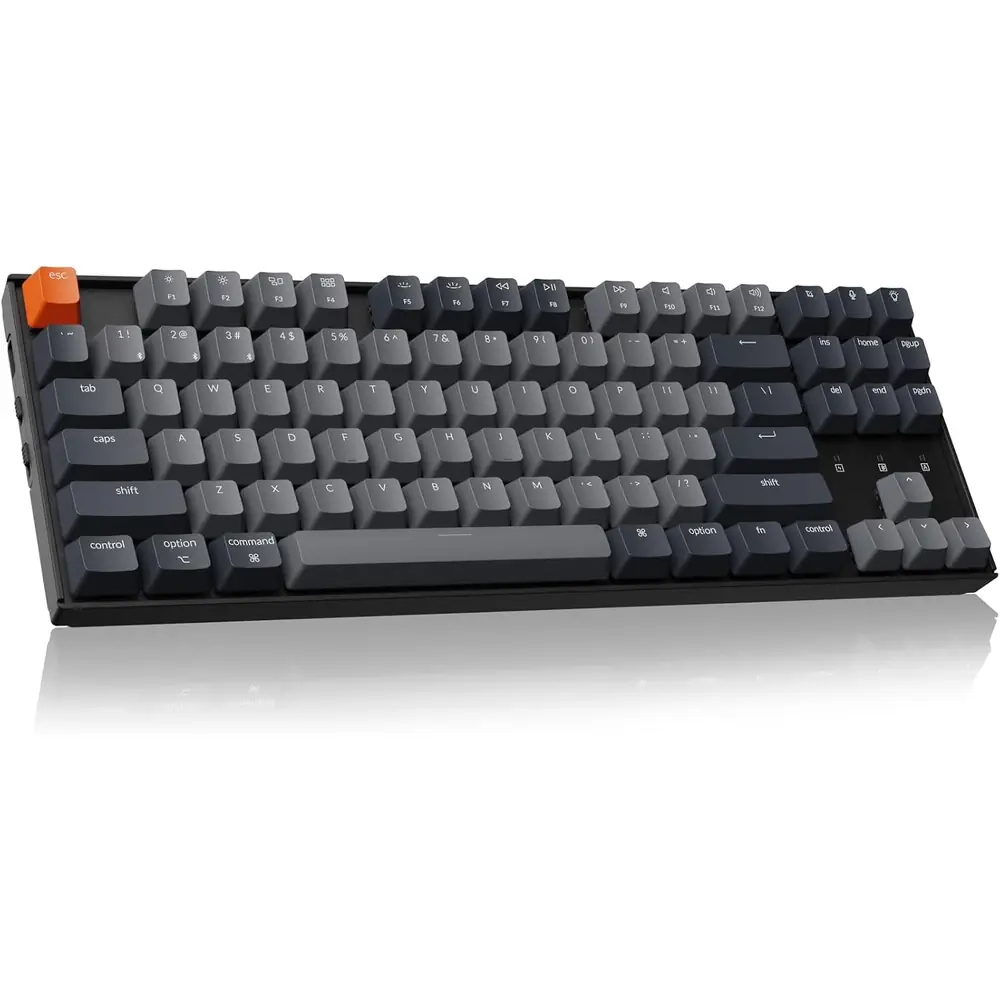
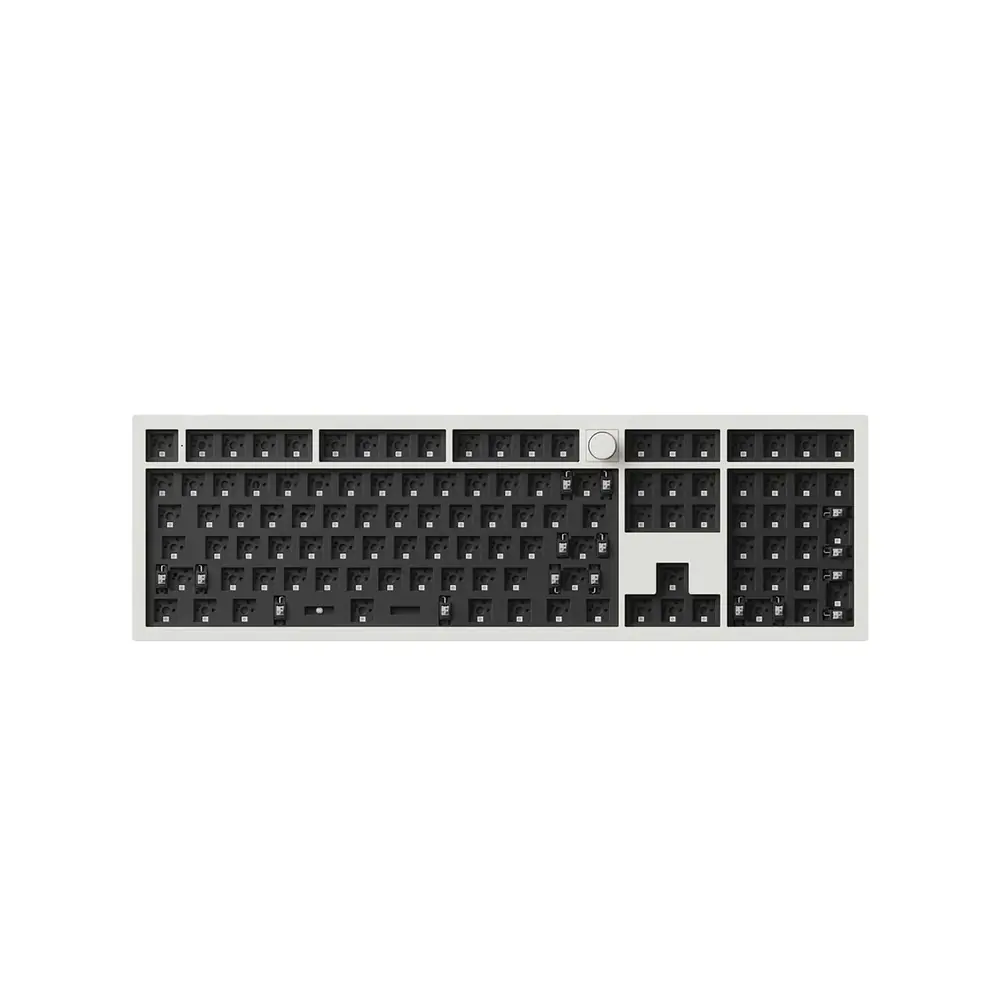
Product Images
Keychron K2 Keyboard Specifications
| Feature | Specification |
|---|---|
| Product Name | Keychron K2 Bluetooth Mechanical Keyboard |
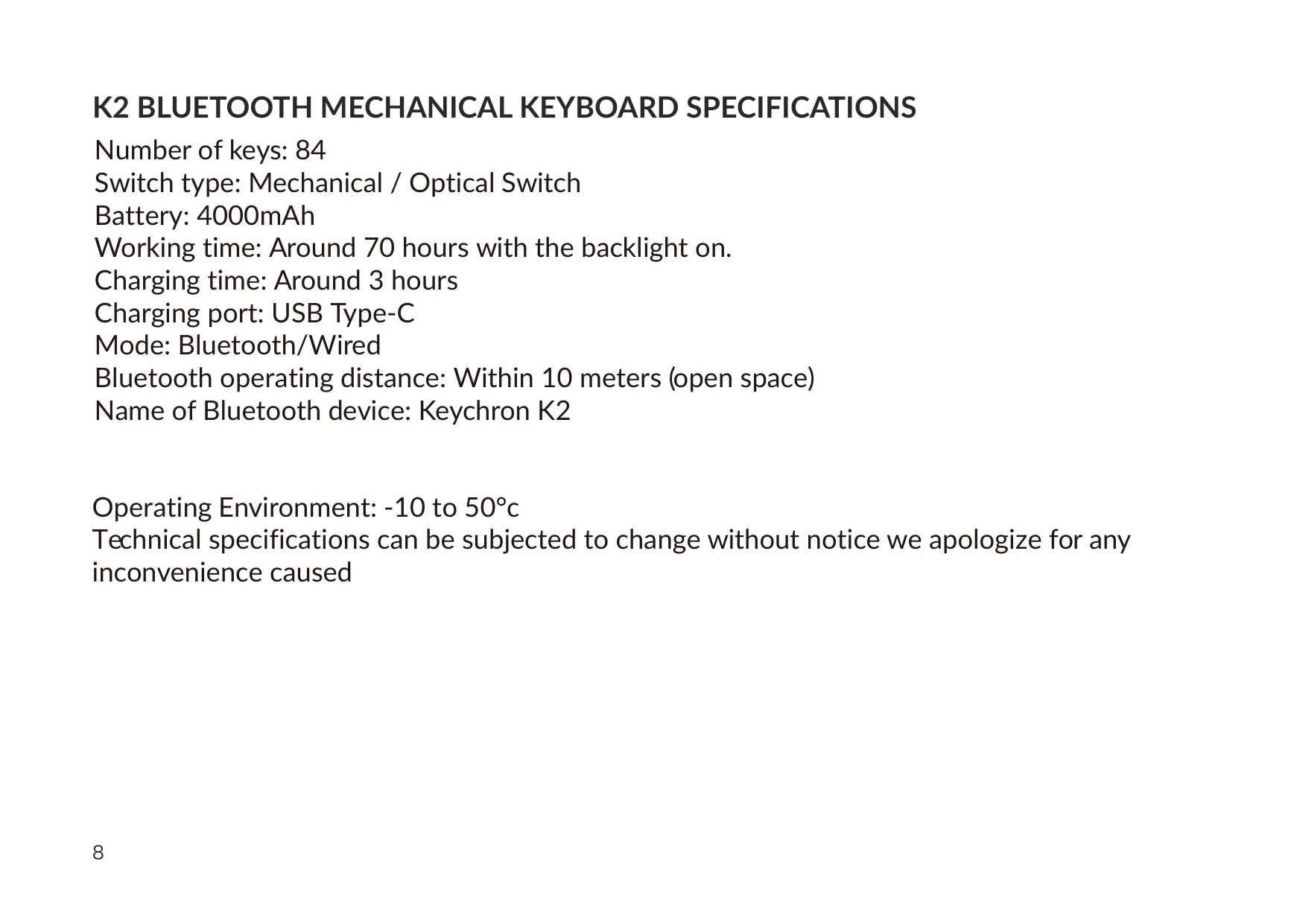
| Number of Keys | 84 |
| Switch Type | Mechanical / Optical Switch |
| Battery Capacity | 4000 mAh |
| Working Time | Around 70 hours with the backlight on |
| Charging Time | Around 3 hours |
| Charging Port | USB Type-C |
| Maximum Charging Input | 5V / 2A |
| Recommended Charger | 5V 2A adapter or USB 3.0 port |
| Connection Modes | Bluetooth / Wired (Type-C cable) |
| Bluetooth Operating Distance | Within 10 meters (open space) |
| Bluetooth Device Name | Keychron K2 |
| Multi-Device Pairing | Up to 3 devices (fn + 1 / fn + 2 / fn + 3) |
| Auto Sleep Timer | 10 minutes of inactivity (Bluetooth mode) |
| Supported Operating Systems | Mac/iOS, Windows/Android (Linux supported via community group) |
| Operating Environment | -10 °C to 50 °C (5 °F to 131 °F) |
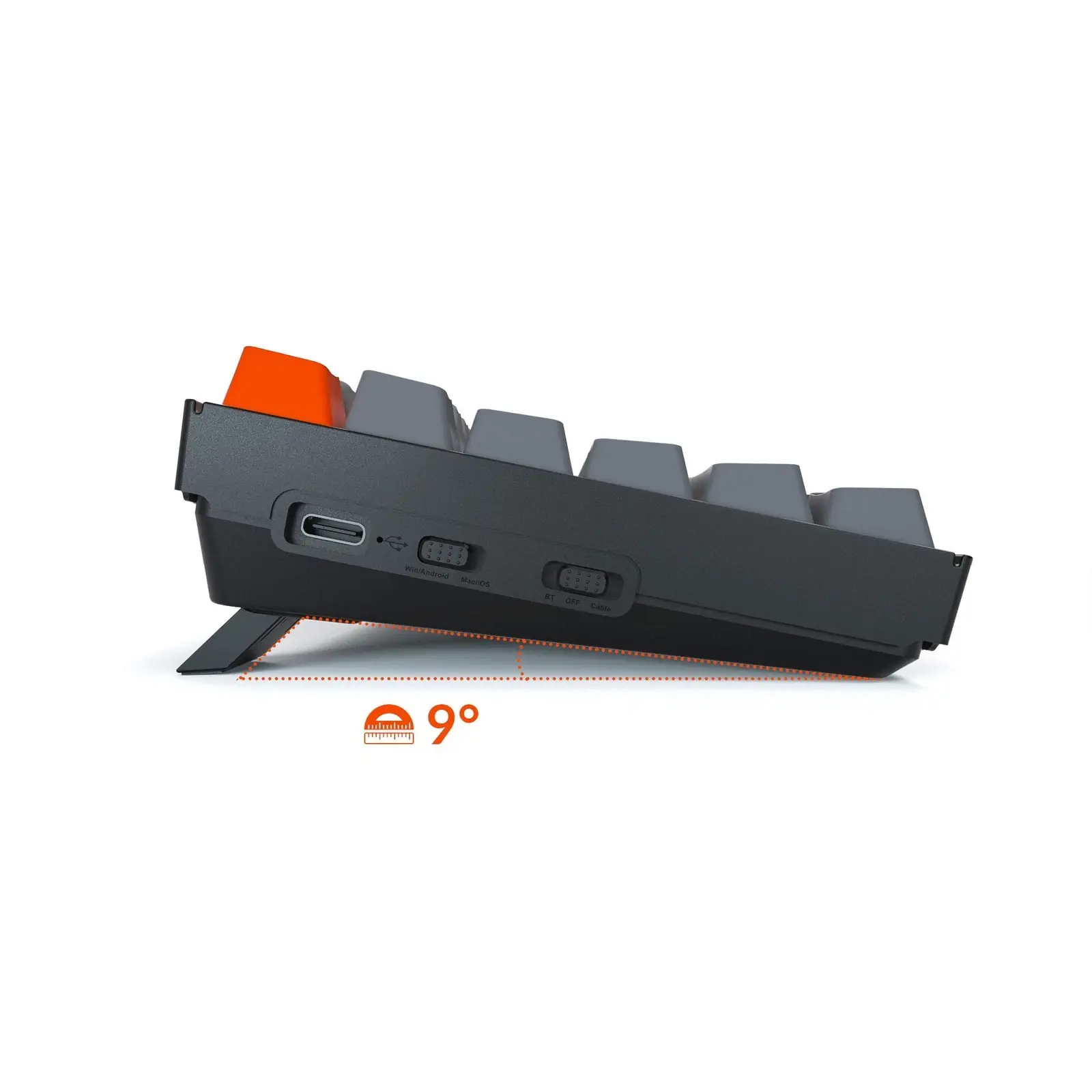
| Toggle Switches | OS Toggle (Win/Android – Mac/iOS); Mode Toggle (BT – OFF – Cable) |
| Indicators | Bluetooth indicator, Battery indicator |
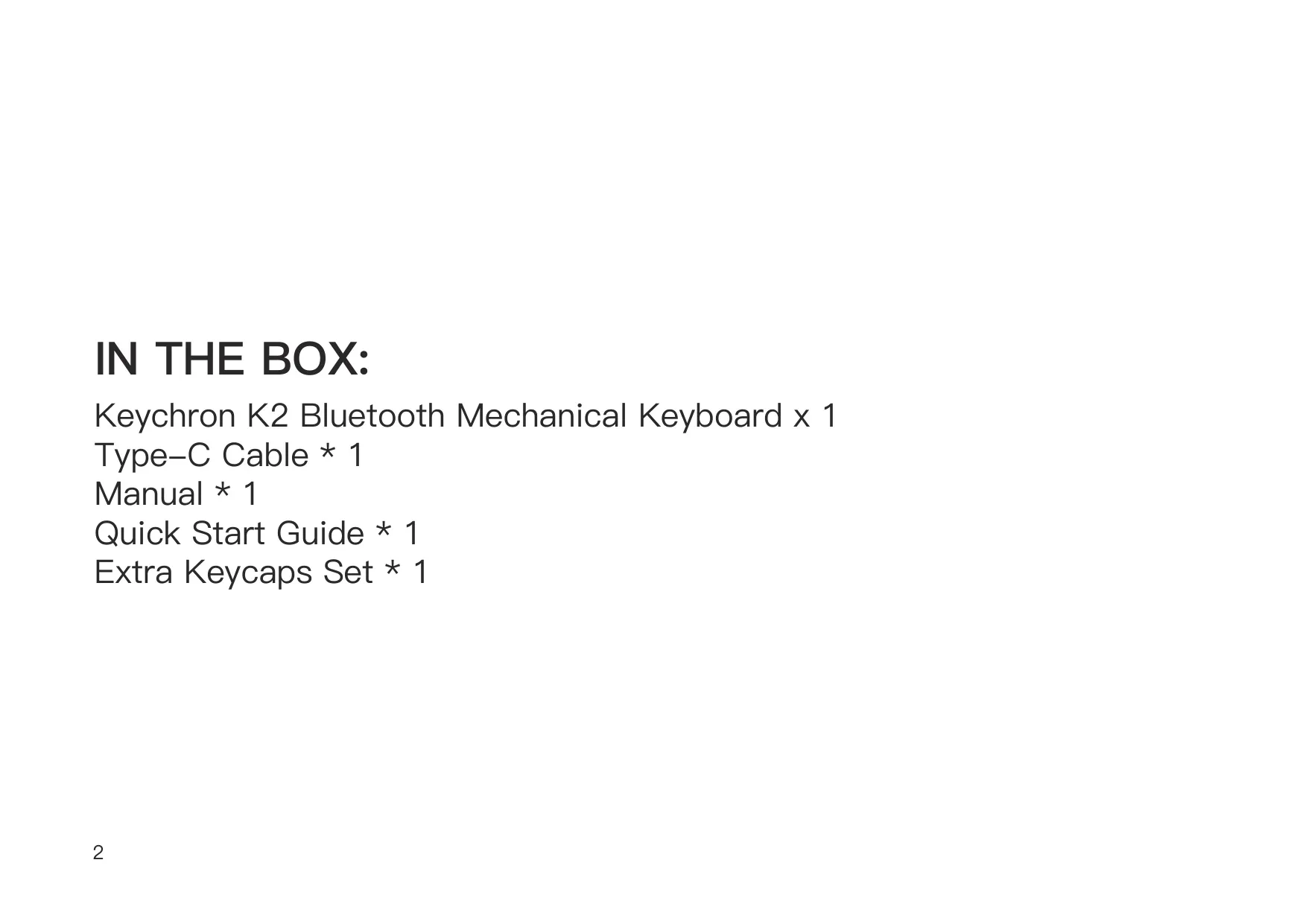
| Package Contents | Keyboard x1, Type-C Cable x1, Manual x1, Quick Start Guide x1, Extra Keycaps Set x1 |
| Manufacturer | Keychron, Inc., Dover, DE 19901, United States |
| Country of Manufacture | China |
Keychron K2 Keyboard Details
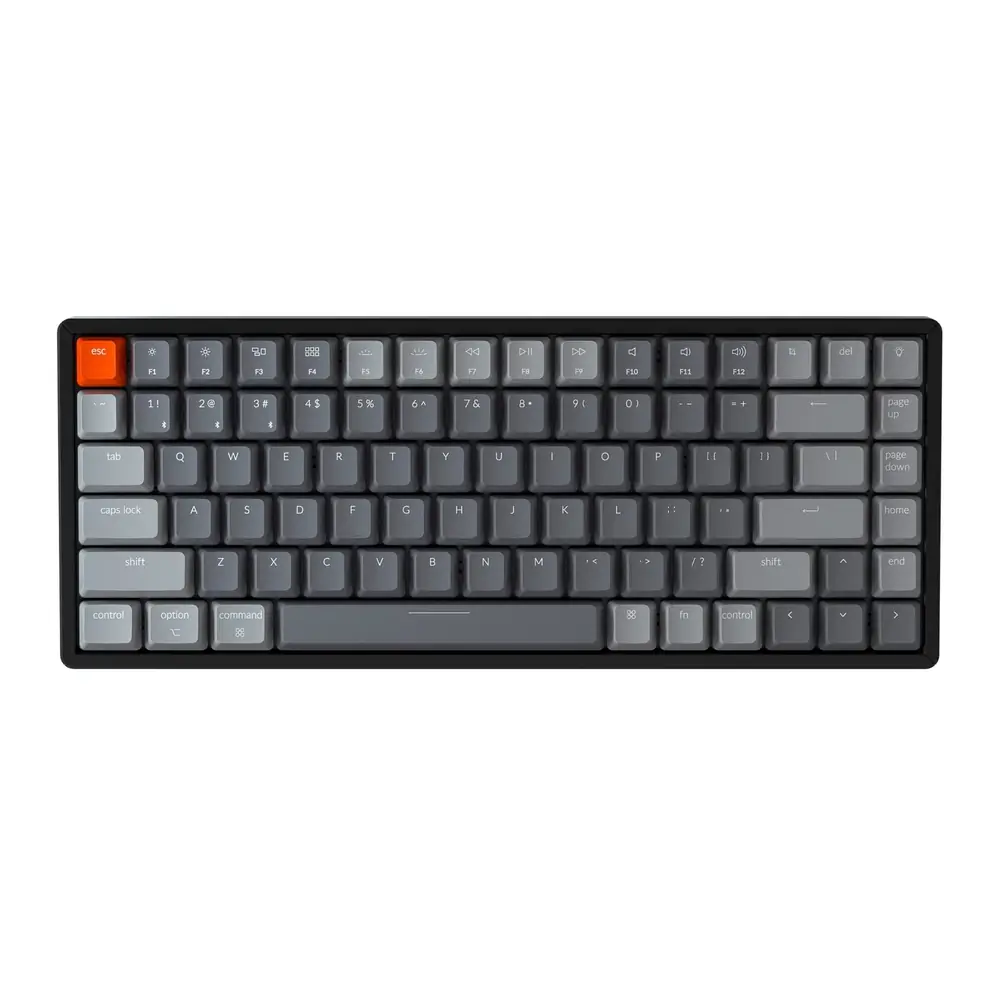
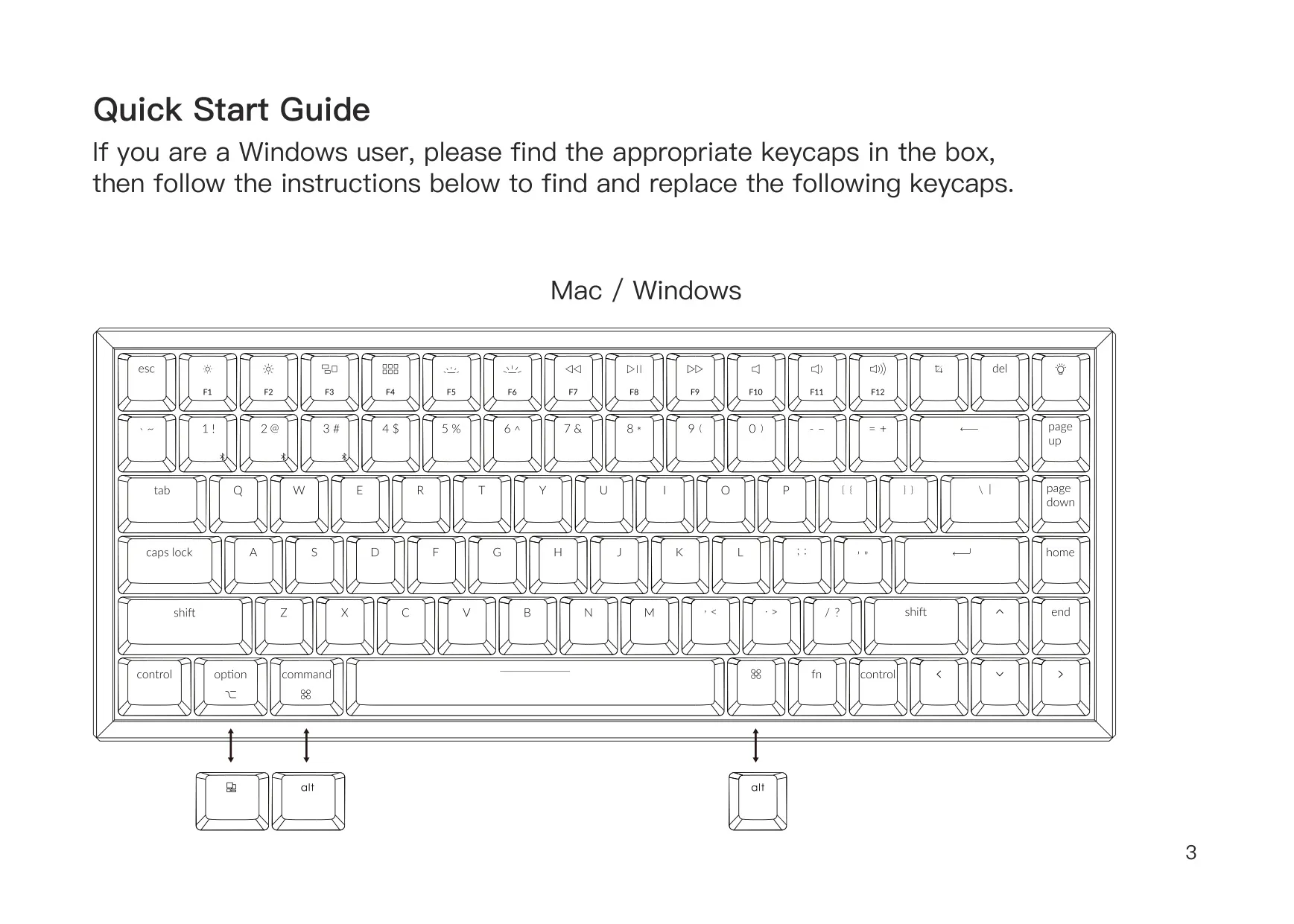
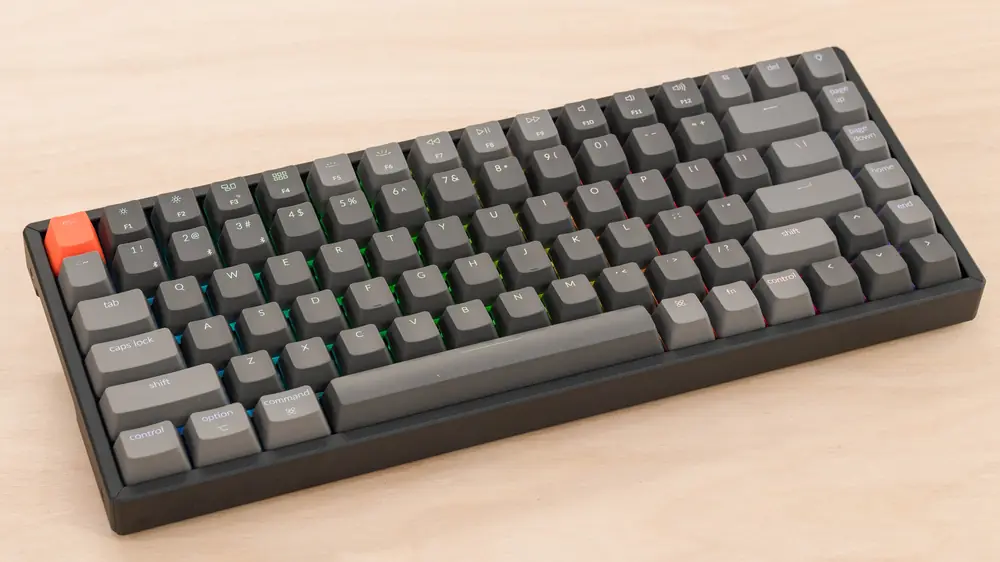
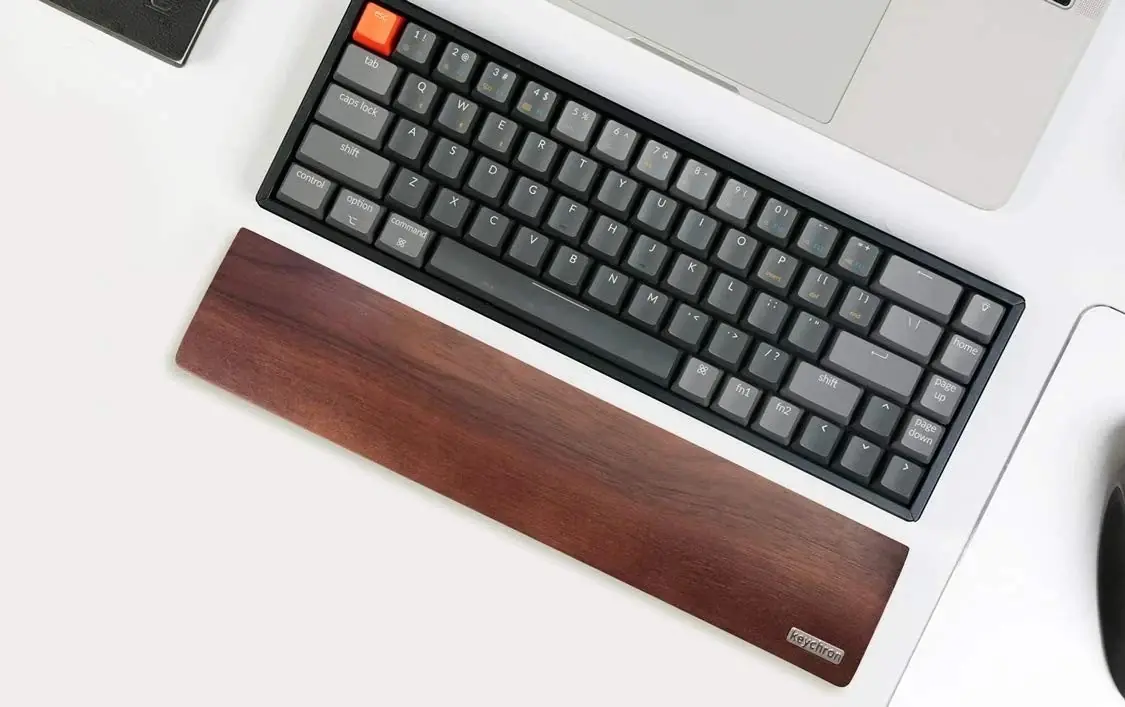
The Keychron K2 is a compact 84-key mechanical keyboard that works on both Mac and Windows. The box includes an extra keycap set for Windows users. The Quick Start Guide shows which Mac keycaps to replace with the Windows versions. An OS toggle switch on the side changes the layout between Mac/iOS and Windows/Android. In Windows/Android mode, the Command and Option key positions work as the Windows and Alt keys.
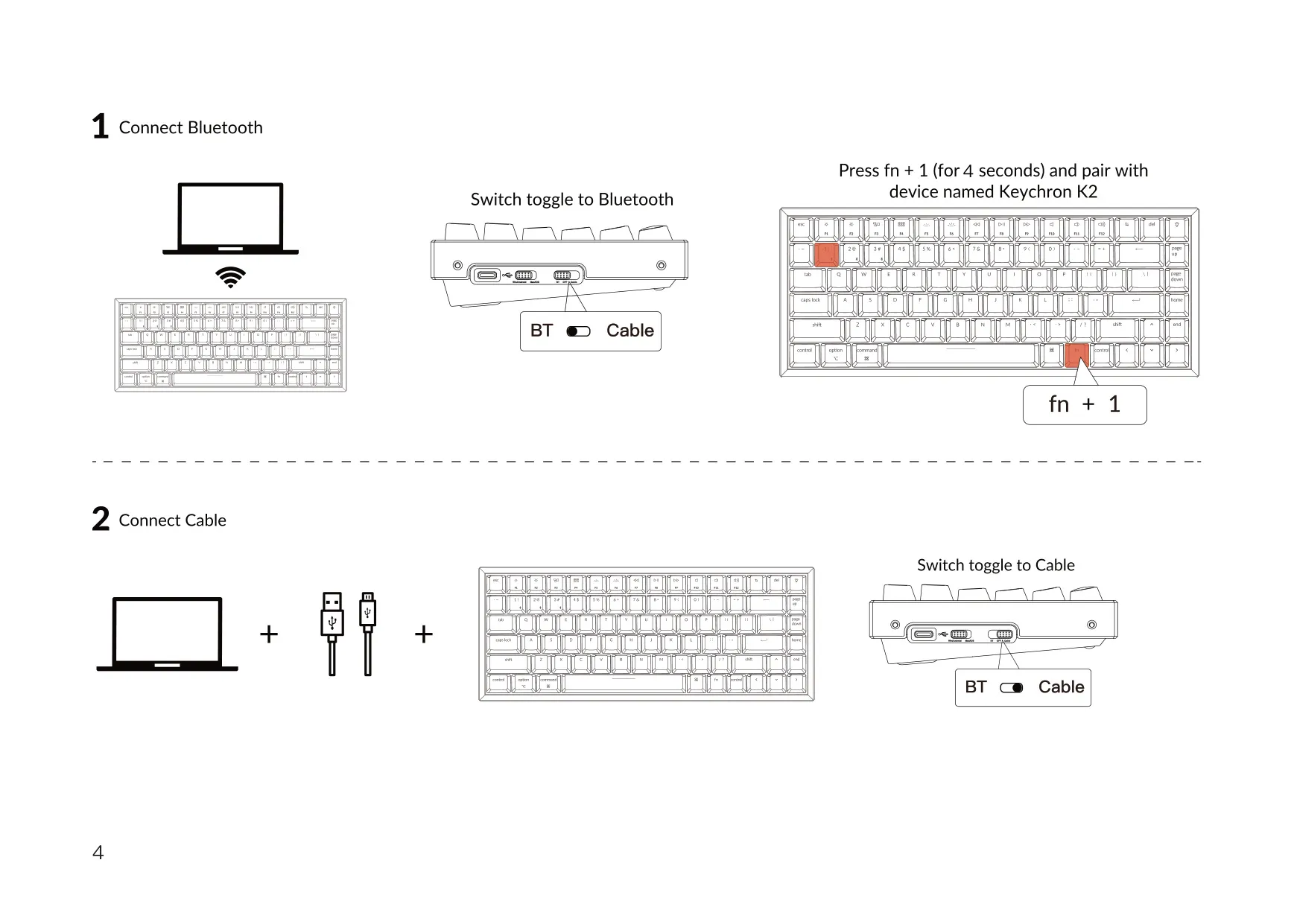
A second toggle switch sets the connection mode: BT, OFF, or Cable. To pair over Bluetooth, move the switch to Bluetooth and hold fn + 1 for 4 seconds. The Bluetooth indicator then flashes quickly for 3 minutes while the keyboard waits to pair. Select "Keychron K2" on your device, and the indicator turns off once pairing succeeds. You can store more devices under fn + 2 and fn + 3, then switch between all three with a short press.
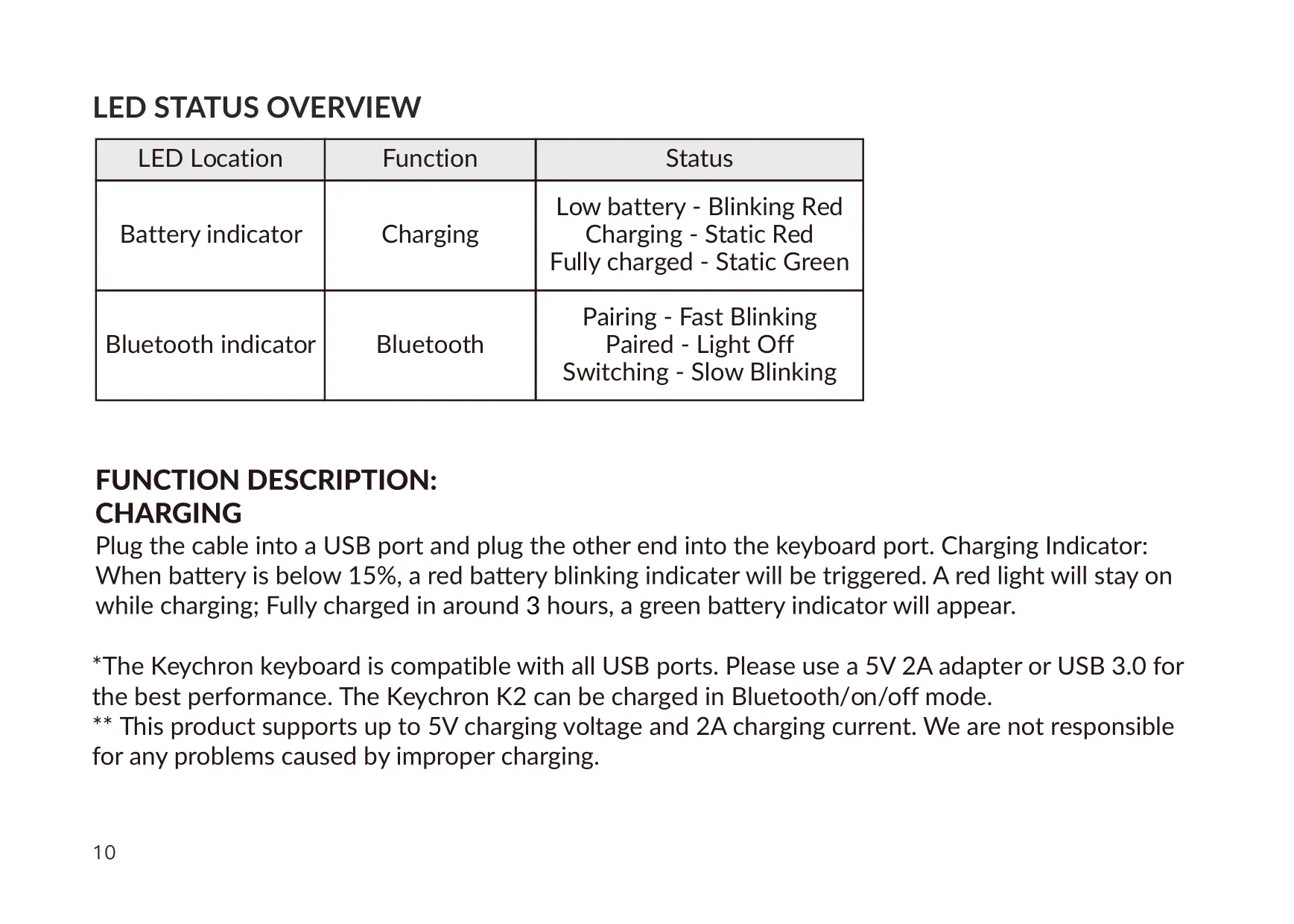
Two LEDs show the keyboard's status. The battery indicator blinks red when the battery is low, stays solid red while charging, and turns solid green when fully charged. The Bluetooth indicator blinks fast during pairing, turns off once connected, and blinks slowly while switching between devices. You can charge the keyboard in Bluetooth mode, in cable mode, or while it is switched off. The manual says any USB port works, but a 5V 2A adapter or a USB 3.0 port gives the best results.
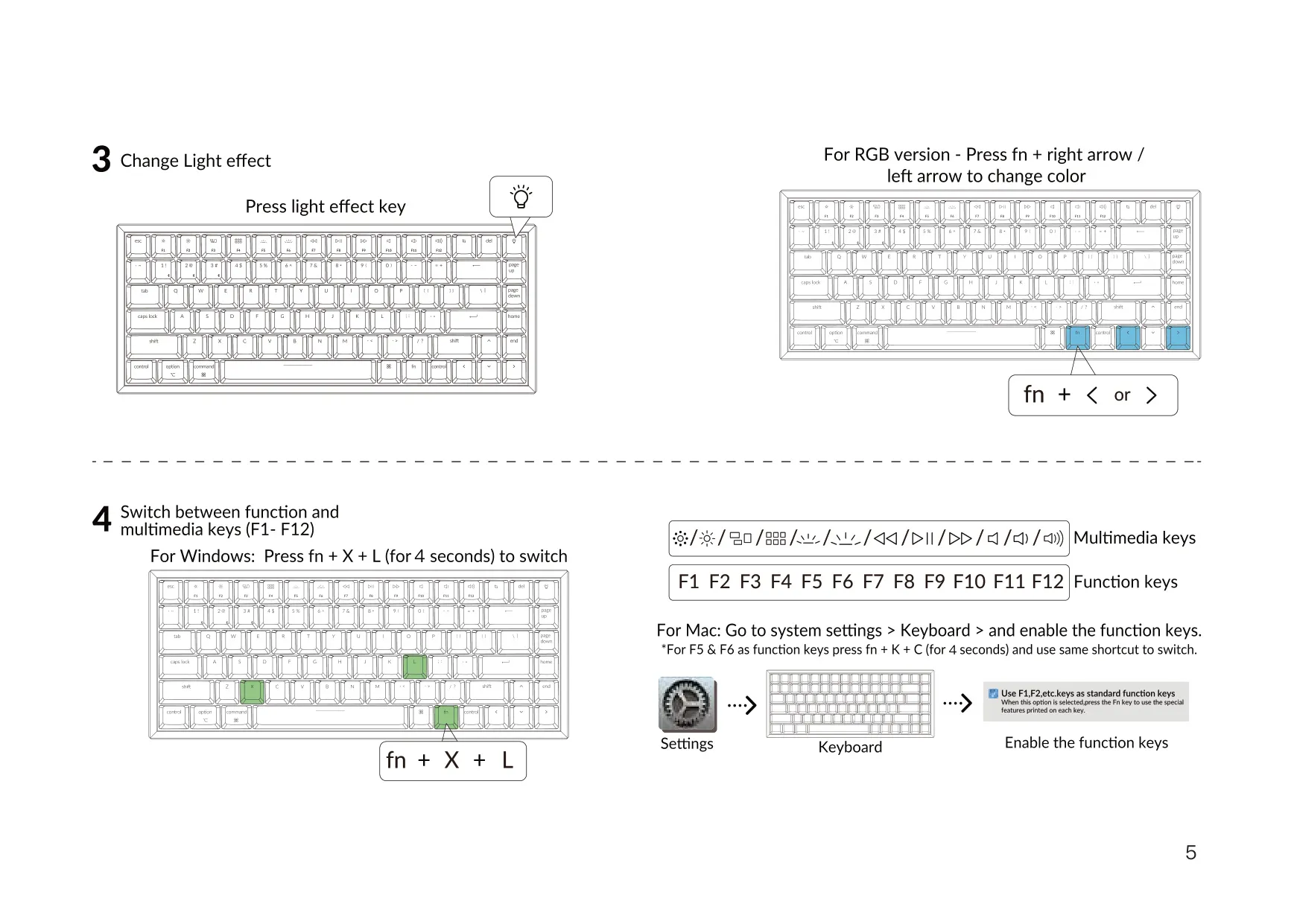
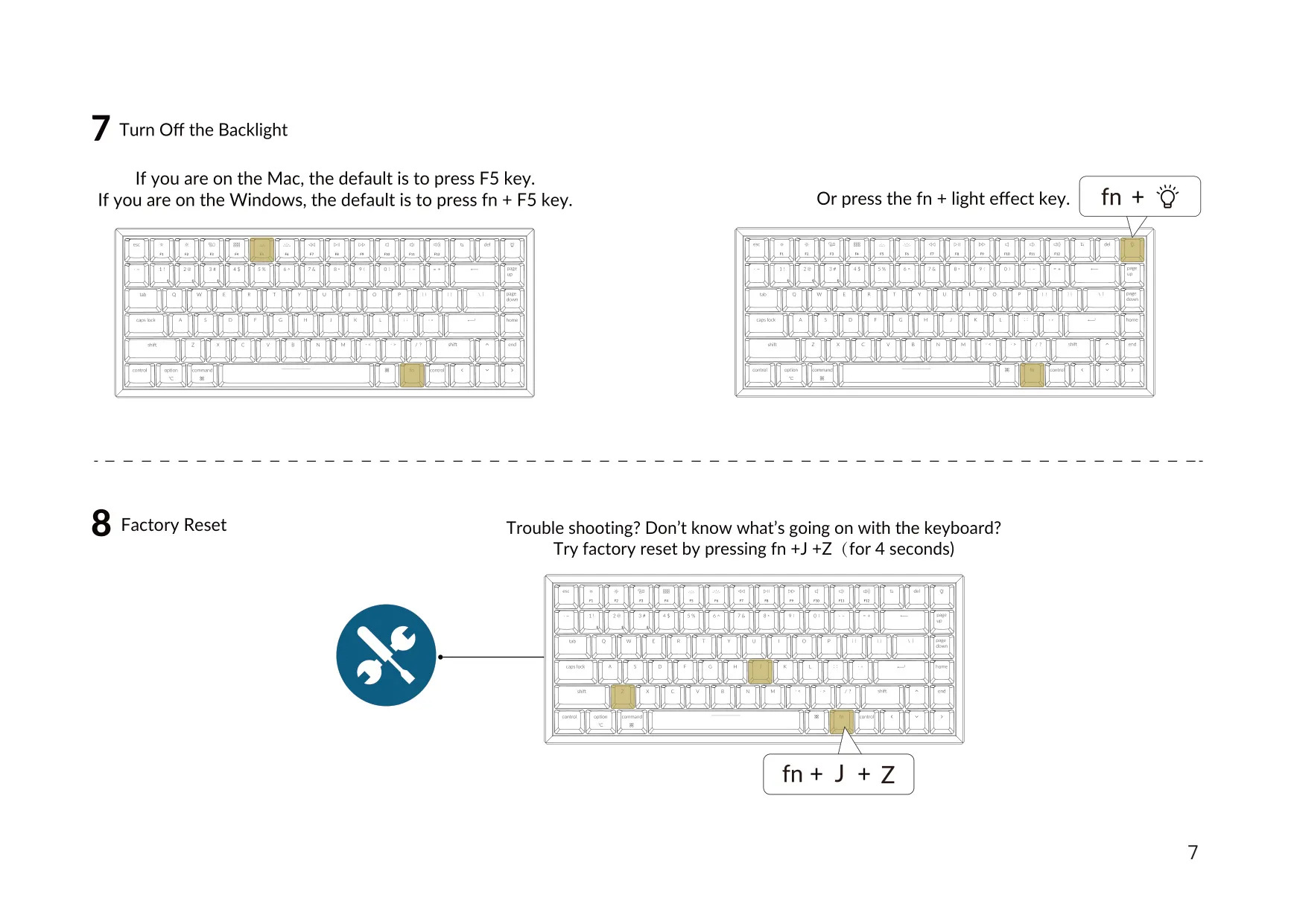
A dedicated light effect key changes the backlight. Each short press moves to the next lighting effect. On the RGB version, fn + left arrow or fn + right arrow changes the backlight color. The top row switches between multimedia keys and standard function keys F1–F12. On Windows, hold fn + X + L for 4 seconds to toggle between them. On Mac, go to System Settings, open Keyboard, and enable "Use F1, F2, etc. keys as standard function keys". To use F5 and F6 as function keys, hold fn + K + C for 4 seconds.
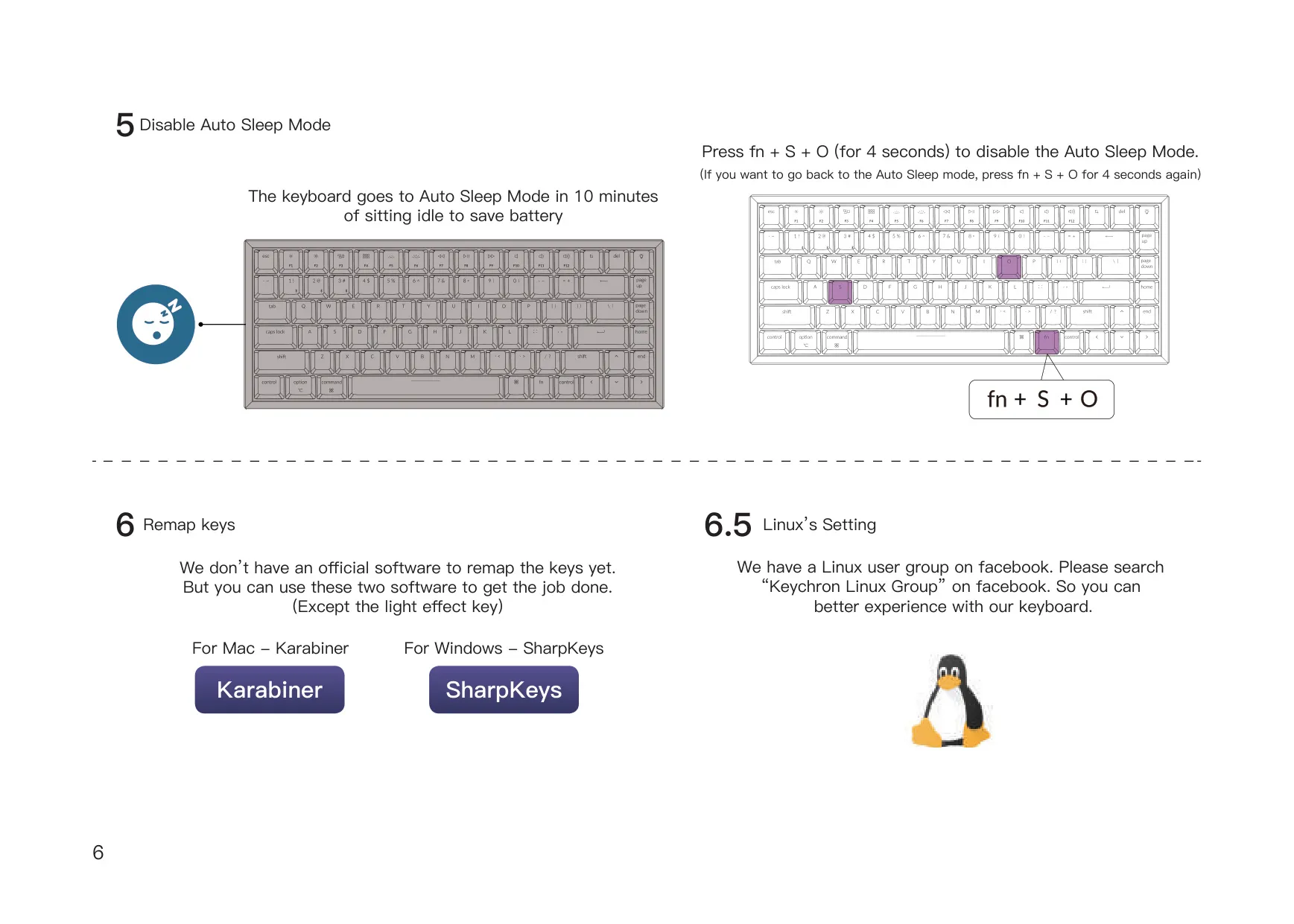
To save power, the keyboard goes into Auto Sleep Mode after 10 minutes of inactivity in Bluetooth mode, and the backlight turns off. Press any key to wake it. To turn this feature off, hold fn + S + O for 4 seconds. Holding the same combination again turns it back on. For key remapping, Keychron recommends Karabiner on macOS and SharpKeys on Windows. Neither program can remap the light effect key. Linux users can search for "Keychron Linux Group" on Facebook for community support.
On iOS, Ctrl + Space switches the input method. Caps Lock can also switch languages after you enable that option in the iOS keyboard settings. If the keyboard behaves unexpectedly, hold fn + J + Z for 4 seconds to restore the factory settings. The troubleshooting section suggests turning the keyboard off and on, removing it from the device's Bluetooth settings, and restarting the device. It also warns that a metal surface under the keyboard can weaken the Bluetooth signal.
The manual also notes that some multimedia keys or third-party input tools may not work on certain Windows or Android systems. This depends on the OS version, brand, and drivers, so keep your system and drivers up to date. For safety, keep the keyboard, accessories, and packaging away from children, keep the keyboard dry to prevent corrosion, and use it only within the stated temperature range. This protects both the keyboard and its battery.
Frequently Asked Questions (FAQs)
Can't find the answer you need? Here are some frequently asked questions about the Keychron K2 Keyboard, and we answer them below.