Keychron K7 Keyboard Instruction Manual
Keychron K7 Keyboard


Keychron K7 Keyboard Instructions
Here we offer the Keychron K7 Keyboard manual completely free and in English. We have cataloged this manual in the Keyboards section on Manualverse, and it has been rated by 1 users with an average rating of 5. If you have any specific questions about Keychron K7 Keyboard, we suggest checking the Frequently Asked Questions (FAQs) section of this manual.
Product Images
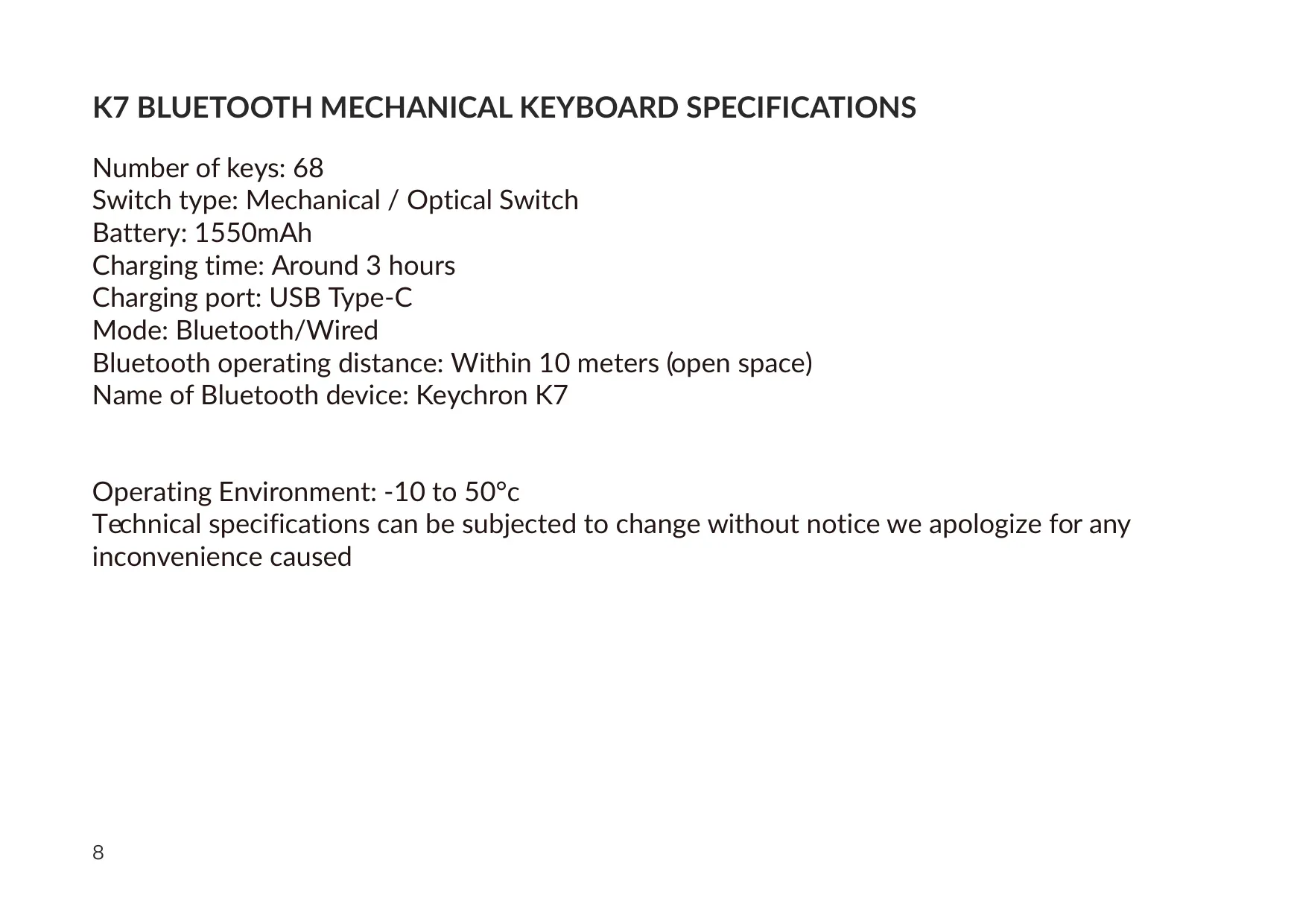
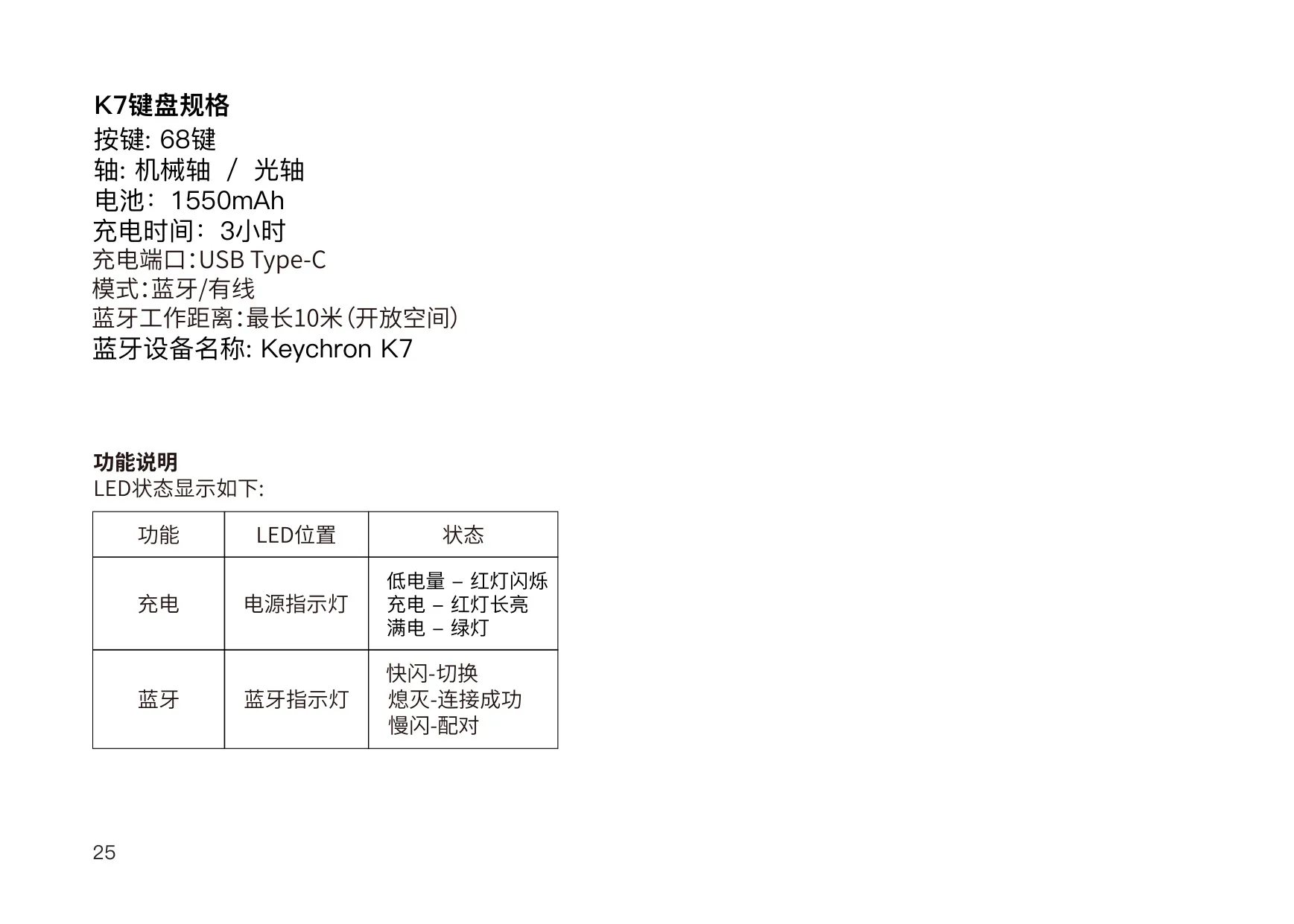
Keychron K7 Keyboard Specifications
| Feature | Specification |
|---|---|
| Model | Keychron K7 Bluetooth Mechanical Keyboard |
| Number of Keys | 68 |
| Switch Type | Mechanical / Optical Switch |
| Battery Capacity | 1550 mAh |
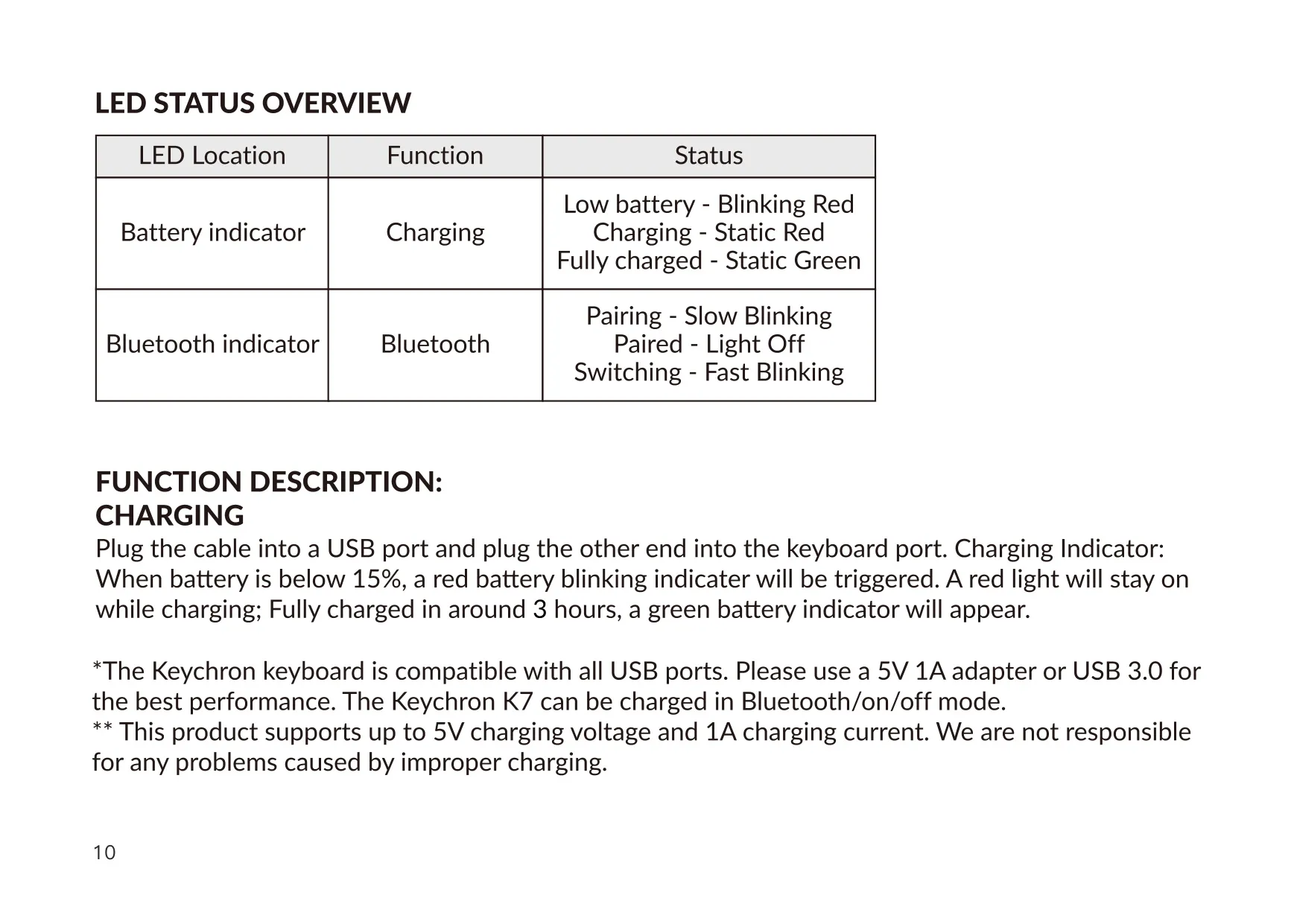
| Charging Time | Around 3 hours |
| Charging Port | USB Type-C |
| Maximum Charging Input | 5 V / 1 A |
| Recommended Charging Source | 5 V 1 A adapter or USB 3.0 port |
| Connection Modes | Bluetooth / Wired (toggle switch: BT / OFF / Cable) |
| Bluetooth Operating Distance | Within 10 meters (open space) |
| Bluetooth Device Name | Keychron K7 |
| Multi-Device Pairing | Up to 3 devices (fn1 + Q / W / E) |
| Operating System Switch | Mac/iOS and Windows/Android |
| Backlight | Backlit with multiple lighting effects; color adjustment on RGB version |
| Low Battery Warning | Below 15% (blinking red indicator) |
| Battery Saver Timeout | 10 minutes of inactivity (Bluetooth mode only) |
| Bluetooth Pairing Window | 3 minutes |
| Operating Environment | -10 °C to 50 °C (5 °F to 131 °F) |
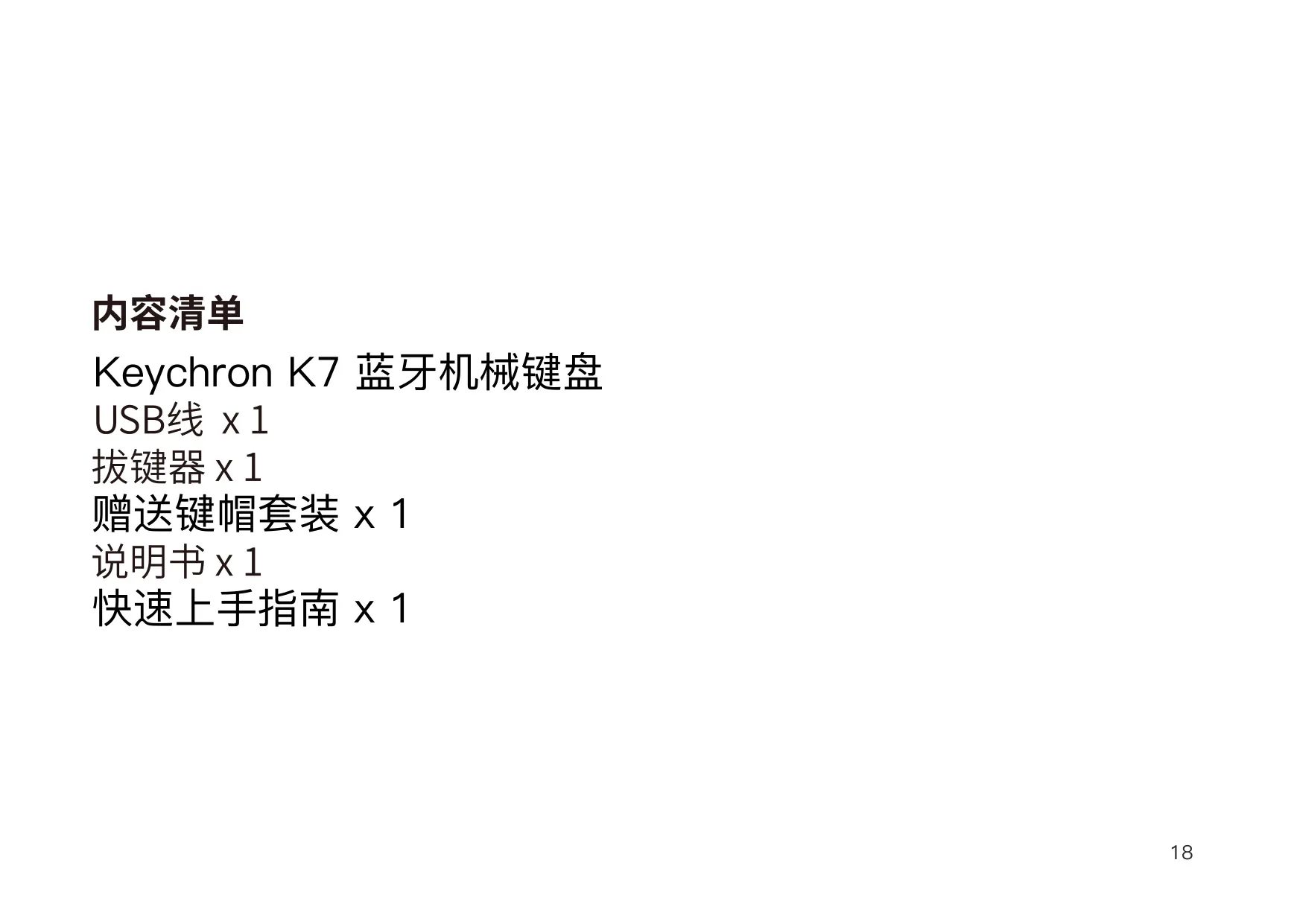
| Package Contents | Keyboard x1, Type-C Cable x1, Manual x1, Quick Start Guide x1, Extra Keycaps Set x1 |
| Manufacturer | Keychron, Inc., Dover, DE 19901, United States |
| Country of Manufacture | China |
Keychron K7 Keyboard Details
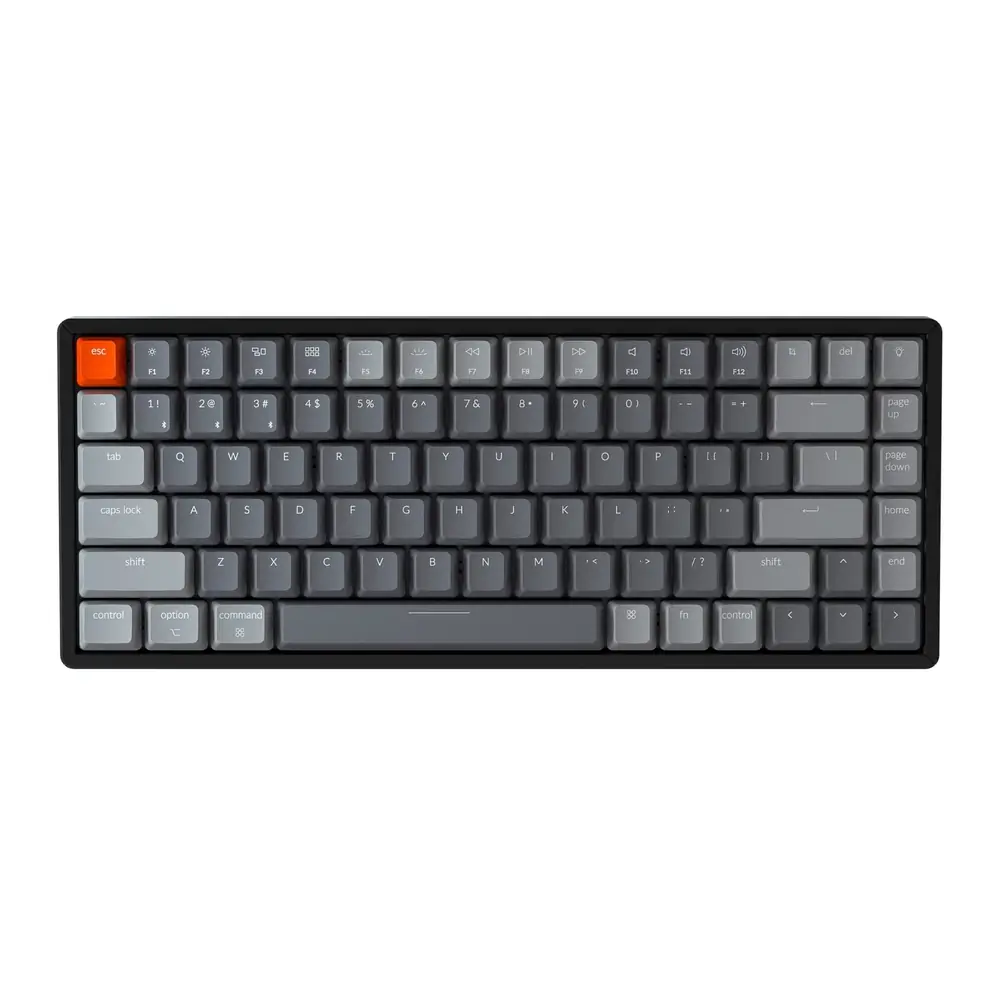
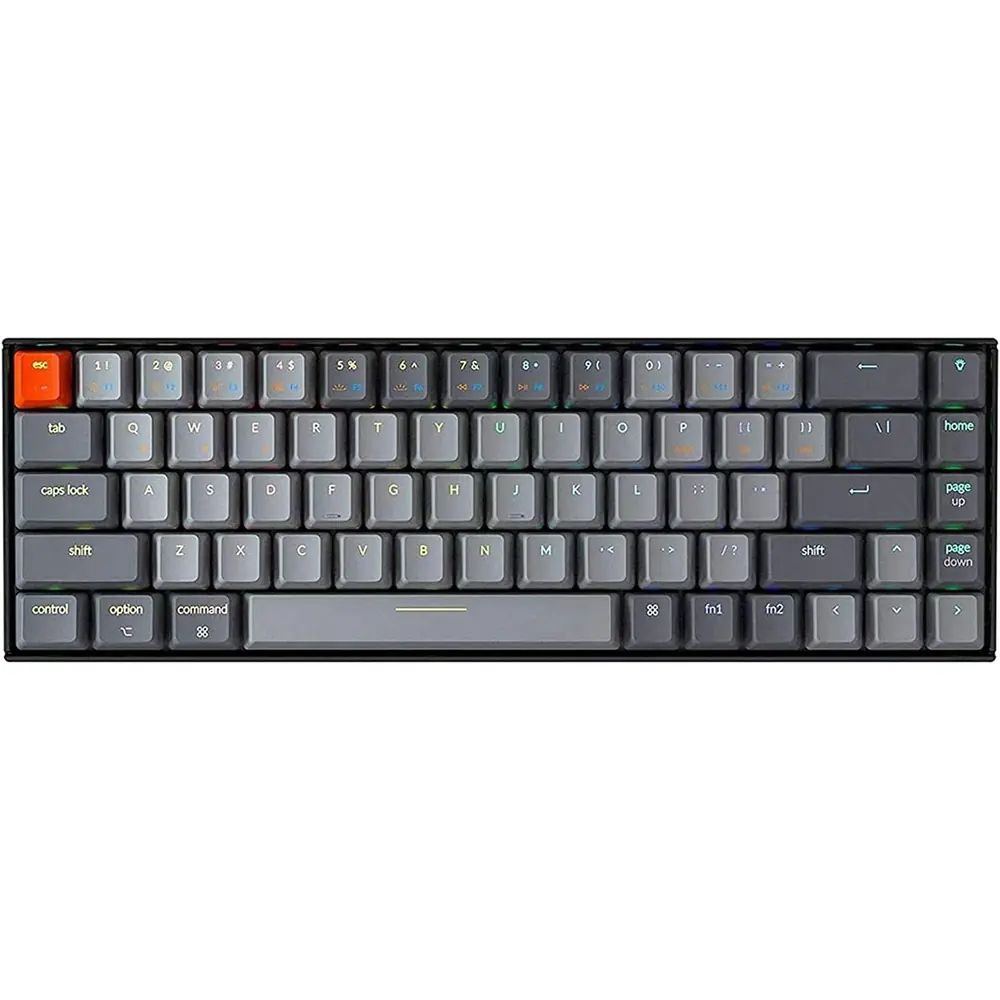
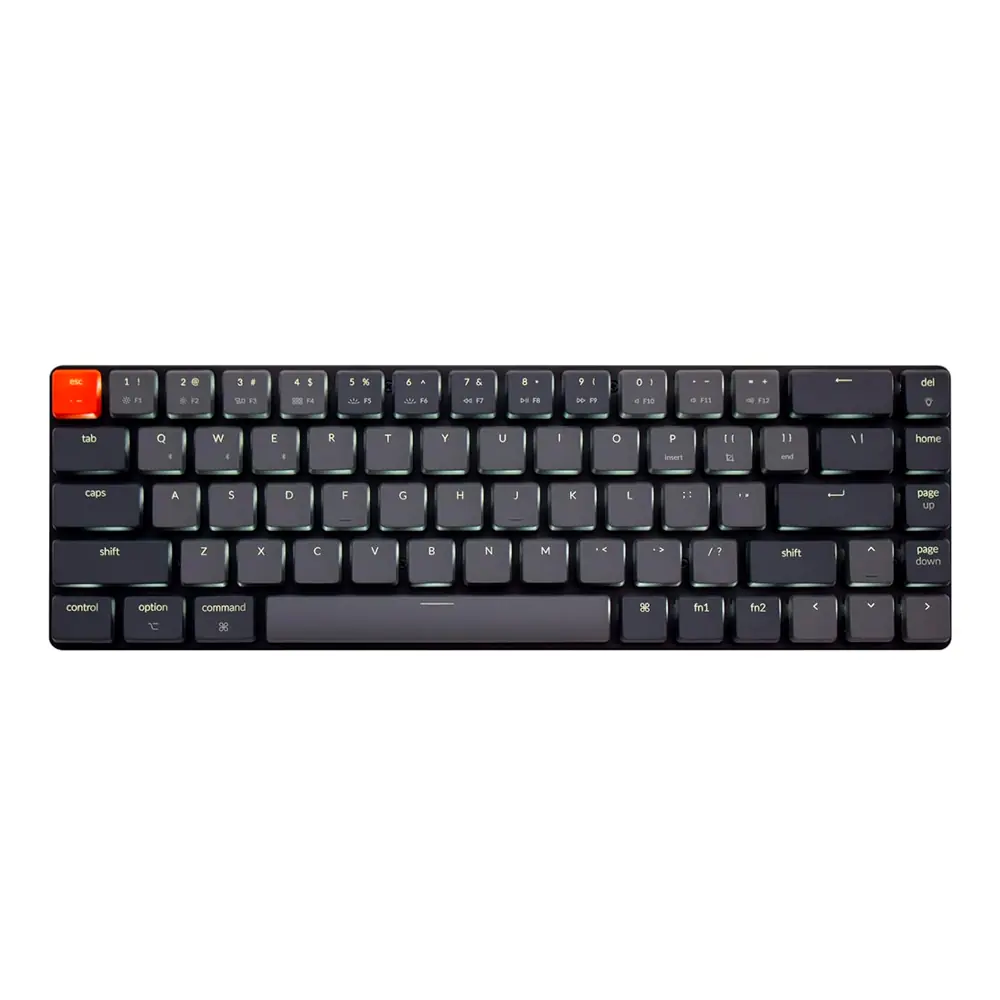
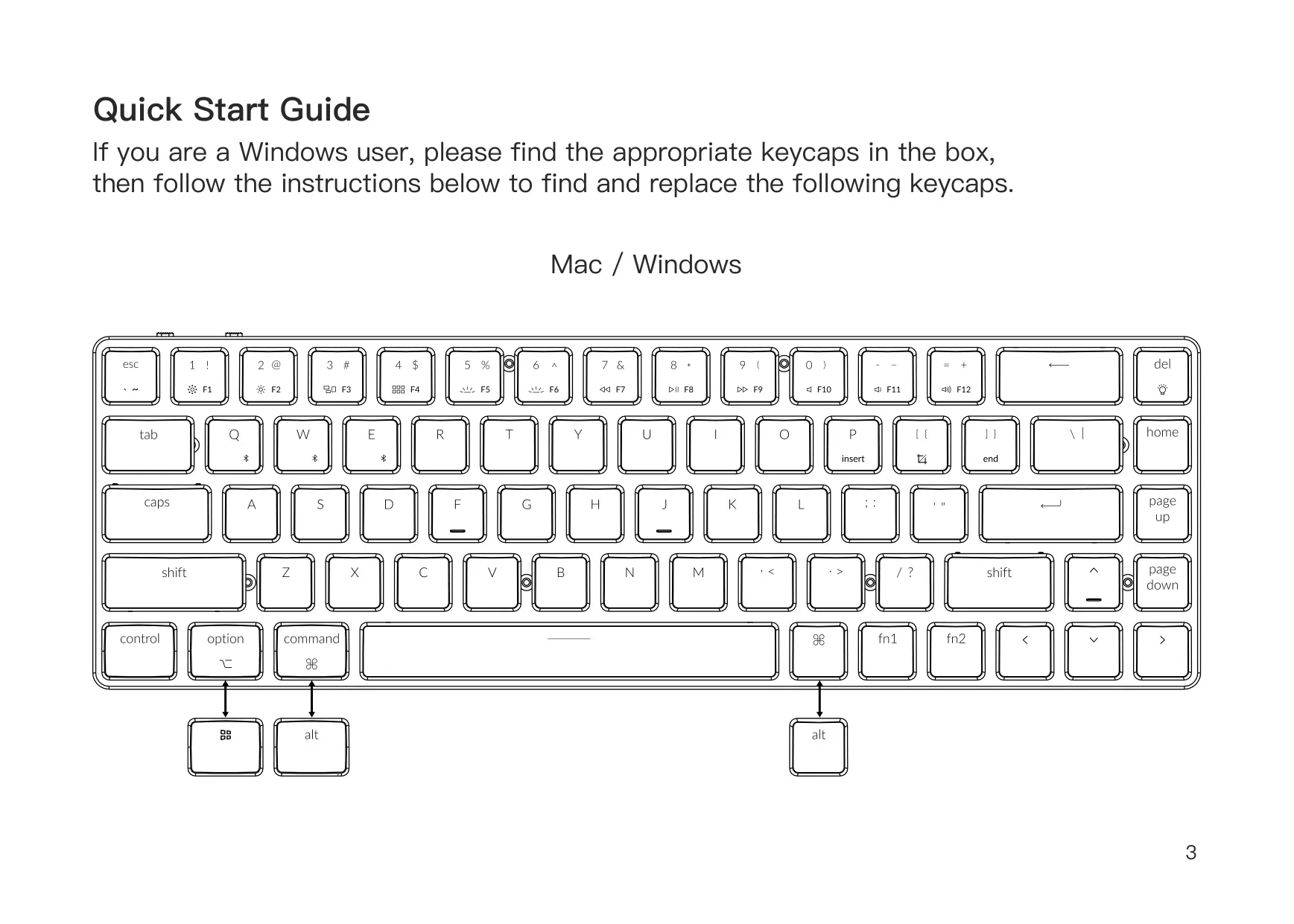
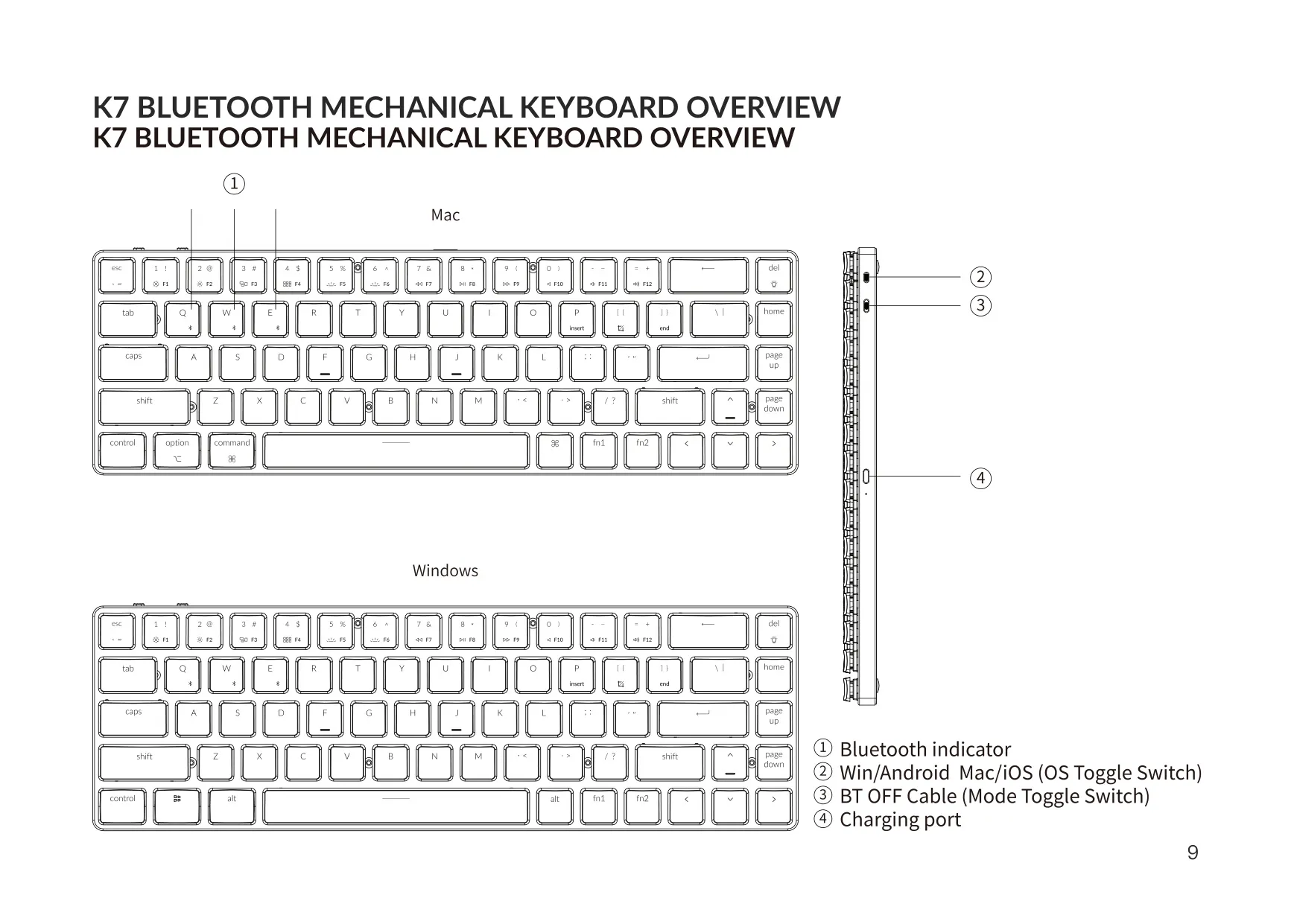
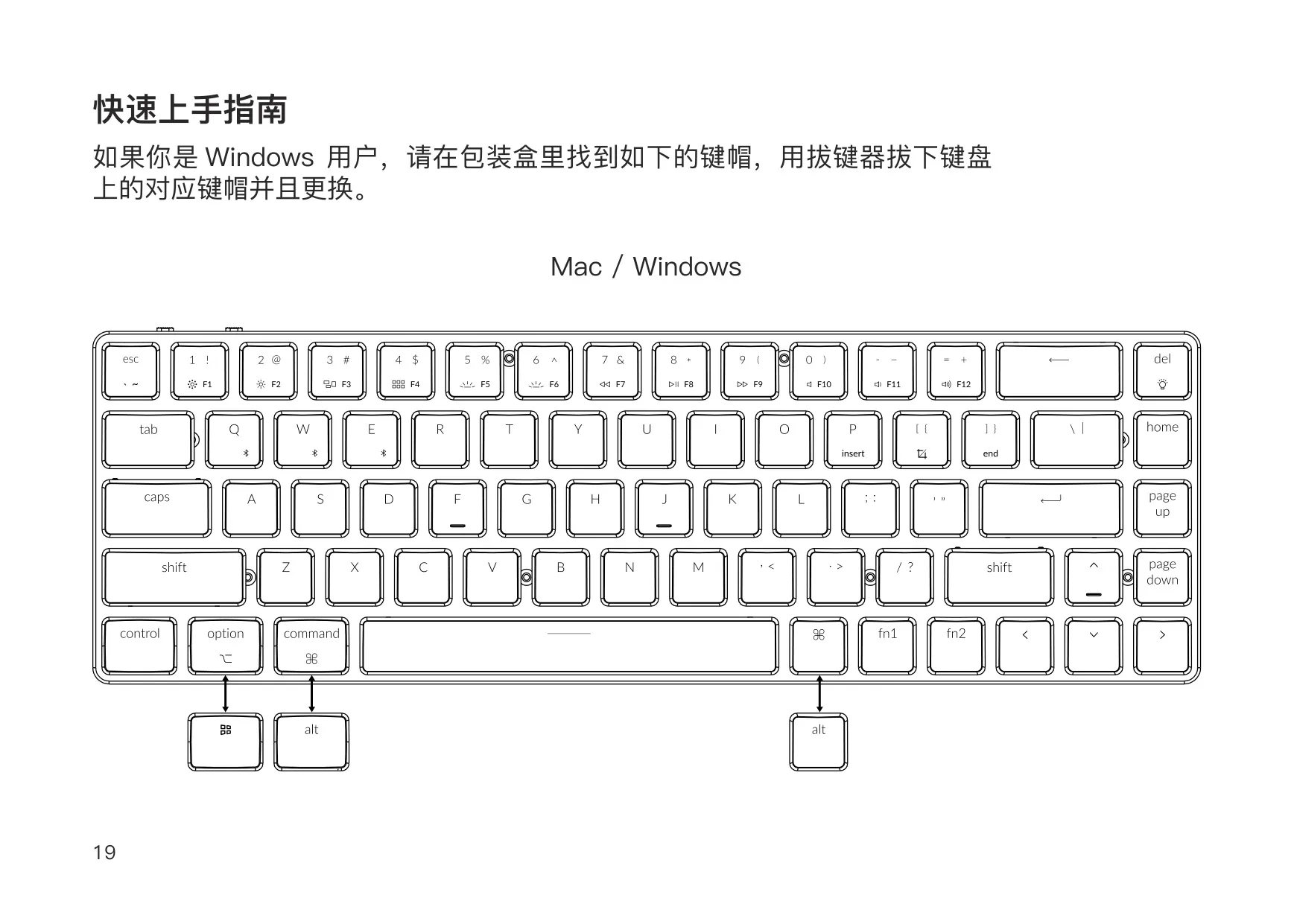
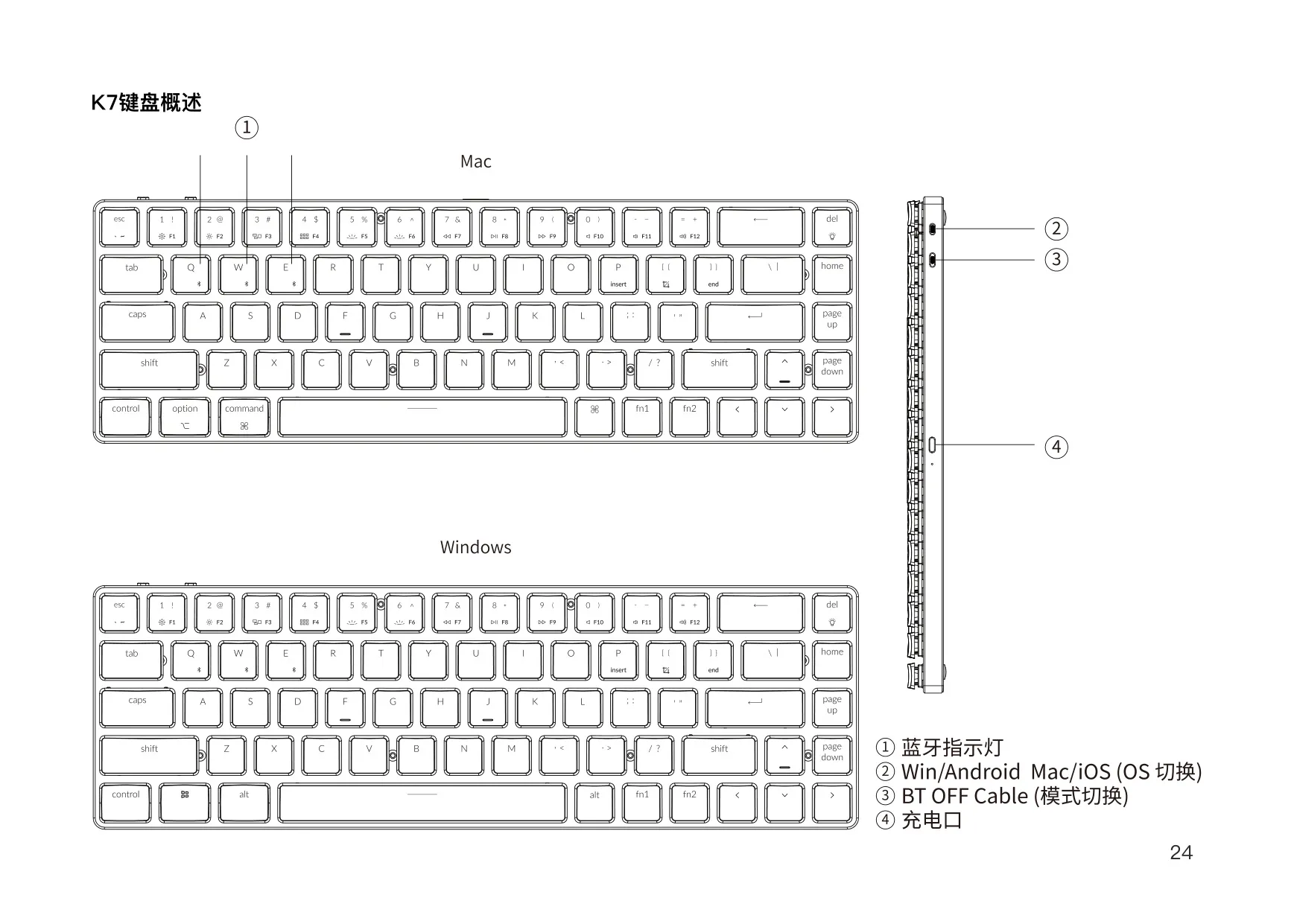
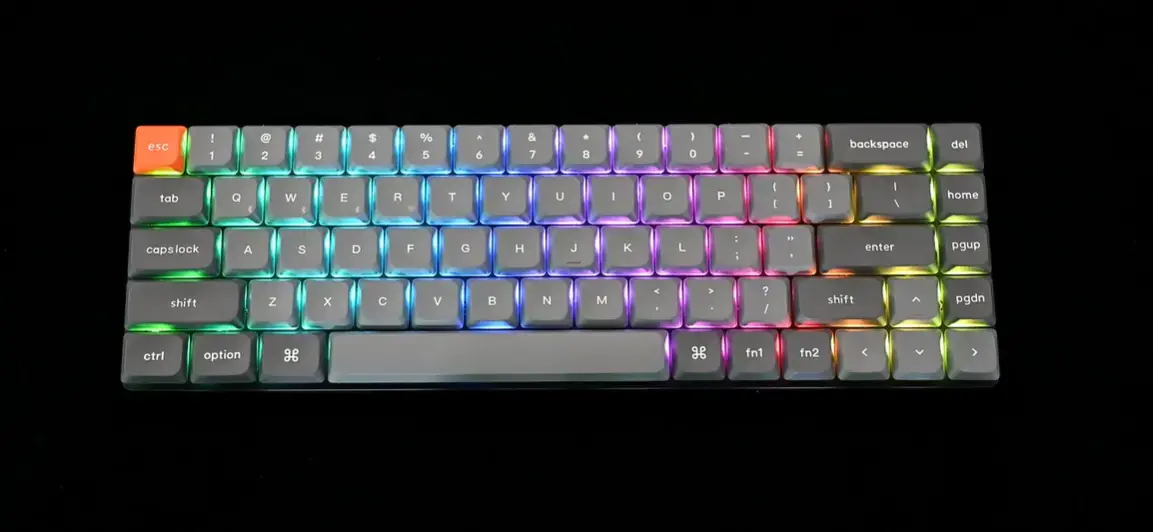
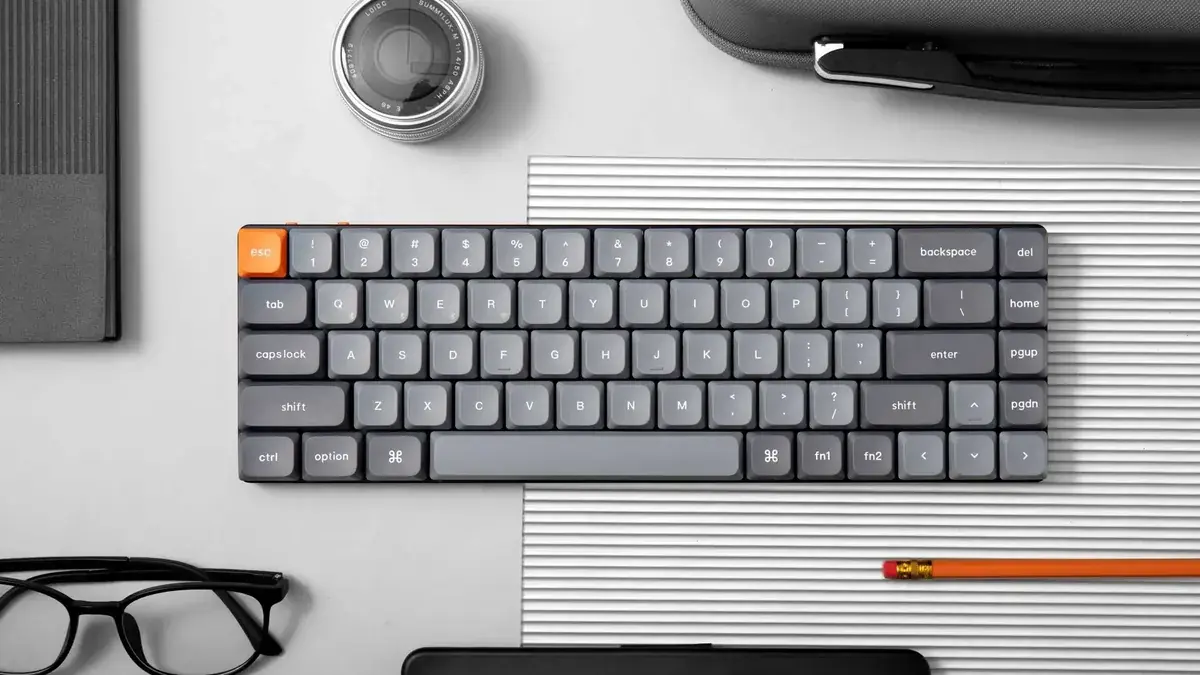
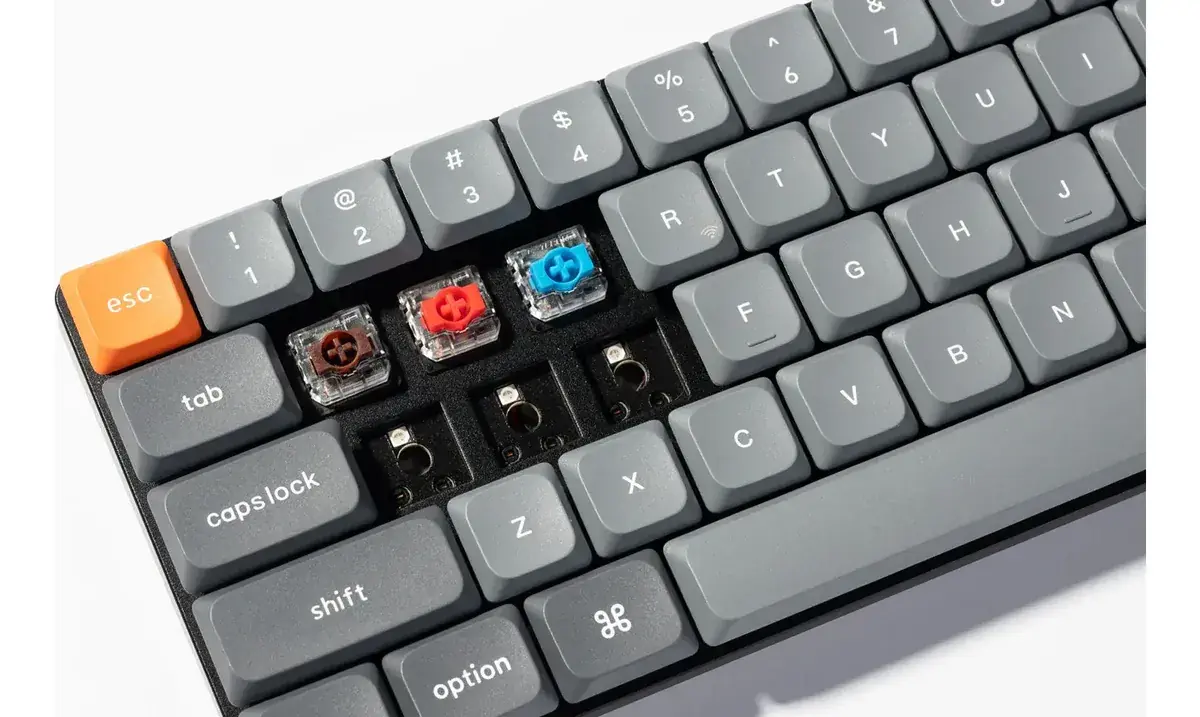
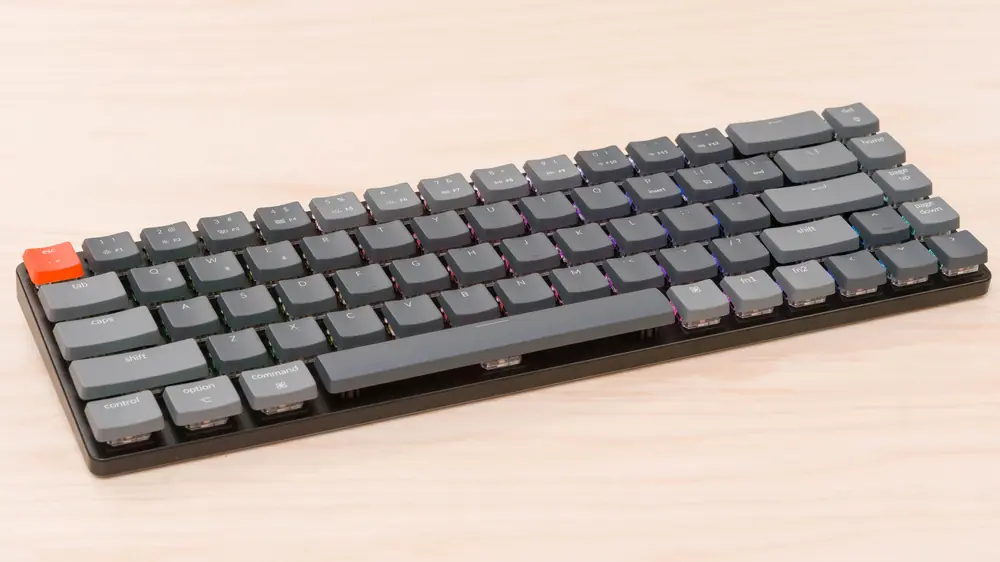
The Keychron K7 is a compact wireless mechanical keyboard. By default it ships with a Mac layout. Windows users should find the extra keycaps included in the box and swap the matching keys as shown in the Quick Start Guide. A toggle switch on the left side of the keyboard selects Mac/iOS or Windows/Android mode. In Windows/Android mode, the modifier keys next to the space bar act as the Windows and Alt keys.
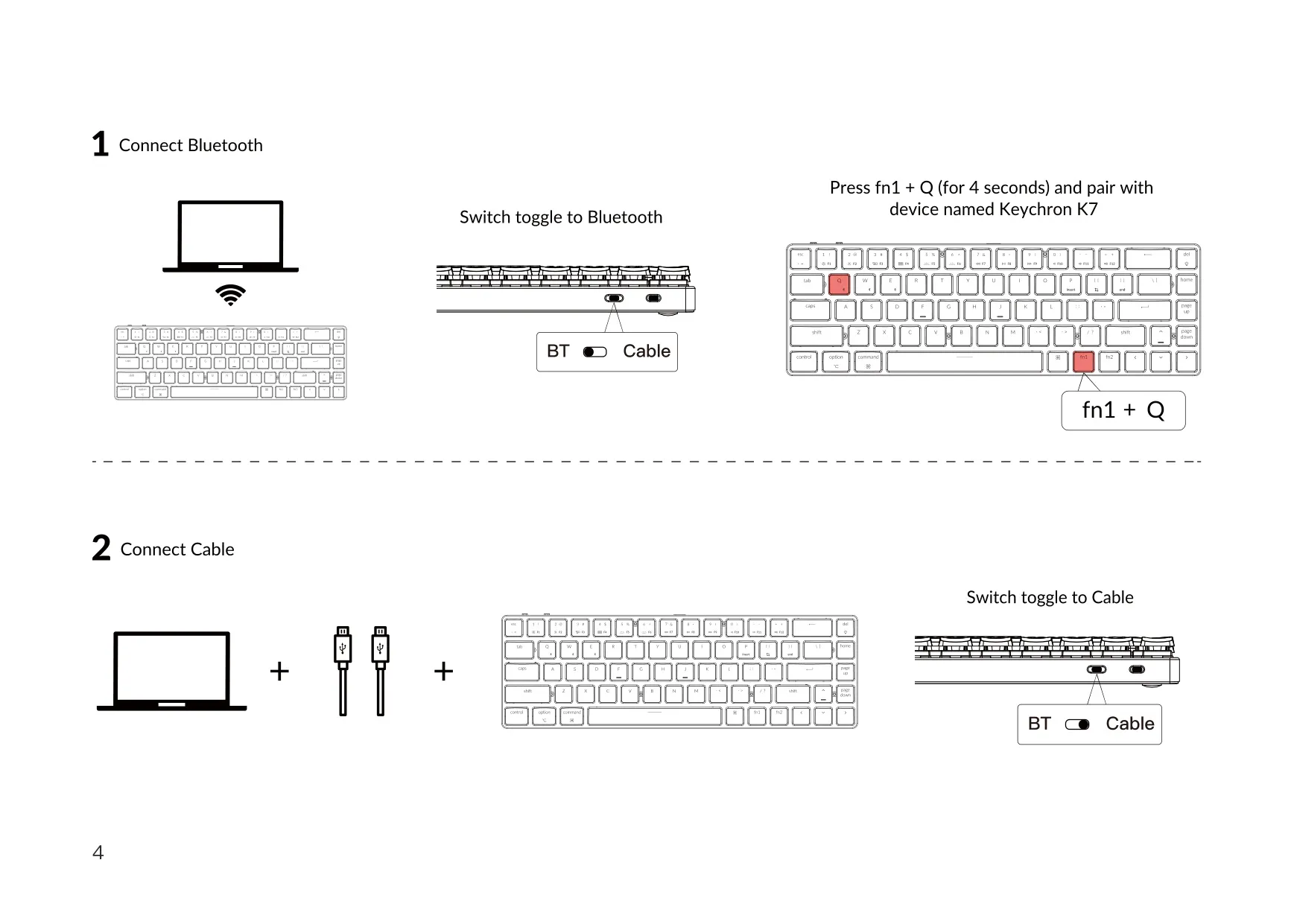
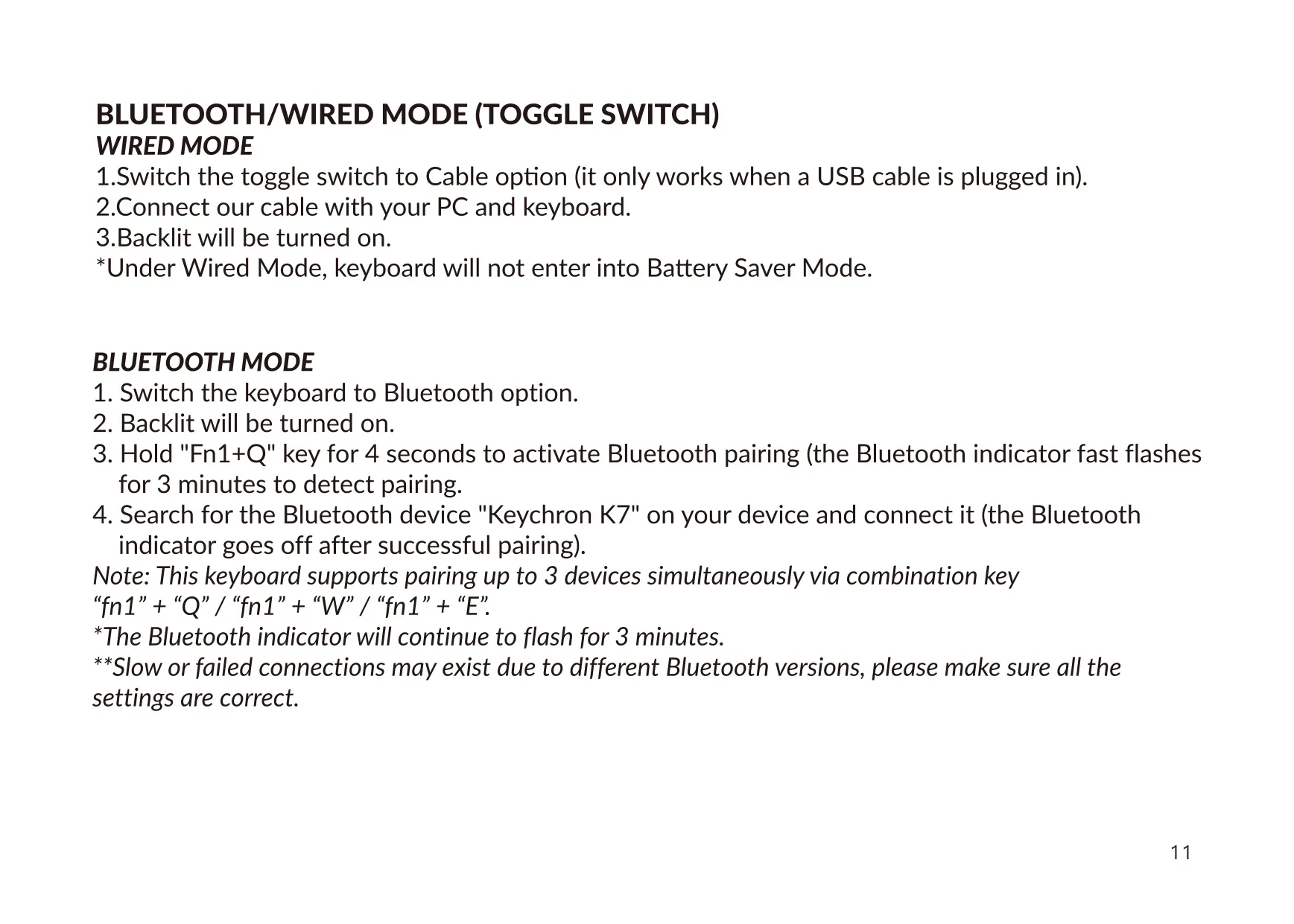
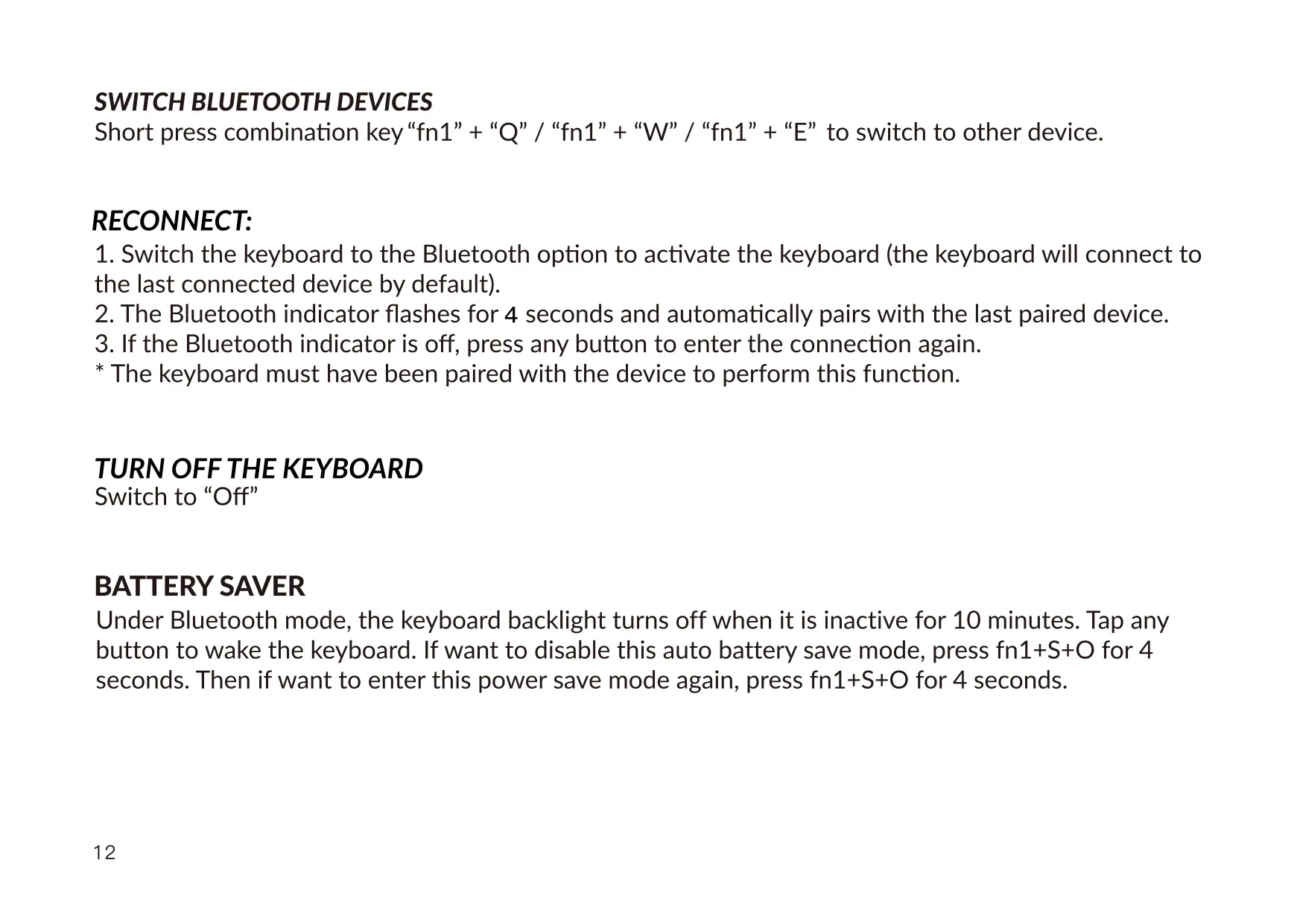
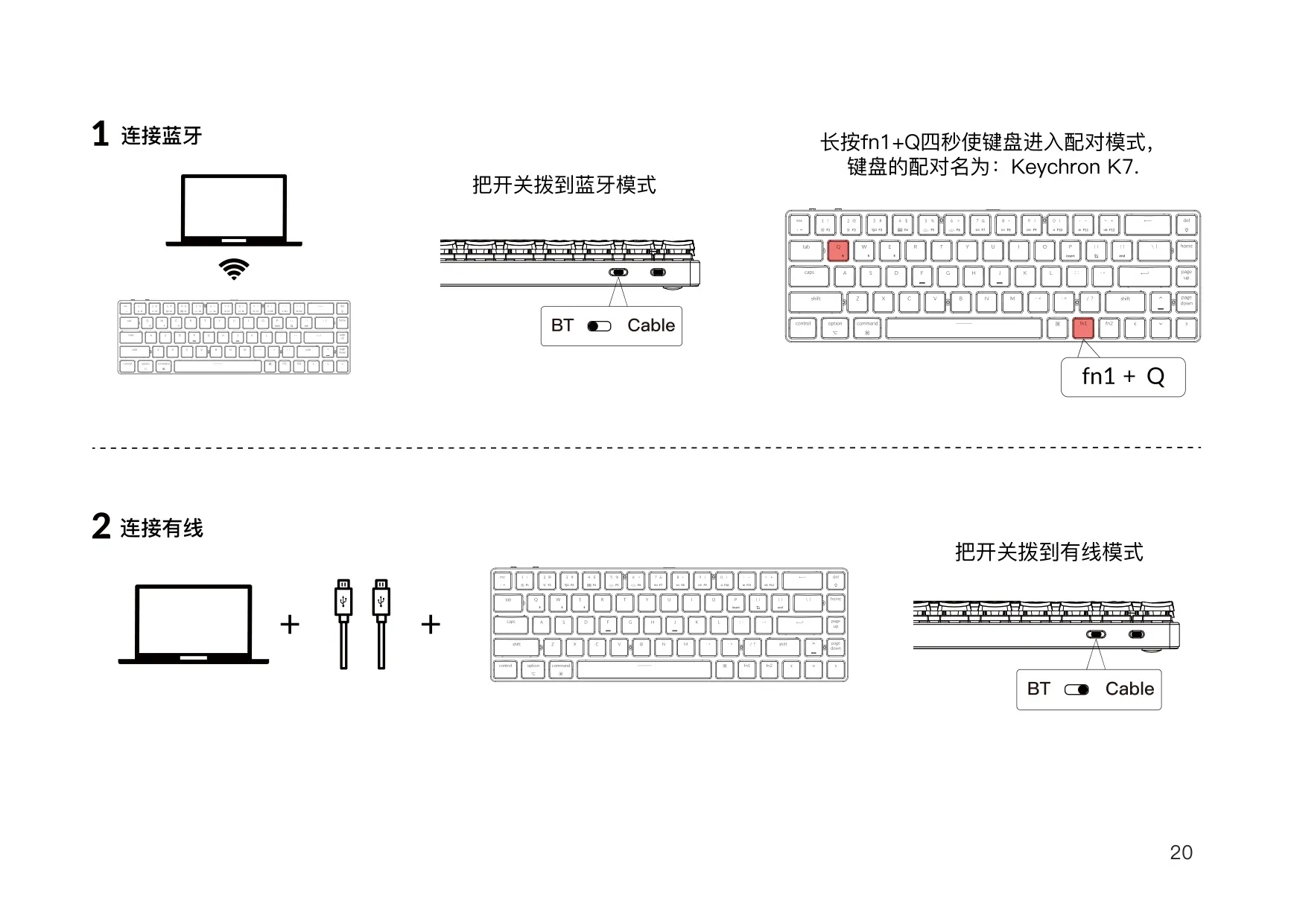
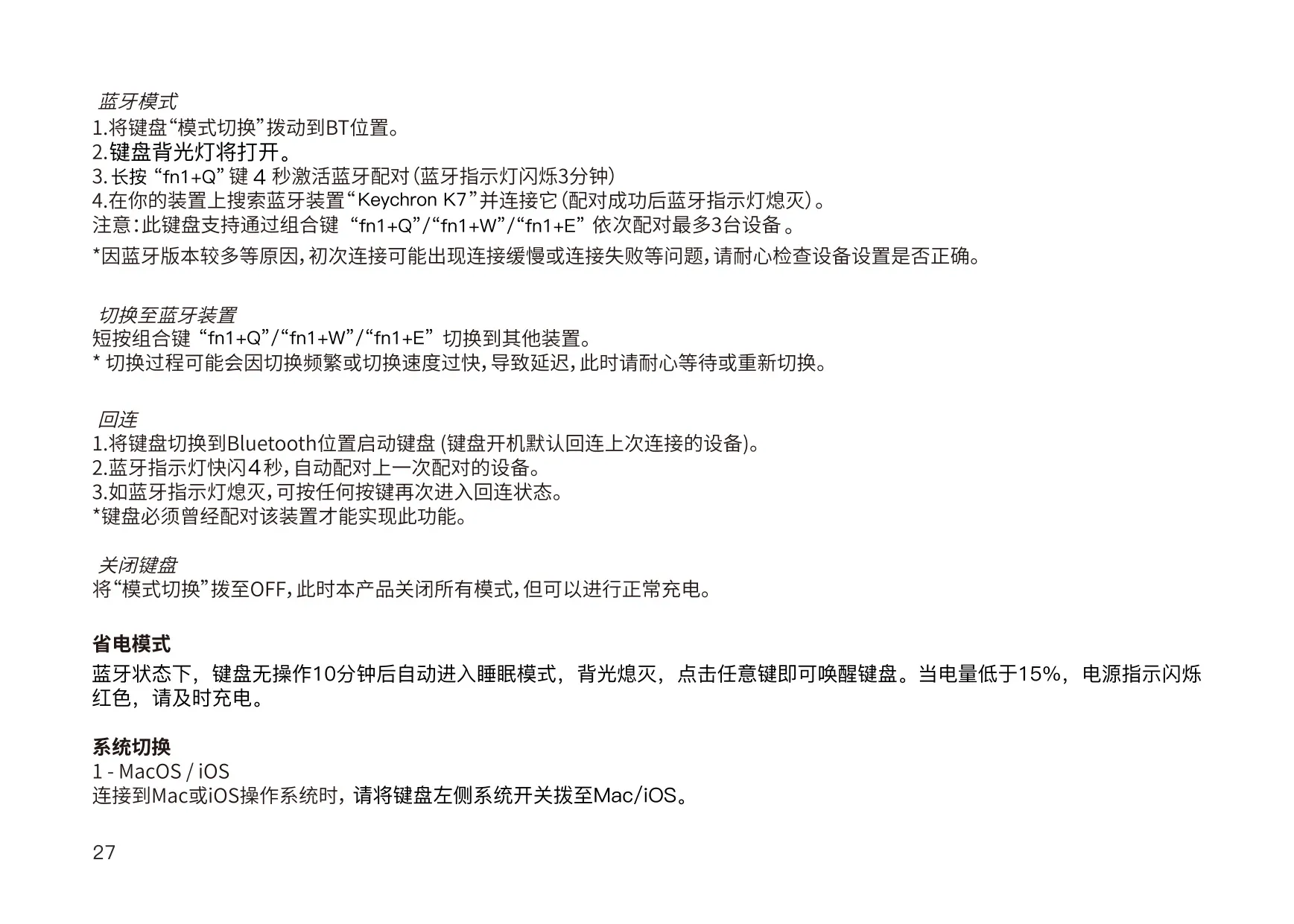
To pair over Bluetooth, move the connection switch to BT and hold fn1 + Q for 4 seconds. The Bluetooth indicator blinks quickly for up to 3 minutes while pairing. Select "Keychron K7" on your device, and the indicator turns off once pairing succeeds. You can pair two more devices with fn1 + W and fn1 + E, then switch between them with a short press. After you turn it on, the keyboard reconnects to the last paired device. If the indicator is off, press any key.
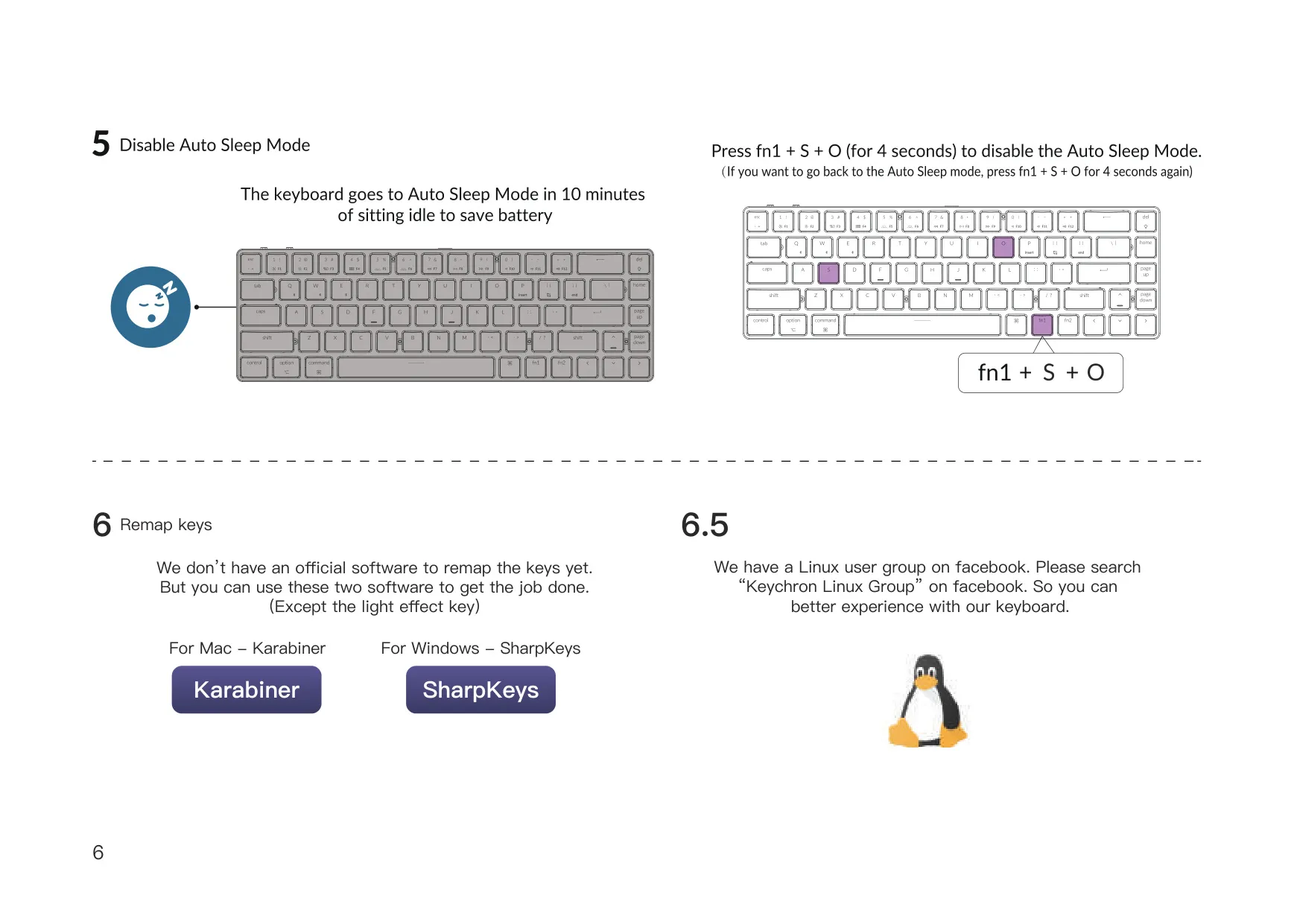
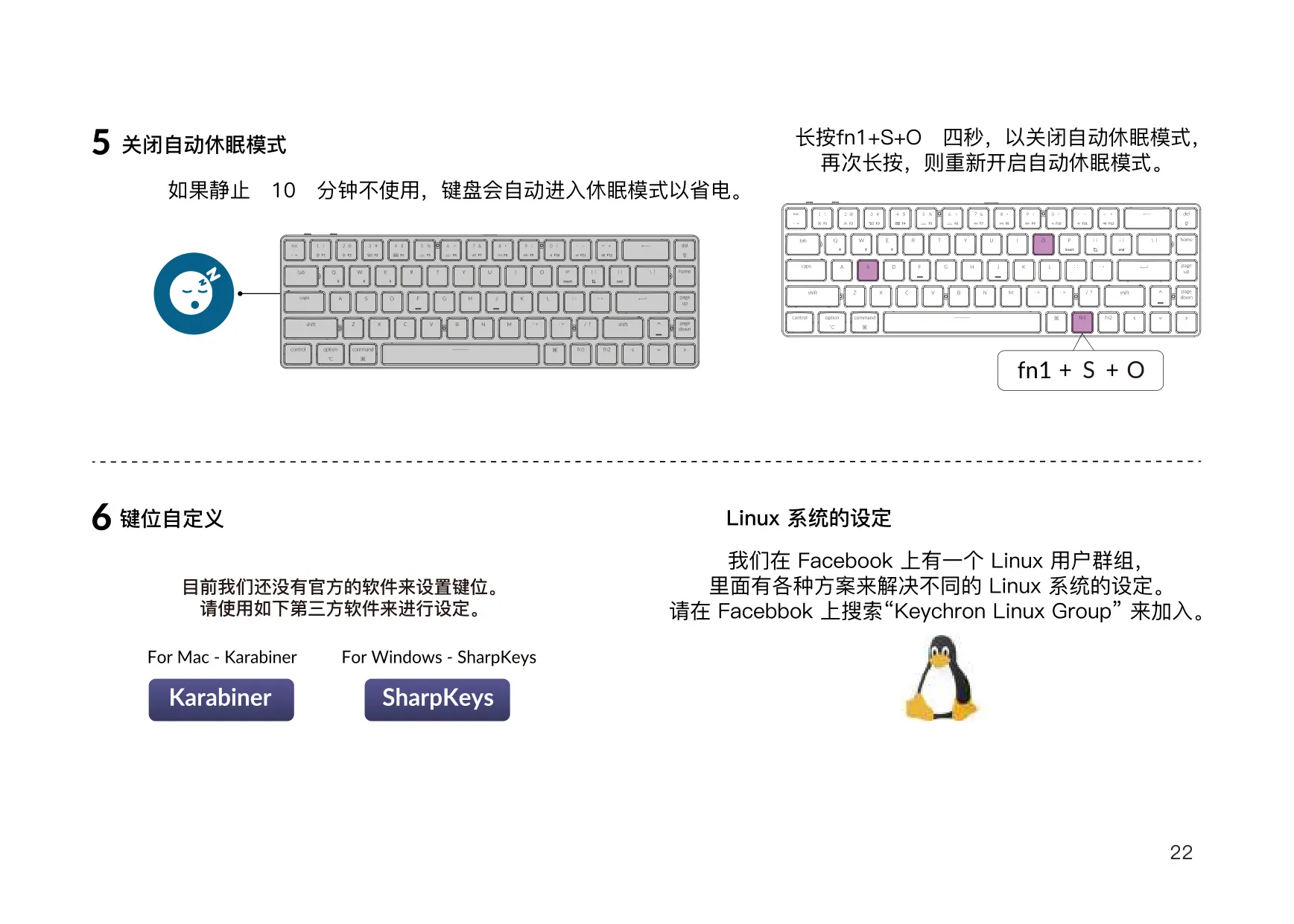
For wired mode, move the switch to Cable and connect the USB cable. This mode only works while the cable is plugged in, and the keyboard never enters battery saver while wired. In Bluetooth mode, the backlight turns off after 10 minutes of inactivity, and any key press wakes the keyboard. Holding fn1 + S + O for 4 seconds turns this power-saving feature off, and holding it again turns it back on. To switch the keyboard off completely, move the switch to OFF.
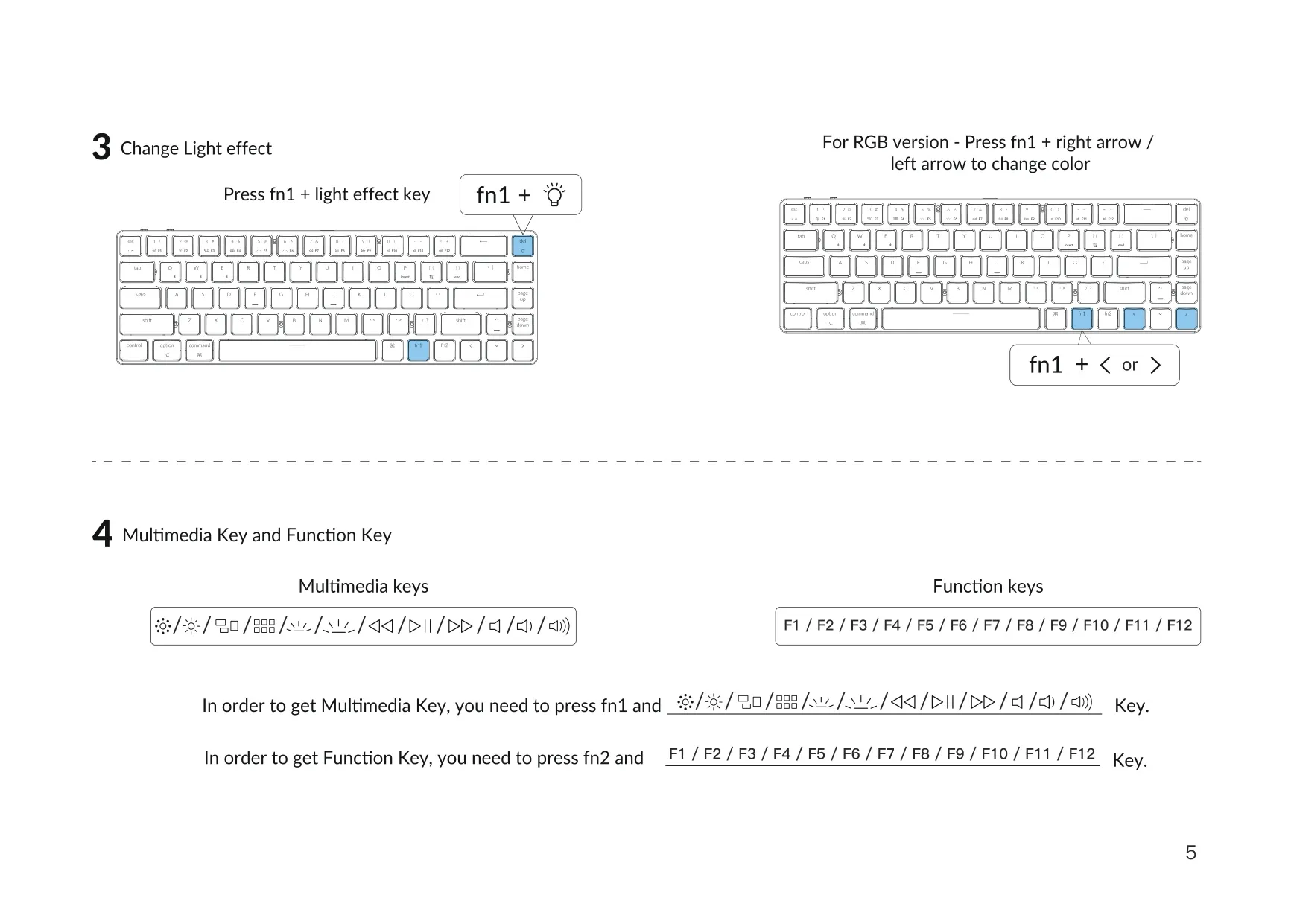
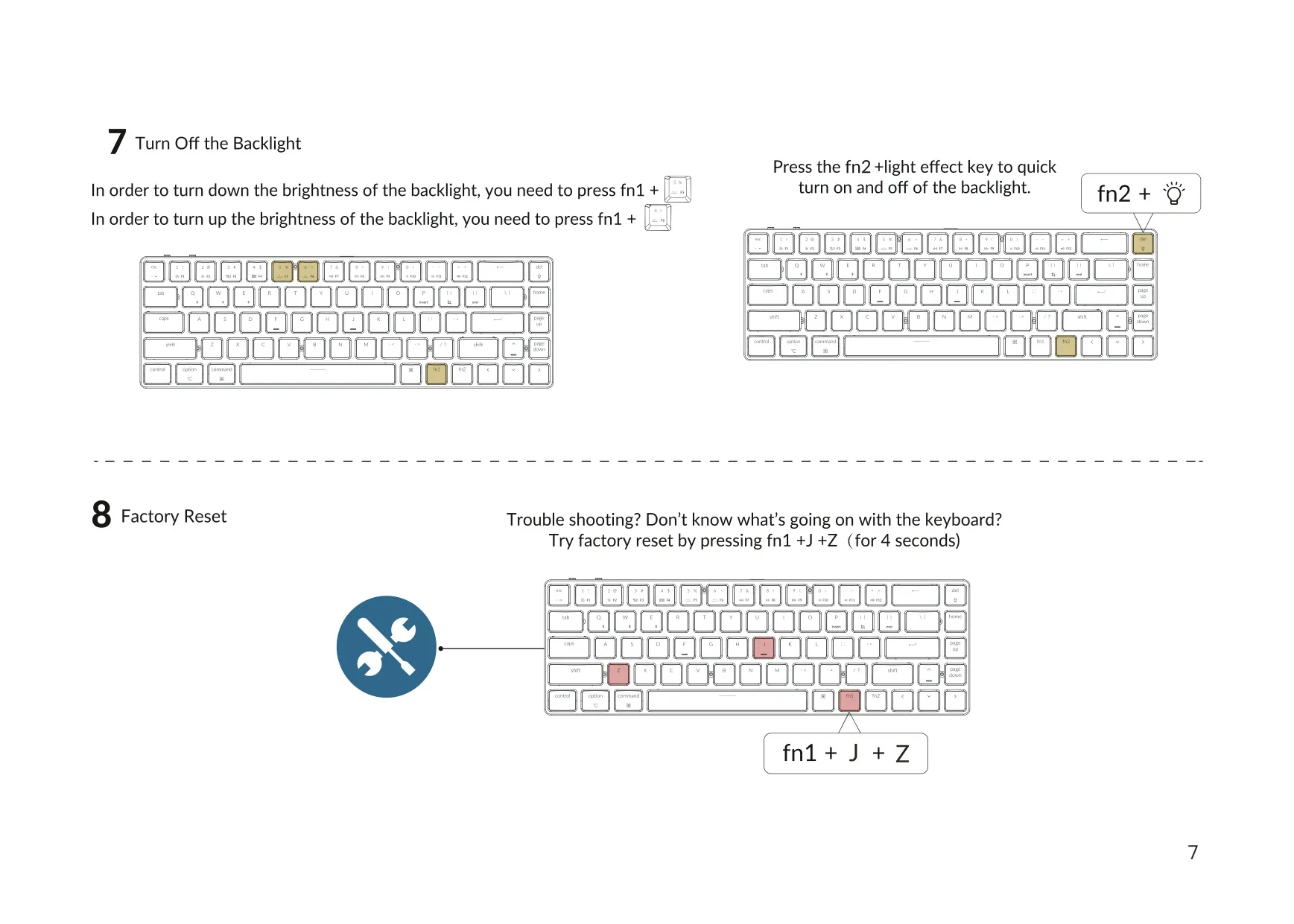
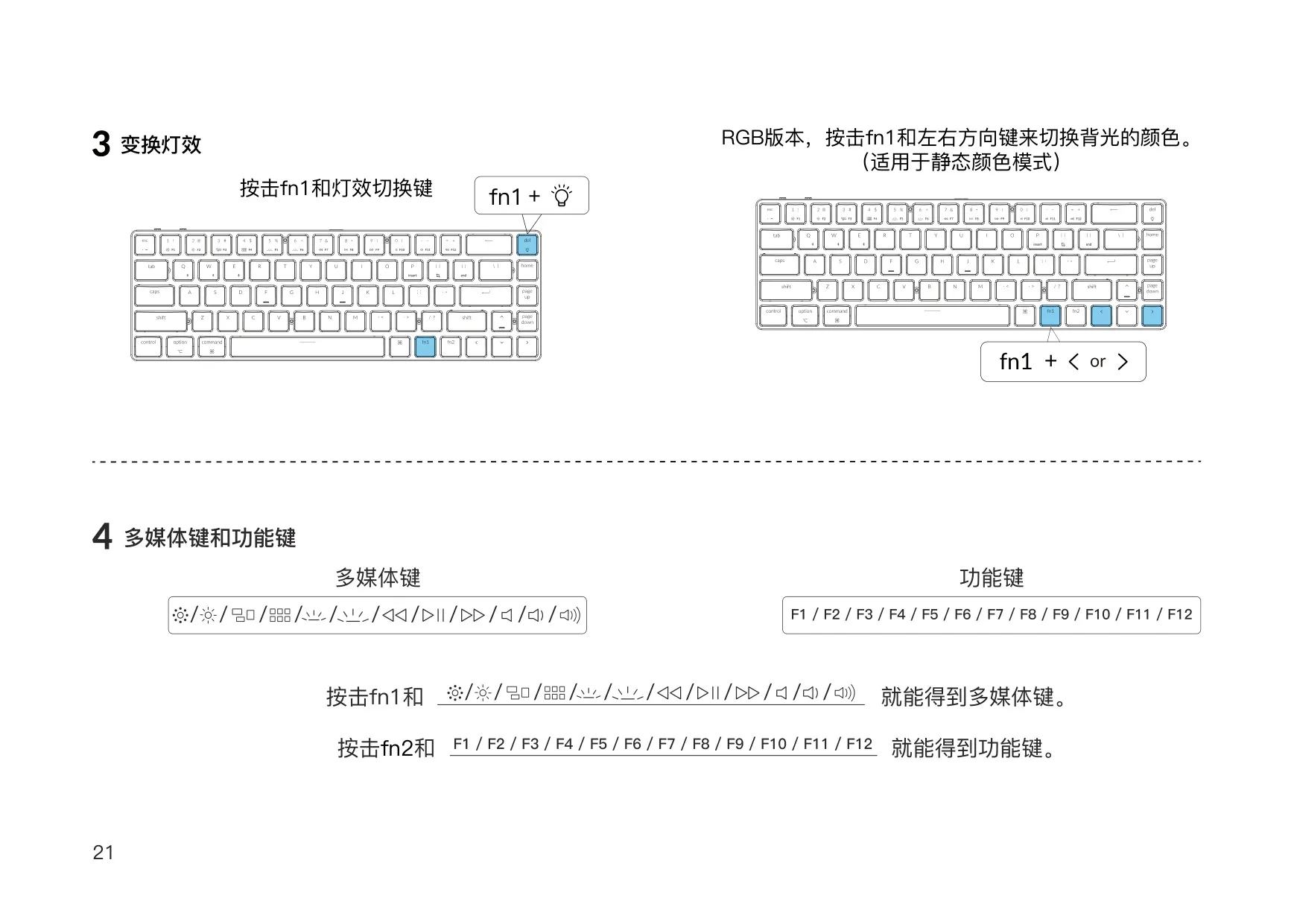
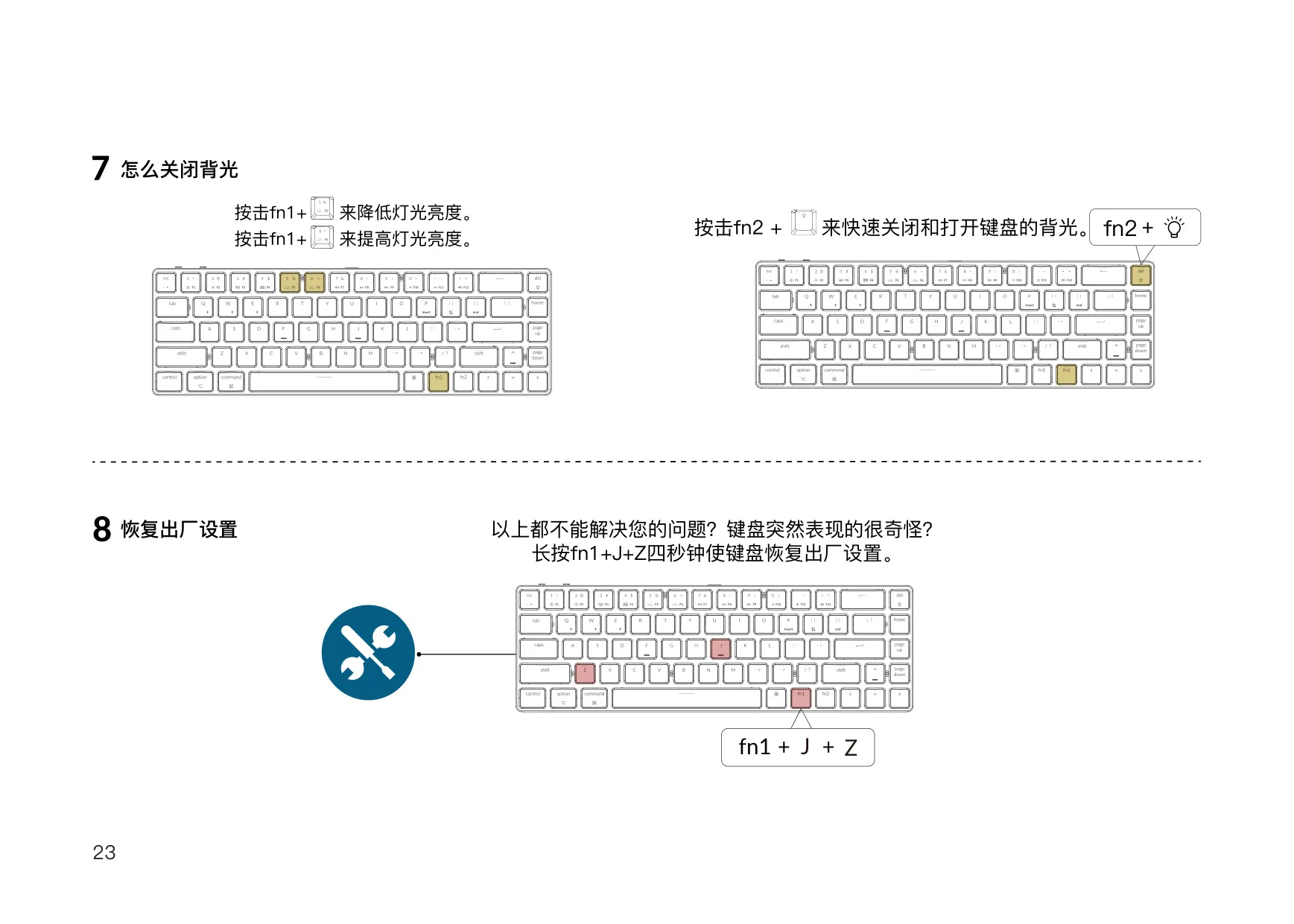
Two LEDs show the keyboard's status. The battery LED blinks red when the battery is low, stays solid red while charging and turns solid green when fully charged. The Bluetooth LED blinks slowly during pairing, blinks quickly while switching devices and turns off once connected. The keyboard can charge in Bluetooth, wired or off mode. Pressing fn1 plus the light effect key cycles through lighting effects. On the RGB version, fn1 plus the left or right arrow changes the color. Separate key combinations adjust brightness, and fn2 plus the light effect key turns the backlight on or off.
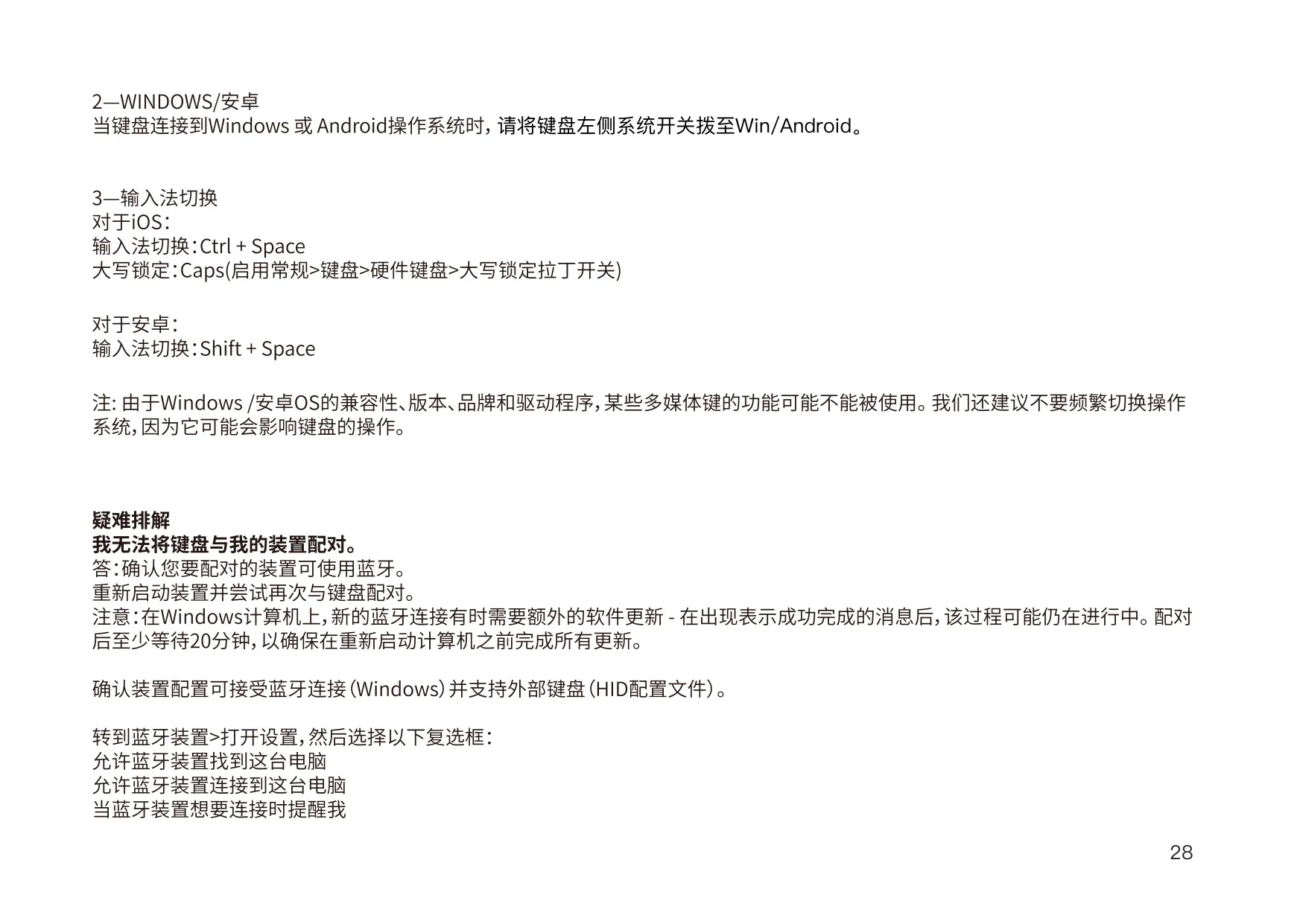
The top row works as multimedia keys when you hold fn1. Holding fn2 gives you the standard F1 to F12 keys. Keychron does not offer official remapping software. Instead, the manual recommends Karabiner for Mac and SharpKeys for Windows, which can remap every key except the light effect key. Linux users can join the "Keychron Linux Group" on Facebook. On iOS, Ctrl + Space switches the input method. Caps Lock can also switch languages if you enable that option in the iOS hardware keyboard settings.
If the keyboard stops responding, try turning it off and back on. Then remove ("forget") the keyboard in your device's Bluetooth settings, restart the device and pair again. Dropouts within 10 meters can happen if the keyboard sits on a metal surface. Some multimedia keys and third-party input tools may not work on some Windows or Android setups, so keep your system and drivers up to date. For a factory reset, hold fn1 + J + Z for 4 seconds. Keep the keyboard dry and store the keyboard and its small parts out of children's reach.
Frequently Asked Questions (FAQs)
Can't find the answer you need? Here are some frequently asked questions about the Keychron K7 Keyboard, and we answer them below.