Keychron K10 Pro Keyboard Instruction Manual
Keychron K10 Pro Keyboard









Keychron K10 Pro Keyboard Instructions
Here we offer the Keychron K10 Pro Keyboard manual completely free and in English. We have cataloged this manual in the Keyboards section on Manualverse, and it has been rated by 1 users with an average rating of 5. If you have any specific questions about Keychron K10 Pro Keyboard, we suggest checking the Frequently Asked Questions (FAQs) section of this manual.
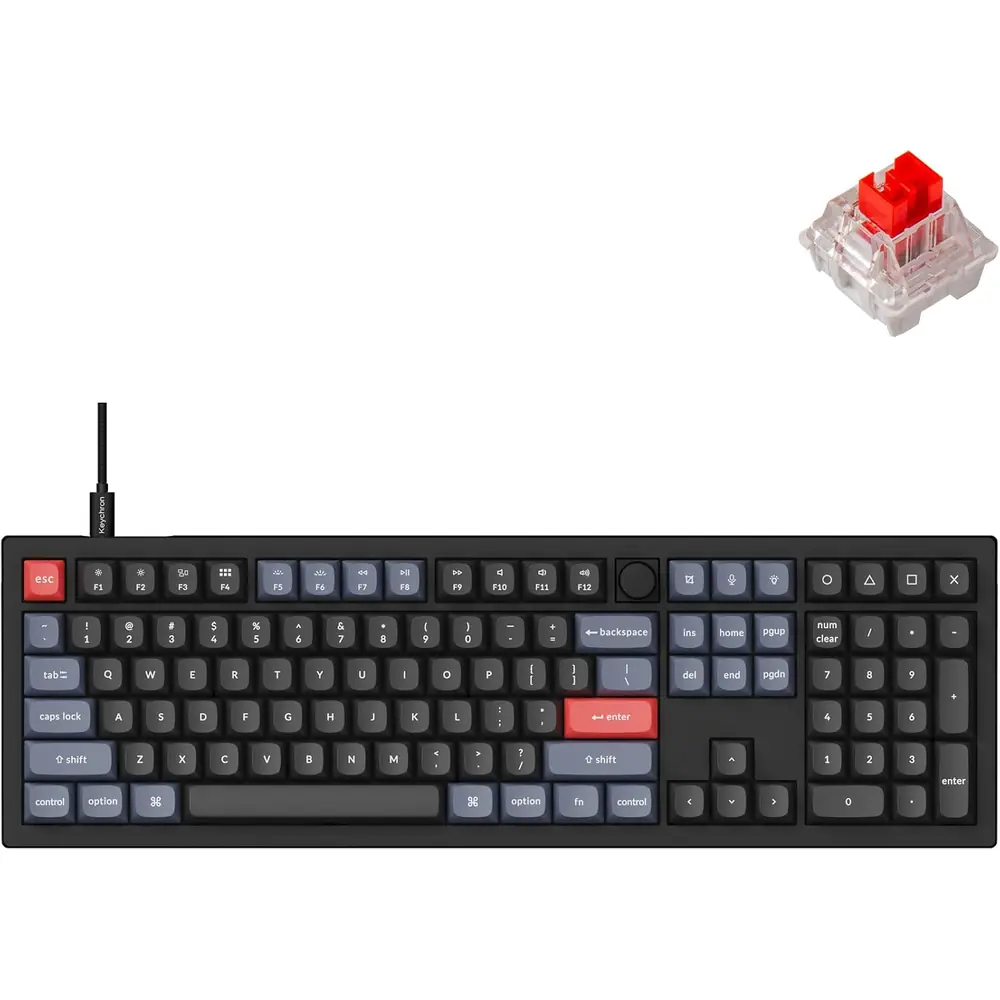
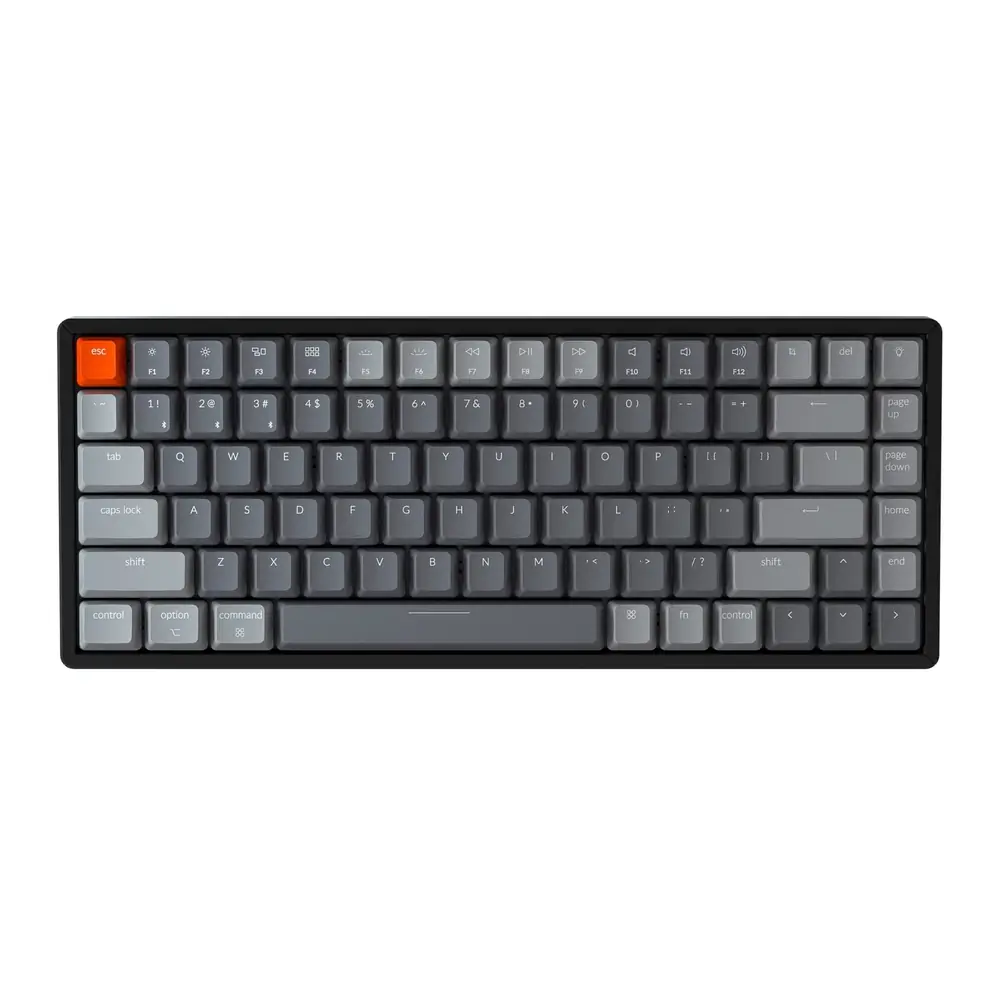
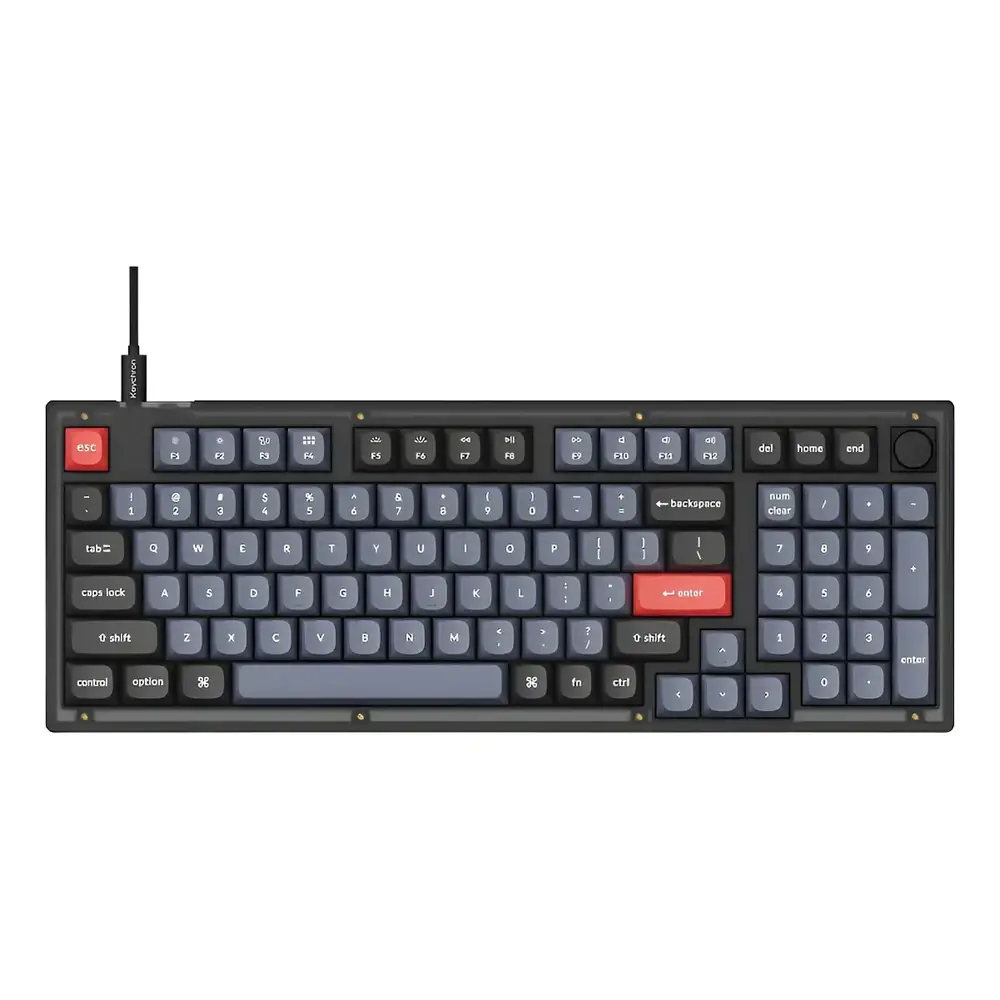
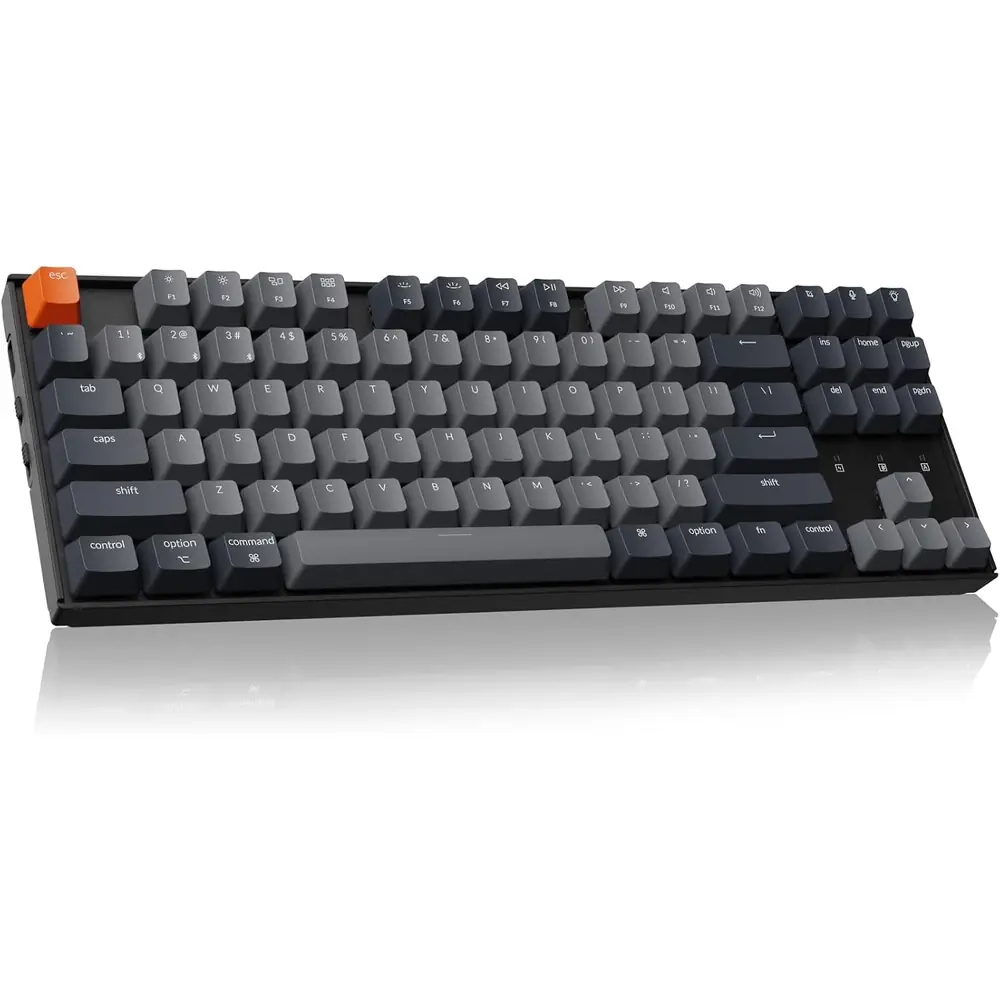
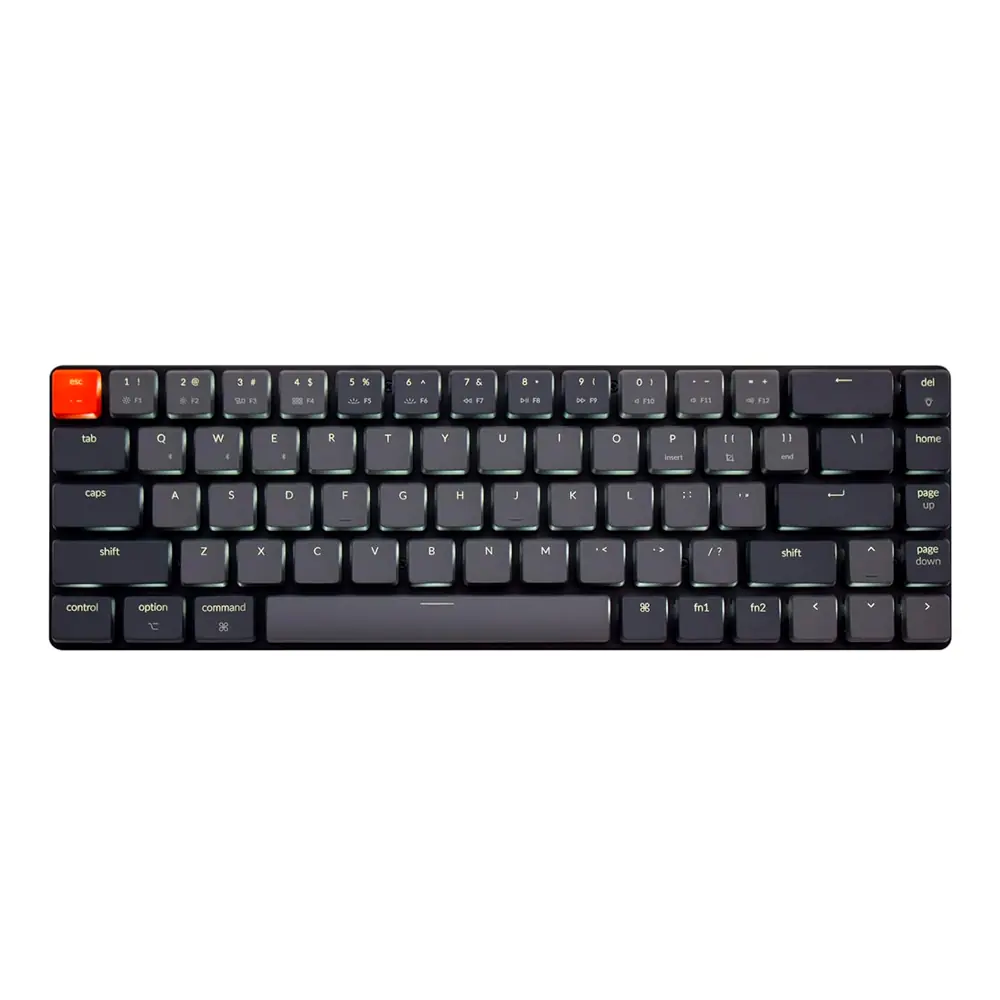
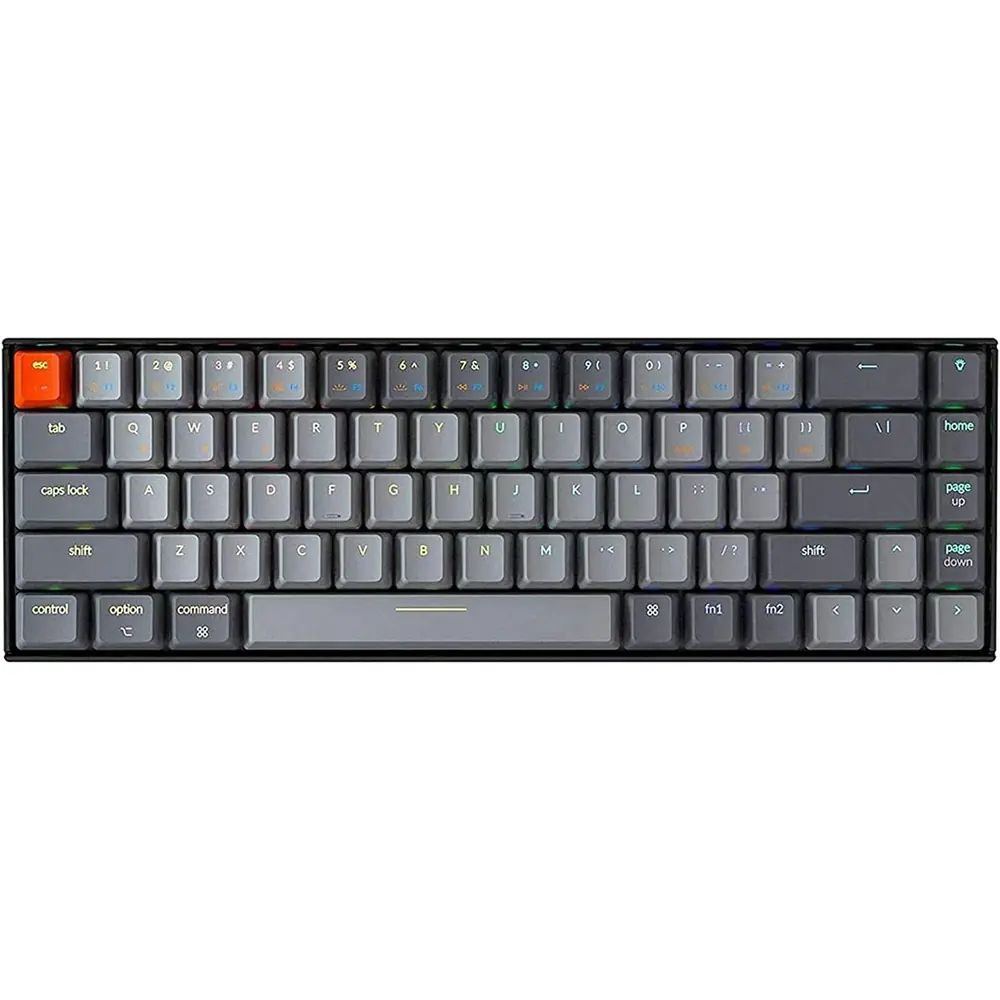
Product Images
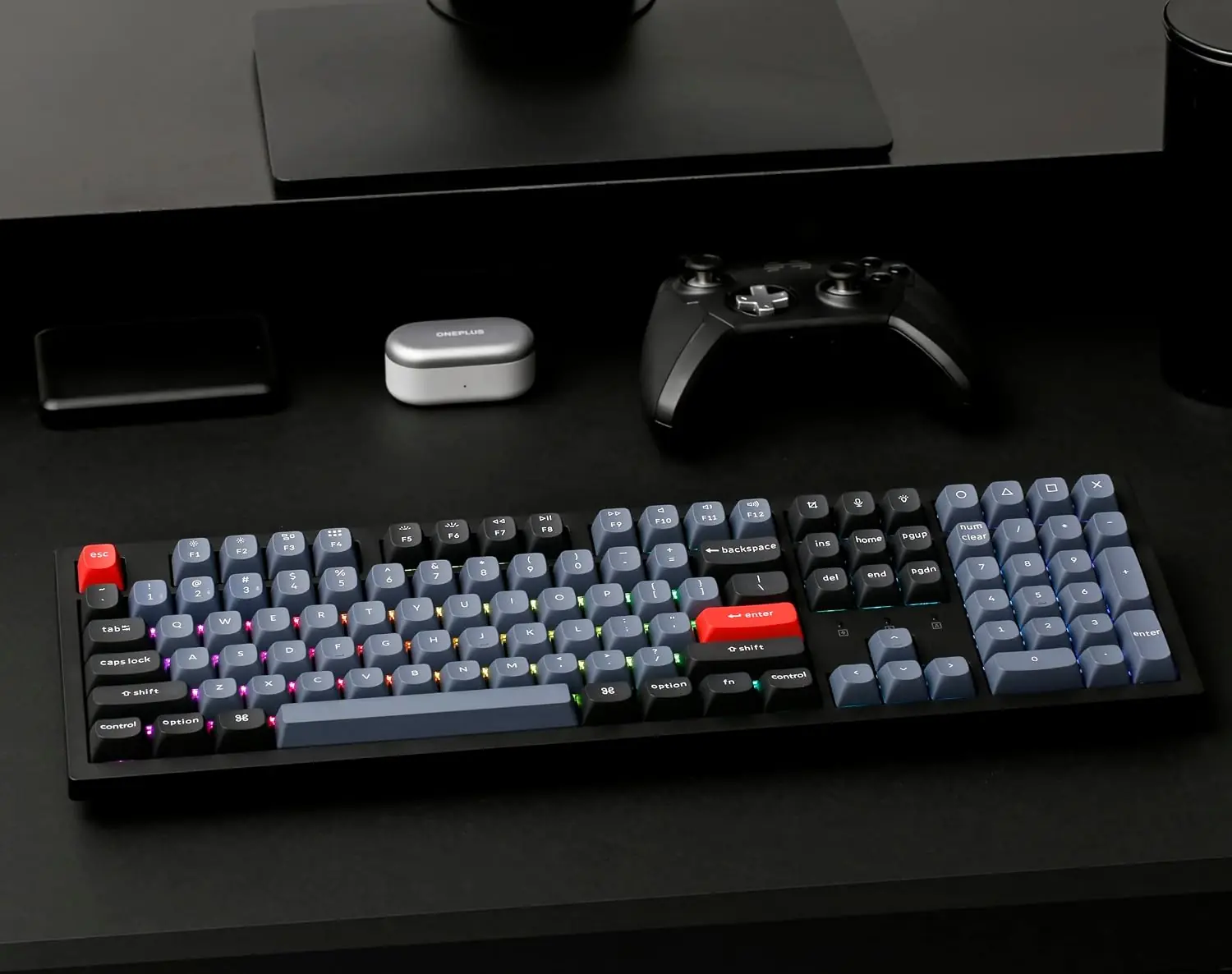
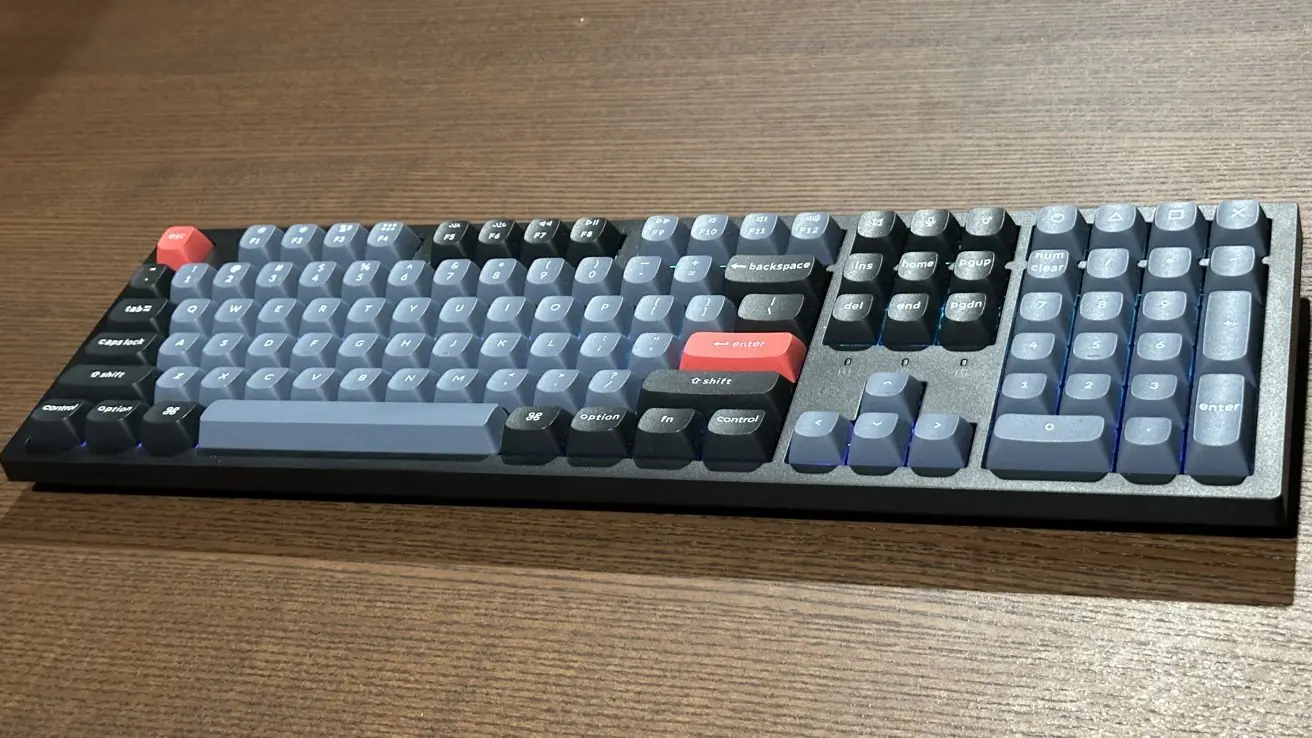
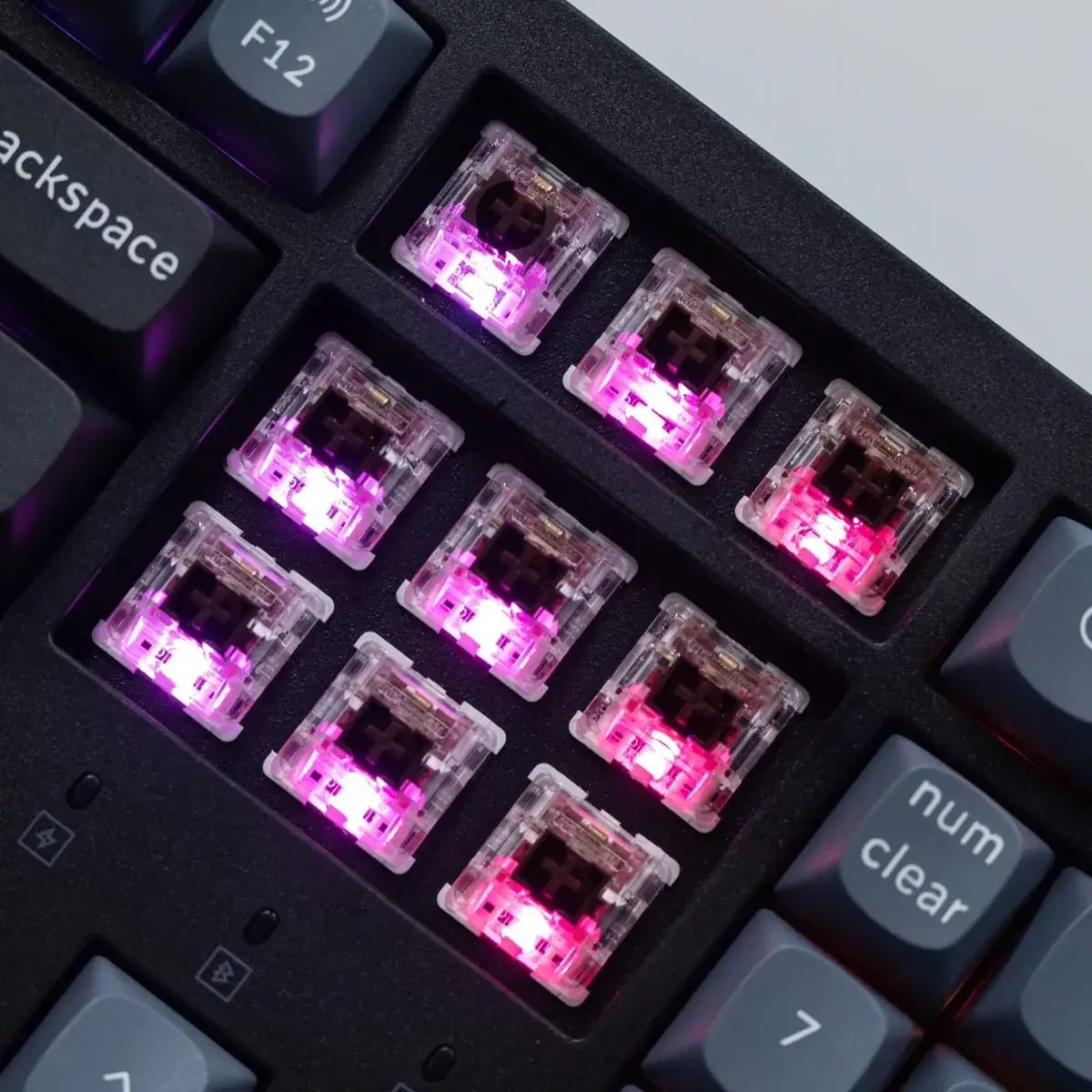
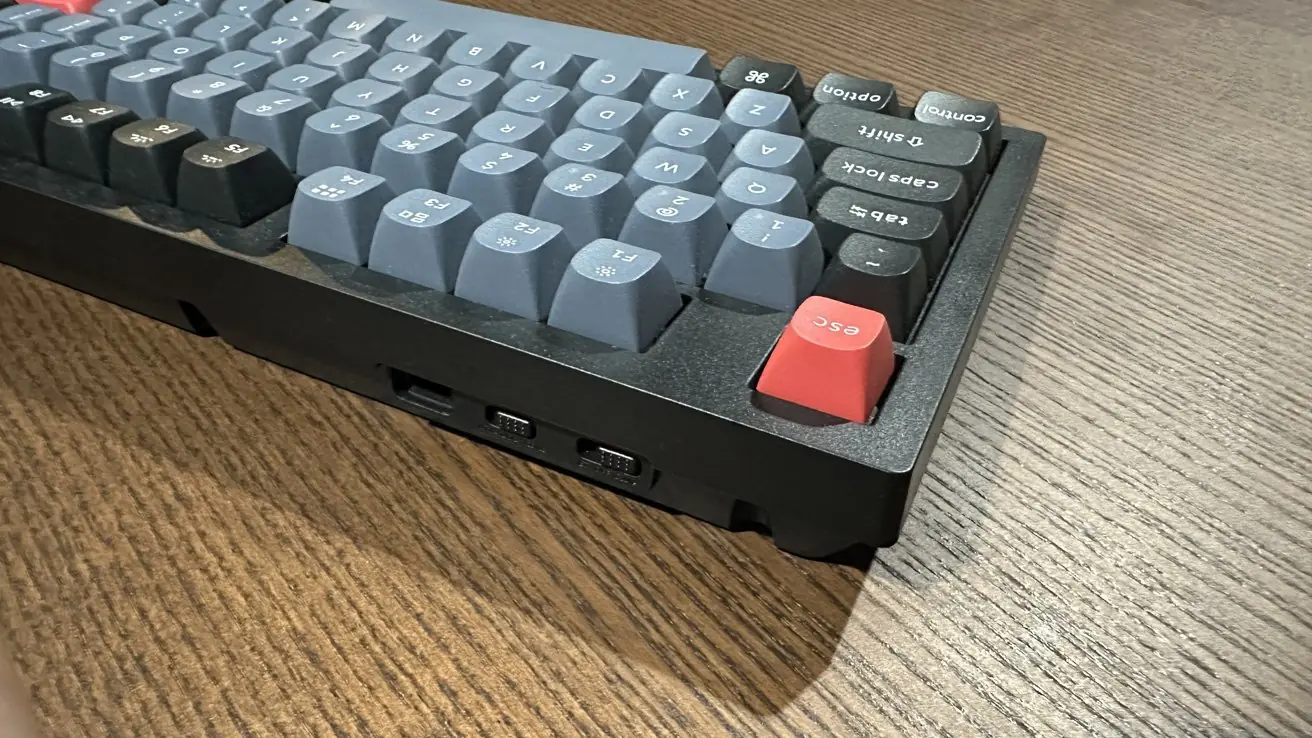
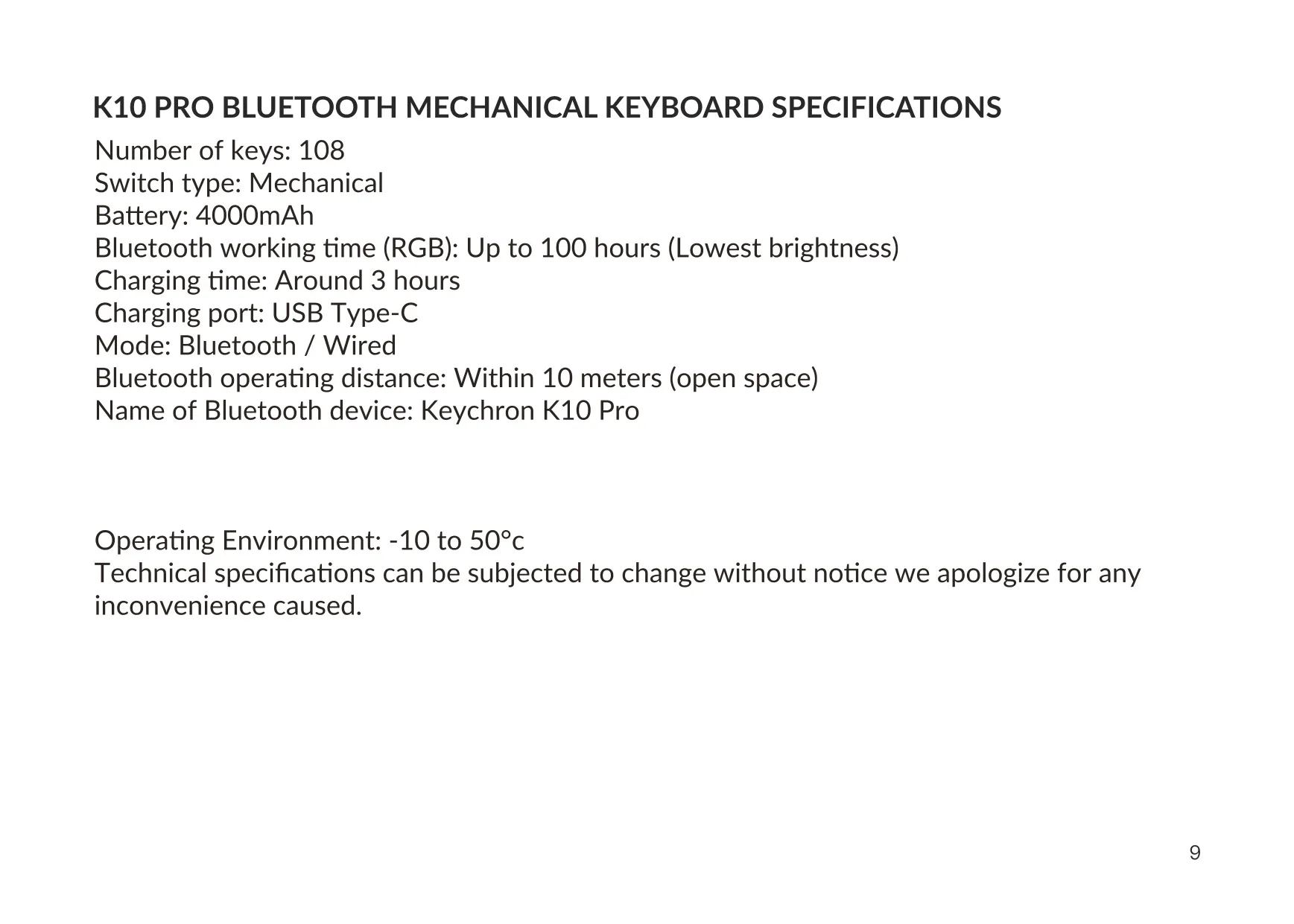
Keychron K10 Pro Keyboard Specifications
| Feature | Specification |
|---|---|
| Model | Keychron K10 Pro Bluetooth Mechanical Keyboard |
| Number of Keys | 108 |
| Switch Type | Mechanical |
| Battery Capacity | 4000 mAh |
| Bluetooth Working Time (RGB) | Up to 100 hours (lowest brightness) |
| Charging Time | Around 3 hours |
| Charging Port | USB Type-C |
| Maximum Charging Input | 5 V / 2 A |
| Recommended Power Source | 5 V 2 A adapter or USB 3.0 port |
| Connection Modes | Bluetooth / Wired |
| Bluetooth Operating Distance | Within 10 meters (open space) |
| Bluetooth Device Name | Keychron K10 Pro |
| Paired Devices | Up to 3 (fn + 1 / fn + 2 / fn + 3) |
| Supported Operating Systems | macOS / iOS, Windows / Android |
| Key Layers | 4 (layers 0–1 for Mac, layers 2–3 for Windows) |
| Key Remapping Software | VIA (wired connection only) |
| Firmware Flashing Tool | QMK Toolbox |
| Backlight | RGB, with multiple lighting effects |
| Low Battery Warning | Below 15% (red indicator blinks) |
| Mode Toggle Switch | BT / OFF / Cable |
| OS Toggle Switch | Win/Android / Mac/iOS |
| Operating Environment | -10 °C to 50 °C (5 °F to 131 °F) |
| In the Box | Keyboard, Type-C cable, manual, quick start guide, extra keycap set |
| Manufacturer | Keychron, Inc., Dover, DE 19901, United States |
| Country of Manufacture | China |
Keychron K10 Pro Keyboard Details
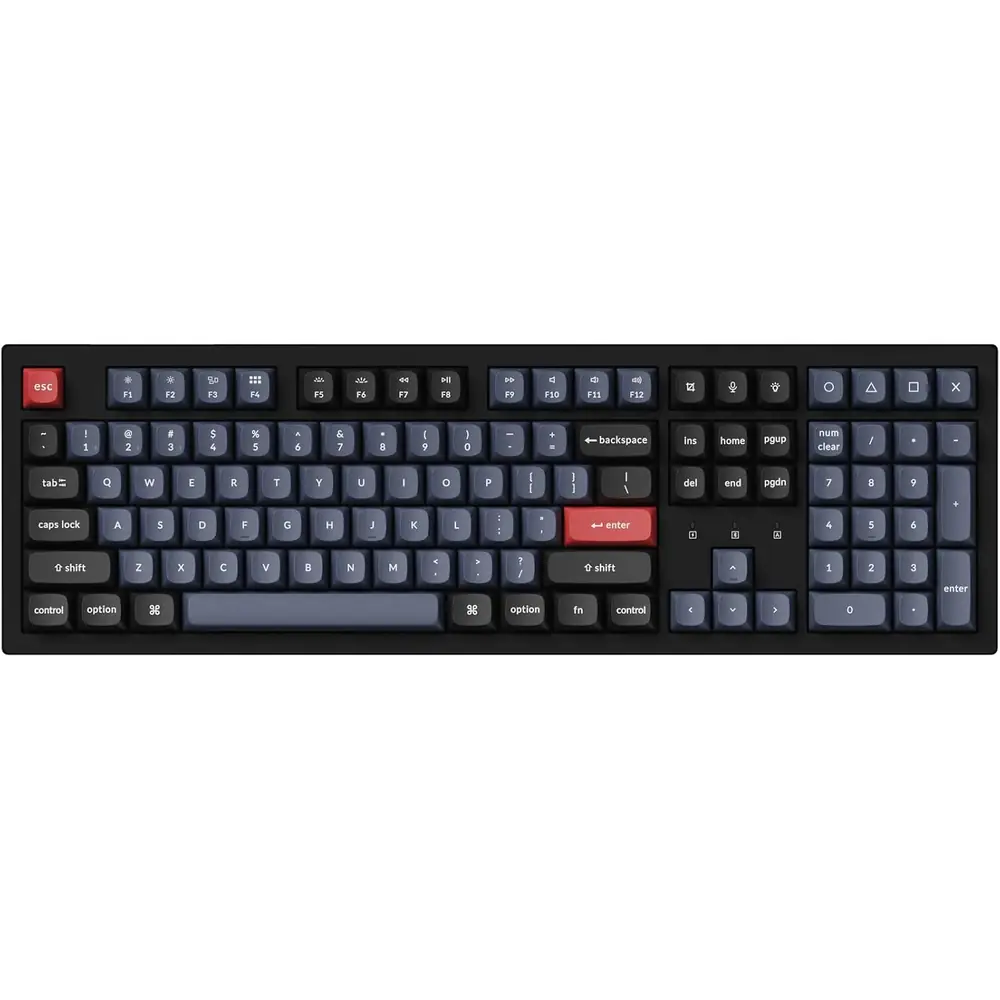
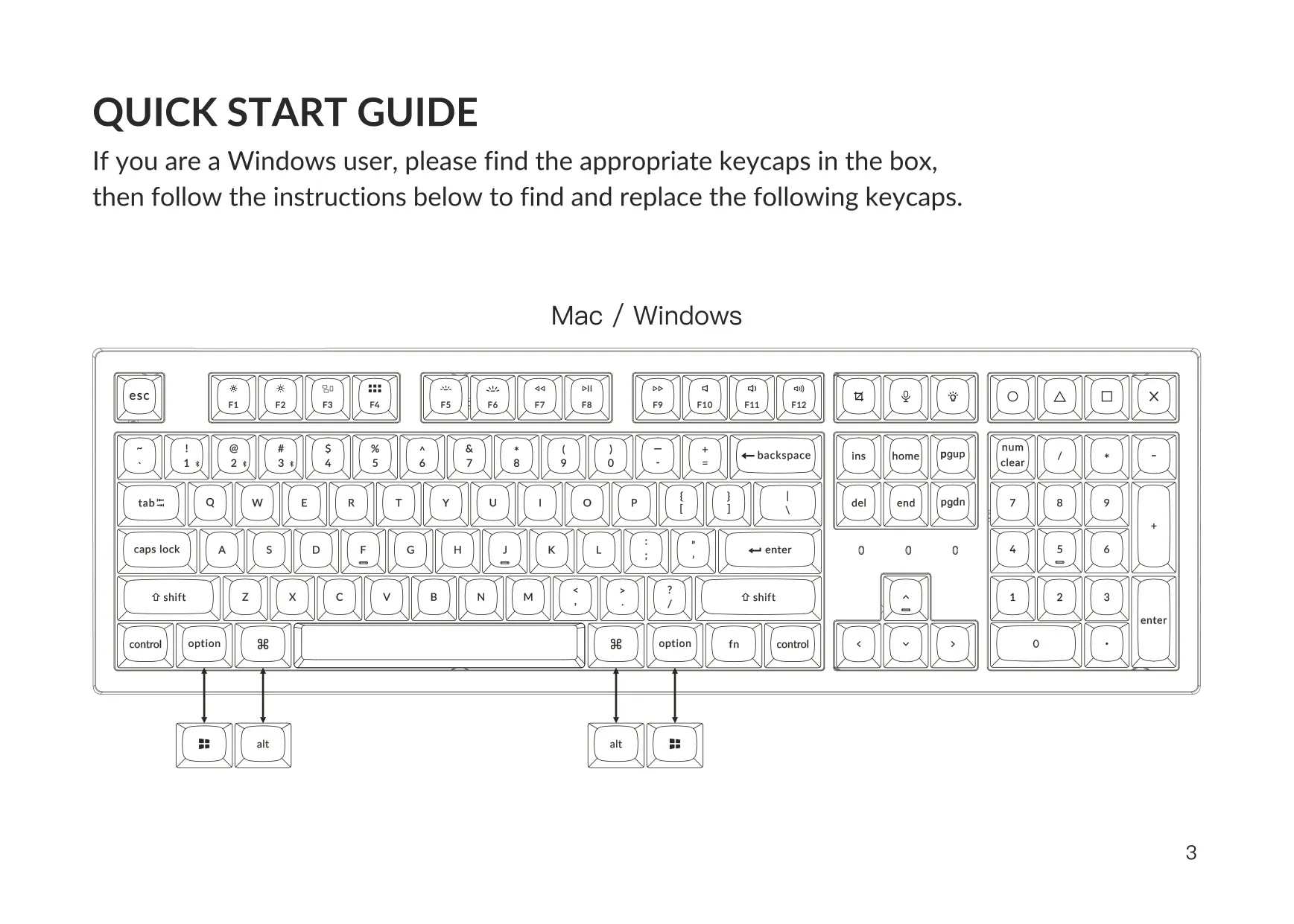
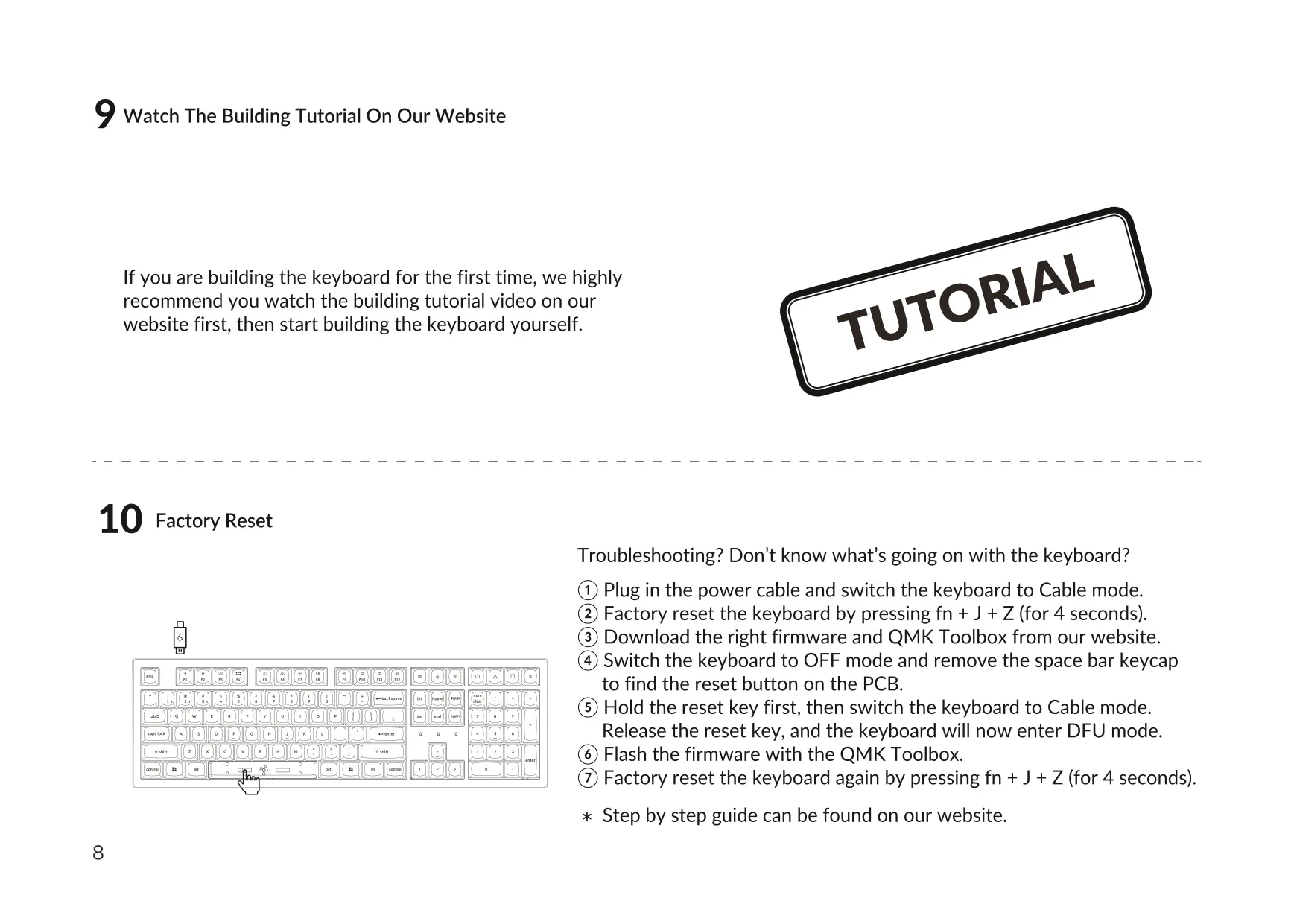
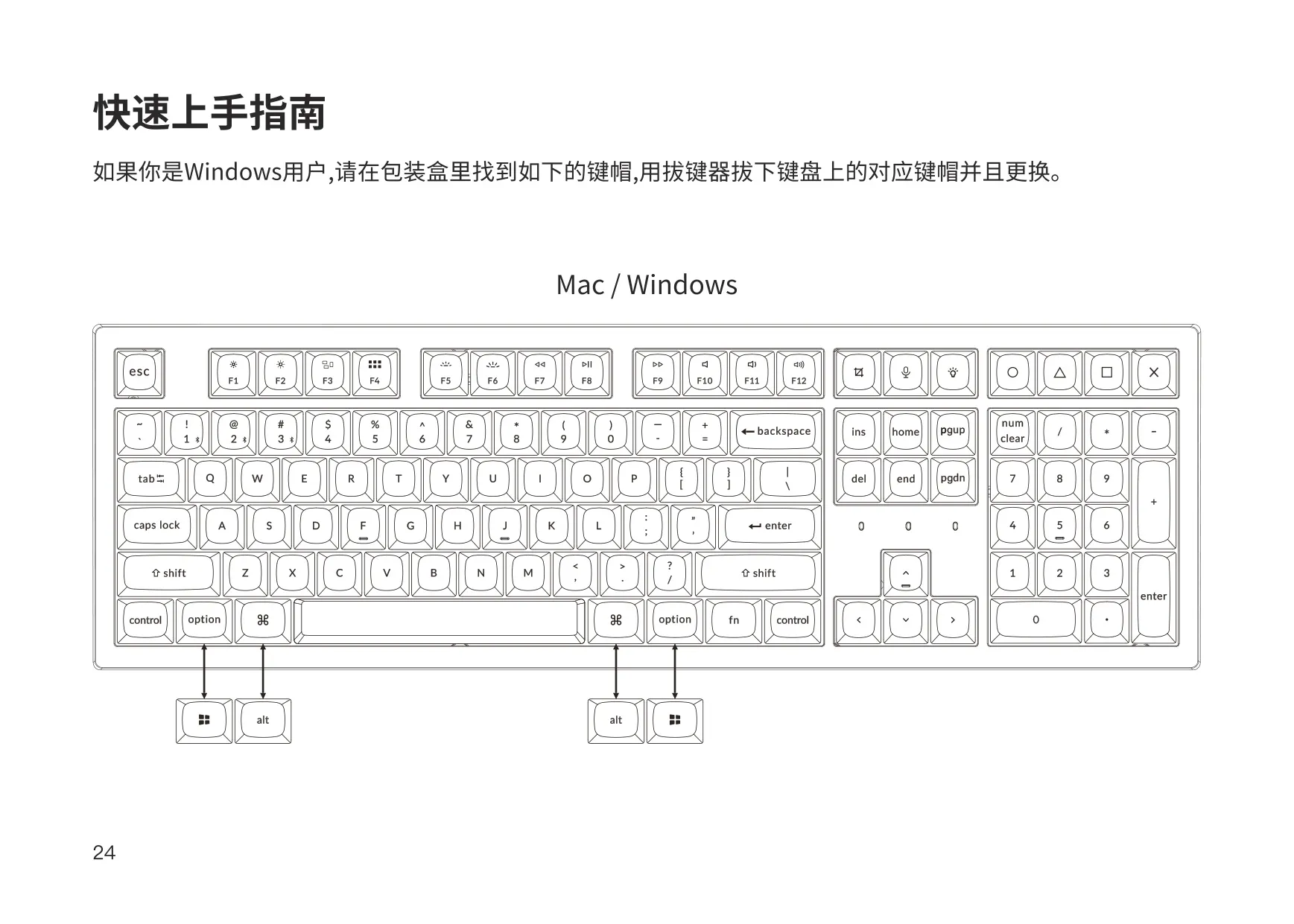
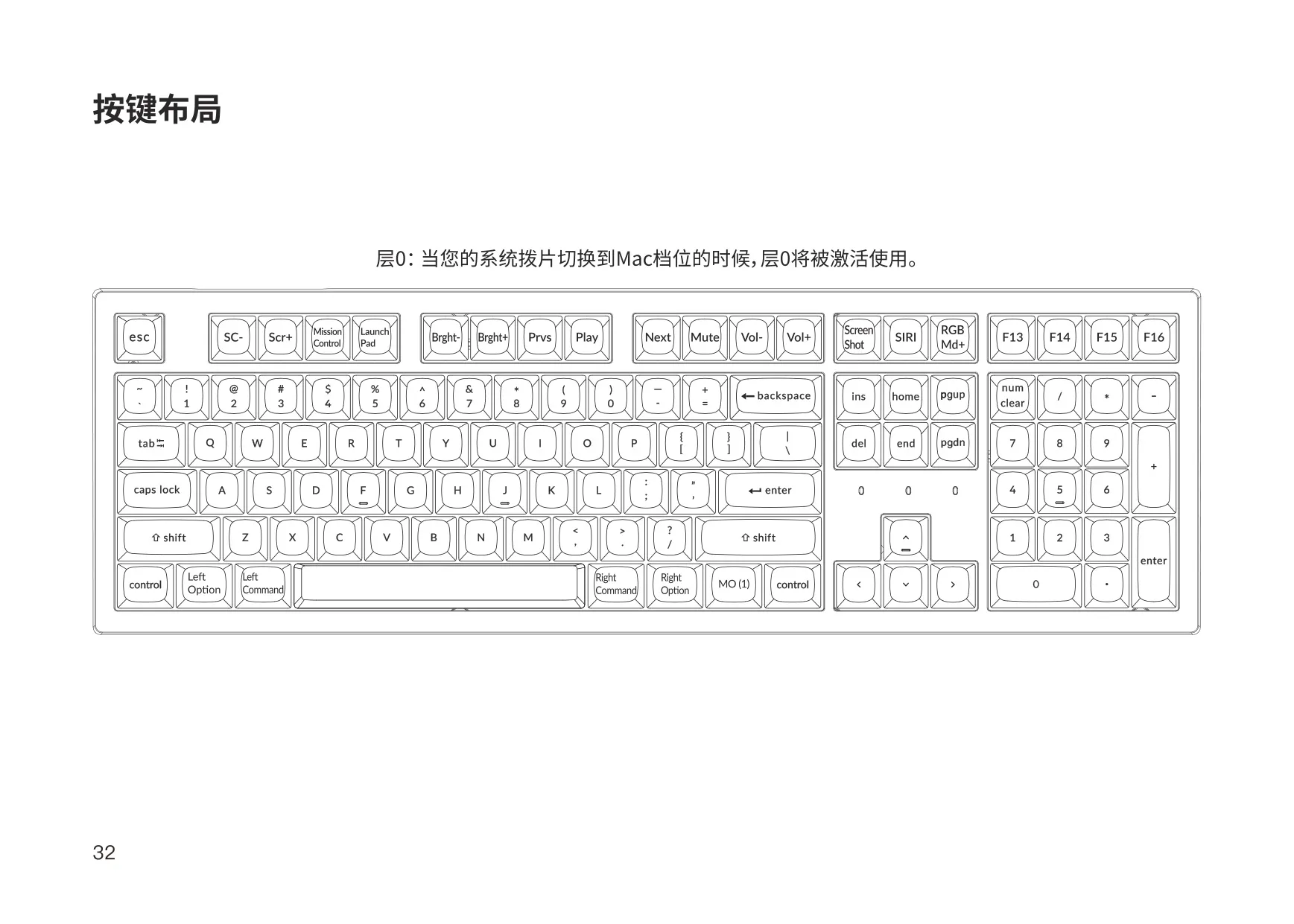
The Keychron K10 Pro is a full-size mechanical keyboard that works with both Mac and Windows computers. It comes with an extra keycap set, so Windows users can swap the Mac-labeled modifier keys for Windows keycaps. The quick start guide shows which keys to replace. The keyboard is built to be customized and rebuilt. Keychron recommends that first-time builders watch the building tutorial video on its website before they take the keyboard apart or reassemble it.
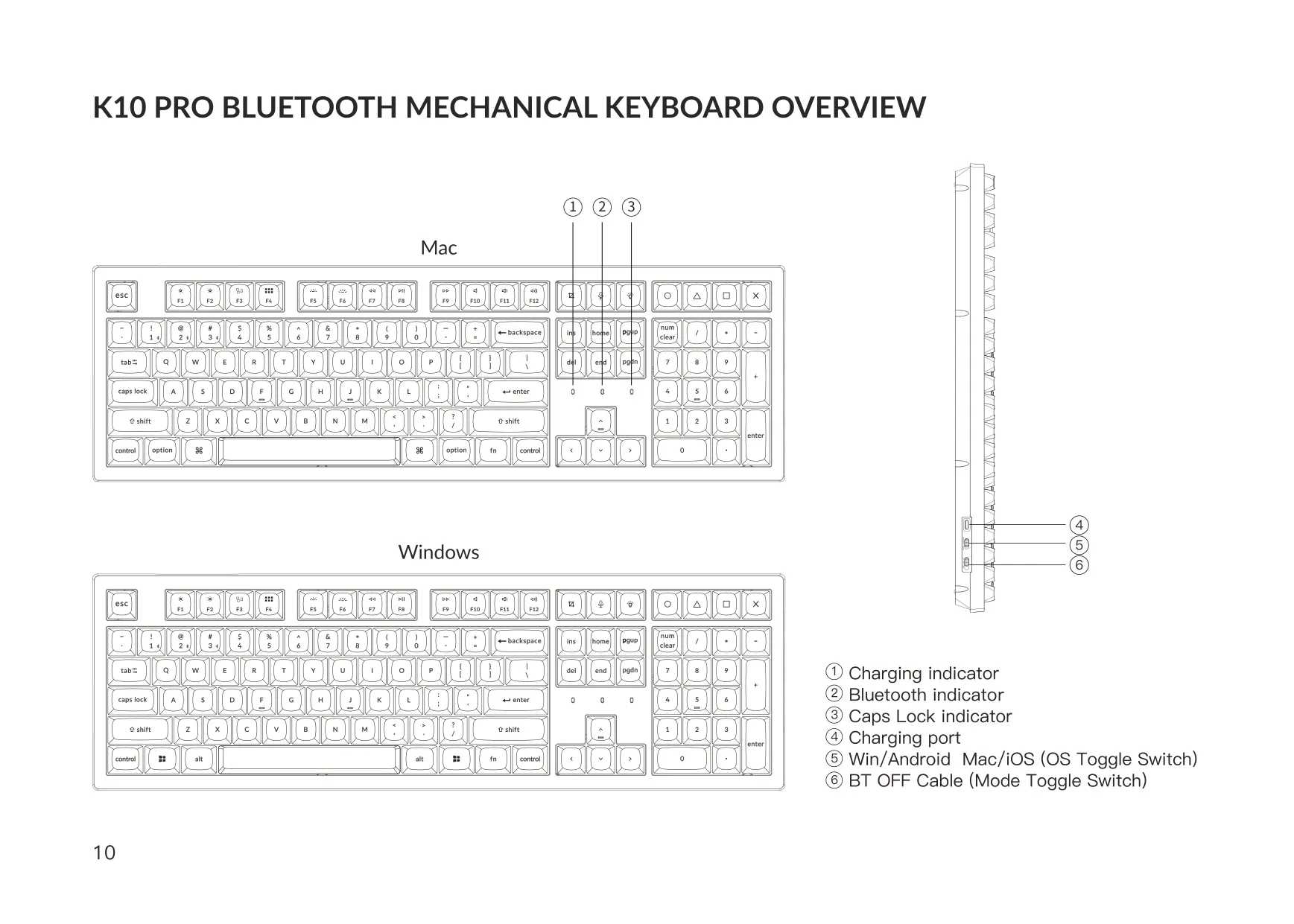
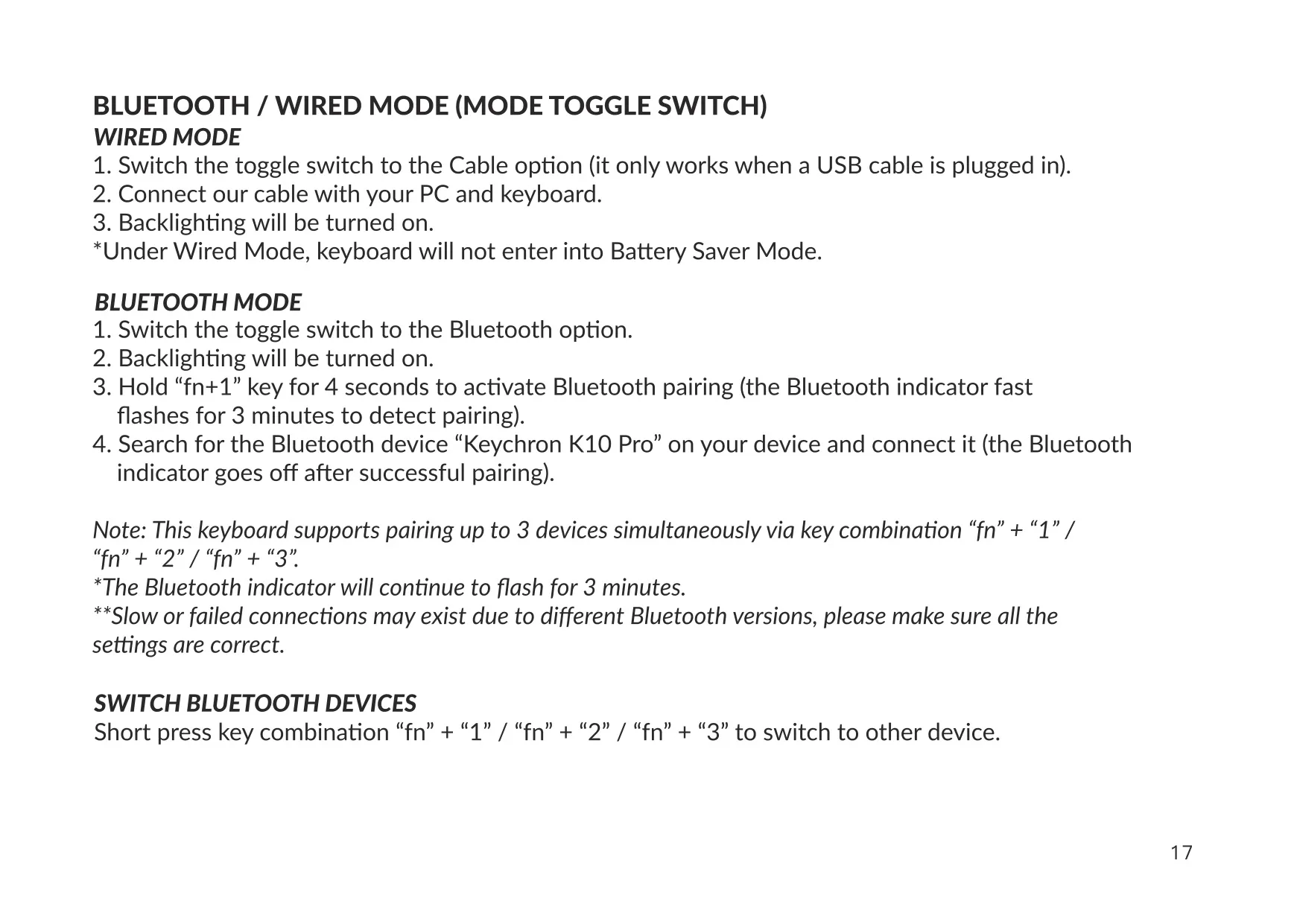
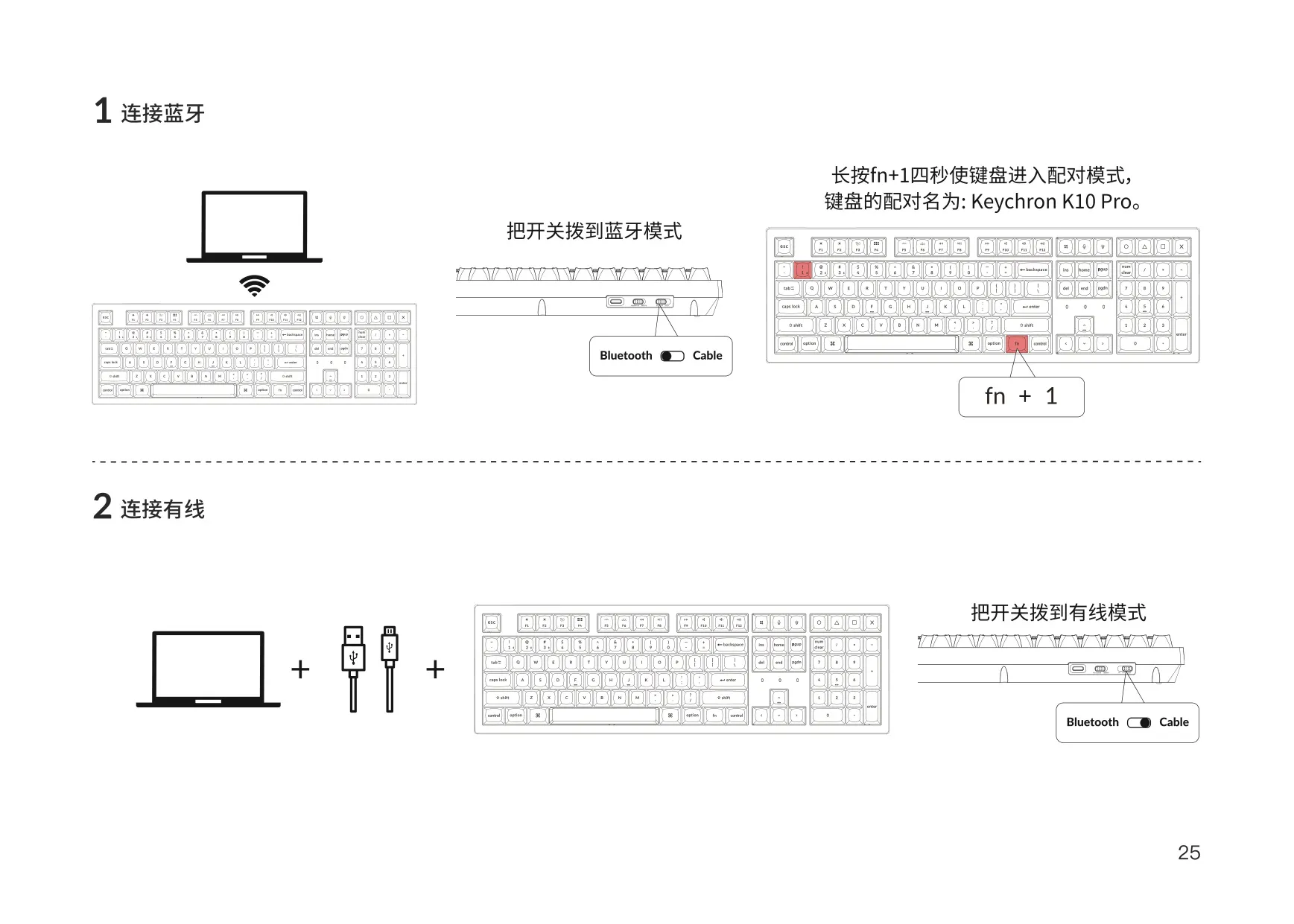
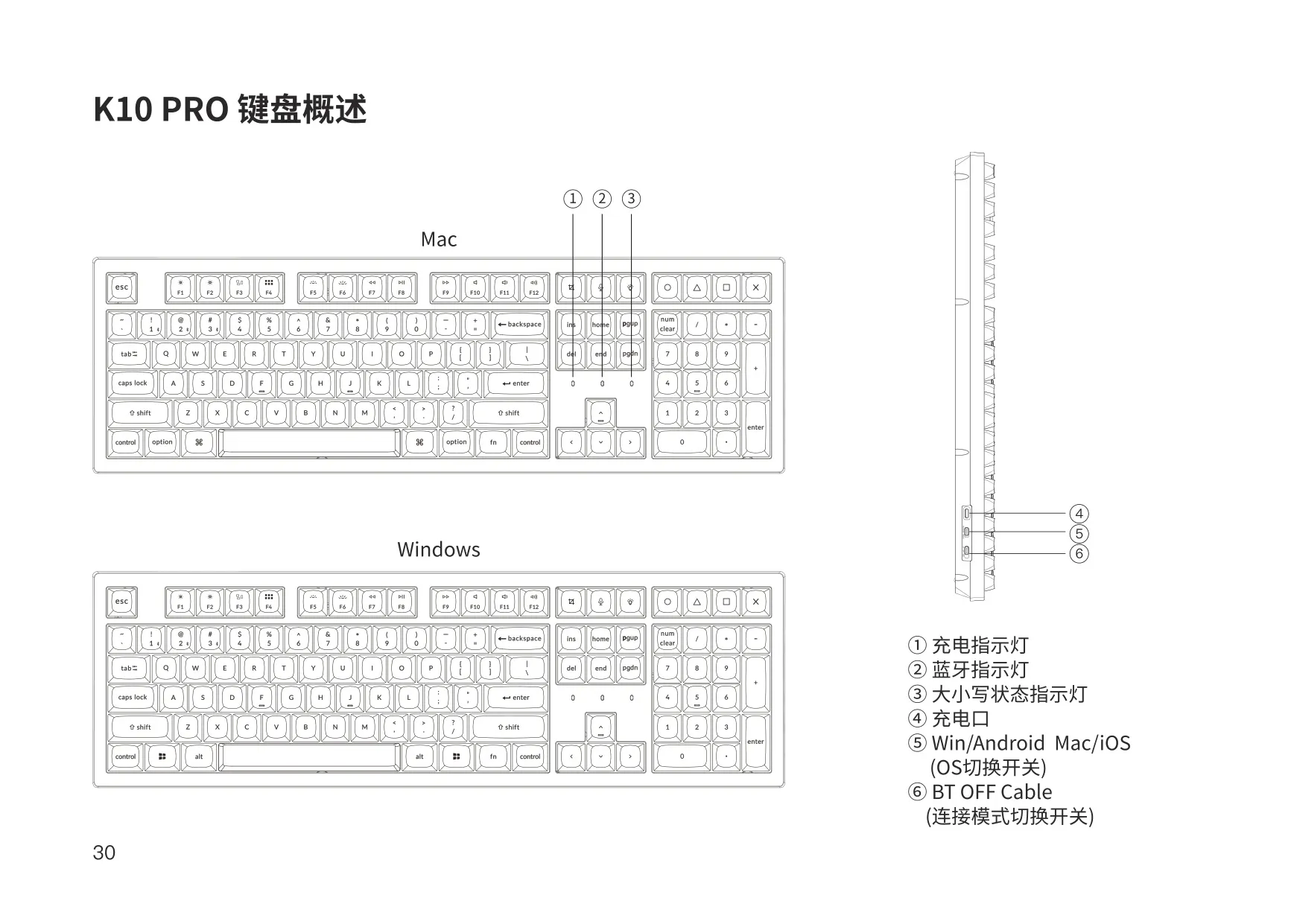
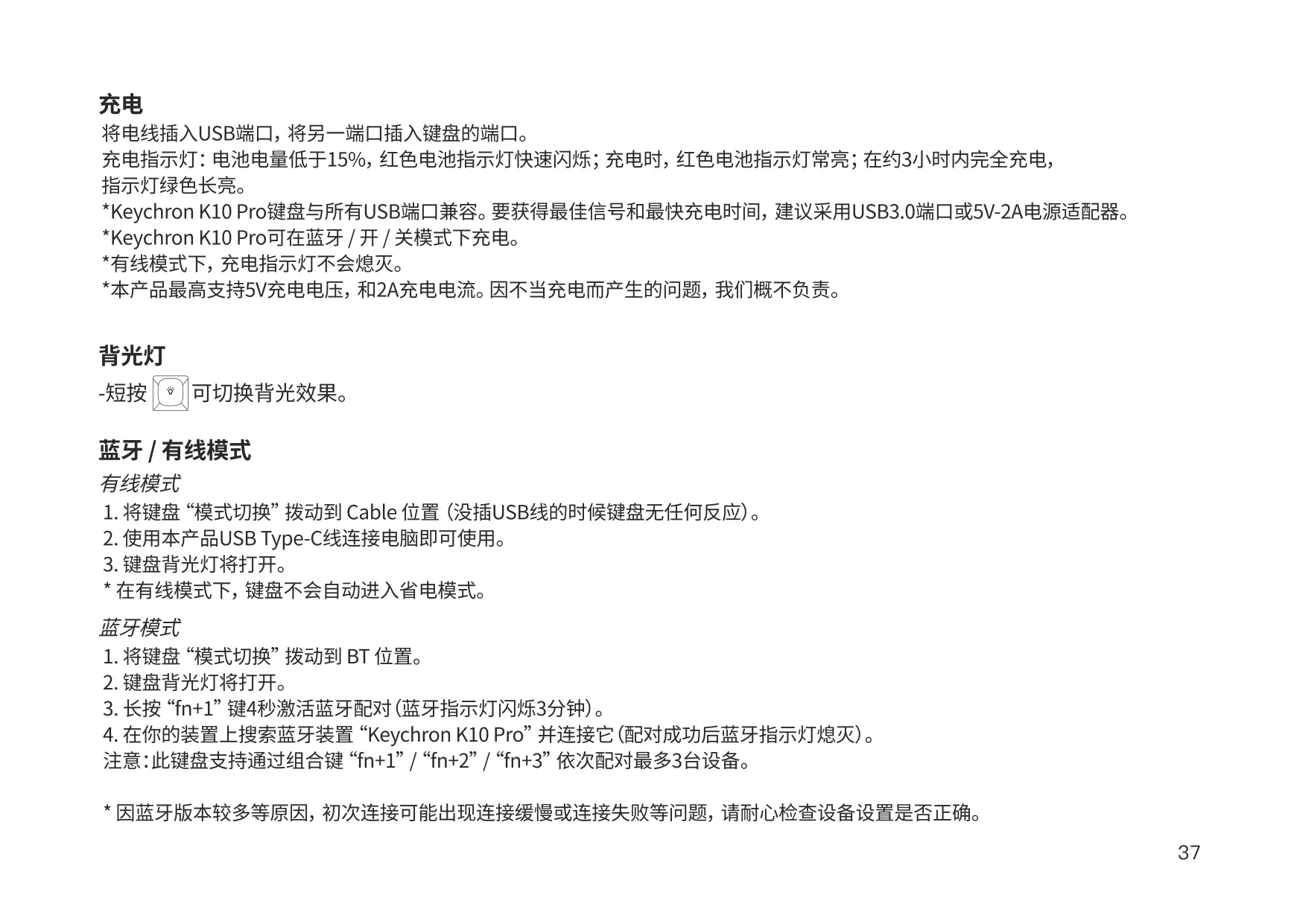
Two switches on the side of the keyboard control how it works. The mode toggle picks Bluetooth, OFF or Cable. The OS toggle picks Mac/iOS or Win/Android. Cable mode only works when a USB cable is plugged in. In wired mode, the keyboard never goes into battery saver mode. The backlight turns on automatically when you choose either Bluetooth or Cable, and you can turn the keyboard off completely by moving the mode toggle to OFF.
To pair over Bluetooth, hold fn + 1 for four seconds. The Bluetooth indicator blinks for up to three minutes while the keyboard waits to connect. Select "Keychron K10 Pro" on your device, and the indicator turns off once pairing succeeds. You can pair two more devices with fn + 2 and fn + 3, then switch between them with a short press of the same keys. When you switch back to Bluetooth, the keyboard reconnects to the last paired device on its own.
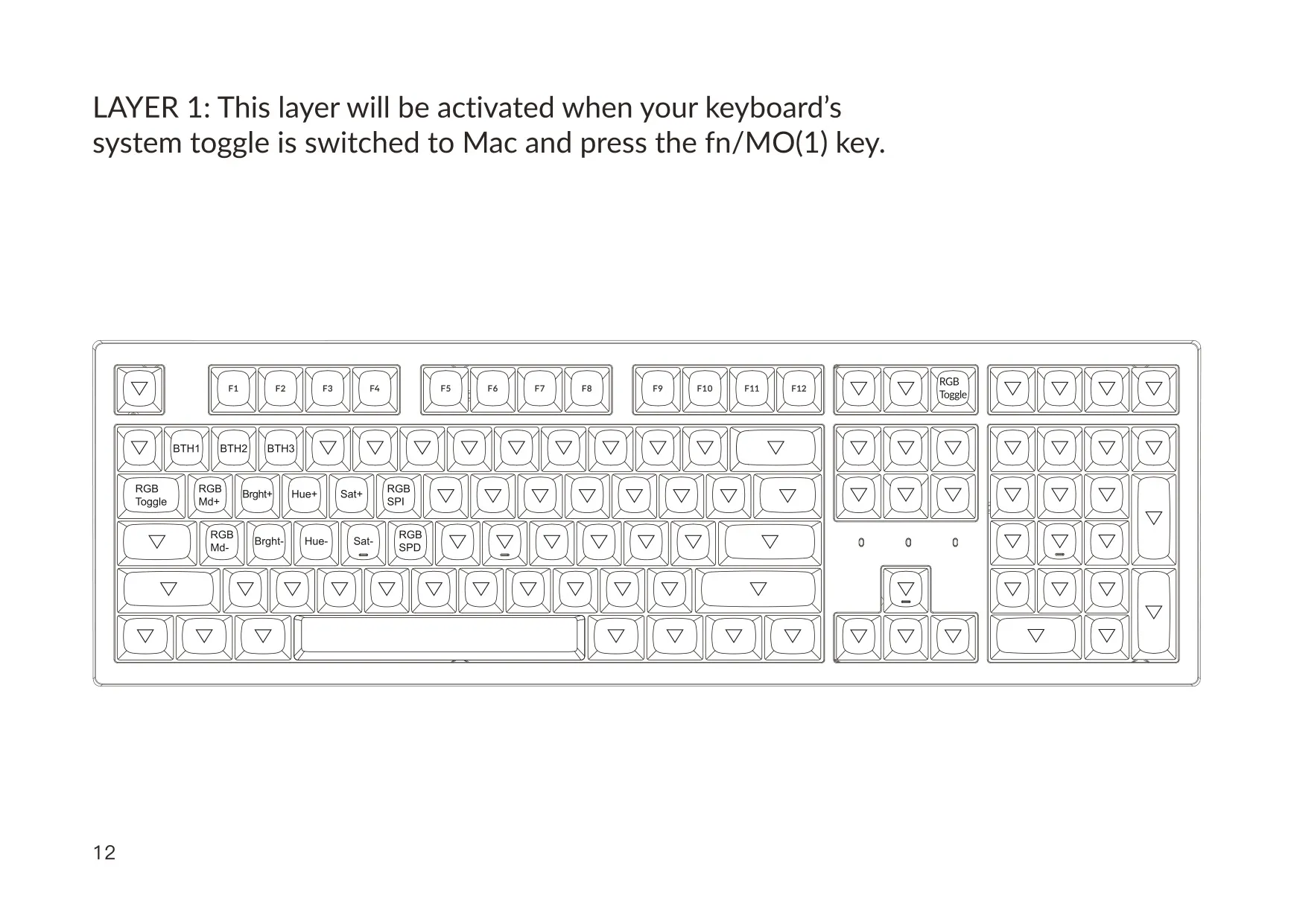
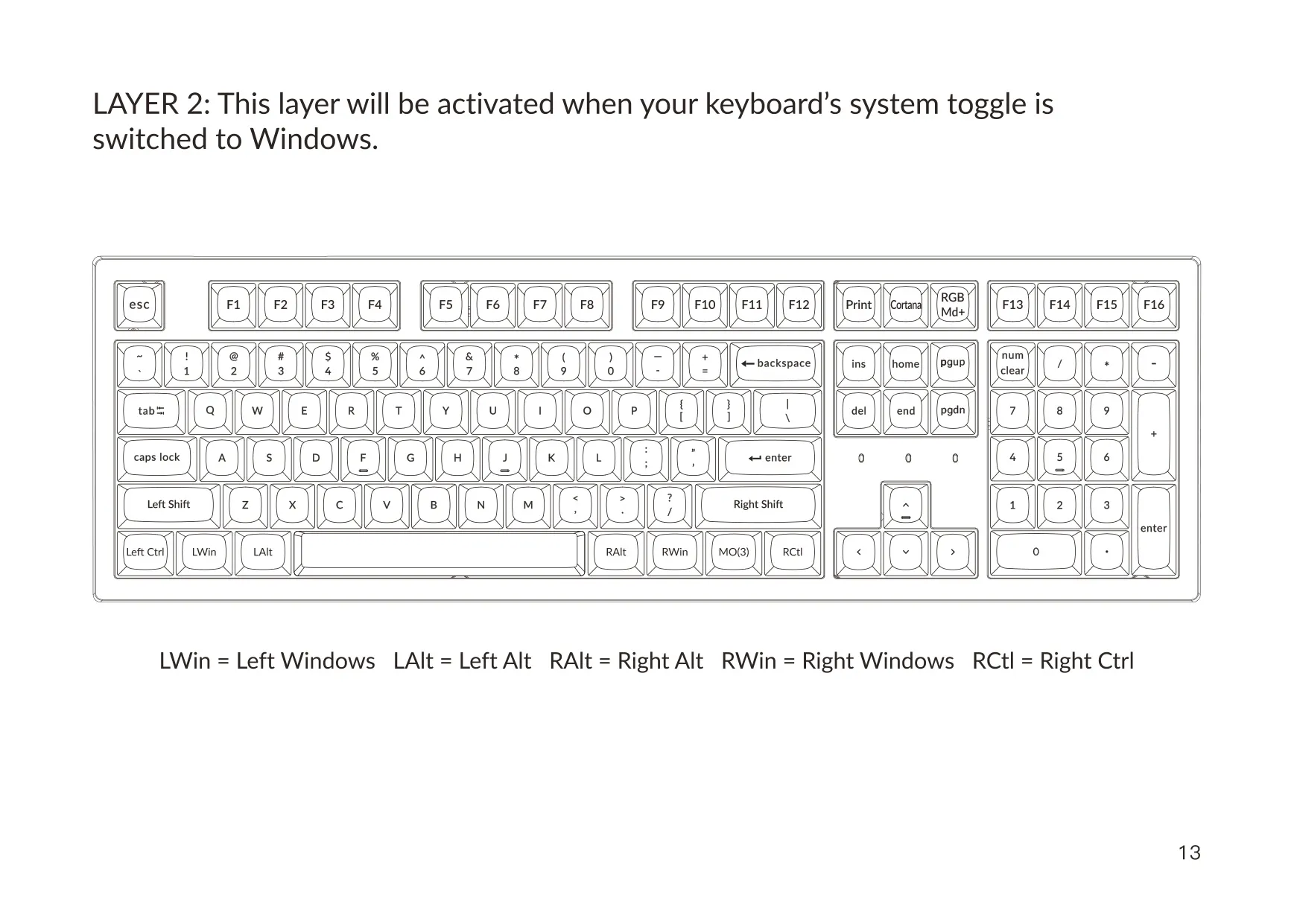
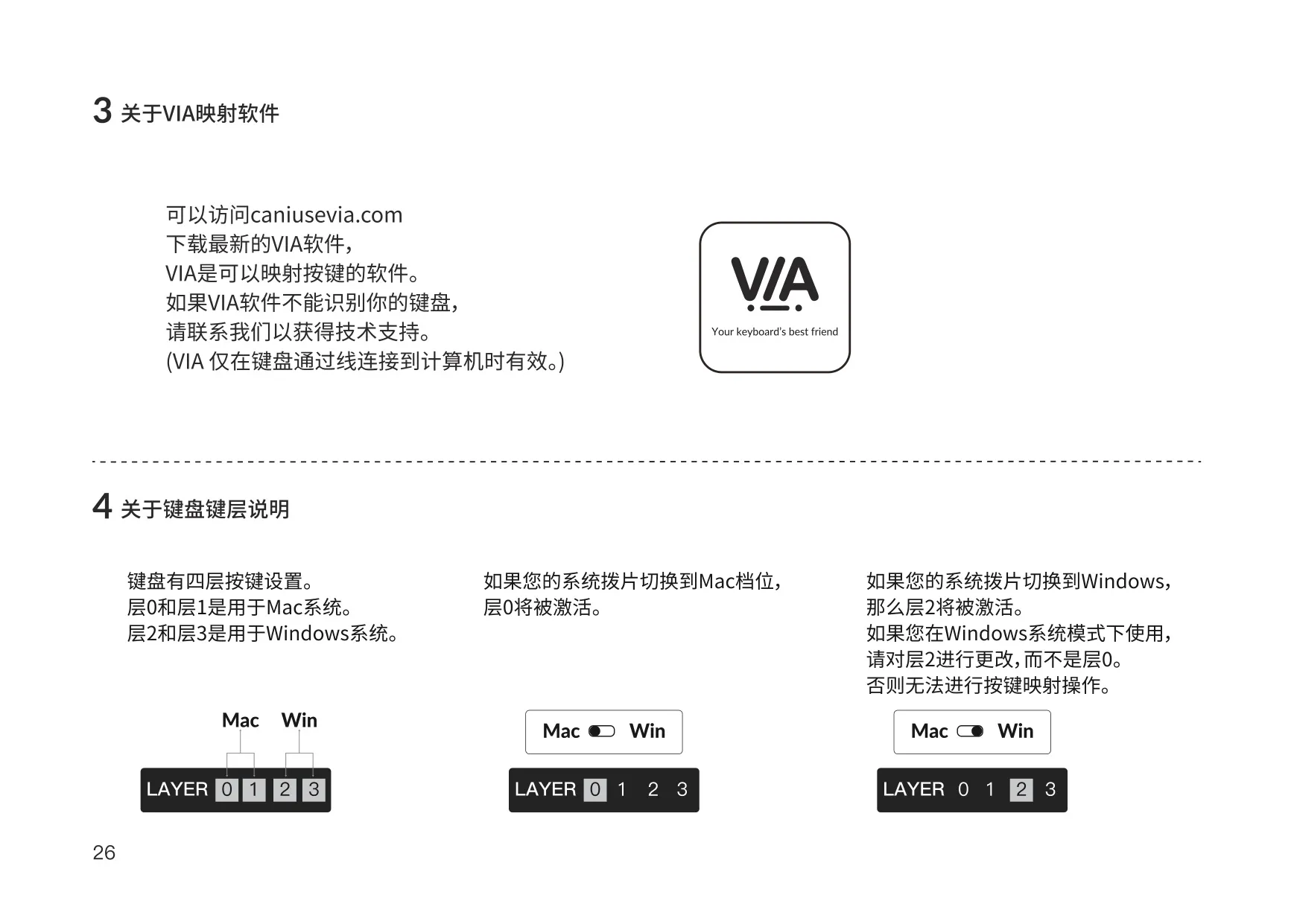
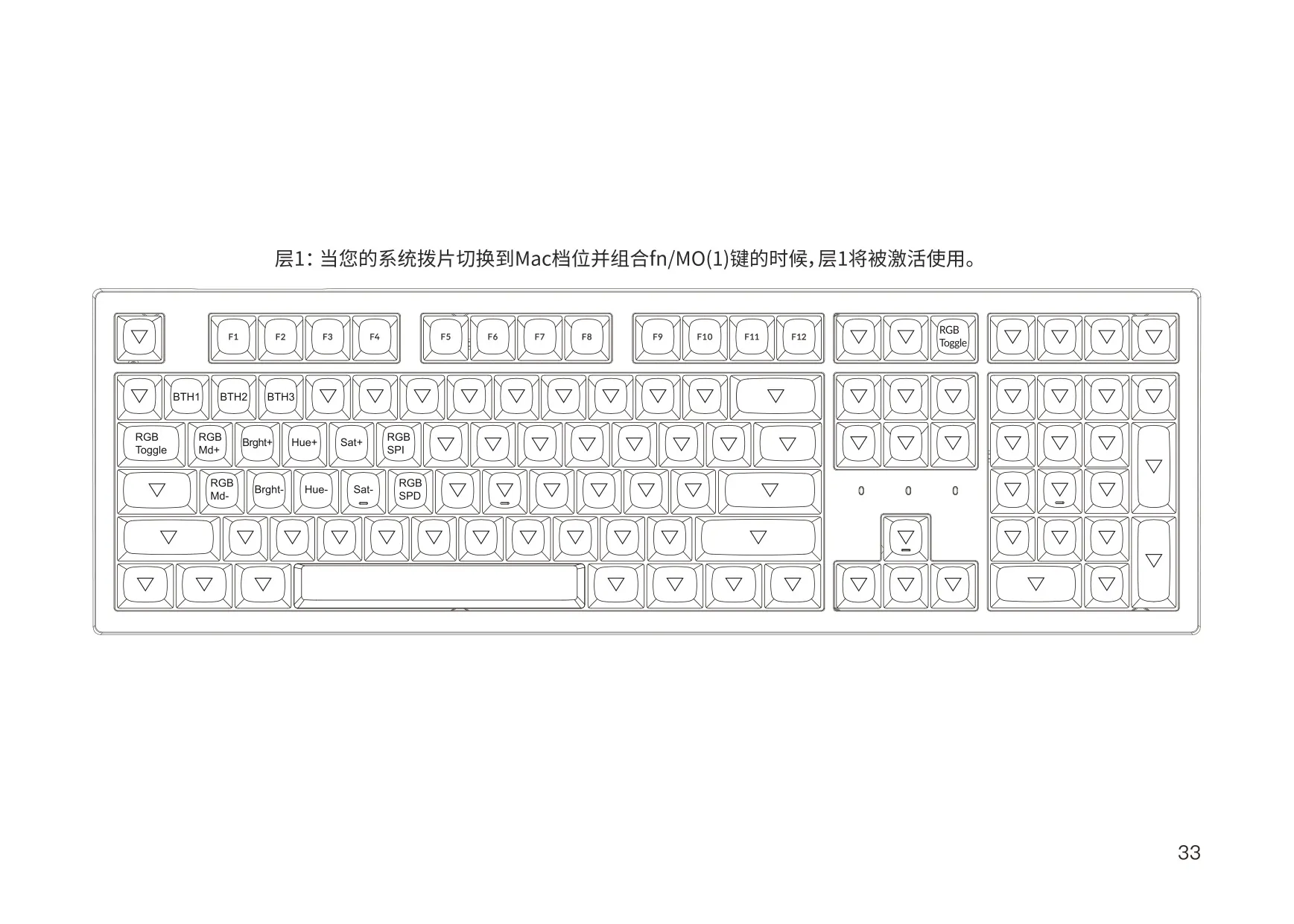
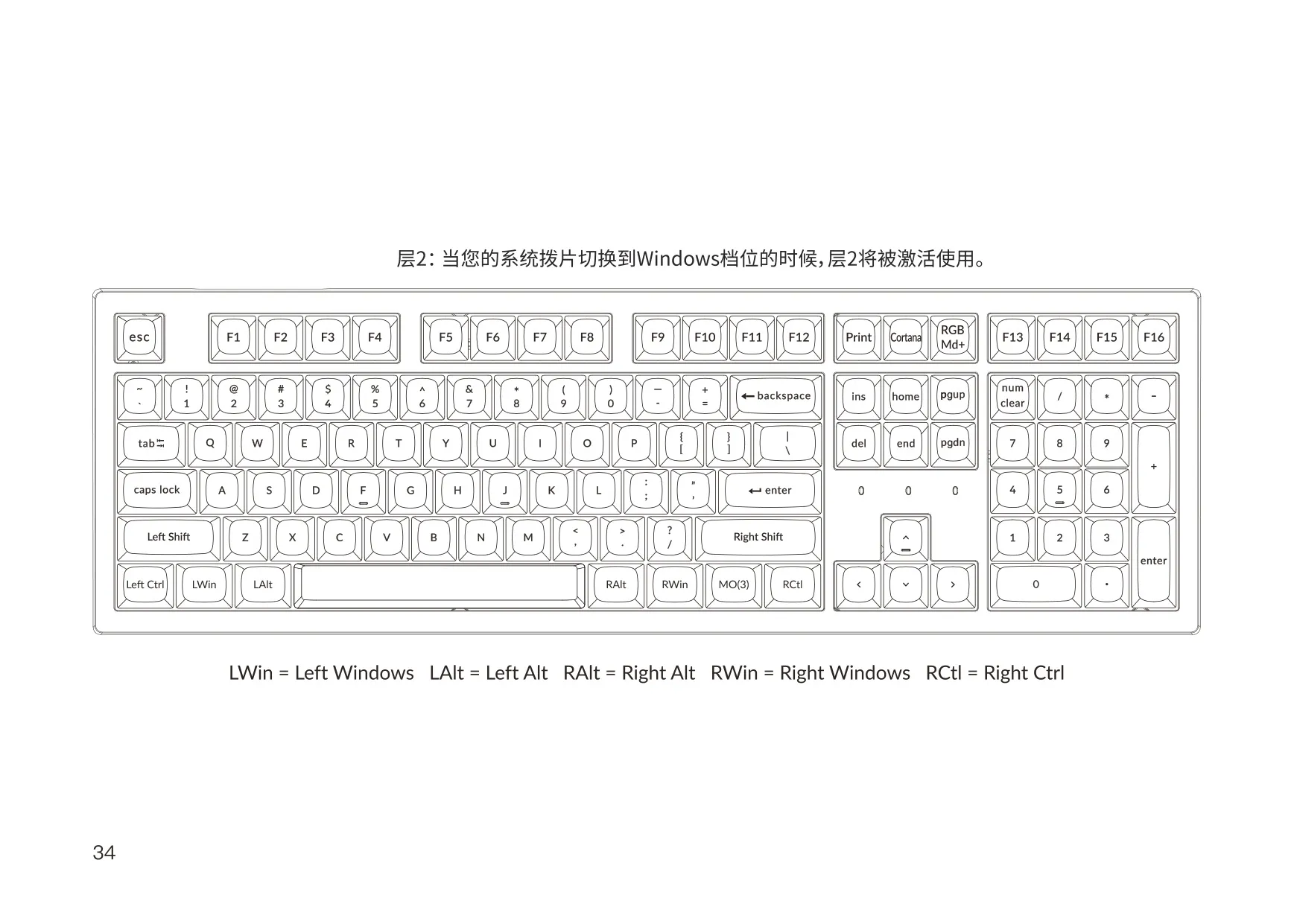
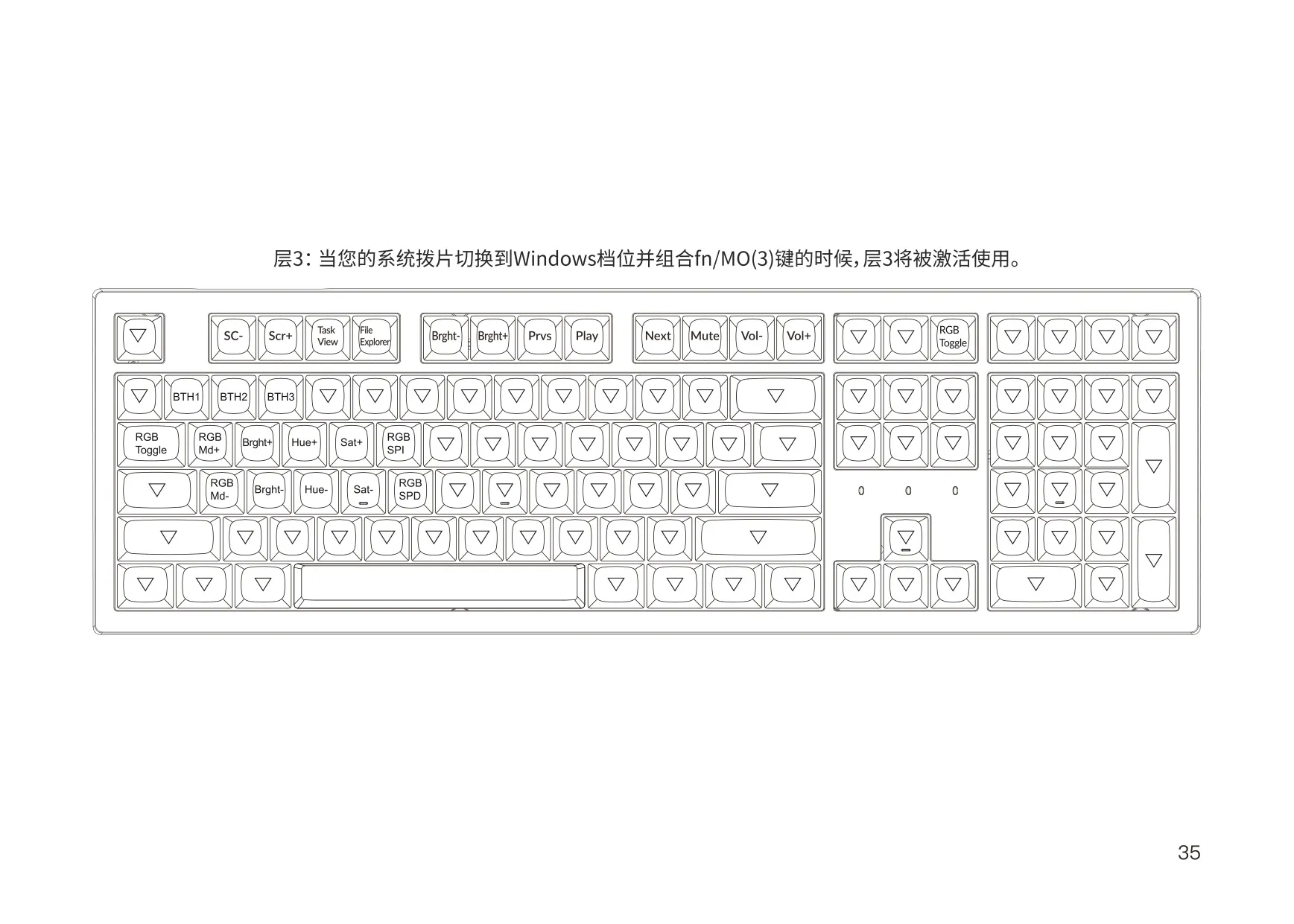
The keyboard has four layers of key settings. Layers 0 and 1 are for Mac, and layers 2 and 3 are for Windows. Holding the fn/MO key opens the second layer of each pair. You can change the key layout with the free VIA software from caniusevia.com, but only over a wired connection. Keychron warns about a common mistake: in Windows mode, edit layer 2, not layer 0, or your changes won't show up.
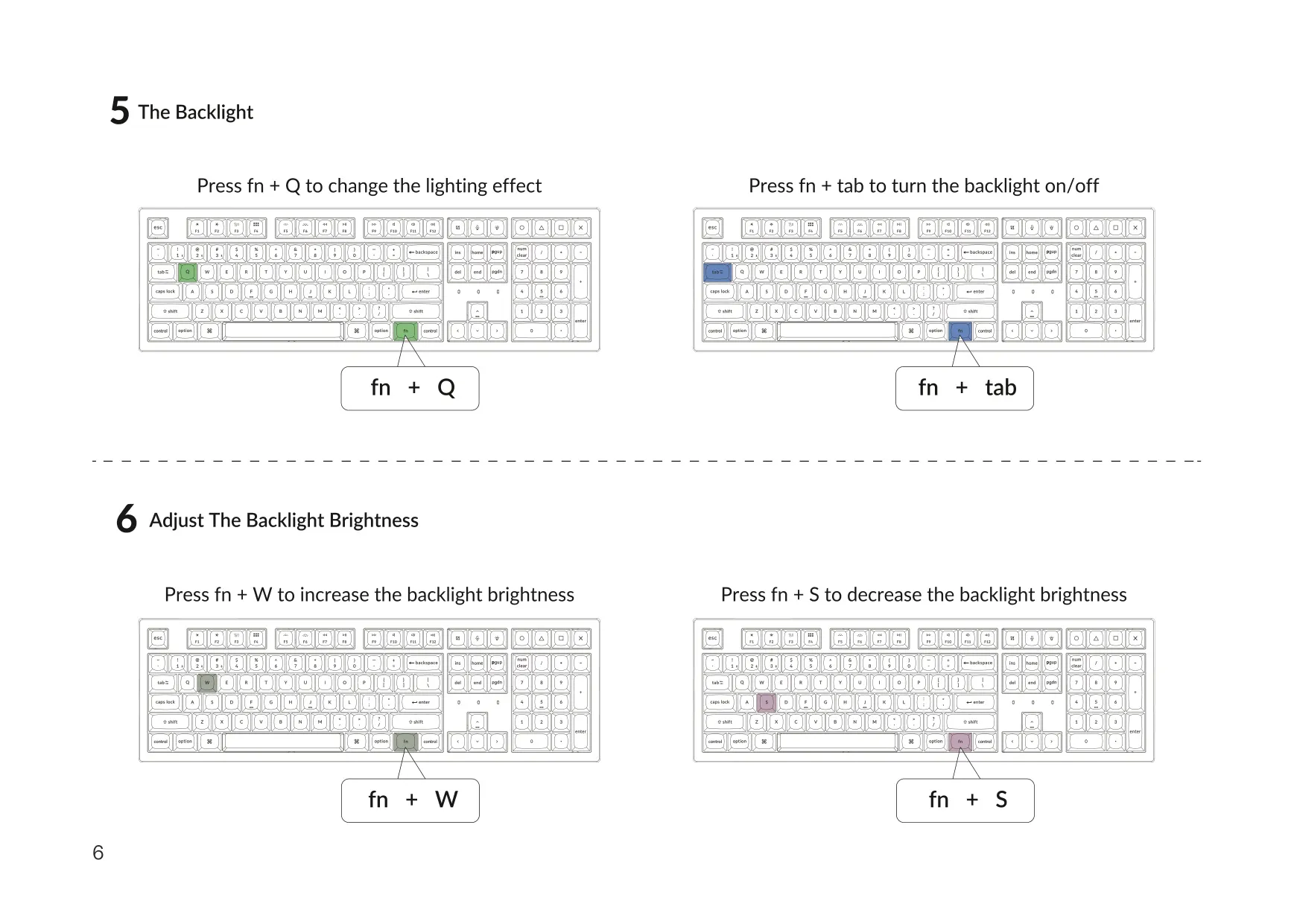
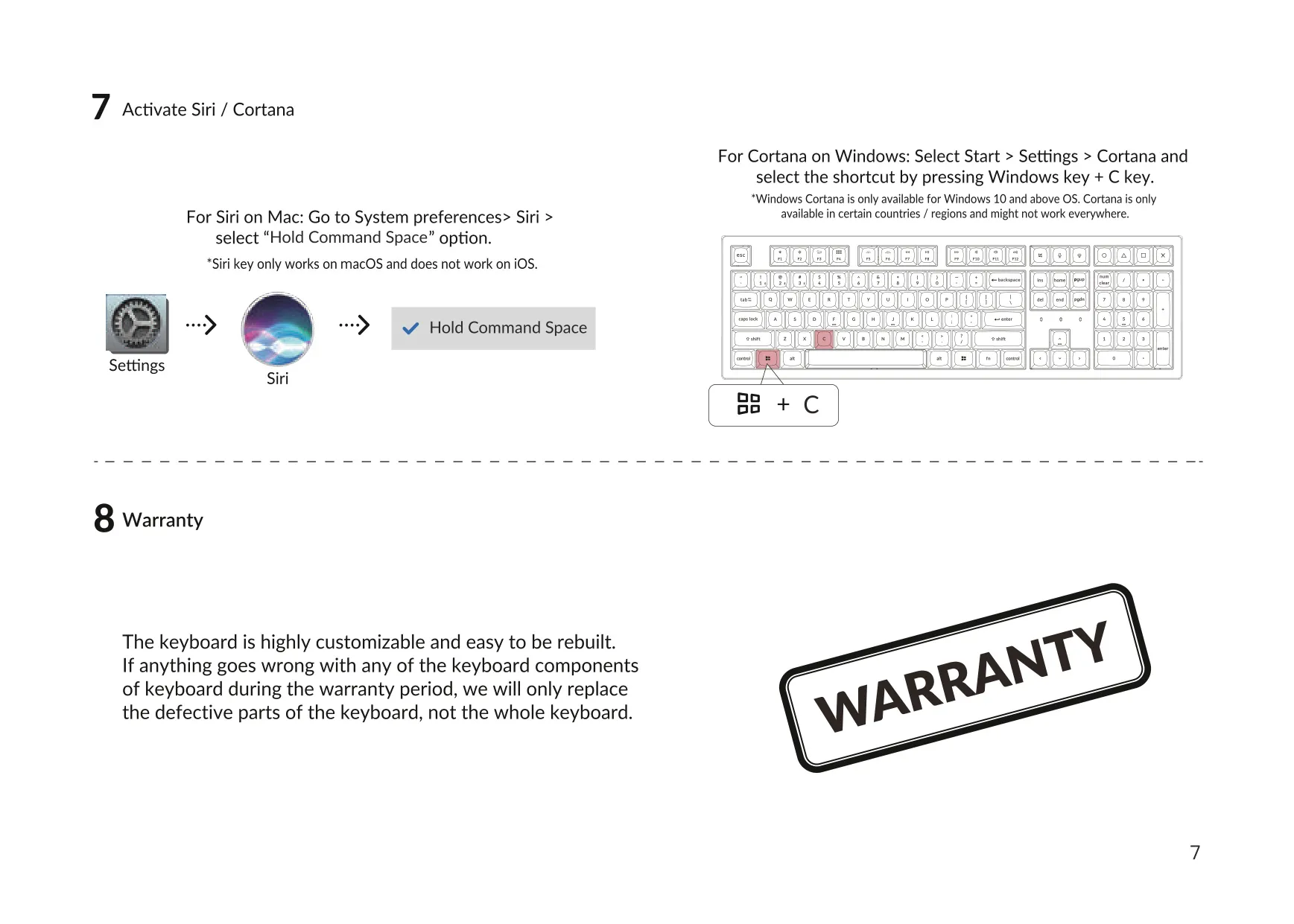
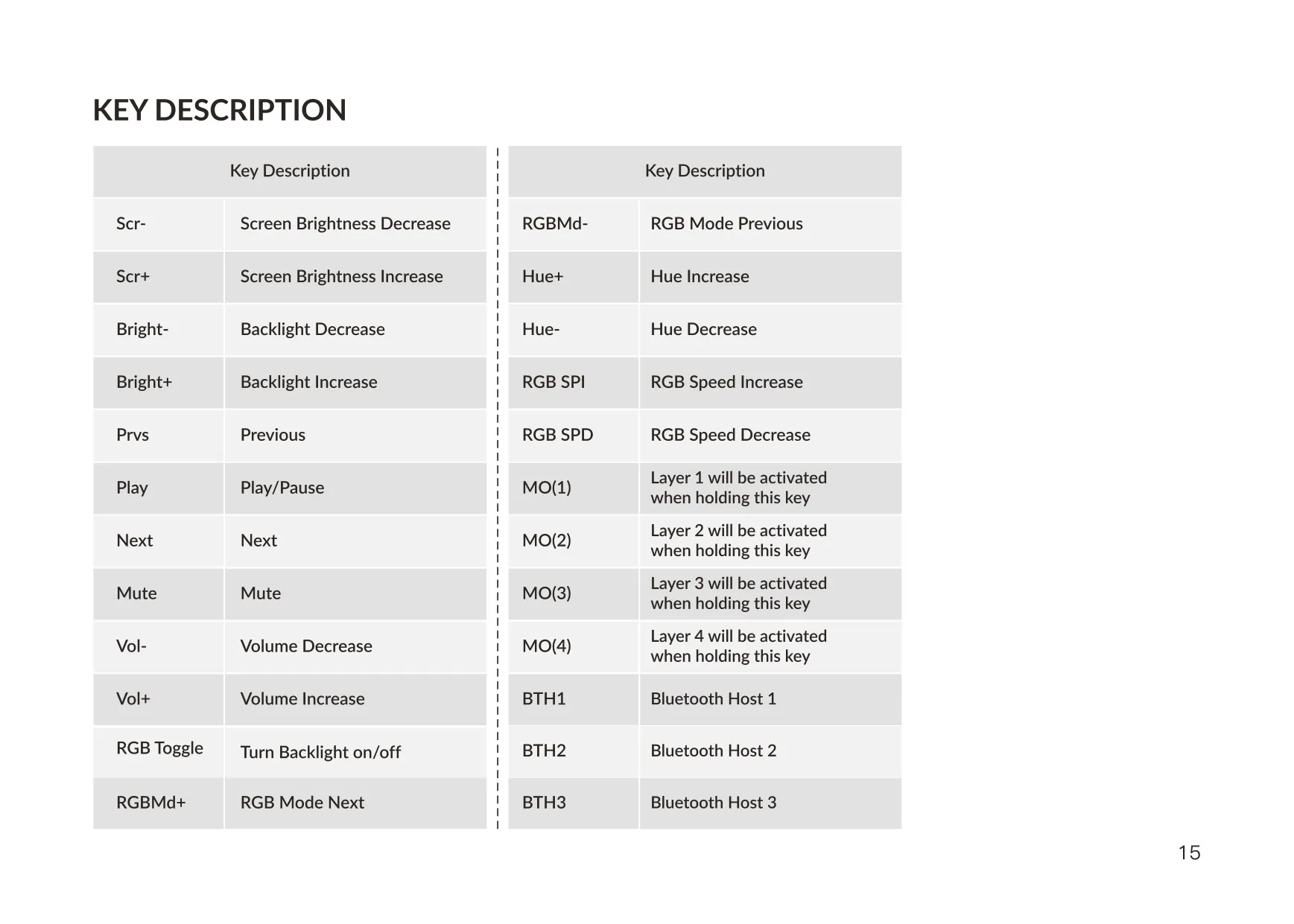
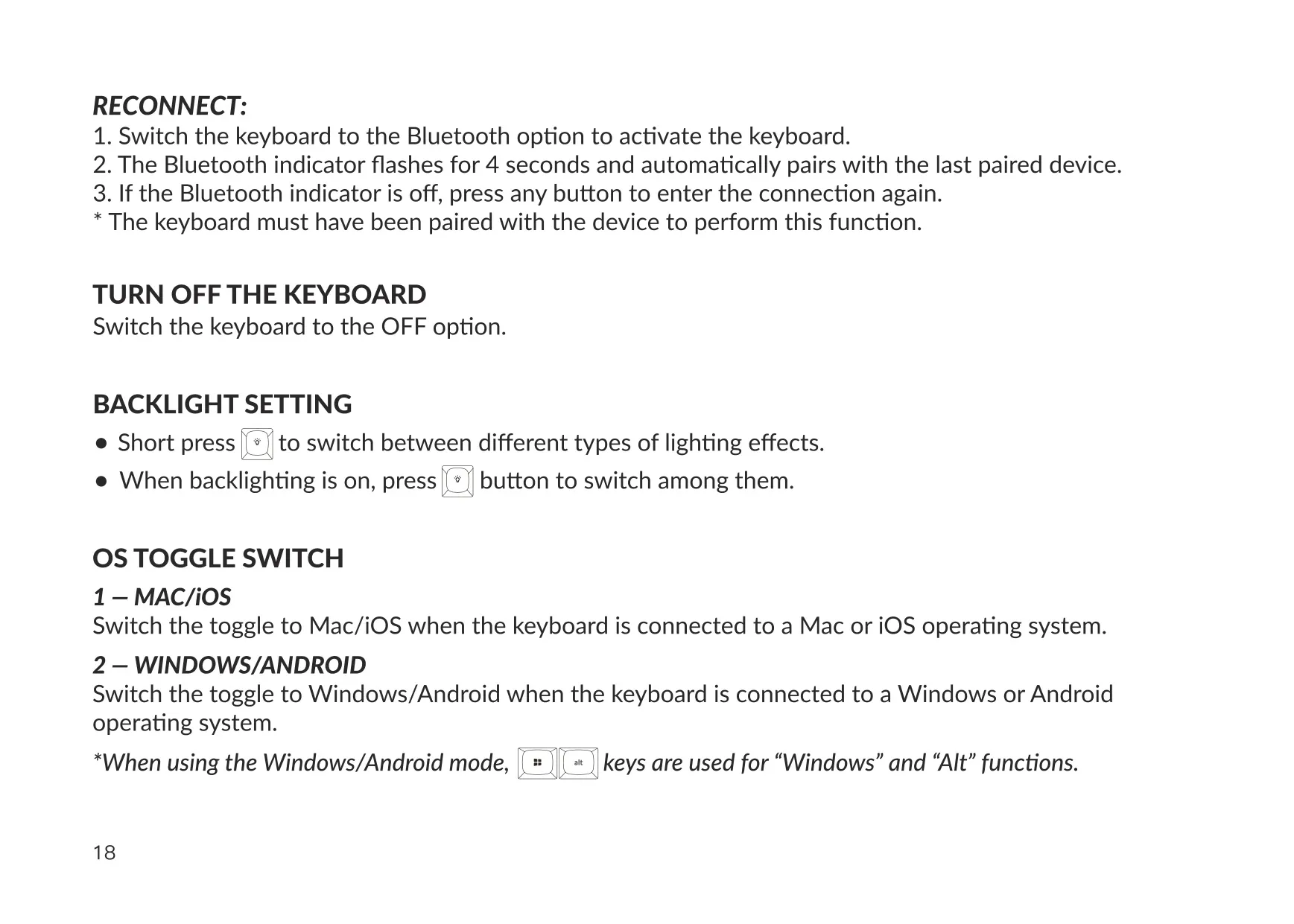
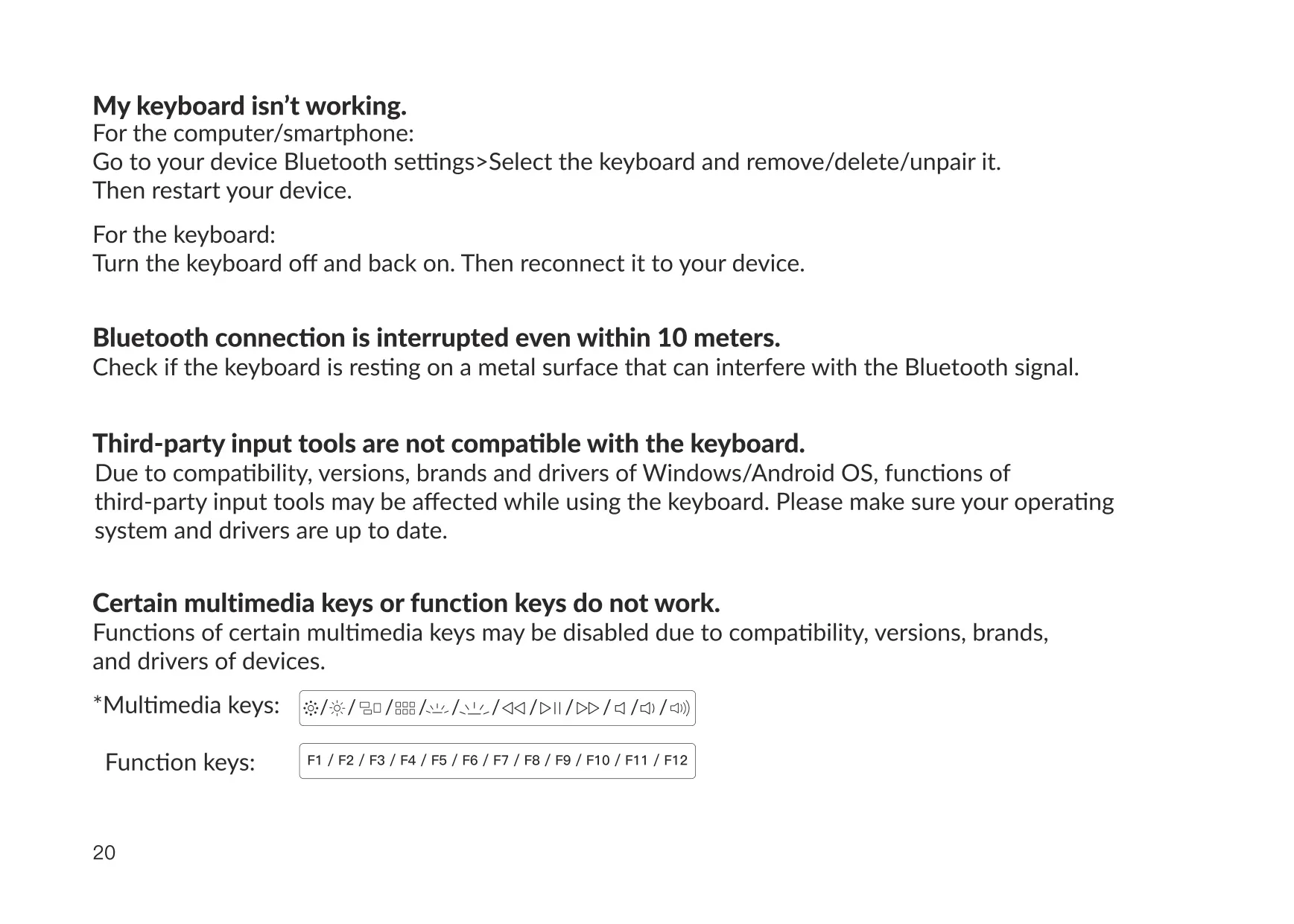
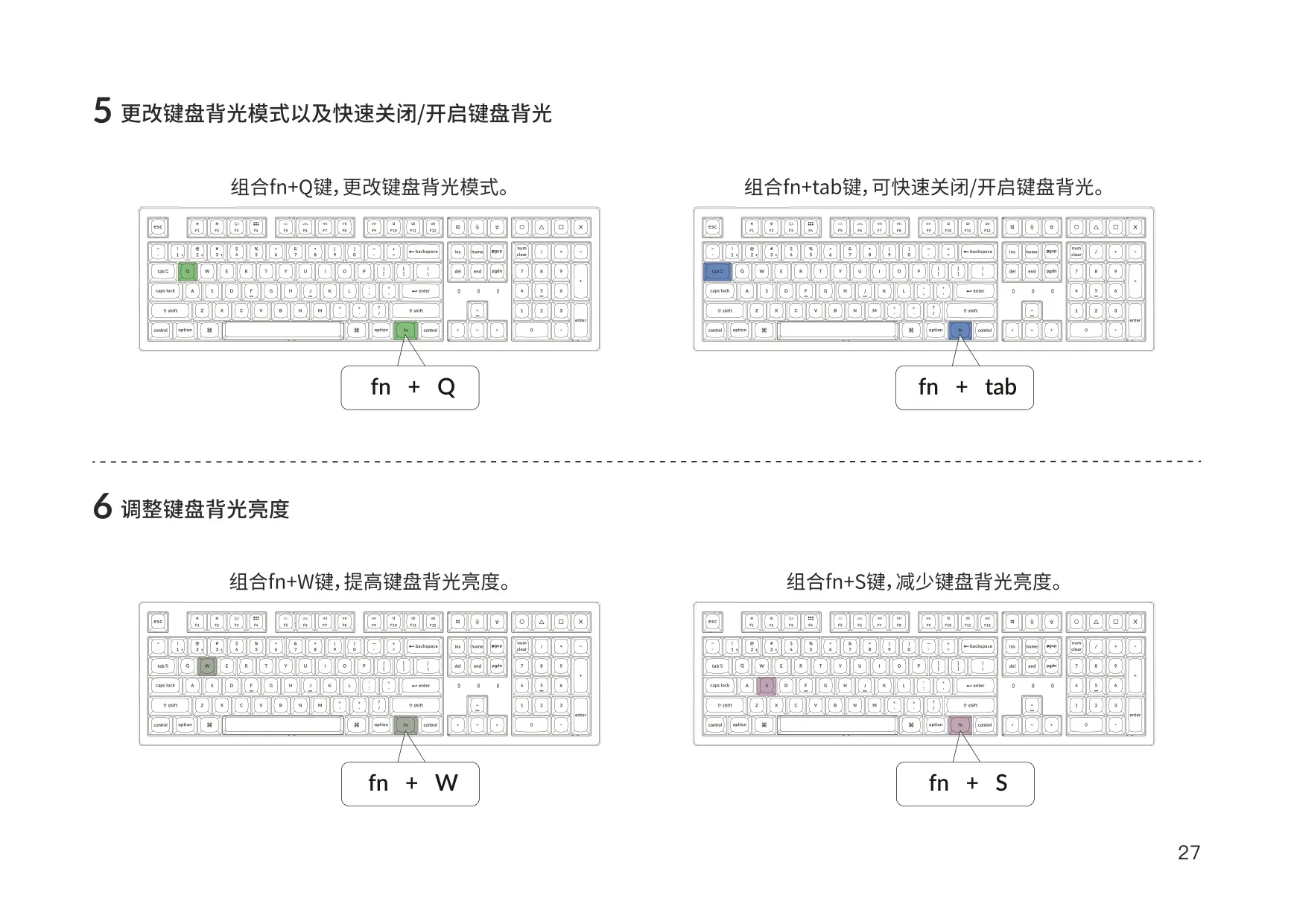
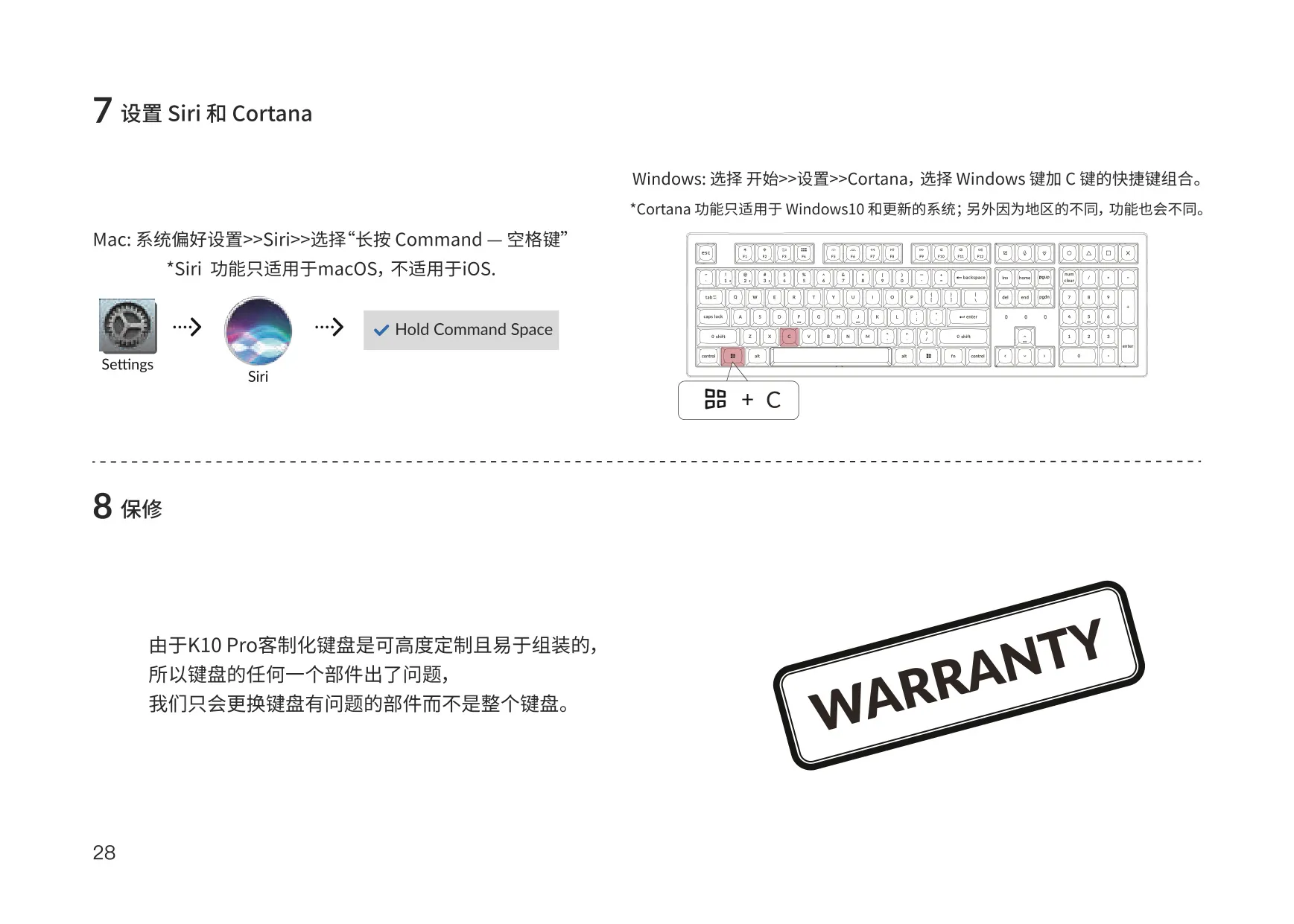
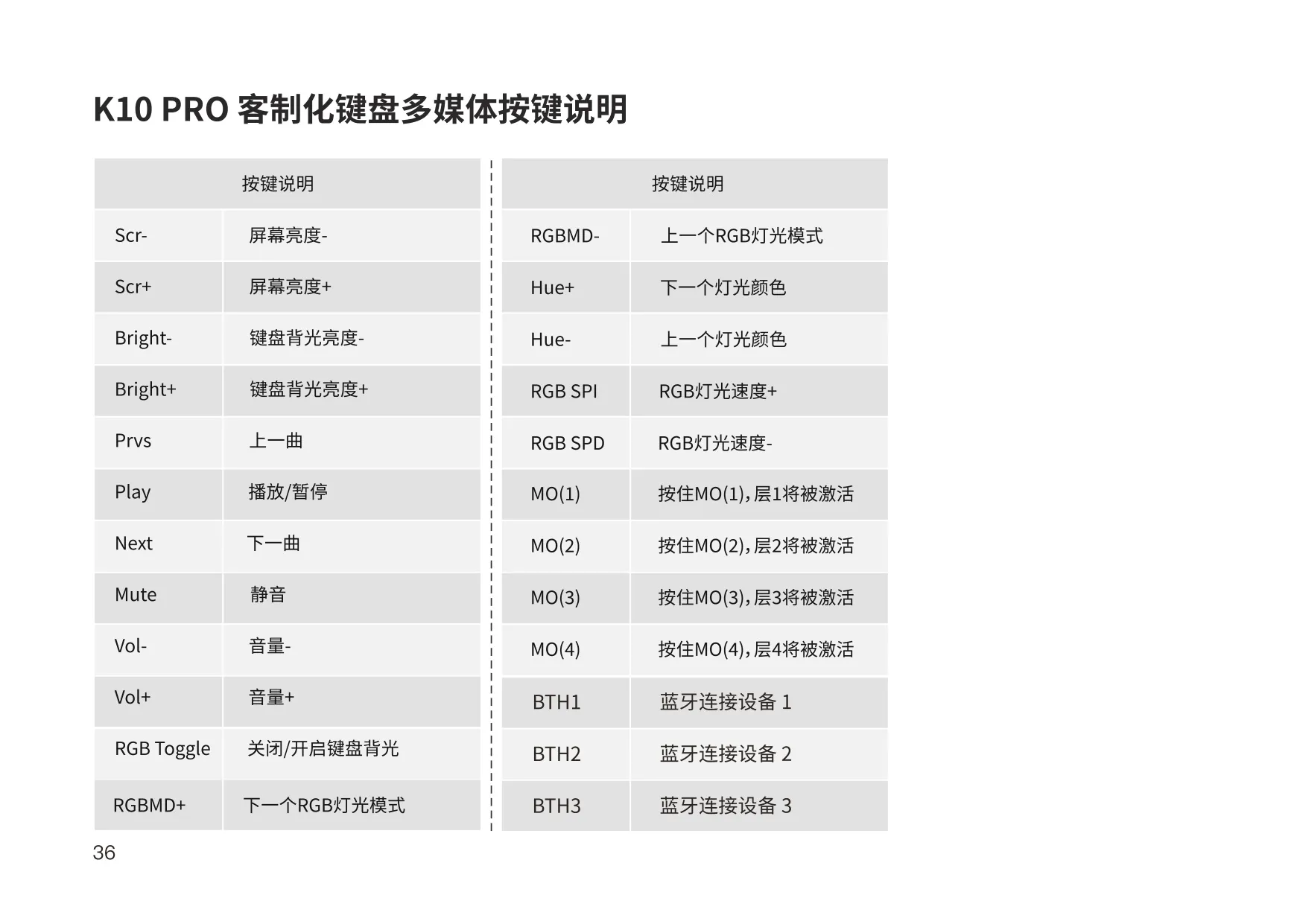
The lighting is controlled from the keyboard itself. fn + Q changes the lighting effect, fn + Tab turns the backlight on or off, and fn + W or fn + S makes it brighter or dimmer. Other assignable keys change the hue and effect speed, step through the RGB modes, and control media playback, volume and screen brightness. A dedicated key can also open Siri or Cortana once you set up the right shortcut in the operating system.
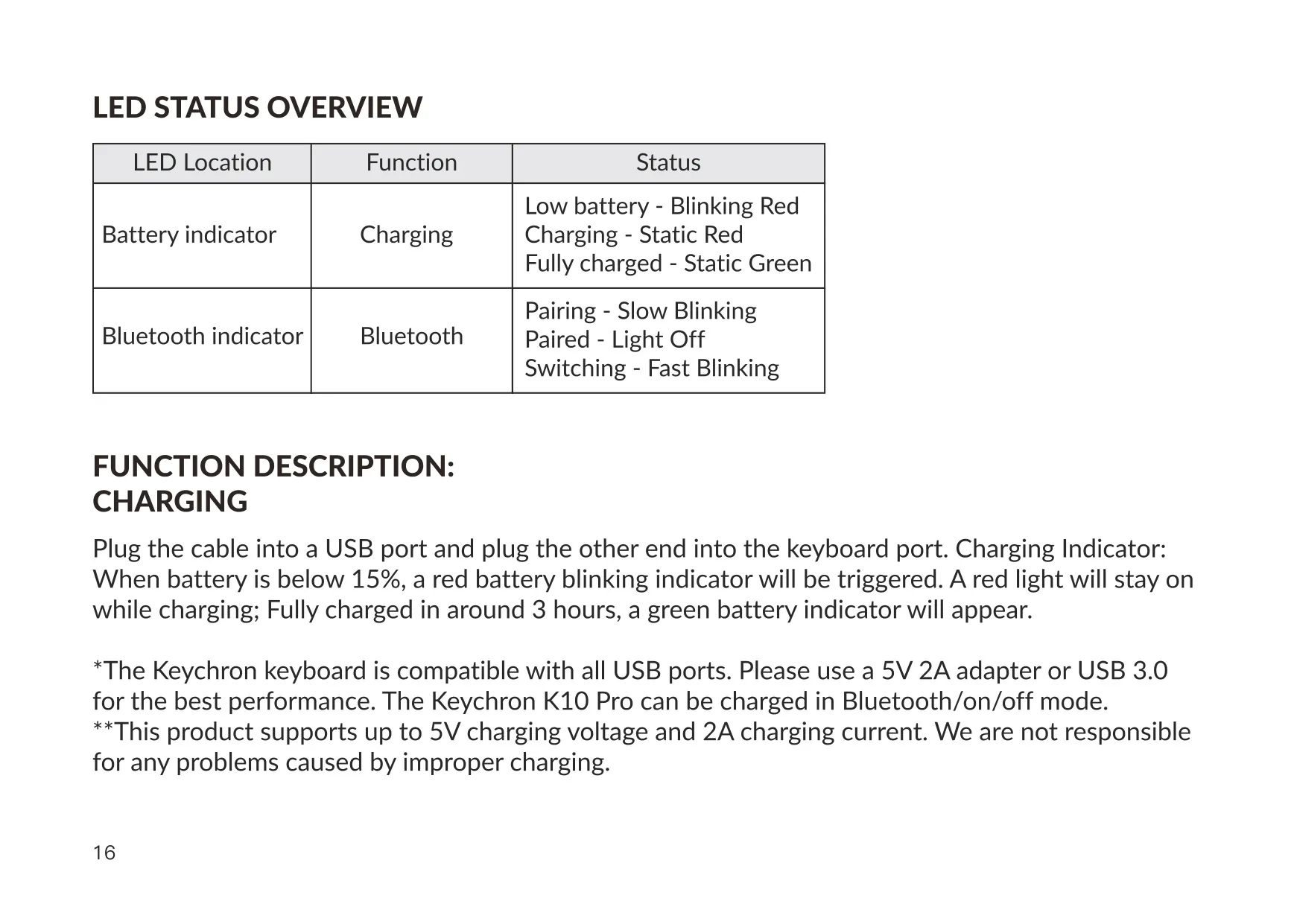
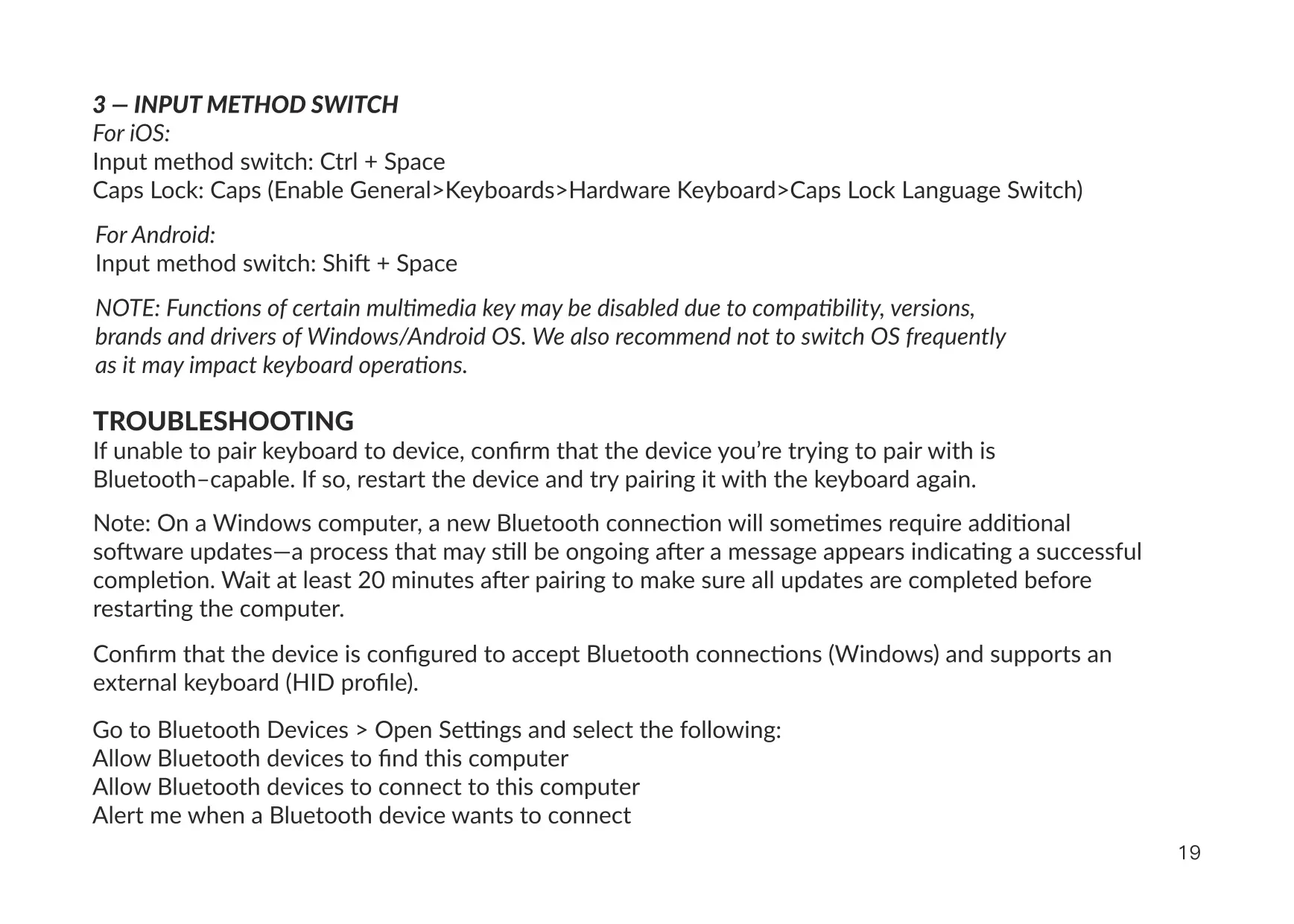
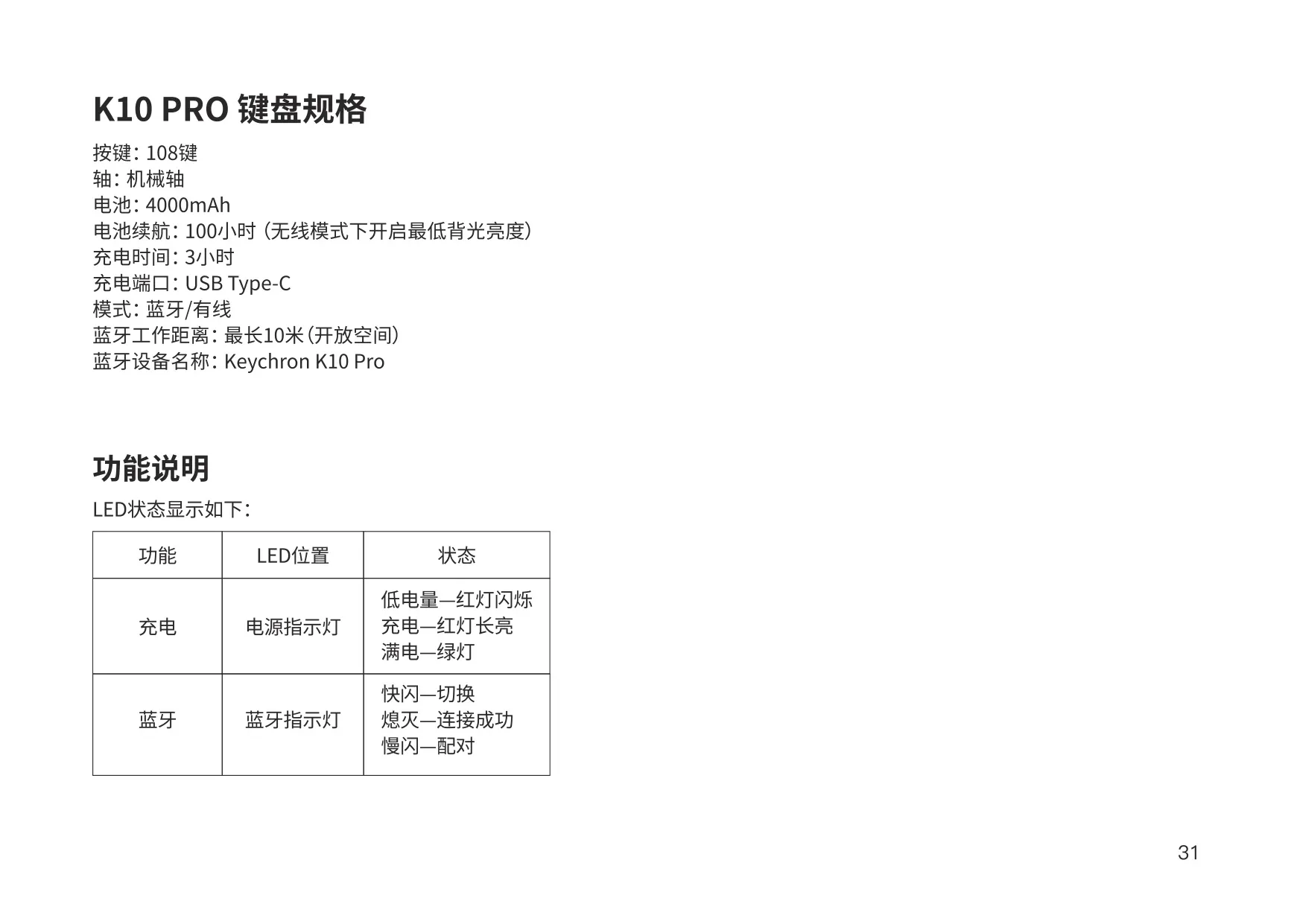
The status LEDs show the battery and connection state. The battery indicator blinks red when the charge drops below 15%, stays solid red while charging, and turns green when the battery is full. The keyboard charges whether the mode toggle is set to Bluetooth, Cable or OFF. On iOS, you switch input methods with Ctrl + Space. On Android, you use Shift + Space. Keychron advises against switching operating systems often, because it can affect how the keyboard behaves.
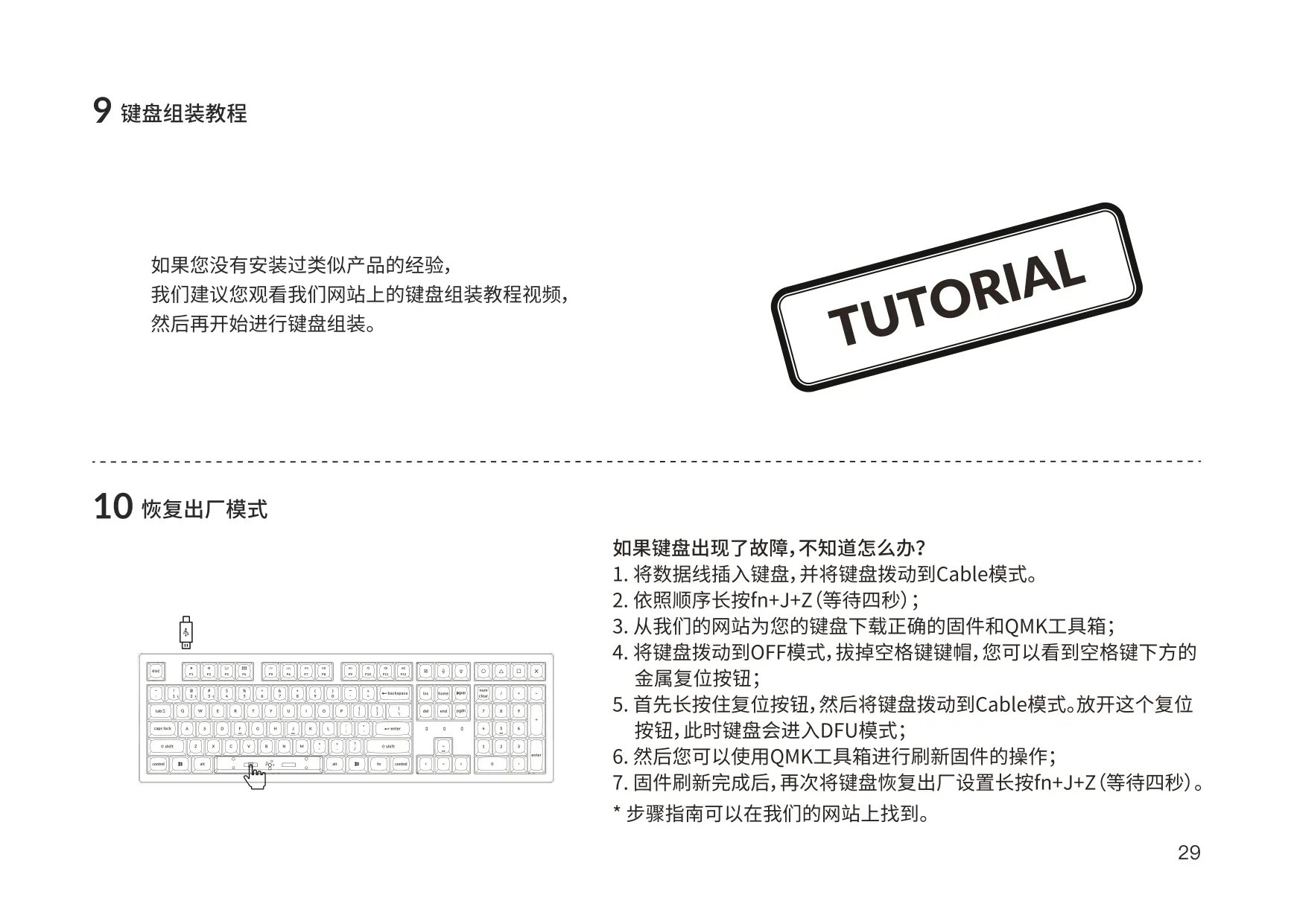
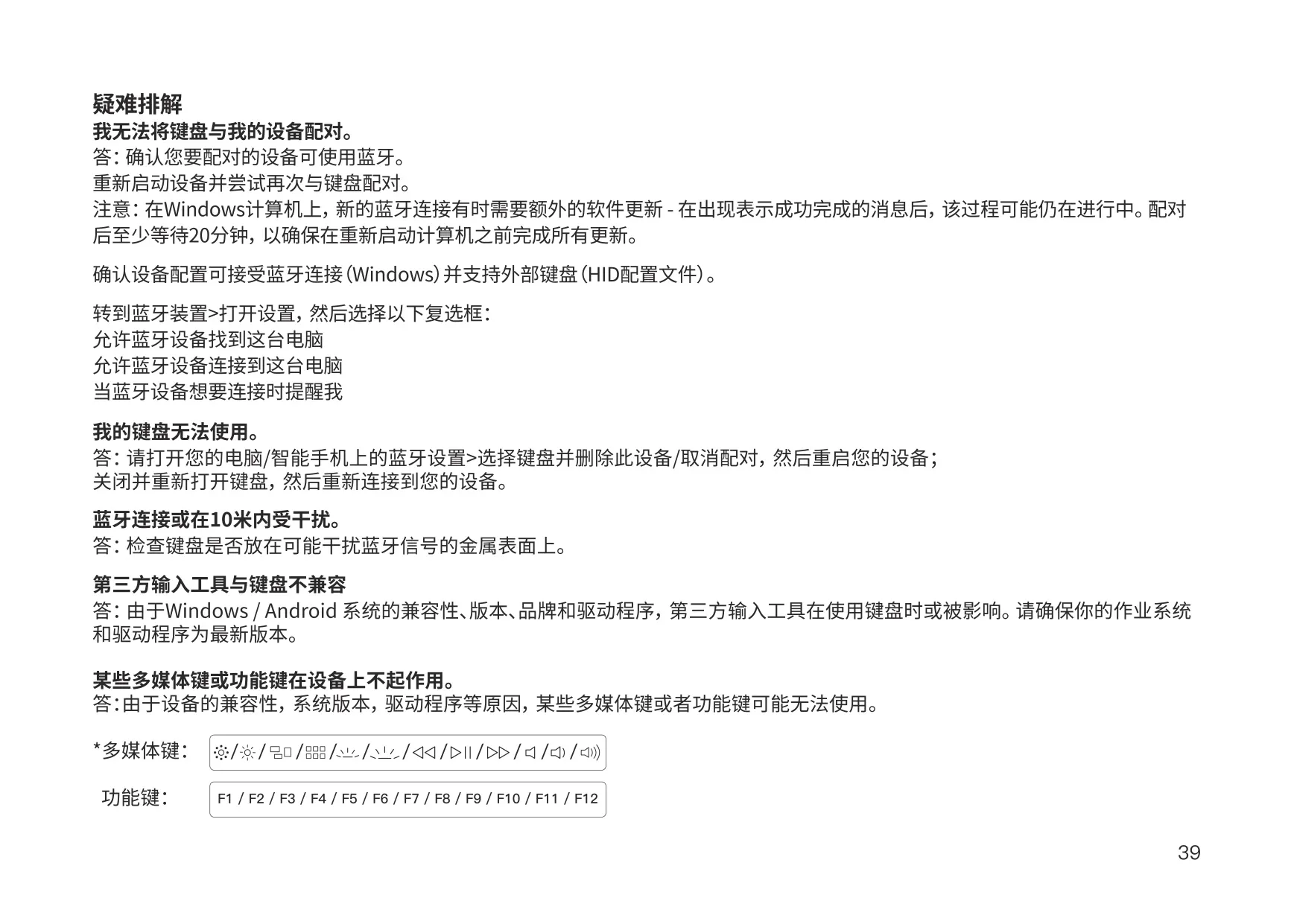
If the keyboard stops responding, you can do a factory reset by holding fn + J + Z for four seconds. For a firmware recovery, remove the space bar keycap to reach the reset button on the PCB. Hold the button while switching to Cable mode to enter DFU mode, then flash the firmware with QMK Toolbox. During the warranty period, Keychron replaces only the faulty parts, not the whole keyboard. Keep the keyboard dry, and don't use it on a metal surface, because metal can interfere with the Bluetooth signal.
Frequently Asked Questions (FAQs)
Can't find the answer you need? Here are some frequently asked questions about the Keychron K10 Pro Keyboard, and we answer them below.