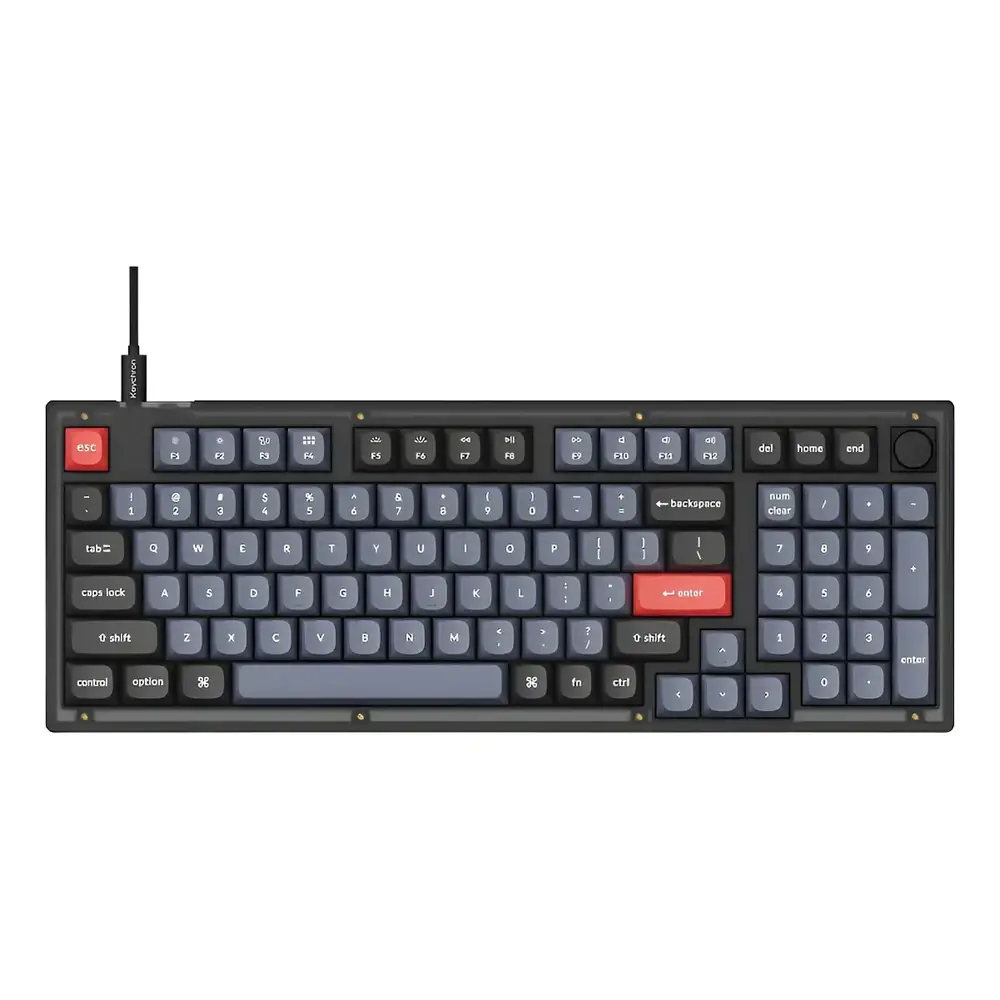
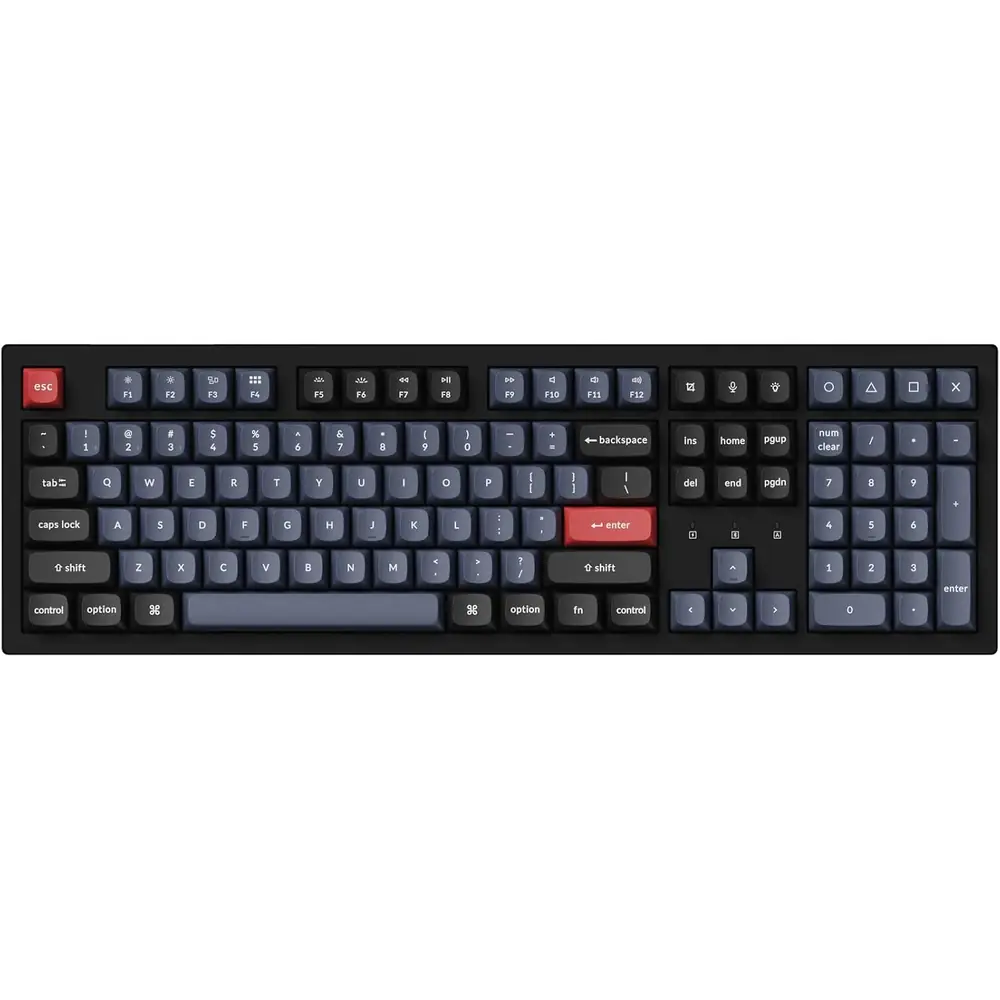
Keychron V6 Keyboard Instruction Manual
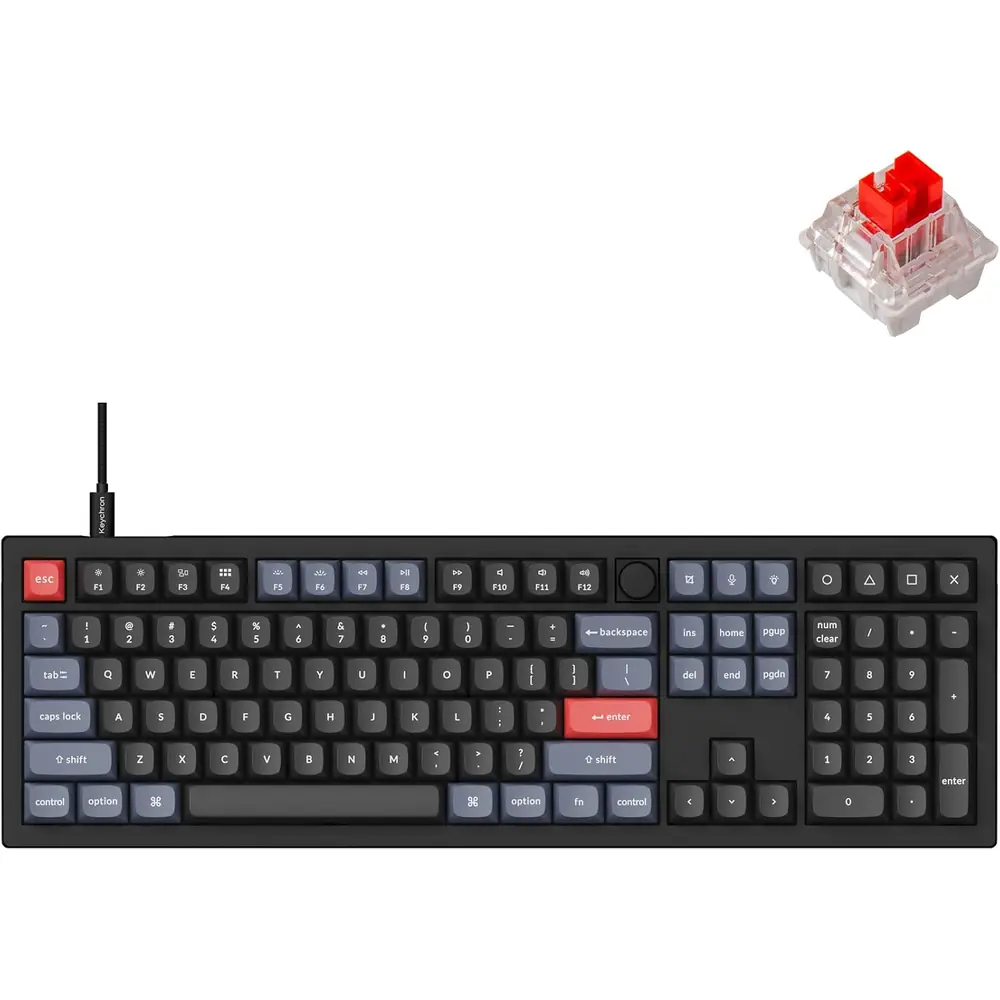
Keychron V6 Keyboard








Keychron V6 Keyboard Instructions
Here we offer the Keychron V6 Keyboard manual completely free and in English. We have cataloged this manual in the Keyboards section on Manualverse, and it has been rated by 1 users with an average rating of 5. If you have any specific questions about Keychron V6 Keyboard, we suggest checking the Frequently Asked Questions (FAQs) section of this manual.
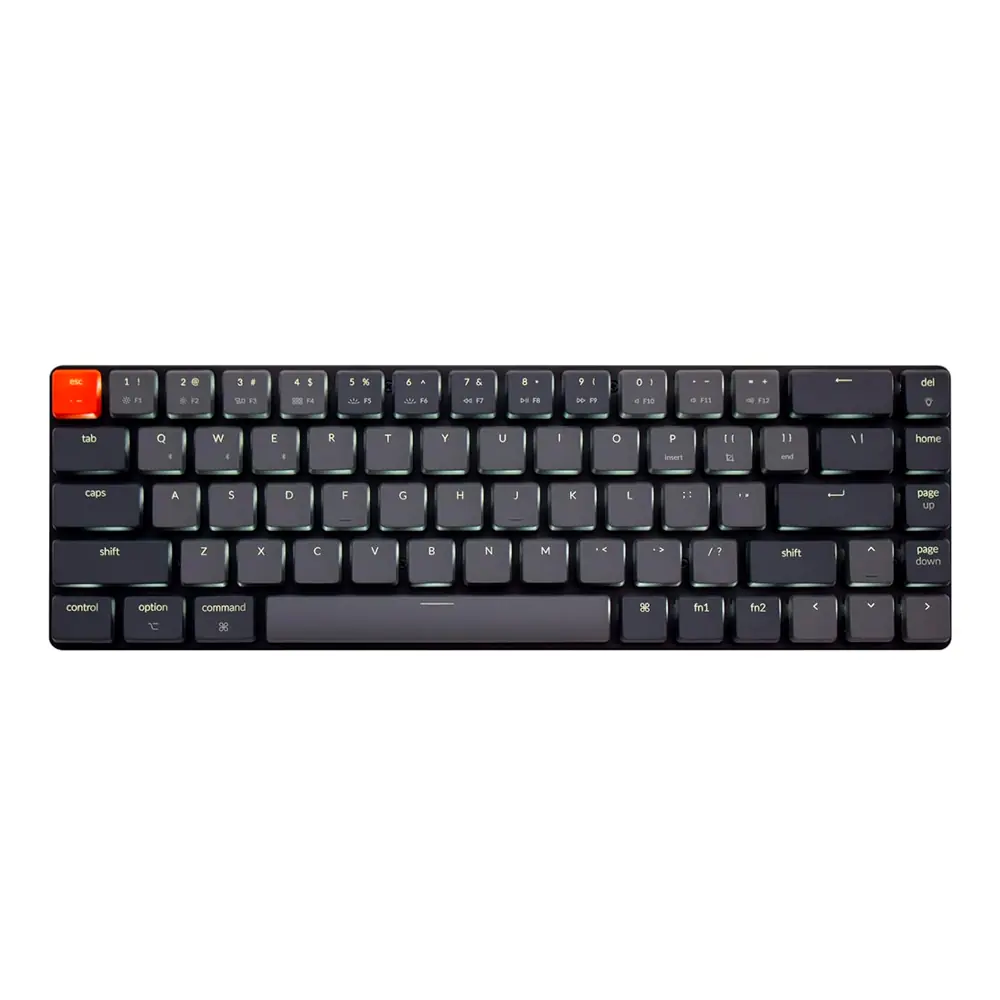
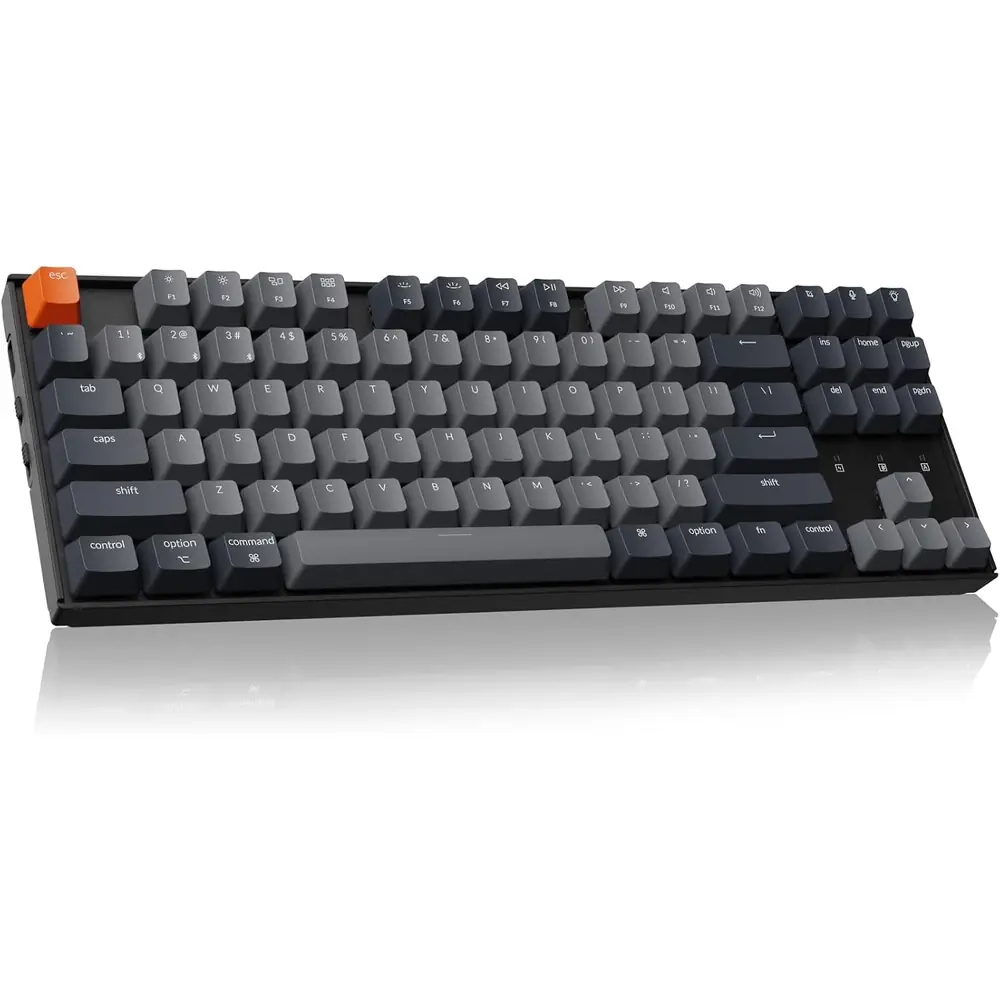
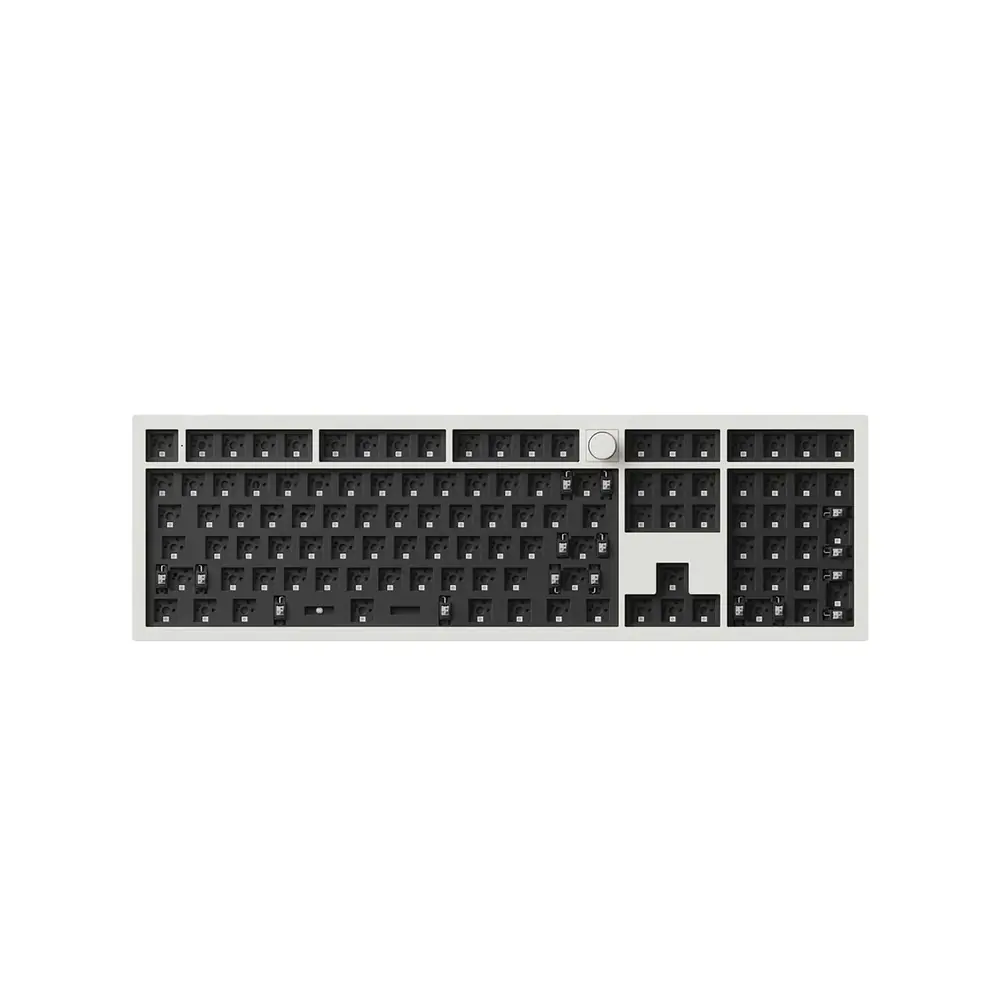
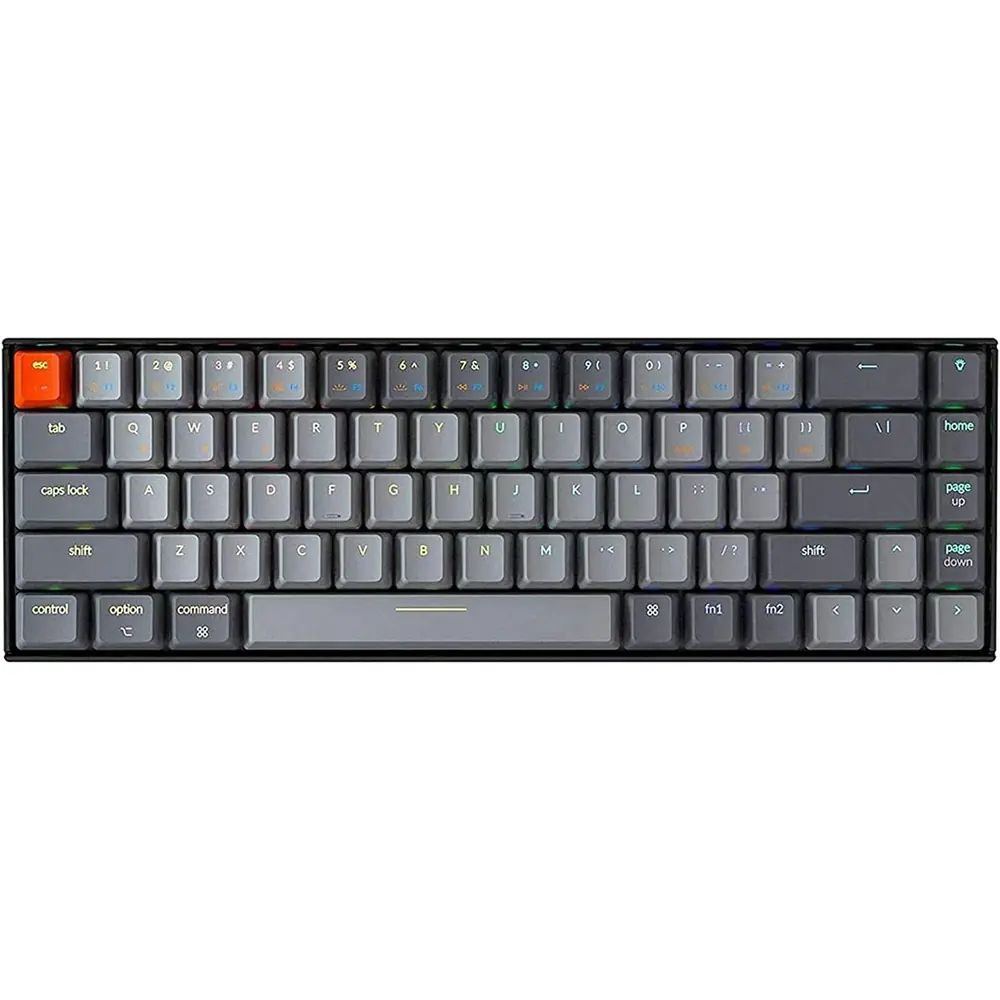
Product Images


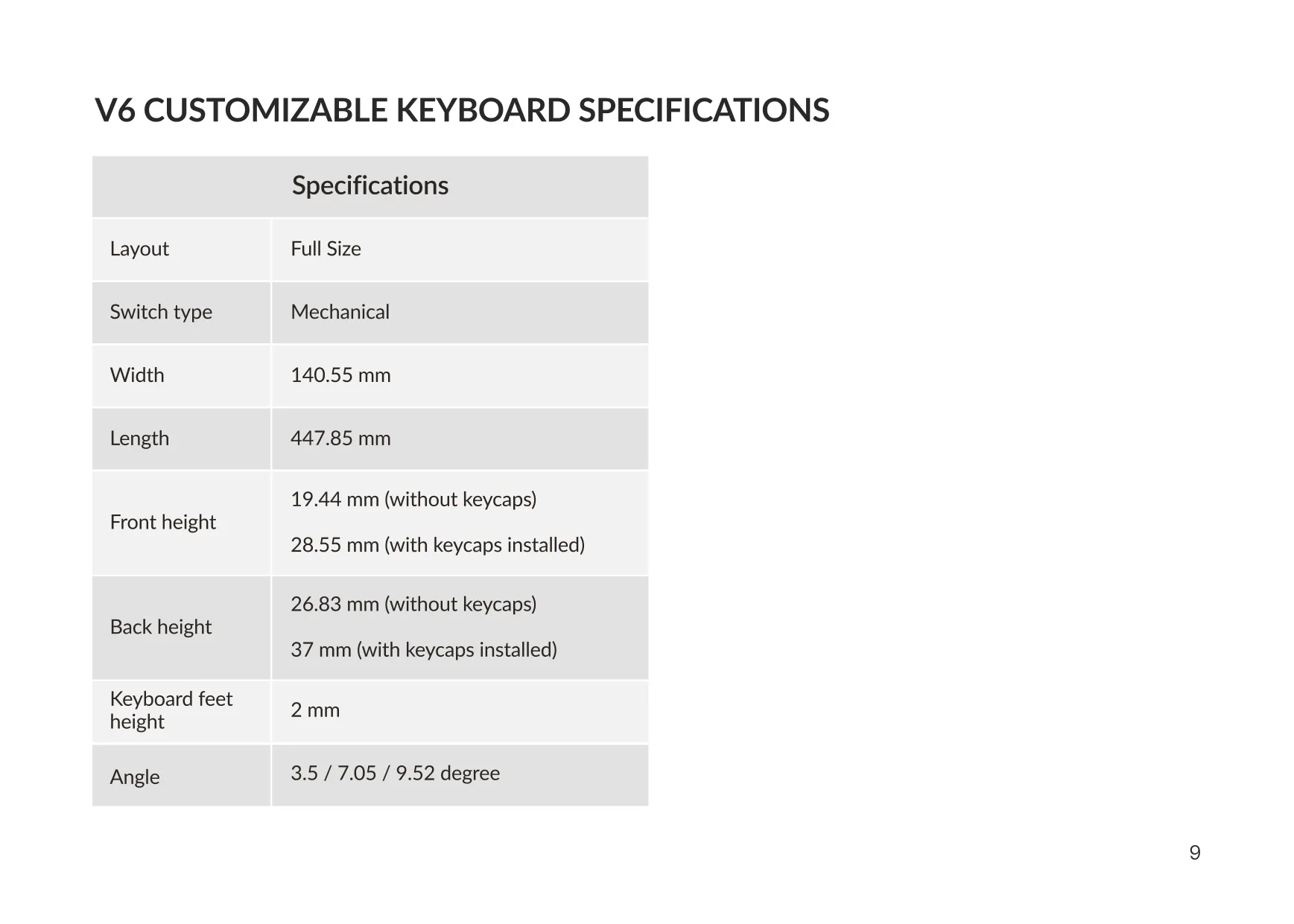
Keychron V6 Keyboard Specifications
| Feature | Specification |
|---|---|
| Model | Keychron V6 Customizable Keyboard |
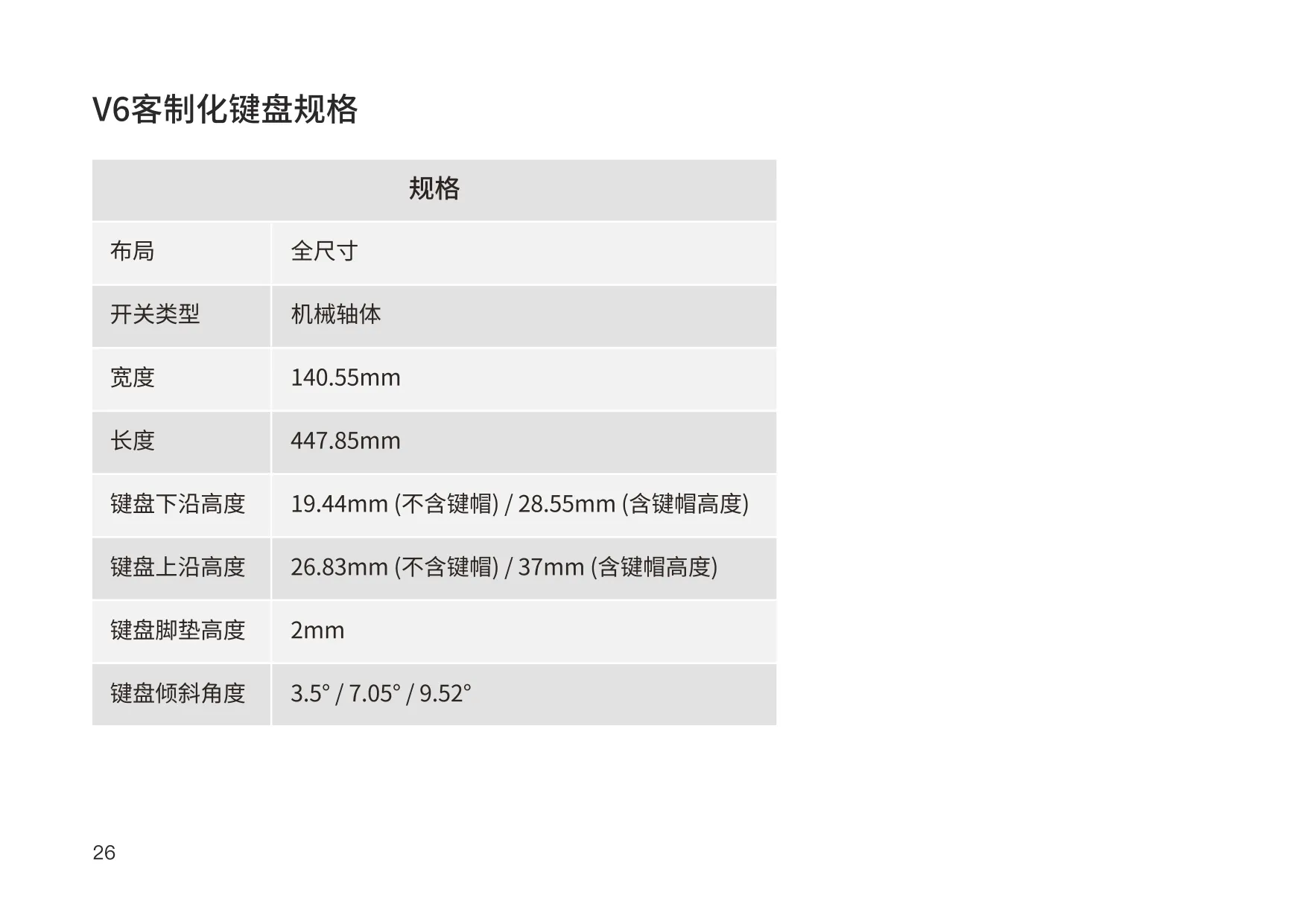
| Layout | Full Size |
| Switch Type | Mechanical |
| Width | 140.55 mm |
| Length | 447.85 mm |
| Front Height | 19.44 mm (without keycaps) / 28.55 mm (with keycaps installed) |
| Back Height | 26.83 mm (without keycaps) / 37 mm (with keycaps installed) |
| Keyboard Feet Height | 2 mm |
| Typing Angle | 3.5° / 7.05° / 9.52° |
| Connectivity | Wired, USB Type-C port |
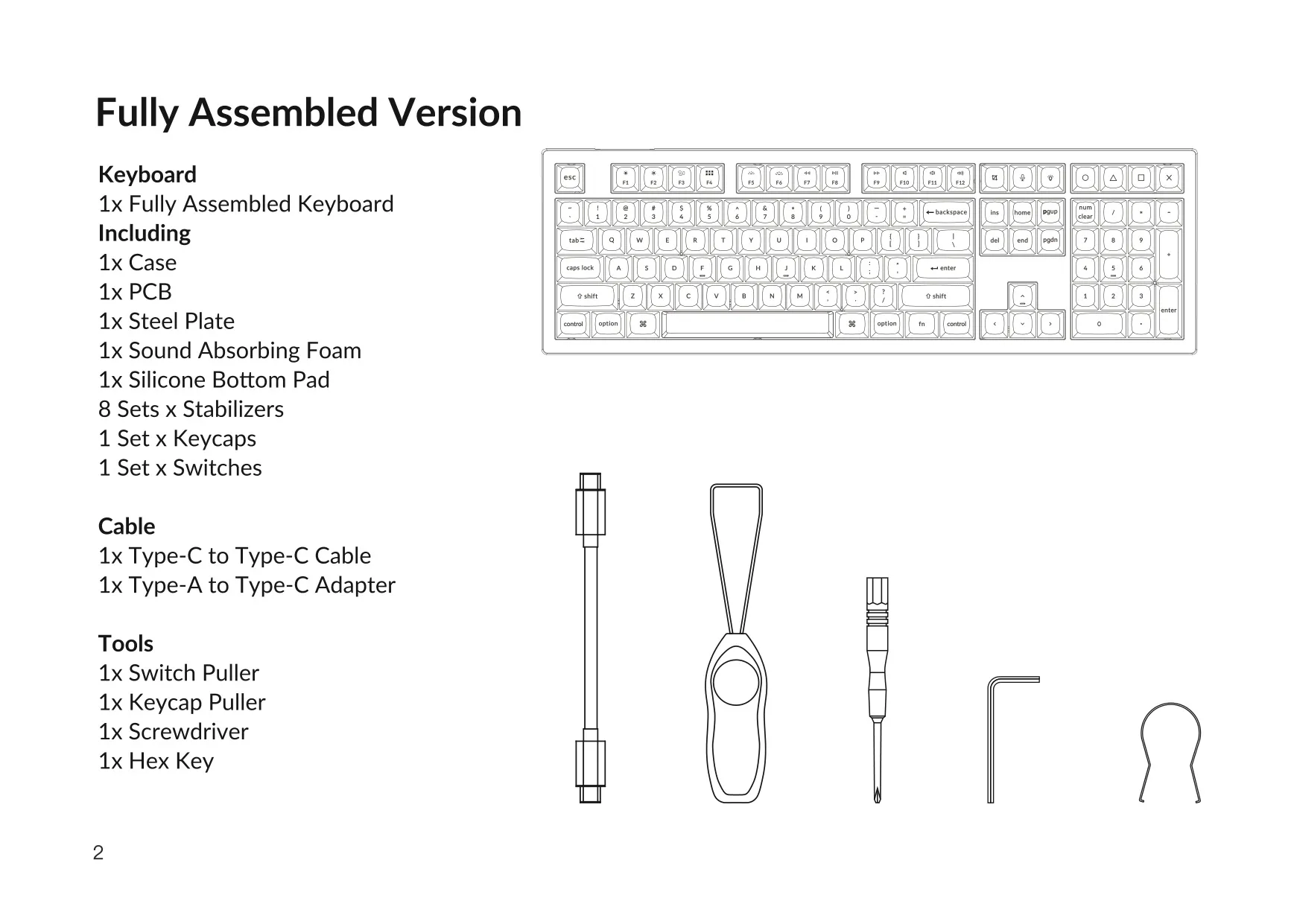
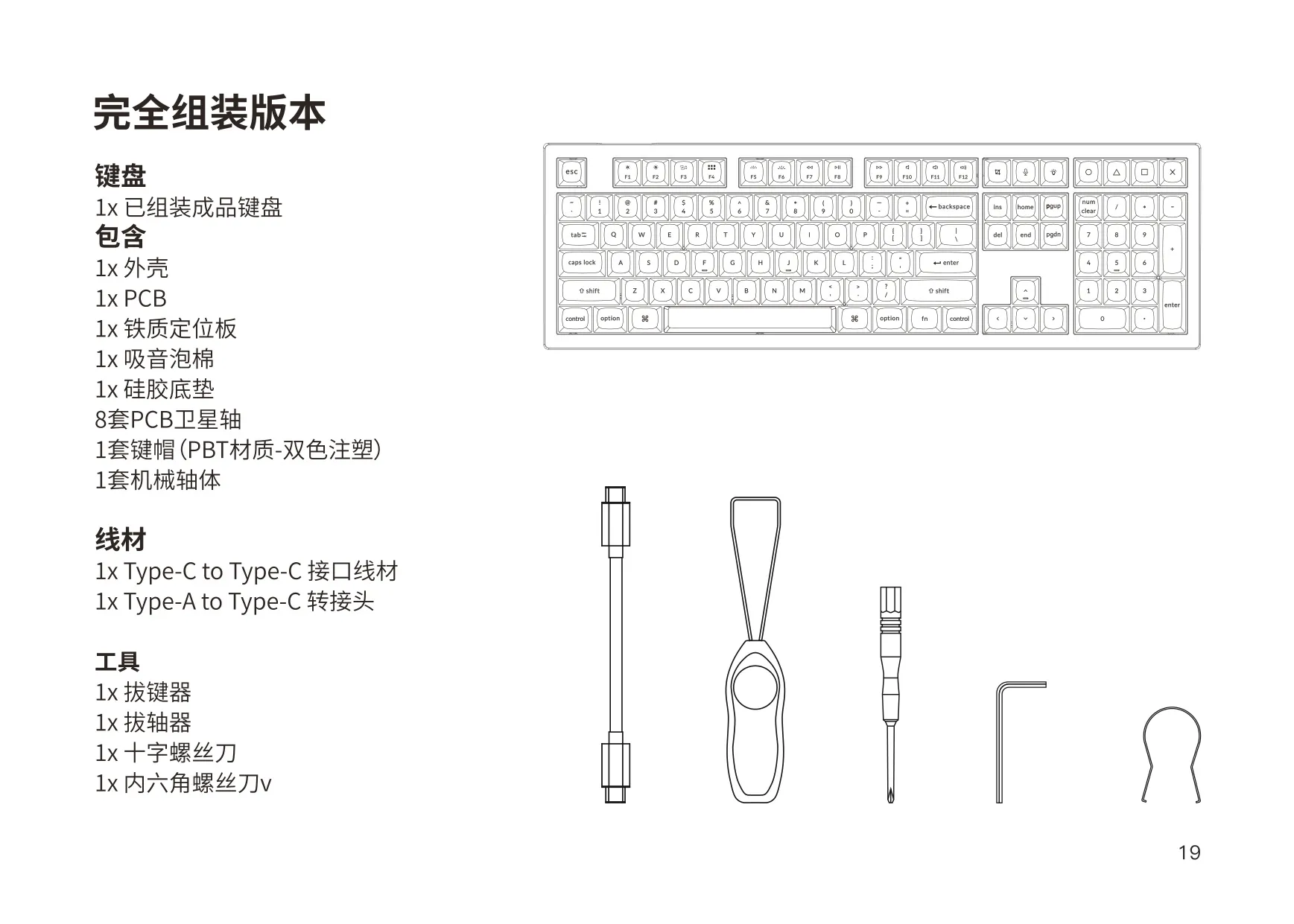
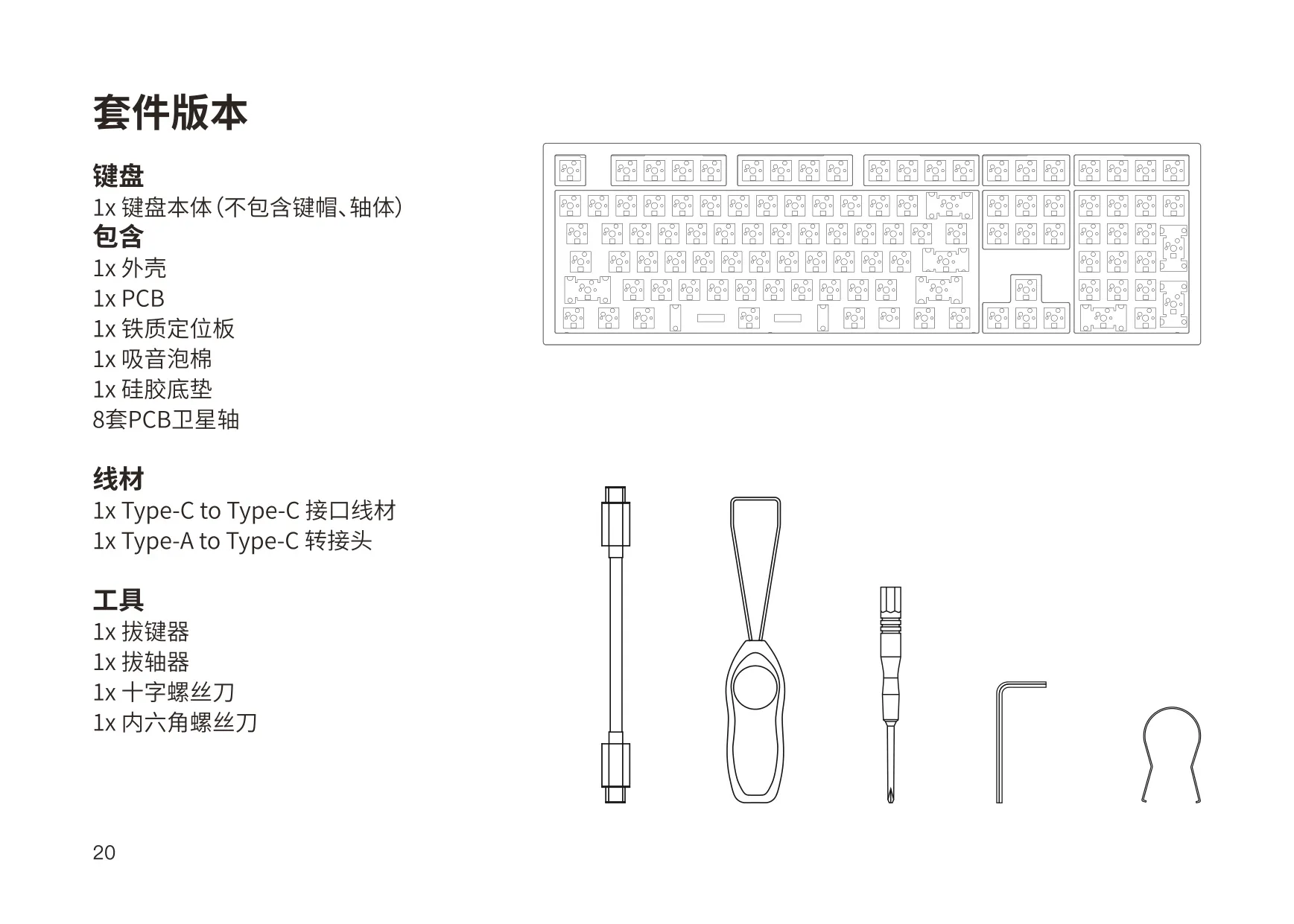
| Included Cable | 1x Type-C to Type-C cable + 1x Type-A to Type-C adapter |
| Available Versions | Fully Assembled Version; Barebone Version (without keycaps and switches) |
| Internal Construction | Case, PCB, steel plate, sound-absorbing foam, silicone bottom pad |
| Stabilizers | 8 sets |
| Included Tools | Switch puller, keycap puller, screwdriver, hex key |
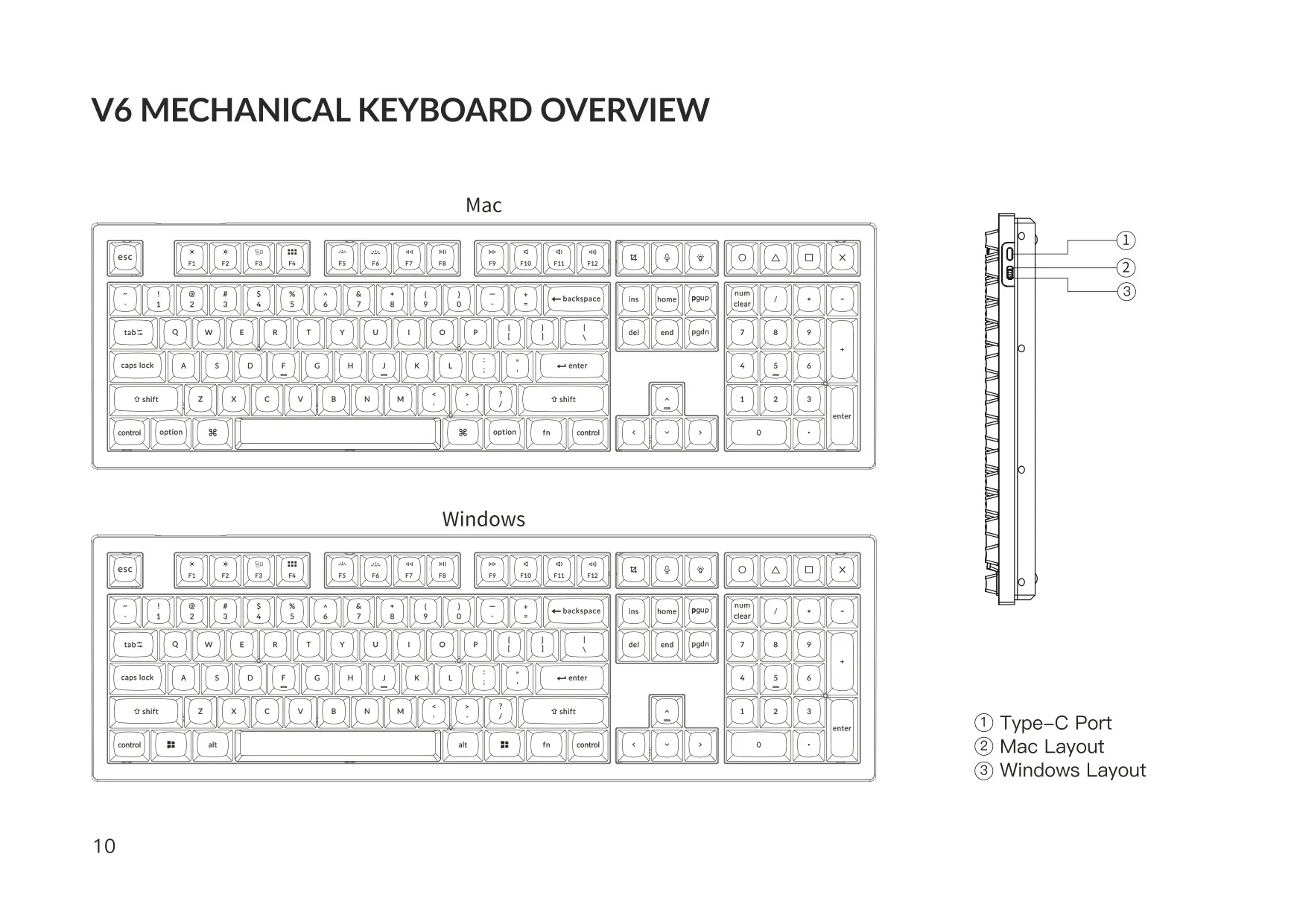
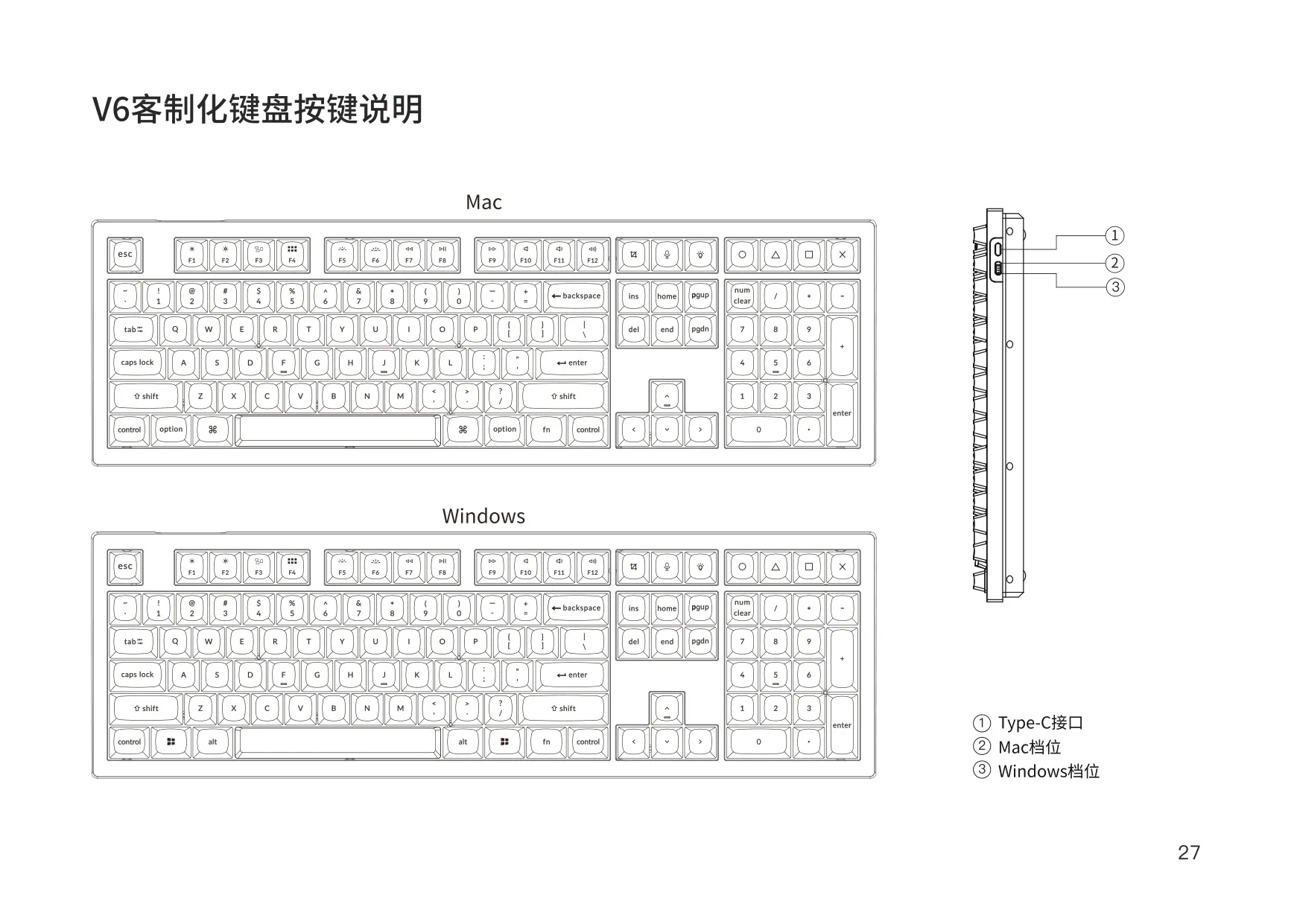
| Operating System Support | macOS and Windows (physical Mac/Win system toggle) |
| Key Layers | 4 (Layers 0–1 for Mac, Layers 2–3 for Windows) |
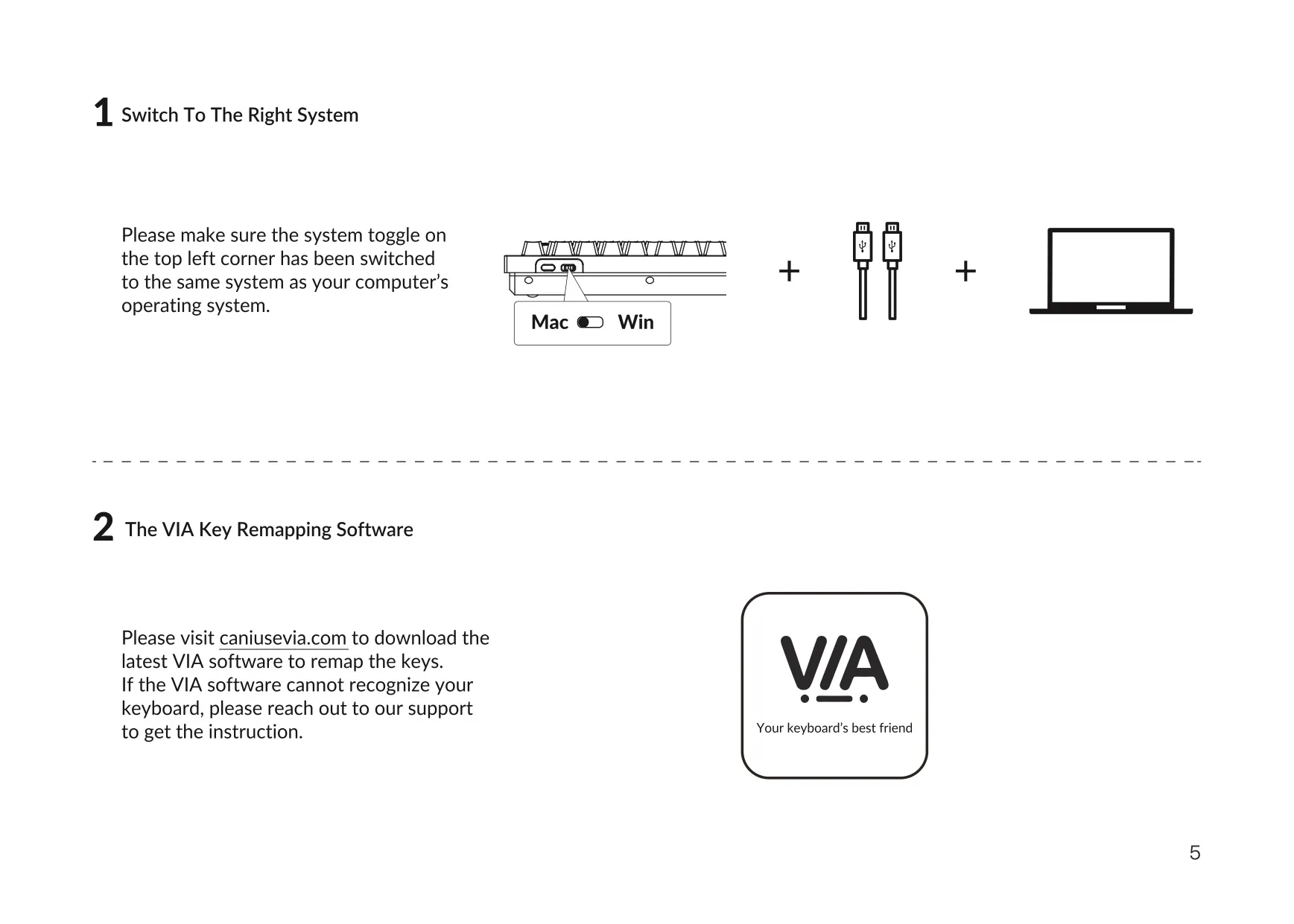
| Remapping Software | VIA (caniusevia.com) |
| Firmware | QMK-based, can be flashed with QMK Toolbox |
| Backlight | RGB backlight with adjustable effects, brightness, hue and speed |
| Recommended Temperature Range | -10°C (14°F) to 50°C (122°F) |
| Manufacturer | Keychron, Inc., Dover, DE 19901, United States |
| Country of Manufacture | China |
Keychron V6 Keyboard Details
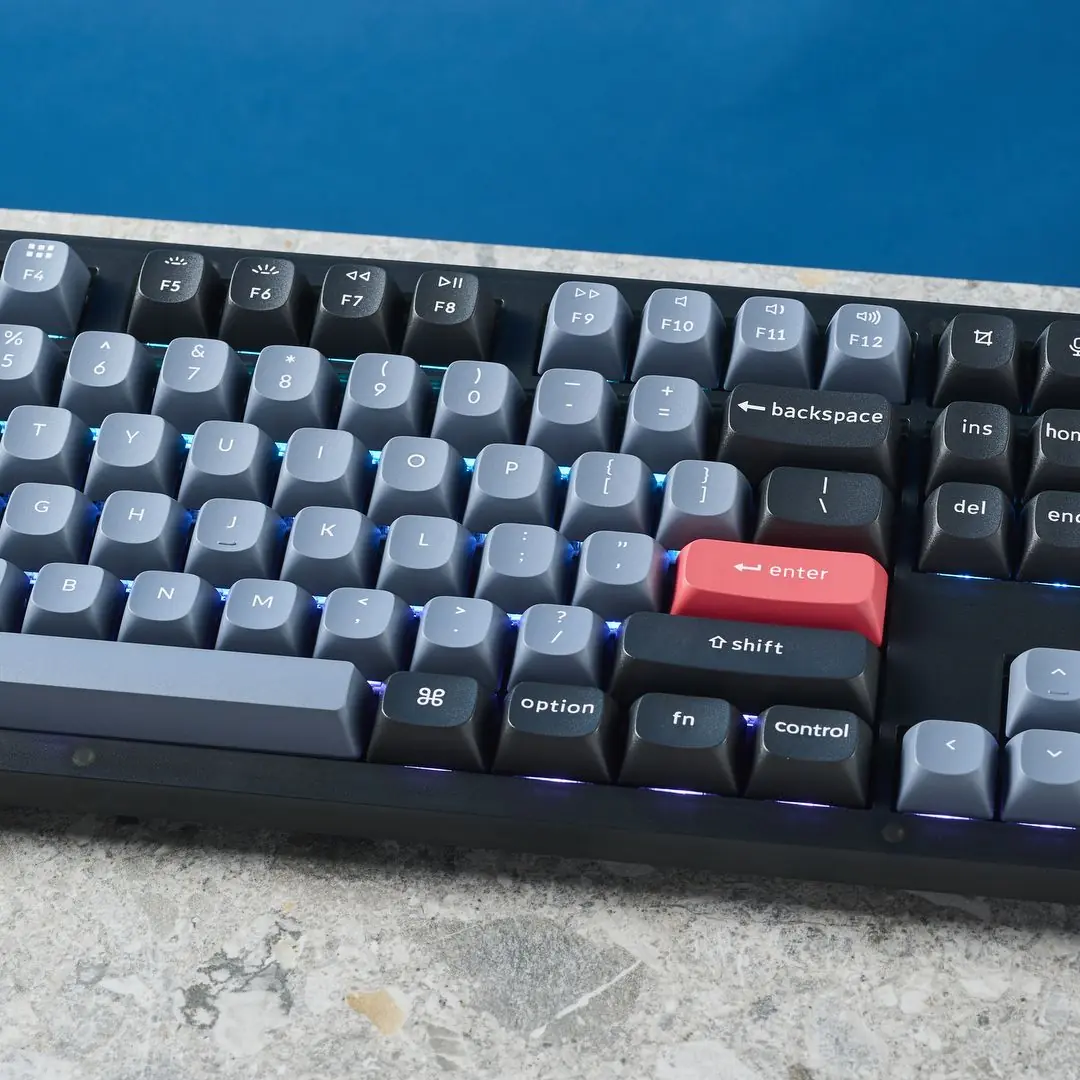
The Keychron V6 is a full-size keyboard built to be modified. The fully assembled version comes ready to type on. The barebone version is for people who want to choose their own switches and keycaps. Both kits include the same tools, so you can take the keyboard apart and put it back together without buying anything else.
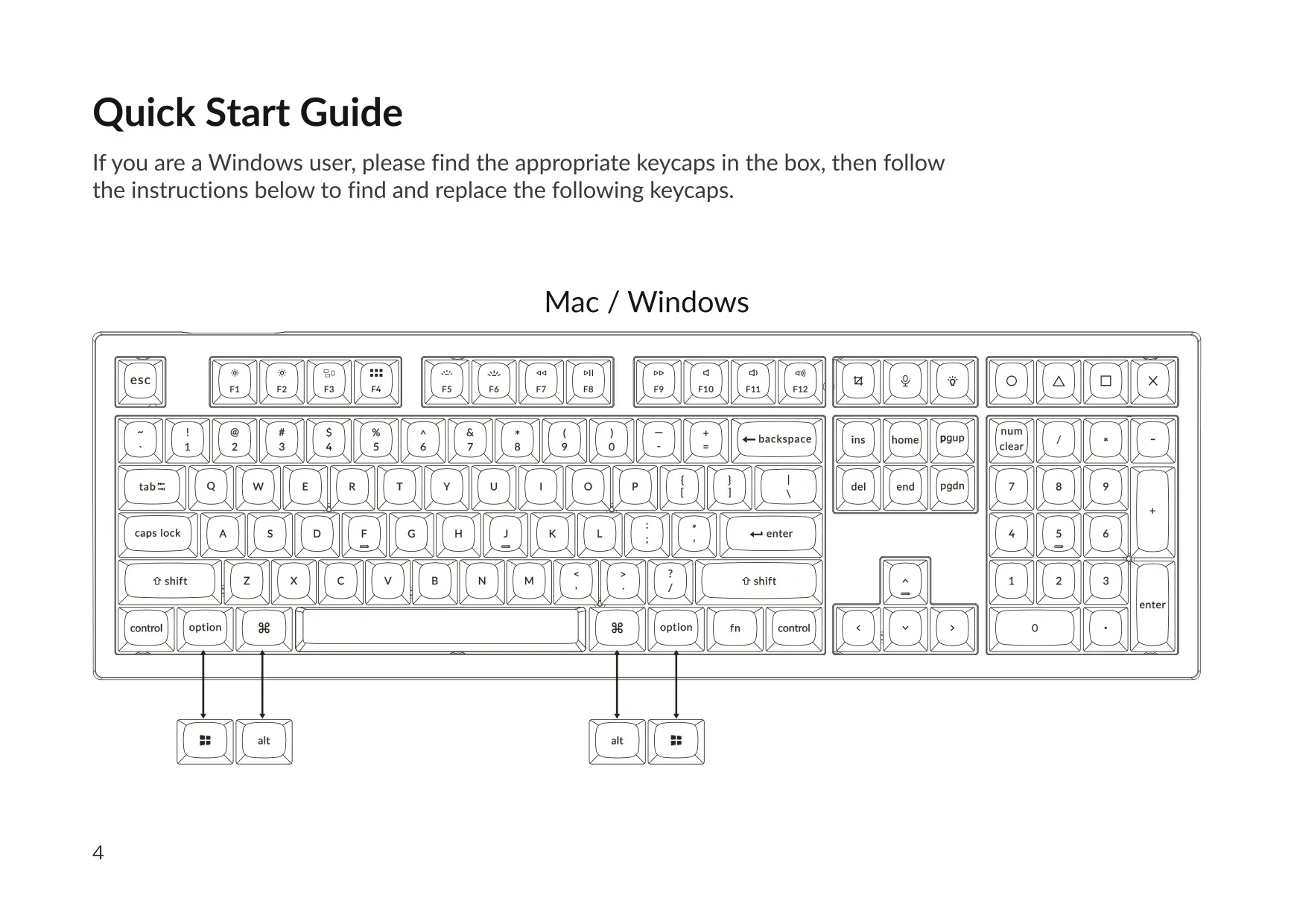
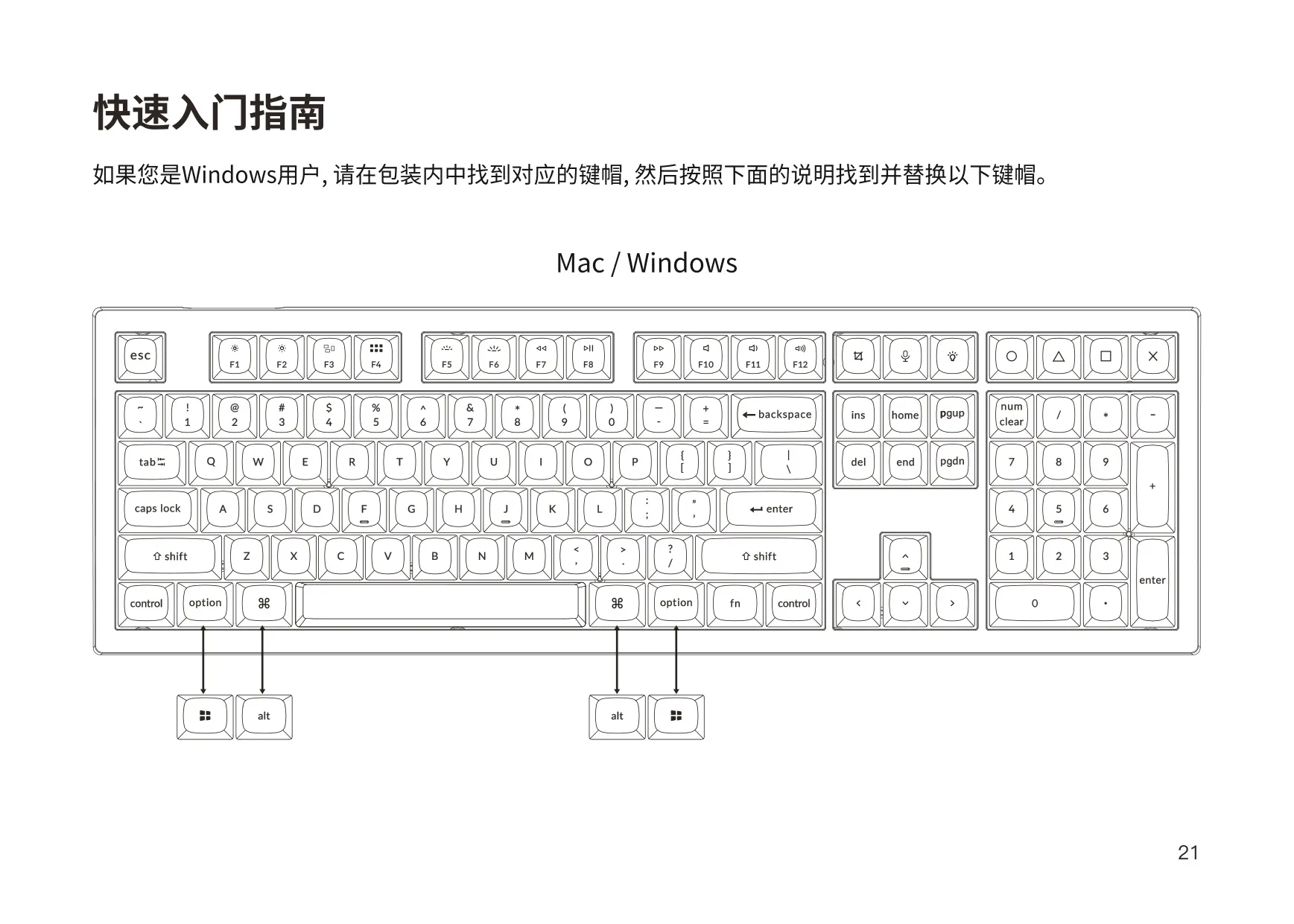
The Quick Start Guide assumes you may be a Windows user. The keyboard ships with Mac keycaps installed, and the Windows replacements are in the box. The manual shows which caps to swap using the keycap puller. Before you start typing, set the system toggle in the top left corner to match your computer's operating system.
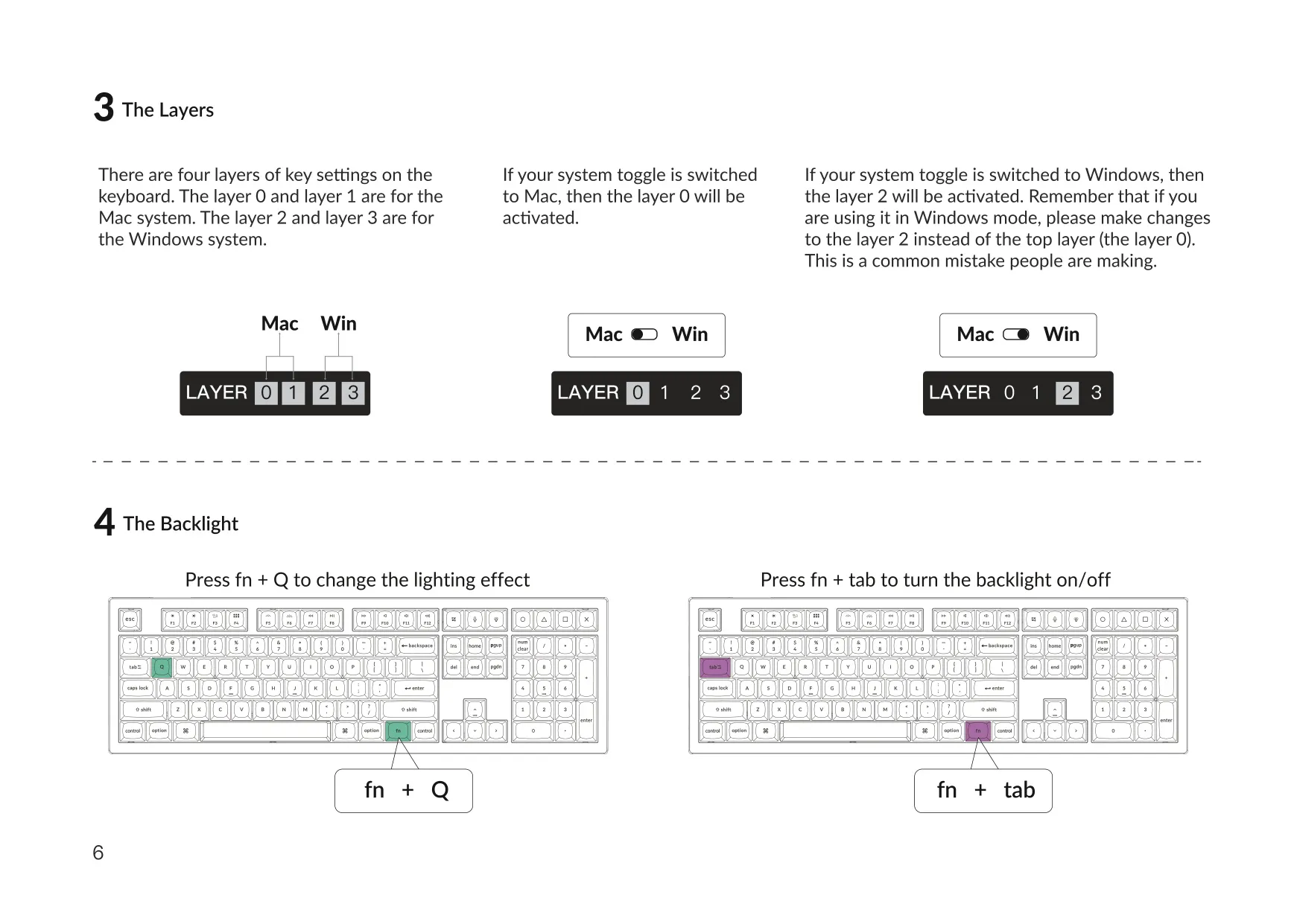
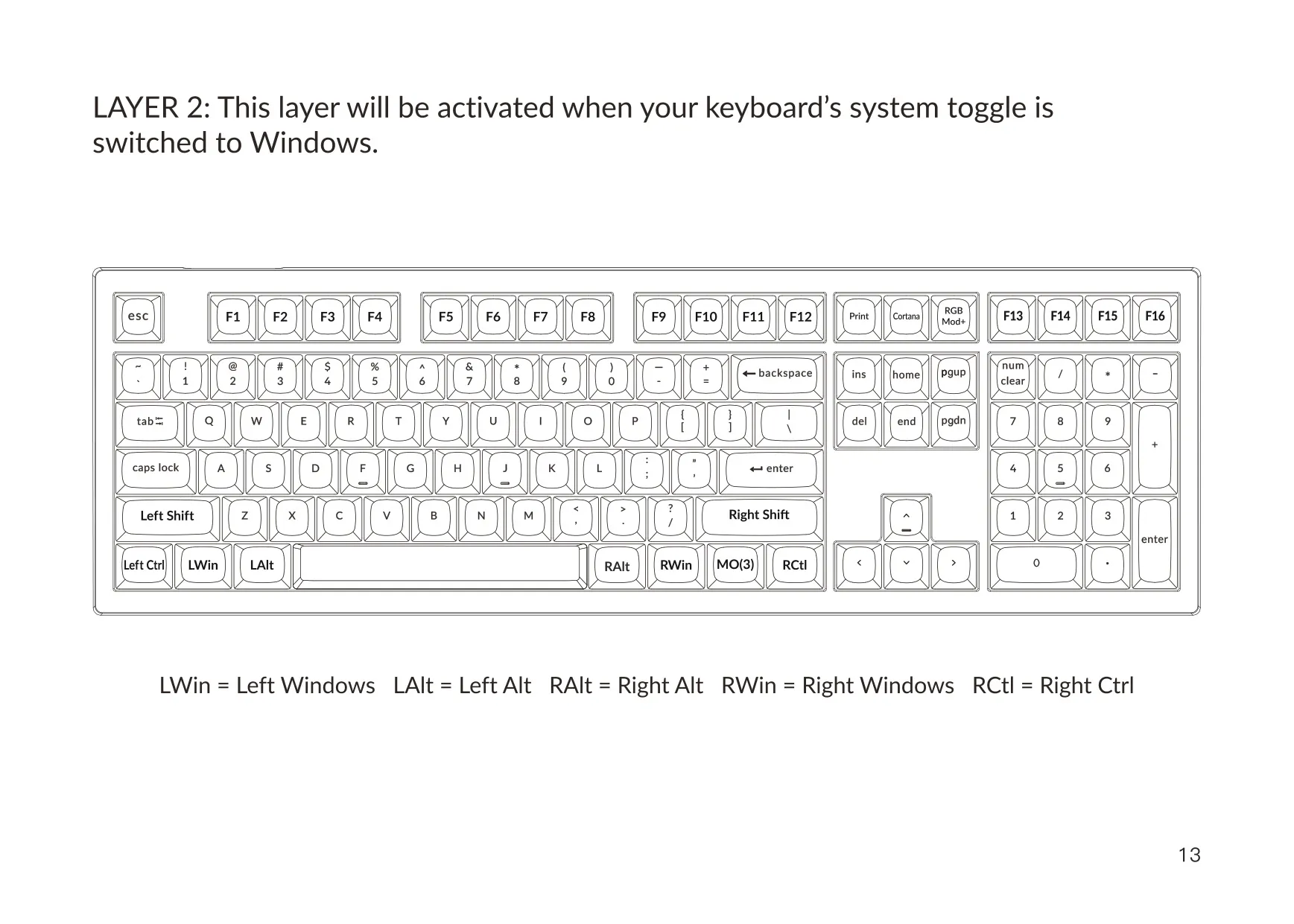
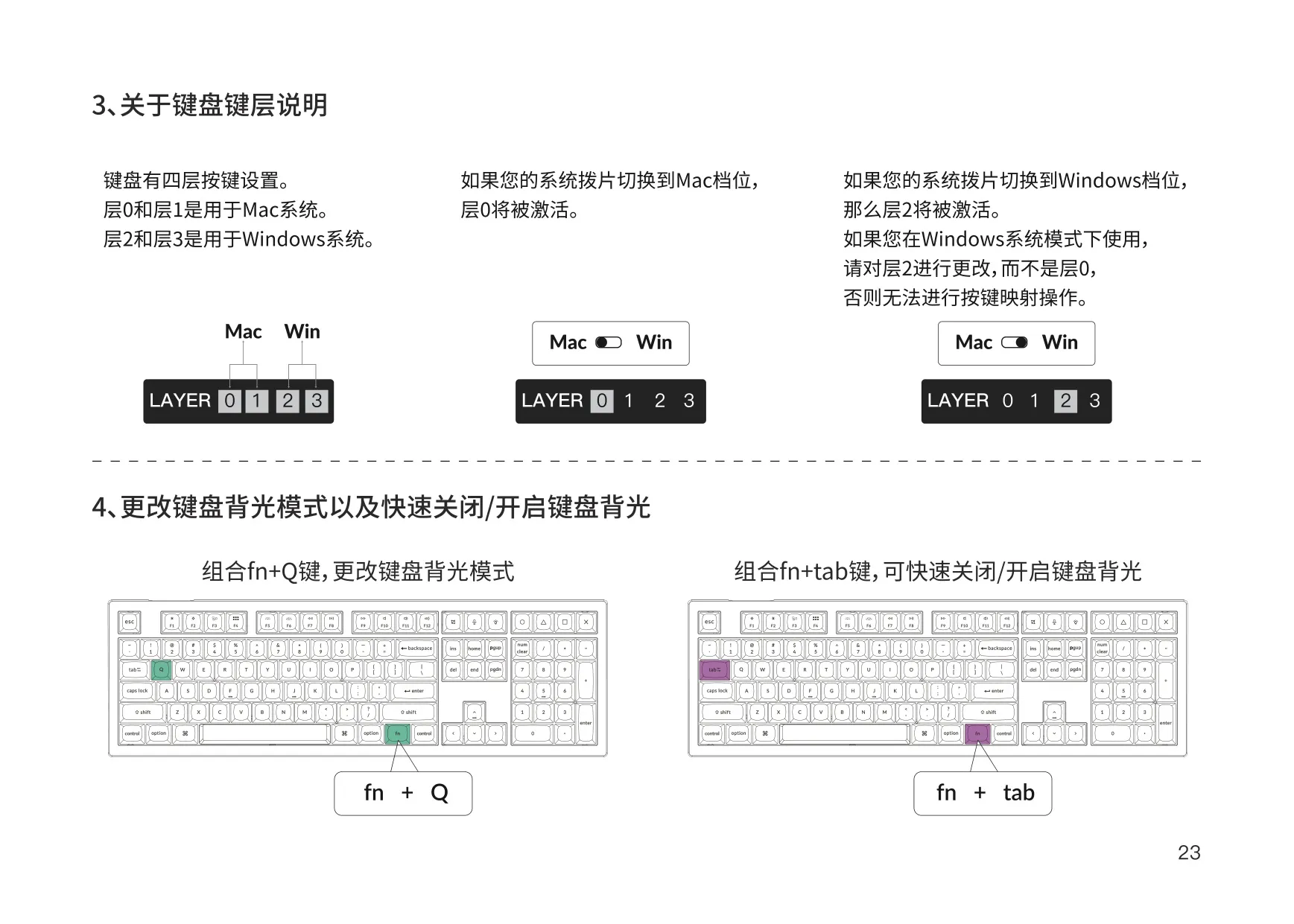
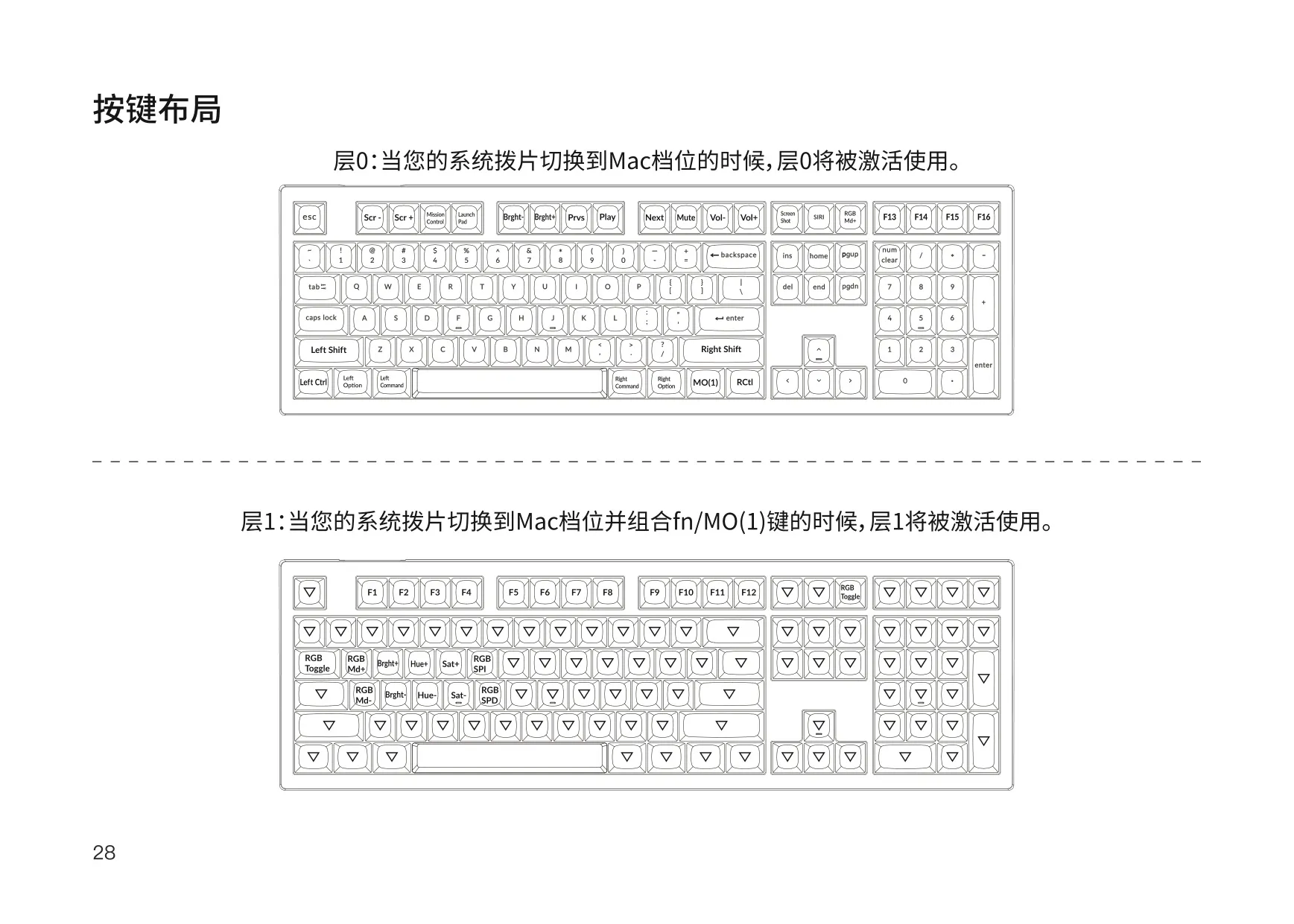
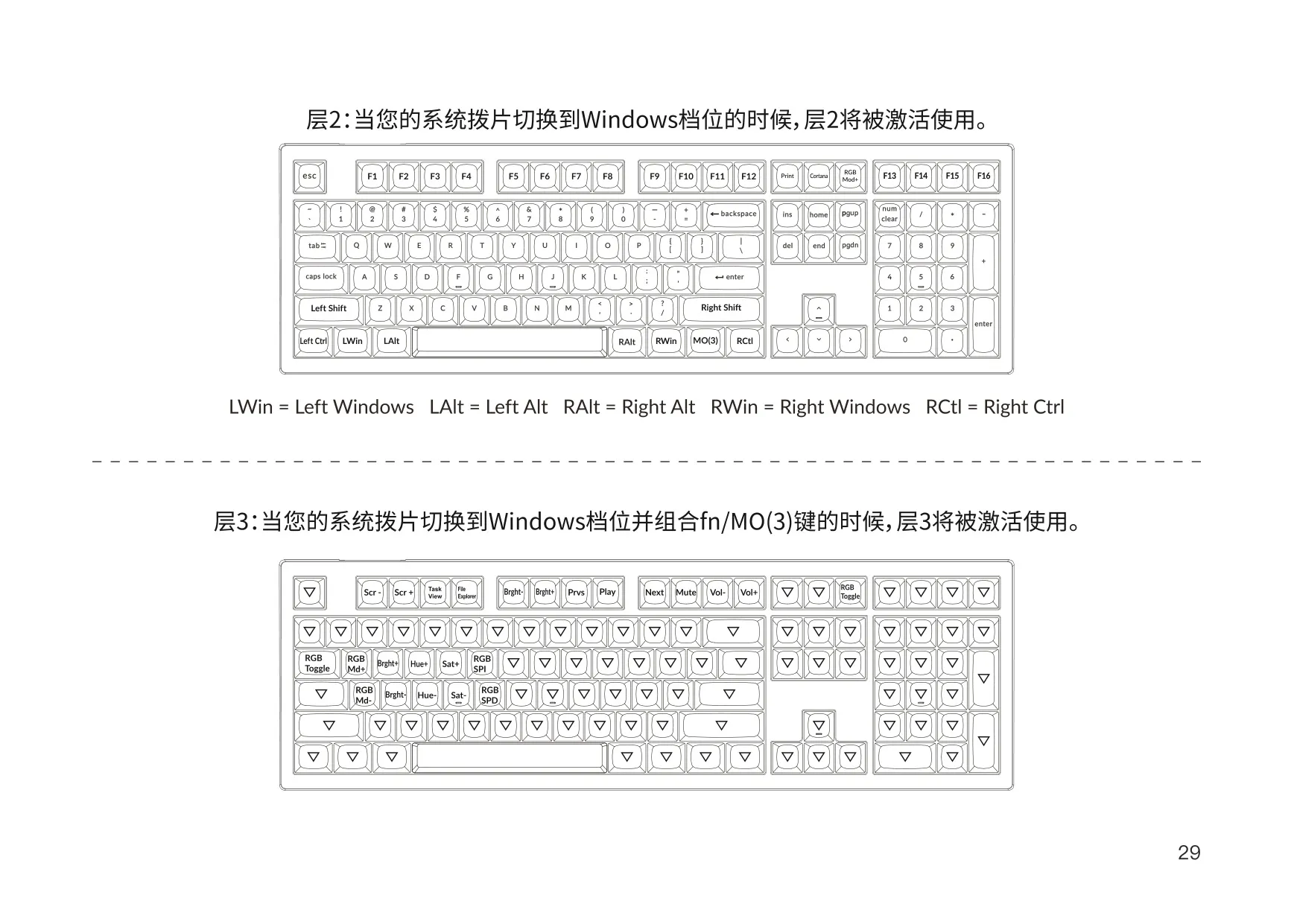
The keyboard has four programmable layers. With the toggle on Mac, layer 0 is active, and holding fn/MO(1) switches to layer 1. With the toggle on Windows, layer 2 is active, and fn/MO(3) switches to layer 3. Keychron warns about a common mistake: in Windows mode, you have to edit layer 2 in VIA, not the top layer (layer 0).
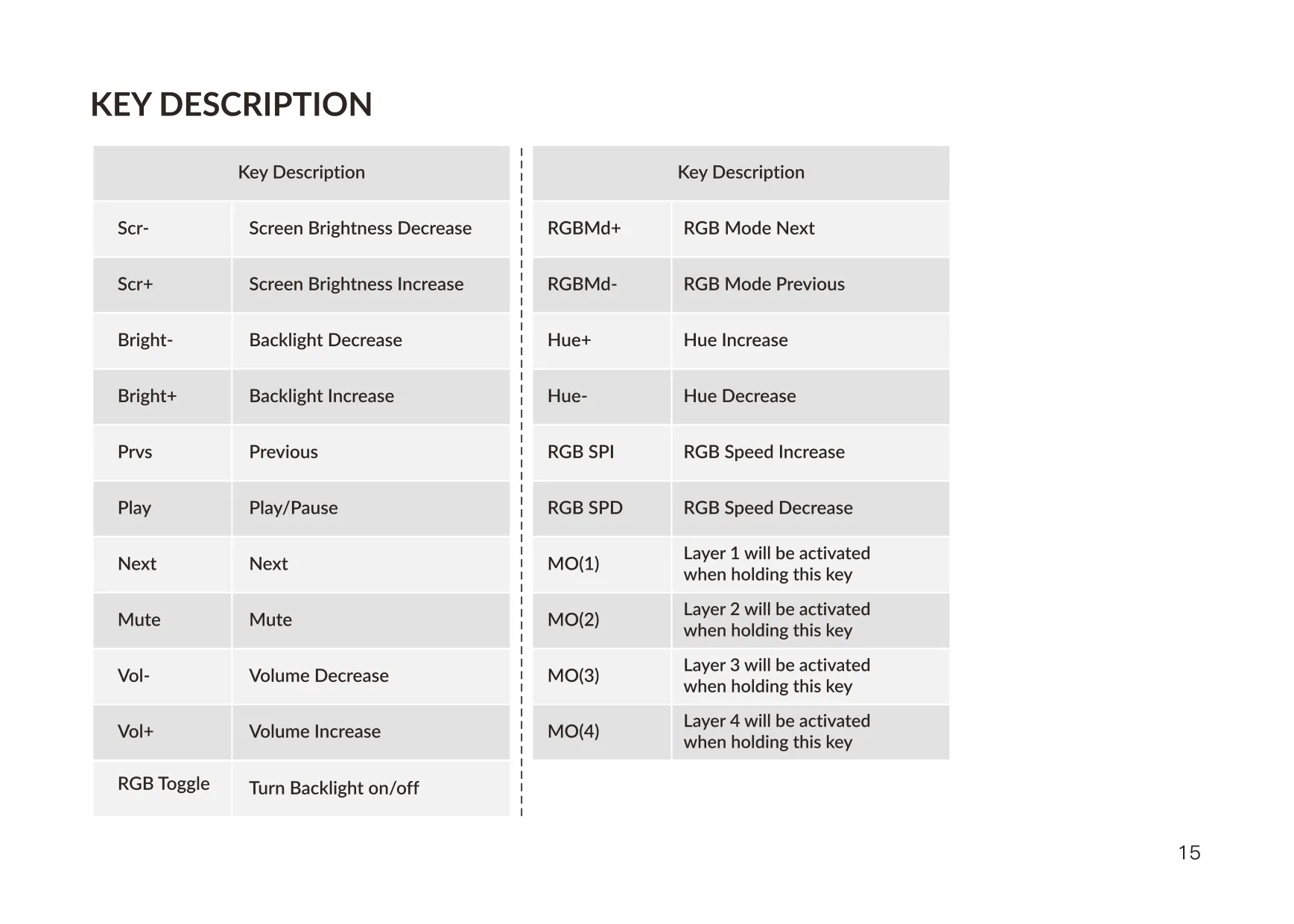
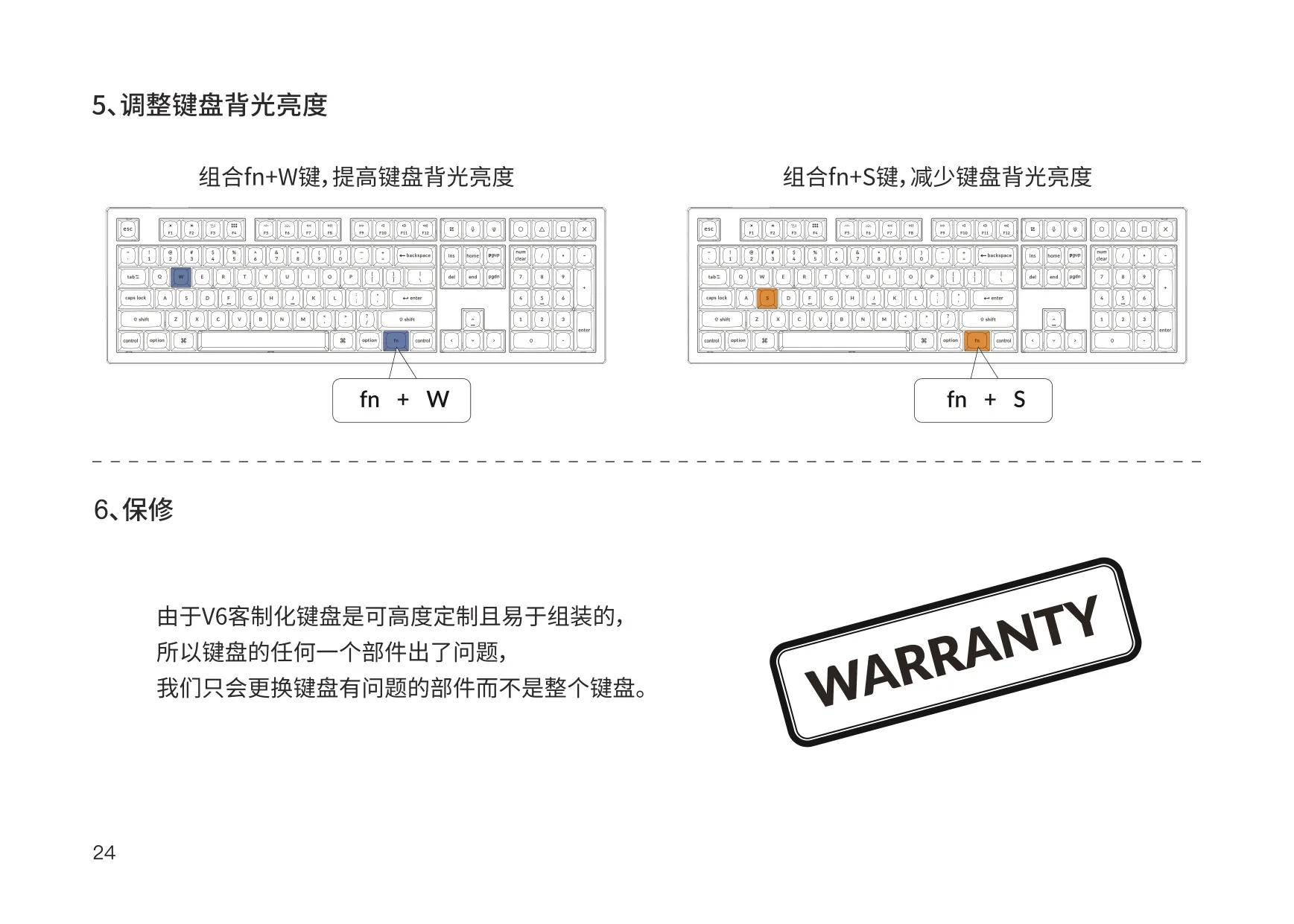
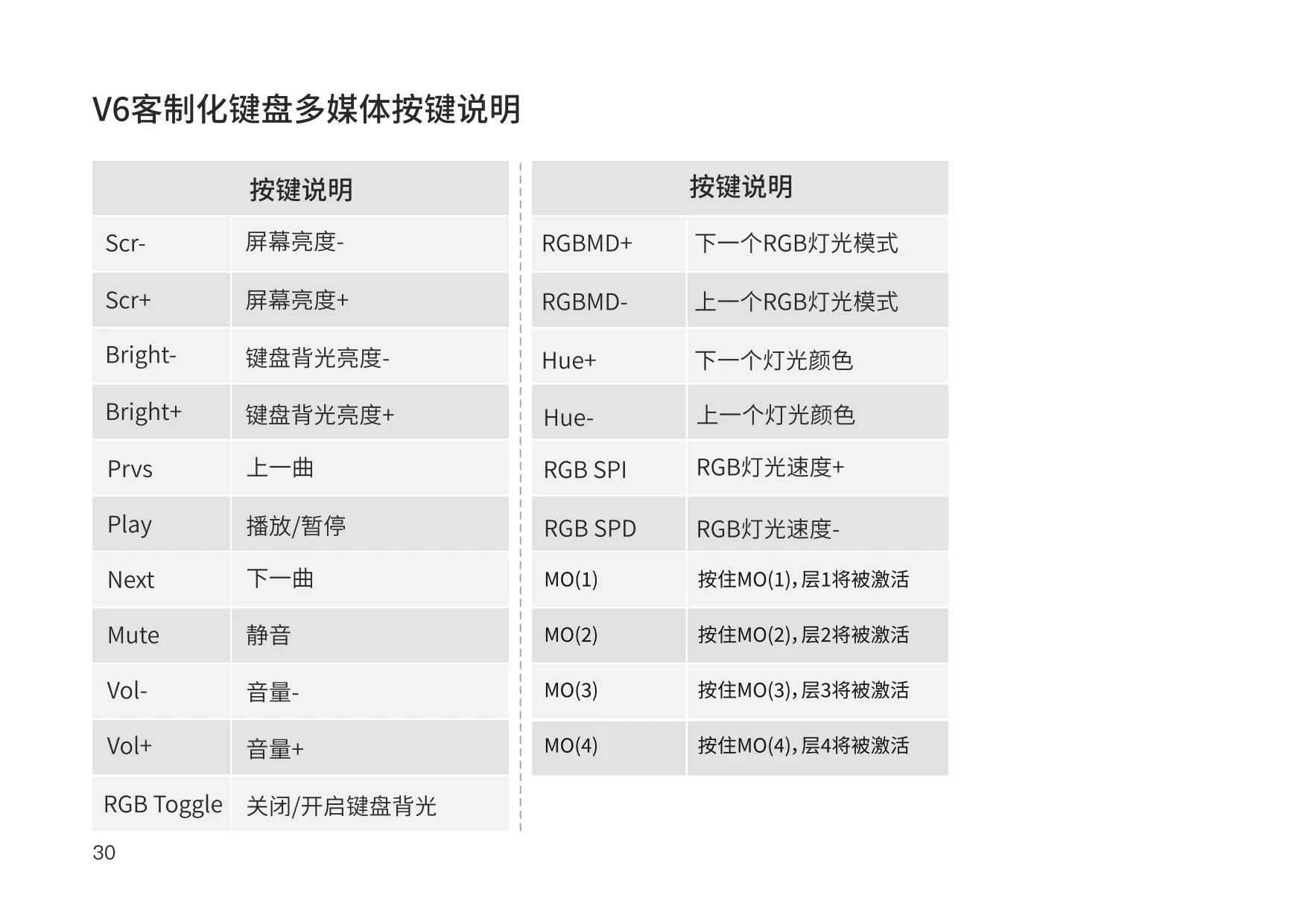
You control the backlight from the keyboard. Press fn + Q to change the lighting effect and fn + Tab to turn the backlight on or off. Press fn + W to raise brightness and fn + S to lower it. The default key layout also includes RGB Mode Next and Previous, Hue Increase and Decrease, and RGB Speed Increase and Decrease.
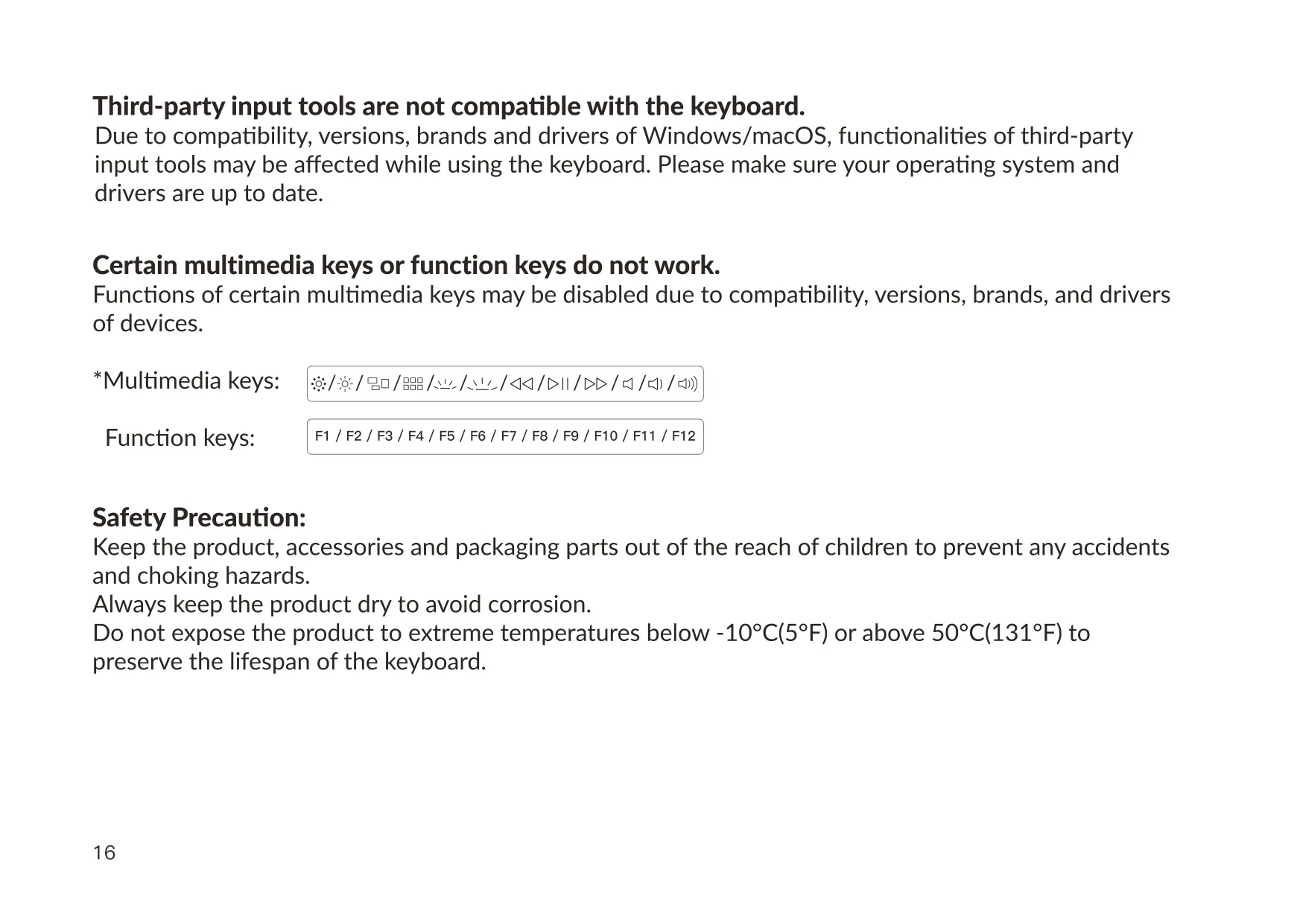
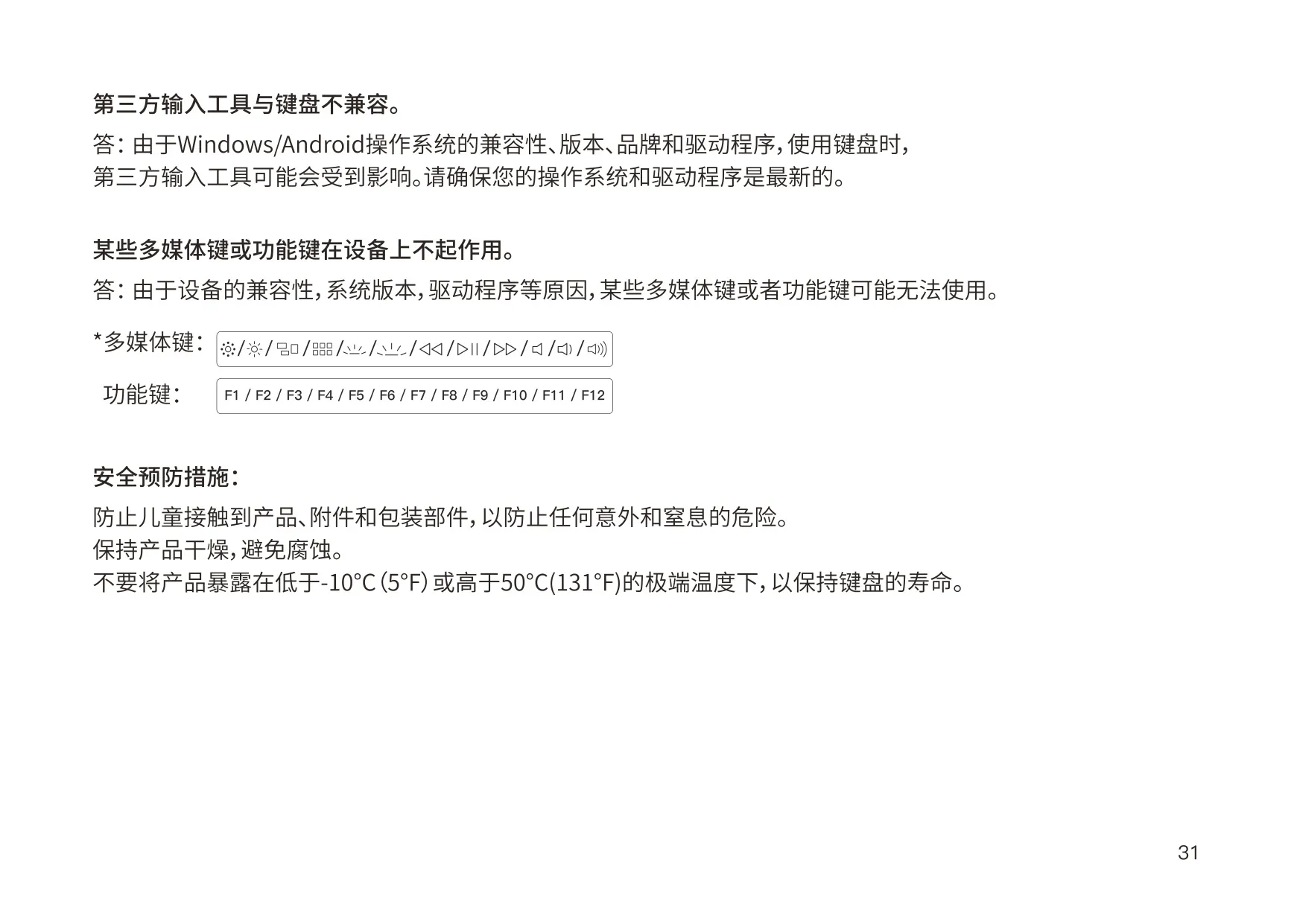
The function layers also include media and system keys. These include screen brightness up and down, Previous, Play/Pause, Next, Mute, and Volume up and down. The Windows layout uses standard labels such as LWin, LAlt, RAlt, RWin and RCtl. Some multimedia or F-keys may not work on every setup. This depends on your operating system version, device brand and drivers, so keep your system up to date.
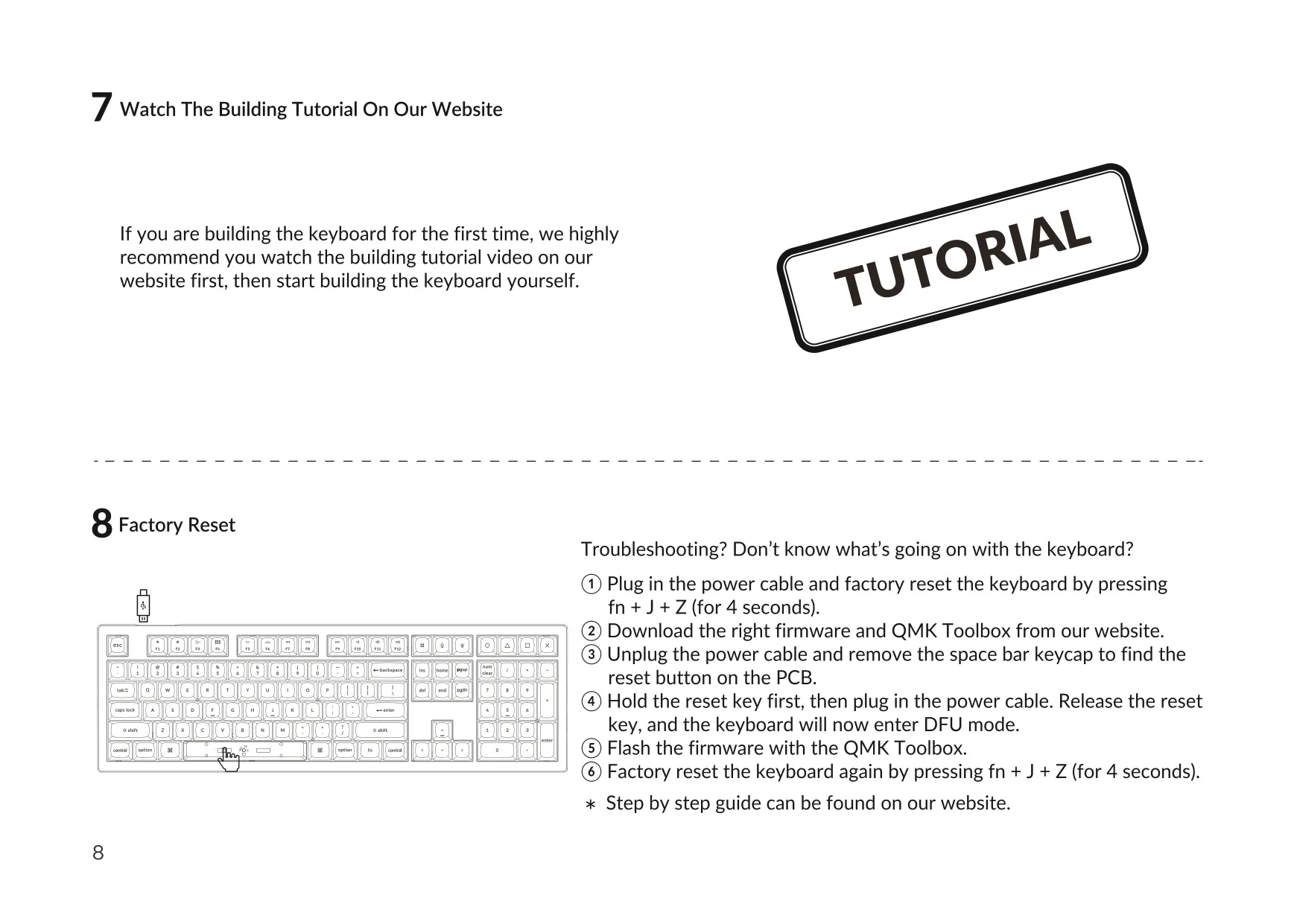
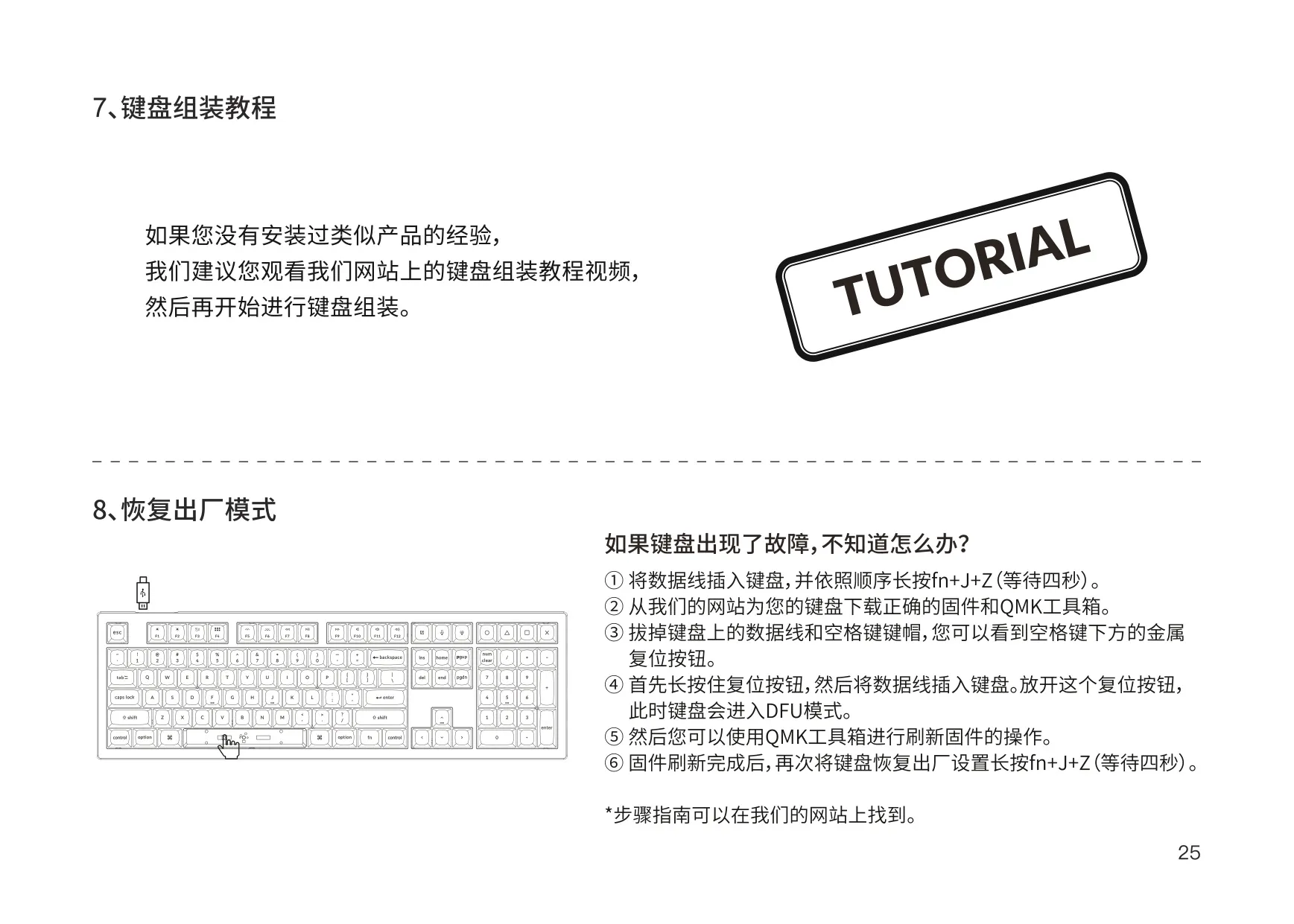
If the keyboard behaves unexpectedly, first plug it in and hold fn + J + Z for 4 seconds to factory reset it. If that doesn't fix the problem, download the correct firmware and QMK Toolbox from Keychron's website. Unplug the cable and remove the space bar keycap to find the reset button on the PCB.
Hold the reset button, plug in the cable, then release the button. The keyboard is now in DFU mode. Flash the firmware with QMK Toolbox, then factory reset again with fn + J + Z. If VIA doesn't recognize the keyboard, contact Keychron support for instructions.
The warranty reflects the modular design. If a component fails during the warranty period, Keychron replaces only the defective part, not the whole keyboard. If you are building the keyboard for the first time, Keychron recommends watching the building tutorial on its website first. Third-party input tools may not be fully compatible and may not work as expected.
For safety, keep the keyboard, accessories and packaging away from children, since small parts are a choking hazard. Keep the keyboard dry to prevent corrosion. Don't expose it to temperatures below -10°C or above 50°C, as this can shorten its lifespan.
Frequently Asked Questions (FAQs)
Can't find the answer you need? Here are some frequently asked questions about the Keychron V6 Keyboard, and we answer them below.