Keychron V5 Max Keyboard Instruction Manual
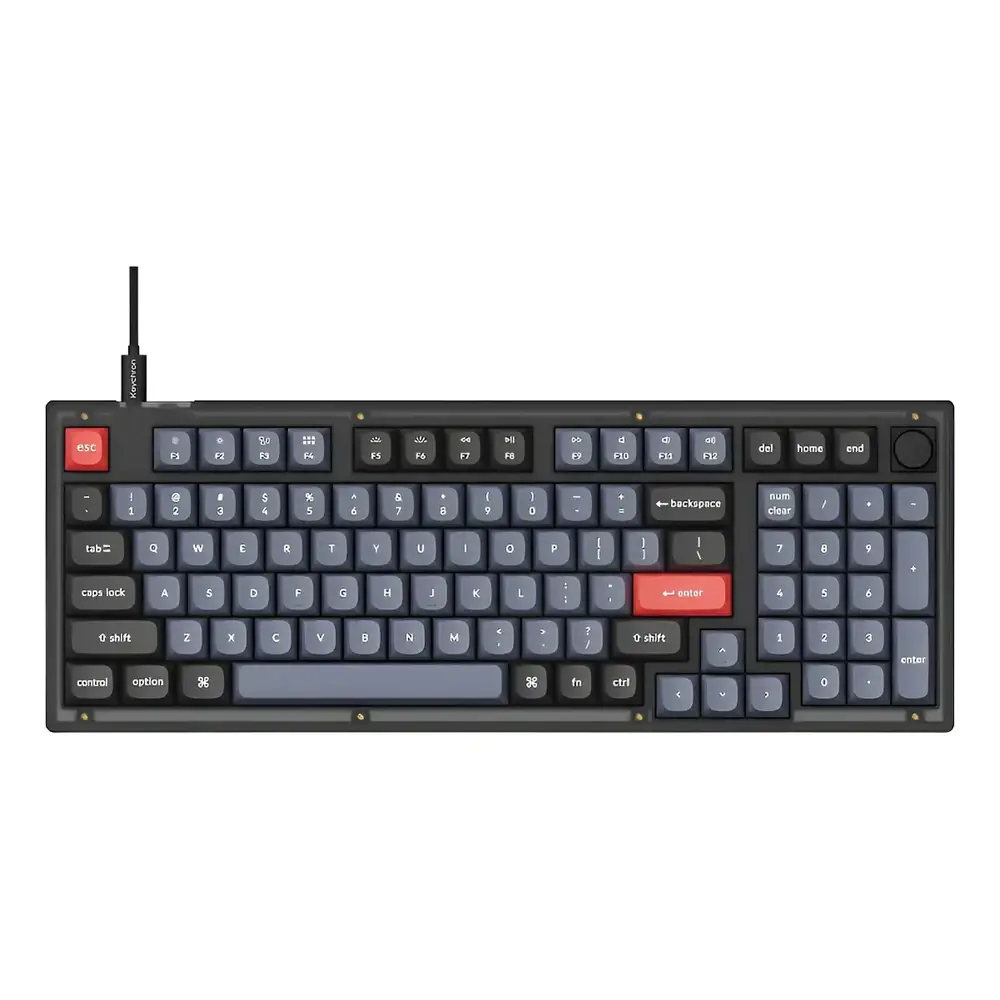
Keychron V5 Max Keyboard



















Keychron V5 Max Keyboard Instructions
Here we offer the Keychron V5 Max Keyboard manual completely free and in English. We have cataloged this manual in the Keyboards section on Manualverse, and it has been rated by 1 users with an average rating of 5. If you have any specific questions about Keychron V5 Max Keyboard, we suggest checking the Frequently Asked Questions (FAQs) section of this manual.
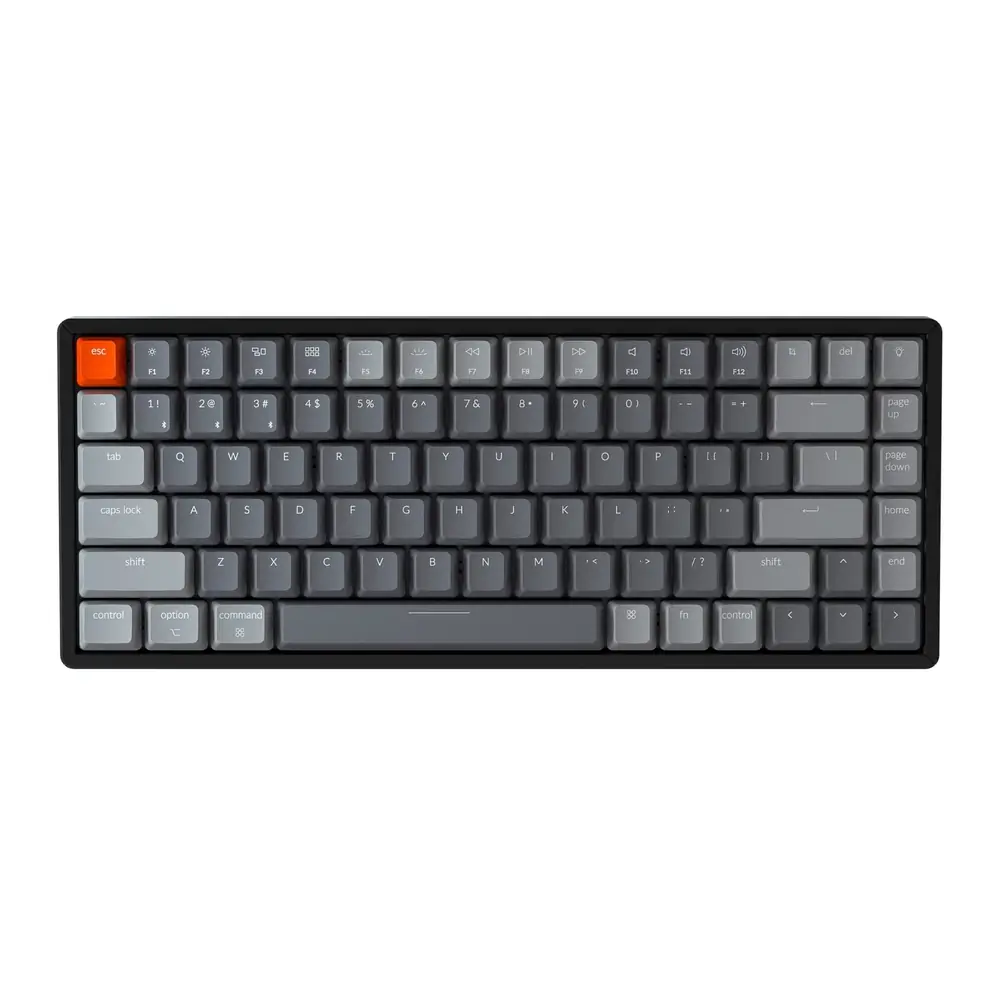
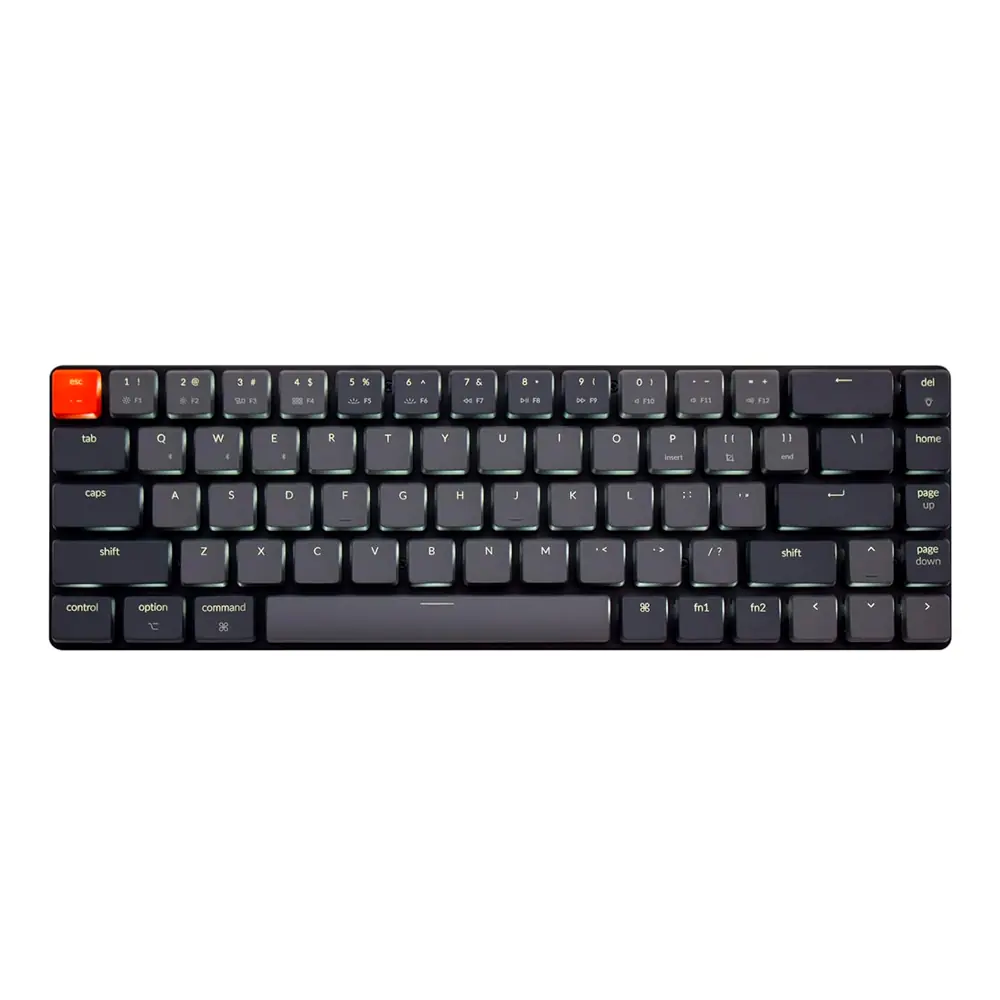
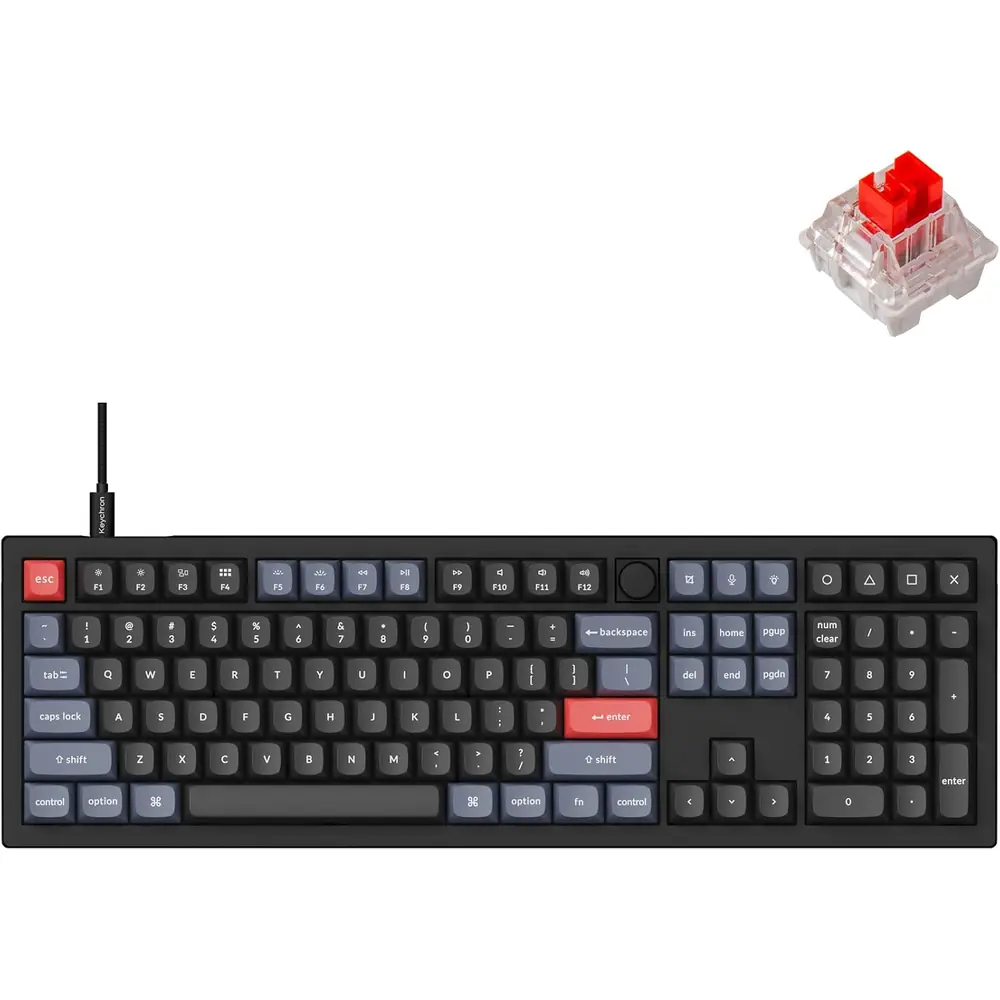
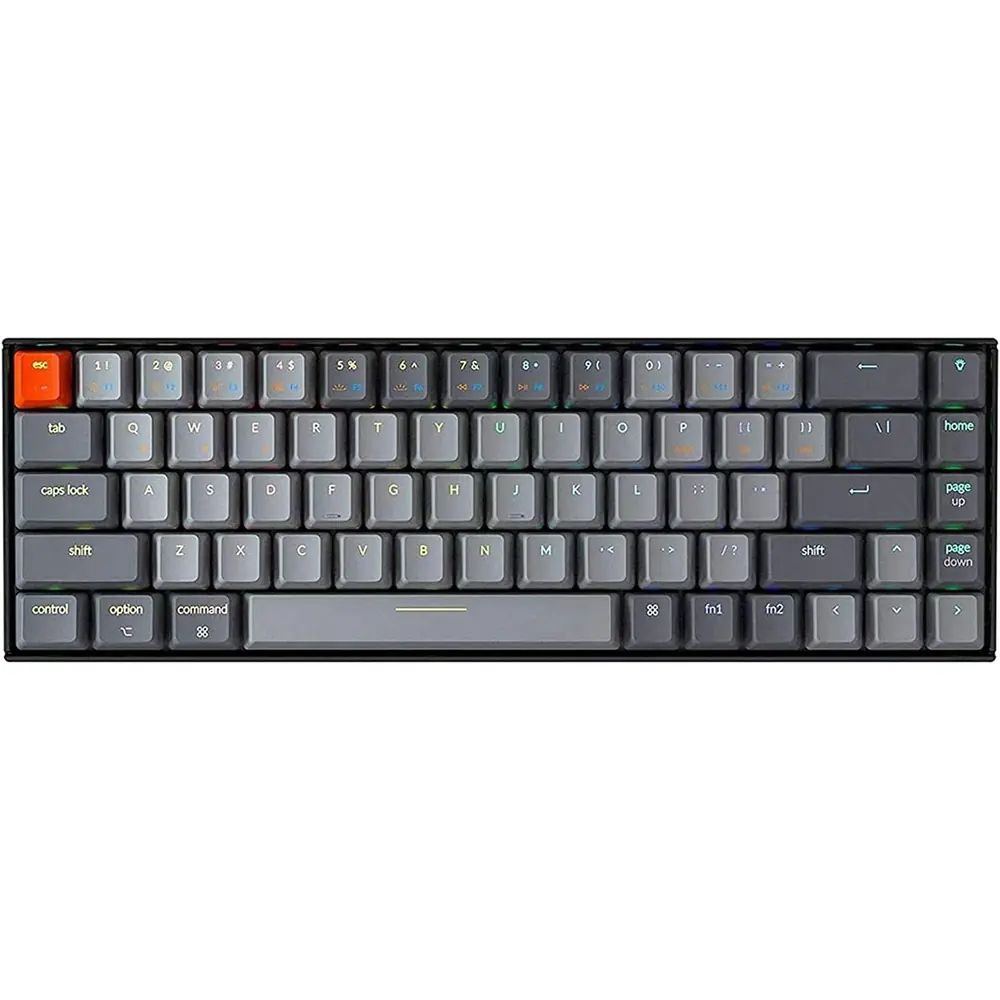
Product Images

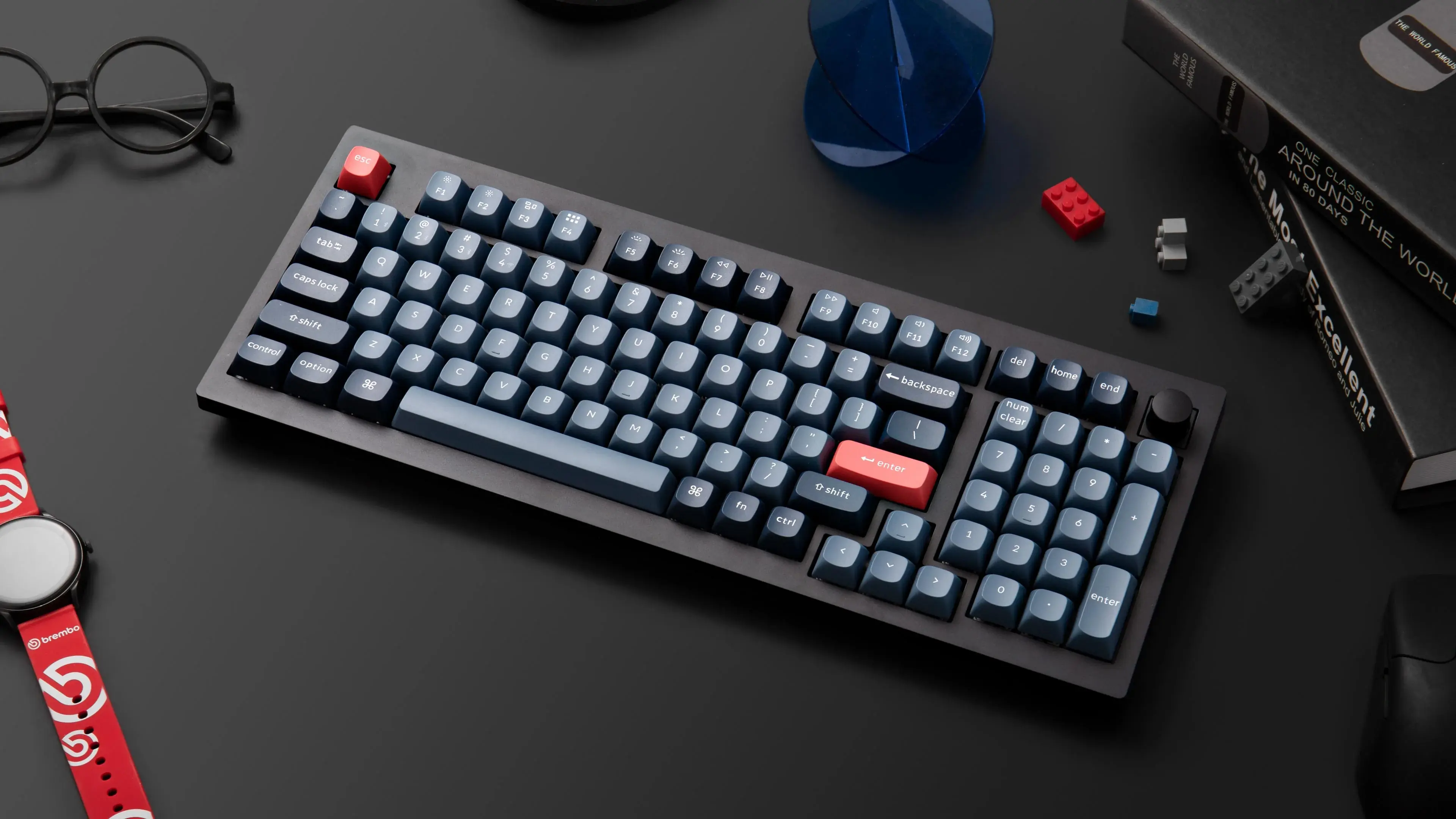
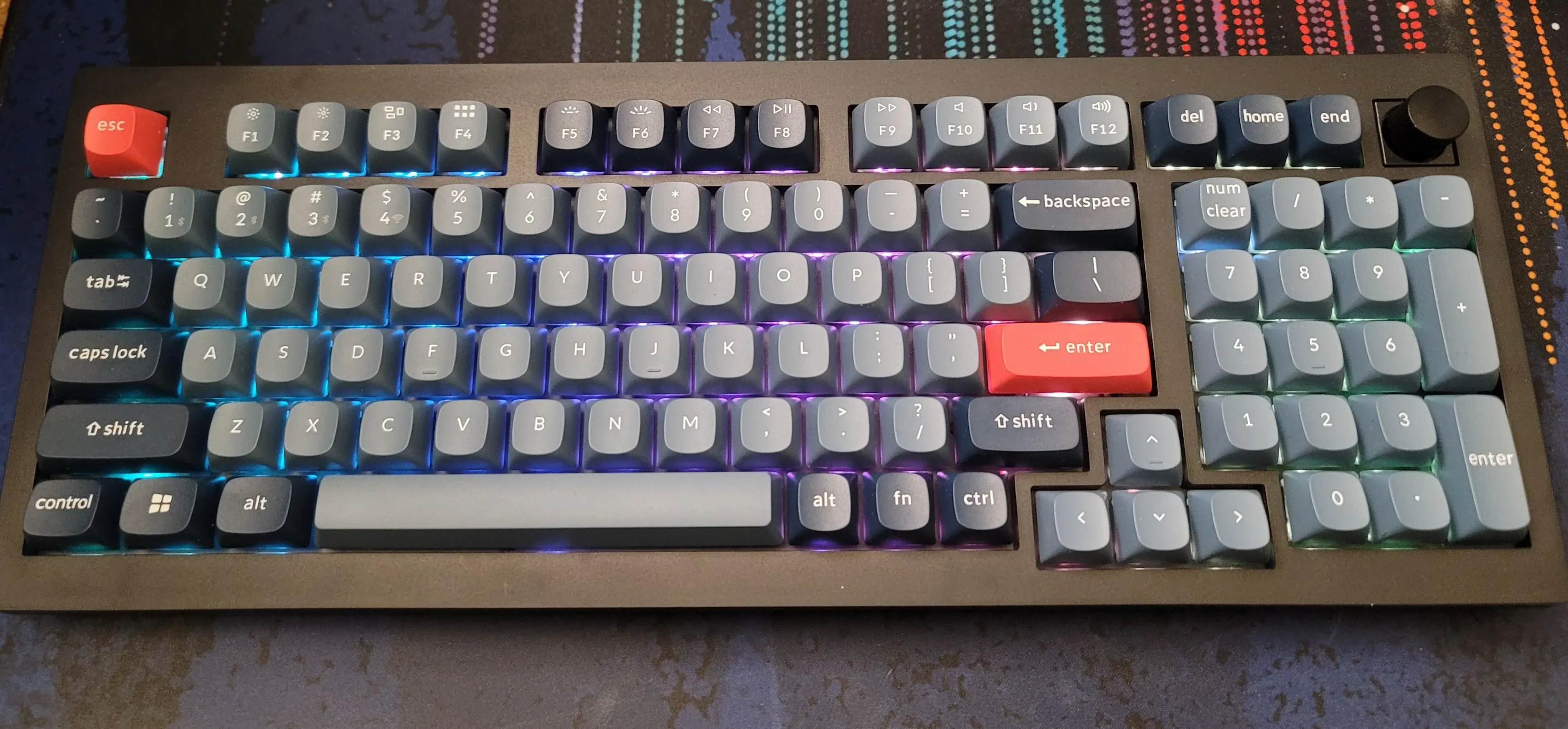
Keychron V5 Max Keyboard Specifications
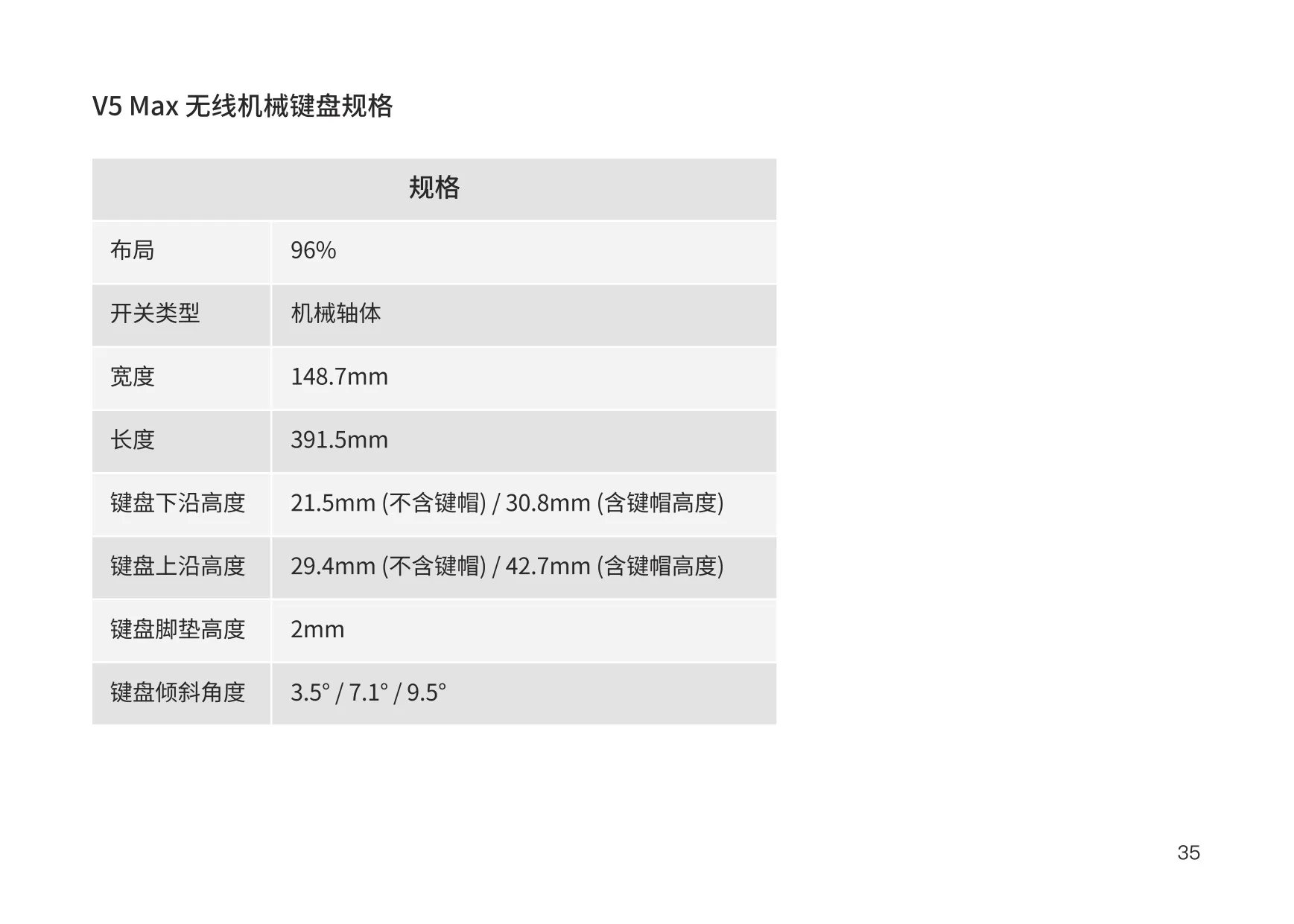
| Feature | Specification |
|---|---|
| Model | Keychron V5 Max Wireless Mechanical Keyboard |
| Layout | 96% |
| Switch Type | Mechanical |
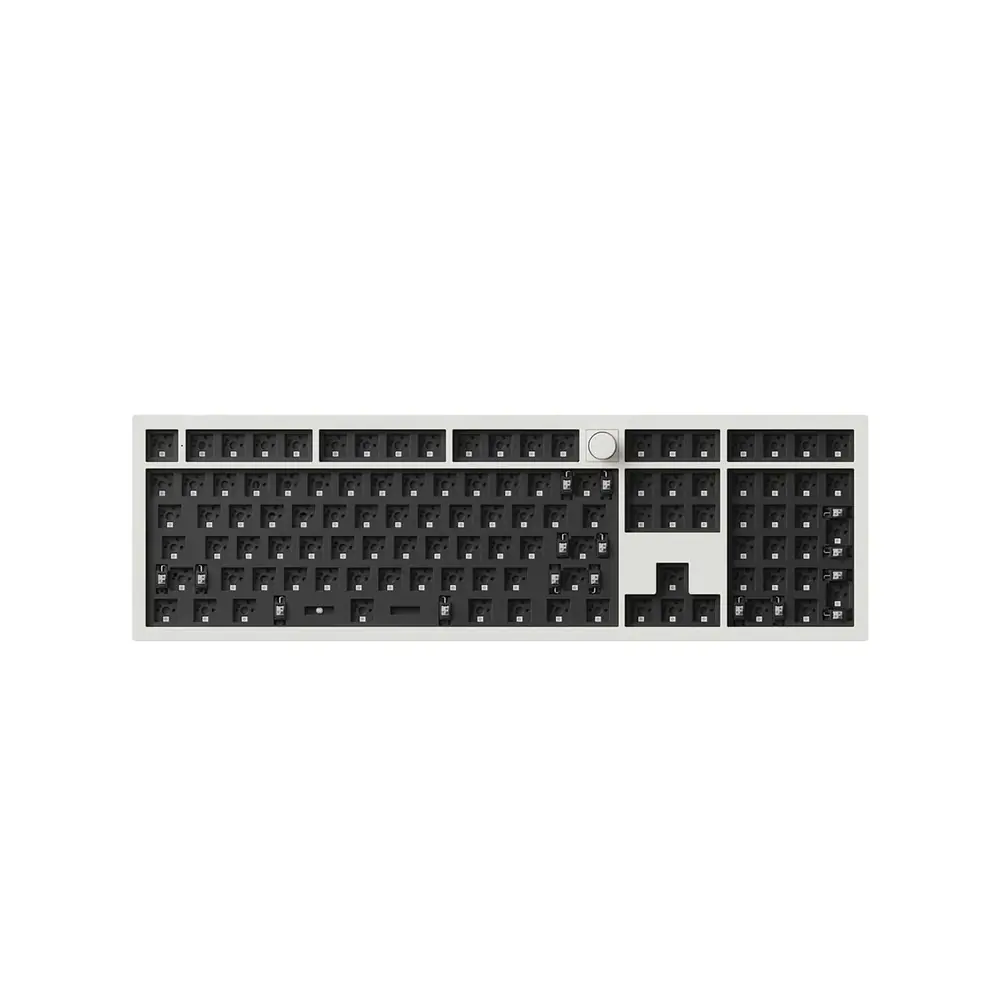
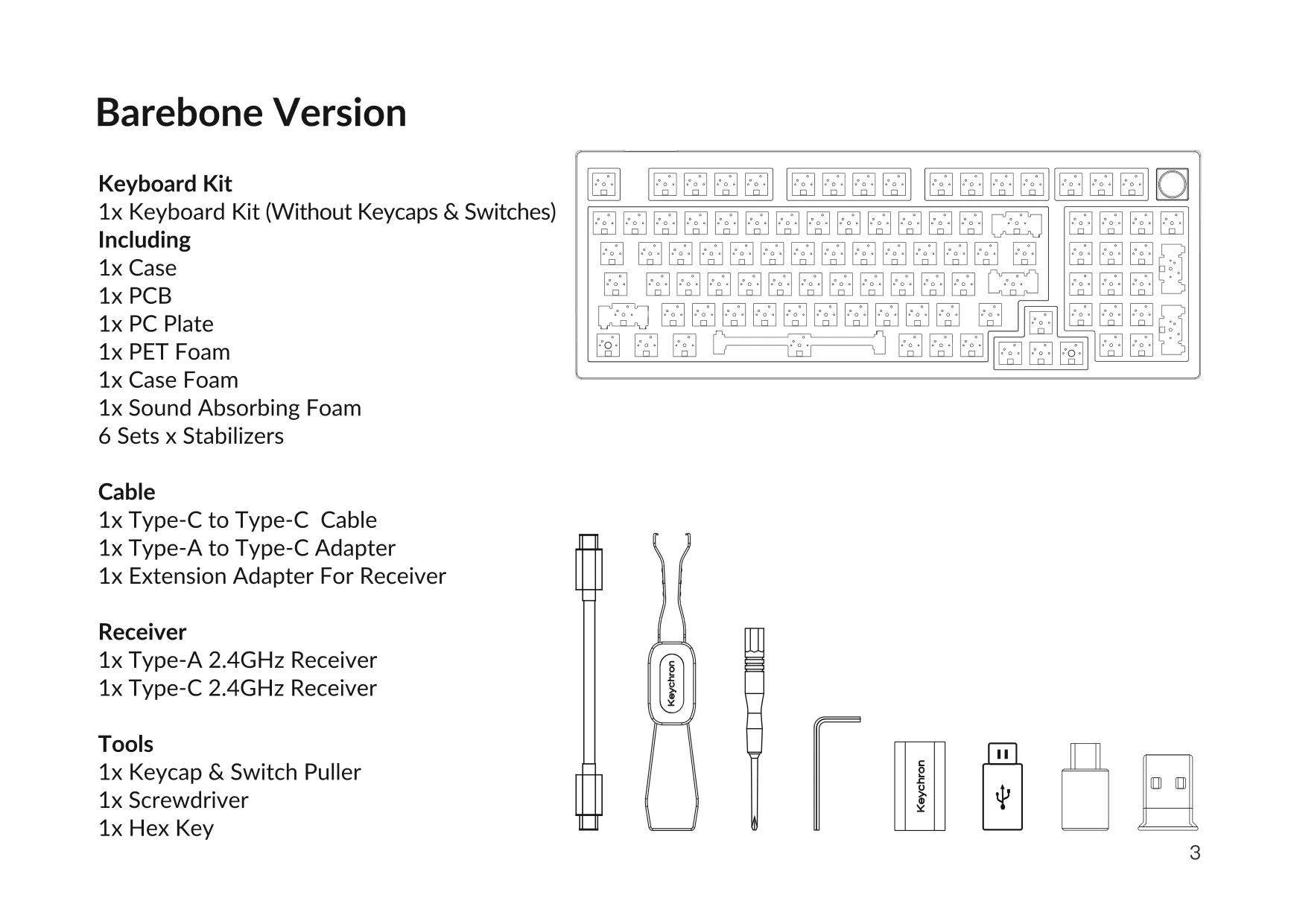
| Available Versions | Fully Assembled; Barebone (without keycaps and switches) |
| Width | 148.7 mm |
| Length | 391.5 mm |
| Front Height | 21.5 mm (without keycaps) / 30.8 mm (with keycaps installed) |
| Back Height | 29.4 mm (without keycaps) / 42.7 mm (with keycaps installed) |
| Keyboard Feet Height | 2 mm |
| Typing Angle | 3.5° / 7.1° / 9.5° |
| Case | 1x Case |
| Plate | PC Plate |
| Internal Foams | PET Foam, Case Foam, Sound Absorbing Foam |
| Stabilizers | 6 sets |
| Keycaps (Fully Assembled) | PBT Double-shot |
| Connectivity Modes | 2.4GHz wireless, Bluetooth, Wired (Type-C cable) |
| Bluetooth Multi-Device Pairing | Up to 3 devices (Fn + 1 / Fn + 2 / Fn + 3) |
| Bluetooth Device Name | Keychron V5 Max |
| 2.4GHz Receivers Included | 1x Type-A 2.4GHz Receiver, 1x Type-C 2.4GHz Receiver |
| Recommended Distance for 2.4GHz Forced Pairing | Within 20 cm of the receiver |
| Wireless Range Reference | 10 meters |
| Port | USB Type-C |
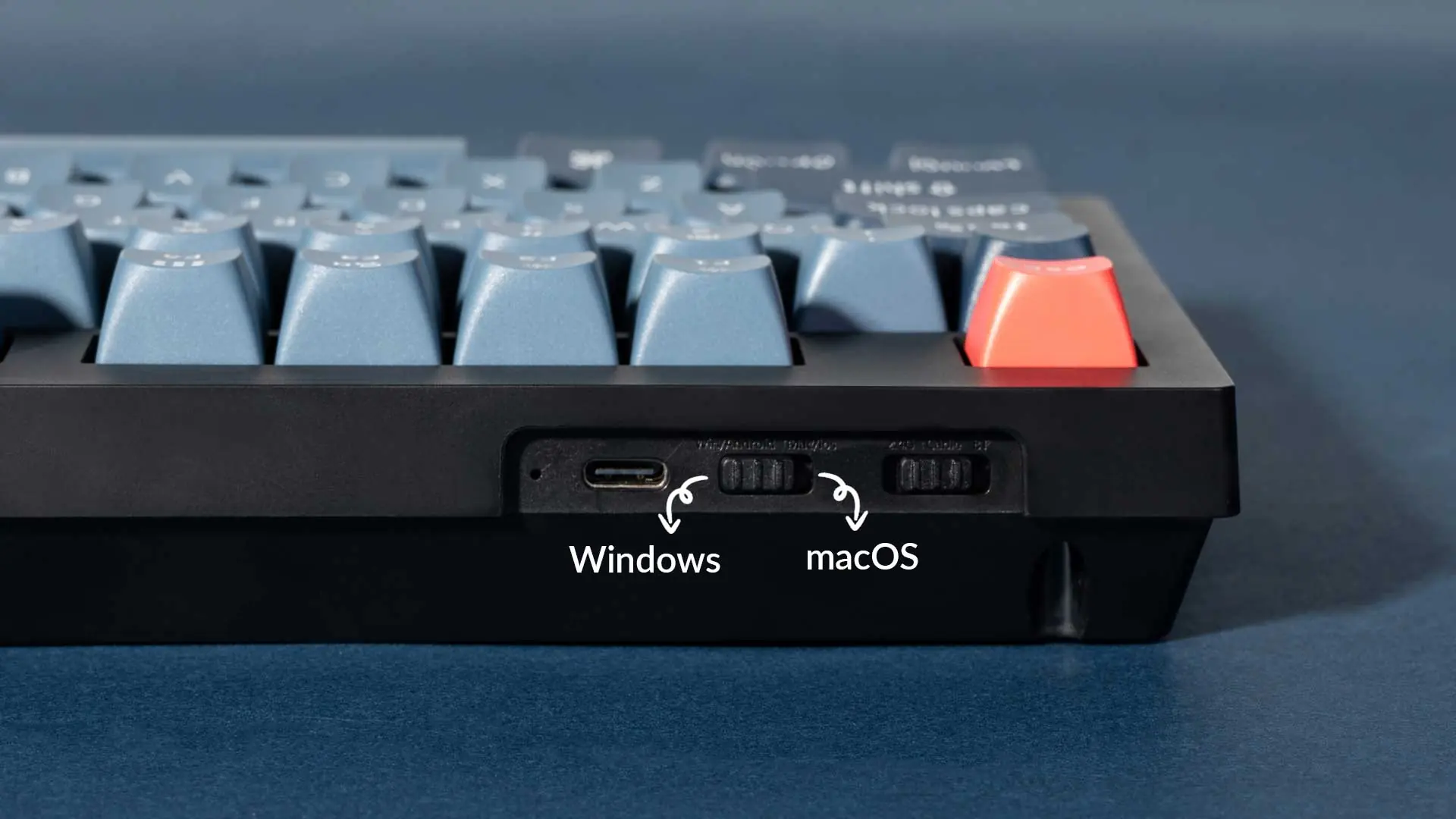
| Mode Toggle | 2.4G / Cable / BT |
| OS Toggle | Win/Android and Mac/iOS |
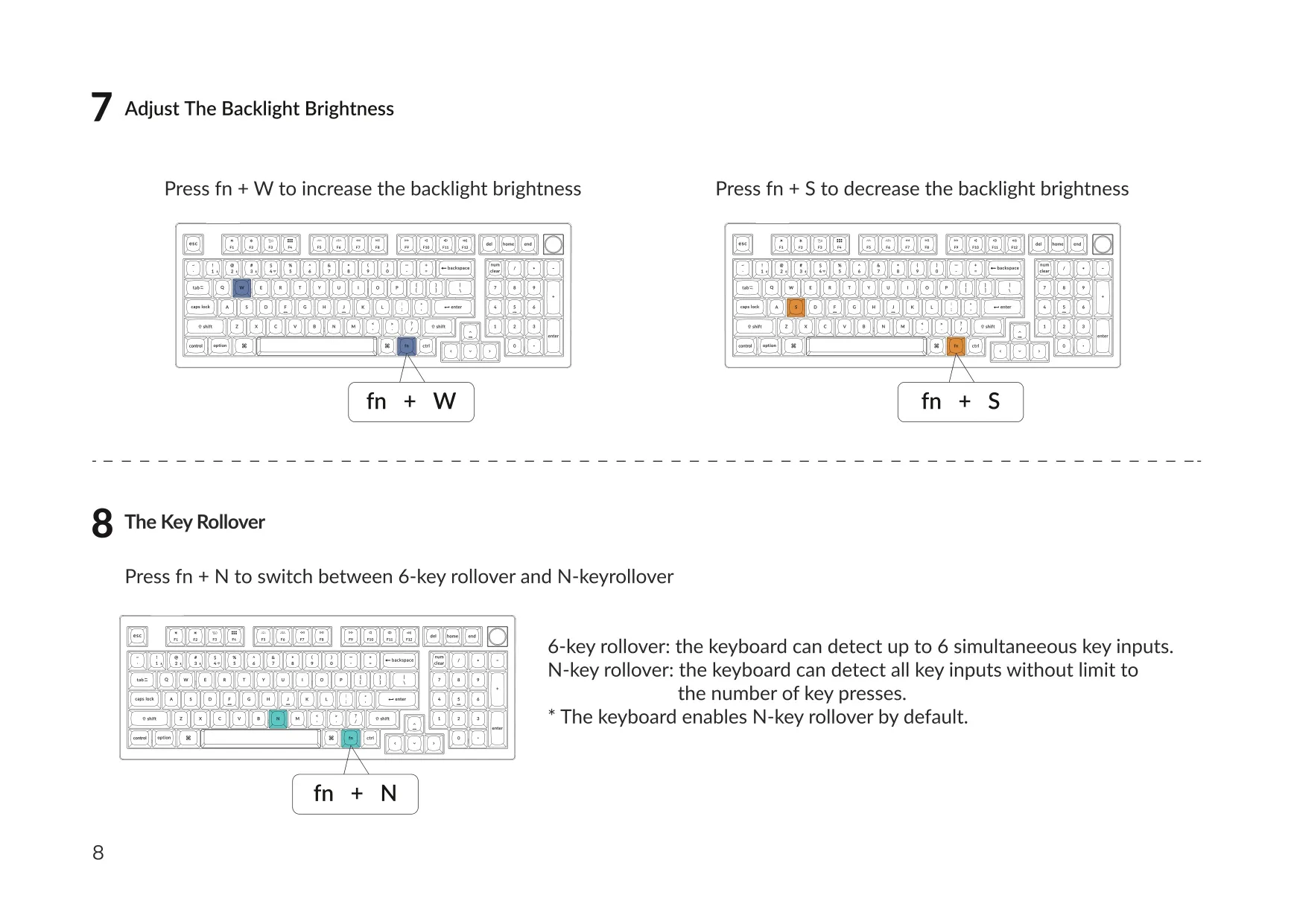
| Key Rollover | N-key rollover (default) / 6-key rollover, switchable via Fn + N |
| Key Layers | 4 (Layers 0–1 for Mac, Layers 2–3 for Windows) |
| Key Remapping Software | VIA (usevia.app), wired connection only |
| Firmware Flashing Tool | QMK Toolbox |
| Charging Voltage / Current | Up to 5V / 1A |
| Charging Time | Approximately 5 hours |
| Operating Temperature | -10°C (5°F) to 50°C (131°F) |
| Cables and Adapters Included | 1x Type-C to Type-C Cable, 1x Type-A to Type-C Adapter, 1x Extension Adapter for Receiver |
| Tools Included | 1x Keycap & Switch Puller, 1x Screwdriver, 1x Hex Key |
| Manufacturer | Keychron, Inc., Dover, DE 19901, United States |
| Country of Manufacture | China |
Keychron V5 Max Keyboard Details
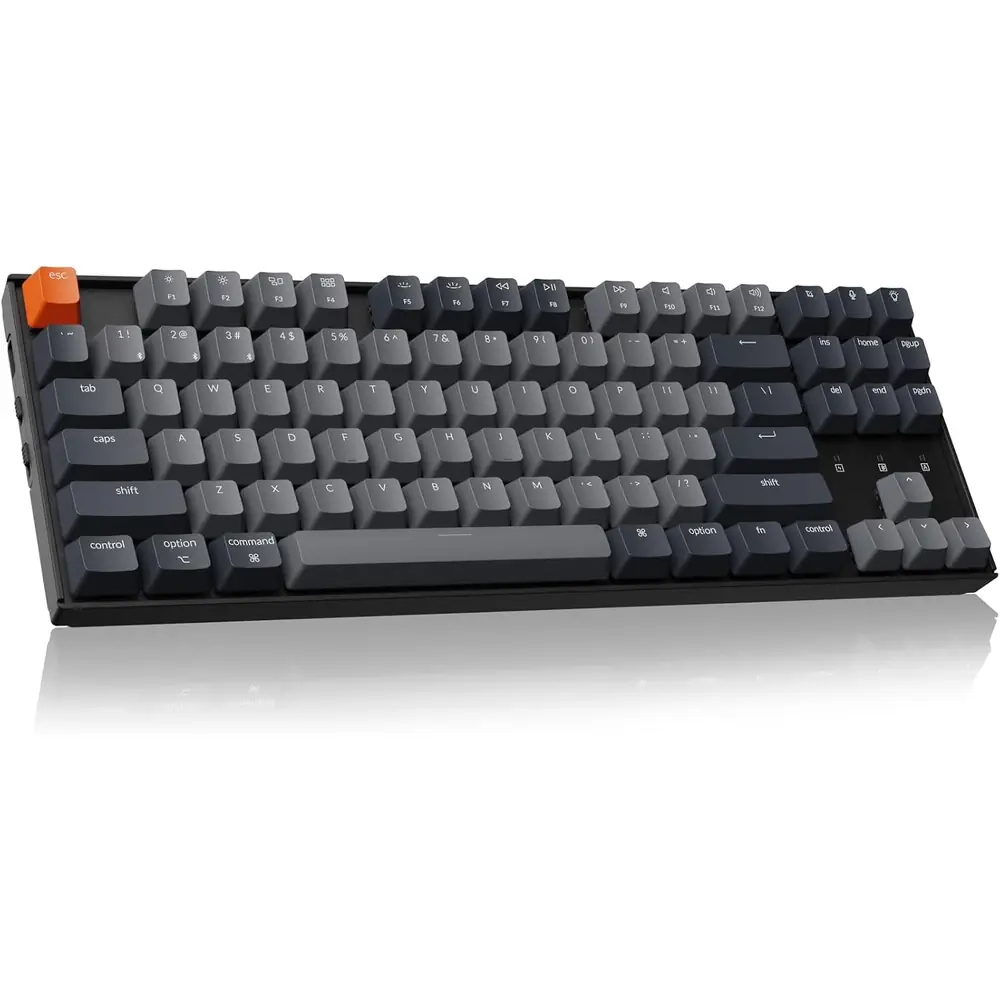
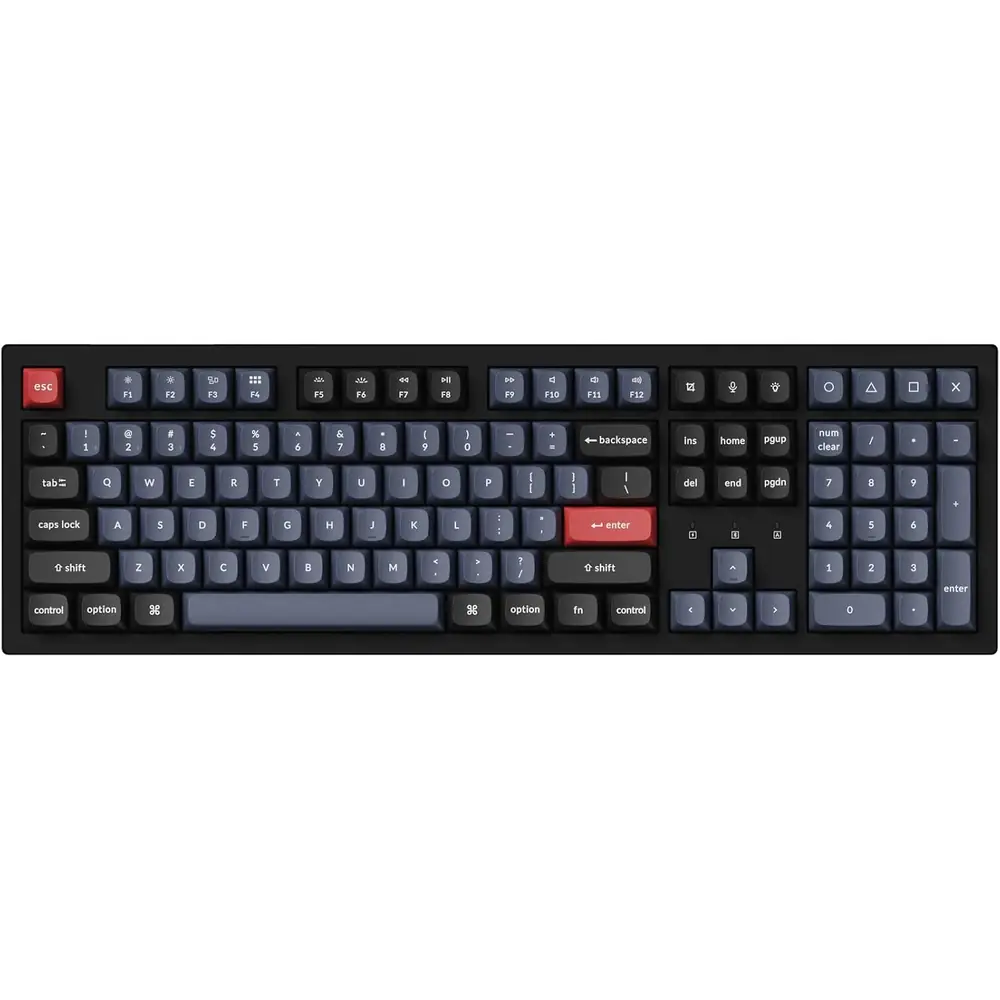
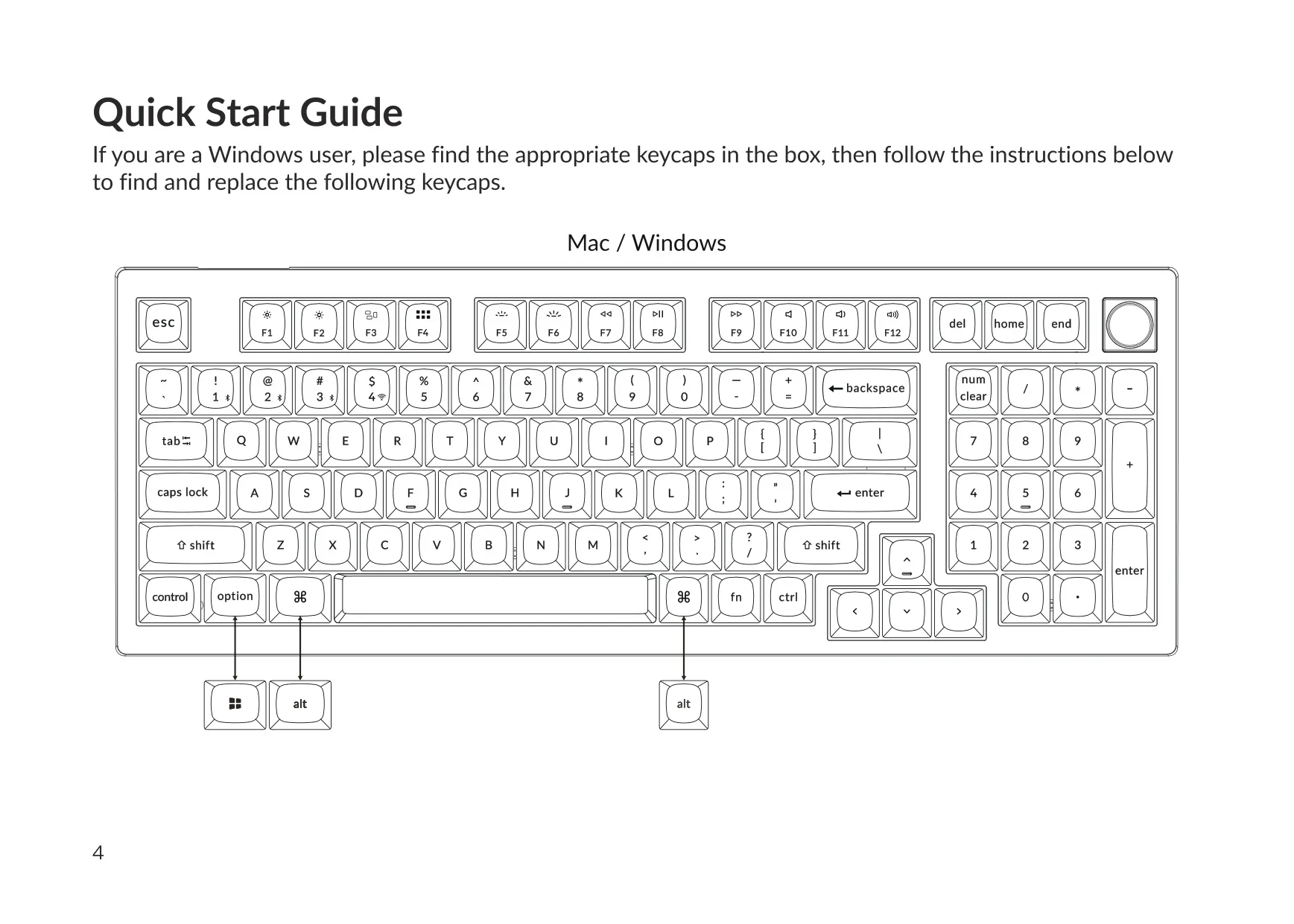
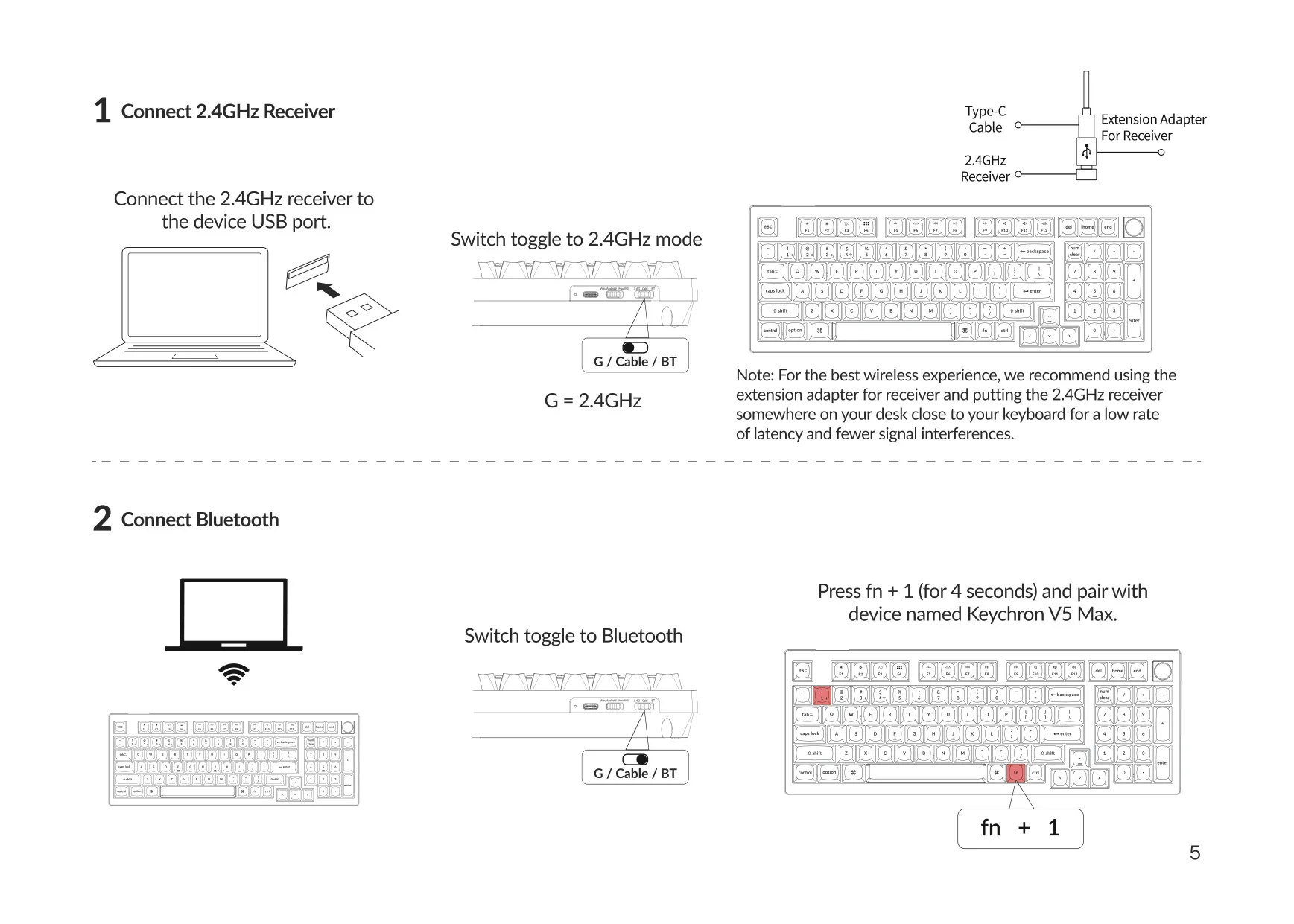
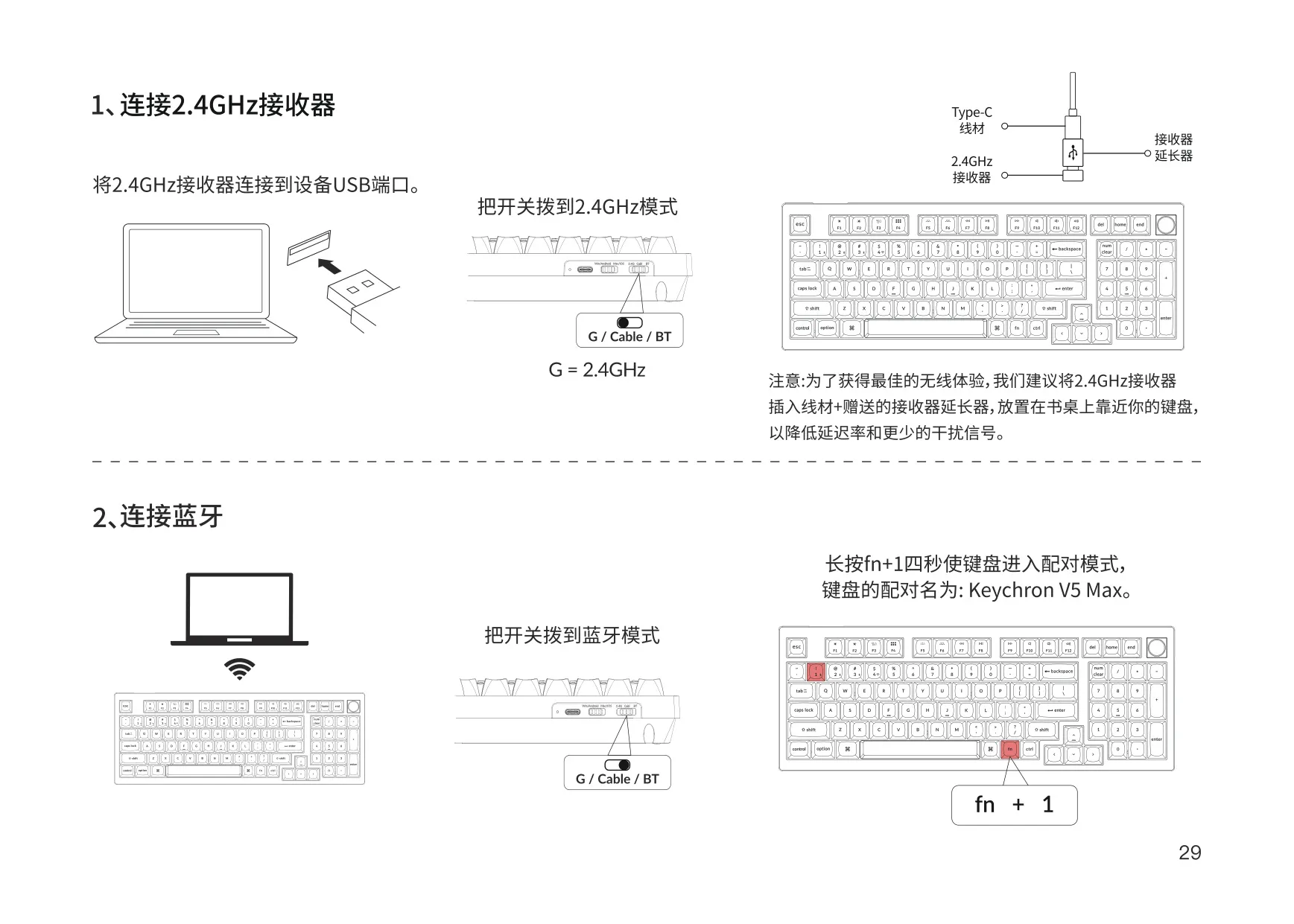
The Keychron V5 Max ships with Mac keycaps by default. The box also includes replacement keycaps for Windows users, and the quick start guide shows which ones to swap using the supplied keycap puller. For wireless use, the manual recommends plugging the 2.4GHz receiver into the extension adapter and placing it on the desk near the keyboard. This keeps latency low and reduces signal interference.
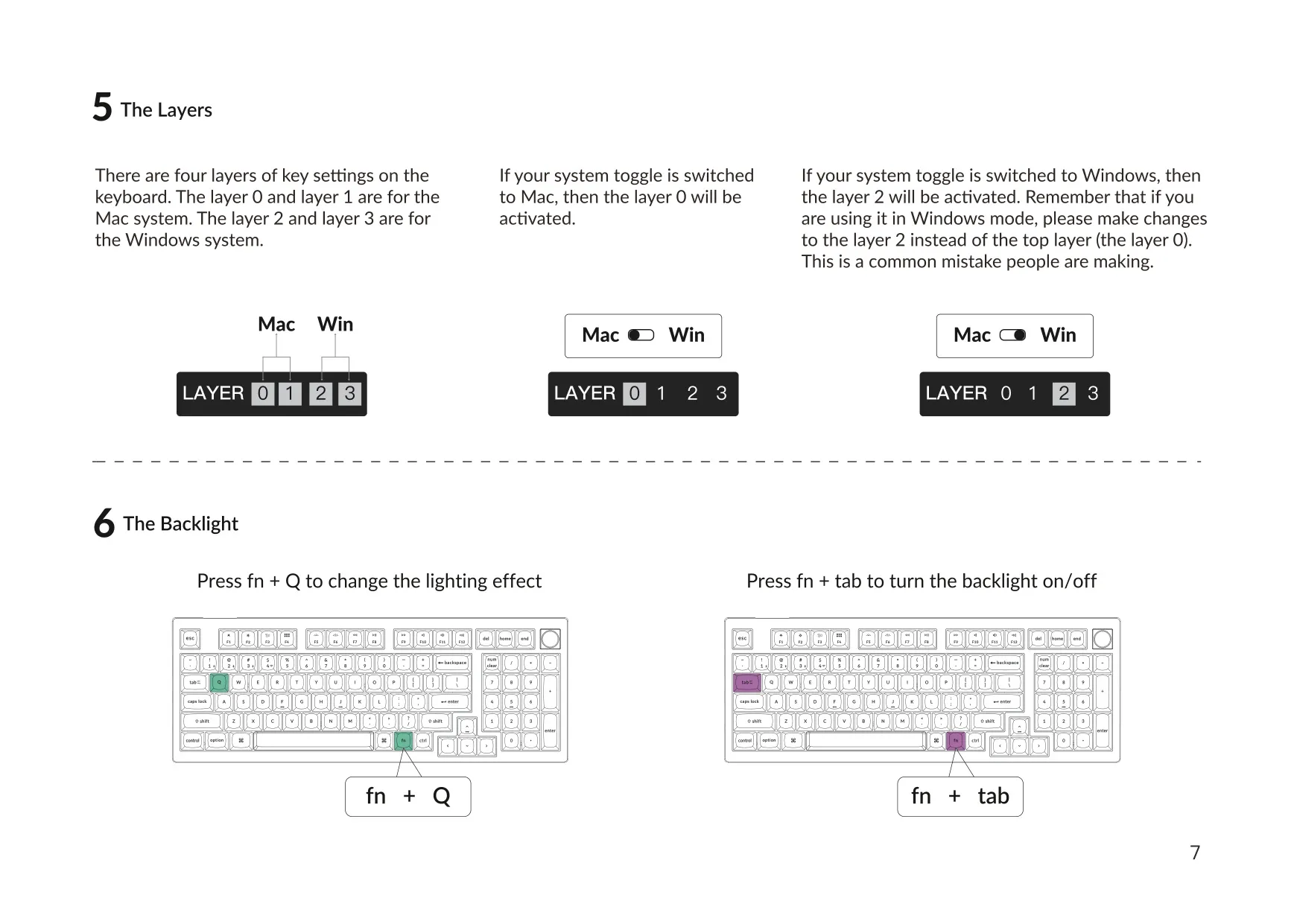
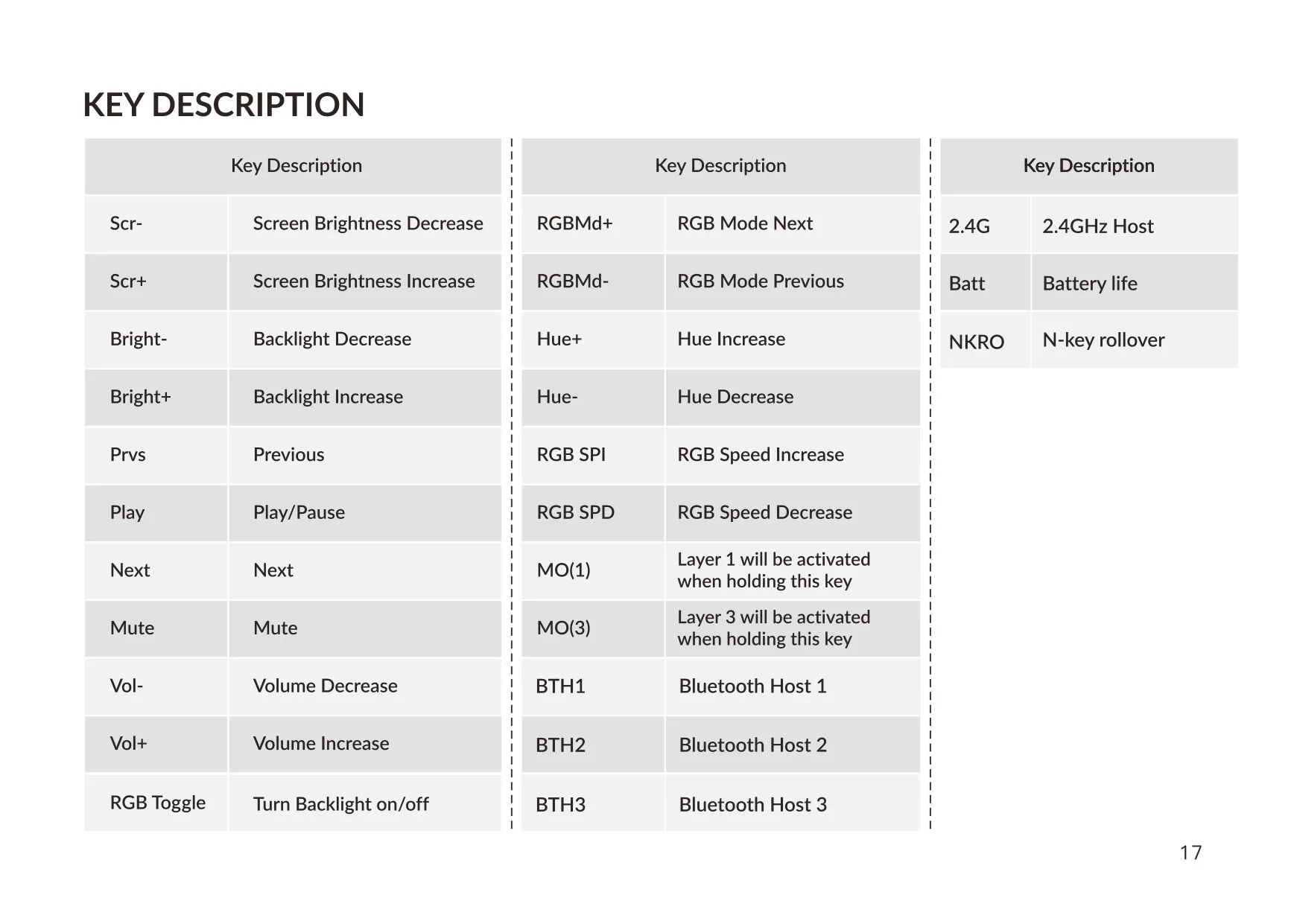
The keyboard's key settings are split into four layers. When the system toggle is set to Mac, layer 0 is active and layer 1 is reached by holding the fn/MO(1) key. When the toggle is set to Windows, layer 2 is active and layer 3 is reached with fn/MO(3). The manual warns about a common mistake: in Windows mode, you should remap layer 2, not the top layer (layer 0).
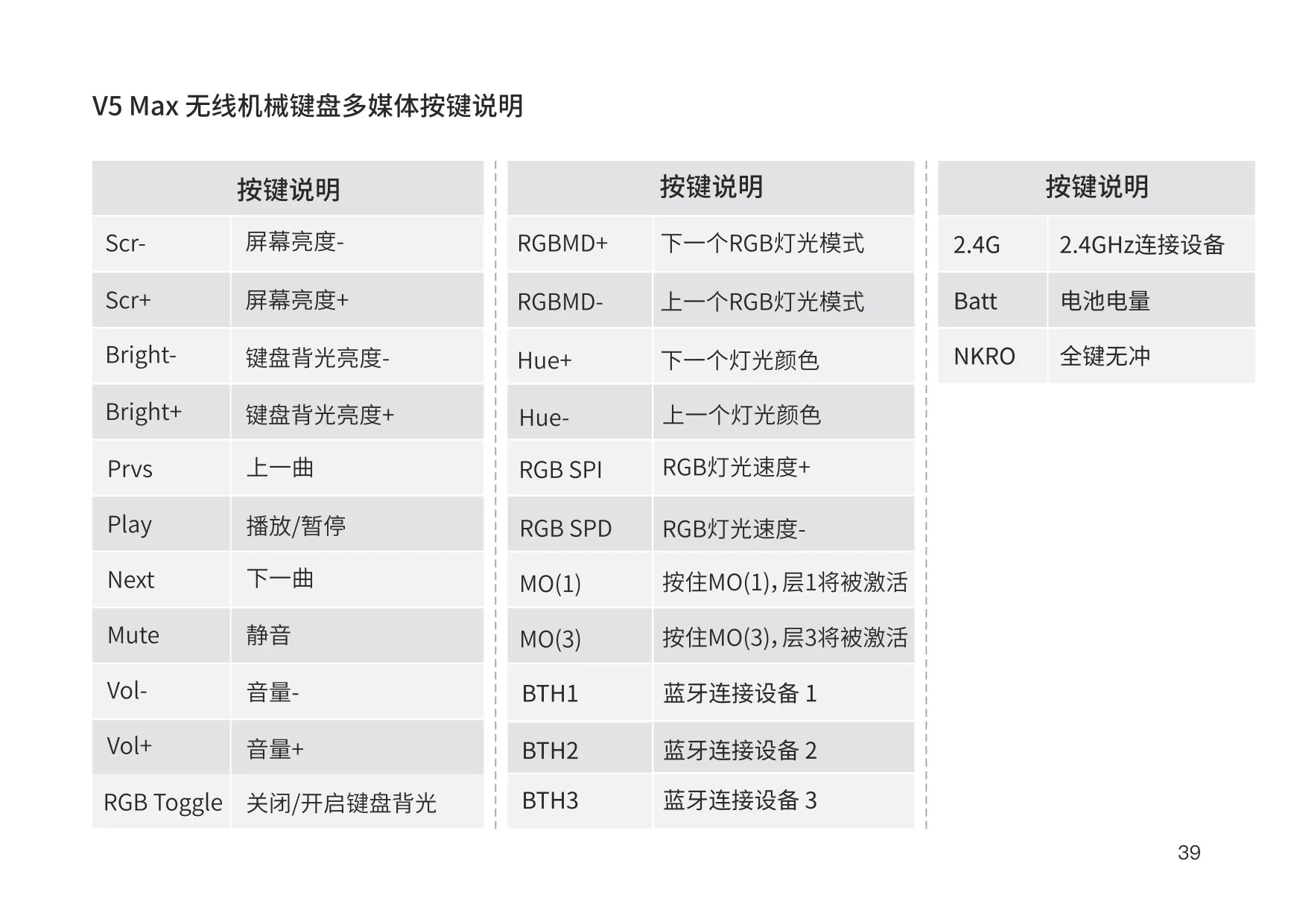
You can control the lighting directly from the keyboard. Fn + Tab turns the backlight on or off. Fn + Q or Fn + A cycles through the lighting effects. Fn + W makes the backlight brighter and Fn + S makes it dimmer. The default layout also includes dedicated keys for RGB mode, hue and effect speed, plus media keys for play/pause, track skipping, mute, volume and screen brightness.
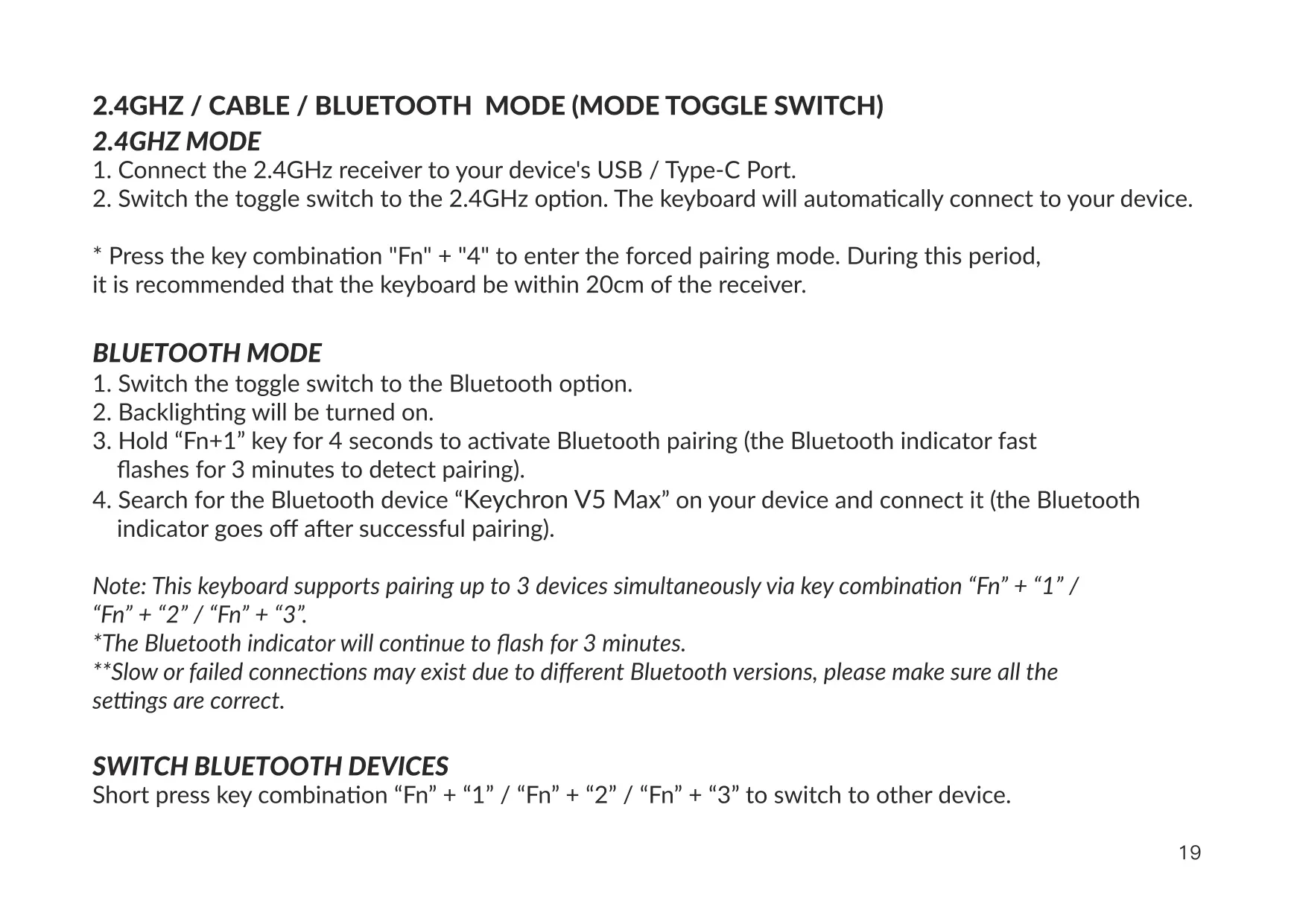
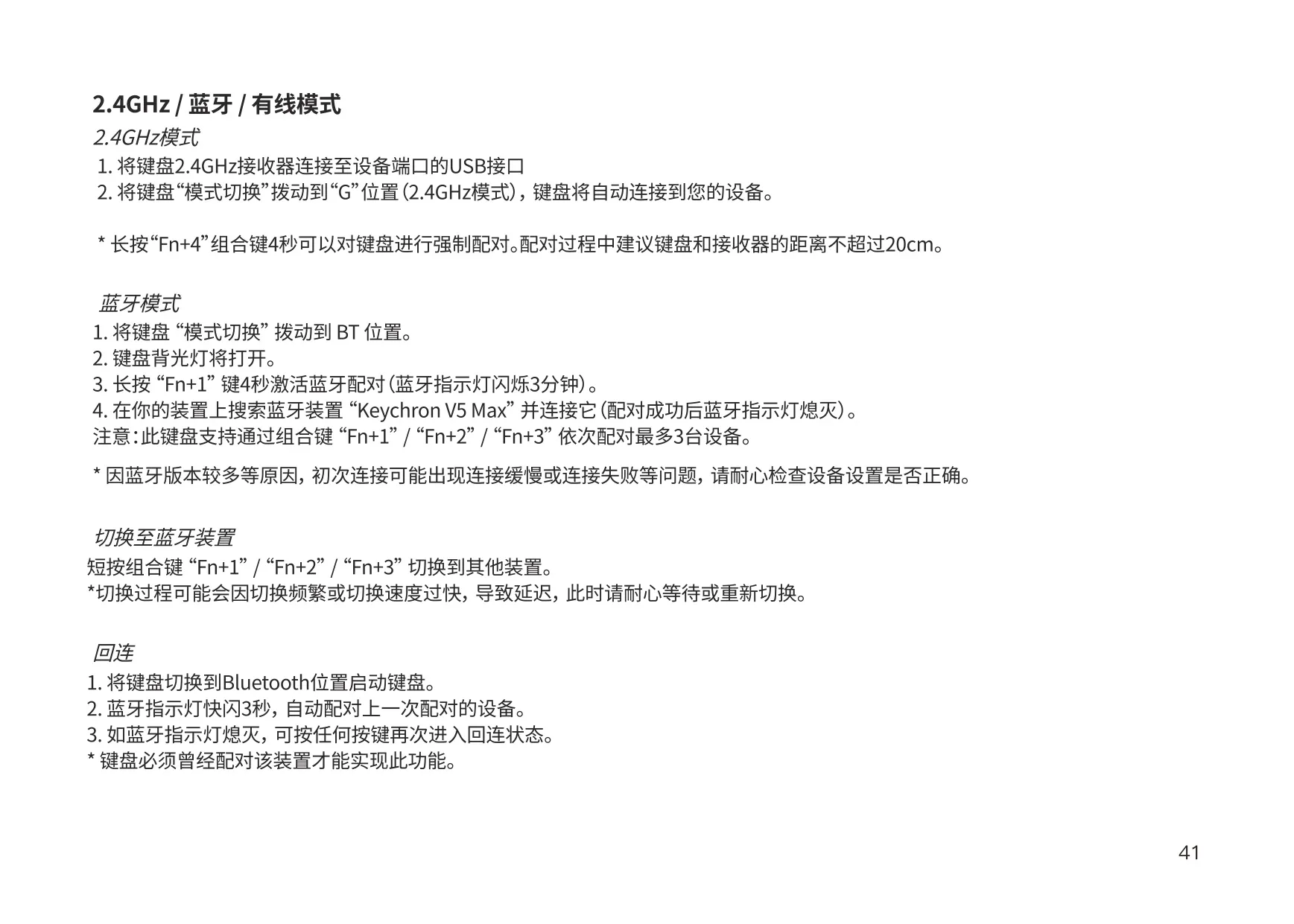
To pair over Bluetooth, set the toggle to Bluetooth and hold Fn + 1 for 4 seconds. The indicator then blinks for up to 3 minutes while it looks for a device. Once it pairs with "Keychron V5 Max", the indicator turns off. To switch between hosts, briefly press Fn + 1, 2 or 3. When you reconnect, the indicator flashes for 3 seconds and the keyboard pairs automatically with the last device it used.
In 2.4GHz mode, the keyboard connects automatically once the receiver is plugged in. Fn + 4 starts forced pairing. In wired mode, the keyboard never enters Battery Saver Mode. To turn the keyboard off, set the toggle to Cable and unplug the power cable. The LED indicators work as follows: static red means charging, static green means fully charged, fast blinking means reconnecting, slow blinking means pairing, and a static white light means Caps Lock is on.
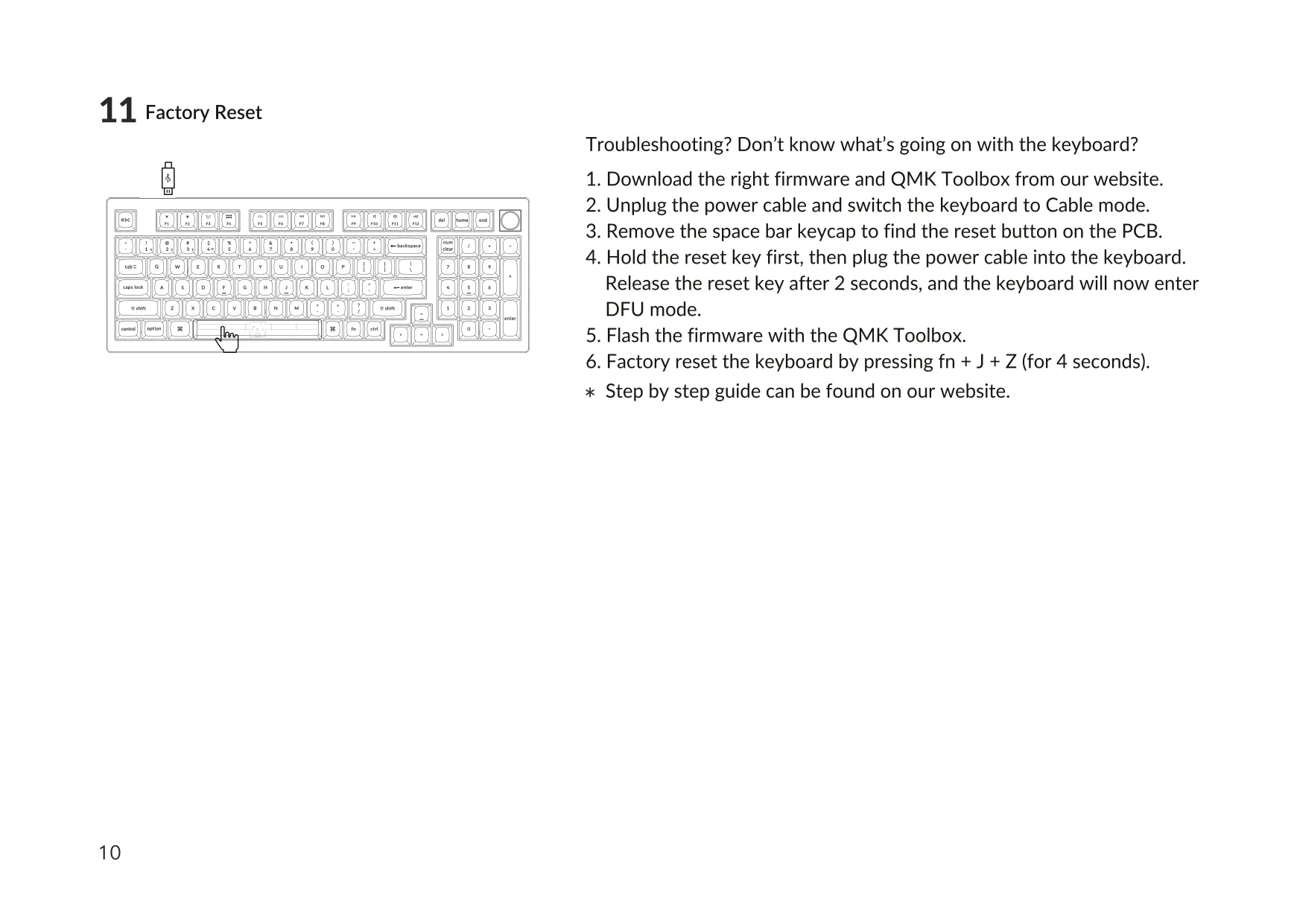
VIA remapping only works in the latest versions of Chrome, Edge and Opera. If VIA doesn't recognize the keyboard, Keychron support can send instructions. For a full reset, first download the firmware and QMK Toolbox. Next, switch to Cable mode and remove the space bar keycap to reach the PCB reset button. Hold that button while plugging in the cable, then release it after 2 seconds to enter DFU mode. Flash the firmware, then hold Fn + J + Z for 4 seconds.
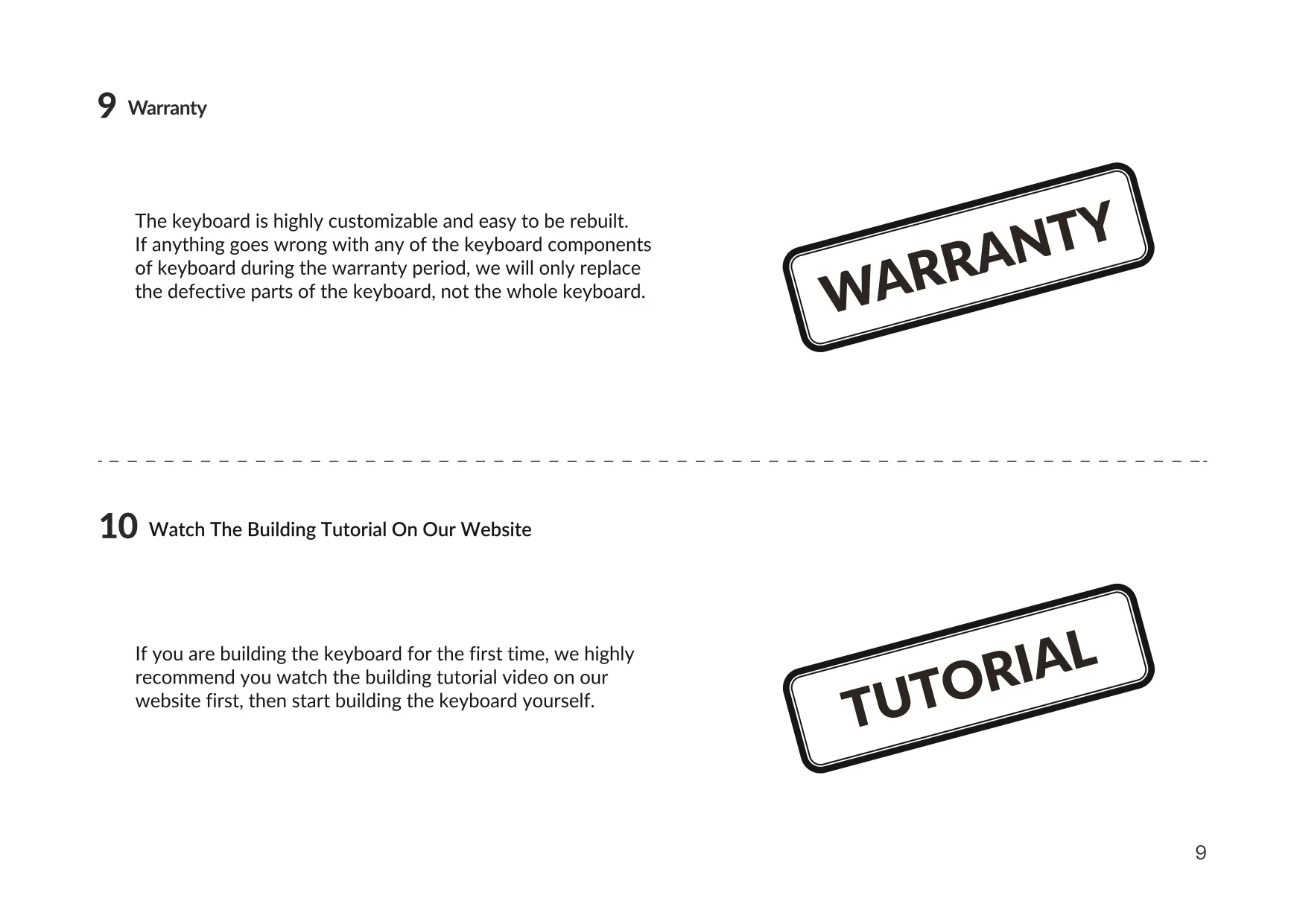
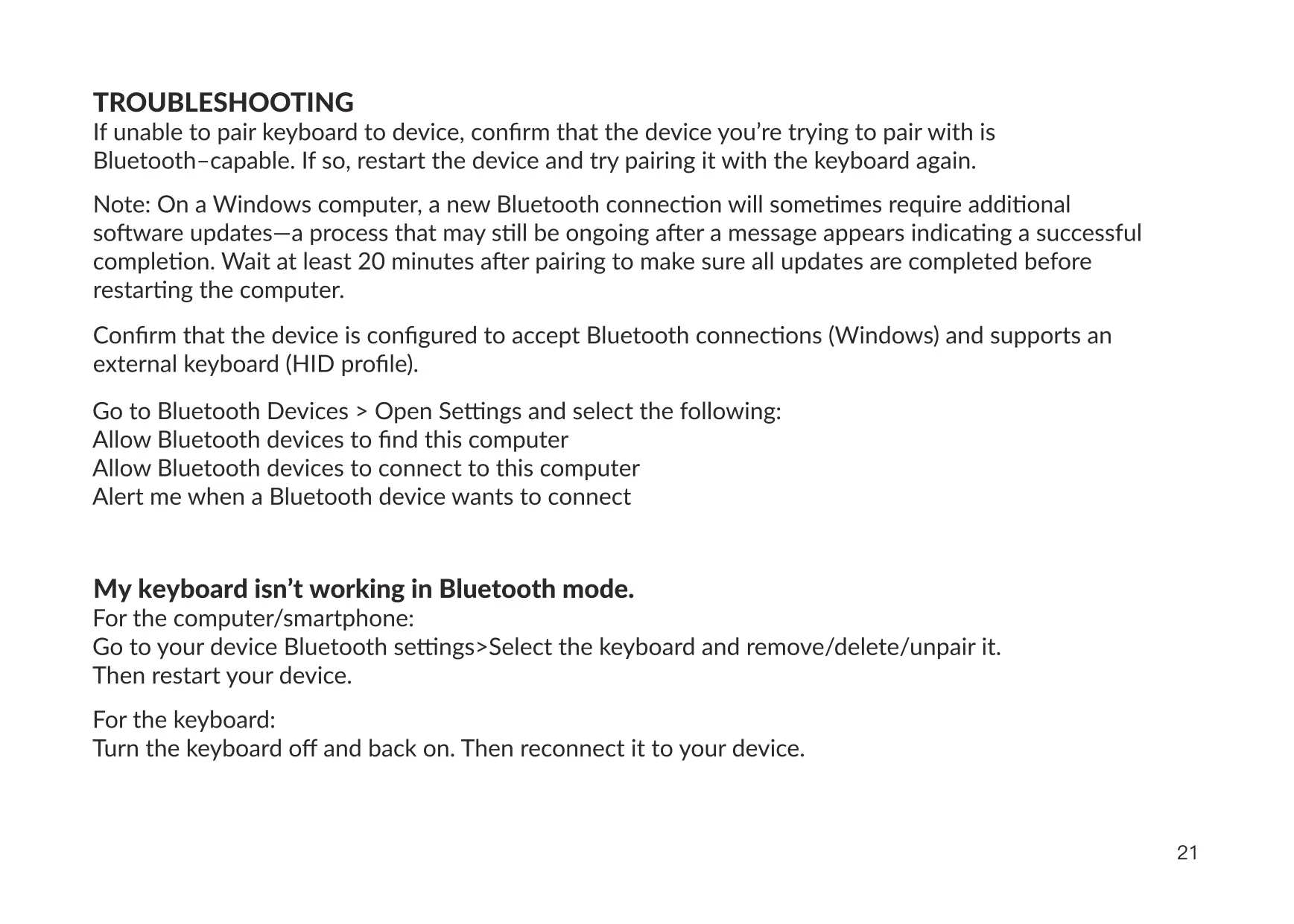
For troubleshooting, the manual recommends removing the keyboard from the host's Bluetooth list, restarting both devices, and making sure the host supports the HID profile. After pairing with a Windows PC, wait at least 20 minutes for updates to finish. Metal surfaces can interrupt the wireless connection. The warranty covers only the defective parts, not a full replacement. Keep the keyboard dry, and keep small parts away from children.
Frequently Asked Questions (FAQs)
Can't find the answer you need? Here are some frequently asked questions about the Keychron V5 Max Keyboard, and we answer them below.