Moultrie D50 (GV) Digital Game Camera Instruction Manual
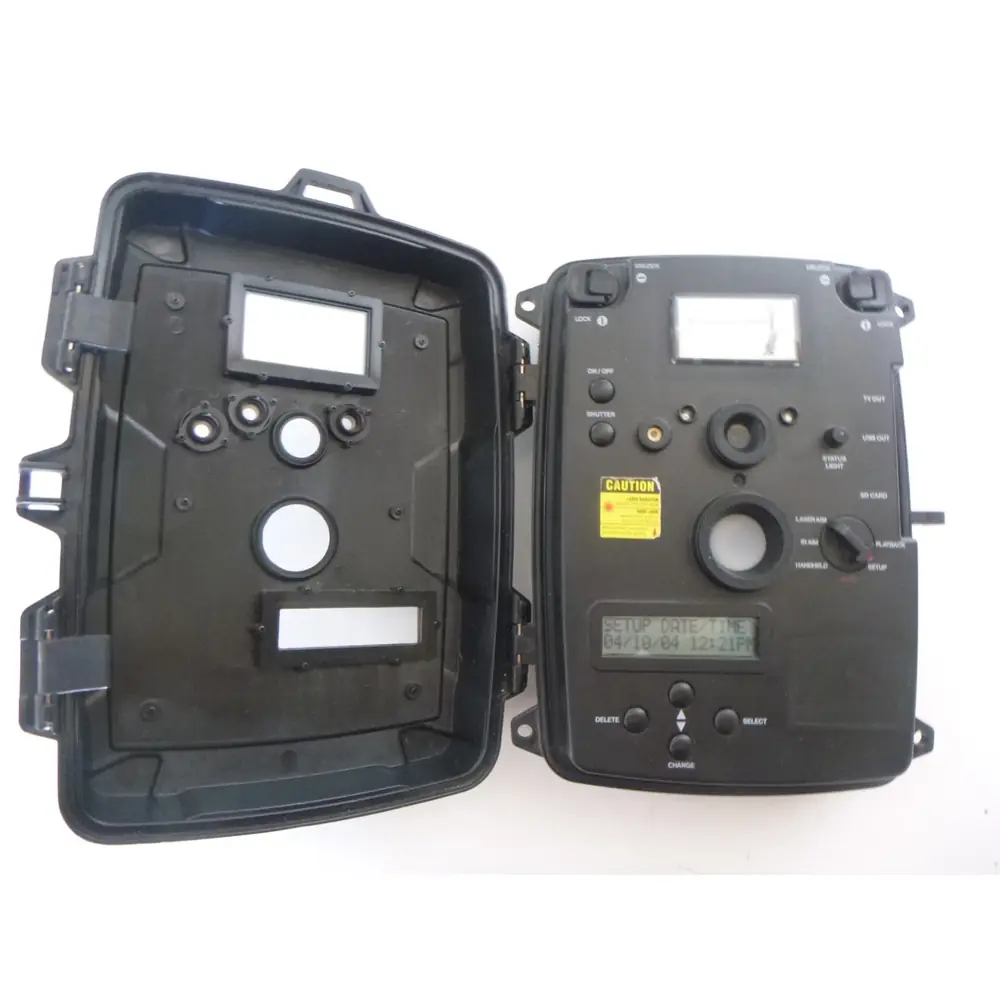
Moultrie D50 (GV) Digital Game Camera







Moultrie D50 (GV) Digital Game Camera


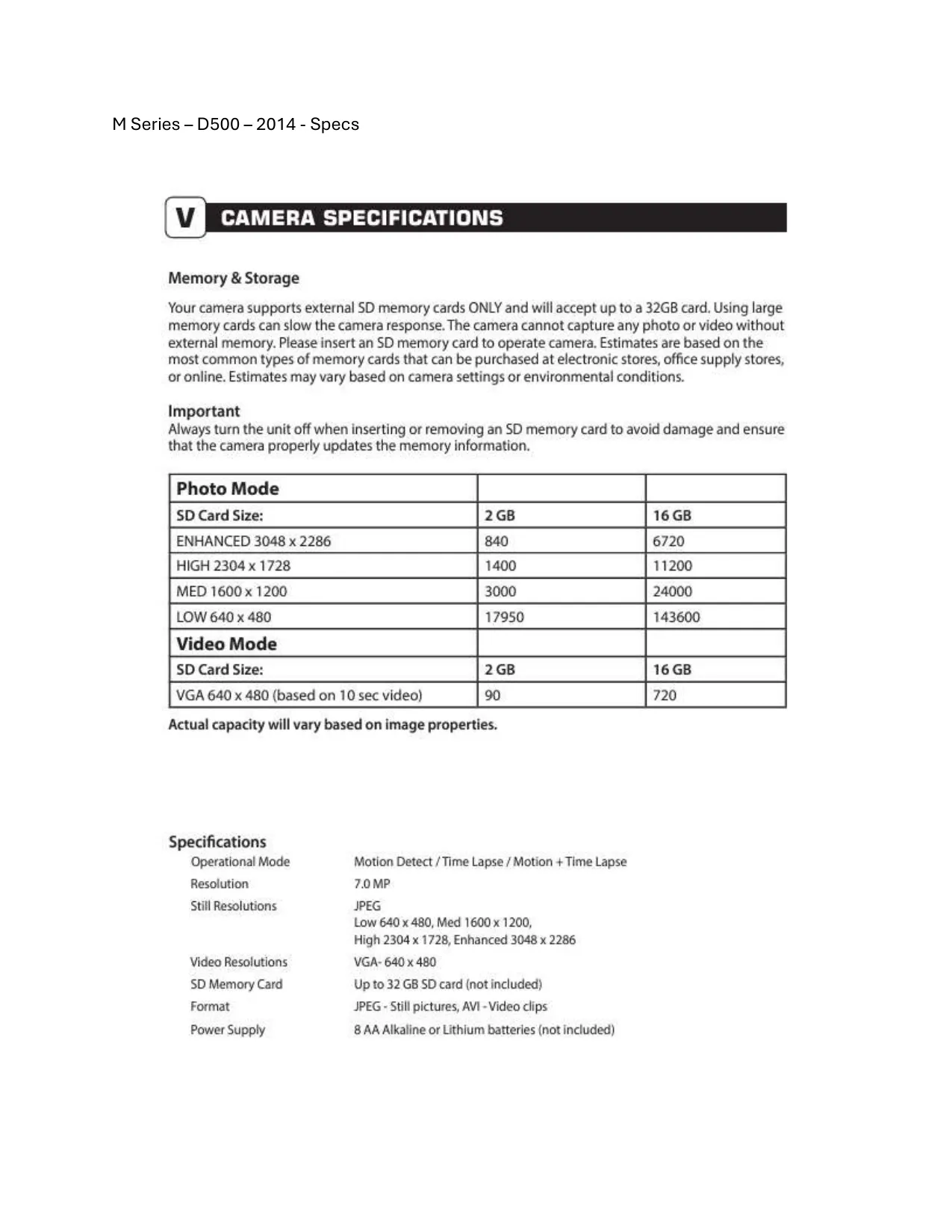
Moultrie D50 (GV) Instructions
Here we offer the Moultrie D50 (GV) Digital Game Camera manual completely free and in English. We have cataloged this manual in the Digital Game Cameras section on Manualverse, and it has been rated by 1 users with an average rating of 5. If you have any specific questions about Moultrie D50 (GV) Digital Game Camera, we suggest checking the Frequently Asked Questions (FAQs) section of this manual.
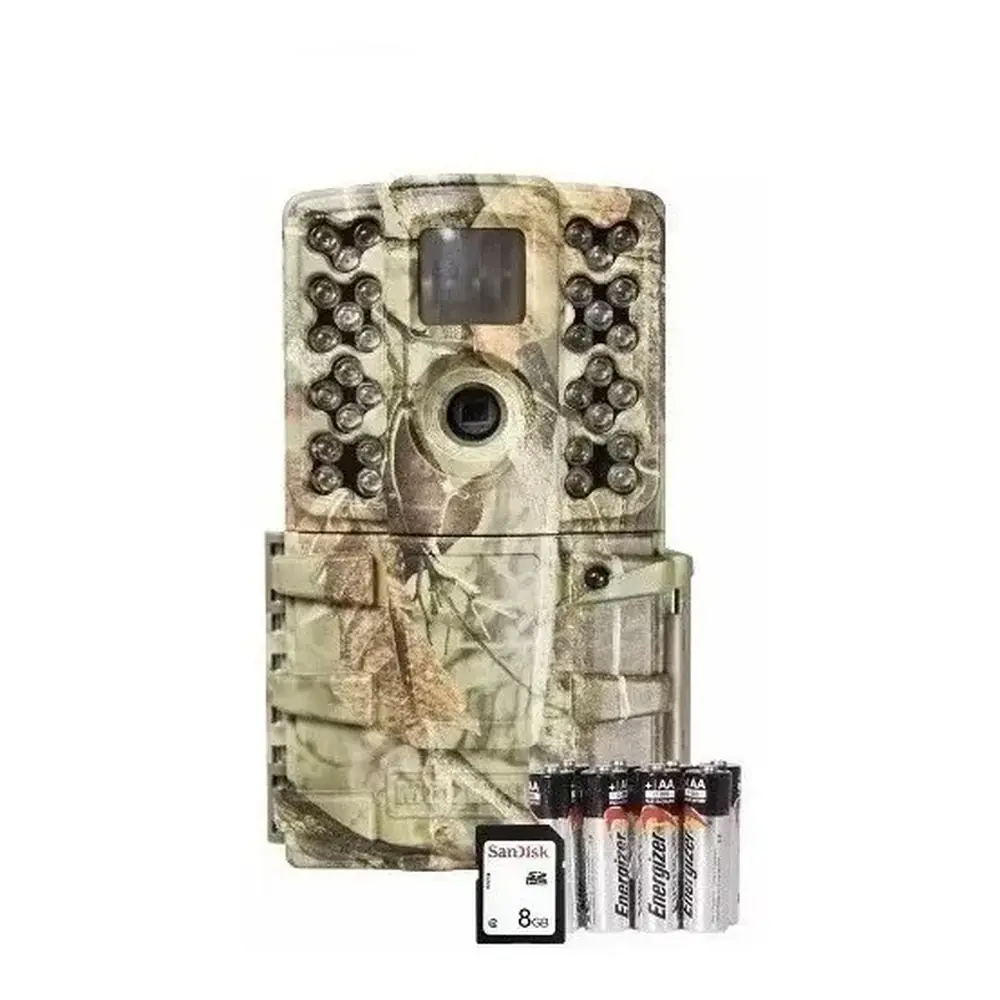
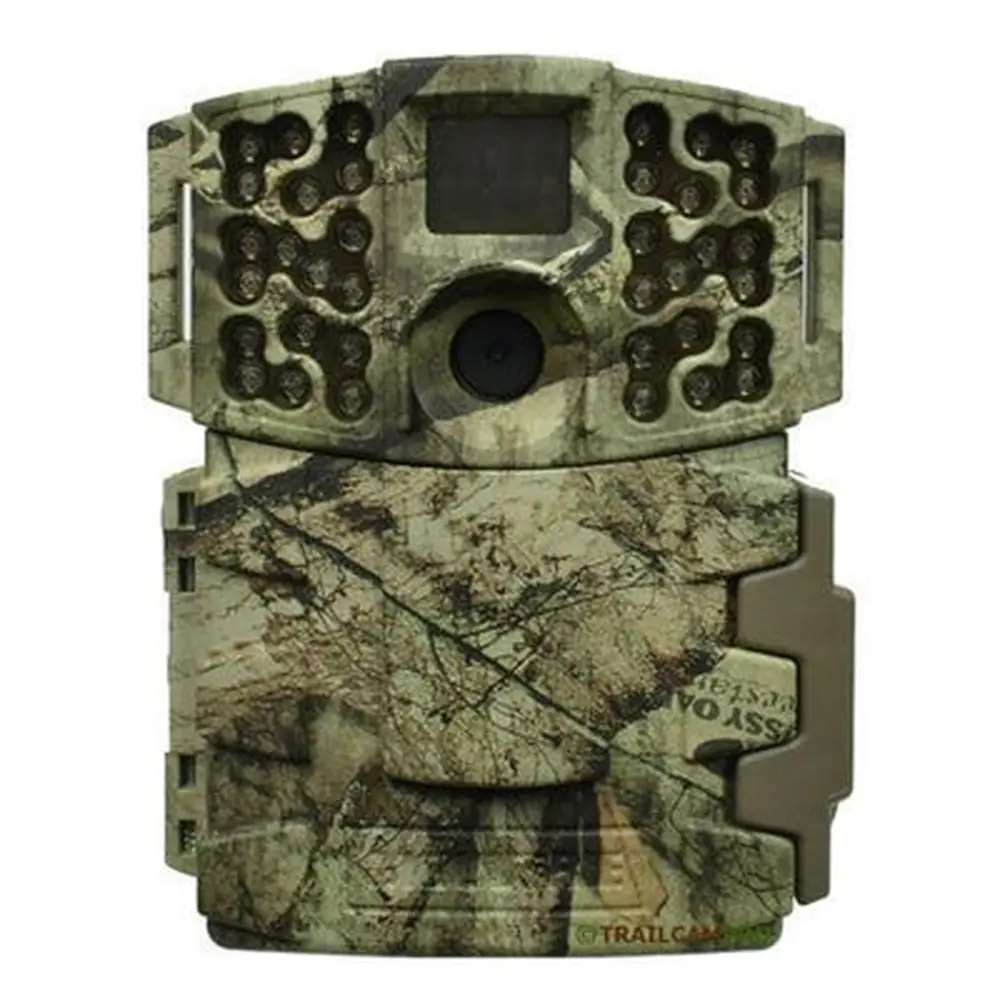
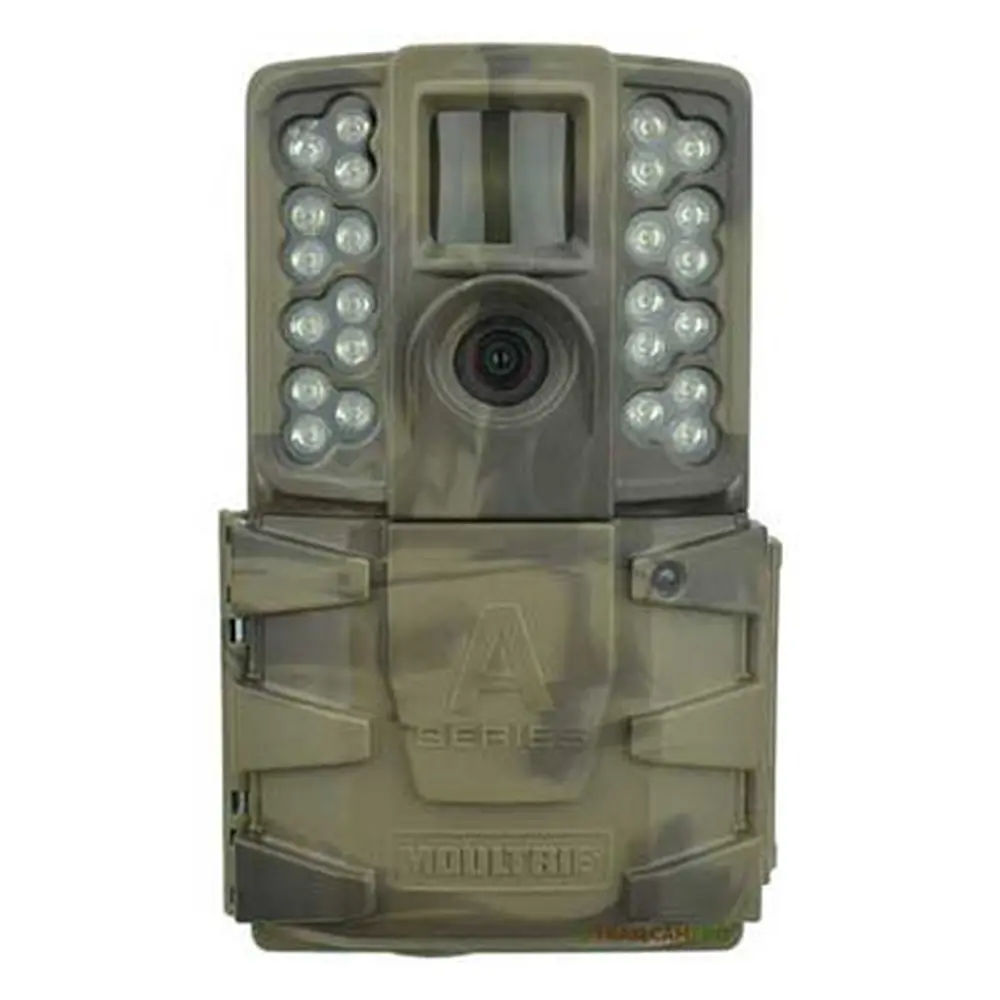
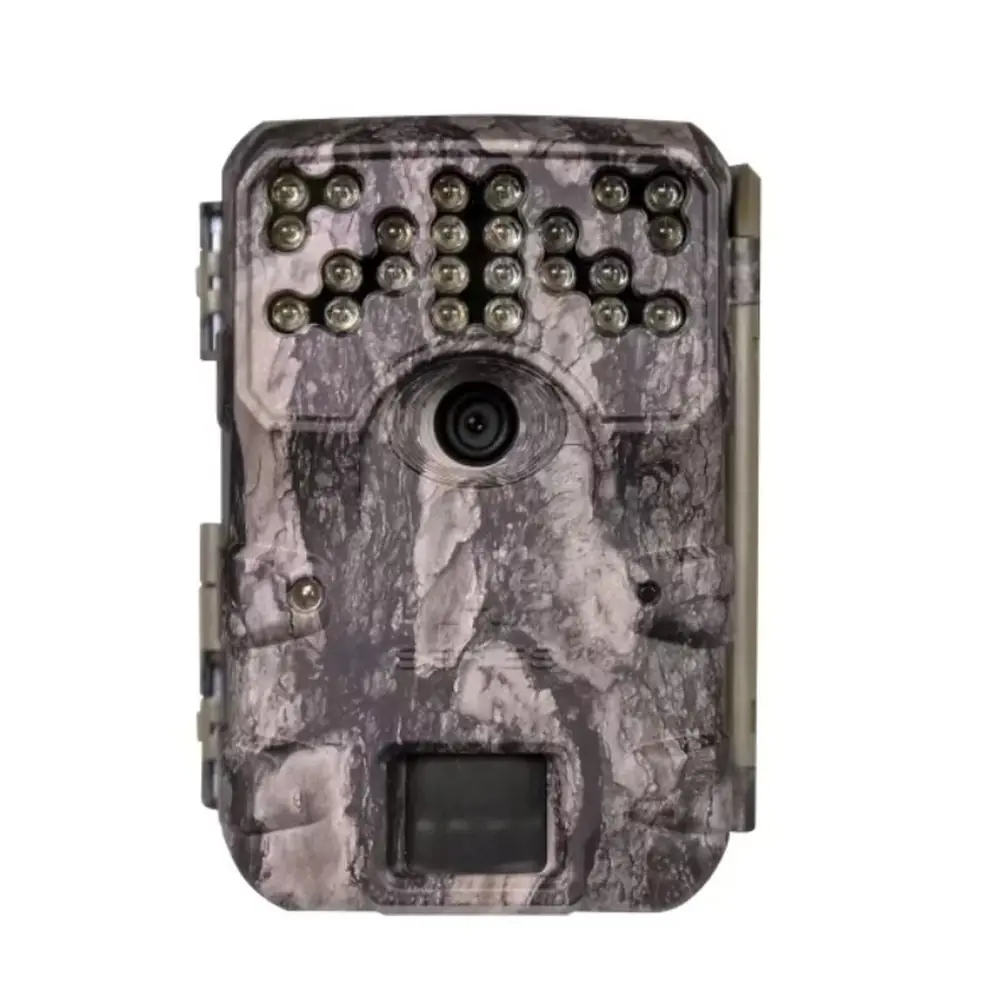
Product Images


Moultrie D50 (GV) Digital Game Camera Specifications
| Feature | Specification |
|---|---|
| Model Identifier | MFH-DGS-D50 (D50 GV) |
| Battery Type | 6 x D Cell batteries (standard or rechargeable, not included) |
| Average Battery Life | Approx. 60 days (above freezing, average use) |
| External Power Port | 12-Volt (compatible with Moultrie Powerpanel) |
| Still Picture Resolutions | LOW (640 x 480), MEDIUM (1600 x 1200), HIGH (2560 x 1920) |
| Video Resolutions | LOW (AVI 320 x 240), HIGH (AVI 640 x 480) |
| Video Clip Length | 10 seconds |
| Internal Memory | 16 MB (stores pictures or video) |
| Max. External SD Memory | Up to 16 GB (optional) |
| Max. Stored Pictures (16GB SD) | Up to 7600 (Low Res.) |
| IR Sensor Type | Passive Infrared (PIR) |
| IR Sensor Range | 45 ft. / 22° width |
| Electronic Flash | Automatic or Off (Security Mode) |
| Flash Range | 5 ft - 46 ft. |
| Event Delay Settings | 1 MIN, 5 MIN, 10 MIN, 60 MIN |
| Multi-Shot Settings | 1 SHOT, 2 SHOT, 3 SHOT per event |
| Image Output | TV OUT, USB OUT, Optional SD card |
| USB Compatibility | PC with Windows ME/2000/XP/VISTA/7 |
| Mounting | Elastic mounting cords |
Moultrie D50 (GV) Game Camera Details
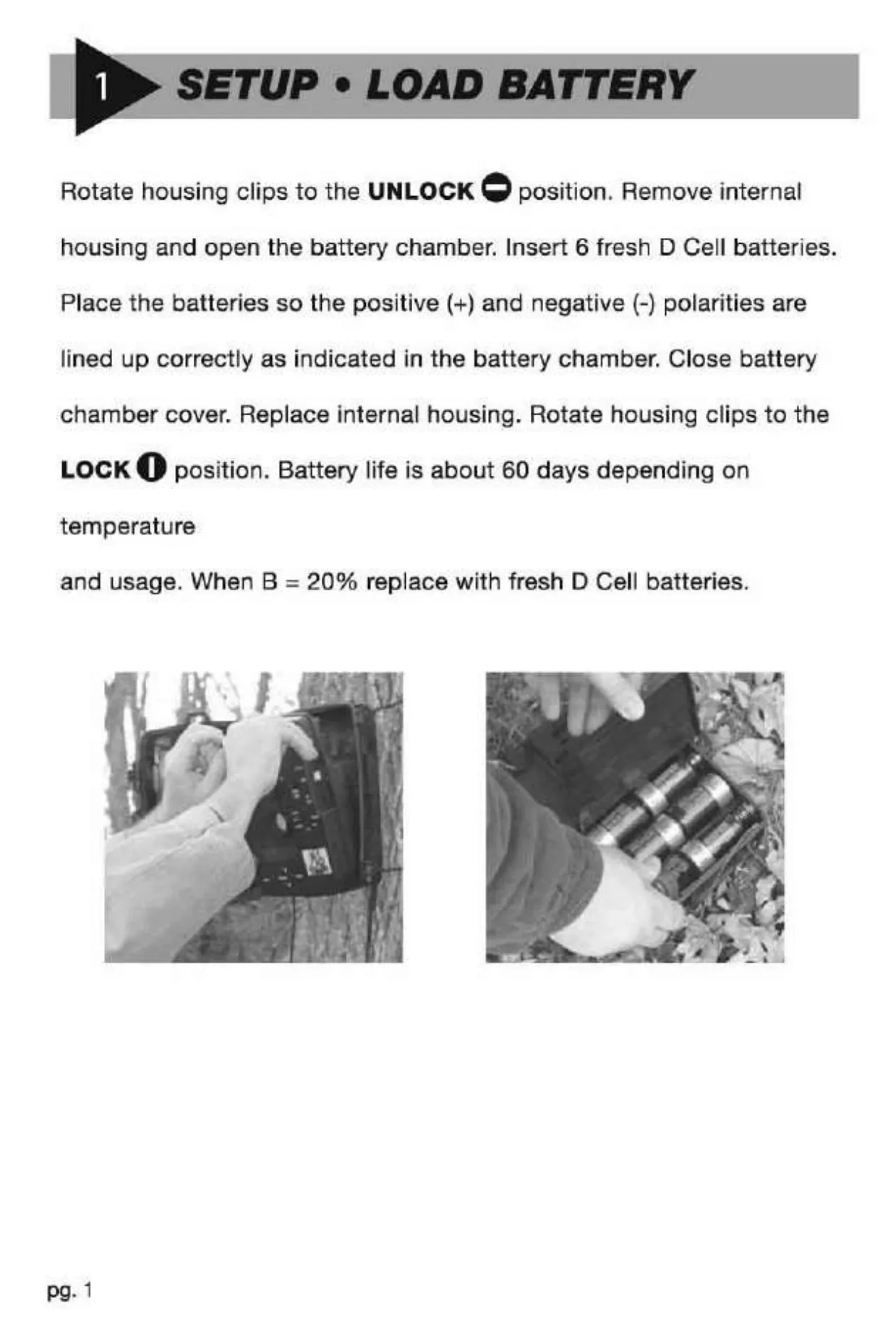
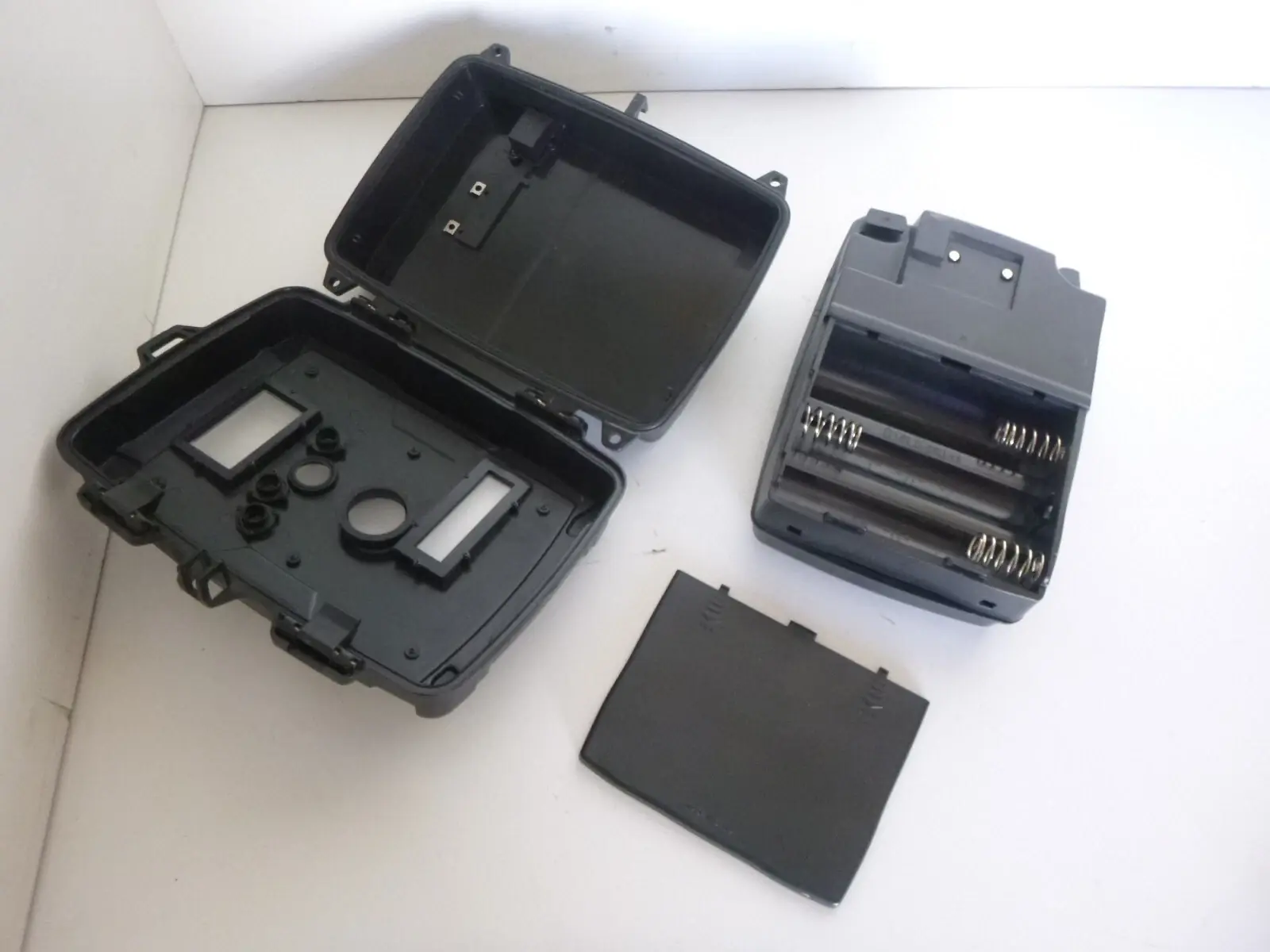
The Moultrie D50 (GV) Digital Game Camera is designed for versatile field monitoring, featuring a robust, weather-resistant case. Initial setup involves rotating housing clips to unlock, inserting six D Cell batteries (ensuring correct polarity), and then re-locking the housing. The manual emphasizes contacting customer service for issues rather than returning the unit to a retailer.
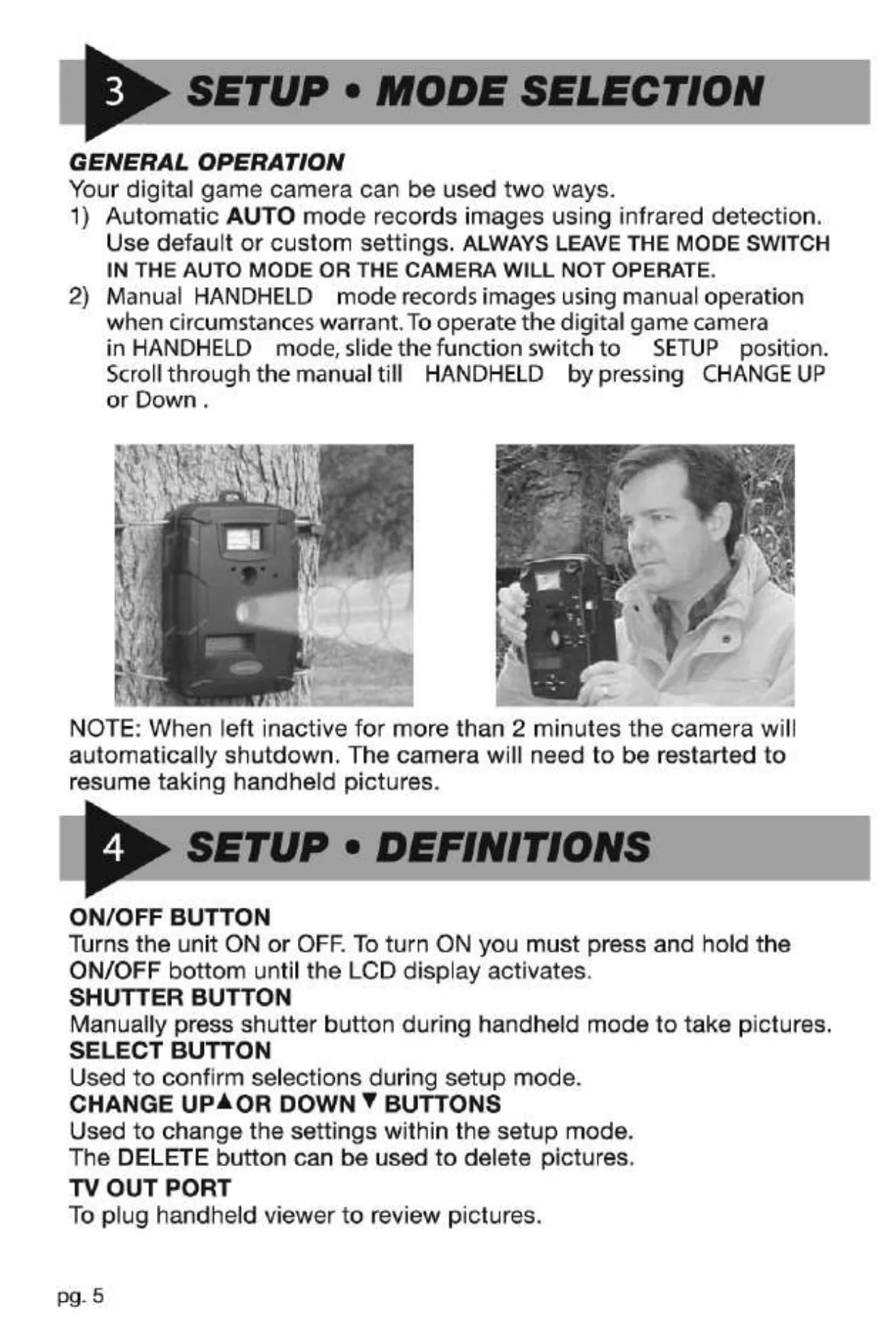
To power on, slide the function switch to the SETUP position and press and hold the ON/OFF button. The camera conserves battery life by automatically shutting off if there is no activity for two minutes. This ensures the 60-day average battery life with D-Cell batteries is maximized, especially in above-freezing temperatures.
The camera's setup menu offers comprehensive customization. Users can precisely set the date and time, manage storage by choosing to reset event counters, or erase all images. Furthermore, it allows for selection between default or custom settings, offering flexibility to suit specific monitoring needs.
Capture settings include selecting between still pictures or 10-second video clips. Users can also define the image quality (LOW, MEDIUM, HIGH) and video quality (LOW, HIGH). The Flash setting can be set to AUTO, where it fires in low light, or OFF for security mode, capturing dark night pictures without alerting subjects.
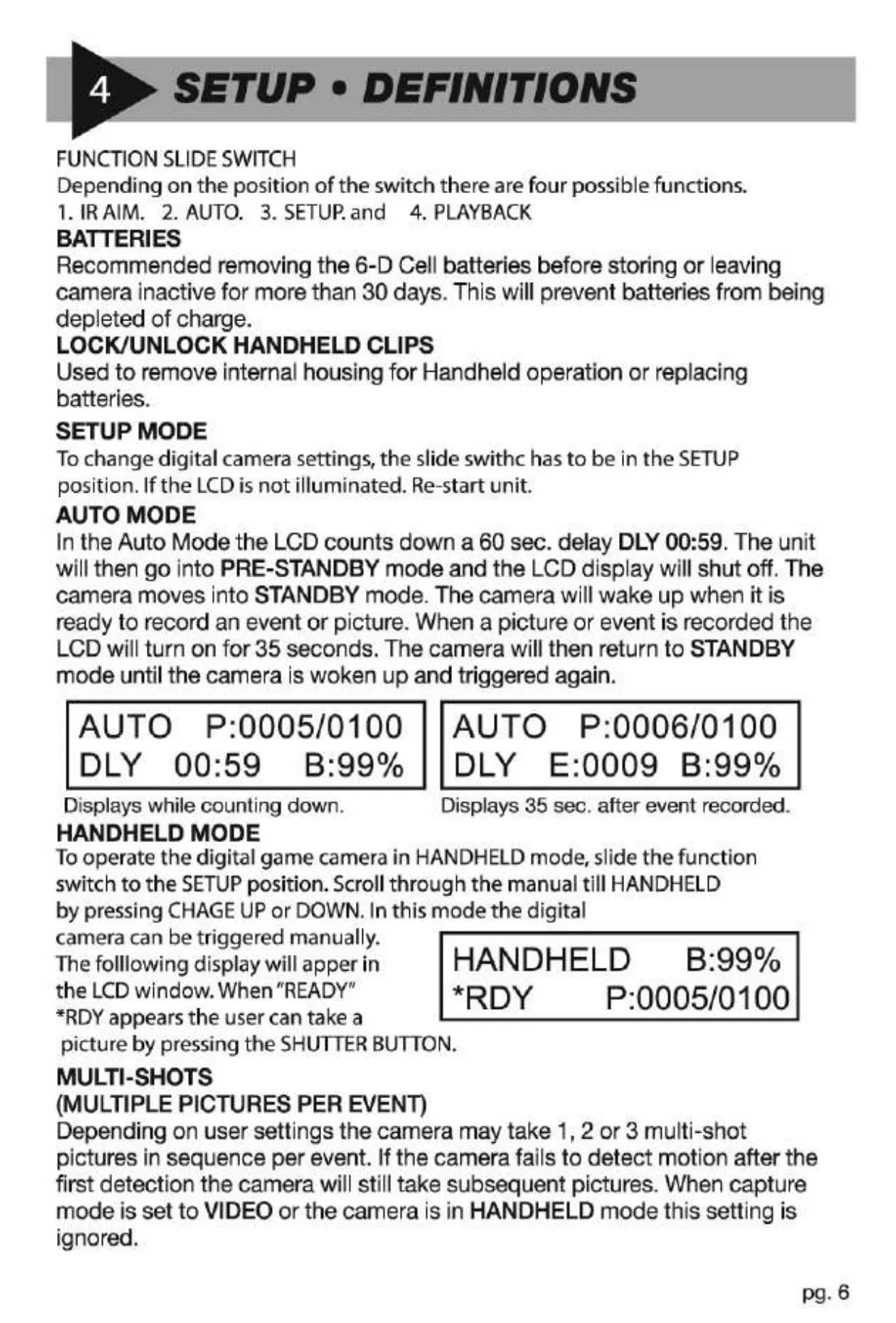
For efficient monitoring, the camera provides an Event Delay option, allowing users to choose intervals of 1, 5, 10, or 60 minutes between detections. The Multi-Shots feature enables capturing 1, 2, or 3 pictures per event, though this is ignored when in Video or Handheld mode. A unique Camera ID can also be set for easy identification.
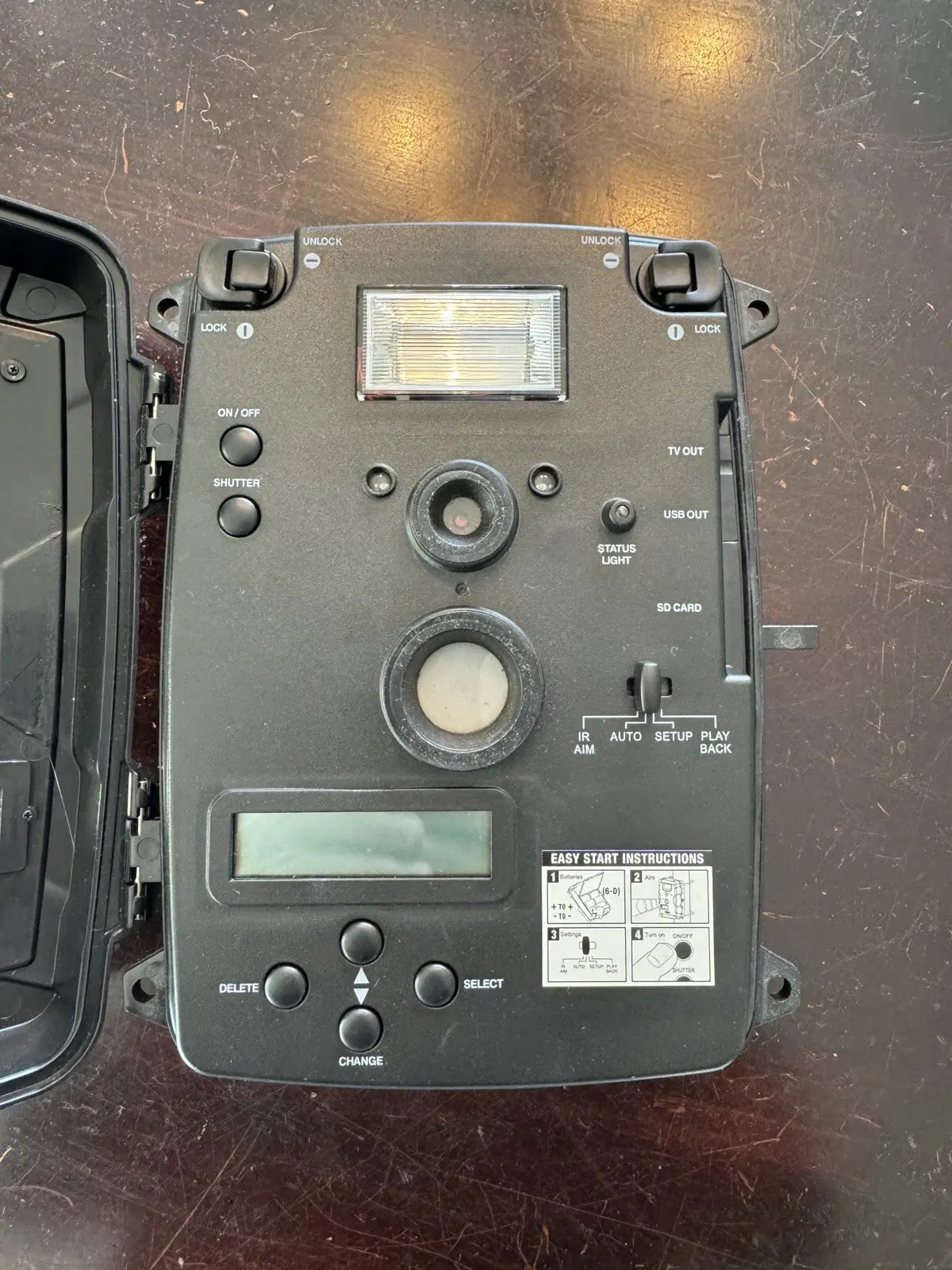
Beyond automatic operation, the camera supports a Handheld mode for manual picture taking, activated by sliding the function switch to SETUP and navigating to the HANDHELD option. The camera also includes an IR AIM mode, where a red status light indicates motion detection, assisting in precise camera placement to find the desired target area.
The D50 (GV) offers flexible memory options, using either its 16 MB internal memory or an optional SD card up to 16 GB. When an SD card is inserted, it overrides the internal memory. It is crucial to always turn the unit off before inserting or removing any memory card to prevent data corruption or damage.
Viewing recorded content is straightforward via TV OUT or USB. Connecting to a television allows scrolling through images using the CHANGE buttons. For PC viewing, the camera connects as a removable drive, compatible with various Windows operating systems, allowing direct printing or editing of images and videos.
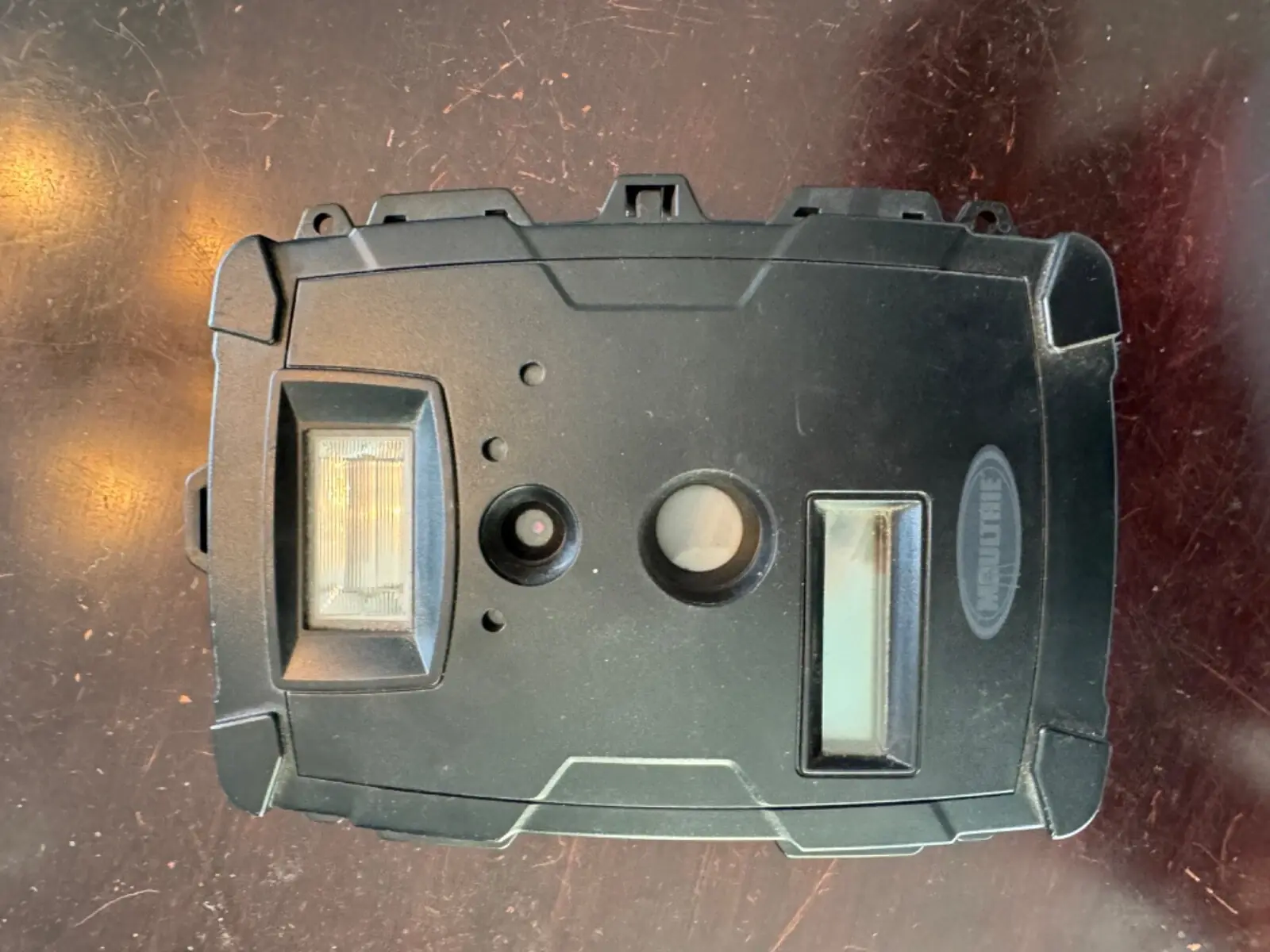
The camera's infrared detection system is sensitive to moving heat sources. Its sensitivity can be verified using the IR AIM mode by walking across the field of view. The robust design includes a viewfinder, flash sensor, light sensor, status LED, lockable latches, and an airtight weather-resistant seal for durability in outdoor environments.
Frequently Asked Questions (FAQs)
Can't find the answer you need? Here are some frequently asked questions about the Moultrie D50 (GV) Digital Game Camera, and we answer them below.