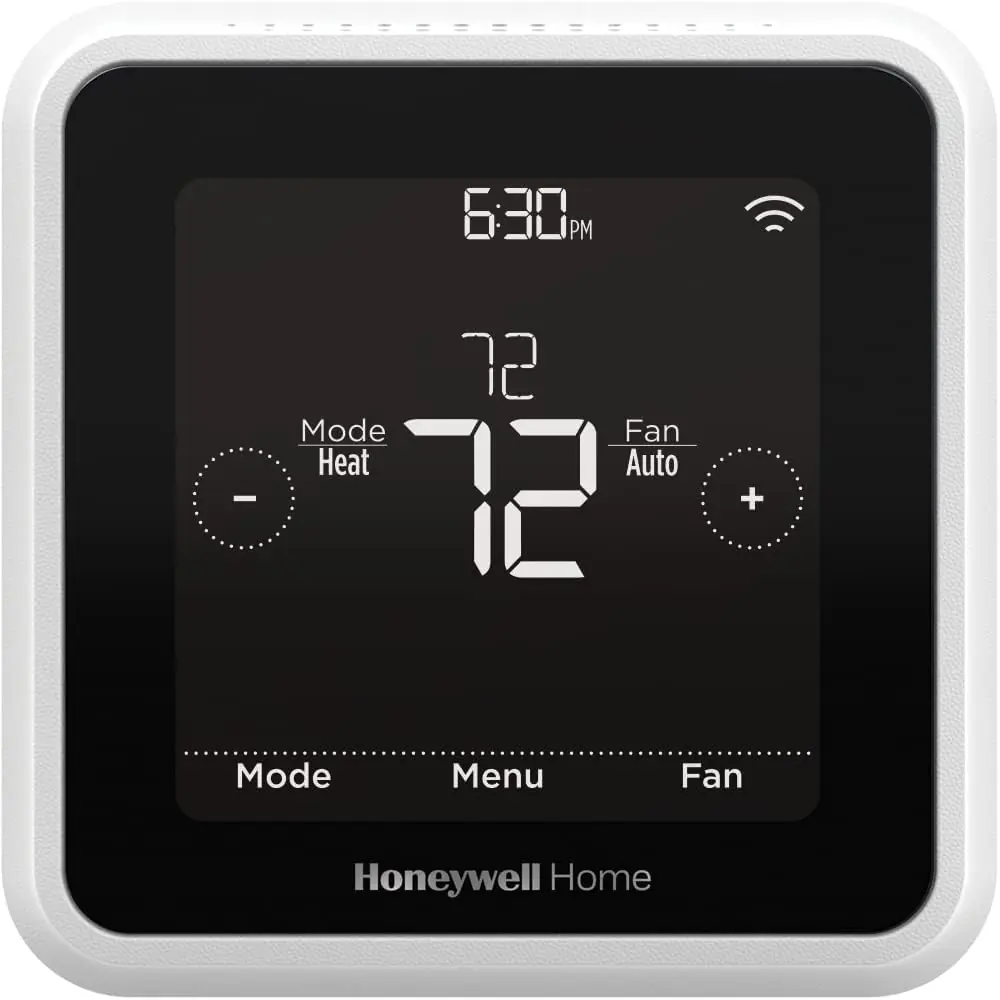
Honeywell TH6220WF2006 T6 Pro Smart Instruction Manual
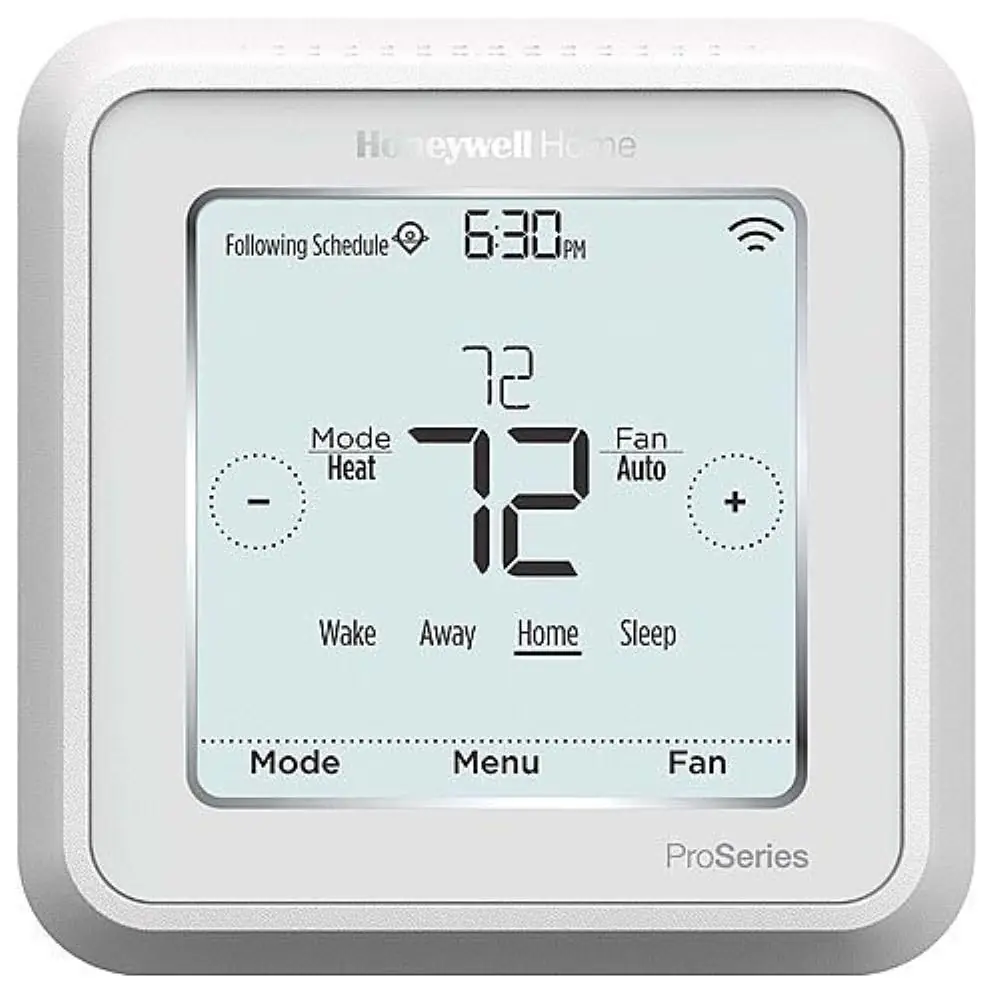
Honeywell TH6220WF2006 T6 Pro Smart

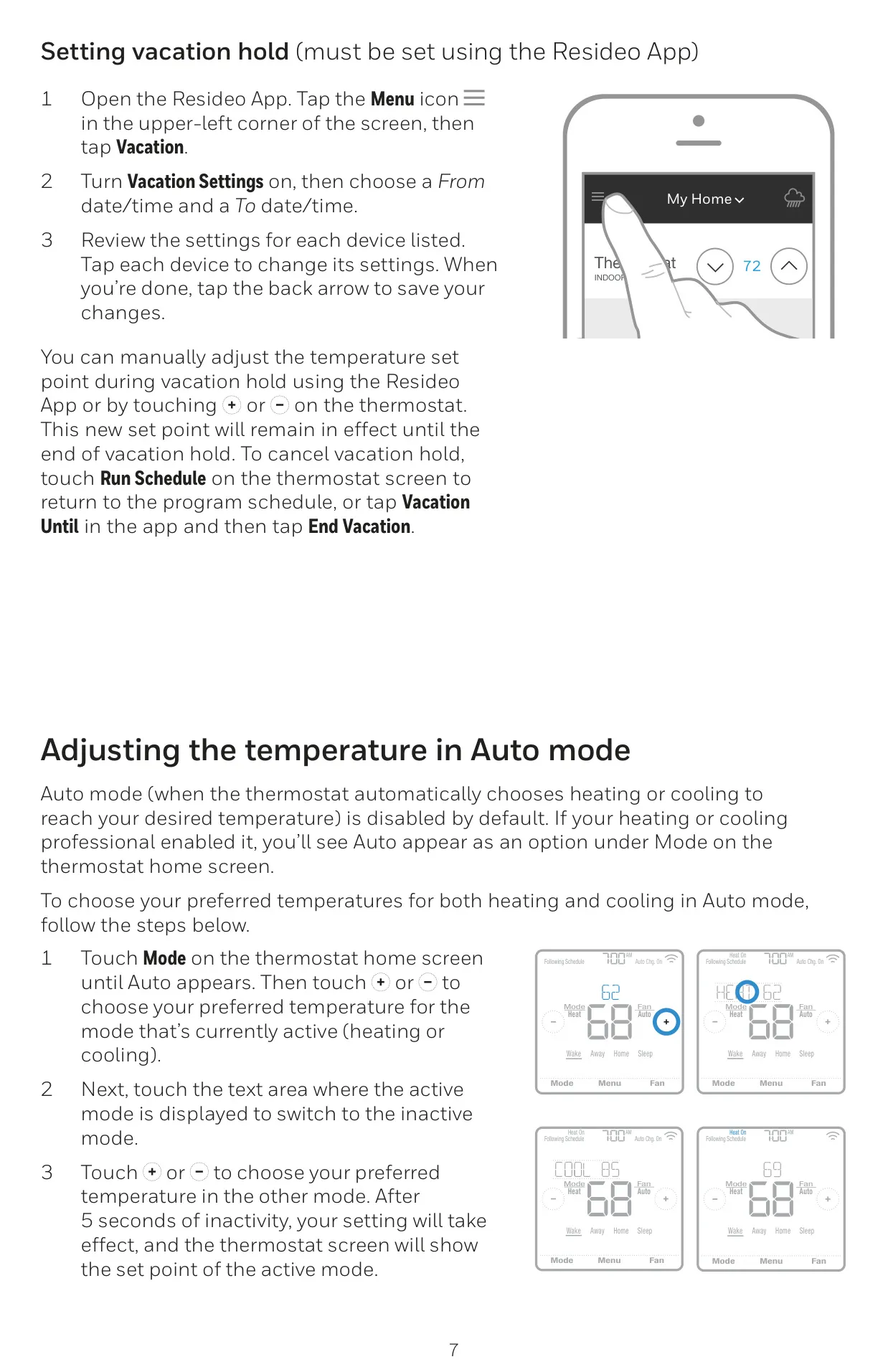
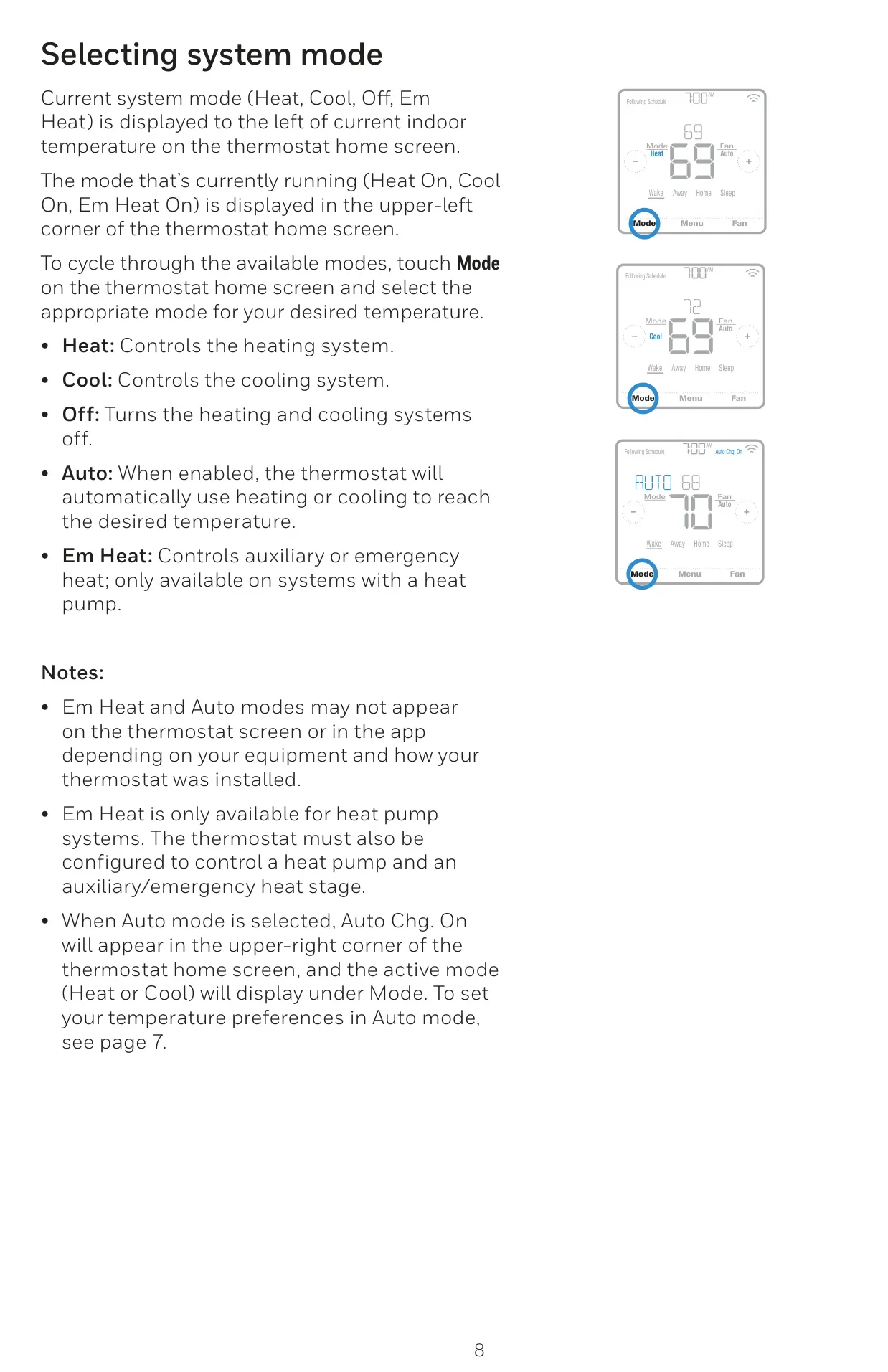
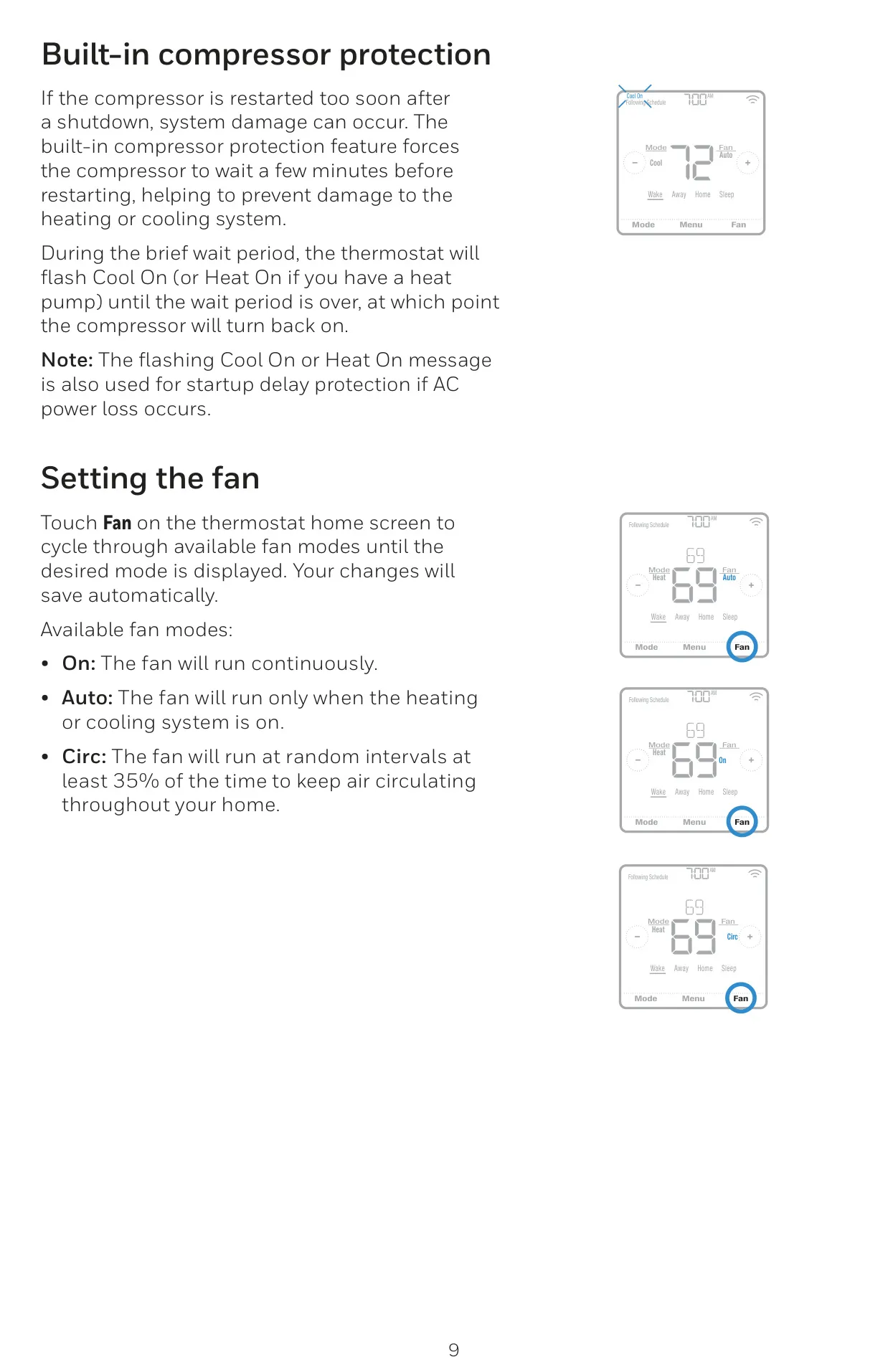
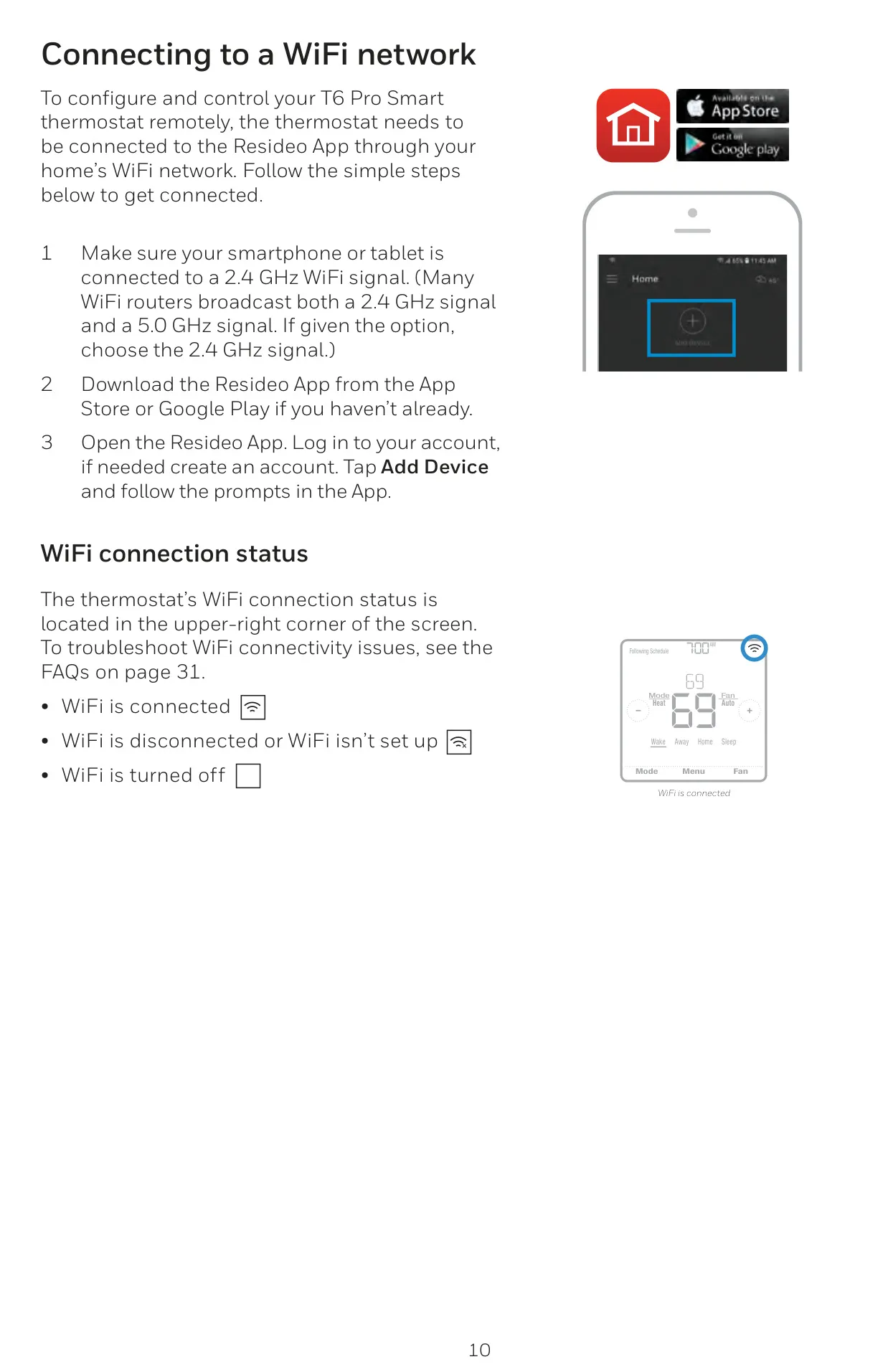




Honeywell TH6220WF2006 T6 Pro Smart
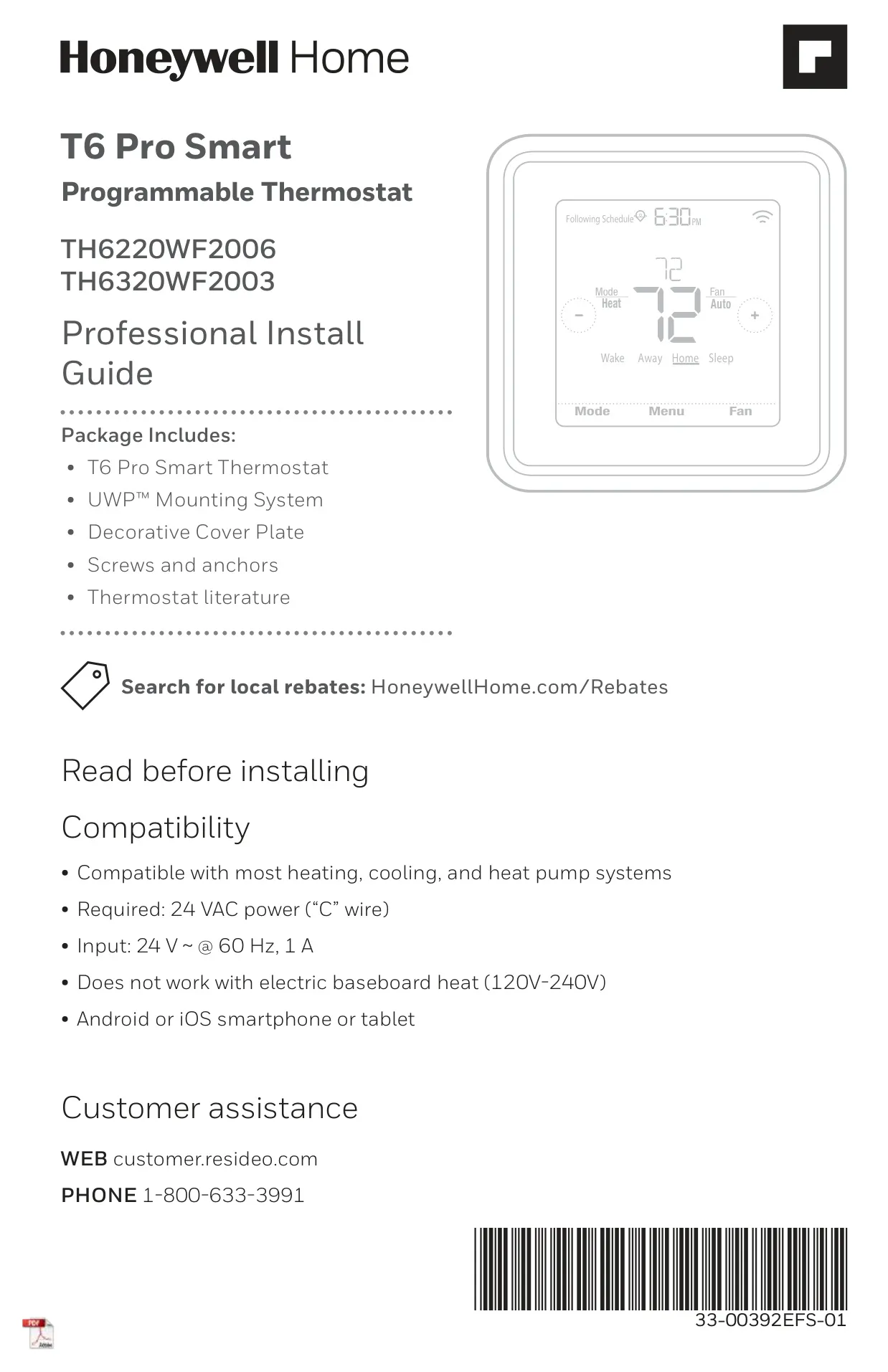



Honeywell TH6220WF2006 Instructions
Here we offer the Honeywell TH6220WF2006 T6 Pro Smart manual completely free and in English. We have cataloged this manual in the Thermostats section on Manualverse, and it has been rated by 1 users with an average rating of 5. If you have any specific questions about Honeywell TH6220WF2006 T6 Pro Smart, we suggest checking the Frequently Asked Questions (FAQs) section of this manual.
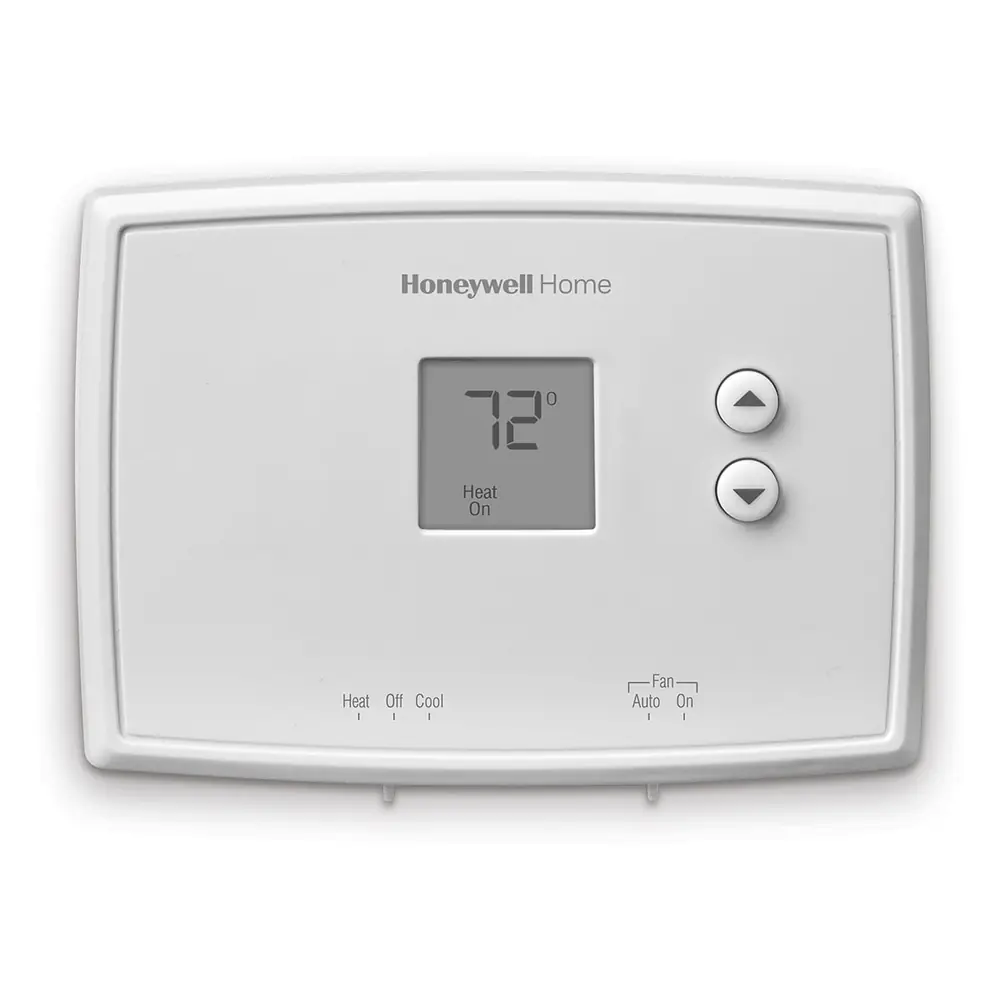
Product Images
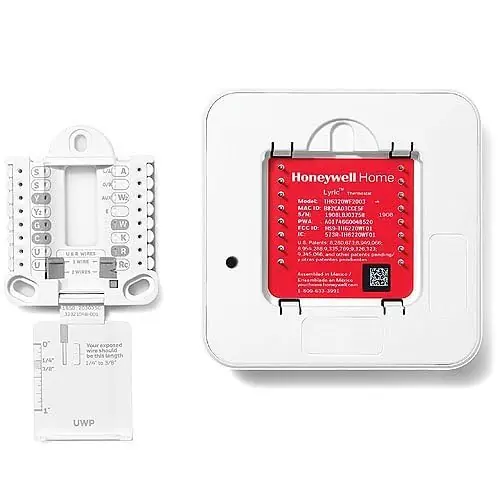
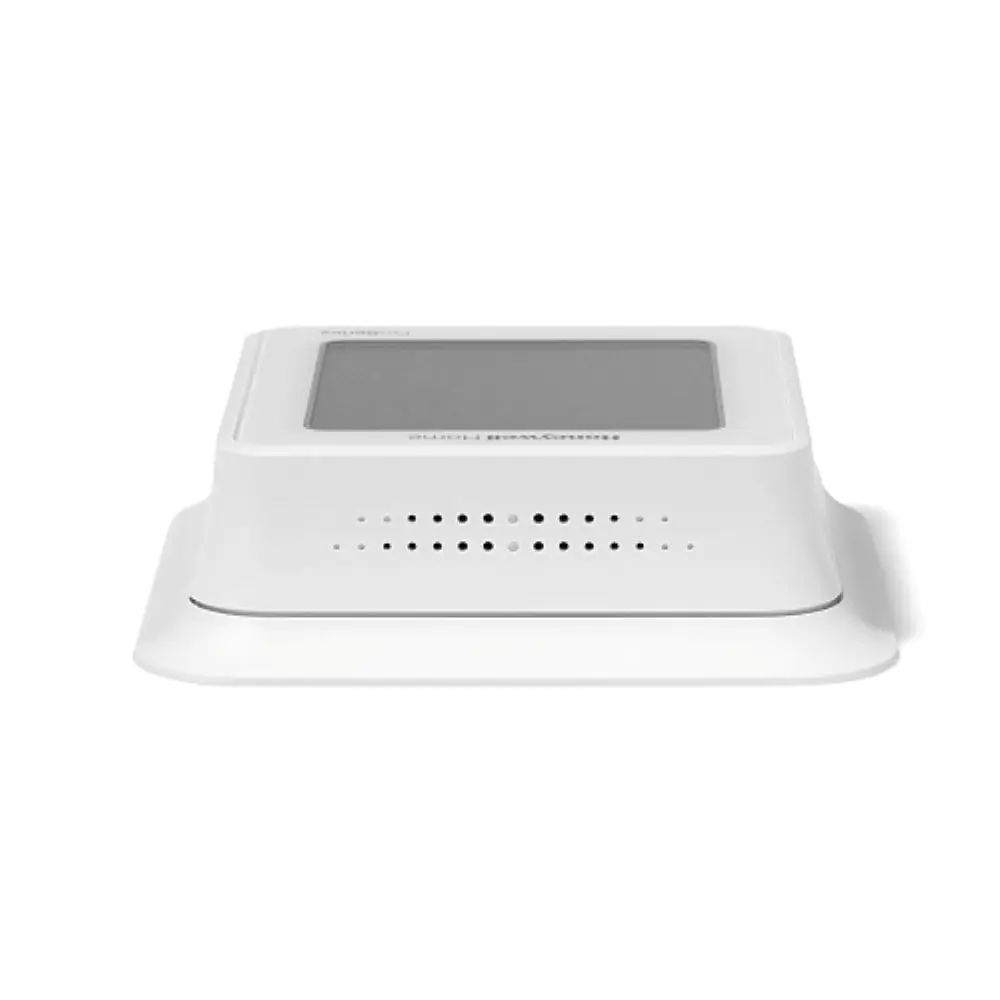
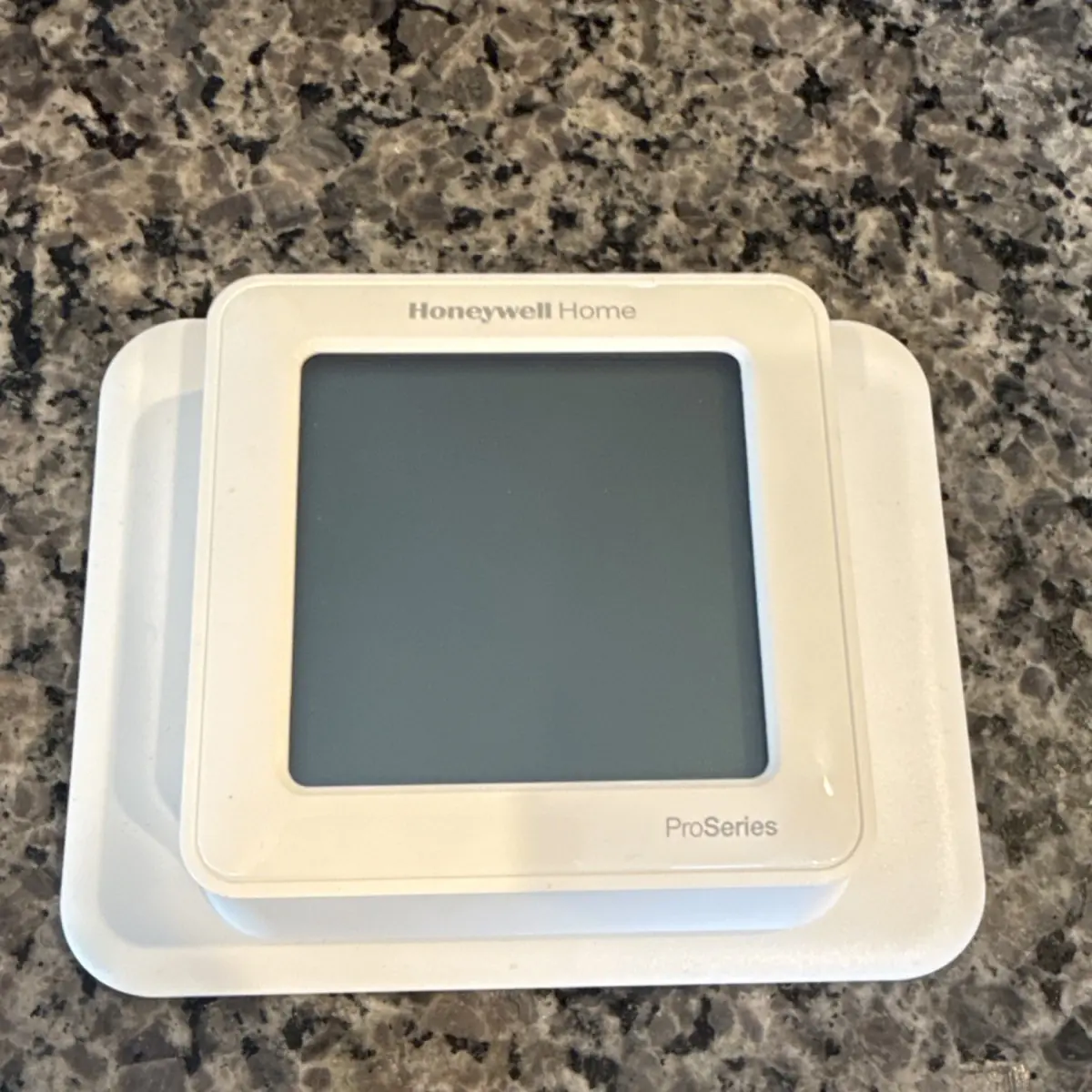
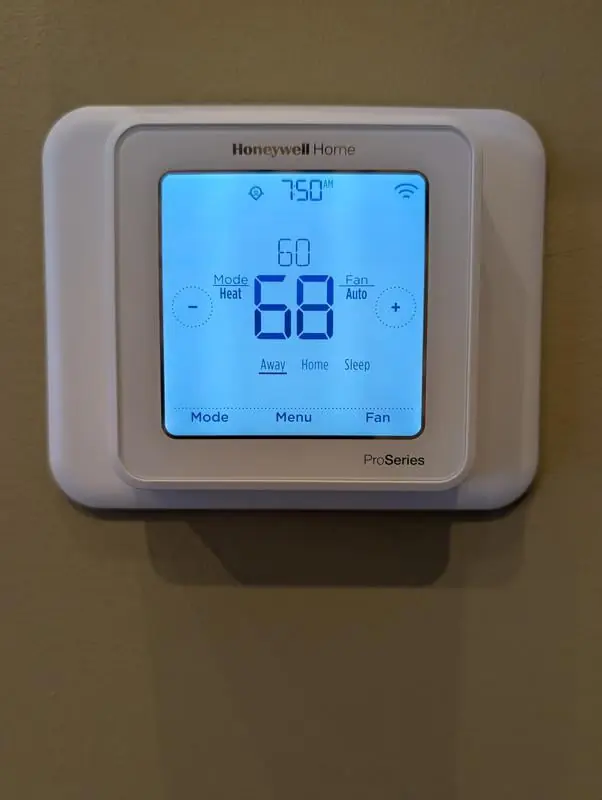
Honeywell TH6220WF2006 T6 Pro Smart Specifications
| Feature | Specification |
|---|---|
| Product Model | TH6220WF2006 T6 Pro Smart |
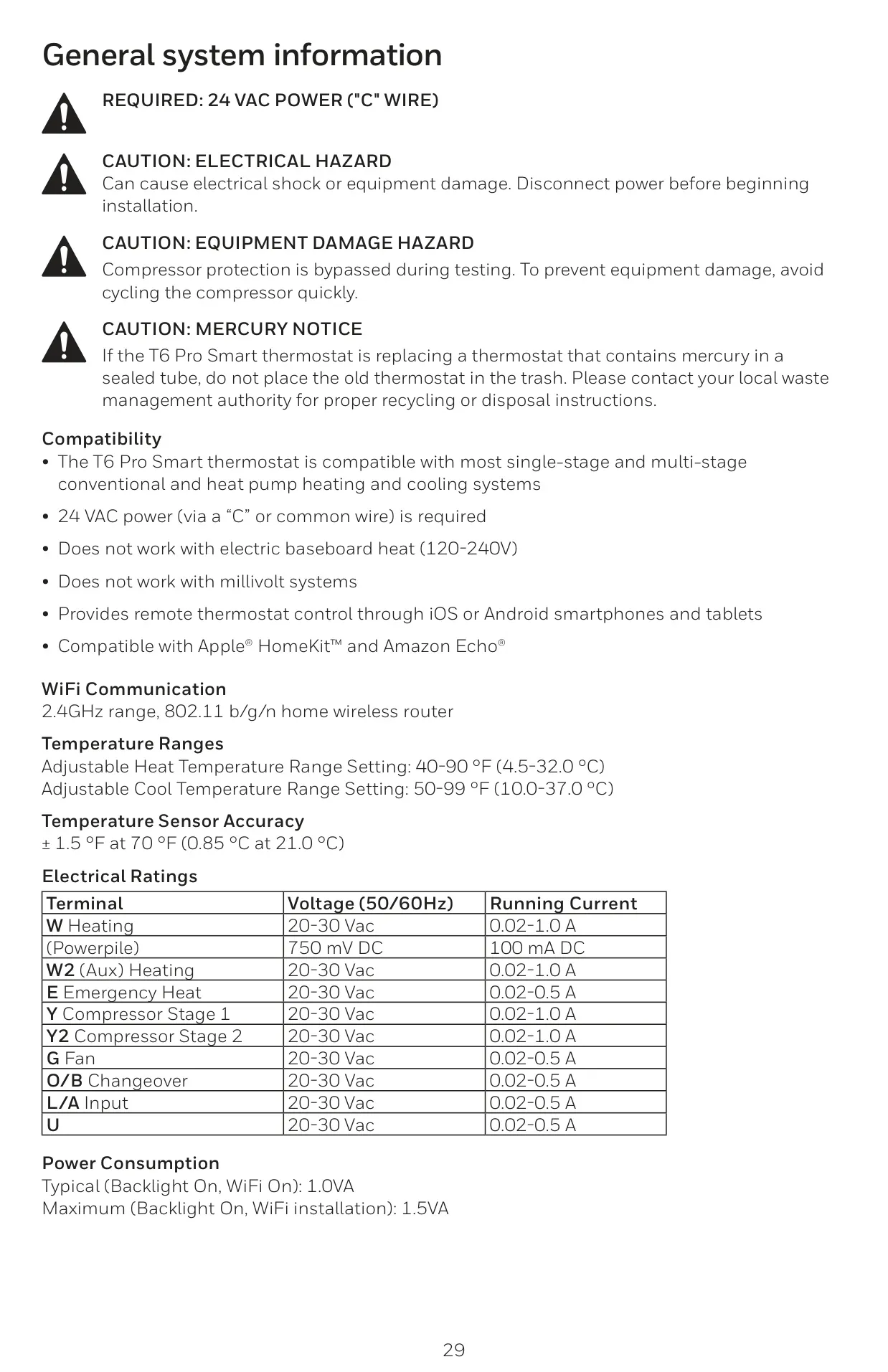
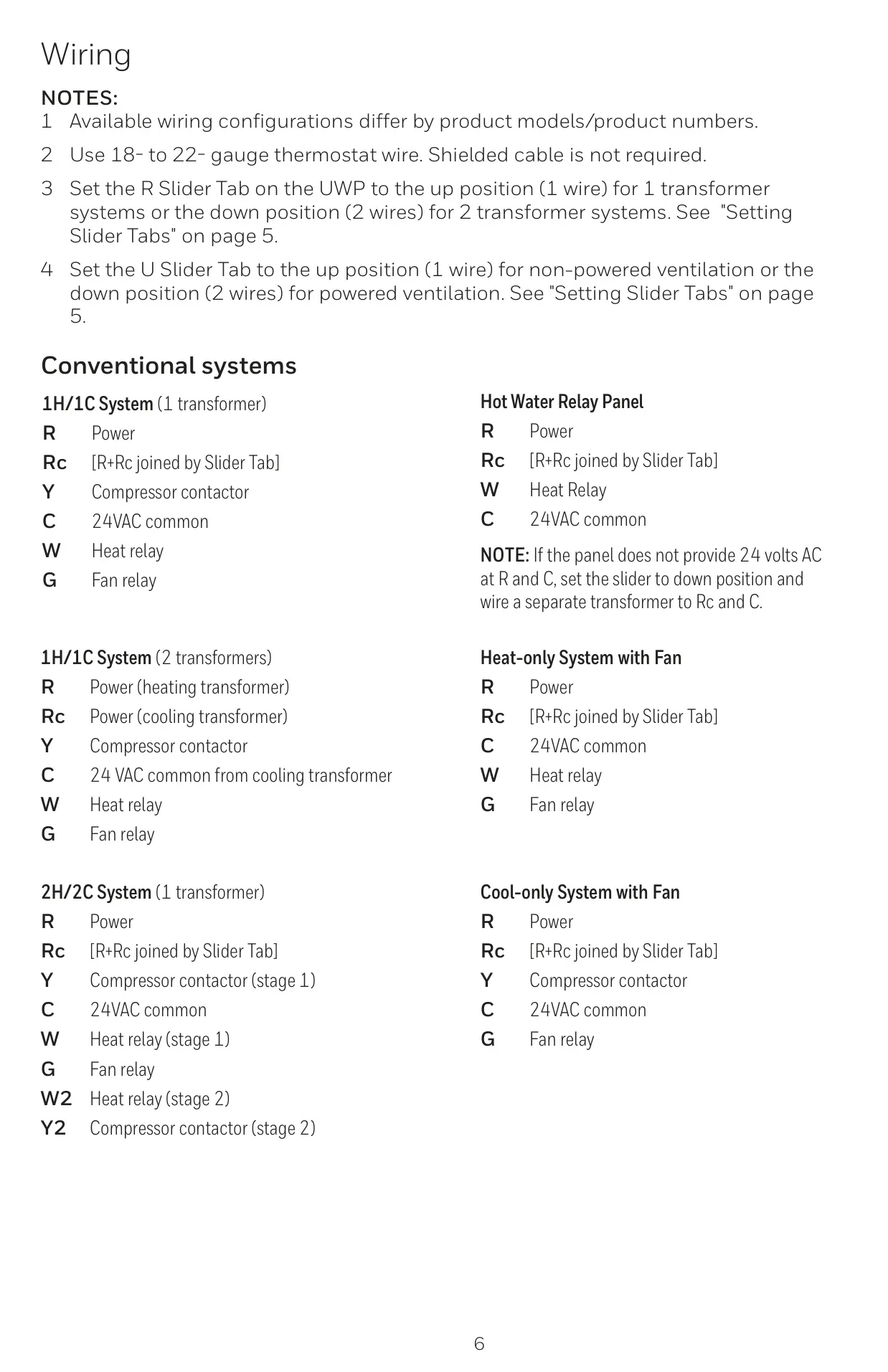
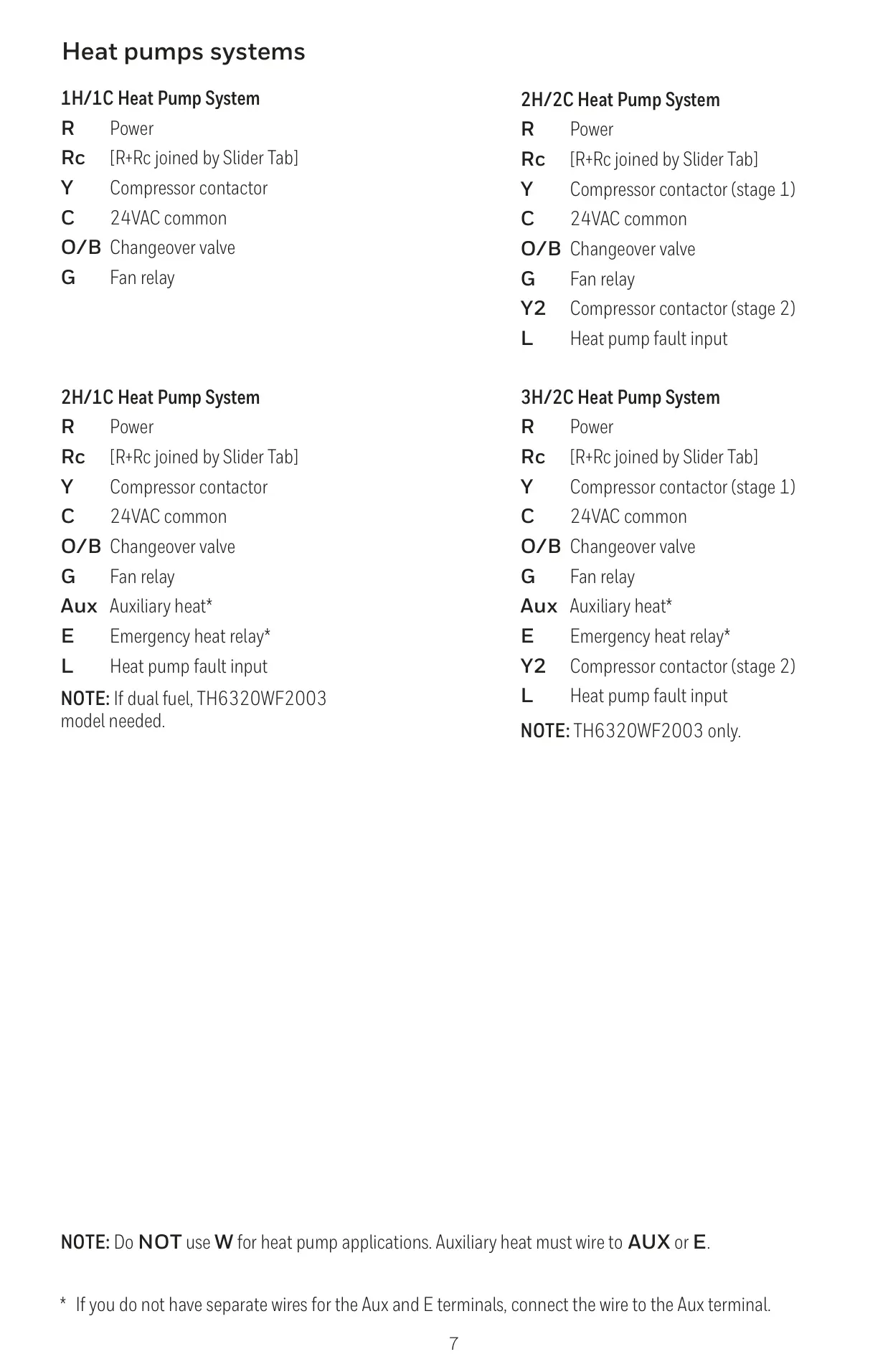
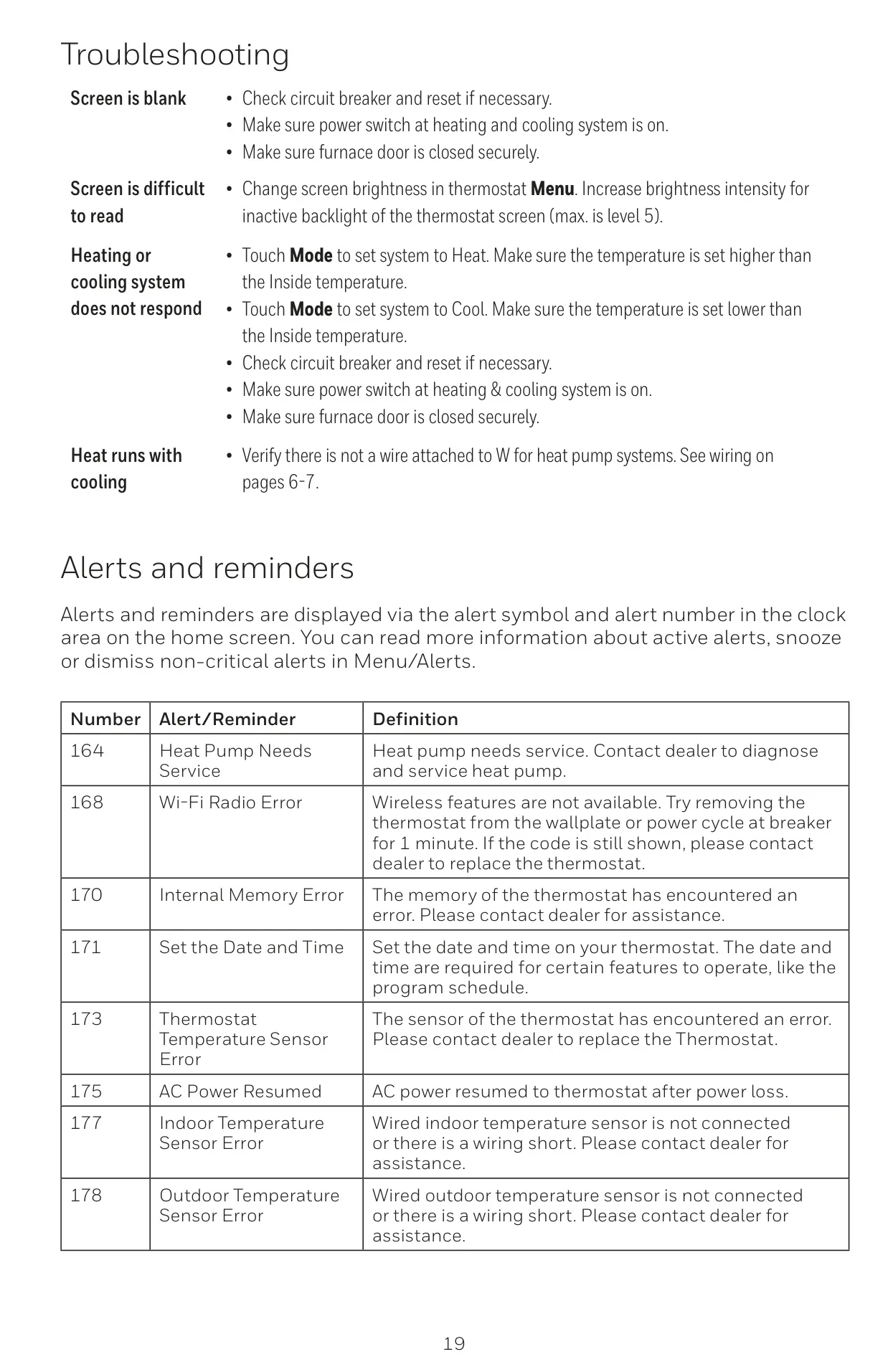
| Compatibility | Most single-stage & multi-stage conventional & heat pump systems; 24 VAC power ("C" wire) required. |
| Incompatibility | Electric baseboard heat (120-240V); Millivolt systems. |
| App Compatibility | iOS or Android smartphones and tablets (Resideo App) |
| Smart Home Compatibility | Apple® HomeKit™, Amazon Echo® |
| WiFi Communication | 2.4GHz range, 802.11 b/g/n home wireless router |
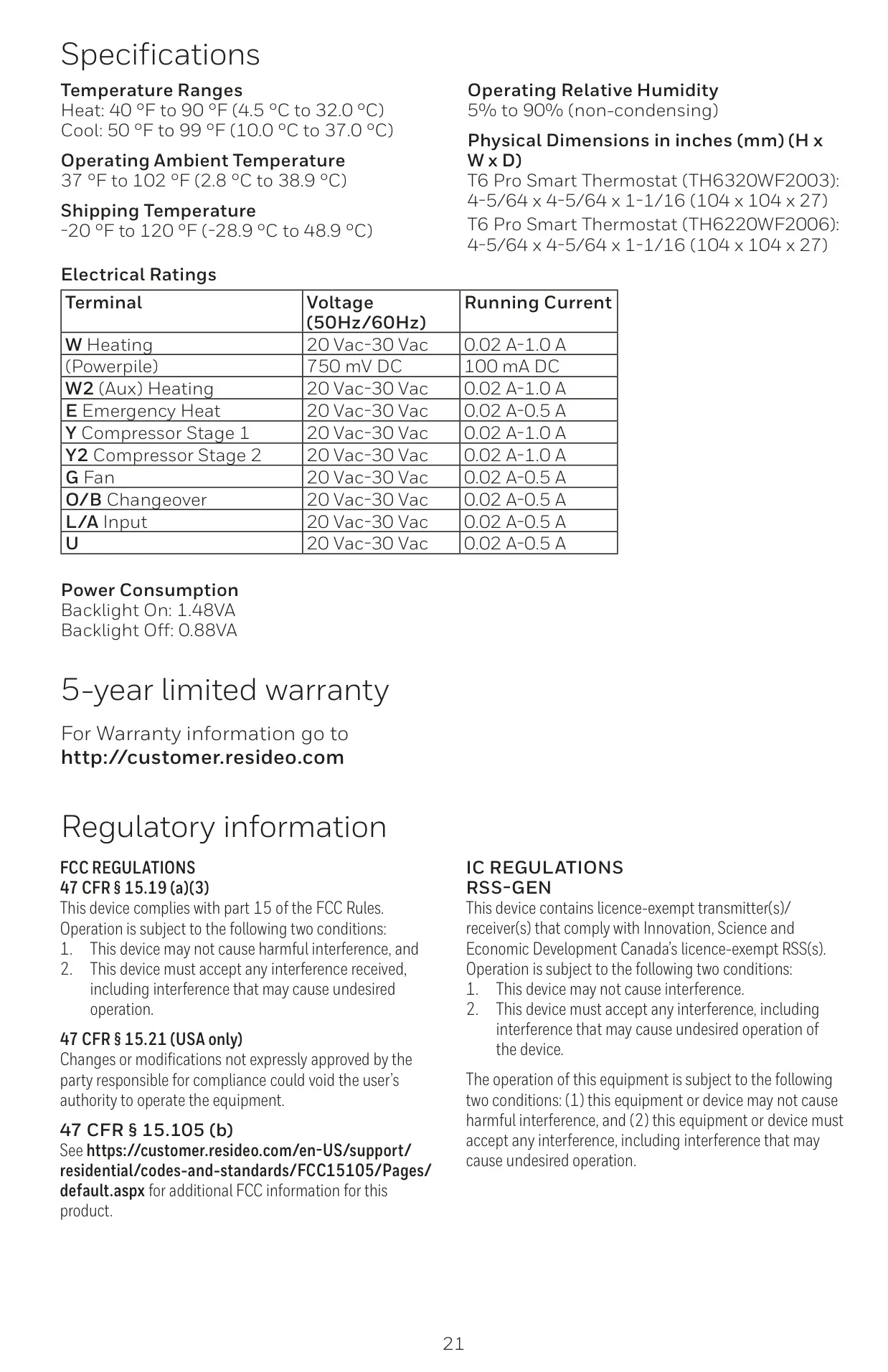
| Adjustable Heat Temperature Range | 40-90 °F (4.5-32.0 °C) |
| Adjustable Cool Temperature Range | 50-99 °F (10.0-37.0 °C) |
| Operating Ambient Temperature | 37 °F to 102 °F (2.8 °C to 38.9 °C) |
| Shipping Temperature | -20 °F to 120 °F (-28.9 °C to 48.9 °C) |
| Operating Relative Humidity | 5% to 90% (non-condensing) |
| Temperature Sensor Accuracy | ± 1.5 °F at 70 °F (0.85 °C at 21.0 °C) |
| Compressor Stages (Heat Pump) | 1 compressor stage maximum (TH6220WF model) |
| Input Power | 24 V ~ @ 60 Hz, 1 A |
| Power Consumption (Backlight On) | 1.48 VA |
| Power Consumption (Backlight Off) | 0.88 VA |
| Power Consumption (Typical, Backlight On, WiFi On) | 1.0 VA |
| Power Consumption (Maximum, Backlight On, WiFi installation) | 1.5 VA |
| Electrical Rating (W Heating) | 20-30 Vac, 0.02-1.0 A |
| Electrical Rating (Powerpile) | 750 mV DC, 100 mA DC |
| Electrical Rating (W2 Aux Heating) | 20-30 Vac, 0.02-1.0 A |
| Electrical Rating (E Emergency Heat) | 20-30 Vac, 0.02-0.5 A |
| Electrical Rating (Y Compressor Stage 1) | 20-30 Vac, 0.02-1.0 A |
| Electrical Rating (Y2 Compressor Stage 2) | 20-30 Vac, 0.02-1.0 A |
| Electrical Rating (G Fan) | 20-30 Vac, 0.02-0.5 A |
| Electrical Rating (O/B Changeover) | 20-30 Vac, 0.02-0.5 A |
| Electrical Rating (L/A Input) | 20-30 Vac, 0.02-0.5 A |
| Electrical Rating (U) | 20-30 Vac, 0.02-0.5 A |
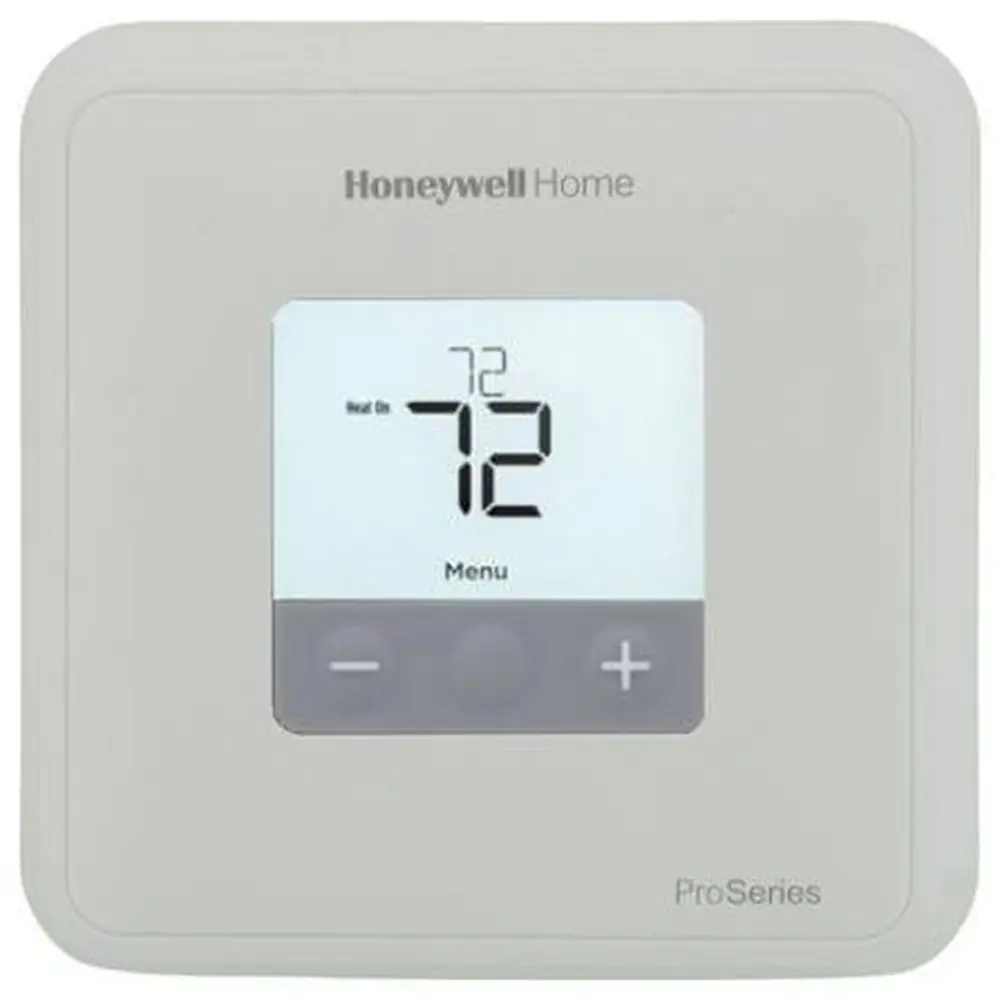
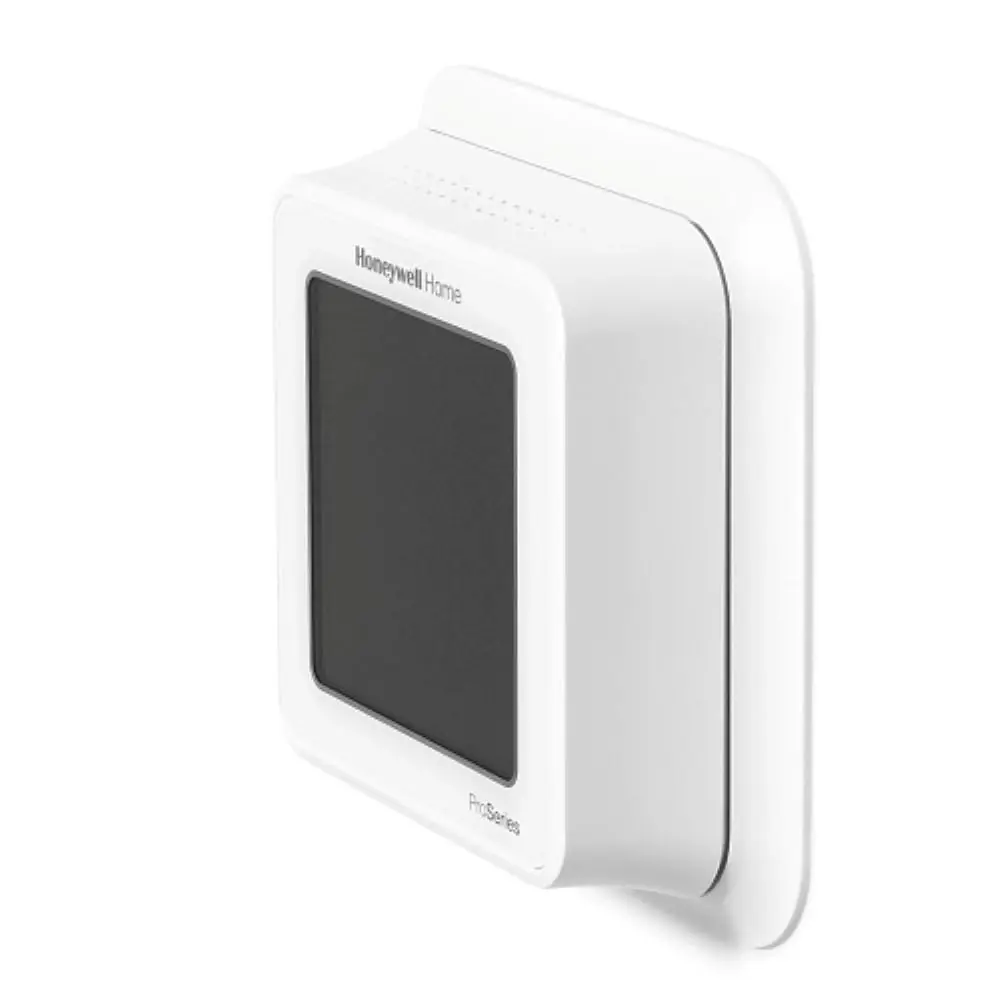
| Physical Dimensions (H x W x D) | 4-5/64 x 4-5/64 x 1-1/16 inches (104 x 104 x 27 mm) |
Honeywell TH6220WF2006 Details
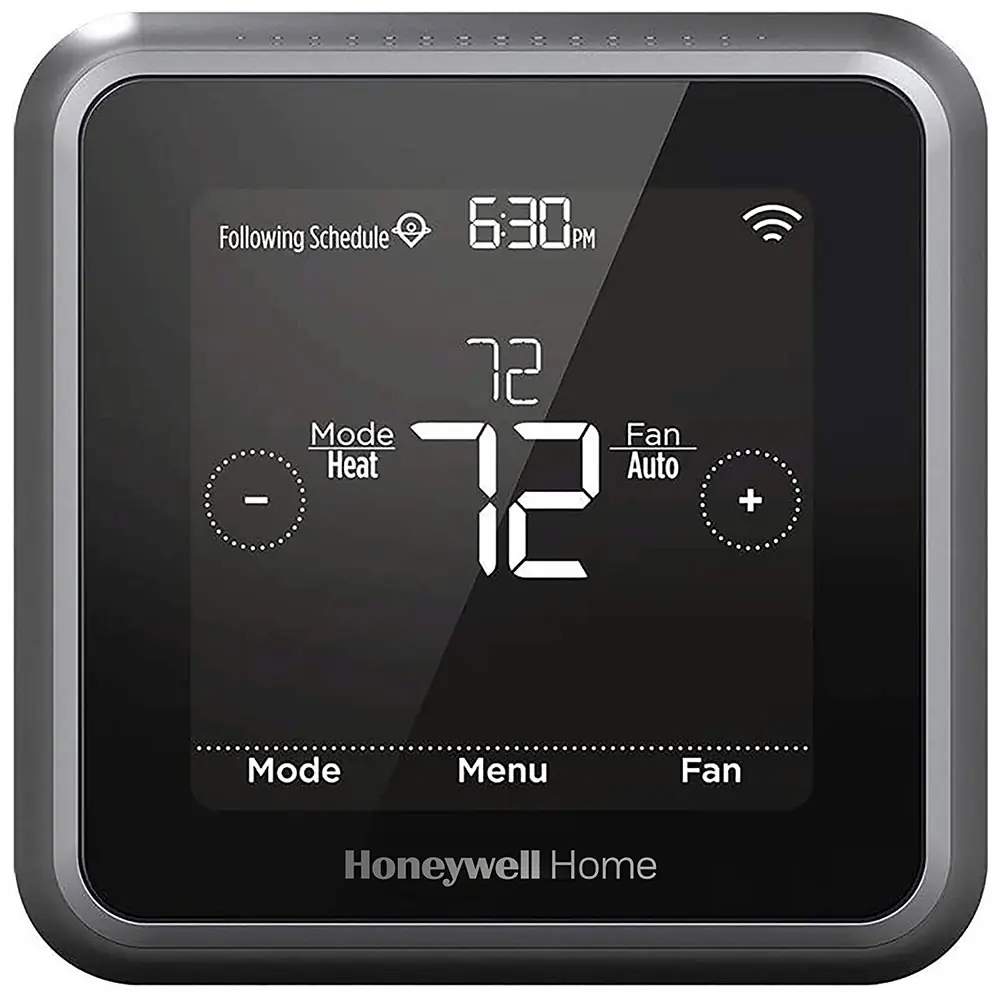
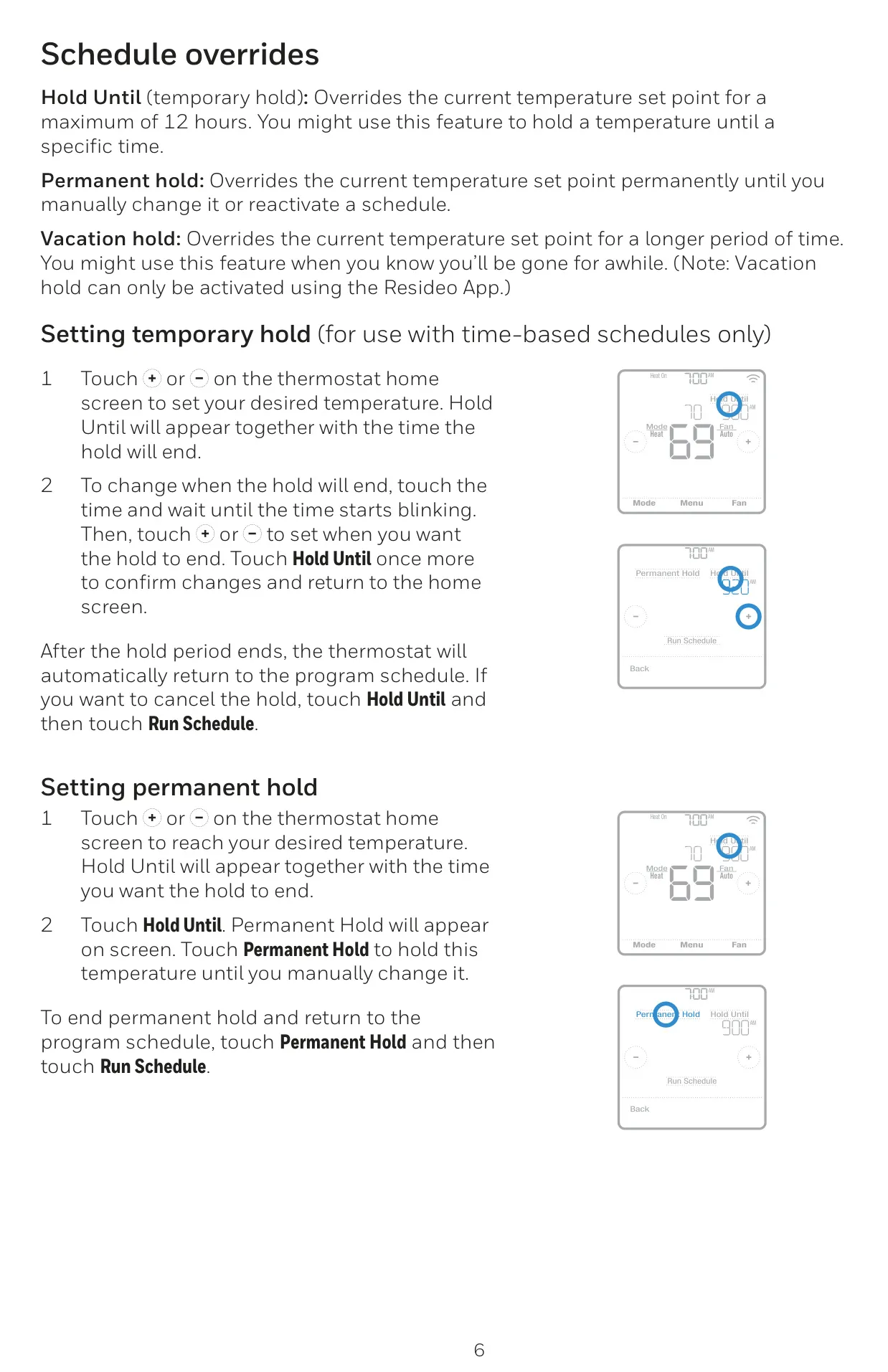
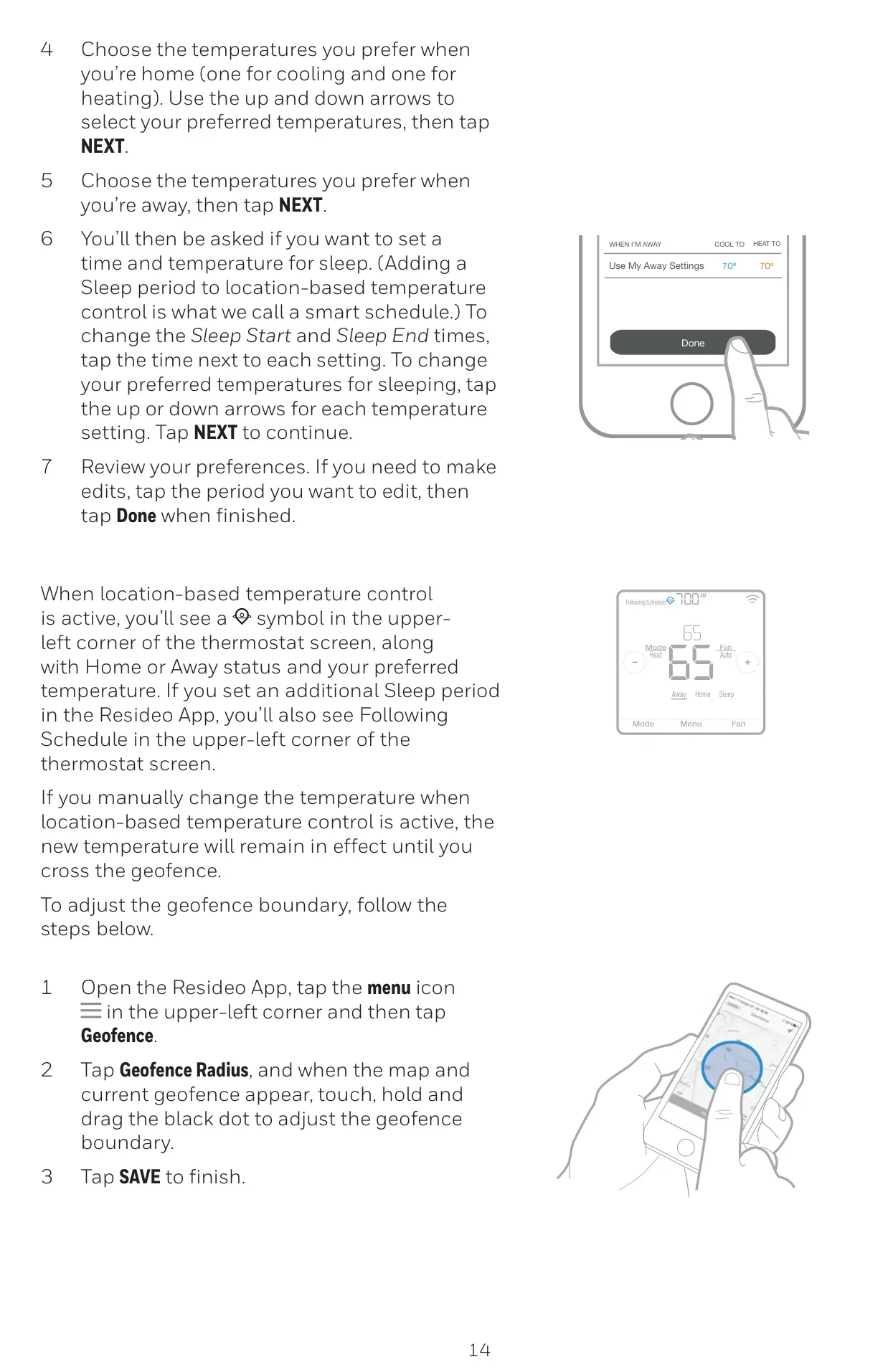
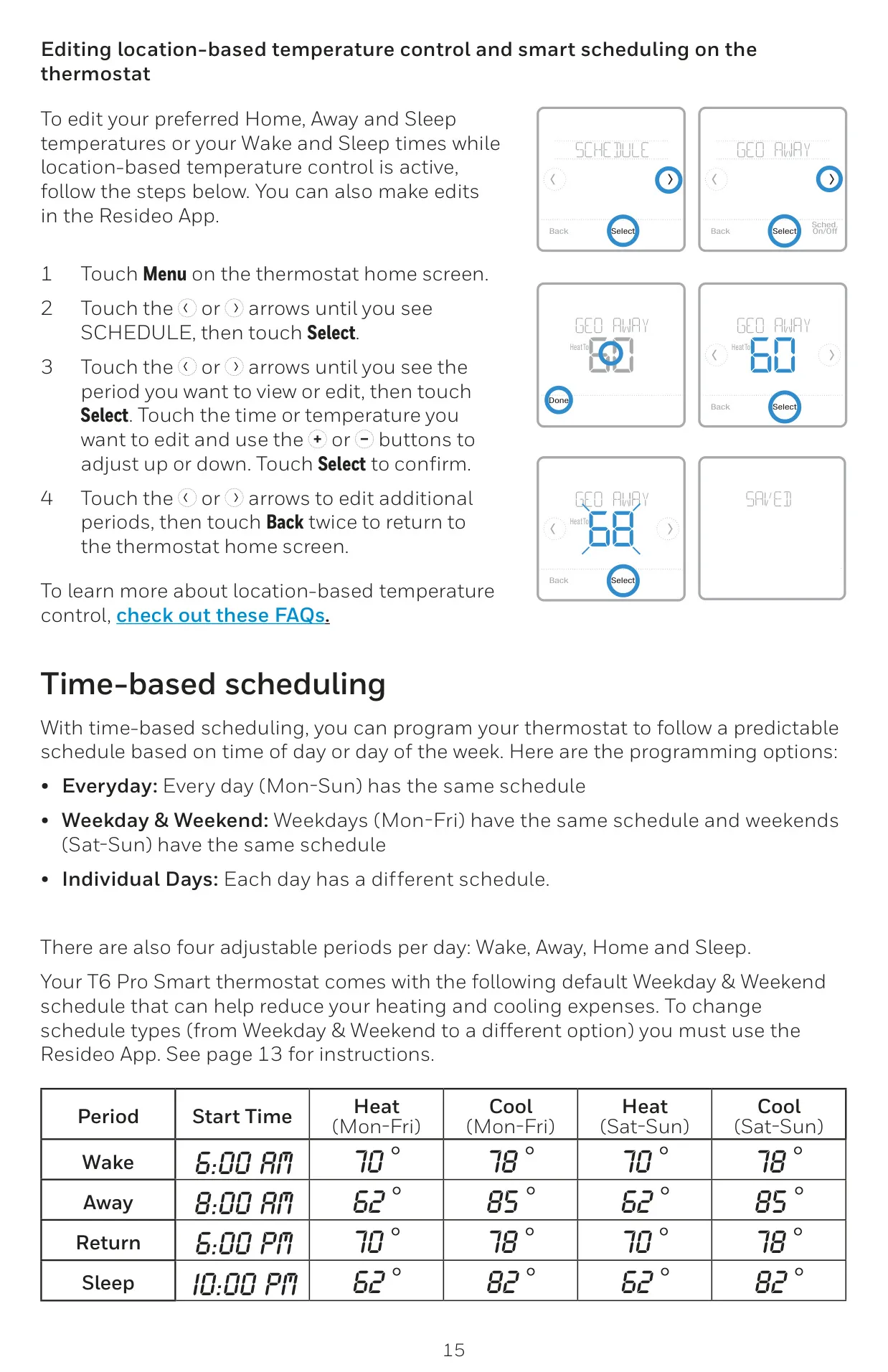
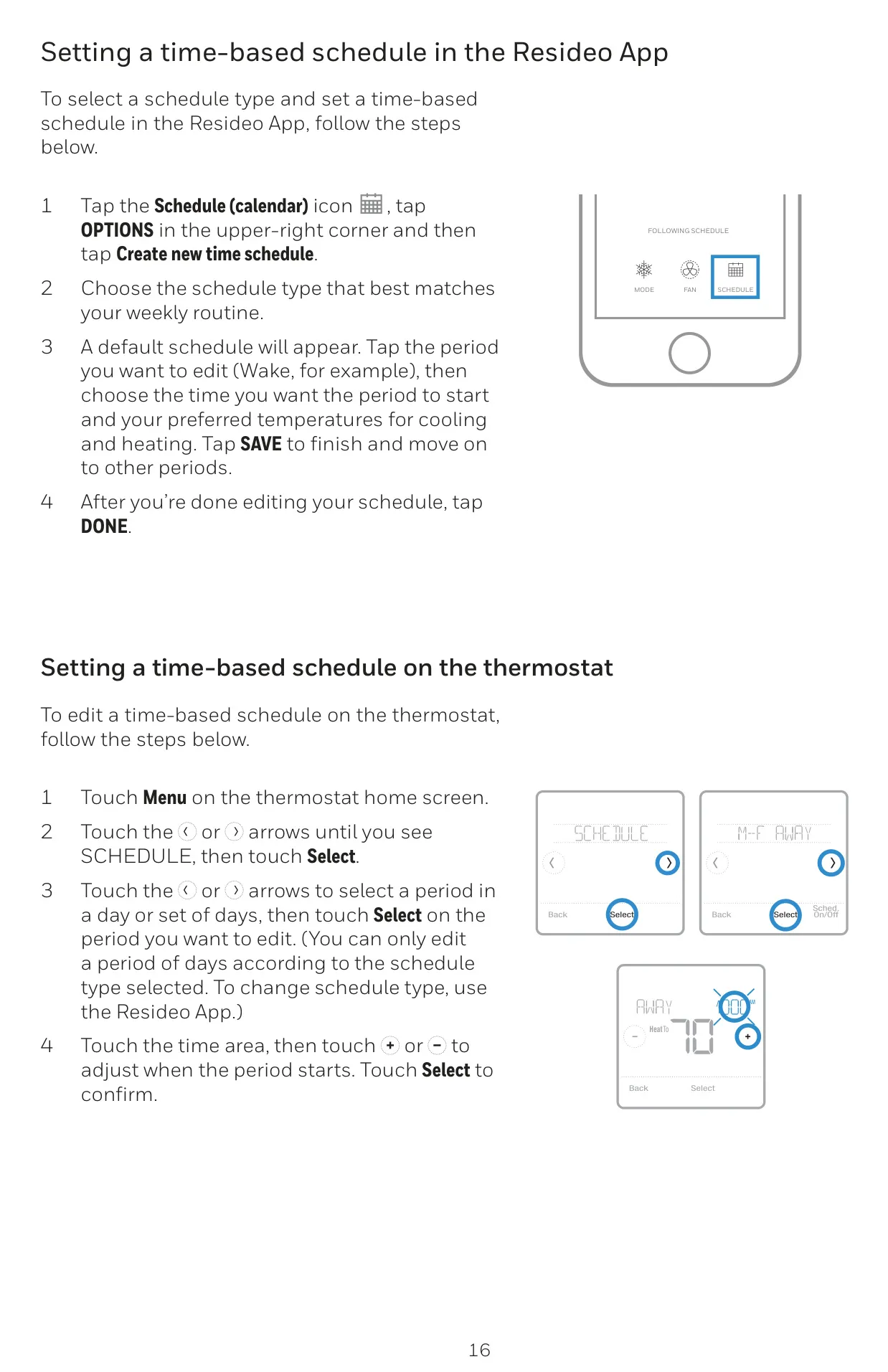
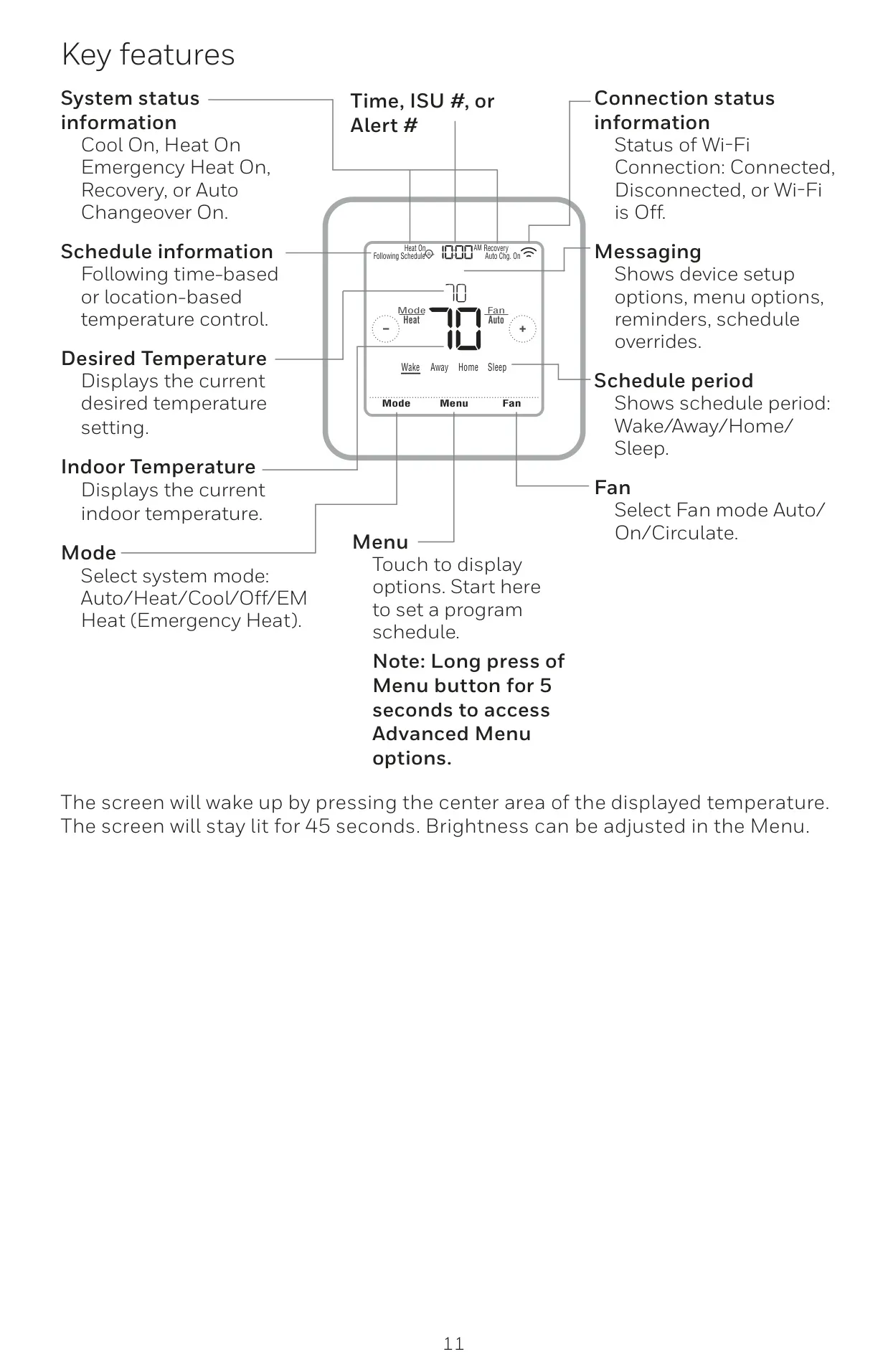
The Honeywell TH6220WF2006 T6 Pro Smart thermostat offers unparalleled flexibility in managing your home's climate. Beyond basic temperature adjustments, it features advanced scheduling options. Users can choose location-based temperature control using geofence technology, which automatically adjusts settings based on your smartphone's GPS as you leave or return home. For more structured routines, time-based scheduling allows programming unique daily schedules or differentiated weekday/weekend plans, each with Wake, Away, Home, and Sleep periods. Alternatively, the thermostat can be operated manually without a set schedule.
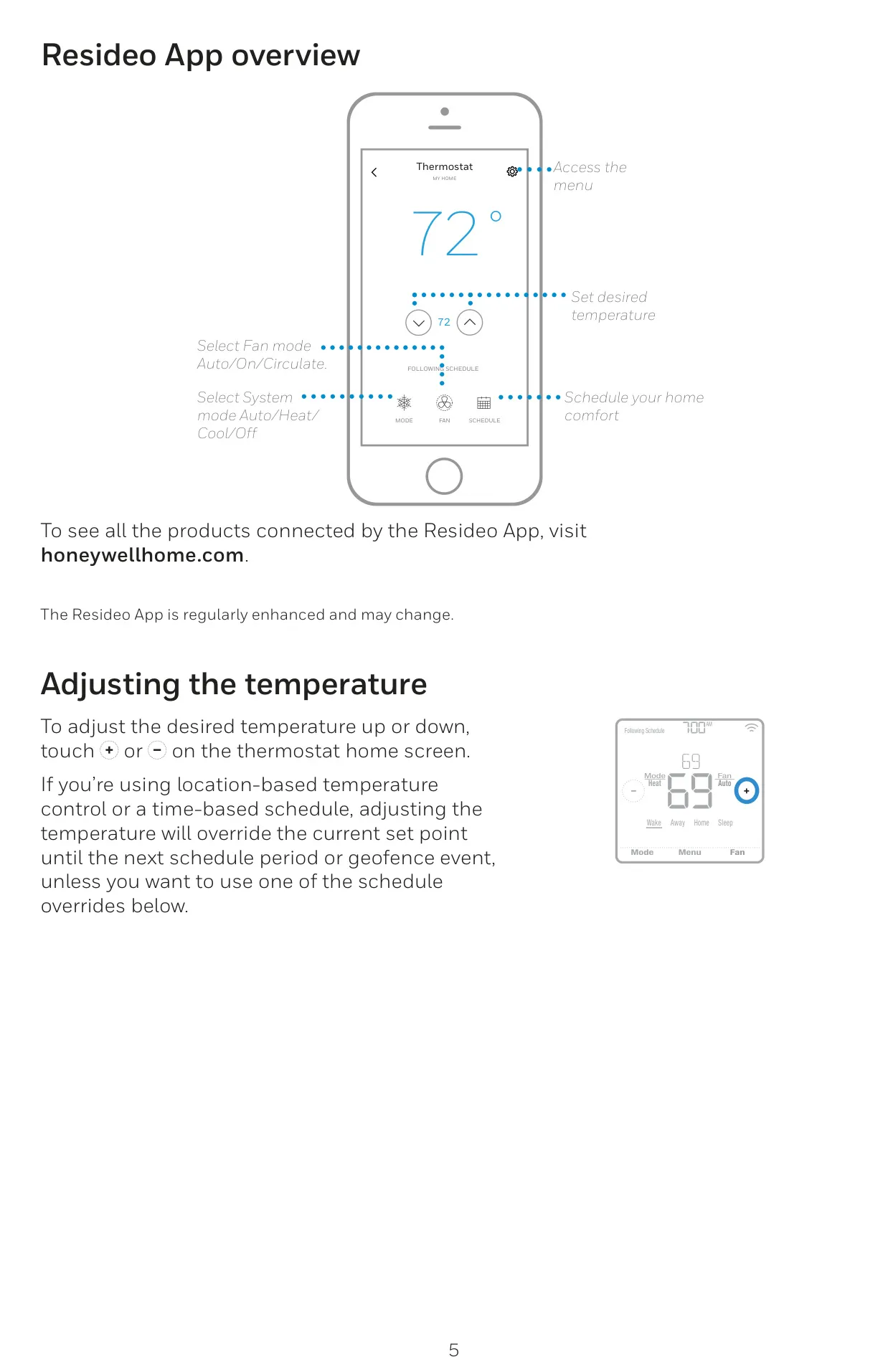
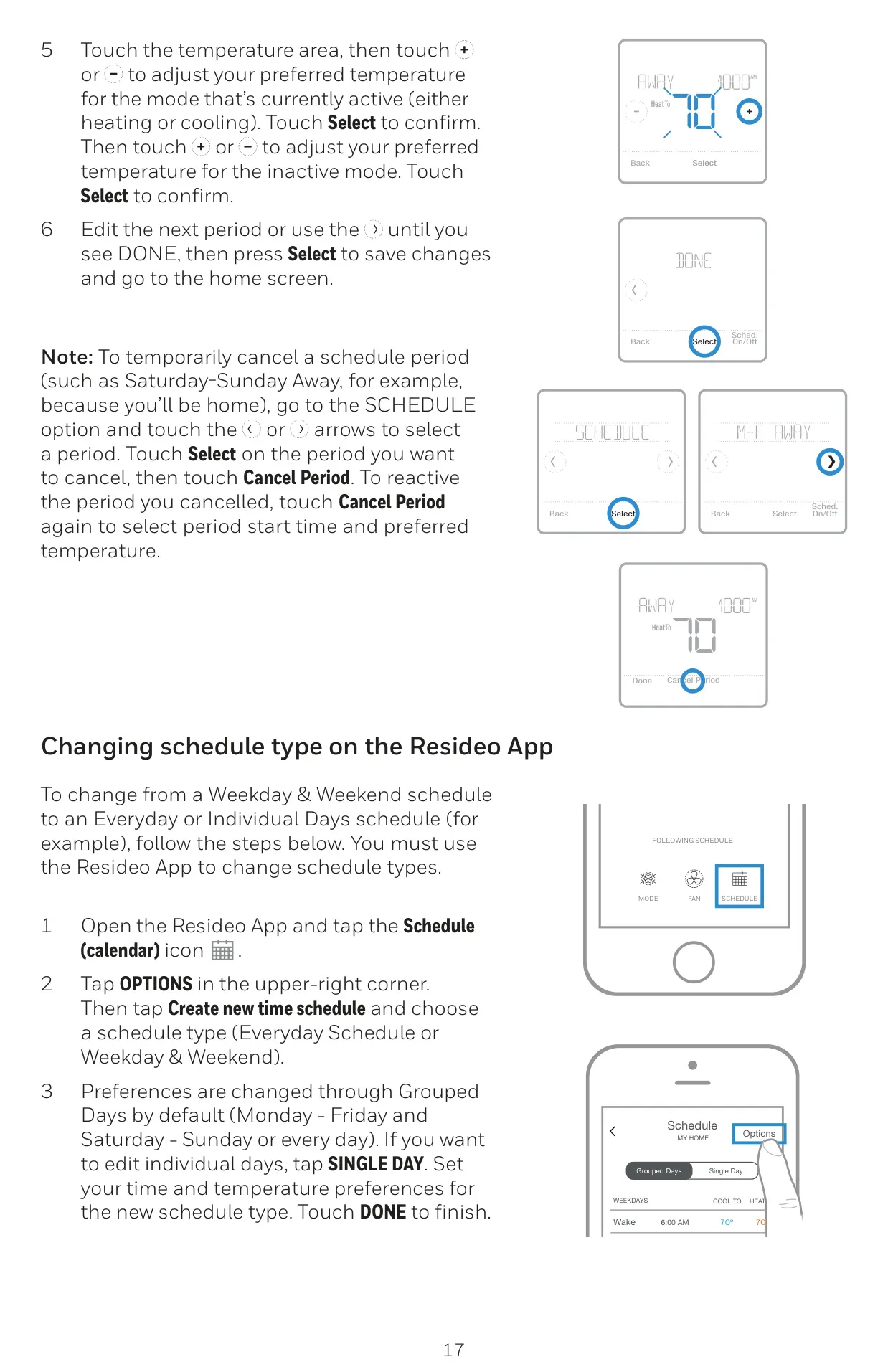
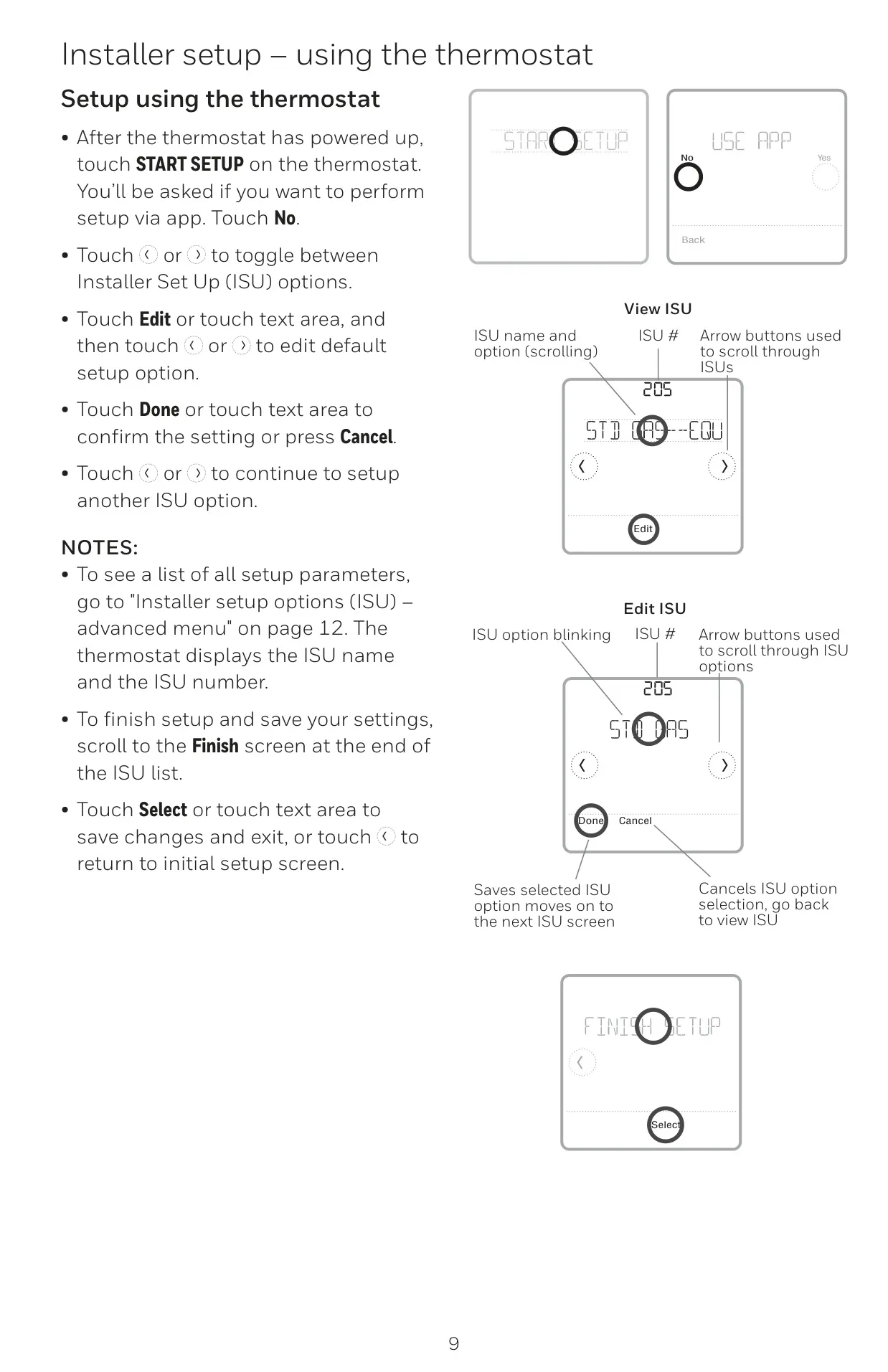
Seamless integration with the Resideo App enhances the user experience. This powerful application enables remote control of your thermostat from anywhere, managing multiple devices and users within a household. It's also the hub for setting up sophisticated scheduling features like geofencing and smart schedules (which add a Sleep period to geofencing). The app simplifies the initial WiFi connection process and allows for easy adjustment of schedule types, ensuring your comfort settings are always within reach.
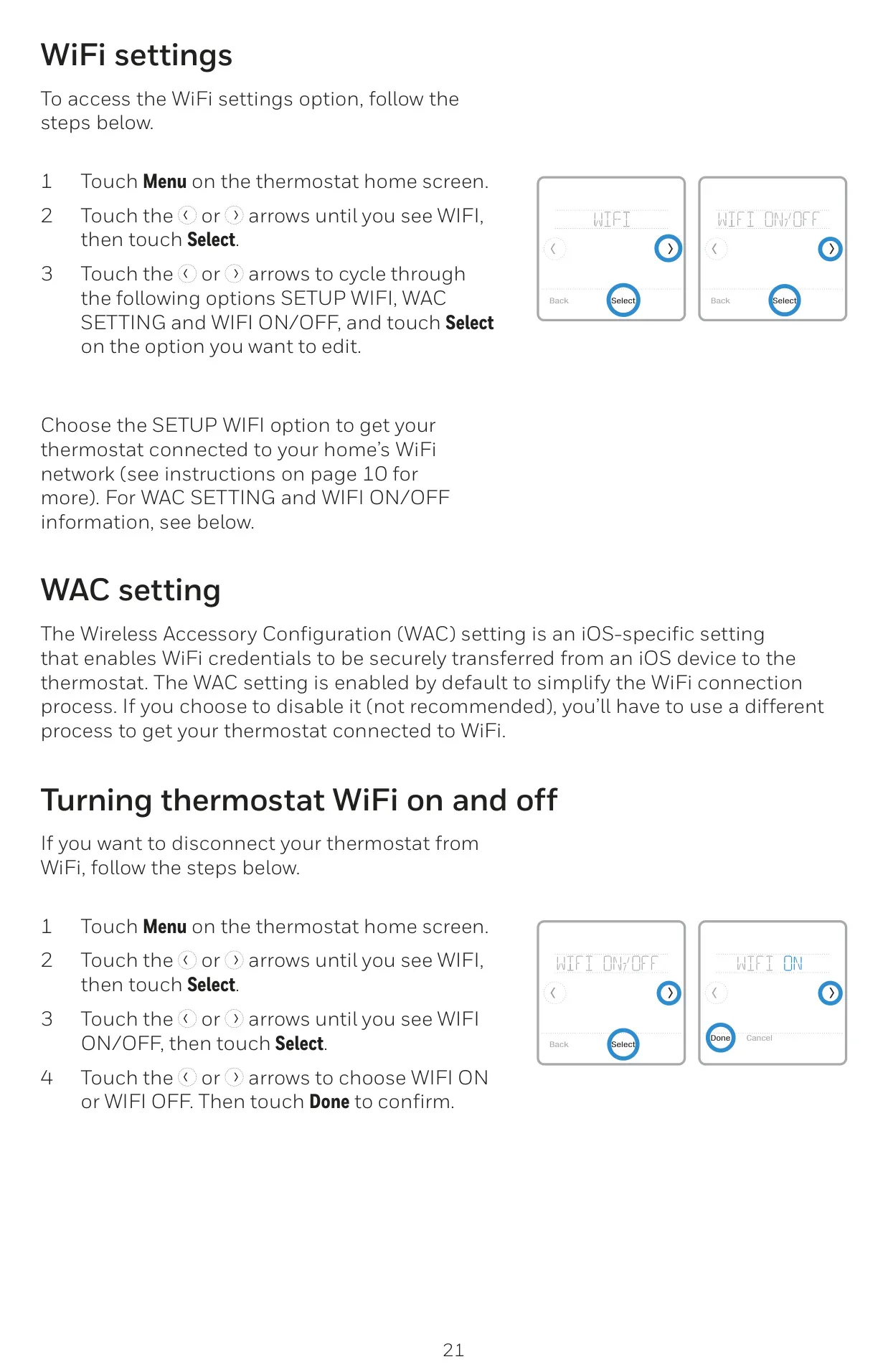
This smart thermostat incorporates several intelligent features designed for efficiency and comfort. It supports auto change from heat to cool, allowing the system to automatically switch modes to maintain your desired temperature. The Adaptive Intelligent Recovery function learns your HVAC system's cycle times, ensuring your home reaches the target temperature precisely by the scheduled time. Furthermore, a built-in compressor protection mechanism prevents potential equipment damage by enforcing a brief delay before restarting the compressor after a shutdown.
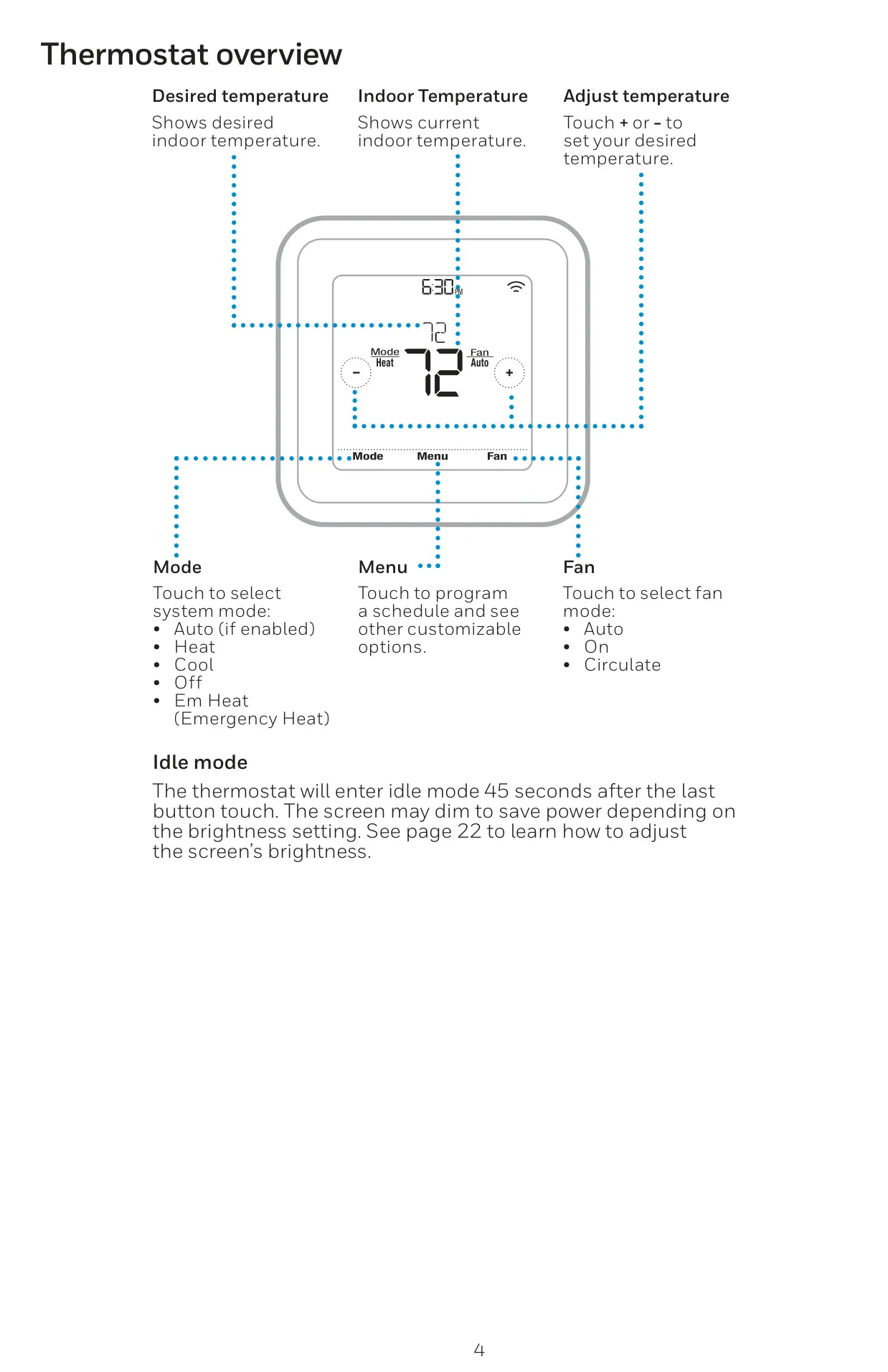
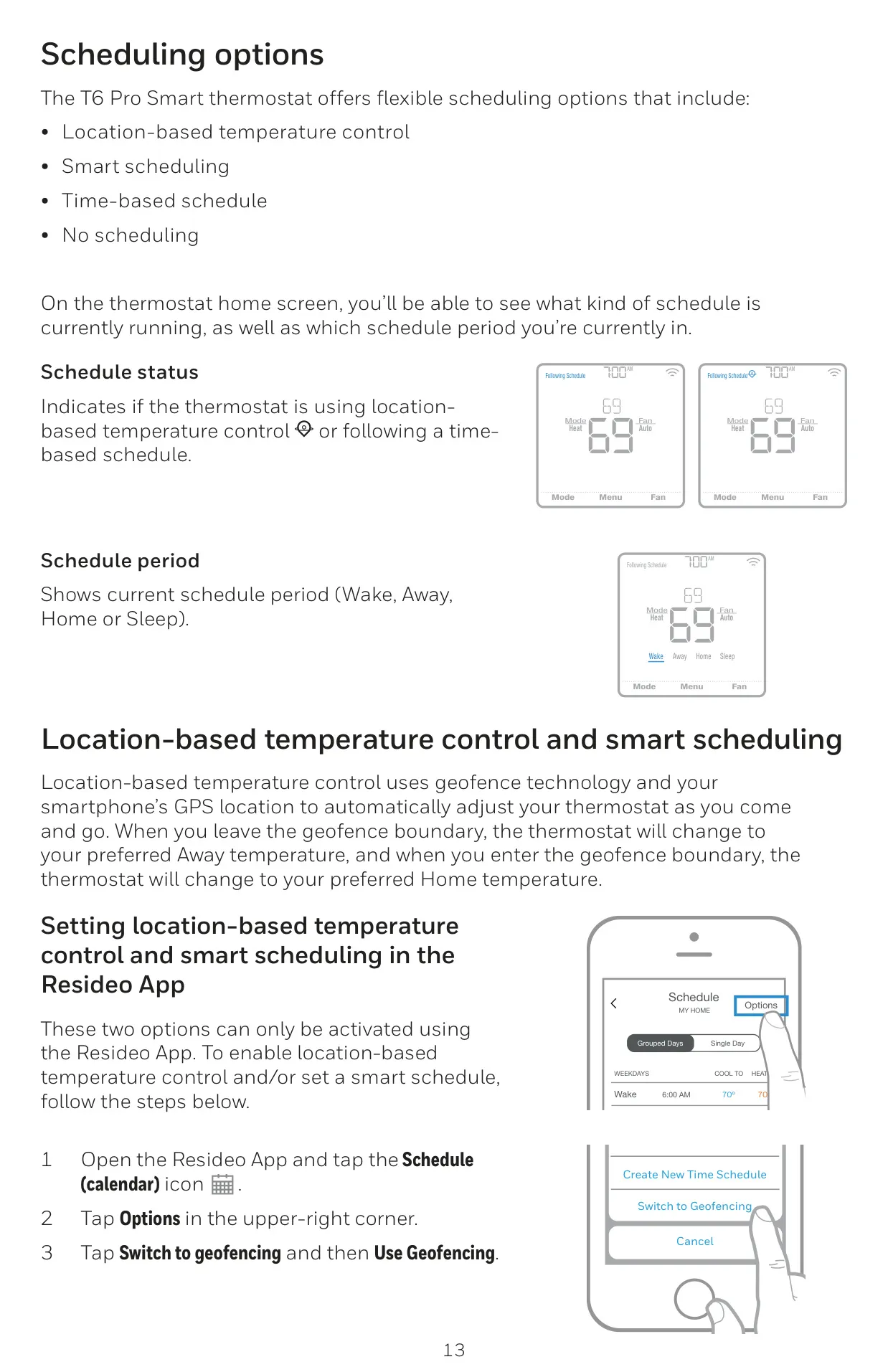
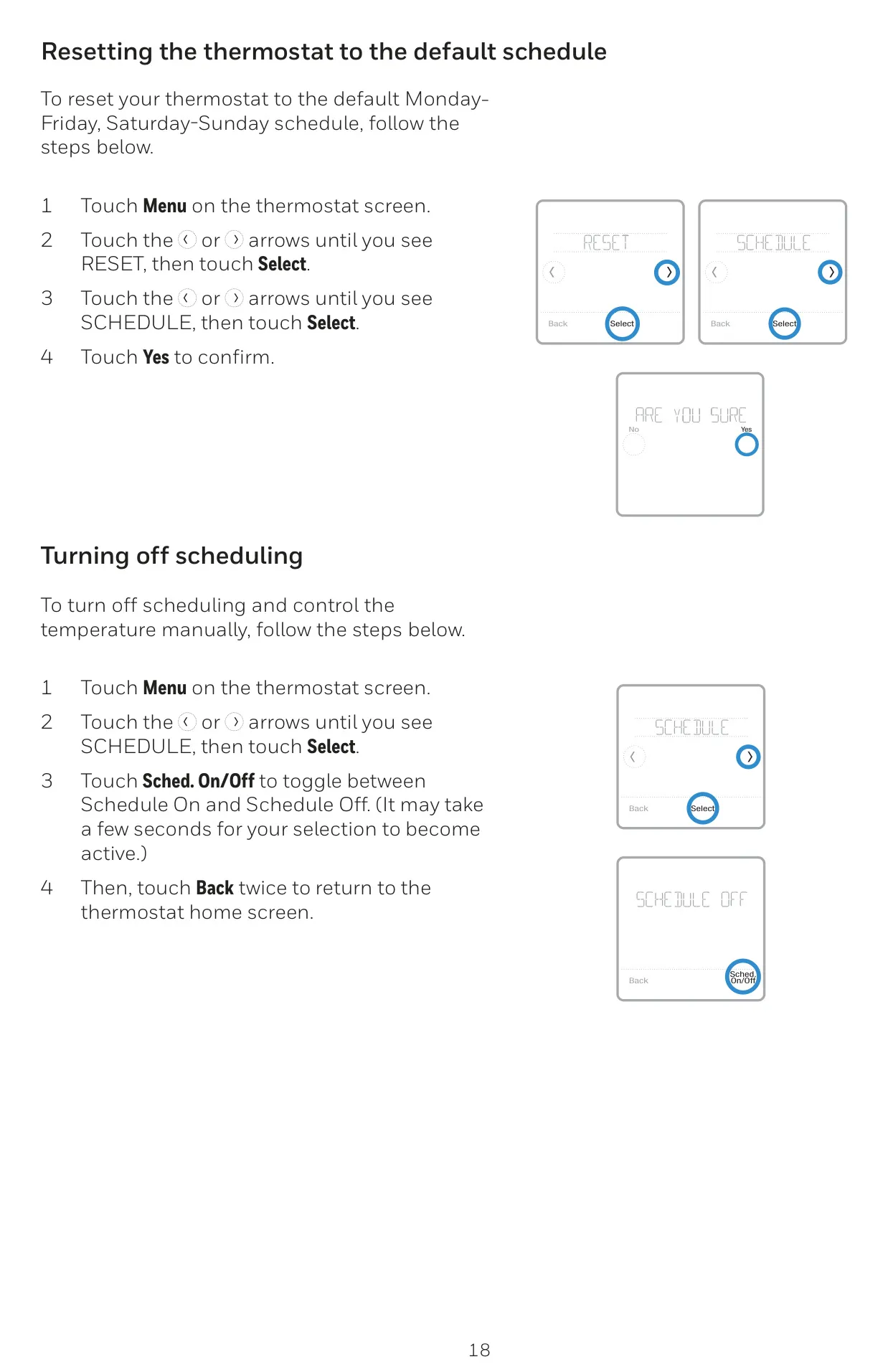
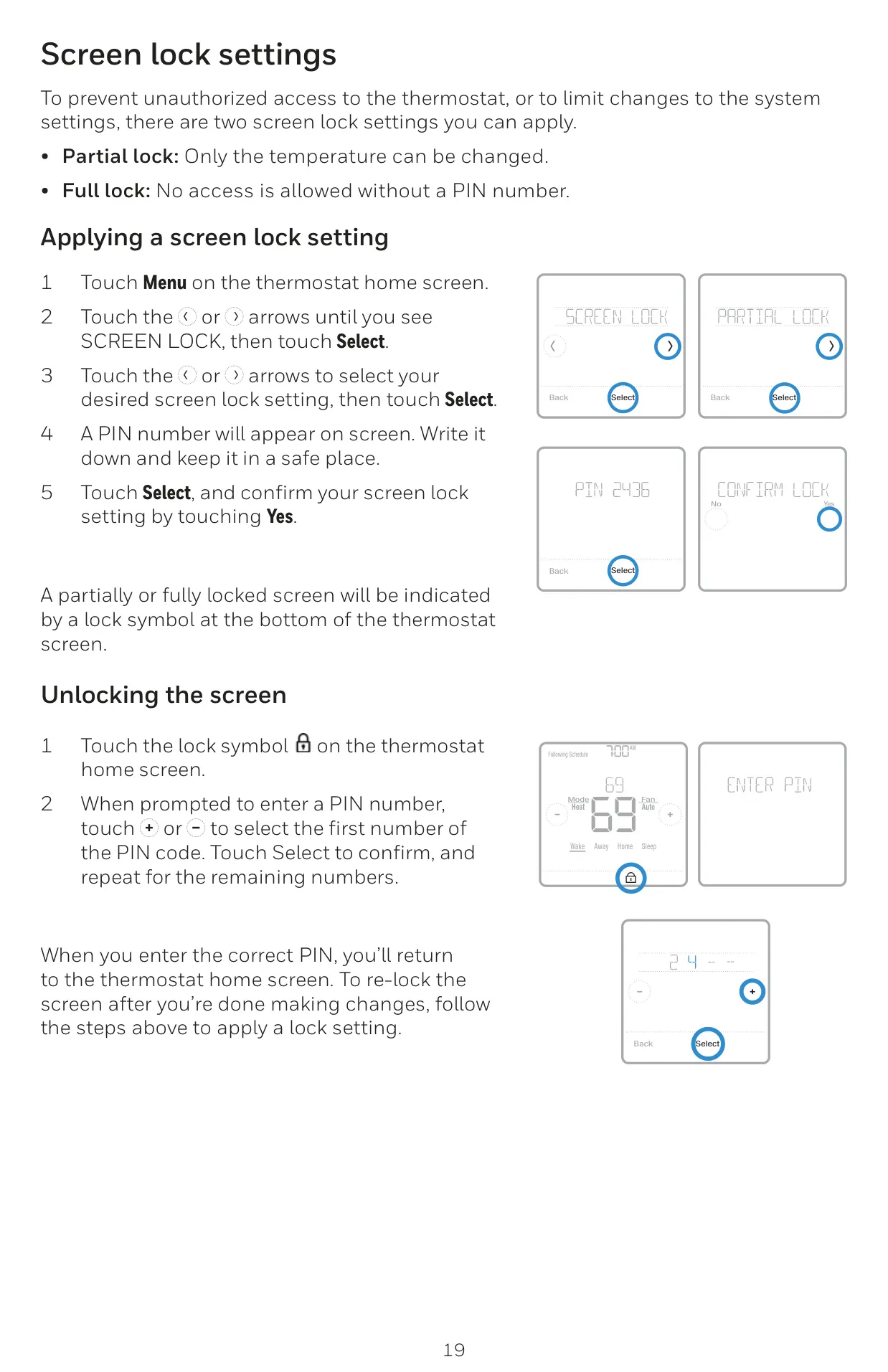
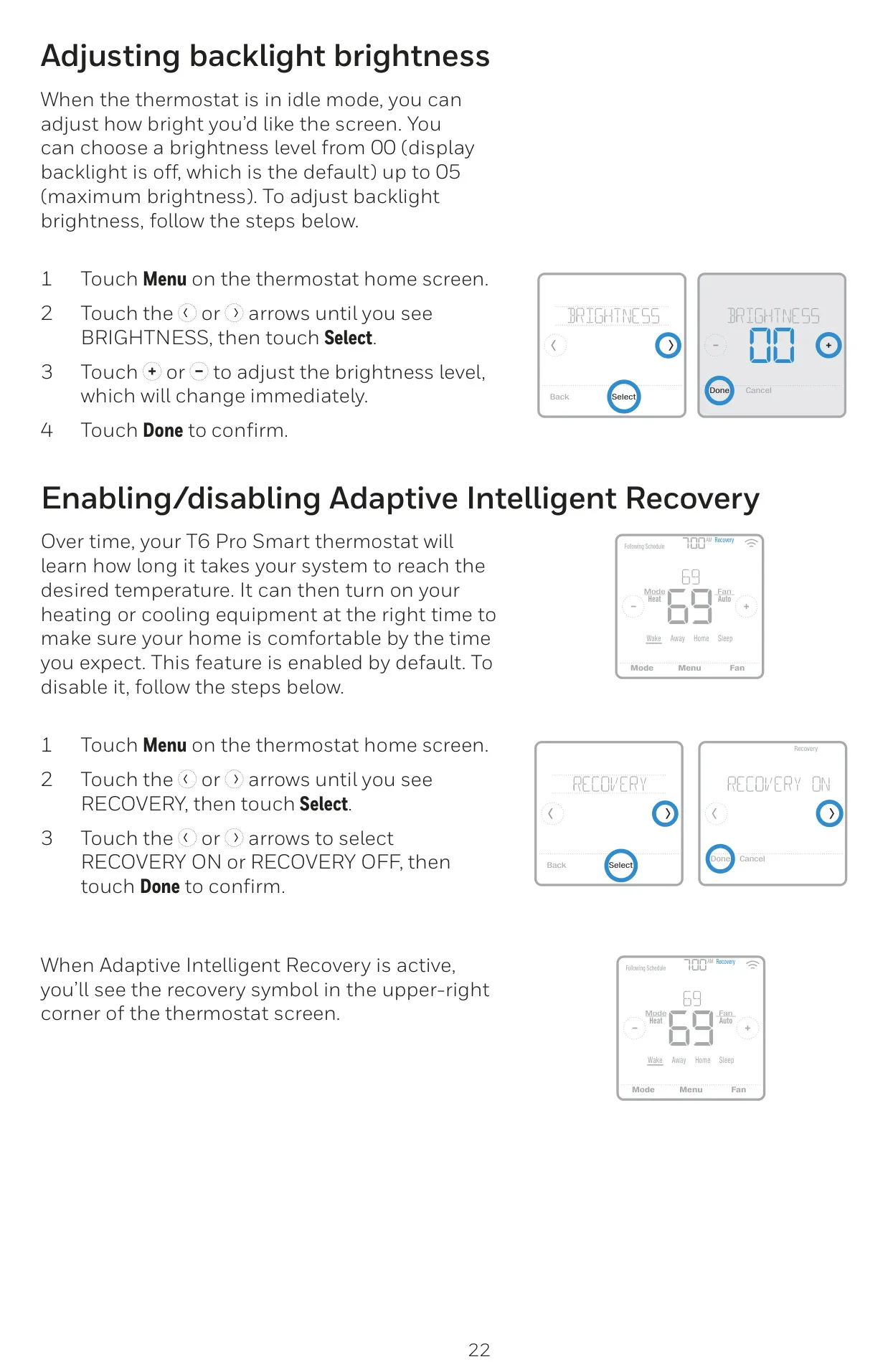
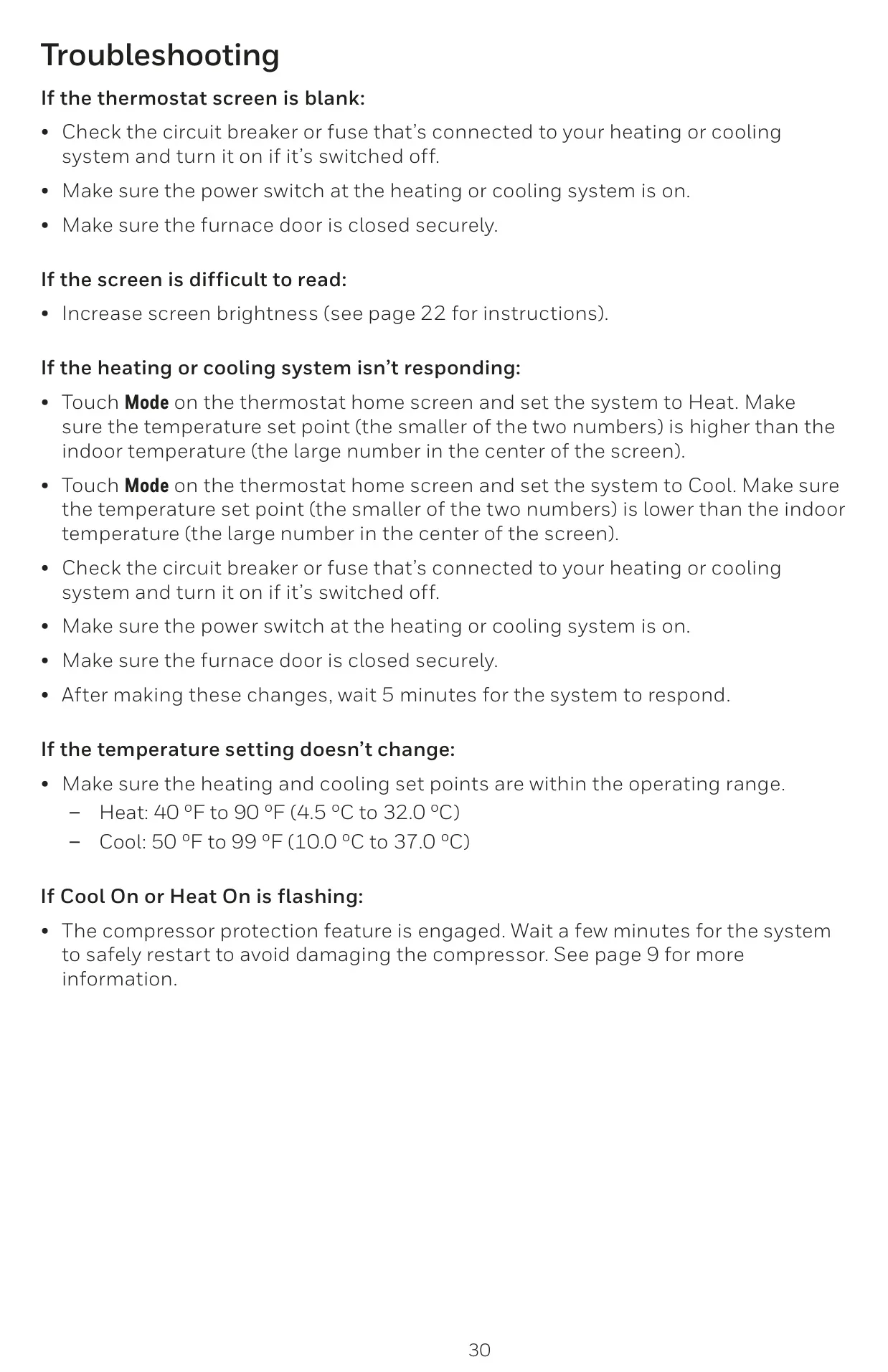
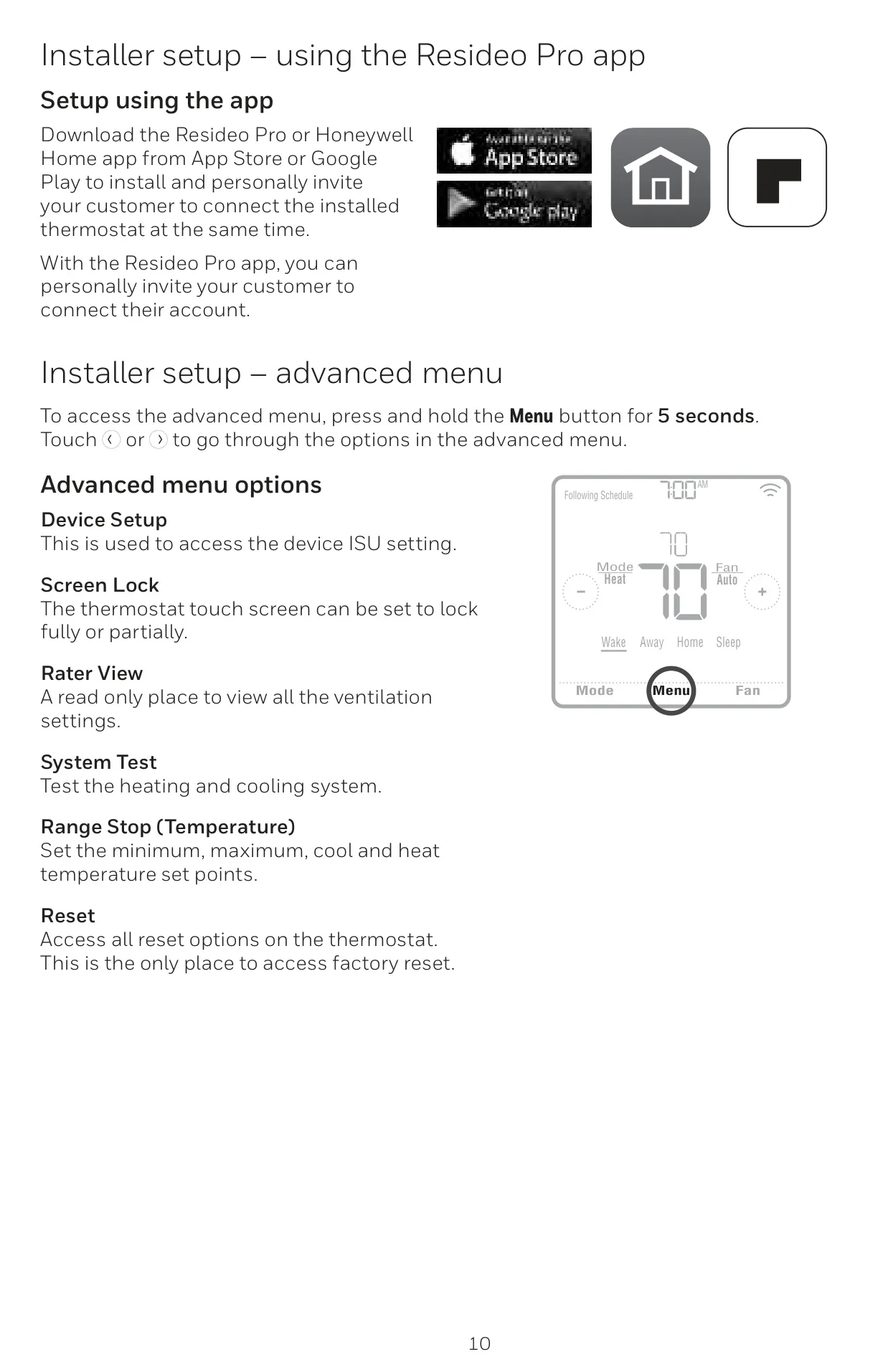
User control is intuitive and secure with the T6 Pro Smart. The touchscreen display features adjustable backlight brightness, ensuring readability in various lighting conditions. For households that require restricted access, screen lock settings offer either partial lock (only temperature changes allowed) or full lock, which requires a PIN. Additionally, various fan modes (On, Auto, Circulate) provide customized air circulation, while dedicated menu options facilitate easy screen cleaning without accidentally altering settings.
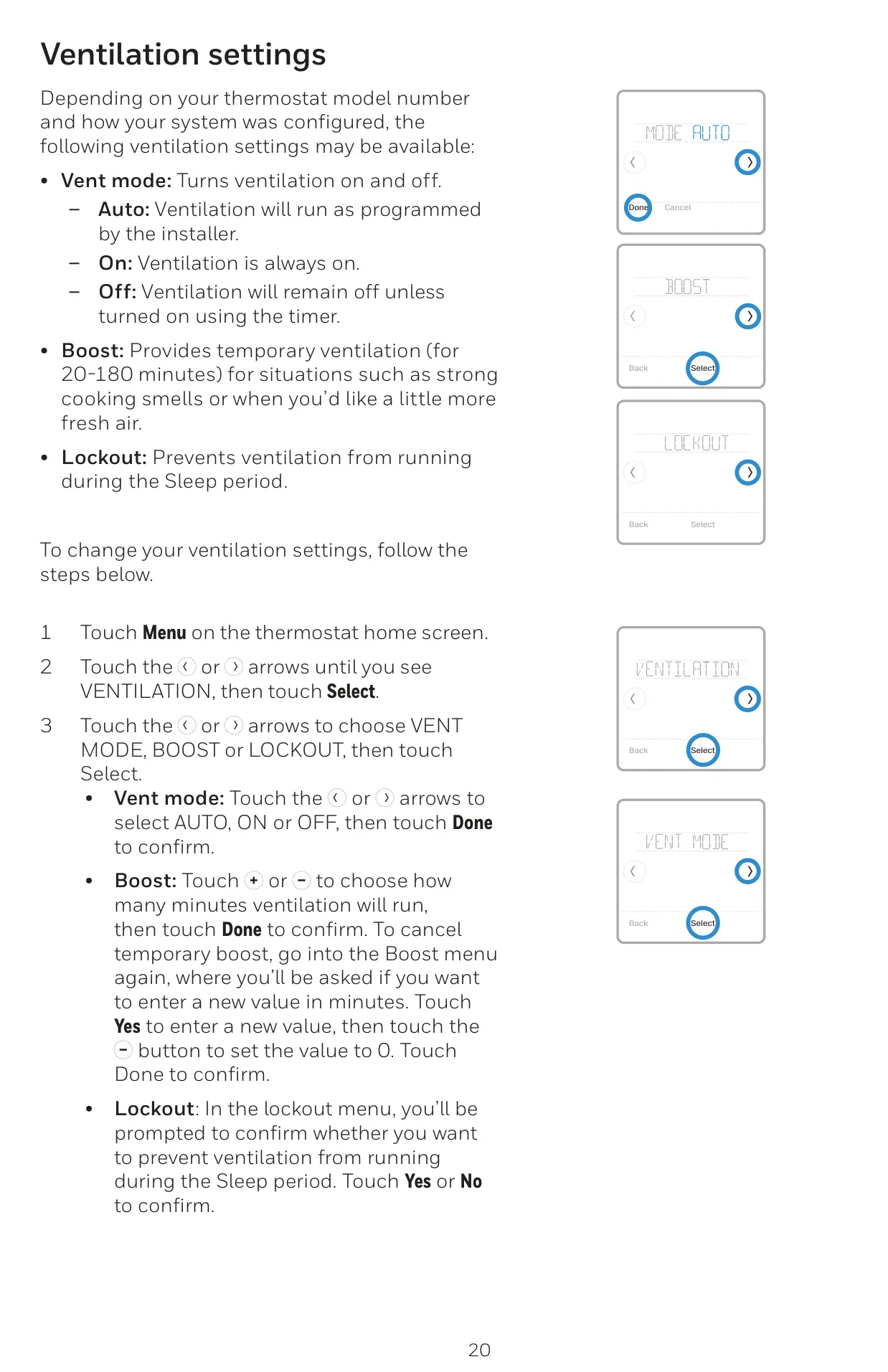
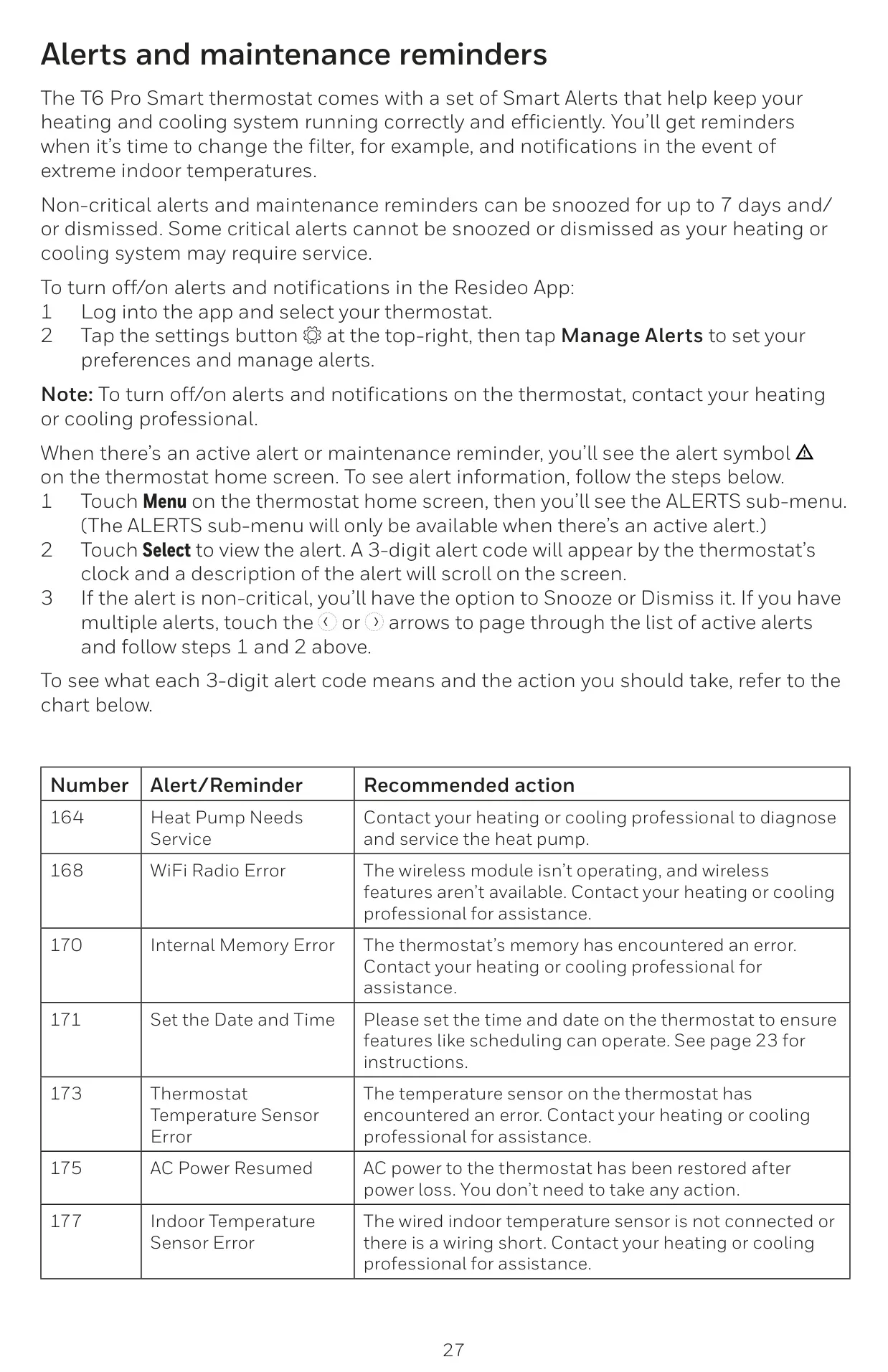
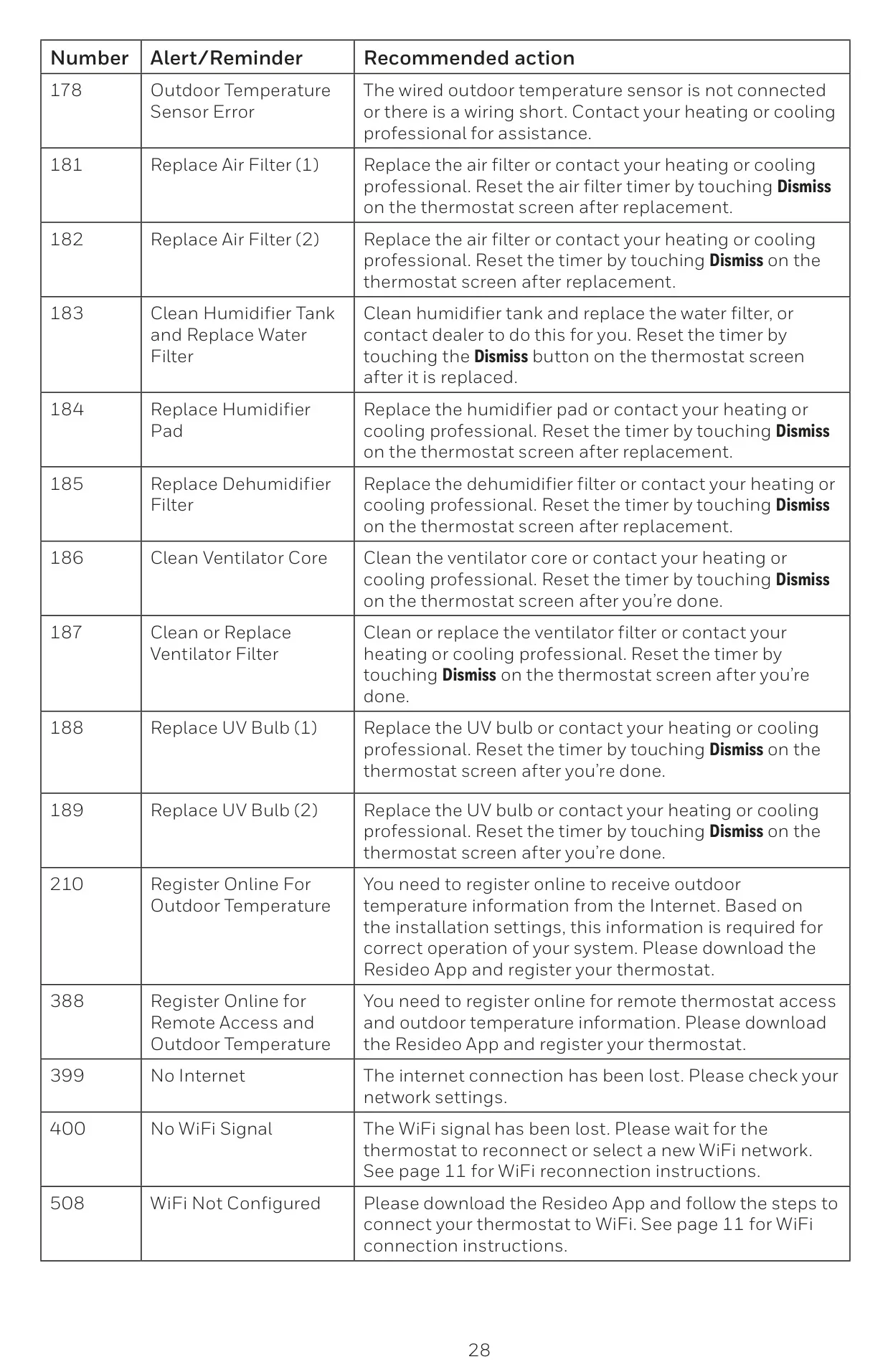
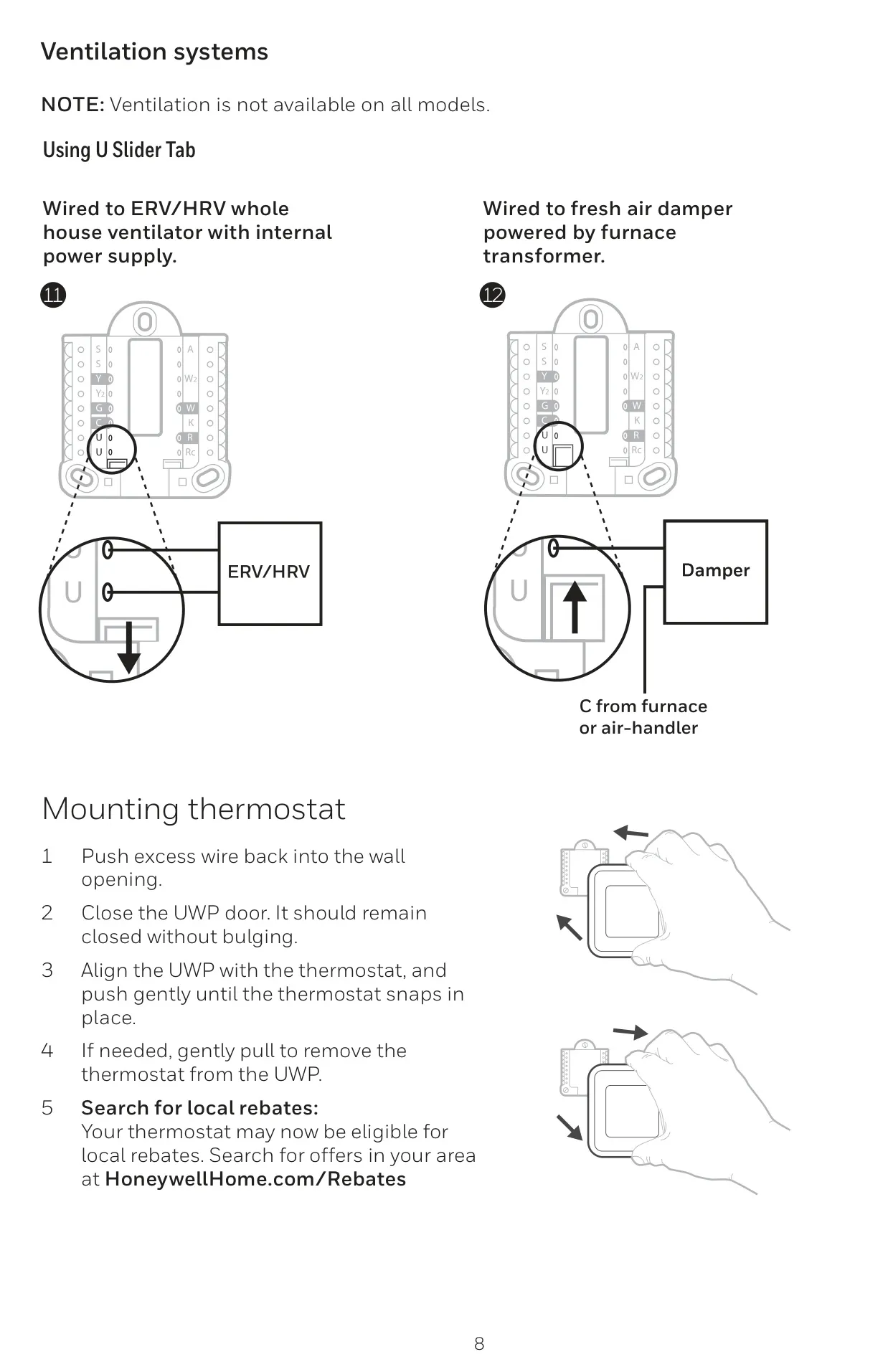
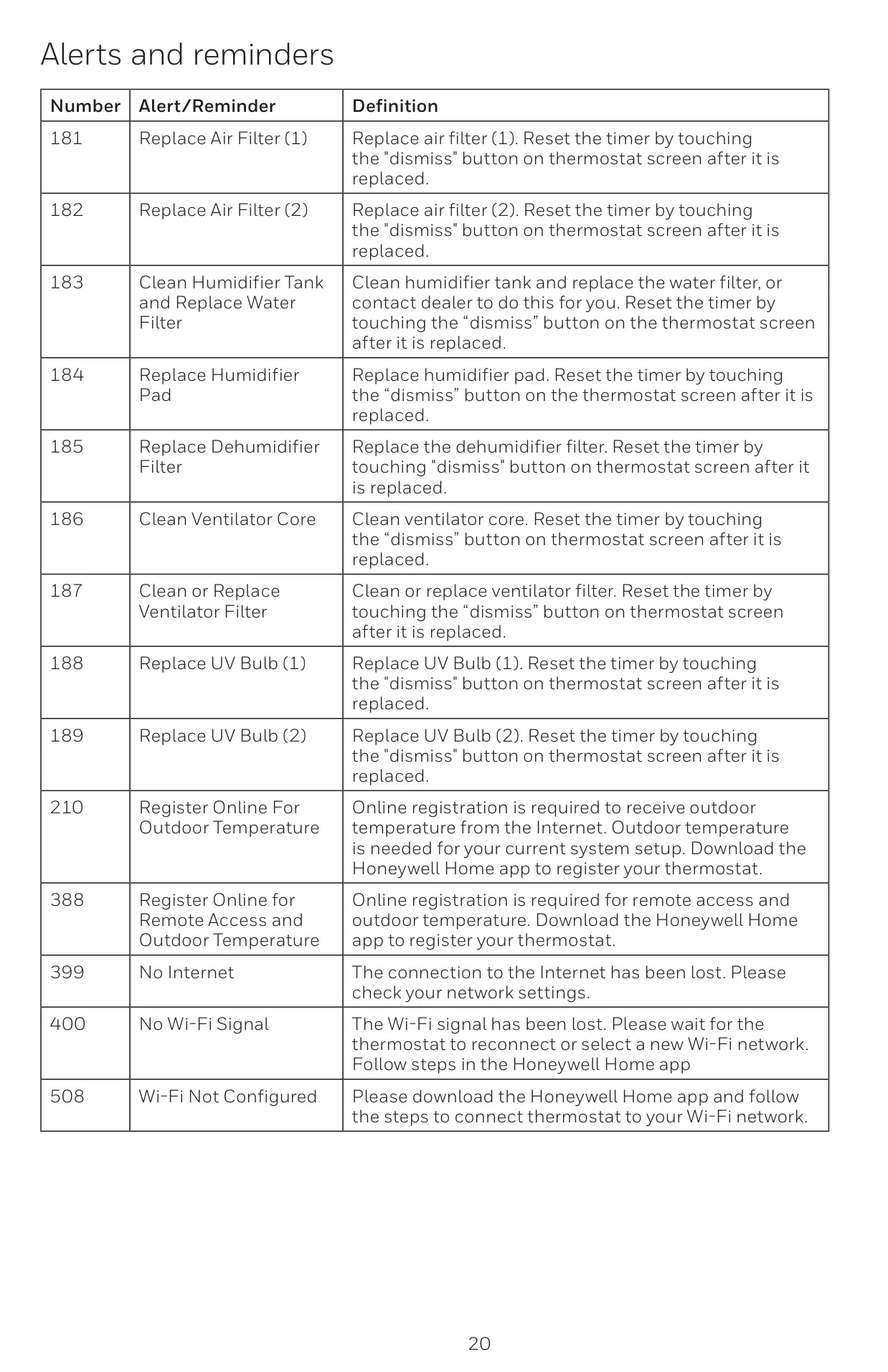
The thermostat keeps you informed with helpful Smart Alerts and maintenance reminders. These include notifications for extreme indoor temperatures and timely prompts for routine tasks like filter changes. Non-critical alerts can be conveniently snoozed or dismissed via the Resideo App or directly on the thermostat. When connected to WiFi, the device automatically sets the time and date, including adjustments for daylight saving, ensuring accurate operation of all time-based functions. Specific models may also offer advanced ventilation settings.
Frequently Asked Questions (FAQs)
Can't find the answer you need? Here are some frequently asked questions about the Honeywell TH6220WF2006 T6 Pro Smart, and we answer them below.