Moultrie A5 (MCG-12589) Digital Game Camera Instruction Manual

Moultrie A5 (MCG-12589) Digital Game Camera








Moultrie A5 (MCG-12589) Digital Game Camera
Moultrie A5 (MCG-12589) Instructions
Here we offer the Moultrie A5 (MCG-12589) Digital Game Camera manual completely free and in English. We have cataloged this manual in the Digital Game Cameras section on Manualverse, and it has been rated by 1 users with an average rating of 5. If you have any specific questions about Moultrie A5 (MCG-12589) Digital Game Camera, we suggest checking the Frequently Asked Questions (FAQs) section of this manual.
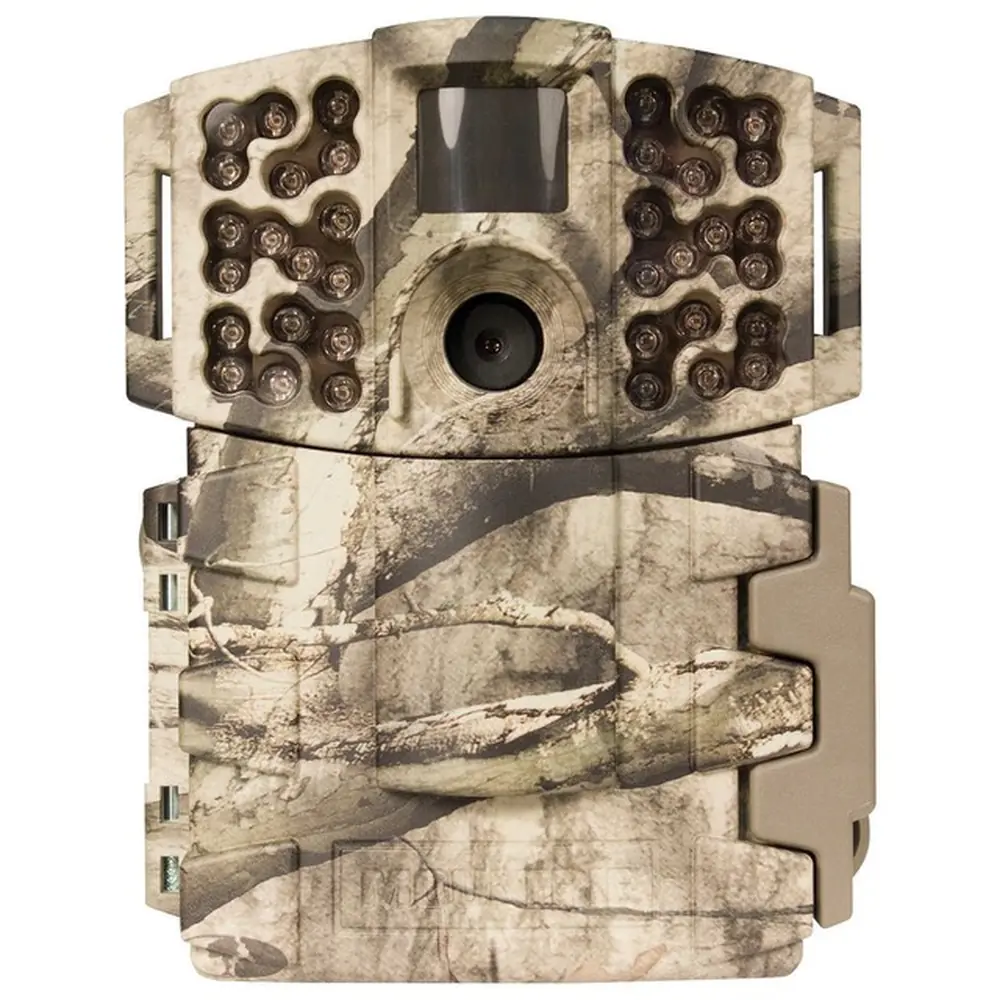
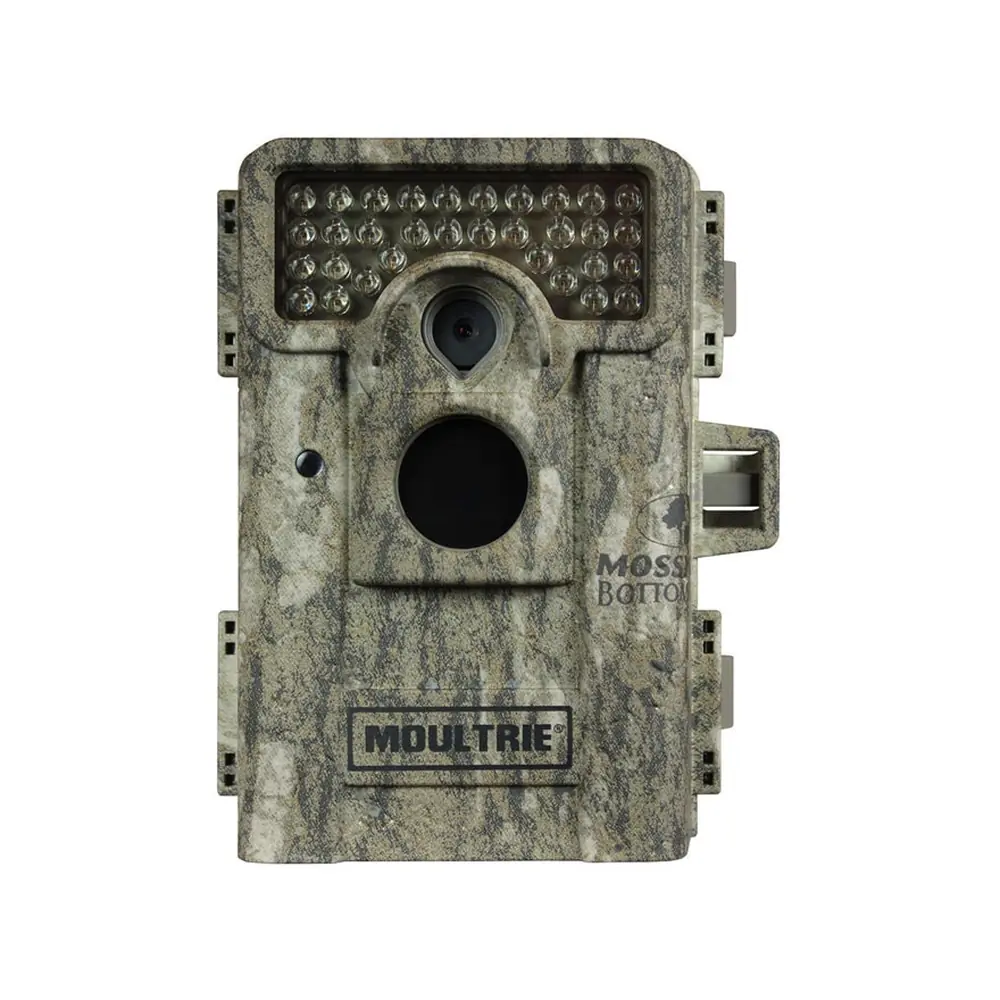
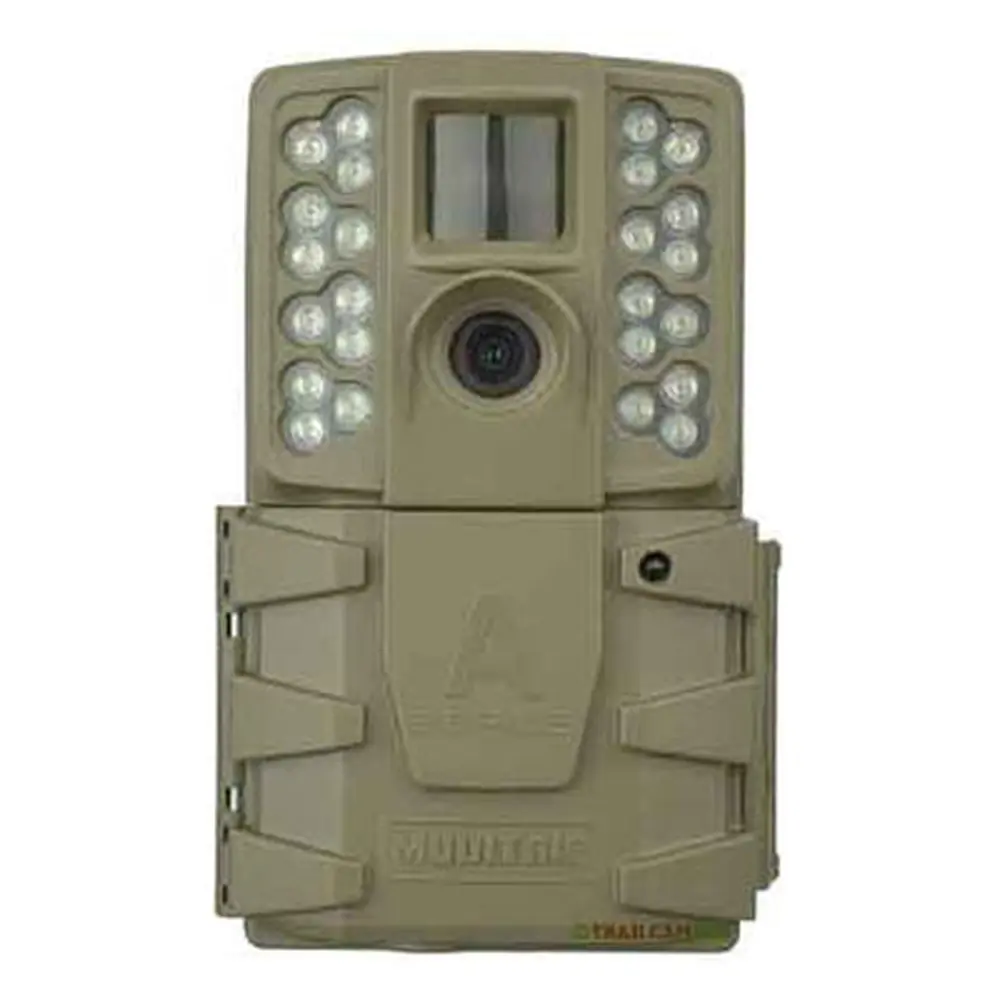
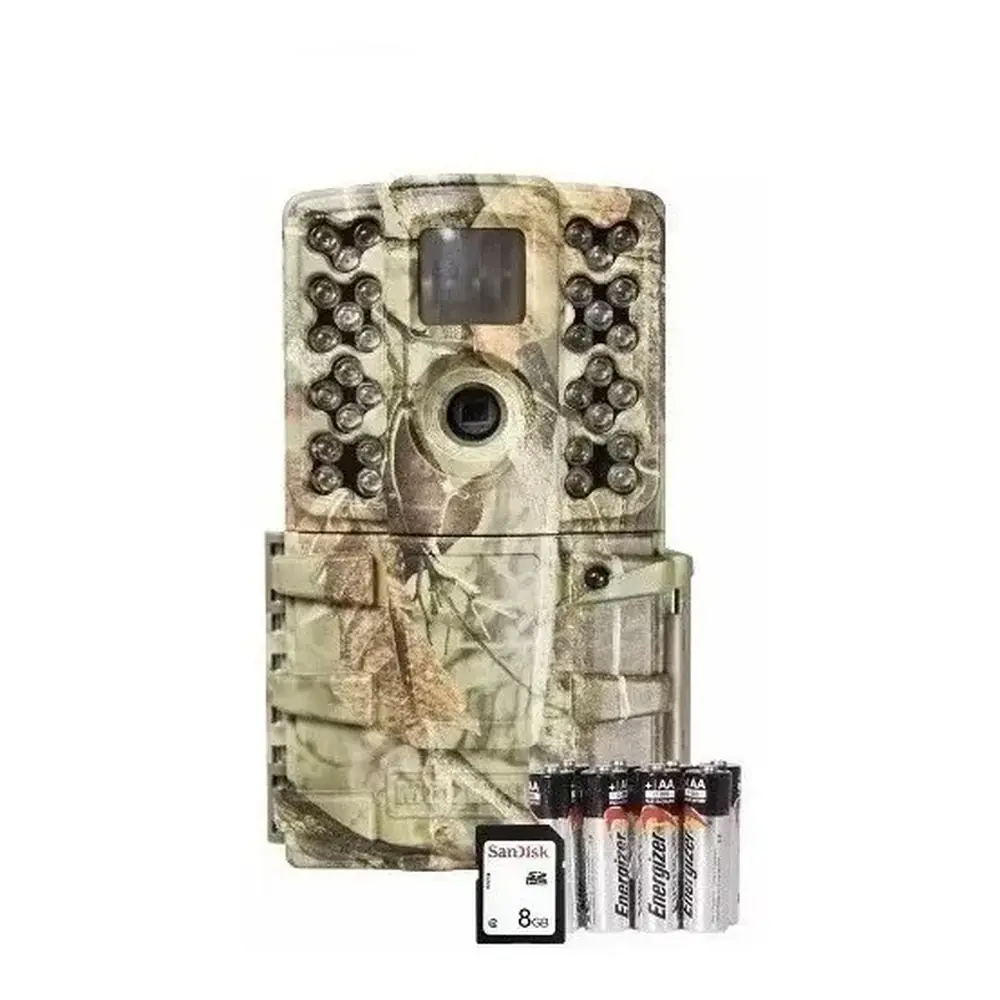
Product Images


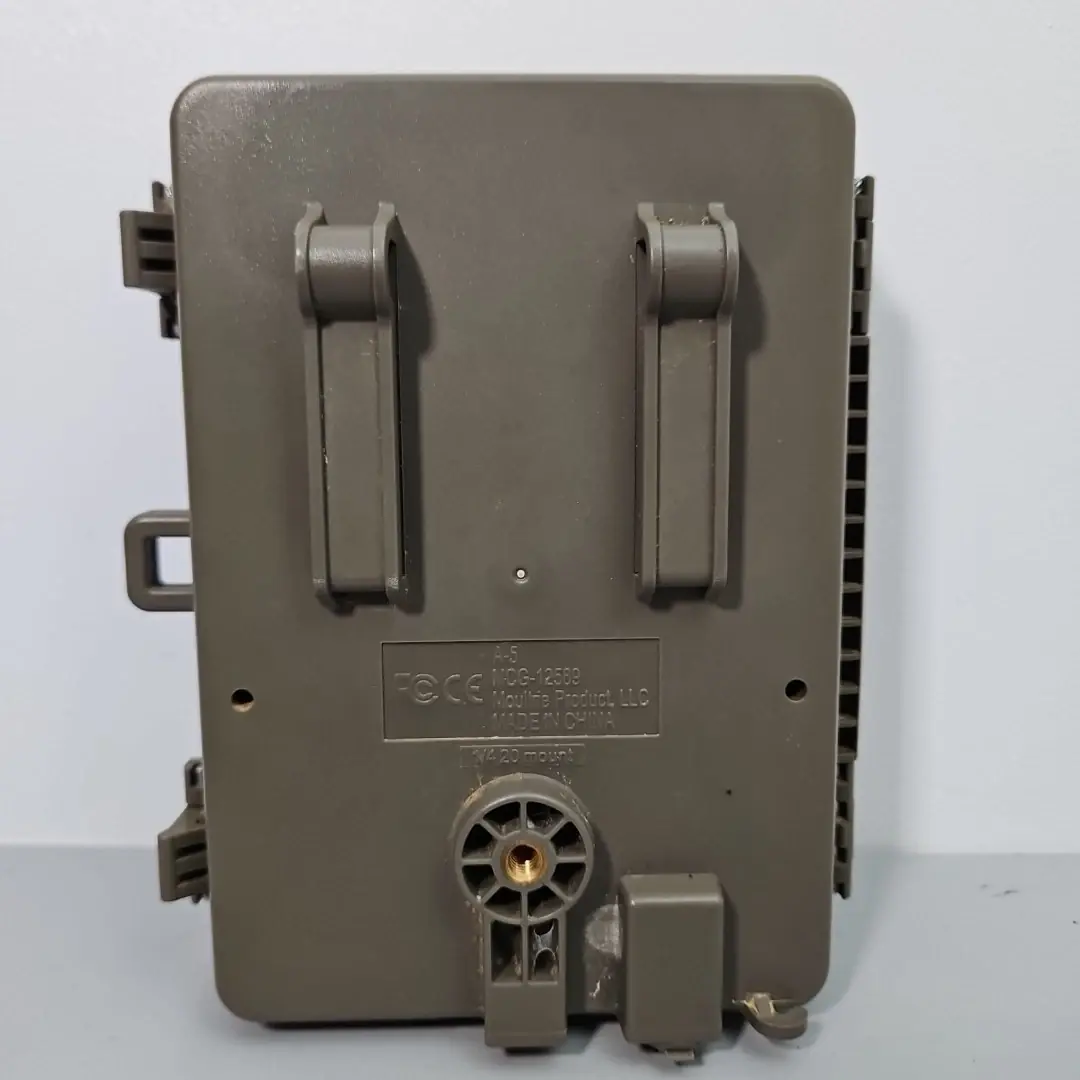
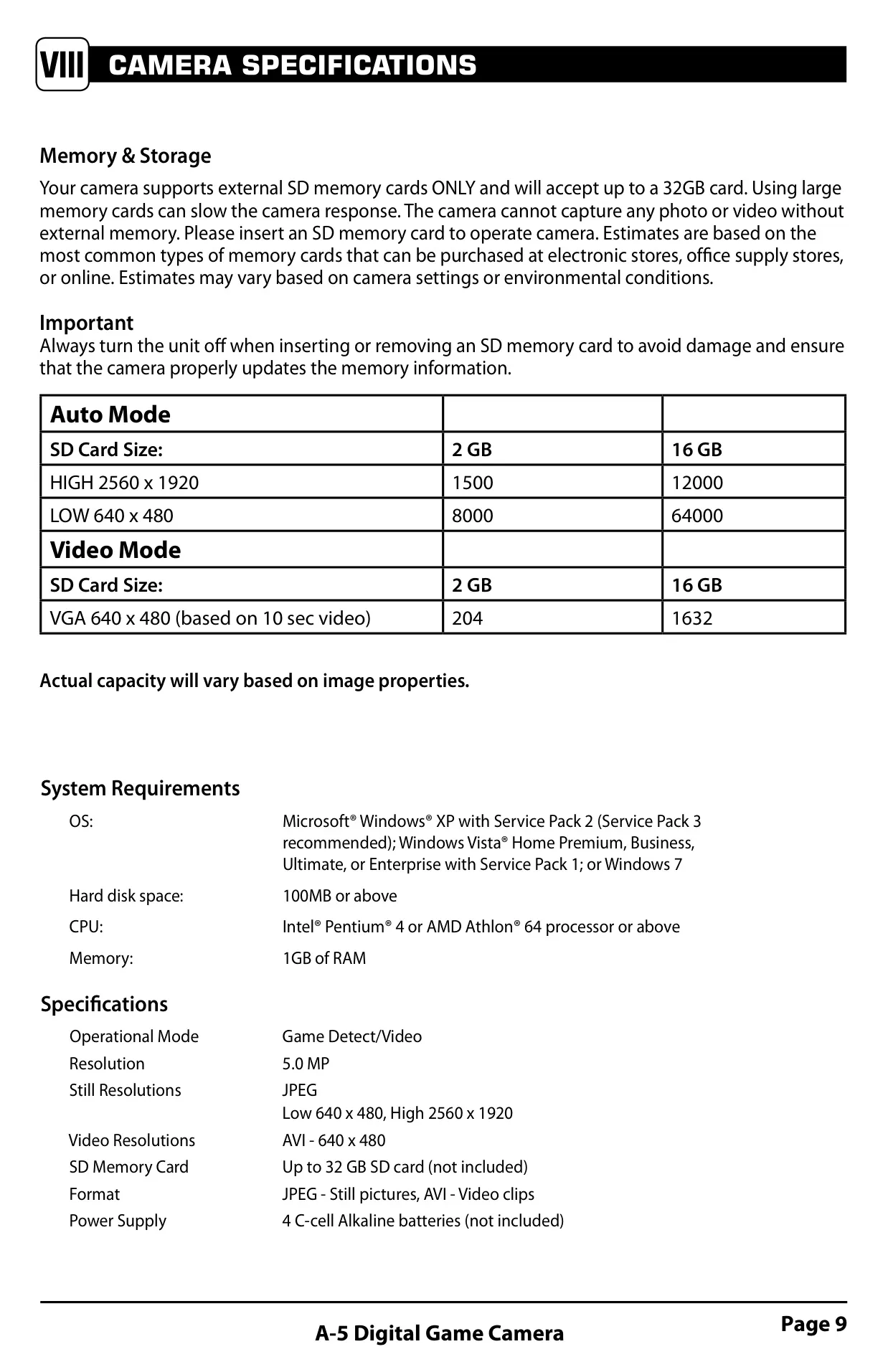
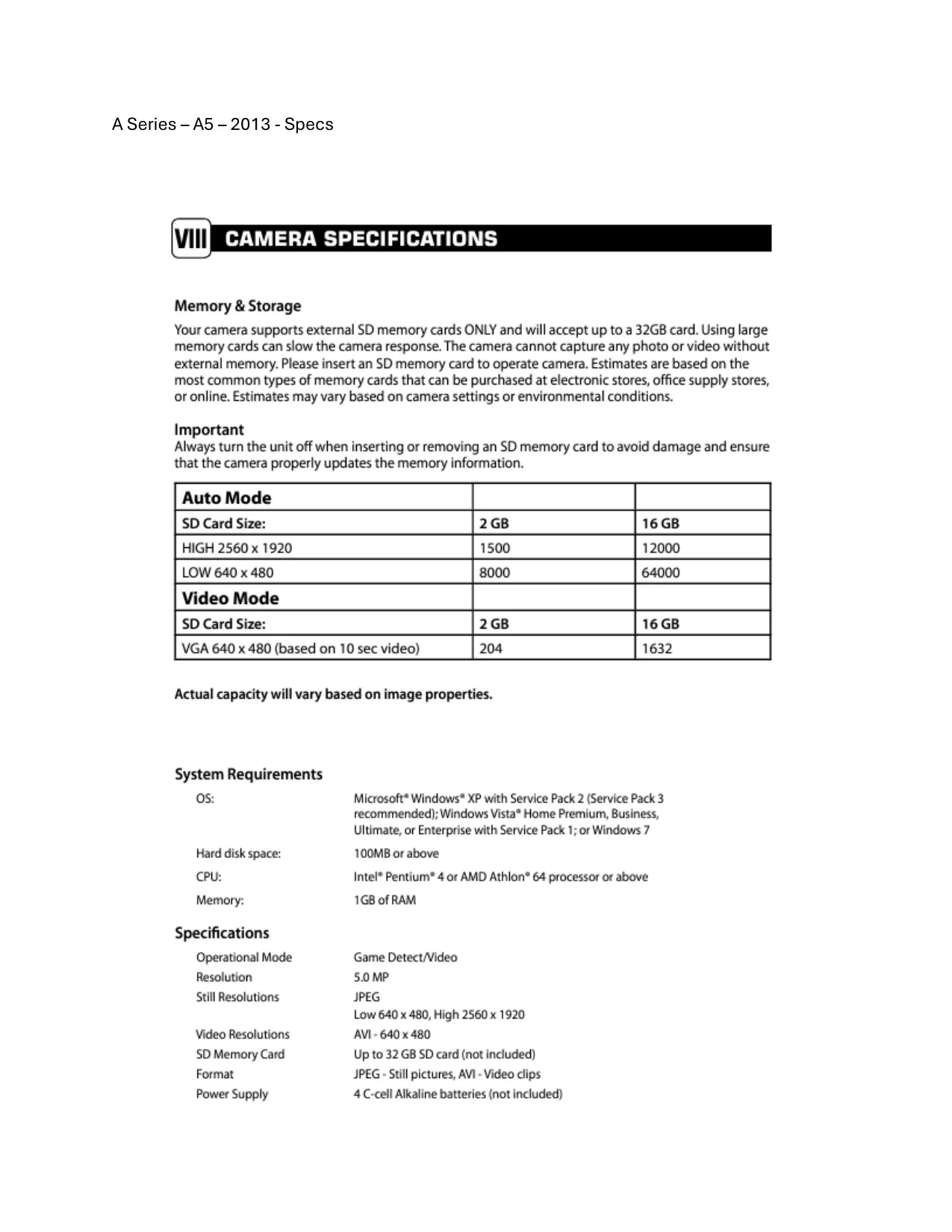
Moultrie A5 (MCG-12589) Digital Game Camera Specifications
| Specification | Value |
|---|---|
| Model Number | MCG-12589 |
| Operational Mode | Game Detect / Video |
| Resolution | 5.0 MP |
| Still Photo Resolutions | JPEG High: 2560 x 1920, Low: 640 x 480 |
| Video Resolution | AVI: 640 x 480 (10-second clips) |
| SD Memory Card Support | Up to 32 GB (not included) |
| Supported Formats | JPEG (still pictures), AVI (video clips) |
| Power Supply | 4 C-cell Alkaline batteries (not included) |
| PC Operating System Support | Microsoft® Windows® XP (SP2/SP3), Windows Vista® (SP1: Home Premium, Business, Ultimate, Enterprise), Windows 7 |
| PC Hard Disk Space | 100MB or above |
| PC CPU | Intel® Pentium® 4 or AMD Athlon® 64 processor or above |
| PC Memory (RAM) | 1GB or above |
Moultrie A5 (MCG-12589) Details
The Moultrie A5 Digital Game Camera is designed for ease of use and reliable performance in the field, featuring a straightforward interface with dedicated buttons and switches for control. Its front view includes essential indicators such as a Red Status LED, Green Battery Indicator, and an LED Flash for low-light conditions. The camera lens and motion sensor are prominently positioned to capture wildlife activity effectively.
User interaction is facilitated by Select, Enter, Up/Down buttons, and a versatile three-position mode switch: IR AIM, SETUP, and AUTO. The IR AIM mode is particularly useful for precise camera placement, allowing the red LED to flash upon motion detection, confirming the target area. The SETUP position enables access to the main screen for configuring settings like time, date, and camera ID.
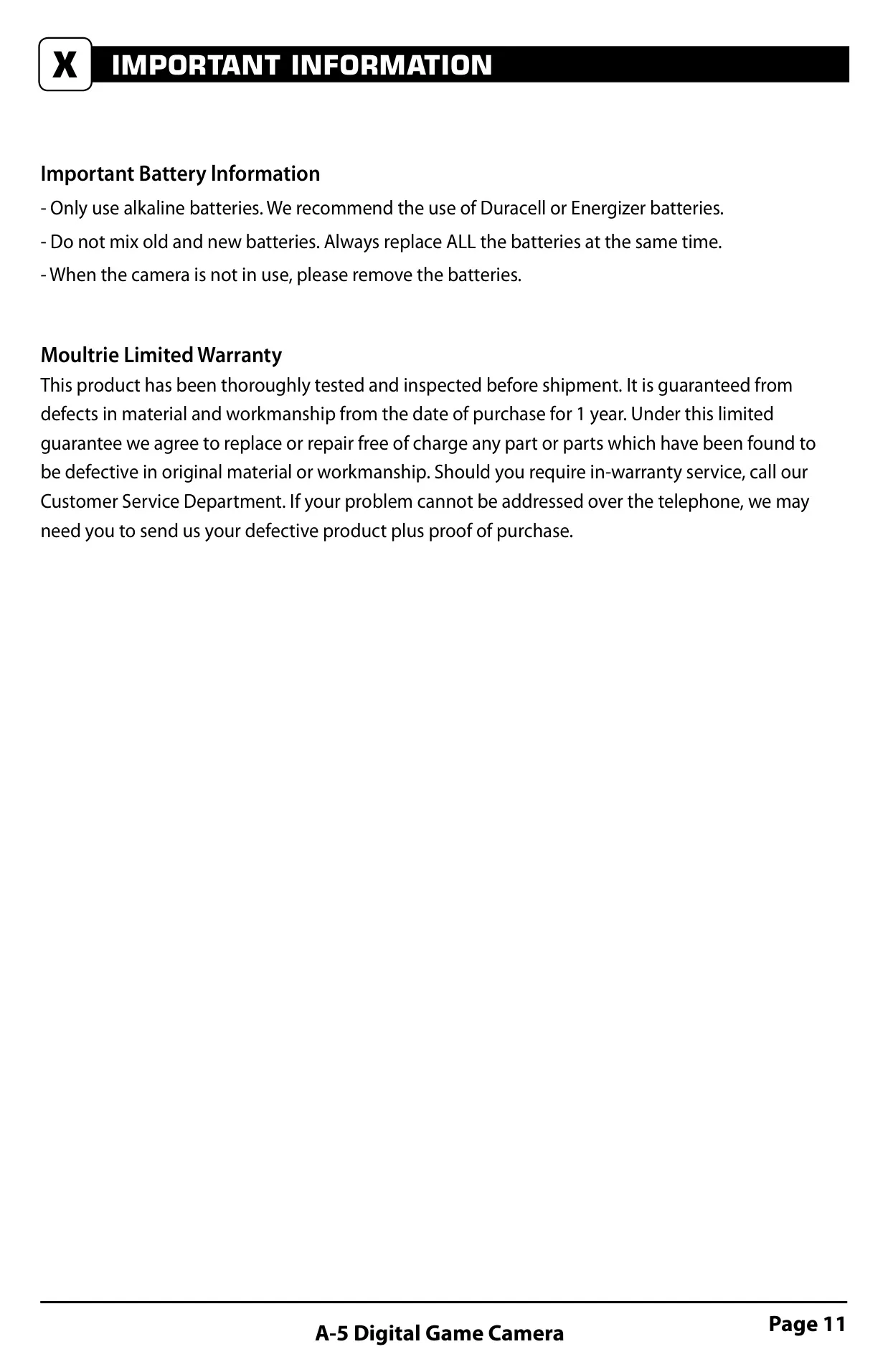
For power, the A5 camera requires four C-cell alkaline batteries, with specific polarity alignment shown inside the compartment. Users are cautioned against mixing old and new batteries or using non-alkaline types to prevent damage. An external power port is also available, exclusively for Moultrie PowerPanel or Moultrie Battery Box accessories; using any other power source will void the warranty.
Storage is handled via an SD card slot, supporting up to a 32GB SD card. An SD card is absolutely essential for the camera to function, and users must remember to turn the camera off before inserting or removing the card to prevent data corruption or camera damage. A USB port is included for direct connection to a computer, facilitating easy download of captured photos and videos.
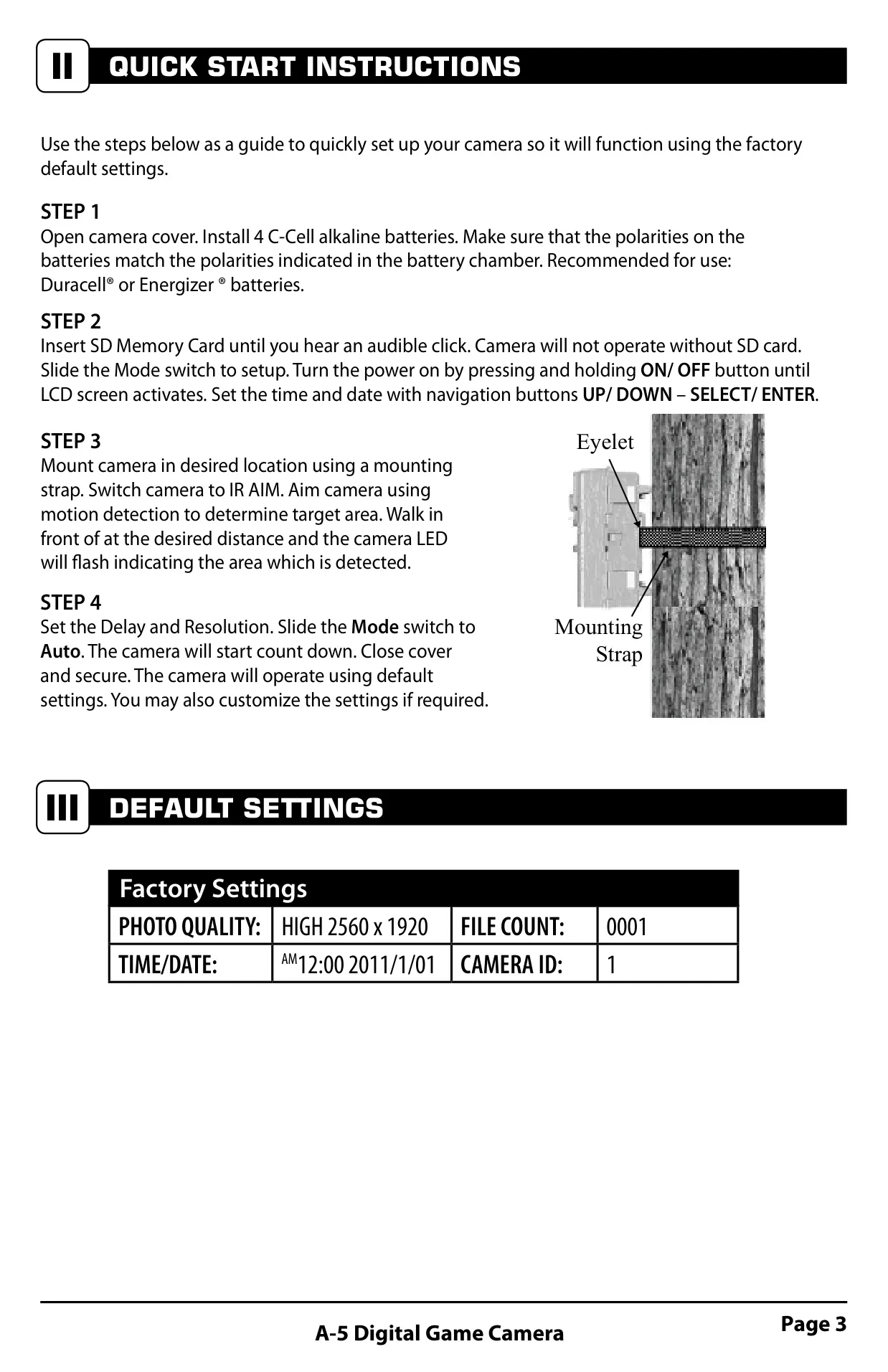
Setting up the camera is a quick process, starting with battery and SD card installation. Users can then slide the mode switch to SETUP, power on, and configure the time and date using the navigation buttons. Mounting options include a basic strap through integrated slots on the back or a deluxe tree mount for more versatile positioning. It's recommended to mount the camera approximately three feet high, facing North or South to avoid sun overexposure, and to clear brush from the front to prevent false triggers.
The camera offers flexible programming in SETUP mode, allowing users to adjust the time, date, and assign a unique camera ID from 1 to 9. A handy feature is the option to reset the picture count, which can be useful after transferring images or starting a new monitoring period. The camera also includes a physical switch for setting the time delay, offering intervals of 1, 5, 10, or 30 minutes between detections.
Image quality is controlled by a resolution switch, providing "High" (2560x1920) or "Low" (640x480) for still images, and "VID" for video capture. Once all settings are adjusted, sliding the mode switch to "Auto" readies the camera for operation. To conserve battery life, the camera automatically enters a sleep mode after two minutes of inactivity when in Auto mode, waking up when motion is detected.
Captured images and videos can be viewed either in the field by removing the SD card and using a compatible player/reader, or at home by connecting the camera directly to a PC via a USB cable. When connected to a computer, the camera acts as a removable drive, allowing for simple file transfer. Moultrie also offers various accessories, like the PowerPanel and Battery Box, to extend the camera's operational life in the field, emphasizing that internal batteries should remain in place even when external power is used.
Frequently Asked Questions (FAQs)
Can't find the answer you need? Here are some frequently asked questions about the Moultrie A5 (MCG-12589) Digital Game Camera, and we answer them below.