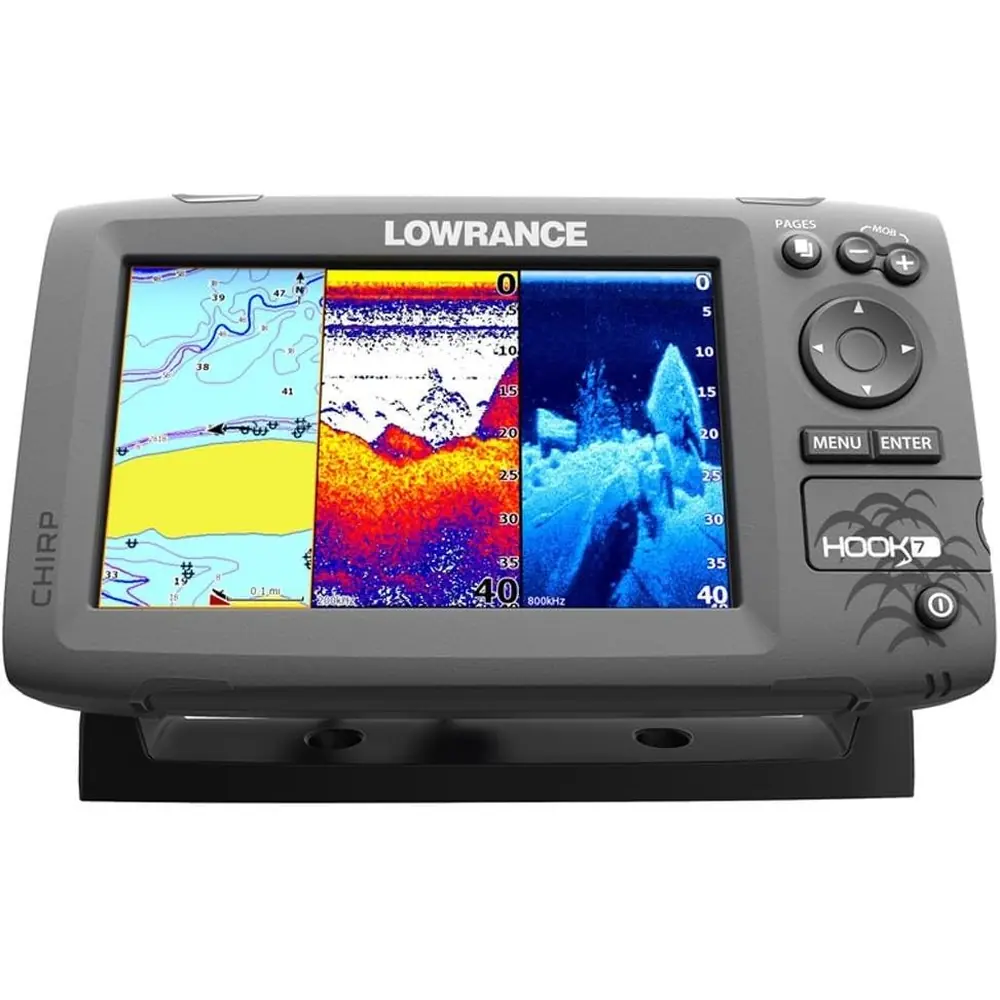
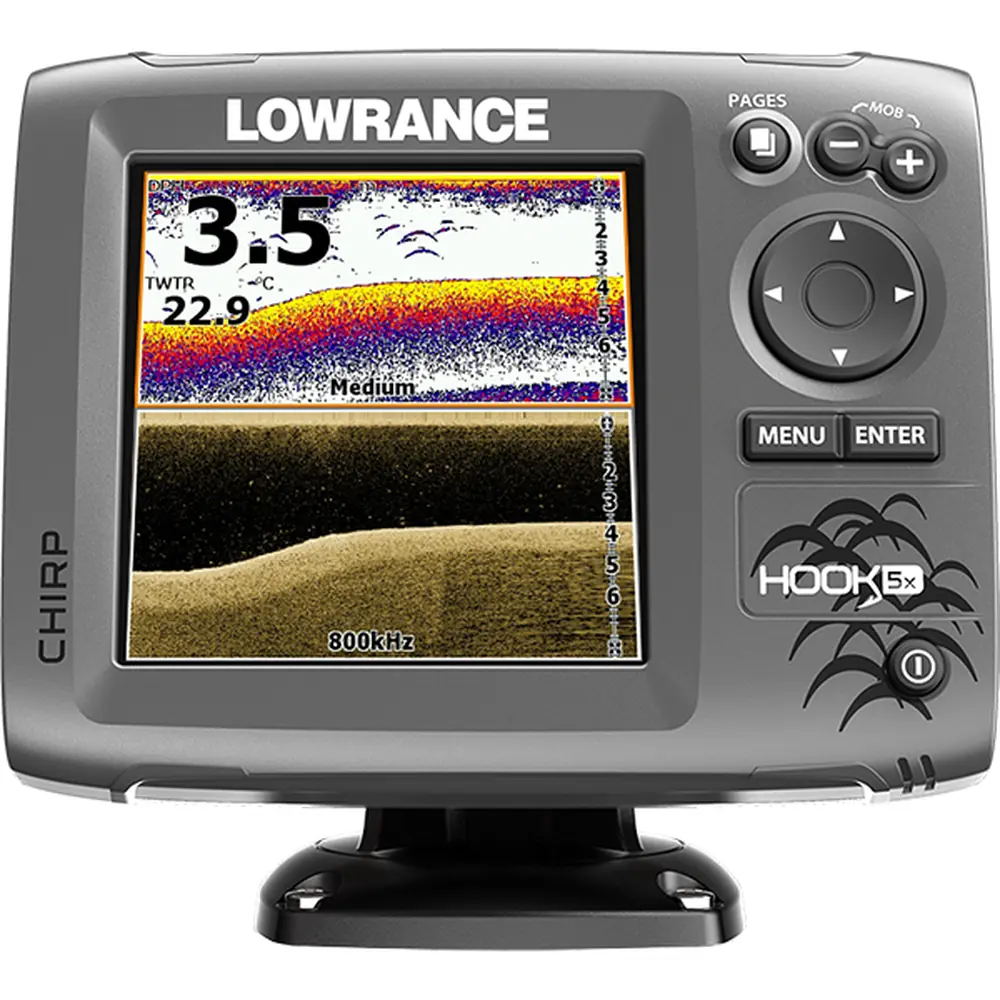
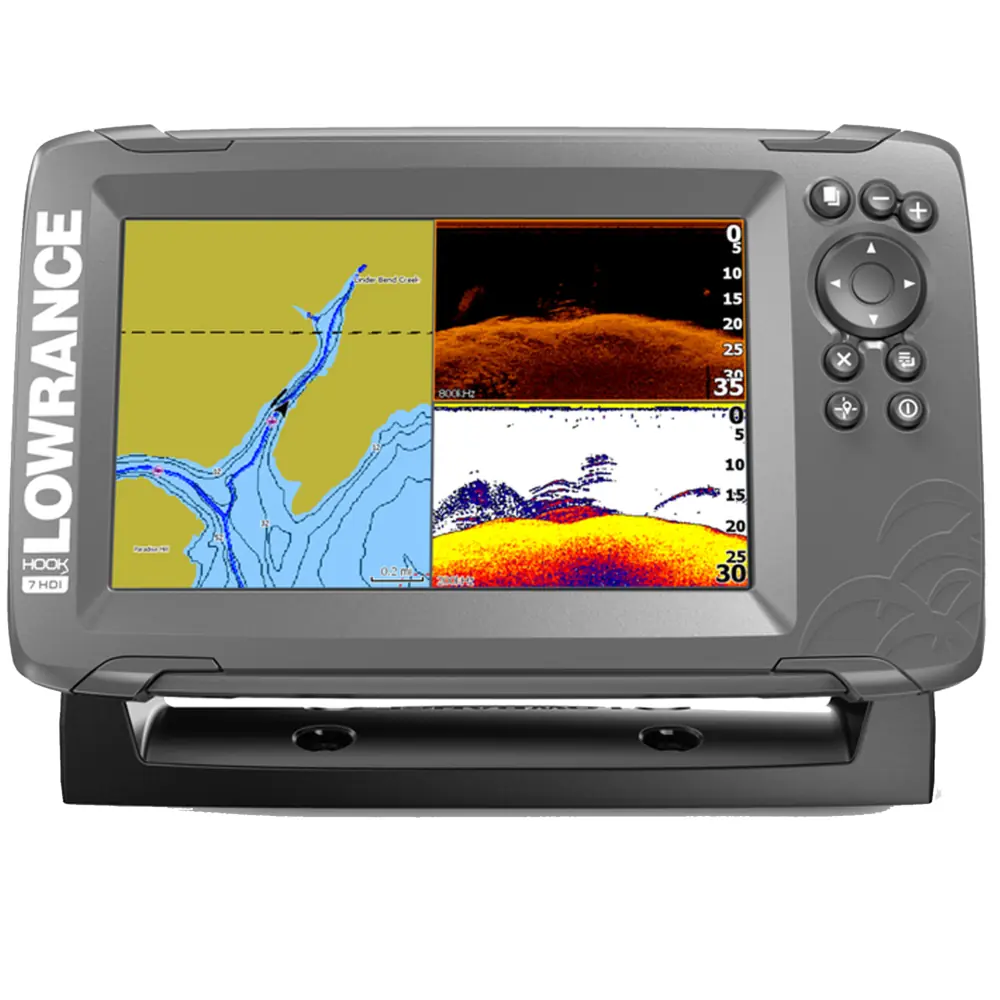
Lowrance Hook2 5 TS Fishfinder Instruction Manual

Lowrance Hook2 5 TS Fishfinder
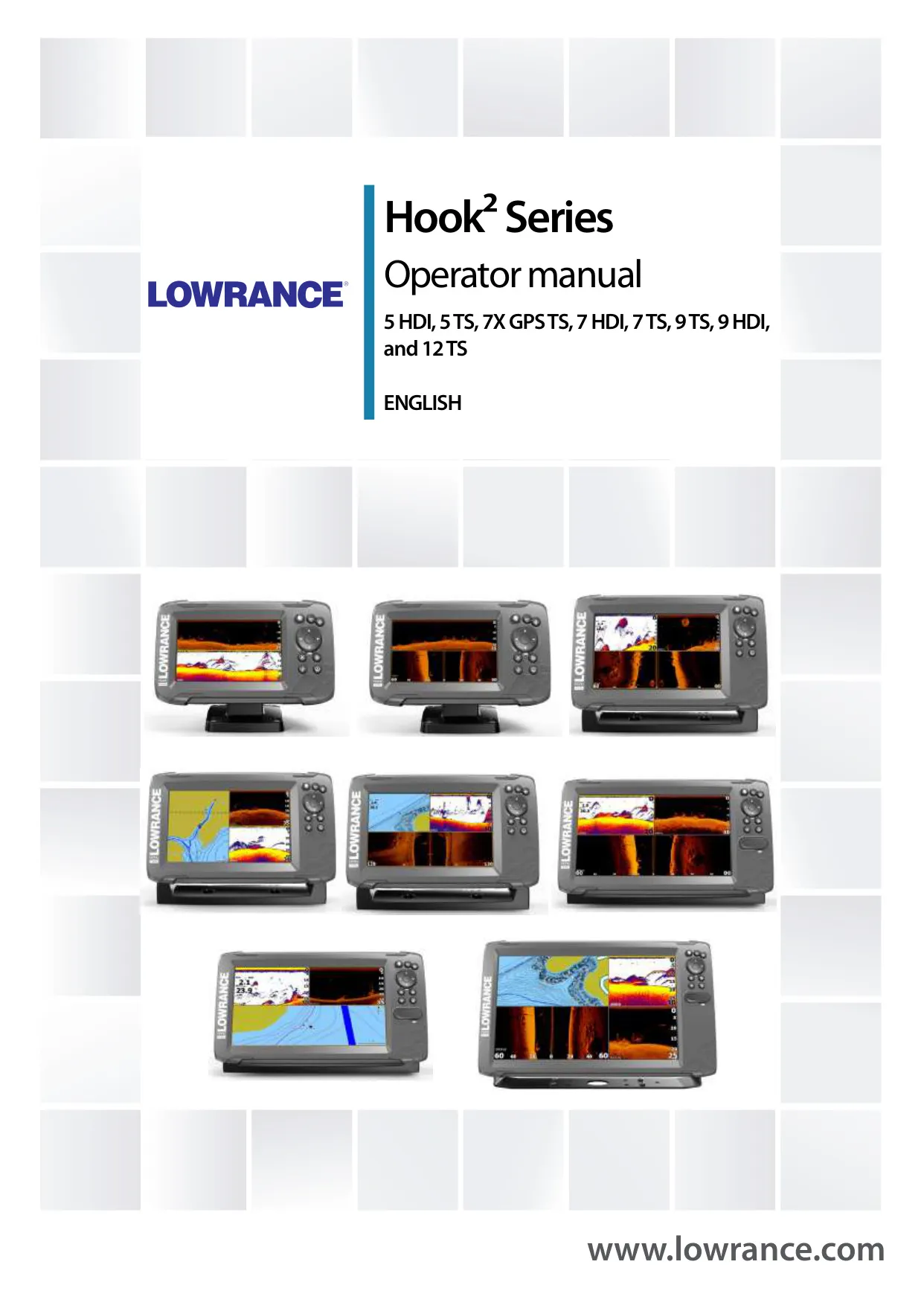















Lowrance Hook2 5 TS Fishfinder
Lowrance Hook2 5 TS Fishfinder


Lowrance Hook2 5 TS Instructions
Here we offer the Lowrance Hook2 5 TS Fishfinder manual completely free and in English. We have cataloged this manual in the Fishfinders section on Manualverse, and it has been rated by 1 users with an average rating of 5. If you have any specific questions about Lowrance Hook2 5 TS Fishfinder, we suggest checking the Frequently Asked Questions (FAQs) section of this manual.
Product Images


Lowrance Hook2 5 TS Fishfinder Specifications
| Feature | Specification |
|---|---|
| Product series | Lowrance Hook2 Series |
| Model | Hook2 5 TS |
| Transducer type | TripleShot transducer |
| Sonar functions | Traditional sonar, DownScan, Side/StructureScan |
| StructureScan frequencies | 455 kHz and 800 kHz |
| DownScan maximum depth at 455 kHz | 91 m (300 ft) |
| DownScan maximum depth at 800 kHz | 46 m (150 ft) |
| StructureScan views | Left only, right only, or left/right |
| StructureMap overlay | Supported (TripleShot capability) |
| Chart function | Available (C-MAP and Navionics chart cards supported) |
| Built-in Navionics database depth data | Down to 20 m |
| Shallow water highlight range | 0 up to 10 m (30 ft) |
| Card reader | Micro SD |
| Maximum custom pages | 9 |
| Maximum panels per custom page | 4 |
| Sonar split-screen zoom | 2x default, up to 8x |
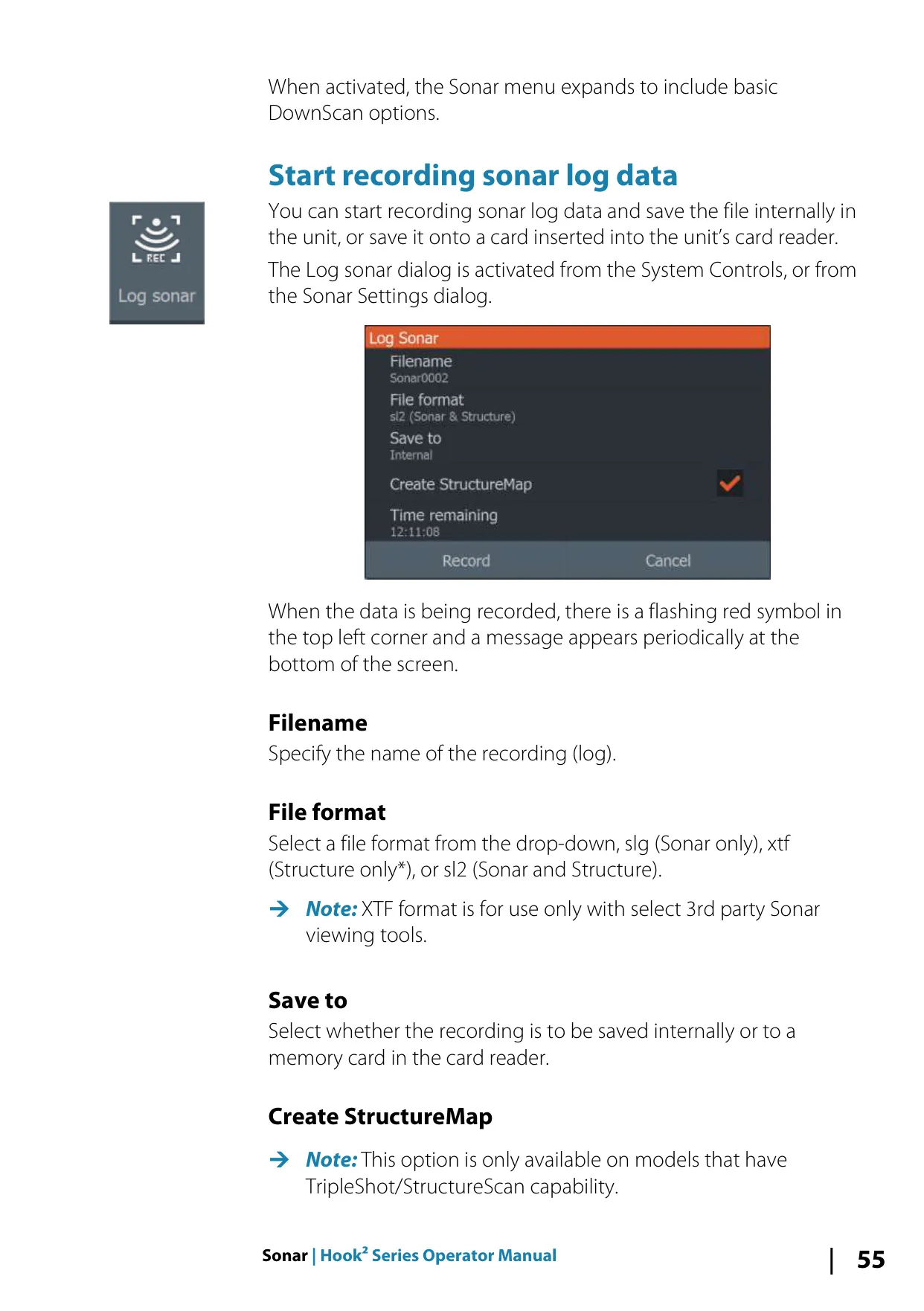
| Sonar log file formats | .slg (Sonar only), .xtf (Structure only), .sl2 (Sonar and Structure) |
| StructureMap file format | .smf (standard or high resolution) |
| Recommended log size for conversion | 100 MB or less |
| Water temperature calibration range | -9.9° to +9.9° (default 0°) |
| Default datum | WGS84 |
| Wallpaper image formats | .jpg, .png |
| User data export formats | User Data File versions 2, 3, 4, 5 and 6, GPX |
| Service report attachment limit | 20 MB |
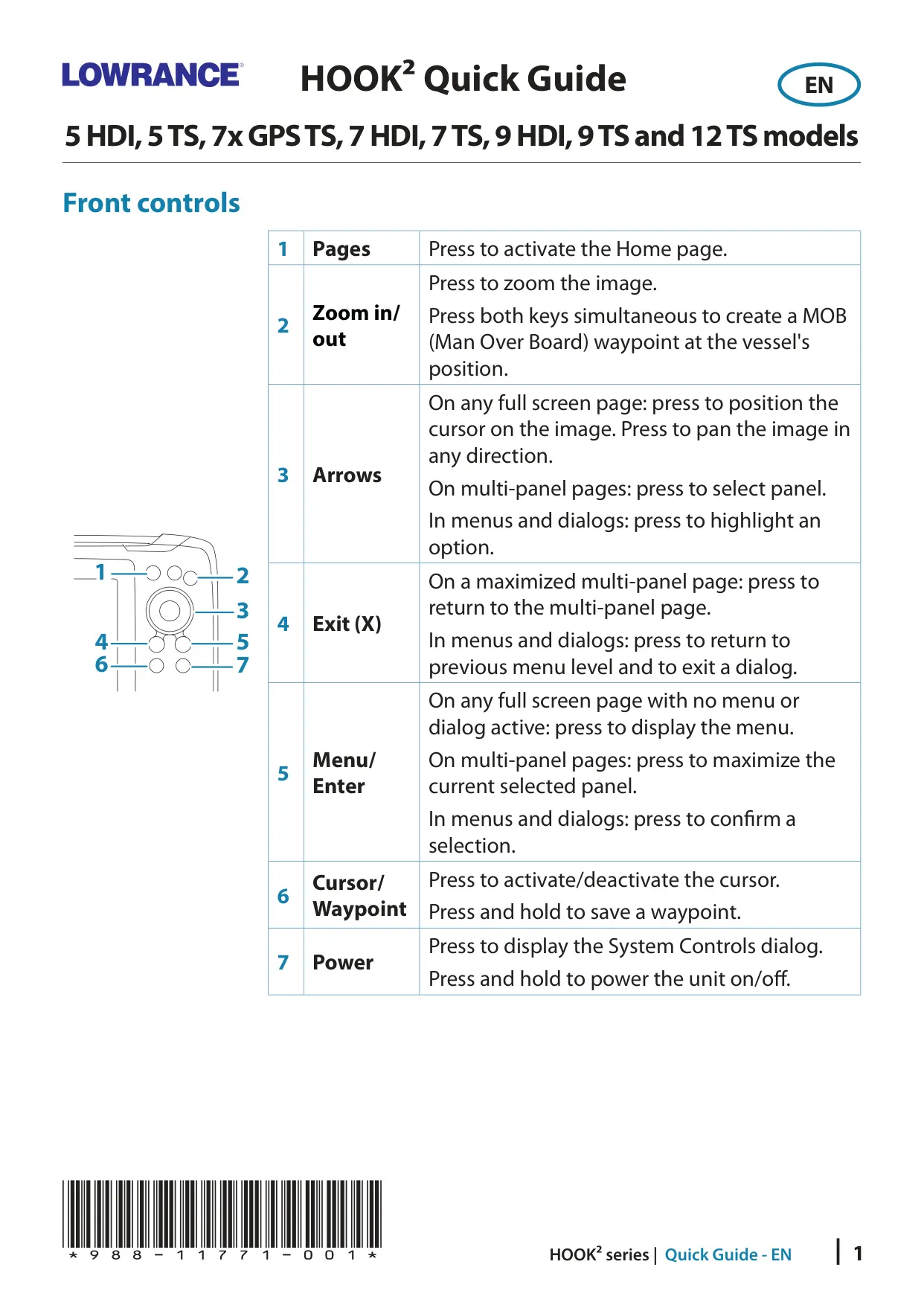
| Front controls | Pages, Zoom in/out, Arrows, Exit (X), Menu/Enter, Cursor/Waypoint, Power |
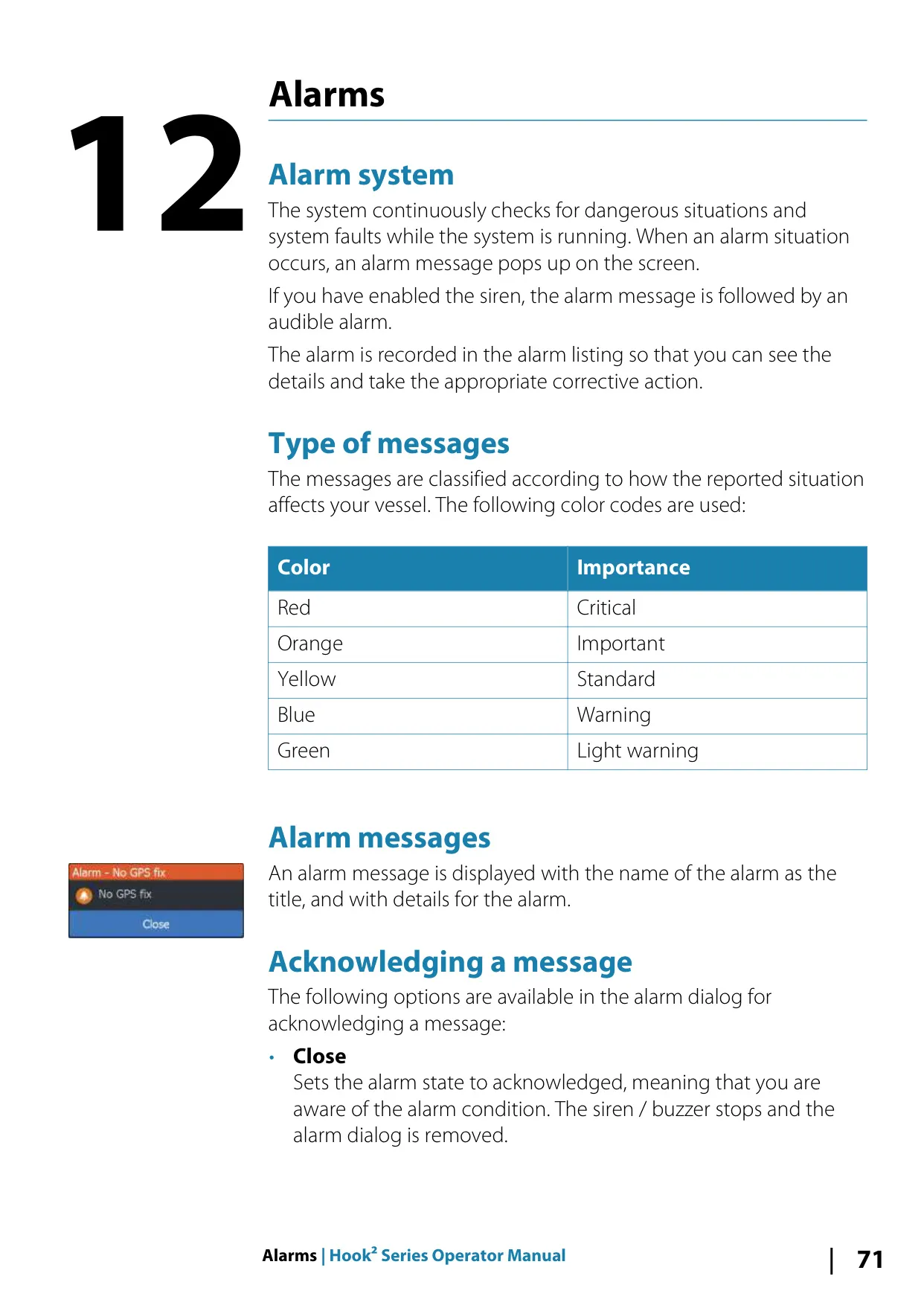
| Alarm color codes | Red (Critical), Orange (Important), Yellow (Standard), Blue (Warning), Green (Light warning) |
| Compliance | CE under 2014/53/EU Directive; level 2 devices of Radio communications (EMC) standard 2008 |
| Field-serviceable components | None |
| Operator manual reference | 988-11760-002 |
| Quick guide reference | 988-11771-001 |
Lowrance Hook2 5 TS Fishfinder Details
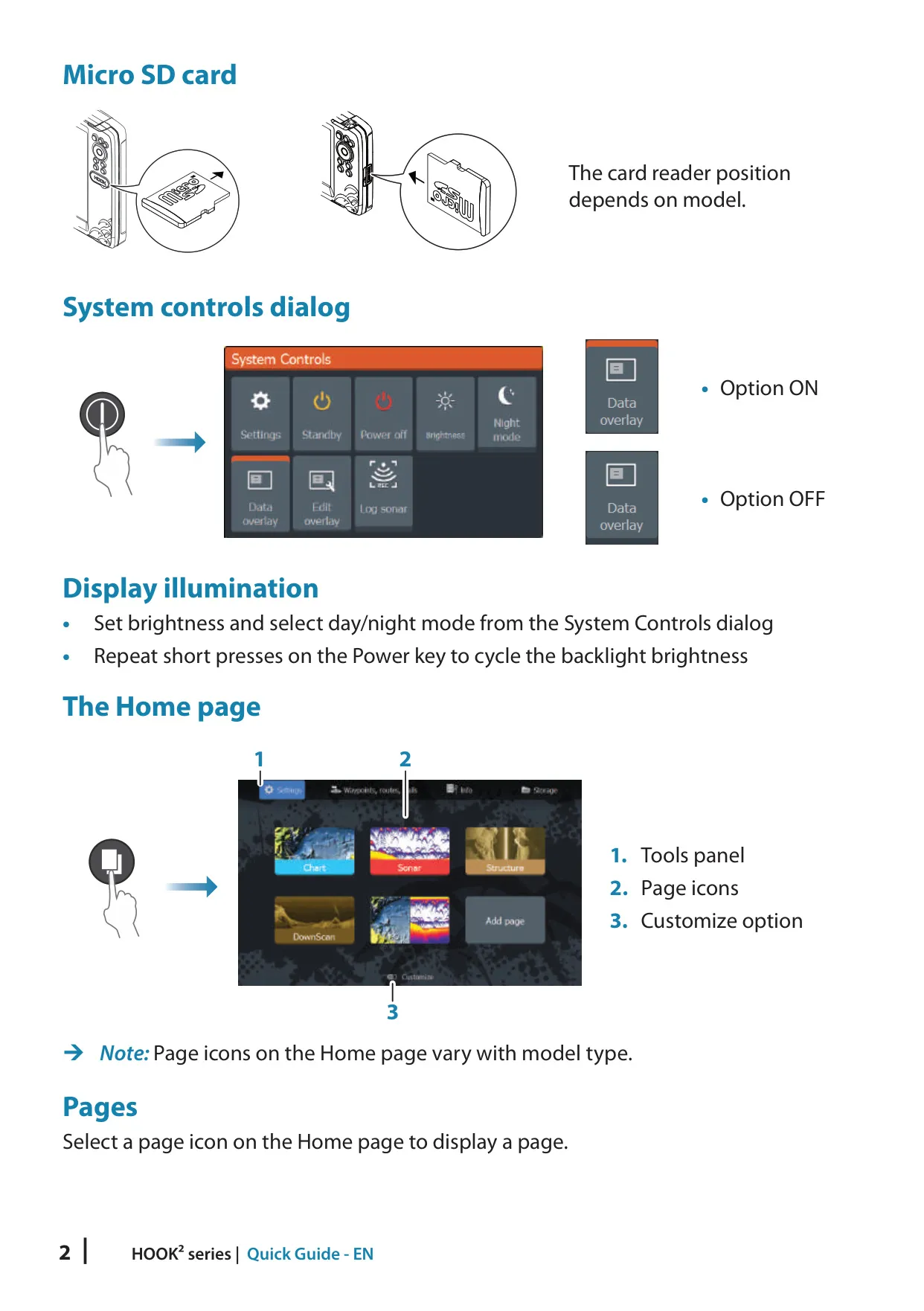
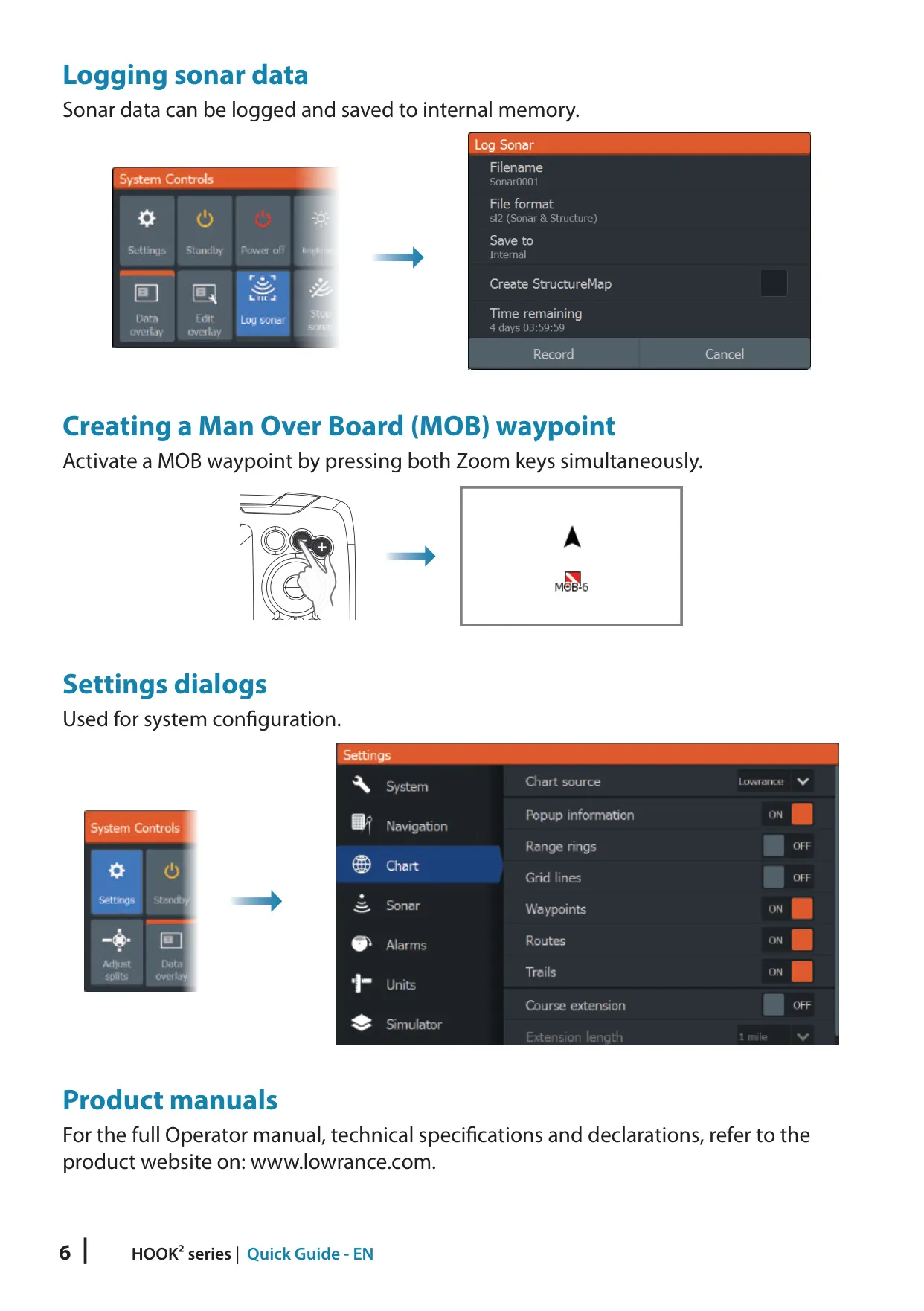
The Lowrance Hook2 5 TS is operated entirely from its front keypad. A short press of the Power key opens the System Controls dialog, which gives quick access to brightness, night mode, data overlay, standby, sonar logging and split adjustment. Pressing and holding Power turns the unit on or off. Repeated short presses cycle through the preset backlight levels. Standby mode saves power by switching off the sonar and backlights while the system keeps running in the background.
Safety features are easy to reach. Pressing both Zoom keys at the same time creates a Man Overboard (MOB) waypoint at the vessel's position. The display then zooms in, centers on the vessel and shows navigation data to the MOB point. You can save several MOB waypoints in a row. The Stop sonar option turns off all pinging without powering down the unit, and pressing Pages and Power together saves a screen capture to internal memory.
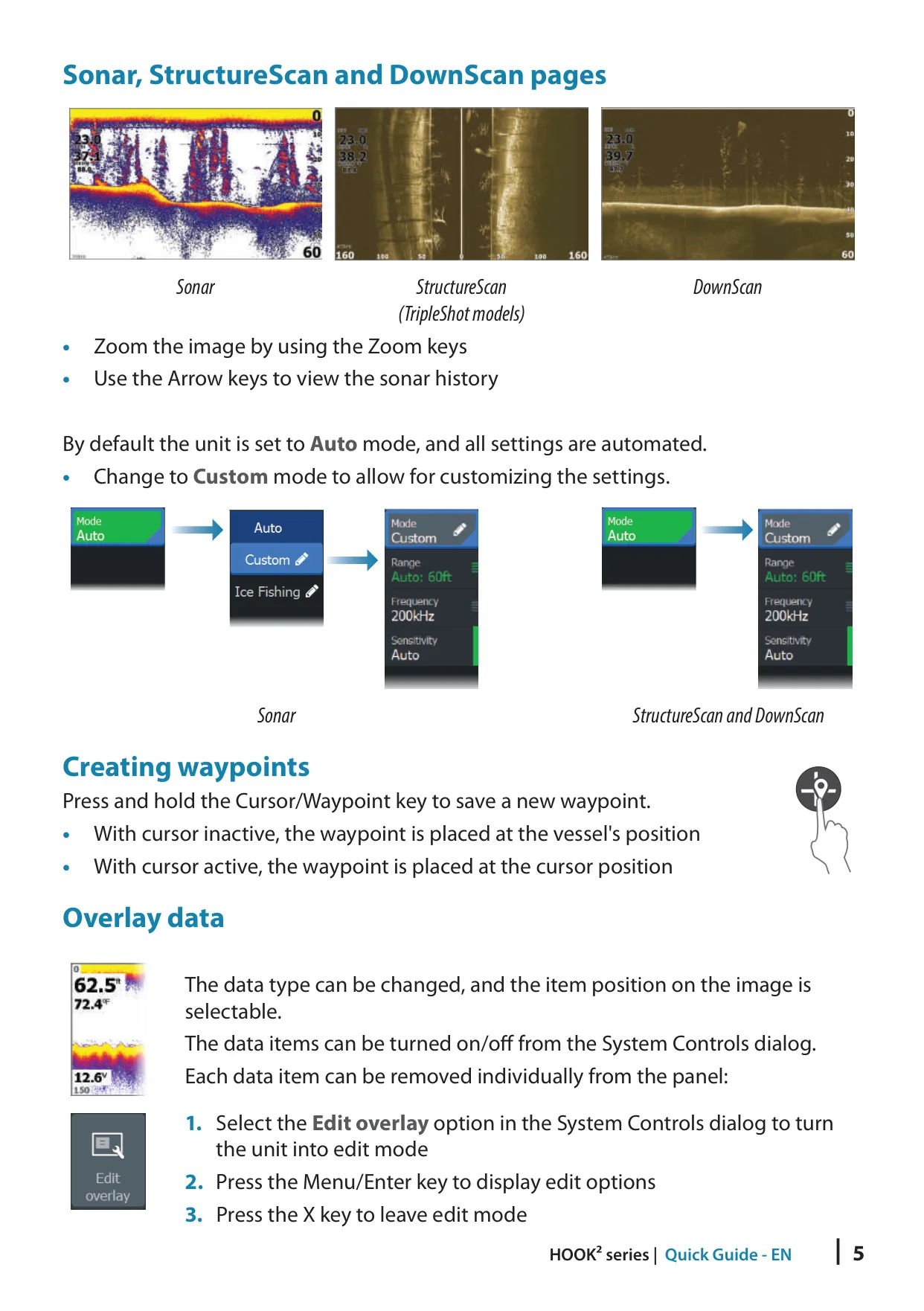
The traditional sonar view starts in Auto mode. Custom and Ice Fishing modes unlock manual controls for range, frequency, sensitivity, ping speed, scroll speed, noise rejection, surface clarity and Colorline, which helps separate soft targets from hard ones. Auto sensitivity can be nudged up or down while it stays automatic. Restore mode default undoes all custom changes. Split-screen options include Zoom, Bottom lock and a Flasher view that suits ice fishing.
Fish ID can show echoes as traditional arches, as fish symbols, or as symbols with depth labels, and it can beep when a fish is identified. The Amplitude scope shows live echo strength through width and color intensity. Several palettes are tuned for different fishing conditions. When a DownScan source is connected, you can overlay DownScan imagery on the regular sonar view. Moving the cursor across any sonar image lets you scroll back through history.
In StructureScan, you can flip the image left or right to match how the transducer is mounted, and you can add range lines to help judge distances. Placing the cursor on a SideScan image pauses the screen and shows the left or right distance to the target. The StructureMap feature lays SideScan imagery over the chart. It has settings for transparency, palette, contrast, water column visibility and clearing live history.
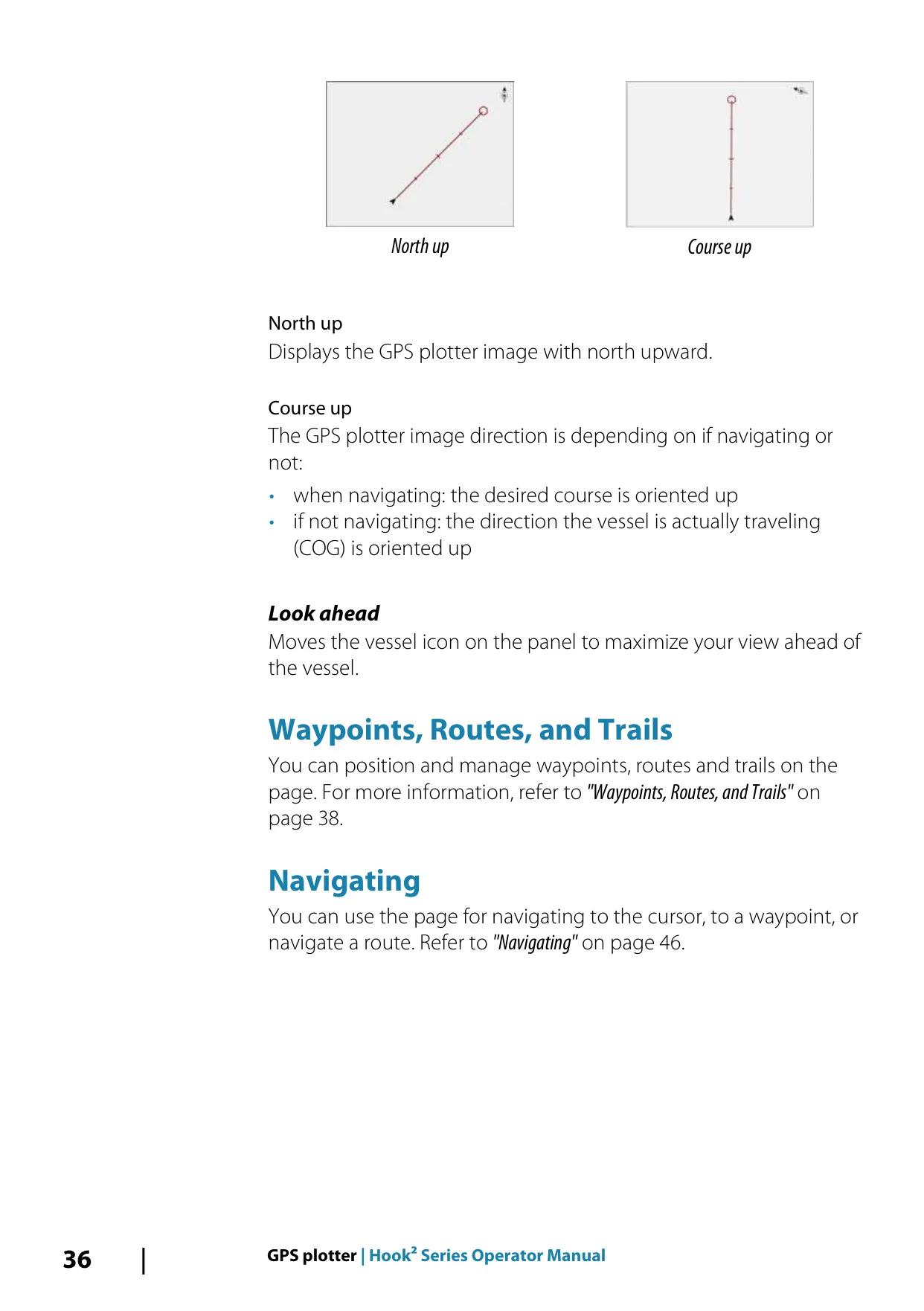
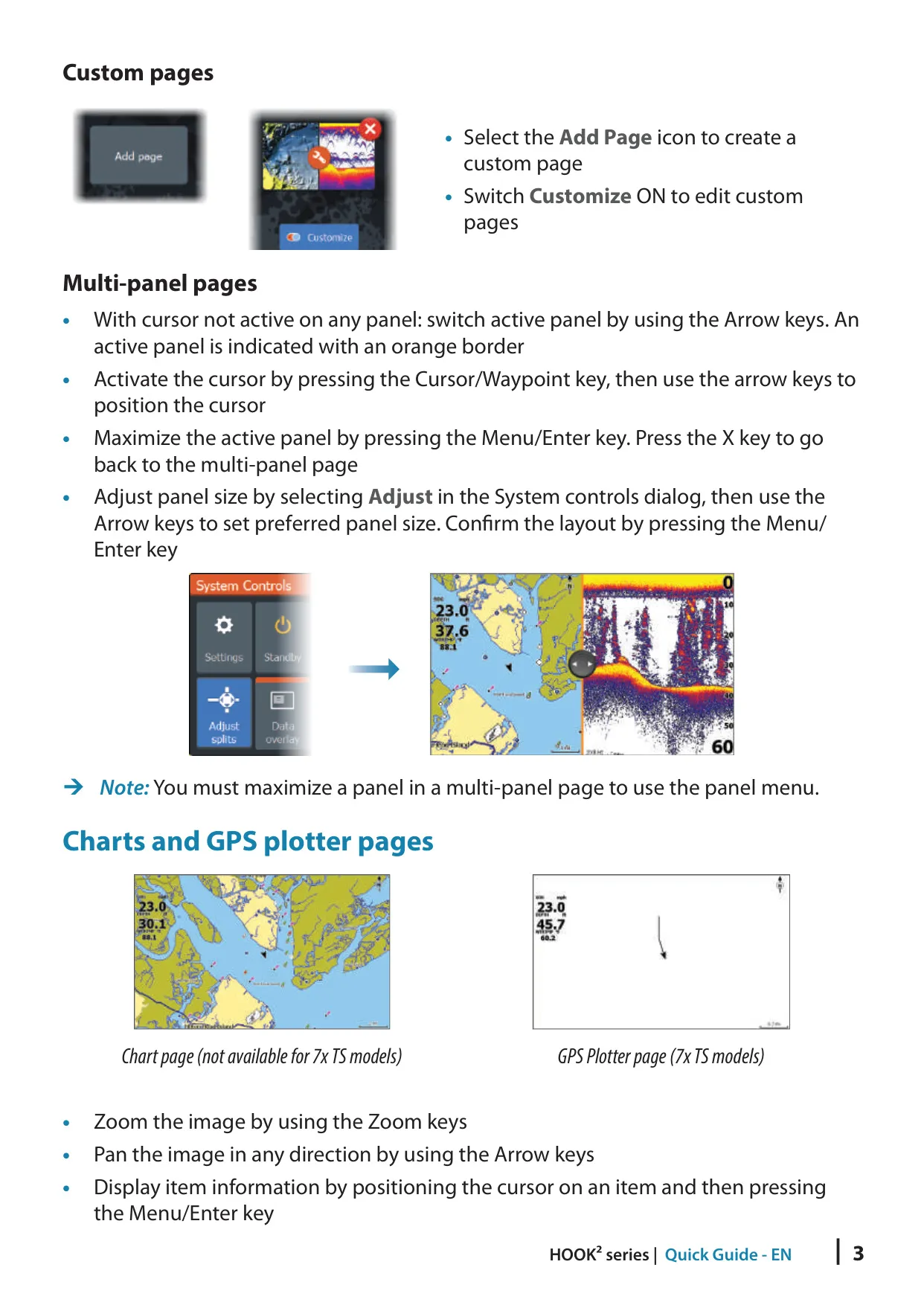
Chart panels support north-up or course-up orientation, look-ahead, range rings, grid lines and a course extension line. With Navionics charts, you also get Community edits, SonarChart Live real-time depth contours with tide correction, dynamic tide and current icons, Easy View magnification, fishing range shading and International or U.S. presentation types. C-MAP options include chart detail levels, depth palettes, depth filters and safety depth shading.
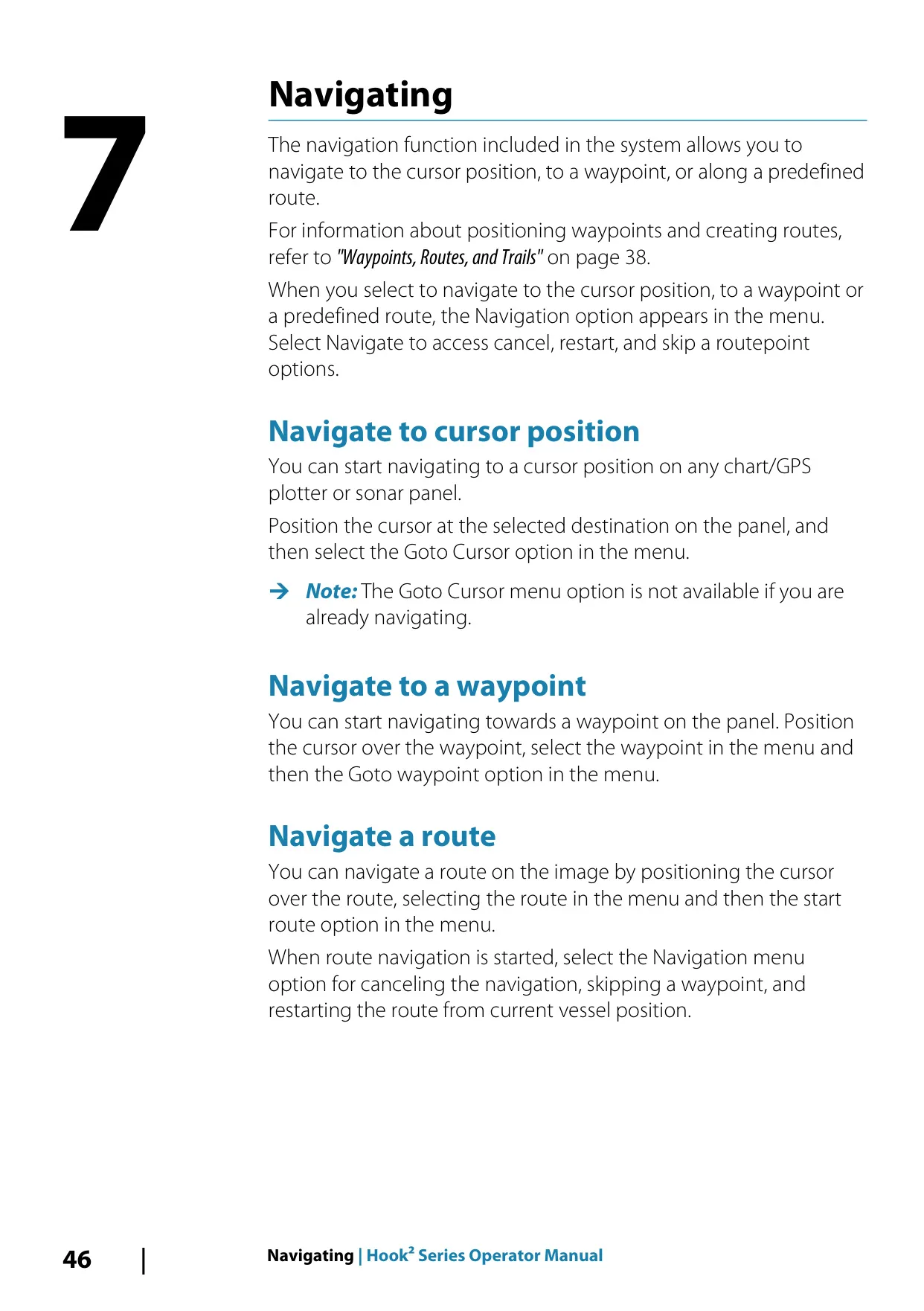
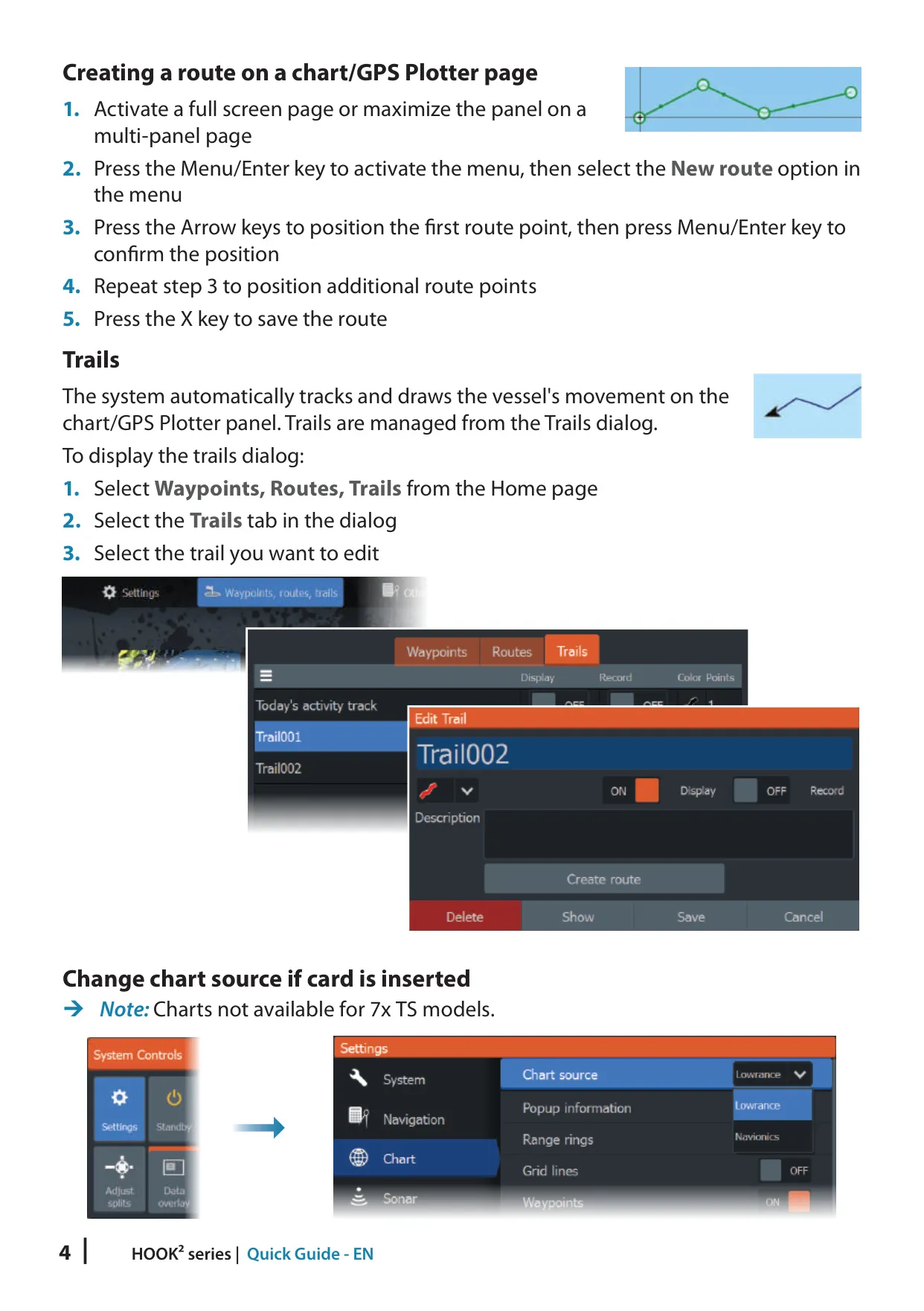
Navigation covers going to the cursor, to a waypoint or along a route, with an adjustable arrival radius and an XTE alarm. Trails are recorded automatically. Trail points can be logged by time, by distance, or automatically on course changes, and trails can be colored or turned into routes. The alarm system can sound a siren and keeps an alarm history. Alarms stay on screen until you acknowledge them.
The Tools panel includes sun and moon times, tide stations, trip data and a file manager. The home page wallpaper can be customized, and data overlays can be edited in digital or analog styles. For maintenance, use a microfiber cloth with fresh water on the screen. Avoid solvents and high-pressure washing. The built-in service assistant creates support reports, software updates install from a non-mapping memory card, and a Simulator with a Demo mode lets you practice on shore.
Frequently Asked Questions (FAQs)
Can't find the answer you need? Here are some frequently asked questions about the Lowrance Hook2 5 TS Fishfinder, and we answer them below.