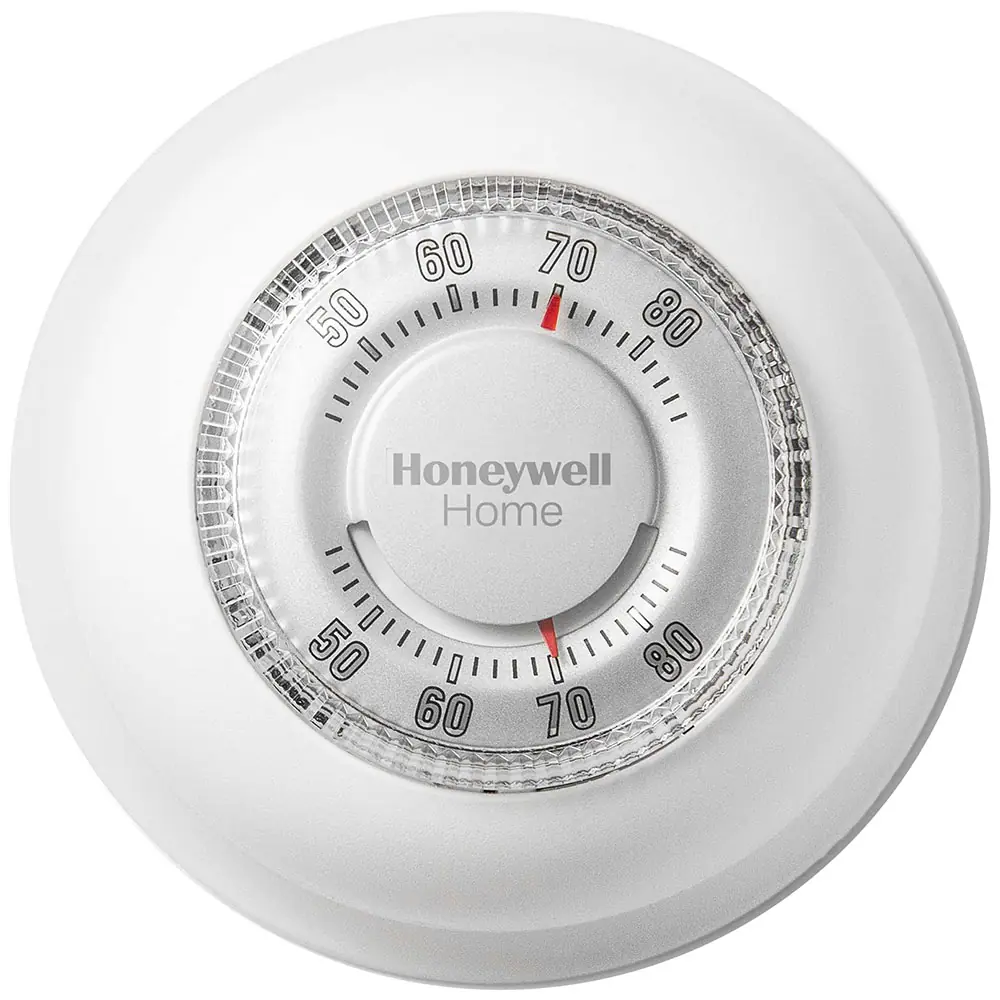
Honeywell TH6220U2000 T6 Pro Instruction Manual
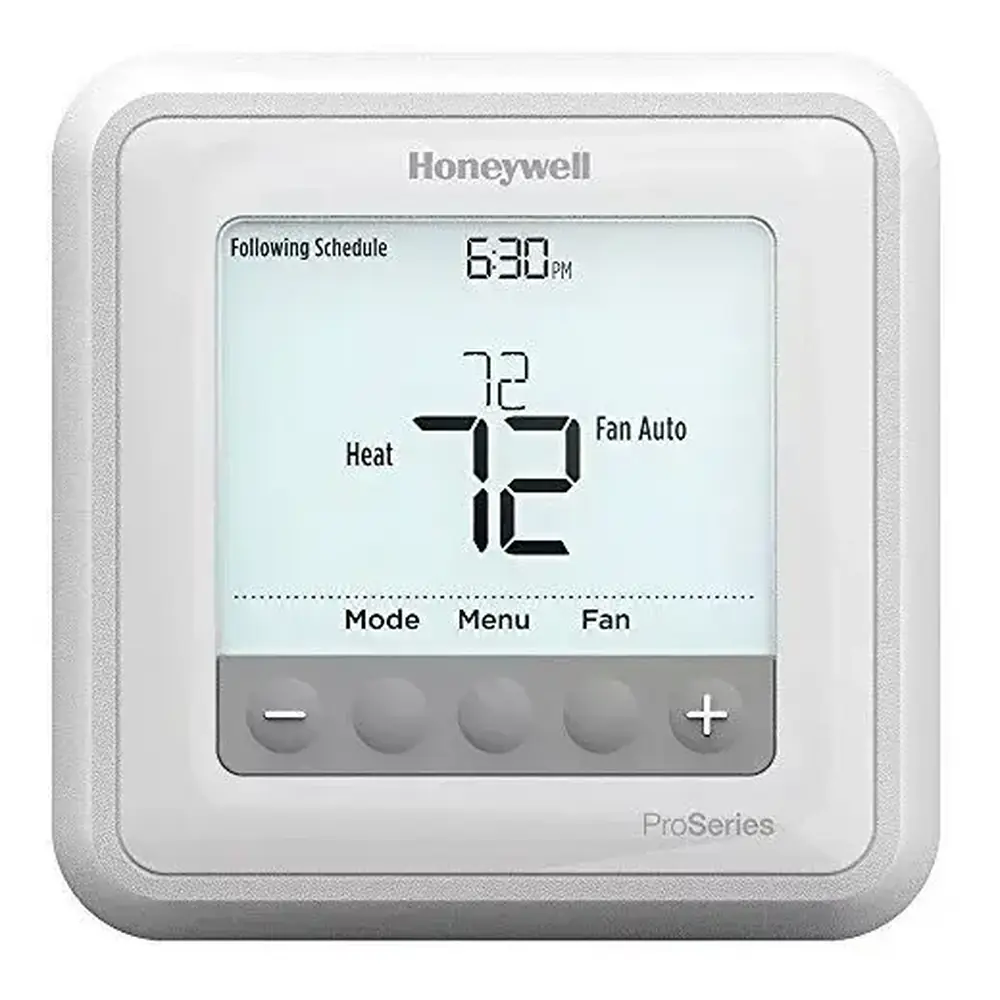
Honeywell TH6220U2000 T6 Pro
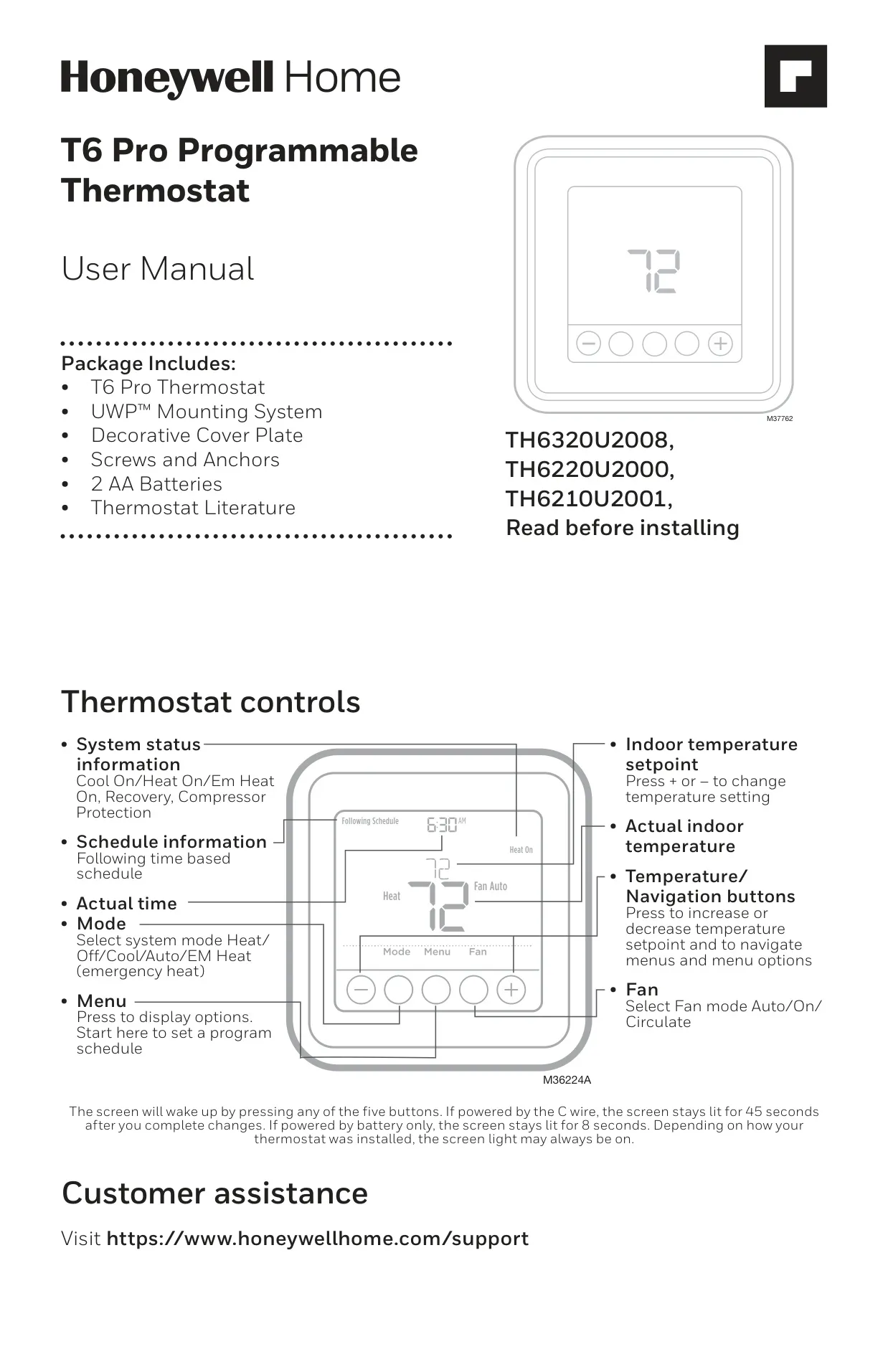


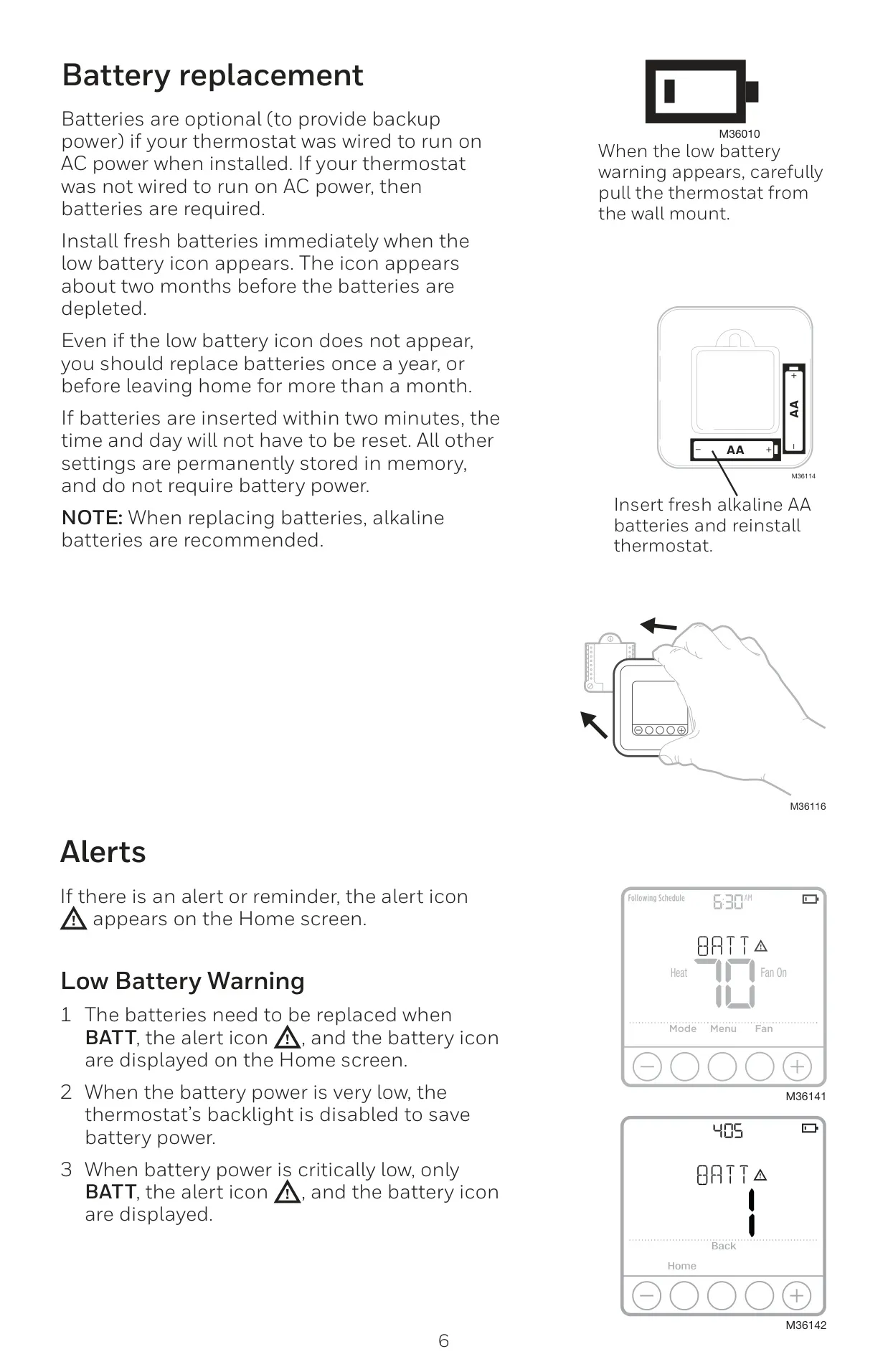




Honeywell TH6220U2000 T6 Pro

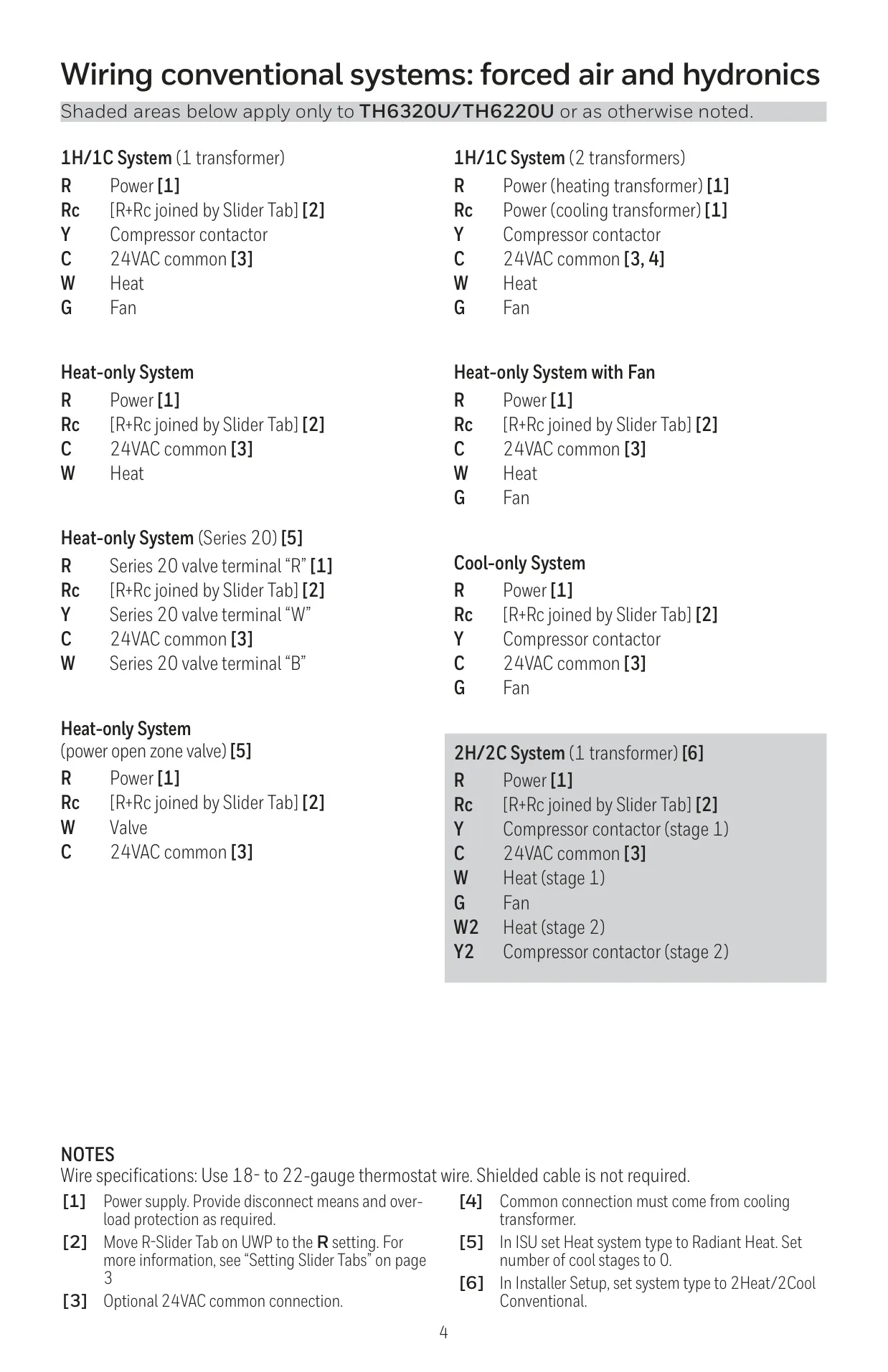
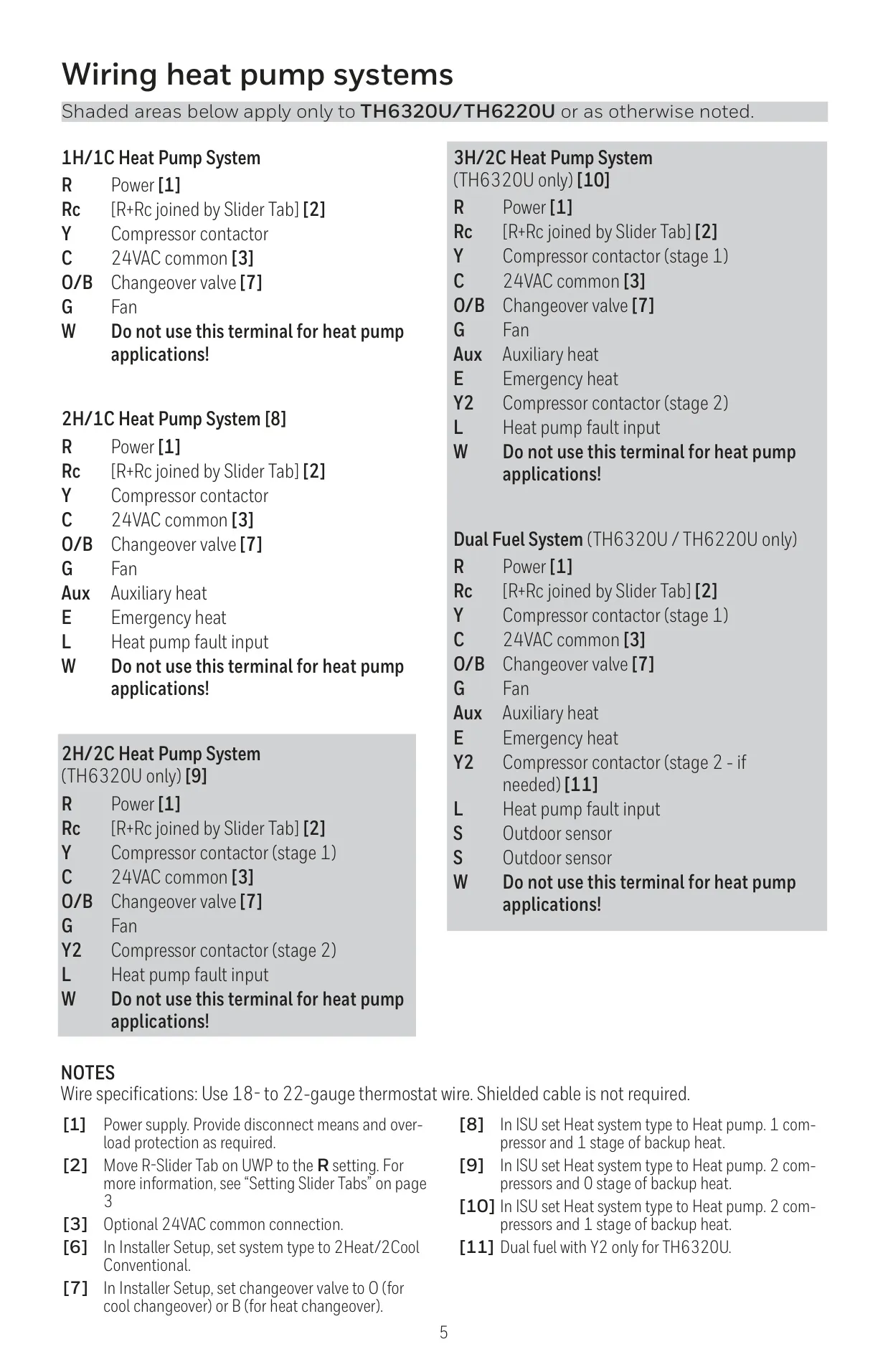

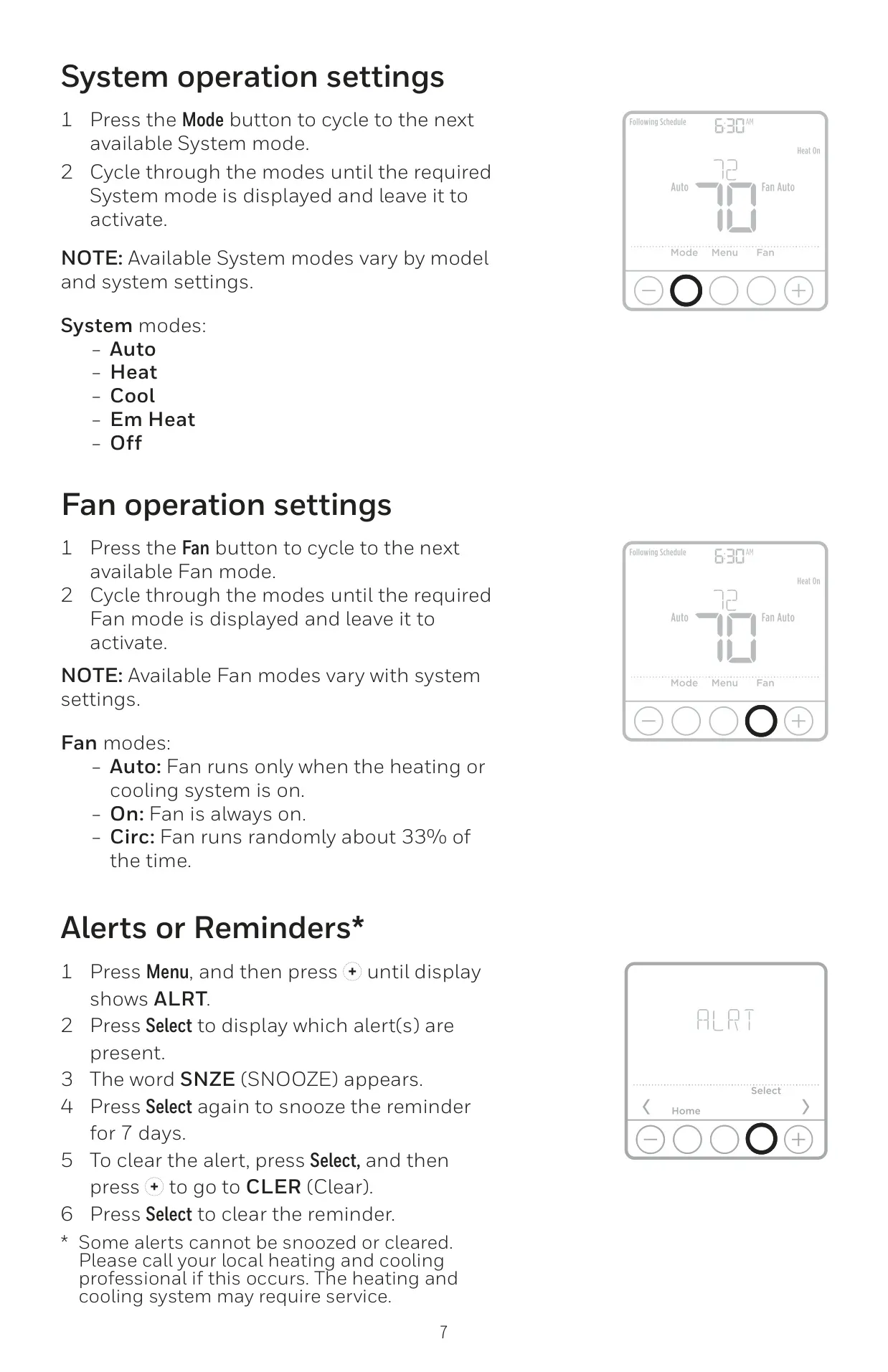
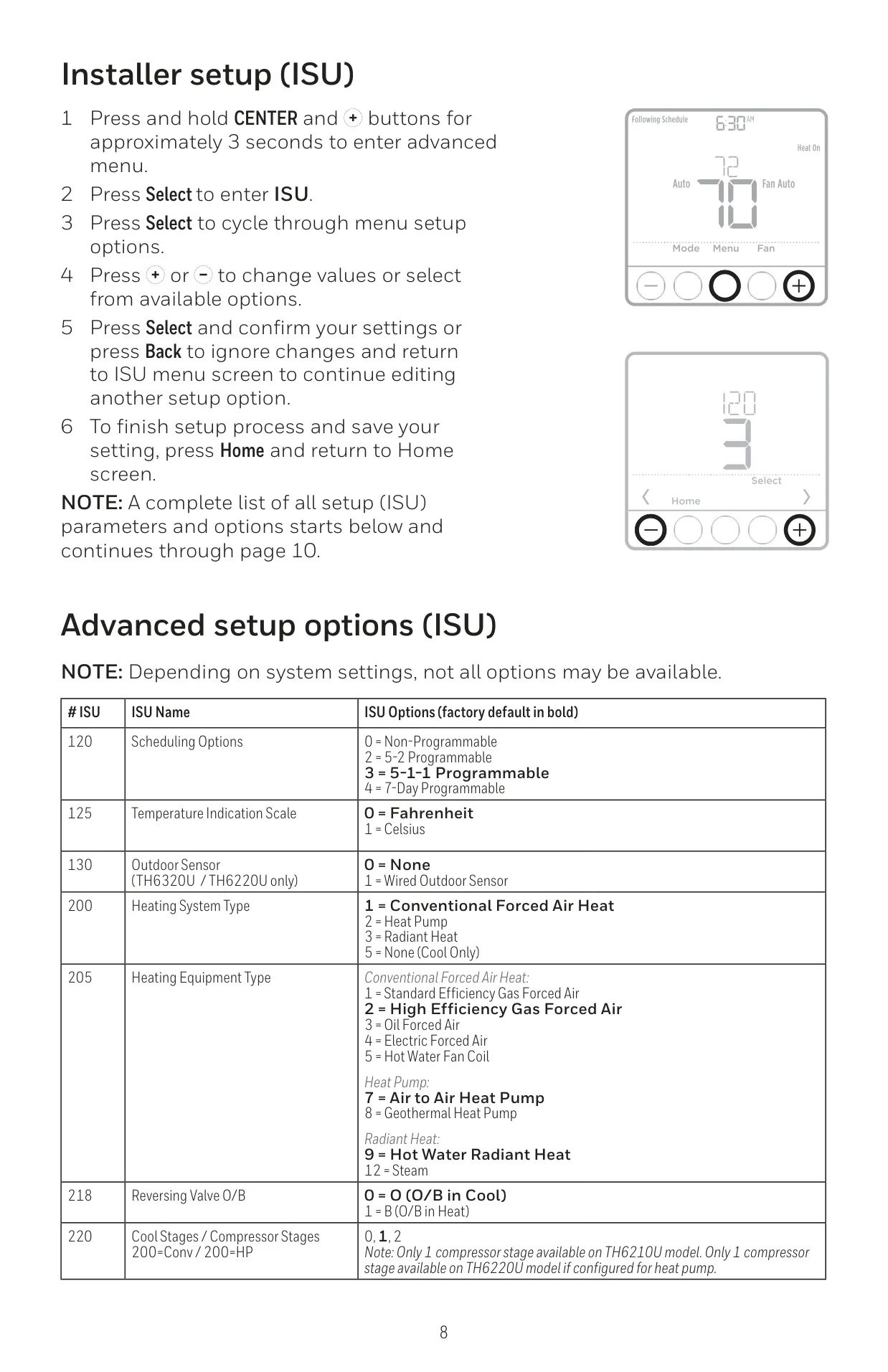


Honeywell TH6220U2000 Instructions
Here we offer the Honeywell TH6220U2000 T6 Pro manual completely free and in English. We have cataloged this manual in the Thermostats section on Manualverse, and it has been rated by 1 users with an average rating of 5. If you have any specific questions about Honeywell TH6220U2000 T6 Pro, we suggest checking the Frequently Asked Questions (FAQs) section of this manual.
Product Images
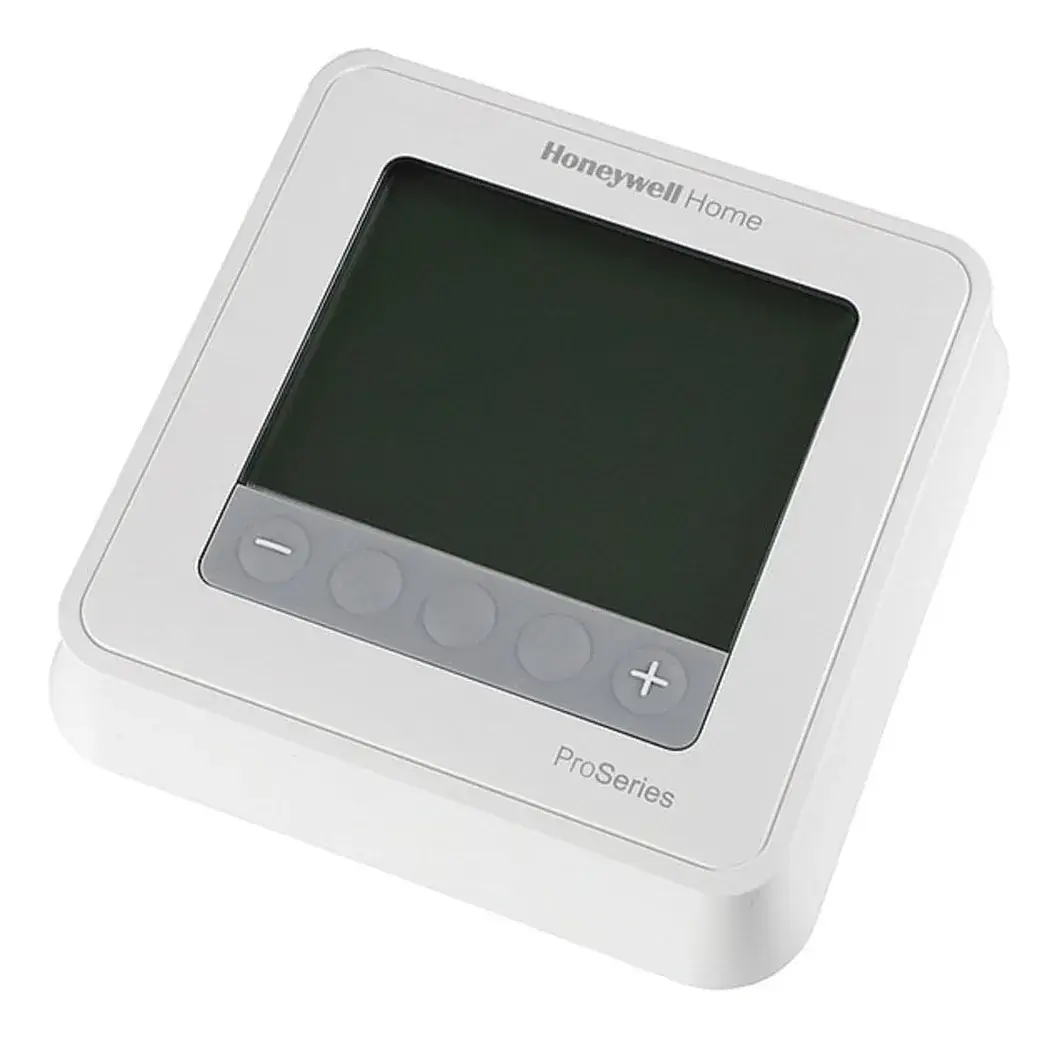
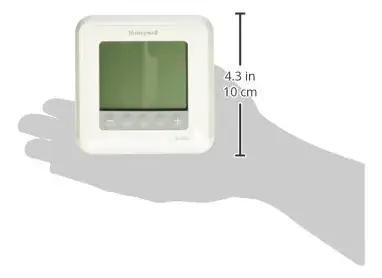
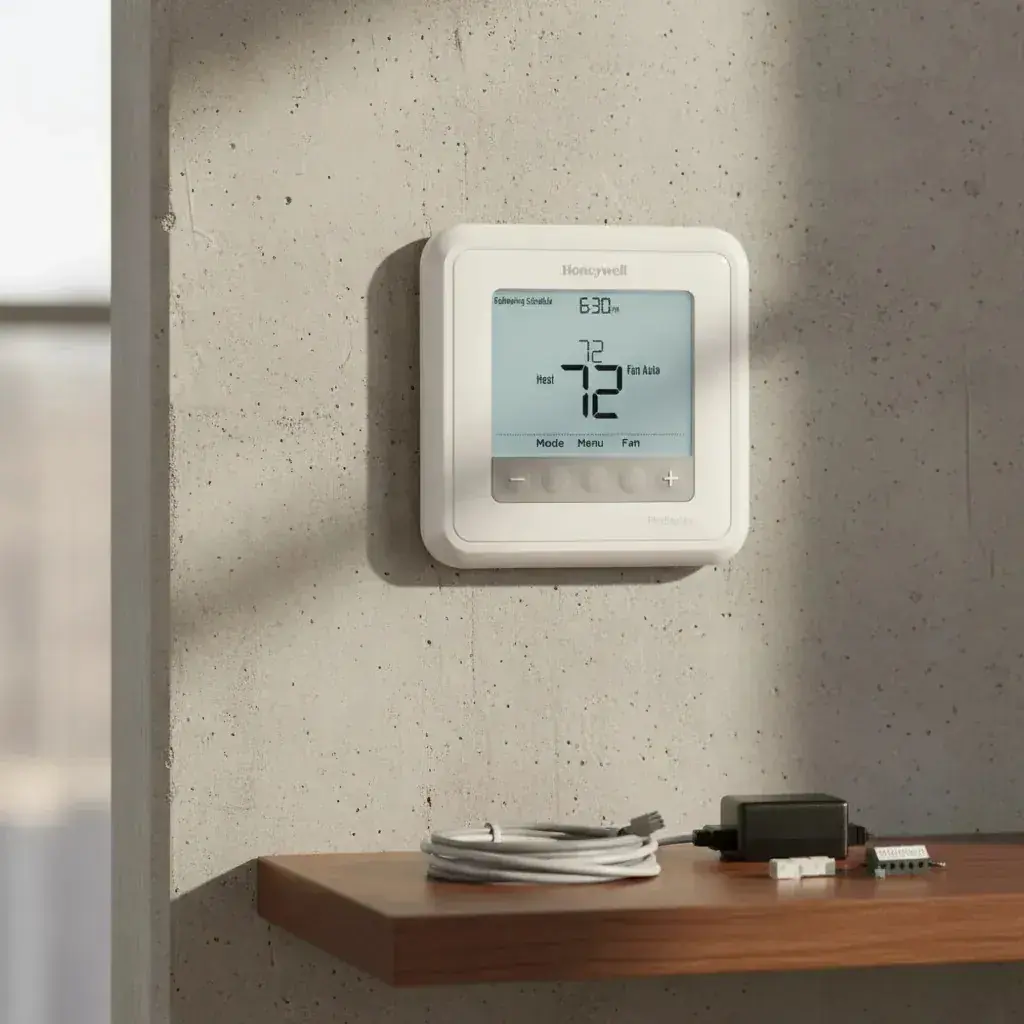
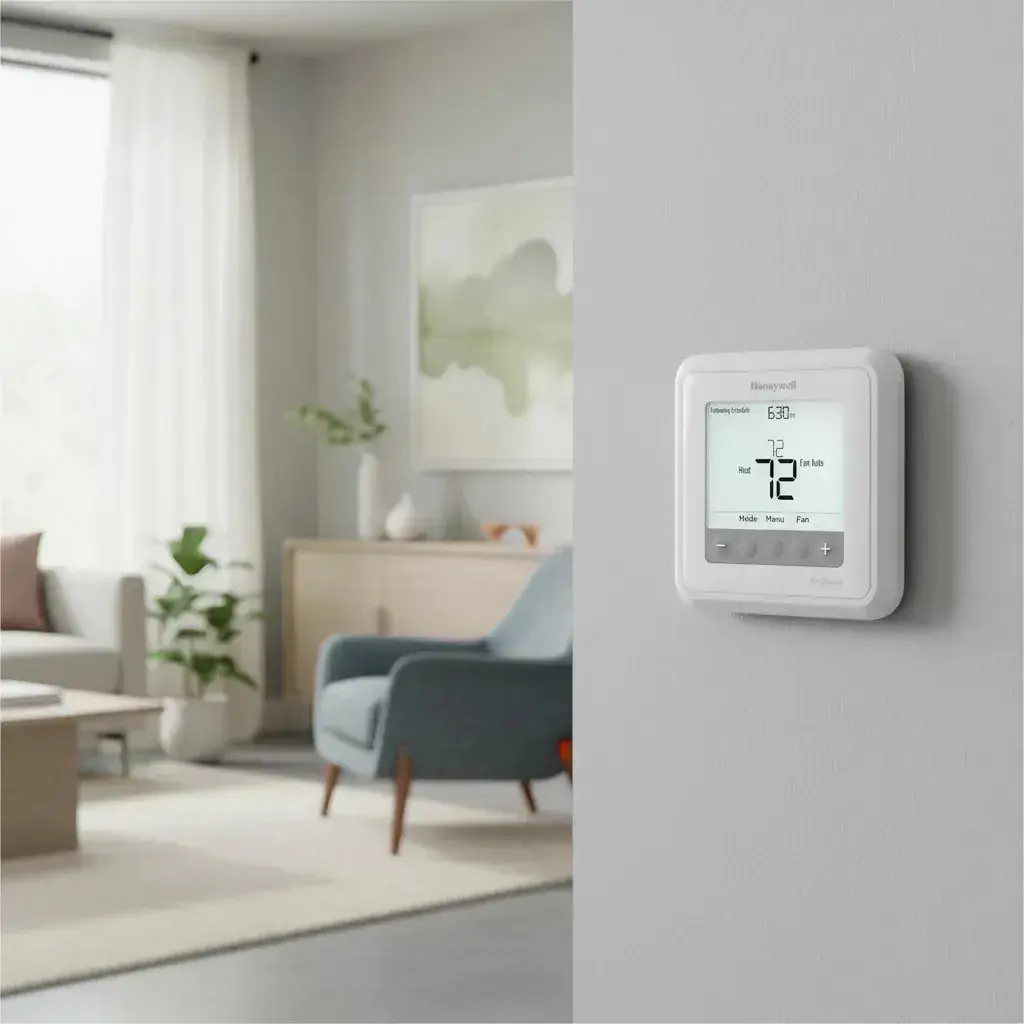
Honeywell TH6220U2000 T6 Pro Specifications
| Category | Specification |
|---|---|
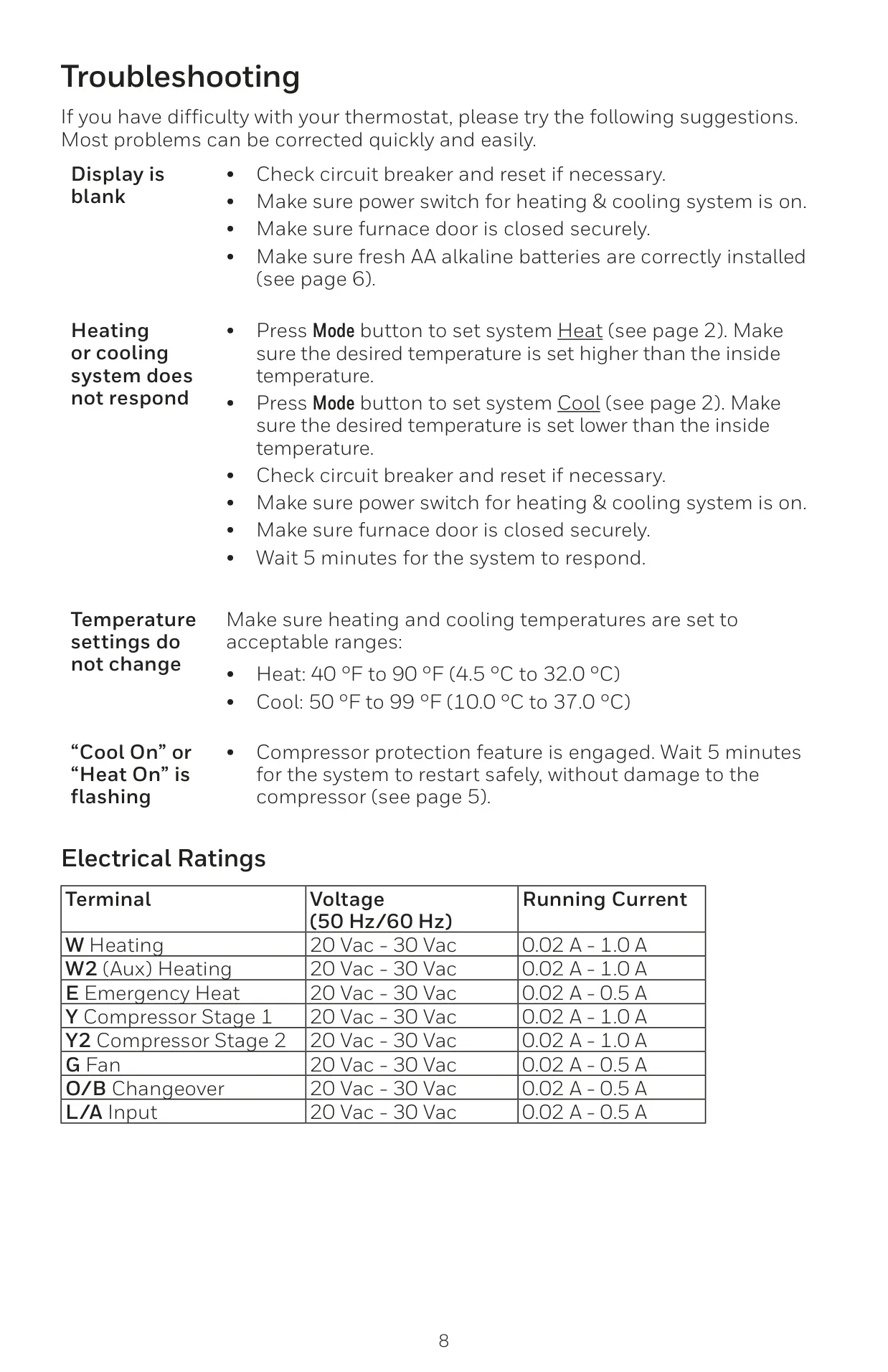
| Heat Temperature Range | 40 °F to 90 °F (4.5 °C to 32.0 °C) |
| Cool Temperature Range | 50 °F to 99 °F (10.0 °C to 37.0 °C) |
| Working Ambient Temperature | 32 °F to 120 °F (0 °C to 48.9 °C) |
| Operating Ambient Temperature | 37 °F to 102 °F (2.8 °C to 38.9 °C) |
| Shipping Temperature | -20 °F to 120 °F (-28.9 °C to 48.9 °C) |
| Operating Relative Humidity | 5% to 90% (non-condensing) |
| Physical Dimensions (H x W x D) | 4-1/16” H x 4-1/16” W x 1-5/32” D (103.5 mm H x 103.5 mm W x 29 mm D) |
| Electrical Rating (W Heating) | 20-30 Vac, 0.02-1.0 A |
| Electrical Rating (W2 (Aux) Heating) | 20-30 Vac, 0.02-1.0 A |
| Electrical Rating (E Emergency Heat) | 20-30 Vac, 0.02-0.5 A |
| Electrical Rating (Y Compressor Stage 1) | 20-30 Vac, 0.02-1.0 A |
| Electrical Rating (Y2 Compressor Stage 2) | 20-30 Vac, 0.02-1.0 A |
| Electrical Rating (G Fan) | 20-30 Vac, 0.02-0.5 A |
| Electrical Rating (O/B Changeover) | 20-30 Vac, 0.02-0.5 A |
| Electrical Rating (L/A Input) | 20-30 Vac, 0.02-0.5 A |
Honeywell TH6220U2000 T6 Pro Details
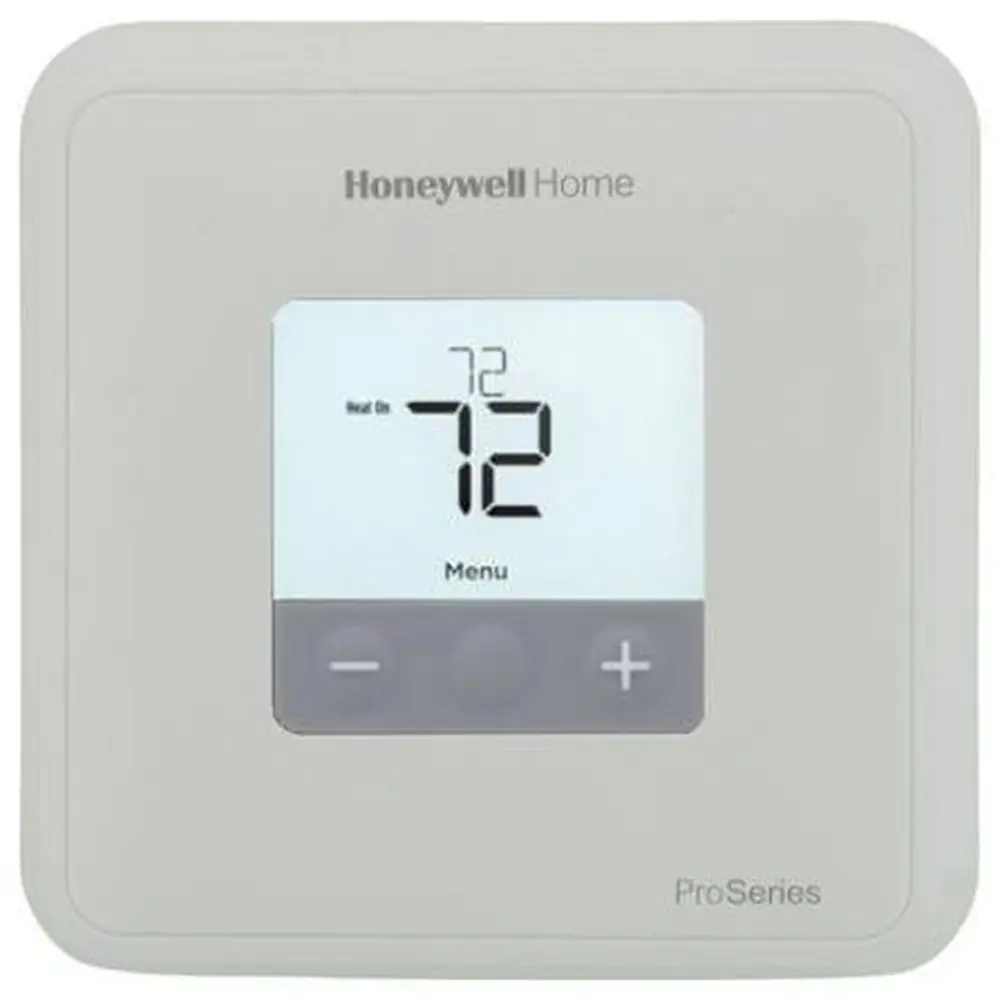
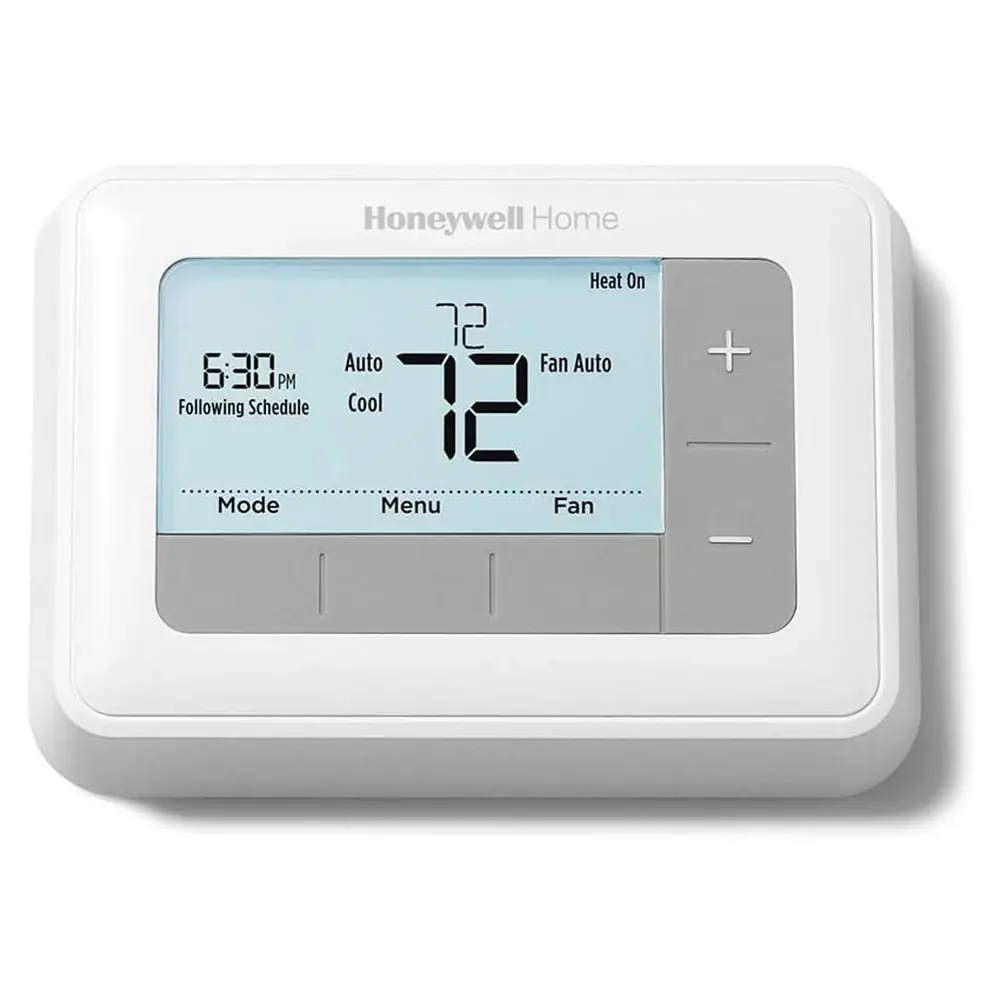
The Honeywell TH6220U2000 T6 Pro boasts an intuitive display that wakes upon any button press. For C-wire powered units, the screen stays lit for 45 seconds after changes; otherwise, it lasts 8 seconds, balancing visibility with battery efficiency. Navigation and settings adjustments are handled easily via dedicated Mode, Menu, Fan, and temperature (+/-) buttons.
Operating modes are versatile, including Auto, Heat, Cool, Em Heat, and Off, accommodating various HVAC systems. Fan control offers Auto (fan runs with heating/cooling), On (continuous operation), or Circulate (intermittent fan for 33% of the time), providing flexible airflow options for user comfort.
Setting the time and date is straightforward through the Menu. Users can choose 12-hour or 24-hour formats and precisely adjust hours, minutes, year, month, and day. This accurate clock is essential for the thermostat's time-sensitive features, ensuring programmed schedules execute correctly and maintain desired comfort levels.
The T6 Pro features a default 5-1-1 programmable schedule with four daily periods: Wake, Away, Home, and Sleep. Users can customize heating and cooling setpoints for each. This capability optimizes energy usage by adapting temperatures to occupancy patterns, contributing to both comfort and significant energy savings throughout the week.
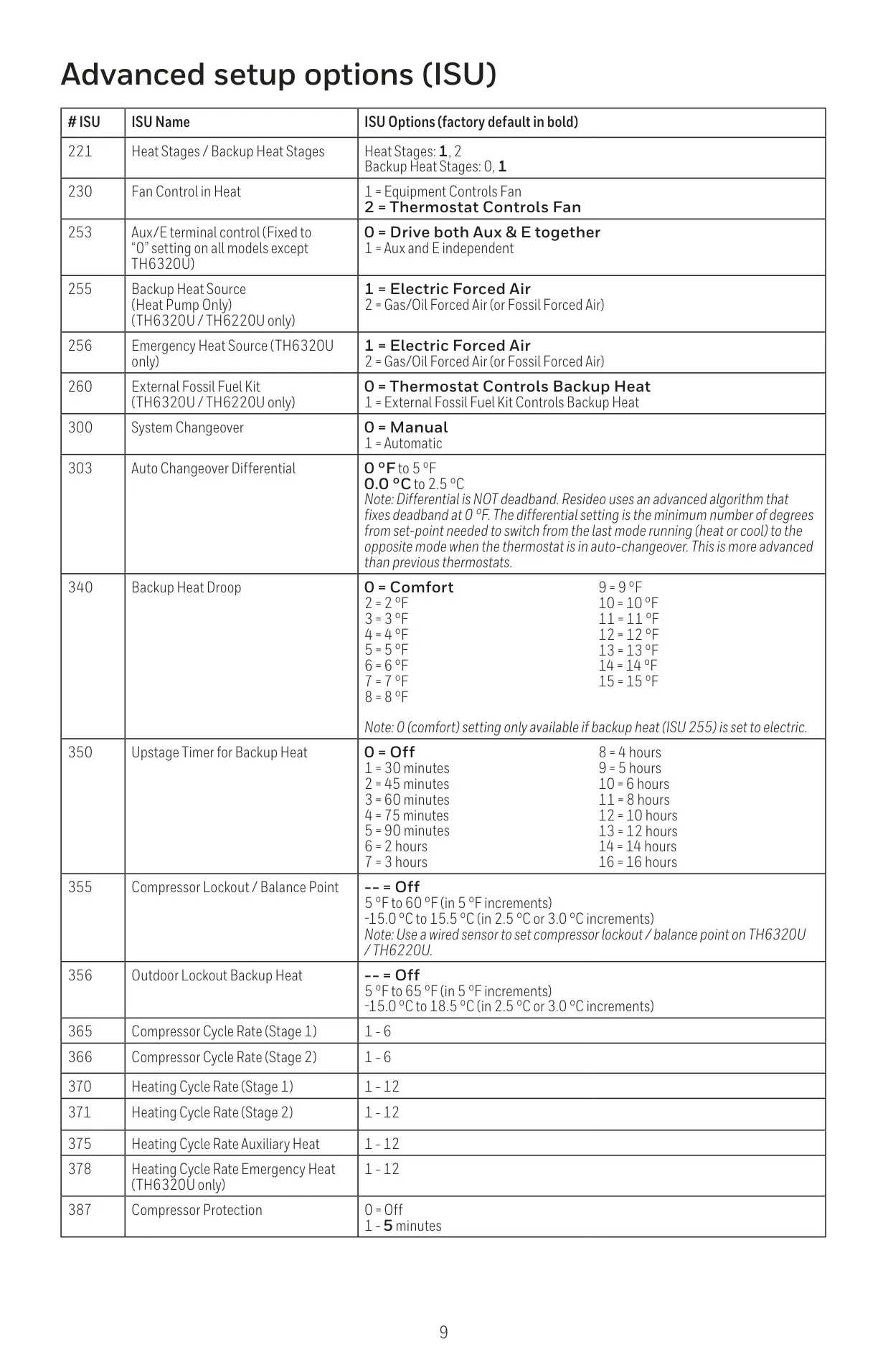
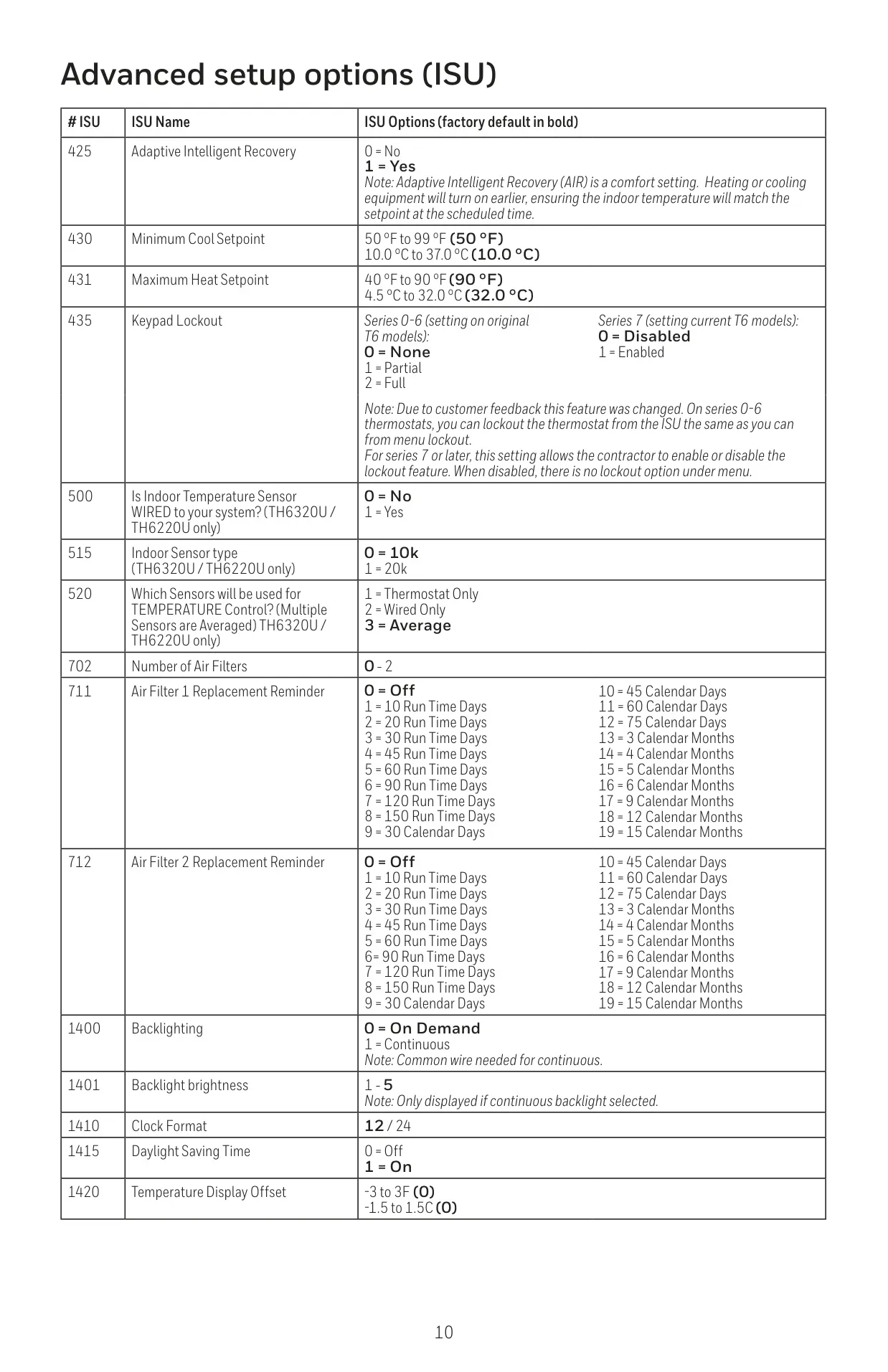
For immediate control, the thermostat offers Temporary Hold, overriding the schedule until the next period, and Permanent Hold for indefinite changes. An optional Keypad Lockout (configurable via installer setup) allows Partial (temperature changes only) or Full restriction, protected by a 4-digit password, preventing unauthorized alterations.
A key intelligent feature is Adaptive Intelligent Recovery (AIR). The system "learns" how long it takes to reach desired temperatures. It then initiates heating or cooling earlier, ensuring your home achieves the programmed setpoint precisely at the start of scheduled periods like Wake or Home, enhancing overall daily comfort effortlessly.
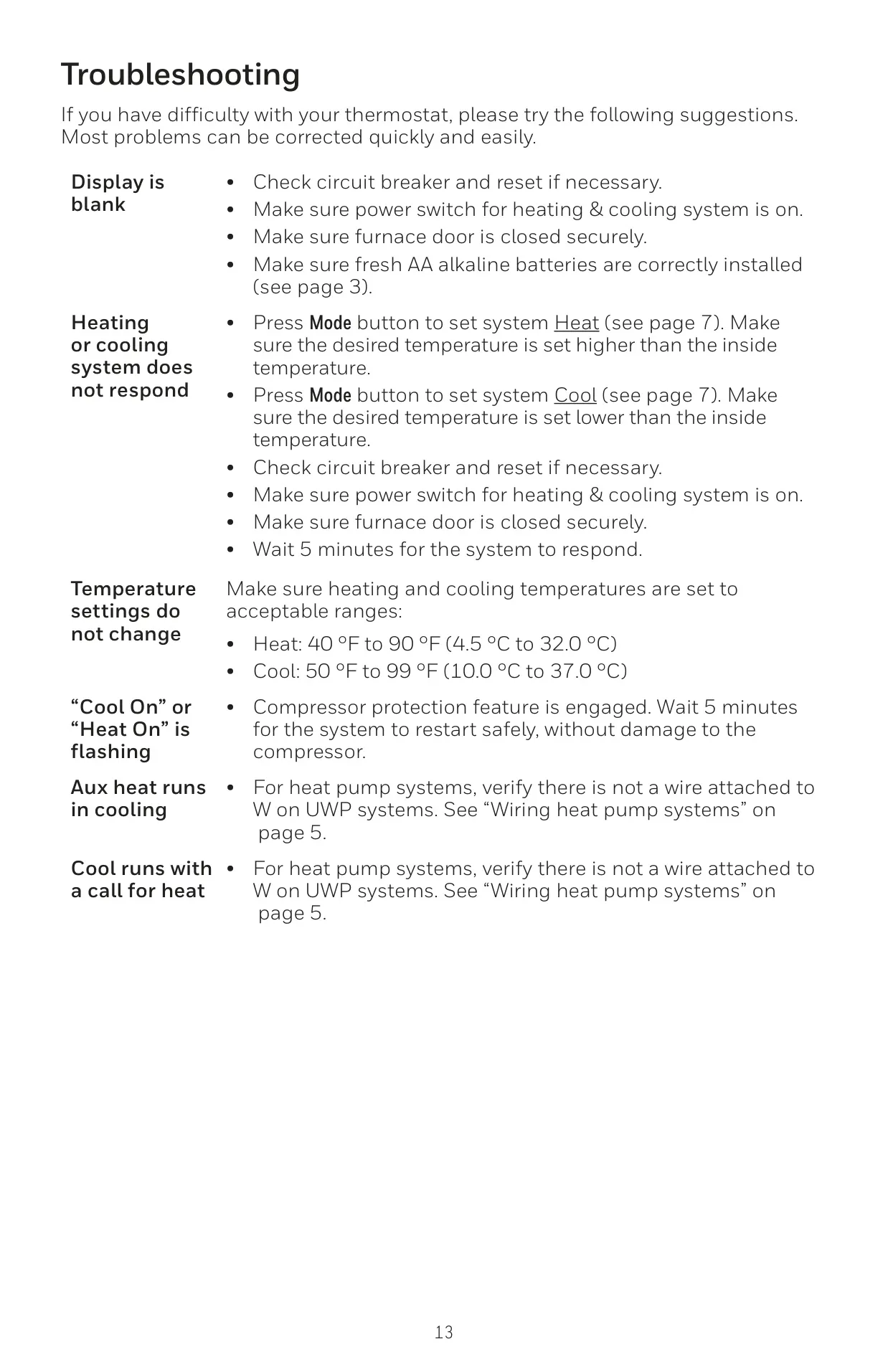
To protect equipment, Built-in Compressor Protection enforces a mandatory delay before restarting the compressor after shutdown, preventing damage from rapid cycling. During this safeguard period, the display flashes "Cool On" or "Heat On," ensuring the longevity and reliable operation of your HVAC system without user intervention.
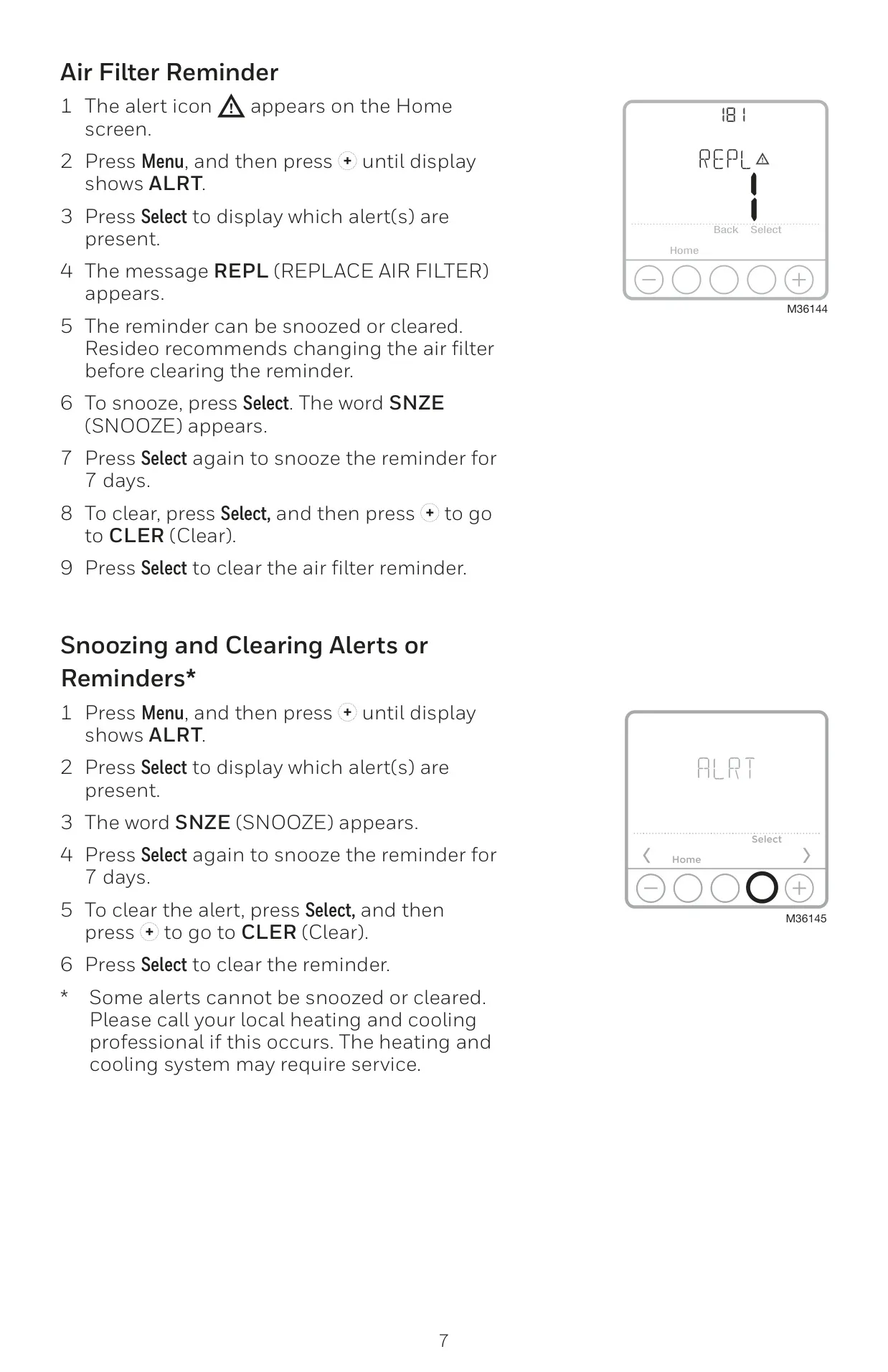
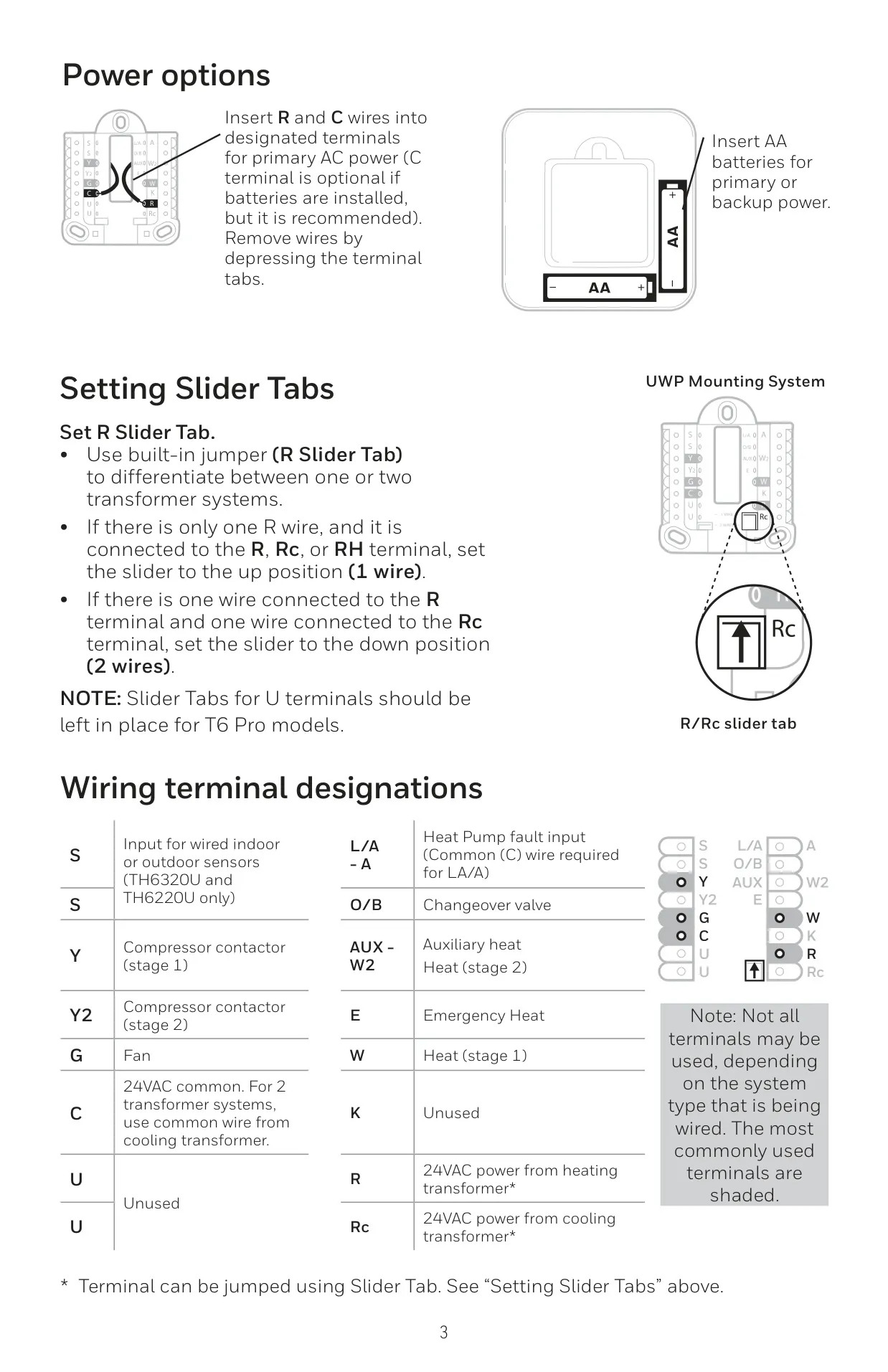
The thermostat can use AC power with optional battery backup, or solely AA alkaline batteries. "BATT" icon alerts signal low battery two months prior to depletion, prompting replacement. Additionally, Air Filter Reminders are provided, which users can snooze for seven days or clear via the Menu after performing maintenance, promoting system health.
Frequently Asked Questions (FAQs)
Can't find the answer you need? Here are some frequently asked questions about the Honeywell TH6220U2000 T6 Pro, and we answer them below.