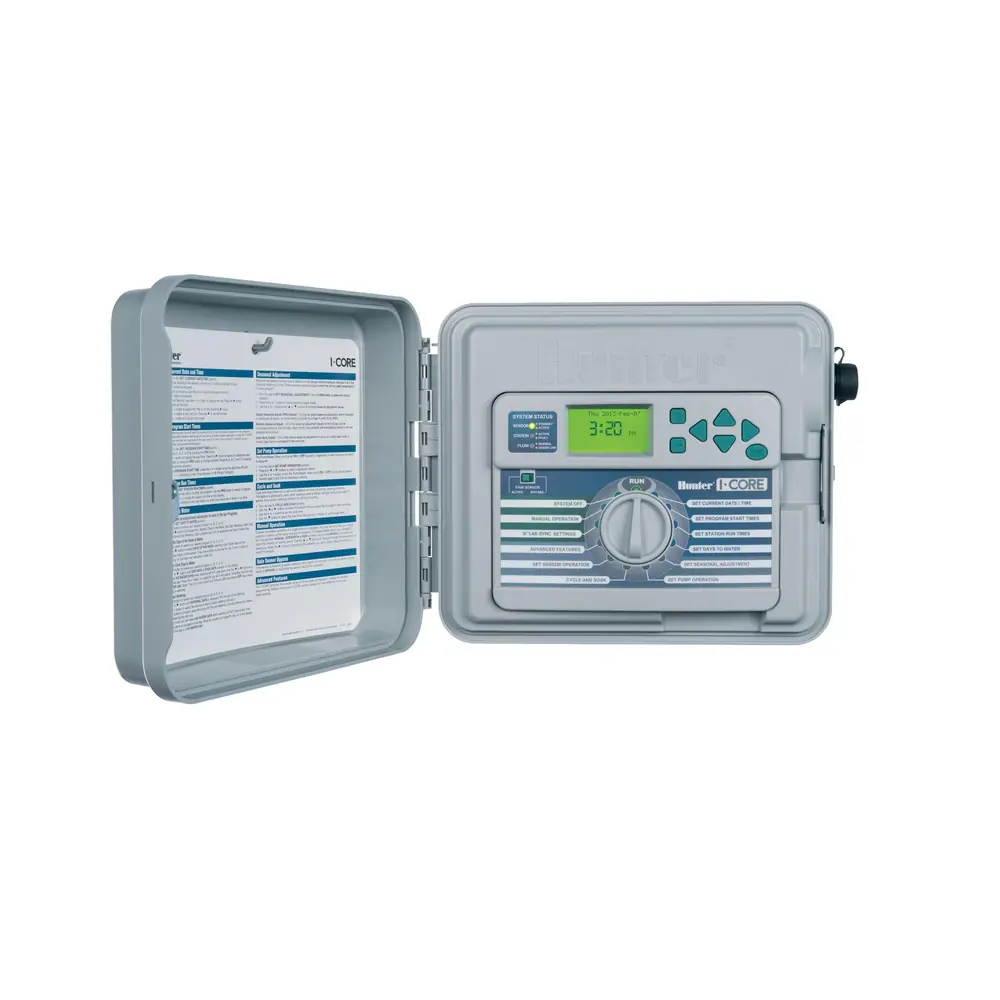
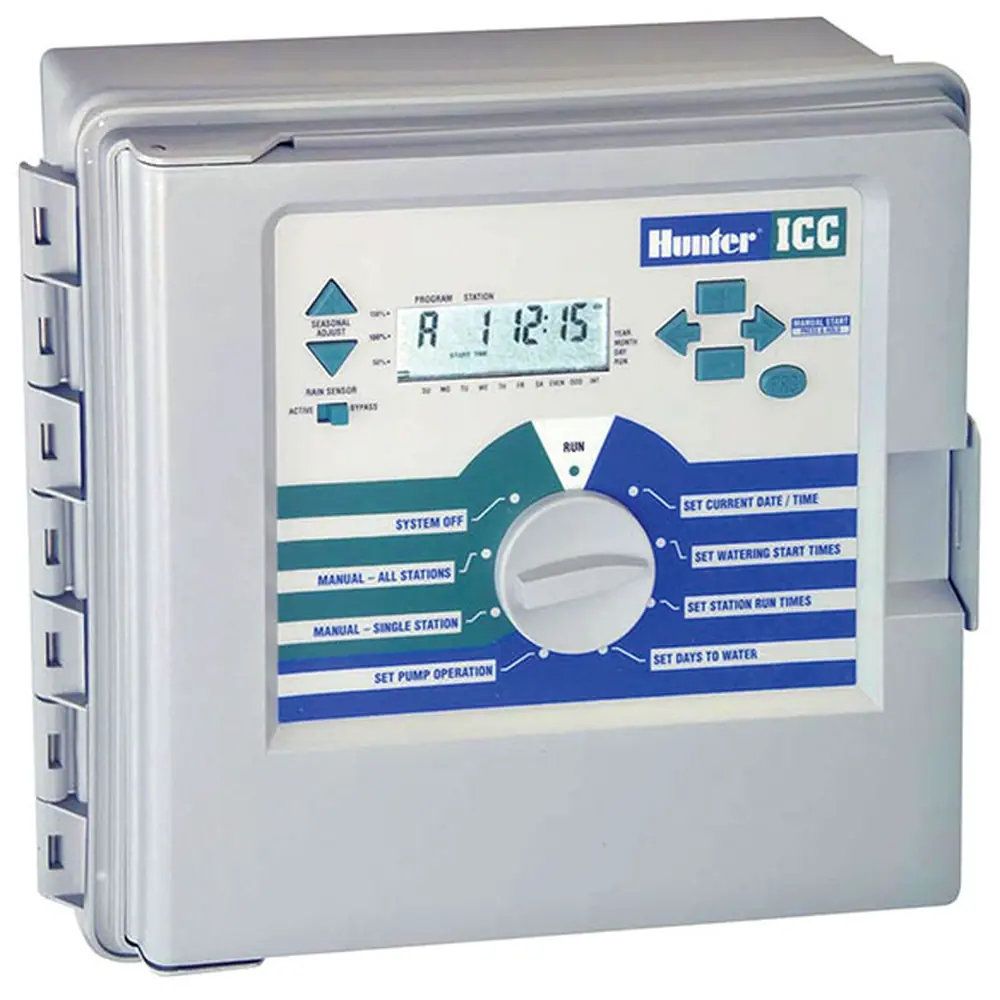
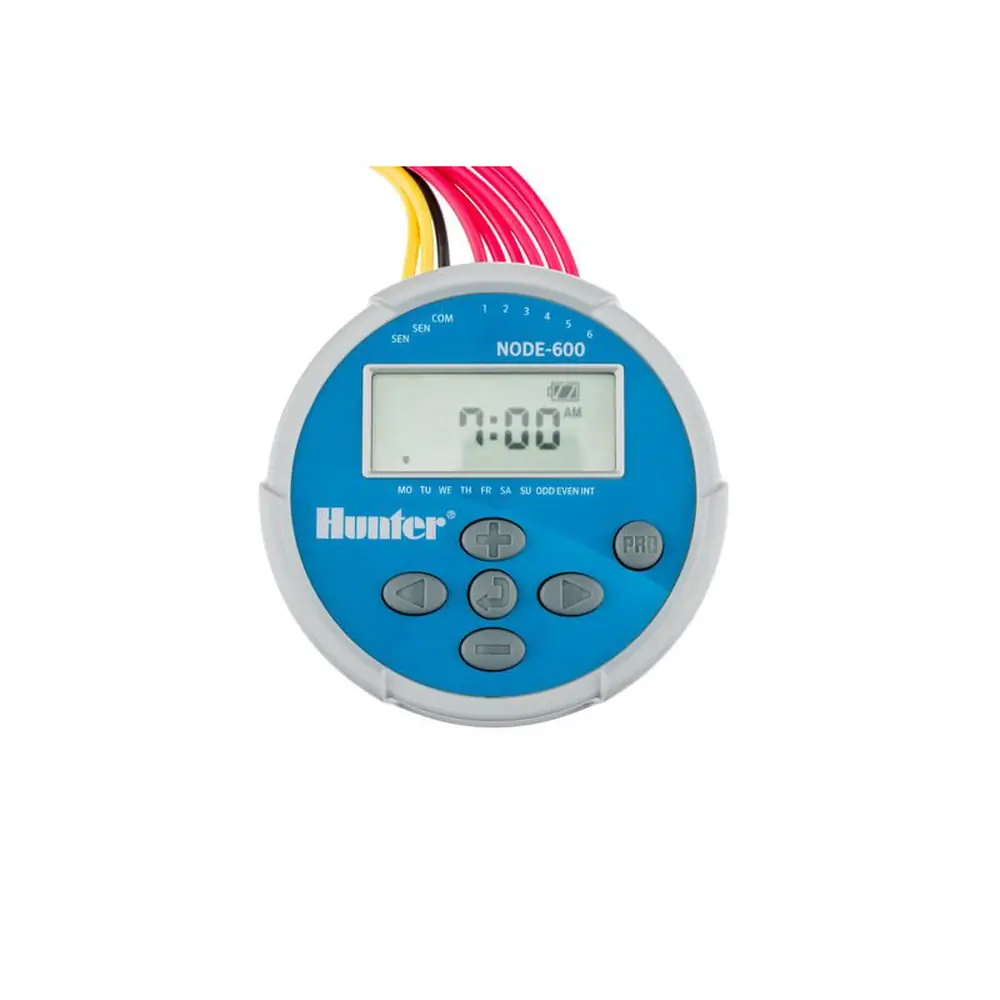
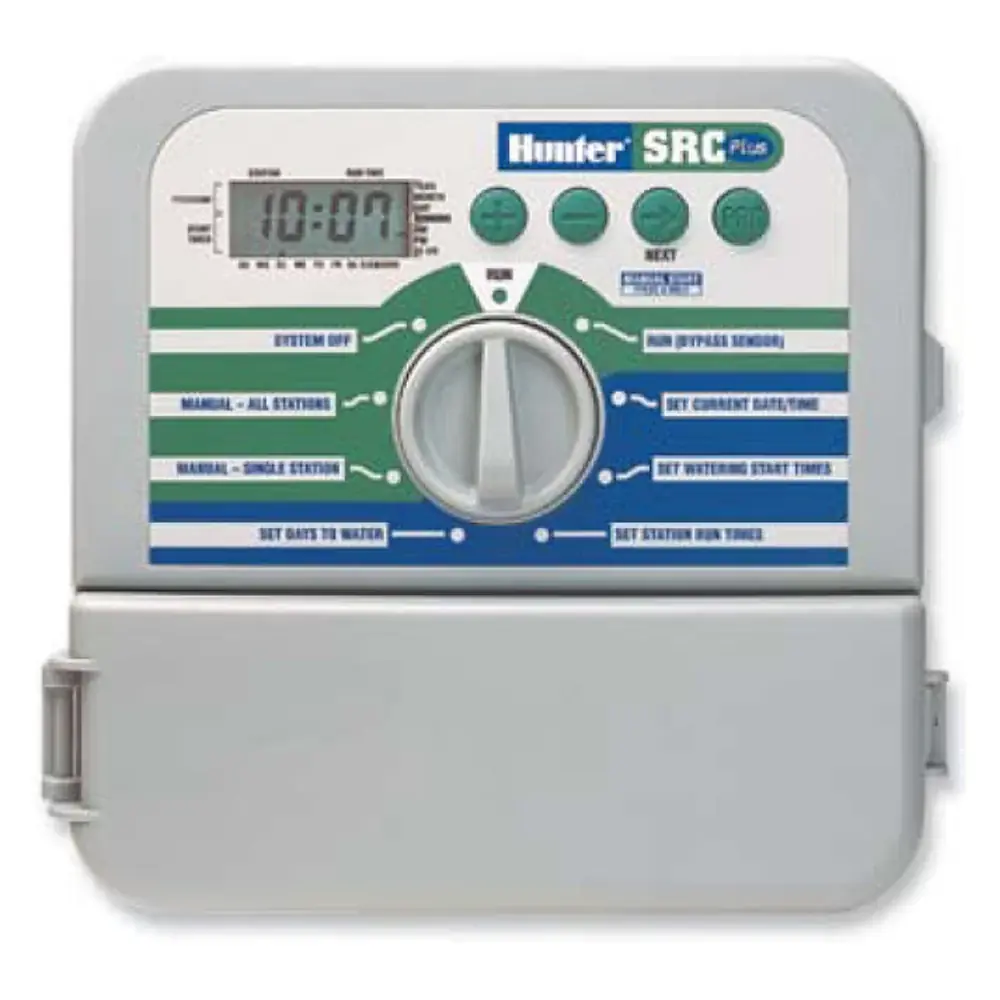
Hunter X2 Irrigation Controller Instruction Manual

Hunter X2 Irrigation Controller





Hunter X2 Irrigation Controller

Hunter X2 Irrigation Controller

Hunter X2 Irrigation Controller

Hunter X2 Irrigation Controller Instructions
Here we offer the Hunter X2 Irrigation Controller manual completely free and in English. We have cataloged this manual in the Irrigation Controllers section on Manualverse, and it has been rated by 1 users with an average rating of 5. If you have any specific questions about Hunter X2 Irrigation Controller, we suggest checking the Frequently Asked Questions (FAQs) section of this manual.
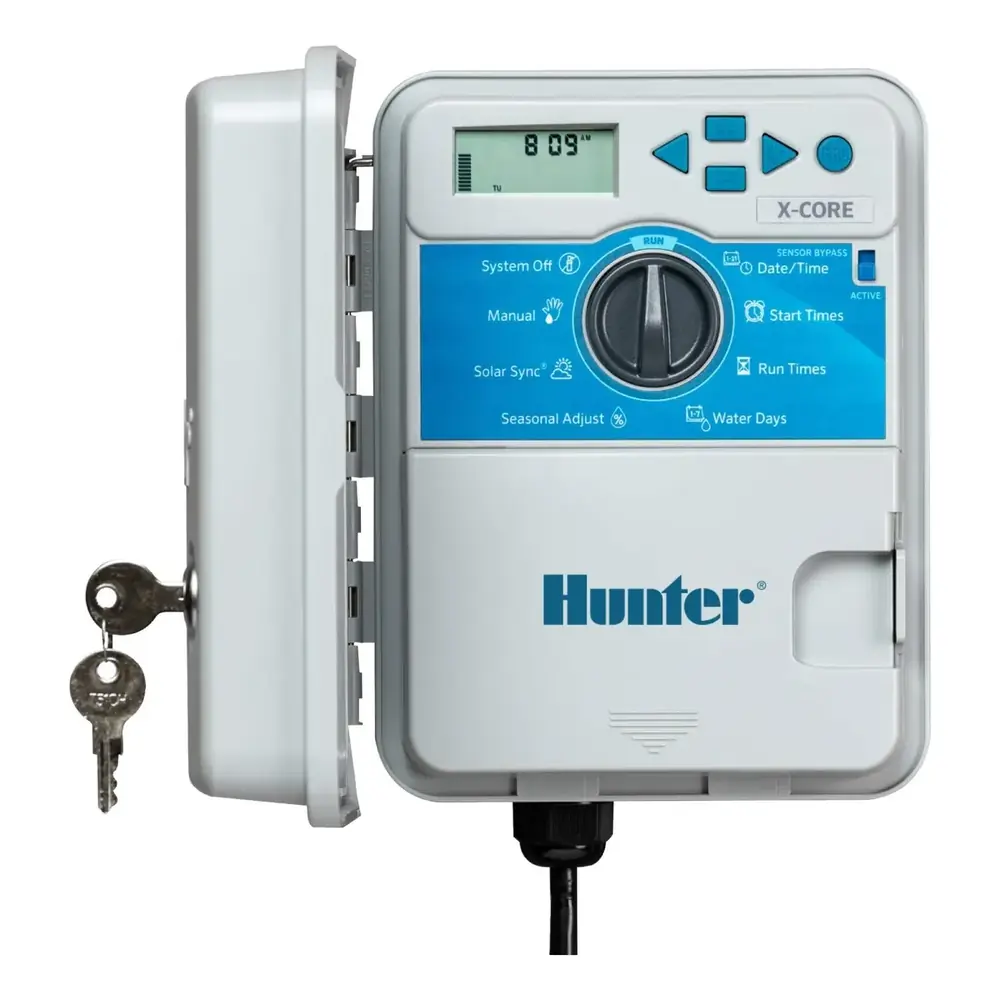
Product Images
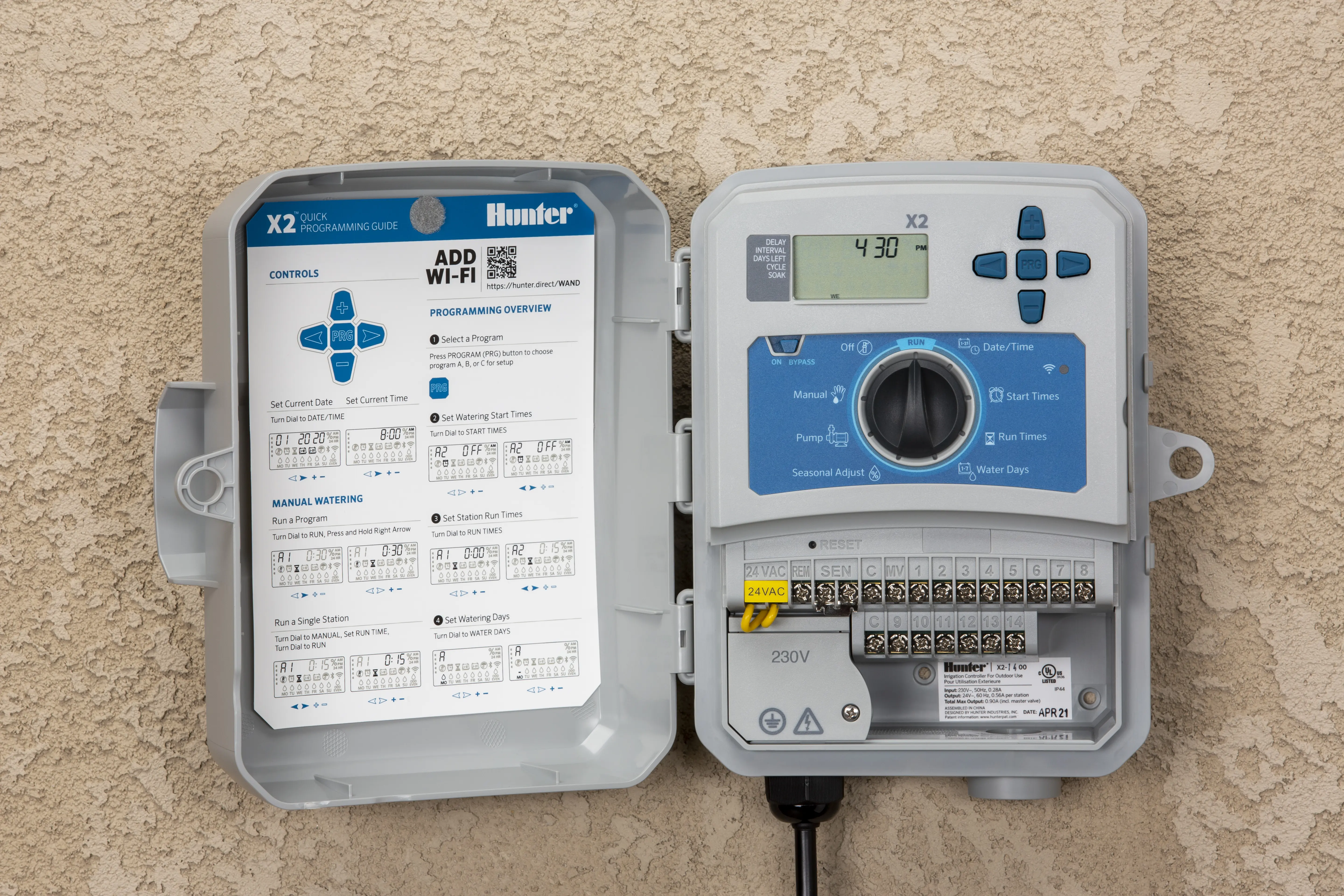
Hunter X2 Irrigation Controller Specifications
| Feature | Specification |
|---|---|
| Manufacturer | Hunter Industries Inc. |
| Model | X2 Irrigation Controller |
| Independent Programs | 3 (A, B, C) |
| Start Times per Program | Up to 4 |
| Start Time Increment | 15 minutes |
| Station Run Time Range | 1 minute to 6 hours |
| Stations (schedule sheet) | Up to 14 stations (zones) |
| Watering Day Options | Days of the week, Odd days, Even days, Interval days |
| Seasonal Adjust Range | 10% to 200% of original run times |
| Time Display Modes | AM, PM, 24 HR |
| Dial Positions | RUN, START TIMES, RUN TIMES, WATER DAYS, DATE/TIME, MANUAL, SYSTEM OFF |
| Control Buttons | +, –, ◄, ►, PRG (Program), RESET |
| Pump/Master Valve Output | Yes, P/MV selectable ON/OFF per station |
| Sensor Input | SEN terminals with ACTIVE/BYPASS switch |
| Wi-Fi Connectivity | Optional, via WAND module (Hydrawise™ software) |
| Bluetooth® | Bluetooth On indicator on display |
| Remote Connection | SmartPort® compatible |
| Programmable Rain Off | Adjustable number of off days |
| Program Visibility (Hide Programs) | Settings 1 to 4 |
| Diagnostics | Quick Check™ wiring test, ERR, P ERR and SP ERR messages |
| Program Backup | Easy Retrieve™ save and restore |
| Quick Start Guide Reference | RC-103-QG-US (9/19) |
| Programming Guide Reference | RC-103-DC-X2-US (6/19) |
Hunter X2 Irrigation Controller Details
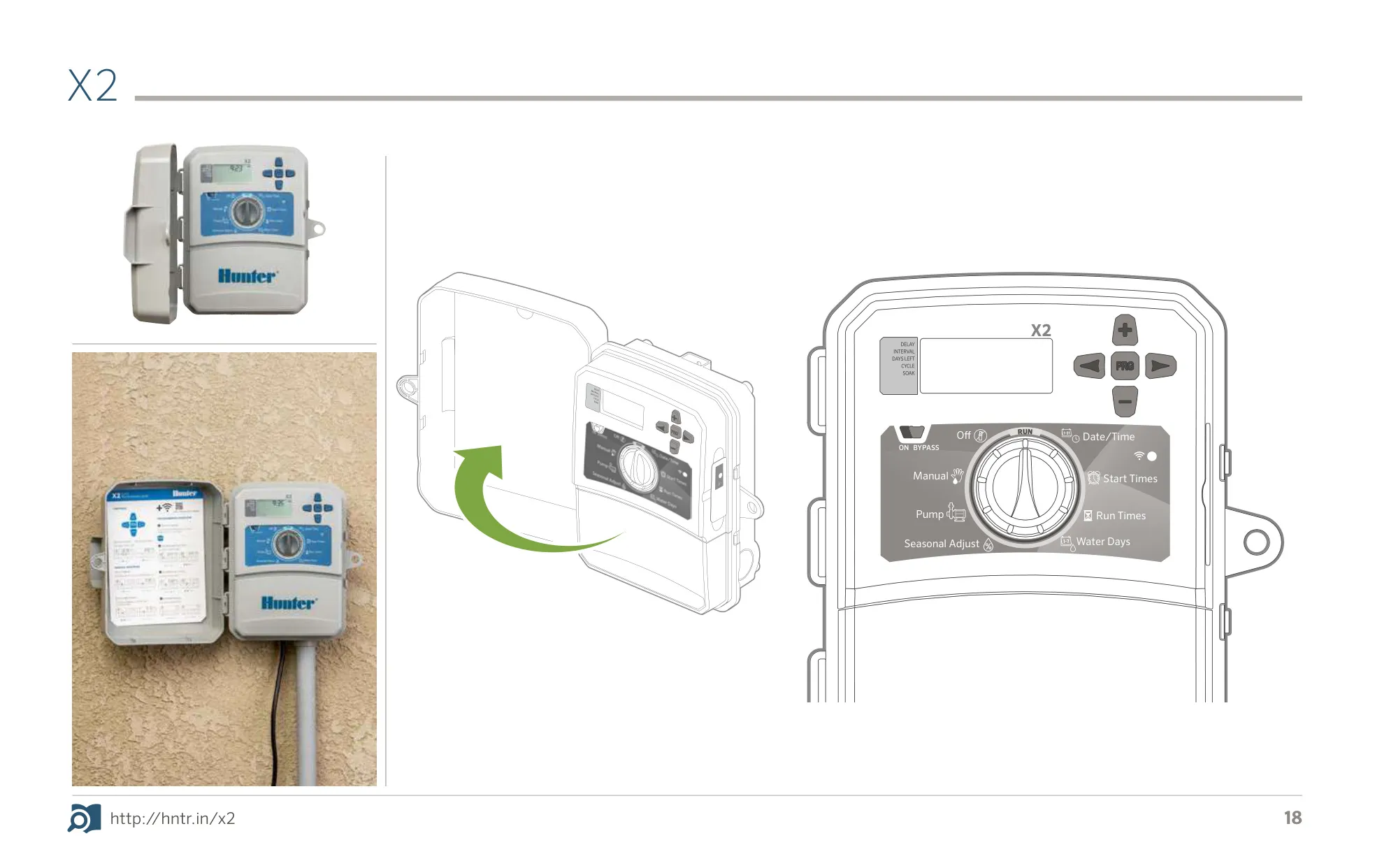
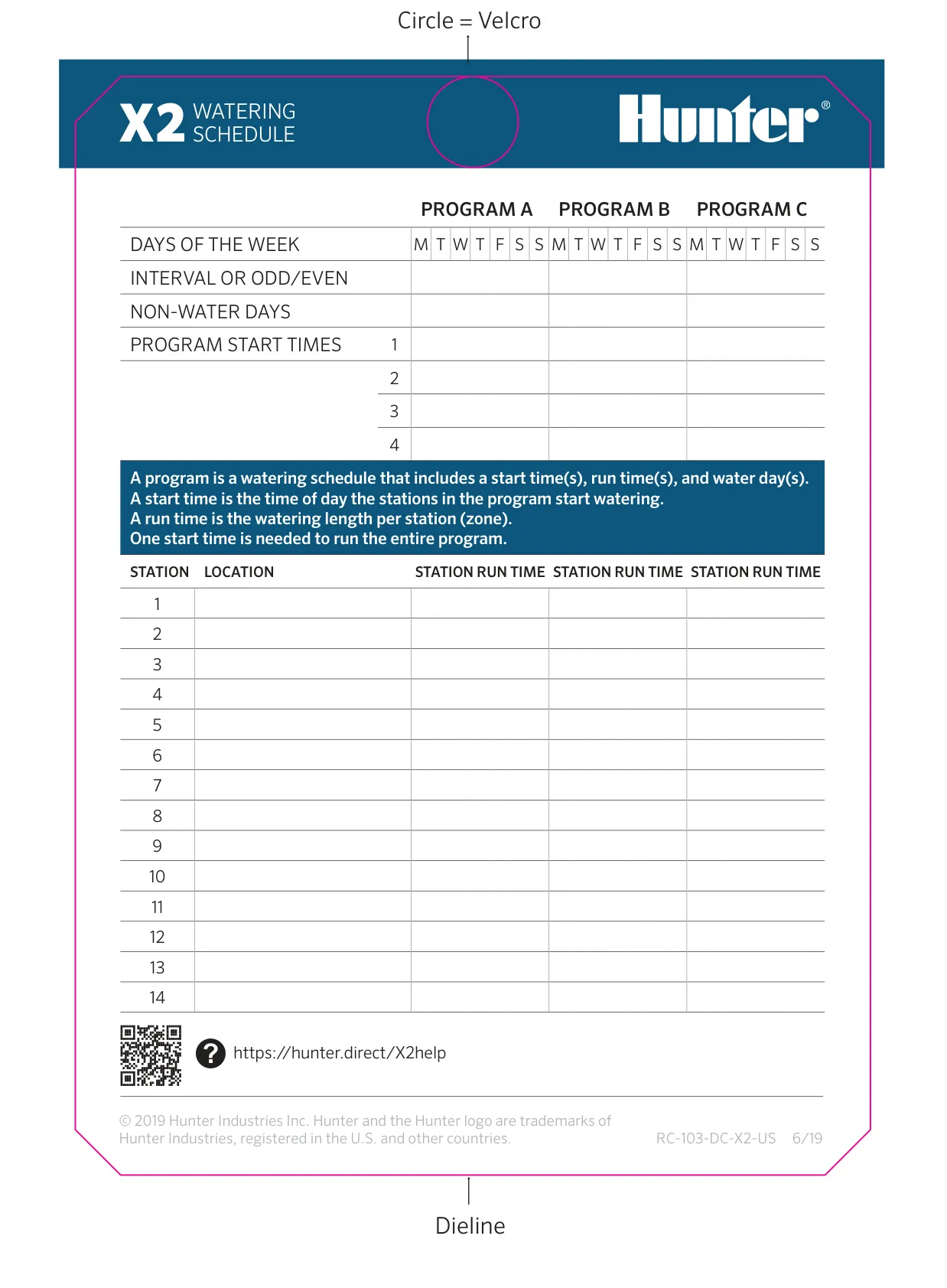
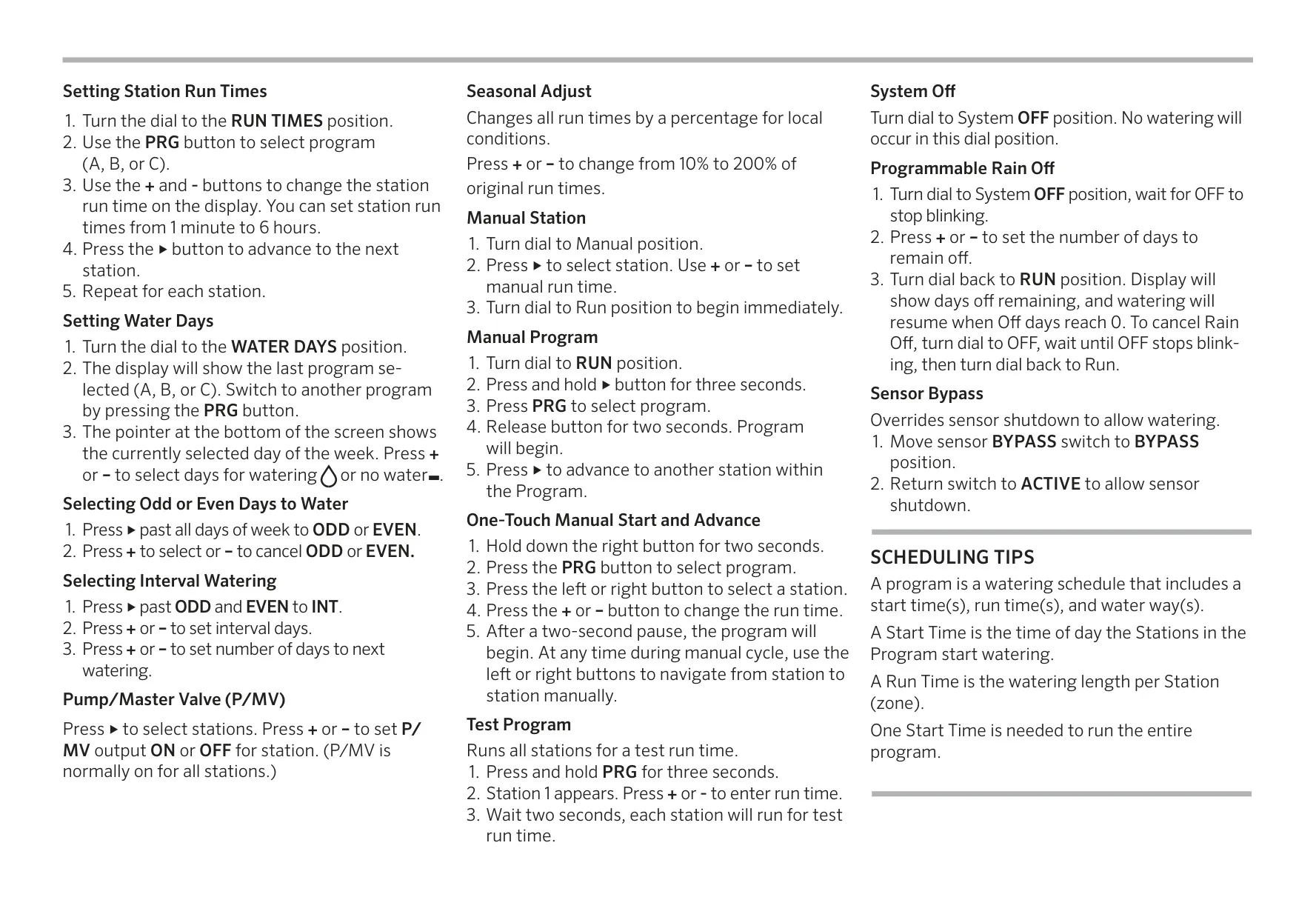
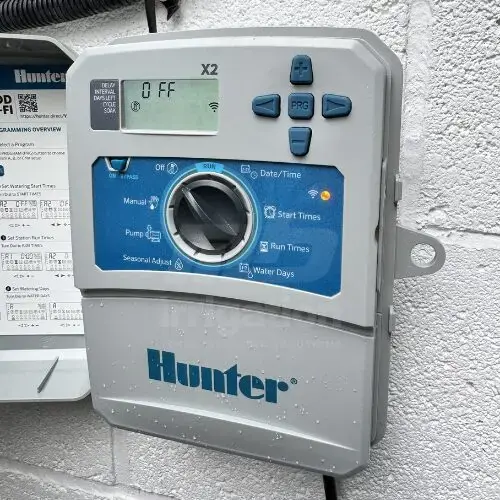
The Hunter X2 uses a simple dial and button setup. Turn the dial to a function, then use the +, –, ◄, ► and PRG buttons to change values. Programming has four steps: select a program, set the start times, set the station run times and choose the watering days. Remember that one start time runs every station in the program. Adding extra start times by mistake is the most common reason the controller seems to water nonstop.
To set the date and time, turn the dial to DATE/TIME. The year flashes first, then the month, the day, the time mode, the hours and the minutes. Press ► to move to each one. When you finish, turn the dial back to RUN, because automatic watering only works with the dial in that position. To turn off a start time, scroll to 12:00 AM and press – once to reach "OFF".
The controller offers several manual watering options. Manual Station runs one zone right away when you turn the dial from MANUAL to RUN. Manual Program starts when you hold ► for three seconds in RUN, choose a program with PRG and release. One-Touch Manual Start and Advance lets you change run times and step from station to station during a cycle. Holding PRG for three seconds starts a Test Program that runs each station for a set test time.
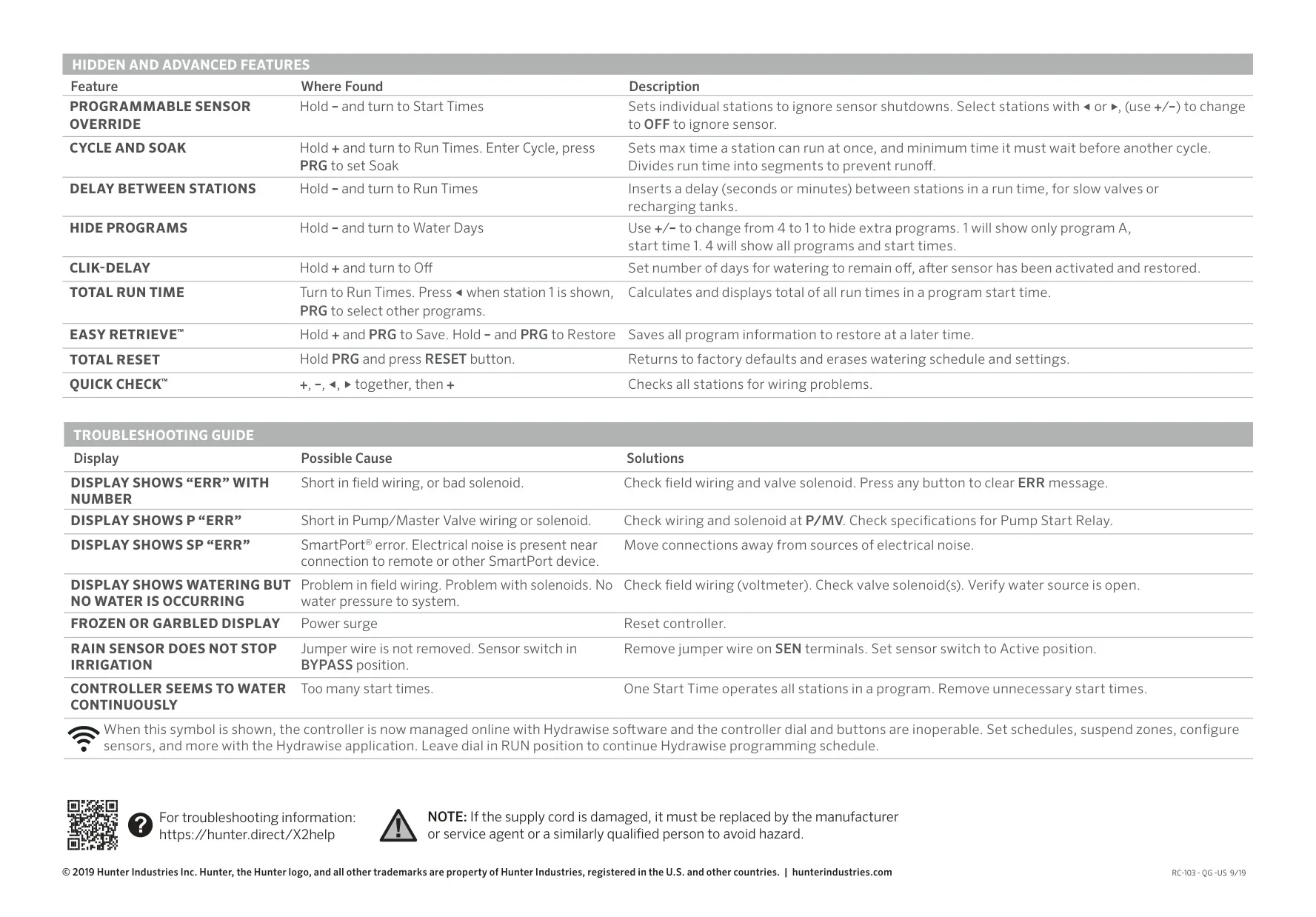
Several hidden features open when you hold a button while turning the dial. Cycle and Soak (hold + and turn to RUN TIMES) splits long run times into shorter cycles to prevent runoff. Delay Between Stations (hold – and turn to RUN TIMES) adds a pause for slow valves or recharging tanks. Programmable Sensor Override (hold – and turn to START TIMES) lets chosen stations ignore sensor shutdowns. Clik-Delay keeps watering off for a set number of days after a sensor resets.
Other tools help you manage your settings. Total Run Time shows the total of all run times for one start time. Easy Retrieve™ saves your schedule (hold + and PRG) and restores it later (hold – and PRG). Hide Programs shows fewer options on the display; setting 1 shows only program A with start time 1. Total Reset (hold PRG and press RESET) erases the schedule and returns the controller to factory settings.
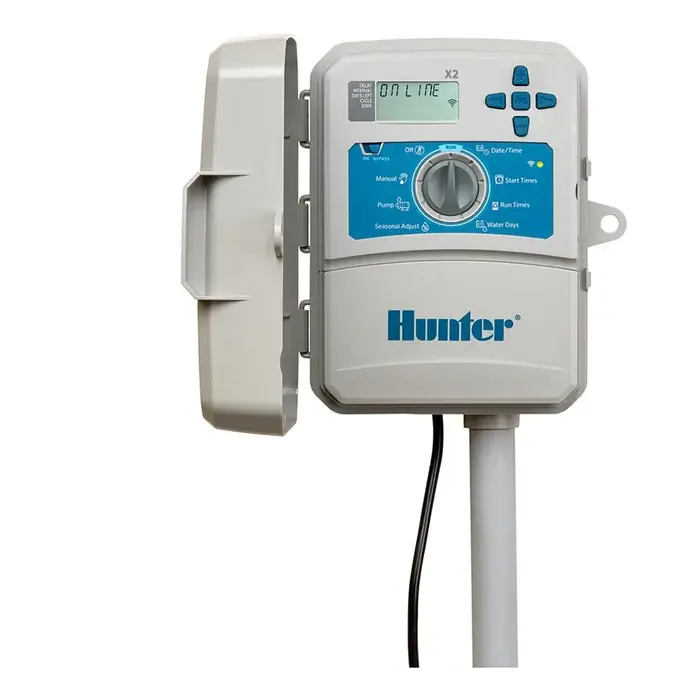
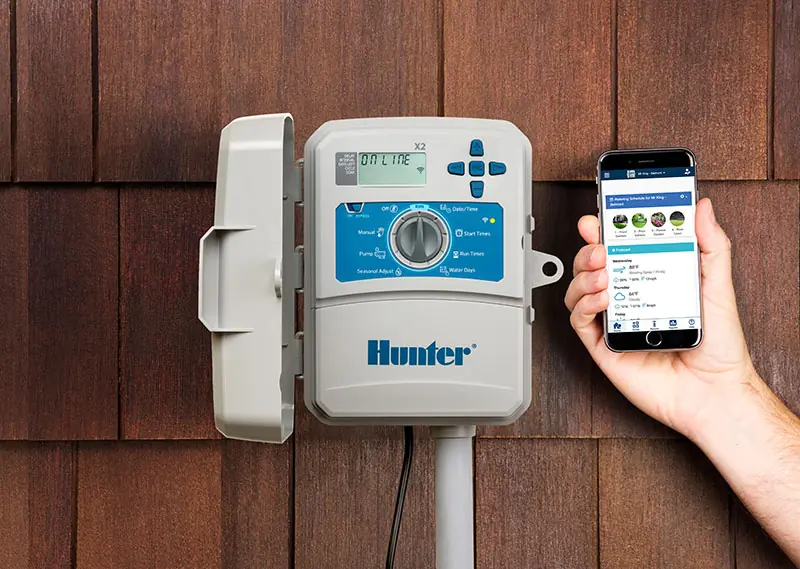
You can add Wi-Fi with the WAND module, which connects the controller to Hydrawise™ online software. Once connected, the dial and buttons stop working and Hydrawise replaces the existing schedule. From the app you can set schedules, pause zones and set up sensors. Manual Station, Manual Program and Test All Stations can still be started at the controller. Leave the dial in RUN so the Hydrawise schedule keeps running.
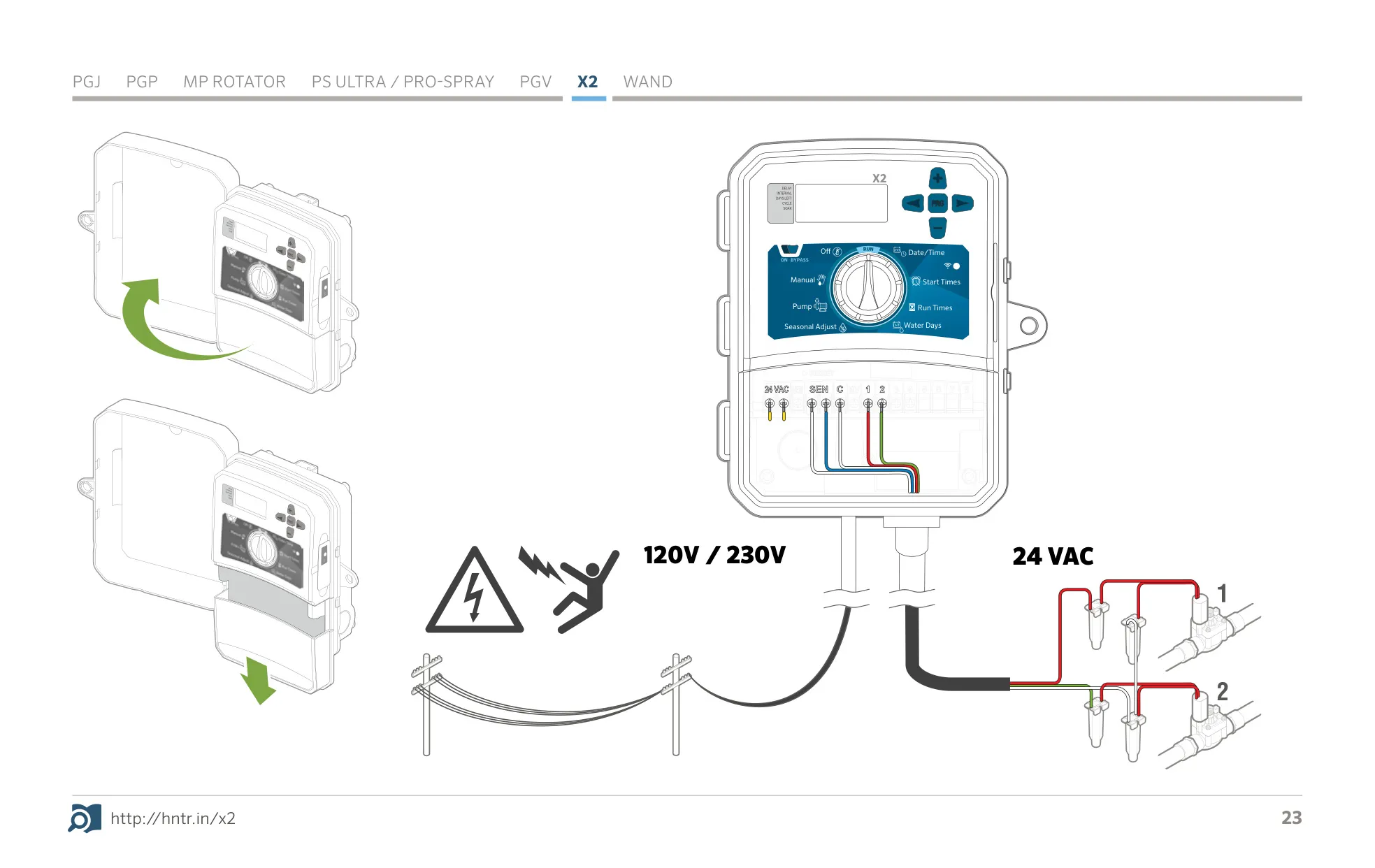
The controller can help you find problems. Quick Check™ (press +, –, ◄ and ► together, then +) tests every station for wiring faults. "ERR" with a station number points to a short in the field wiring or a bad solenoid. "P ERR" points to the pump/master valve circuit. "SP ERR" means electrical noise near the SmartPort connection. If the display freezes or looks garbled after a power surge, reset the controller. A damaged power cord must be replaced by a qualified technician.
Frequently Asked Questions (FAQs)
Can't find the answer you need? Here are some frequently asked questions about the Hunter X2 Irrigation Controller, and we answer them below.