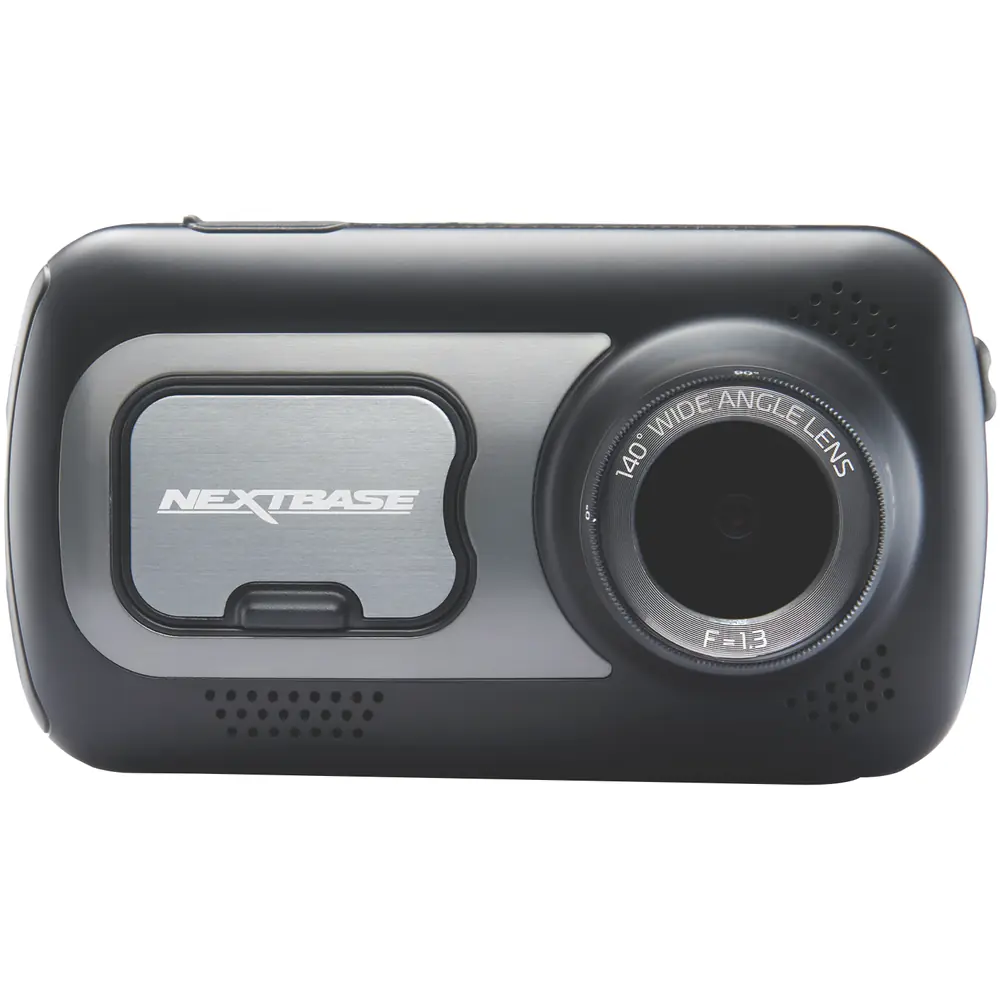
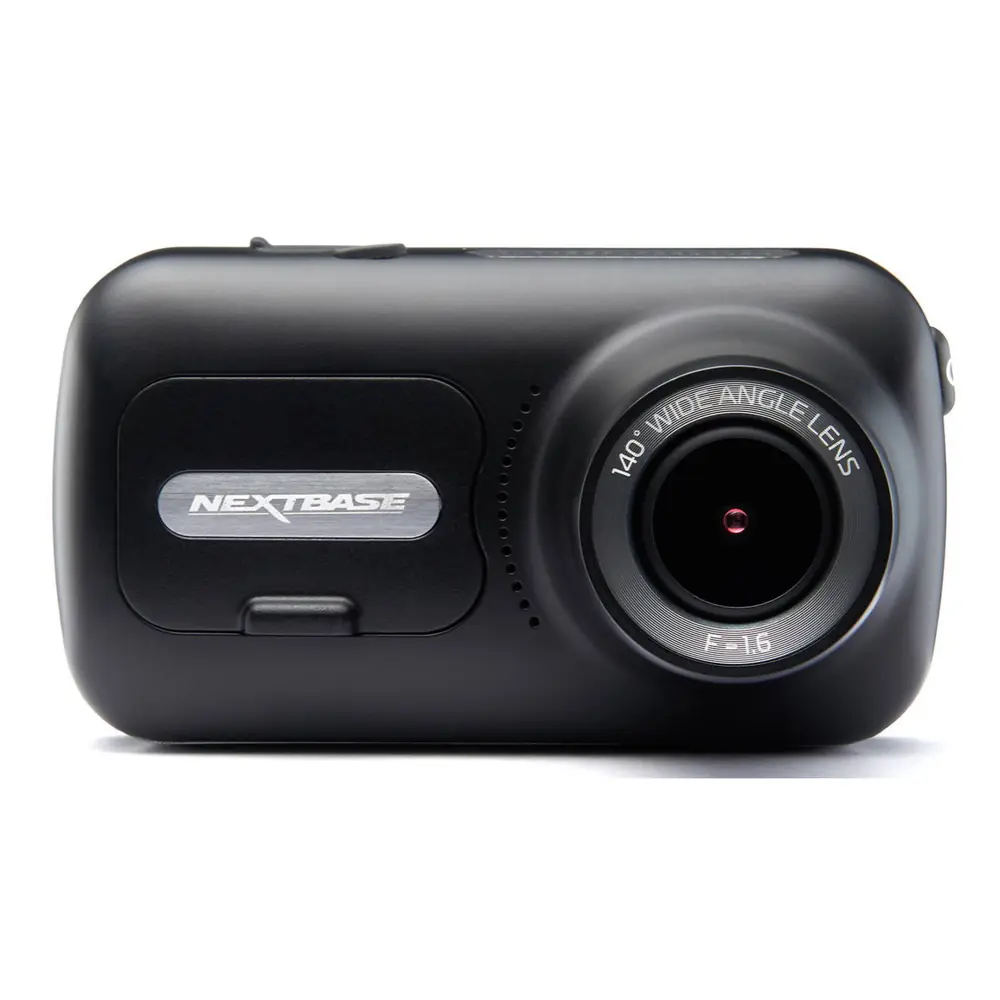
Nextbase 422GW Dash Cam Instruction Manual
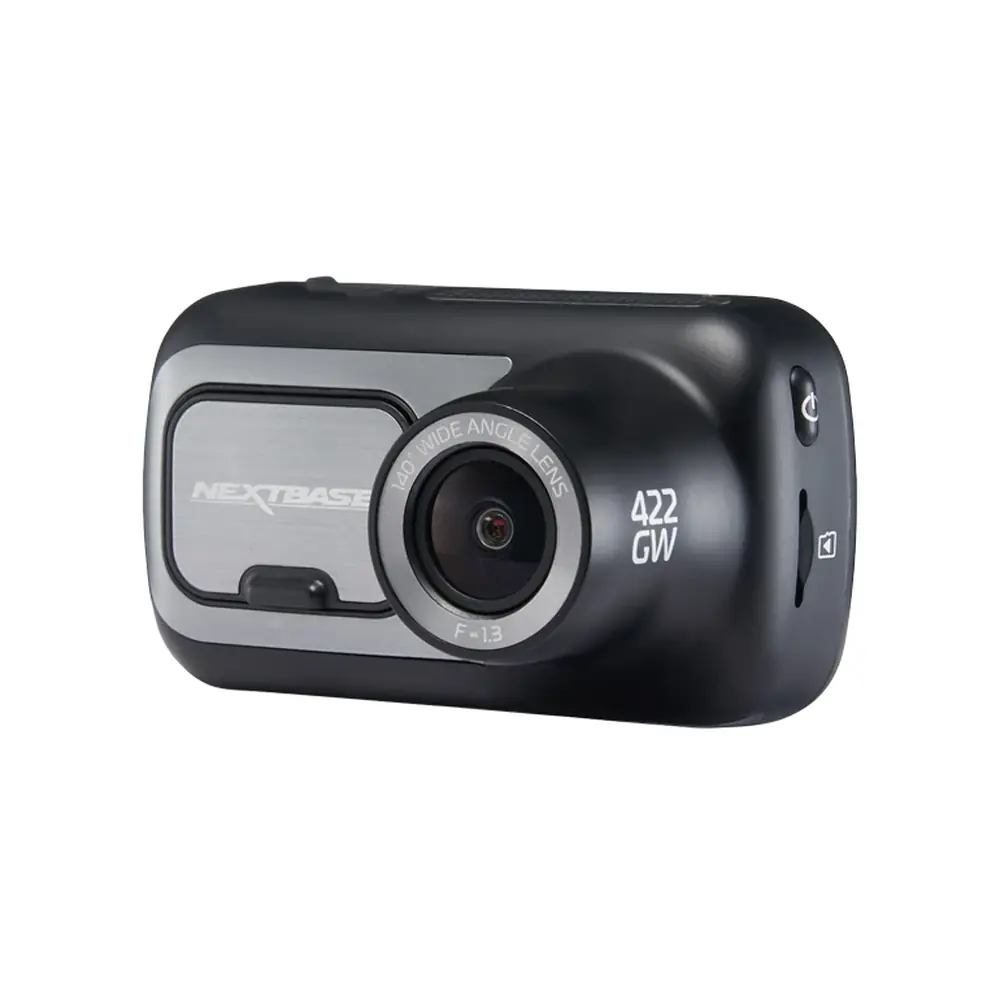
Nextbase 422GW Dash Cam

















Nextbase 422GW Dash Cam Instructions
Here we offer the Nextbase 422GW Dash Cam manual completely free and in English. We have cataloged this manual in the Dash Cams section on Manualverse, and it has been rated by 1 users with an average rating of 5. If you have any specific questions about Nextbase 422GW Dash Cam, we suggest checking the Frequently Asked Questions (FAQs) section of this manual.
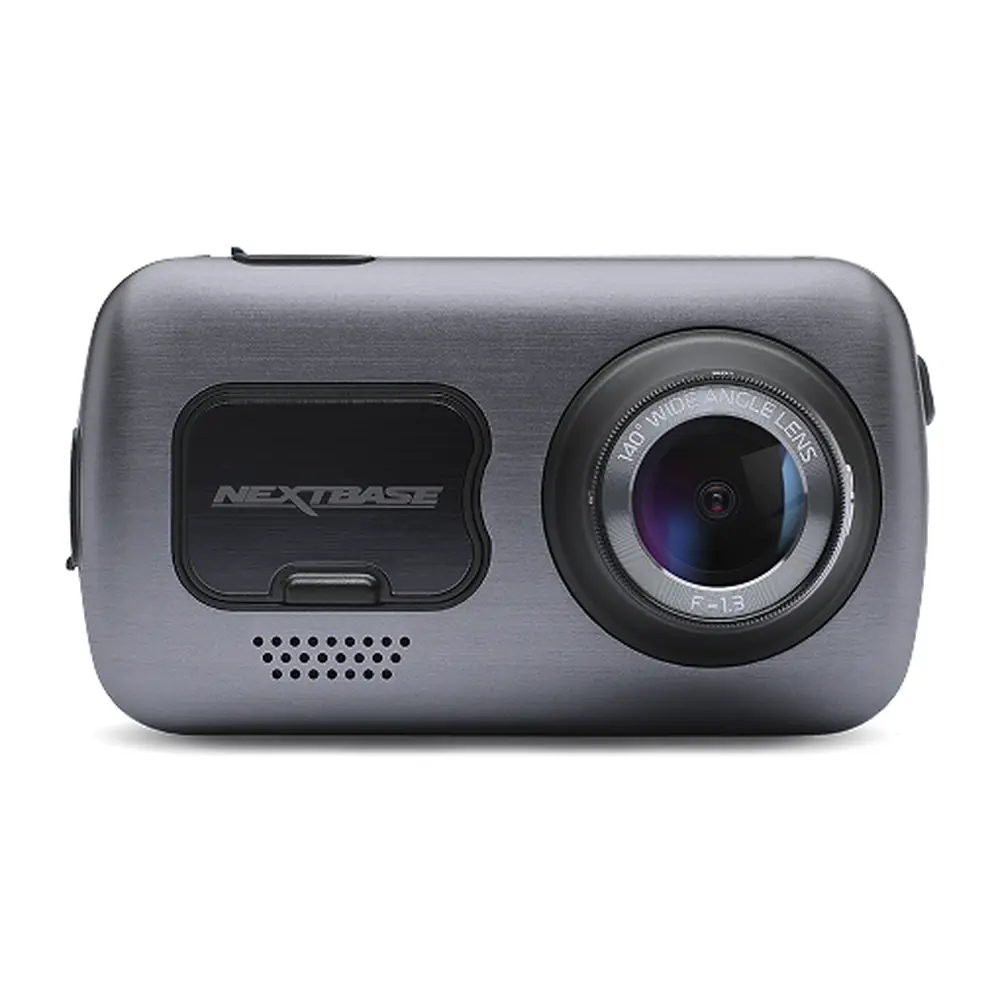
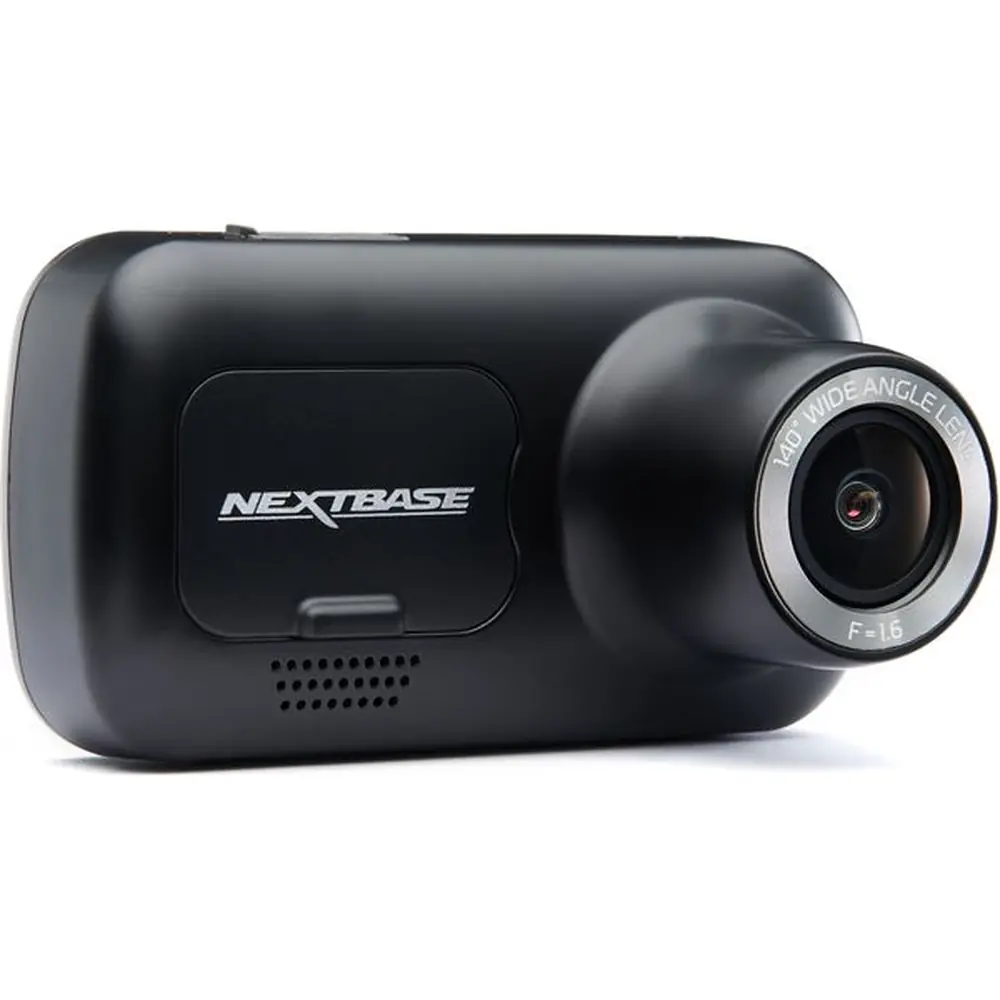
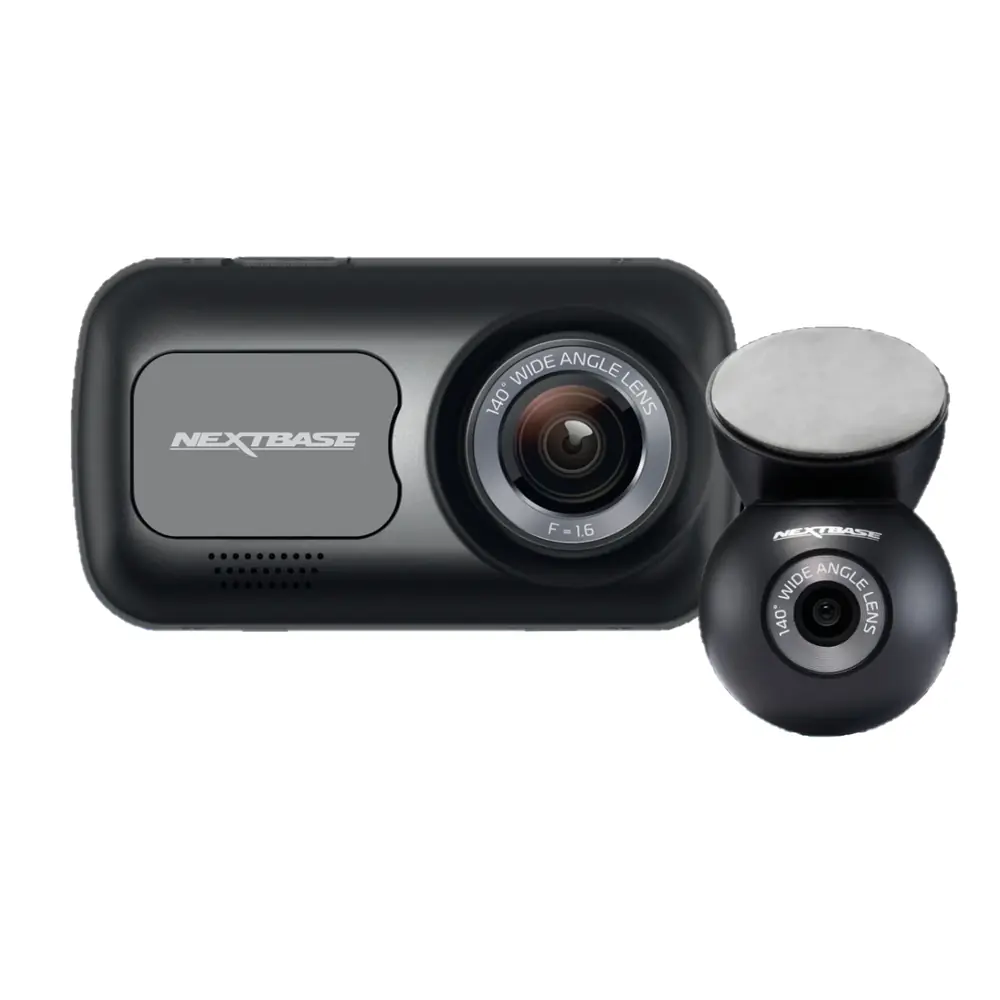
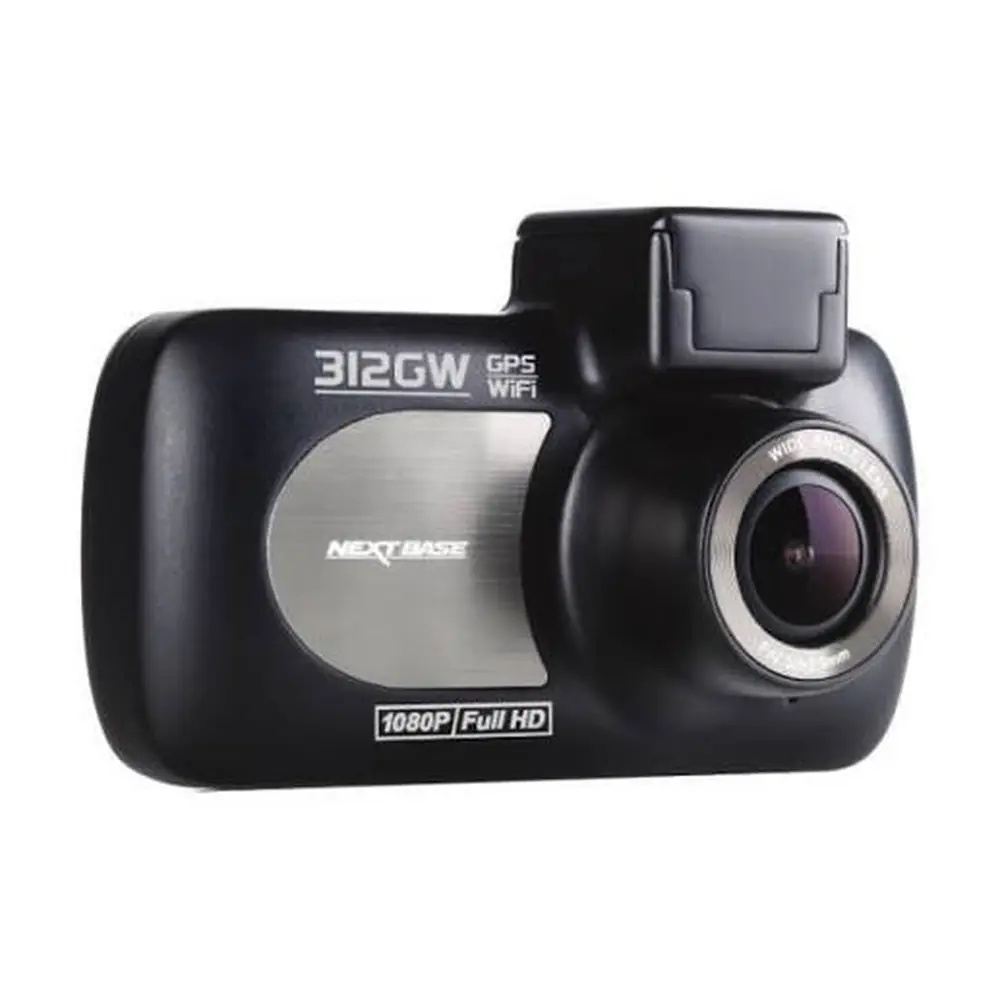
Product Images
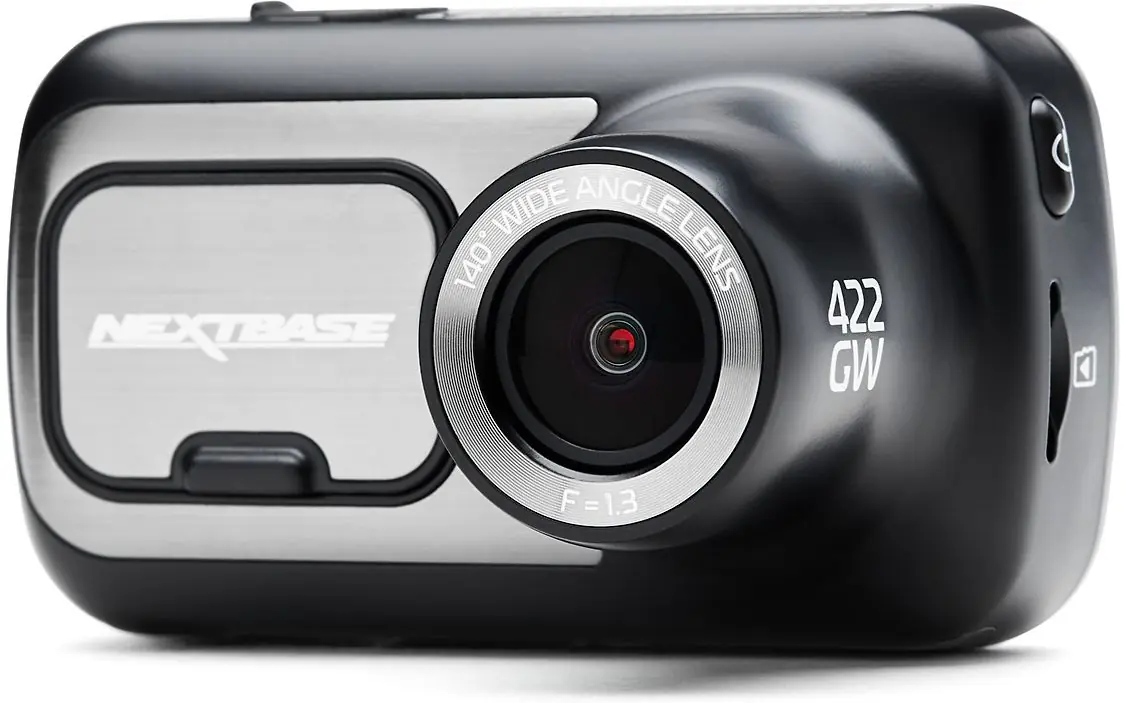
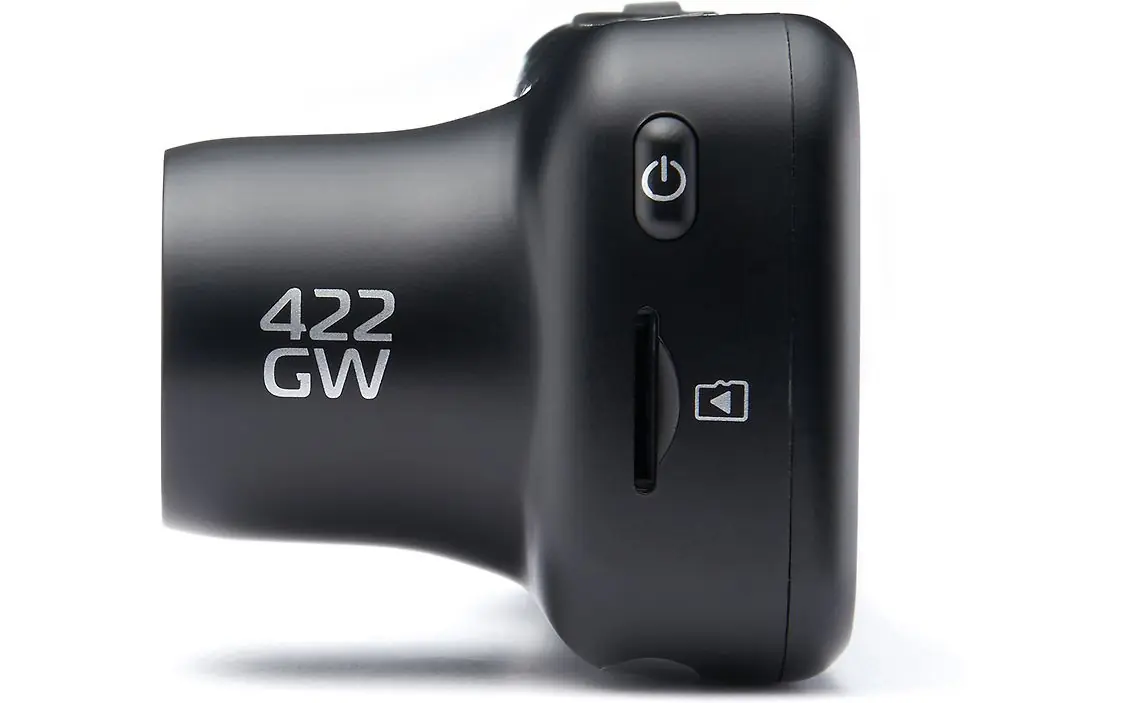
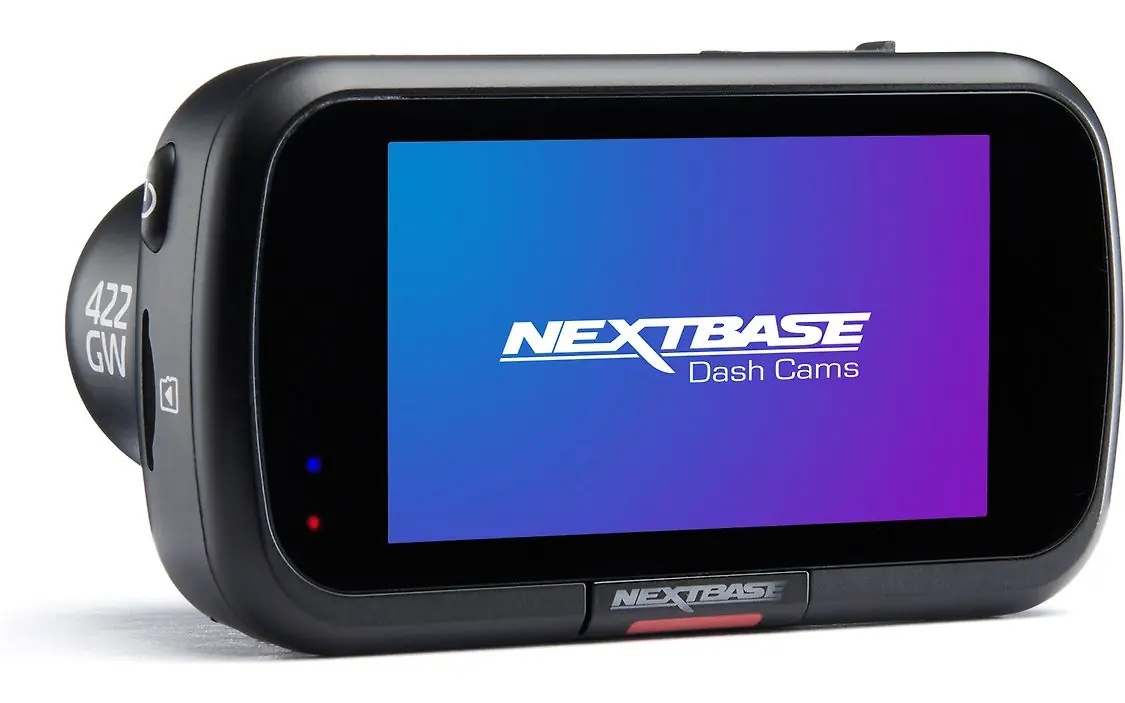
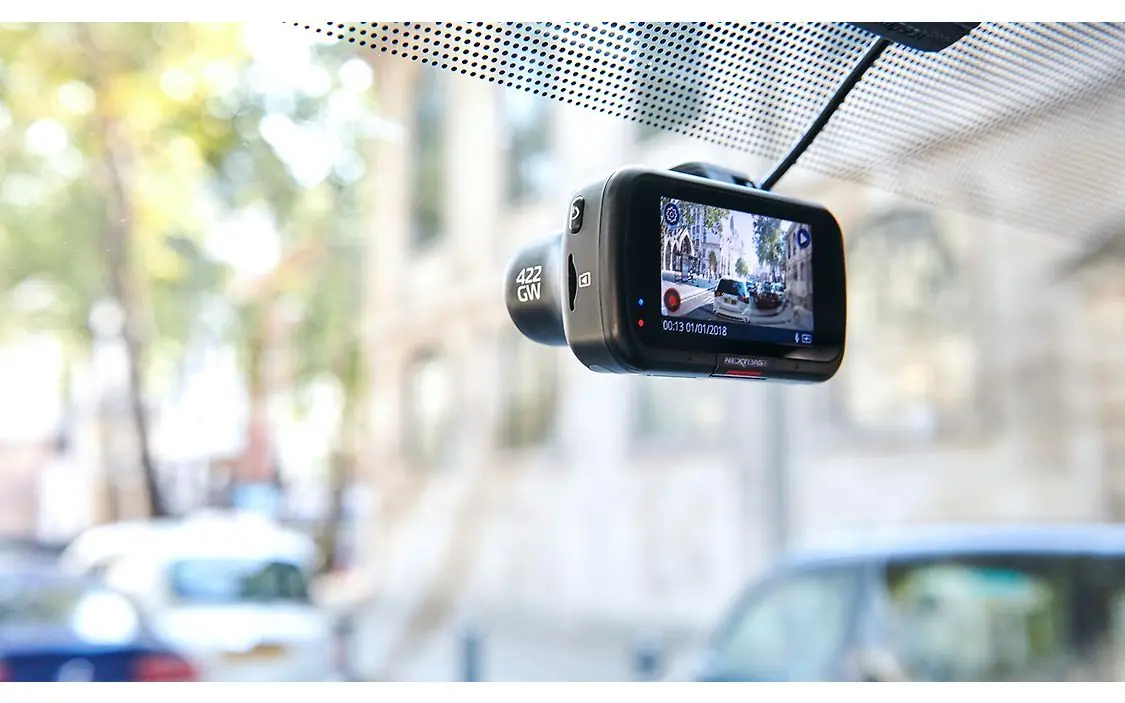
Nextbase 422GW Dash Cam Specifications
| Feature | Specification |
|---|---|
| Model Number / Name | NBDVR422GW |
| Power Requirements | 5V / 1.5A |
| Power Supply | 12-24Vdc Car Power Cable (supplied), Fuse Type: 32mm / 2A, Output: 5Vdc (Hardwire Kit available) |
| Sensor Resolution | 2.12M Pixel (1936 x 1097) |
| Lens Type / Angle / Aperture | 5G / 140° / F1.6 |
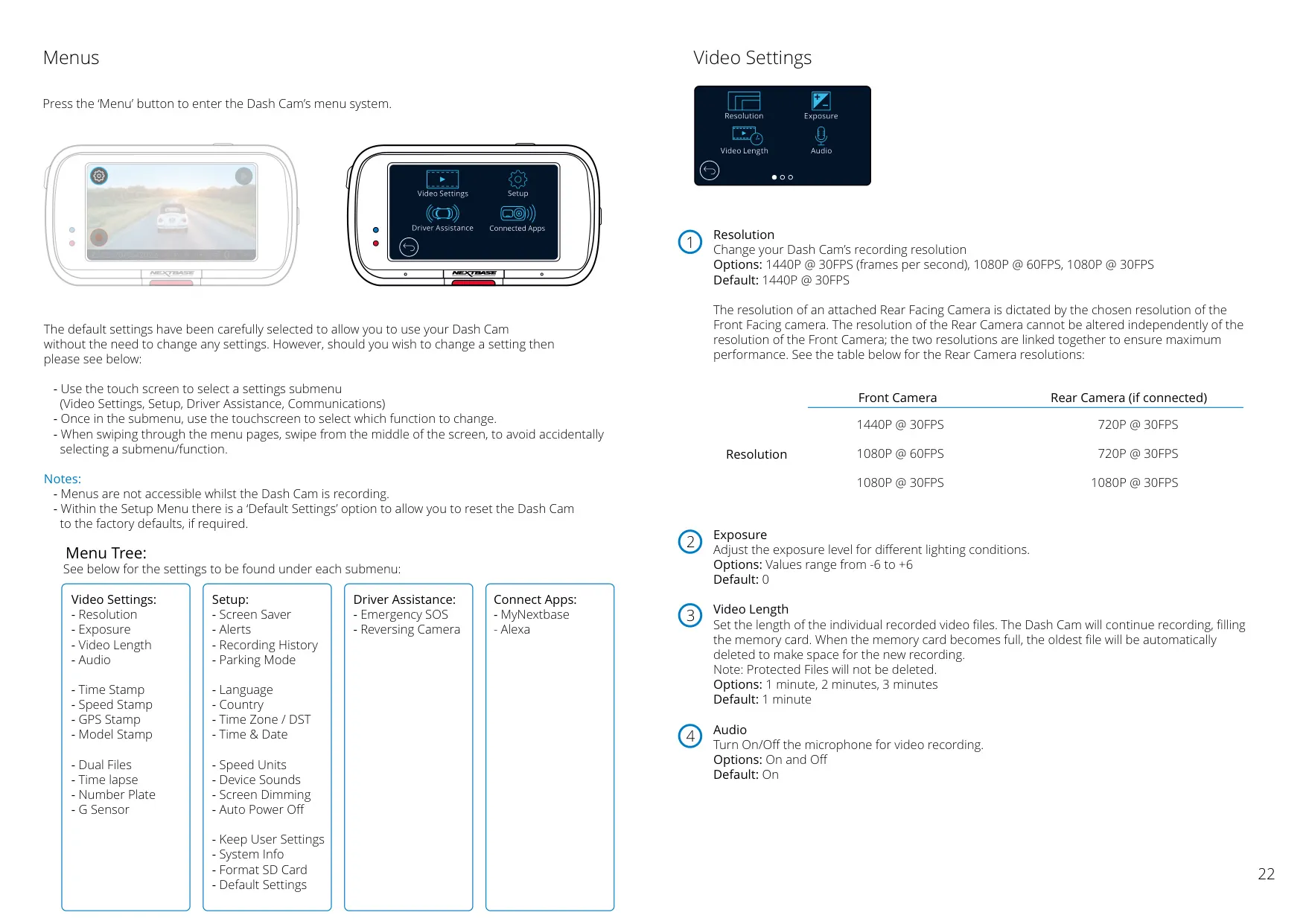
| Recording Resolution | 2560×1440 @30fps day & night |
| Screen Size | 2.5" |
| Screen Resolution | 732 (W) X 240 (H) pixels x RGB (720) |
| Screen Ratio | 16:9 |
| Card Reader | MicroSD, Class 10, up to 128GB |
| Recommended SD Card Type | 8-128GB SDHC, U3, Class 10 (48mb/s) |
| SD Card Recorded File Capacity (default settings) | 8GB = 60 mins, 16GB = 120 mins, 32GB = 240 mins, 64GB = 480 mins, 128GB = 960 mins |
| Recording Format | MP4 |
| Internal Battery | Lithium-Polymer 3.7V / 320mAh (approx. 15 mins recording time for auto power off) |
| GPS Module | simple / ST702G-15C40 |
| Unit Dimensions | 82 x 46 x 47 mm |
| Unit Weight | 105g |
Nextbase 422GW Dash Cam Details
The Nextbase 422GW Dash Cam is designed for user-friendliness, with carefully selected default settings for optimal day-to-day performance. It requires a quality branded Class 10 or U1 type Micro SD card, recording video in convenient 1-minute segments. An automatic deletion feature ensures space is always available for new recordings, with a 16GB card typically storing about 1.5 hours of footage. The integrated GPS automatically adjusts for Daylight Savings Time.
This Dash Cam boasts Automatic Start/Stop Technology, initiating recording as soon as the vehicle ignition is turned on and performing an automatic shutdown when power is removed. For optimal video quality, users are advised to position the camera centrally on the windscreen, ideally behind the rearview mirror, ensuring the view through a clean, wiper-swept area. Reducing visible sky and removing dashboard items can further enhance clarity.
Memory card stability is crucial, and Nextbase recommends formatting the SD card every 2-3 weeks directly within the Dash Cam for best results, ensuring all desired files are backed up first. Users should always switch off the Dash Cam before removing the SD card to prevent data corruption. An essential feature is the Click & Go Pro Powered Mount, which uses a magnetic connection for effortless installation and removal, offered with both adhesive and suction fittings.
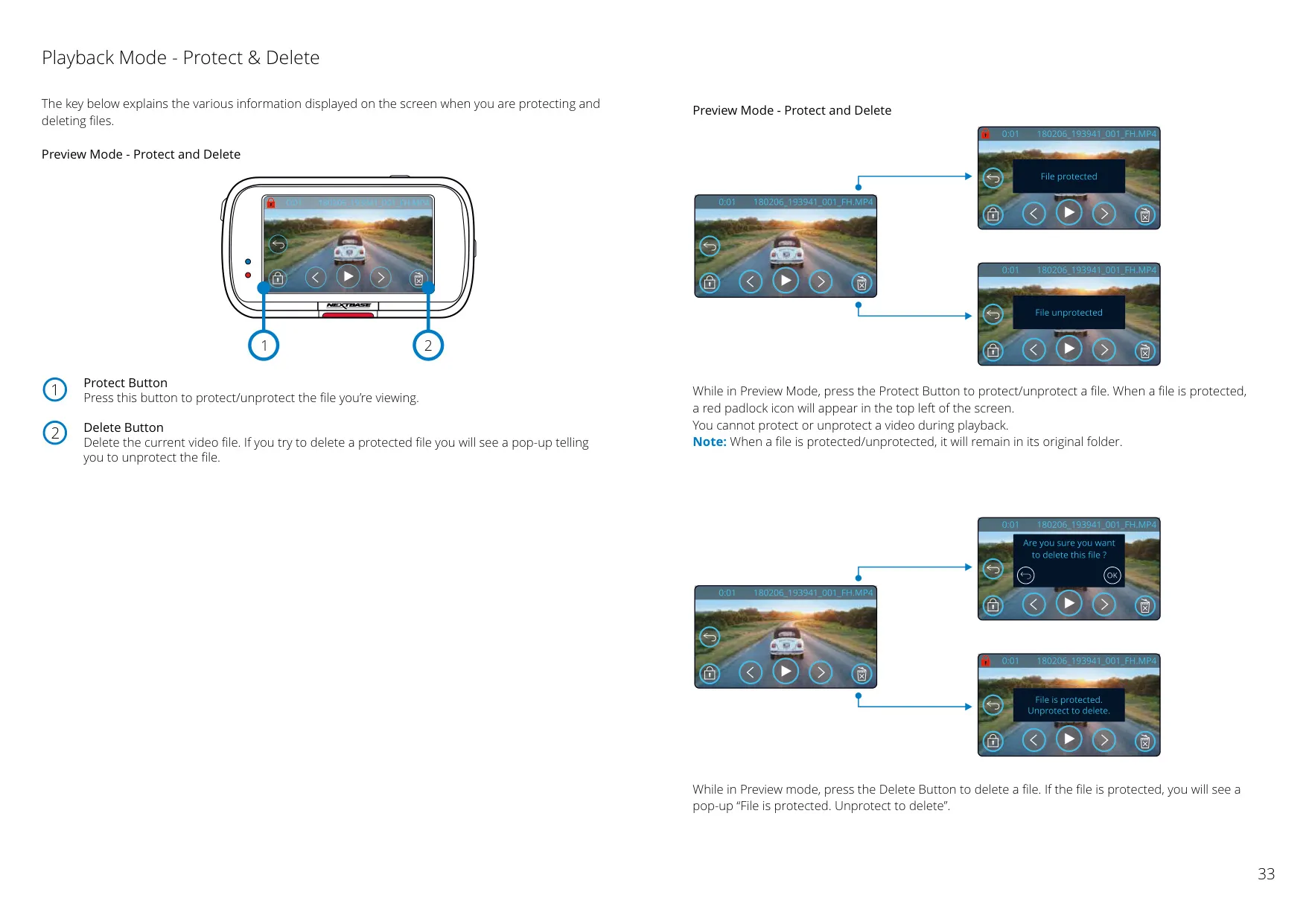
Beyond basic recording, the 422GW includes an Intelligent Parking Mode that automatically triggers recording upon motion detection while your vehicle is parked. It also features a G Sensor for File Protection, which senses impacts and automatically "protects" the current recording from being overwritten. This protection captures 10 seconds prior to and 20 seconds after an incident, and can also be activated manually with a dedicated button.
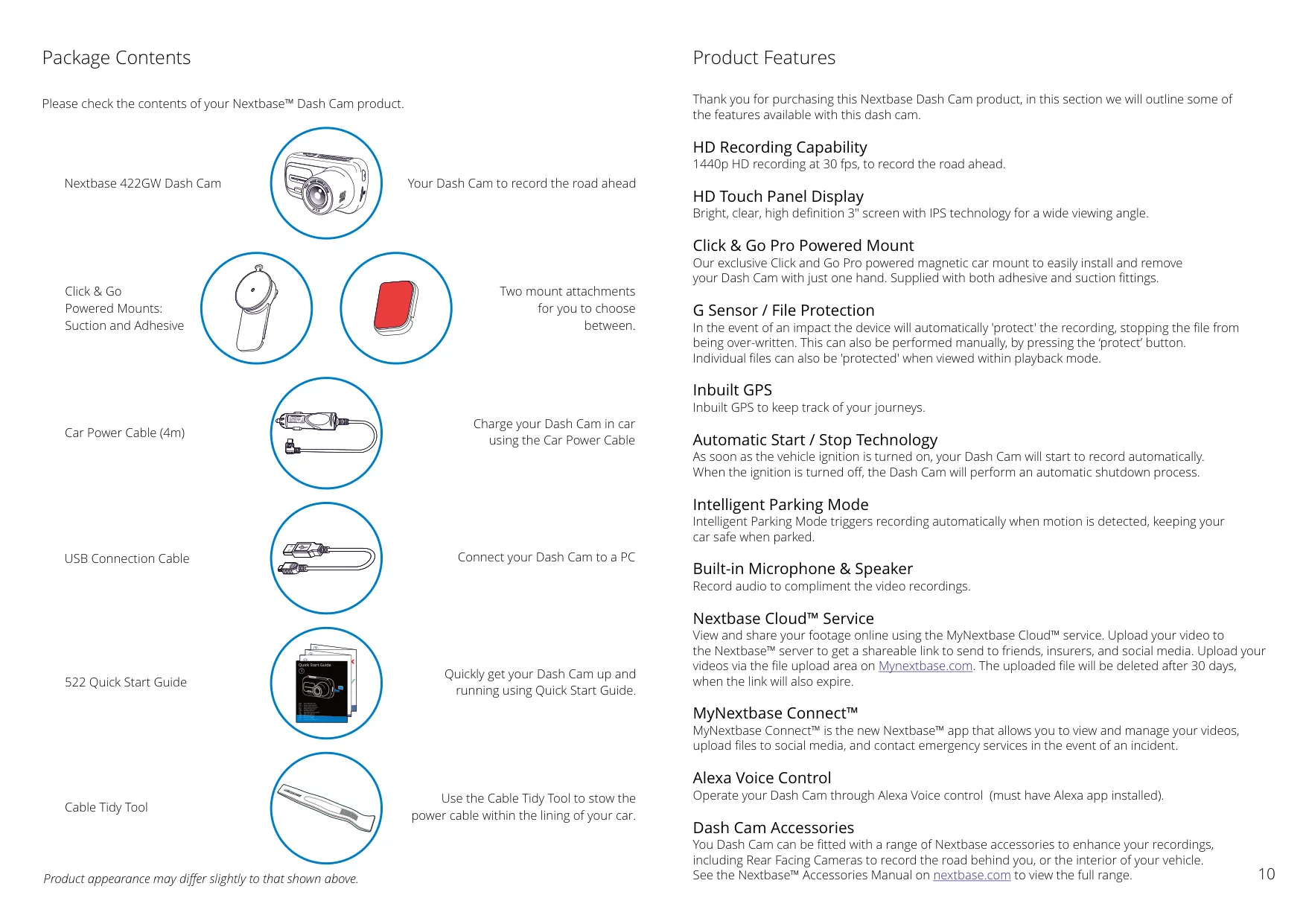
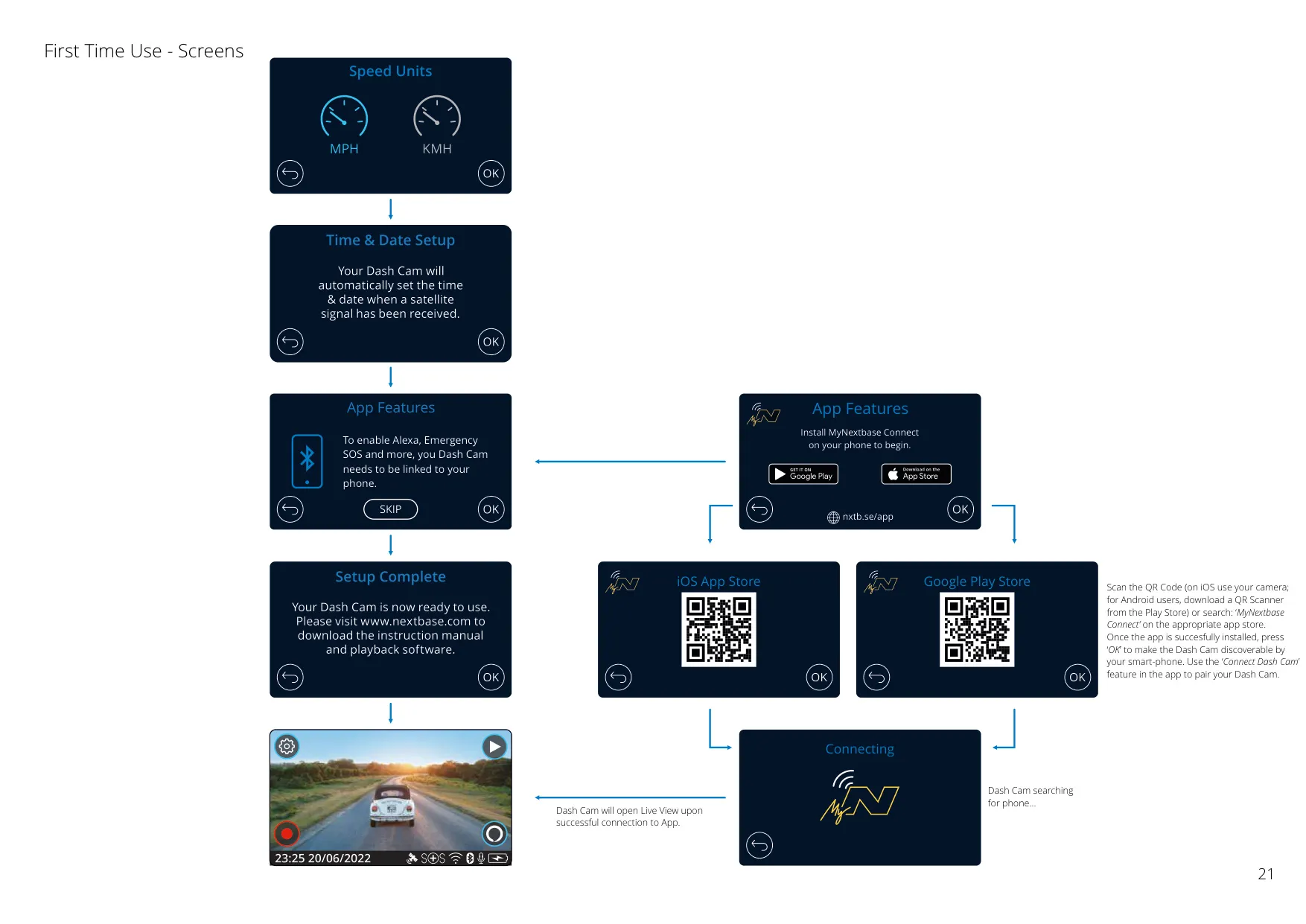
Connectivity is central to the 422GW experience, featuring integration with the MyNextbase Connect™ app for viewing, managing, and sharing videos, including uploads to social media and emergency services contact. Alexa Voice Control allows hands-free operation of the Dash Cam, traffic inquiries, and music playback through your smartphone. The free MyNextbase Cloud™ service offers secure online storage and shareable links for footage, while MyNextbase Player™ is a free PC/Mac software for in-depth analysis, editing, and sharing of recorded journeys.
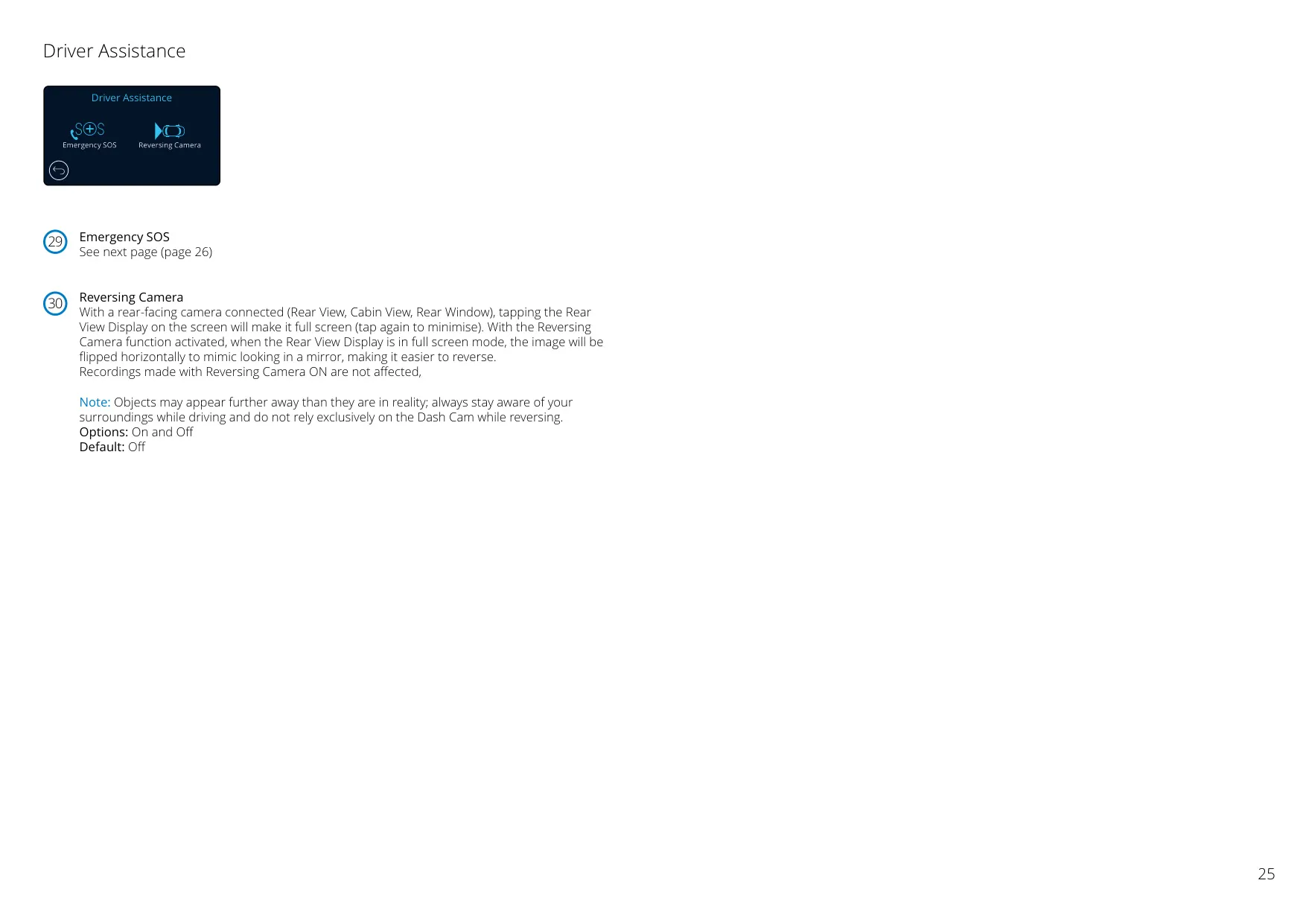
A standout driver assistance feature is Emergency SOS. When connected to the MyNextbase Connect app via Bluetooth and with an internet connection, this life-saving technology automatically detects severe crashes. If the driver is unresponsive, it sends critical GPS location, medical, and vehicle details to the nearest Ambulance Service, providing invaluable assistance when it's needed most.
Frequently Asked Questions (FAQs)
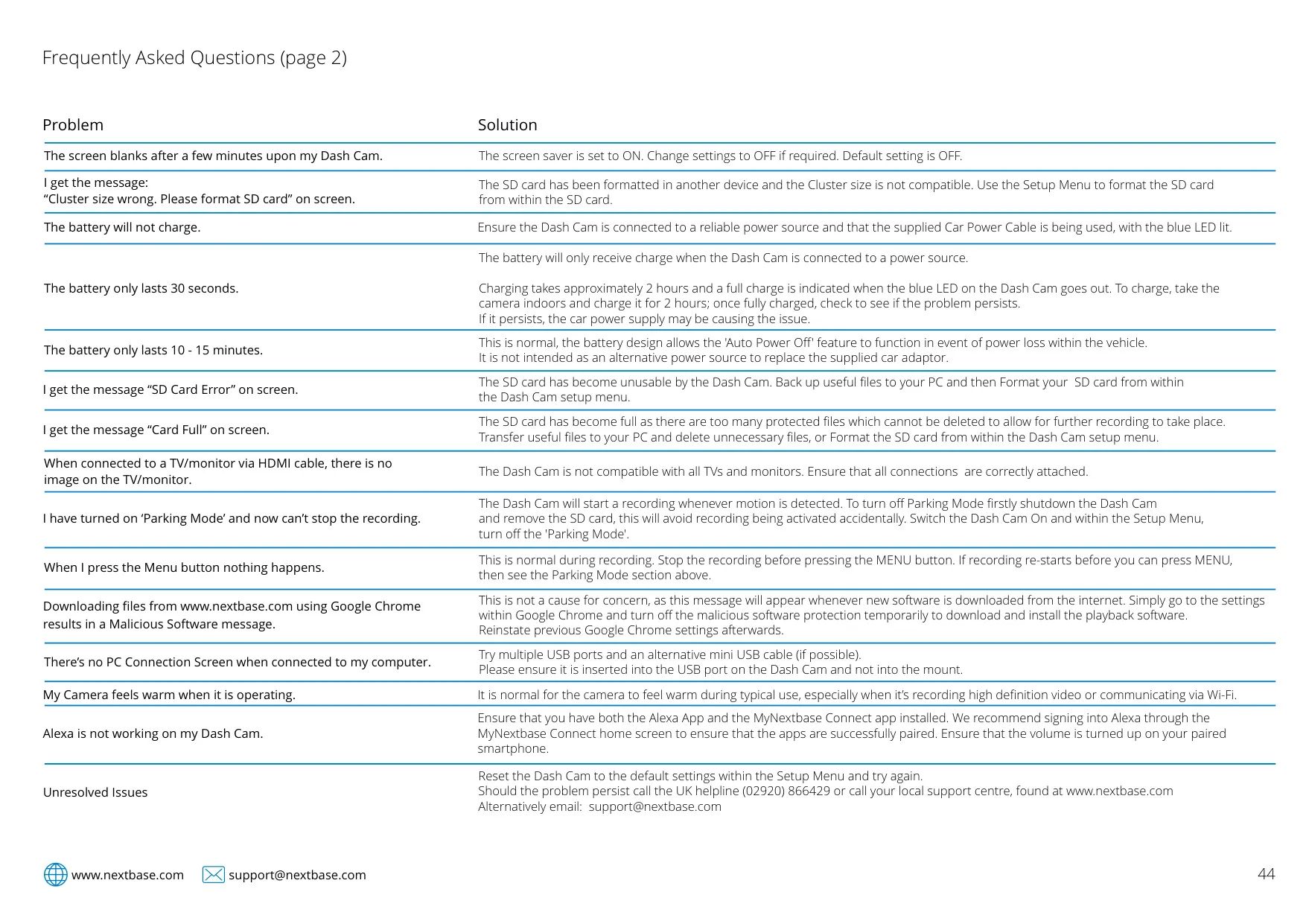
Can't find the answer you need? Here are some frequently asked questions about the Nextbase 422GW Dash Cam, and we answer them below.