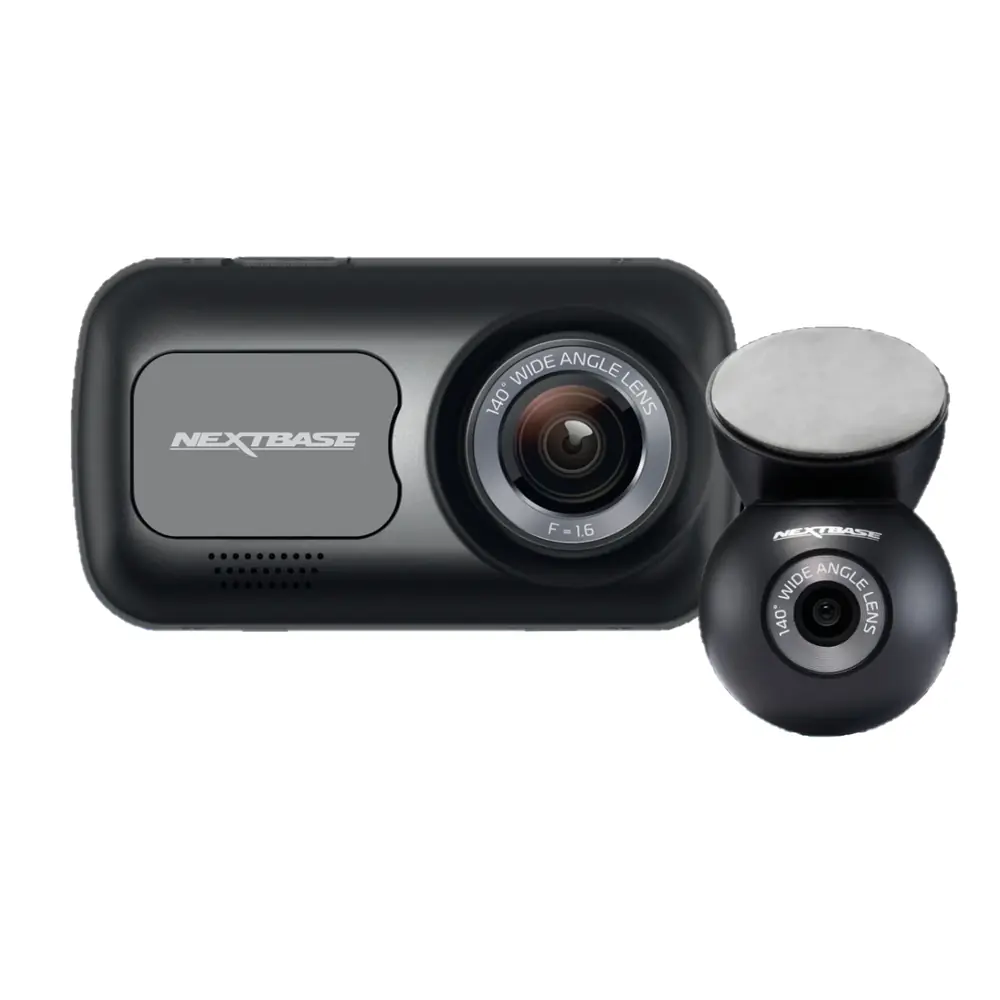
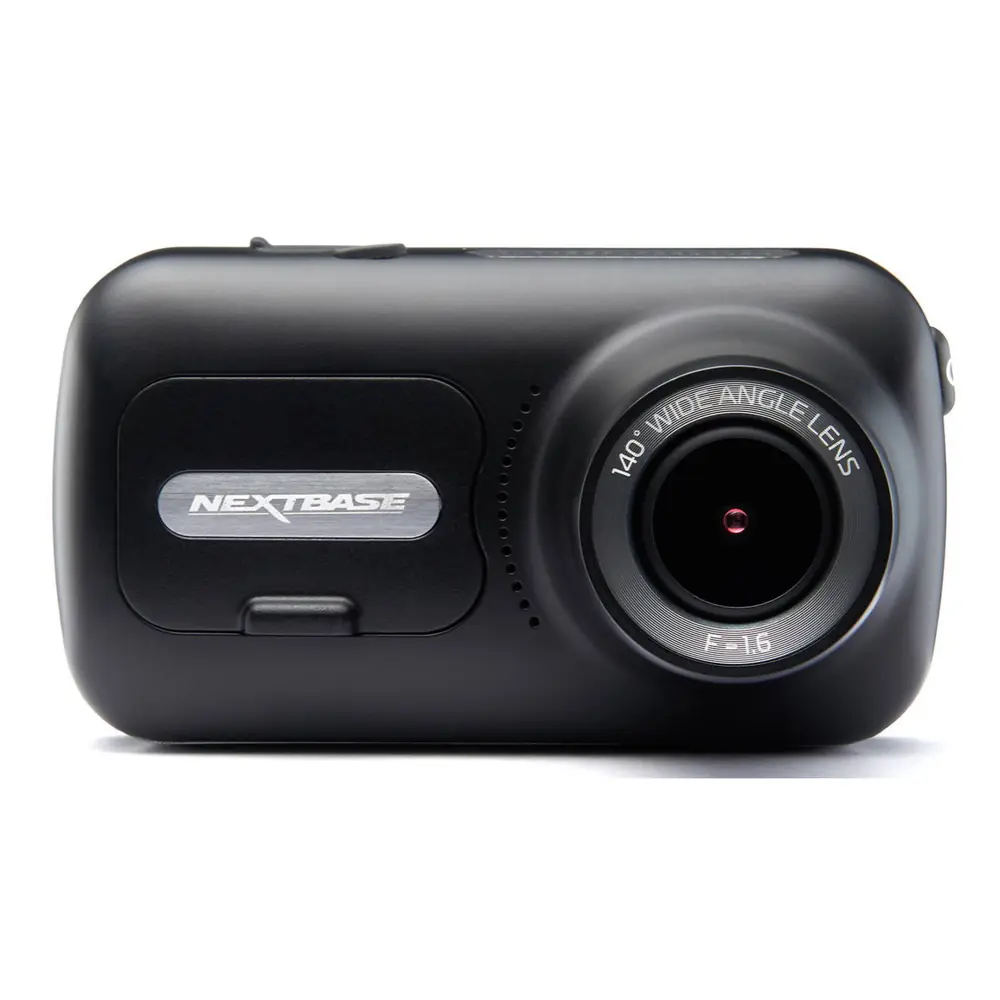
Nextbase 312GW Dash Cam Instruction Manual
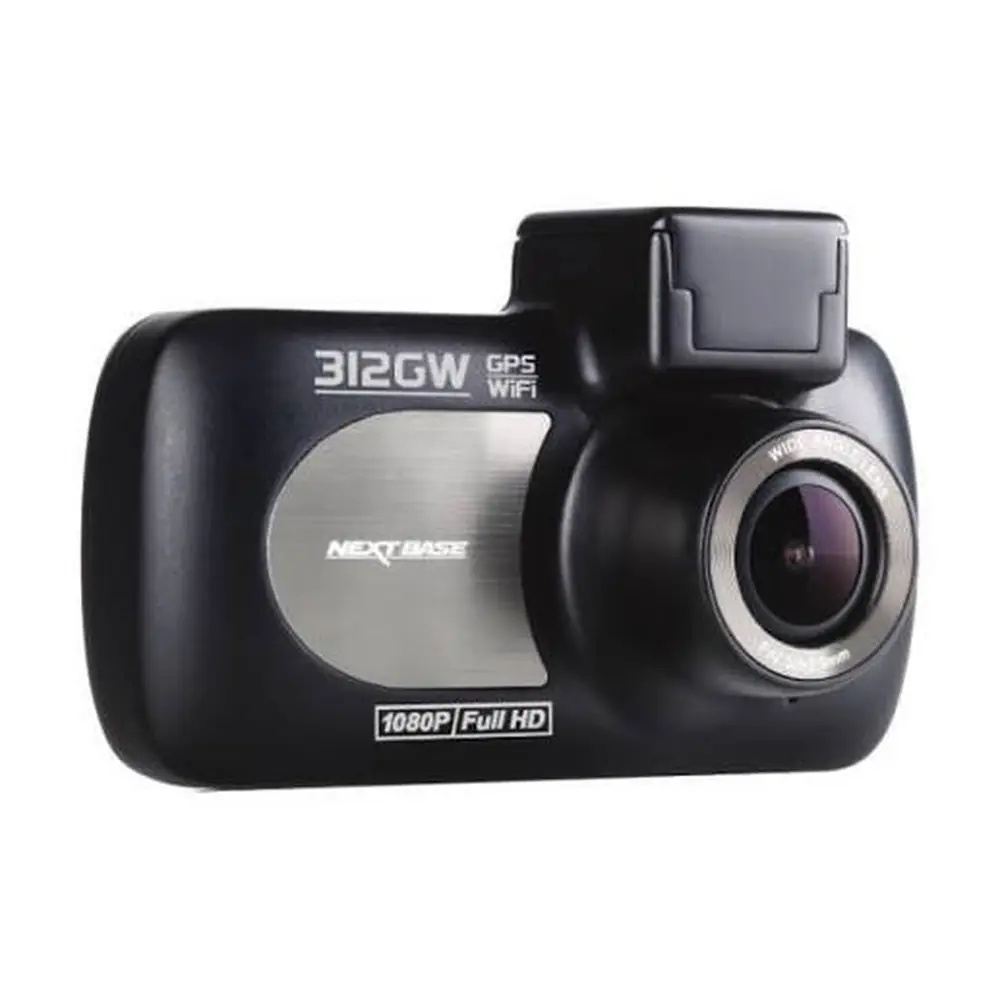
Nextbase 312GW Dash Cam


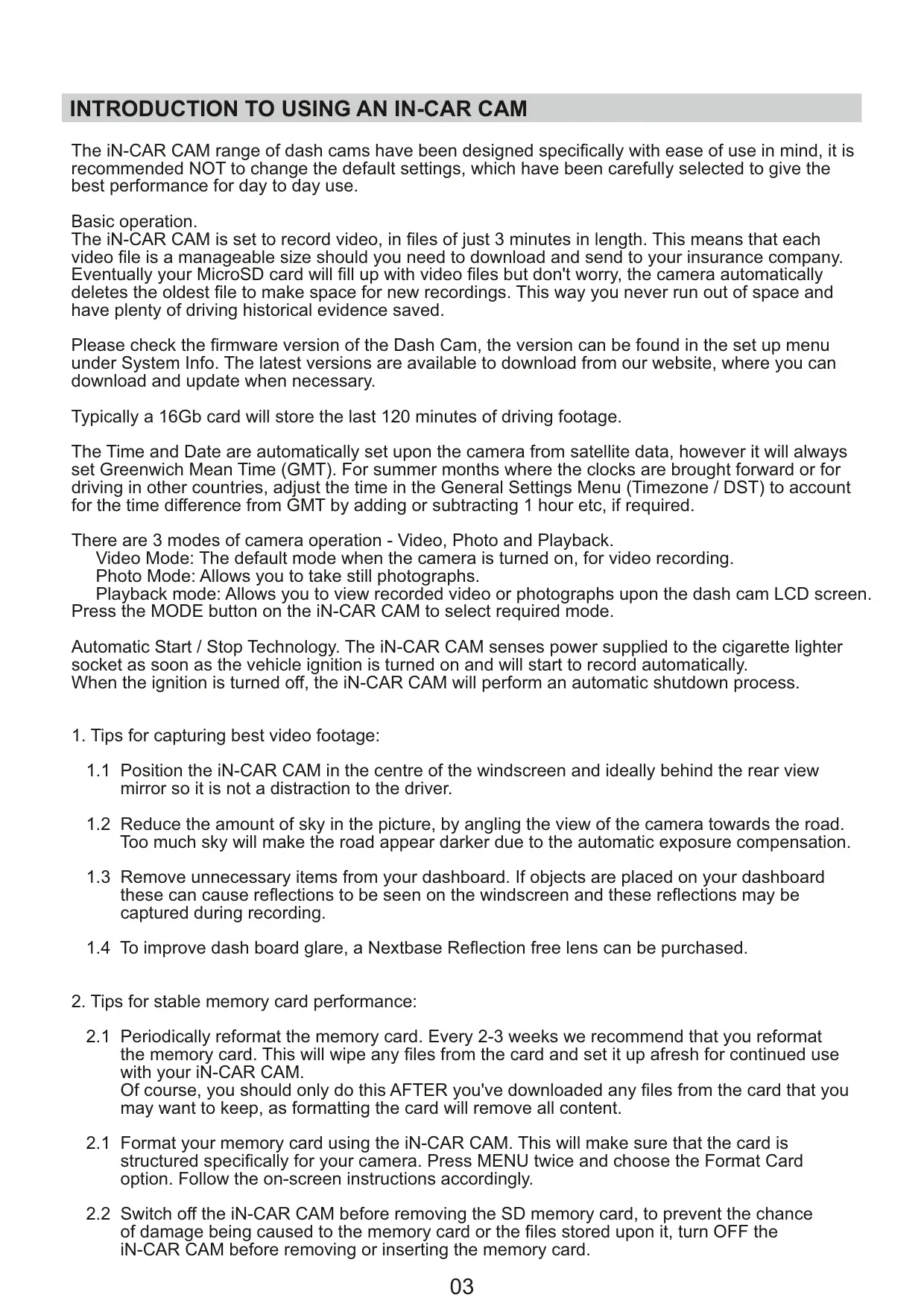













Nextbase 312GW Dash Cam Instructions
Here we offer the Nextbase 312GW Dash Cam manual completely free and in English. We have cataloged this manual in the Dash Cams section on Manualverse, and it has been rated by 1 users with an average rating of 5. If you have any specific questions about Nextbase 312GW Dash Cam, we suggest checking the Frequently Asked Questions (FAQs) section of this manual.
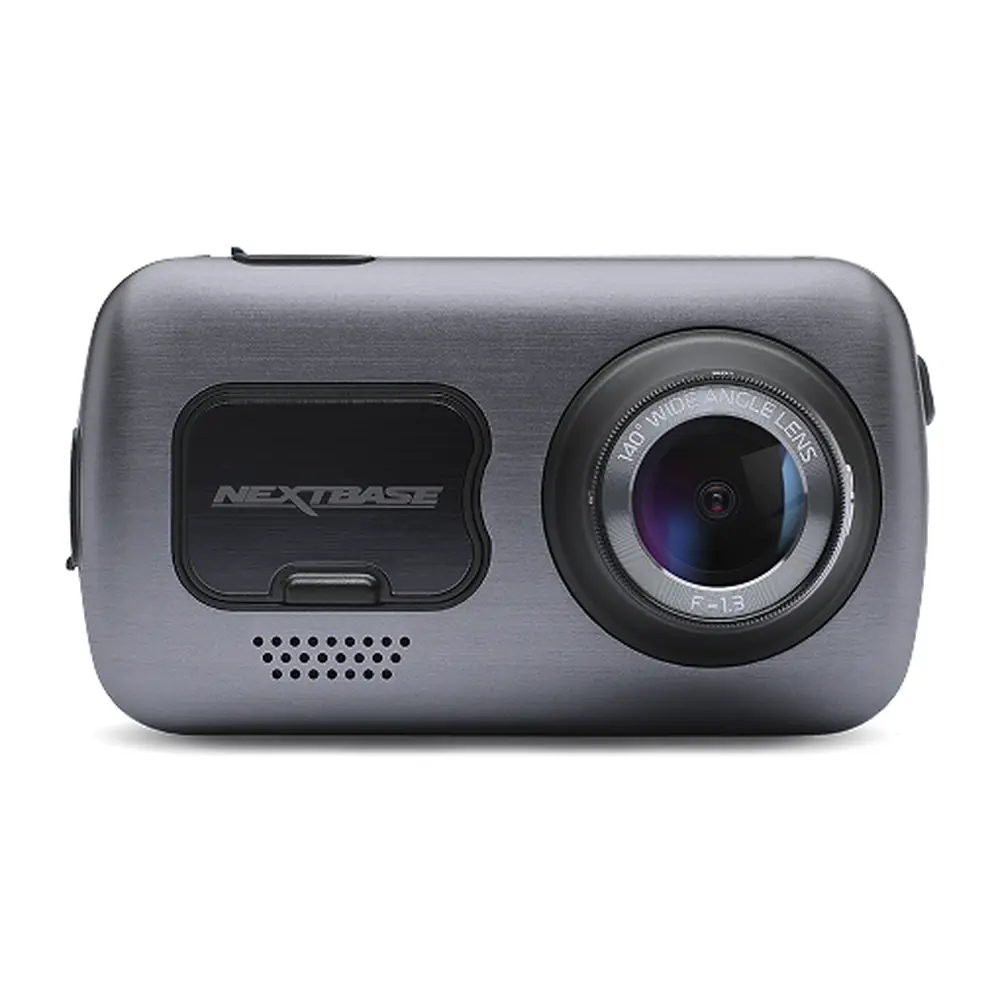
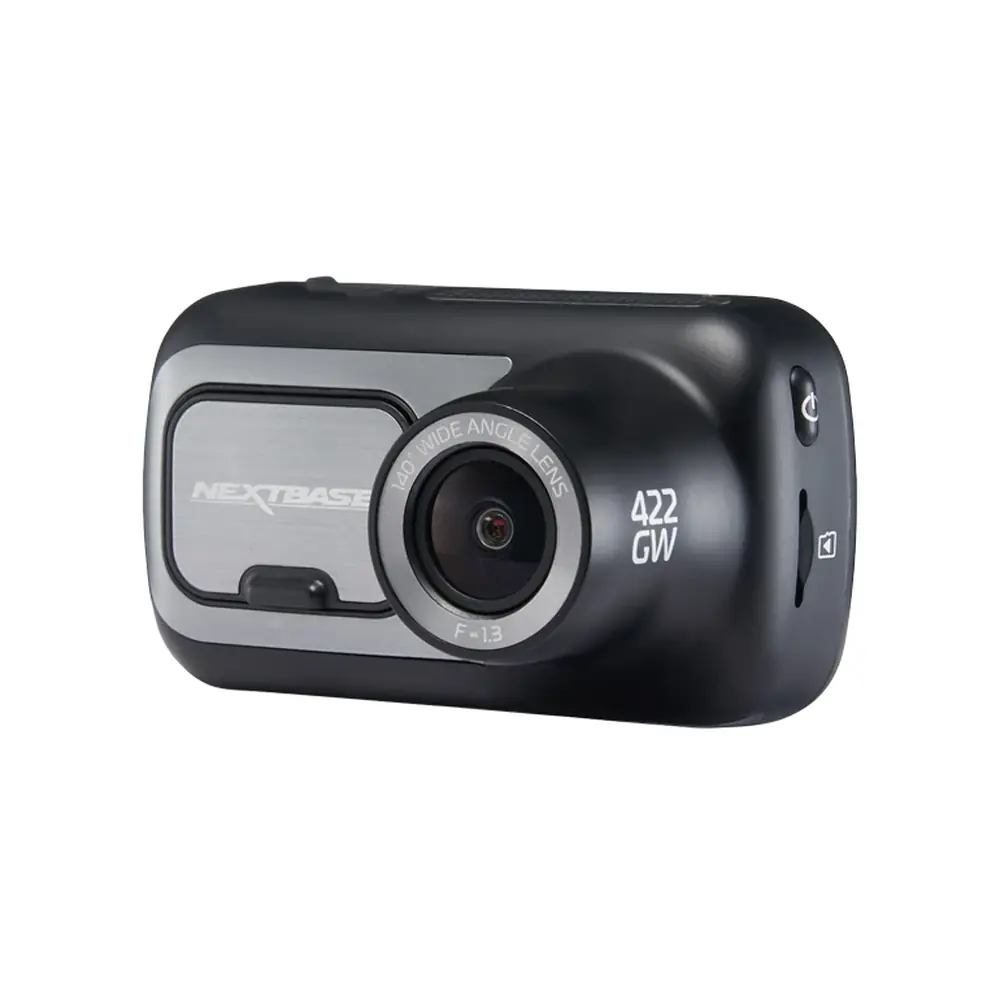
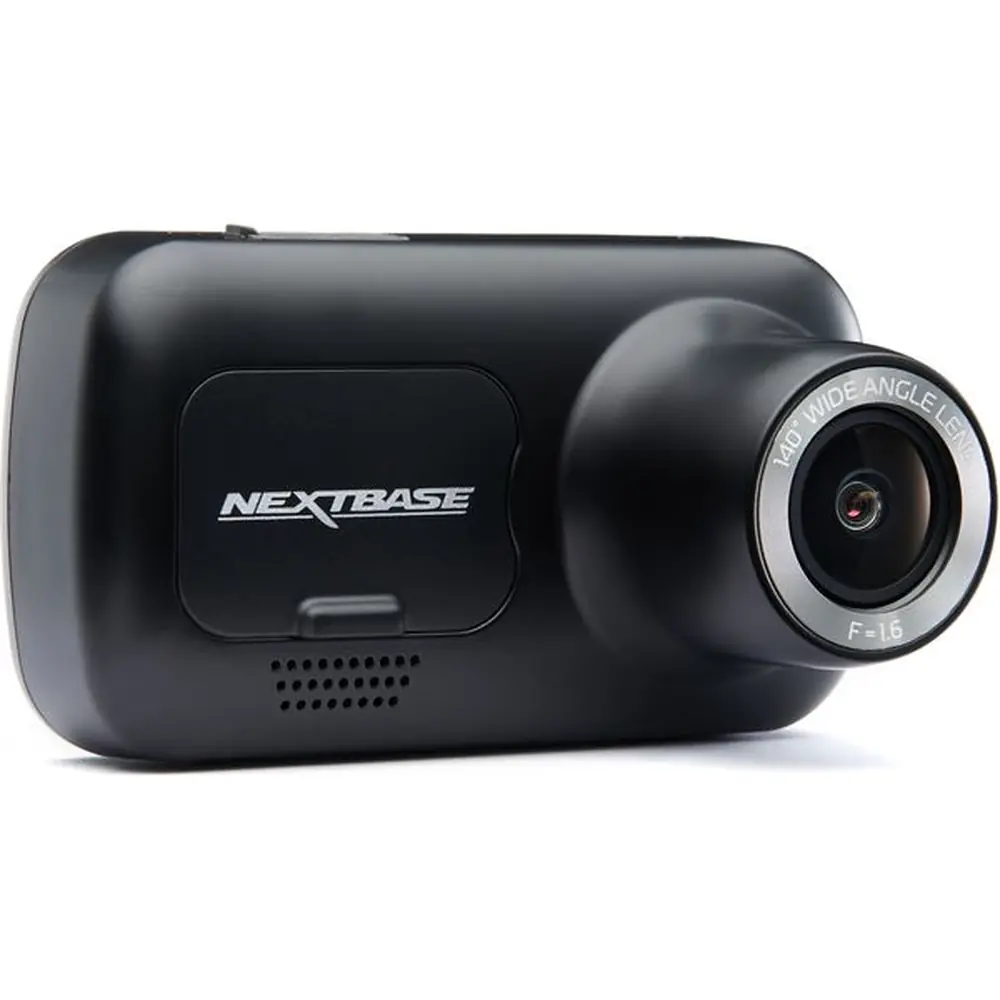
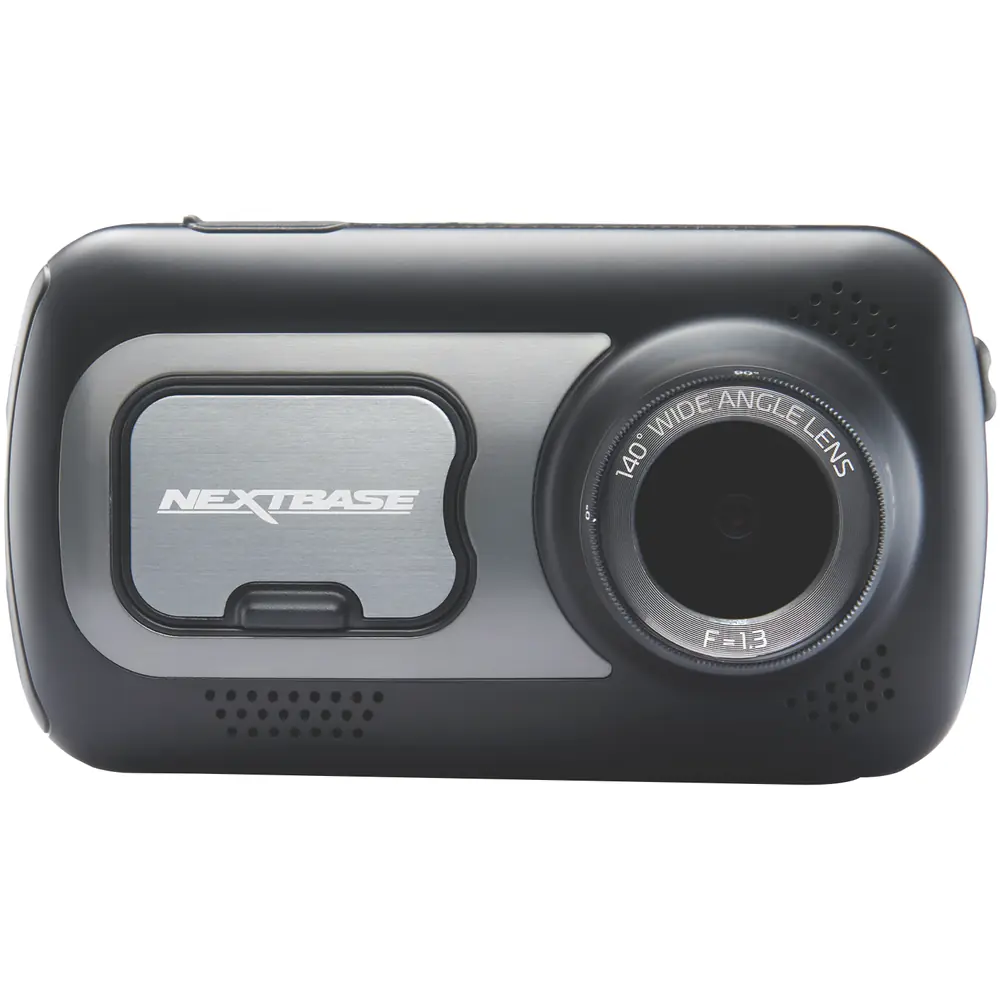
Product Images
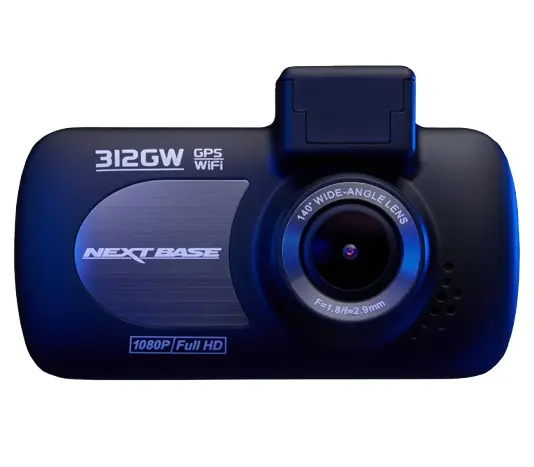
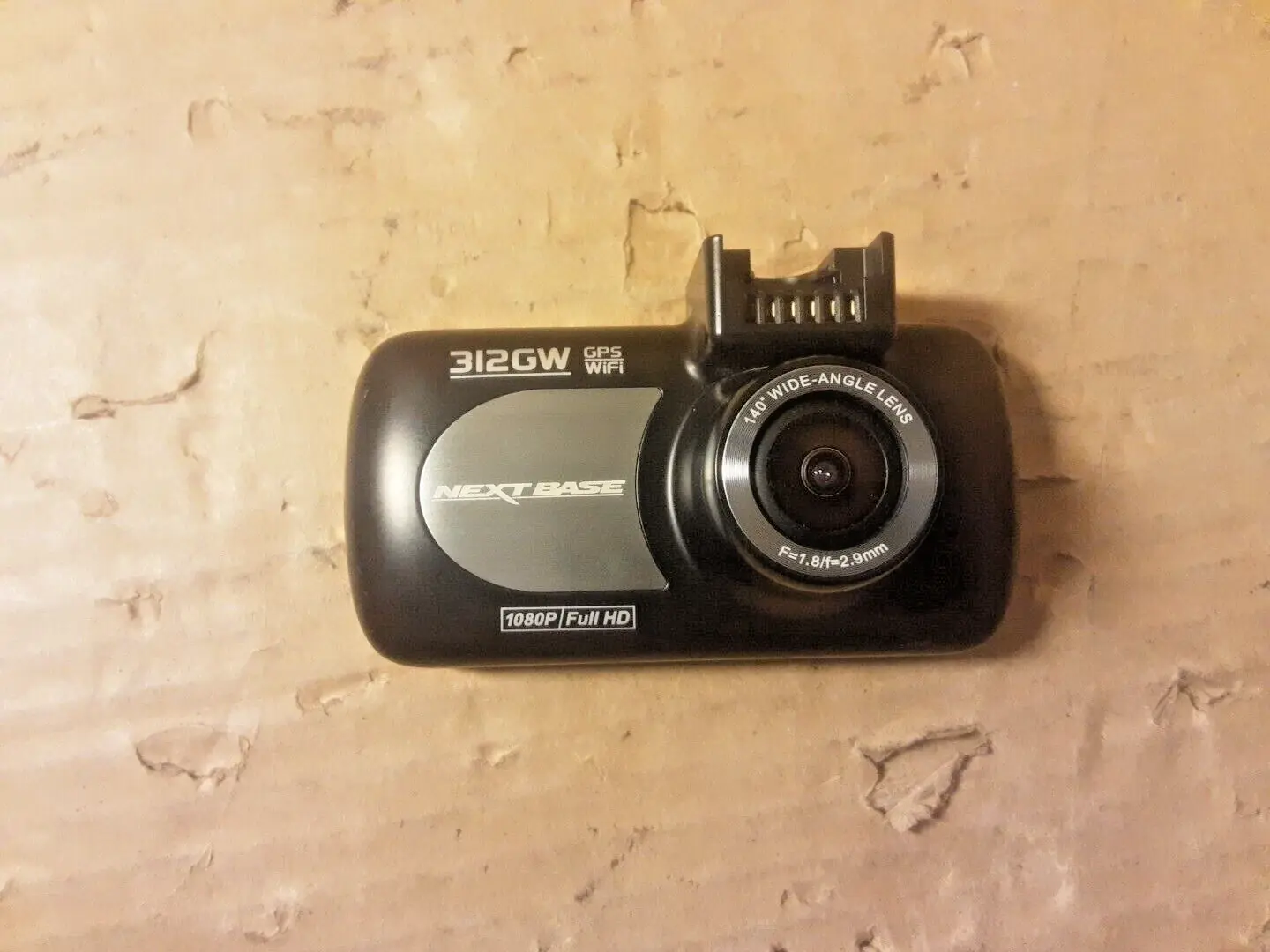
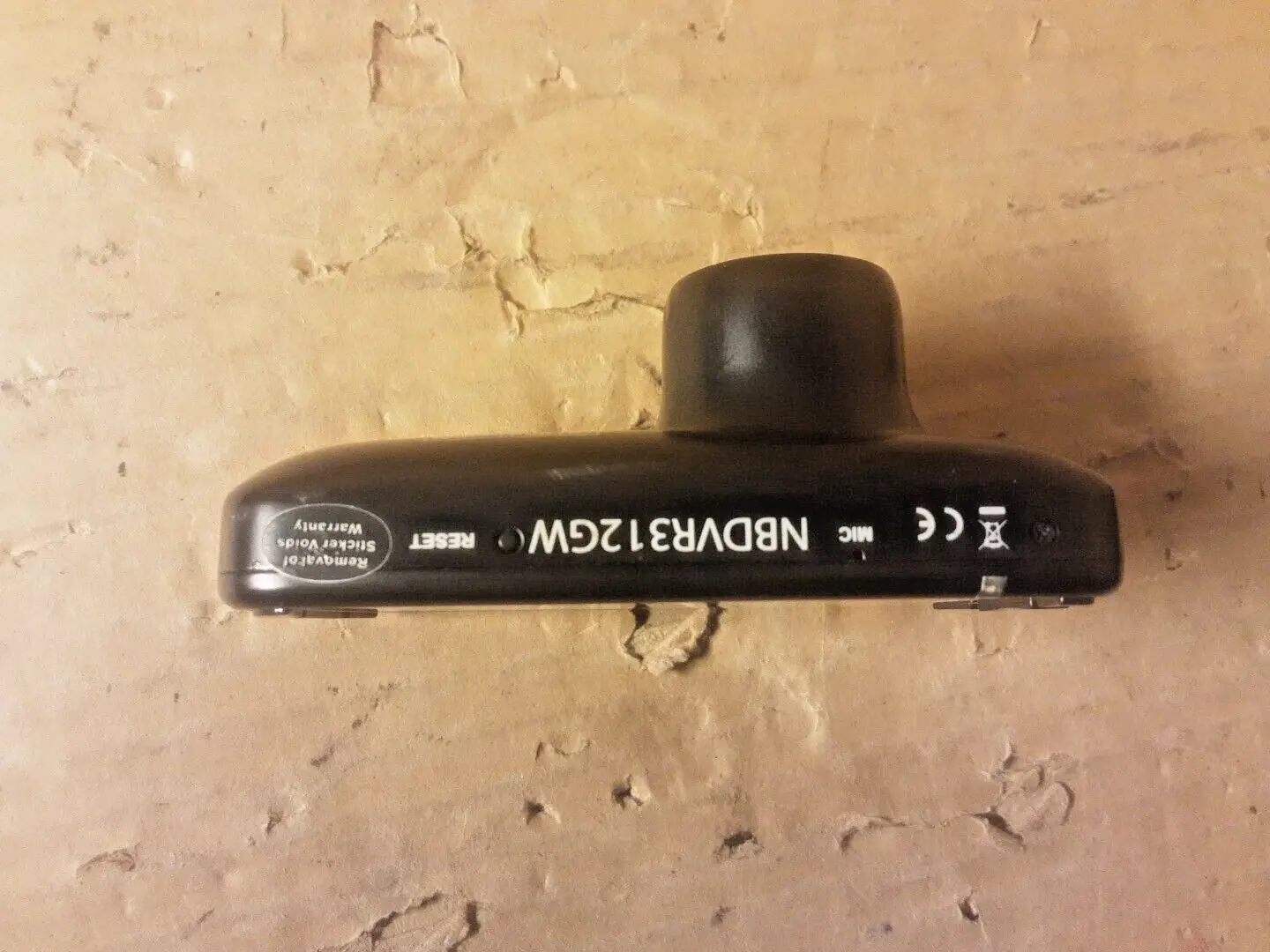
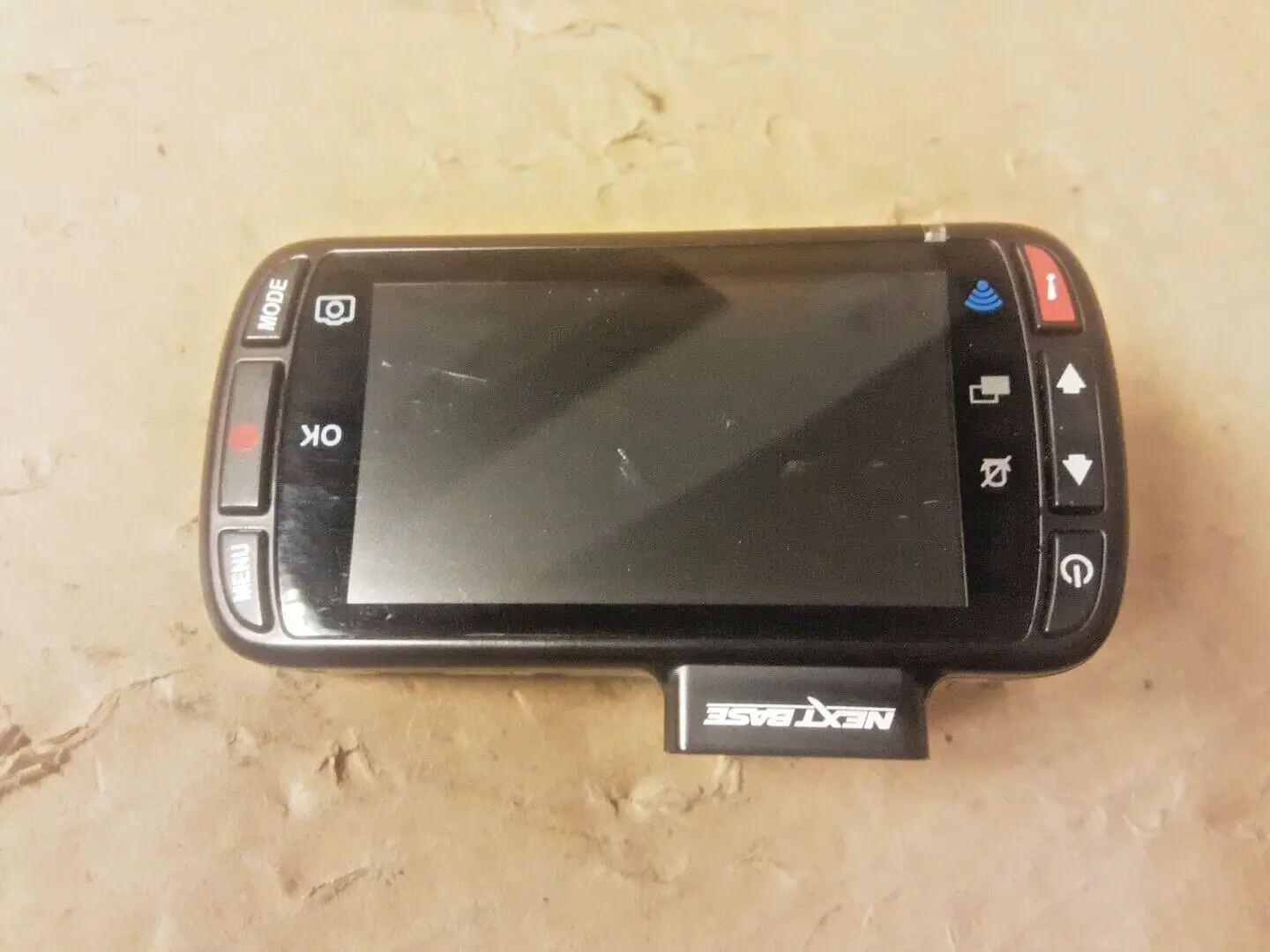

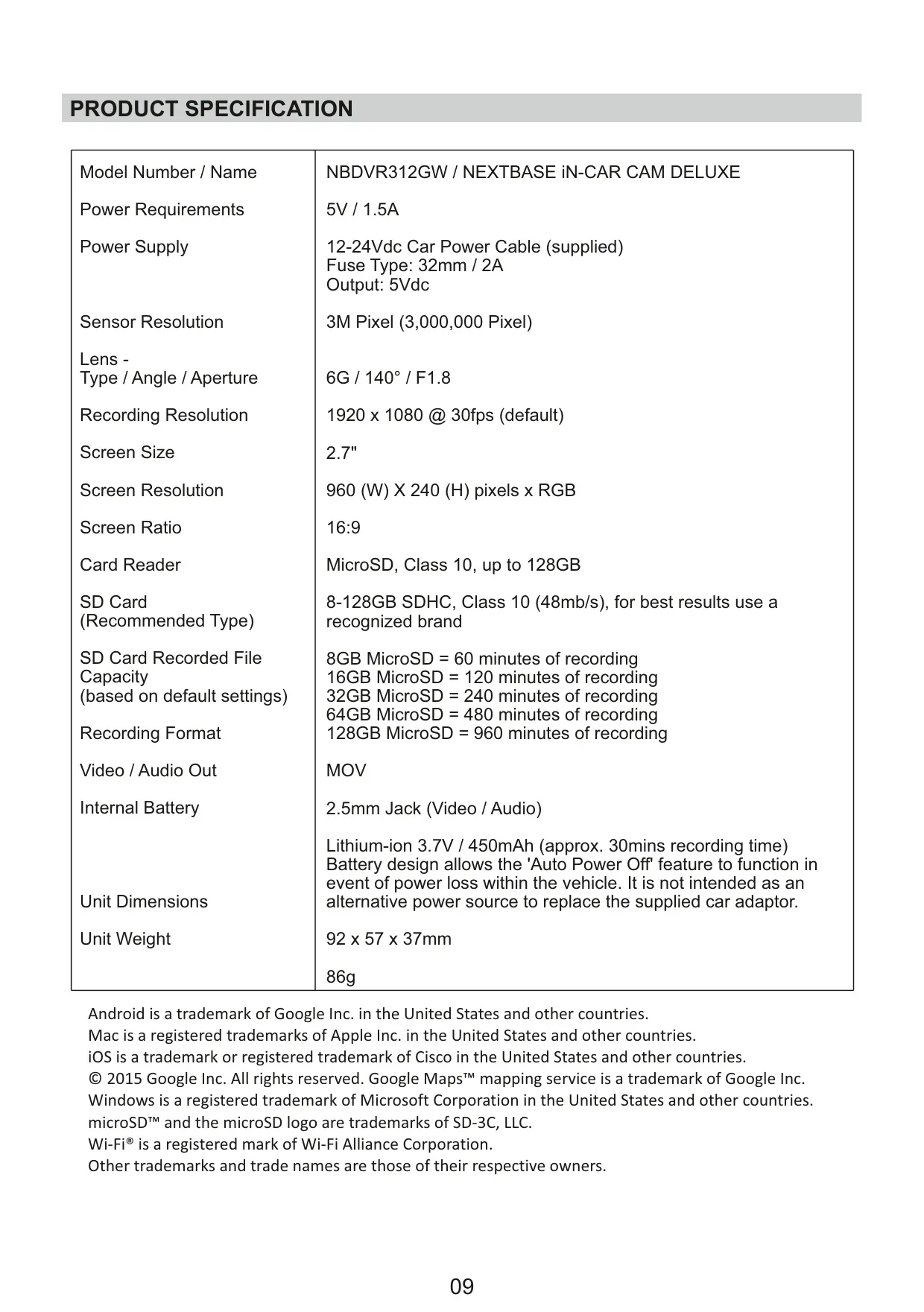
Nextbase 312GW Dash Cam Specifications
| Feature | Specification |
|---|---|
| Model Number / Name | NBDVR312GW / NEXTBASE iN-CAR CAM DELUXE |
| Power Requirements | 5V / 1.5A |
| Power Supply | 12-24Vdc Car Power Cable (supplied) Fuse Type: 32mm / 2A Output: 5Vdc |
| Sensor Resolution | 3M Pixel (3,000,000 Pixel) |
| Lens - Type / Angle / Aperture | 6G / 140° / F1.8 |
| Recording Resolution | 1920 x 1080 @ 30fps (default) |
| Screen Size | 2.7" |
| Screen Resolution | 960 (W) X 240 (H) pixels x RGB |
| Screen Ratio | 16:9 |
| Card Reader | MicroSD |
| SD Card (Recommended Type) | 8-128GB SDHC, Class 10 (48mb/s), recognized brand |
| SD Card Recorded File Capacity (default settings) | 8GB = 60 mins 16GB = 120 mins 32GB = 240 mins 64GB = 480 mins 128GB = 960 mins |
| Recording Format | MOV |
| Video / Audio Out | 2.5mm Jack (Video / Audio) |
| Internal Battery | Lithium-ion 3.7V / 450mAh (approx. 30mins recording time) Not an alternative power source to car adaptor. |
| Unit Dimensions | 92 x 57 x 37mm |
| Unit Weight | 86g |
Nextbase 312GW Dash Cam Details
The Nextbase 312GW iN-CAR CAM is meticulously designed for ease of use, with default settings carefully chosen to deliver optimal daily performance. Users are encouraged to maintain these settings for the best experience. The dash cam records video in manageable 3-minute segments. To ensure continuous recording, it employs an automatic file management system that deletes the oldest files when the MicroSD card reaches its capacity, providing ample historical driving evidence.
This dash cam features Automatic Start/Stop Technology, meaning it powers on and begins recording as soon as the vehicle's ignition is active, and automatically shuts down when the ignition is turned off. The time and date are set automatically via satellite data (GMT), but users can easily adjust for local time zones and Daylight Savings Time in the General Settings Menu, ensuring accurate timestamps on all recordings.
Operating in three distinct modes—Video, Photo, and Playback—the 312GW offers versatility. For capturing the best video footage, it's recommended to position the camera centrally, ideally behind the rearview mirror, to minimize driver distraction. Angling the camera to reduce excessive sky in the frame can prevent the road from appearing too dark due to automatic exposure adjustments, and removing dashboard items helps avoid windscreen reflections.
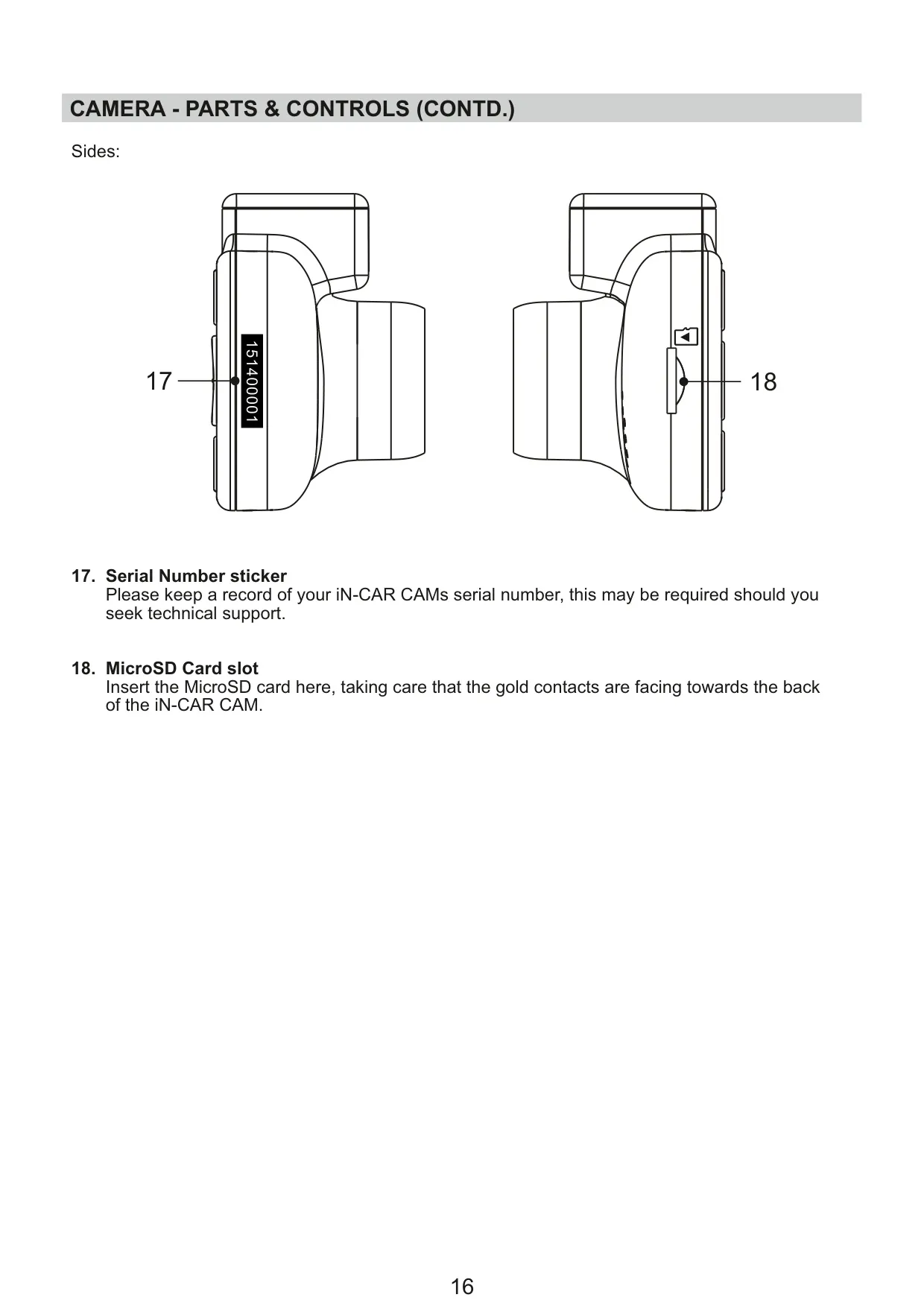
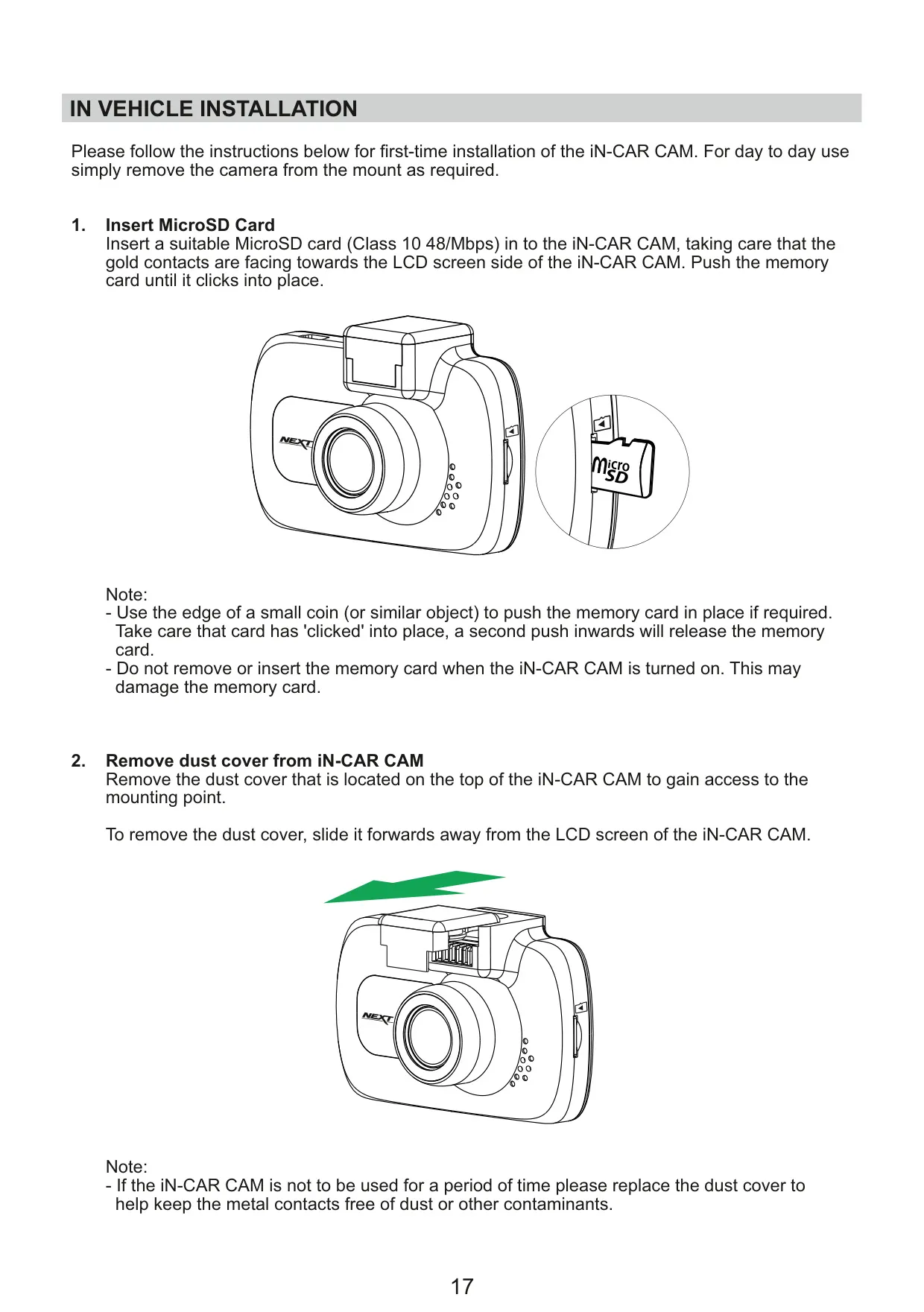
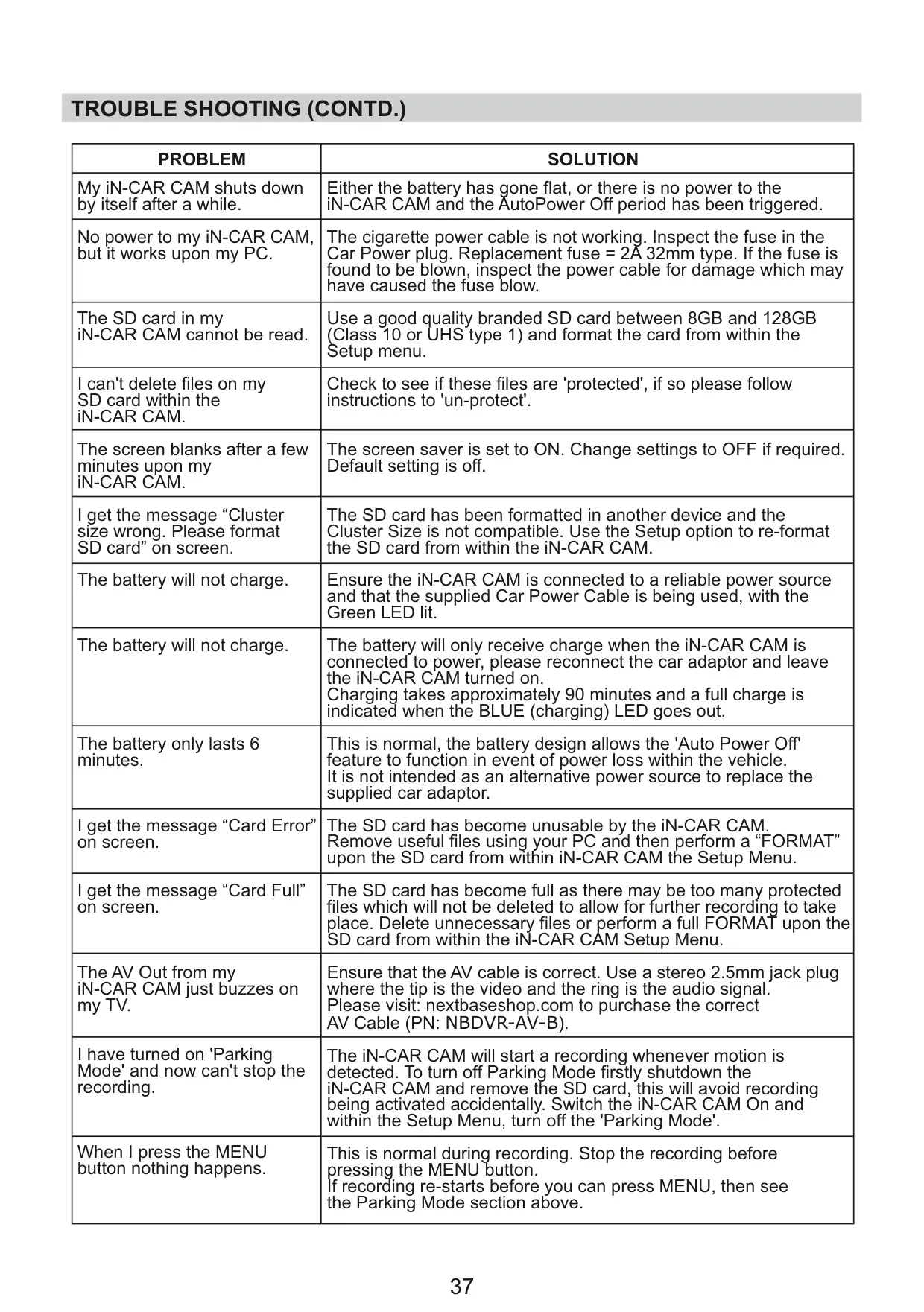
Maintaining stable memory card performance is crucial, and Nextbase recommends reformatting the MicroSD card every 2-3 weeks using the iN-CAR CAM itself. This process ensures the card is optimally structured for the camera and removes old files, though users should always download desired footage first. It is vital to switch off the iN-CAR CAM before inserting or removing the SD card to prevent potential damage to both the card and its stored files.
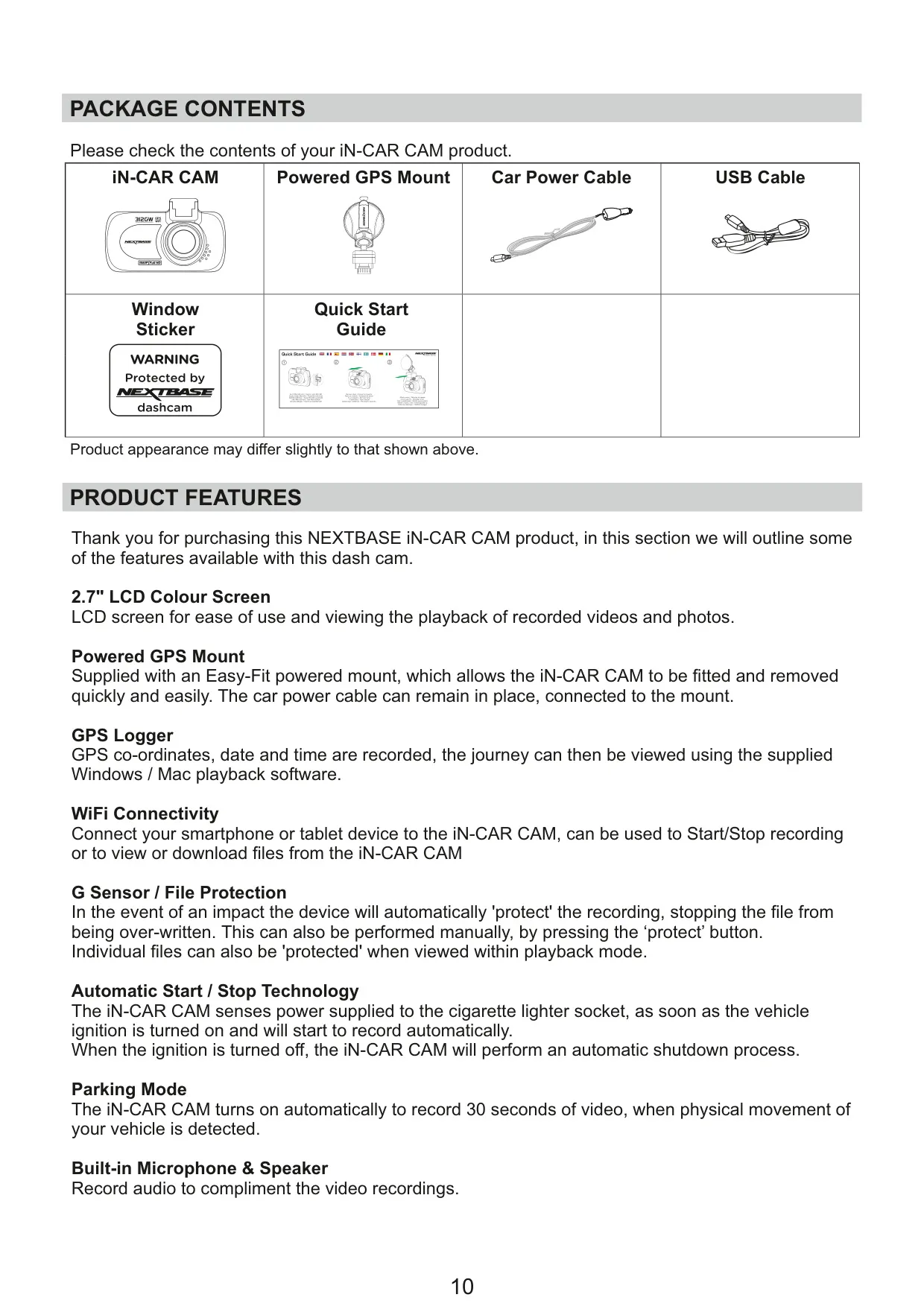
A key feature is the Powered GPS Mount, allowing for quick and easy attachment and removal, with the car power cable remaining connected to the mount. The integrated GPS Logger records coordinates, date, and time, enabling detailed journey playback via the supplied Windows/Mac software. WiFi Connectivity further enhances usability, letting users connect their smartphone or tablet to start/stop recording, view, or download files directly from the dash cam.
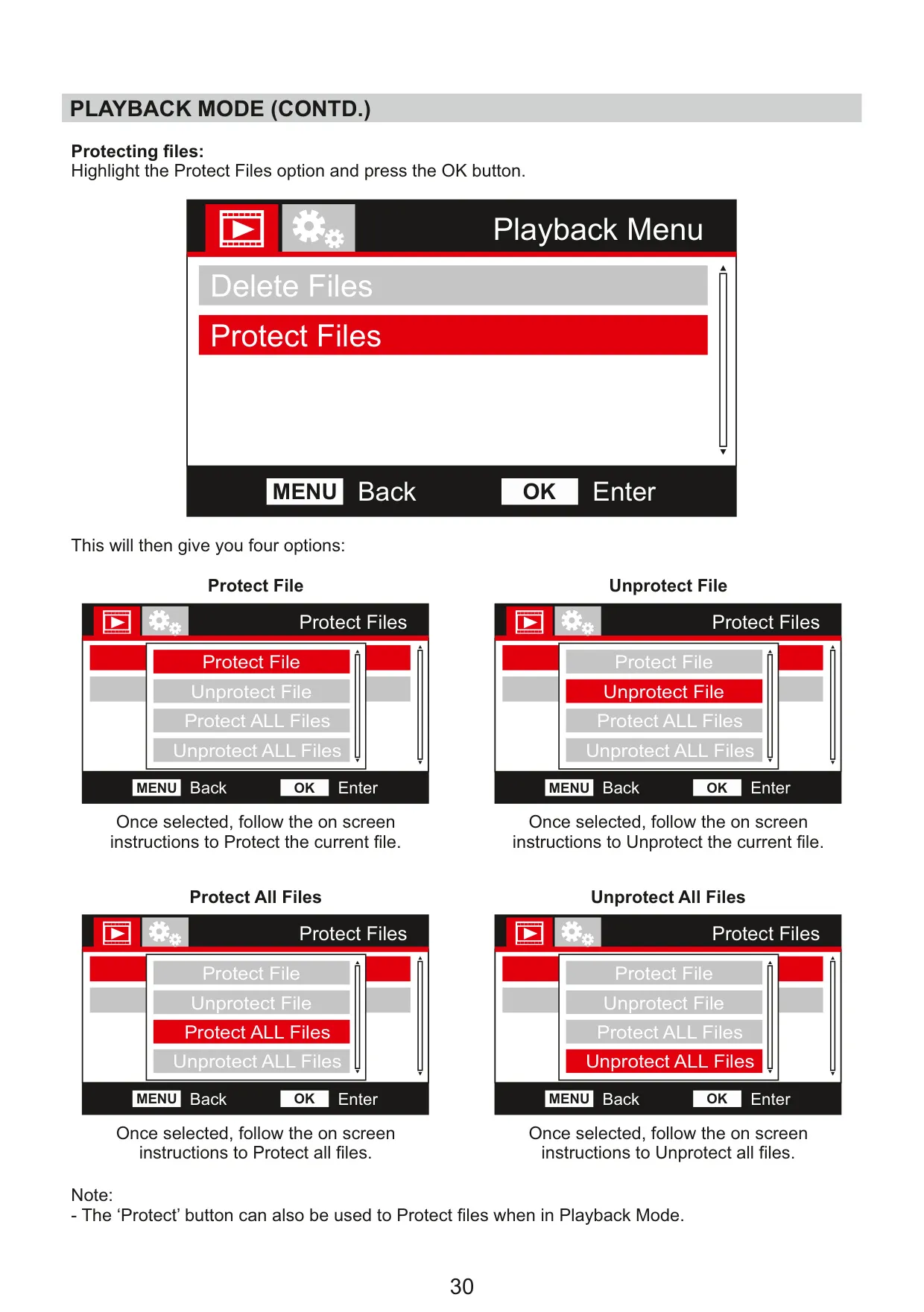
The G Sensor / File Protection automatically safeguards recordings during an impact, preventing them from being overwritten; files can also be protected manually. The Parking Mode intelligently activates to record 30-second protected videos if physical movement of the vehicle is detected while parked. With a Built-in Microphone & Speaker, the 312GW records audio to complement video, while installation guidelines emphasize mounting the camera without obstructing the driver's view and within the windscreen wiper area for clear vision in all conditions.
Frequently Asked Questions (FAQs)
Can't find the answer you need? Here are some frequently asked questions about the Nextbase 312GW Dash Cam, and we answer them below.