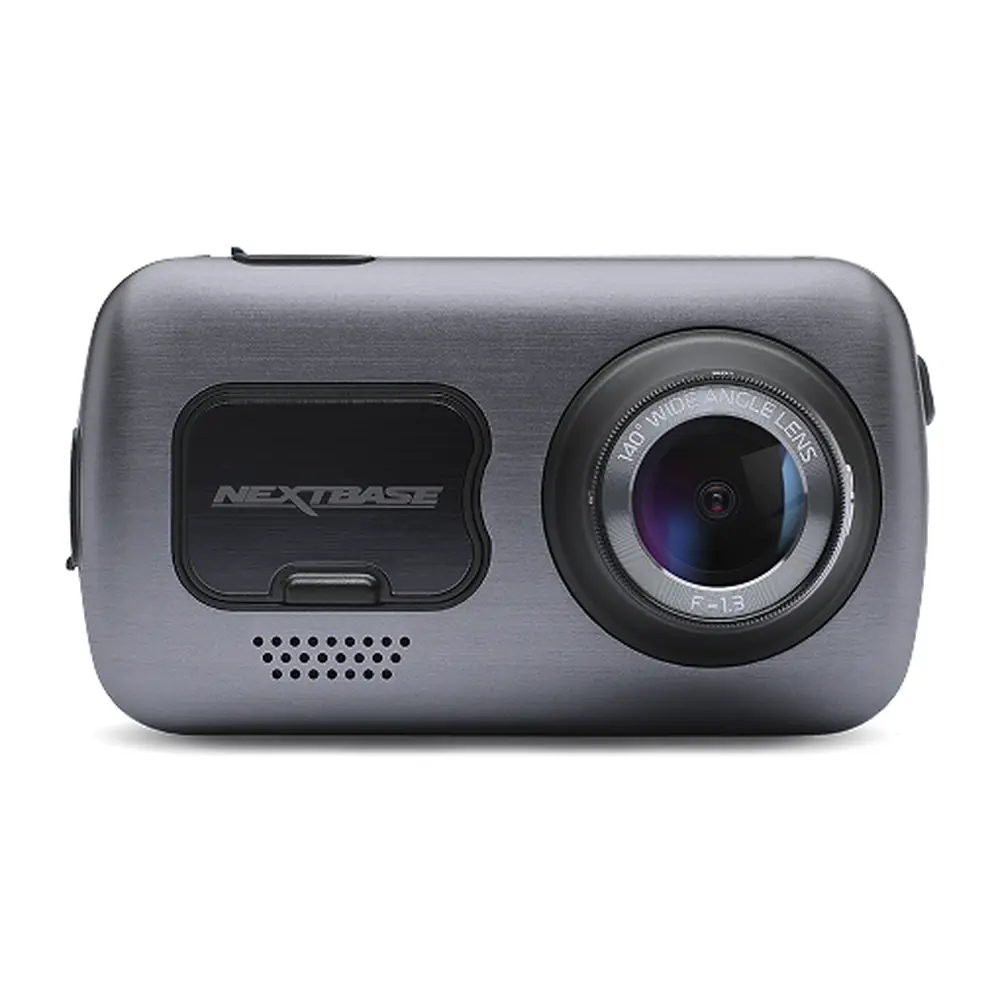
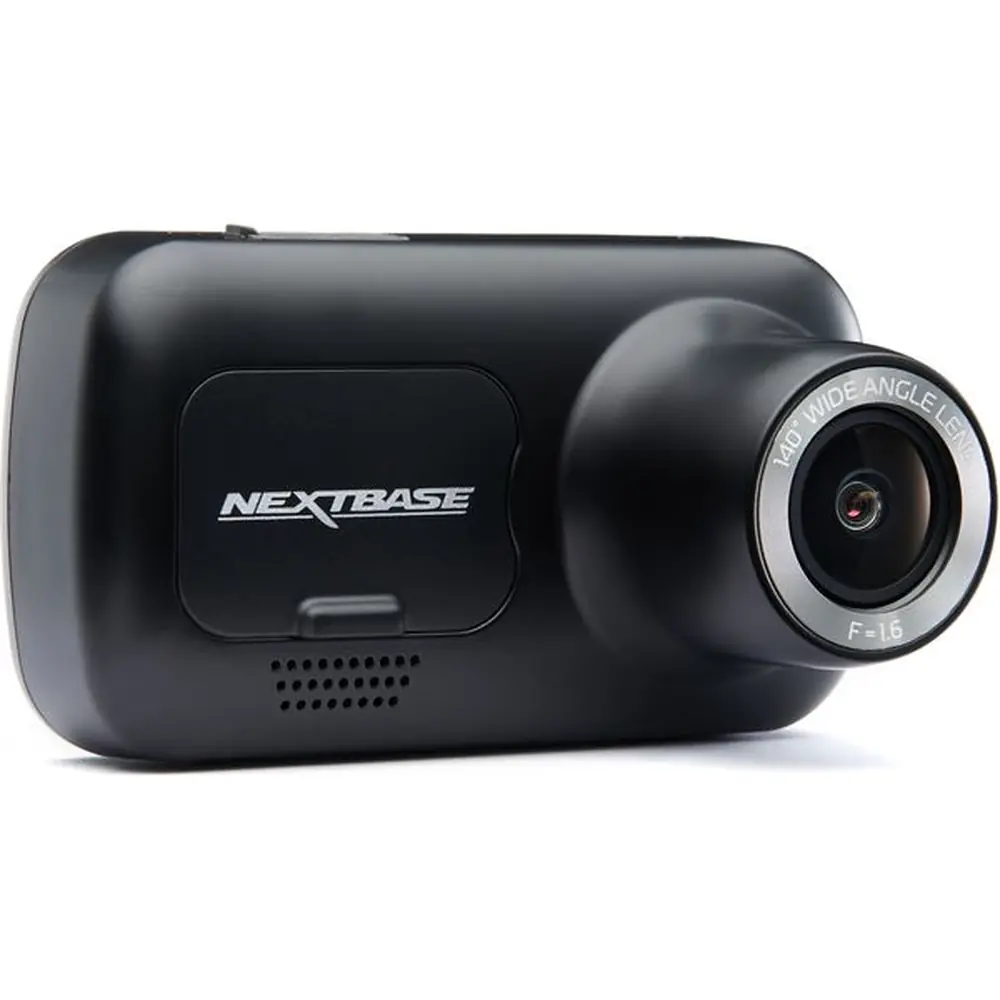
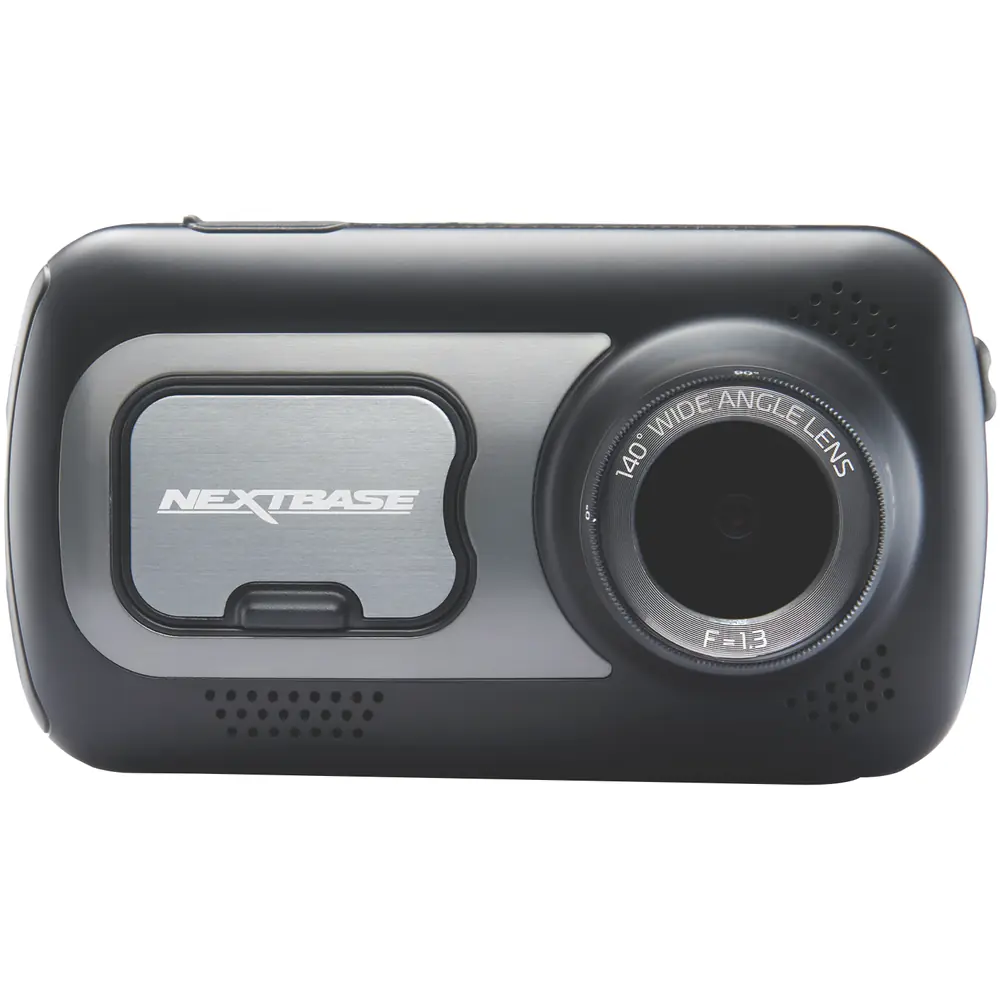
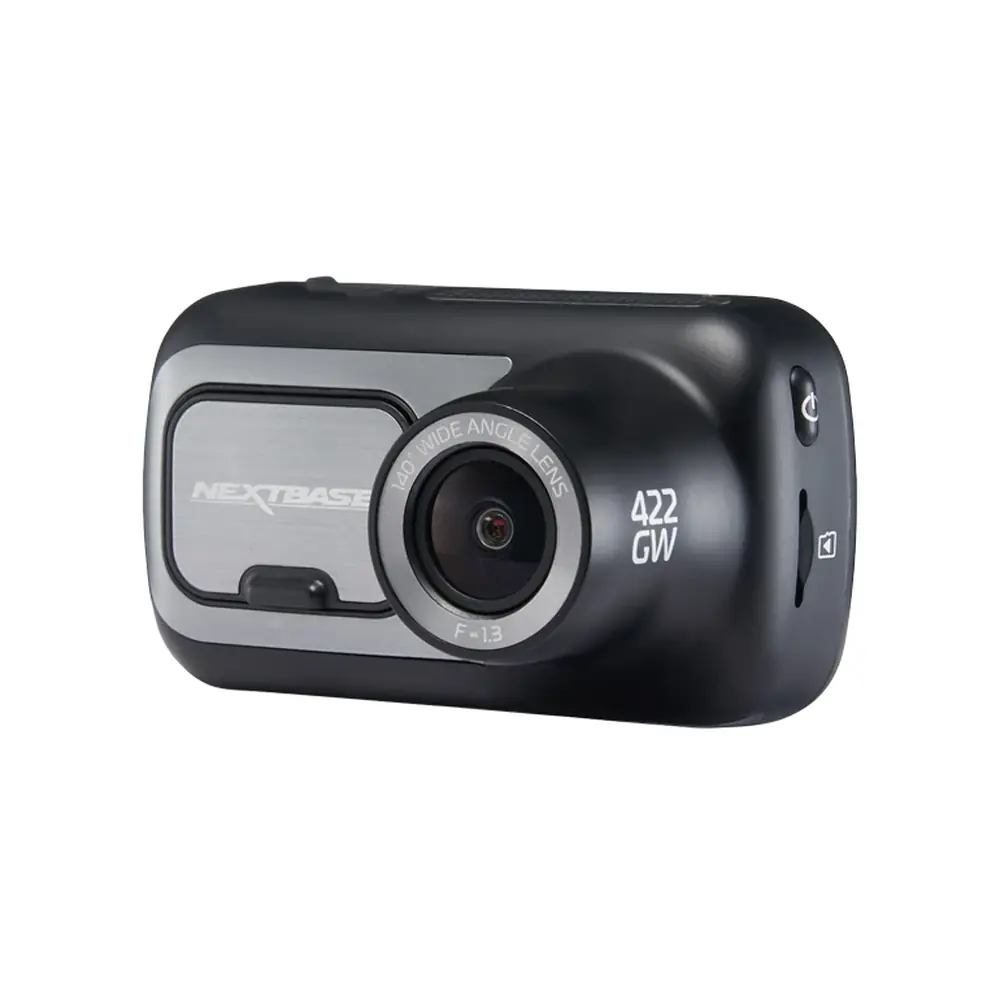
Nextbase 320XR Dash Cam Instruction Manual
Nextbase 320XR Dash Cam
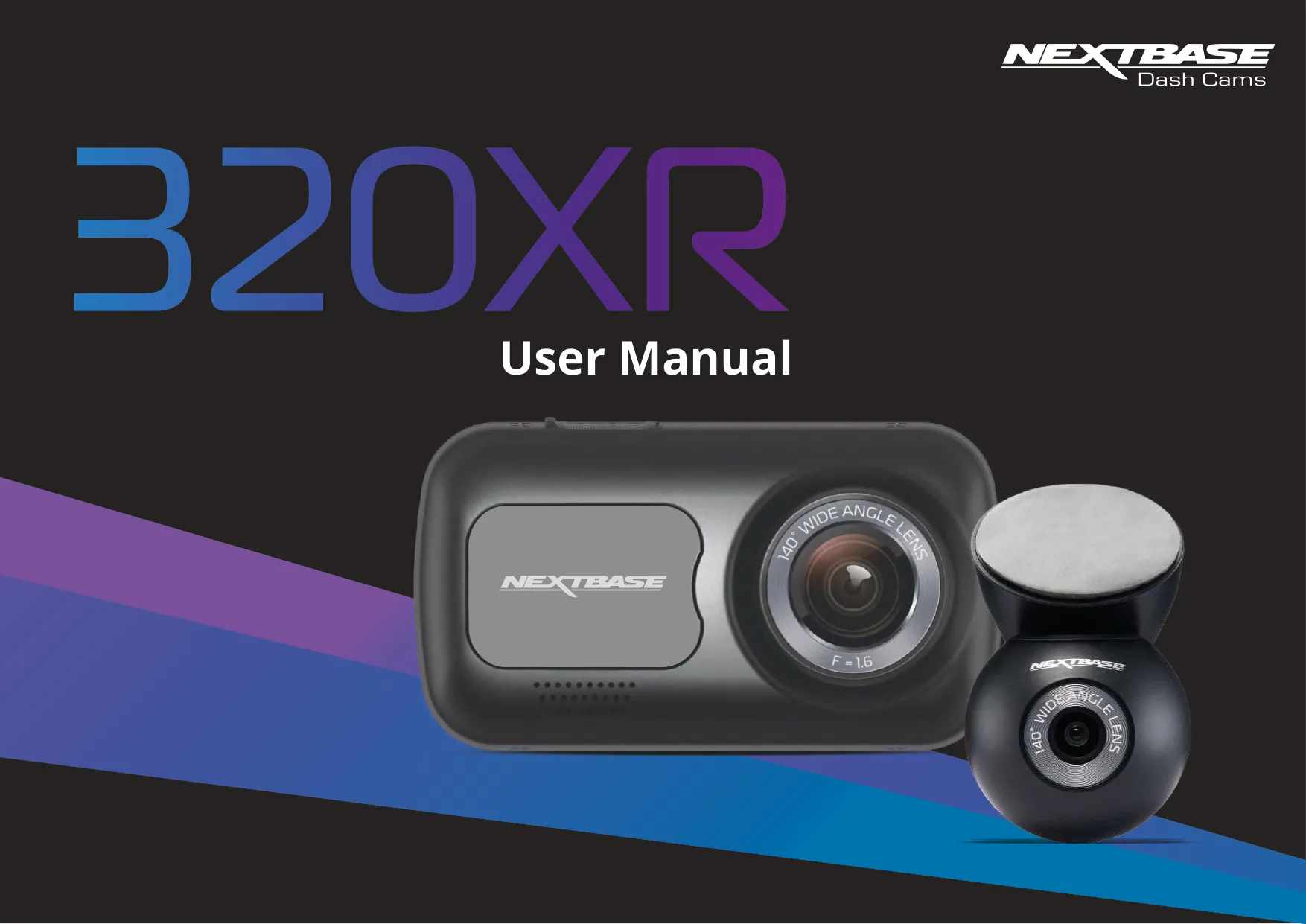















Nextbase 320XR Dash Cam Instructions
Here we offer the Nextbase 320XR Dash Cam manual completely free and in English. We have cataloged this manual in the Dash Cams section on Manualverse, and it has been rated by 1 users with an average rating of 5. If you have any specific questions about Nextbase 320XR Dash Cam, we suggest checking the Frequently Asked Questions (FAQs) section of this manual.
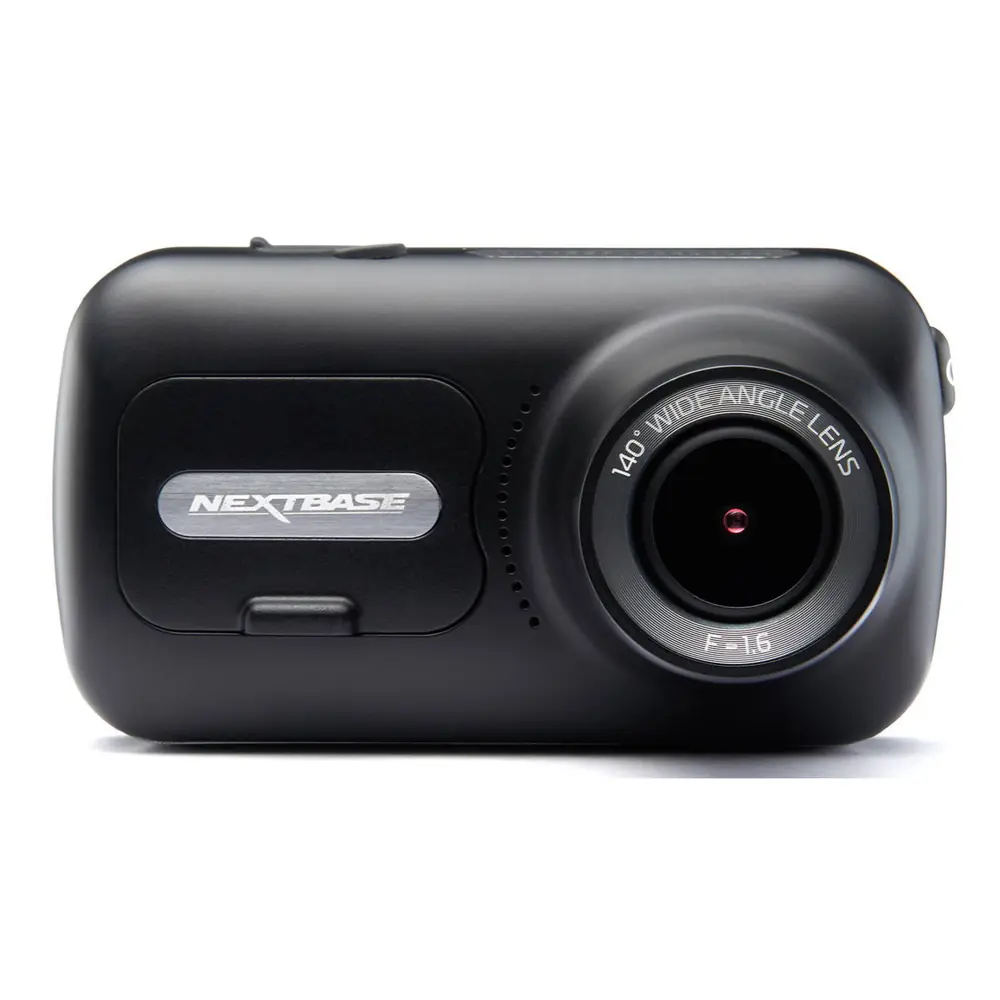
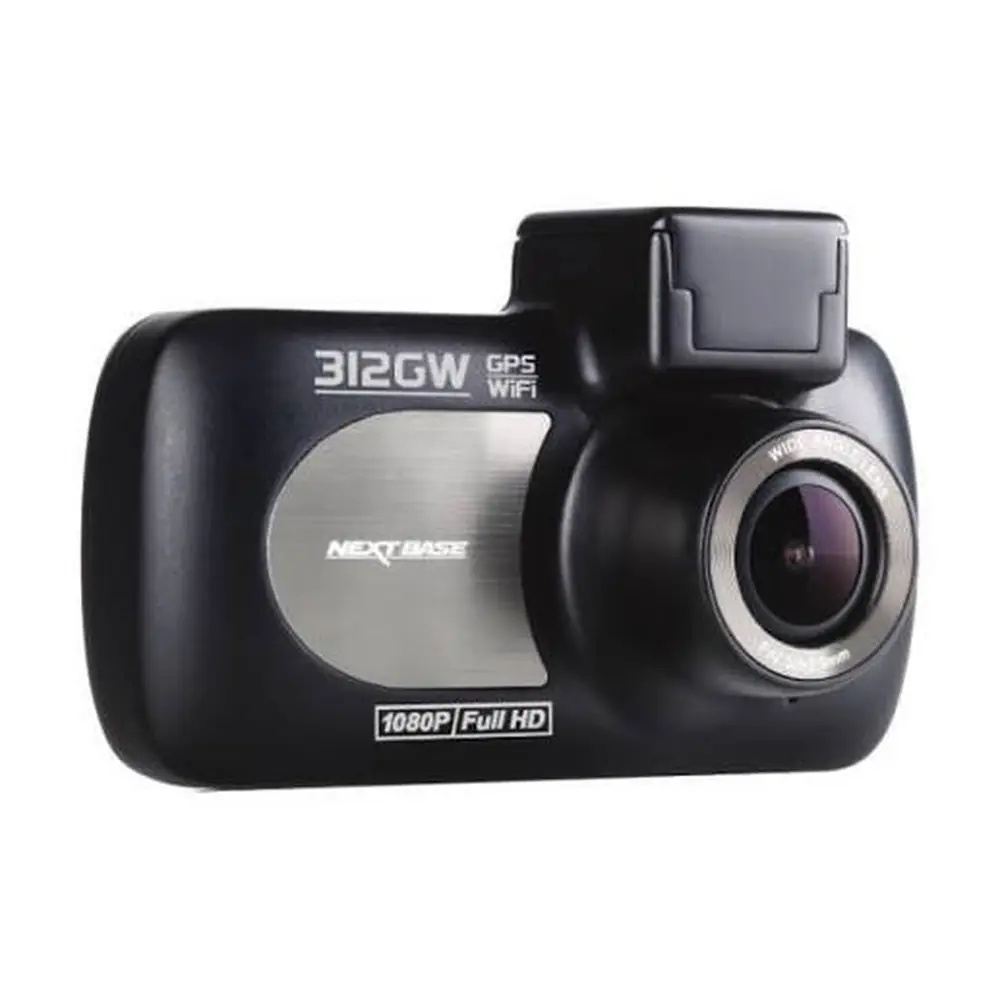
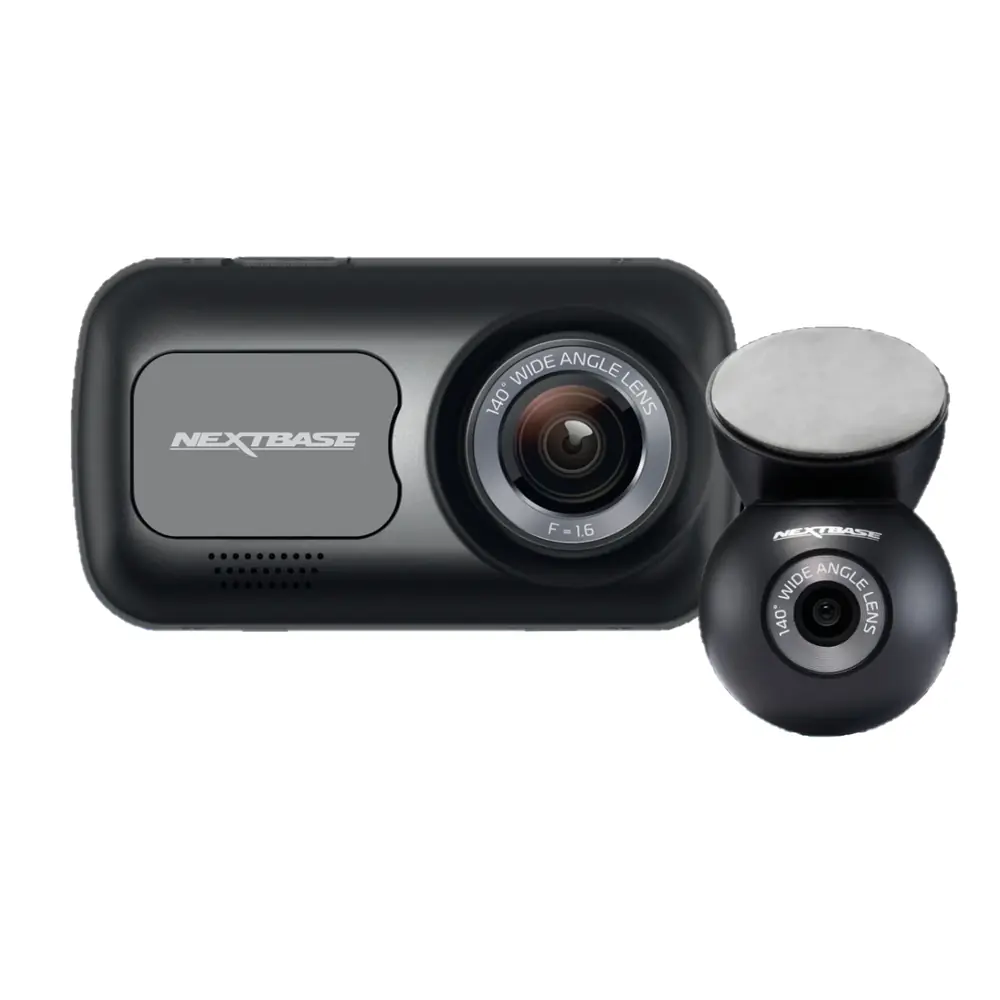
Product Images
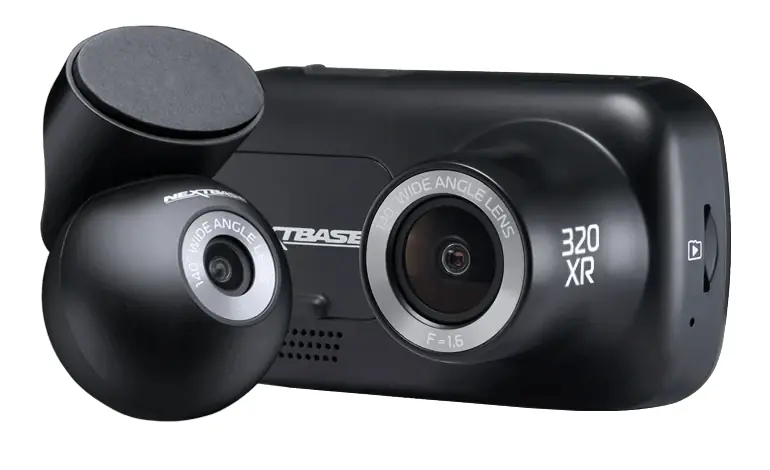
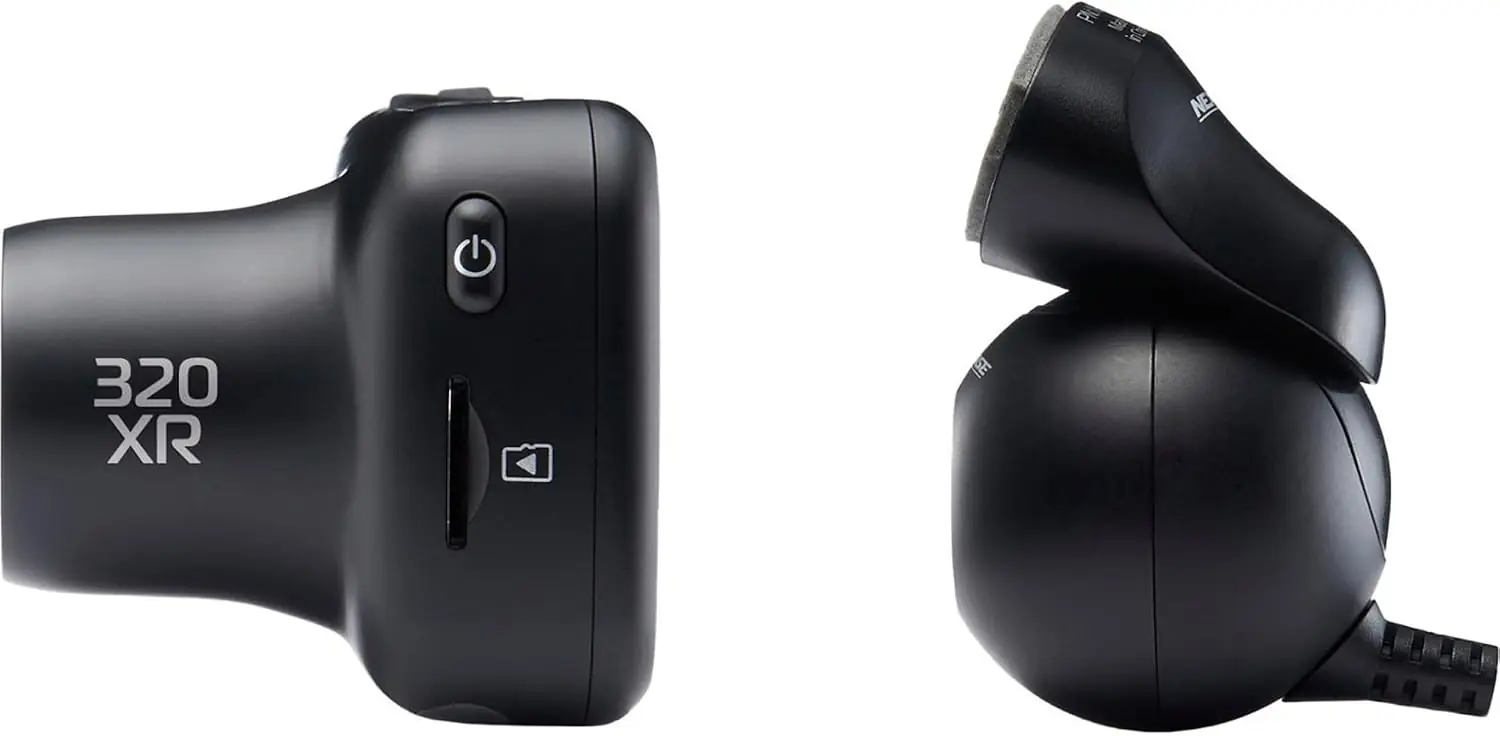
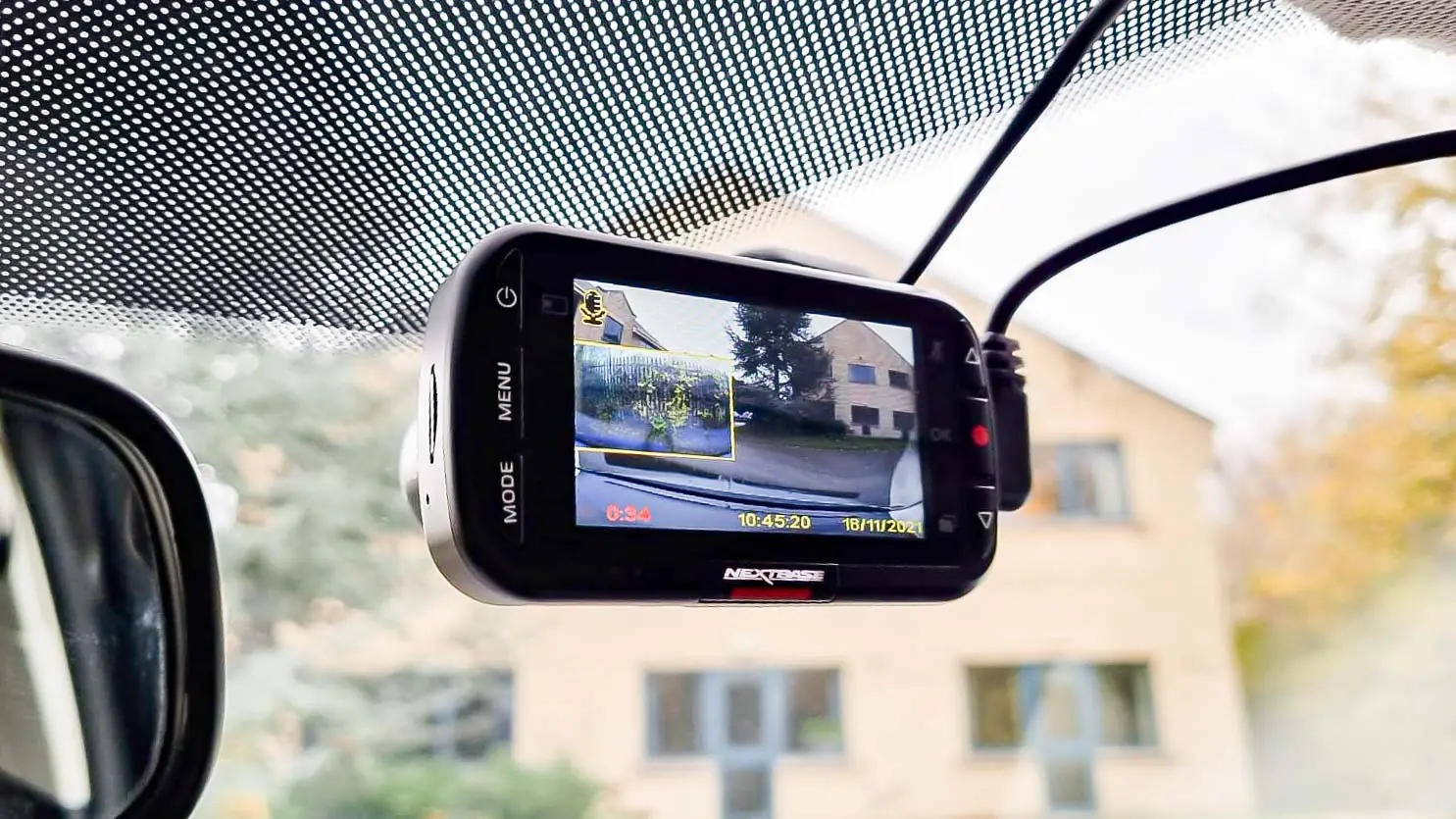
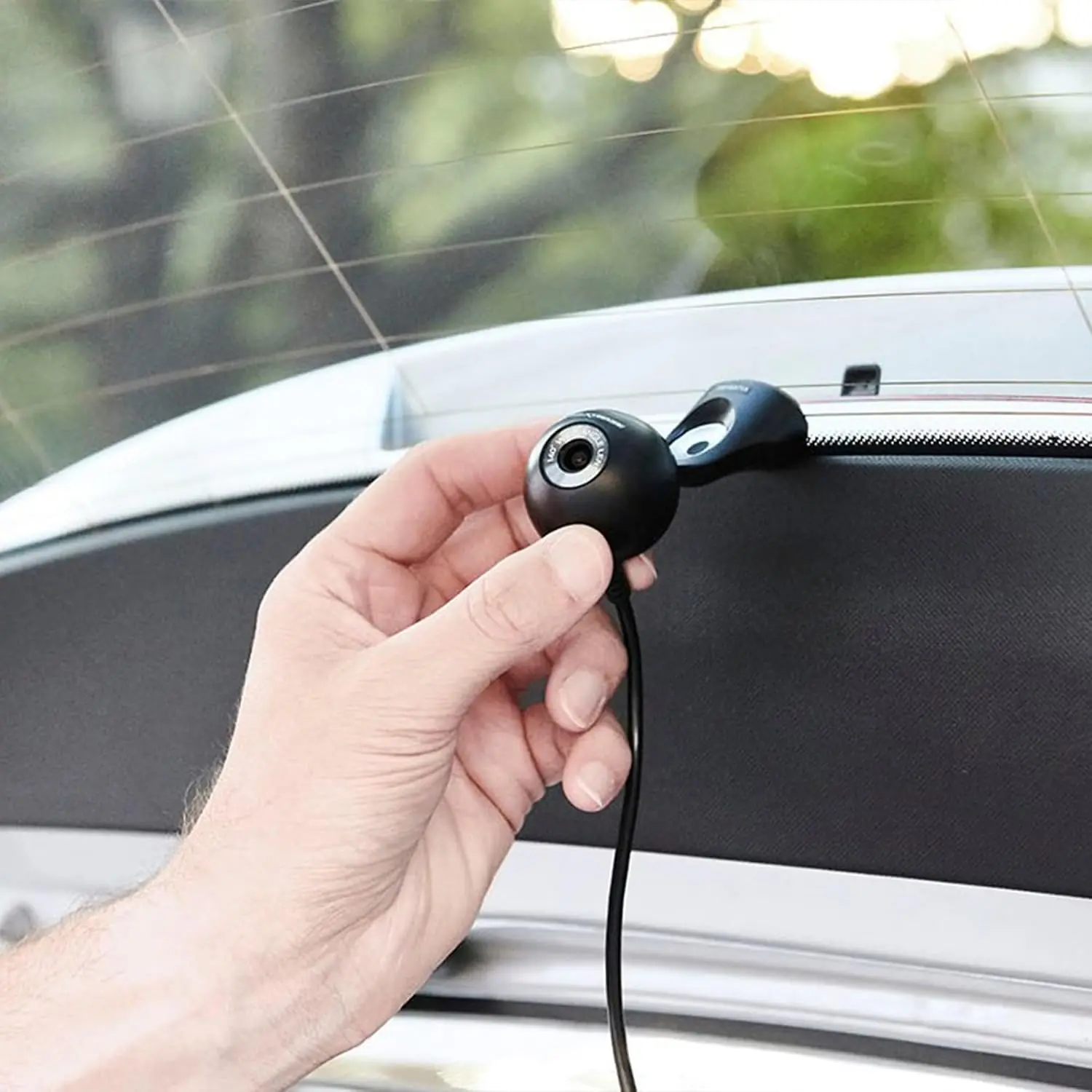
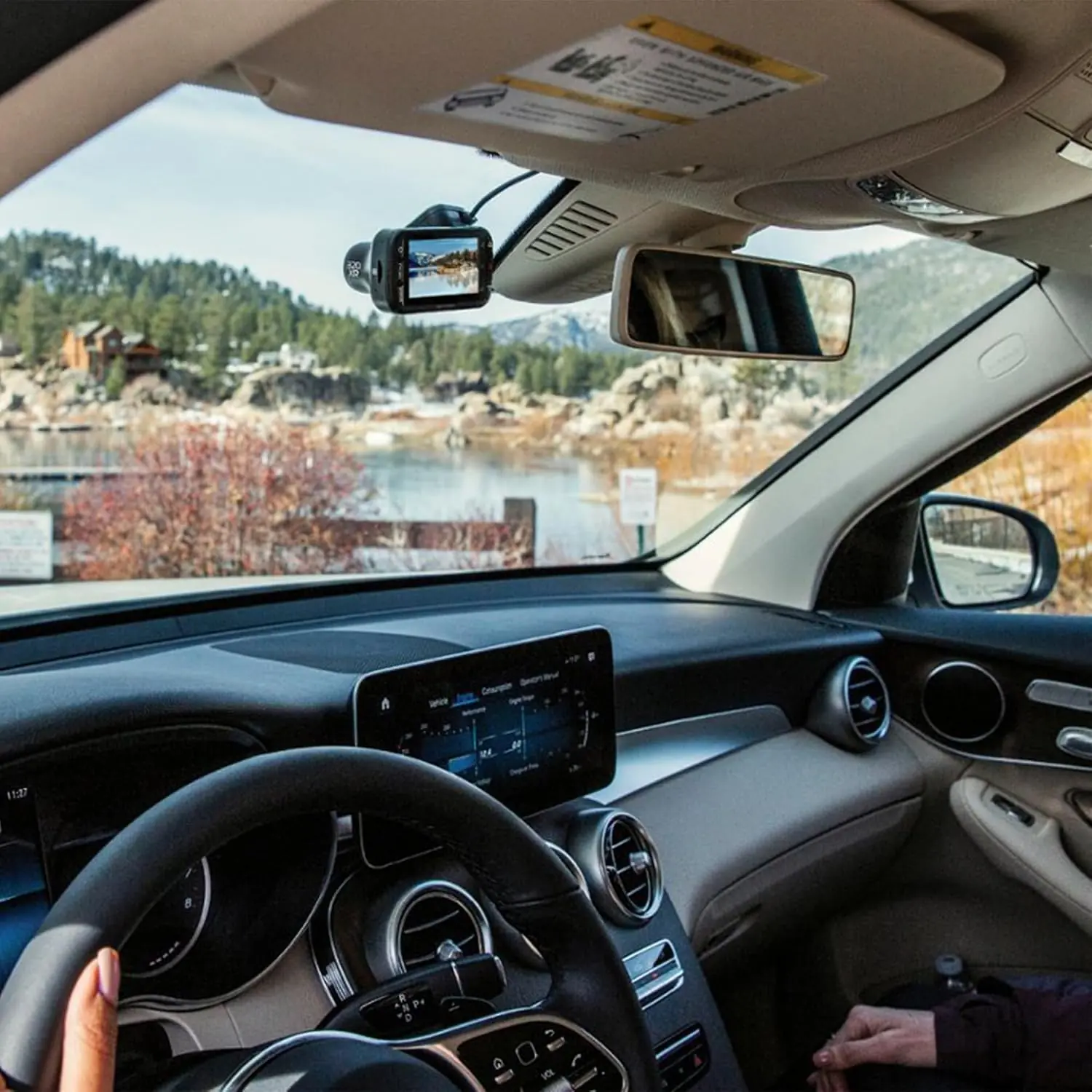
Nextbase 320XR Dash Cam Specifications
| Feature | Specification |
|---|---|
| Model Number / Name | NBDVR320XR |
| Power Requirements | 5V / 1.5A |
| Power Supply | 12-24Vdc Car Power Cable (supplied) Fuse Type: 32mm / 2A Output: 5Vdc Hardwire Kit also available to purchase for a hidden, permanent power supply. |
| Sensor Resolution | Front Camera: 2.12M Pixel (1936 x 1097) Rear Window Camera: 0.9M Pixel (1284 x 724) |
| Lens - Type / Angle / Aperture | Front Camera: 6G / 140° / F1.6 Rear Window Camera: 4G / 30° / F2.5 |
| Recording Resolution (no Rear Cam attached) | 1080p @30fps |
| Recording Resolution (with Rear Cam attached) | Front Camera: 1080p @30fps, 720P @30fps Rear Window Camera: 1080p @30fps, 720P @30fps |
| Photo Resolution | 1920 x 1080 1280 x 720 |
| Screen Size | 2.5" |
| Screen Resolution | 732 (W) X 240 (H) pixels x RGB (720) |
| Screen Ratio | 16:9 |
| Card Reader | MicroSD, Class 10 for Dash Cam only; U3 if Rear Cam connected up to 128GB. |
| SD Card (Recommended Type) | 8-128GB SDHC / SDXC, Class 10 (48mb/s) For best results, use a Nextbase branded SD Card. |
| SD Card Recorded File Capacity (based on default settings) | 8GB MicroSD = 45 minutes of recording 16GB MicroSD = 90 minutes of recording 32GB MicroSD = 180 minutes of recording 64GB MicroSD = 360 minutes of recording 128GB MicroSD = 720 minutes of recording |
| Recording Format | MP4 |
| Internal Battery | Lithium-Polymer 3.7V / 280mAh (approx. 15 mins recording time) Battery design allows the 'Auto Power Off' feature to function in event of power loss within the vehicle. It is not intended as an alternative power source to replace the supplied car adaptor. |
| Unit Dimensions | Rear Window Camera: 44 x 40 x 33 Front Camera: 82 x 46 x 46 |
| Unit Weight | Front Camera: 79g Rear Window Camera: 22g |
Nextbase 320XR Dash Cam Details
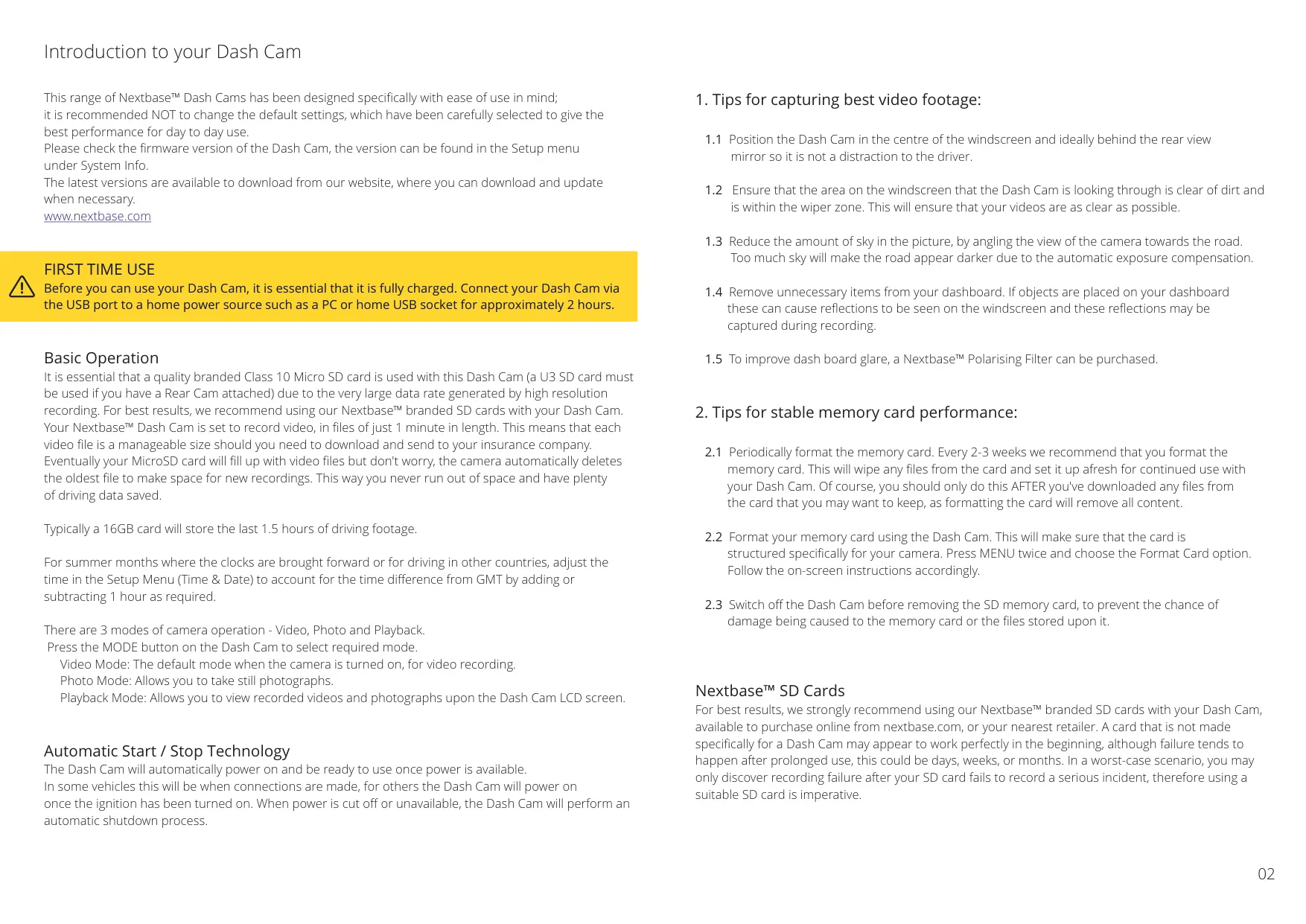
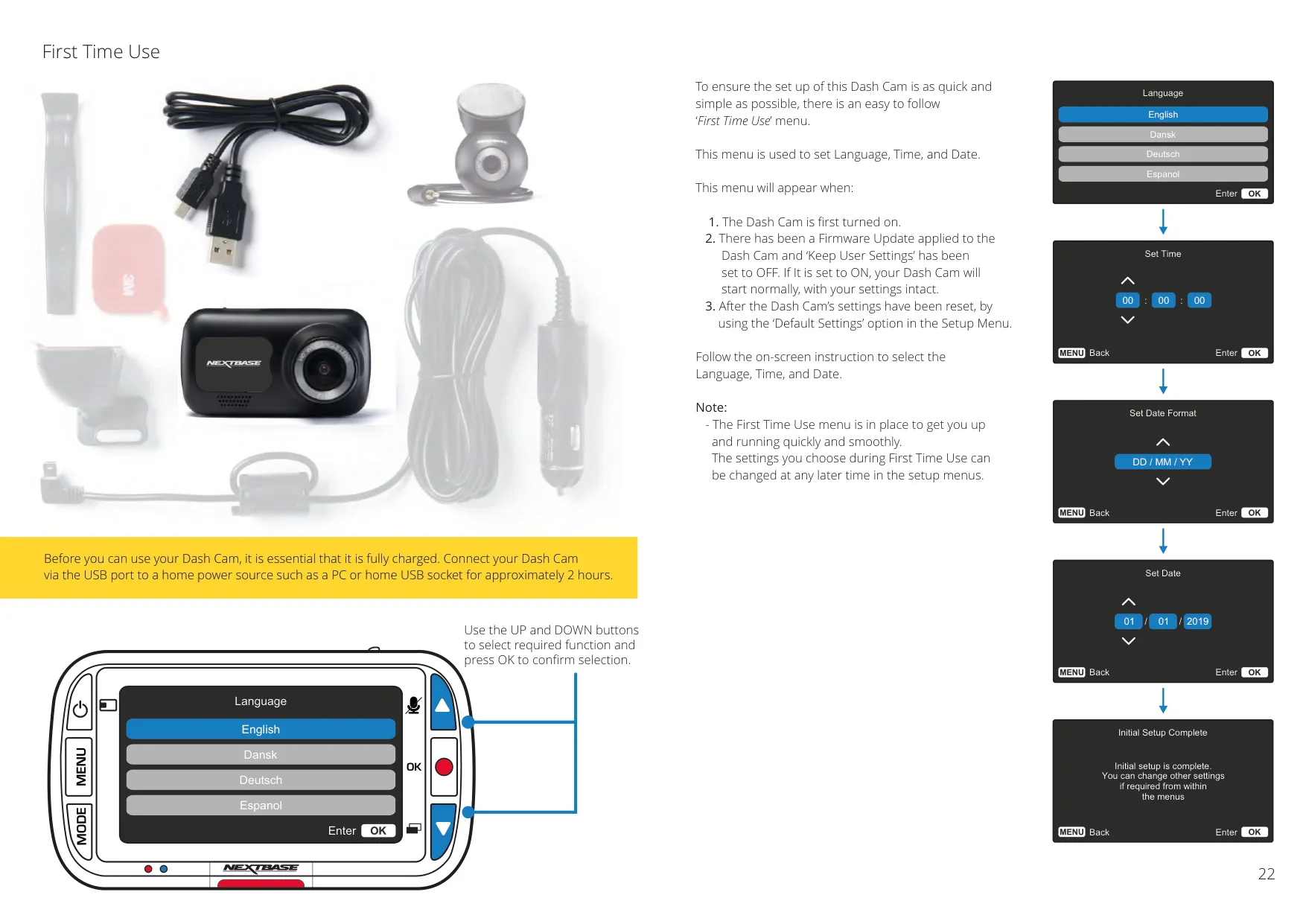
The Nextbase 320XR Dash Cam is engineered for effortless operation, advocating for the use of its carefully selected default settings to ensure optimal day-to-day performance. This design philosophy prioritizes user-friendliness, making setup and daily use straightforward for all drivers. An initial full charge of approximately 2 hours via a PC or home USB socket is essential before first use, preparing the device for seamless integration into your vehicle.
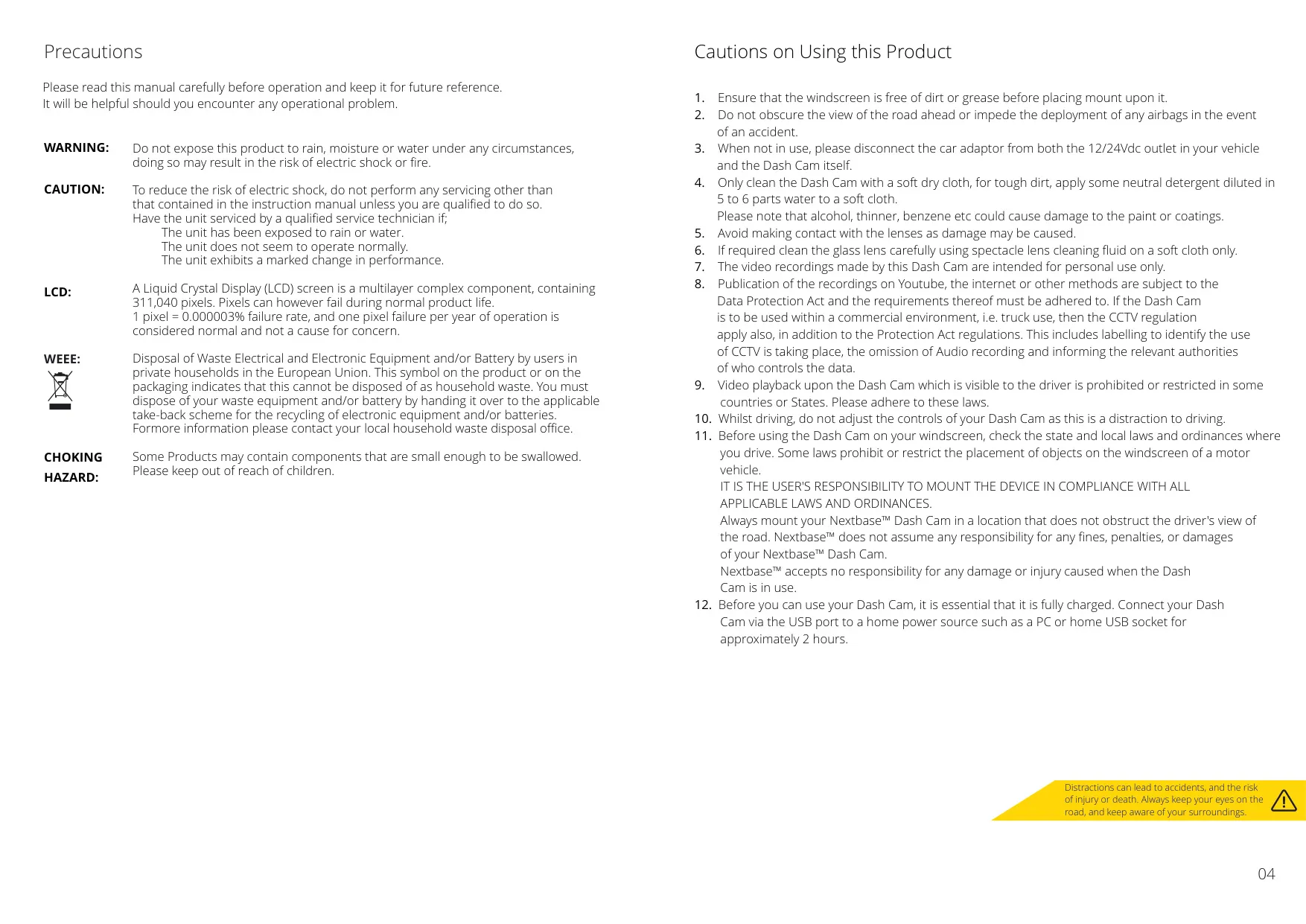
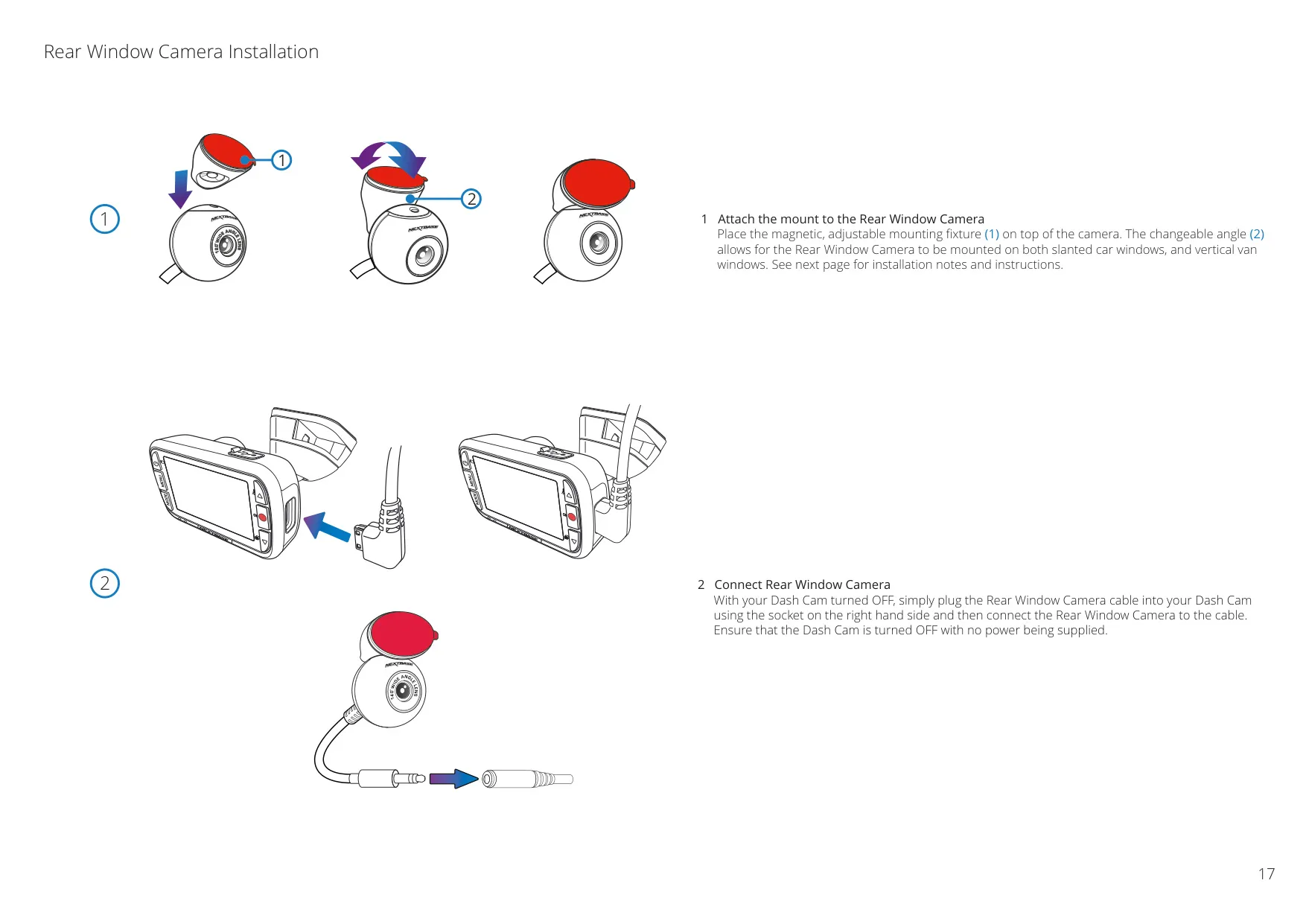
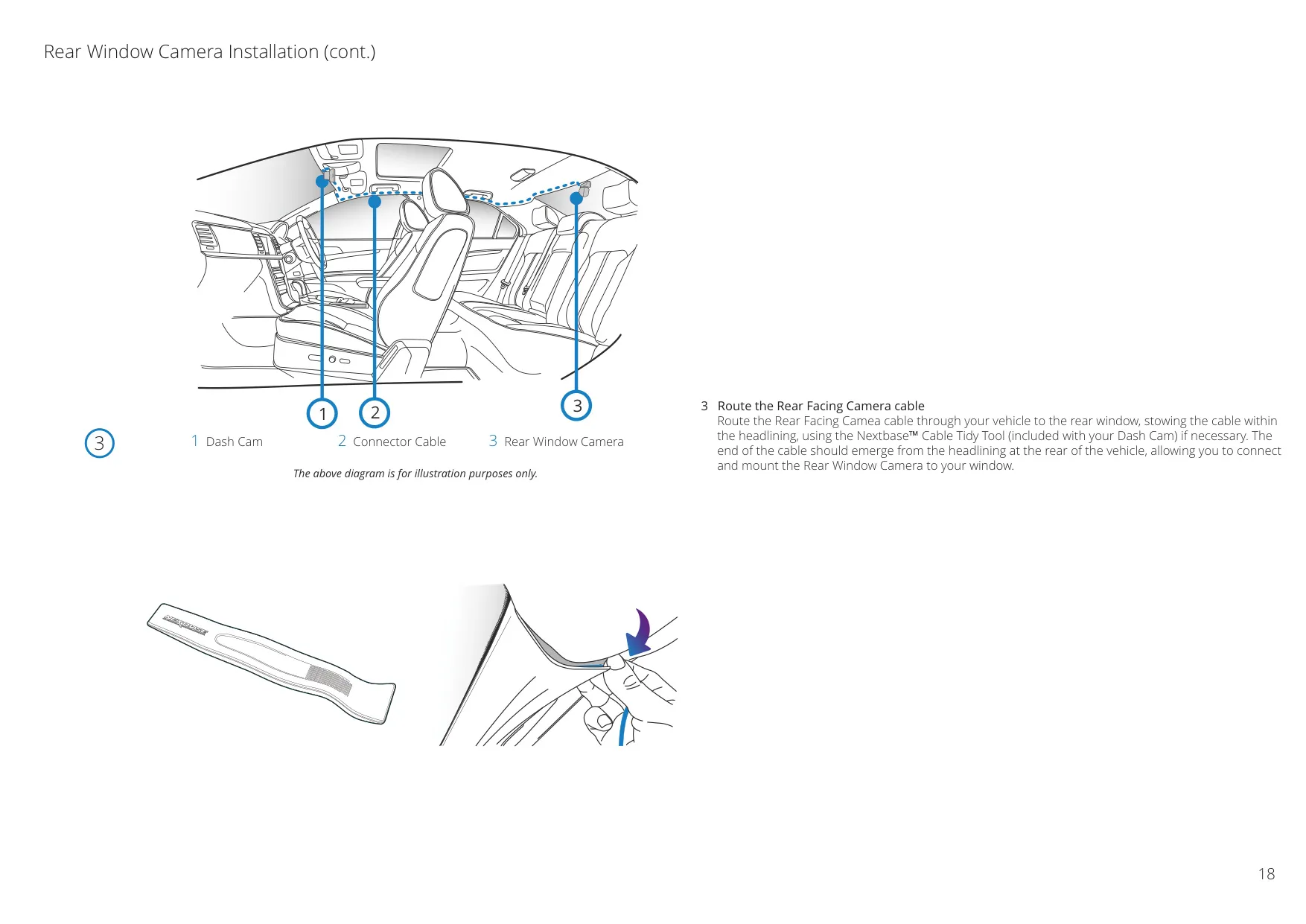
Installation is simplified by the innovative Click & Go Pro Powered Mount, featuring adhesive 3M attachment for secure placement. Drivers are advised to position the Dash Cam centrally on the windscreen, ideally behind the rearview mirror, to avoid obstruction. Crucial tips include ensuring the view through a clean, wiper-swept area, angling the camera to minimize sky and maximize road visibility, and removing dashboard clutter to prevent reflections. A Nextbase Polarising Filter can be purchased to further reduce glare.
The 320XR incorporates Automatic Start/Stop Technology, powering on with vehicle ignition and initiating an automatic shutdown when power is cut. For security while parked, the Intelligent Parking Mode automatically triggers recording upon motion detection. The device also features a built-in microphone and speaker, enabling audio recording to complement video footage, enhancing the comprehensive nature of incident capture.
For efficient data management, the Dash Cam utilizes loop recording, automatically overwriting the oldest files when the memory card fills. Critical footage is protected by the G-Sensor, which detects impacts and safeguards the current recording from deletion. Manual file protection is also available via a dedicated button or through playback mode. Regular formatting of the memory card every 2-3 weeks is recommended to maintain stable performance, always after backing up desired files.
The 2.5-inch HD screen with IPS technology offers a wide viewing angle, with a screen saver function available to blank the display after 30 seconds, reducing driver distraction. Connectivity extends beyond the vehicle, offering the MyNextbase Cloud™ service for online video storage and sharing. Users can upload footage to a secure Nextbase server, receiving a shareable link that expires after 30 days, perfect for insurers or social media.
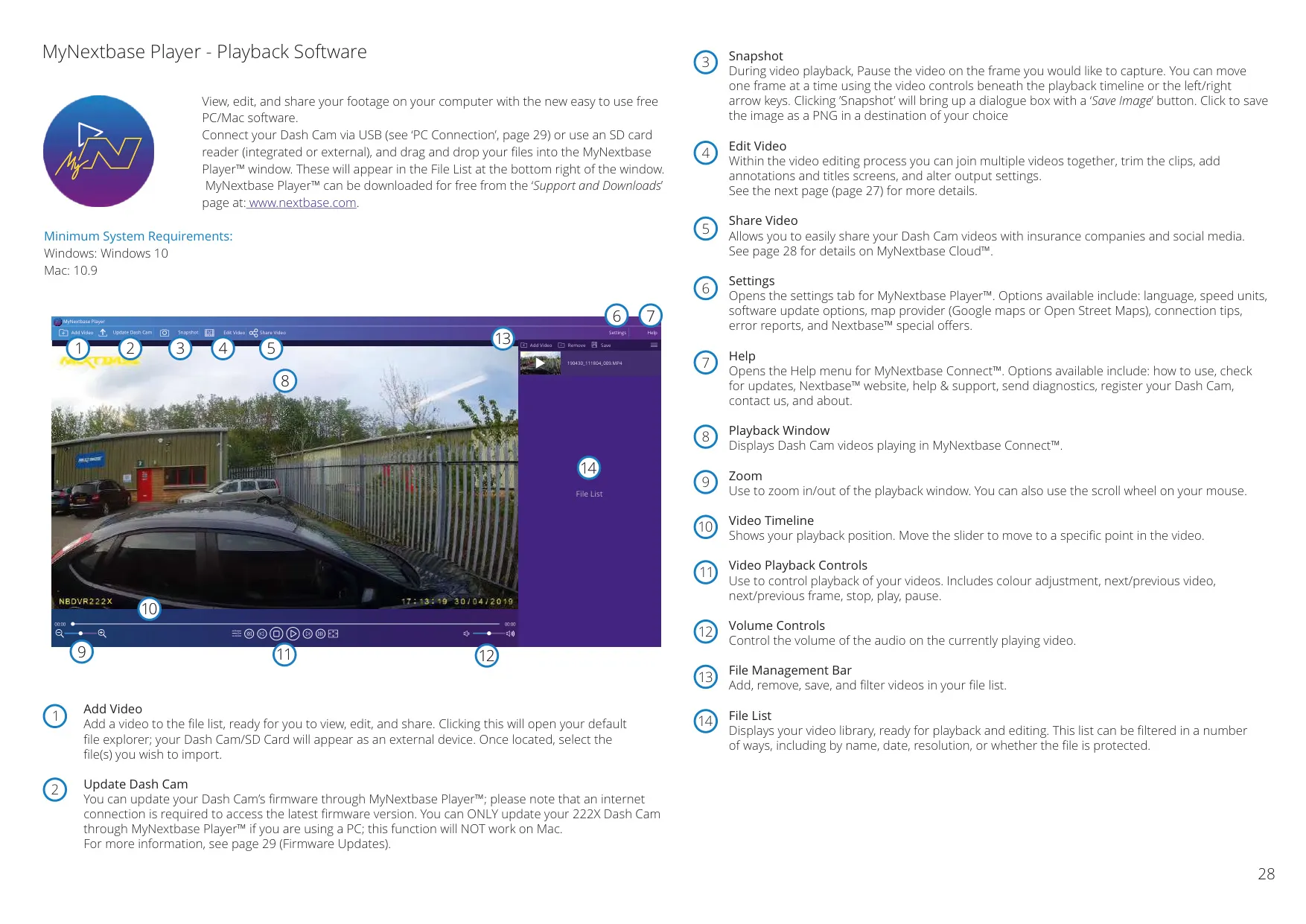
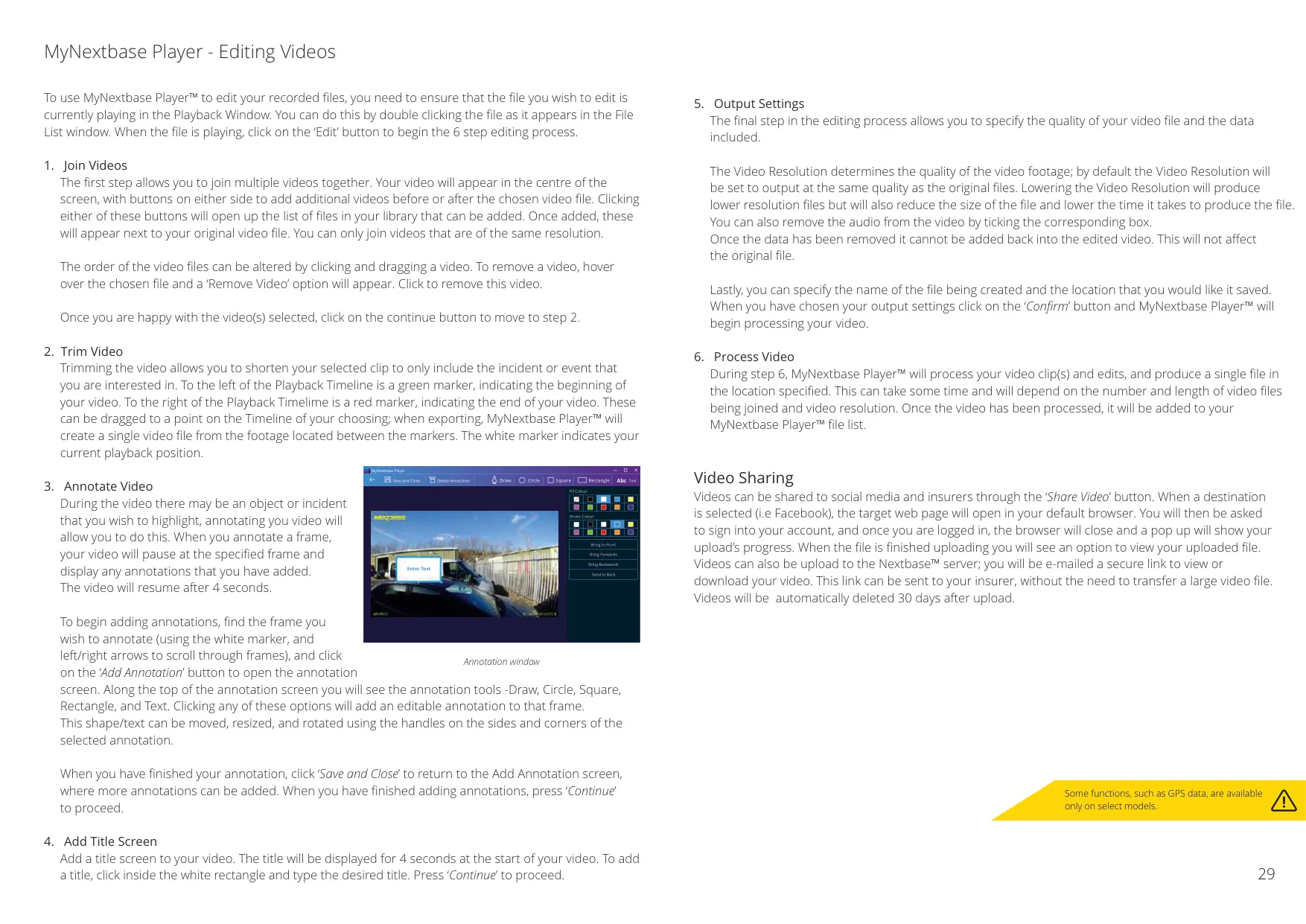
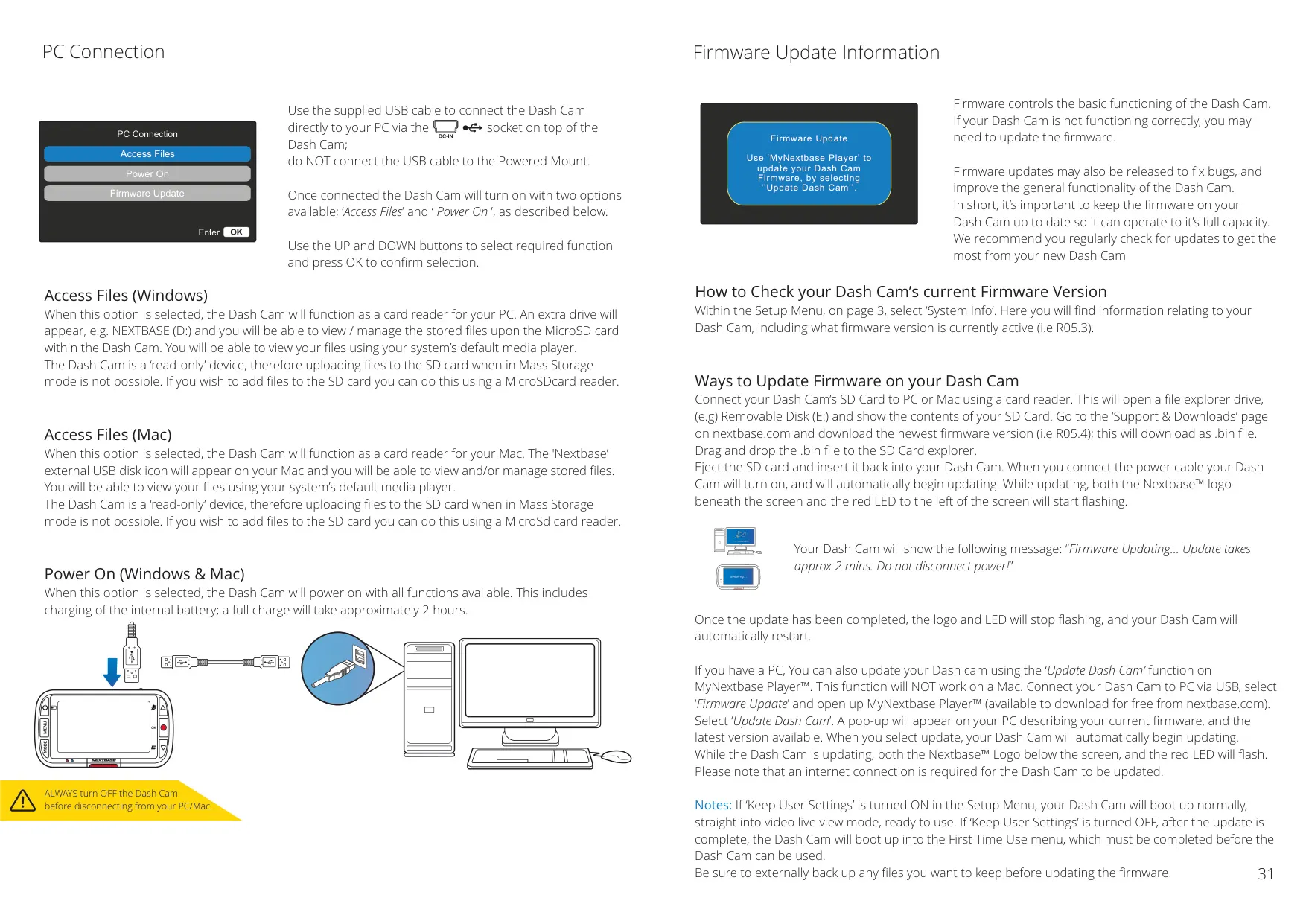
Firmware updates are crucial for maintaining optimal functionality and addressing bugs. These can be performed by transferring a .bin file to the SD card or, for PC users, directly through the MyNextbase Player™ software. This free PC/Mac application allows for viewing, editing, and sharing Dash Cam footage, providing tools to join, trim, annotate, and add title screens to videos before export.
The manual strongly emphasizes using a quality branded Class 10 Micro SD card, or a U3 card if a Rear Cam is attached, due to the high data rates of recording. Nextbase branded SD cards are recommended for superior and consistent write performance, crucial for reliable loop recording. Incompatible cards risk errors such as recording failure, frozen screens, and corrupted files, underscoring the importance of suitable storage for incident capture.
Frequently Asked Questions (FAQs)
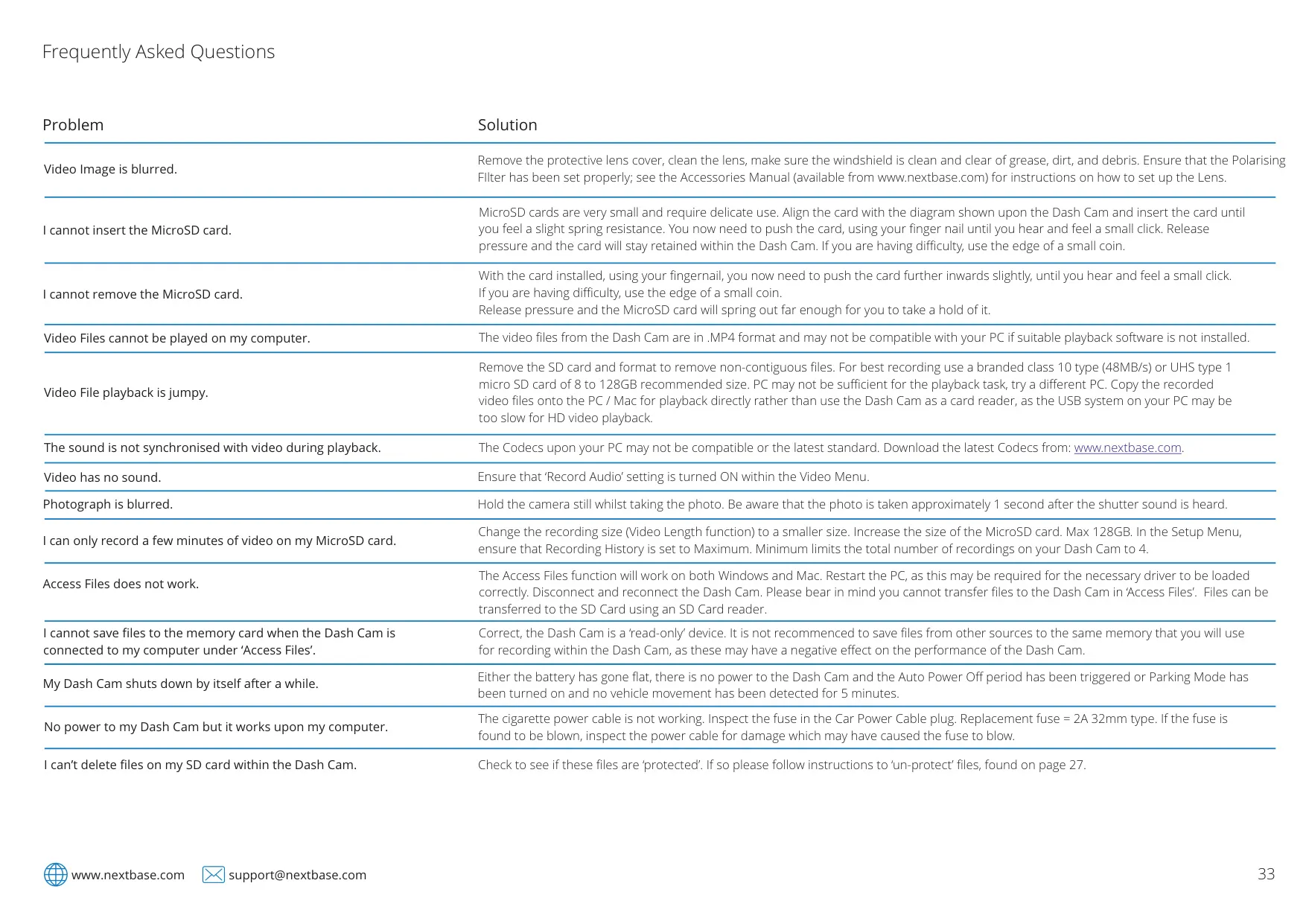
Can't find the answer you need? Here are some frequently asked questions about the Nextbase 320XR Dash Cam, and we answer them below.