Nextbase 222 Dash Cam Instruction Manual
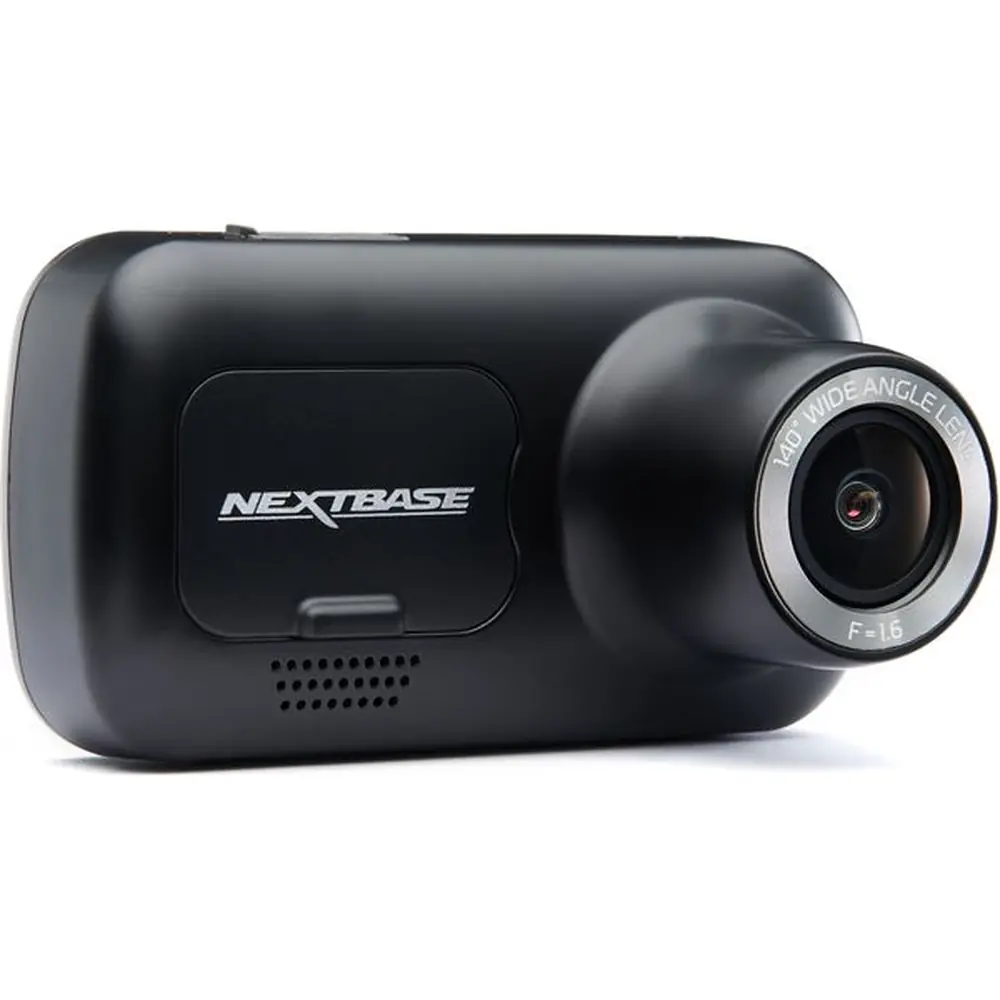
Nextbase 222 Dash Cam
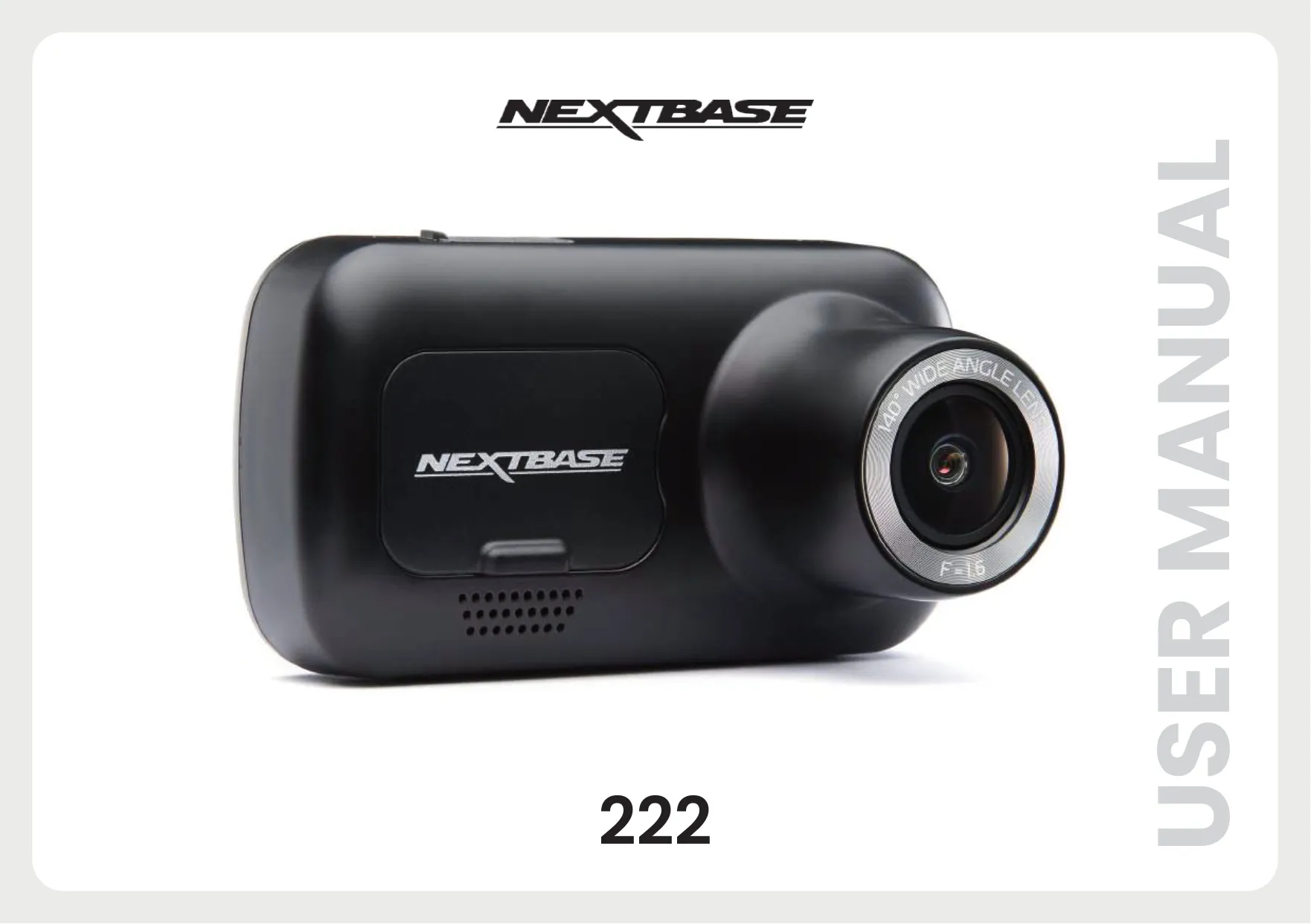












Nextbase 222 Dash Cam Instructions
Here we offer the Nextbase 222 Dash Cam manual completely free and in English. We have cataloged this manual in the Dash Cams section on Manualverse, and it has been rated by 1 users with an average rating of 5. If you have any specific questions about Nextbase 222 Dash Cam, we suggest checking the Frequently Asked Questions (FAQs) section of this manual.
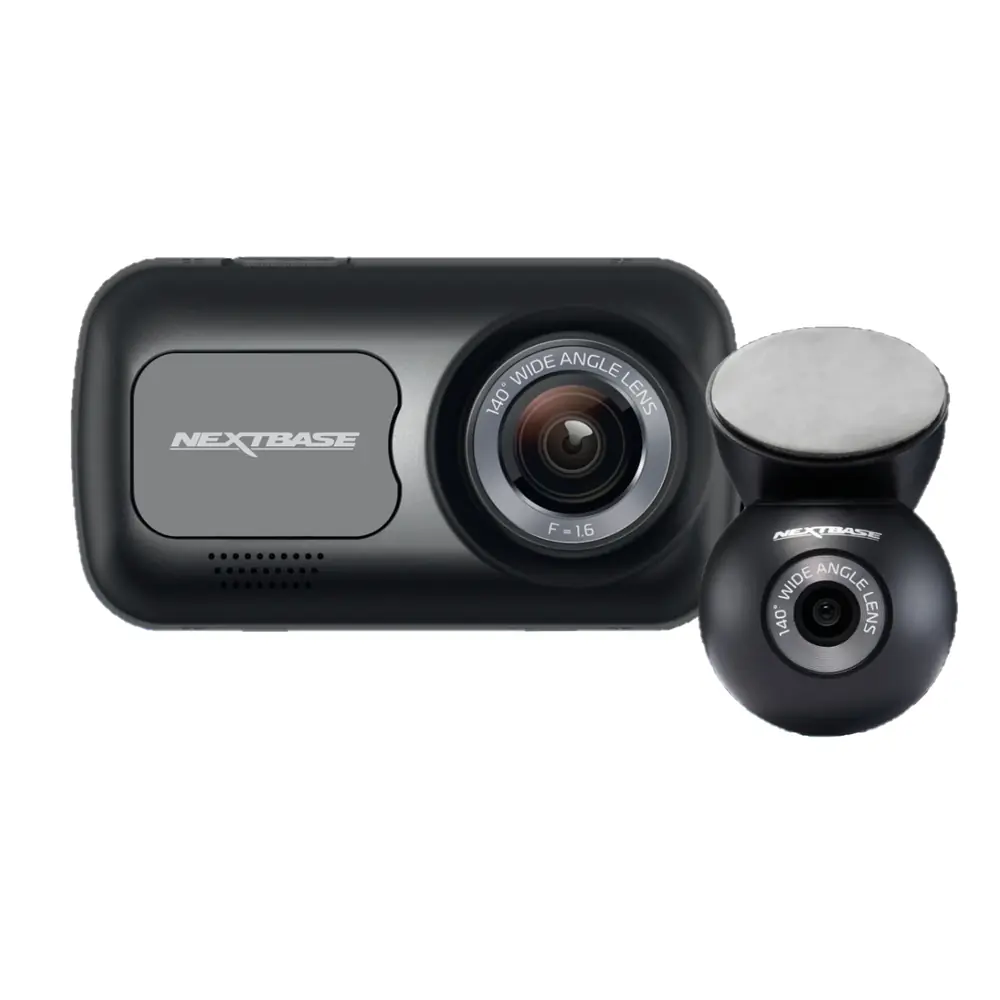
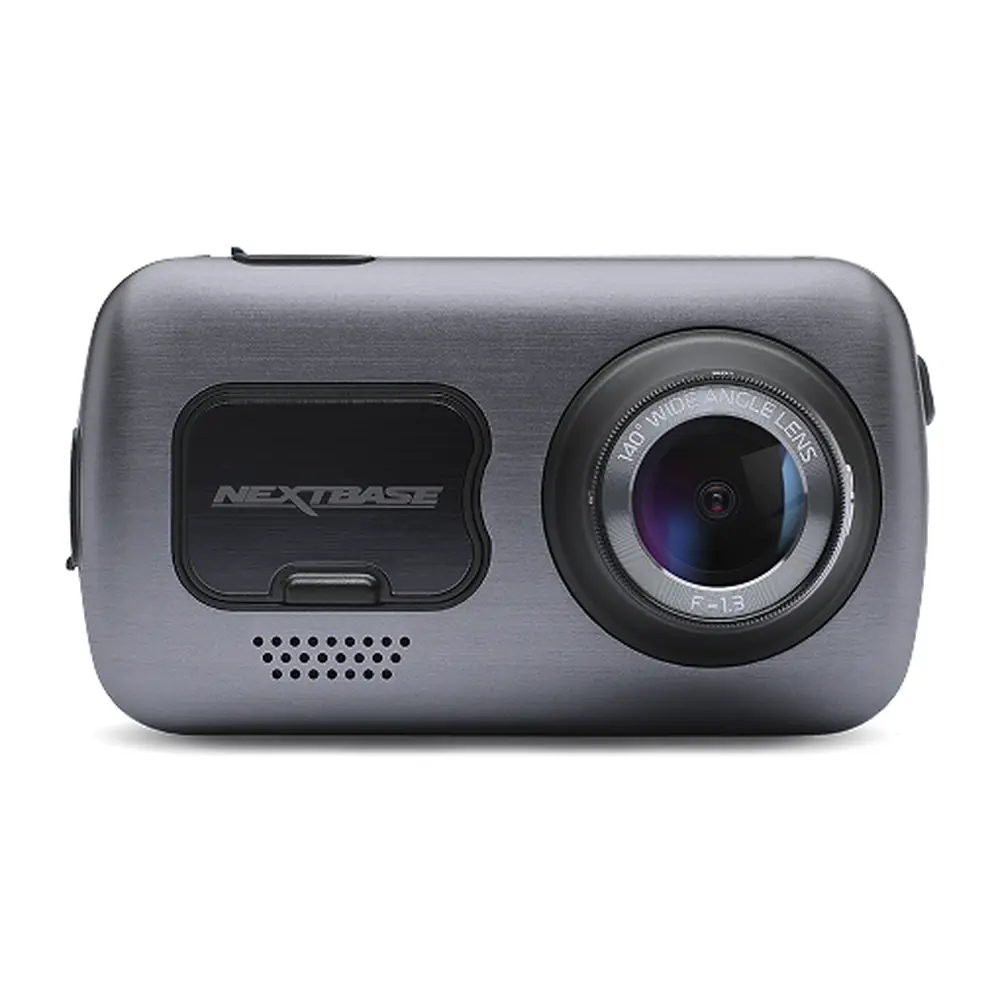
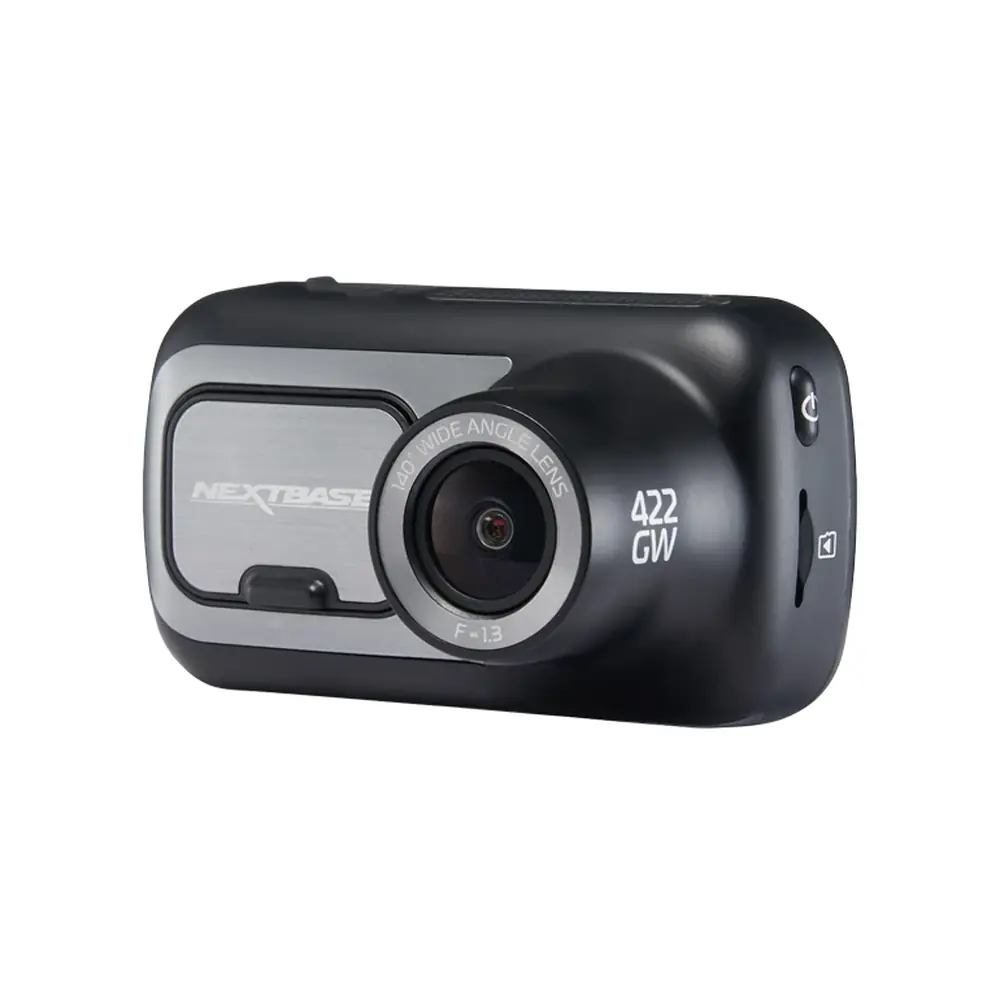
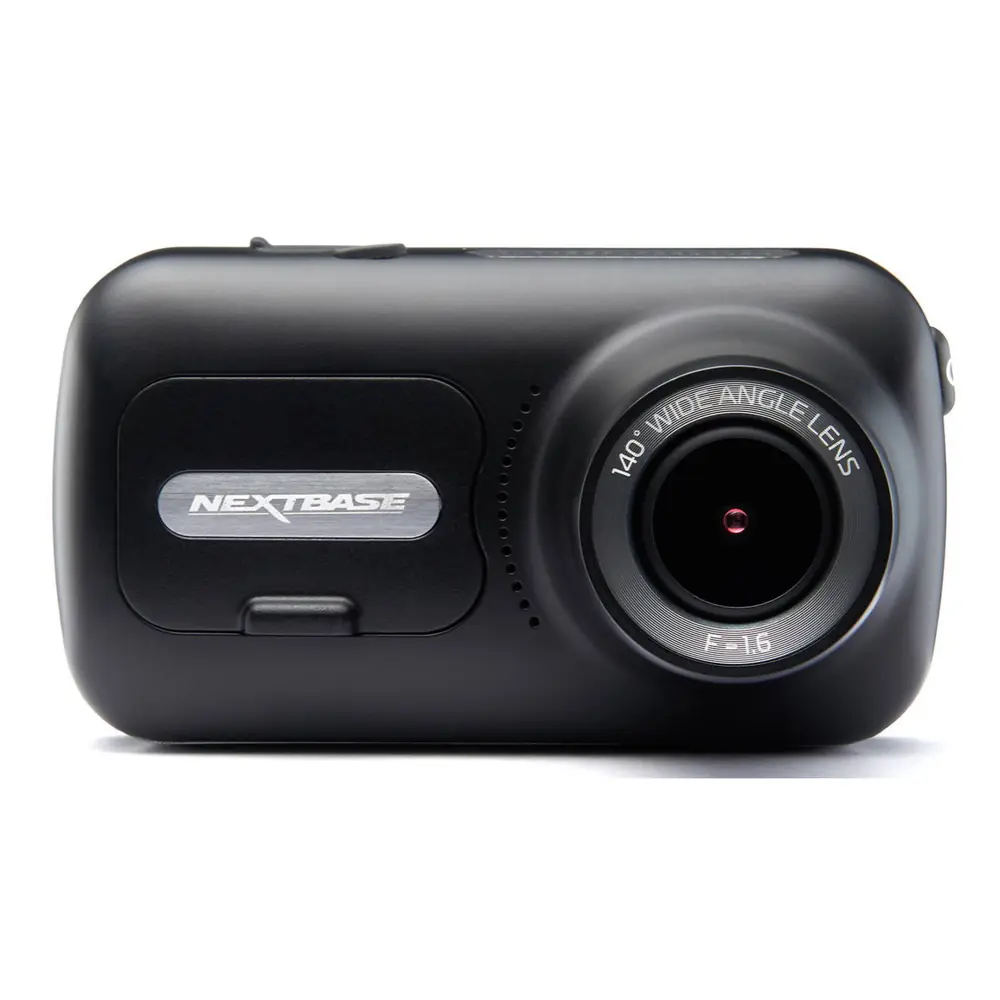
Product Images

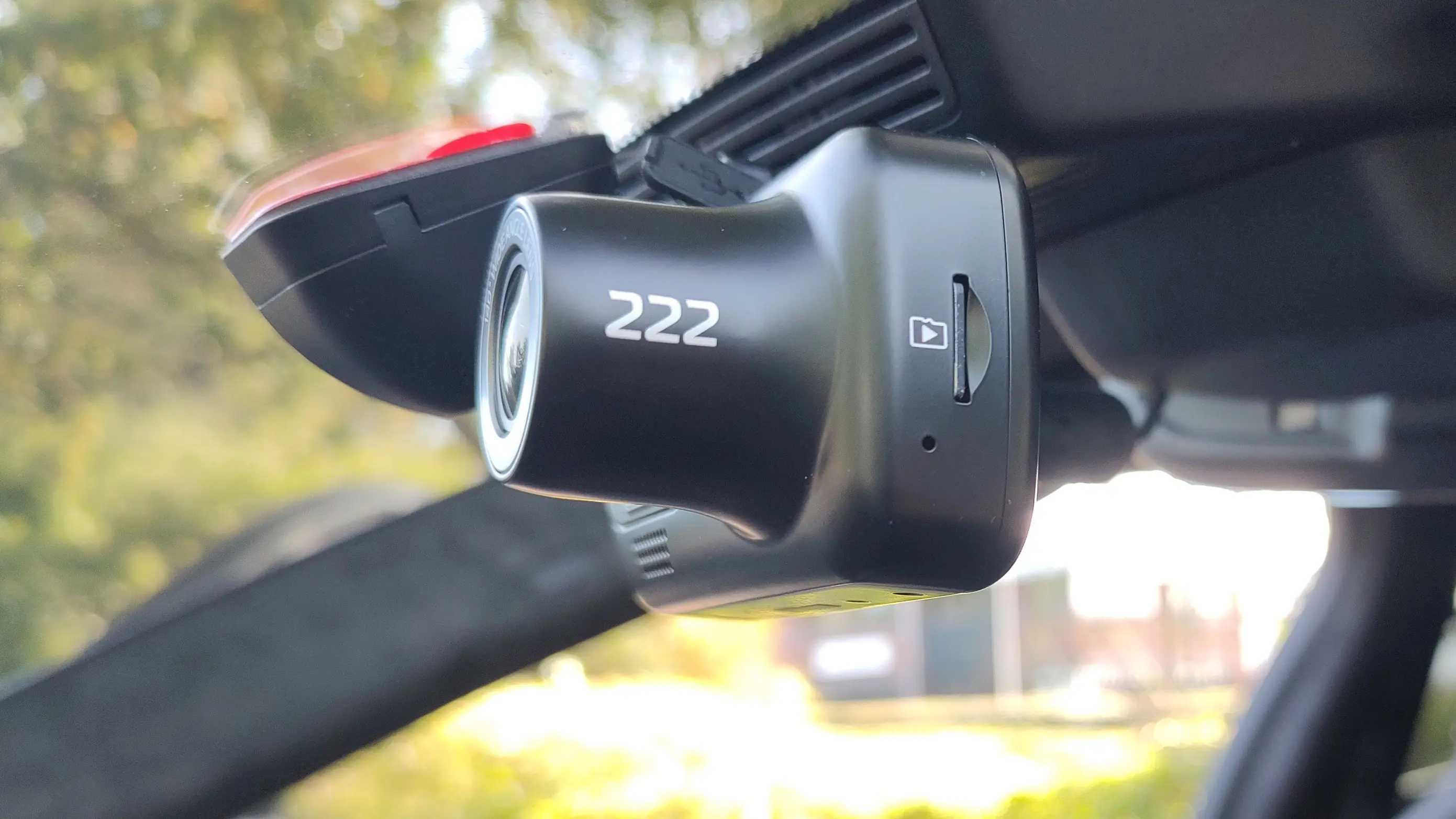
Nextbase 222 Dash Cam Specifications
| Feature | Specification |
|---|---|
| Model Number / Name | NBDVR222 |
| Power Requirements | 5V / 1.5A |
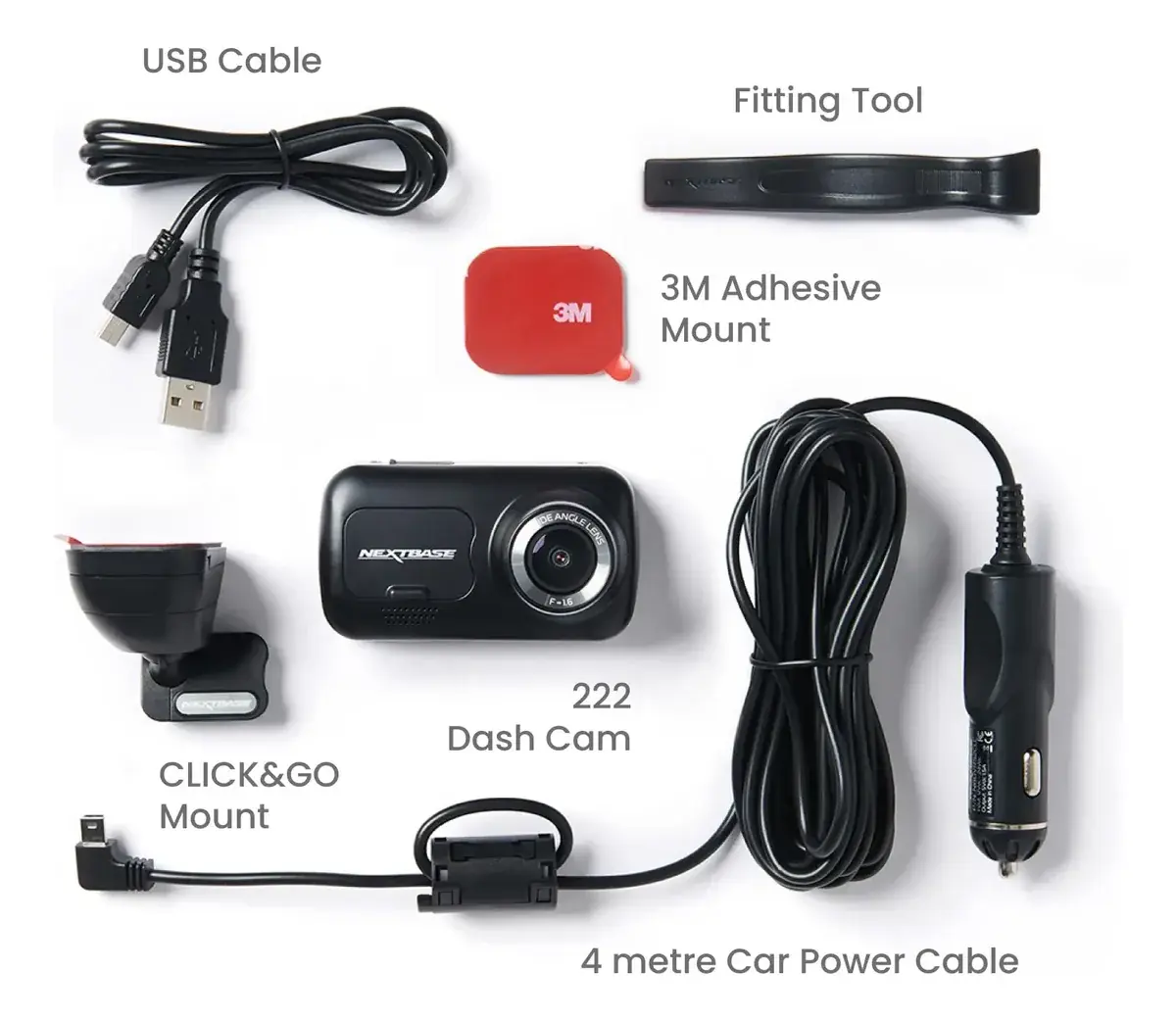
| Power Supply | 12-24Vdc Car Power Cable (supplied), Fuse Type: 32mm / 2A, Output: 5Vdc. Hardwire Kit also available. |
| Sensor Resolution | 2.12MP (1936 x 1097) |
| Lens - Type / Angle / Aperture | 6G / 140° / F1.6 |
| Recording Resolution | 1920 x 1080 @ 30fps day & night |
| Screen Size | 2.5” |
| Screen Resolution | 732 (W) X 240 (H) pixels x RGB (720) |
| Screen Ratio | 16:9 |
| Card Reader | MicroSD, Class 10, up to 128GB |
| SD Card (Recommended Type) | 8-128GB SDHC / SDXC, U3, Class 10 (48mb/s). Nextbase branded SD card recommended. |
| SD Card Recorded File Capacity | 8GB MicroSD = 60 mins; 16GB MicroSD = 120 mins; 32GB MicroSD = 240 mins; 64GB MicroSD = 480 mins; 128GB MicroSD = 960 mins (based on default settings, reduced with Rear Cam). |
| Recording Format | MP4 |
| Internal Battery | Lithium-Polymer 3.7V / 320mAh (approx. 15 mins recording time). Not intended as an alternative power source. |
| GPS | simple / ST702G-15C40 |
| Unit Dimensions (mm) | 82 x 46 x 46 |
| Unit Weight | 79g |
Nextbase 222 Dash Cam Details
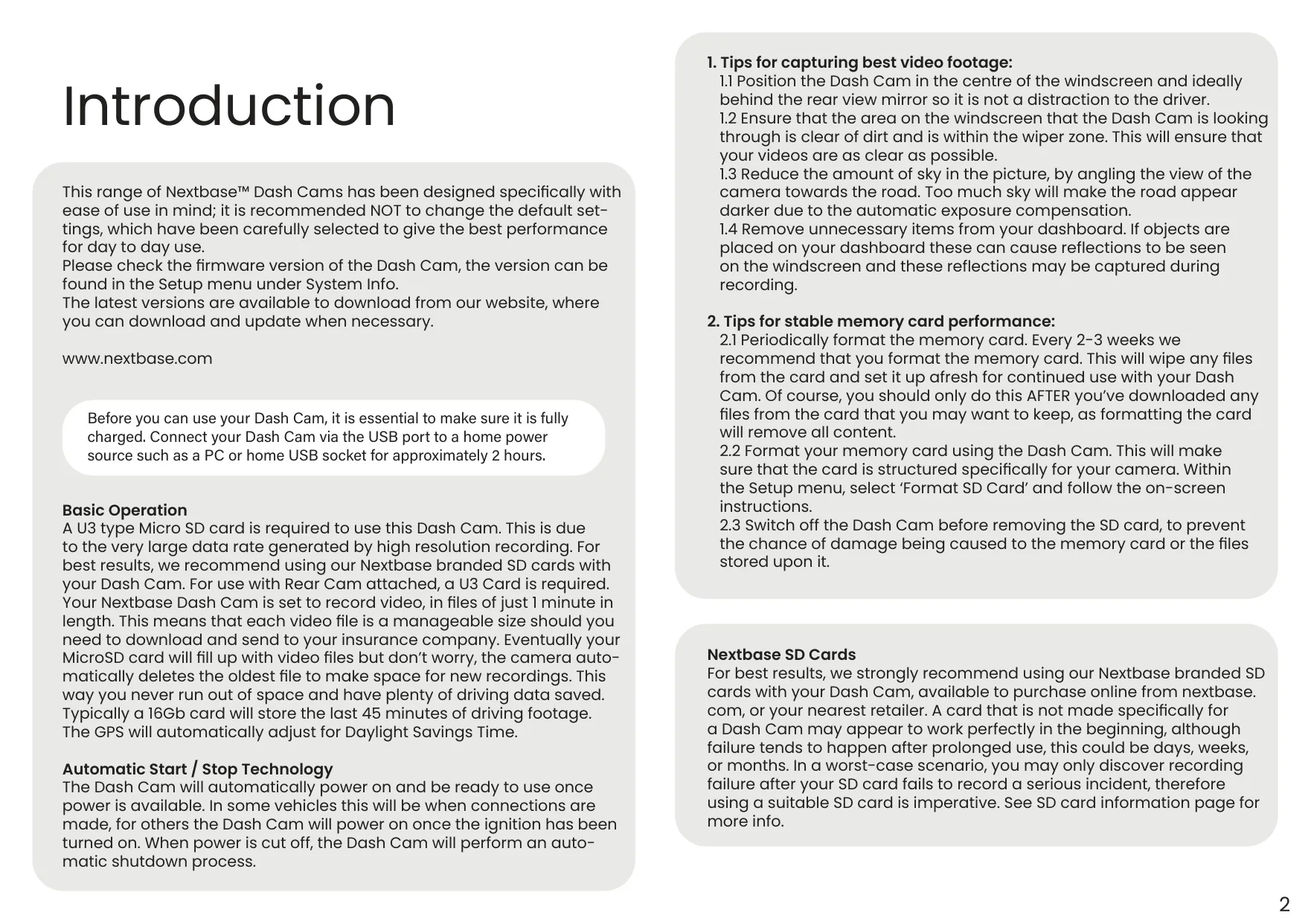
The Nextbase 222 Dash Cam offers an exceptional user experience, prioritizing ease of use with carefully selected default settings for optimal performance. Users are encouraged to check the firmware version via the Setup menu, with updates readily available from the official Nextbase website. Before initial use, ensuring the dash cam is fully charged by connecting it to a home USB power source for approximately two hours is essential.
For consistent and reliable recording, a U3 type Micro SD card is required due to the high data rate of its high-resolution video. Nextbase strongly recommends using their branded SD cards, especially when a Rear Cam module is attached, as these are specifically designed to maintain high write speeds and prevent recording failures often experienced with generic cards.
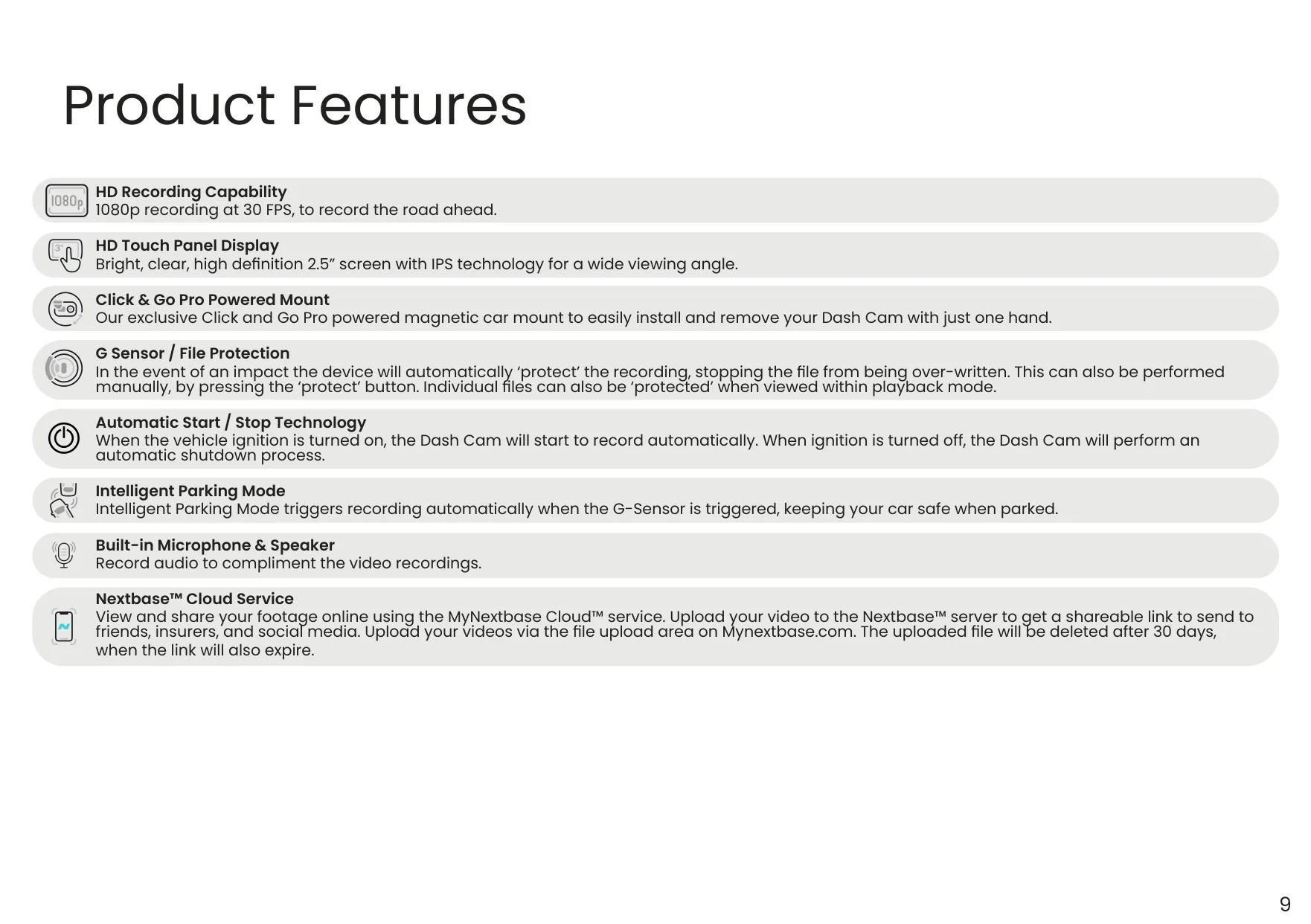
The 222 features Automatic Start/Stop Technology, powering on and commencing recording when vehicle power is detected (e.g., ignition on). Conversely, it performs an automatic shutdown when power is cut. This ensures seamless operation without manual intervention, allowing drivers to focus on the road.
A core feature is Loop Recording, where video is recorded in manageable one-minute segments. Once the MicroSD card fills, the camera automatically overwrites the oldest unprotected file, ensuring continuous recording without running out of space. Important files can be protected to prevent deletion, but users should back them up regularly.
An integrated G-Sensor+ detects sudden movements or impacts, triggering Event Recording. When a collision or sharp braking is sensed, the 222 automatically protects the surrounding footage, marking it as a secure file for later review. This critical feature safeguards vital evidence in unexpected incidents.
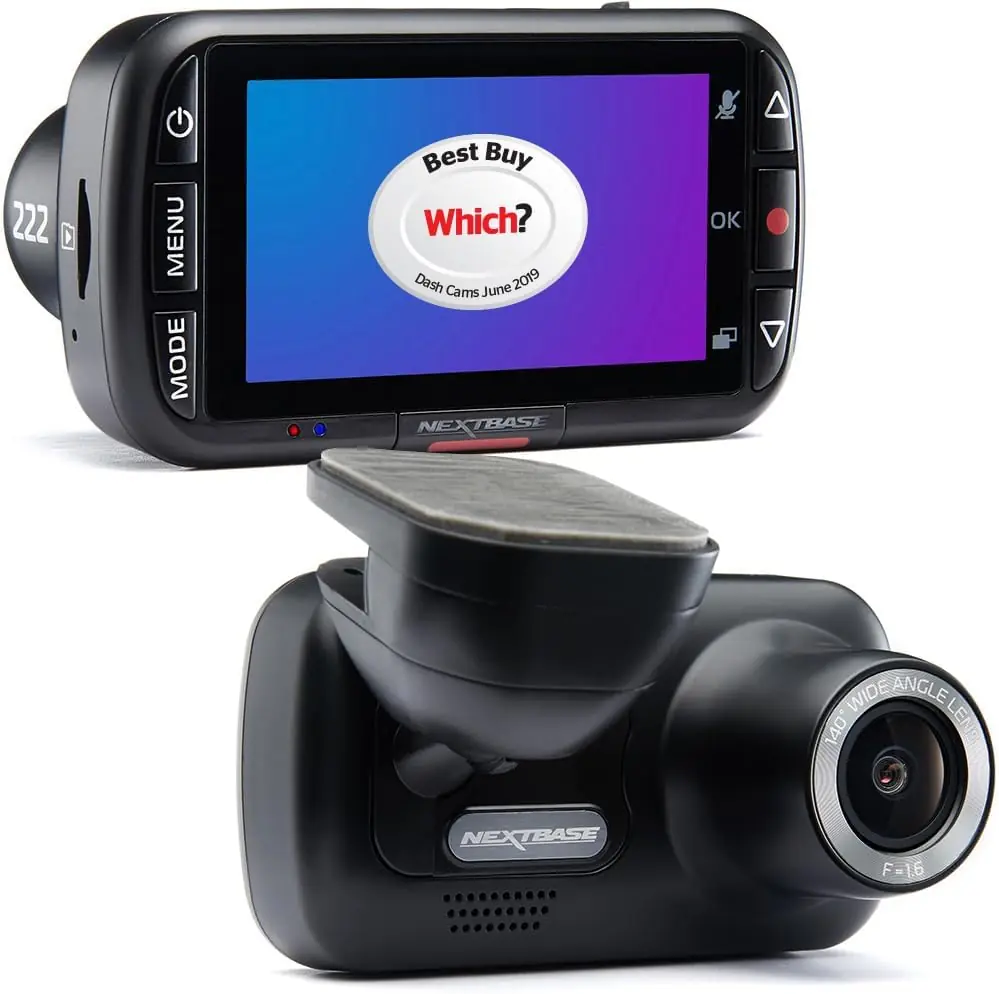
The 222 boasts an HD Touch Panel Display, a bright, clear 2.5-inch screen with IPS technology for wide viewing angles. Its exclusive Click & Go Pro Powered Mount allows for easy installation and removal of the dash cam with just one hand, enhancing convenience for daily use.
For added security while parked, Intelligent Parking Mode automatically activates recording when the G-Sensor detects physical movement. This feature is most effective when the dash cam is hardwired to a permanent power supply, ensuring continuous surveillance even when the vehicle is off.
Beyond basic recording, the 222 includes a built-in microphone and speaker, enabling audio recording to complement video footage. Connectivity is enhanced through the MyNextbase Player software for PC/Mac, allowing users to view, edit, and share recordings, complete with journey analysis including speed and GPS data.
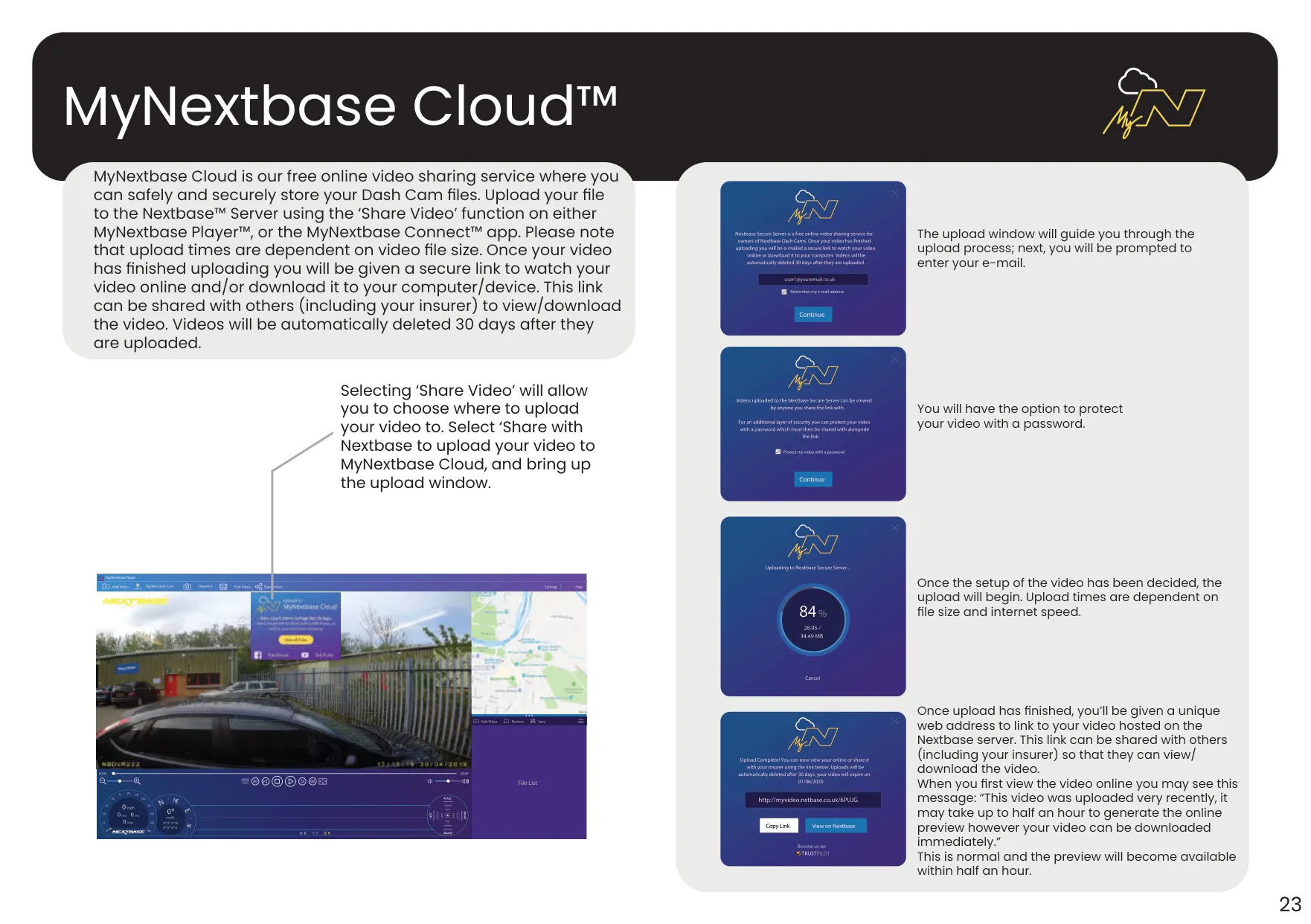
The MyNextbase Cloud Service provides a free, secure online platform to store and share dash cam files. Users can upload videos via MyNextbase Player or the MyNextbase Connect app, receiving a shareable link that can be sent to insurers or social media. Uploaded videos are automatically deleted after 30 days.
Regular maintenance of the SD card is crucial for stable performance. Nextbase recommends formatting the card every 2-3 weeks using the dash cam's internal function. This practice clears all files and re-optimizes the card, but users must back up any desired footage beforehand, as formatting permanently removes content.
Frequently Asked Questions (FAQs)
Can't find the answer you need? Here are some frequently asked questions about the Nextbase 222 Dash Cam, and we answer them below.