Venstar T4800 Thermostat Instruction Manual
Venstar T4800 Thermostat











Venstar T4800 Thermostat

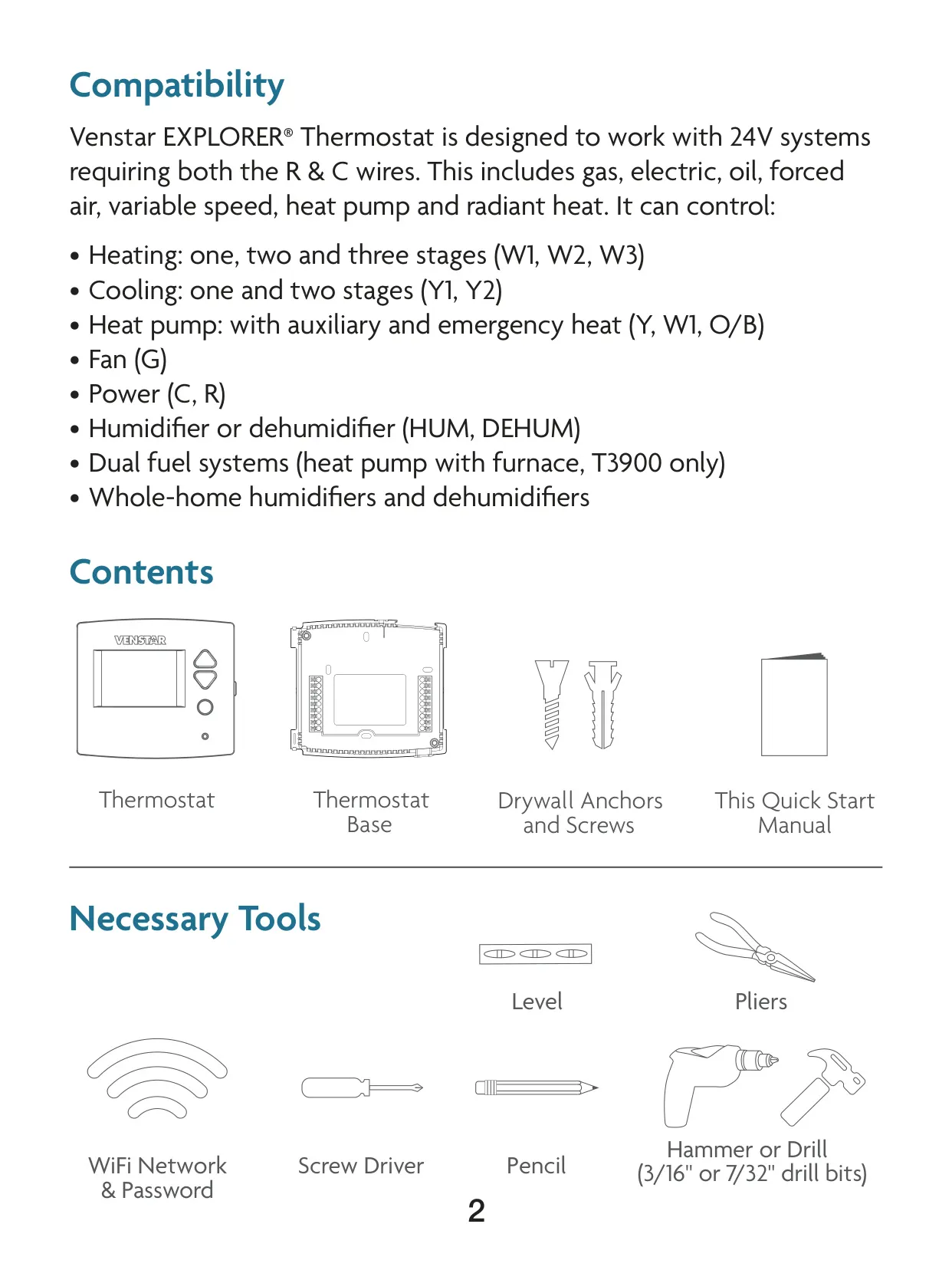
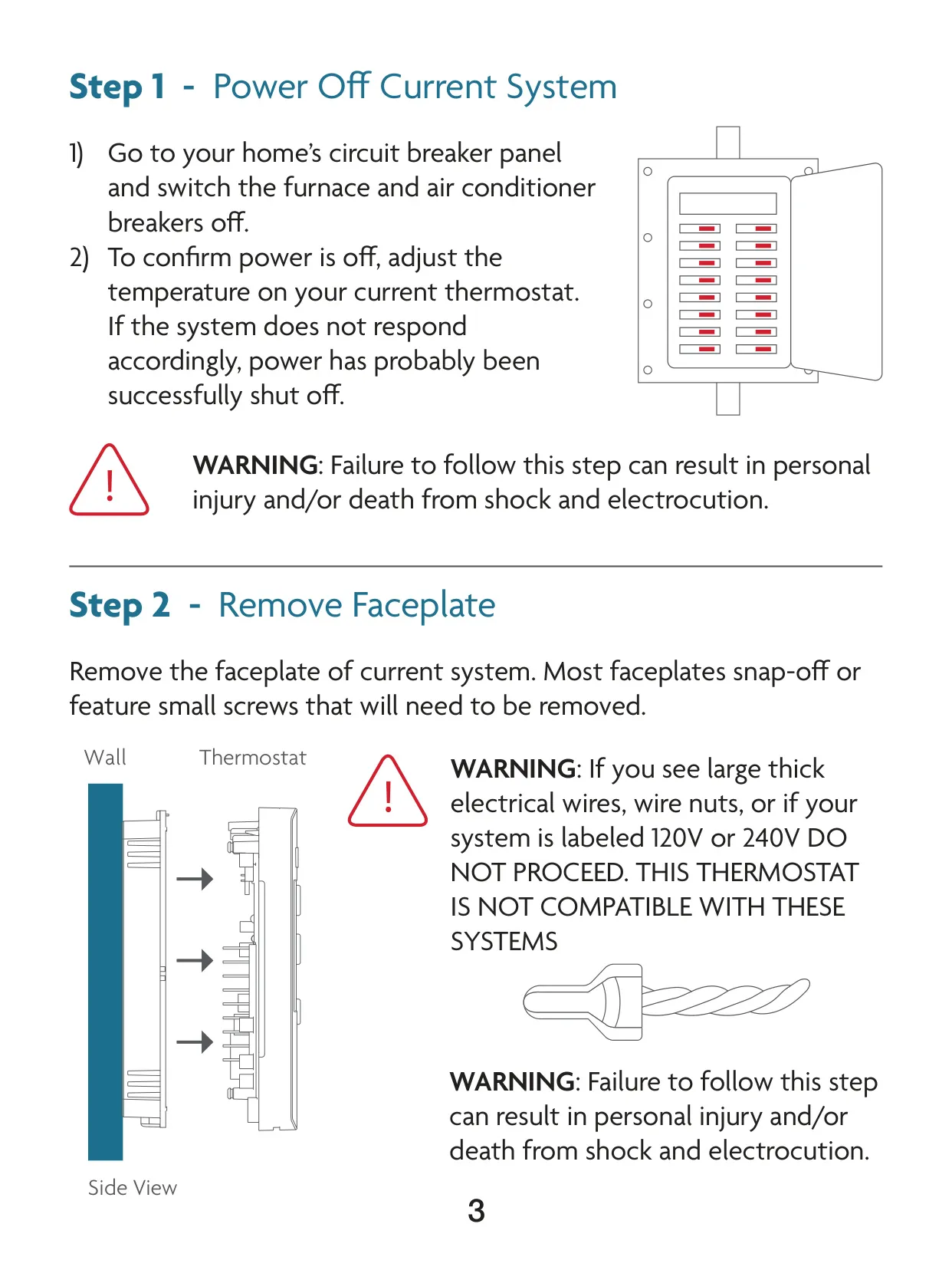
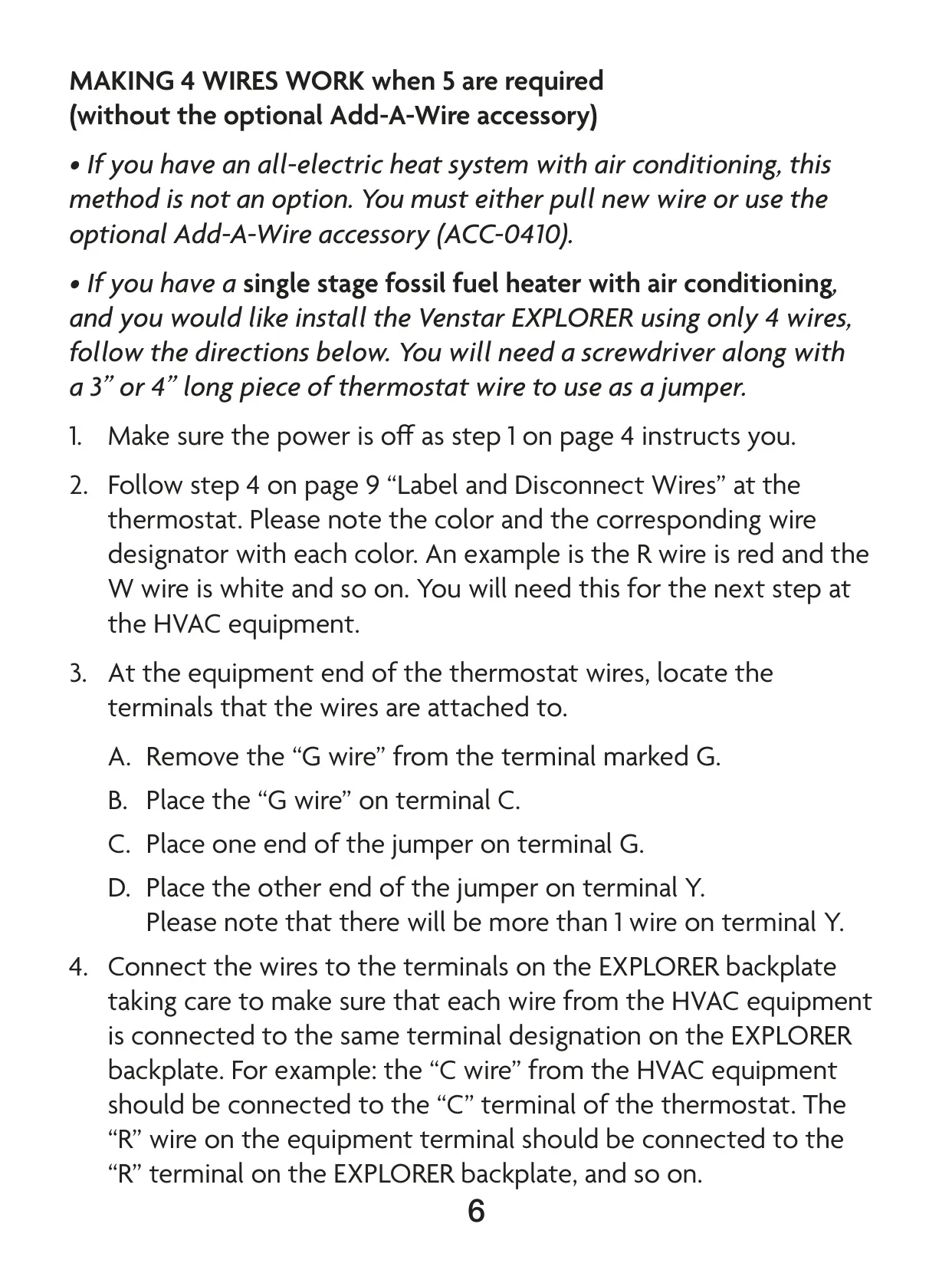
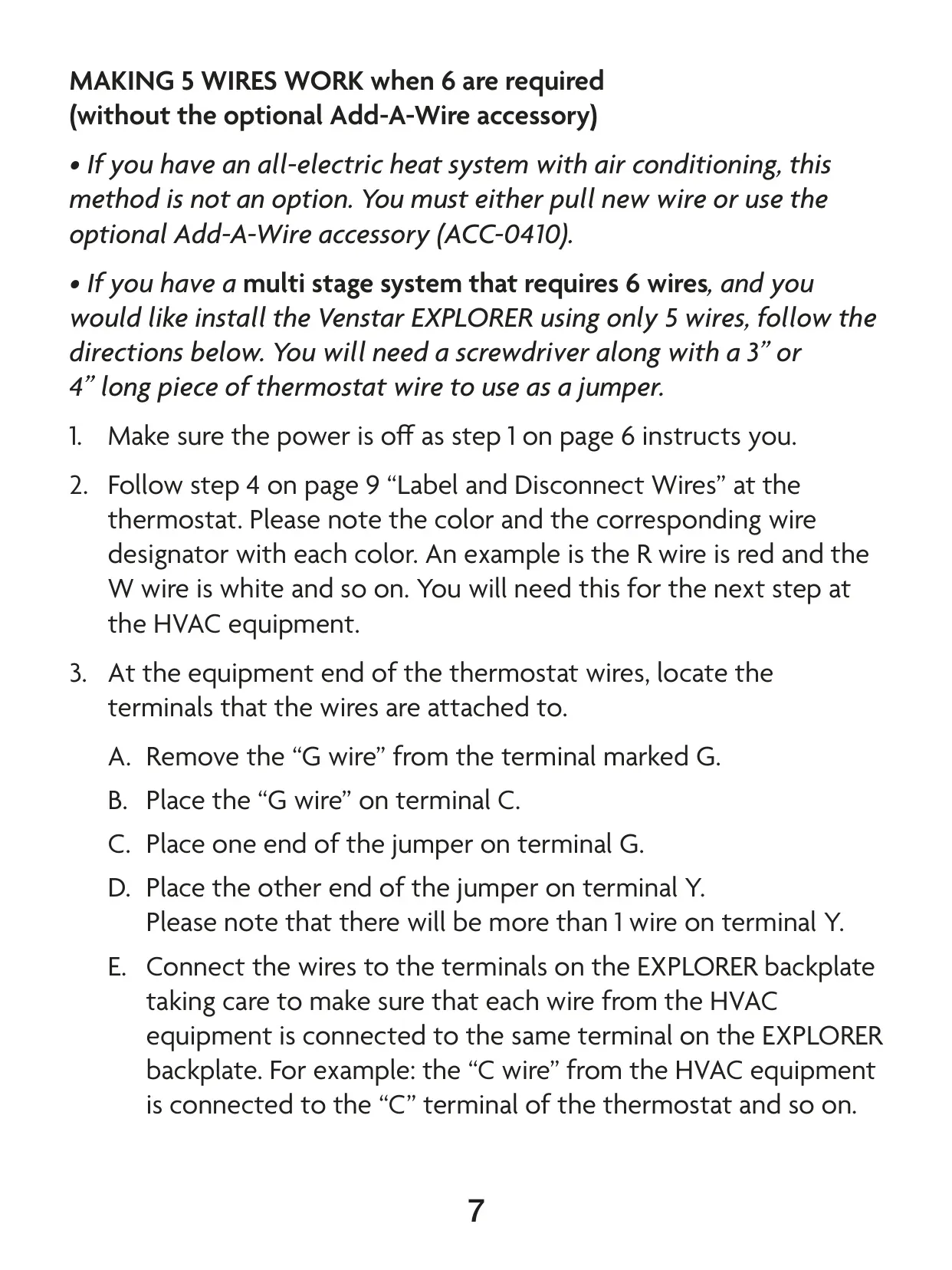
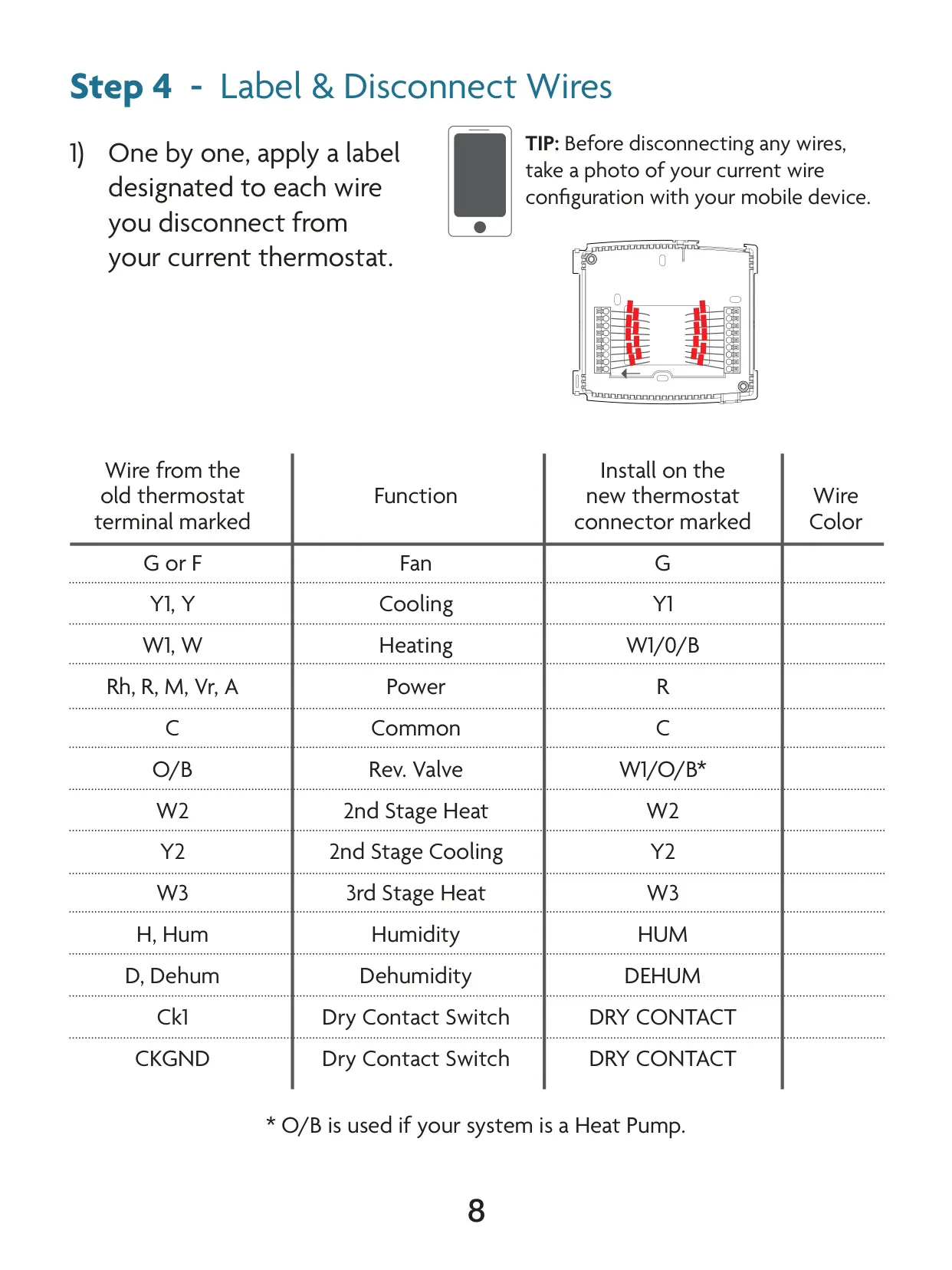
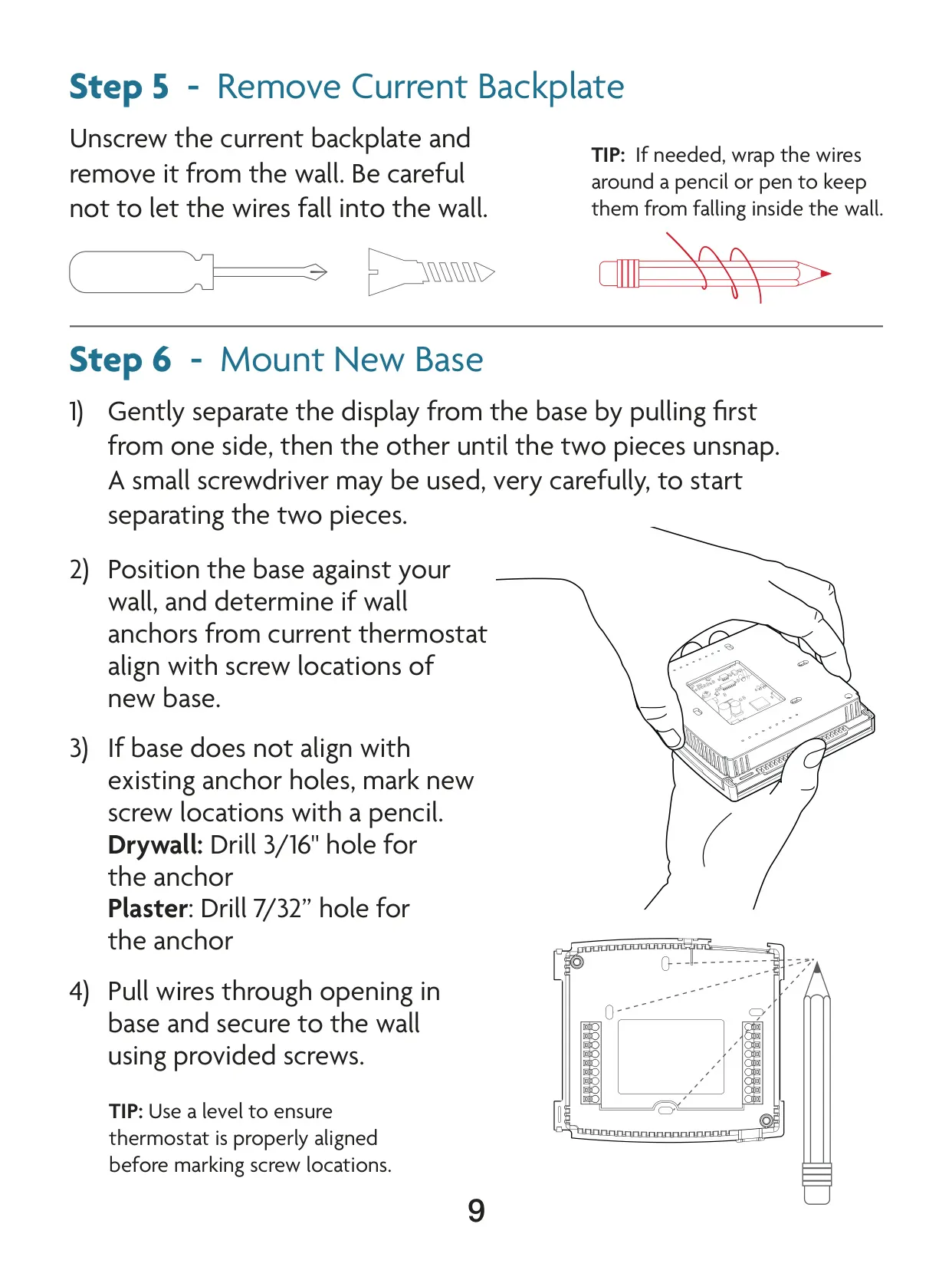
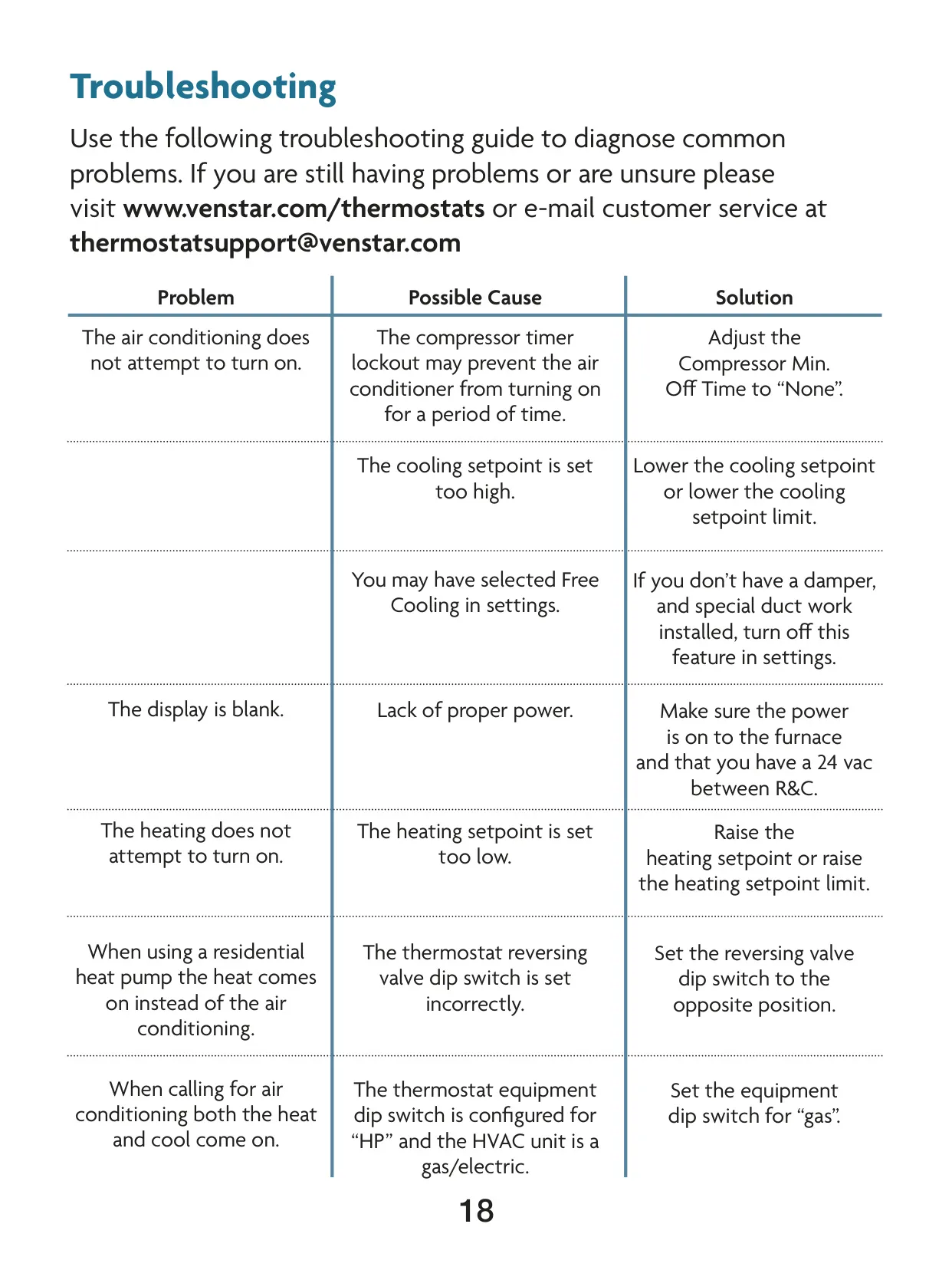
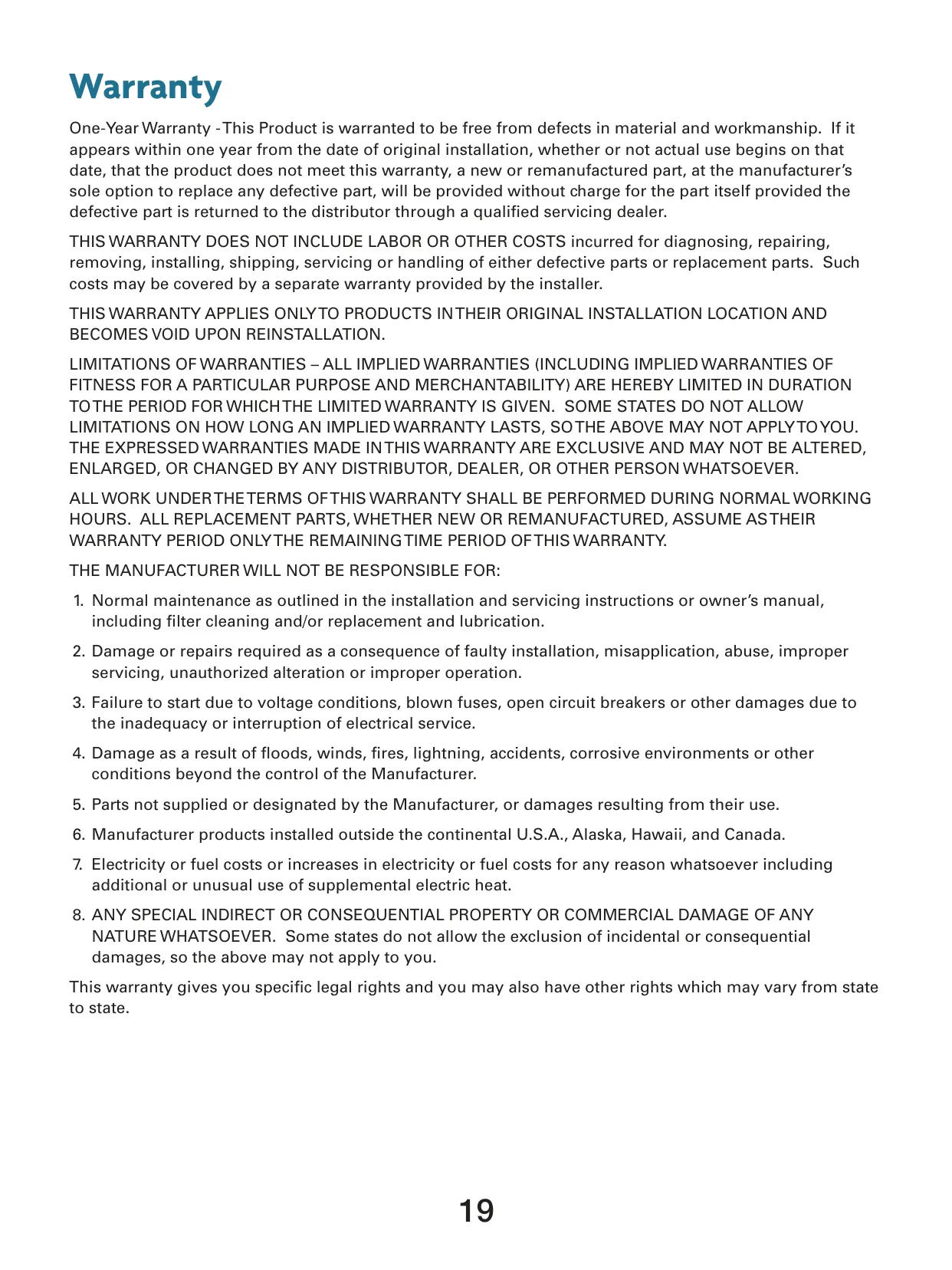



Venstar T4800 Thermostat Instructions
Here we offer the Venstar T4800 Thermostat manual completely free and in English. We have cataloged this manual in the Thermostats section on Manualverse, and it has been rated by 1 users with an average rating of 5. If you have any specific questions about Venstar T4800 Thermostat, we suggest checking the Frequently Asked Questions (FAQs) section of this manual.
Product Images
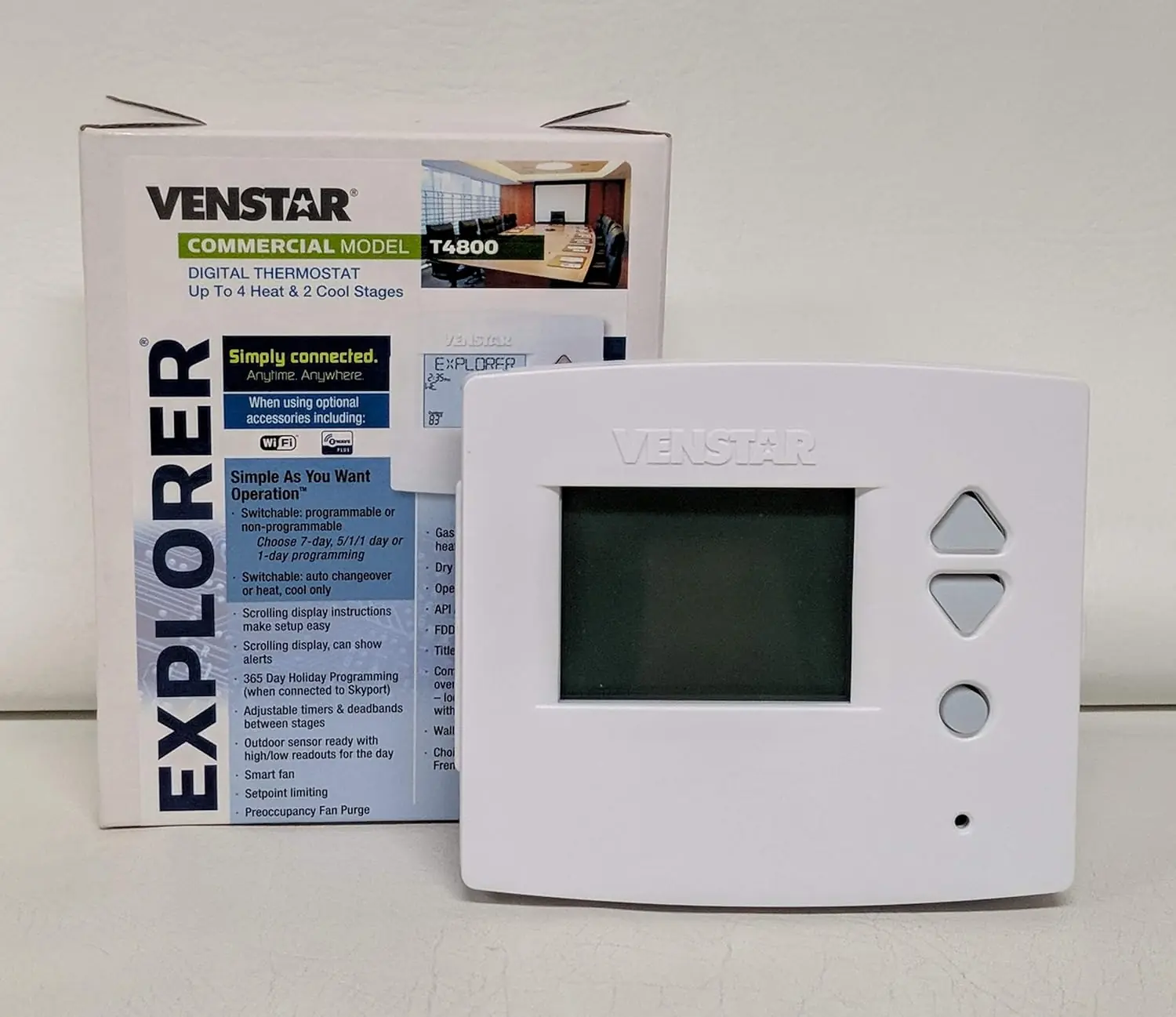
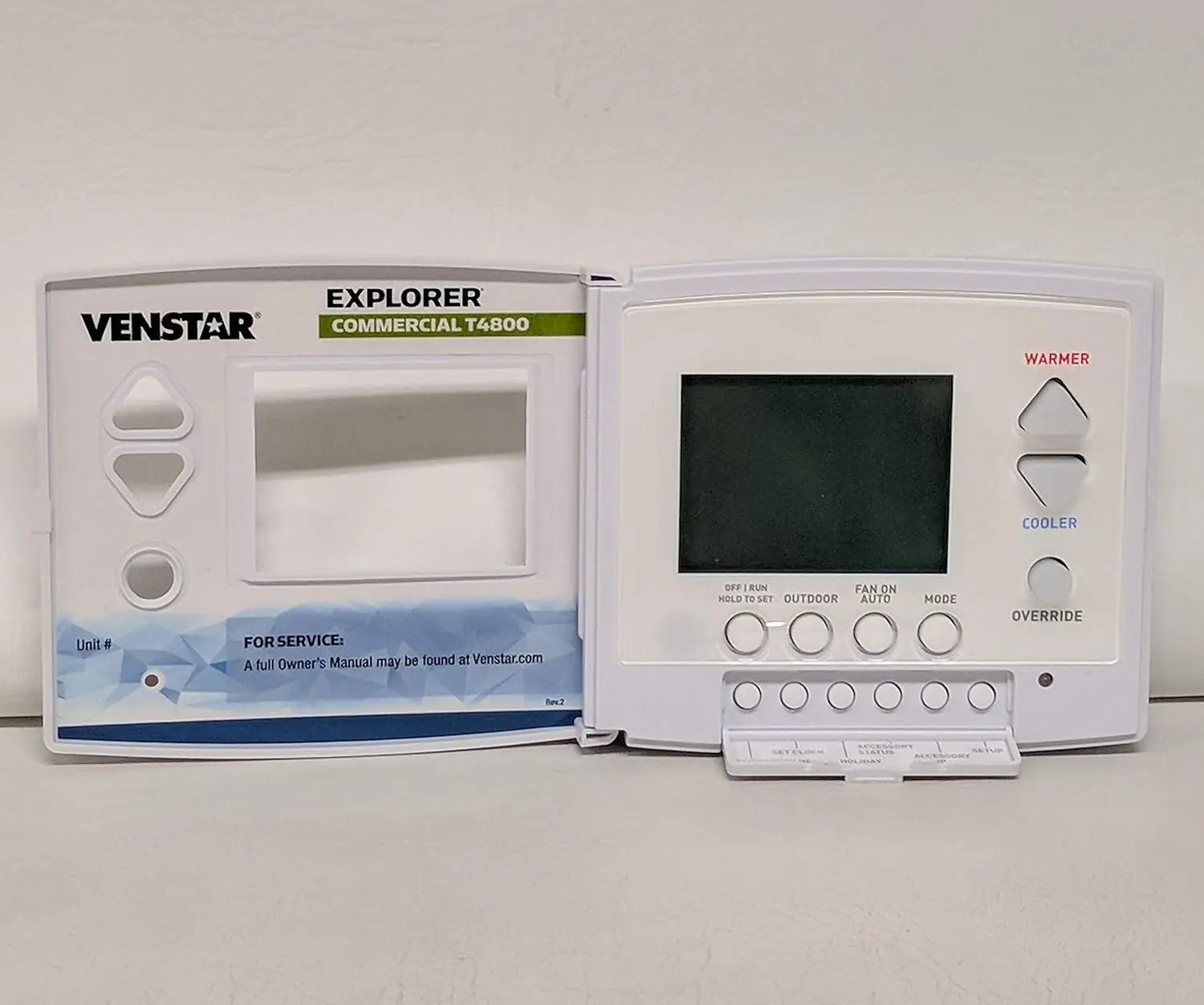
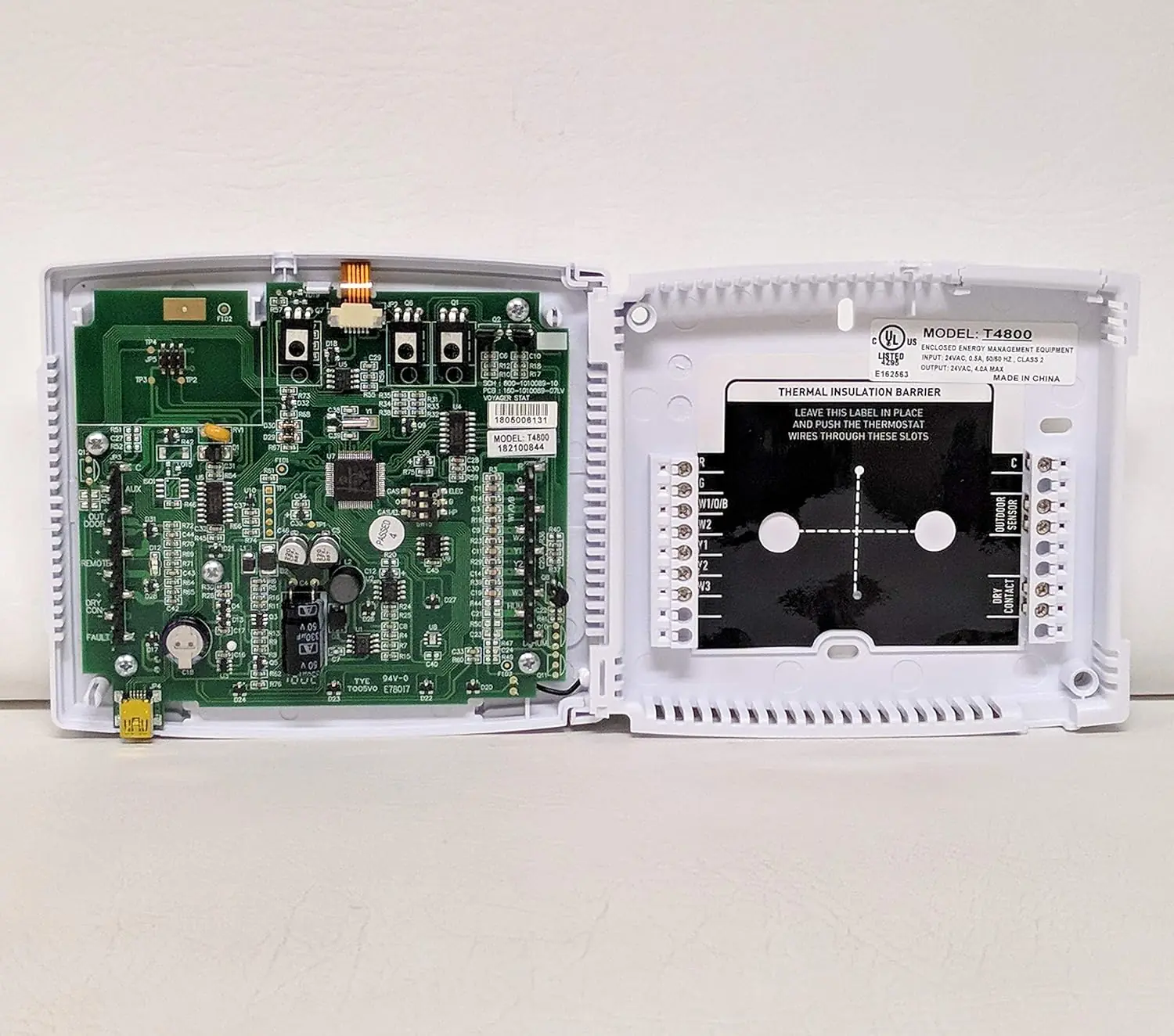
Venstar T4800 Thermostat Specifications
| Feature | Specification | Default Setting (where applicable) |
|---|---|---|
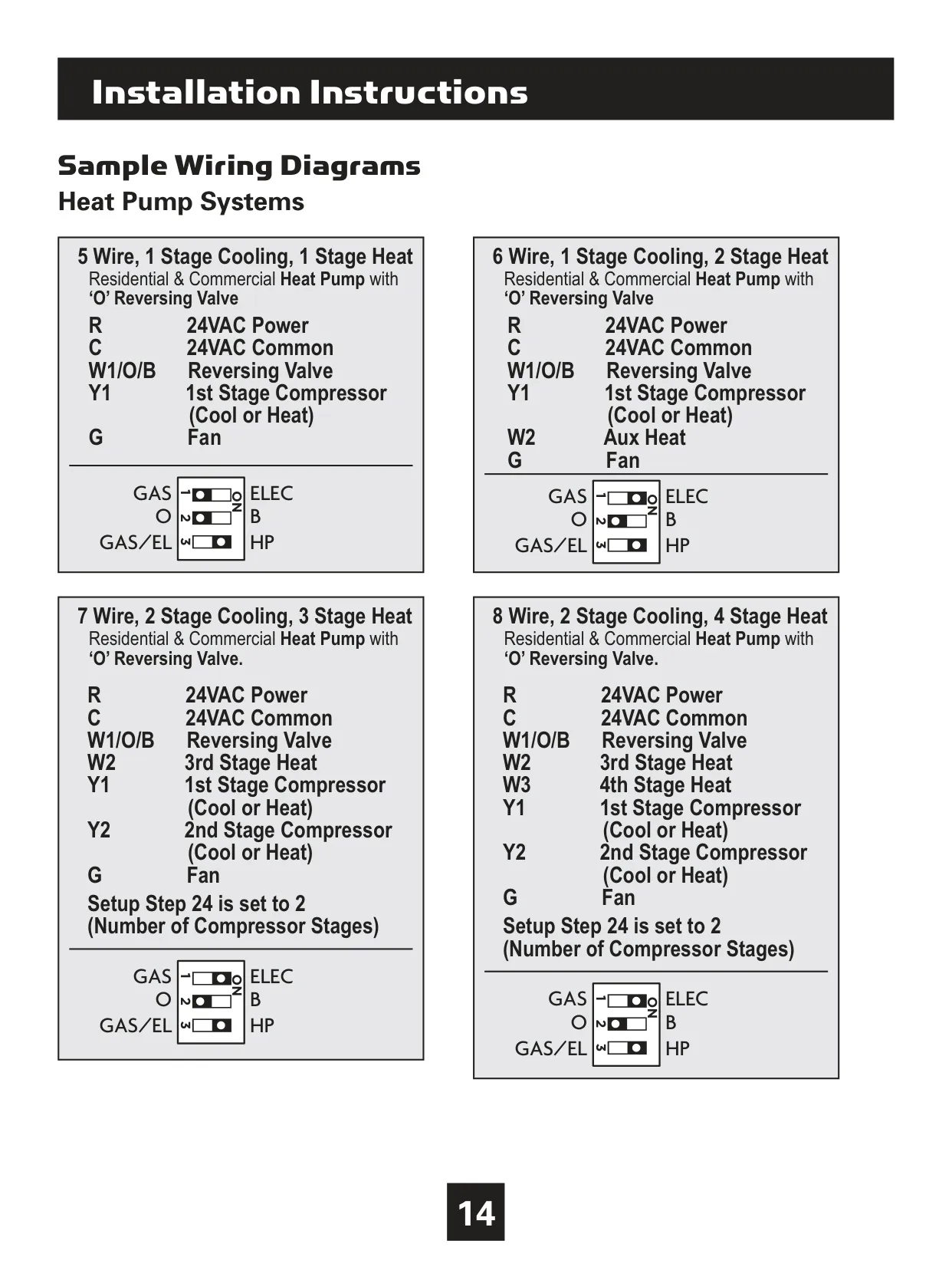
| System Compatibility | 24V systems (R & C wires required), Gas, Electric, Oil, Forced Air, Variable Speed, Heat Pump, Radiant Heat | N/A |
| Heating Stages | 1, 2, or 3 stages (W1, W2, W3) | 2 |
| Cooling Stages | 1 or 2 stages (Y1, Y2) | 1 |
| Heat Pump Stages | 1 or 2 compressor stages with auxiliary heat (Y, W1, O/B) | 1 (compressor), 0 (aux) |
| Fan Control | Independent (G) | N/A |
| Power Requirement | 24 VAC (R, C) | N/A |
| Wireless Module Support | Optional Wi-Fi (MUH-SKYPORT3), Z-Wave | N/A |
| Firmware Version (Manual) | Rev. 12 (updates available) | N/A |
| FCC ID / IC | MUH-SKYPORT3 / 12547A-SKYPORT3 | N/A |
| RF Exposure Separation Distance | Minimum 20 cm | N/A |
| Setpoint Temperature Range | 35°F - 99°F | Max Heat: 74°F, Min Cool: 70°F |
| Cycles Per Hour (HVAC Unit) | No Limit, 2, 3, 4, 5, 6 | 6 |
| Compressor Minimum Off Minutes | 0, 3, 5 minutes | 5 minutes |
| Min. Heat/Cool Setpoint Difference | 0 - 6 degrees (in Auto mode) | 2 degrees |
| 1st Stage Deadband | 1 - 6 degrees | 2 degrees |
| 2nd, 3rd, 4th Stage Deadband | 0 - 10 degrees (additional) | 2 degrees (each) |
| Minutes Between Stages | 0 - 60 minutes | 2 minutes (between 1st & 2nd, 2nd & 3rd, 3rd & 4th) |
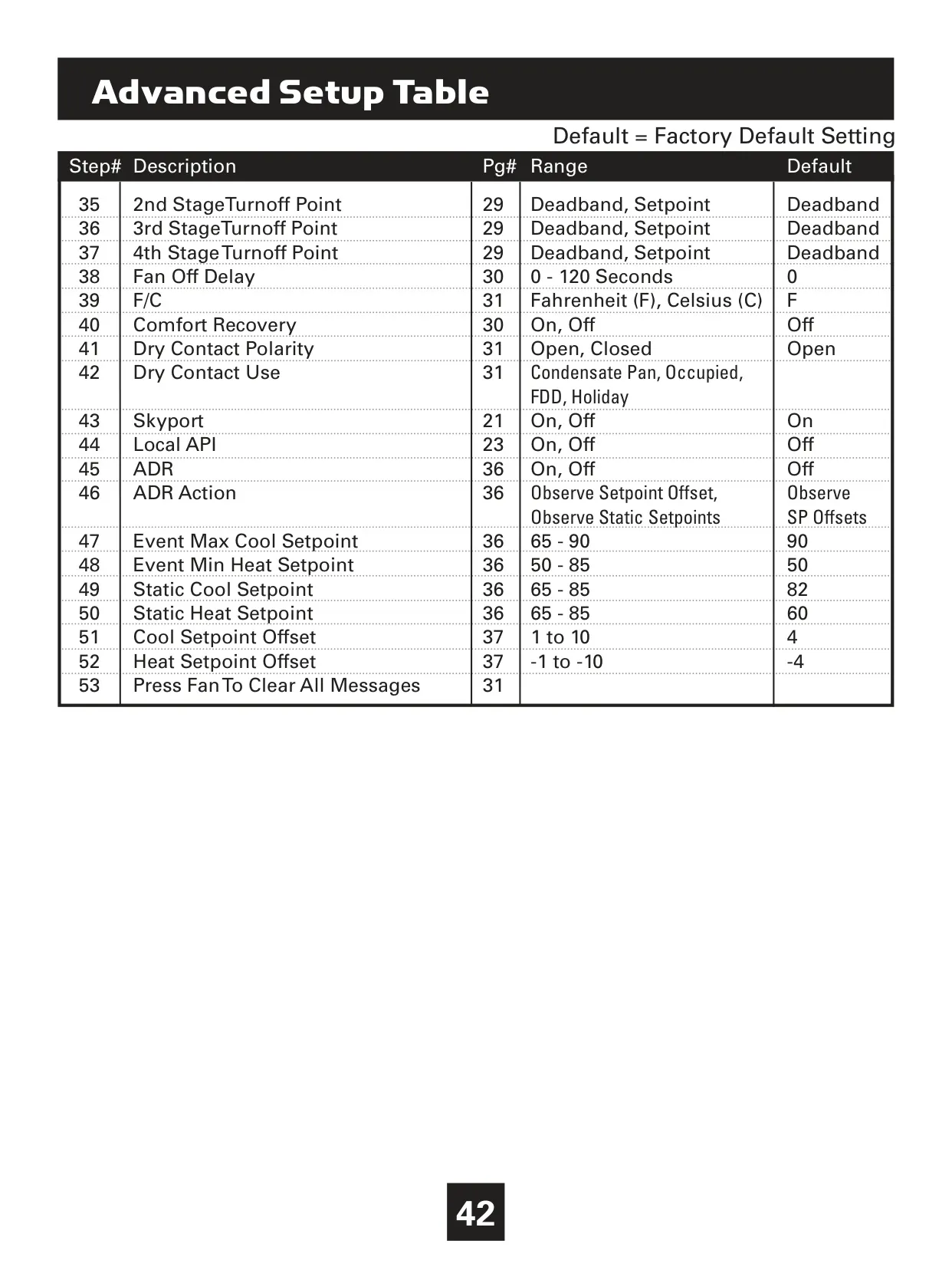
| Fan Off Delay | 0, 30, 60, 90, 120 seconds | 0 seconds |
| Temperature Display Unit | Fahrenheit (F), Celsius (C) | Fahrenheit (F) |
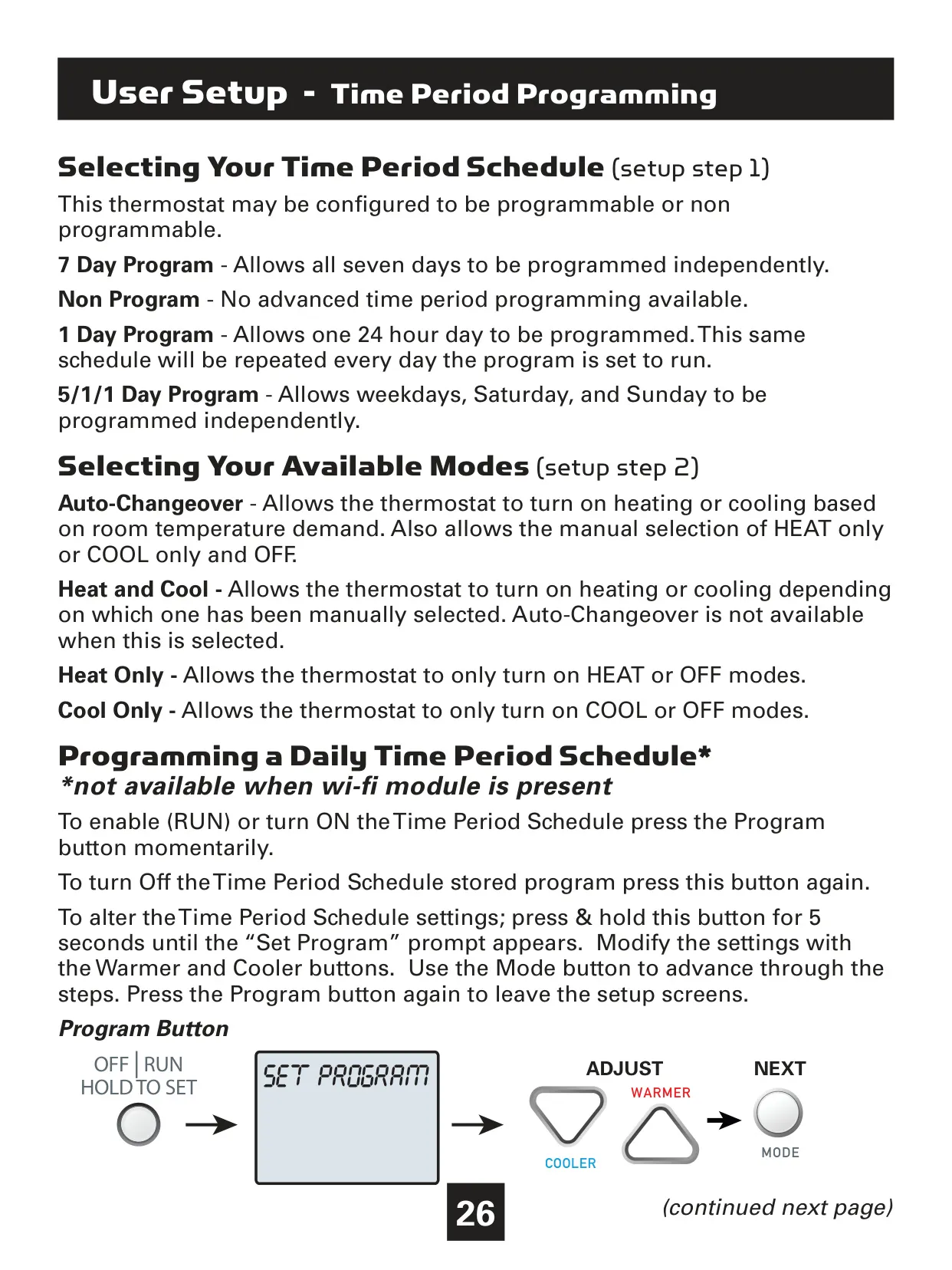
| Program Modes | Non-Programmable, 1 Day, 5/1/1 Day, 7 Day | 7 Day |
| Available Modes | Heat/Cool/Auto/Off, Heat/Cool/Off, Heat/Off, Cool/Off | Heat/Cool/Auto/Off |
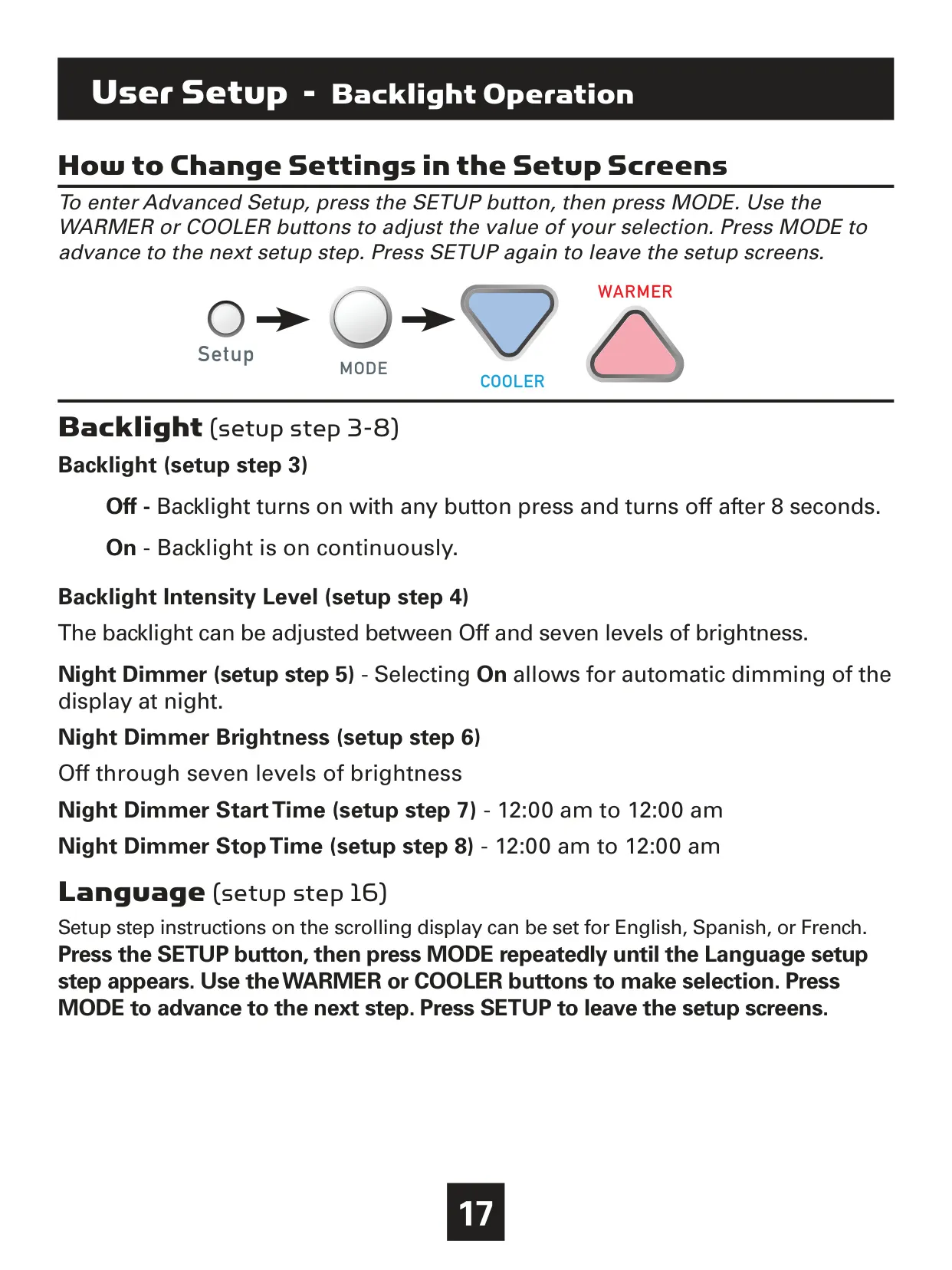
| Backlight Operation | On/Off (continuous or 8-second timeout) | Off (8-second timeout) |
| Backlight Intensity Level | Off through 7 levels of brightness | Level 5 |
| Night Dimmer | On/Off | Off |
| Night Dimmer Brightness | Off through 7 levels of brightness | 2 (20%) |
| Night Dimmer Start/Stop Time | 12:00 am to 12:00 am | 8:00 PM / 6:00 AM |
| Dry Contact Polarity | Open, Closed | Open |
Venstar T4800 Thermostat Details
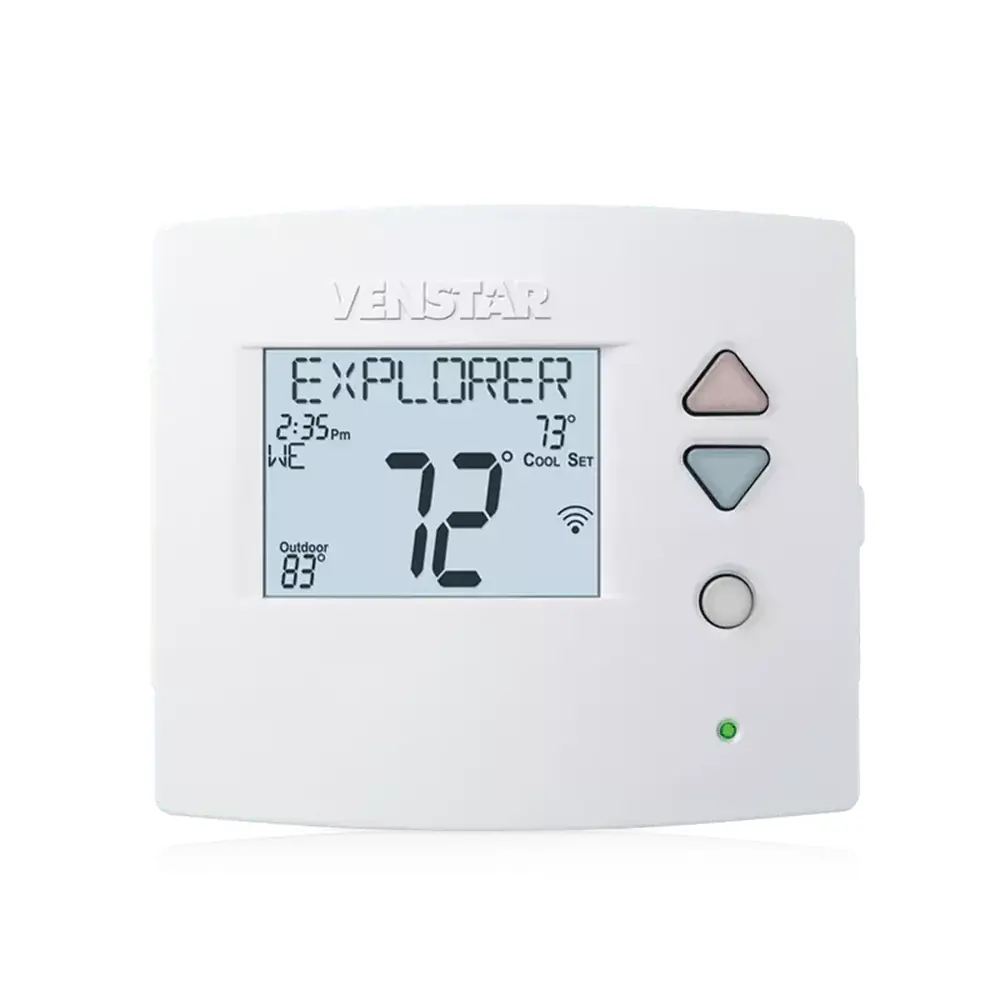
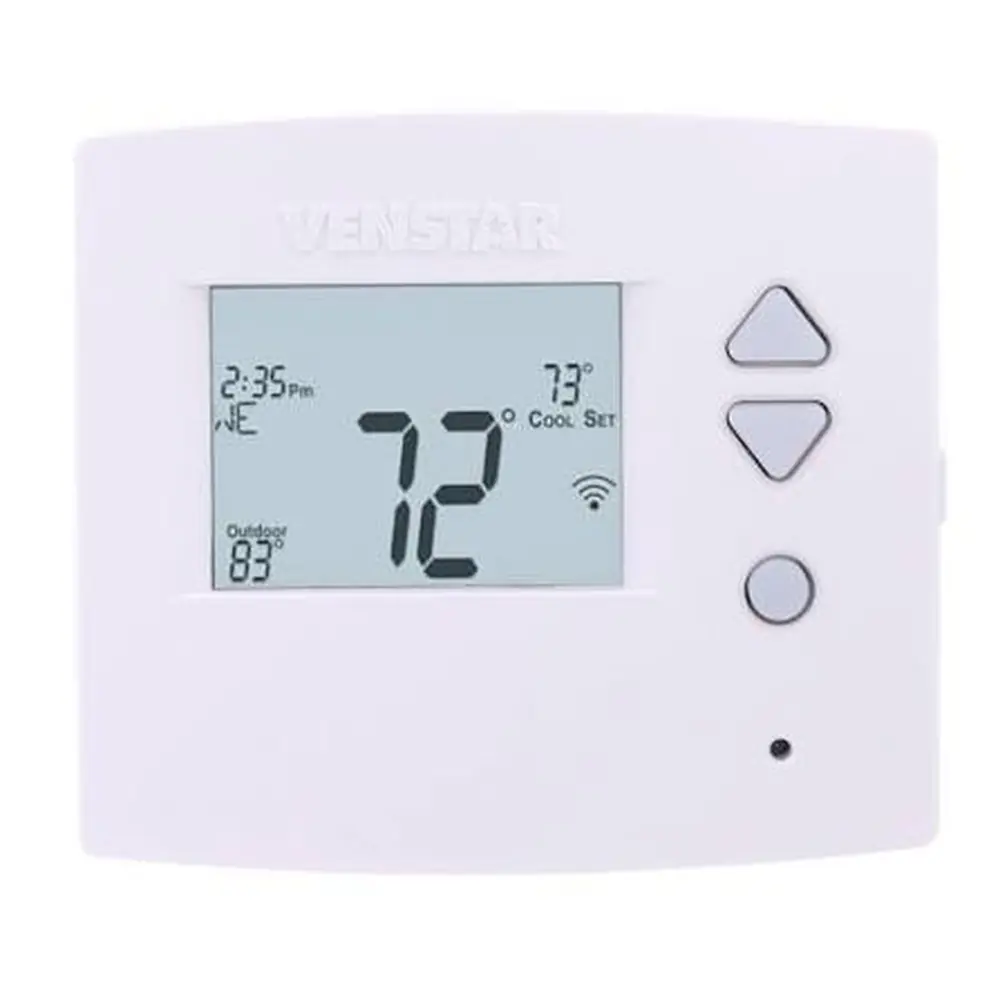
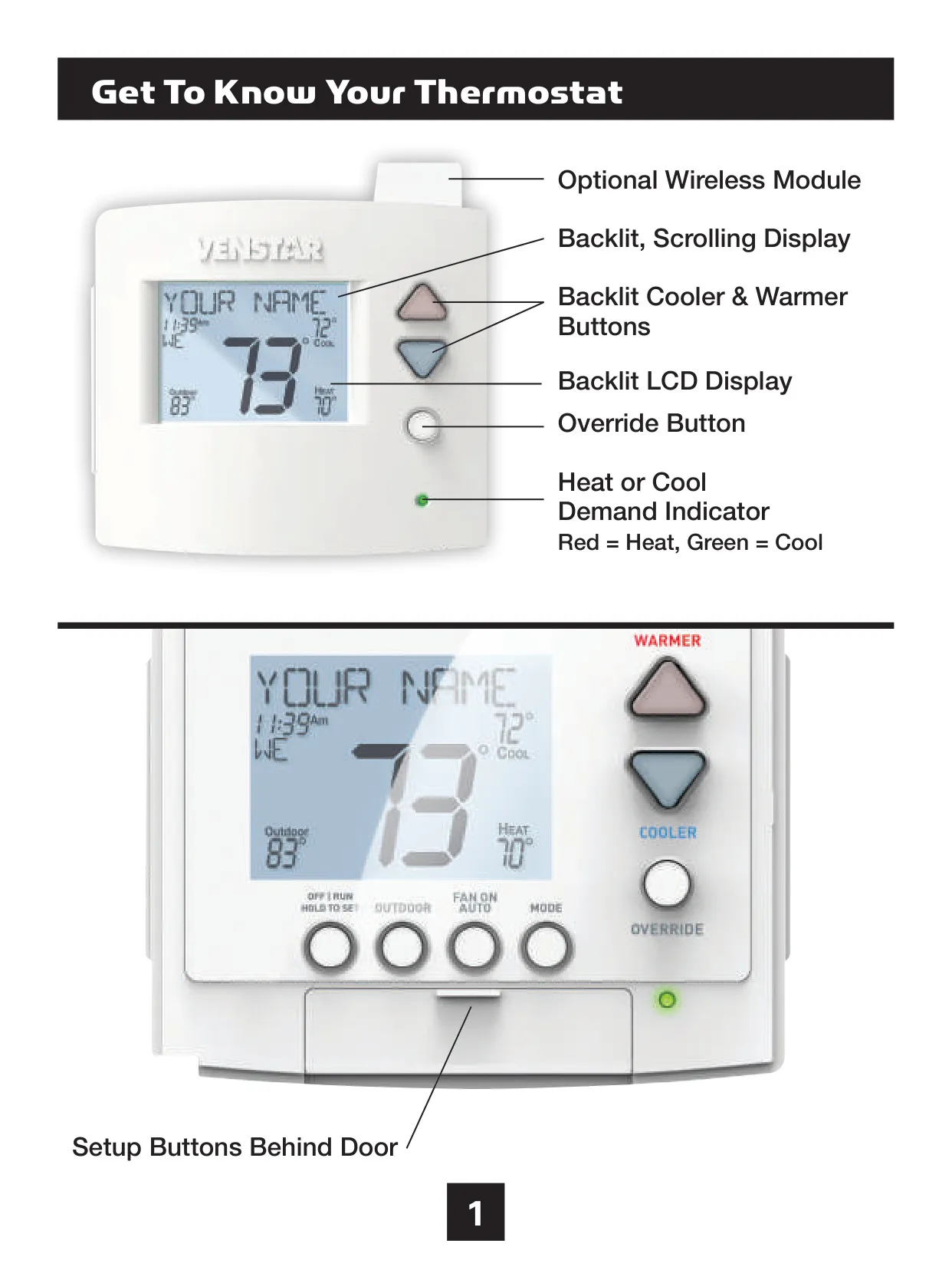
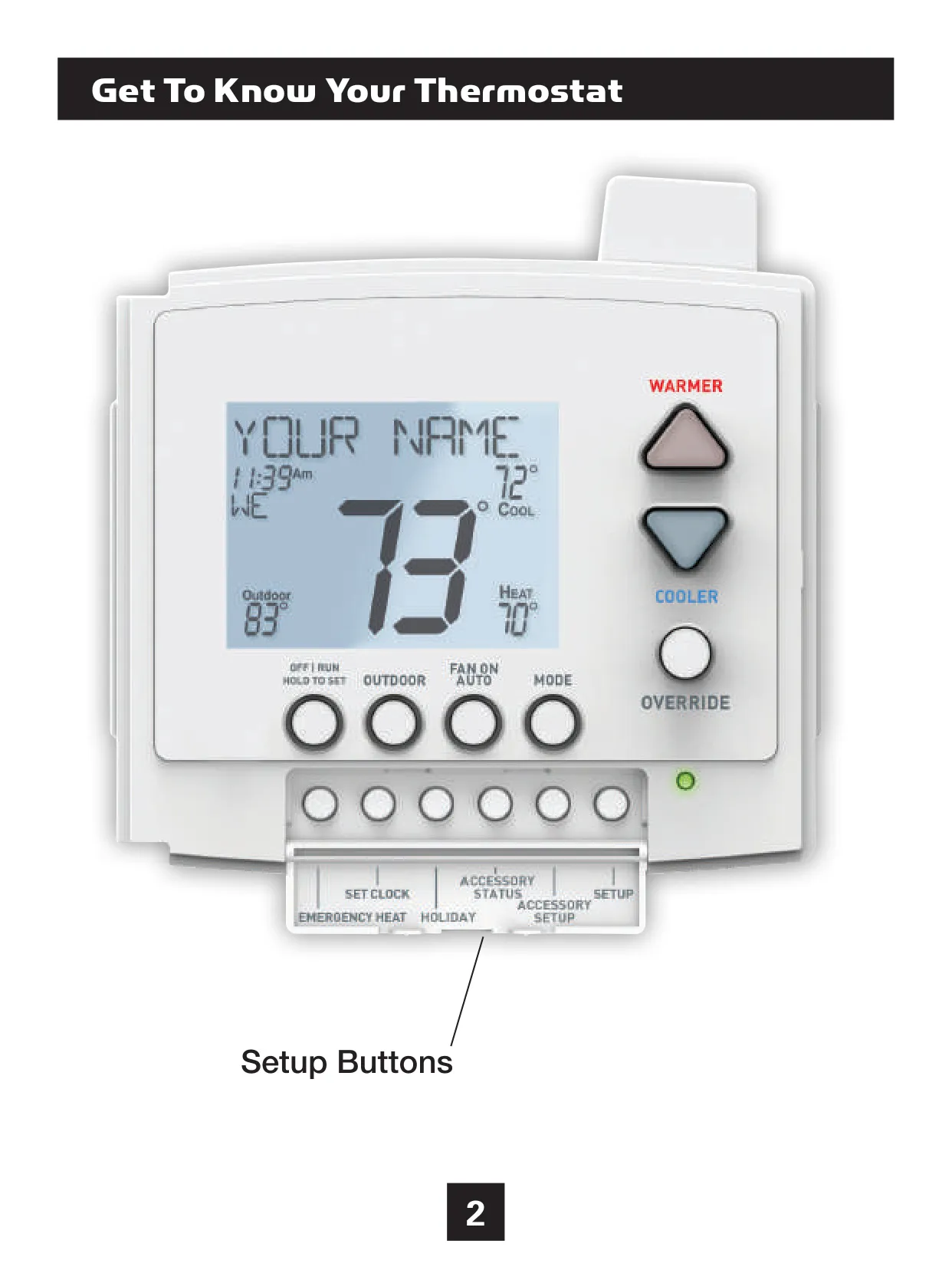
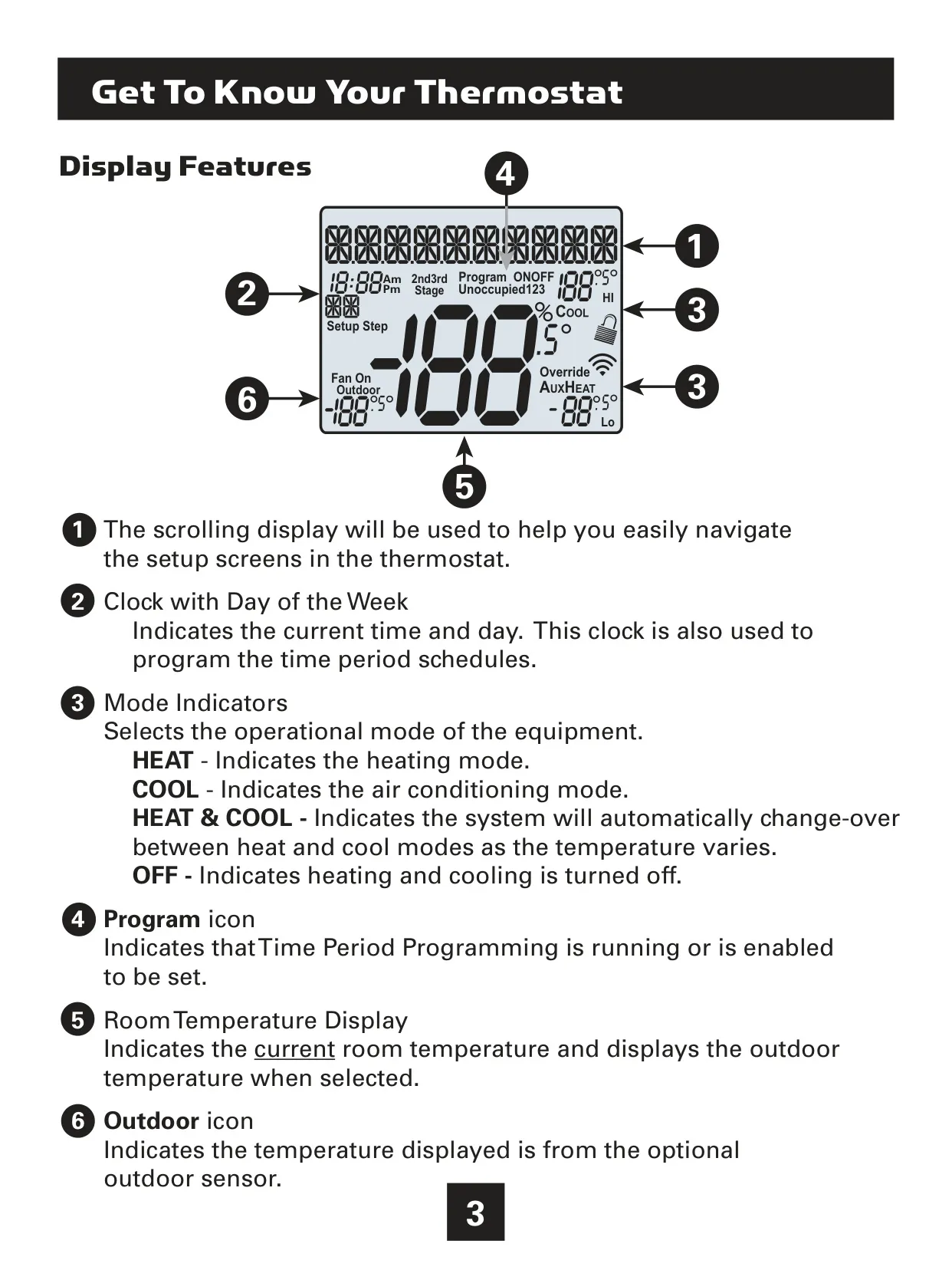
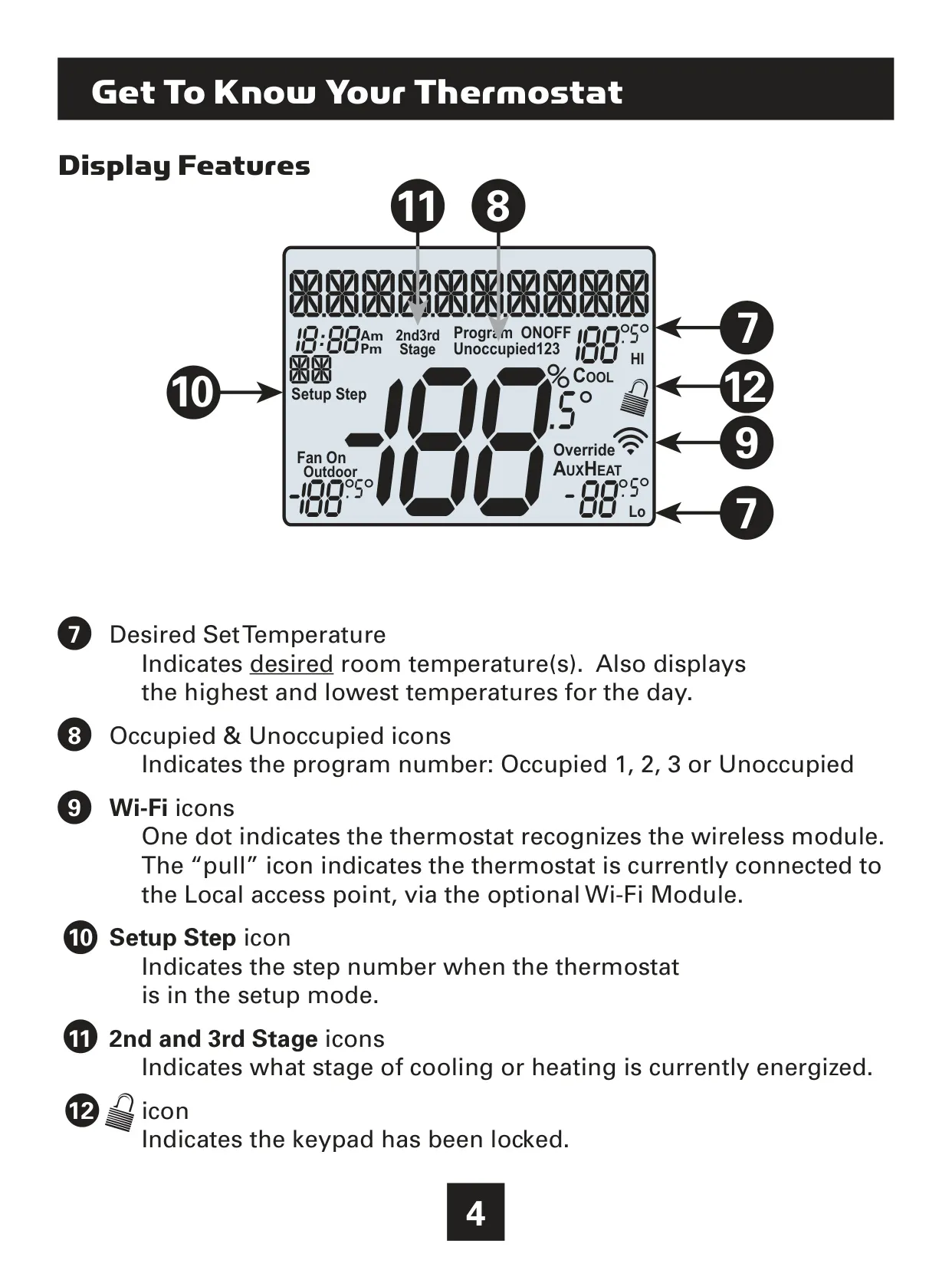
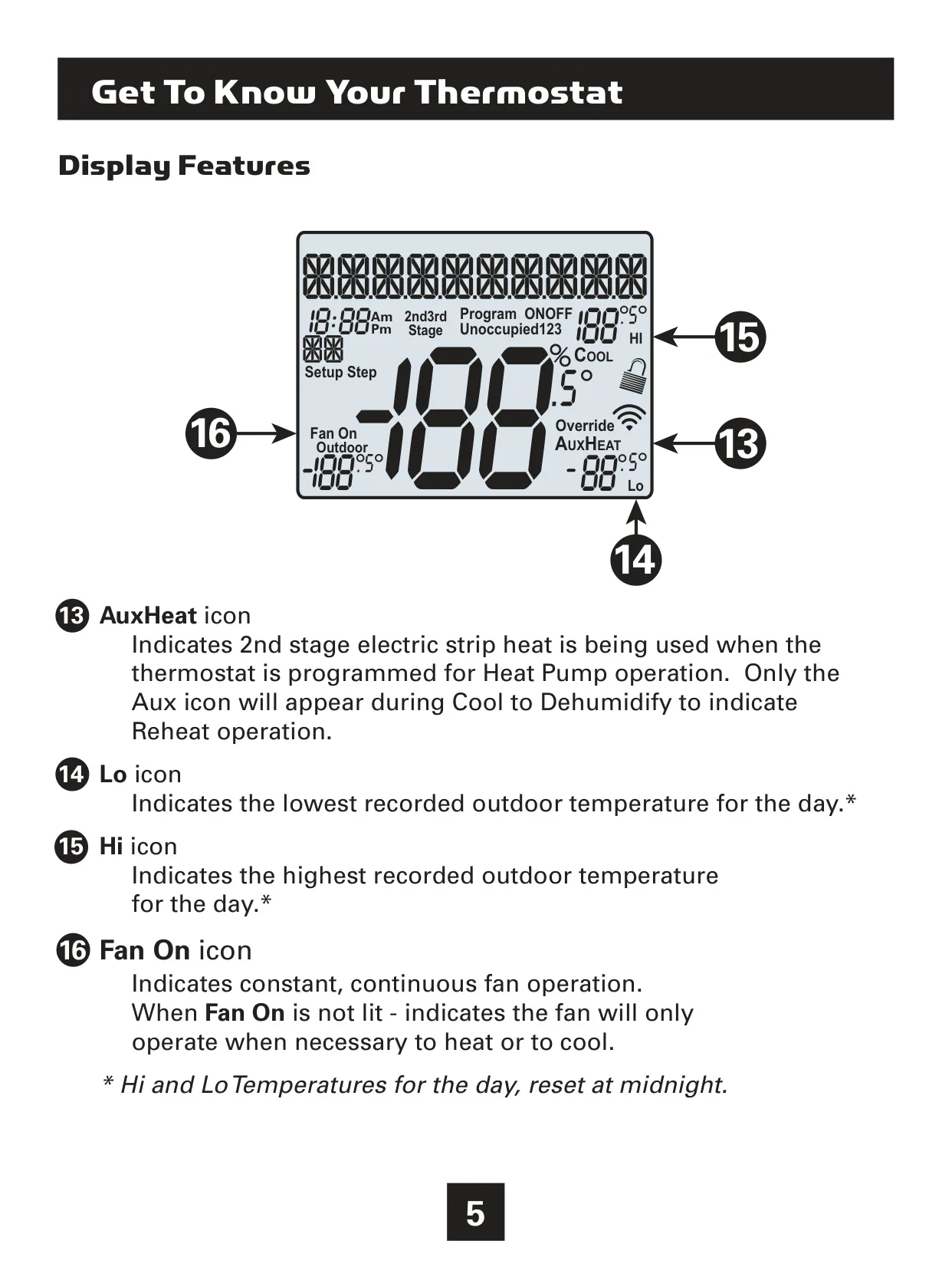
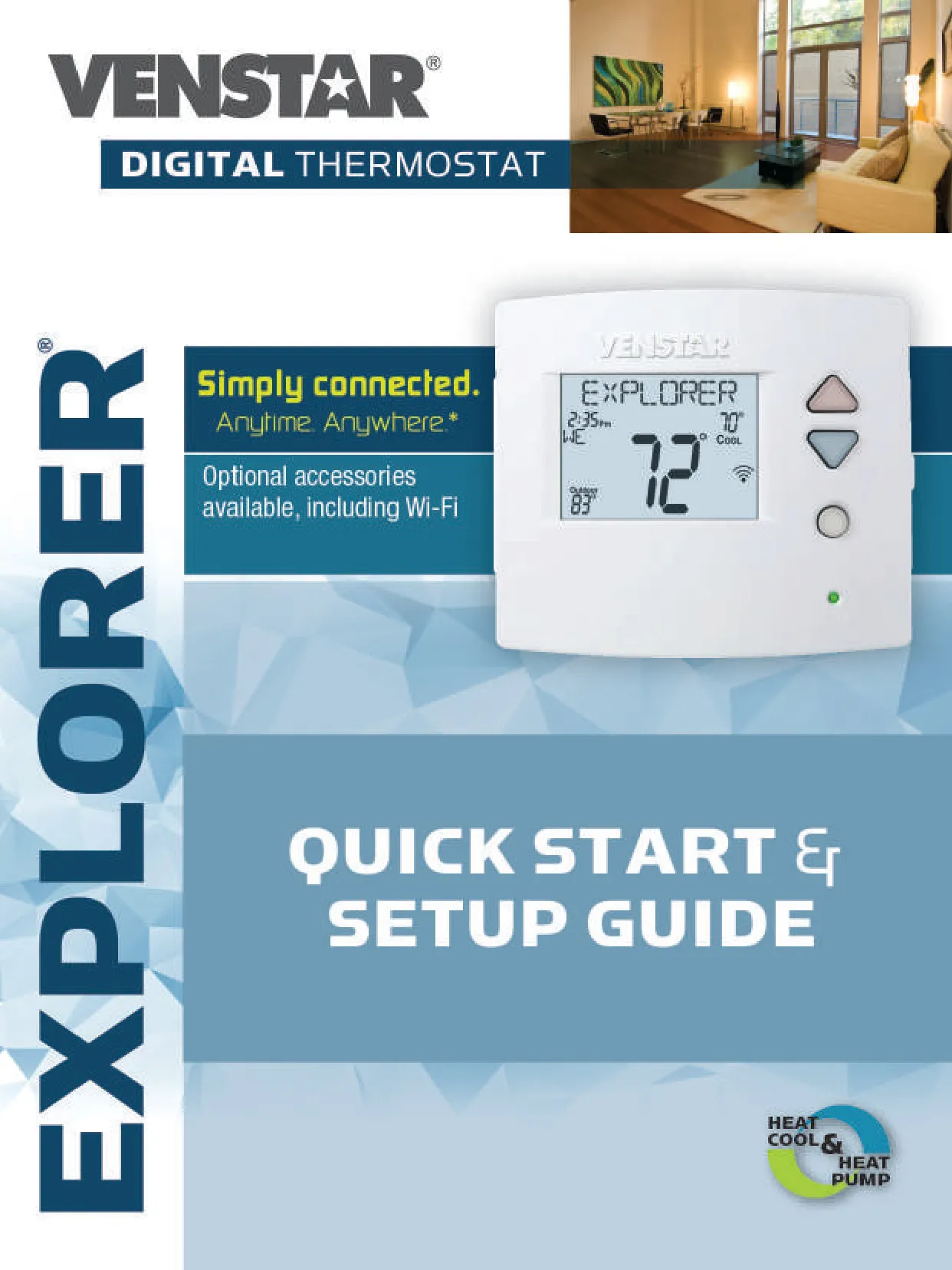
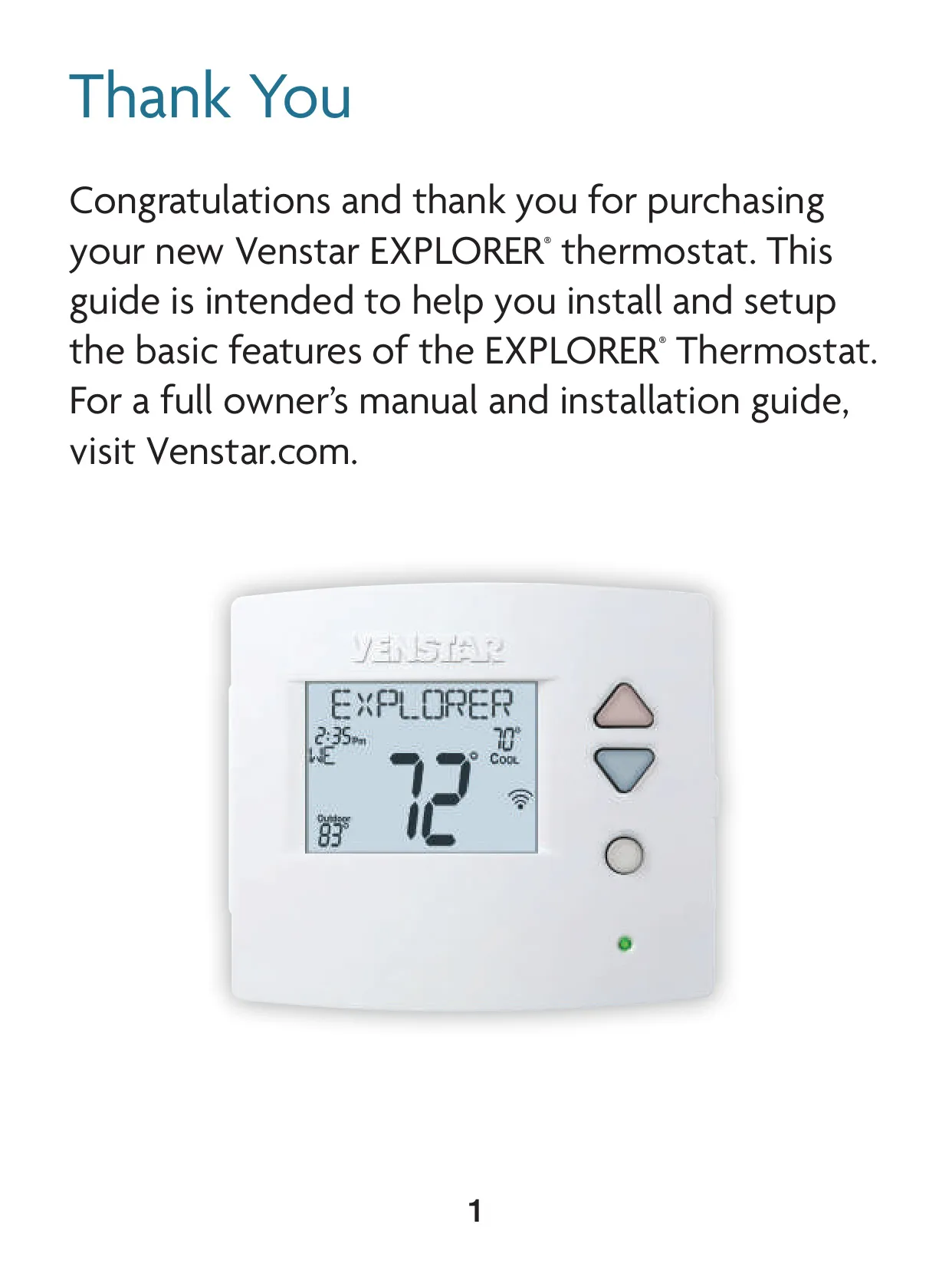
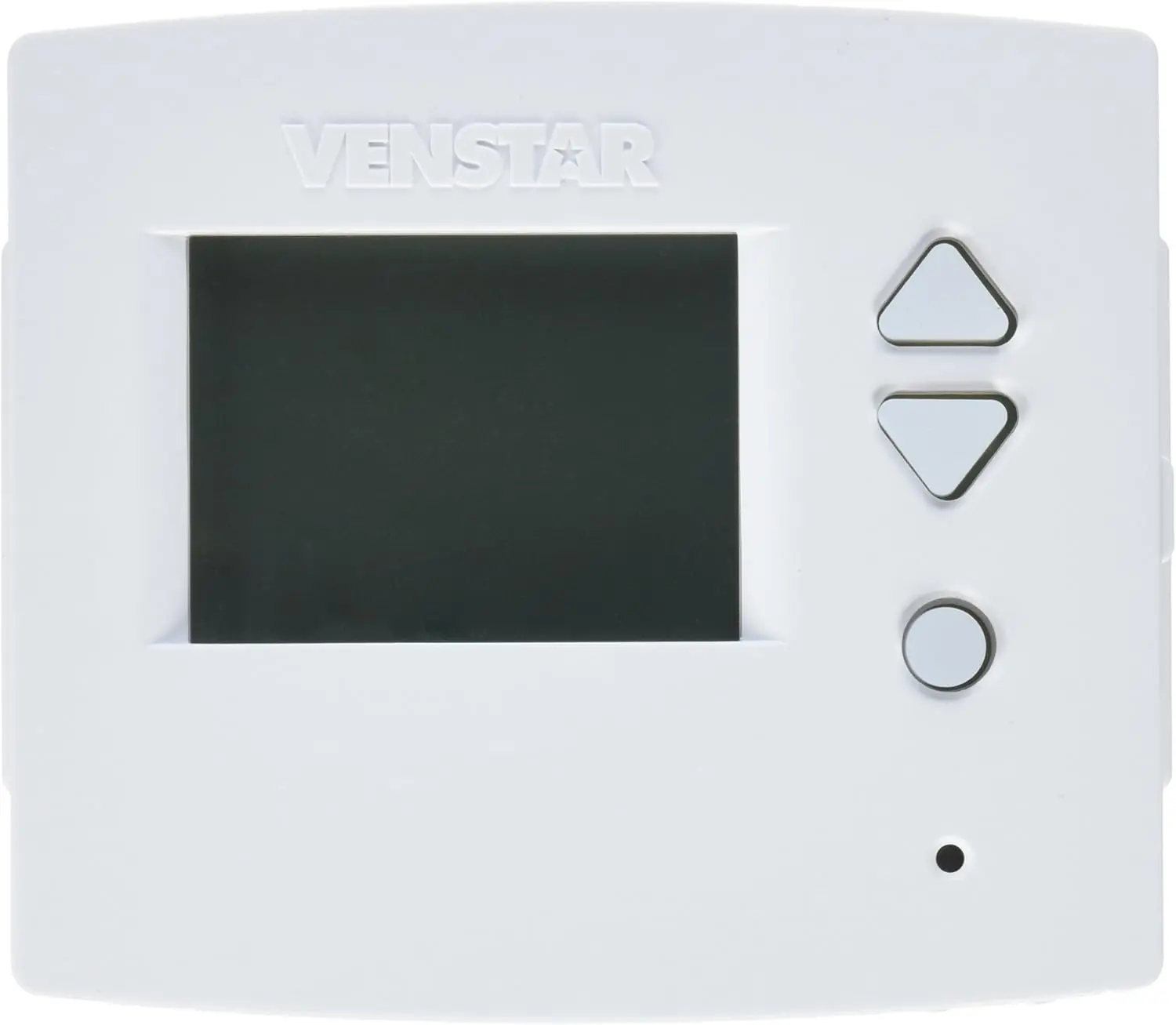
The Venstar T4800 Thermostat, an Explorer series device, features a highly intuitive backlit LCD display with a scrolling text marquee for easy navigation through setup screens and information. It provides clear mode indicators for Heat, Cool, Auto-Changeover, and Off, alongside icons for program status, occupied/unoccupied periods, and wireless connectivity. This design ensures users have immediate visibility of critical system information and settings.
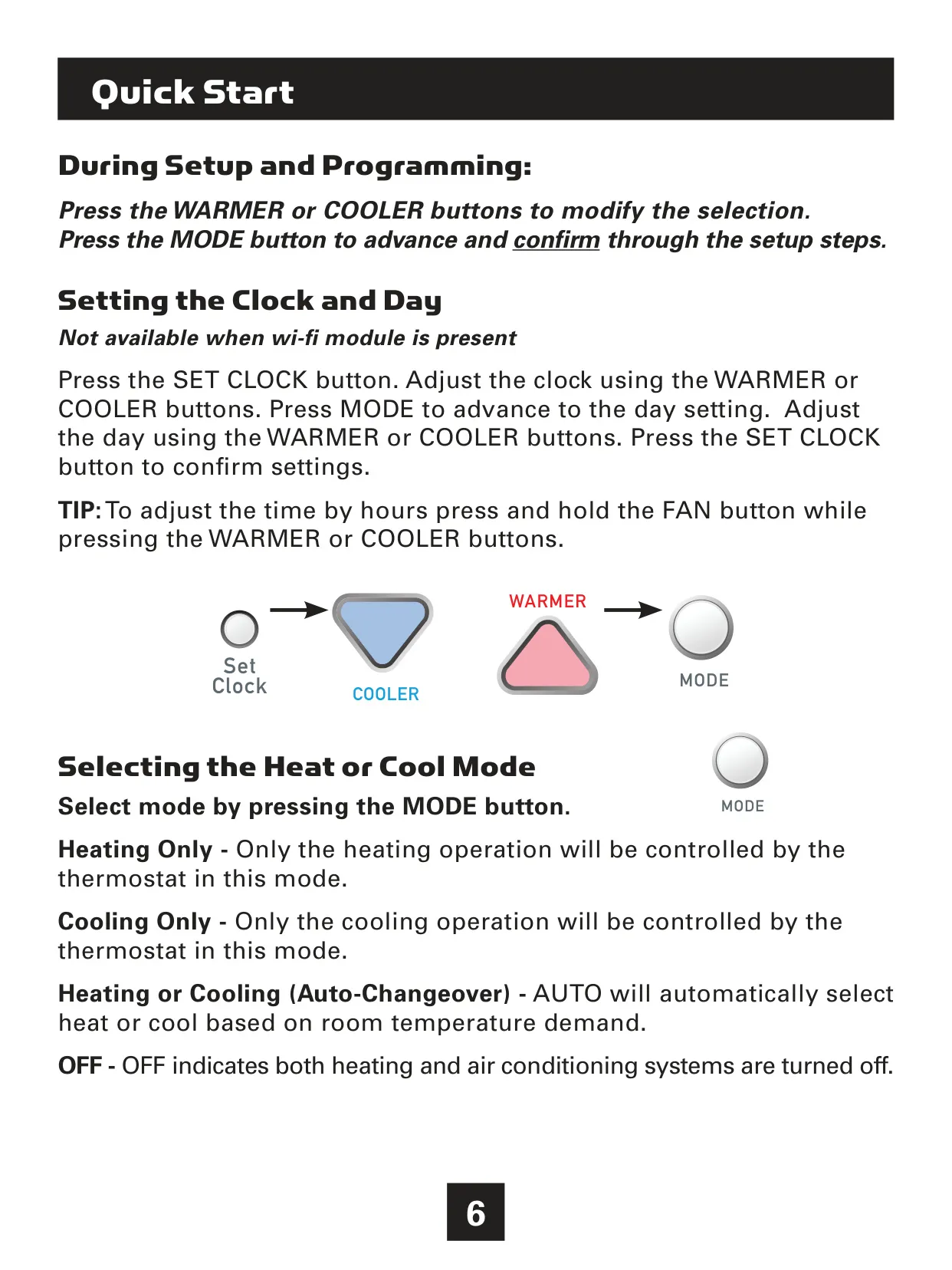
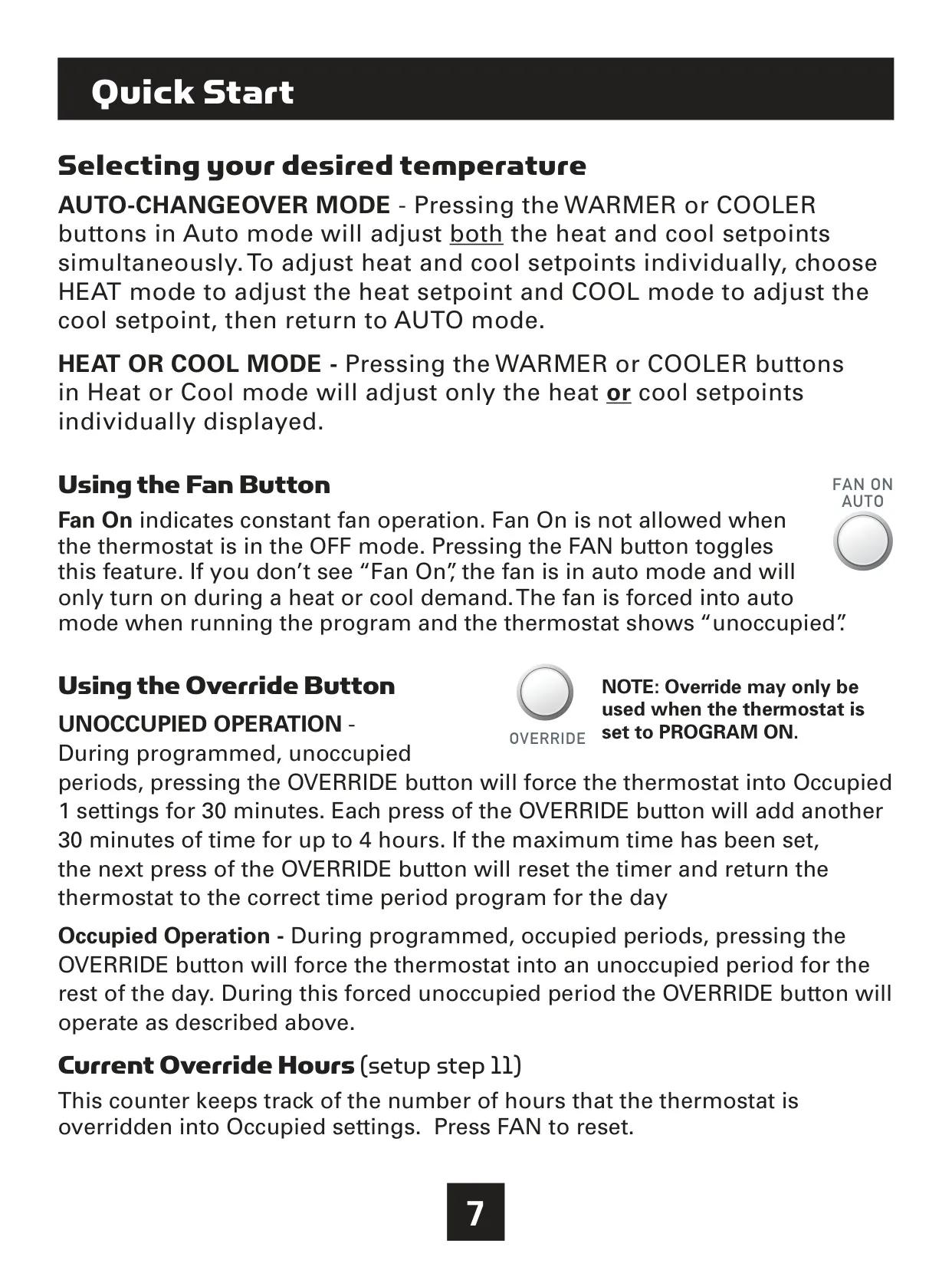
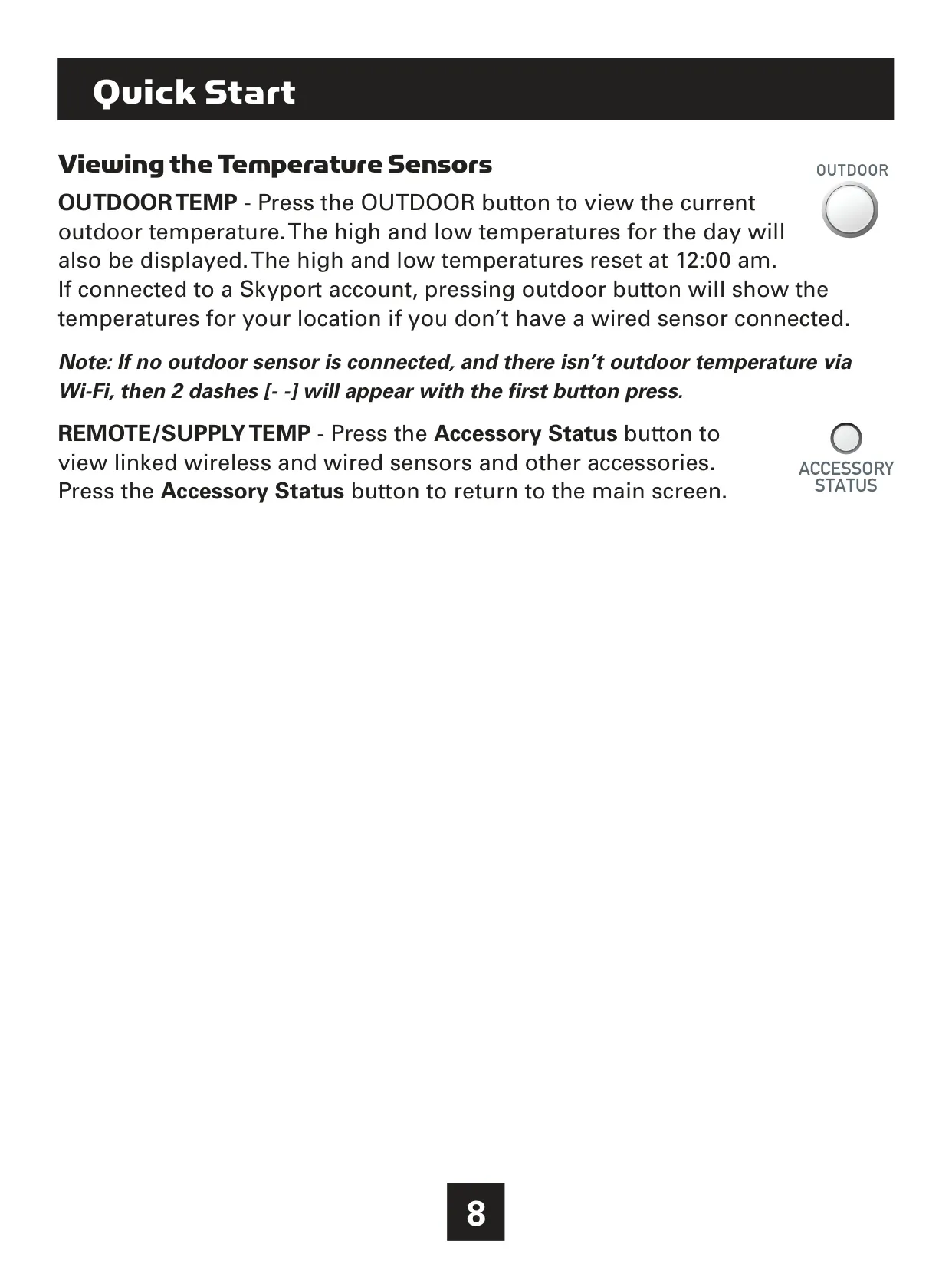
User interaction is streamlined with dedicated Cooler, Warmer, Mode, Set Clock, and Setup buttons. The device also includes an Override button, crucial for temporarily adjusting programmed settings, and an Outdoor button to display ambient temperatures, including daily high and low records. The ability to view Hi and Lo temperatures for the day, which reset at midnight, adds valuable environmental context.
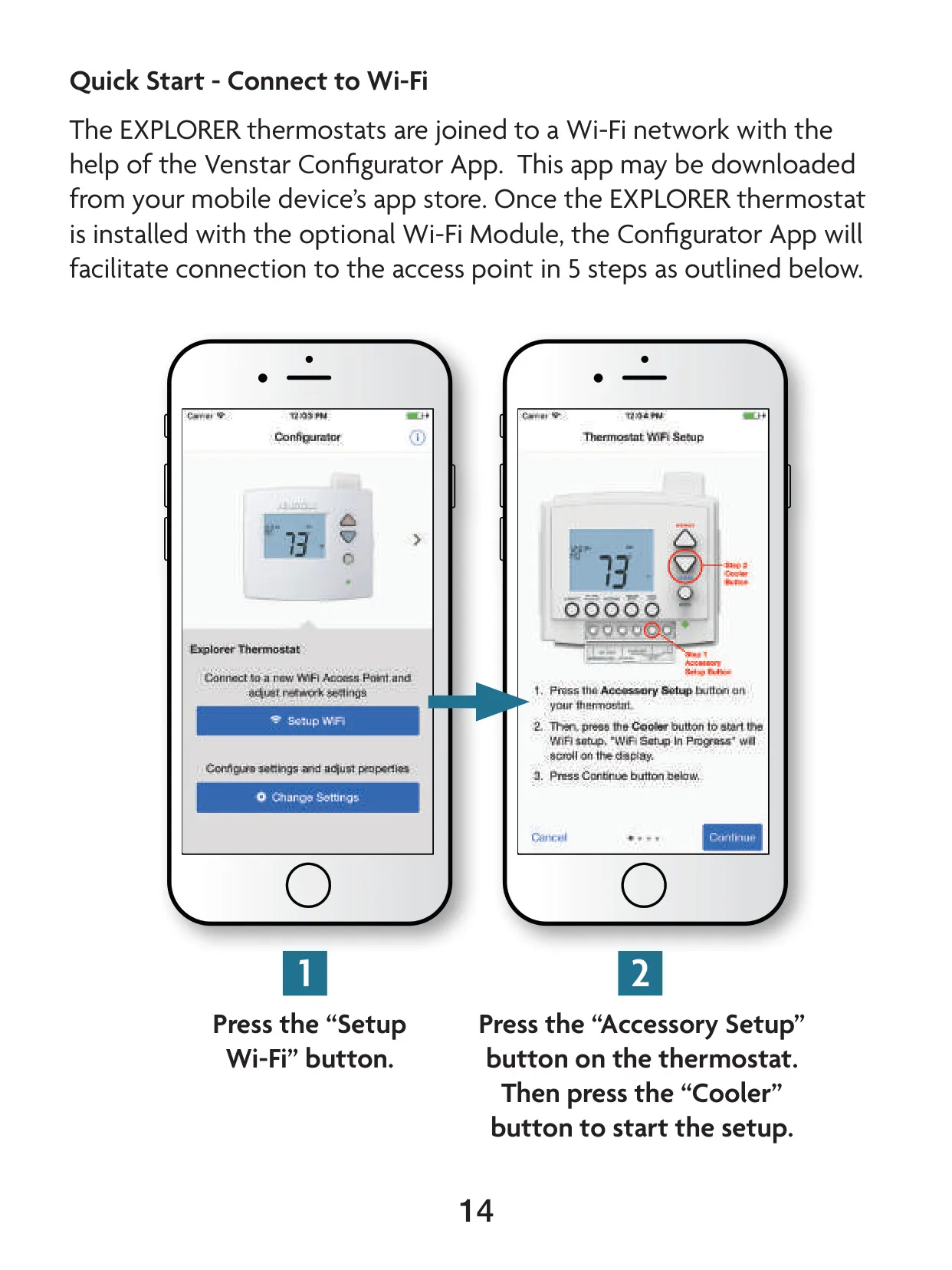
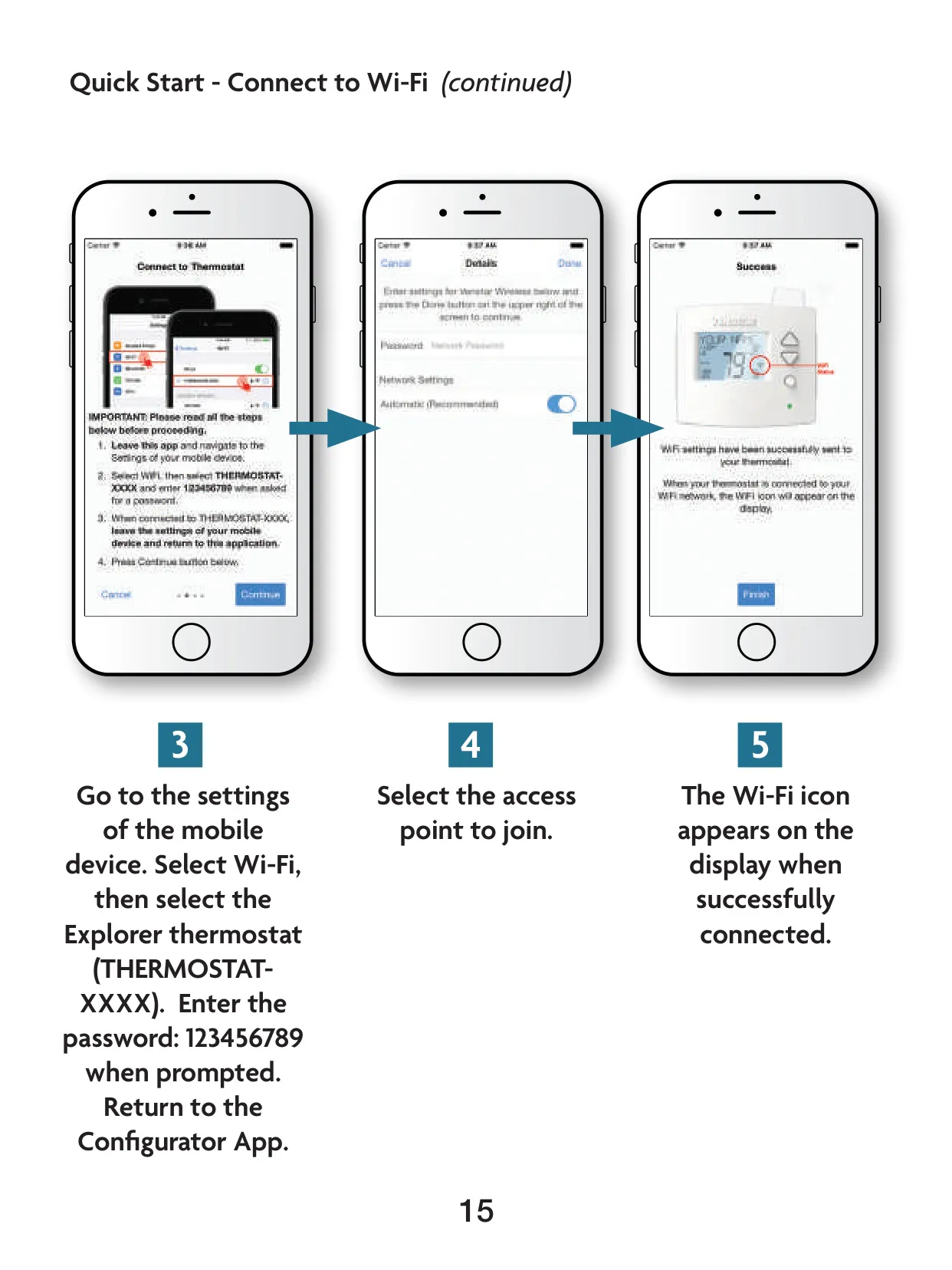
For enhanced functionality, the T4800 supports optional wireless modules, including Wi-Fi for integration with Skyport Cloud Services and Z-Wave for home automation networks. The Wi-Fi module enables remote control and configuration via the Skyport Web App or mobile app, providing statuses like signal strength, IP address, and connection type. This connectivity is vital for modern smart home environments.
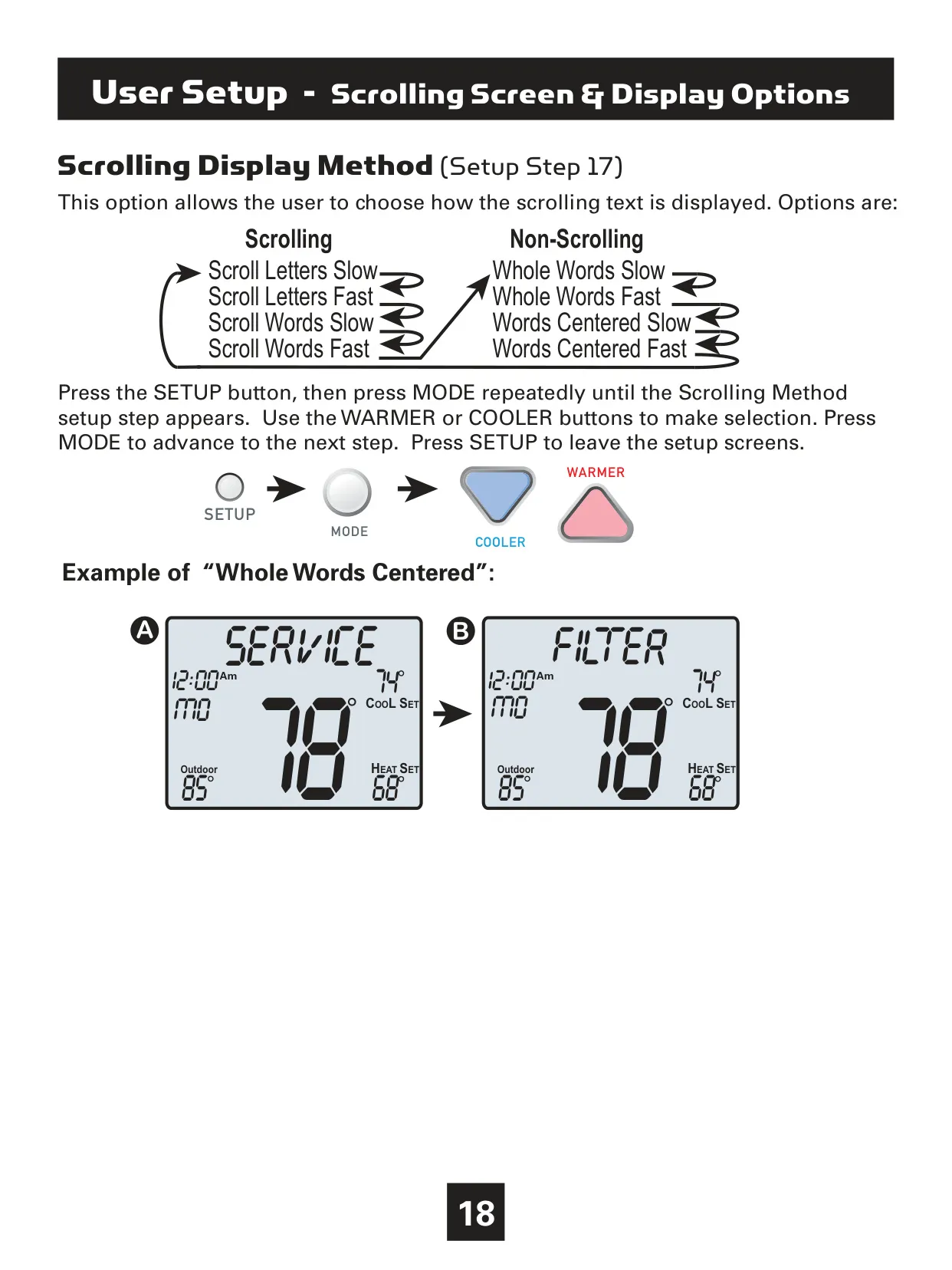
The thermostat includes comprehensive user setup options such as backlight intensity control, a night dimmer feature with adjustable brightness and timings, and multilingual support for English, Spanish, and French. Its unique scrolling display method can be customized for speed and presentation, offering choices like "Whole Words Centered Fast" for optimal readability.
Advanced features include a Holiday setting for temporary energy-saving modes, which integrates seamlessly with Skyport when a Wi-Fi module is present. For heat pump systems, an Emergency Heat function activates auxiliary heating stages when needed, temporarily disabling the main heating and cooling stages to prioritize warmth.
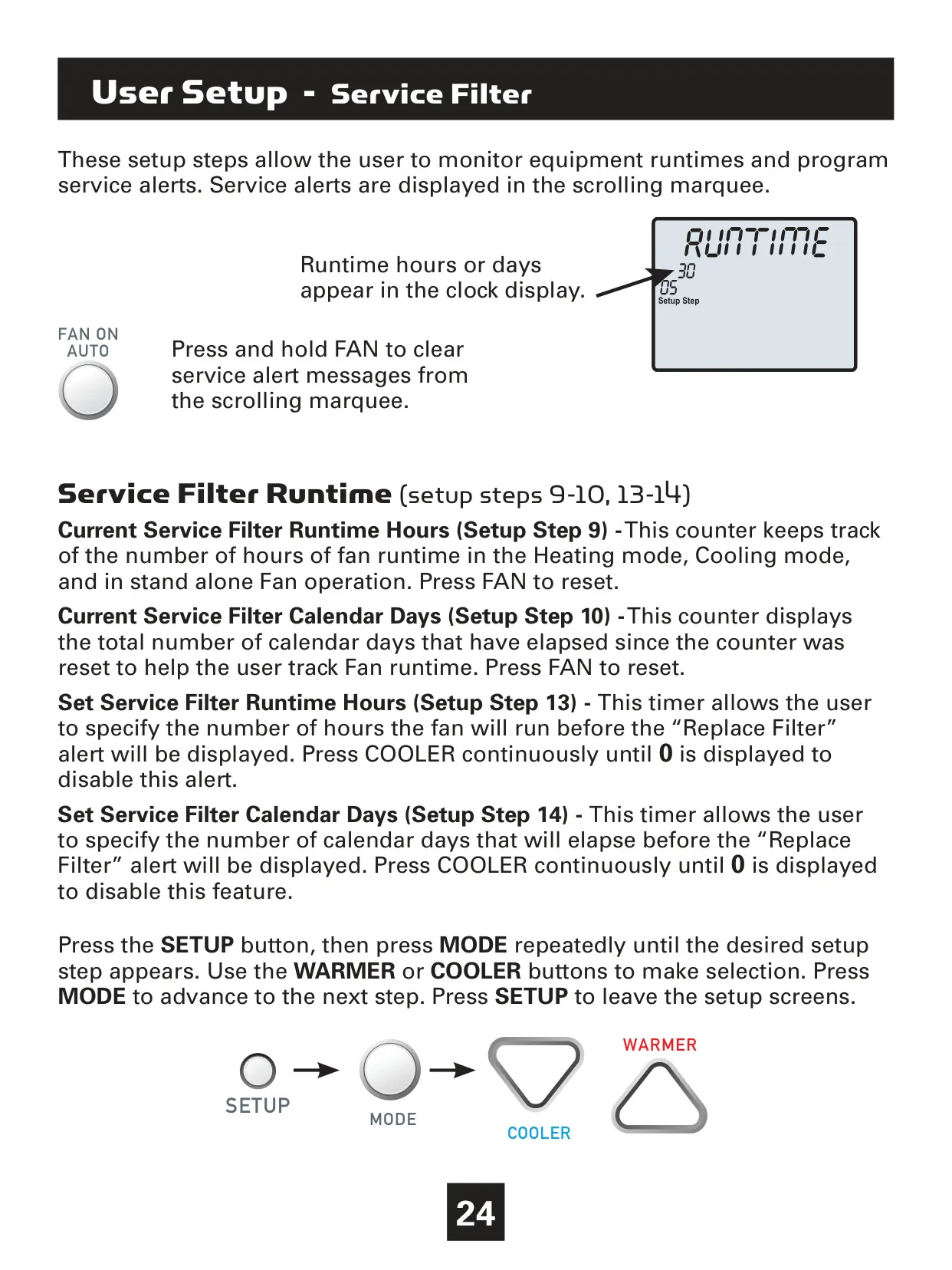
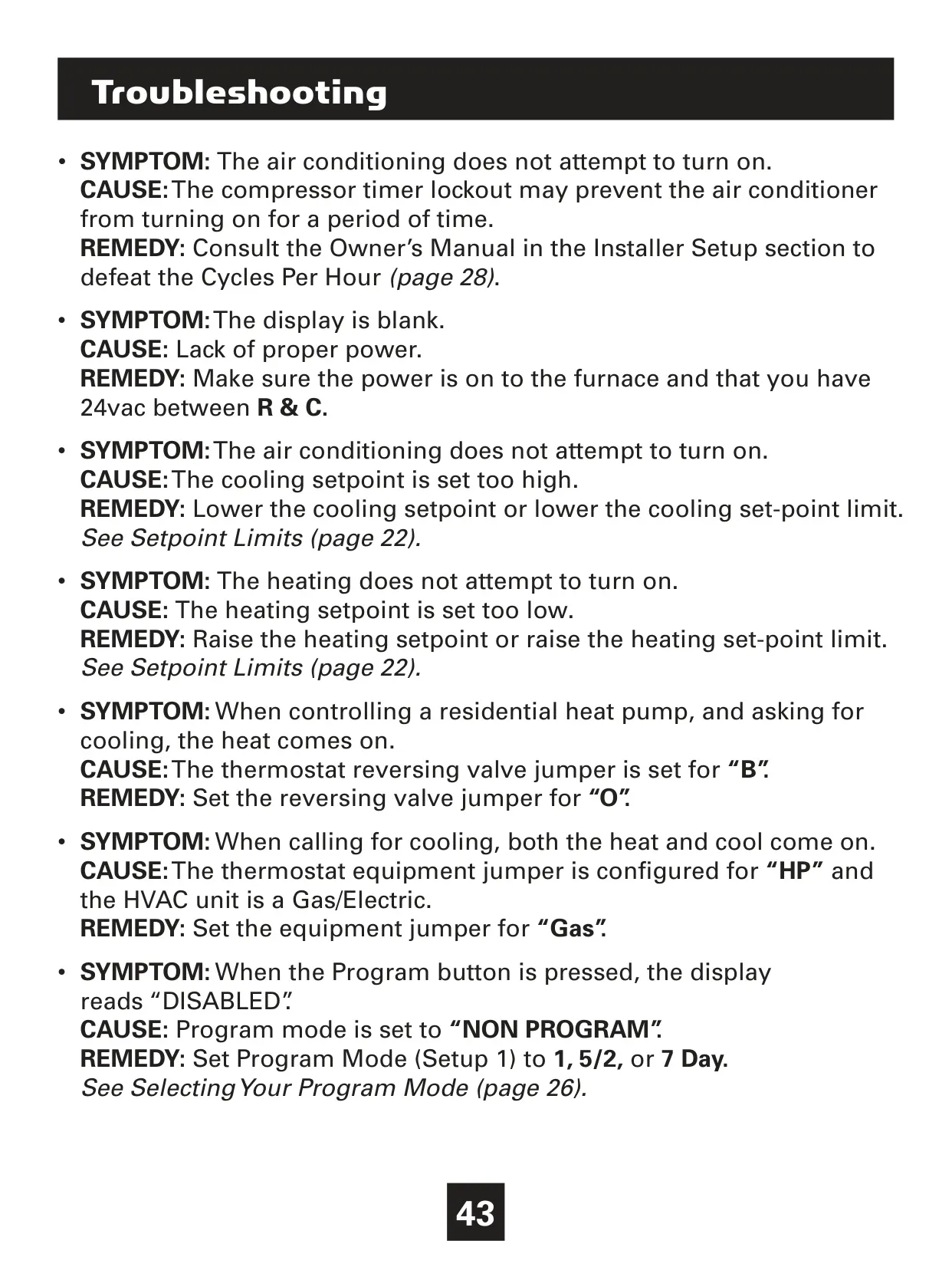
The T4800 monitors equipment health through service alerts for filter runtime and UV lamp calendar days. Users can set timers for these alerts, with messages appearing on the scrolling marquee, which can be cleared by pressing the FAN button. This proactive maintenance reminder helps ensure optimal system performance and longevity.
Installer-level settings offer granular control over system operation. These include customizable setpoint limits, which can be configured for different security levels, ranging from no restrictions to completely frozen setpoints. The thermostat also allows adjustment of the number of cycles per hour and minimum compressor off times to protect HVAC equipment from excessive wear.
Further customization is available through adjustable deadband settings for each heating and cooling stage, specifying temperature differentials before stages activate. Additionally, the time delay between stages can be precisely configured, along with the turnoff point for subsequent stages (deadband or setpoint), optimizing system efficiency and comfort recovery.
The Comfort Recovery feature intelligently pre-starts the HVAC system to reach the programmed occupied setpoint exactly on time, learning from usage patterns over several days. A fan off delay after cooling or electric strip heating cycles can be set to maximize system efficiency by utilizing residual energy.
A dry contact input offers versatile functionality, capable of locking out the compressor for condensate pan overflows, forcing occupied/unoccupied modes, or indicating equipment faults. This flexibility makes the T4800 adaptable to various building management and safety requirements, enhancing its utility beyond basic temperature control.
The Venstar T4800 also supports Automated Demand Response (ADR), enabling it to react to signals from utility providers for energy cost management or load reduction events. This feature, configurable via Skyport, allows for observing setpoint offsets or static setpoints during events, with on-screen notifications and an opt-out option for users.
Finally, for security, the thermostat offers a keypad lockout function, disabling front panel buttons to prevent unauthorized adjustments. The ability to reset to factory defaults ensures a clean slate for new configurations, although Z-Wave module settings remain independent of this reset, highlighting a consideration for advanced users.
Frequently Asked Questions (FAQs)
Can't find the answer you need? Here are some frequently asked questions about the Venstar T4800 Thermostat, and we answer them below.