Zoom H2 Handy Recorder Instruction Manual
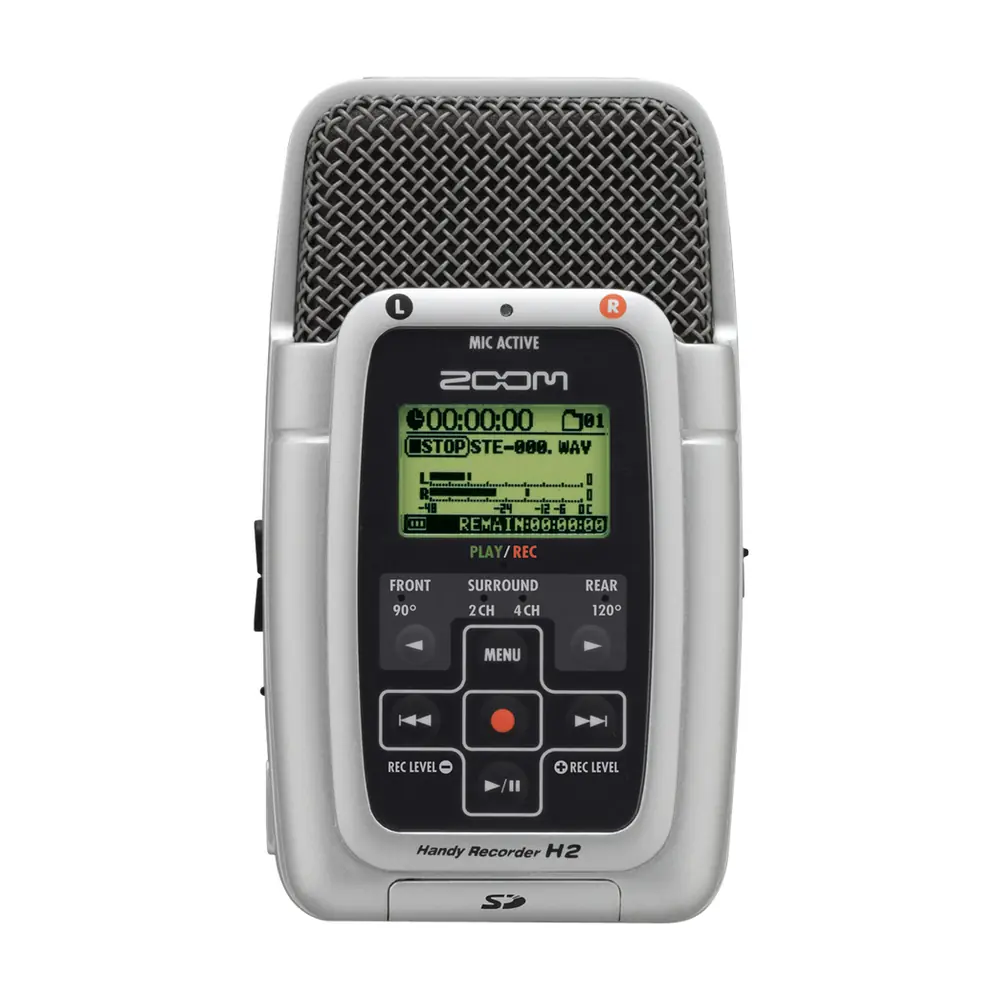
Zoom H2 Handy Recorder
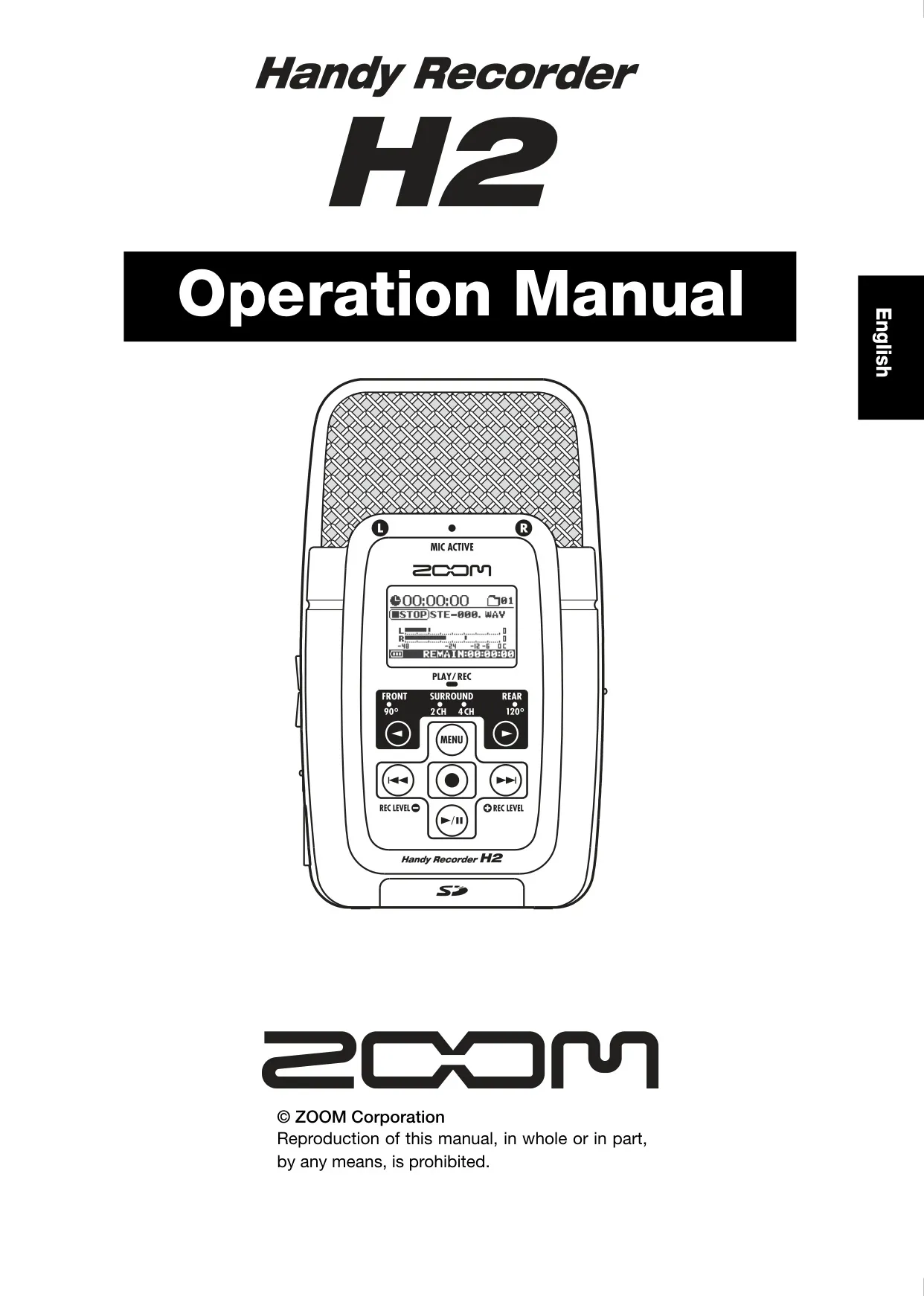















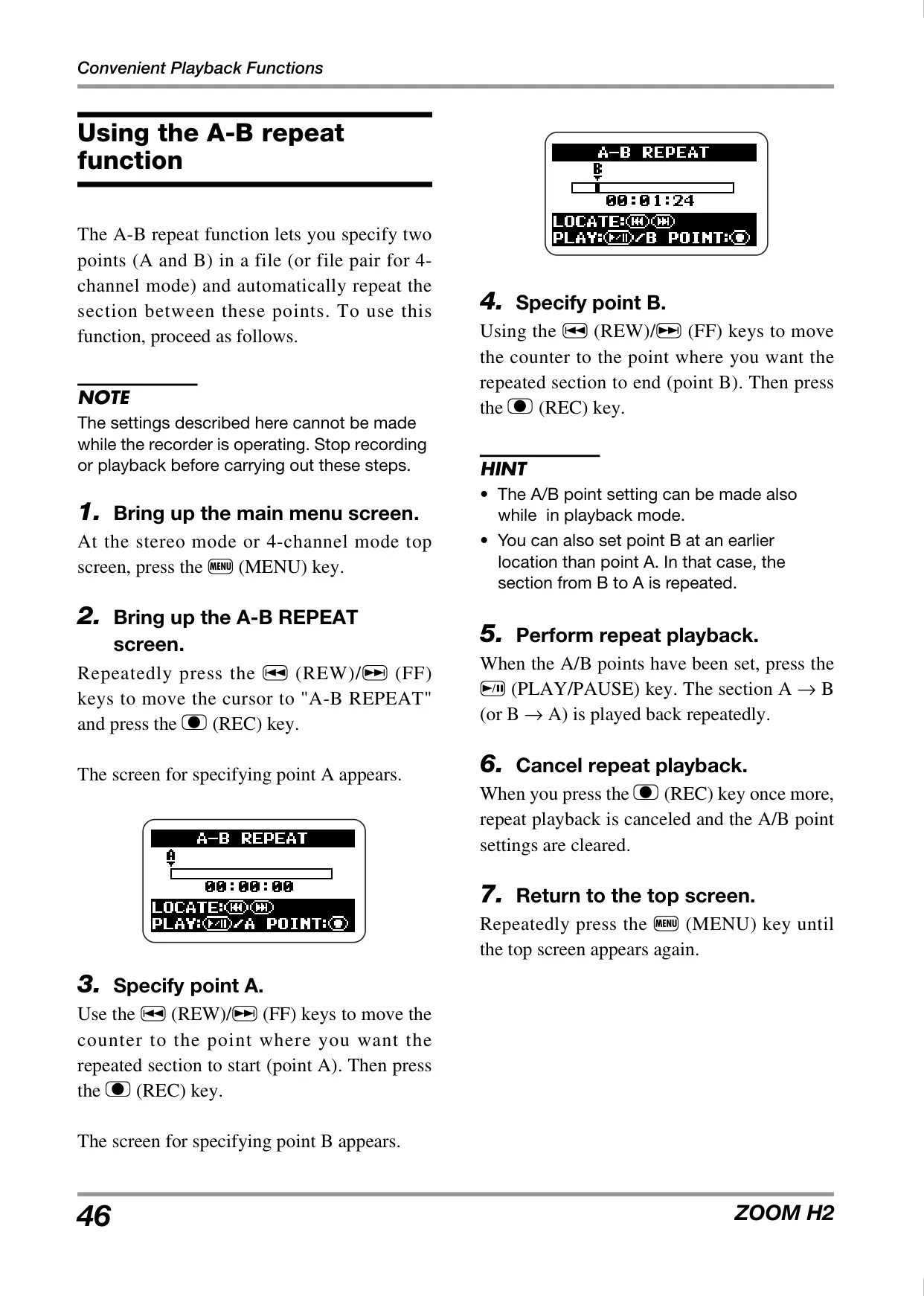


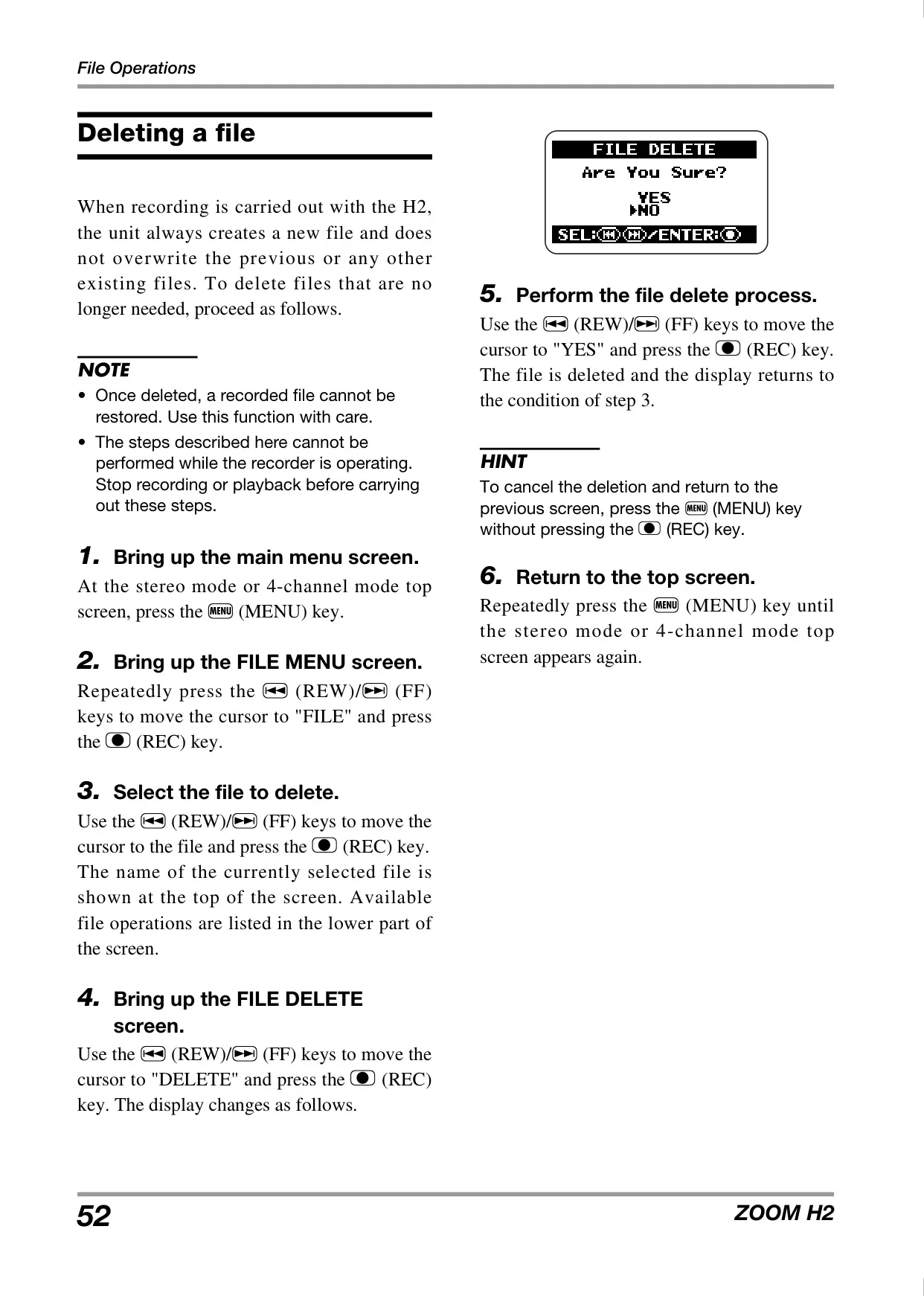
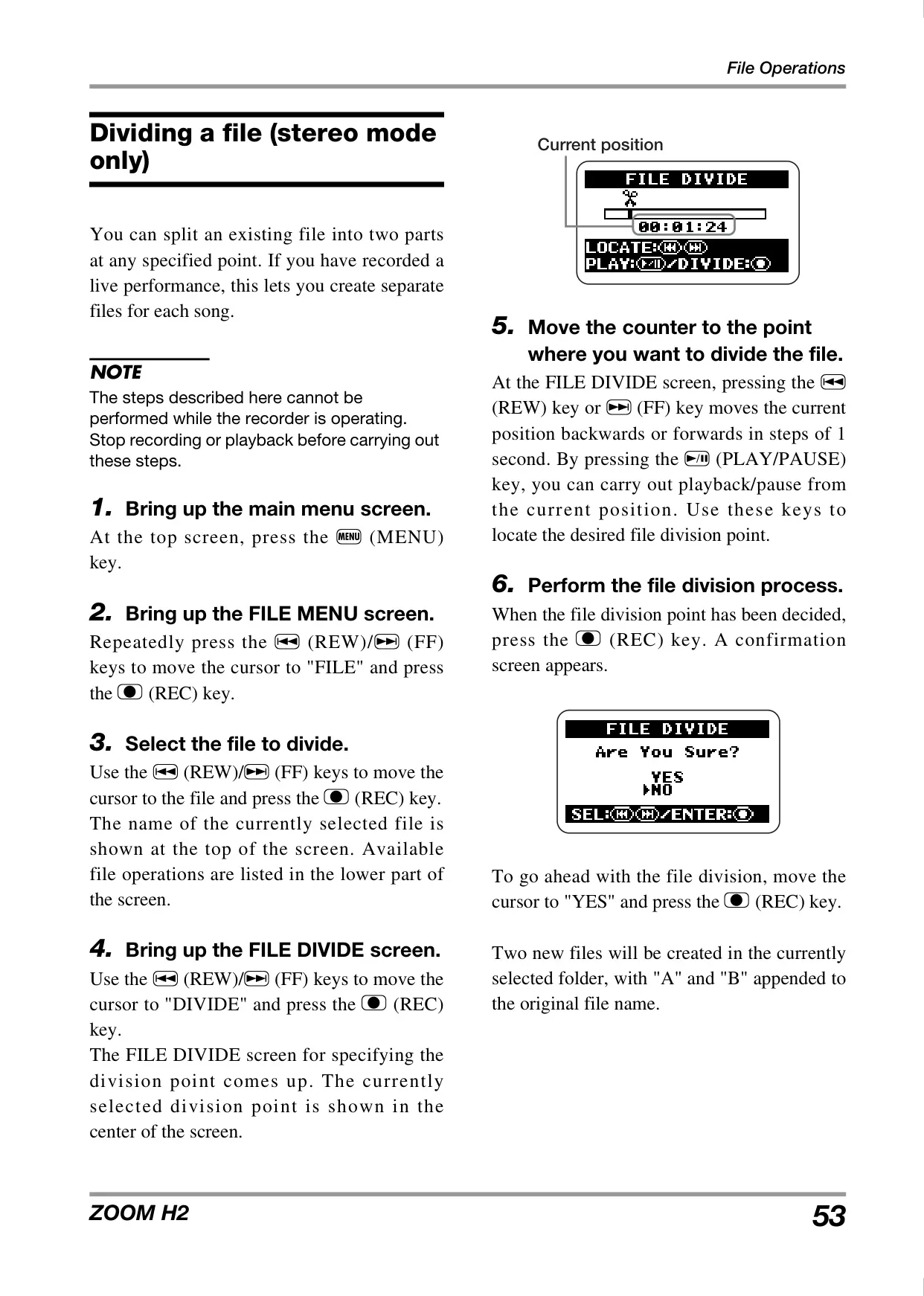

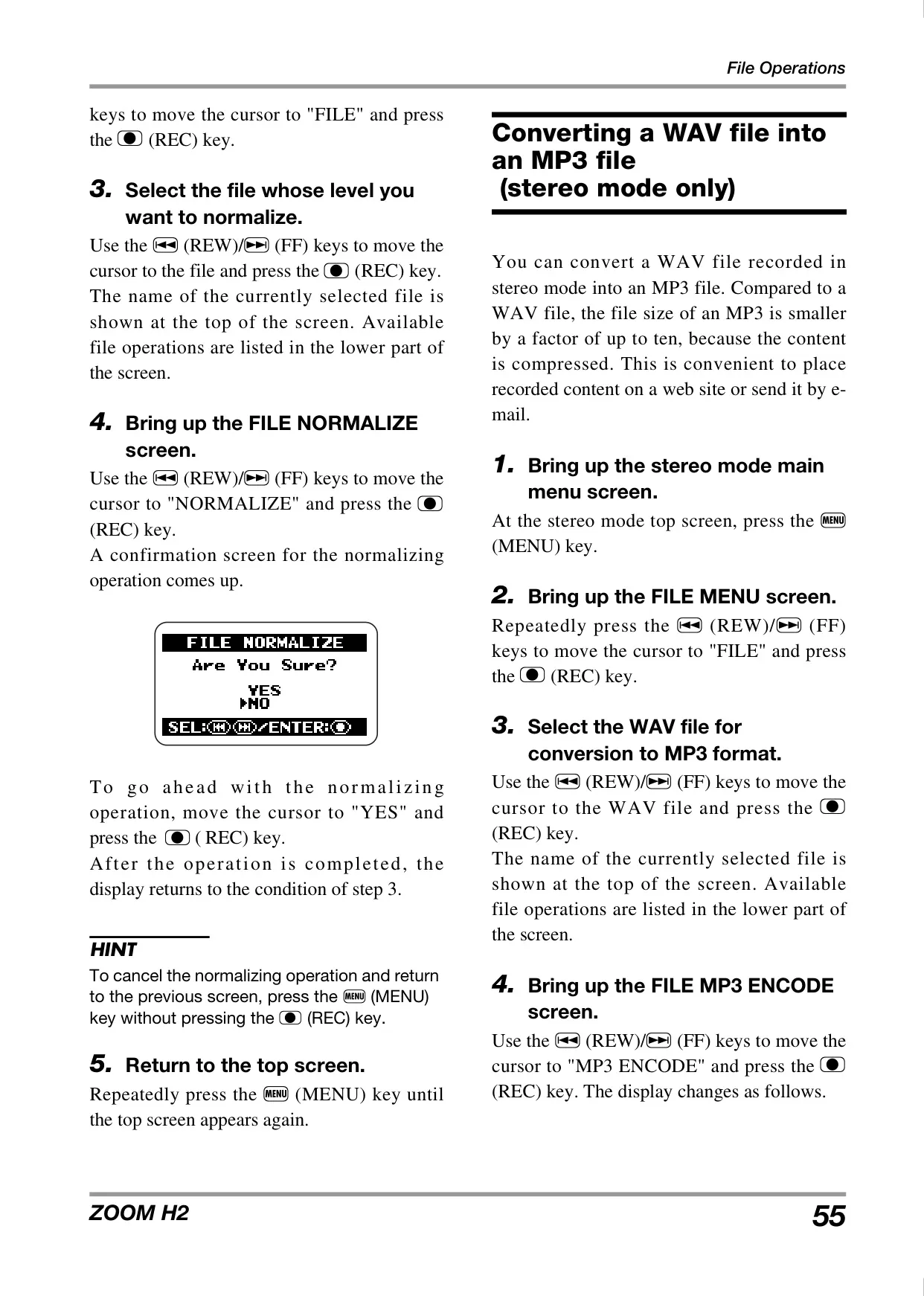


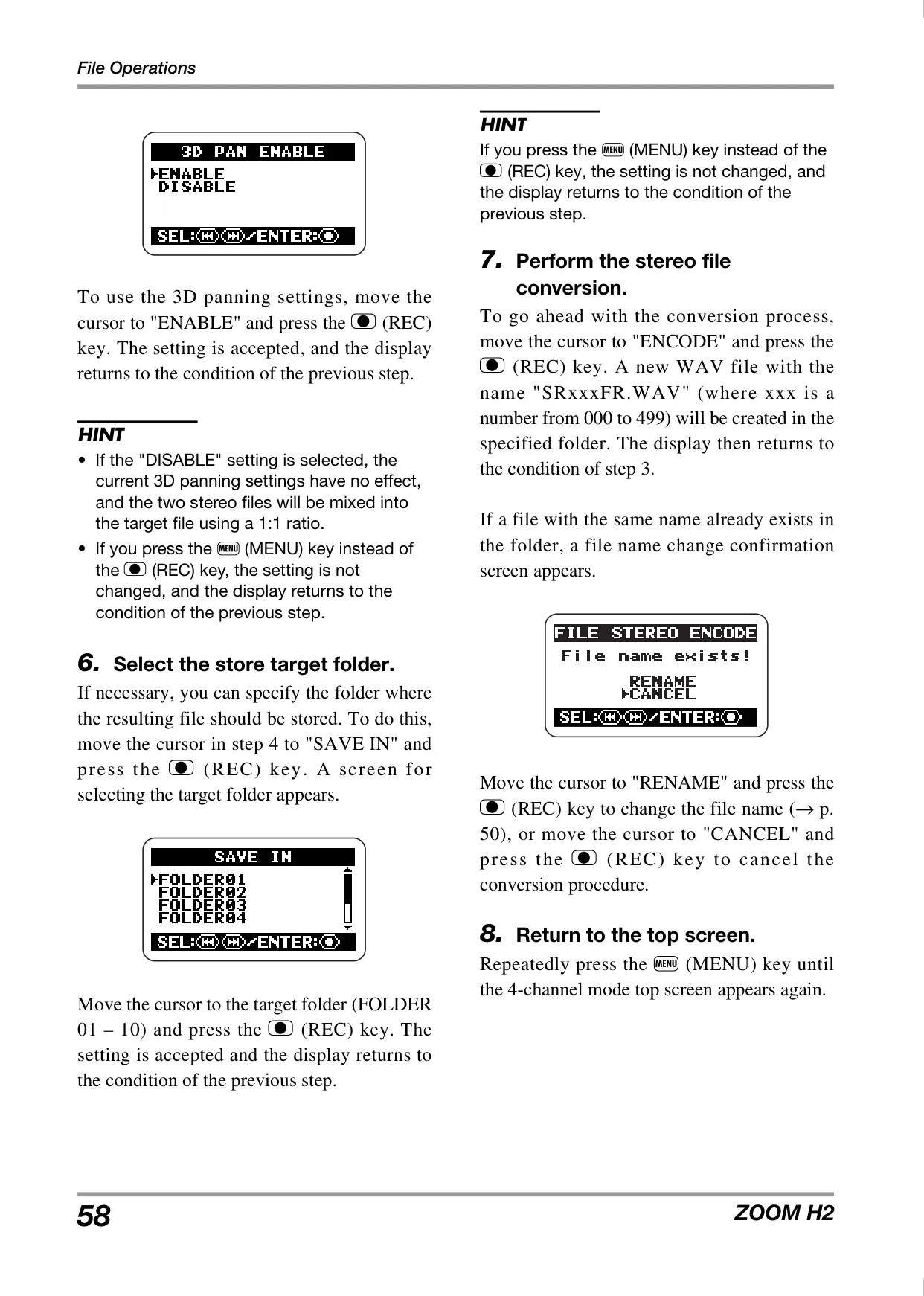


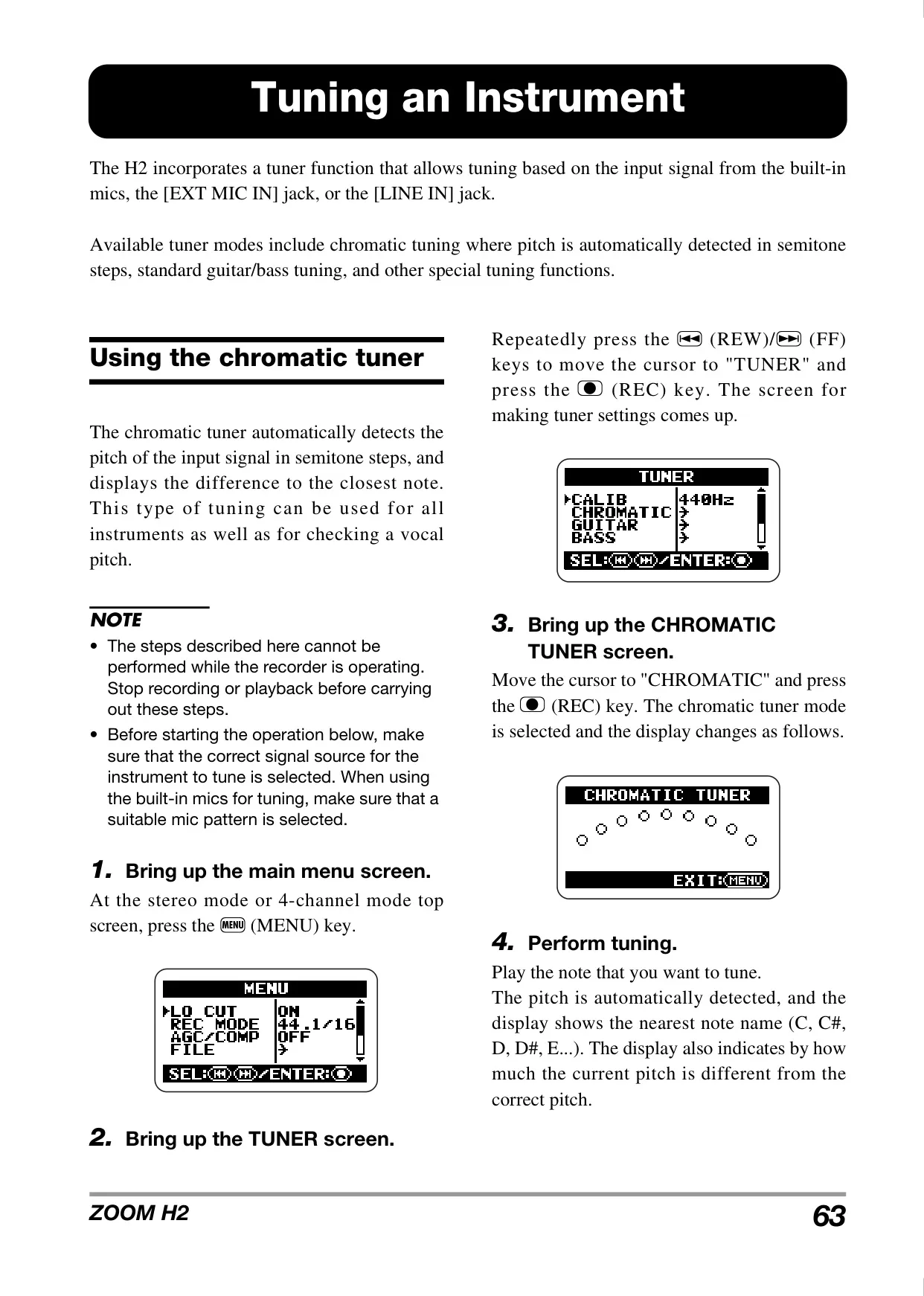
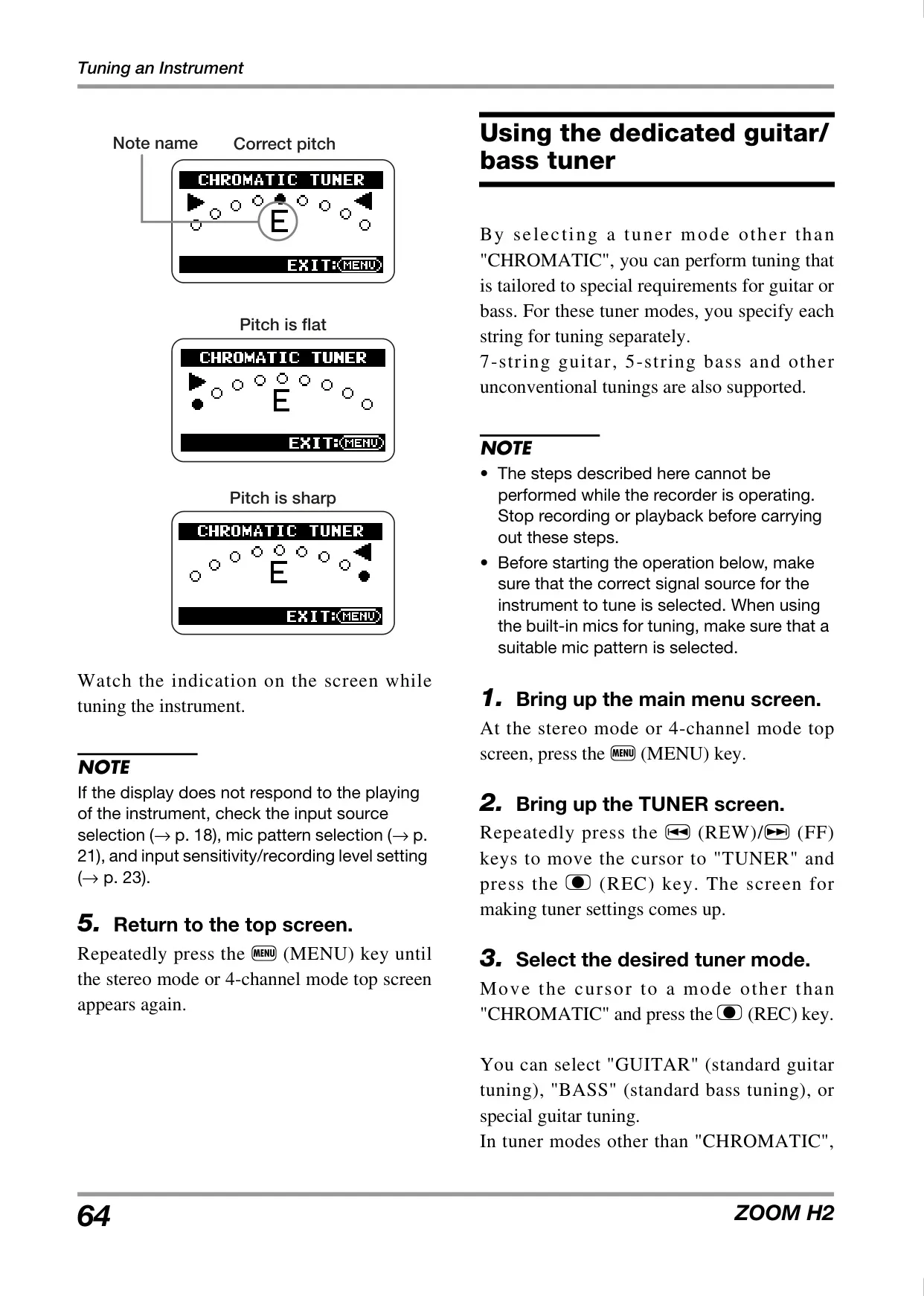
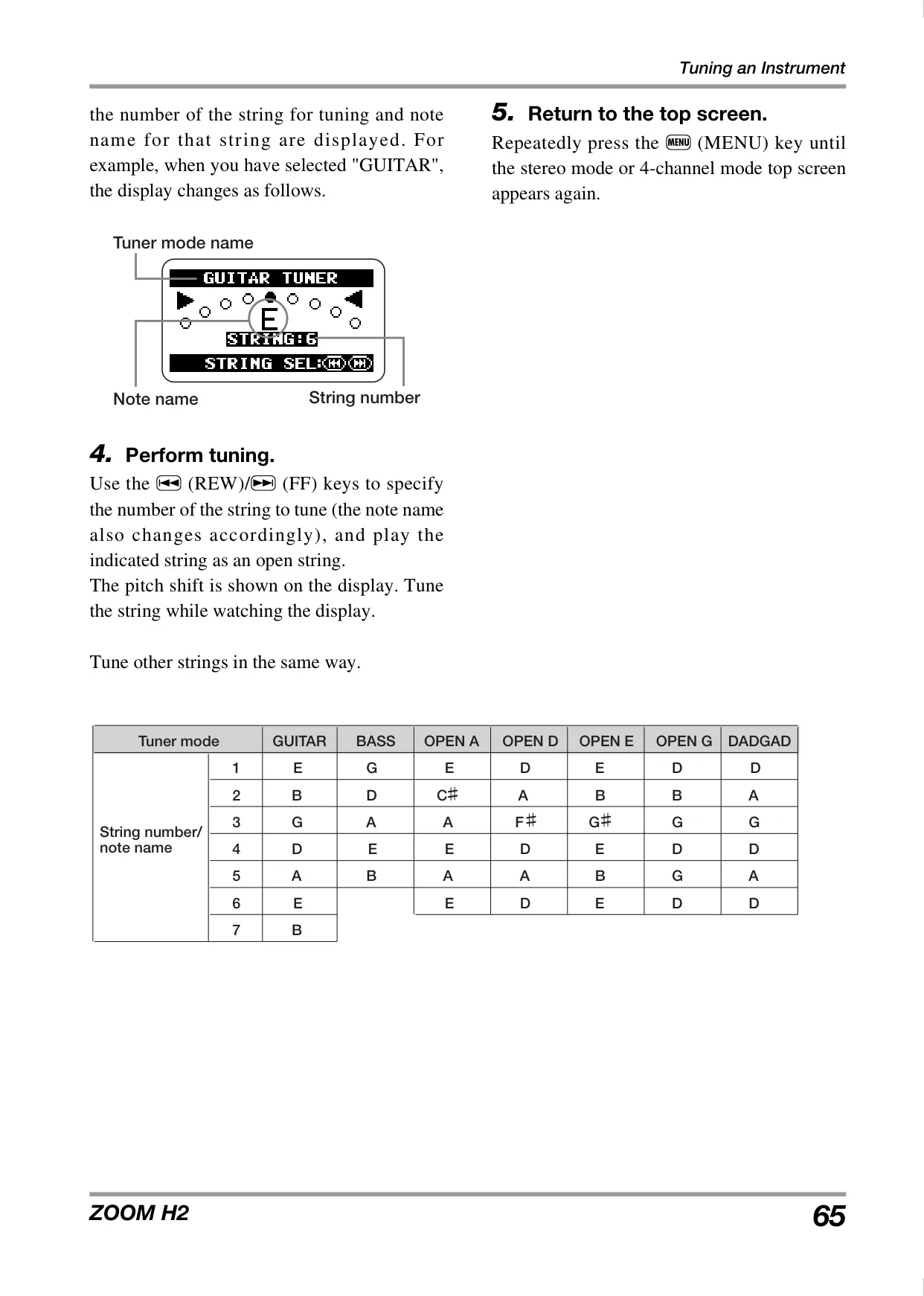
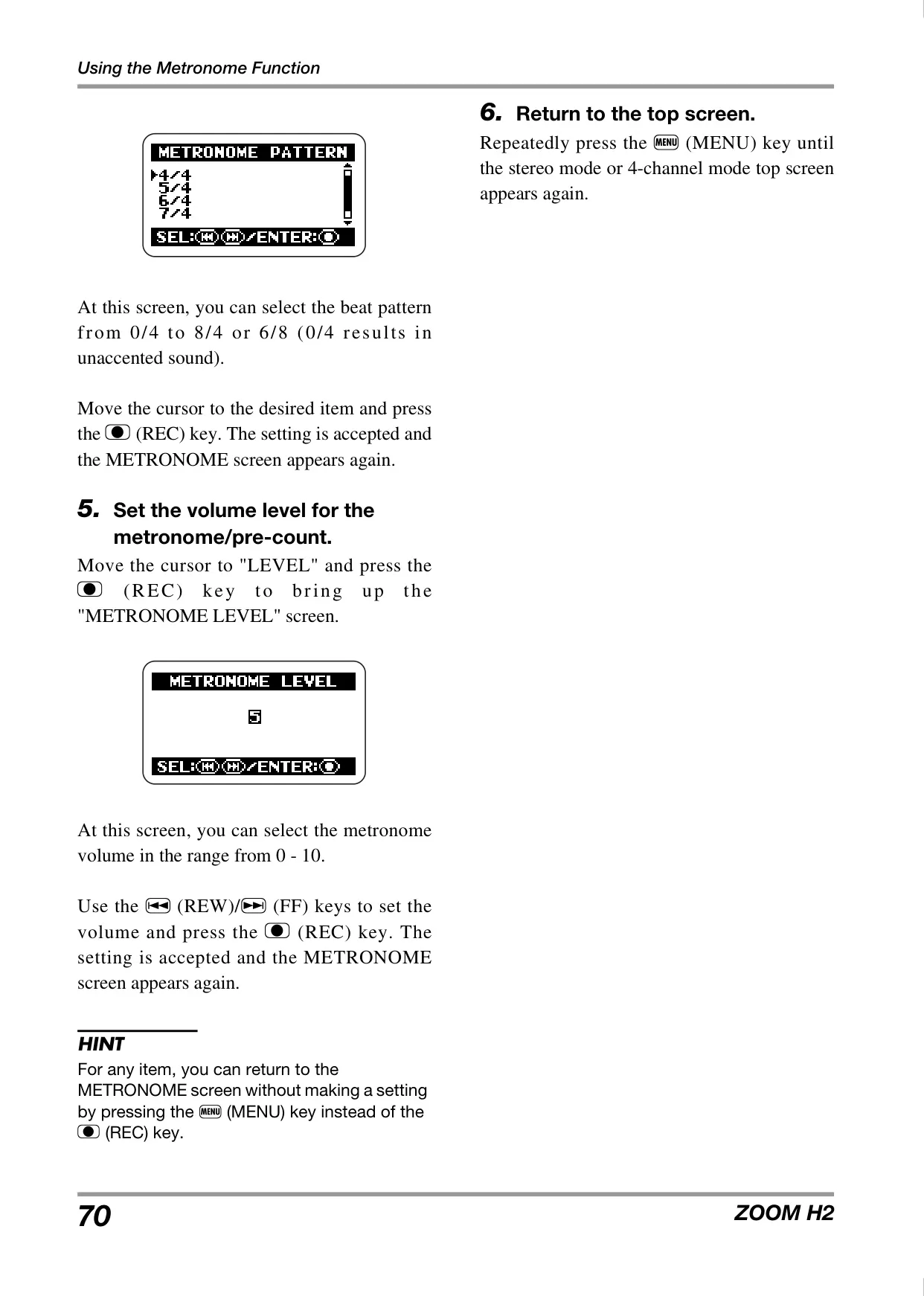
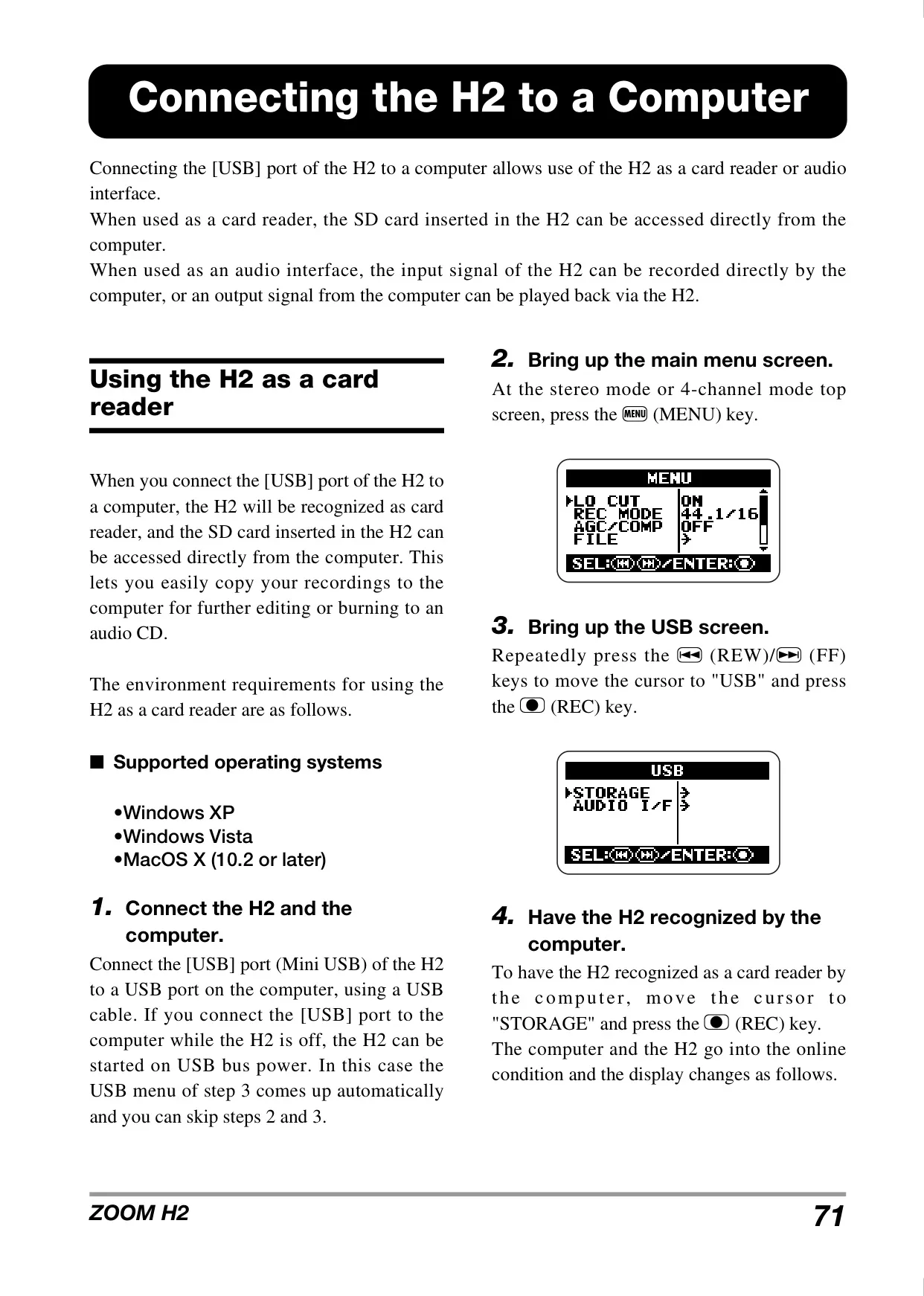
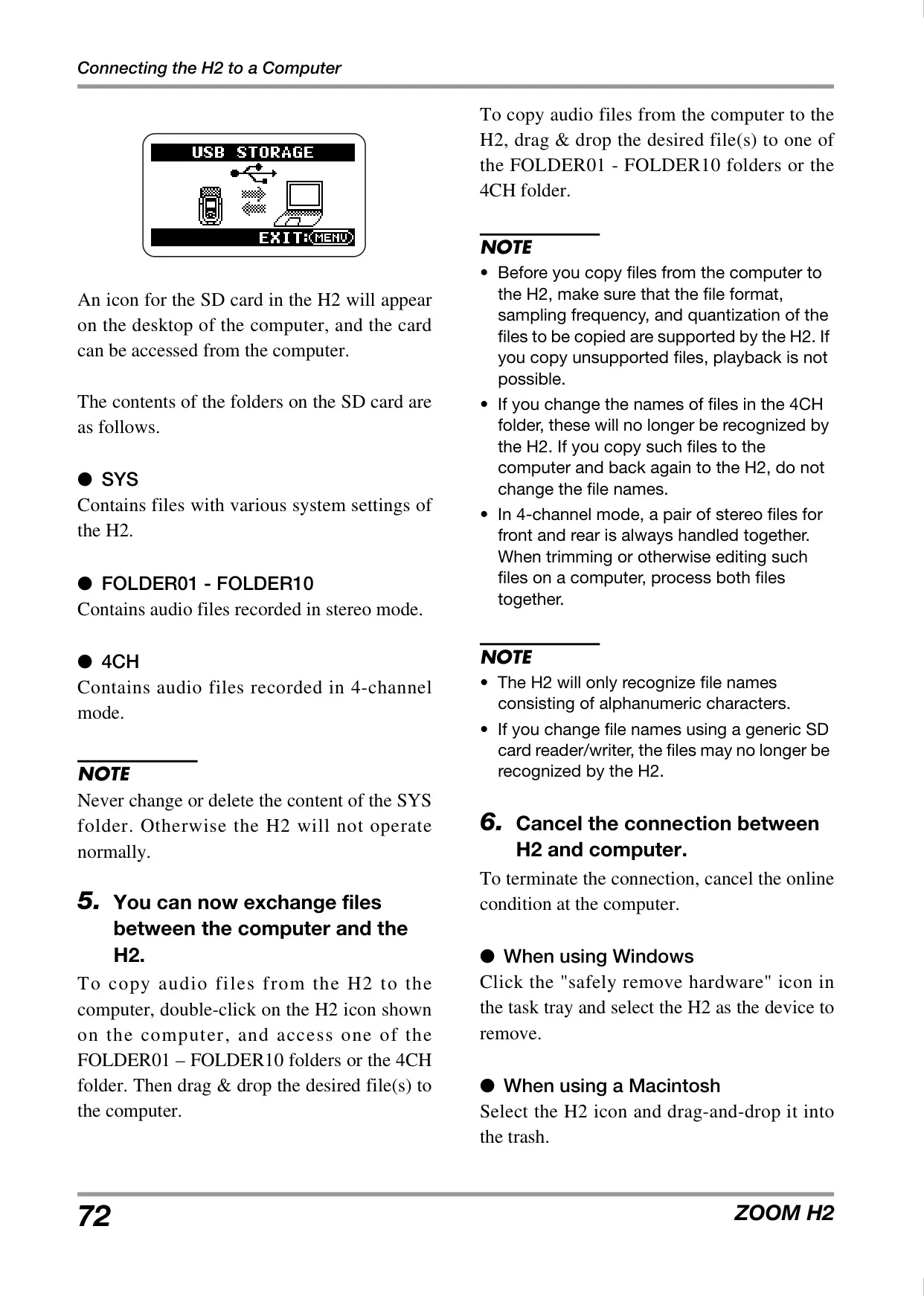

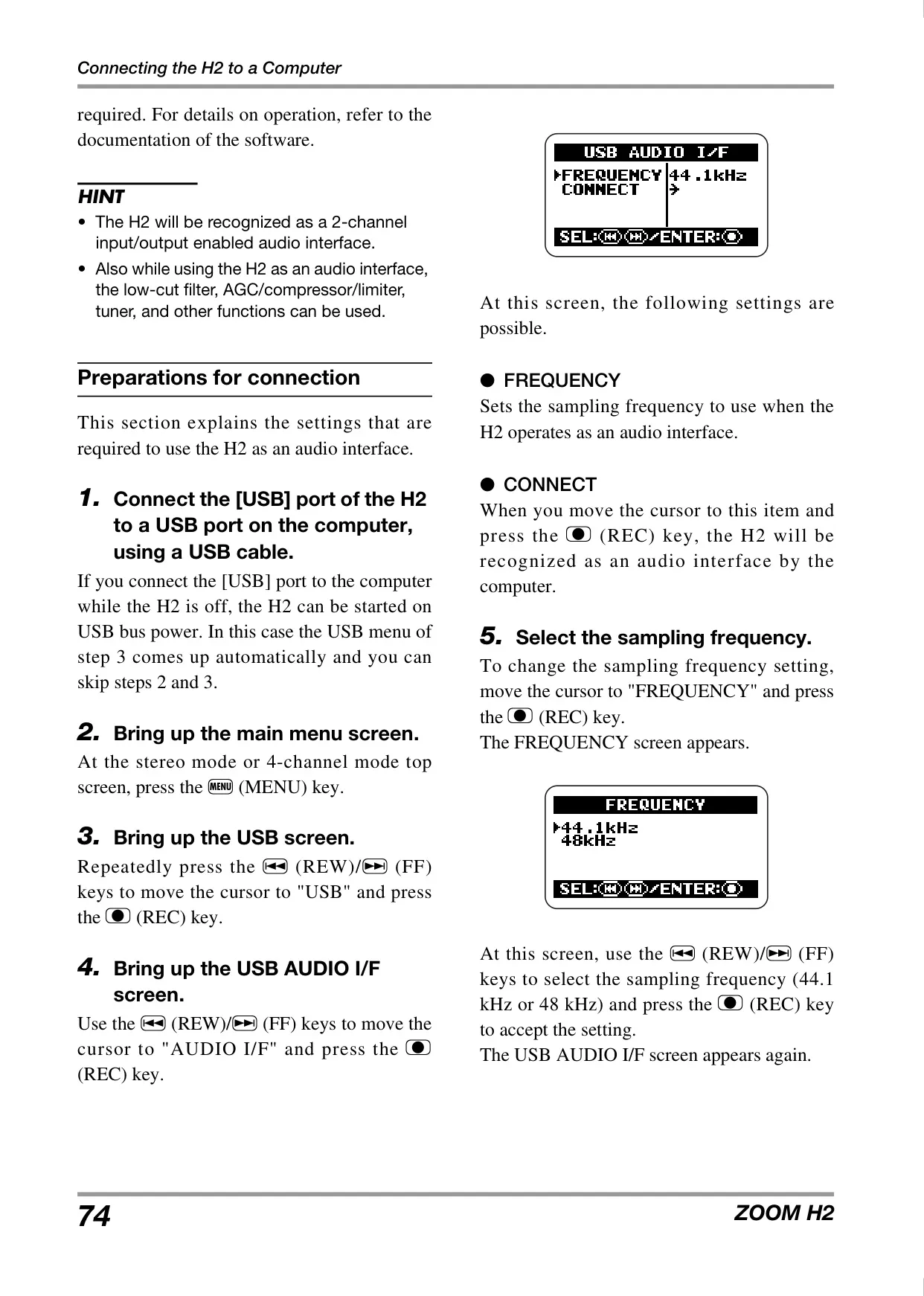






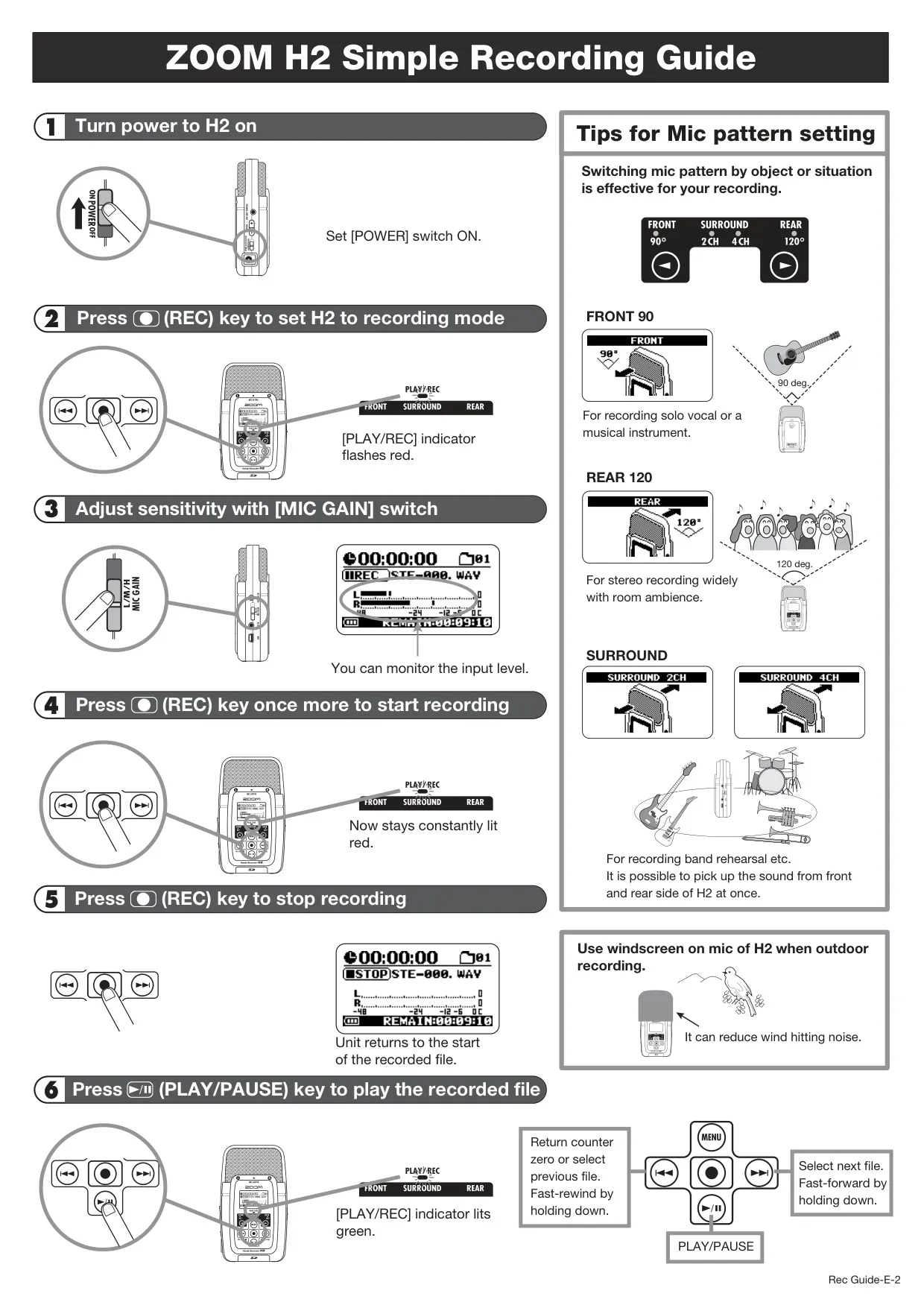



Zoom H2 Handy Recorder Instructions
Here we offer the Zoom H2 Handy Recorder manual completely free and in English. We have cataloged this manual in the Handy Recorders section on Manualverse, and it has been rated by 1 users with an average rating of 5. If you have any specific questions about Zoom H2 Handy Recorder, we suggest checking the Frequently Asked Questions (FAQs) section of this manual.
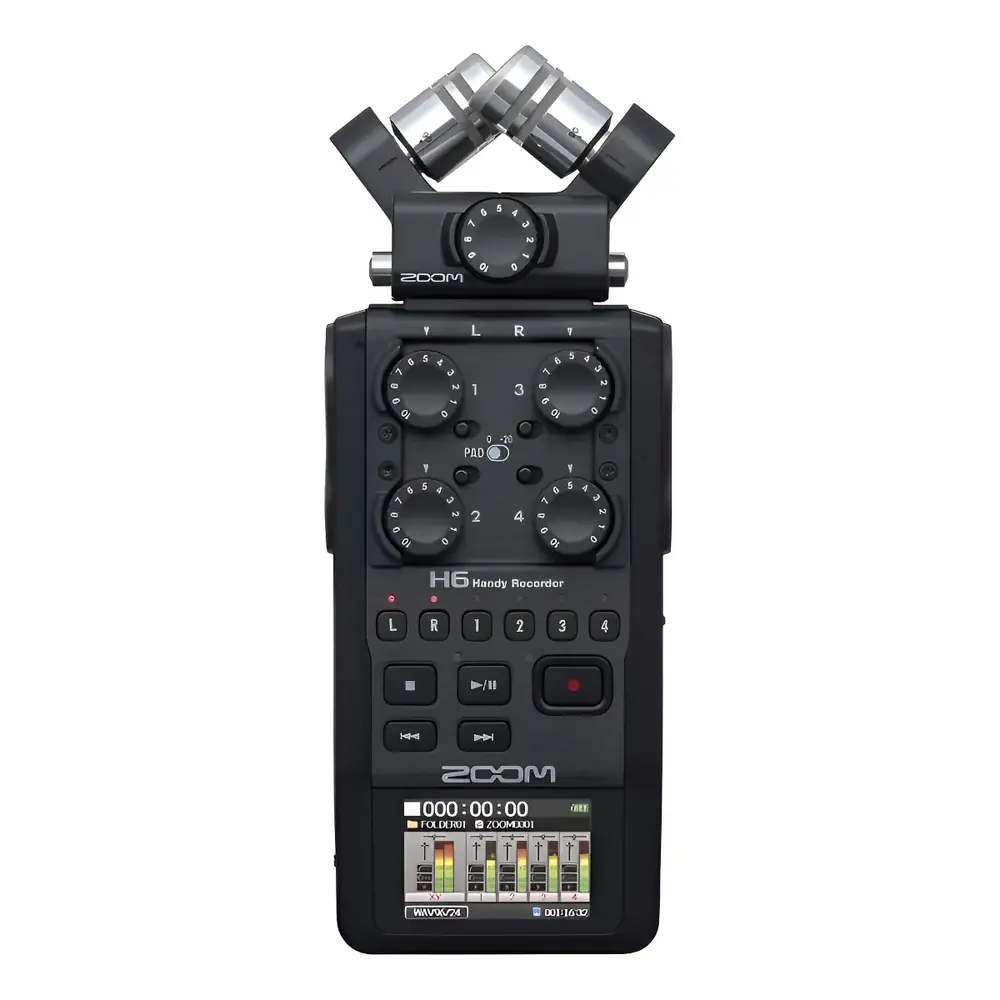
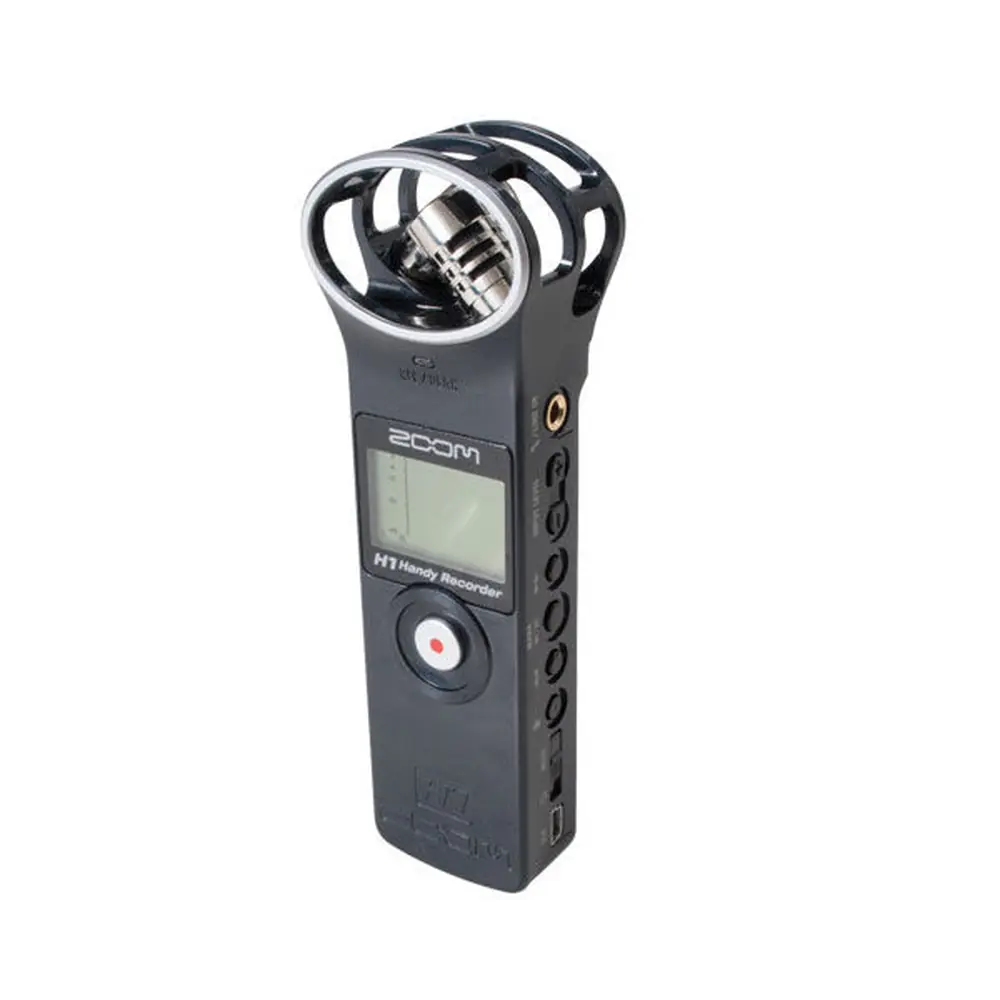
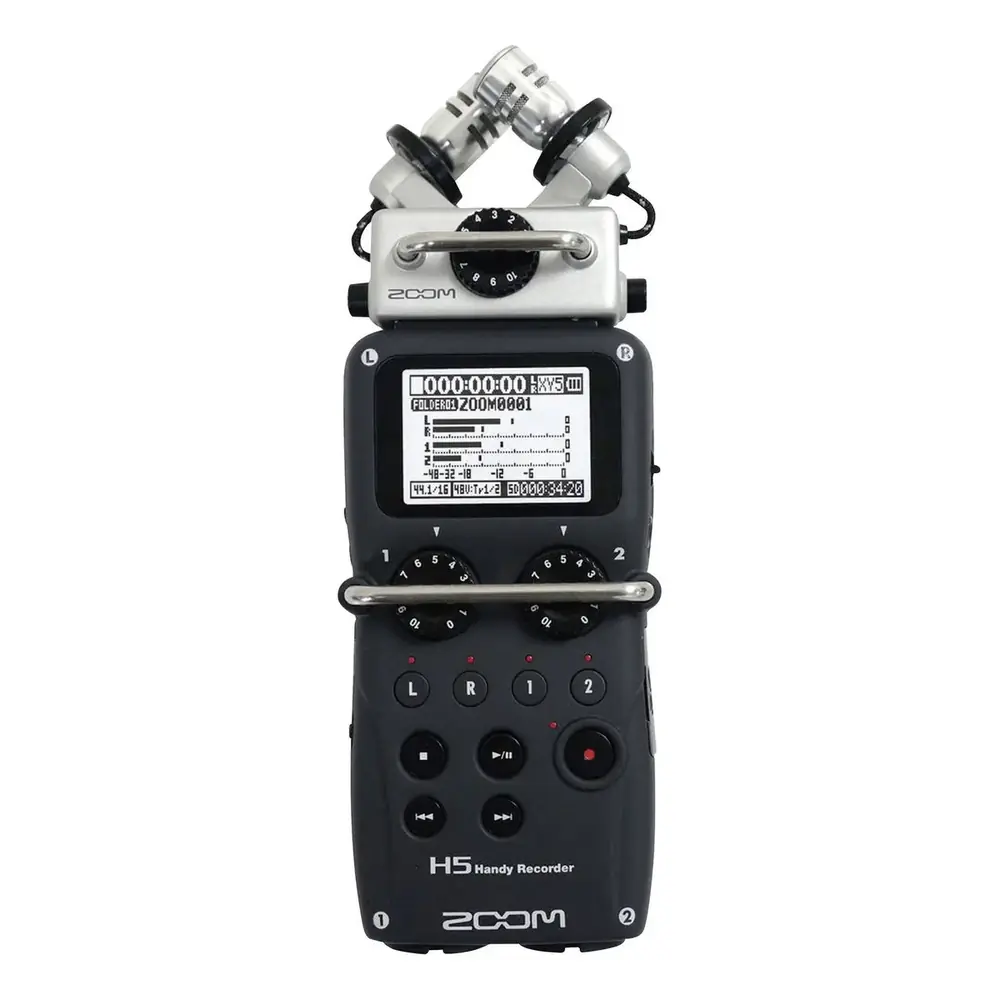
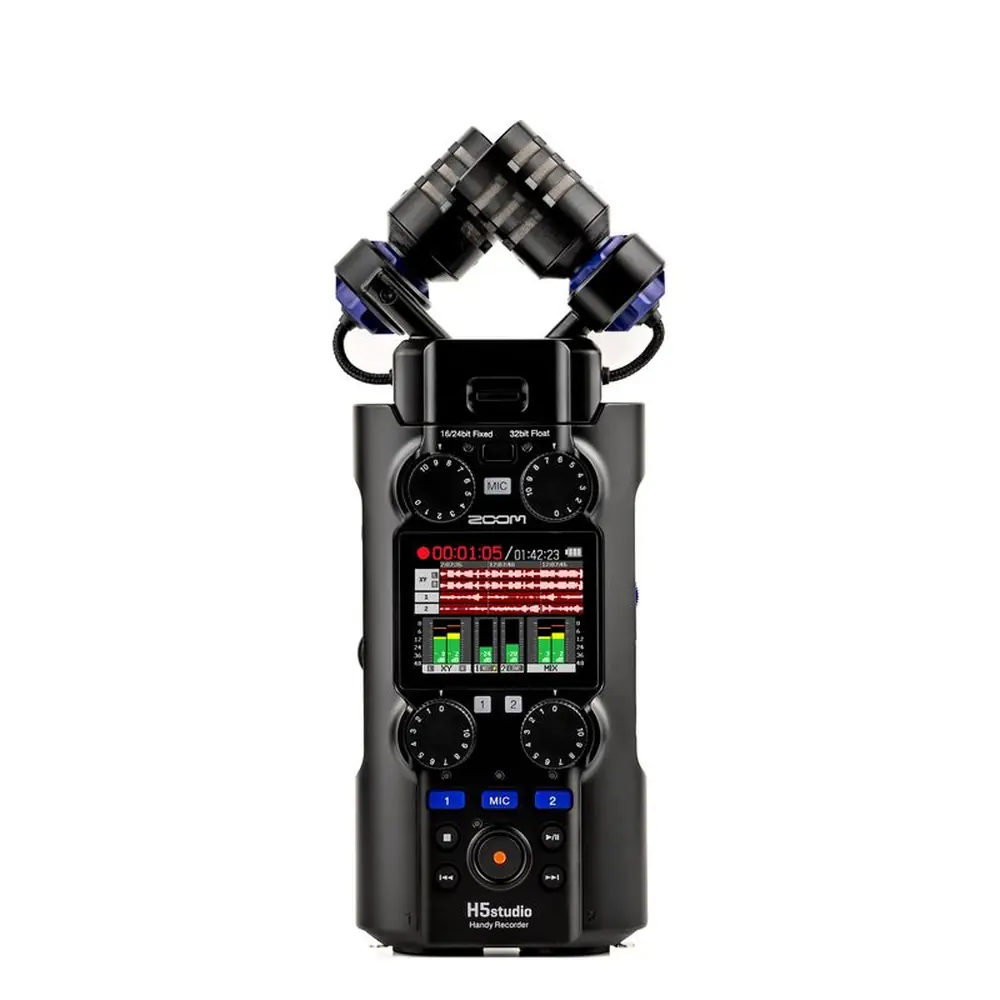
Product Images
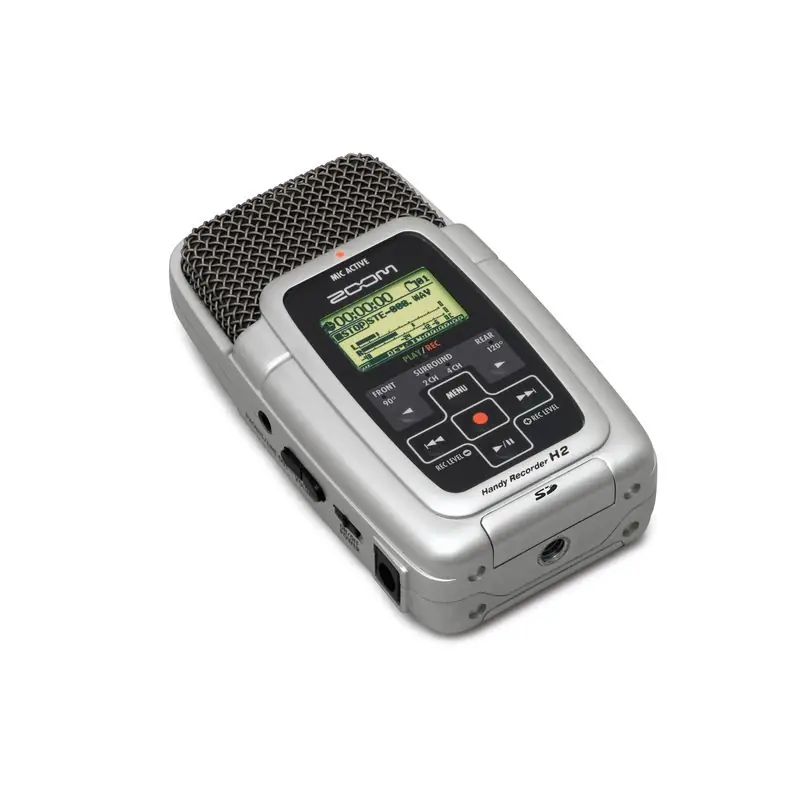
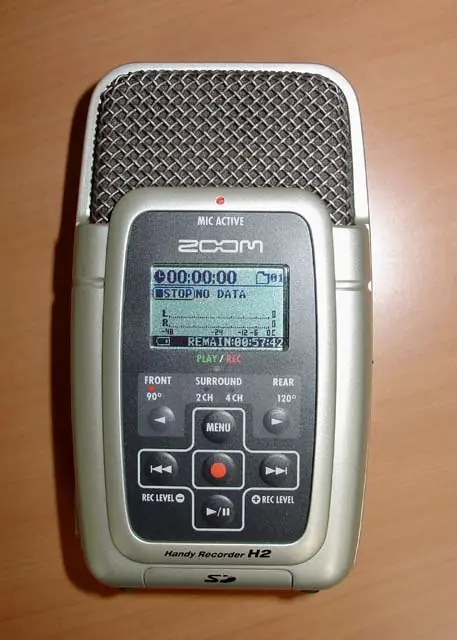
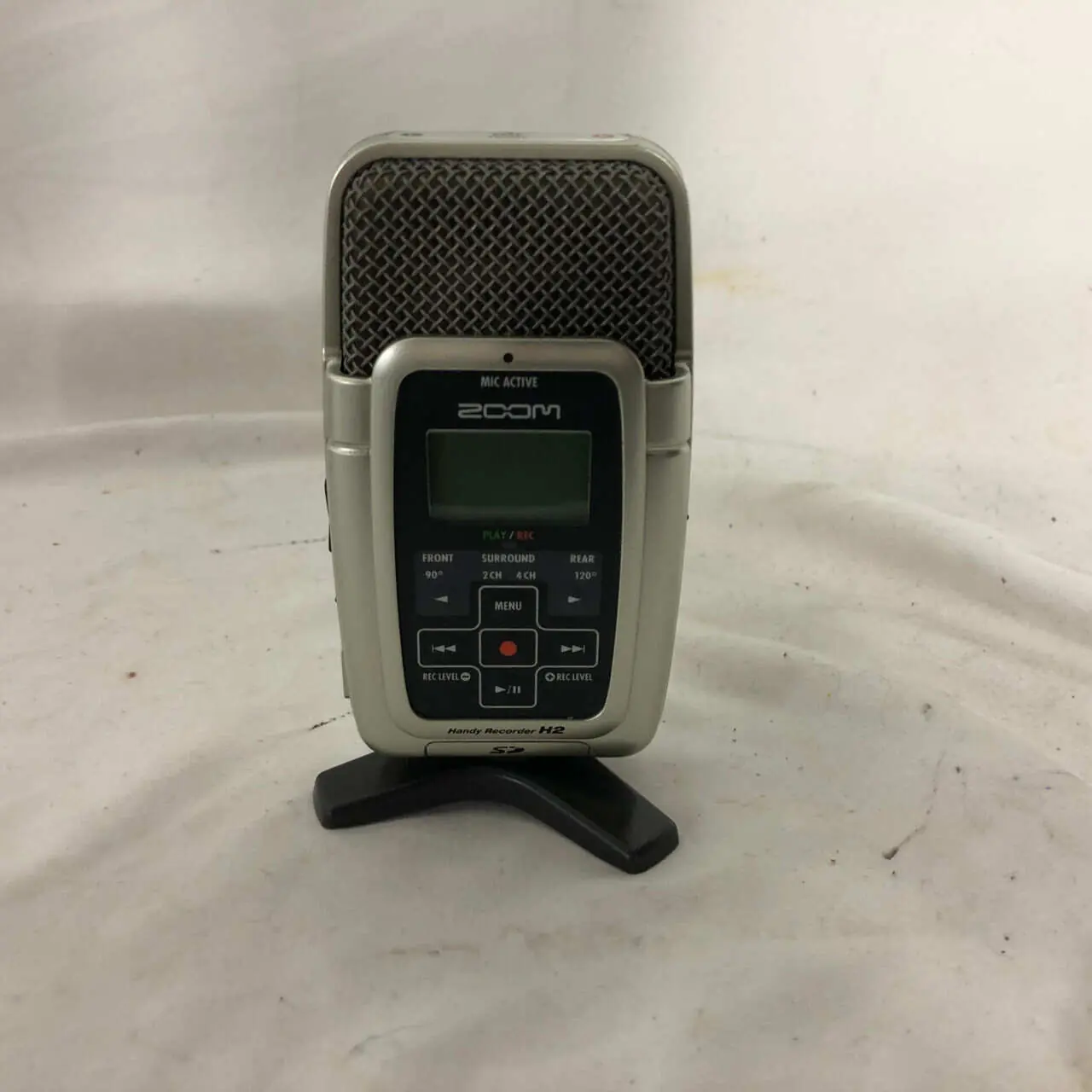
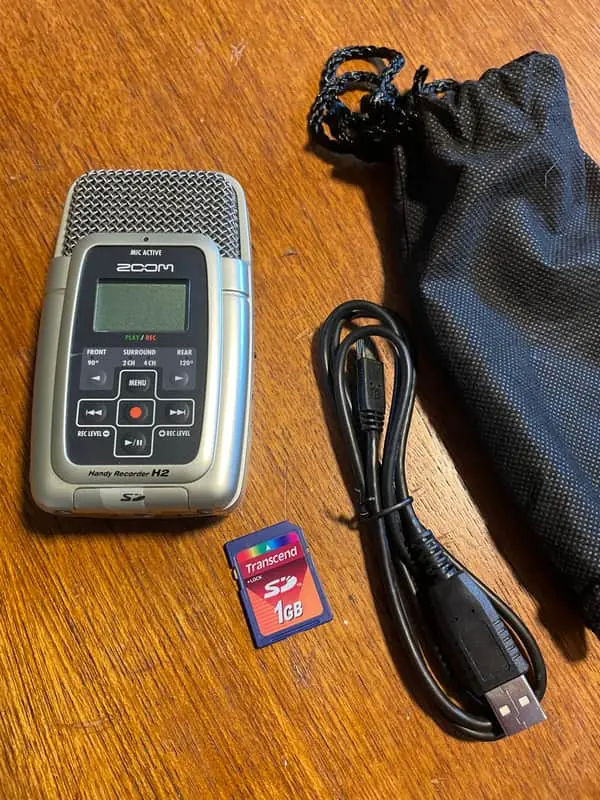
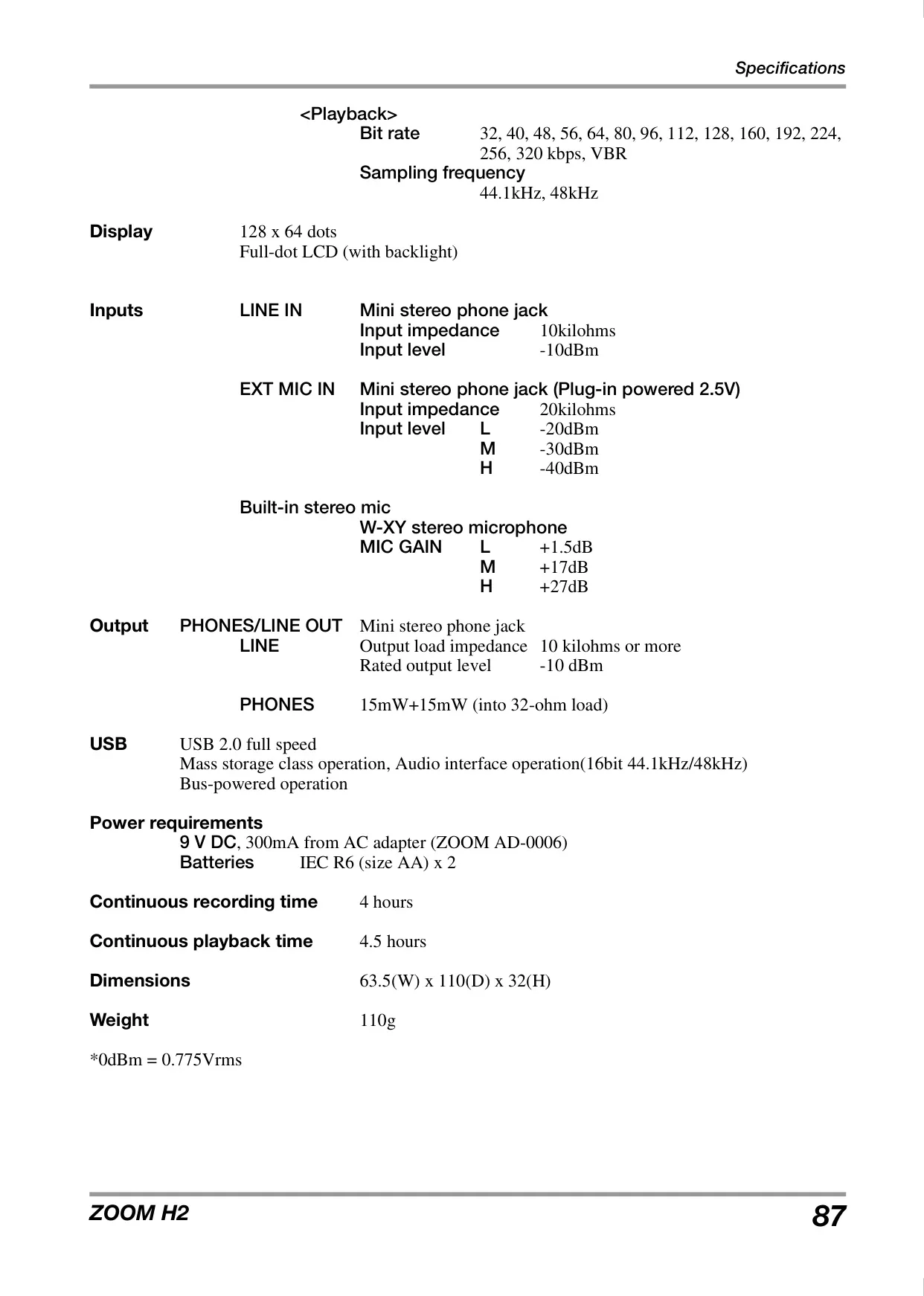
Zoom H2 Handy Recorder Specifications
| Feature | Specification |
|---|---|
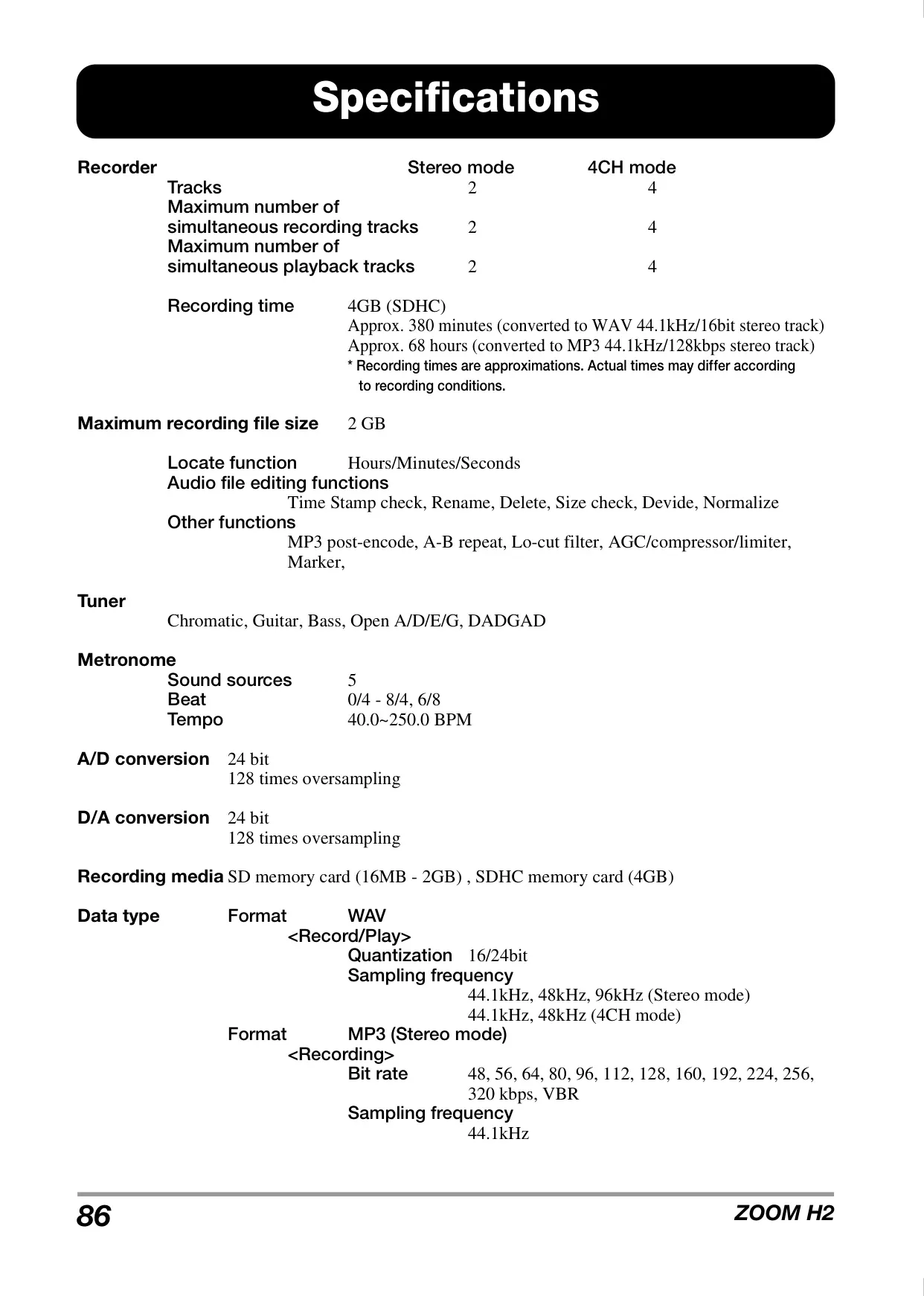
| Recorder Tracks | 2 (Stereo Mode) / 4 (4CH Mode) |
| Max Simultaneous Recording Tracks | 2 (Stereo Mode) / 4 (4CH Mode) |
| Max Simultaneous Playback Tracks | 2 (Stereo Mode) / 4 (4CH Mode) |
| Recording Media | SD memory card (16MB - 2GB), SDHC memory card (4GB) |
| Max Recording File Size | 2 GB |
| Recording Time (4GB SDHC) | Approx. 380 min (WAV 44.1kHz/16bit stereo) Approx. 68 hours (MP3 44.1kHz/128kbps stereo) |
| WAV Format (Record/Play) | Quantization: 16/24bit Sampling Frequency: 44.1kHz, 48kHz, 96kHz (Stereo); 44.1kHz, 48kHz (4CH) |
| MP3 Format (Stereo Record) | Bit Rate: 48-320 kbps, VBR Sampling Frequency: 44.1kHz |
| MP3 Format (Playback) | Bit Rate: 32-320 kbps, VBR Sampling Frequency: 44.1kHz, 48kHz |
| A/D Conversion | 24 bit 128 times oversampling |
| D/A Conversion | 24 bit 128 times oversampling |
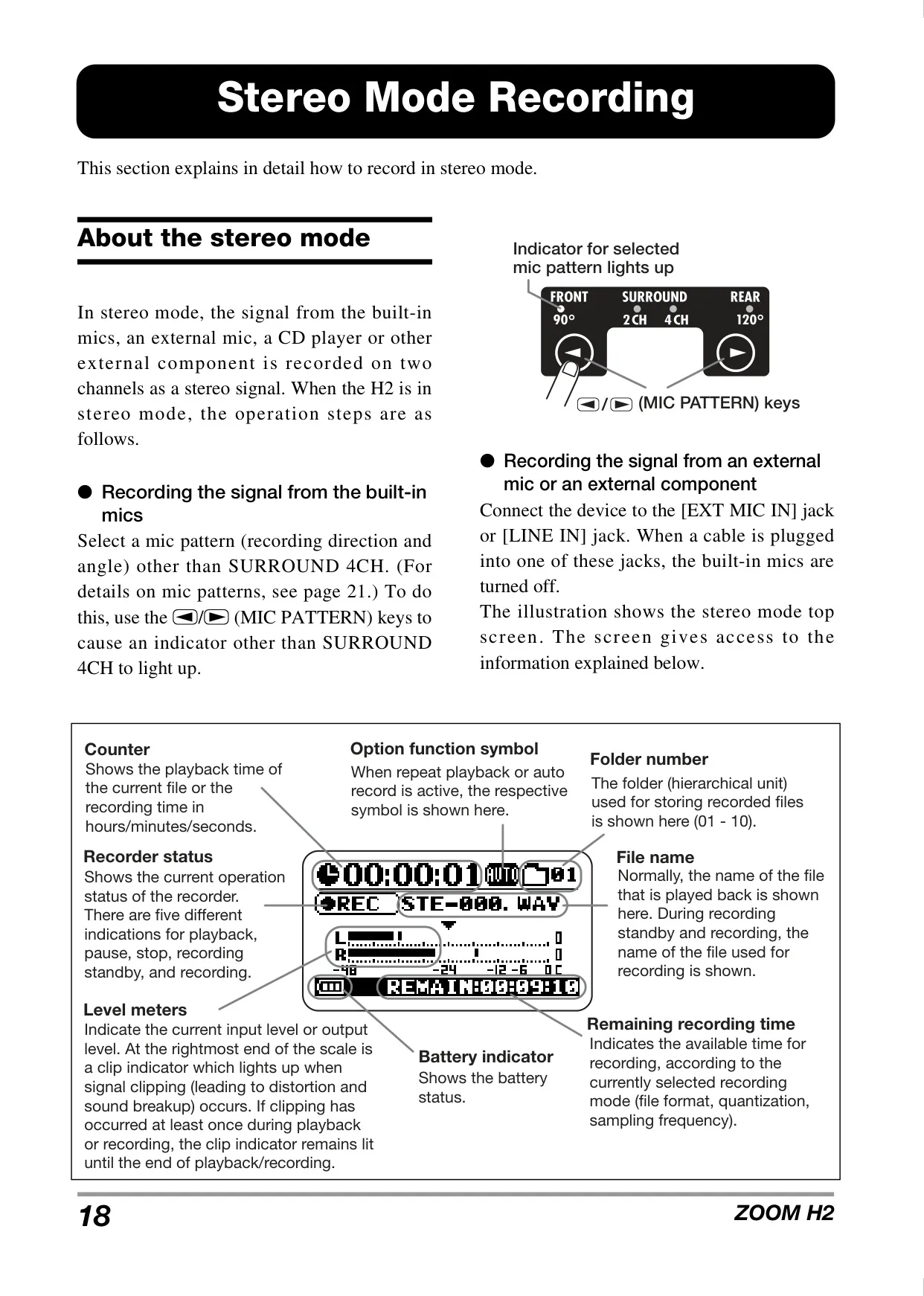
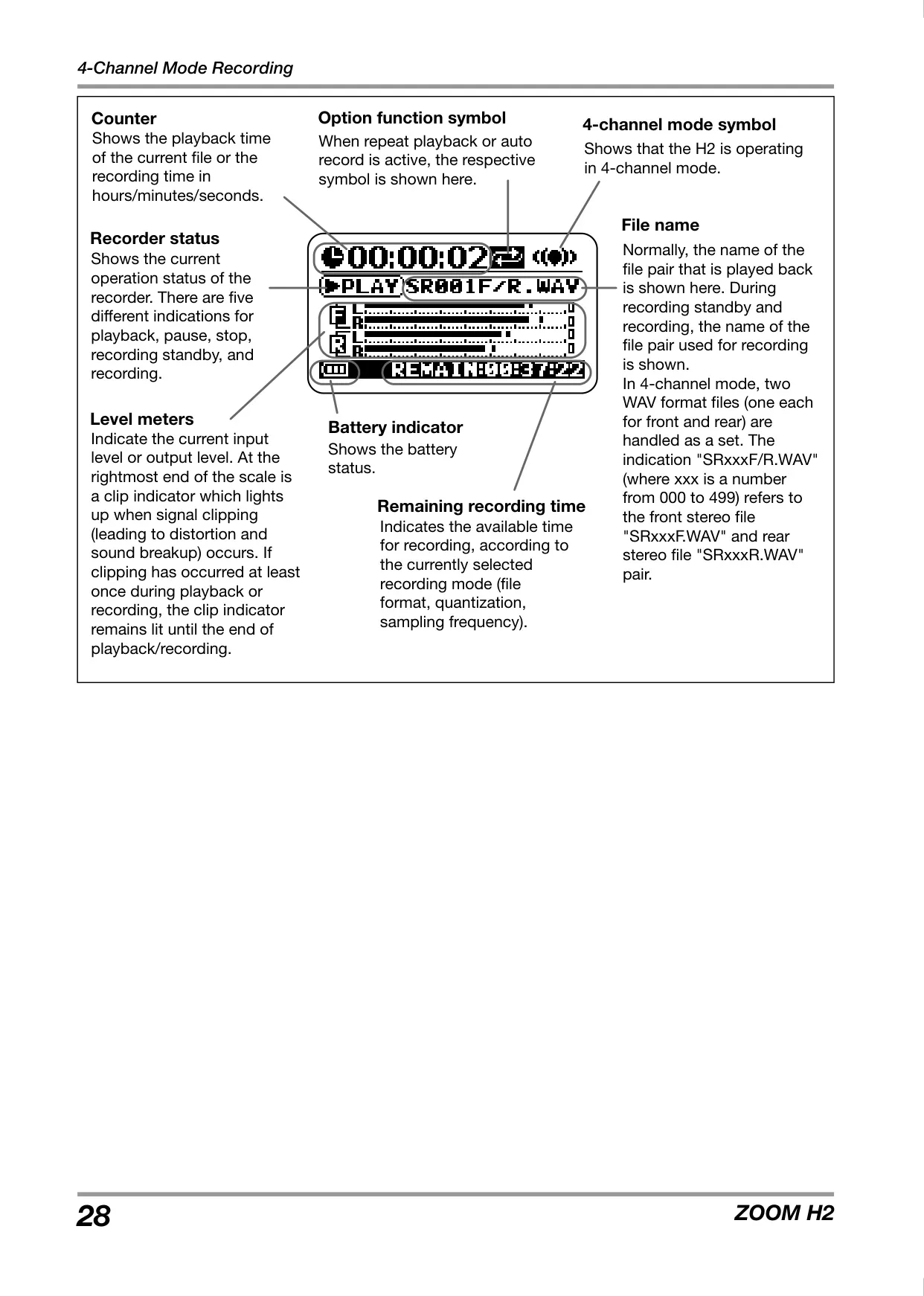
| Display | 128 x 64 dots Full-dot LCD (with backlight) |
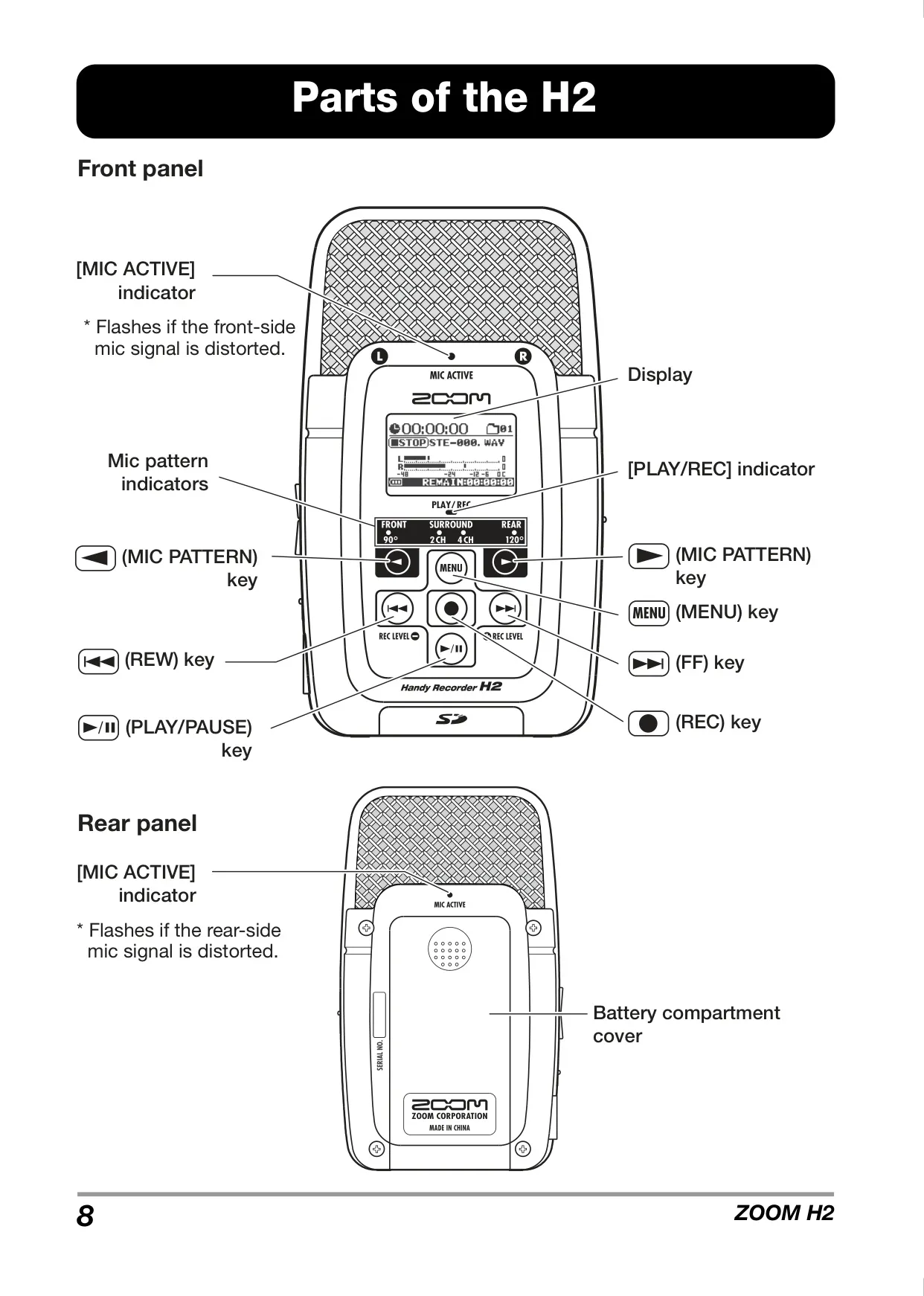
| Built-in Stereo Mic | W-XY stereo microphone MIC GAIN: L +1.5dB, M +17dB, H +27dB |
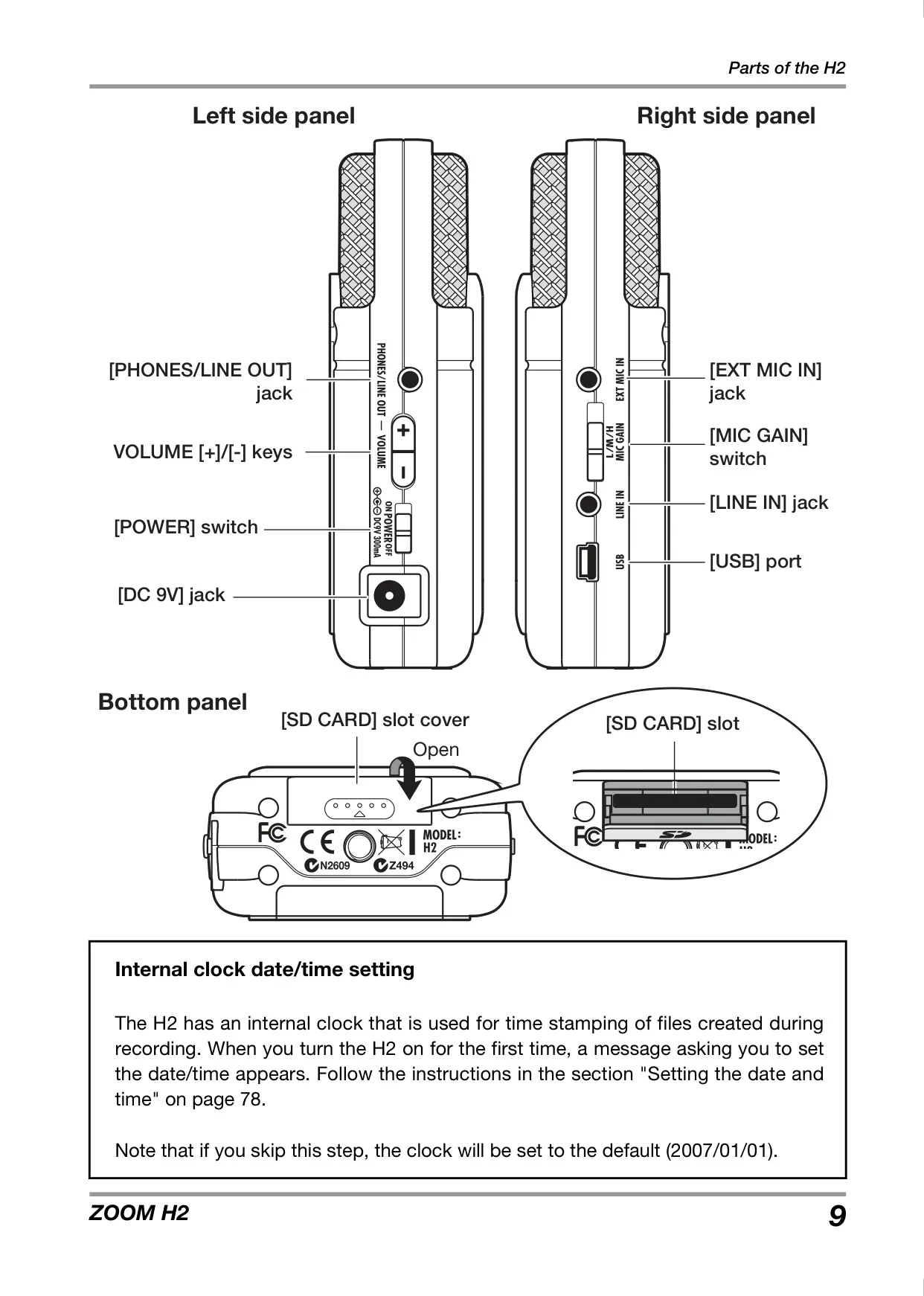
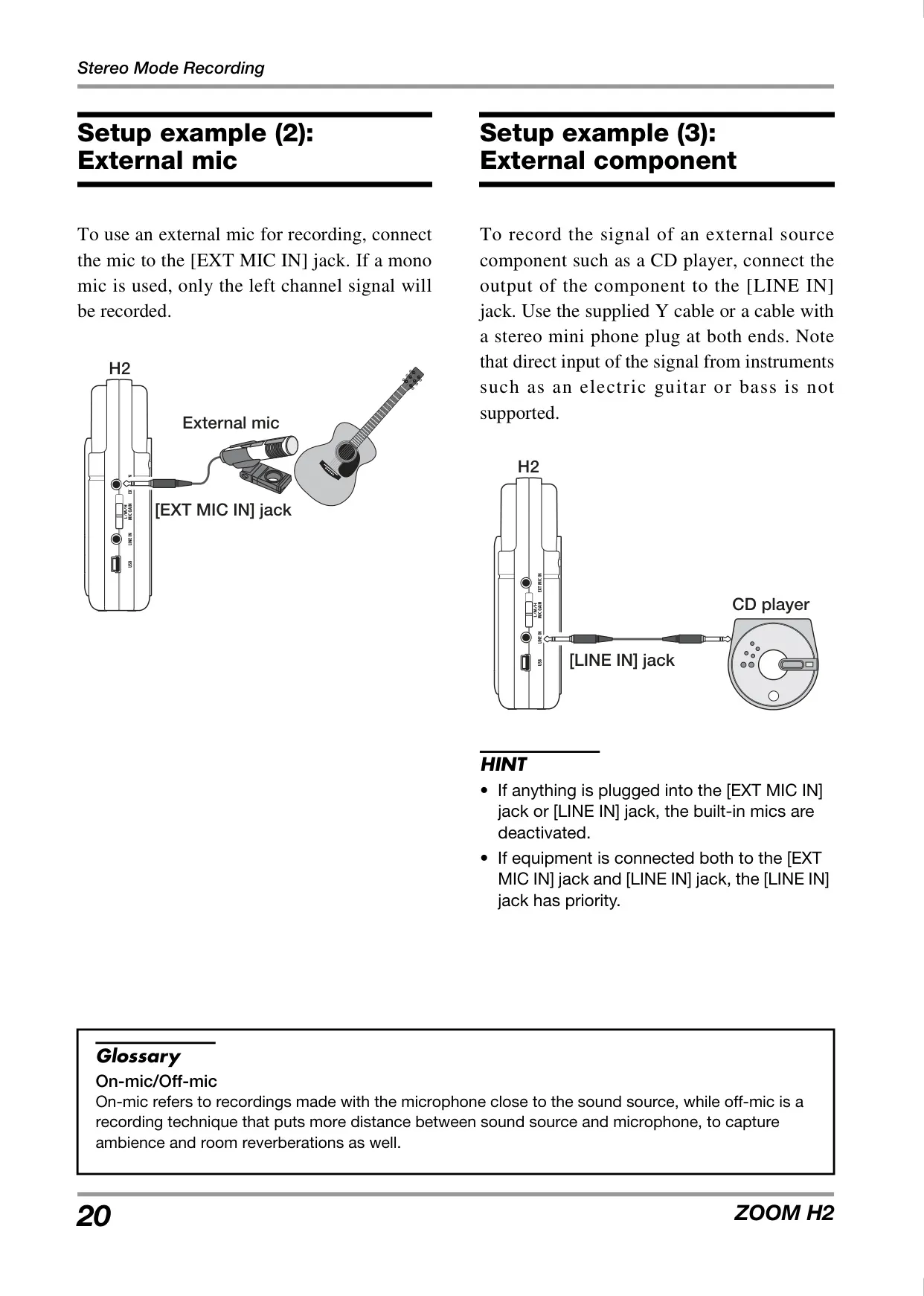
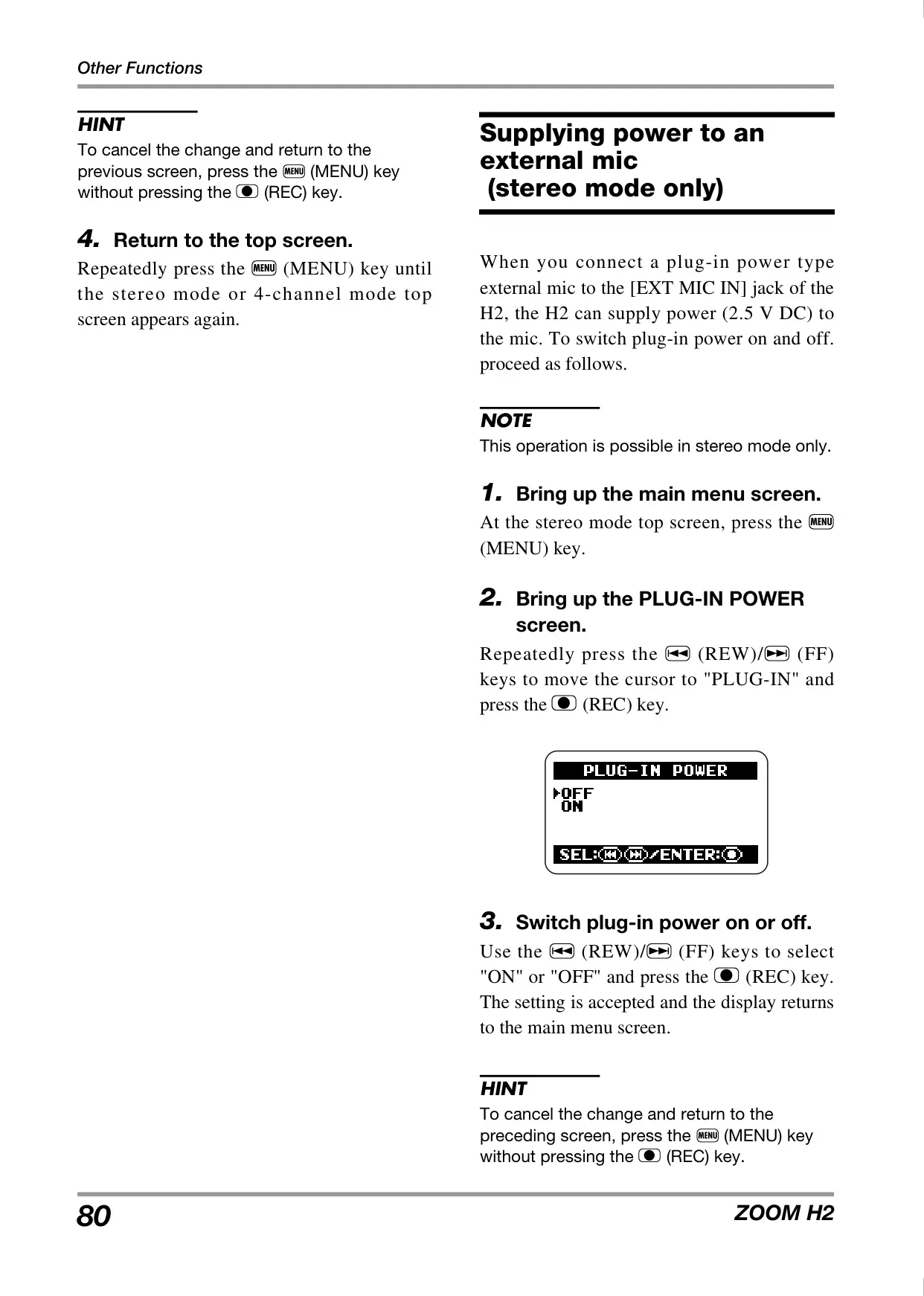
| EXT MIC IN (Mini stereo phone jack) | Plug-in powered (2.5V) Input Impedance: 20kΩ Input Level: L -20dBm, M -30dBm, H -40dBm |
| LINE IN (Mini stereo phone jack) | Input Impedance: 10kΩ Input Level: -10dBm |
| PHONES/LINE OUT (Mini stereo phone jack) | LINE Output Level: -10 dBm (10kΩ or more load) PHONES Output: 15mW+15mW (into 32-ohm load) |
| USB Port | USB 2.0 full speed Mass storage class, Audio interface (16bit 44.1kHz/48kHz), Bus-powered |
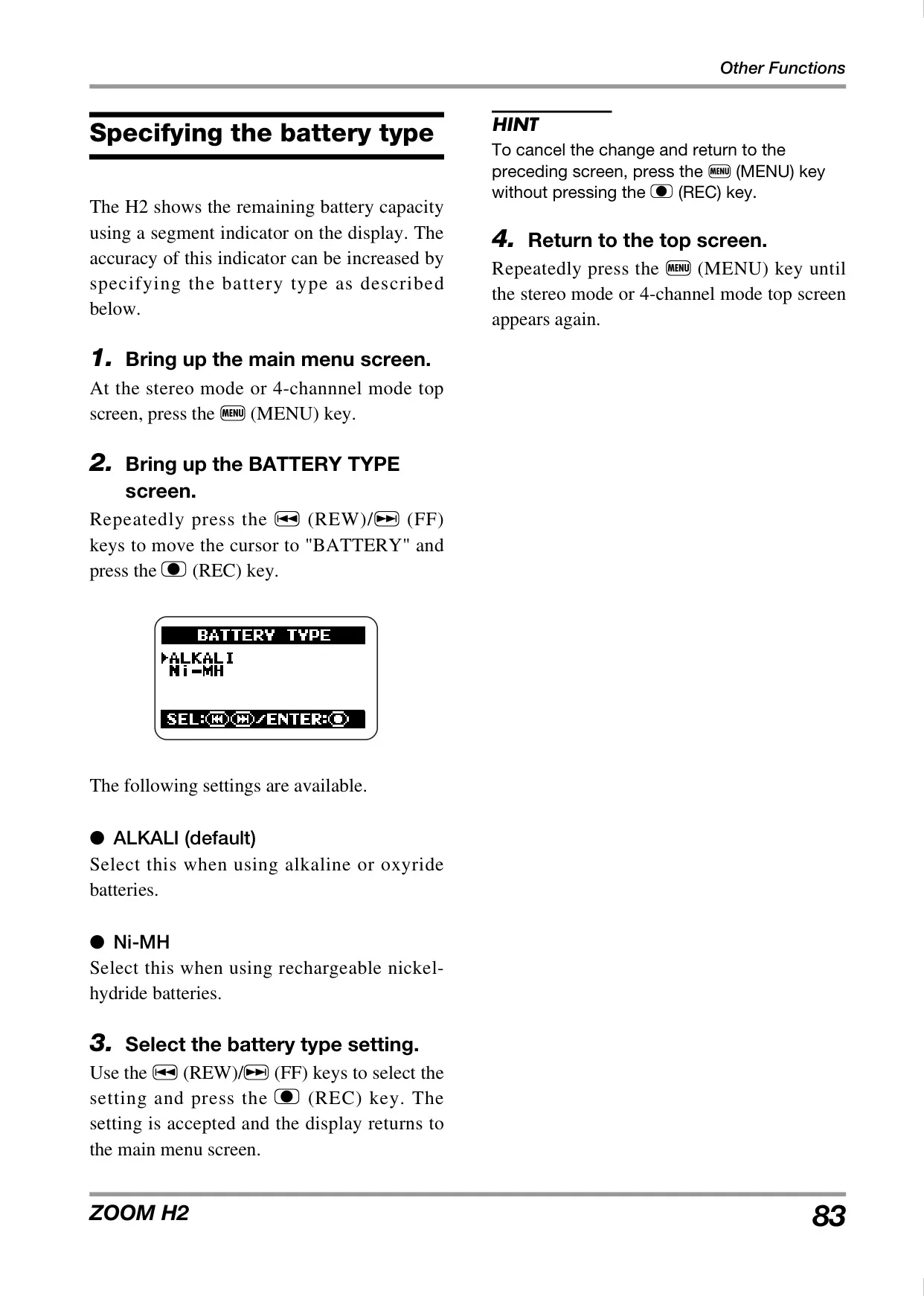
| Power Requirements | 9V DC, 300mA (ZOOM AD-0006 AC adapter) 2x AA (IEC R6) batteries |
| Continuous Recording/Playback Time | Approx. 4 hours (Recording) / 4.5 hours (Playback) |
| Dimensions (WxDxH) | 63.5 x 110 x 32 mm |
| Weight | 110 g |
Zoom H2 Handy Recorder Details
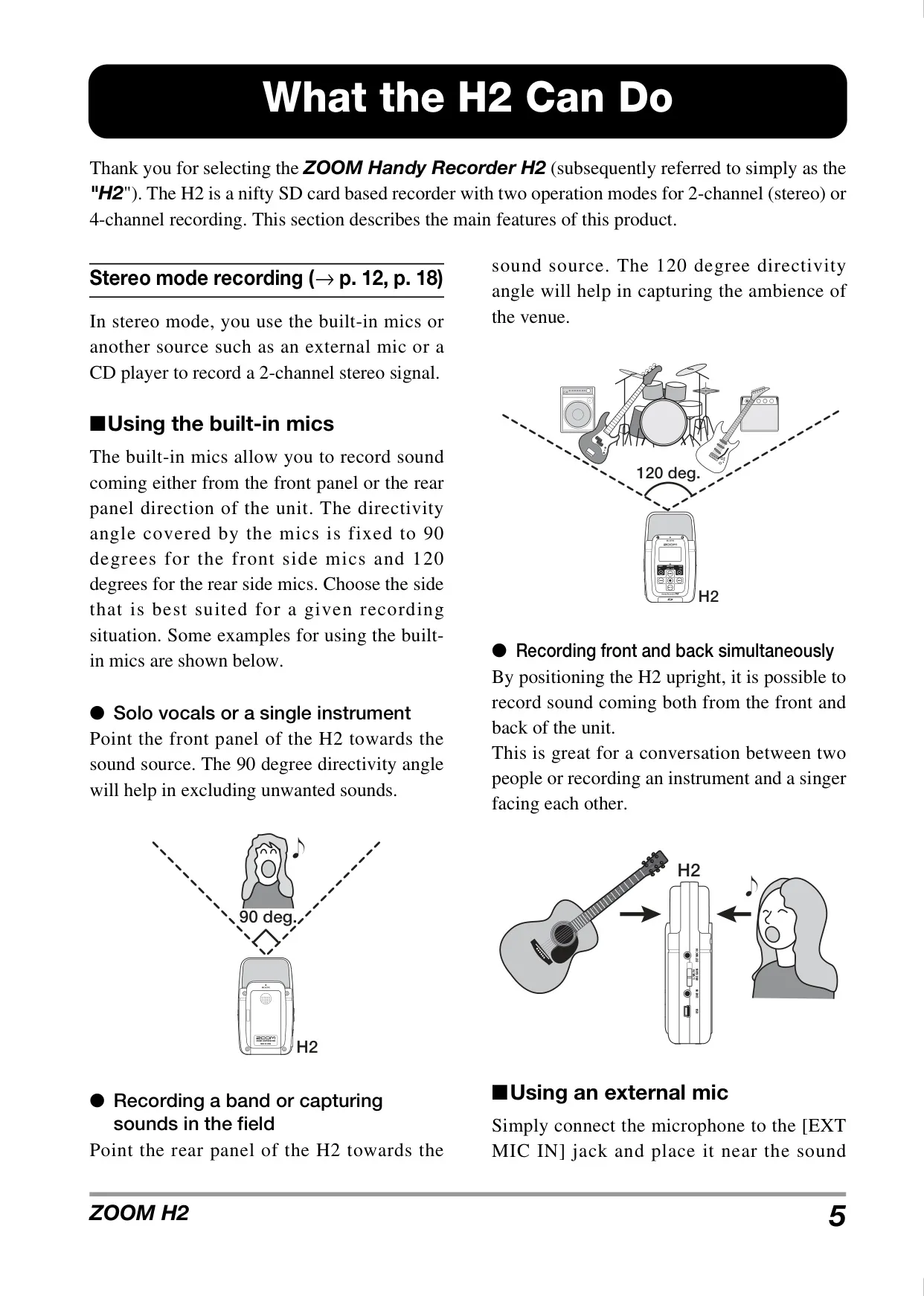
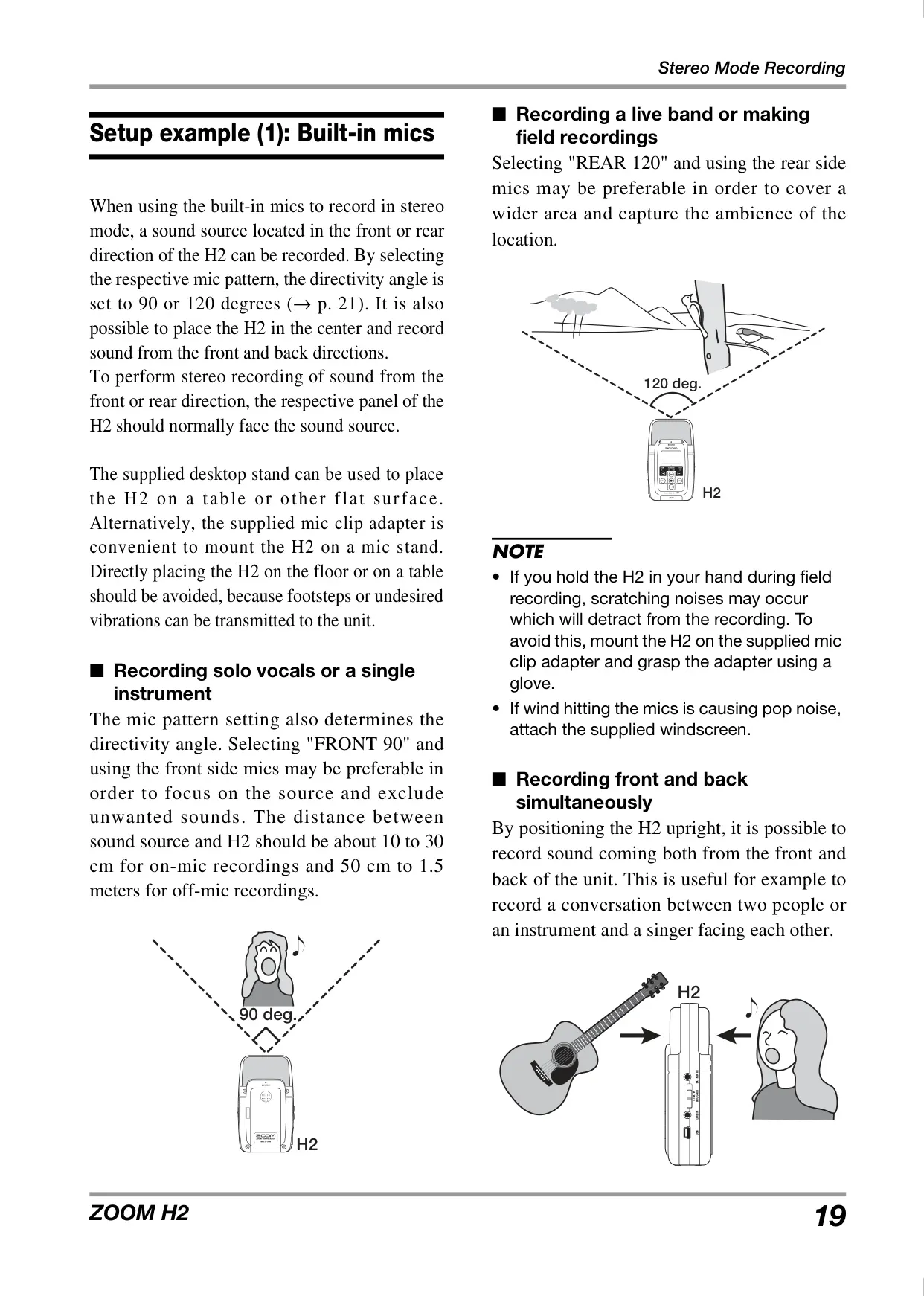
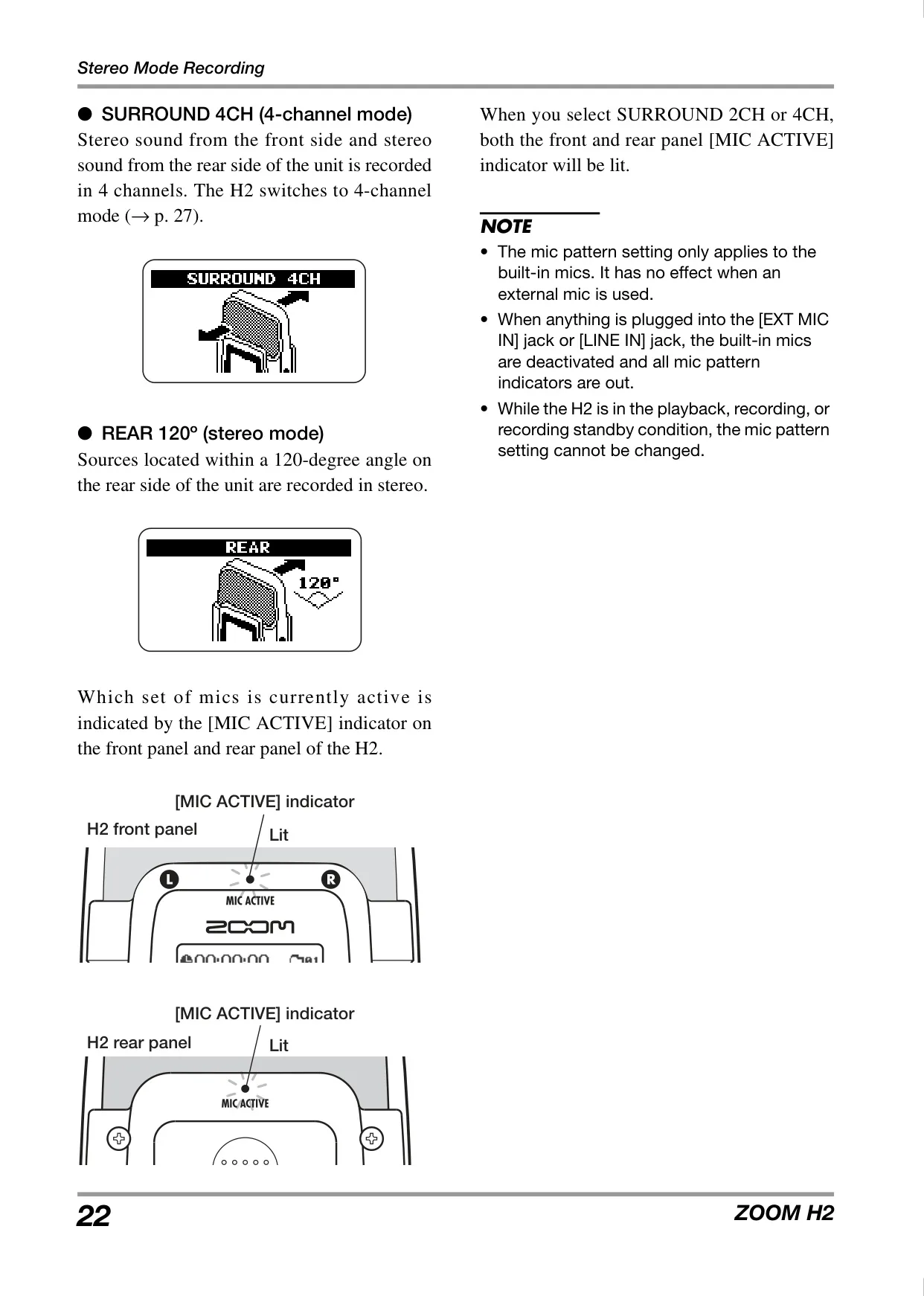
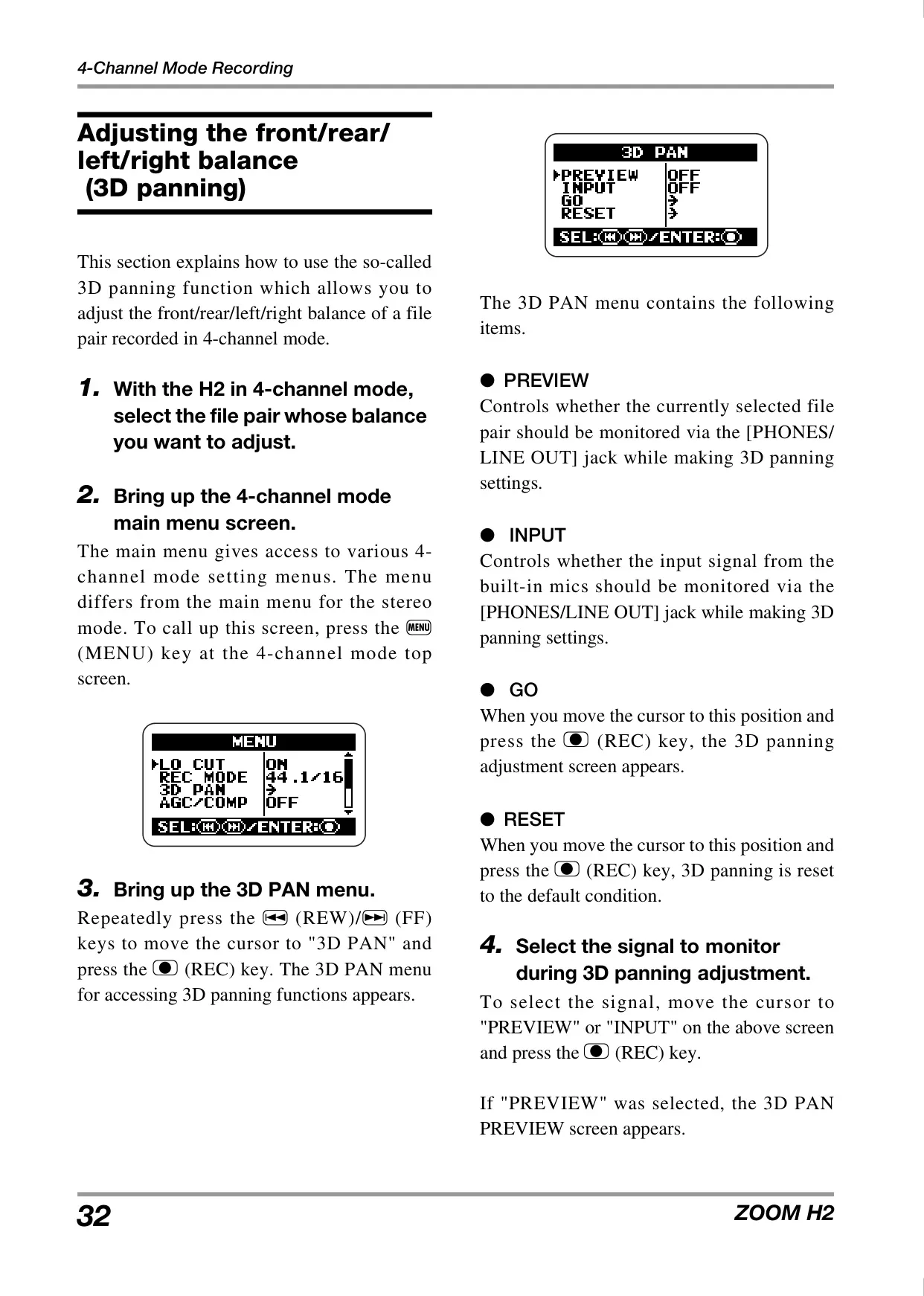
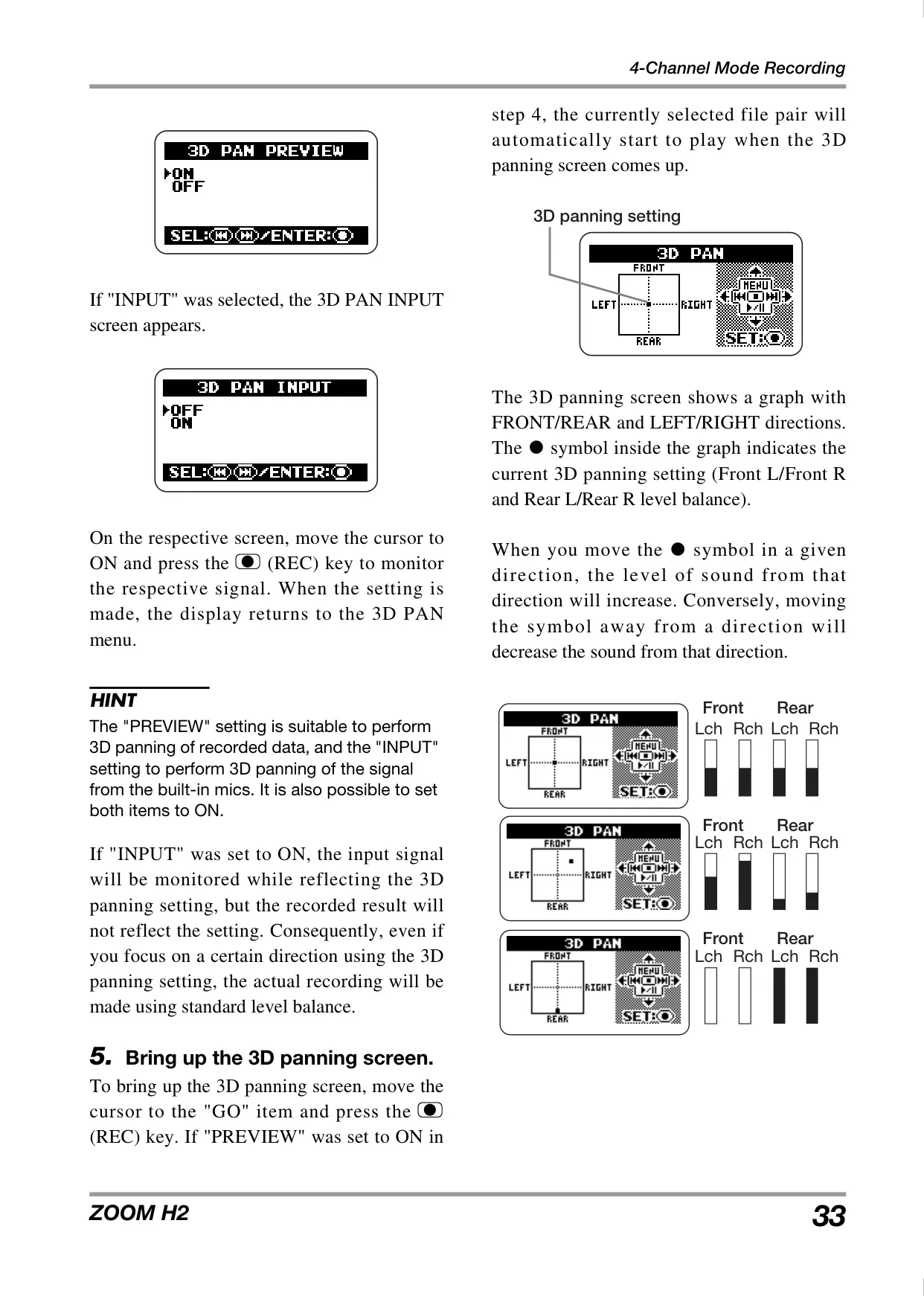
The Zoom H2 Handy Recorder stands out with its versatile microphone patterns, offering users unparalleled flexibility in capturing audio. In stereo mode, it features a FRONT 90° pattern for focused recordings like solo instruments or vocals, and a REAR 120° pattern ideal for capturing wider soundscapes or live performances. For unique scenarios, the H2 can record sounds simultaneously from both front and rear, perfect for conversations or instrument/singer duets facing each other. This thoughtful mic design minimizes the need for external equipment in many recording situations.
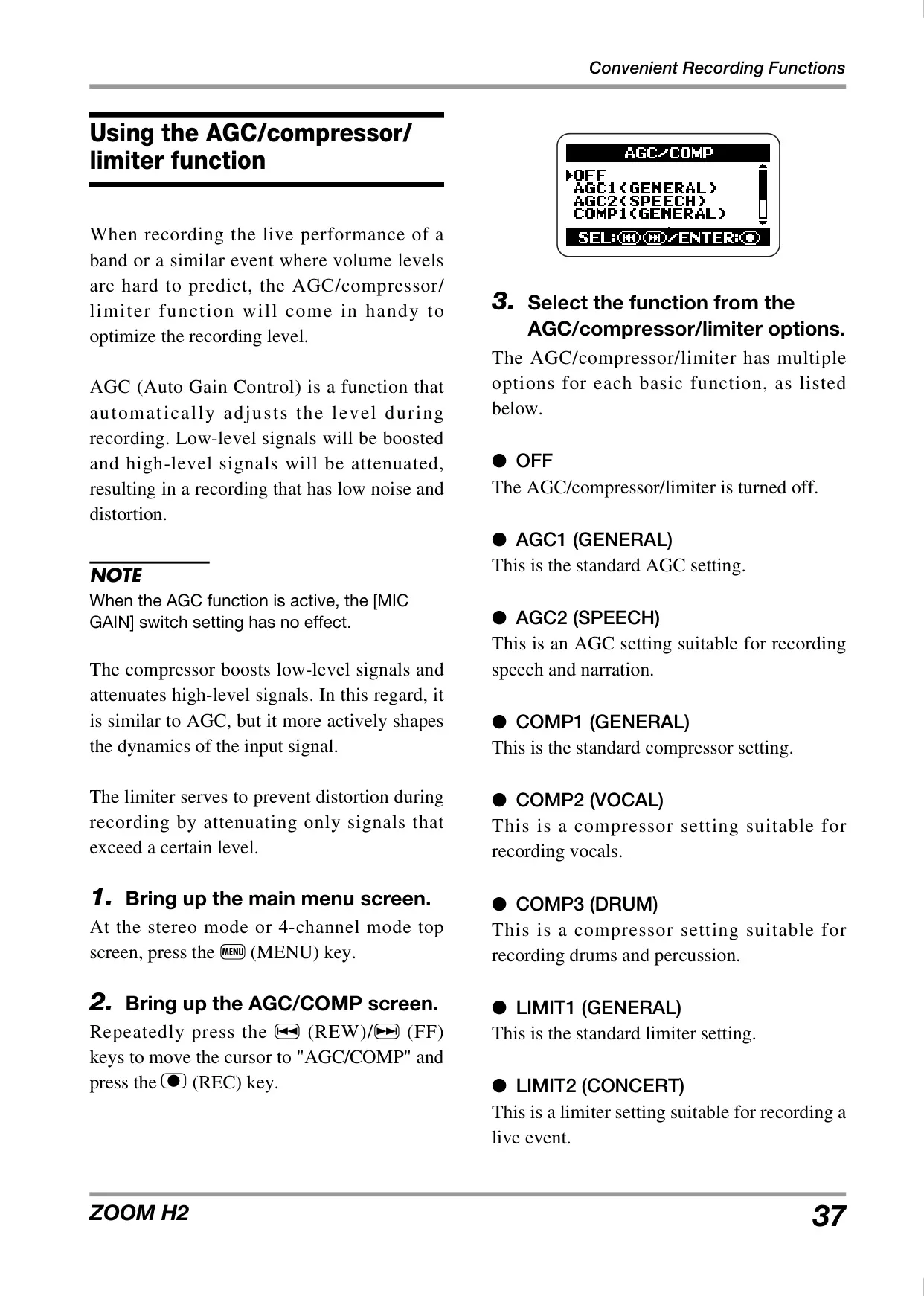
Beyond basic recording, the H2 incorporates a sophisticated AGC/compressor/limiter function to optimize audio levels. AGC automatically adjusts levels for consistent volume, while the compressor actively shapes dynamics, with specialized settings for vocals or drums. The limiter prevents distortion from sudden loud peaks, offering tailored presets for general use, concerts, or studio environments. These features are invaluable when recording in unpredictable sound environments, ensuring professional-sounding results without constant manual adjustment.
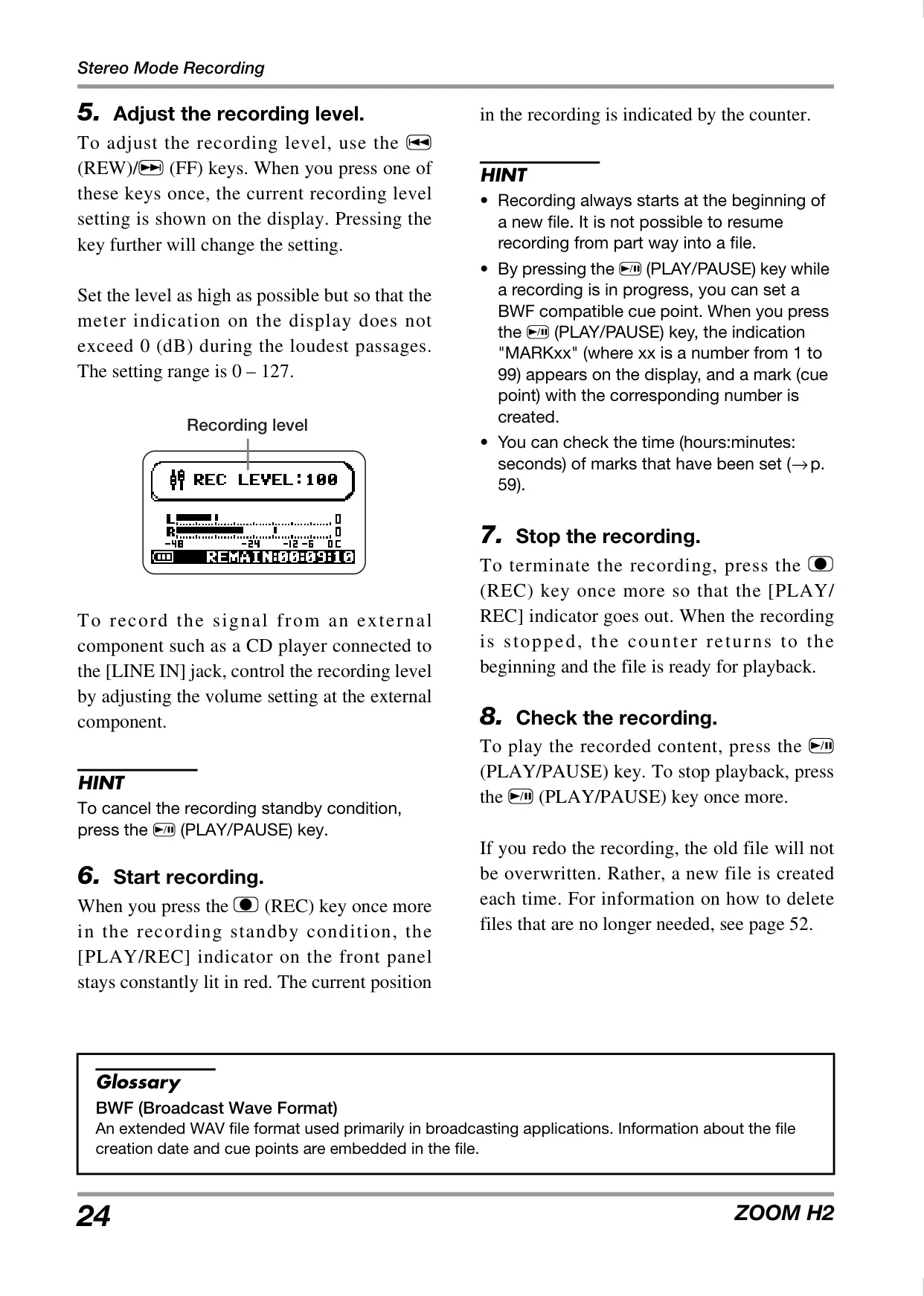
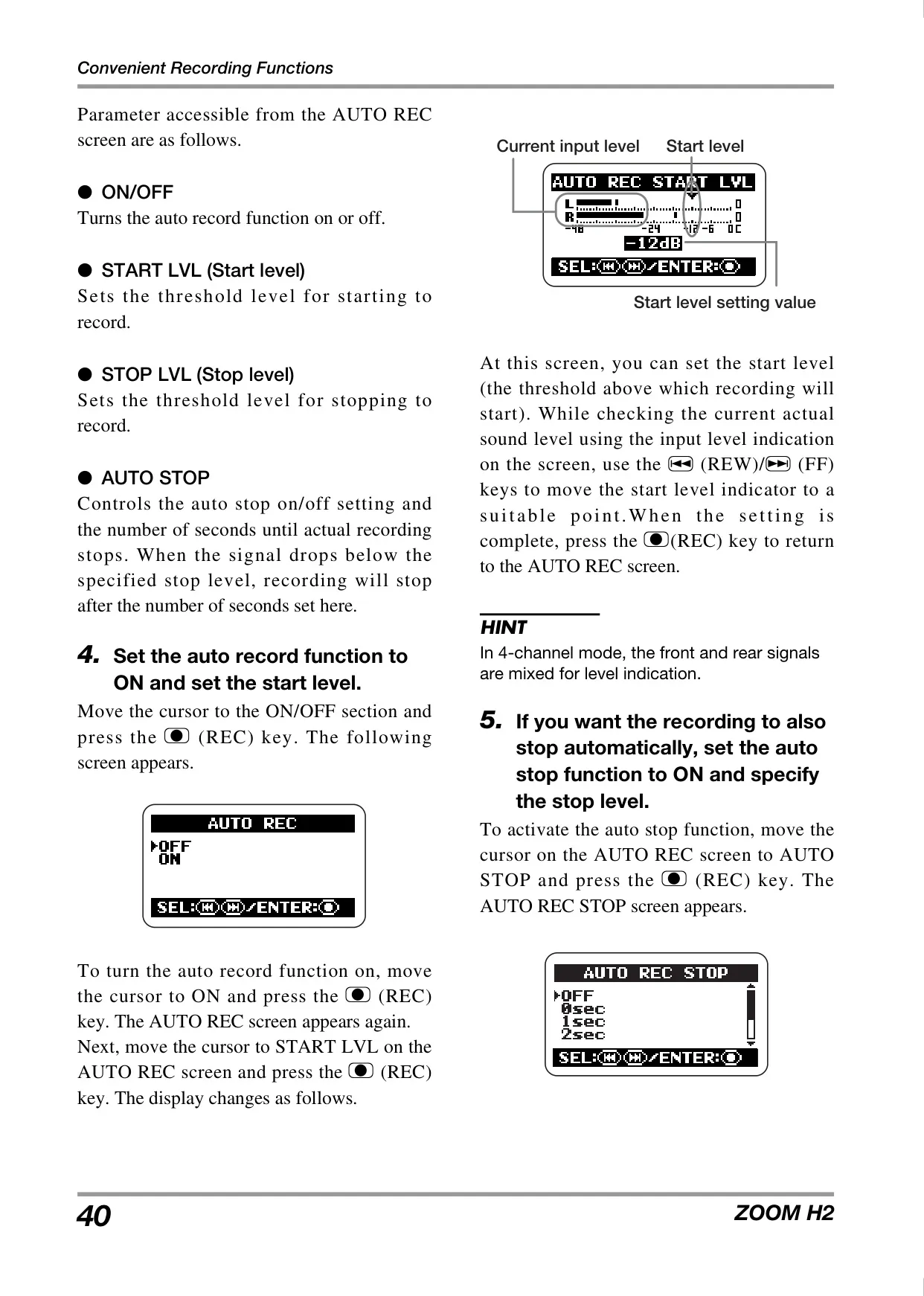
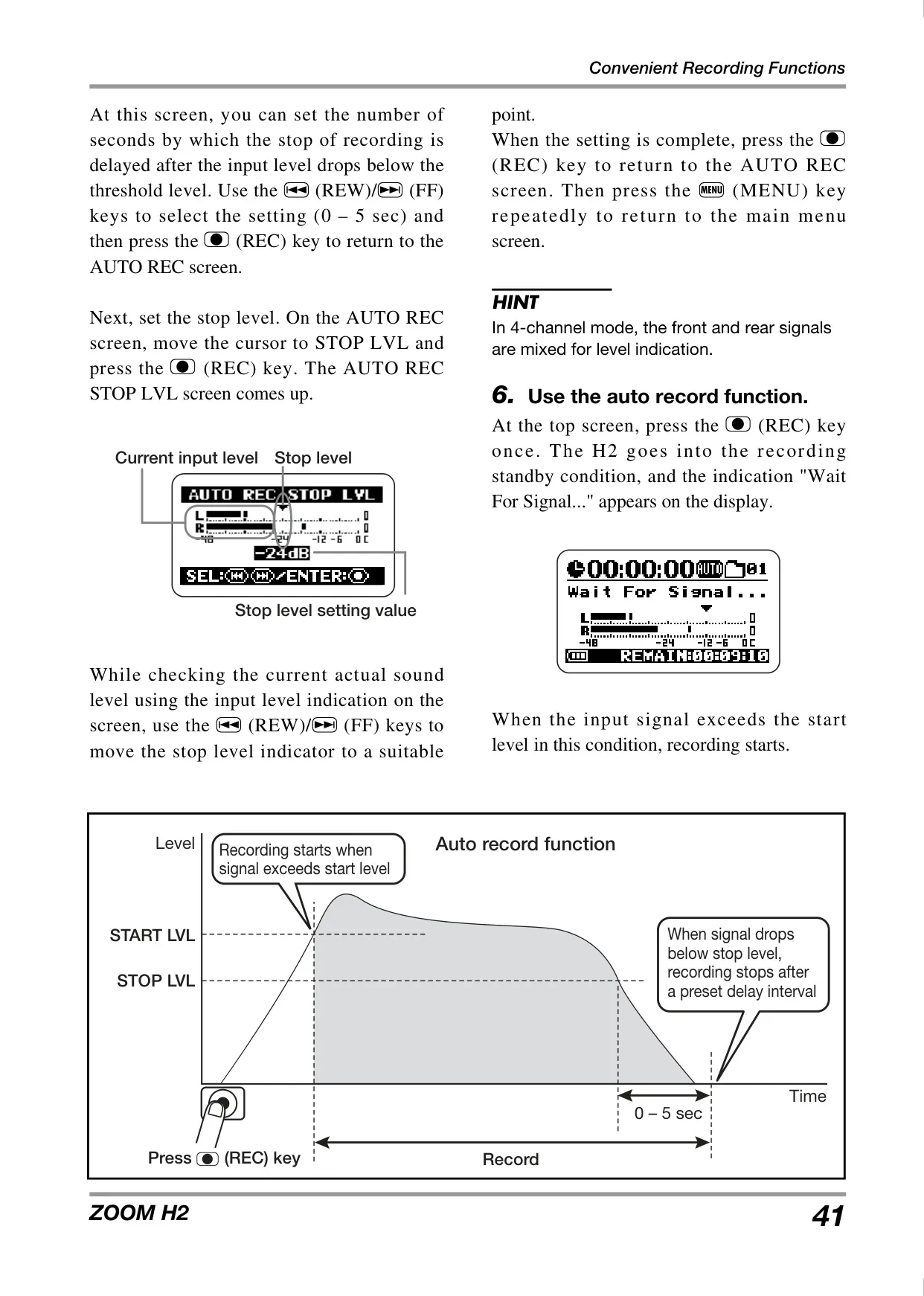
To streamline the recording process, the H2 offers smart functions like auto record and pre-record. Auto record can automatically start and stop recording based on a predefined input signal level, making it perfect for meetings or spontaneous musical ideas. The pre-record function, on the other hand, continuously buffers two seconds of audio, ensuring that the beginning of an unexpected sound is never missed. This means you’ll always catch that critical first note or spoken word, even if you react a moment late.
File management on the H2 is also highly practical. Users can divide files to separate tracks from a continuous recording, like splitting a live performance into individual songs. The normalize function allows boosting overall volume to a maximum level without distortion, useful for files recorded at low levels. Furthermore, stereo WAV files can be converted to space-saving MP3s directly on the device, simplifying sharing for web or email, and 4-channel recordings can be mixed down to a single stereo file.
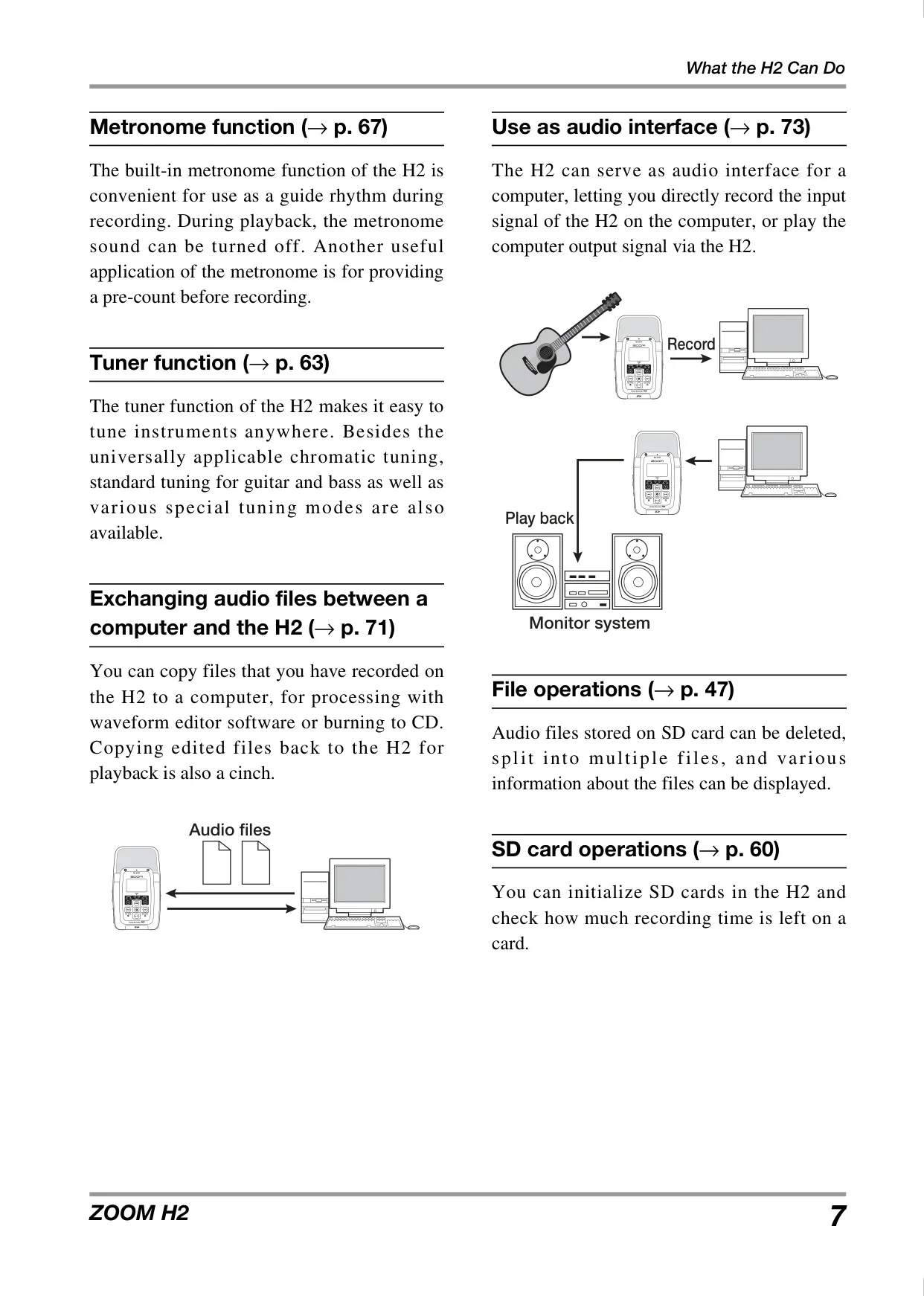
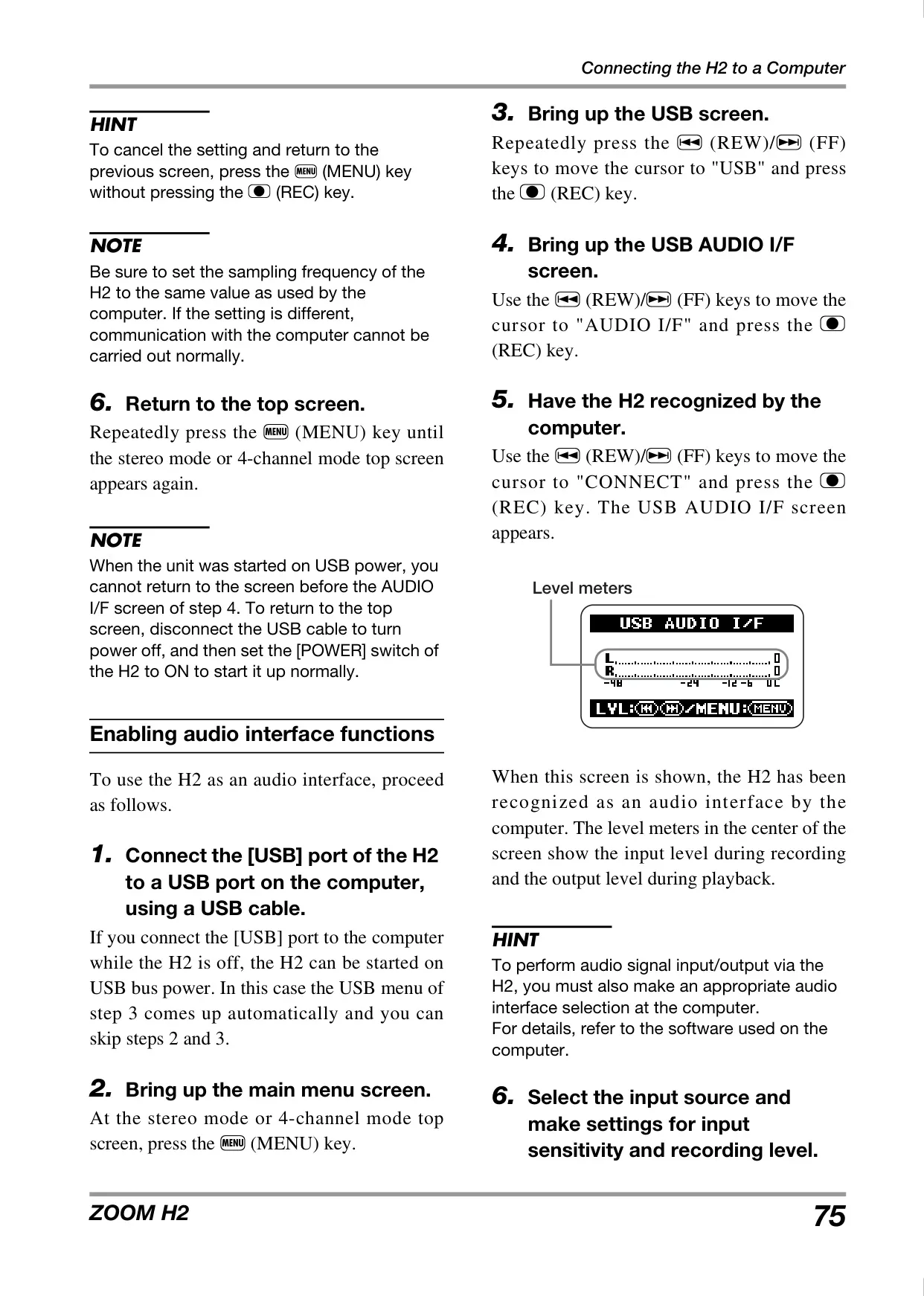
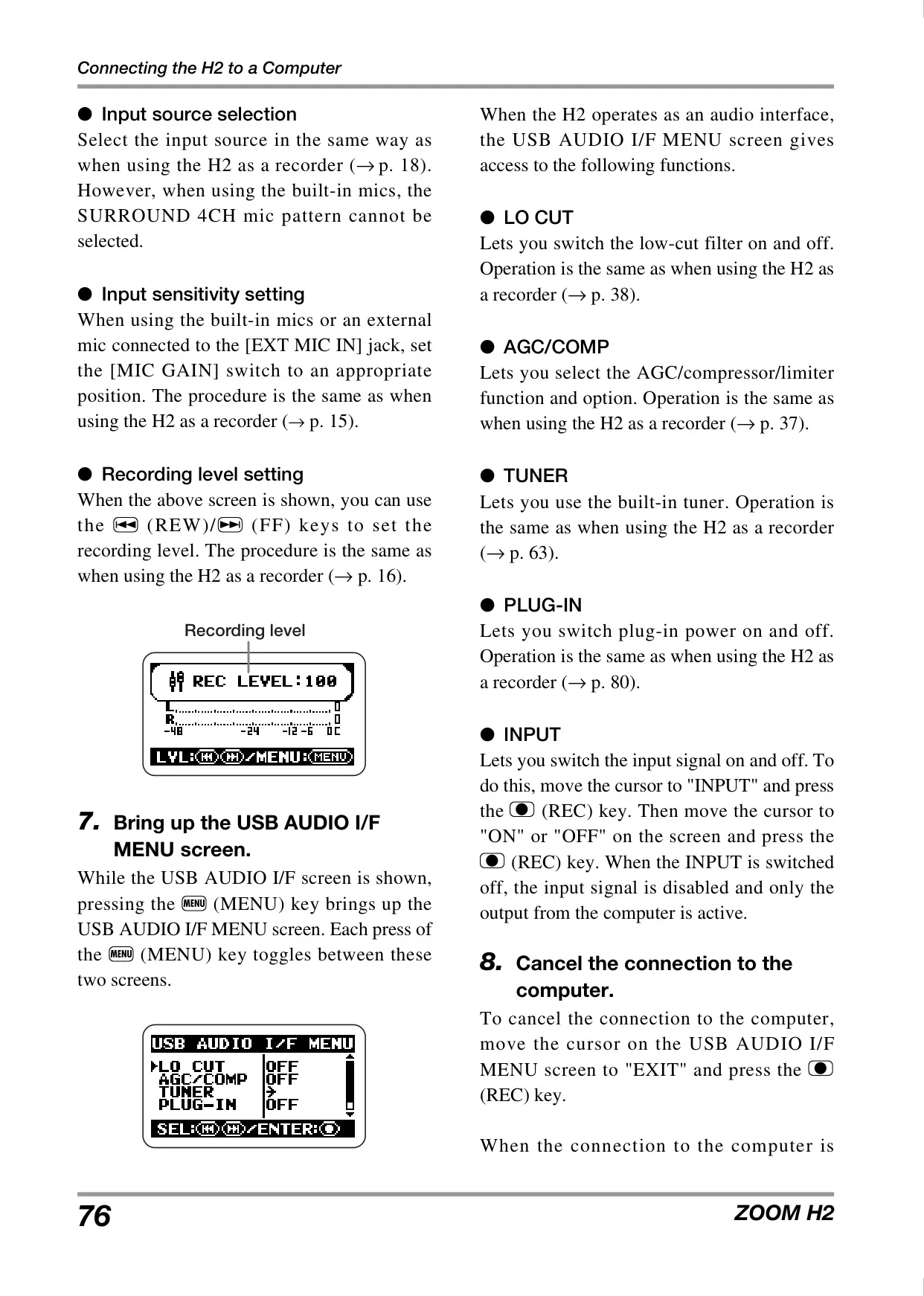
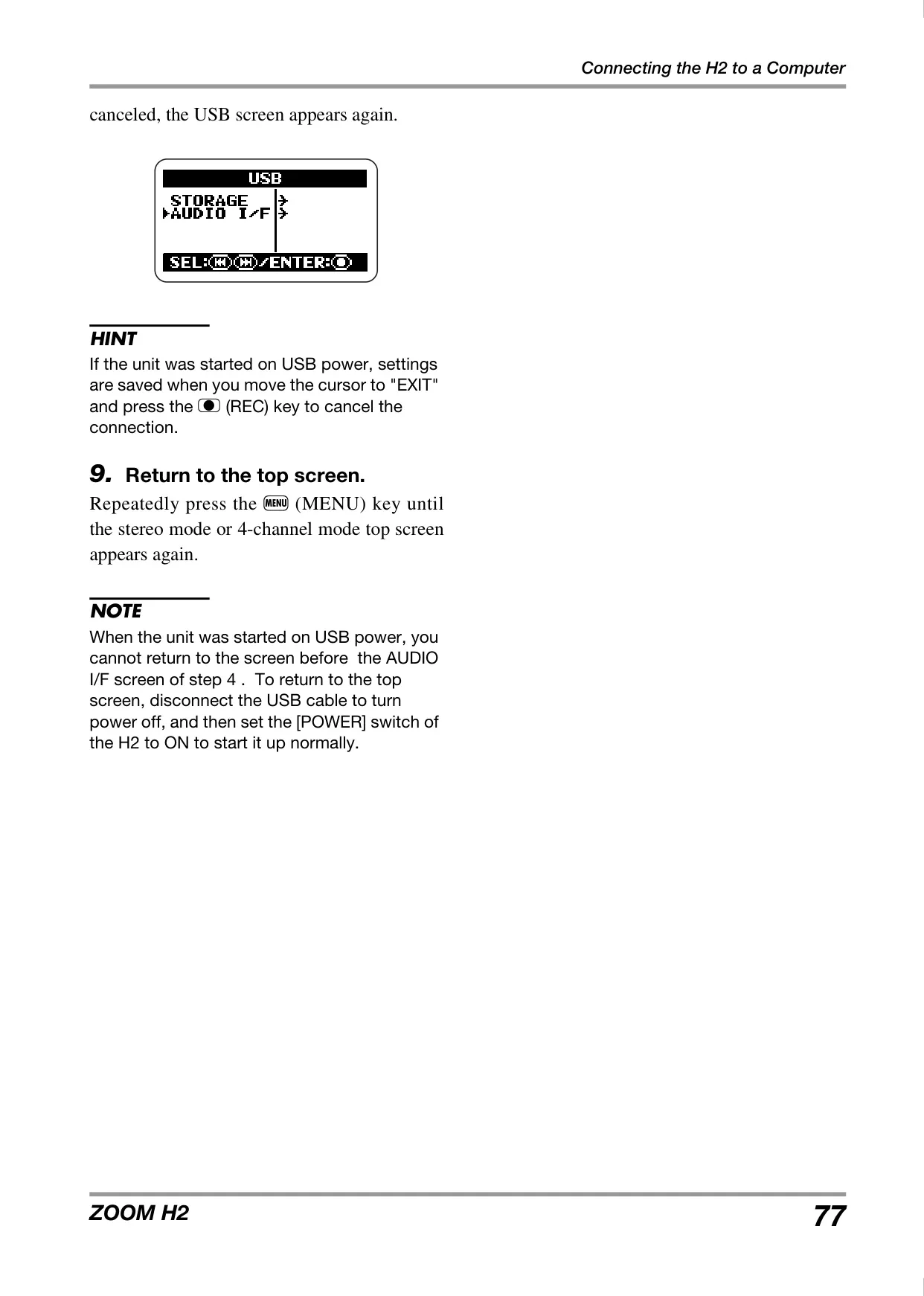
The H2's connectivity extends its utility significantly. It functions as a USB card reader, enabling easy drag-and-drop file transfers to and from a computer, making editing or archiving effortless. Additionally, it can act as a USB audio interface, allowing direct recording of its input signal to a computer or playing back computer audio through the H2. This dual functionality transforms the portable recorder into a versatile studio tool, bridging the gap between field recording and digital audio workstations.
Frequently Asked Questions (FAQs)
Can't find the answer you need? Here are some frequently asked questions about the Zoom H2 Handy Recorder, and we answer them below.