
Orskey Dash Cam S800 Instruction Manual

Orskey Dash Cam S800












Orskey Dash Cam S800 Instructions
Here we offer the Orskey Dash Cam S800 manual completely free and in English. We have cataloged this manual in the Dash Cams section on Manualverse, and it has been rated by 1 users with an average rating of 5. If you have any specific questions about Orskey Dash Cam S800, we suggest checking the Frequently Asked Questions (FAQs) section of this manual.
Product Images


Orskey Dash Cam S800 Specifications
| Feature | Specification |
|---|---|
| Display | 3'' HD Screen |
| Angle | 170° Wide Angle |
| Record Method | Loop Recording / Motion Detection |
| Recording Format | AVI |
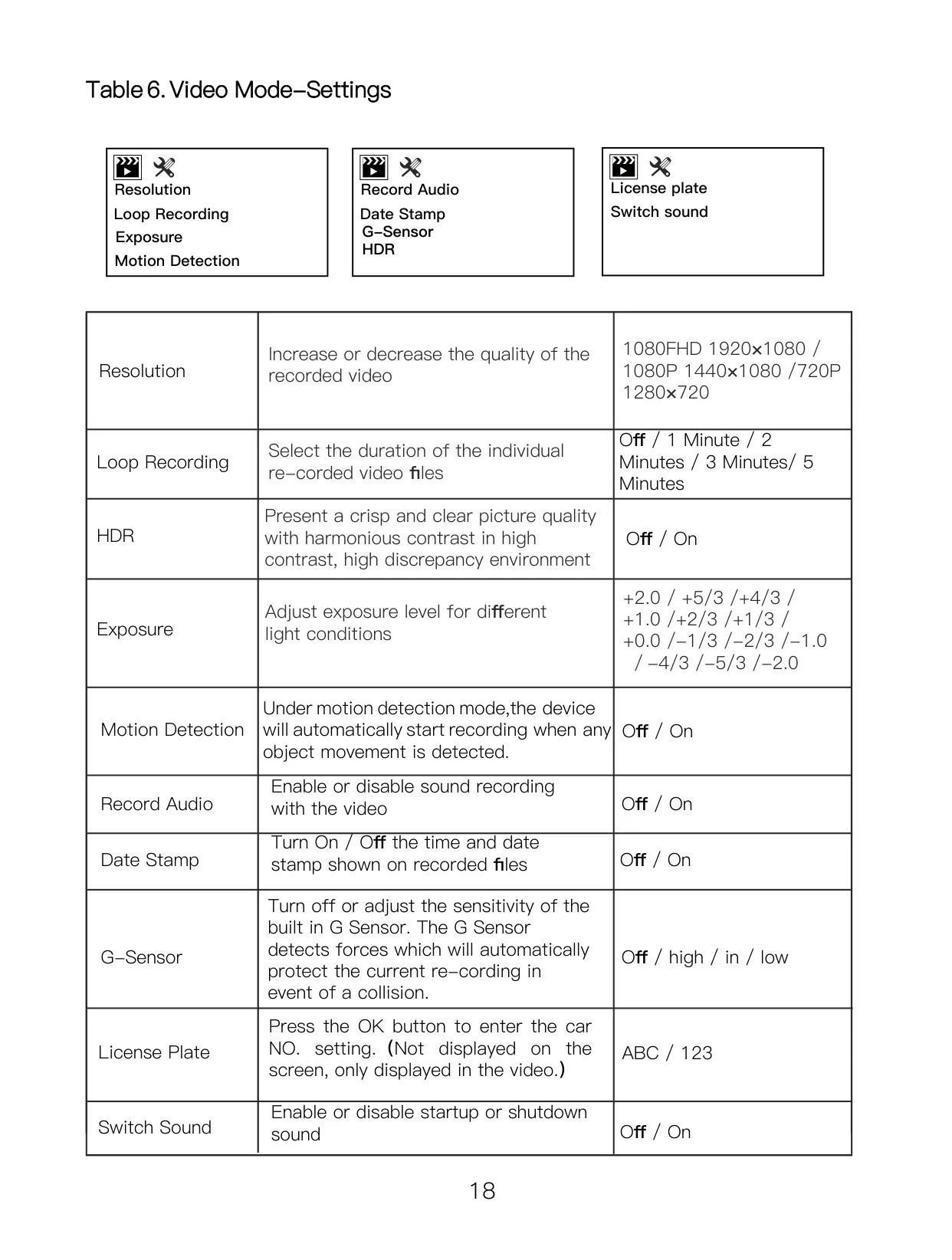
| Video Resolution | 1920×1080 (1080FHD), 1440×1080 (1080P), 1280×720 (720P) |
| Photo Resolution | 4032×3024 (12M), 3648×2736 (10M), 3264×2448 (8M), 2592×1944 (5M), 2048×1536 (3M), 1920×1080 (2MHD), 1280×960 (1.3M) |
| Video Output | No |
| Supported Languages | English, Français, Español, Português, Deutsch, Italiana, Simplified Chinese, Traditional Chinese, Русский, Japanese |
| Gravity Sensor (G-Sensor) | Files locked when in emergency |
| Manual Lock | Press the Lock button during recording |
| Loop Recording Durations | Off, 1 Minute, 2 Minutes, 3 Minutes, 5 Minutes |
| Infrared Night Vision | Yes |
| Memory Card Support | Micro SD card (4GB-32GB, Class 10 or above) |
| USB Interface | USB 2.0 |
| Battery | Lithium polymer battery (150MAH, 3-5 minutes runtime) |
| Power Supply | DC-5V / 1.5A |
| Operating Temperature Range | -10°C to 60°C |
Orskey Dash Cam S800 Details
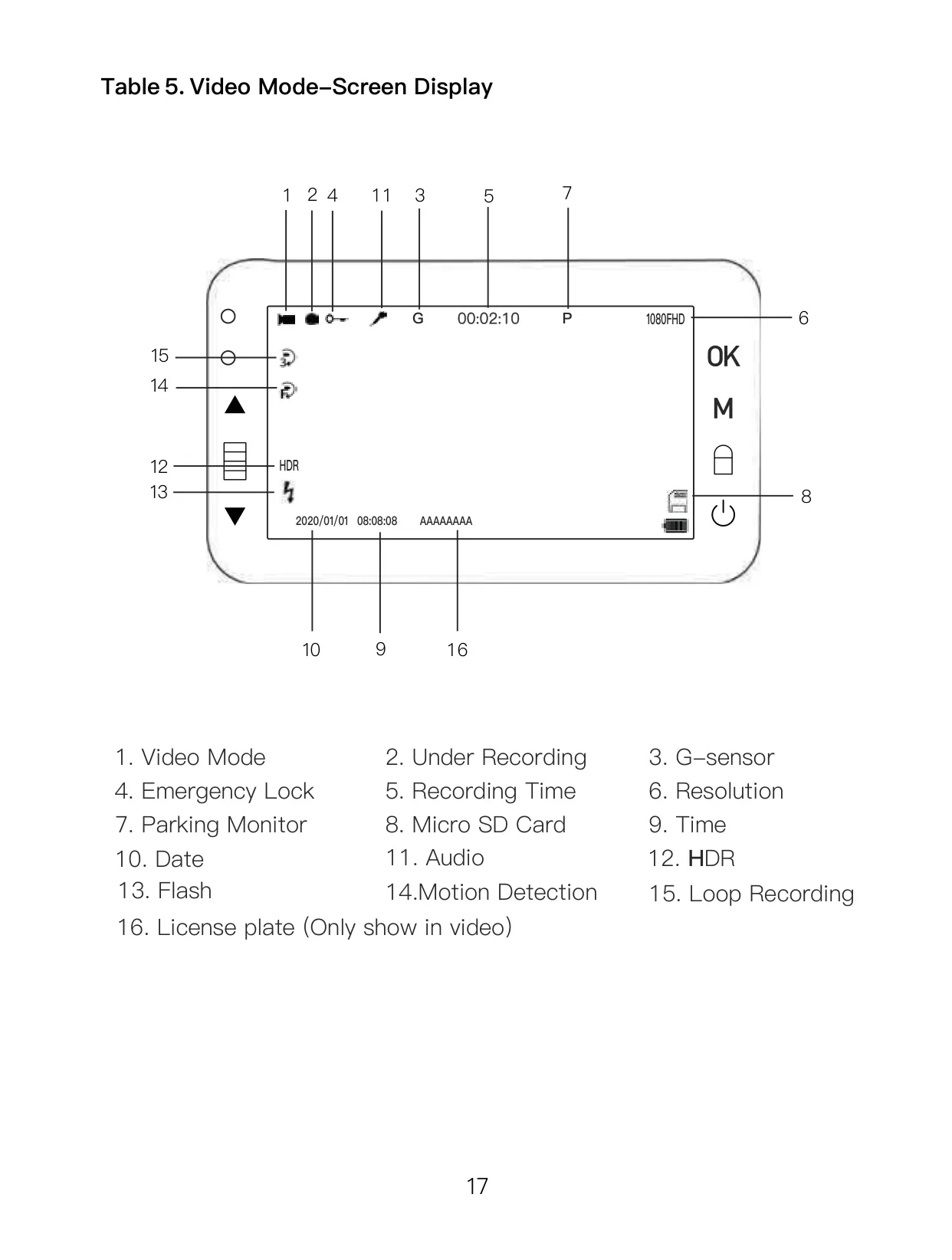
The Orskey Dash Cam S800 is engineered for comprehensive vehicle surveillance, offering a suite of intelligent recording functions. One notable feature is High Dynamic Range (HDR), which can be toggled on or off to optimize video brightness. This ensures a crisp and clear picture with balanced contrast, particularly useful in challenging lighting conditions such as low light or strong backlighting.
For passive monitoring, the dash cam includes Motion Detection, activating recording when movement is sensed within three meters of the lens. It automatically ceases recording when motion stops. Users should note that disabling this feature during driving is recommended to maintain uninterrupted video capture. Additionally, the Parking Monitoring function allows the dash cam to automatically turn on and record if it detects a vibration while the vehicle is parked and the dash cam is powered off.
Crucial for incident protection, the G-sensor automatically locks the current video file upon detecting a sudden shake or collision, preventing it from being overwritten by loop recording. Its sensitivity can be adjusted to Low or Off to avoid unnecessary file locking during routine braking. Continuous 24-hour monitoring requires an optional Hardwire Kit, enabling various power supply configurations, including recording until the car battery reaches a minimum voltage or activating solely upon vibration.
The device is designed for user convenience, featuring a clear display screen and intuitive buttons for navigation. Package contents include the car recorder unit, a robust suction mount for easy windshield attachment, a car charger, and a mini USB cable. Its interfaces comprise a TF card slot, HD interface, USB interface, and dedicated buttons for menu, mode, power, and lock functions, making operation straightforward across its different modes.
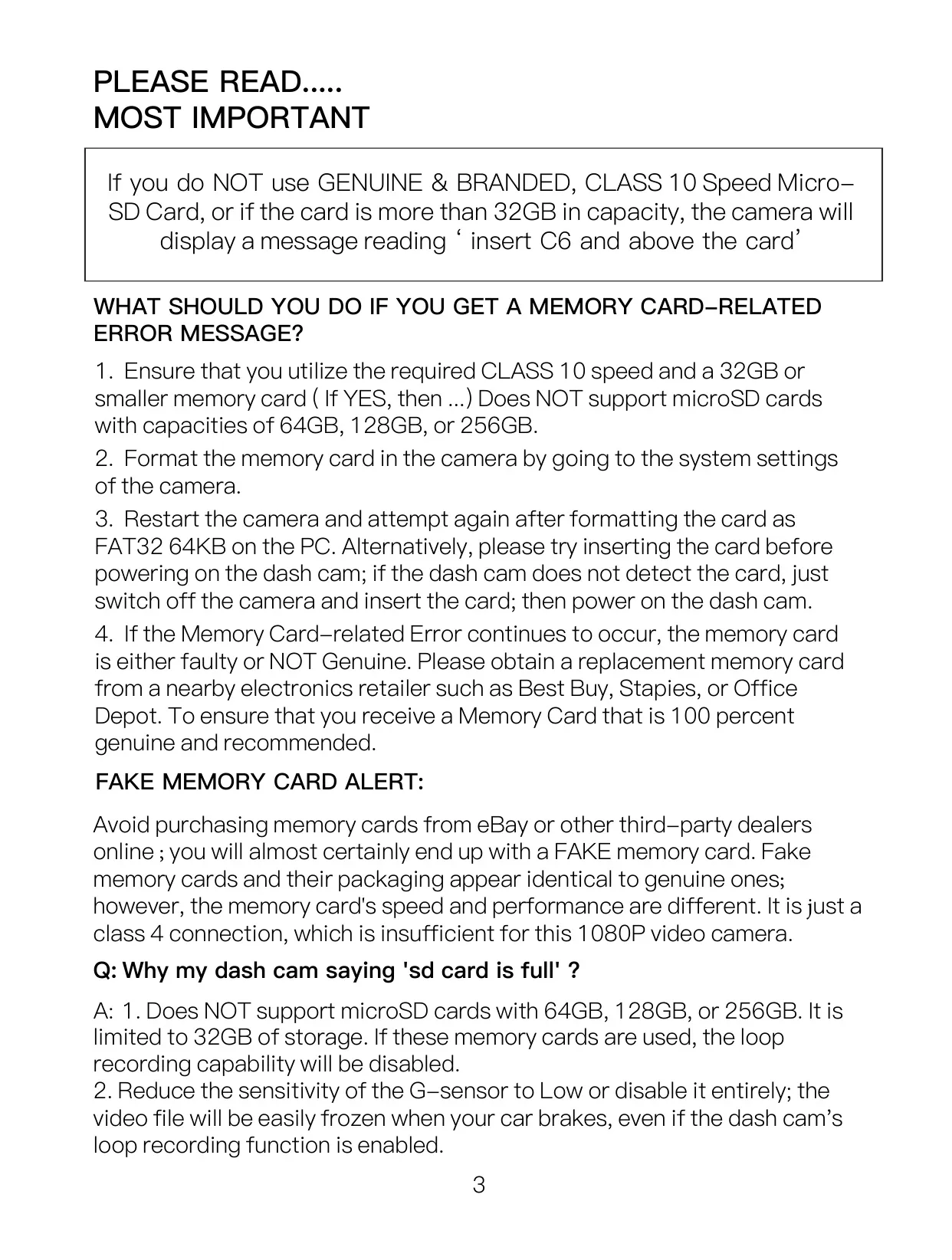
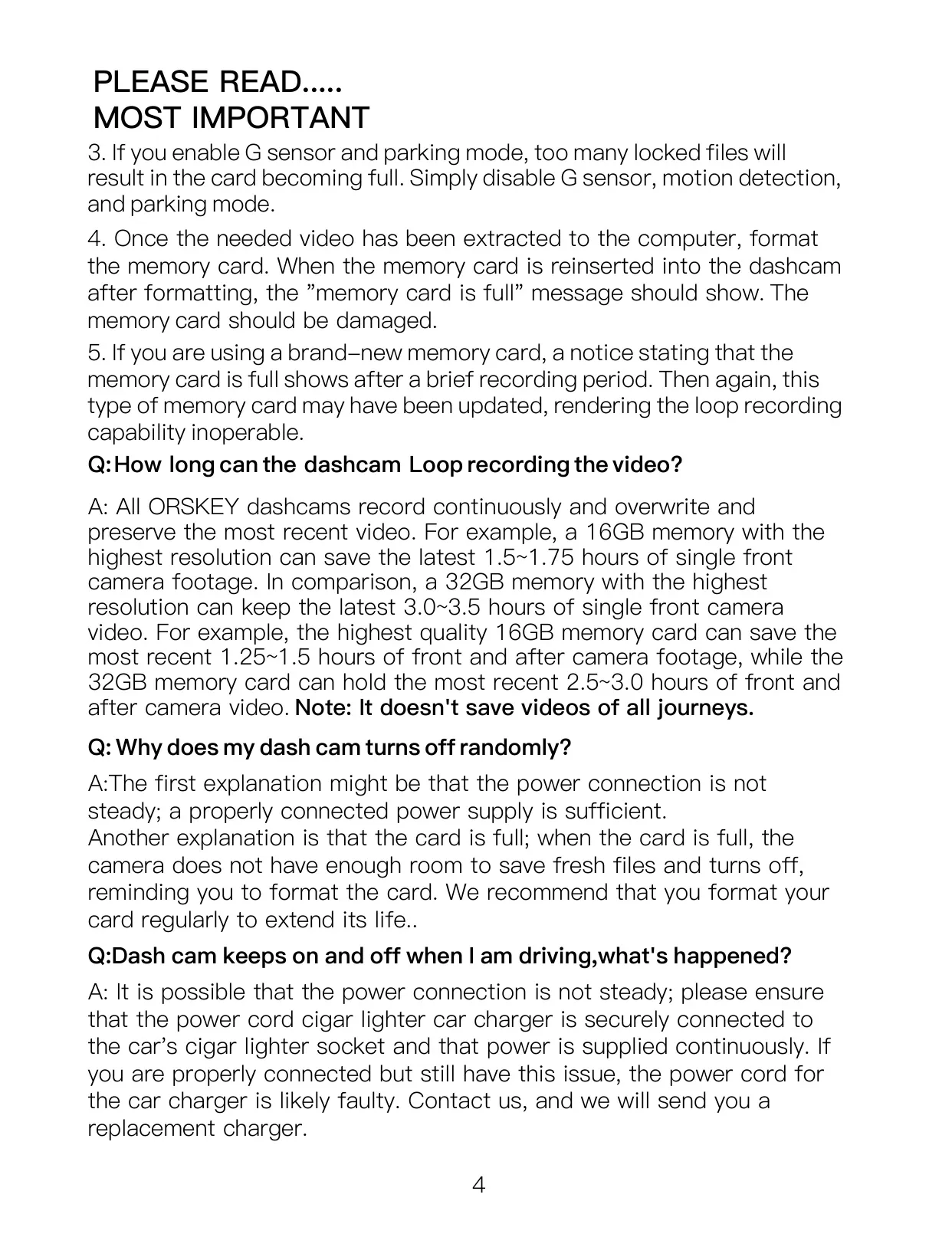
Proper memory card management is vital for the S800's optimal performance. It supports Class 10 microSD cards ranging from 4GB to 32GB. Users are strongly advised to format the card regularly, ideally once a month and before initial use, to prevent storage issues like the "SD card is full" error. The manual cautions against using larger capacity cards or unbranded "fake" memory cards, which can lead to loop recording failures and data corruption.
Installation is simple: the suction mount secures the device near the rearview mirror for an optimal field of view. It’s important to clean the windshield and avoid touching the lens with fingers to ensure video clarity. The dash cam automatically powers on and begins recording when the vehicle's engine starts, utilizing the supplied car charger. Manual power controls are also available, and a Screen Saver option turns off the display after a set period to conserve power while recording continues.
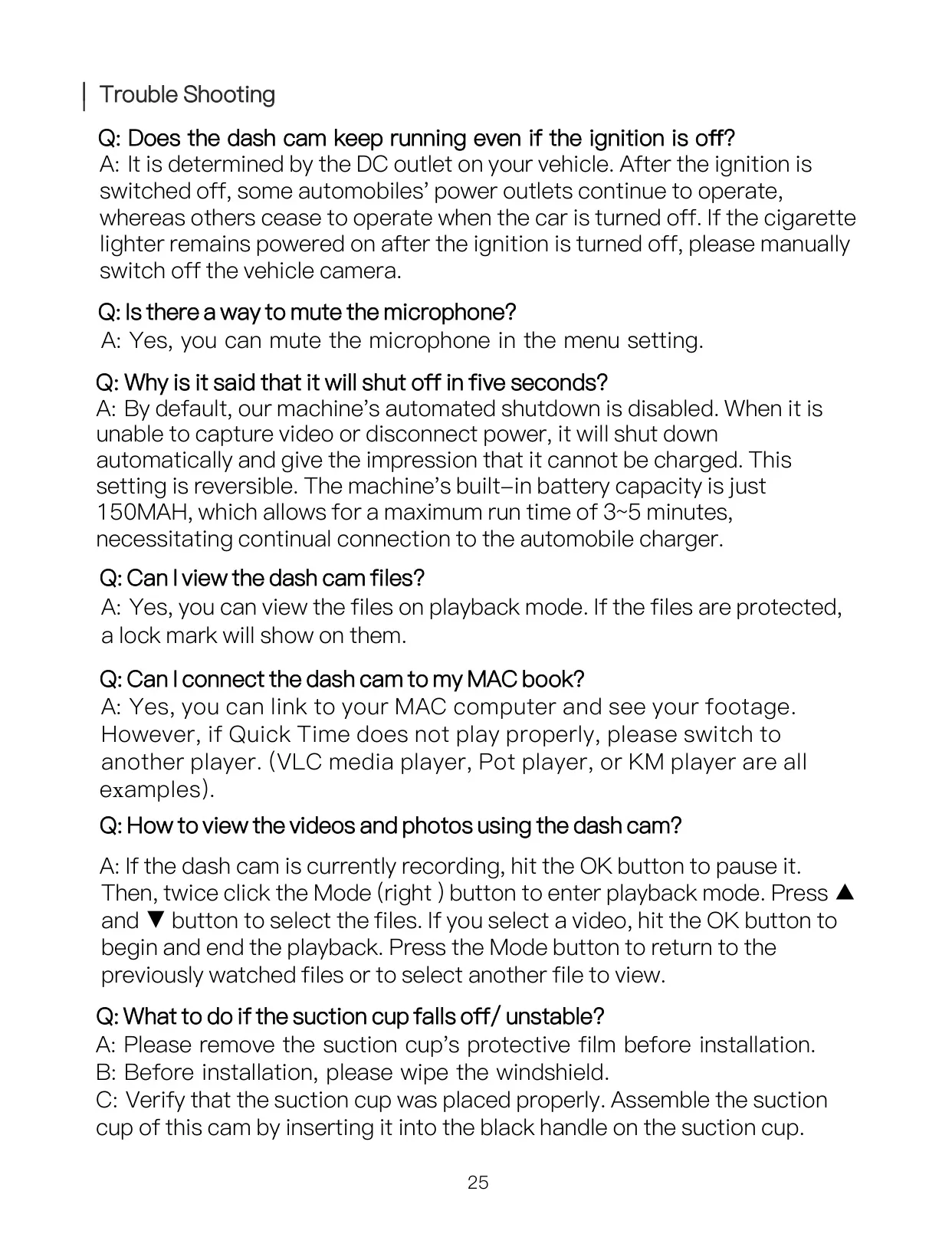
The S800 offers versatile file playback. Videos and photos can be reviewed directly on the dash cam or by connecting it to a PC via the included USB cable, where it appears as 'Mass storage.' For smoother PC playback, VLC media player is recommended. Its comprehensive menu system allows for detailed customization of video settings such as exposure and audio recording, and photo settings like white balance and sharpness.
For vehicles with dual camera setups, the S800 supports a rear camera, which can be installed on the rear windshield or near the license plate. If the vehicle lacks a built-in reverse monitor, connecting the rear camera's red trigger wire to the vehicle's reversing lamp enables automatic display of a full-screen back image with an assistant line when reversing. The device offers various troubleshooting tips, addressing common issues like power supply consistency, blurred videos, and screen freezing, emphasizing the use of the correct power adapter and proper memory card specifications.
Frequently Asked Questions (FAQs)
Can't find the answer you need? Here are some frequently asked questions about the Orskey Dash Cam S800, and we answer them below.