
Gigabyte Z790 Eagle AX Motherboard Instruction Manual

Gigabyte Z790 Eagle AX Motherboard













Gigabyte Z790 Eagle AX Instructions
Here we offer the Gigabyte Z790 Eagle AX Motherboard manual completely free and in English. We have cataloged this manual in the Motherboards section on Manualverse, and it has been rated by 1 users with an average rating of 5. If you have any specific questions about Gigabyte Z790 Eagle AX Motherboard, we suggest checking the Frequently Asked Questions (FAQs) section of this manual.
Product Images



Gigabyte Z790 Eagle AX Motherboard Specifications
| Feature | Specification |
|---|---|
| CPU Socket | LGA1700, supports 14th, 13th and 12th Gen Intel Core, Pentium Gold and Celeron processors |
| L3 Cache | Varies with CPU |
| Chipset | Intel Z790 Express Chipset |
| Memory Speed (14th/13th Gen Core i9/i7) | DDR5 5600/5200/4800/4400 MT/s |
| Memory Speed (13th Gen Core i5/i3, 12th Gen, Pentium Gold, Celeron) | DDR5 4800/4400 MT/s |
| Memory Sockets | 4 x DDR5 DIMM, up to 256 GB (64 GB per DIMM) |
| Memory Architecture | Dual channel |
| Memory Module Support | ECC Un-buffered DIMM 1Rx8/2Rx8 (operates in non-ECC mode); non-ECC Un-buffered DIMM 1Rx8/2Rx8/1Rx16; Extreme Memory Profile (XMP) |
| Onboard Graphics – HDMI | 1 x HDMI, max 4096x2160@60 Hz, HDMI 2.1, HDCP 2.3 |
| Onboard Graphics – DisplayPort | 1 x DisplayPort, max 4096x2304@60 Hz, DisplayPort 1.2, HDCP 2.3 |
| Audio | Realtek Audio CODEC, High Definition Audio, 2/4/5.1/7.1-channel, S/PDIF Out |
| LAN | Realtek 2.5GbE LAN chip (2.5 Gbps/1 Gbps/100 Mbps) |
| Wireless Module (PCB rev. 1.0) | Intel Wi-Fi 6E AX211: Wi-Fi a/b/g/n/ac/ax, 2.4/5/6 GHz, Bluetooth 5.3, 11ax 160 MHz |
| Wireless Module (PCB rev. 1.1) | Realtek Wi-Fi 6E RTL8852CE: Wi-Fi a/b/g/n/ac/ax, 2.4/5/6 GHz, Bluetooth 5.3, 11ax 160 MHz |
| Expansion Slots (CPU) | 1 x PCIe 5.0 x16 slot running at x16 (PCIEX16) |
| Expansion Slots (Chipset) | 1 x PCIe 4.0 x16 slot running at x4 (PCIEX4); 1 x PCIe 3.0 x16 slot running at x1 (PCIEX1_4); 2 x PCIe 3.0 x1 slots (PCIEX1_2, PCIEX1_3) |
| M.2 (CPU) | 1 x M.2 Socket 3, M key, 22110/2280, PCIe 4.0 x4/x2 (M2A_CPU) |
| M.2 (Chipset) | 1 x M.2 2280 PCIe 4.0 x4/x2 (M2P_SB); 1 x M.2 2280 SATA and PCIe 4.0 x4/x2 (M2M_SB) |
| SATA | 4 x SATA 6Gb/s connectors |
| RAID | RAID 0, 1, 5, 10 for NVMe SSD and SATA storage devices |
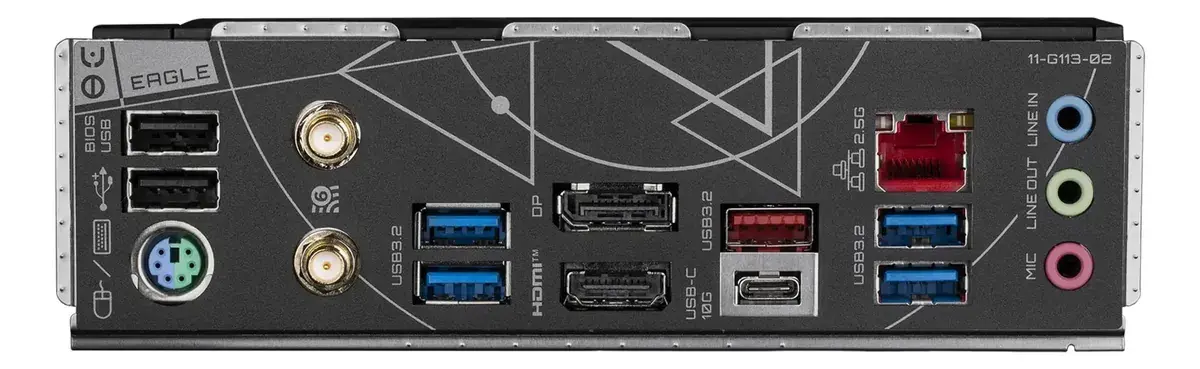
| USB (Back Panel) | 1 x USB Type-C (USB 3.2 Gen 2), 1 x USB 3.2 Gen 2 Type-A (red), 4 x USB 3.2 Gen 1, 2 x USB 2.0/1.1 |
| USB (Internal Headers) | 1 x USB Type-C (USB 3.2 Gen 1), 2 x USB 3.2 Gen 1, 4 x USB 2.0/1.1 (via USB 2.0 hub) |
| Power Connectors | 1 x 24-pin ATX main, 2 x 8-pin ATX 12V |
| Fan Headers | 1 x CPU fan, 1 x CPU fan/water pump, 3 x system fan, 1 x system fan/water pump |
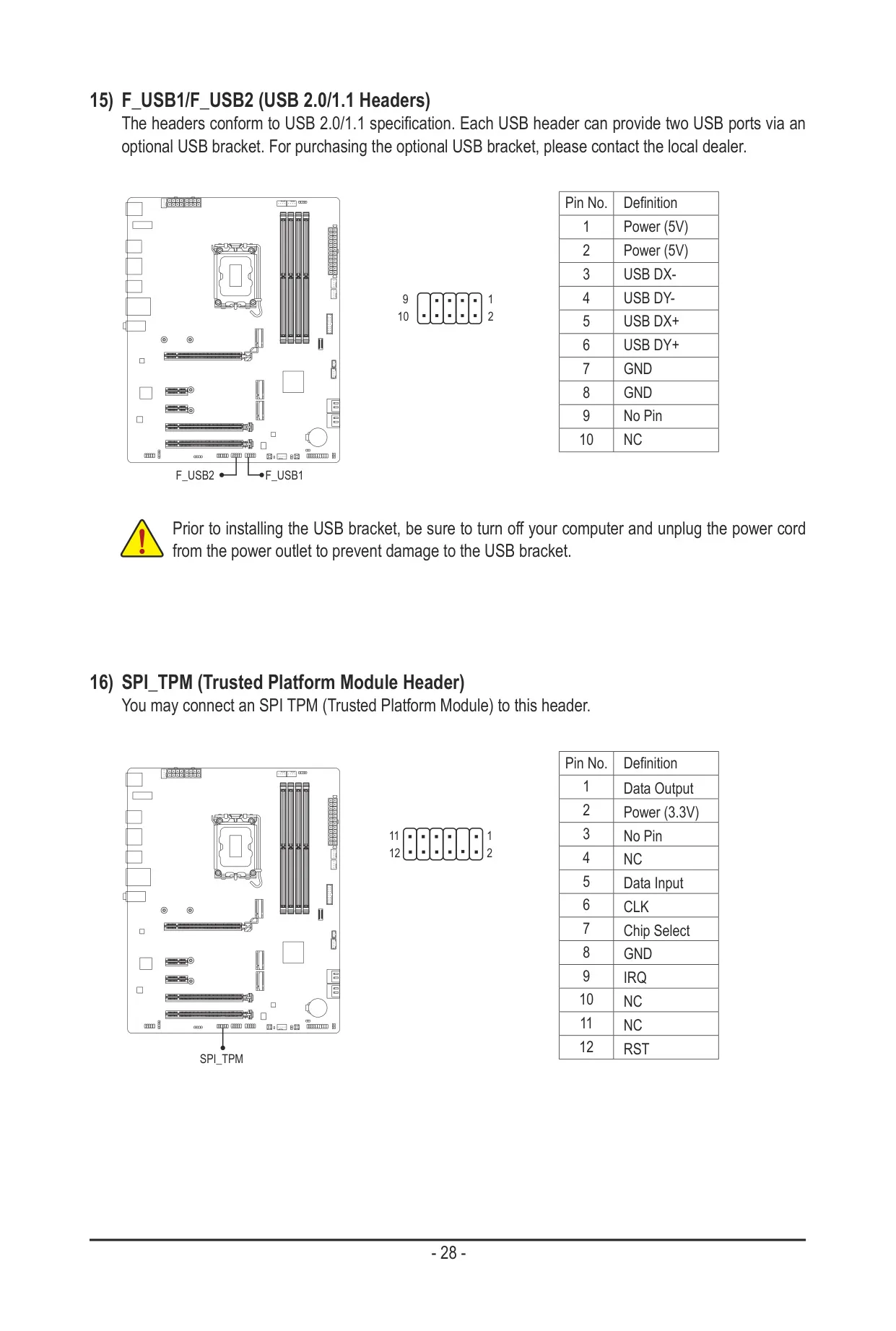
| Other Internal Connectors | 2 x addressable LED strip headers, front panel header, front panel audio header, S/PDIF Out header, 2 x Thunderbolt add-in card connectors, SPI TPM header |
| Onboard Buttons and Jumpers | Reset button, Q-Flash Plus button, reset jumper, Clear CMOS jumper |
| Back Panel Connectors | PS/2 keyboard/mouse port, 2 x antenna connectors (1T1R), HDMI, DisplayPort, RJ-45, 3 x audio jacks |
| I/O Controller | iTE I/O Controller Chip |
| Hardware Monitor | Voltage, temperature, fan speed and water cooling flow rate detection; fan fail warning; fan speed control |
| BIOS | 1 x 256 Mbit flash, licensed AMI UEFI BIOS, PnP 1.0a, DMI 2.7, WfM 2.0, SM BIOS 2.7, ACPI 5.0 |
| Unique Features | GIGABYTE Control Center (GCC), Q-Flash, Q-Flash Plus, Smart Backup |
| Bundled Software | Norton Internet Security (OEM version), LAN bandwidth management software |
| Operating System | Windows 11 64-bit, Windows 10 64-bit |
| Form Factor | ATX, 30.5 cm x 24.4 cm |
Gigabyte Z790 Eagle AX Motherboard Details
The Gigabyte Z790 Eagle AX box includes the motherboard, the user's manual, two Wi-Fi antennas, two SATA cables, M.2 screws, and one pack of thick and thin M.2 rubber pads. Use the thick black pad under double-sided M.2 SSDs. For single-sided drives, stick the thin gray pad onto the thick one first. Only the M2A_CPU slot has a heatsink. Remove the protective film from its thermal pad and from the bottom of the heatsink before you put it back.
Memory is split into two channels: DDR5_A1/A2 and DDR5_B1/B2. With two modules, Gigabyte recommends the DDR5_A2 and DDR5_B2 sockets. A single module should also go in DDR5_A2 or DDR5_B2, although Dual Channel mode can't run with only one module. For best results, use matched modules of the same capacity, brand, speed and chips. The BIOS detects memory specifications automatically.
Each of the six fan and pump headers is 4-pin and rated at 2A and 24W. SYS_FAN2B has no Sense pin, and SYS_FAN2A and SYS_FAN2B share synchronized settings. The two addressable LED headers take standard 5050 strips rated up to 5A (5V), with a maximum of 1000 LEDs. Connect the strip's triangle-marked power pin to Pin 1, because a wrong connection can damage the strip.
Gigabyte recommends a power supply of 500W or greater. If the 8-pin 12V CPU power connector isn't connected, the computer won't start. Four status LEDs (CPU, DRAM, VGA and BOOT) help with troubleshooting. A lit CPU, DRAM or VGA LED means that device isn't working normally. A lit BOOT LED means the system hasn't reached the operating system yet.
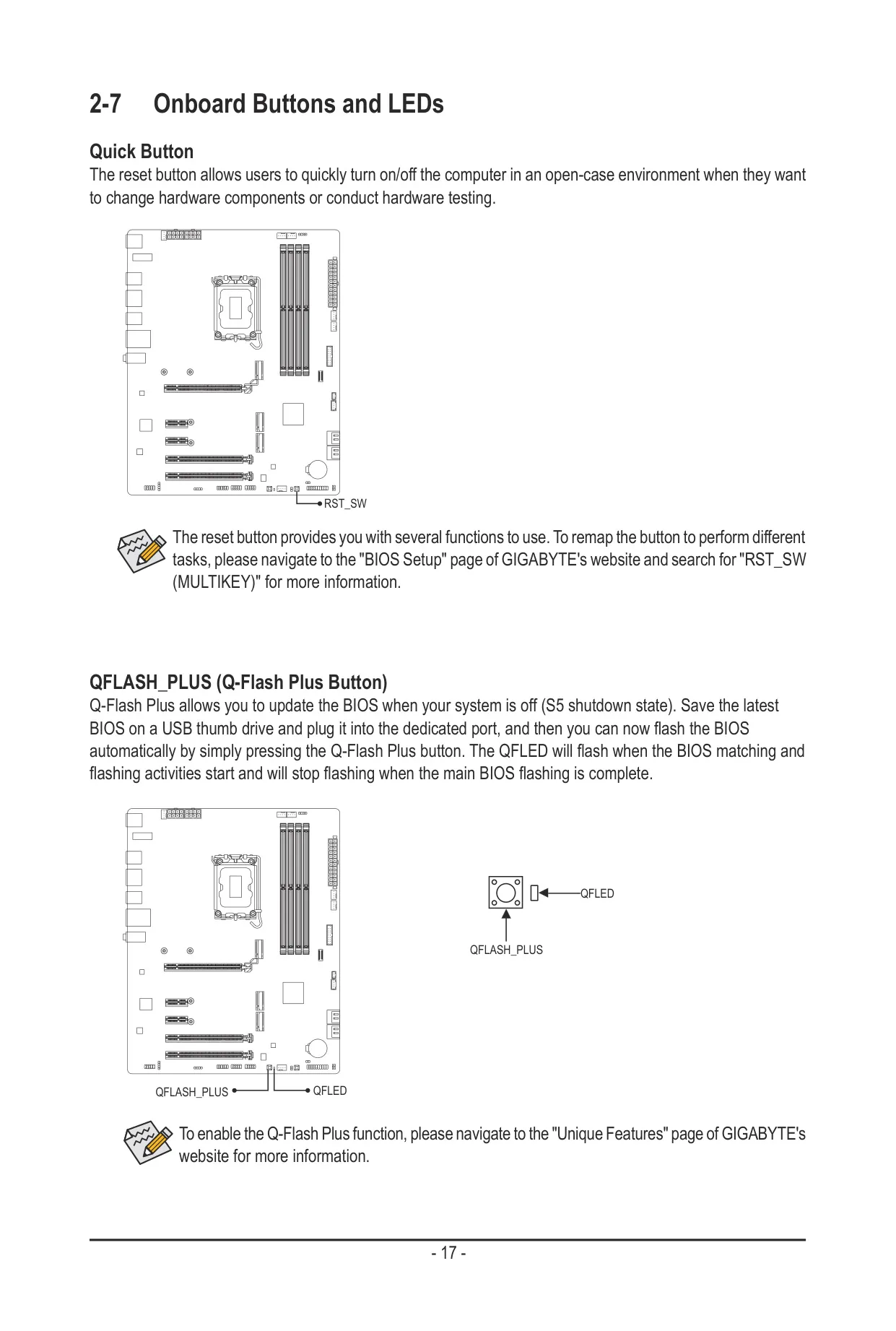
Q-Flash Plus updates the BIOS while the system is in the S5 shutdown state. Save the BIOS file to a USB drive, plug it into the dedicated USB 2.0 port on the back panel, and press the button. The QFLED blinks while flashing and stops when it's done. The RST_SW button and RST jumper can be remapped to other tasks with the BIOS "RST_SW (MULTIKEY)" setting.
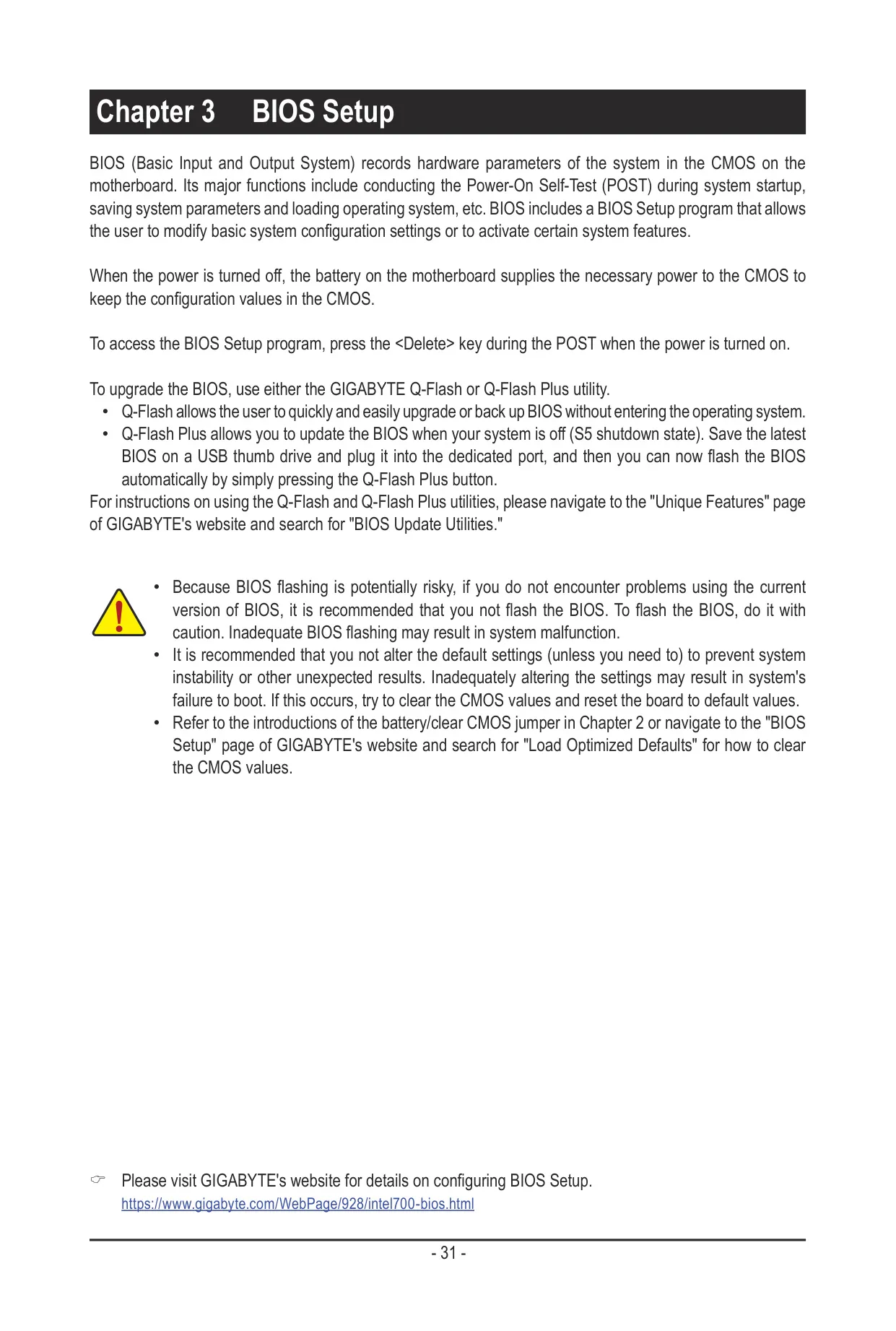
During POST, press Delete to open BIOS Setup, F12 to open the one-time Boot Menu, or End to go straight to Q-Flash. You can reset the CMOS by shorting the CLR_CMOS pins, or by removing the CR2032 3V coin battery for one minute. Afterwards, select Load Optimized Defaults in BIOS Setup.
The LAN port has two LEDs. The speed LED is orange at 2.5 Gbps, green at 1 Gbps, and off at 100 Mbps. The activity LED blinks while data is moving. The HDMI port supports Dolby TrueHD, DTS HD Master Audio and 7.1-channel LPCM at up to 192KHz/24bit. To set up 7.1-channel audio, assign the front panel line out as the side speakers in the audio software.
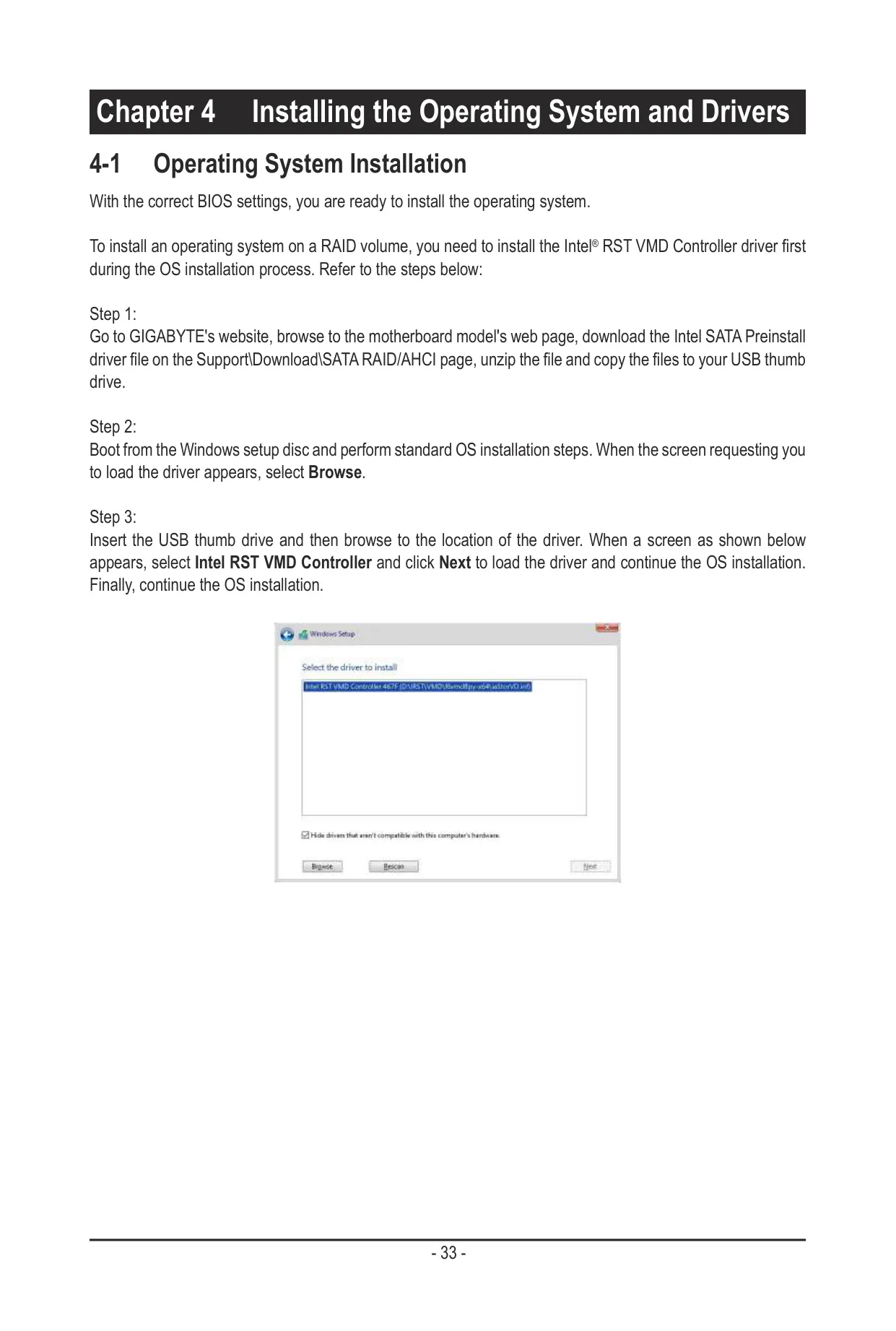
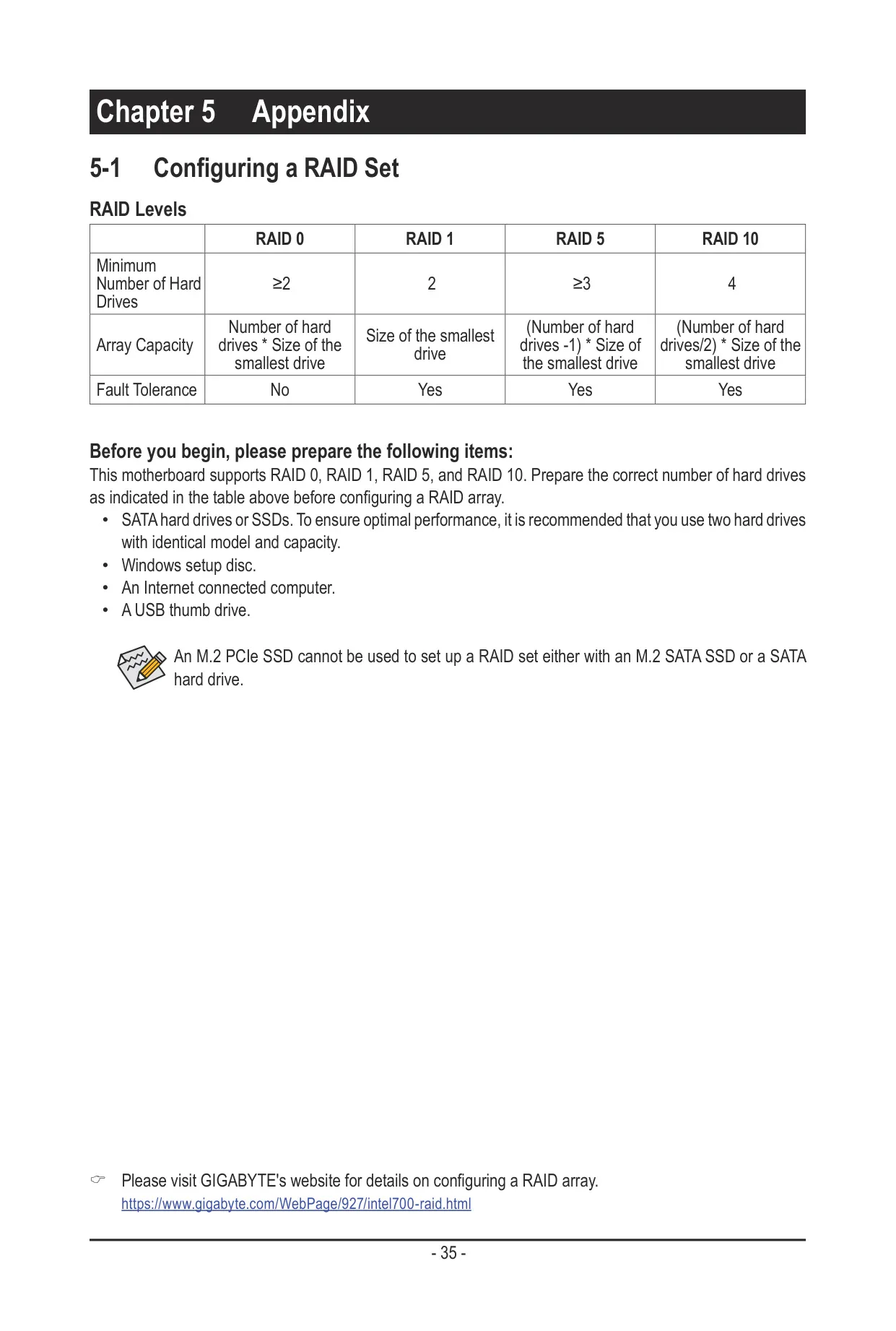
To install Windows on a RAID volume, you first need to load the Intel RST VMD Controller driver from a USB drive during setup. Note that an M.2 PCIe SSD can't be in the same RAID array as an M.2 SATA SSD or a SATA hard drive. After Windows is installed, GIGABYTE Control Center offers to download the drivers, as long as Gigabyte Utilities Downloader is enabled in the BIOS.
Frequently Asked Questions (FAQs)
Can't find the answer you need? Here are some frequently asked questions about the Gigabyte Z790 Eagle AX Motherboard, and we answer them below.