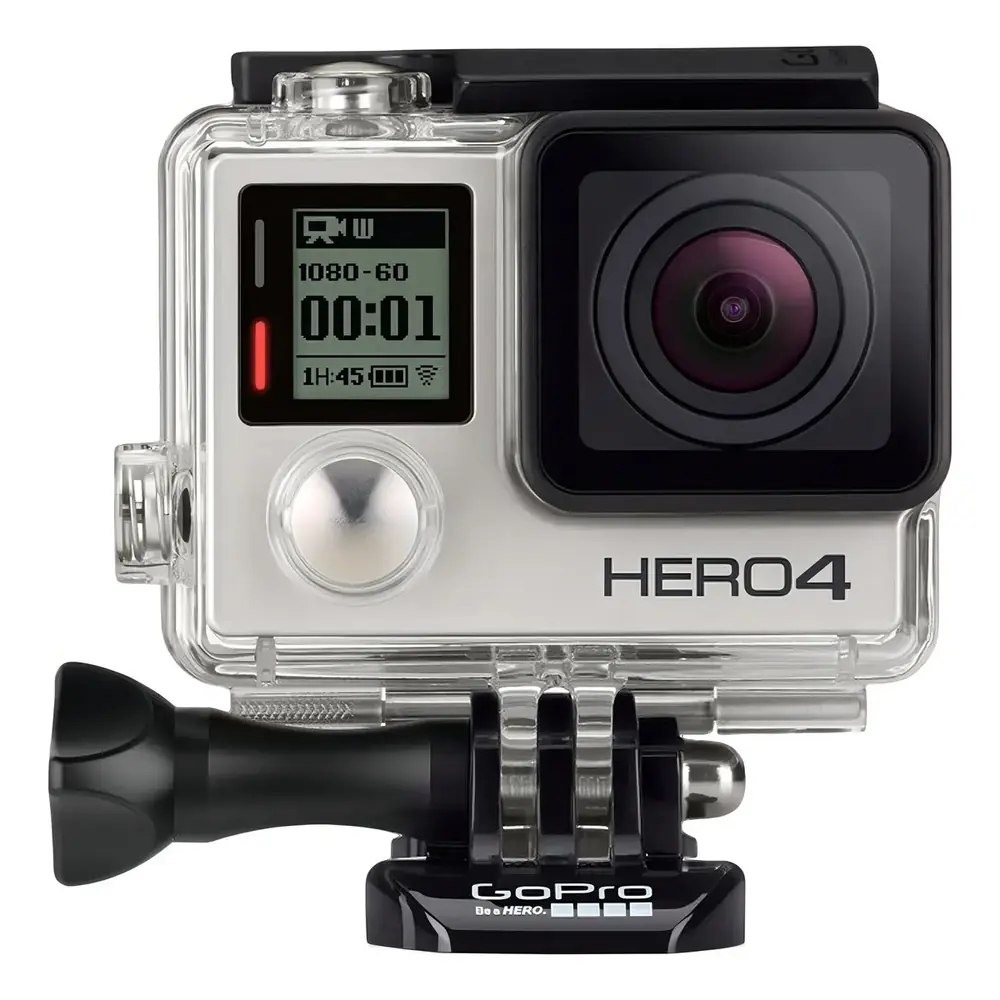
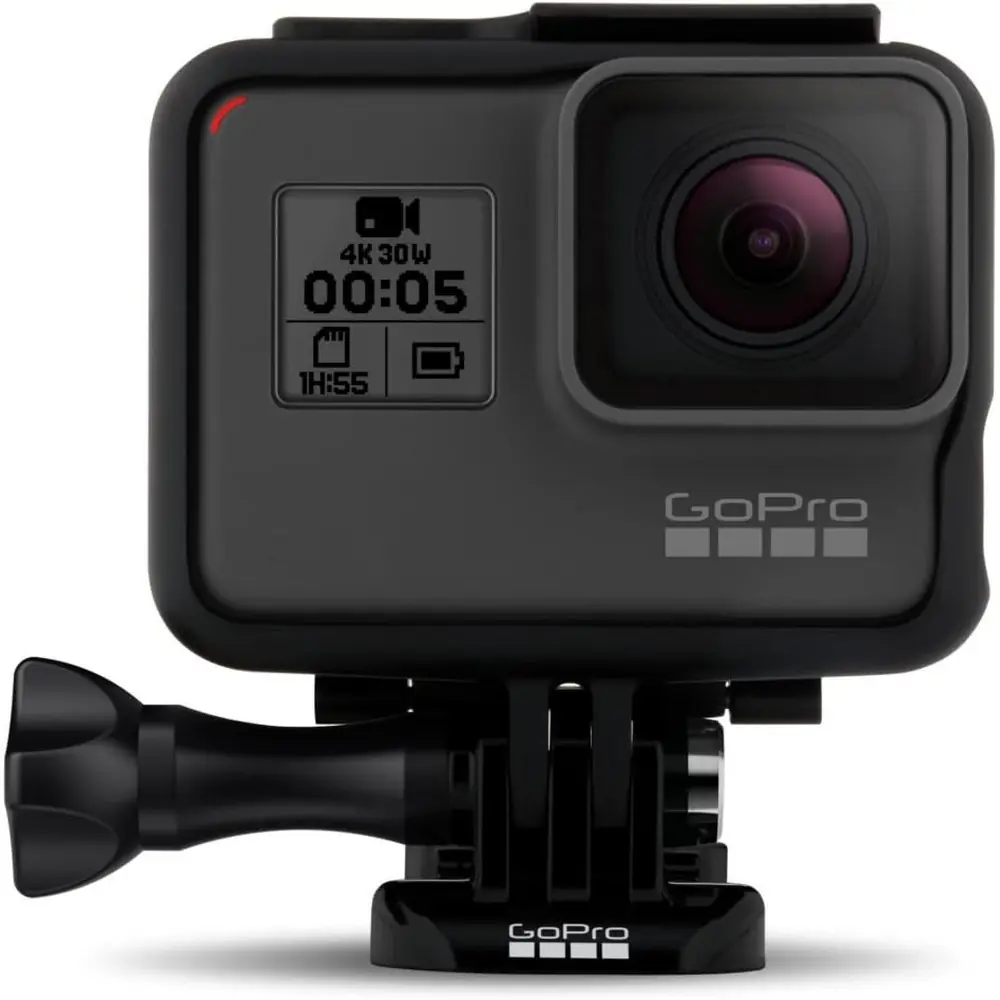
GoPro Hero Session Action Camera Instruction Manual

GoPro Hero Session Action Camera












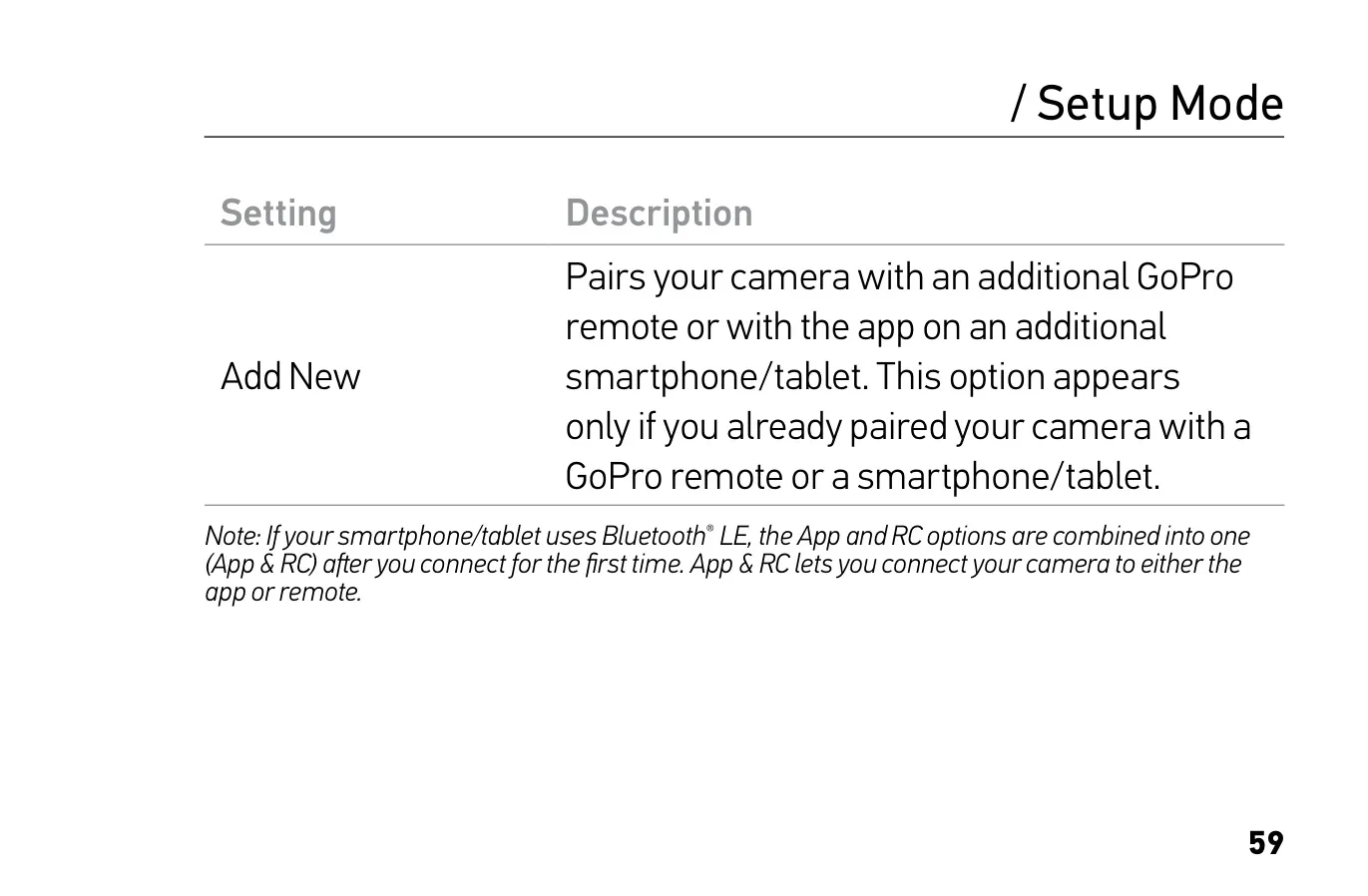
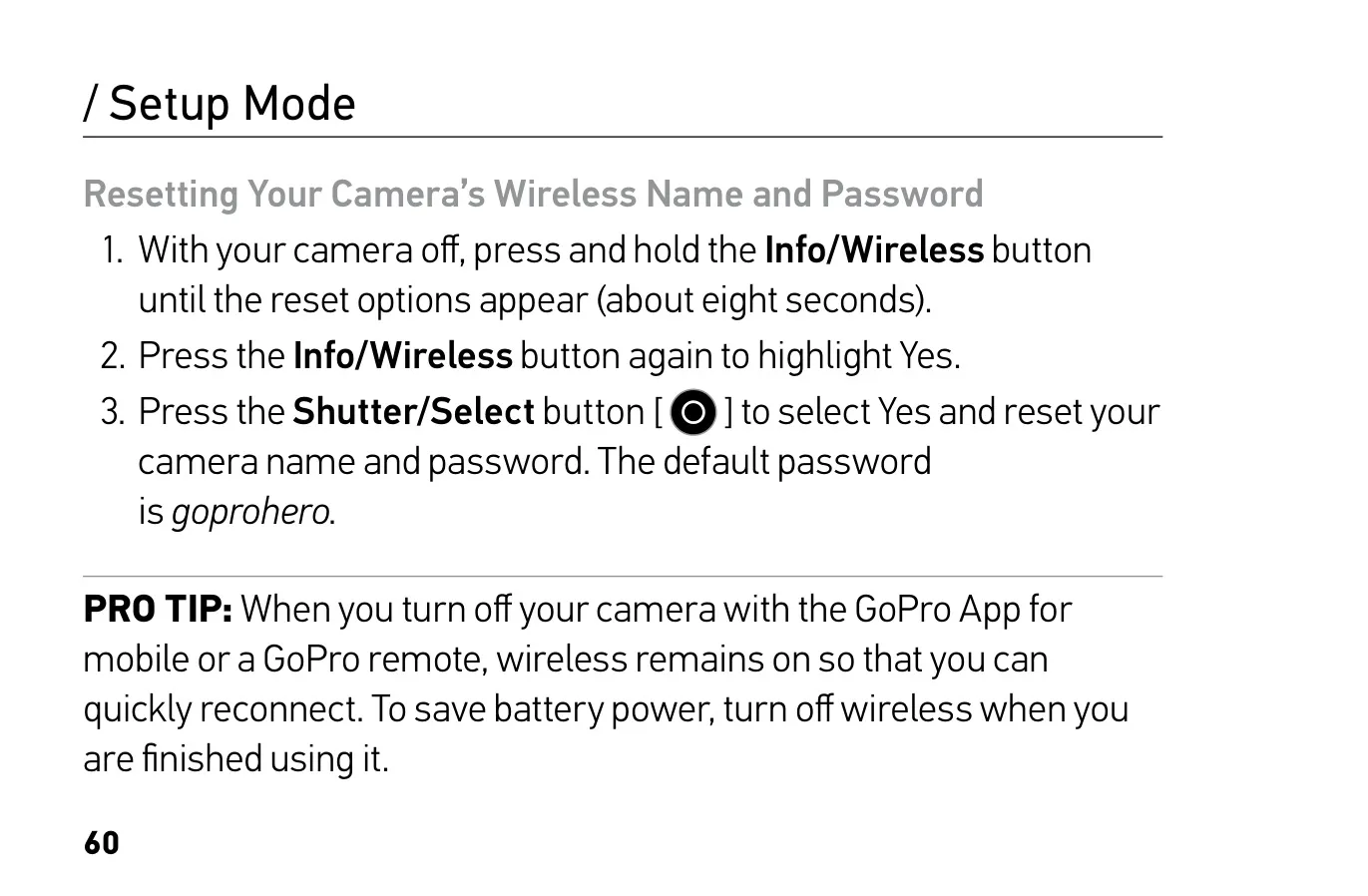
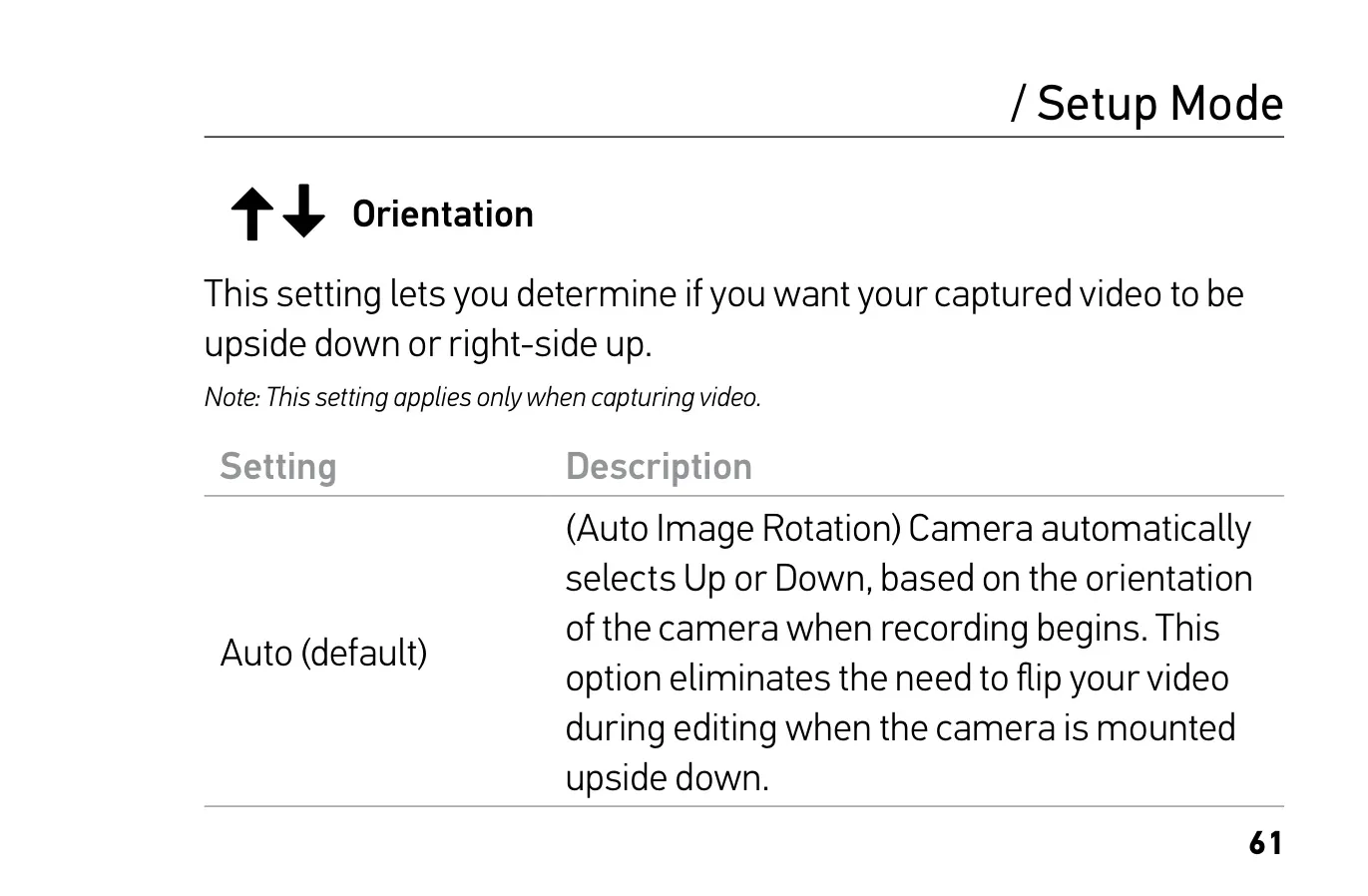
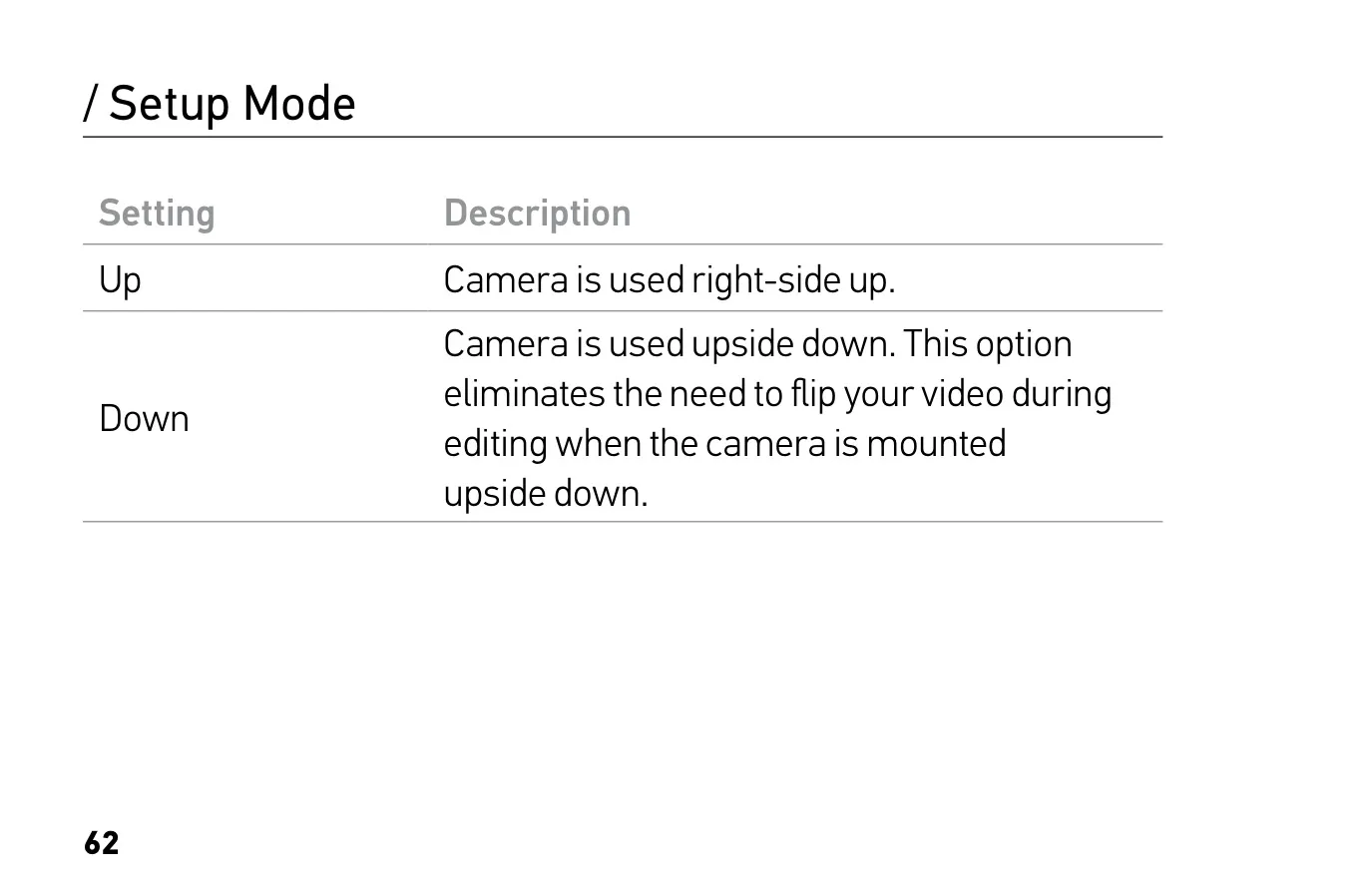











GoPro Hero Session Instructions
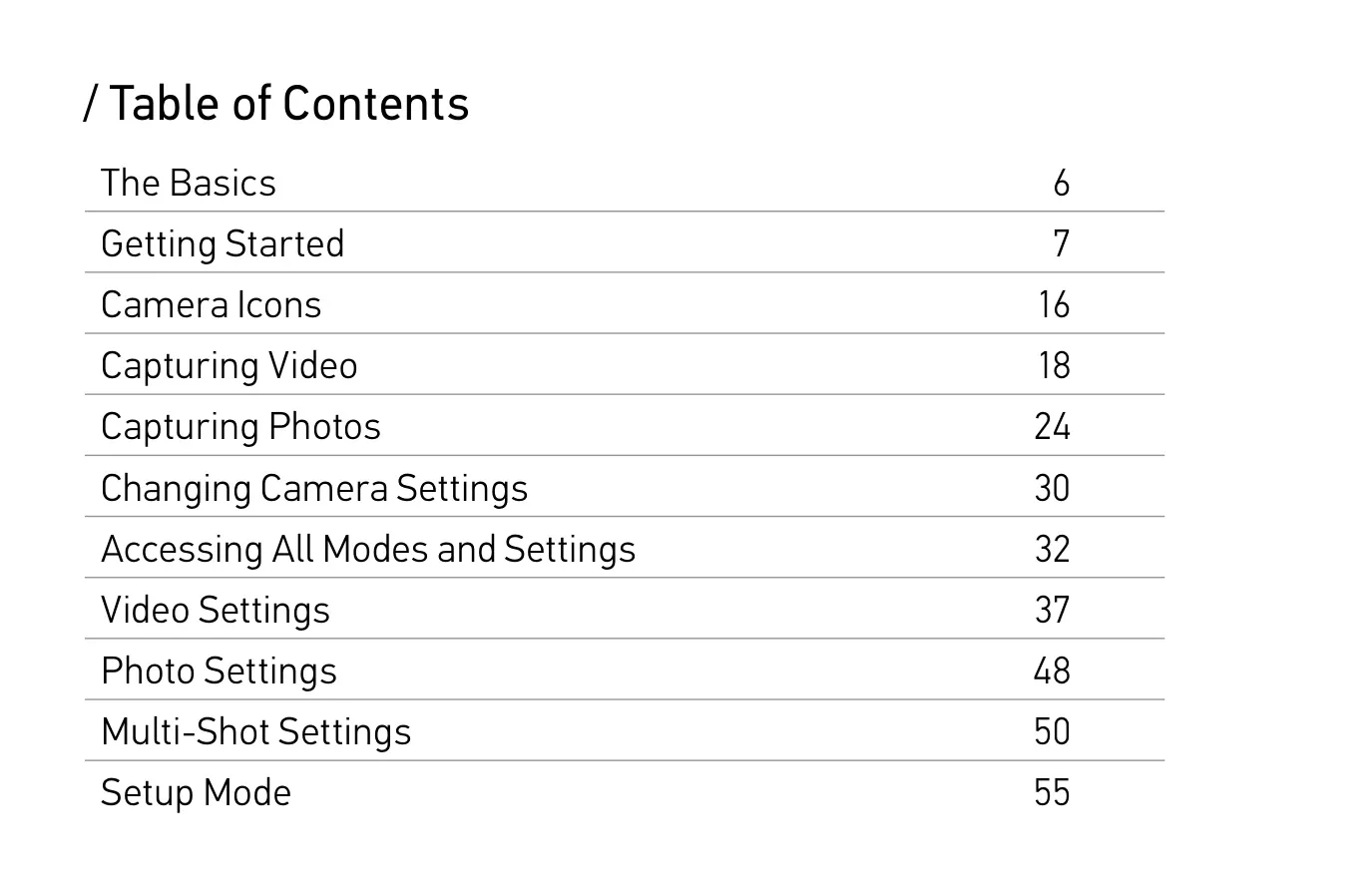
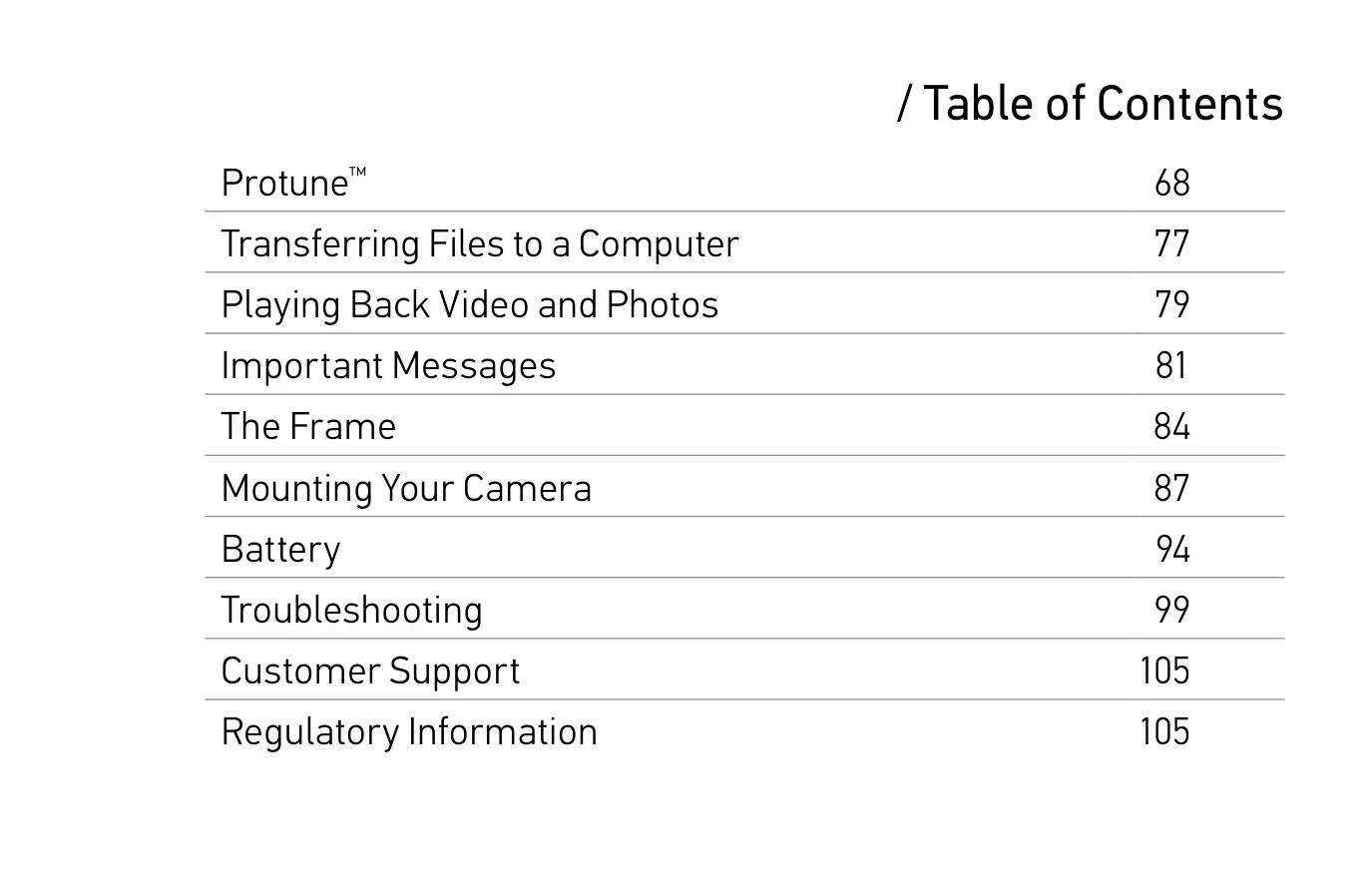
Here we offer the GoPro Hero Session Action Camera manual completely free and in English. We have cataloged this manual in the Action Camera section on Manualverse, and it has been rated by 1 users with an average rating of 5. If you have any specific questions about GoPro Hero Session Action Camera, we suggest checking the Frequently Asked Questions (FAQs) section of this manual.
Product Images
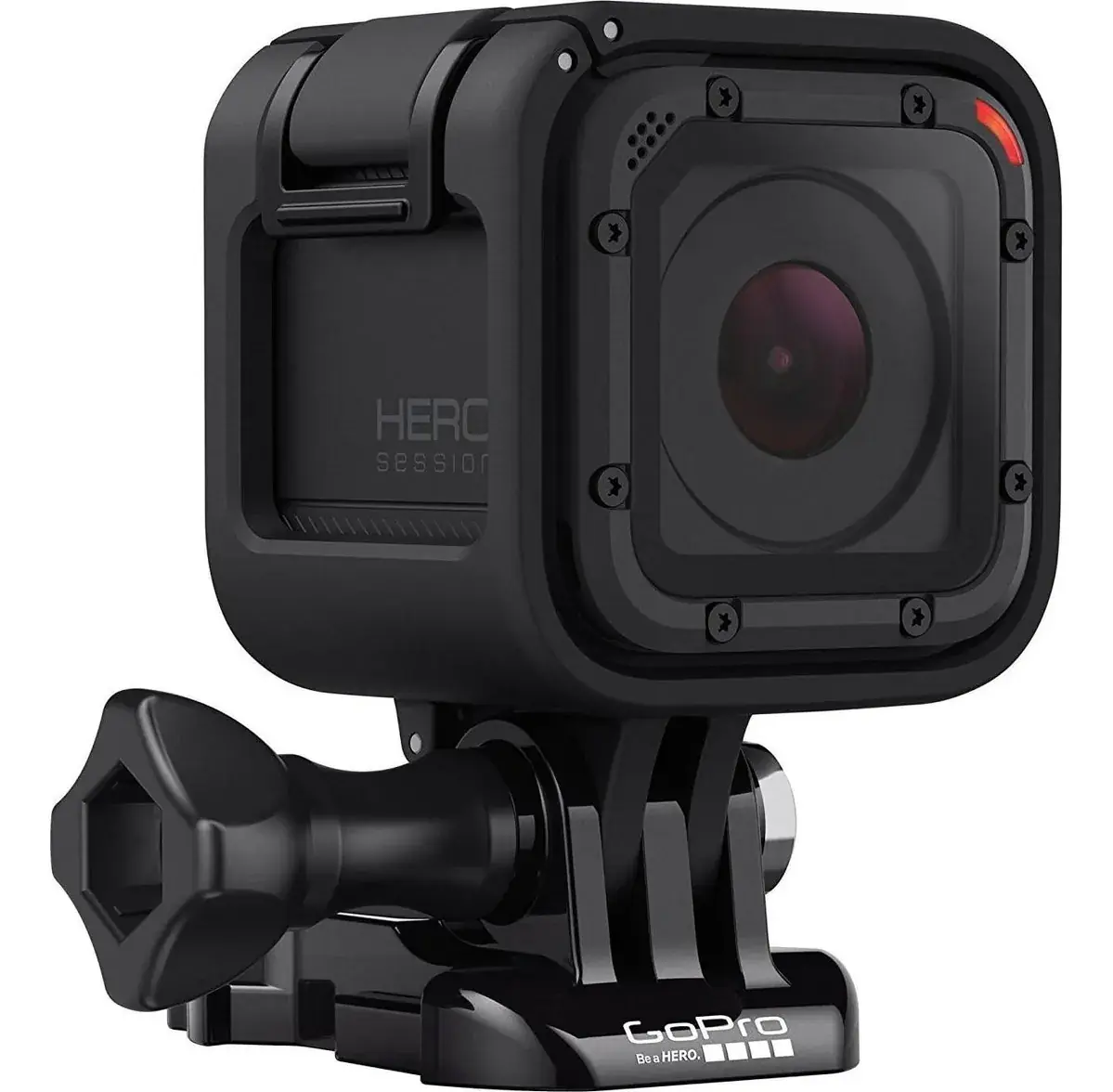
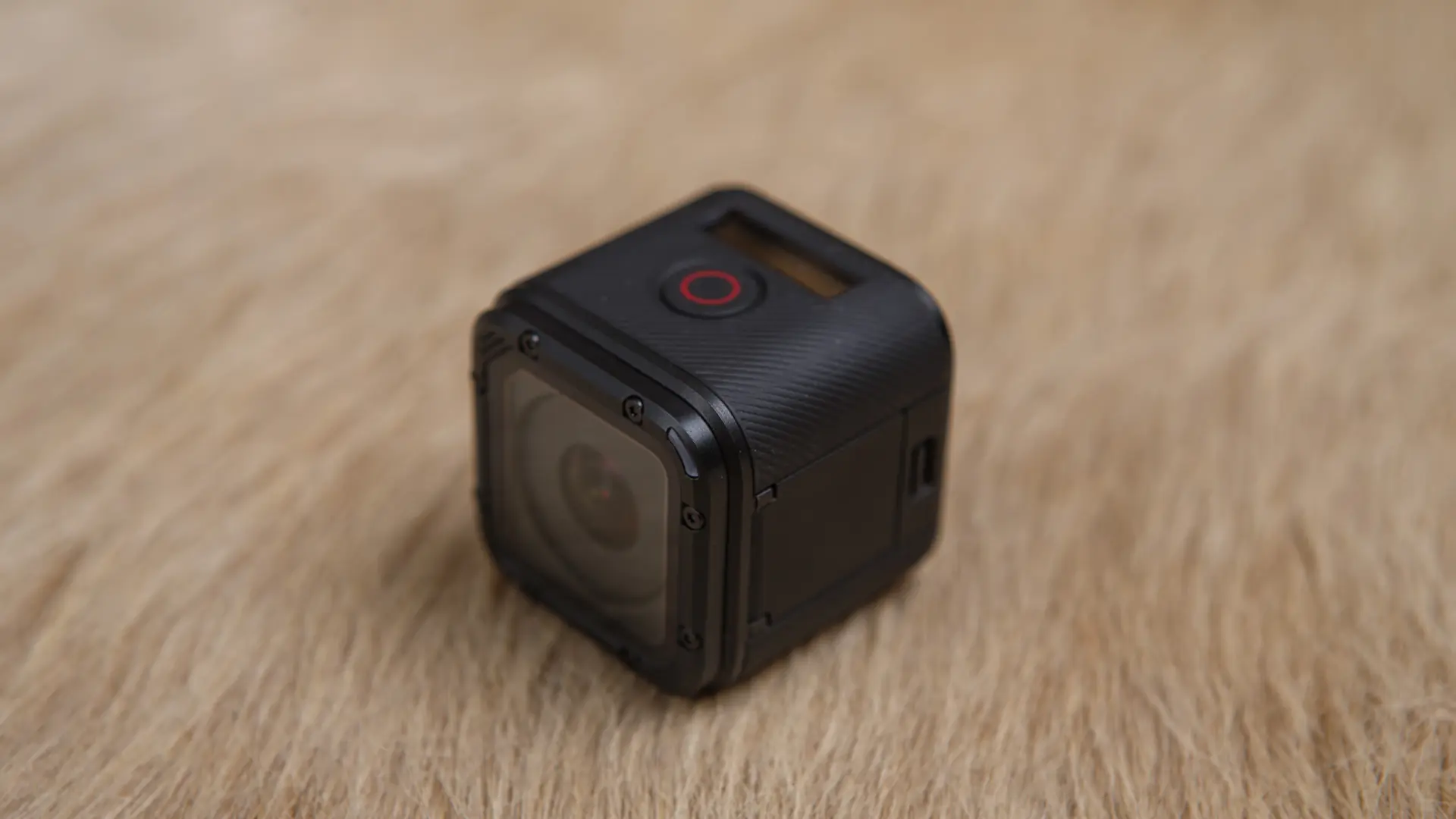
GoPro Hero Session Action Camera Specifications
| Feature | Specification |
|---|---|
| Model | GoPro HERO Session |
| Default Video Mode | 1080p30 |
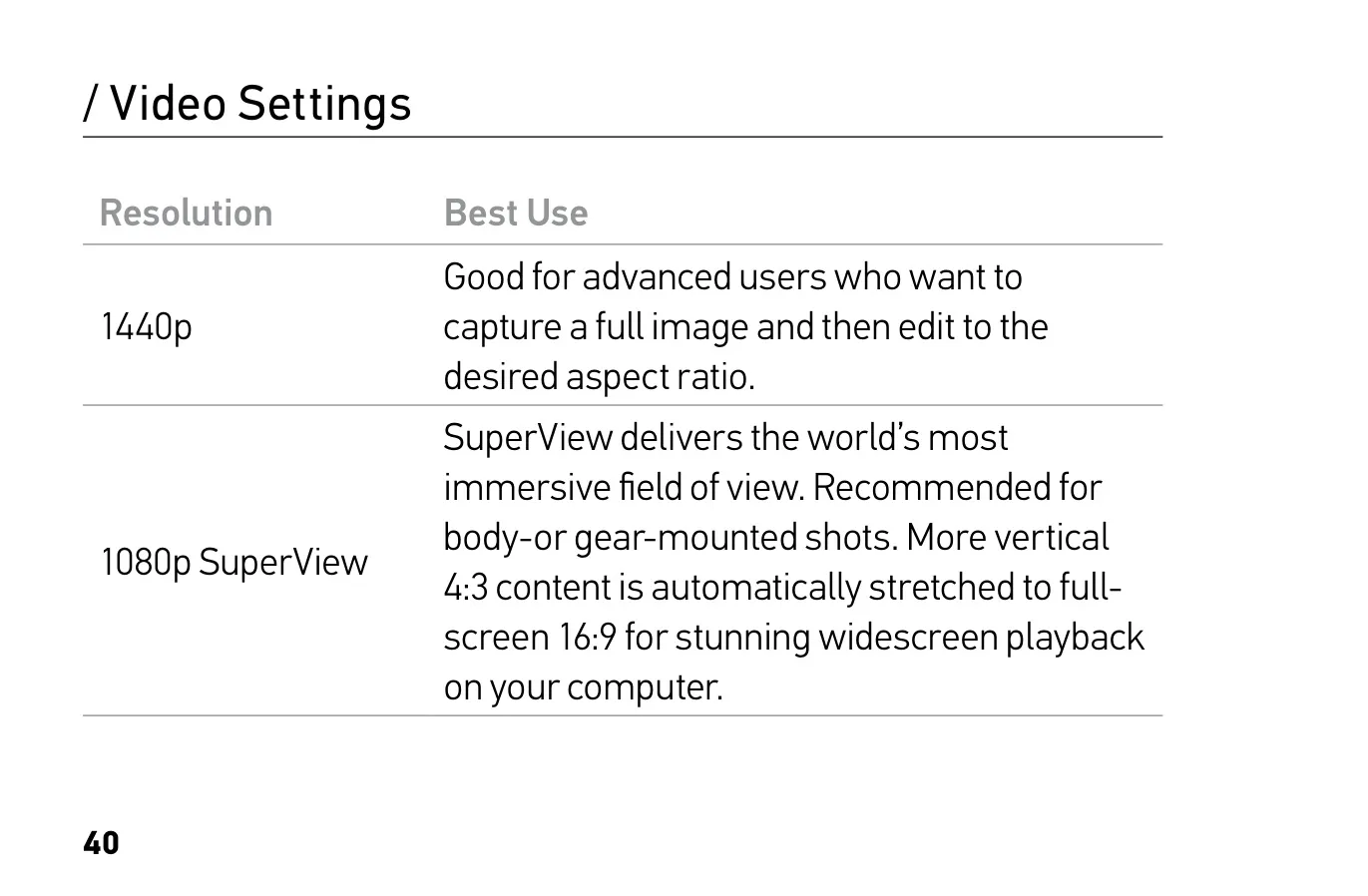
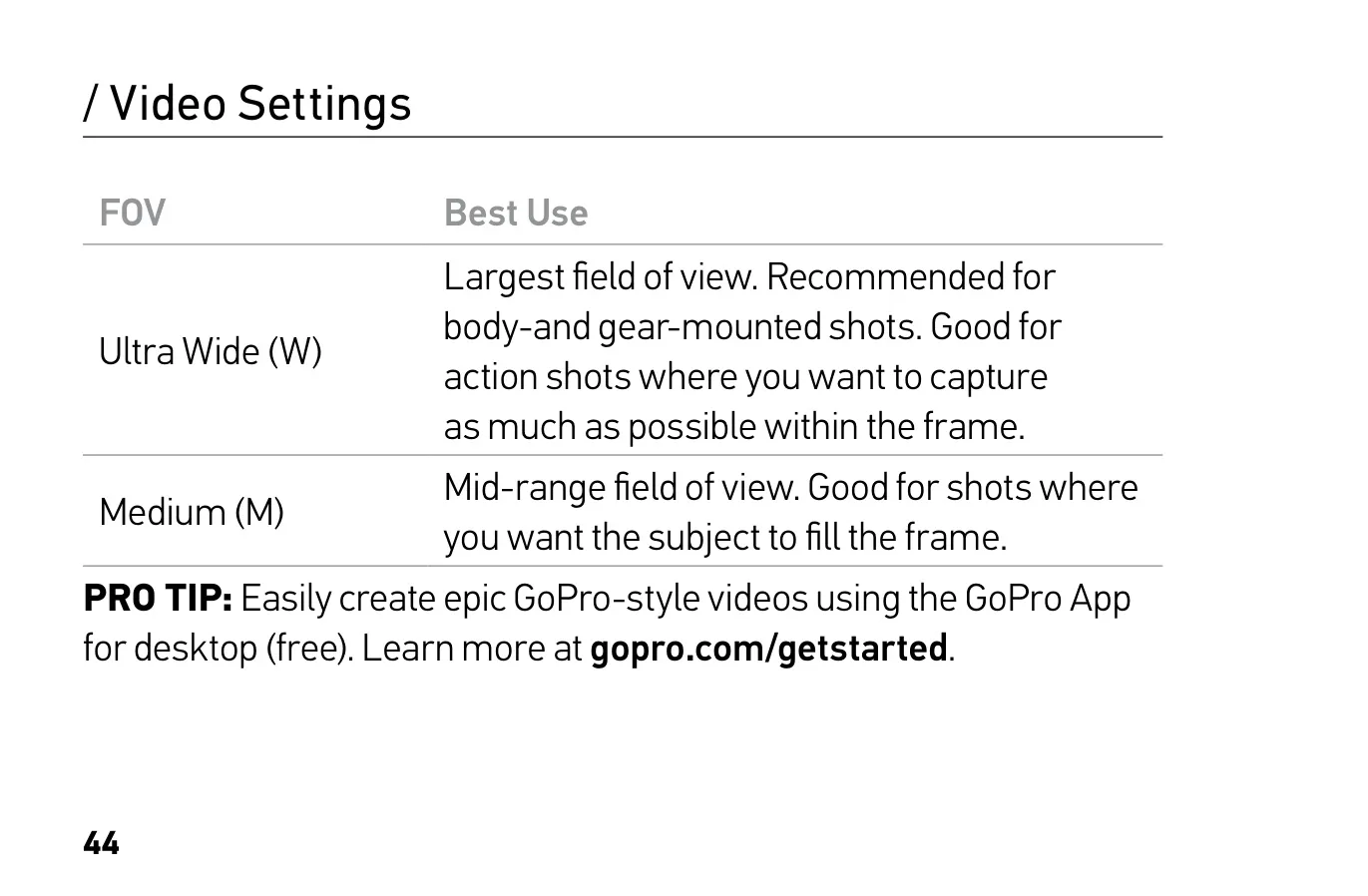
| 1440p Video | 1920x1440, 4:3, 30/25 fps (NTSC/PAL), Ultra Wide FOV |
| 1080p SuperView Video | 1920x1080, 16:9, 48/48 and 30/25 fps, Ultra Wide FOV |
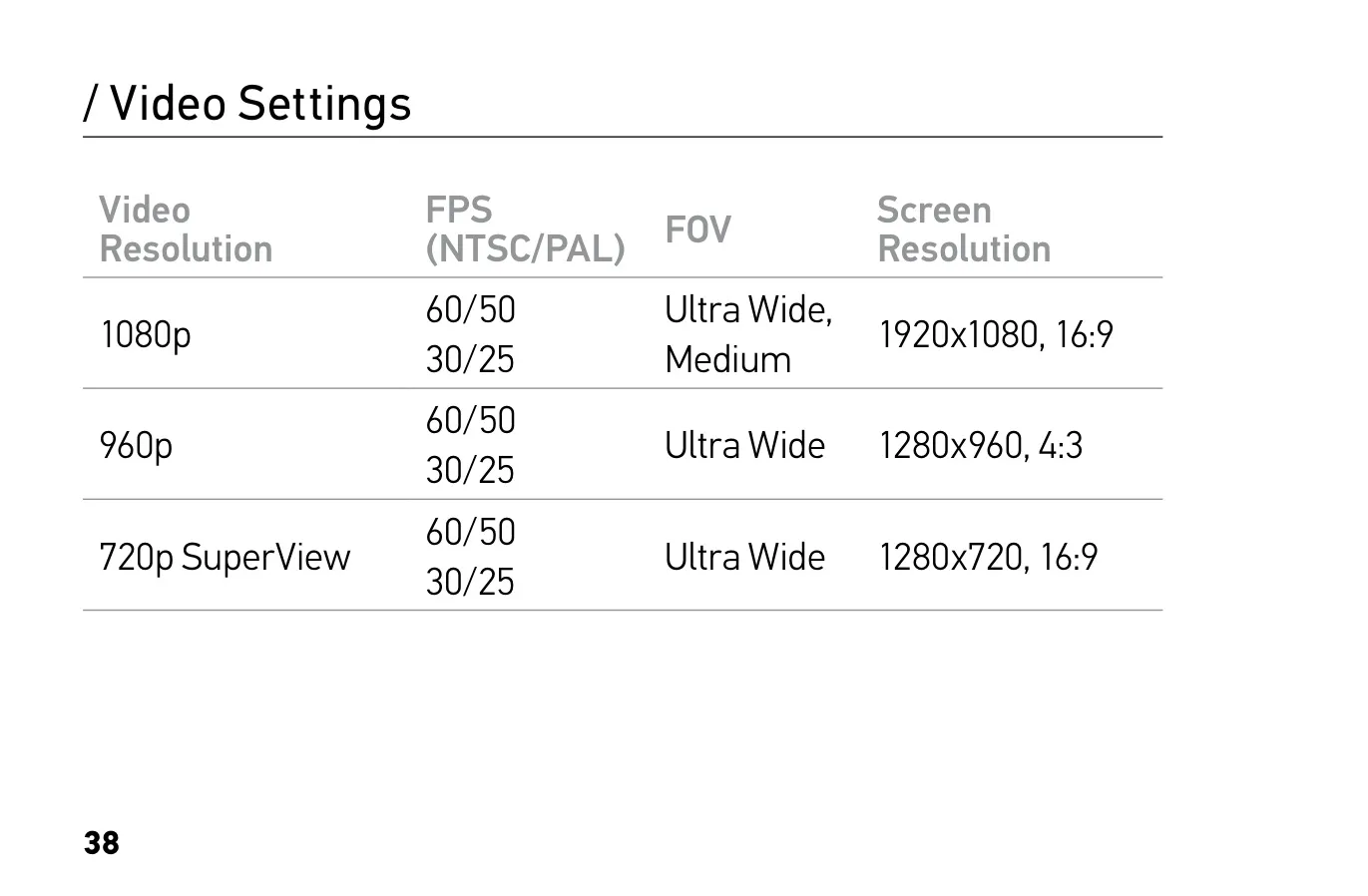
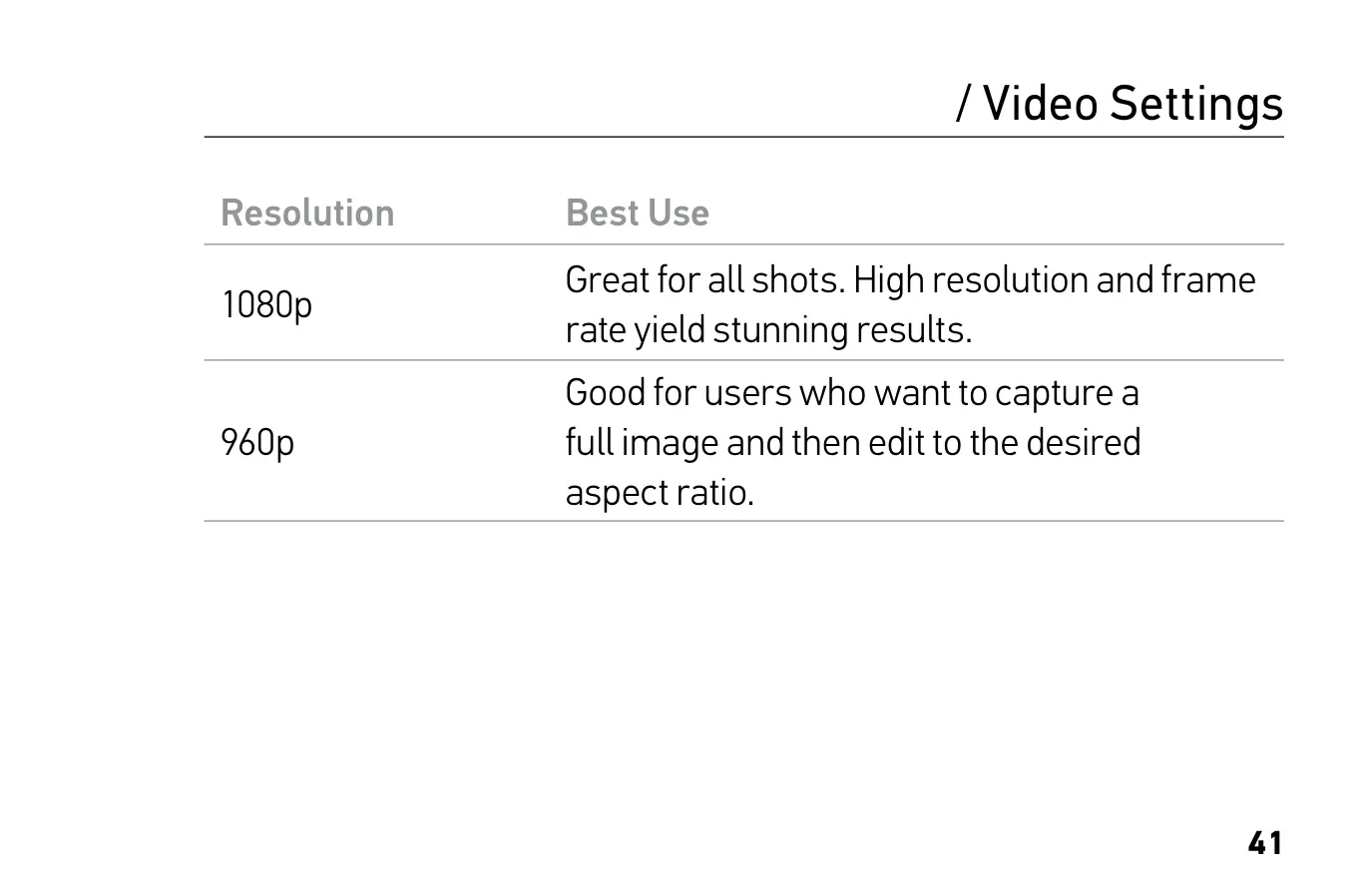
| 1080p Video | 1920x1080, 16:9, 60/50 and 30/25 fps, Ultra Wide or Medium FOV |
| 960p Video | 1280x960, 4:3, 60/50 and 30/25 fps, Ultra Wide FOV |
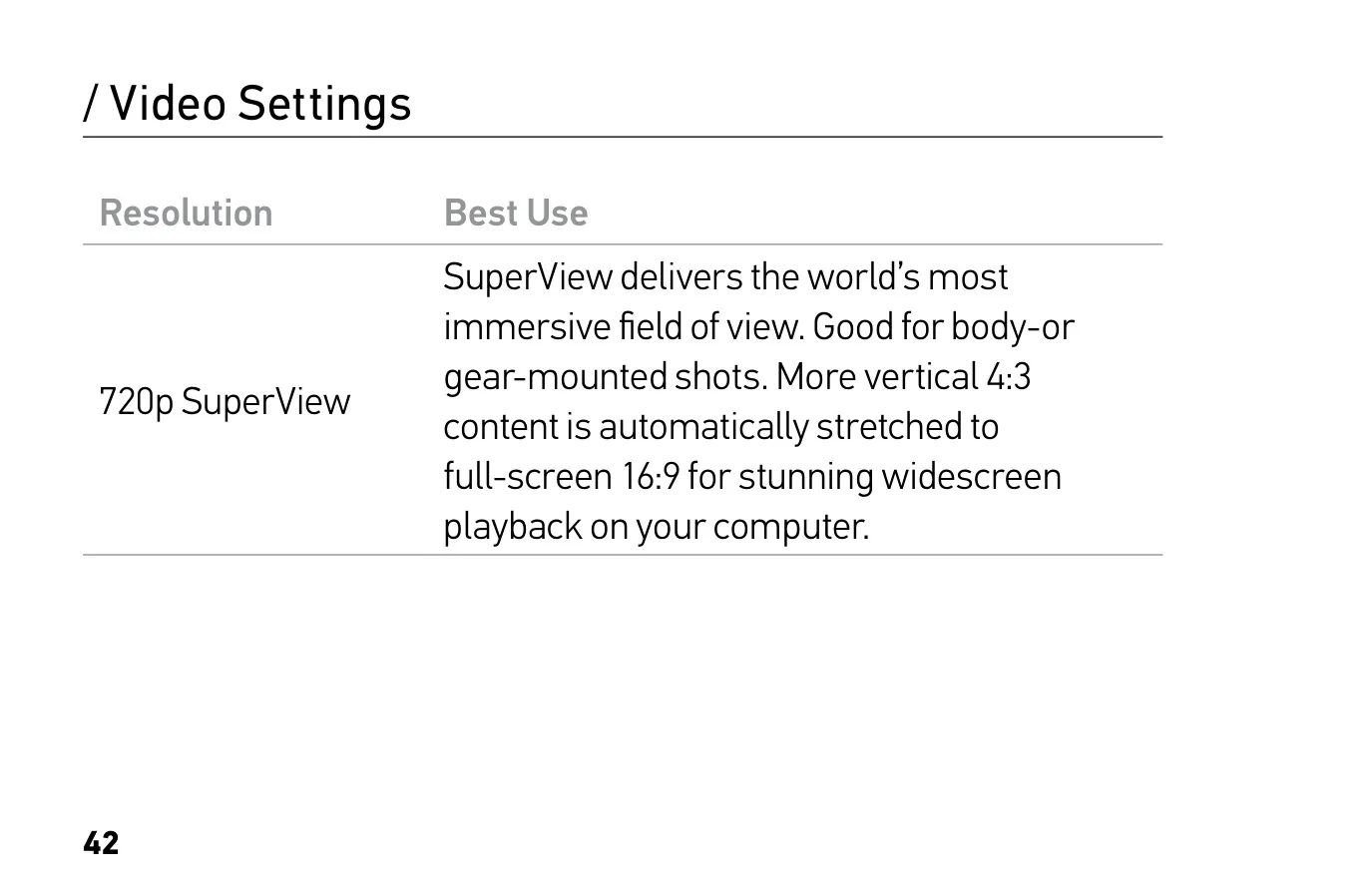
| 720p SuperView Video | 1280x720, 16:9, 60/50 and 30/25 fps, Ultra Wide FOV |
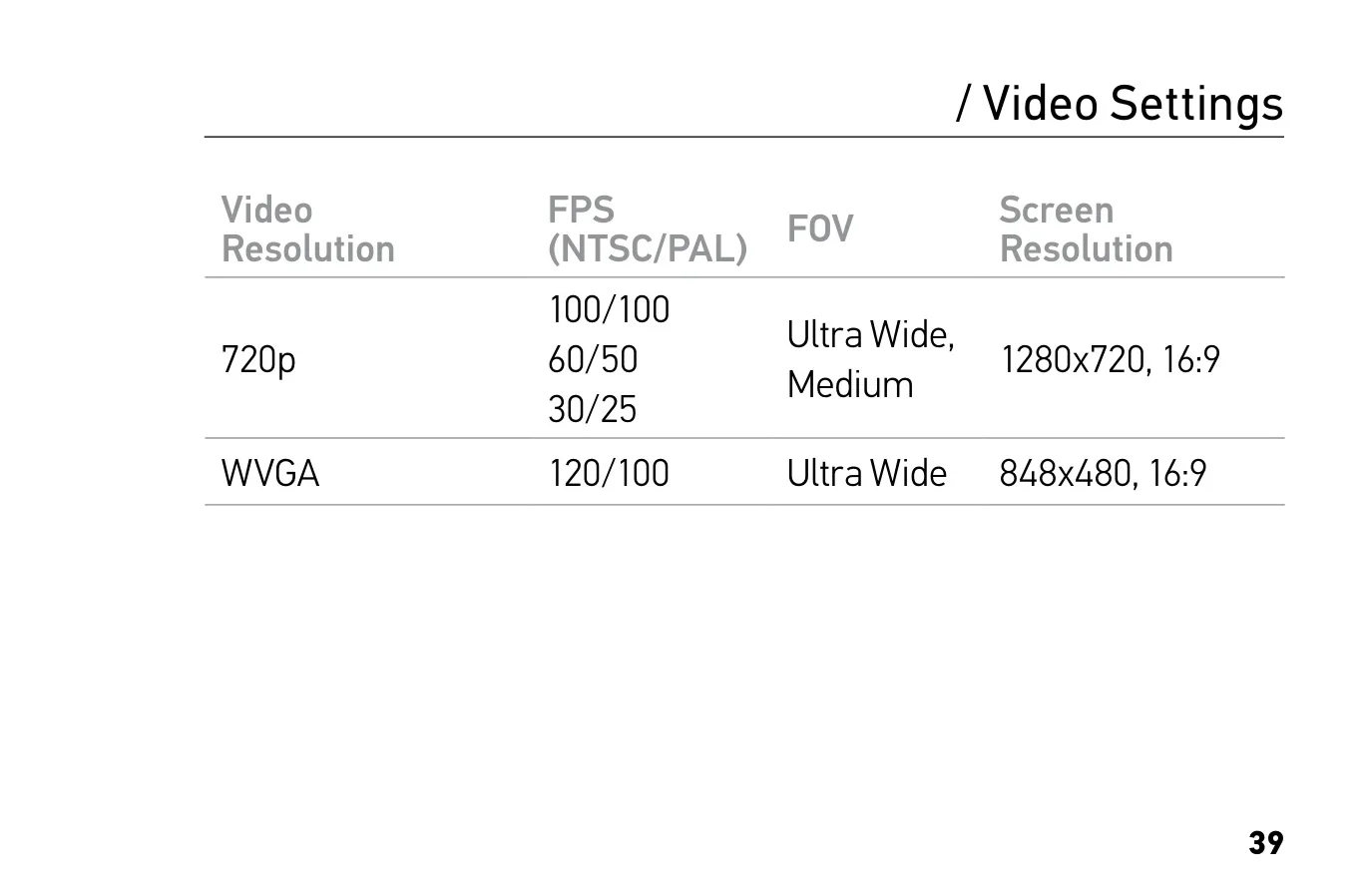
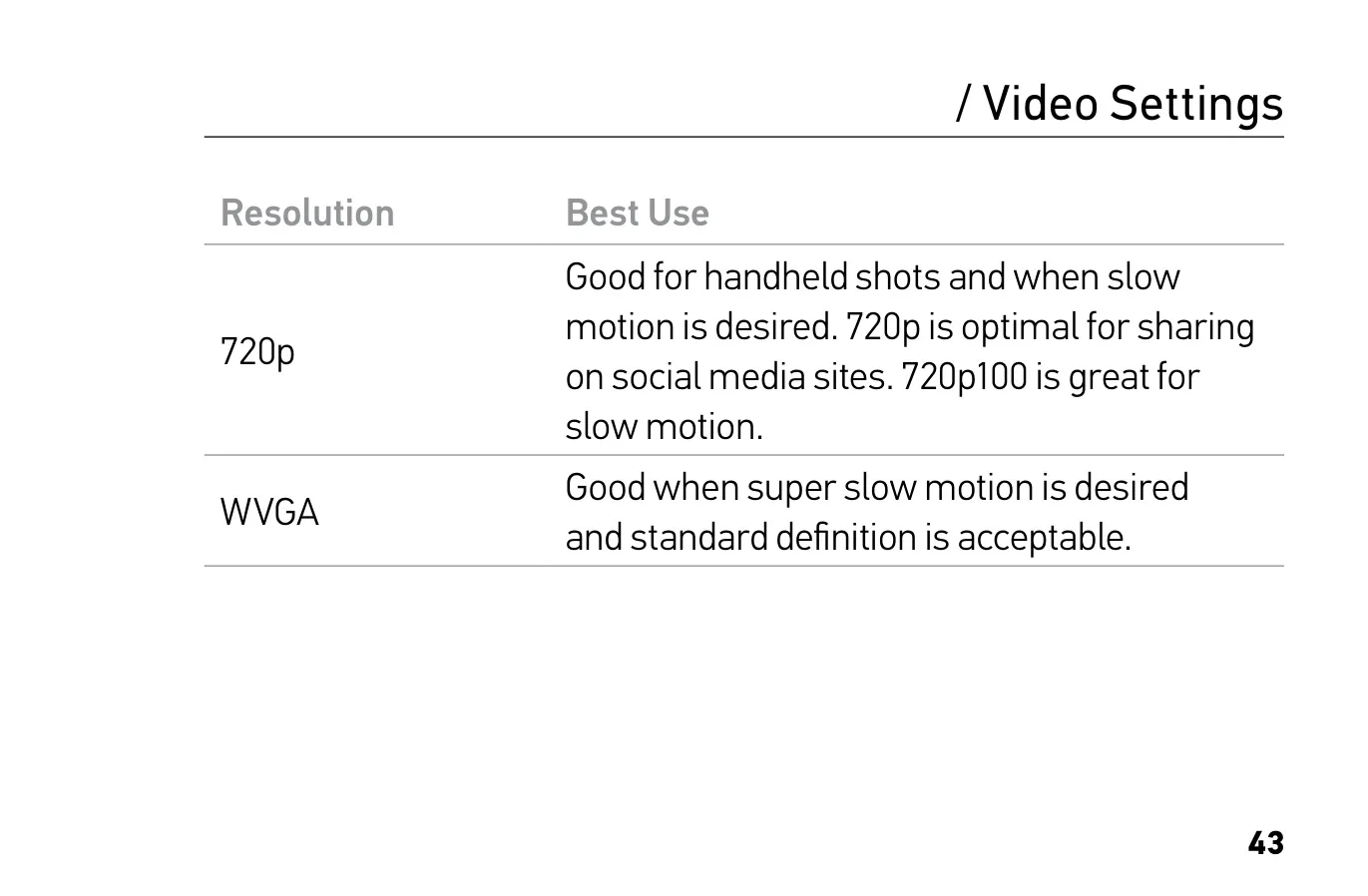
| 720p Video | 1280x720, 16:9, 100/100, 60/50 and 30/25 fps, Ultra Wide or Medium FOV |
| WVGA Video | 848x480, 16:9, 120/100 fps, Ultra Wide FOV |
| Fields of View | SuperView, Ultra Wide, Medium |
| Video Capture Modes | Video, Looping Video |
| Video Codec | H.264 |
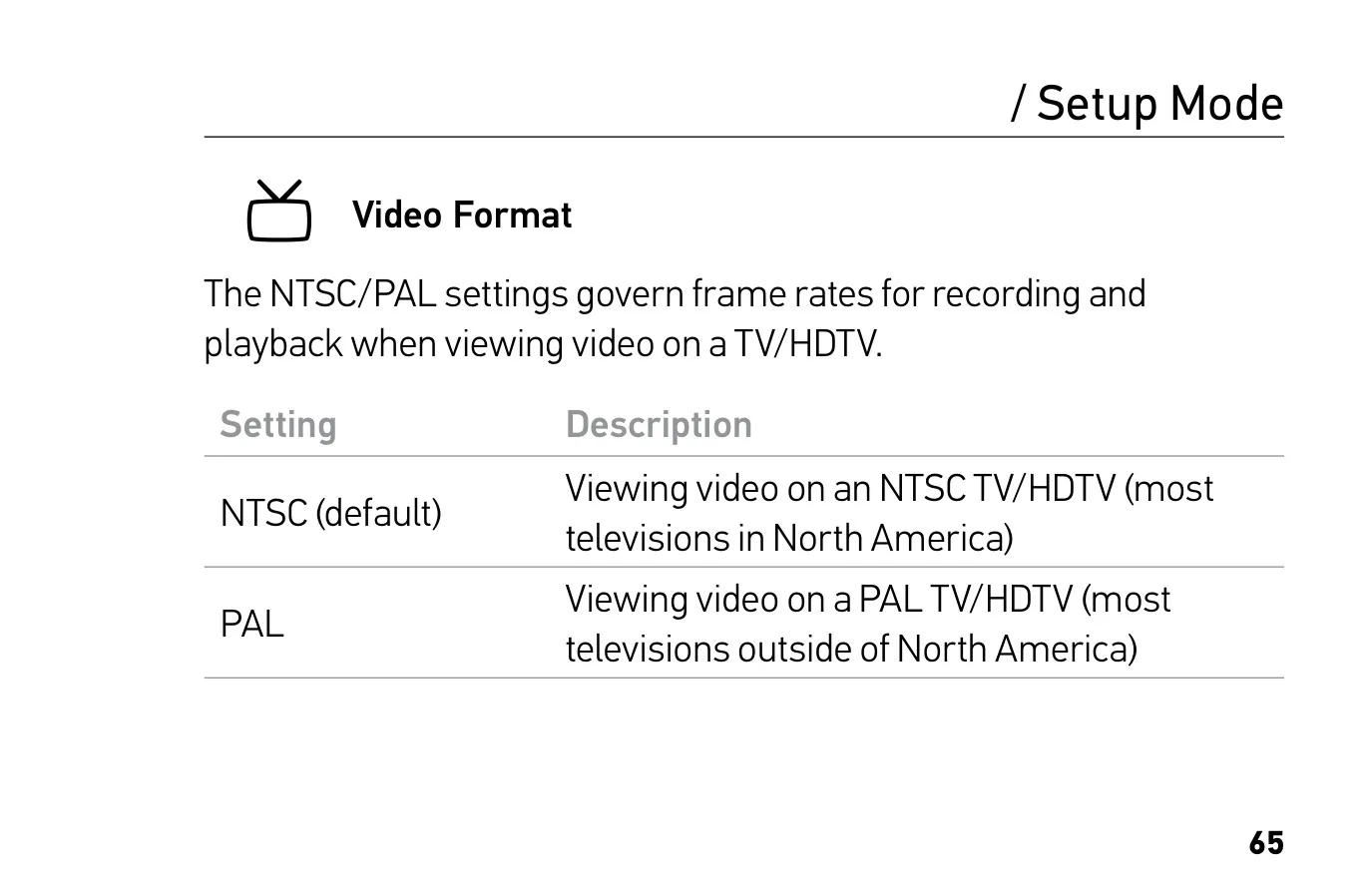
| Video Format | NTSC (default), PAL |
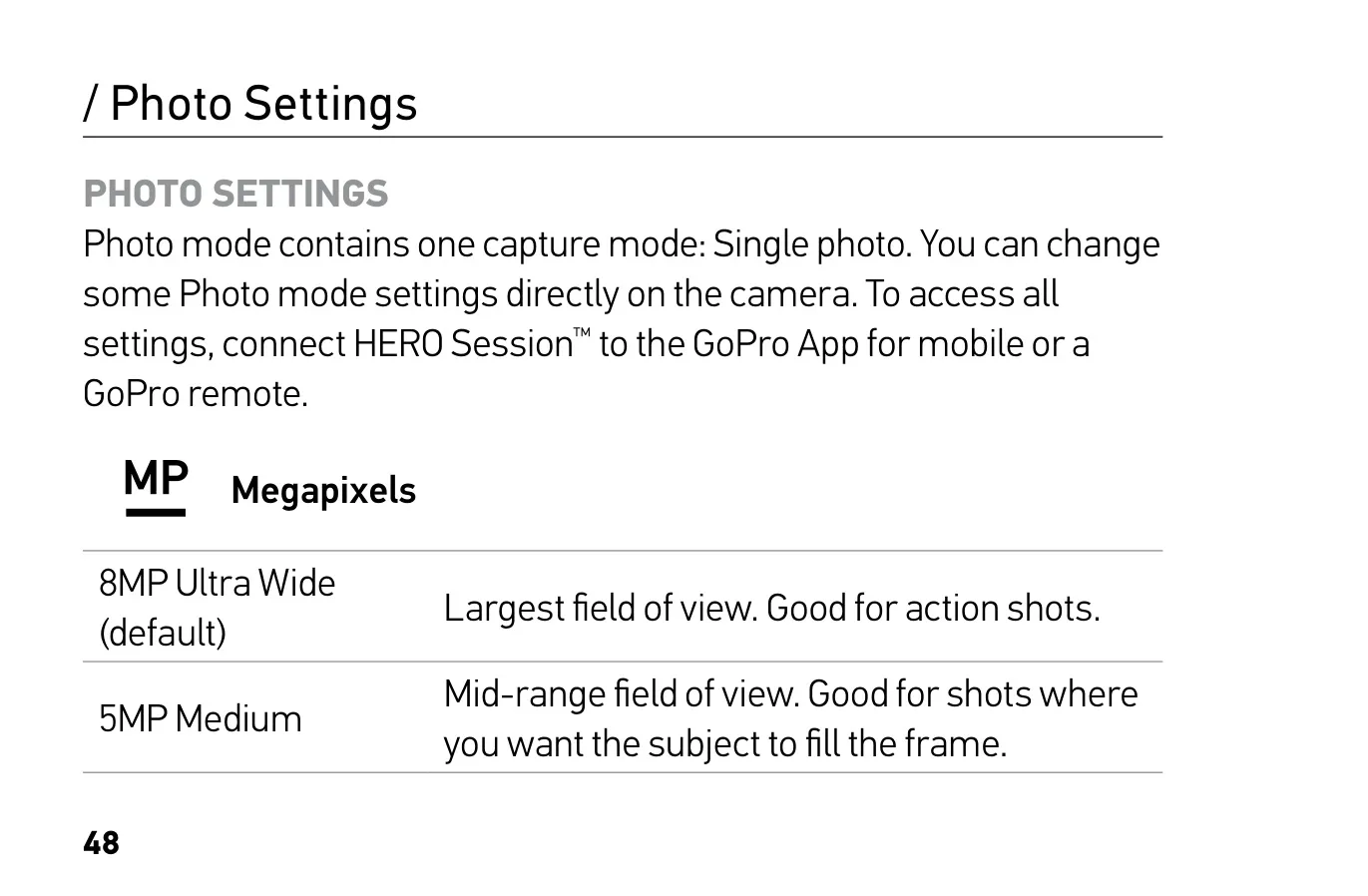
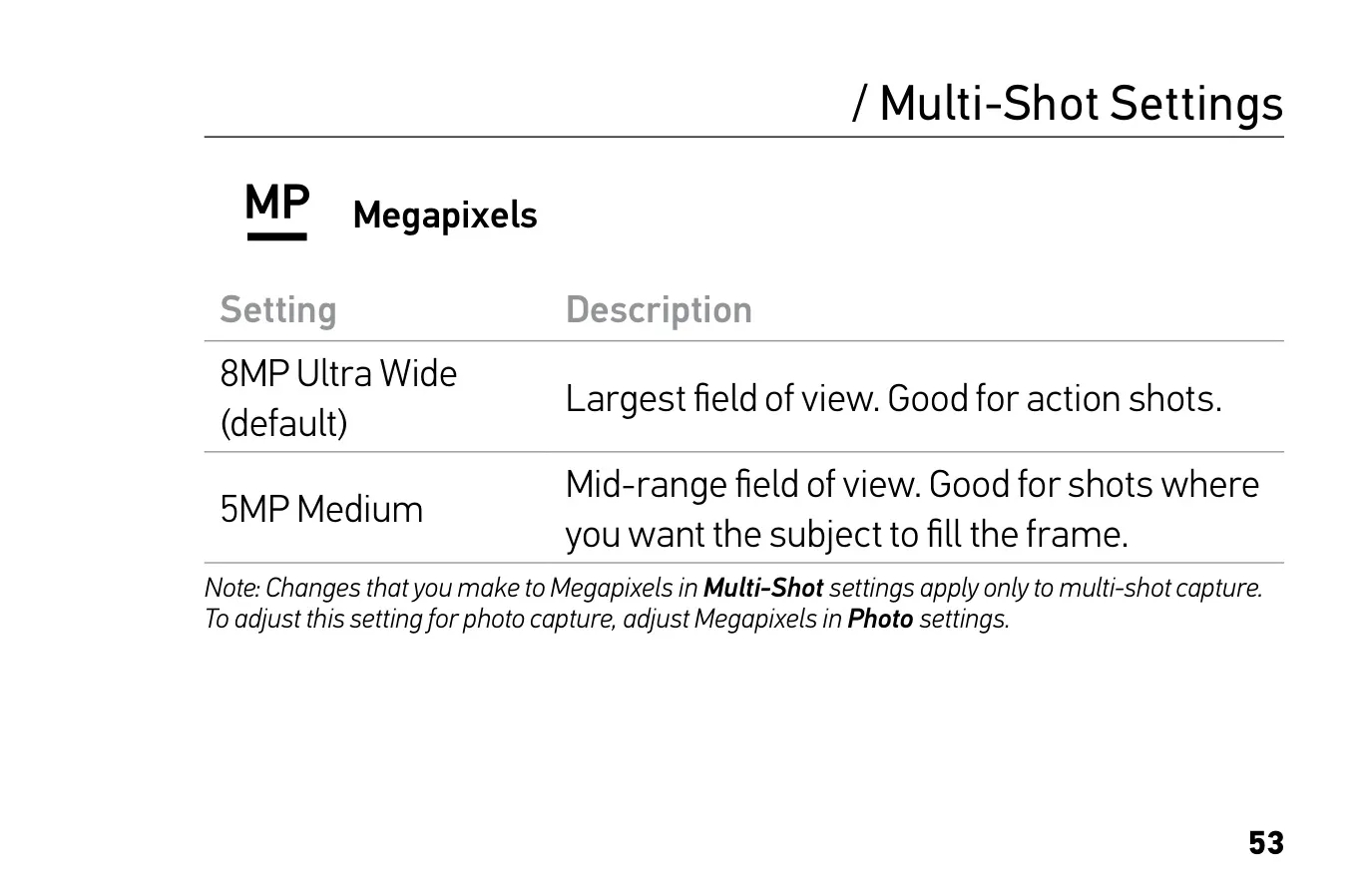
| Photo Resolution | 8MP Ultra Wide (default), 5MP Medium |
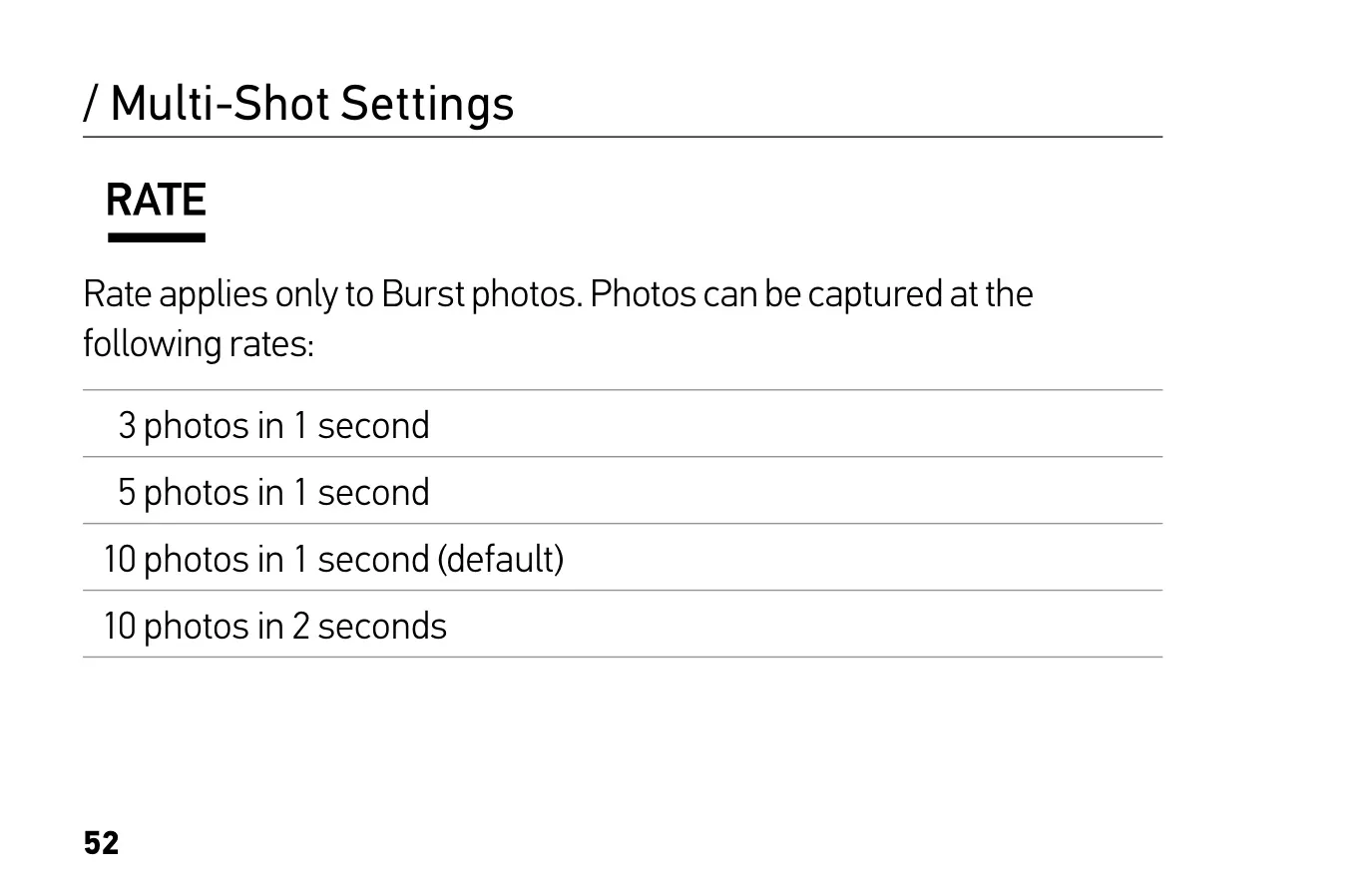
| Burst Rates | 3 photos/1 s, 5 photos/1 s, 10 photos/1 s (default), 10 photos/2 s |
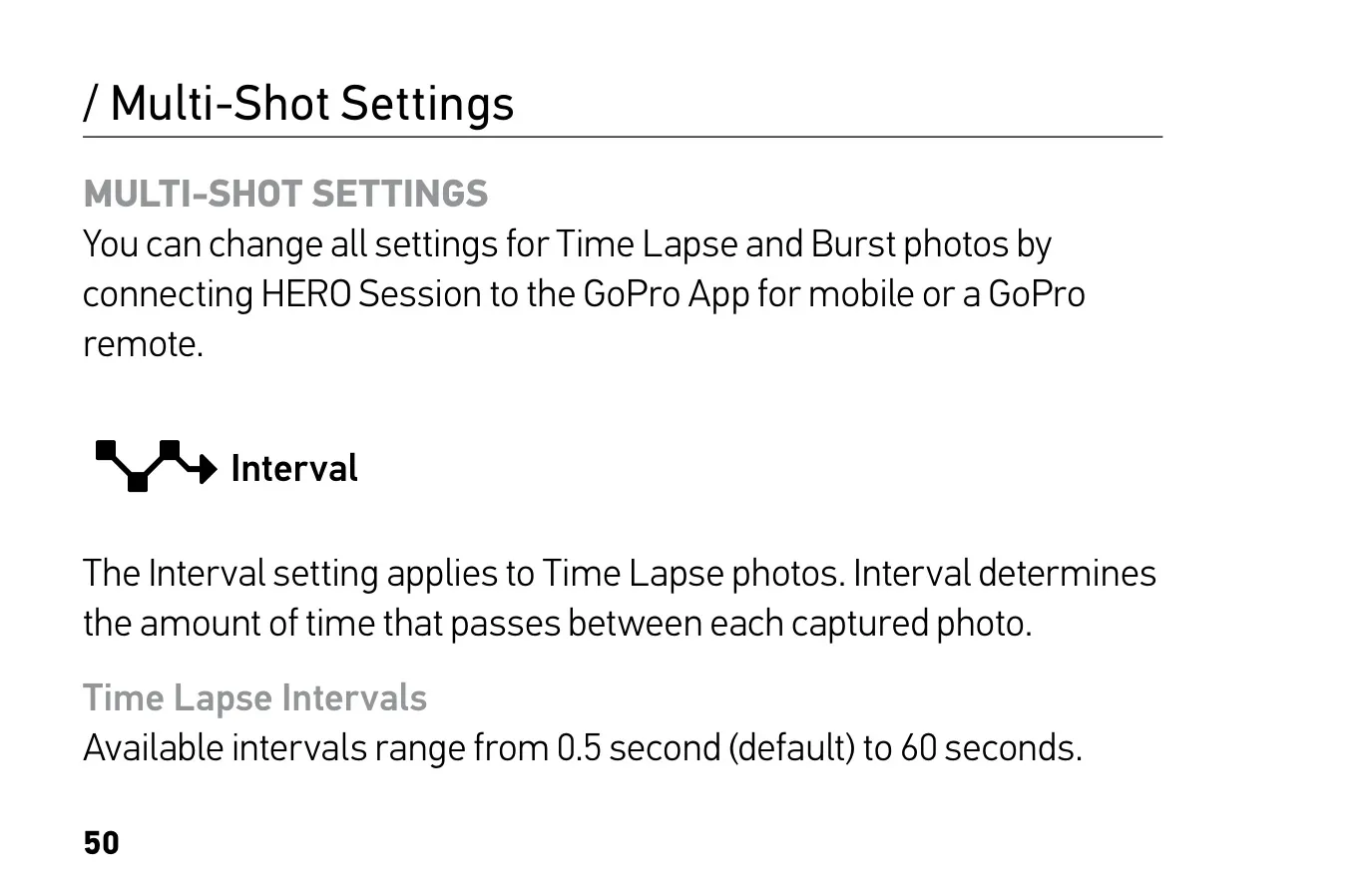
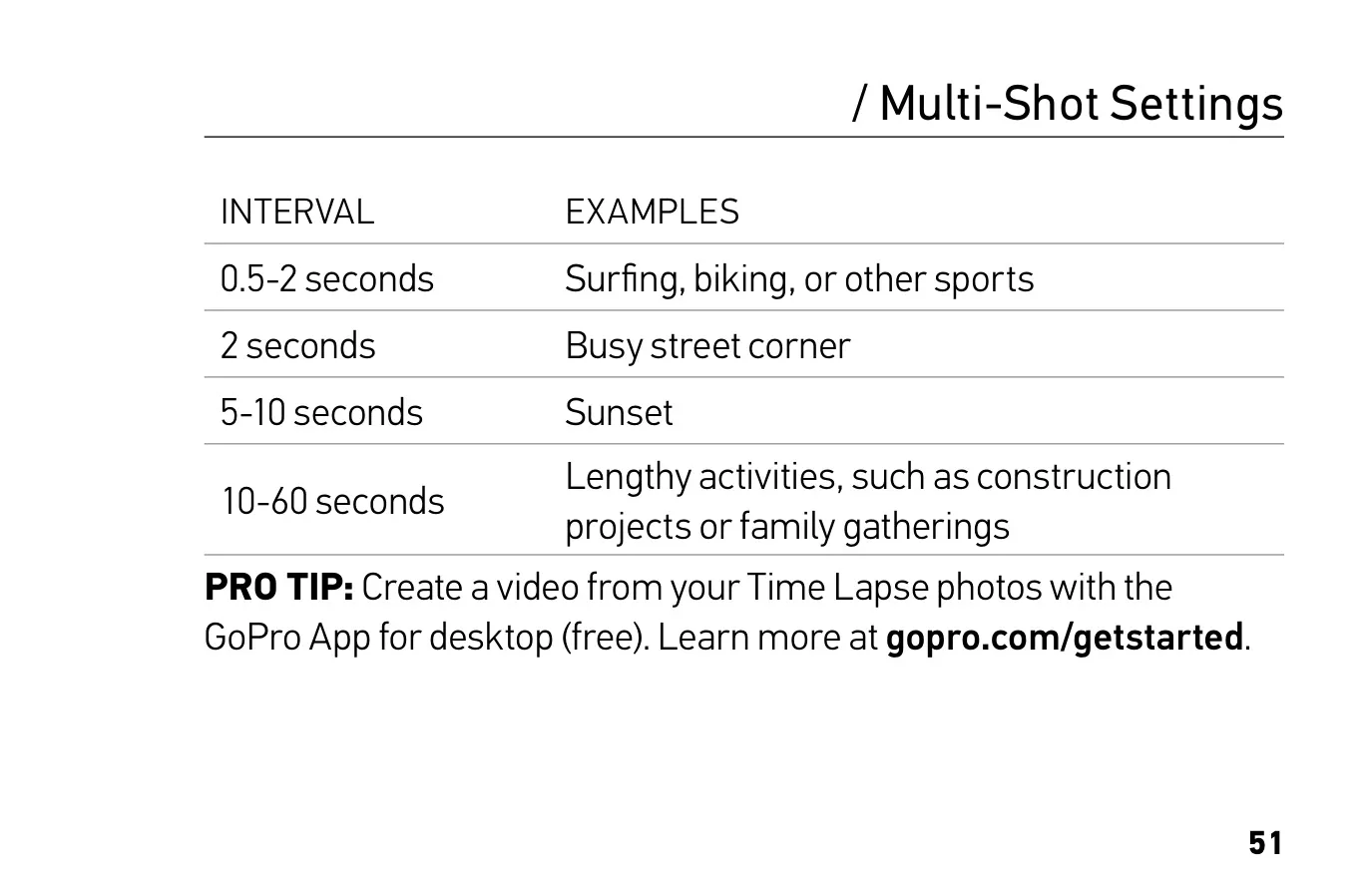
| Time Lapse Intervals | 0.5 s (default) to 60 s |
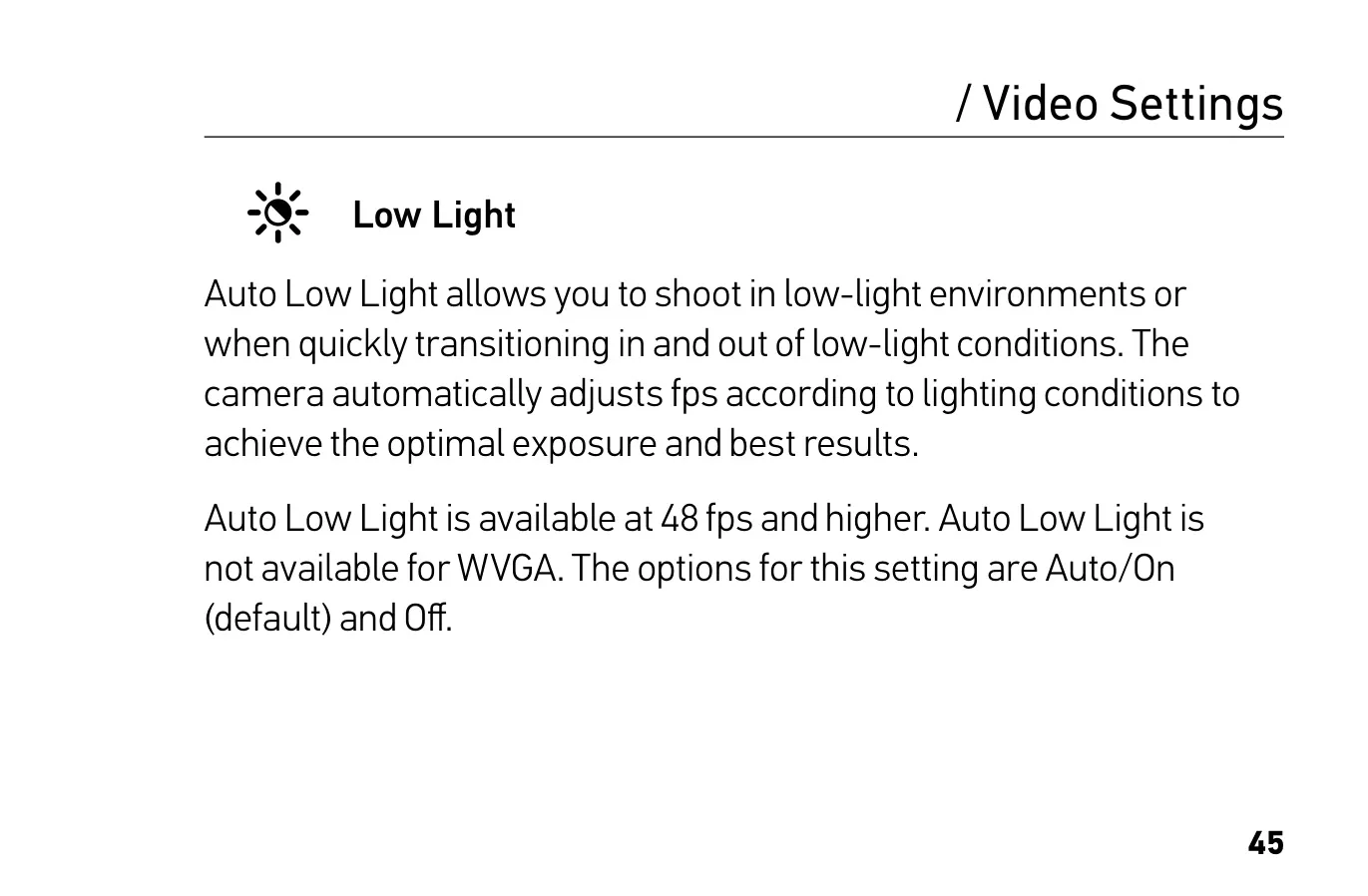
| Auto Low Light | Auto/On (default) or Off; available at 48 fps and higher, not available for WVGA |
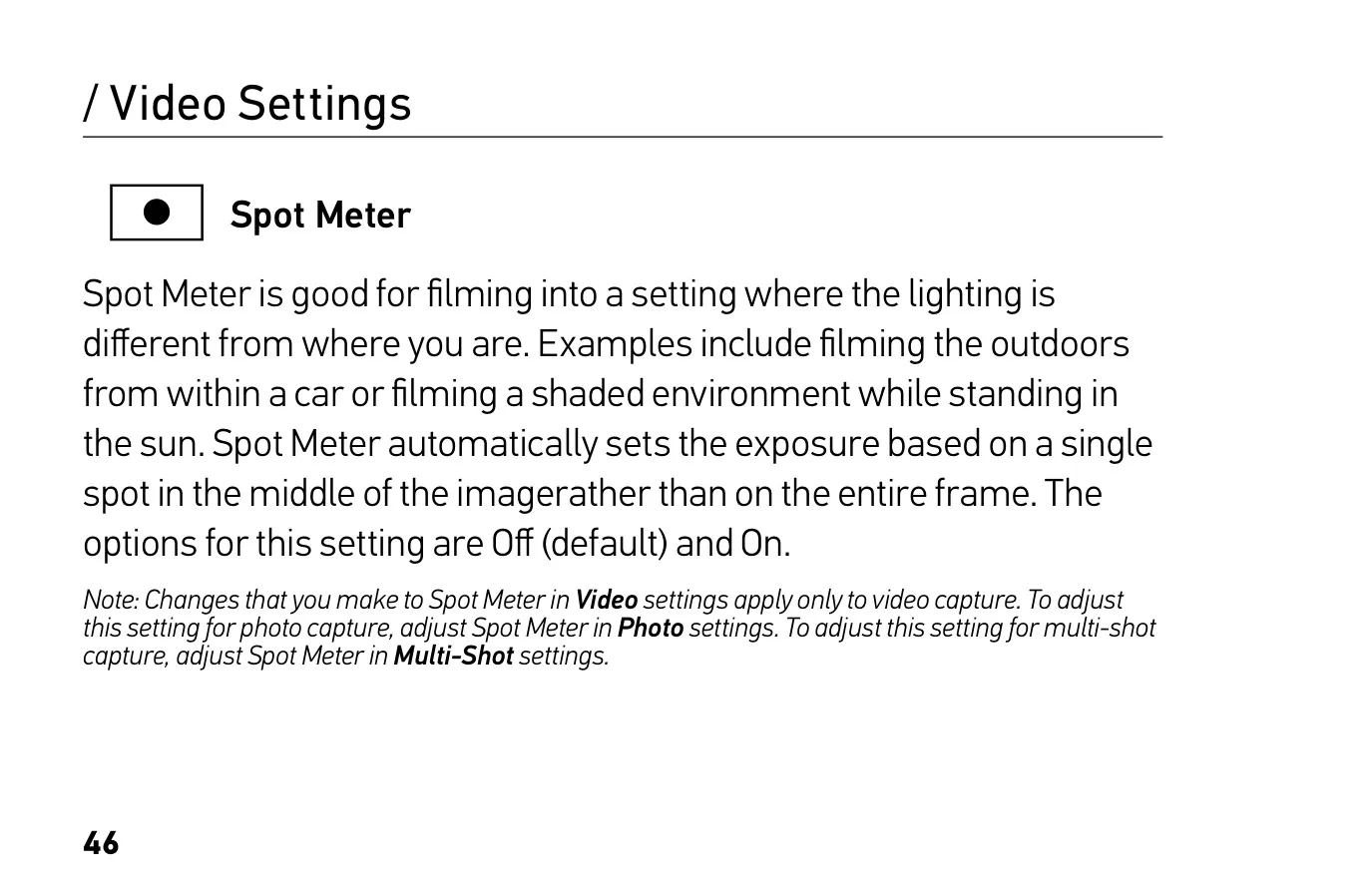
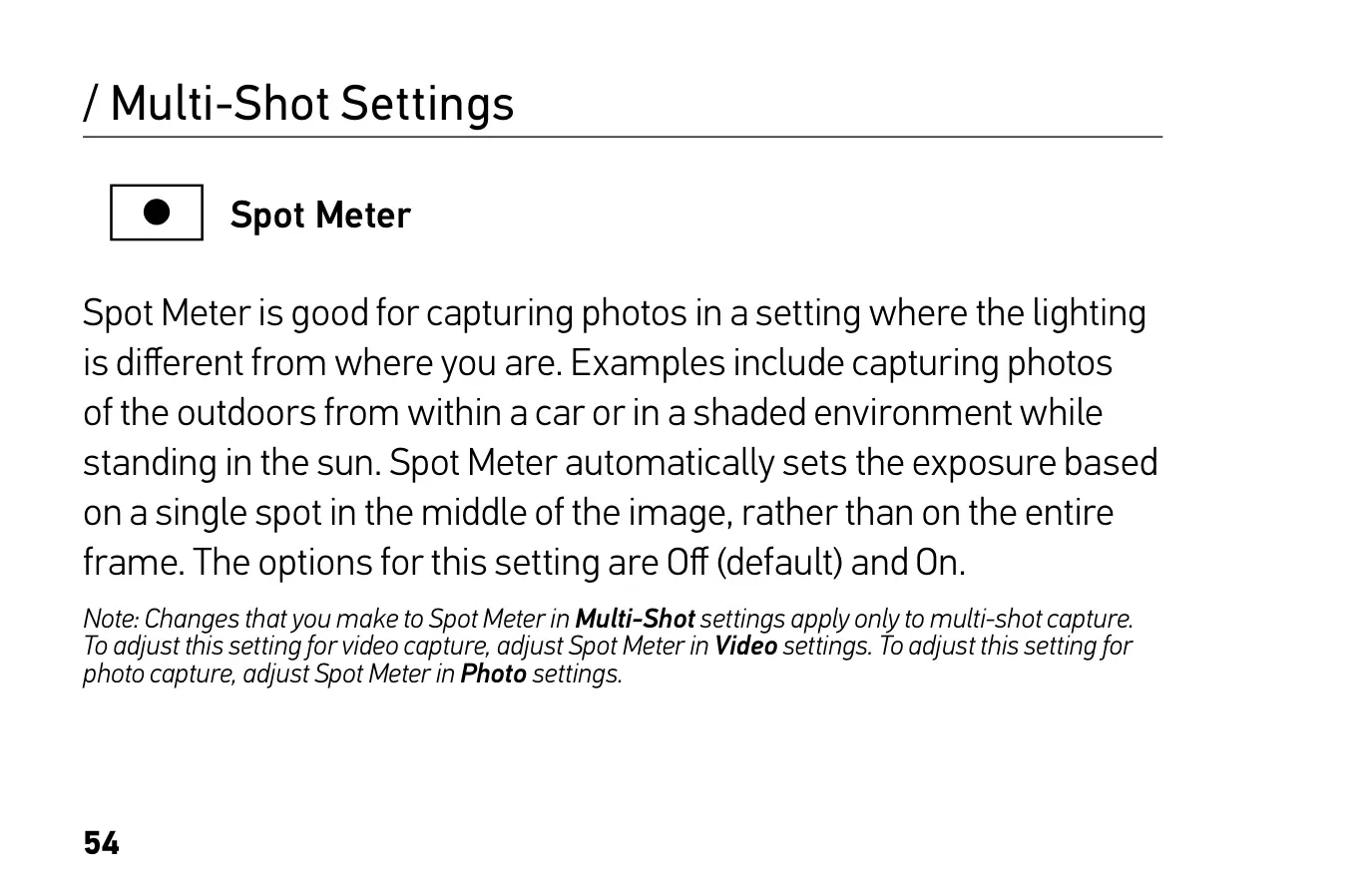
| Spot Meter | Off (default) or On; set separately for Video, Photo and Multi-Shot |
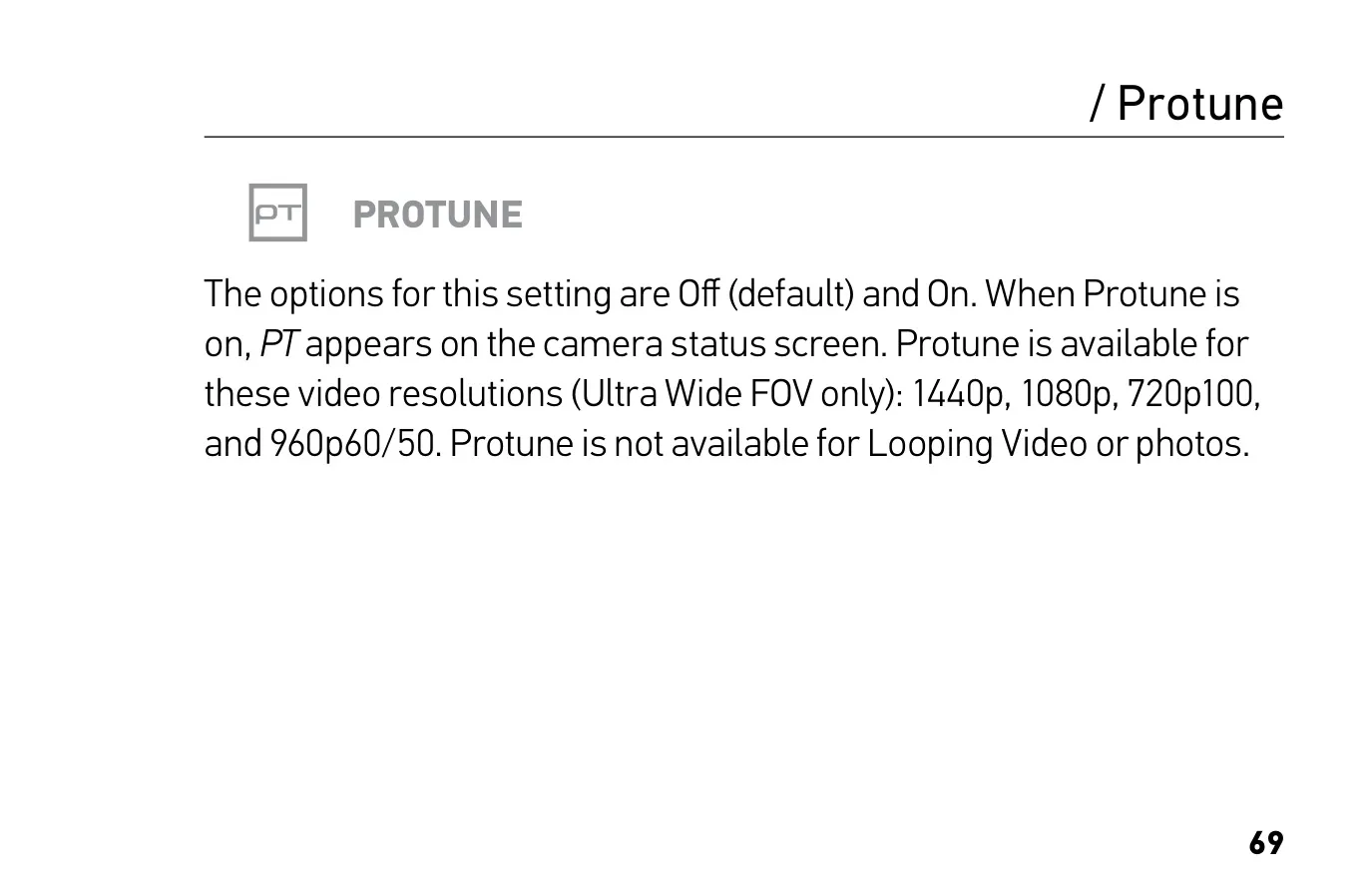
| Protune Resolutions | 1440p, 1080p, 720p100, 960p60/50 (Ultra Wide FOV only) |
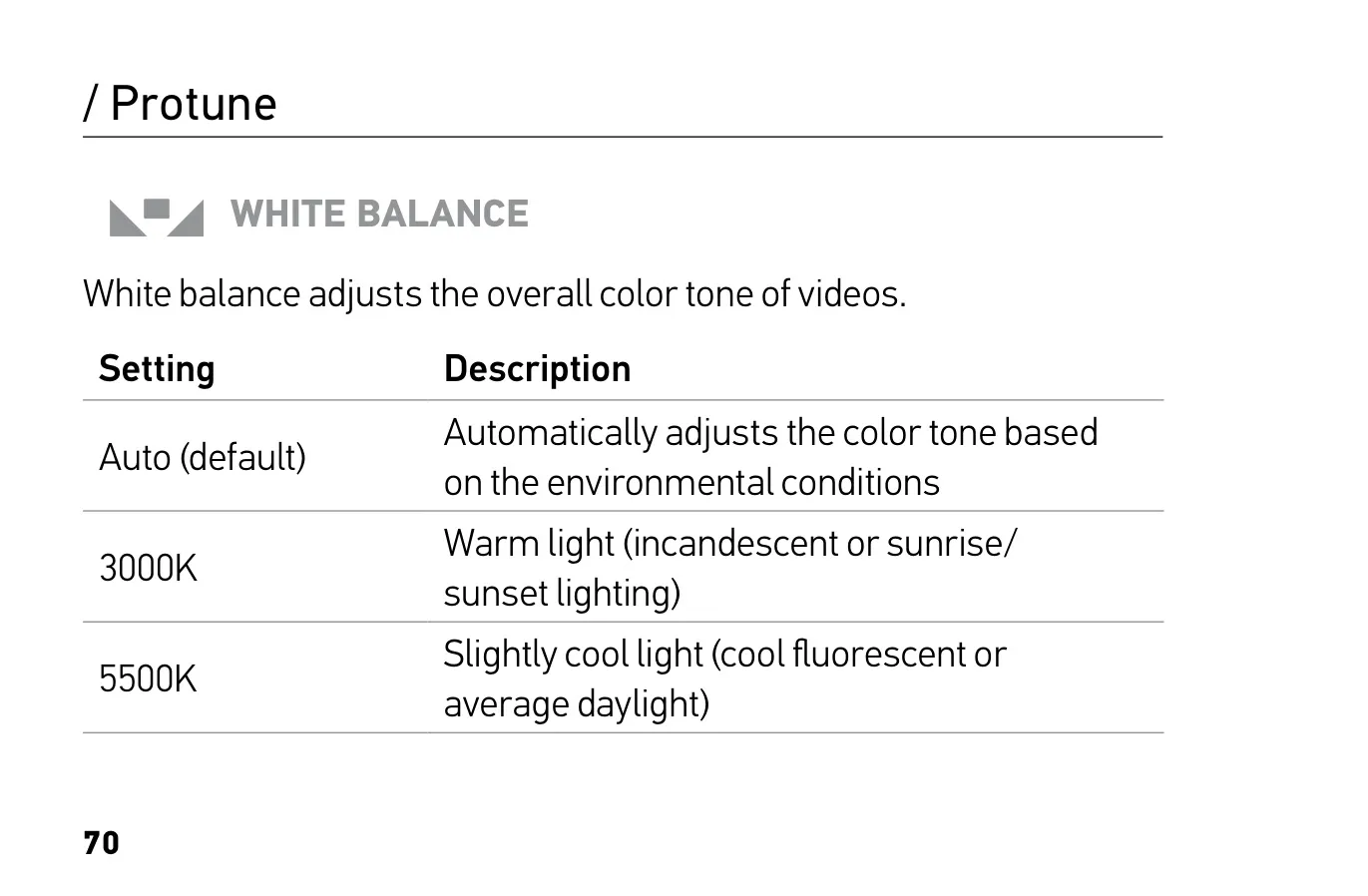
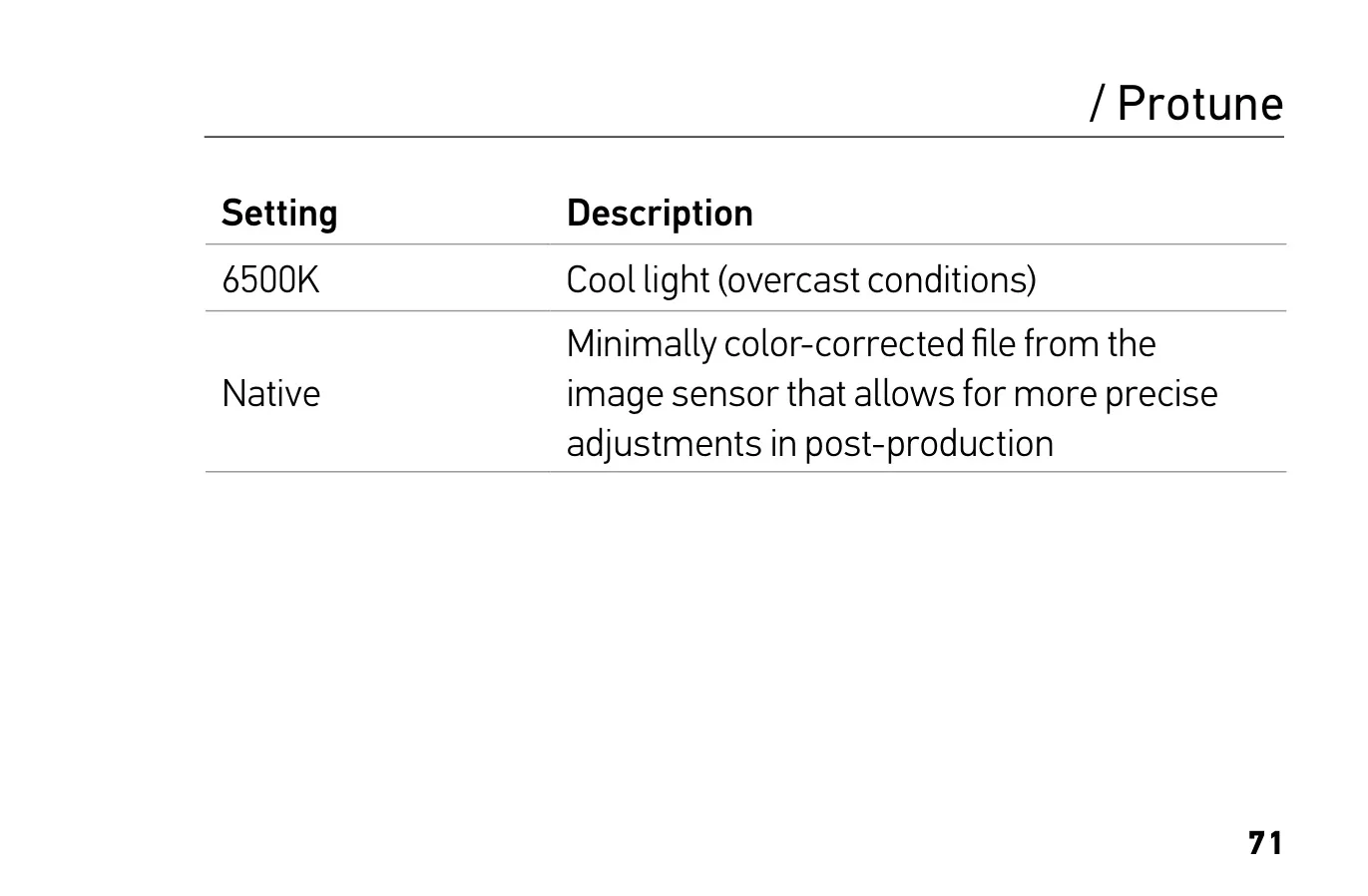
| Protune White Balance | Auto (default), 3000K, 5500K, 6500K, Native |
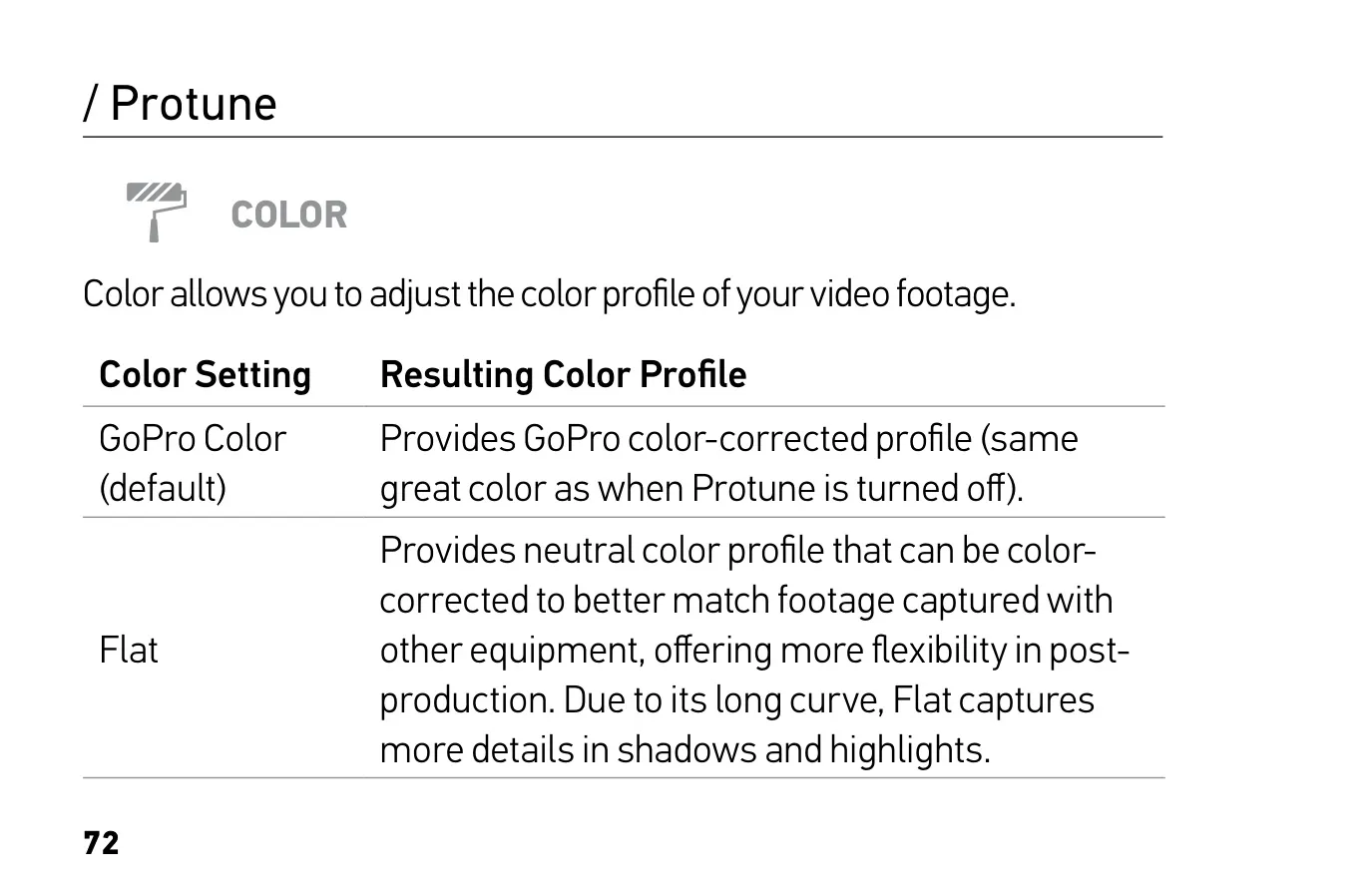
| Protune Color | GoPro Color (default), Flat |
| Protune ISO Limit | 1600 (default), 400 |
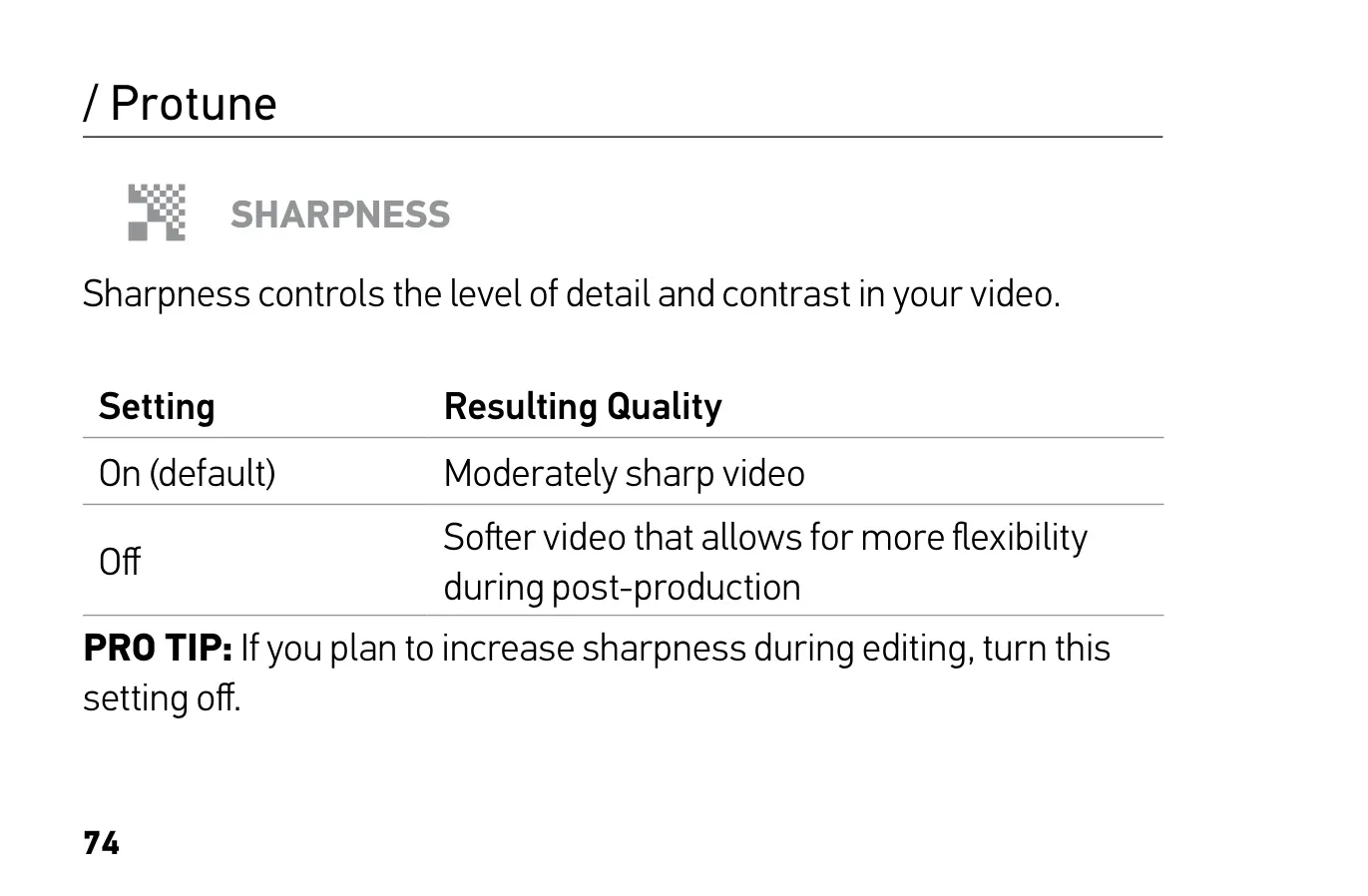
| Protune Sharpness | On (default), Off |
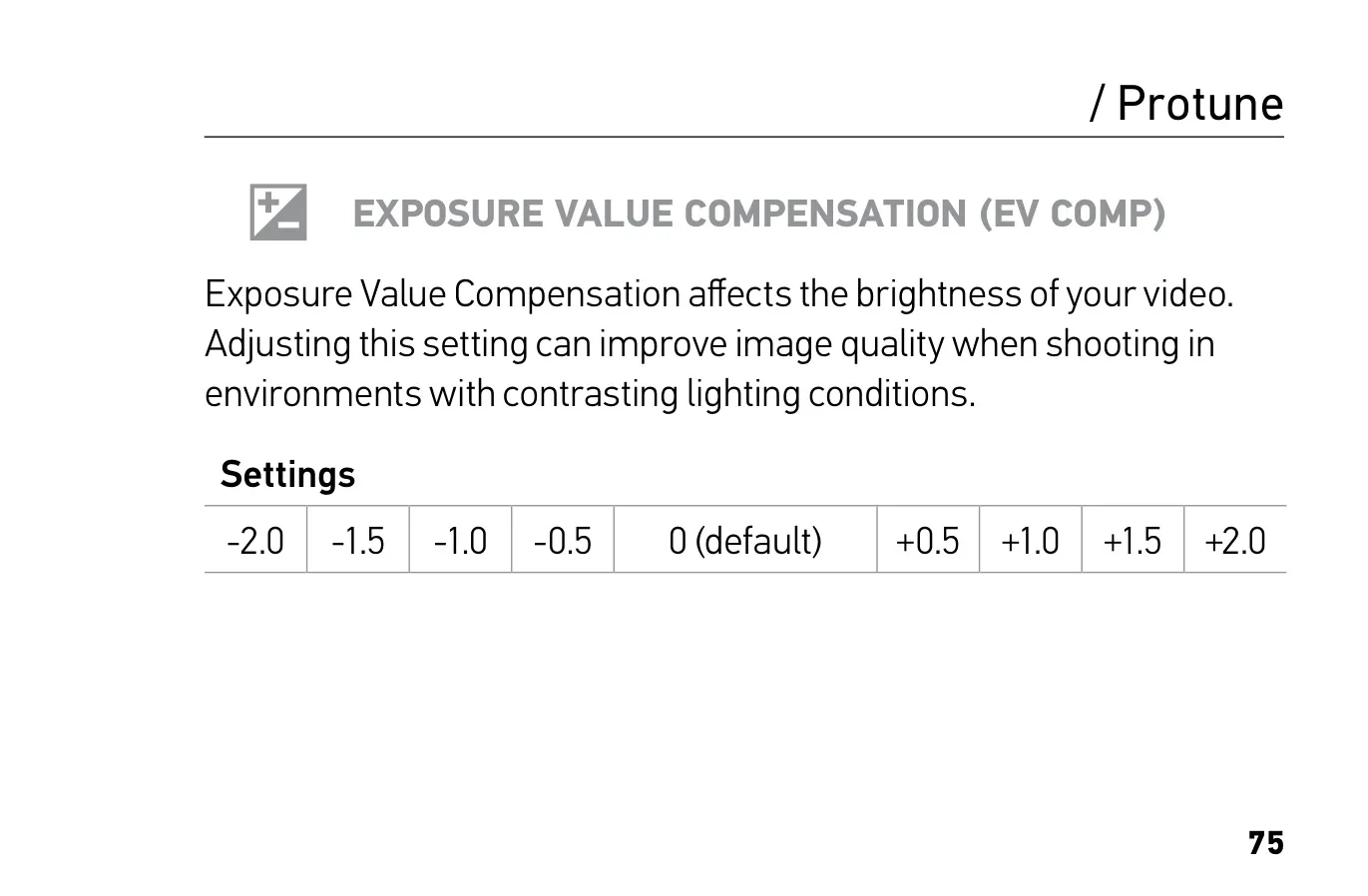
| Protune EV Compensation | -2.0 to +2.0 in 0.5 steps (default 0) |
| Waterproof Rating | 33 ft (10 m) with side door closed, no housing needed |
| Memory Card | microSD, microSDHC or microSDXC, Class 10 or UHS-I, up to 64GB (sold separately) |
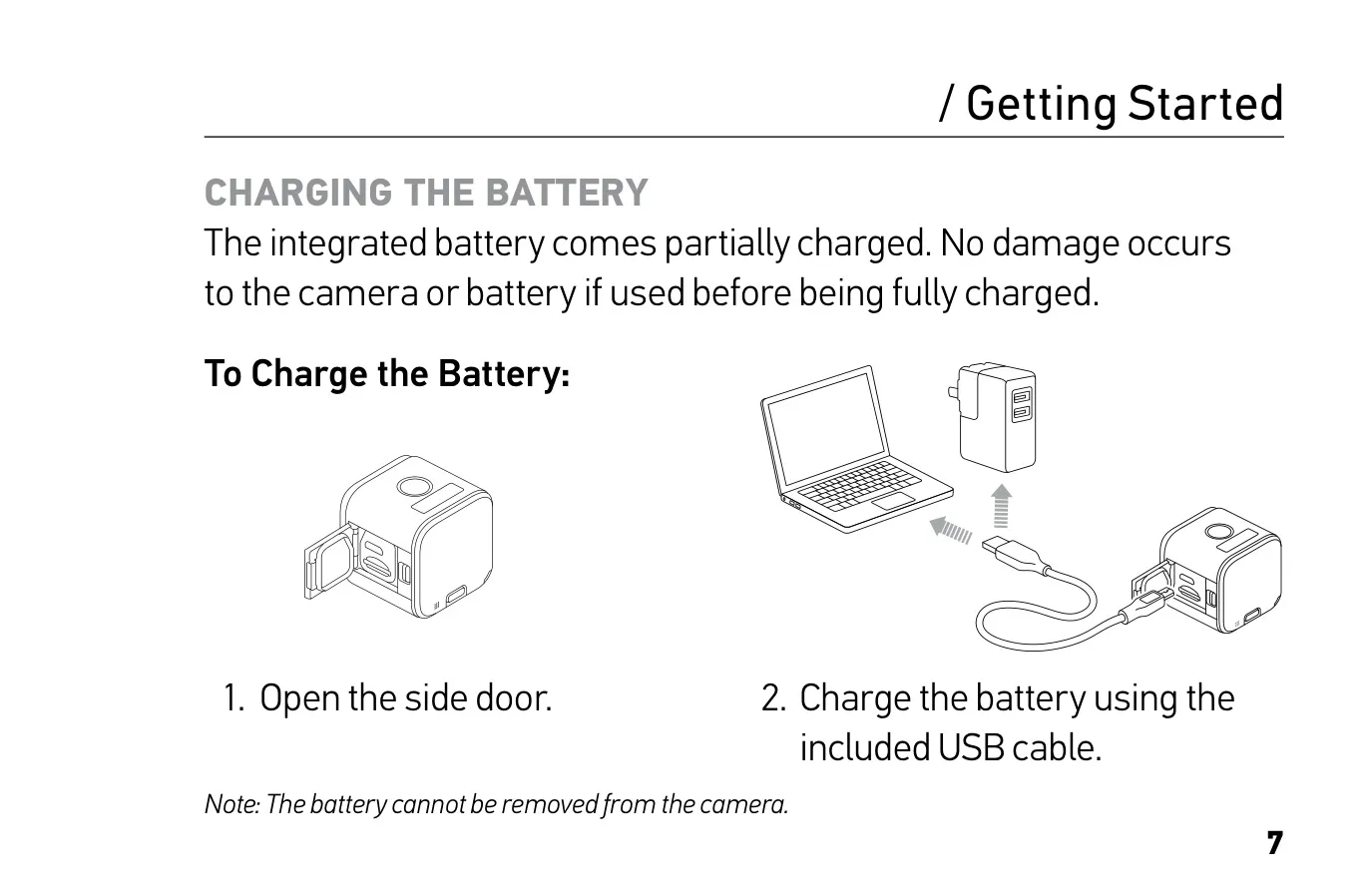
| Battery | Integrated, non-removable, non-serviceable |
| Charging Time | About 1 hour to 80%, about 2 hours to 100% |
| Charger Requirement | Output 5V 1A |
| Low Battery Warning | Battery icon blinks below 10% |
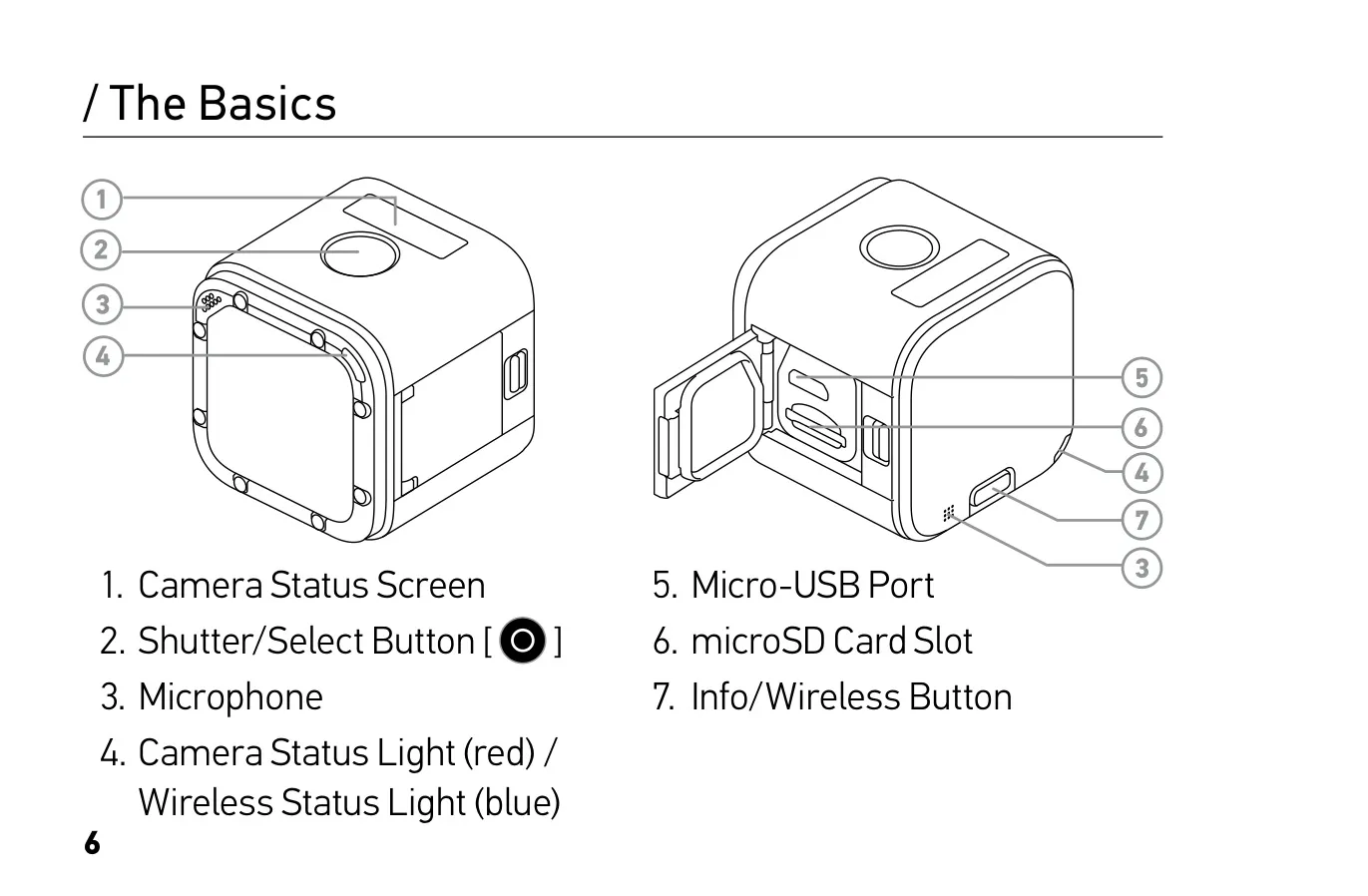
| Ports | Micro-USB, microSD card slot (behind side door) |
| Controls | Shutter/Select button, Info/Wireless button |
| Display | Camera status screen |
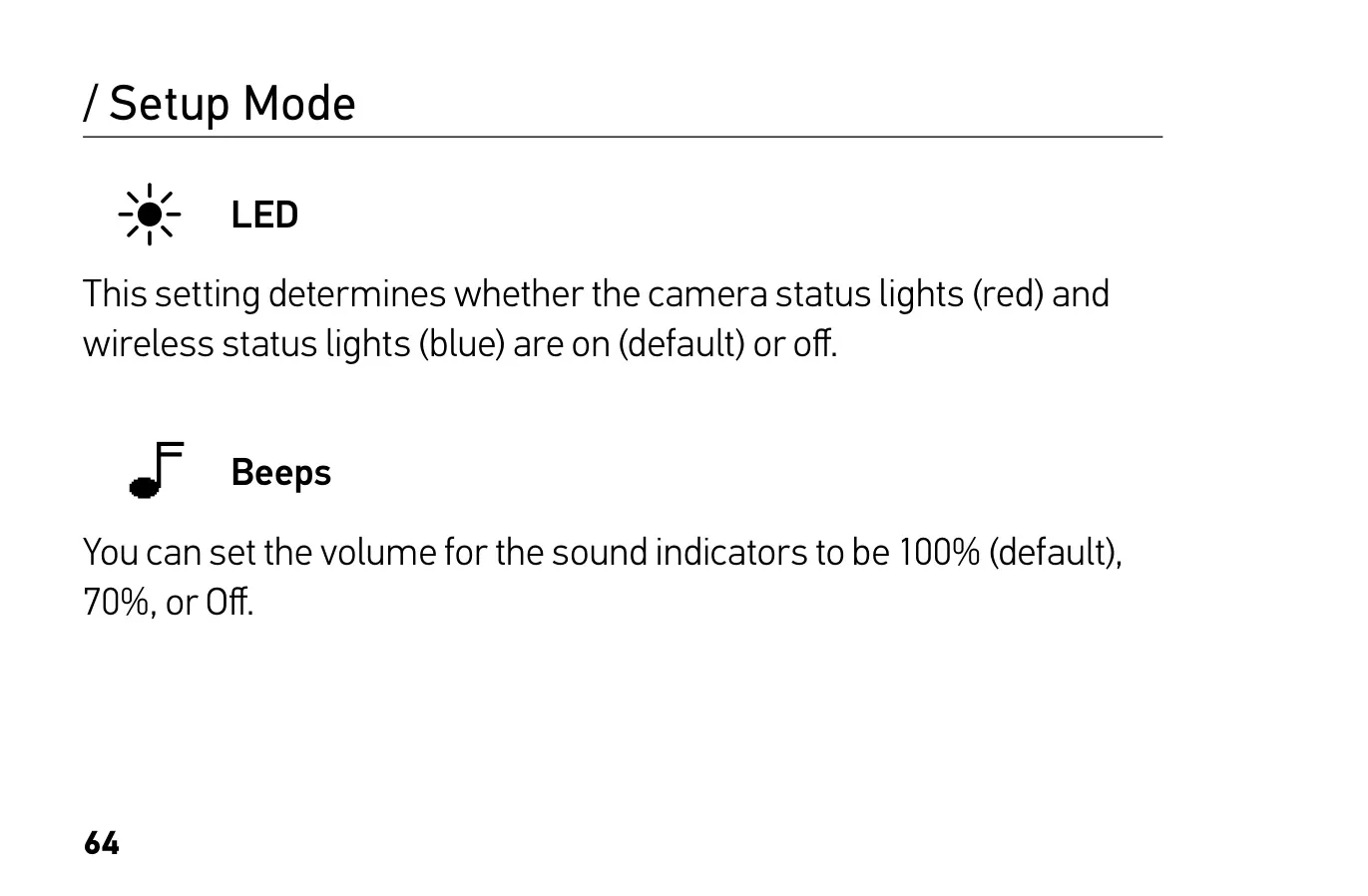
| Indicator Lights | Camera status lights (red), wireless status lights (blue) |
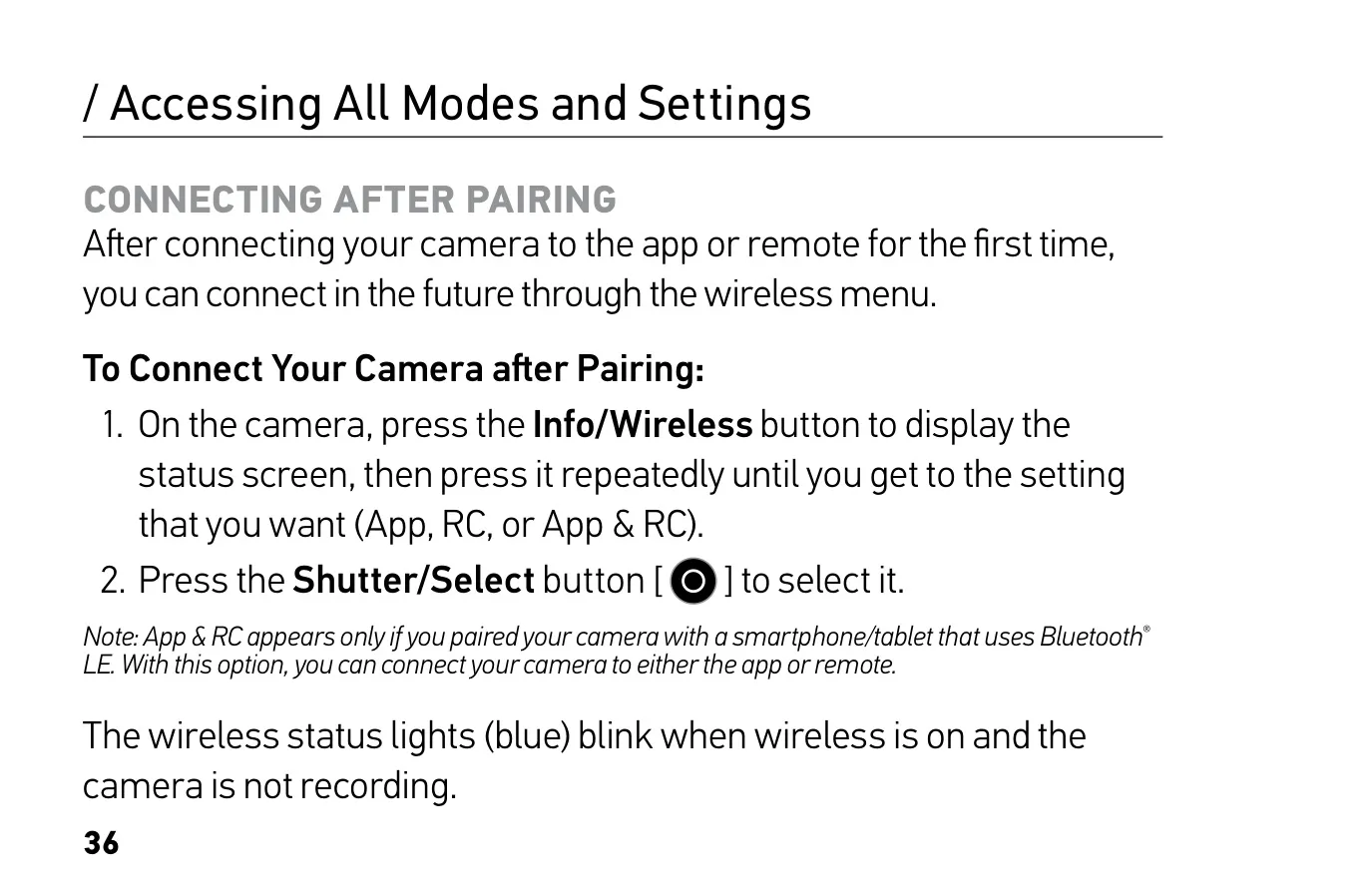
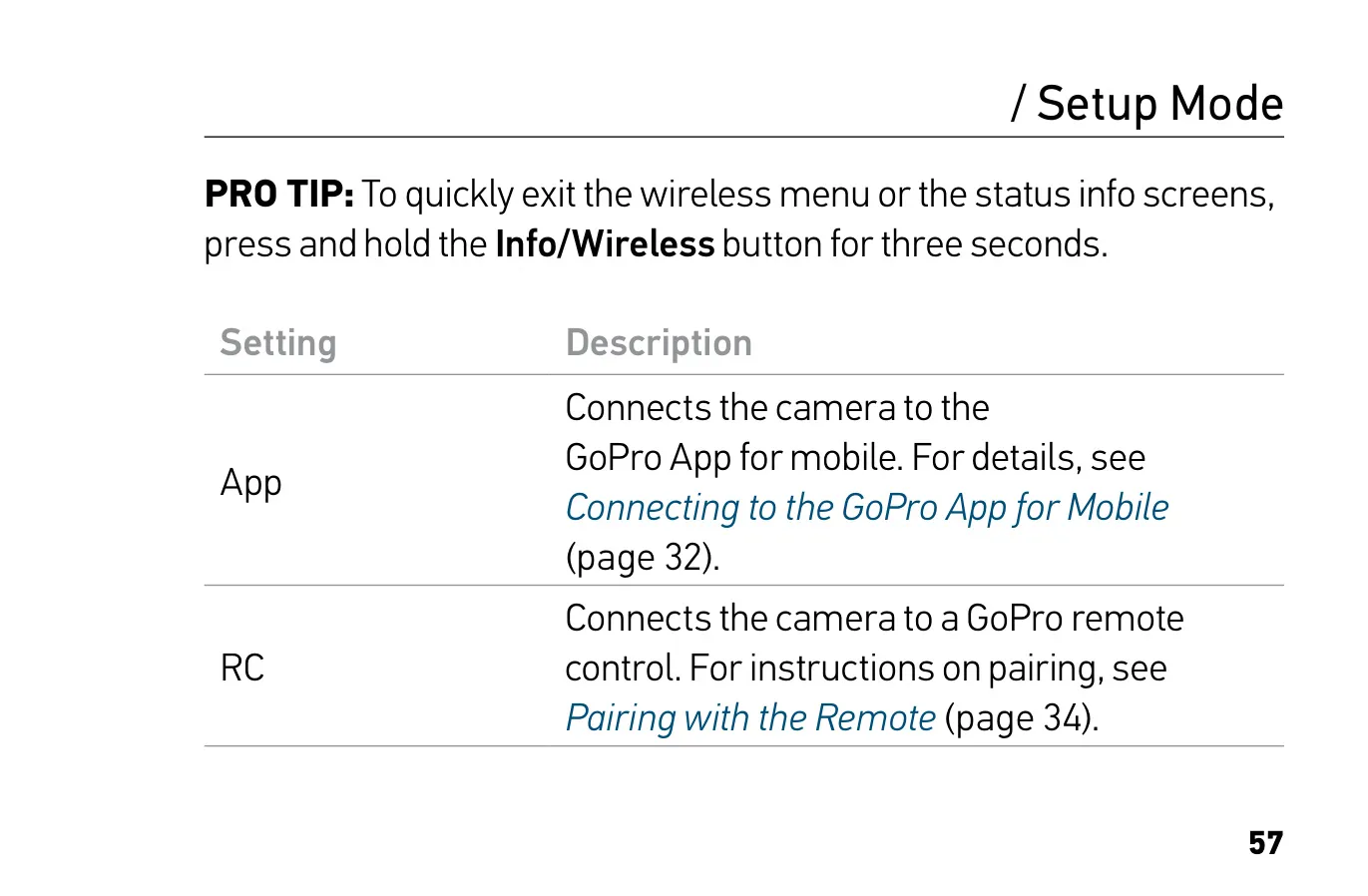
| Wireless | Wi-Fi; Bluetooth LE supported for combined App & RC mode |
| Default Wireless Password | goprohero |
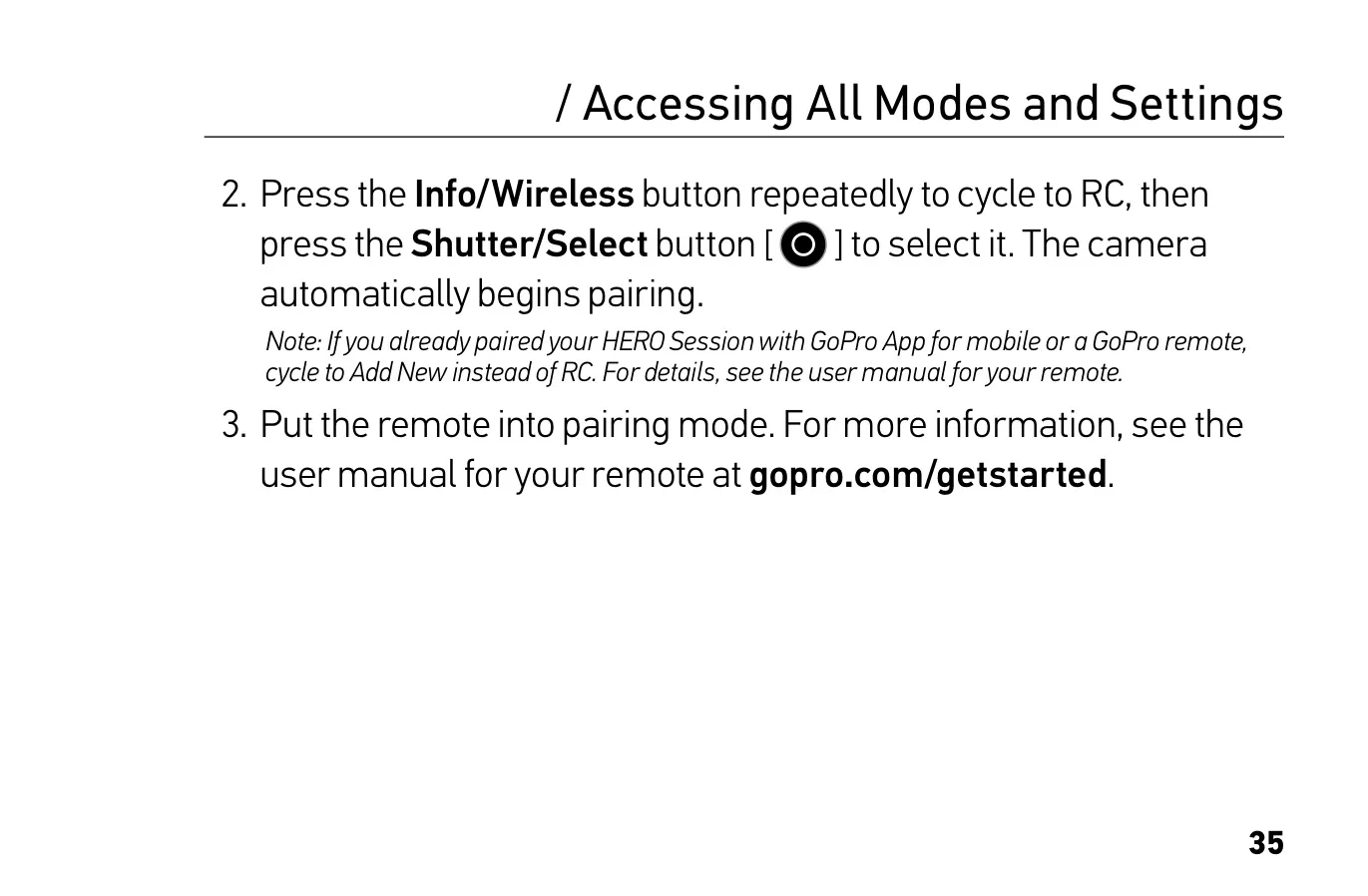
| Compatible Remotes | GoPro Smart Remote, Wi-Fi Remote |
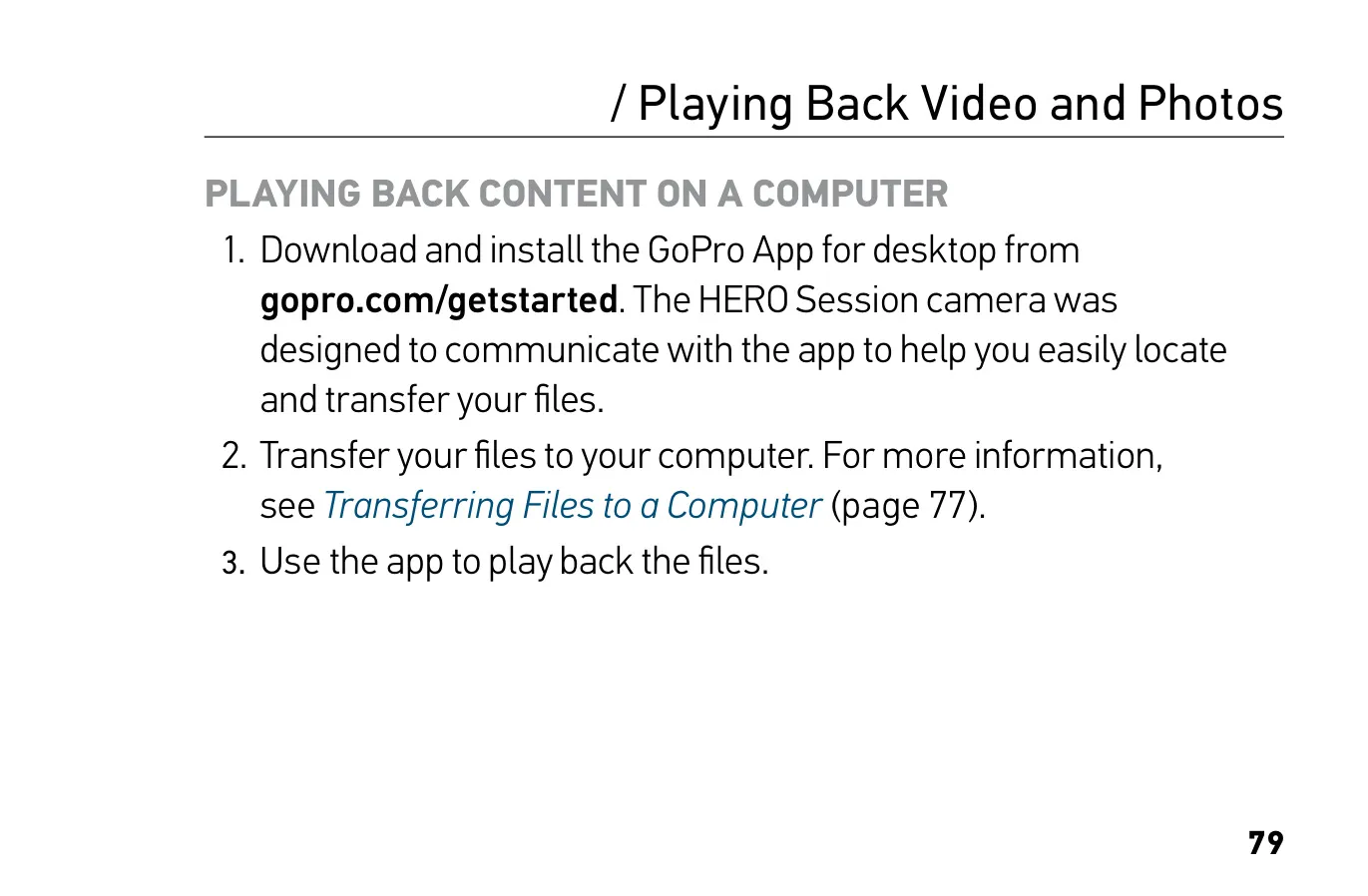
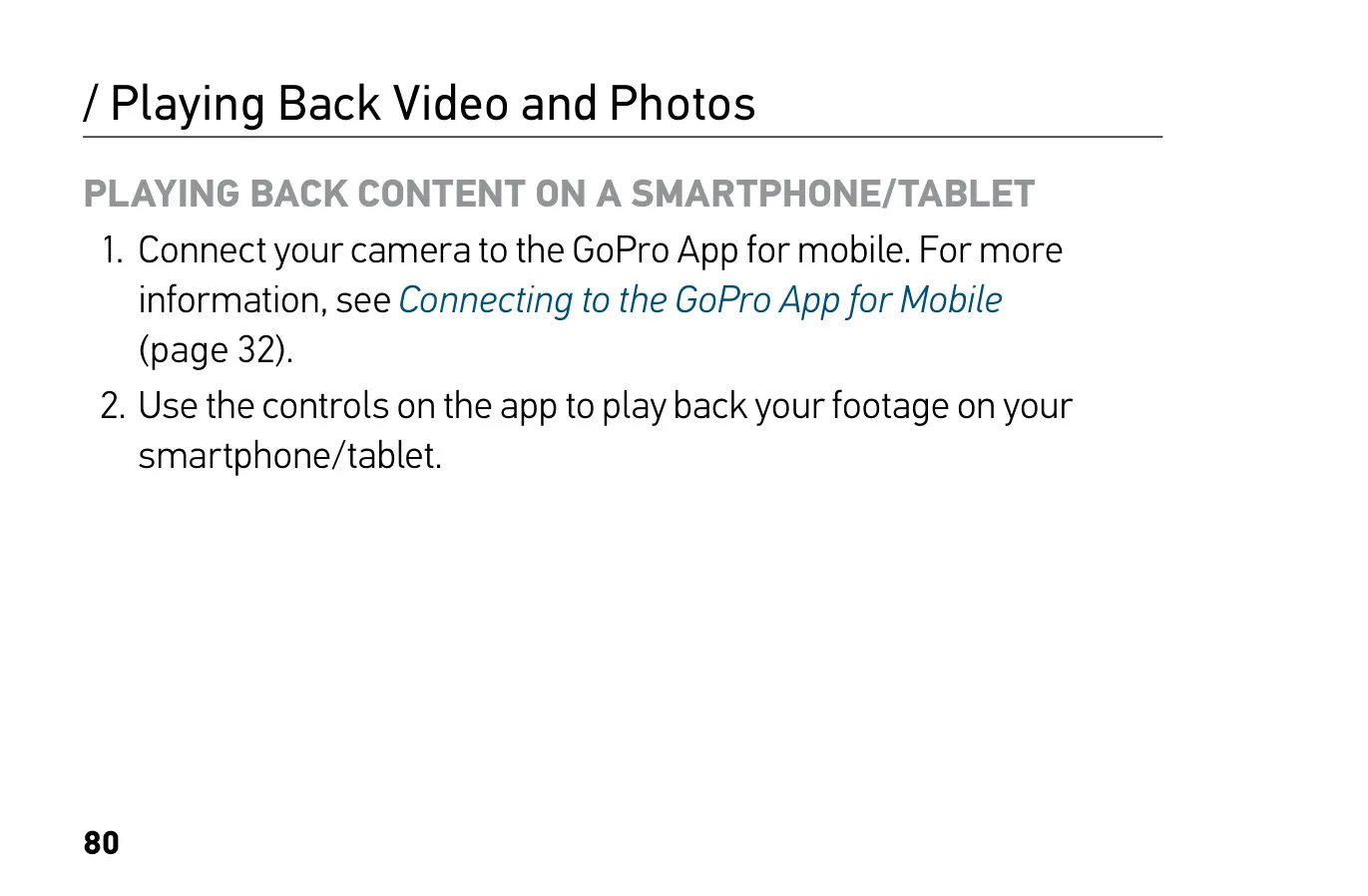
| Companion Software | GoPro App for mobile (iOS/Android), GoPro App for desktop |
| Orientation | Auto (default), Up, Down |
| Beep Volume | 100% (default), 70%, Off |
| Included Accessories | Standard Frame, USB cable |
| Manual Part Number | 130-16063-000 REVC |
GoPro Hero Session Action Camera Details
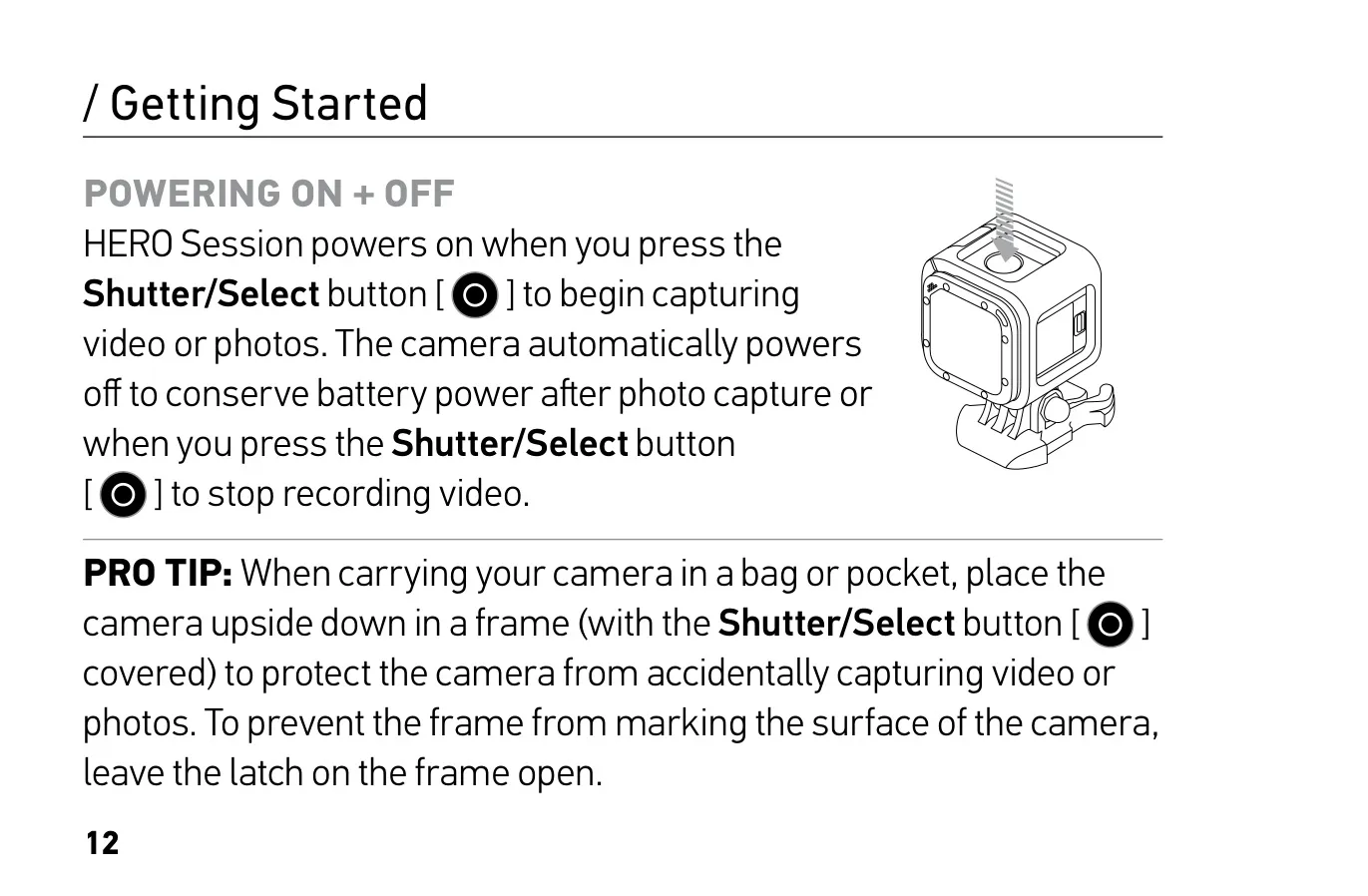
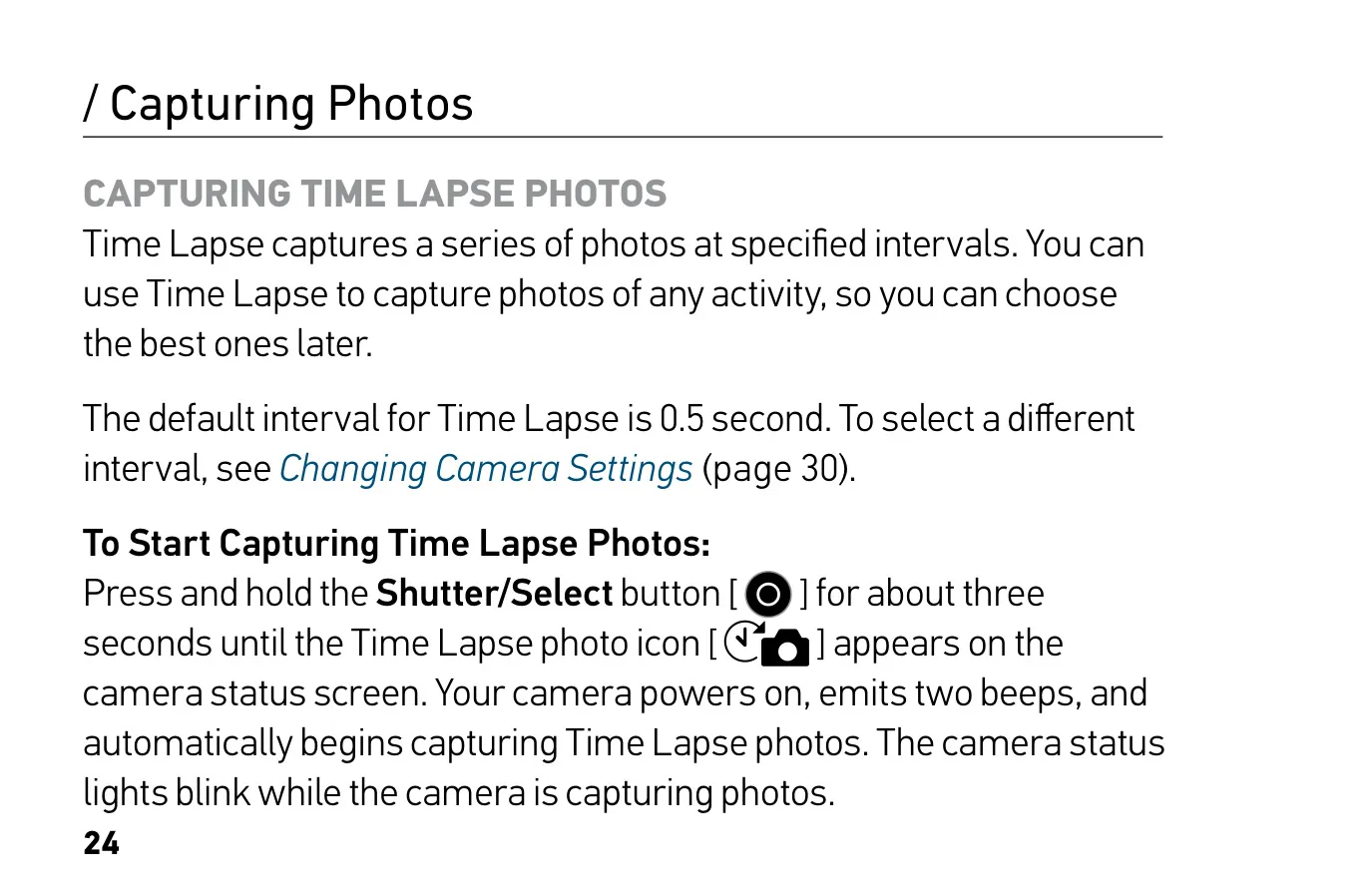
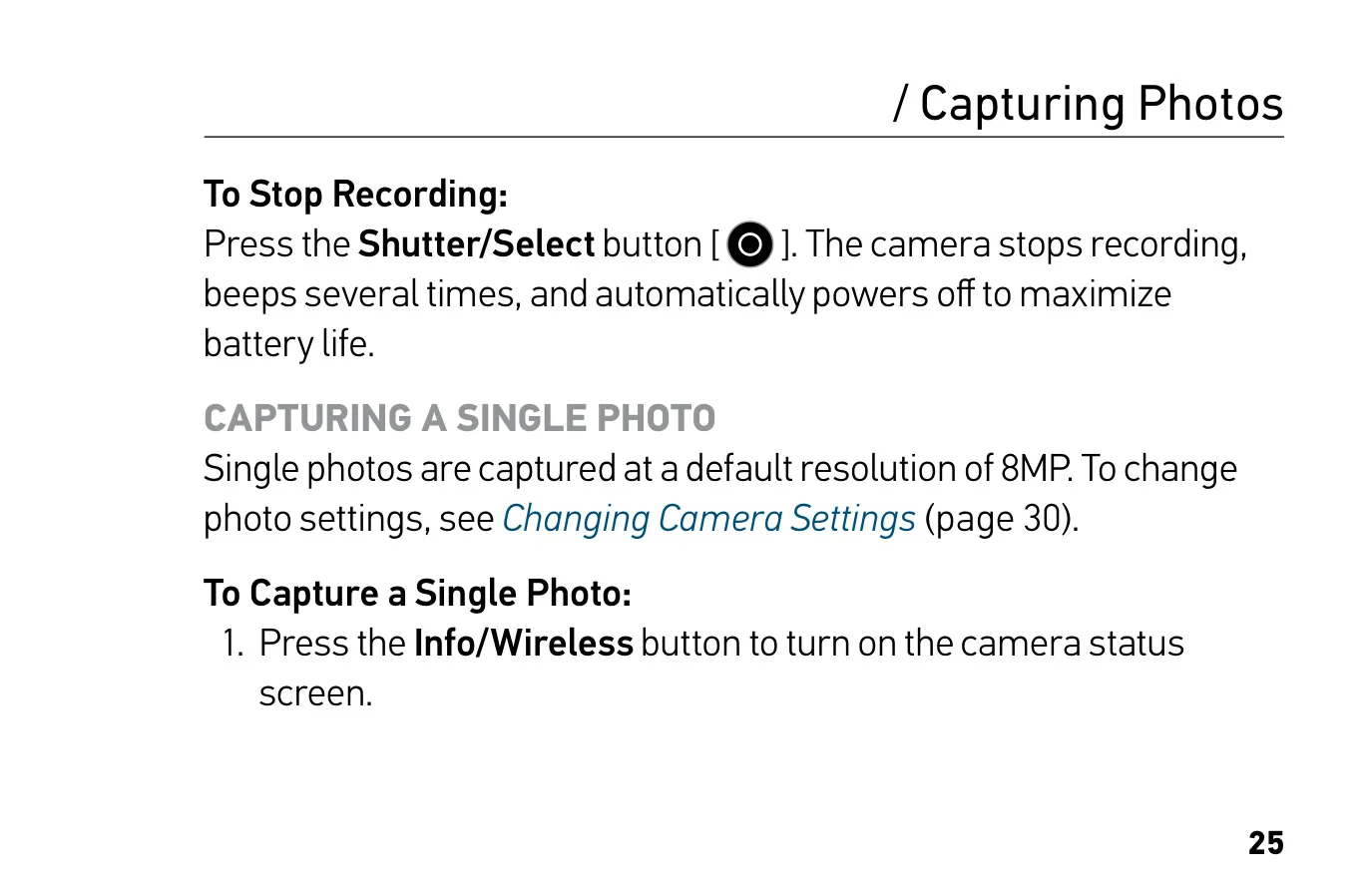
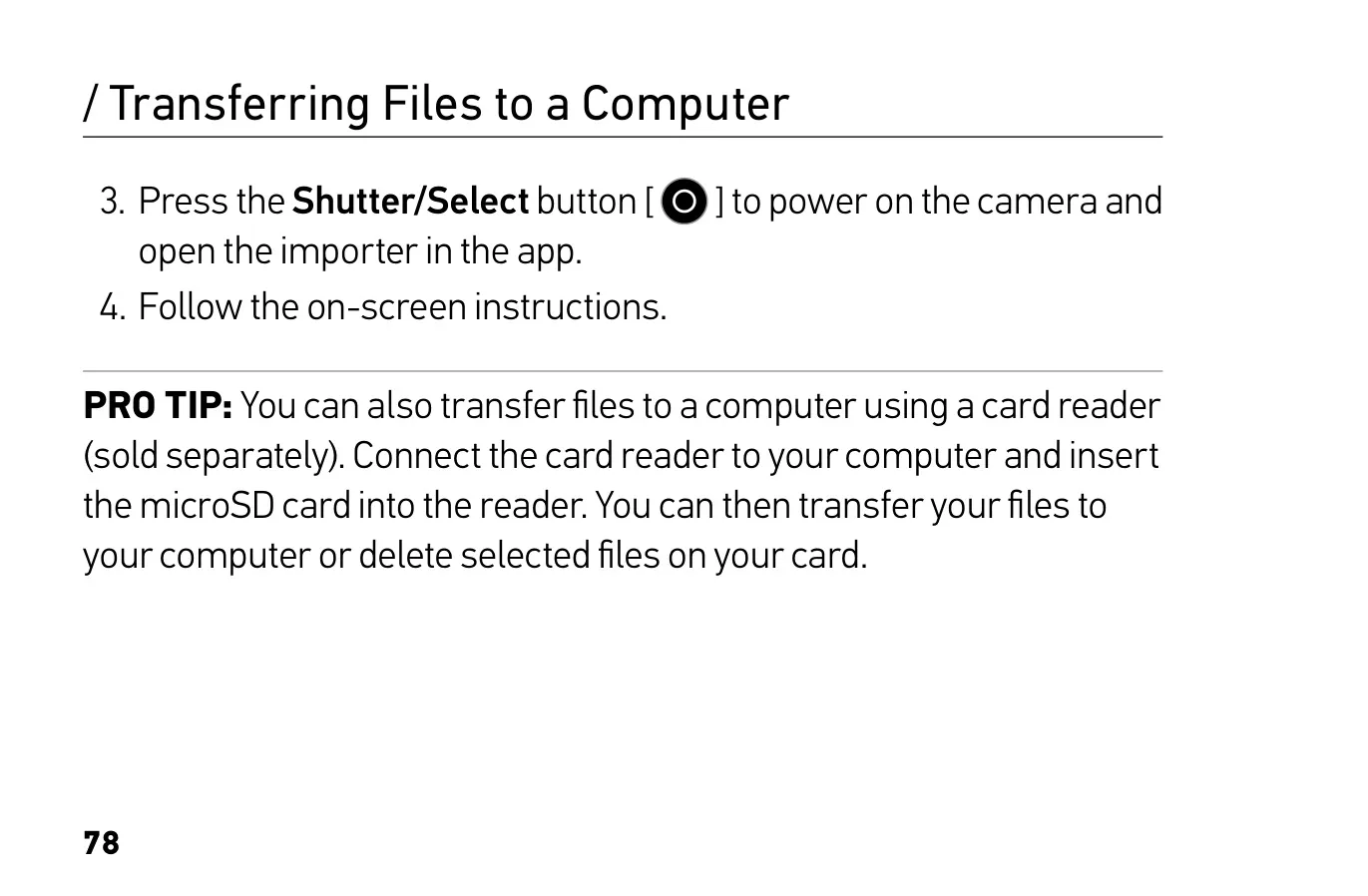
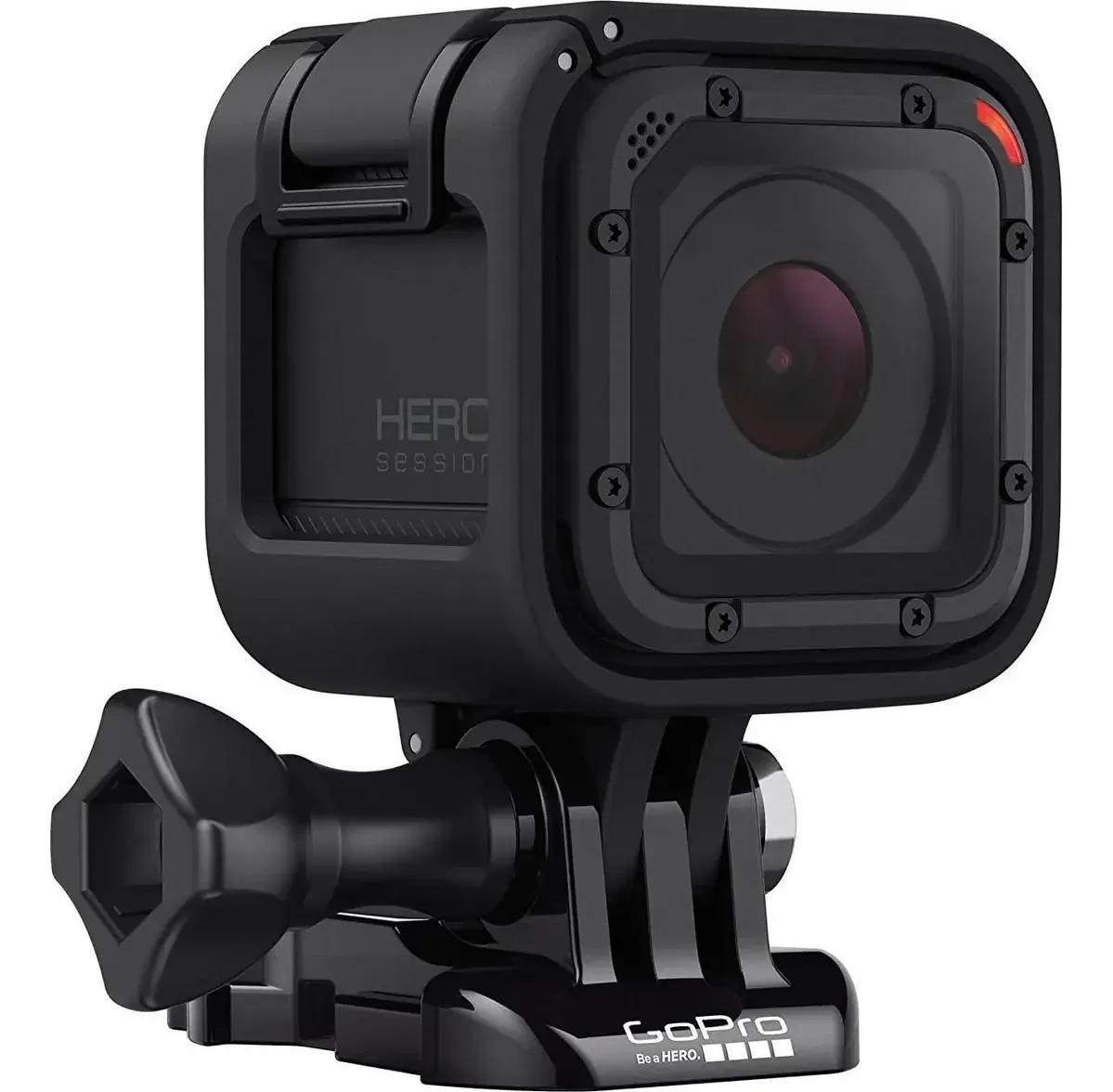
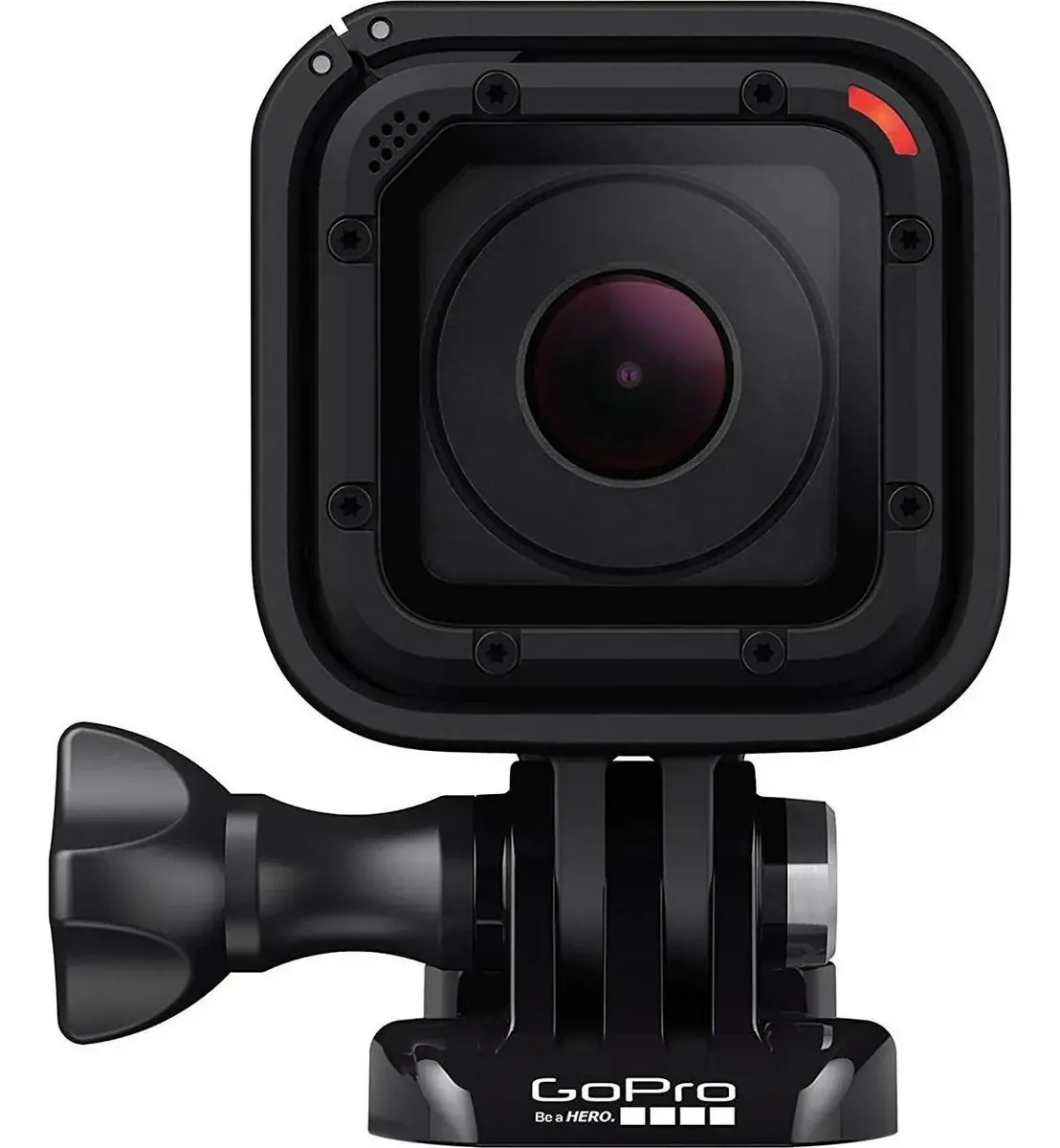
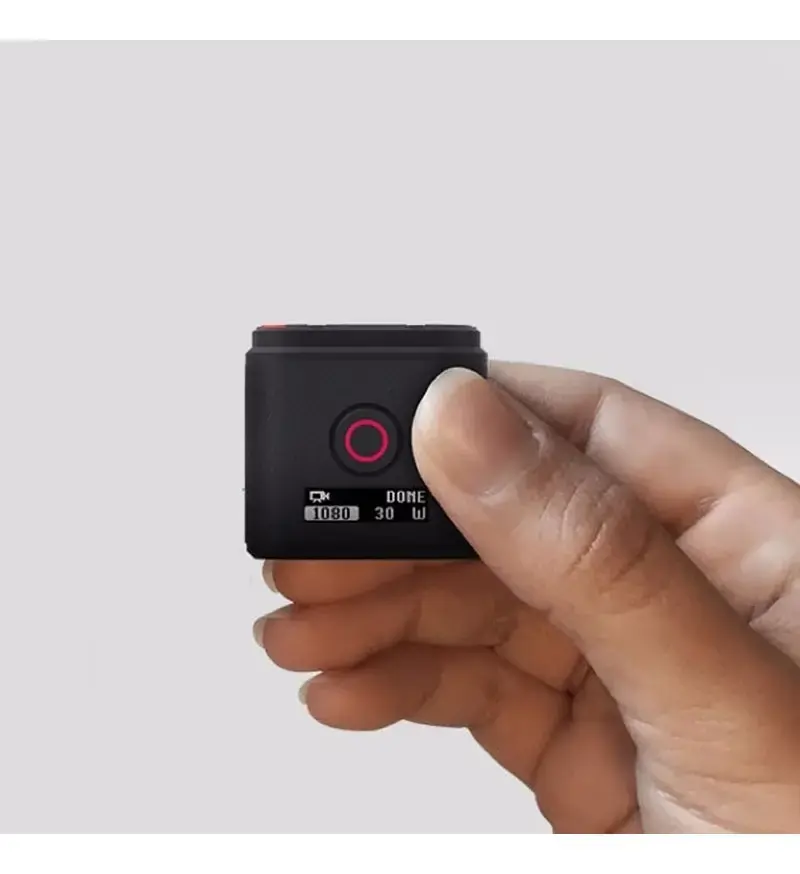
The GoPro HERO Session is a small cube-shaped camera that you control with just two buttons. Pressing the Shutter/Select button once turns the camera on and starts recording video right away, with three beeps to confirm. Pressing it again stops recording, and the camera powers itself off to save battery. If you press and hold the same button for about three seconds, the camera starts in Time Lapse mode instead and confirms with two beeps.
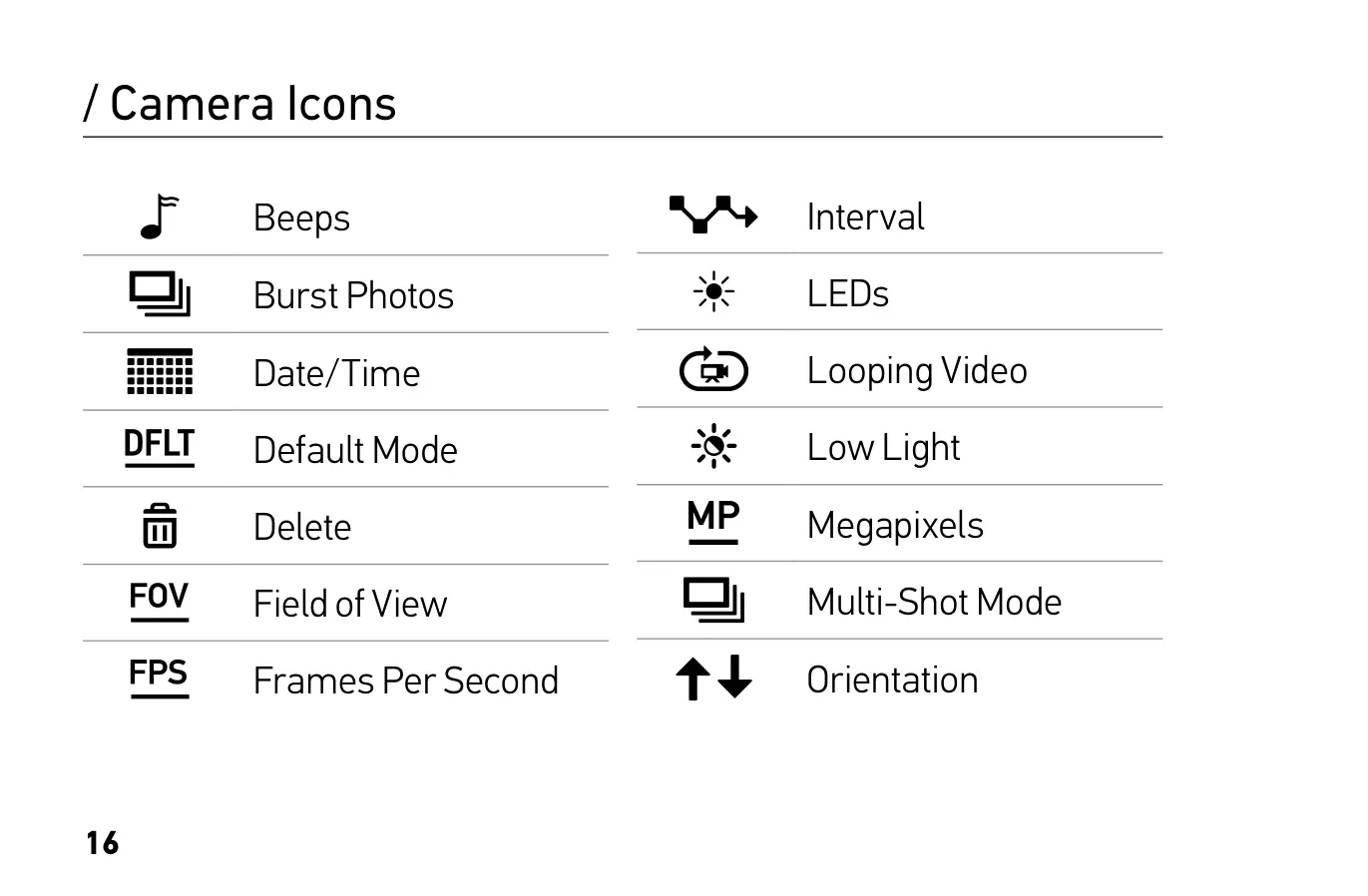
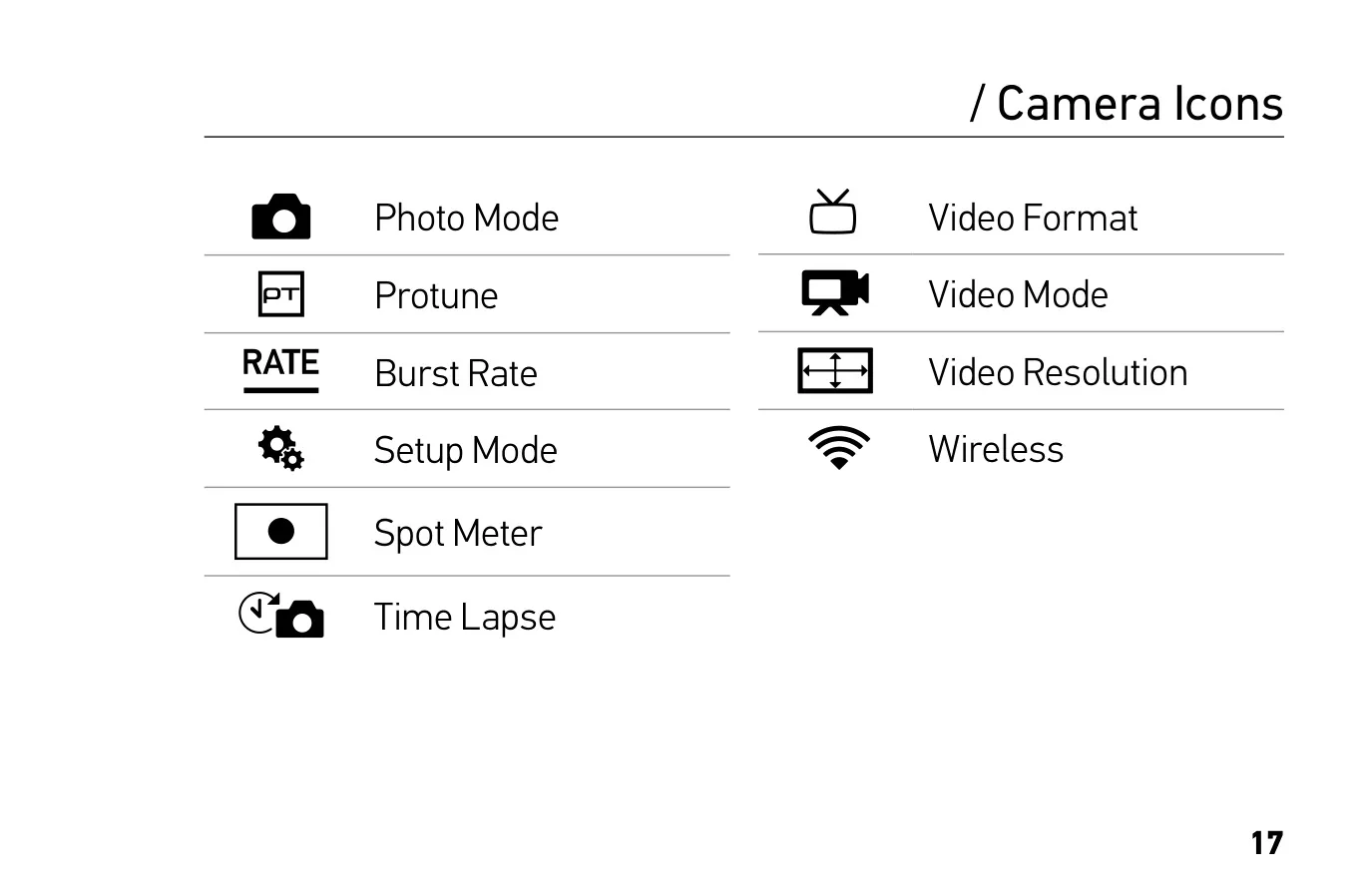
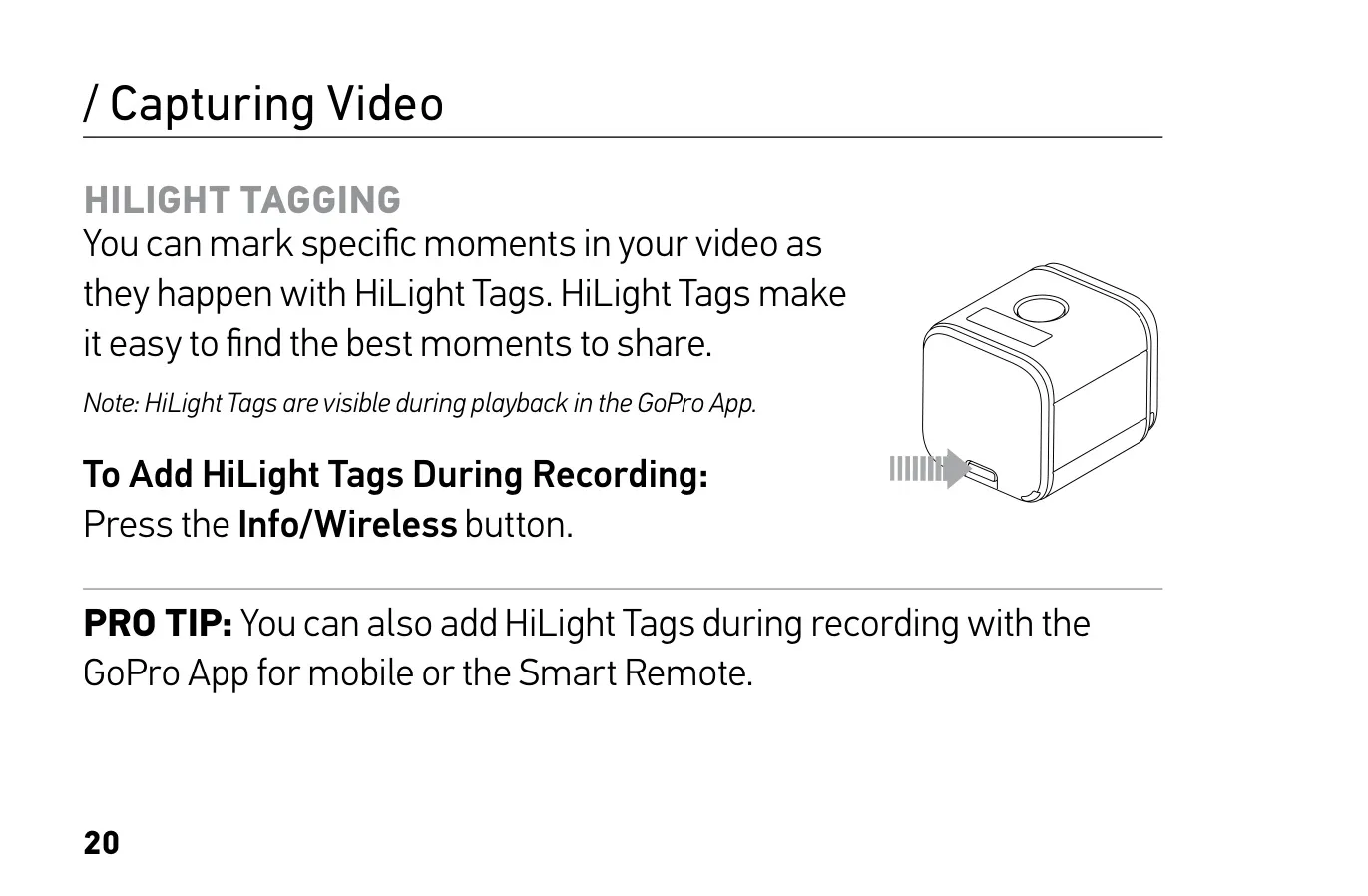
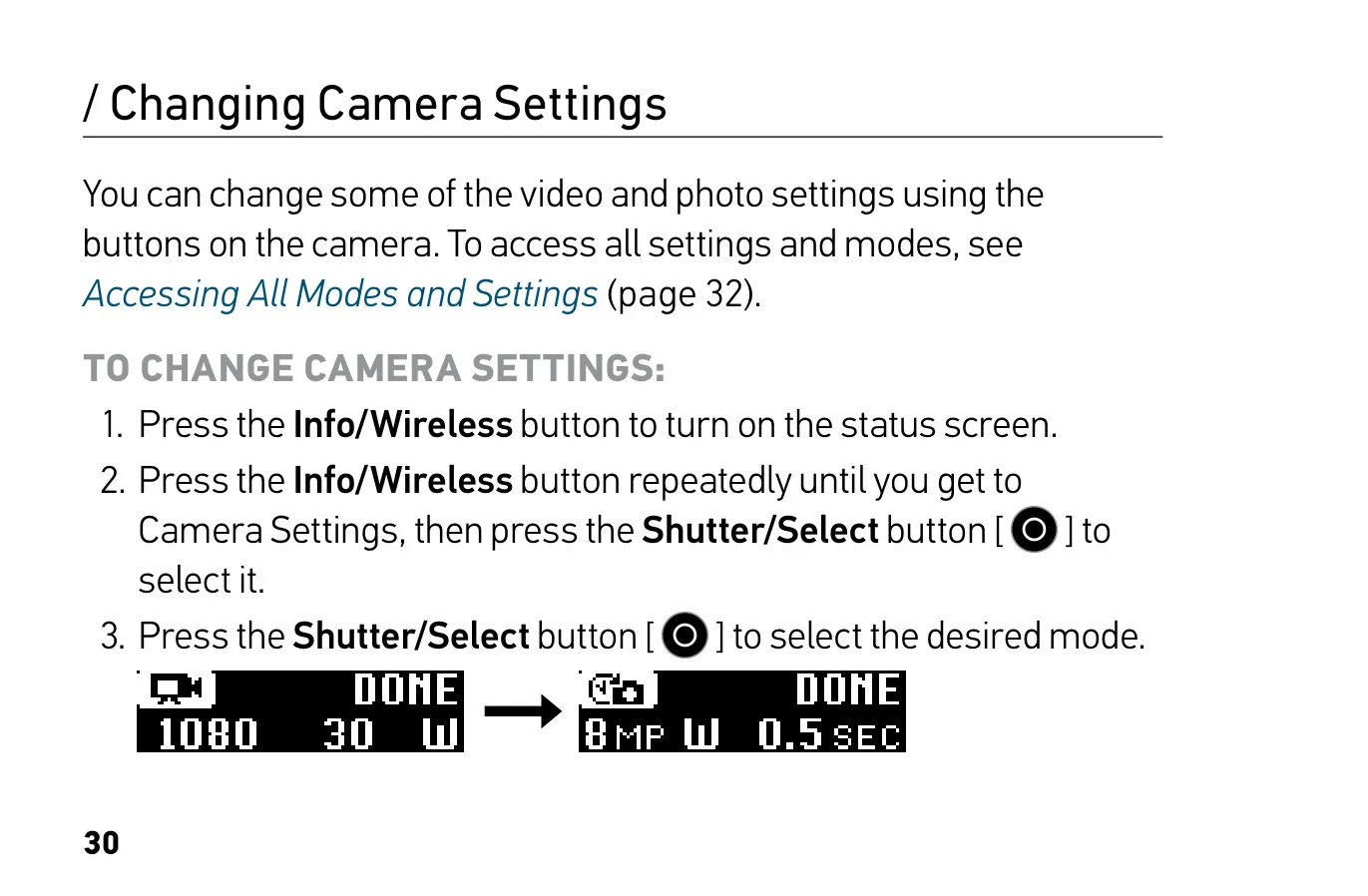
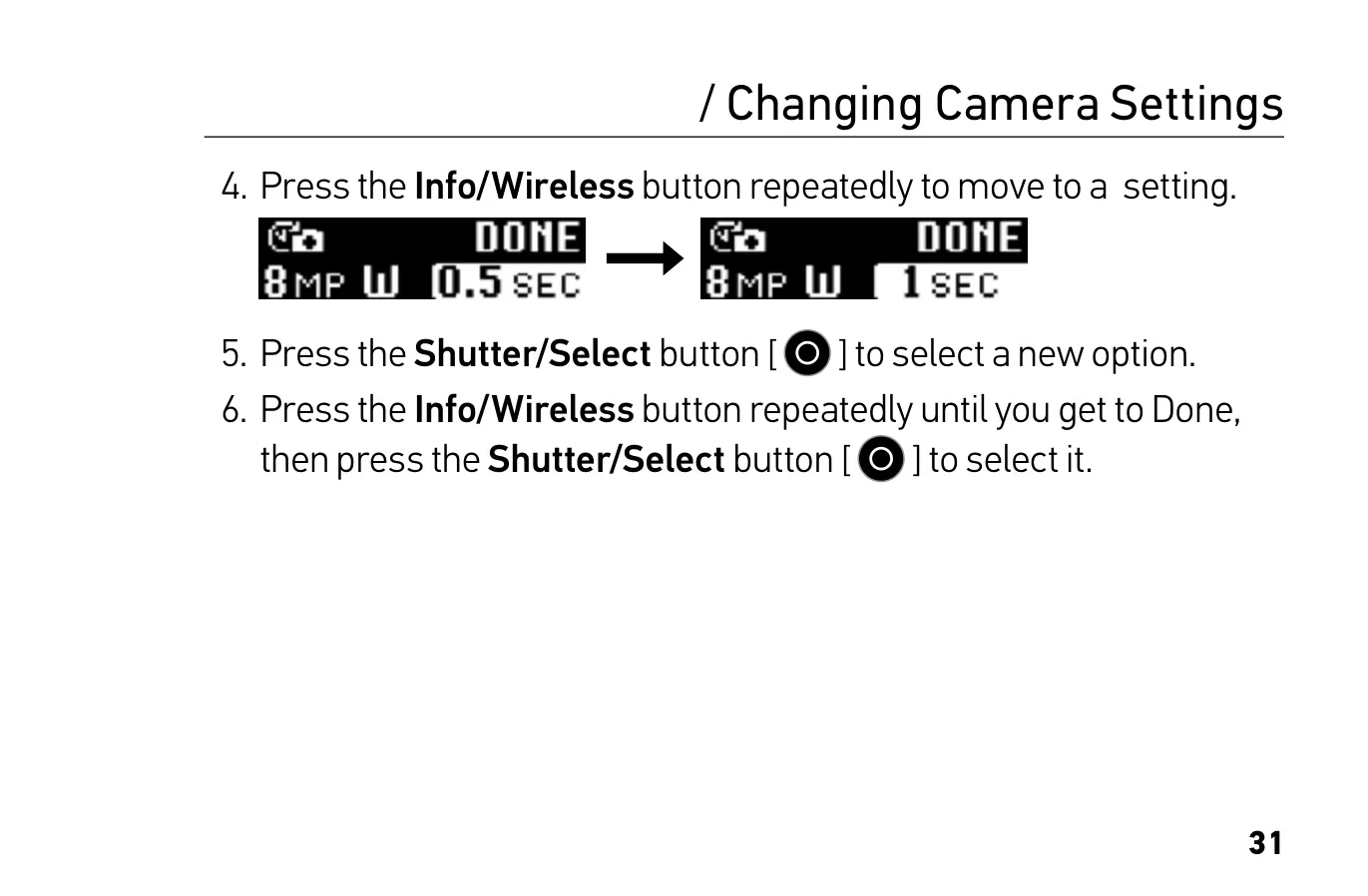
The Info/Wireless button shows status screens with the current resolution, frame rate, field of view, Protune status, Spot Meter status, wireless status, space left on the card for each mode, and battery level. To leave these screens quickly, press and hold the button for three seconds. While you are recording, pressing it adds a HiLight Tag, which marks the moment so you can find it later in the GoPro App. You can also add tags from the app or the Smart Remote.
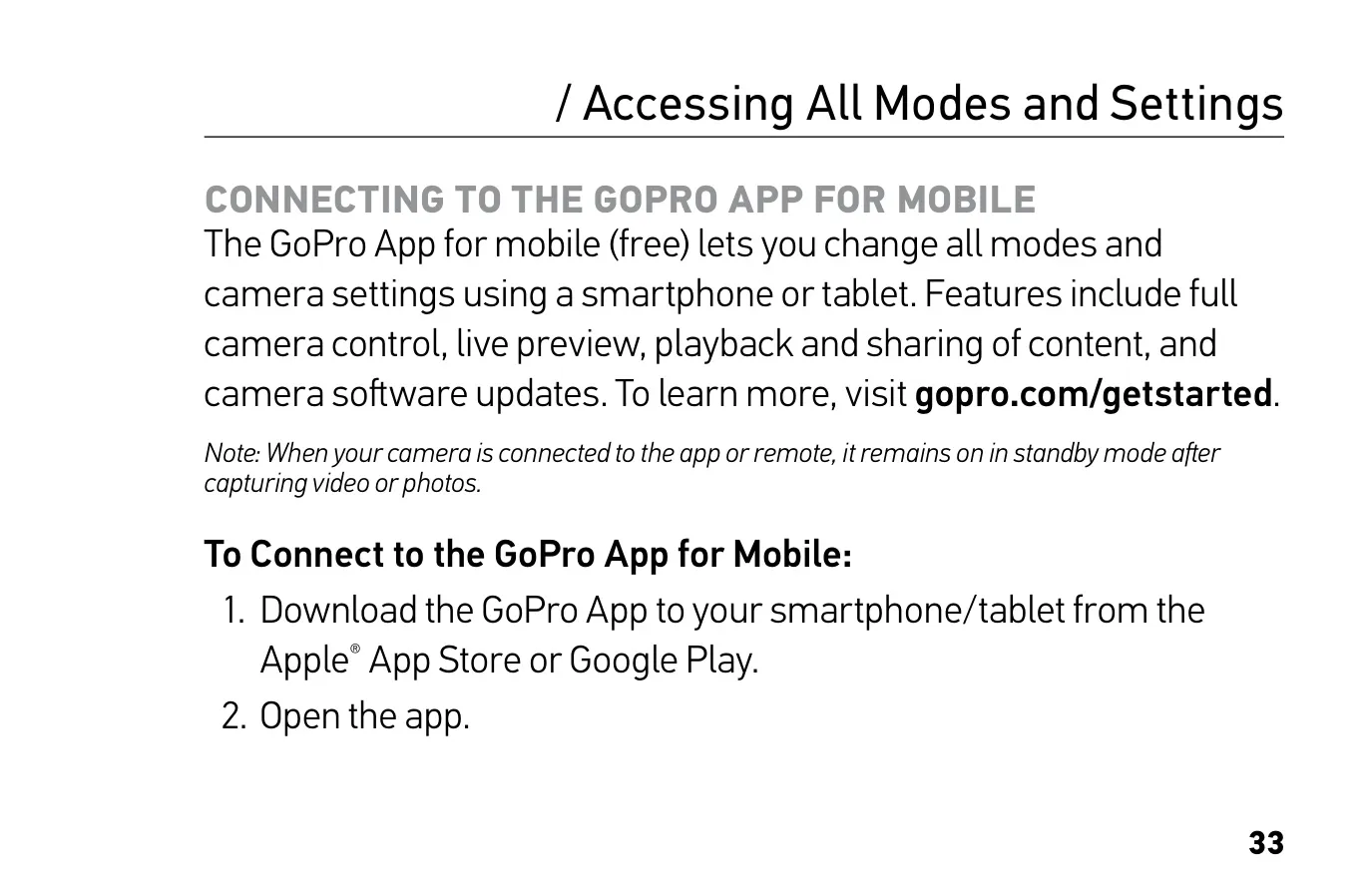
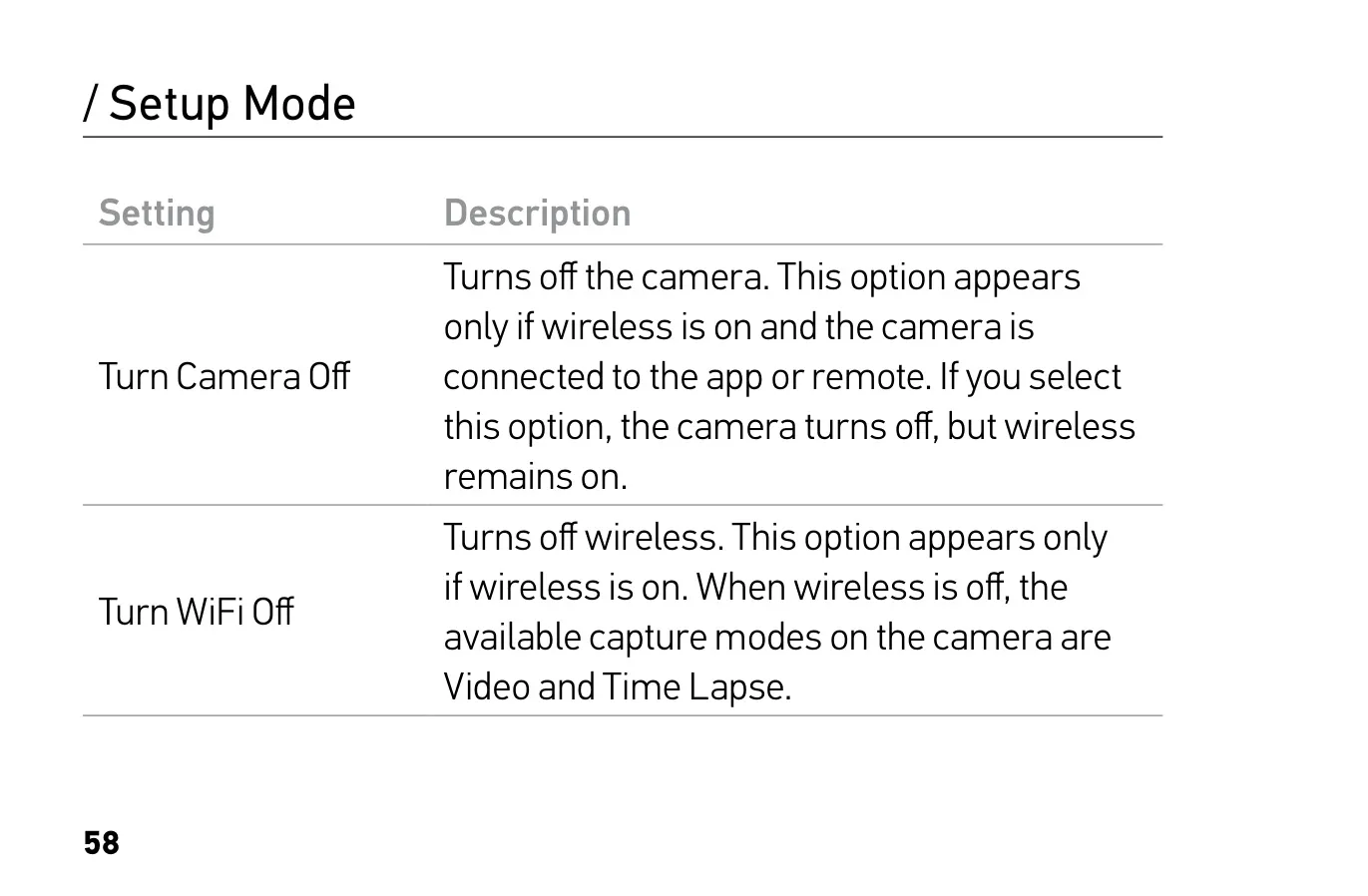
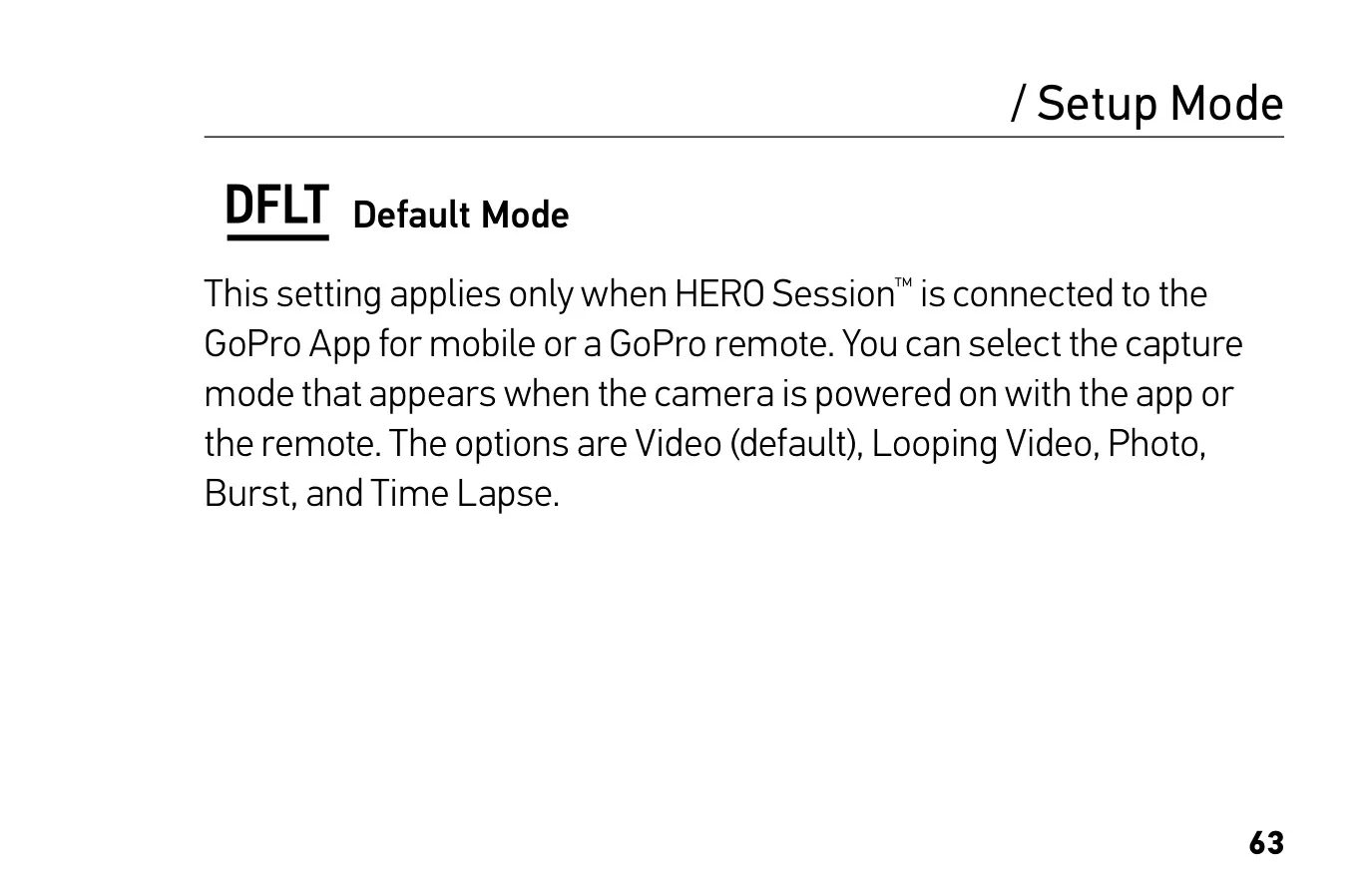
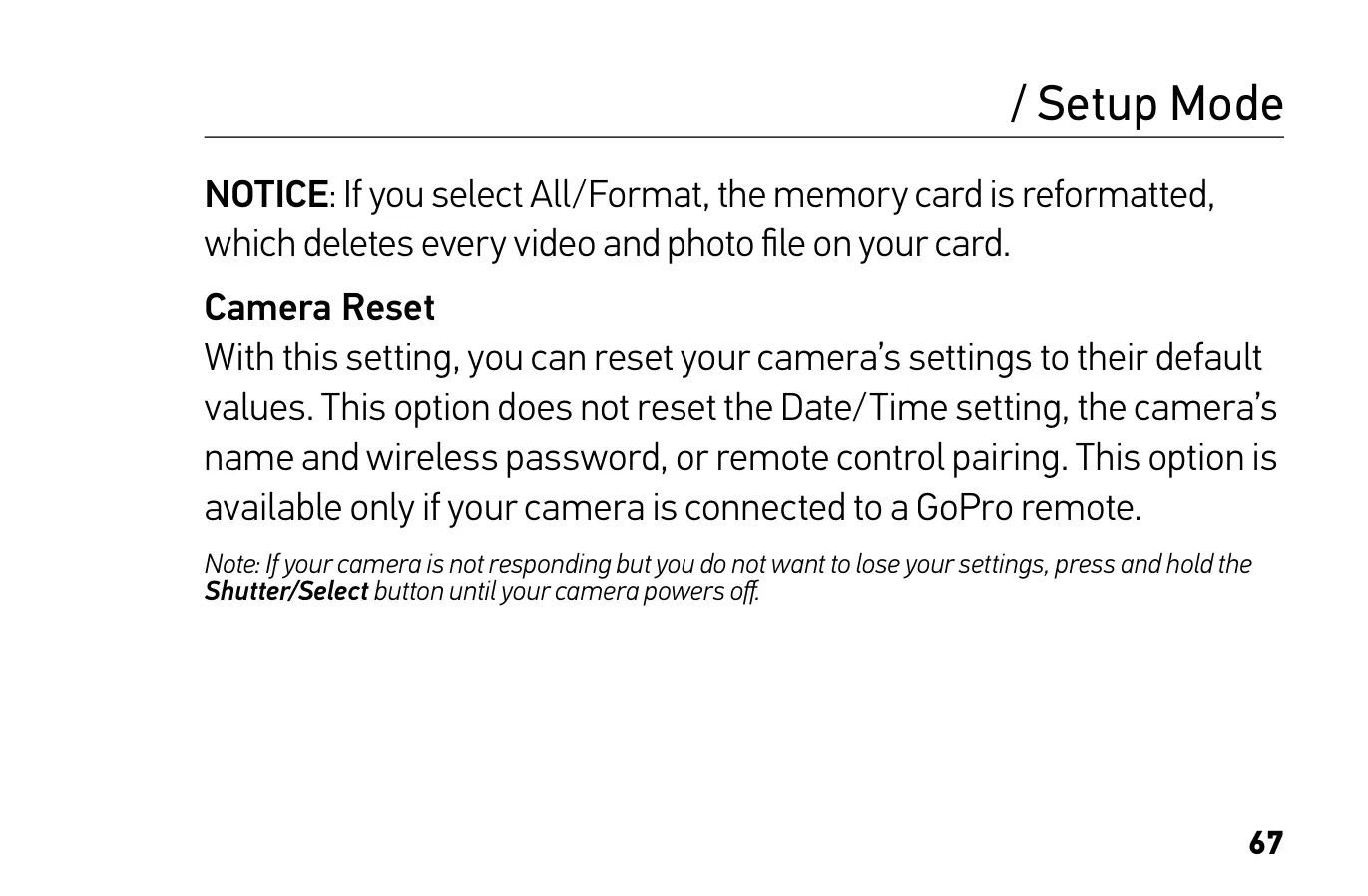
Some modes and settings only appear when the camera is connected to the GoPro App or a GoPro remote. These include Looping Video, Default Mode, Camera Reset and all of the Setup options. Looping Video records continuously and keeps only the moments you choose to save, which saves space on the card. While connected, the camera stays in standby after each capture, and Wi-Fi stays on even after you turn the camera off so you can reconnect quickly.
Each resolution suits a different kind of shot. 1440p and 960p record a taller 4:3 image that you can crop to any aspect ratio when editing. SuperView stretches 4:3 footage to fill a 16:9 widescreen, which works well for body- or gear-mounted shots. 720p100 is recommended for slow motion, and WVGA gives super slow motion when standard definition is good enough. The manual also notes that 720p30 files are the easiest to share from mobile devices.
Auto Low Light changes the frame rate automatically when you move between bright and dark places. Spot Meter sets the exposure from a single spot in the centre of the frame, which helps when filming outdoors from inside a car. Auto Image Rotation flips footage automatically if the camera is mounted upside down. Protune adds manual control over color, ISO, sharpness and exposure for professional editing. If your computer struggles to play footage back smoothly, the manual suggests recording with Protune turned off.
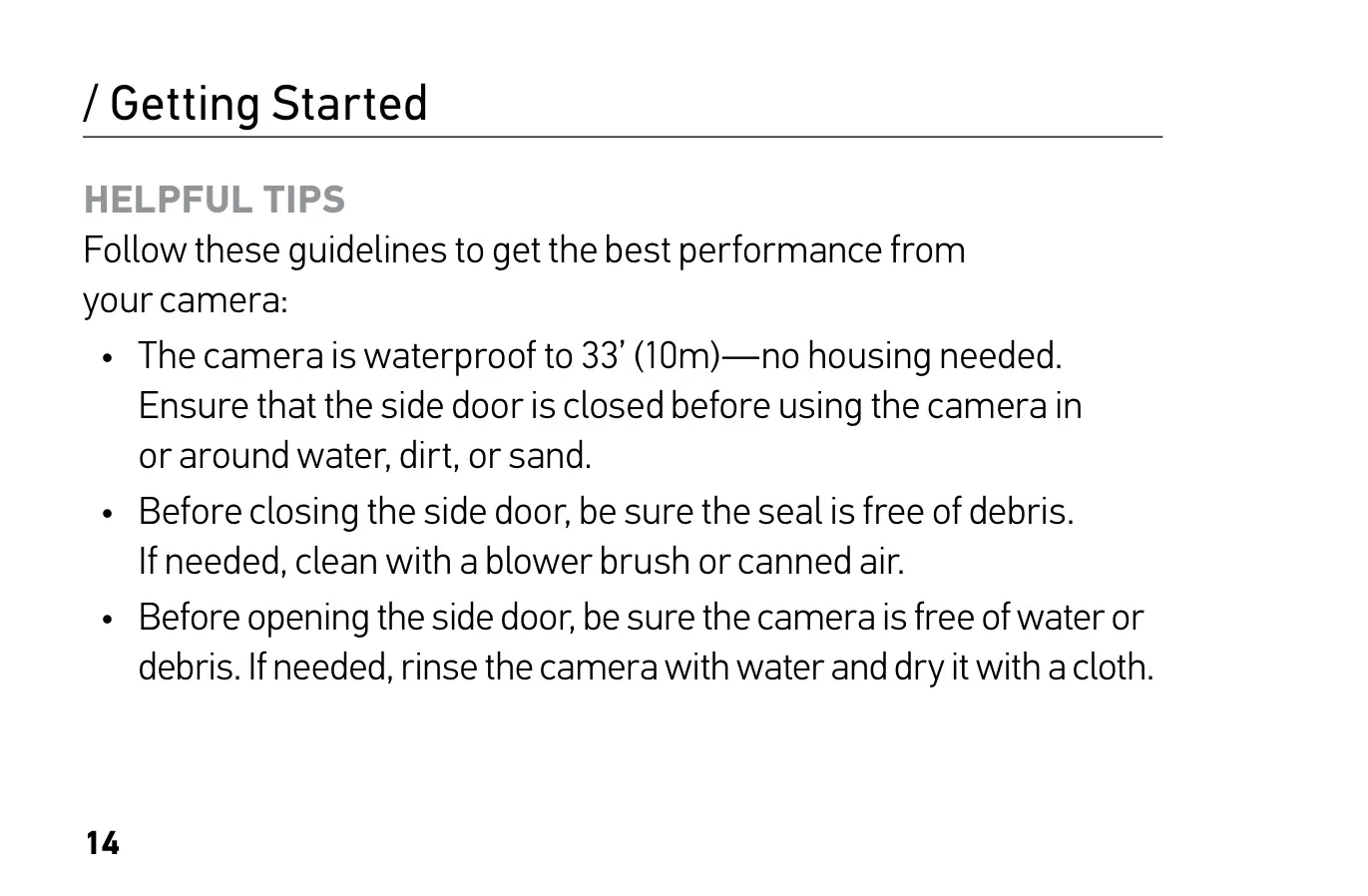
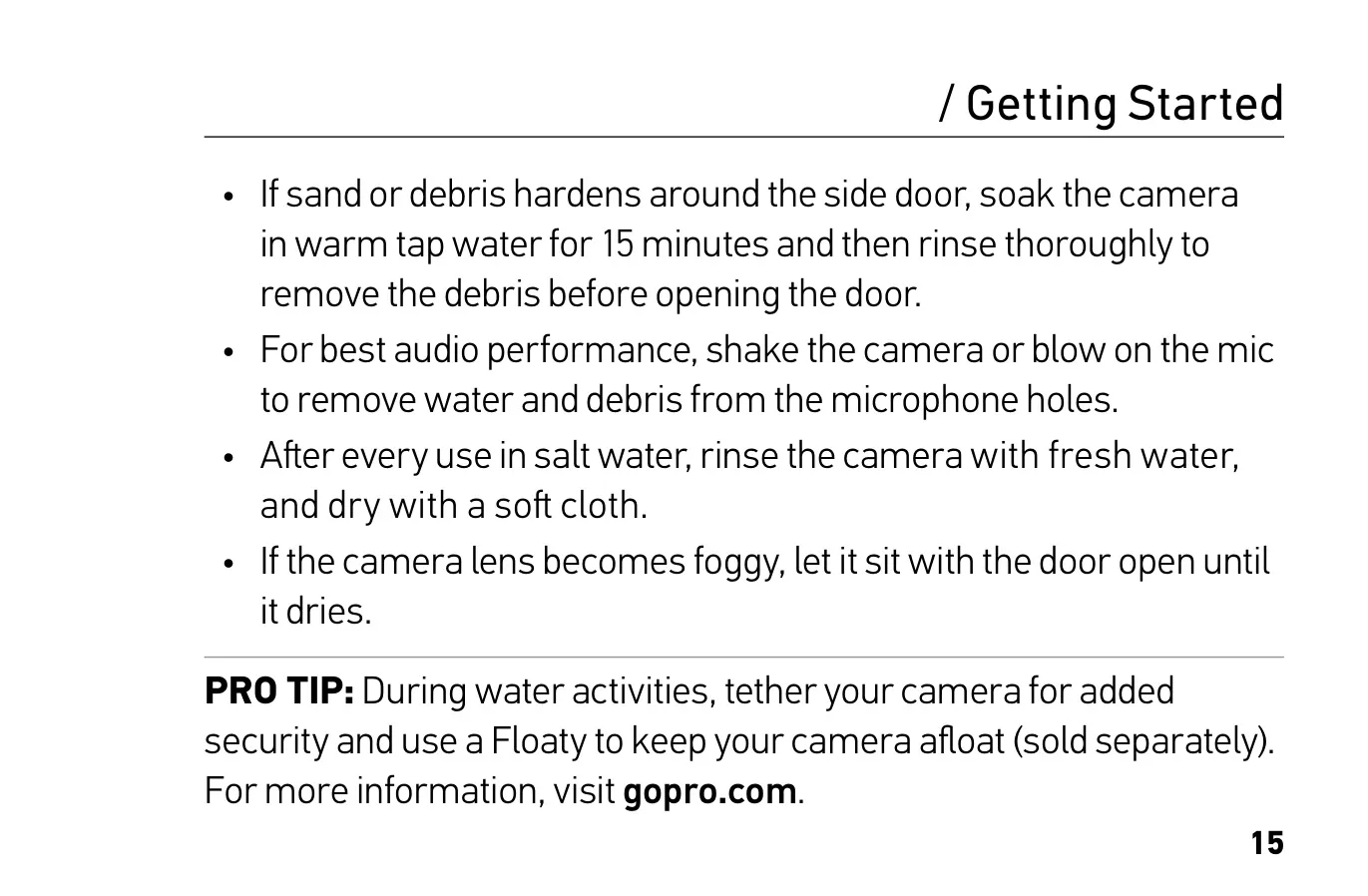
The camera is waterproof without a housing, but only when the side door is closed and the seal is free of debris. Rinse the camera in fresh water after using it in salt water. If sand hardens around the door, soak the camera in warm water for 15 minutes before opening it. Shake the camera to clear water from the microphone holes. If the lens fogs up, leave the door open until it dries. Keep in mind that the camera is not waterproof while charging, because the side door is open.
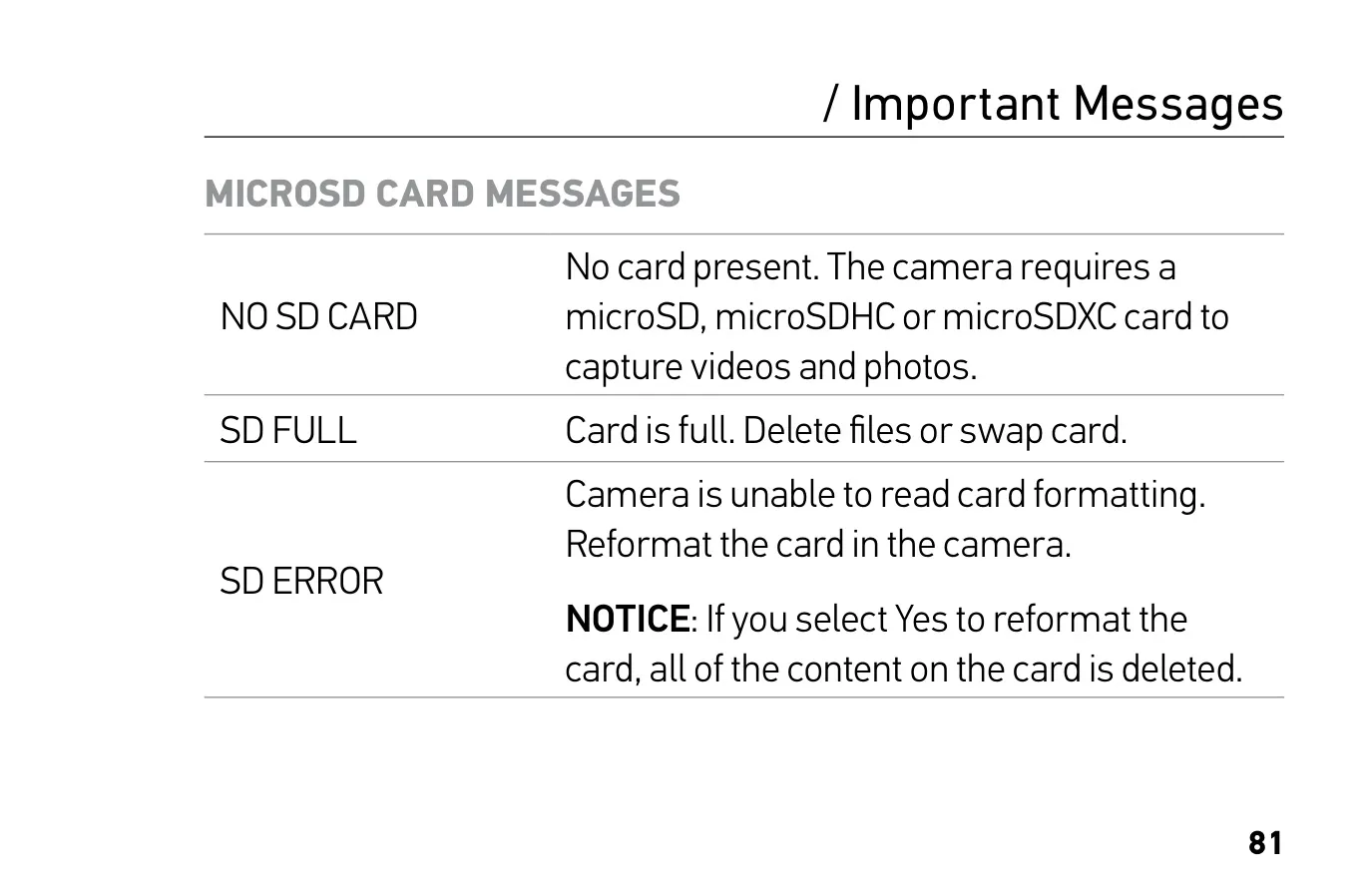
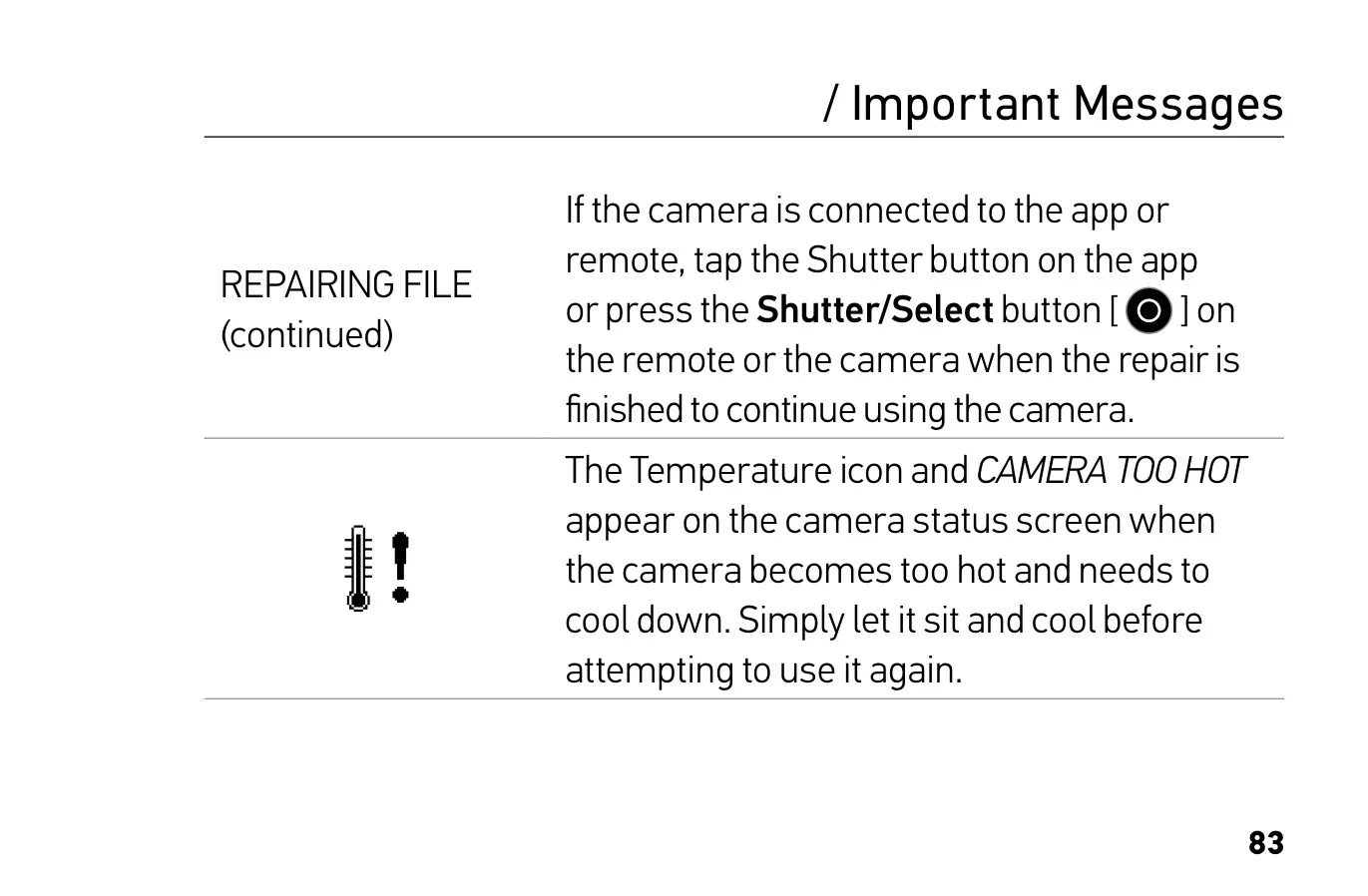
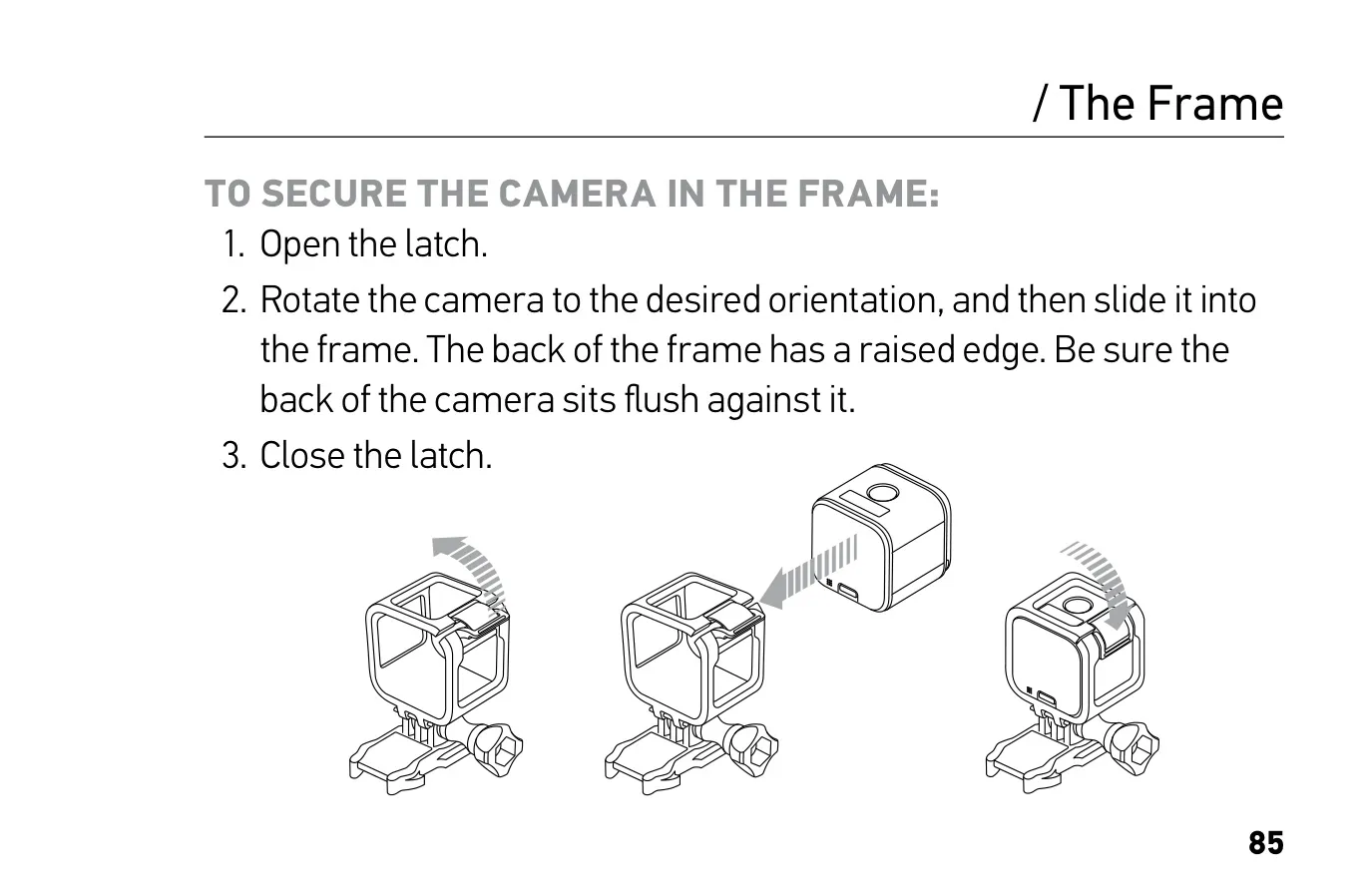
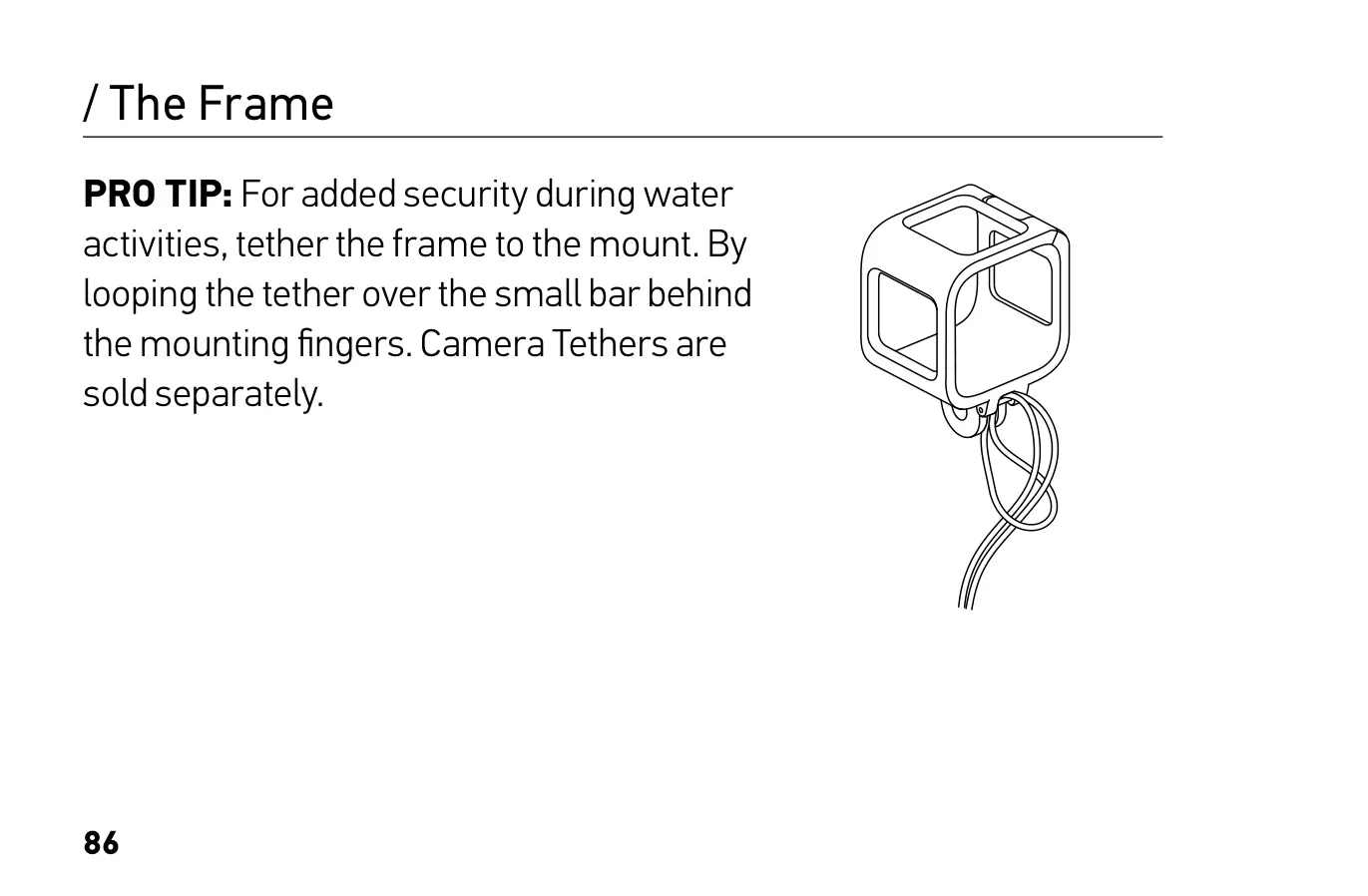
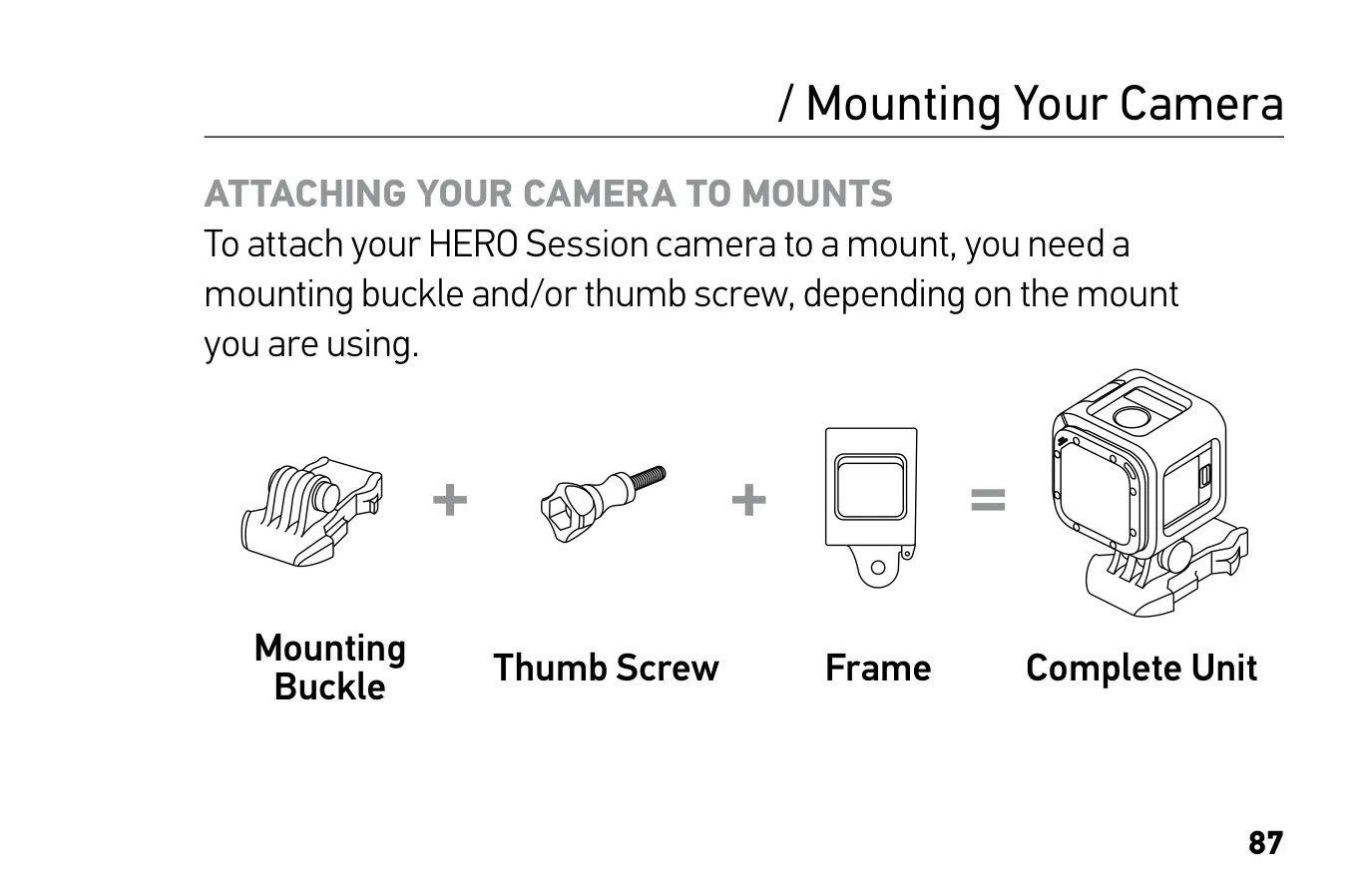
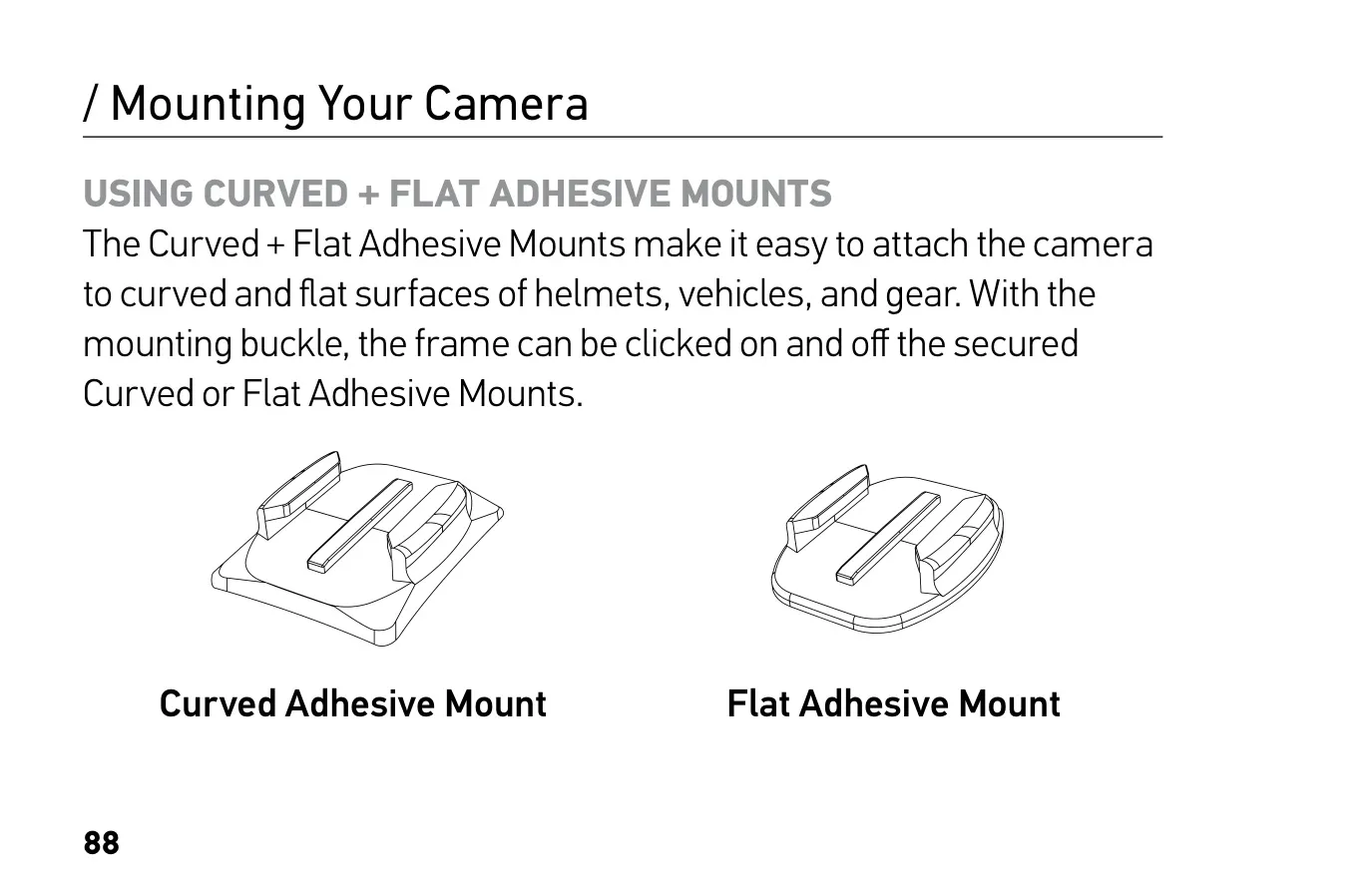
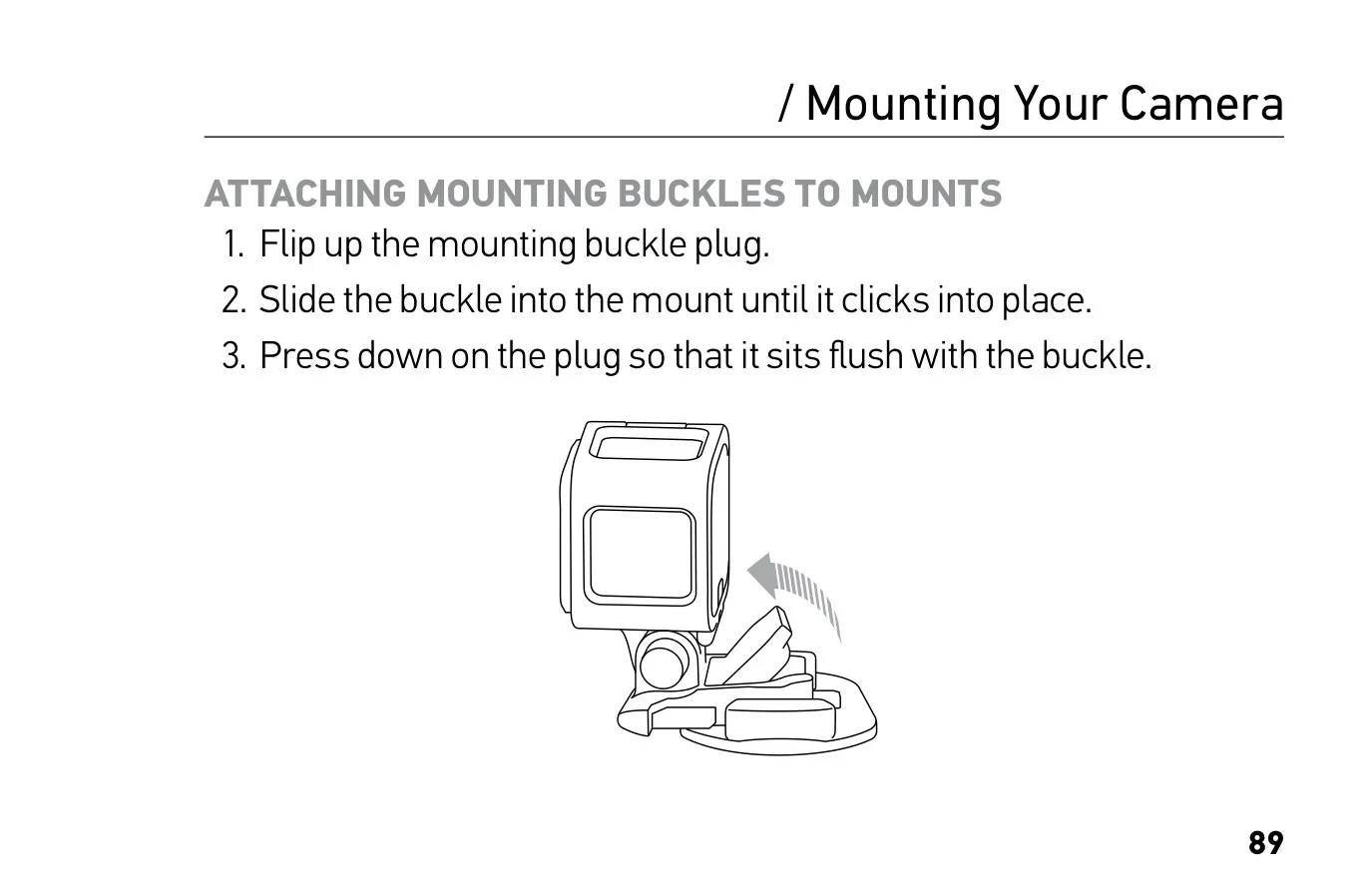
The included Standard Frame attaches to Curved and Flat Adhesive Mounts with a mounting buckle. Apply adhesive mounts to clean, smooth surfaces at room temperature, at least 24 hours before use. You can record while charging from a wall or car charger, but not while charging from a computer. The camera shows REPAIRING FILE if a file is corrupted and CAMERA TOO HOT when it needs to cool down. Its serial number is printed inside the side door.
Frequently Asked Questions (FAQs)
Can't find the answer you need? Here are some frequently asked questions about the GoPro Hero Session Action Camera, and we answer them below.