
HP Deskjet 3772 Printer Instruction Manual

HP Deskjet 3772 Printer






























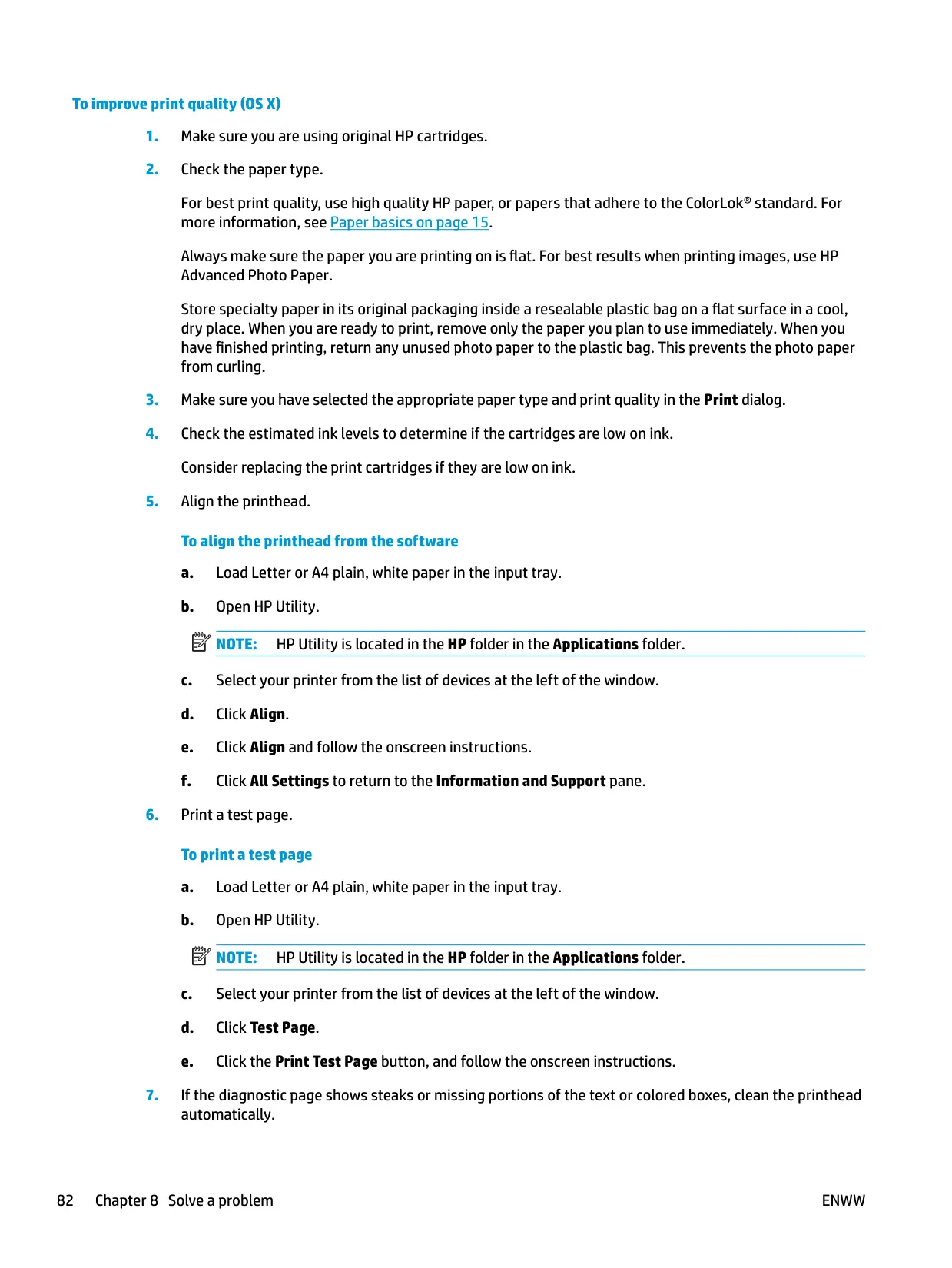
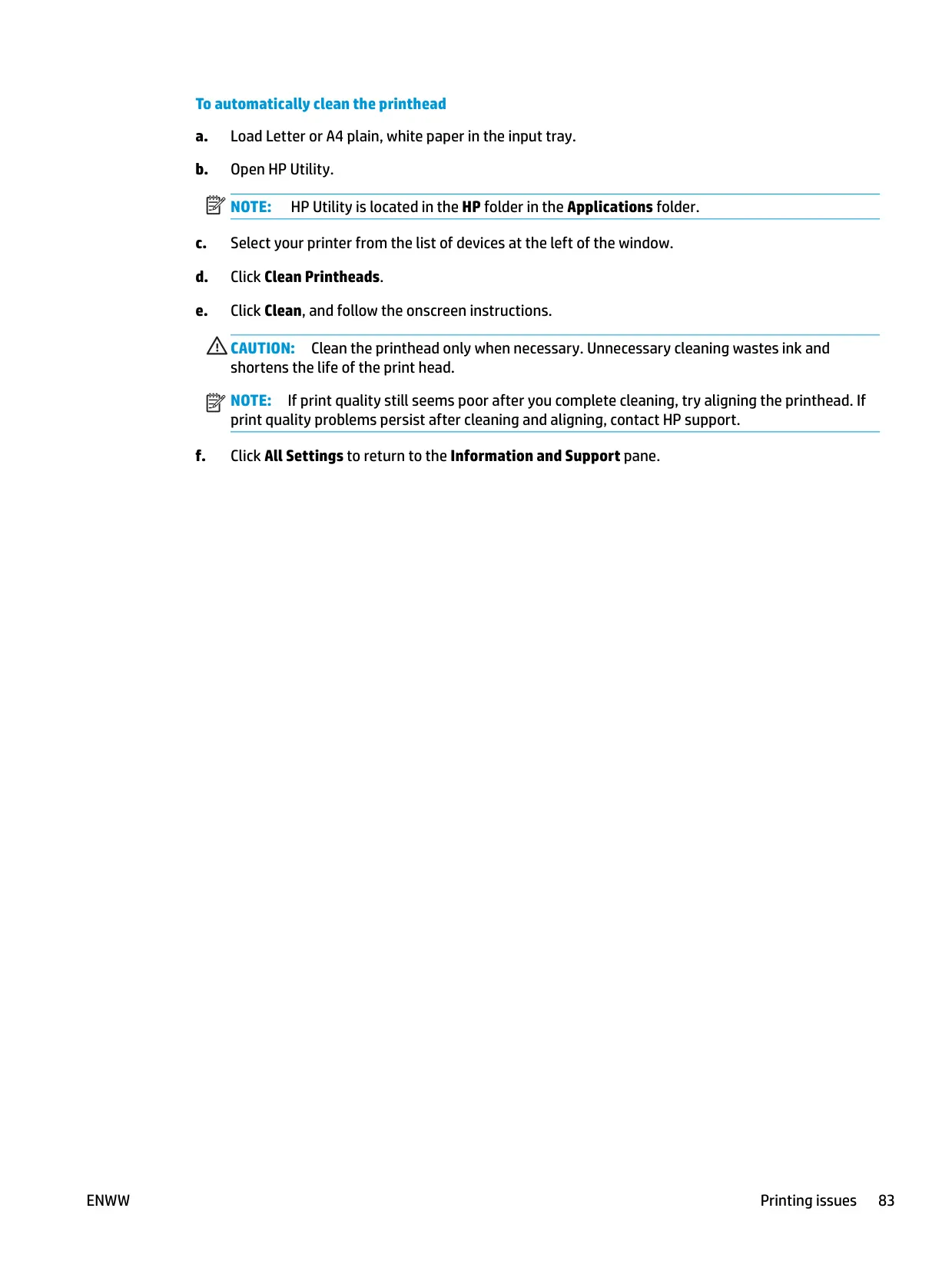

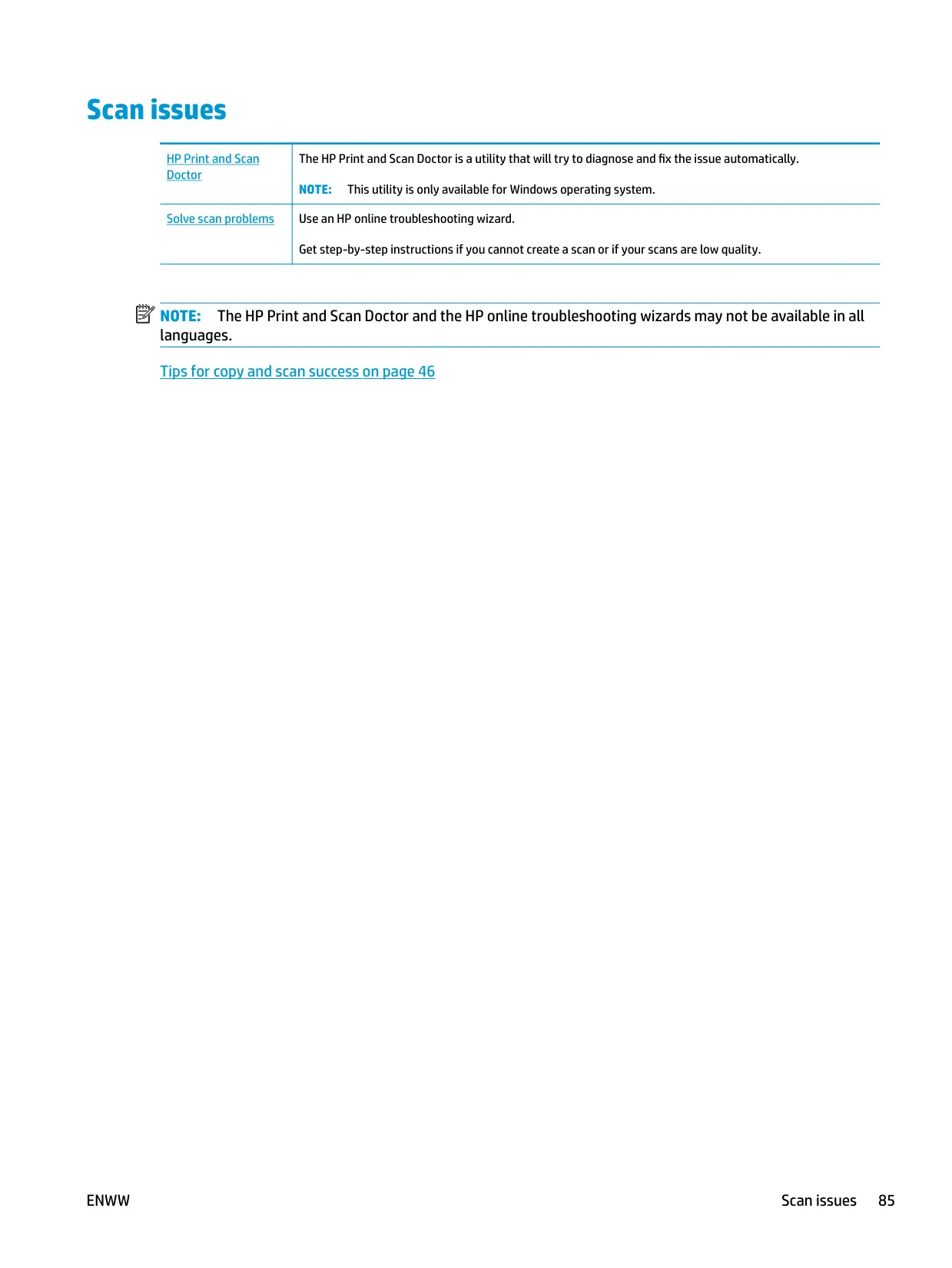

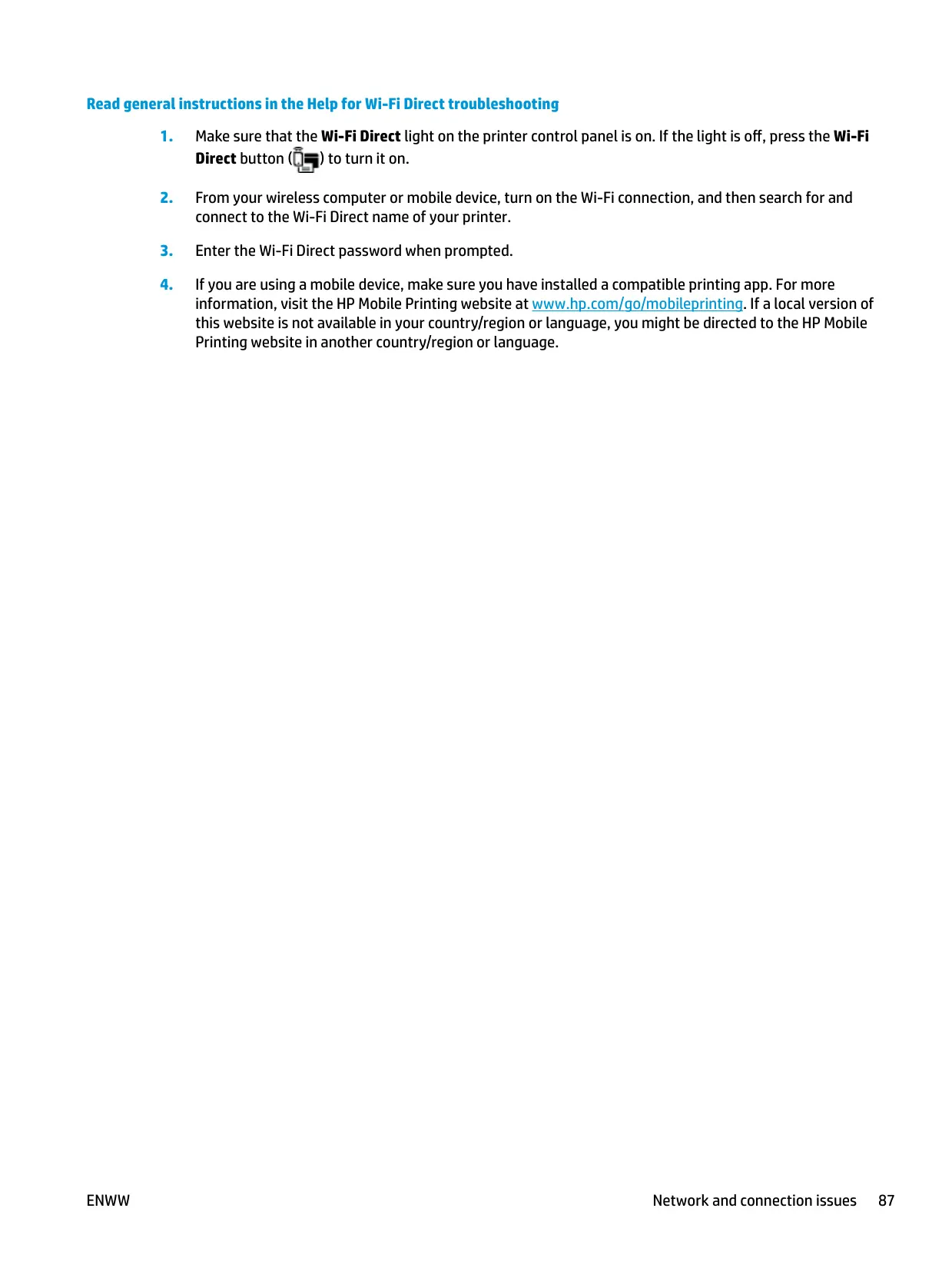








HP Deskjet 3772 Printer



HP Deskjet 3772 Printer


HP Deskjet 3772 Printer Instructions
Here we offer the HP Deskjet 3772 Printer manual completely free and in English. We have cataloged this manual in the Printers section on Manualverse, and it has been rated by 1 users with an average rating of 5. If you have any specific questions about HP Deskjet 3772 Printer, we suggest checking the Frequently Asked Questions (FAQs) section of this manual.
Product Images


HP Deskjet 3772 Printer Specifications
| Feature | Specification |
|---|---|
| Product Series | HP DeskJet 3700 All-in-One series |
| Functions | Print, copy, scan |
| Regulatory Model Number | SDGOB-1621 |
| Radio Module | SDGOB-1392 |
| Print Method | Drop-on-demand thermal inkjet |
| Printer Language | PCL3 GUI |
| Cartridges | 2 (black and tri-color), single cartridge mode supported |
| Two-Sided Printing | Manual (driver-guided reload) |
| Print Resolution | Maximum dpi mode available on photo paper |
| Scan Resolution | Up to 600 ppi |
| Scan Color Depth | 24-bit RGB color, 8-bit grayscale |
| Maximum Scan Size (scan path) | 21.6 x 29.7 cm (8.5 x 11 in) |
| Copy Processing | Digital image processing, normal quality mode only |
| USB Port | Rear USB 2.0 High Speed |
| Recommended USB Cable Length | 3 m (10 ft) or less |
| Wireless Standard | 802.11b/g/n, 2.4 GHz only |
| Wireless Setup Methods | WPS push button, WPS PIN, HP printer software, HP Smart app |
| Wi-Fi Direct | Yes, up to 5 connected devices |
| Input Tray Capacity: Plain Paper (80 g/m²) | Up to 60 sheets |
| Input Tray Capacity: Envelopes | Up to 5 |
| Input Tray Capacity: Index Cards | Up to 20 |
| Input Tray Capacity: Photo Paper | Up to 20 sheets |
| Output Tray Capacity: Plain Paper (80 g/m²) | Up to 25 sheets |
| Output Tray Capacity: Envelopes | Up to 5 |
| Output Tray Capacity: Index Cards | Up to 10 |
| Output Tray Capacity: Photo Paper | Up to 10 sheets |
| Paper Weight: Plain Paper | 64 to 90 g/m² (16 to 24 lb) |
| Paper Weight: Envelopes | 75 to 90 g/m² (20 to 24 lb) |
| Paper Weight: Cards | Up to 200 g/m² (110 lb index maximum) |
| Paper Weight: Photo Paper | Up to 280 g/m² (75 lb) |
| Power Requirements | 100-240 Vac or 200-240 Vac, 50/60 Hz |
| Sleep Mode | After 5 minutes of inactivity (adjustable via EWS) |
| Auto-Off | After 2 hours of inactivity (when no network or USB connection is active) |
| Recommended Operating Temperature | 15 °C to 30 °C (59 °F to 86 °F) |
| Allowable Operating Temperature | 5 °C to 40 °C (41 °F to 104 °F) |
| Operating Humidity | 15% to 80% RH non-condensing, 28 °C maximum dewpoint |
| Storage Temperature | -40 °C to 60 °C (-40 °F to 140 °F) |
| Supported Operating Systems (per manual) | Windows 10, 8.1, 8, 7, Vista, XP; OS X |
| Mobile Printing | iOS (AirPrint), Android, Windows Mobile, Chromebook, Amazon Kindle Fire |
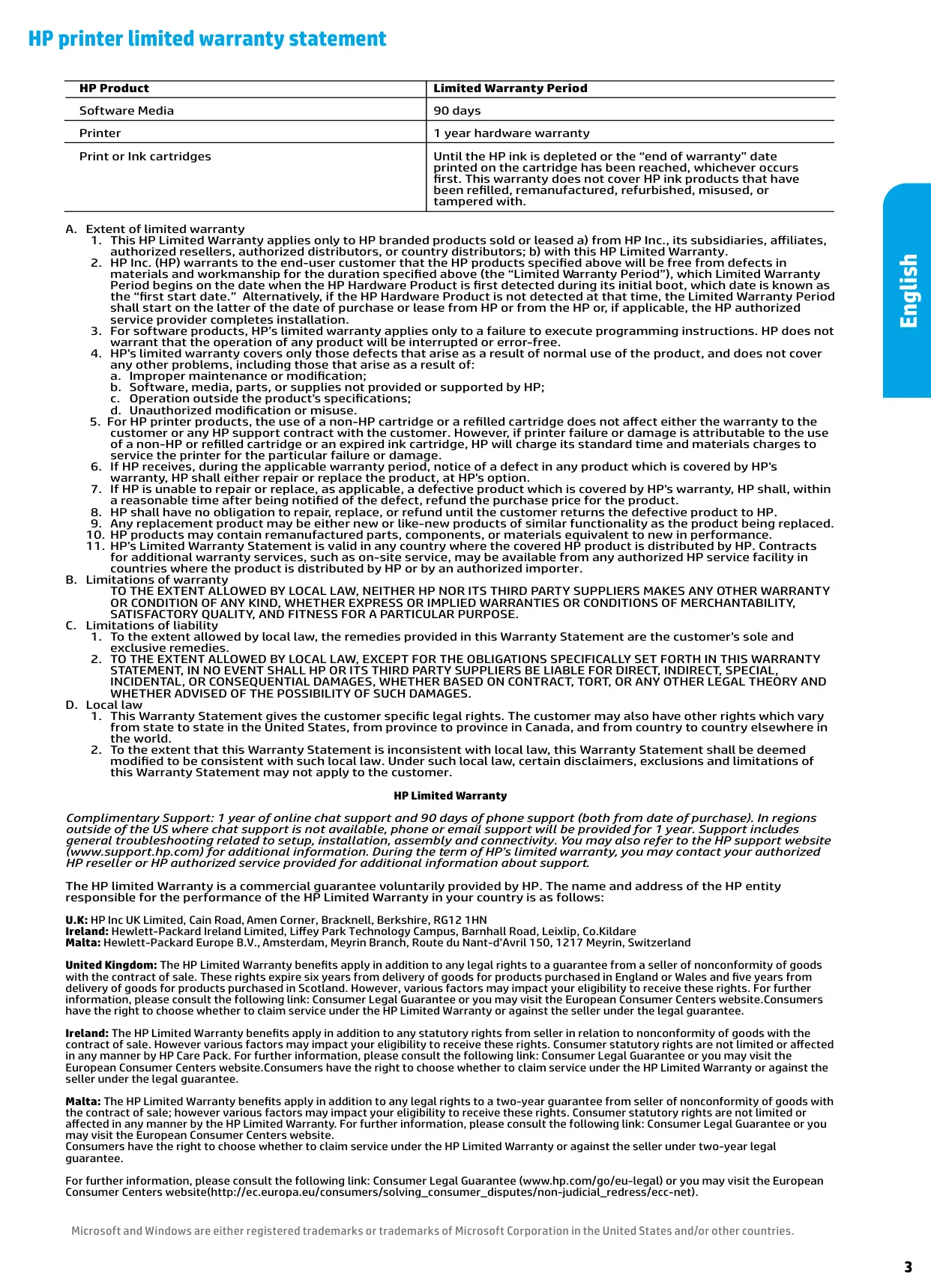
| Printer Hardware Warranty | 1 year limited |
| Software Media Warranty | 90 days |
HP Deskjet 3772 Printer Details
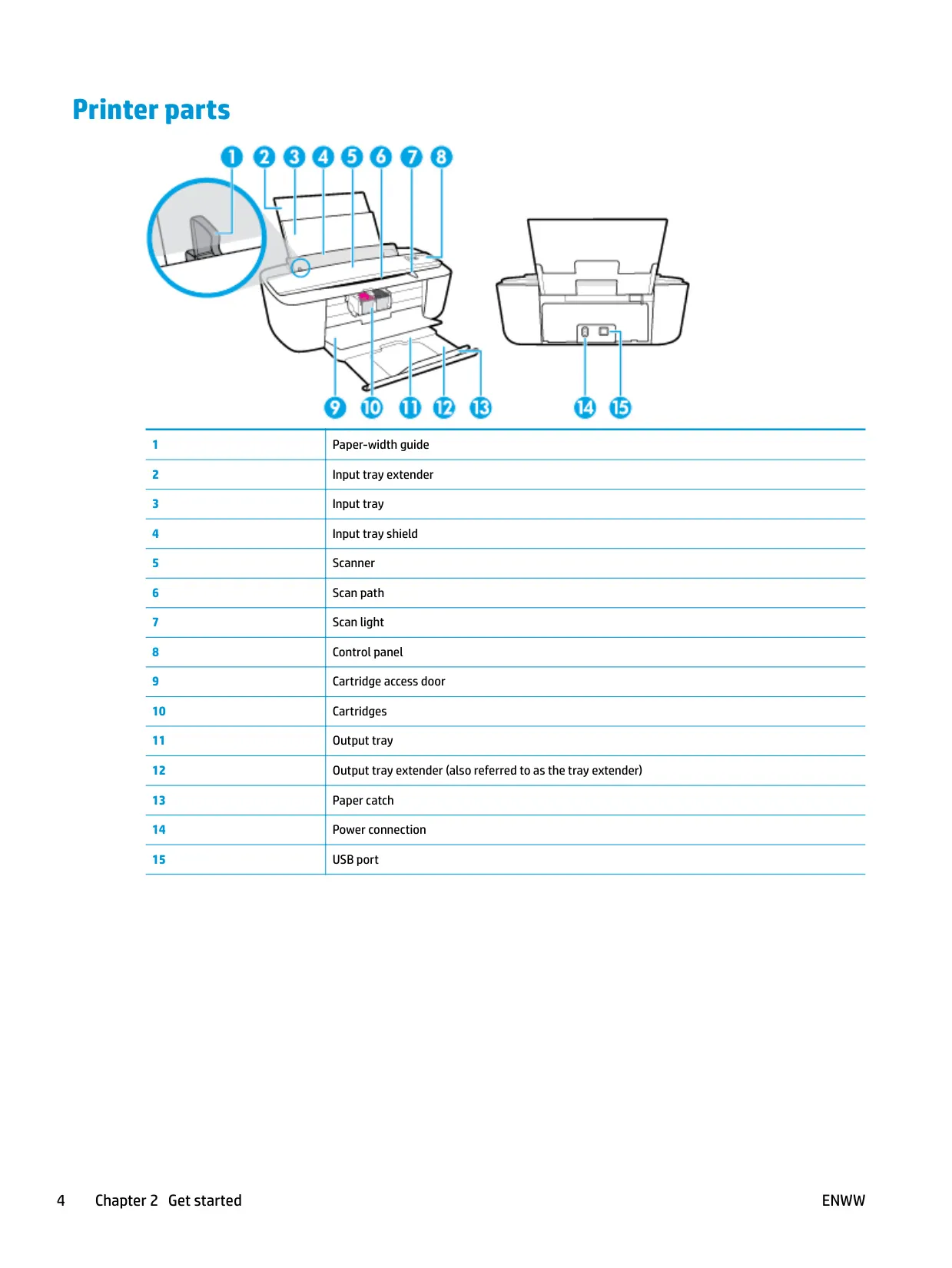
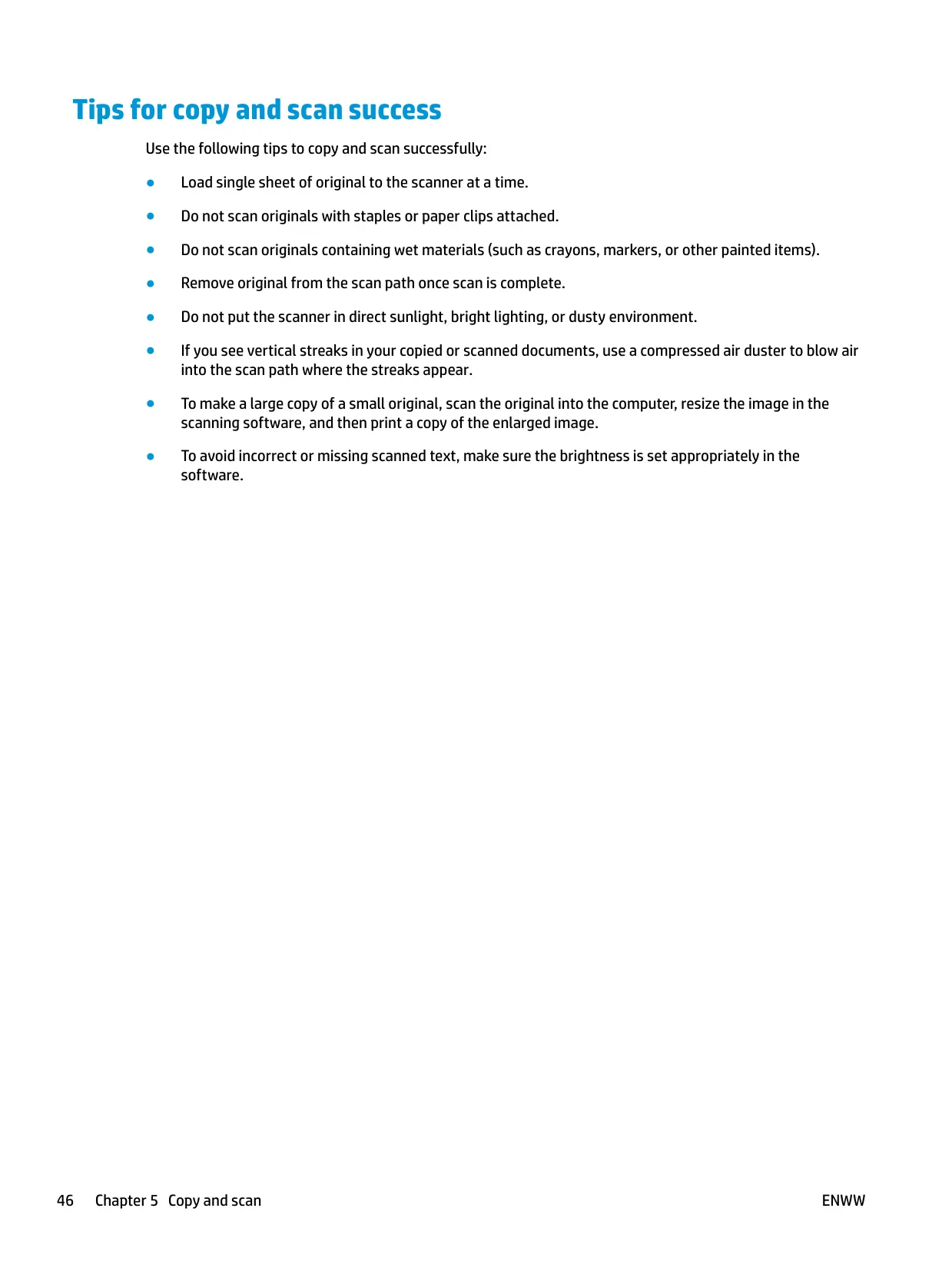
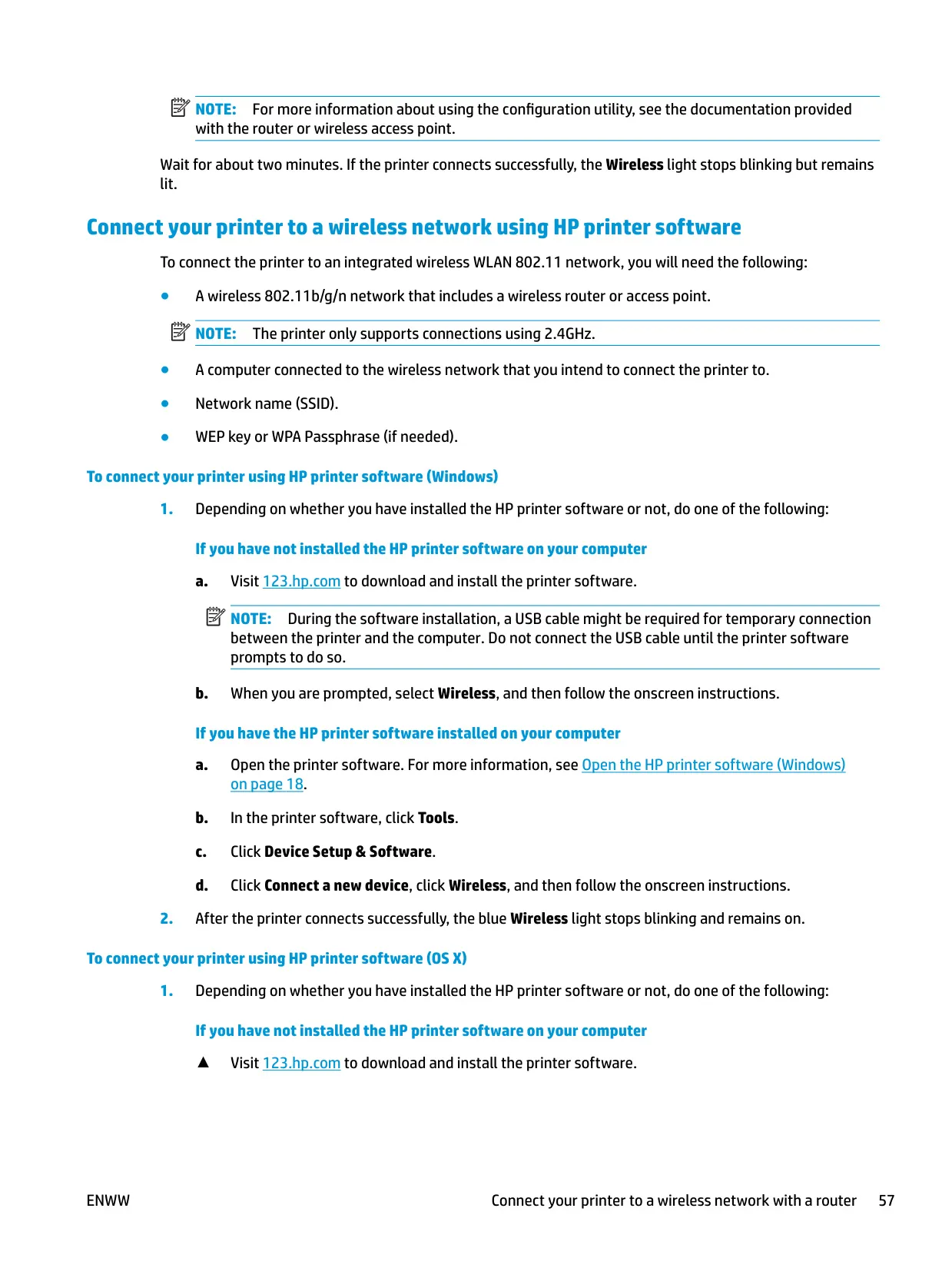
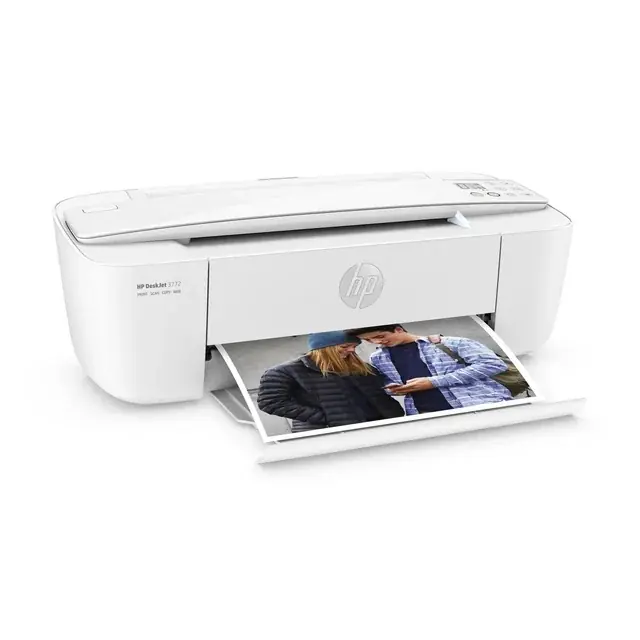
The HP Deskjet 3772 belongs to the compact HP DeskJet 3700 All-in-One family and uses a space-saving vertical design. Instead of a flatbed, it has a sheet-feed scanner. You insert the original print side up, aligned to the right side of the scanner, and it is pulled into the scan path automatically. The scan light turns on when the original is in place. HP recommends feeding one sheet at a time and never scanning originals that have staples, paper clips, or wet materials on them.
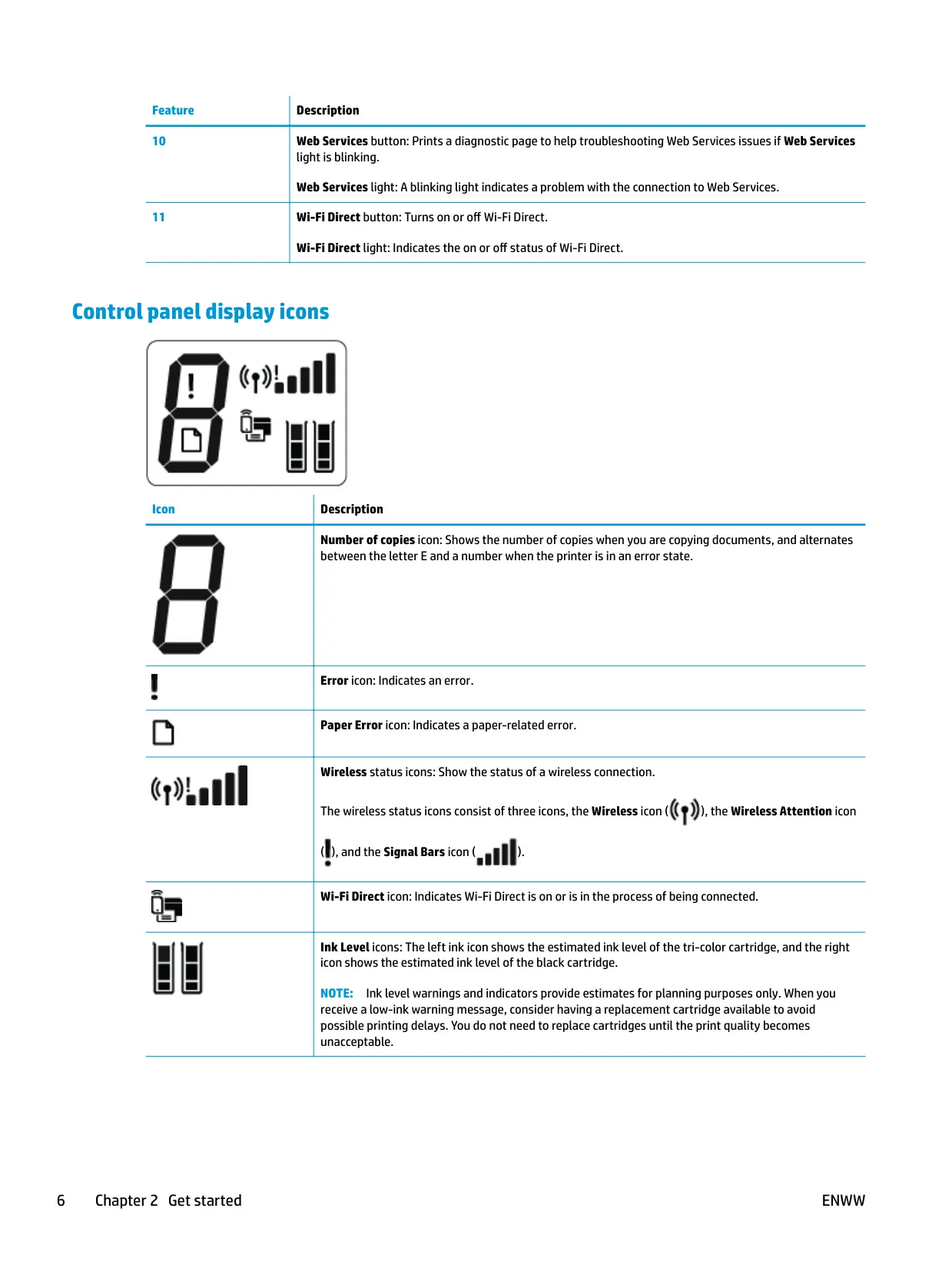
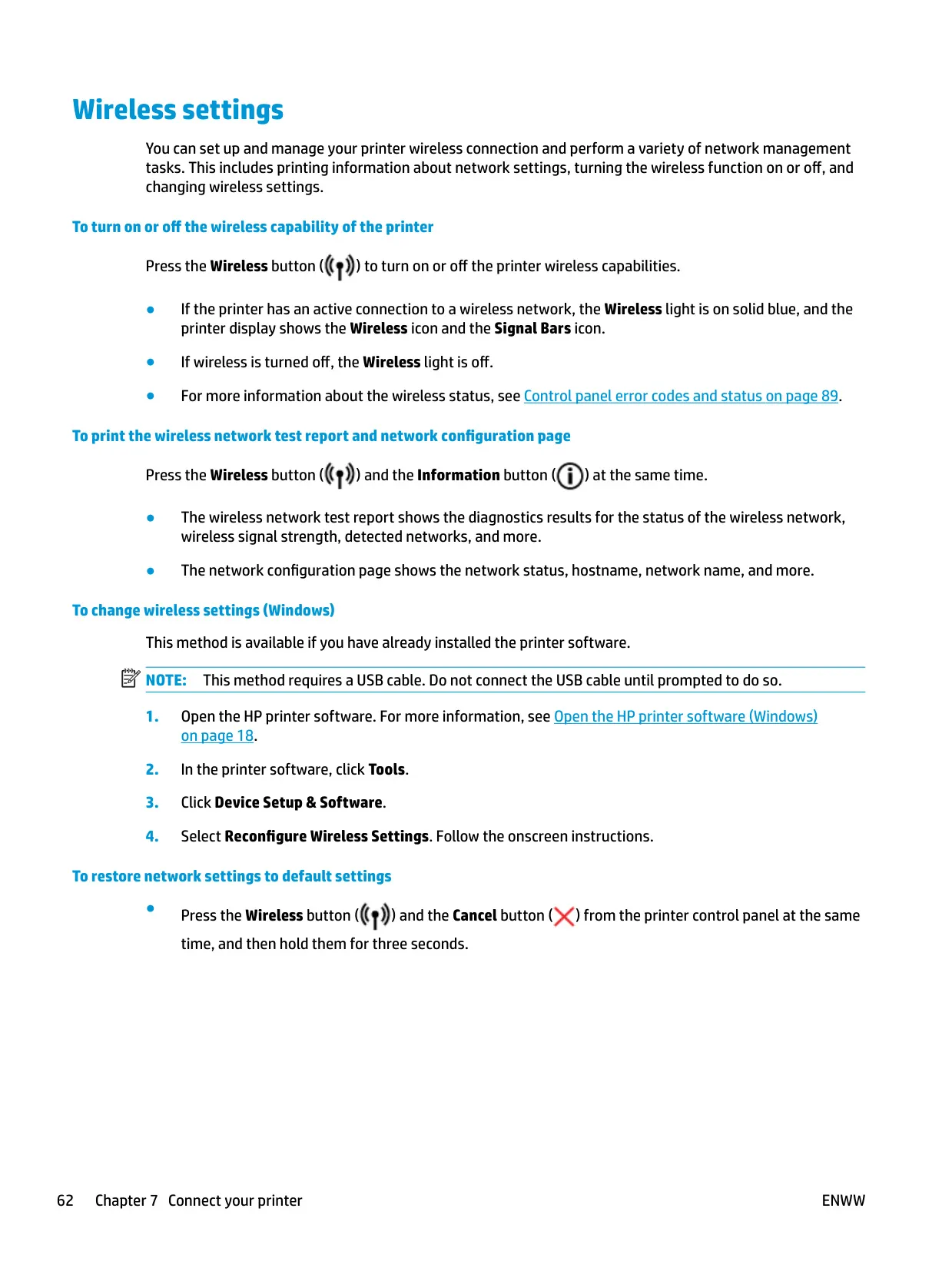
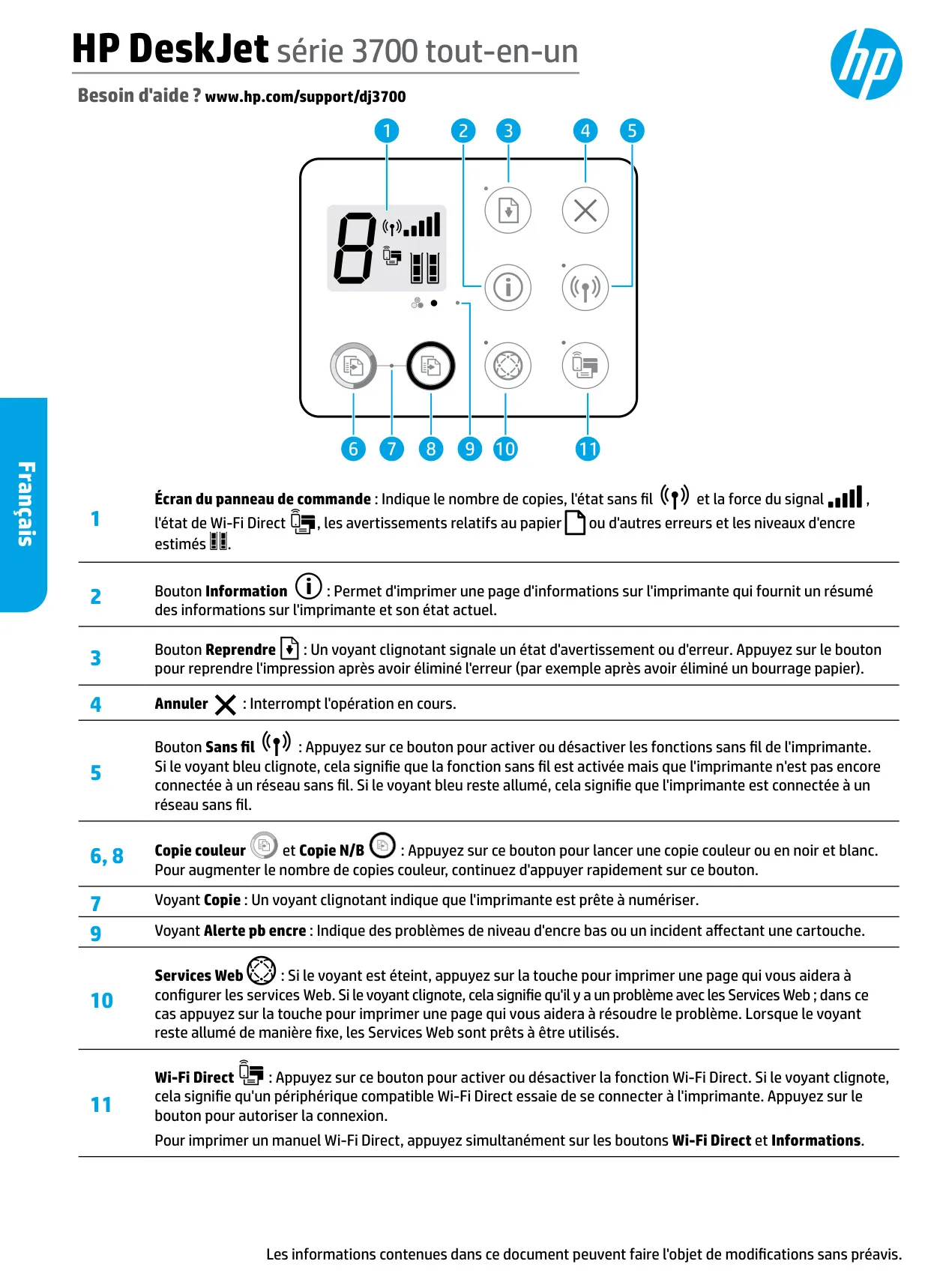
The control panel has dedicated Start Copy Black and Start Copy Color buttons. To make more copies, press either button repeatedly within two seconds. The small display shows the copy count, wireless signal bars, Wi-Fi Direct status, and the estimated ink levels of both cartridges. When an error occurs, the display alternates between the letter E and a number from 1 to 6. Each number identifies a specific problem, such as a paper size mismatch, a carriage stall, a paper jam, or a scanner failure.
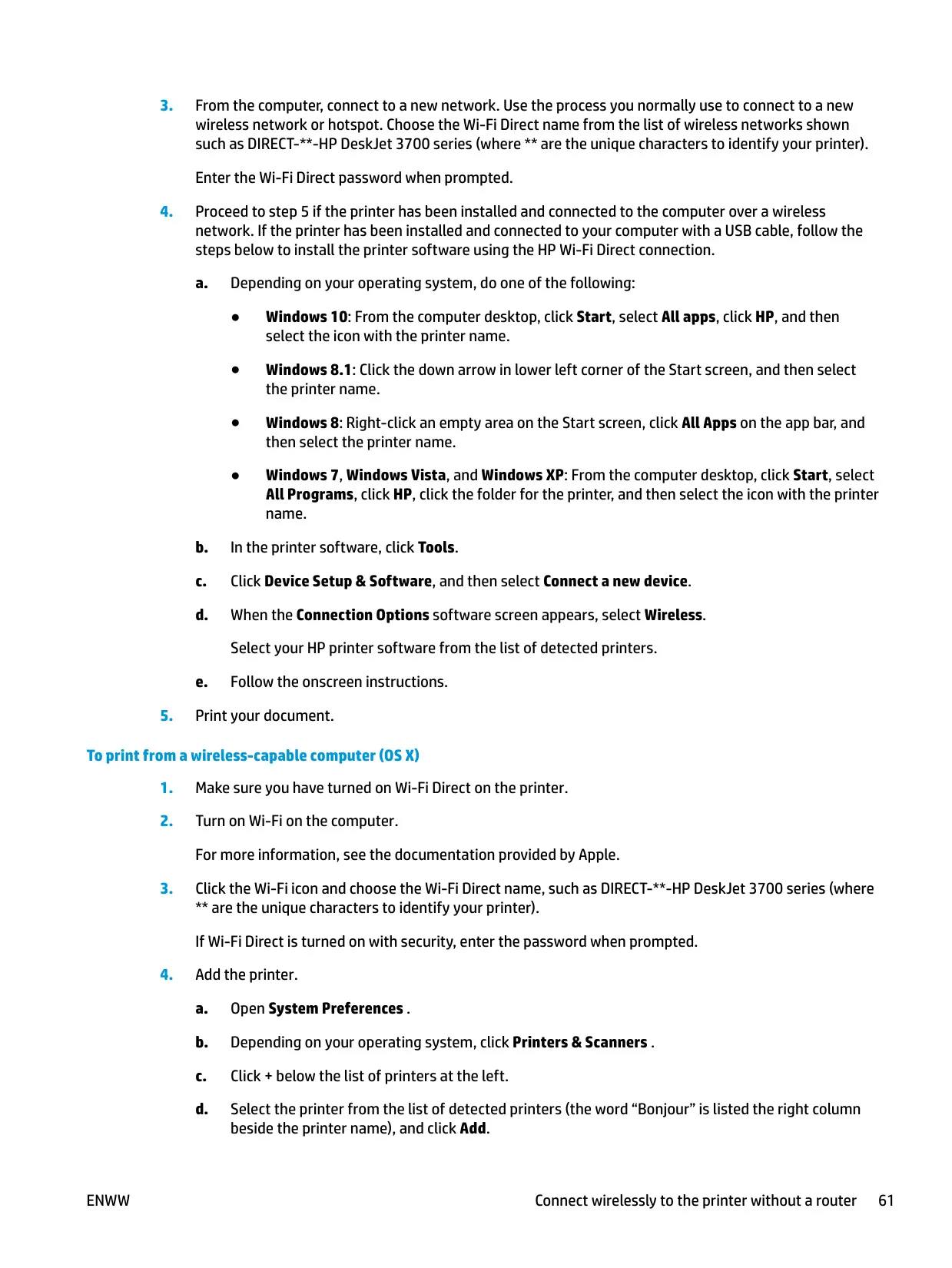
The printer automatically detects whether paper is loaded and whether that paper is large, medium, or small in width. You can change these default size assignments in the embedded web server (EWS) under Tray and Paper Management. The EWS also controls Quiet Mode, the Sleep timer, Webscan, Wi-Fi Direct security, and Web Services. You can reach it through the printer's IP address or, over Wi-Fi Direct, at 192.168.223.1.
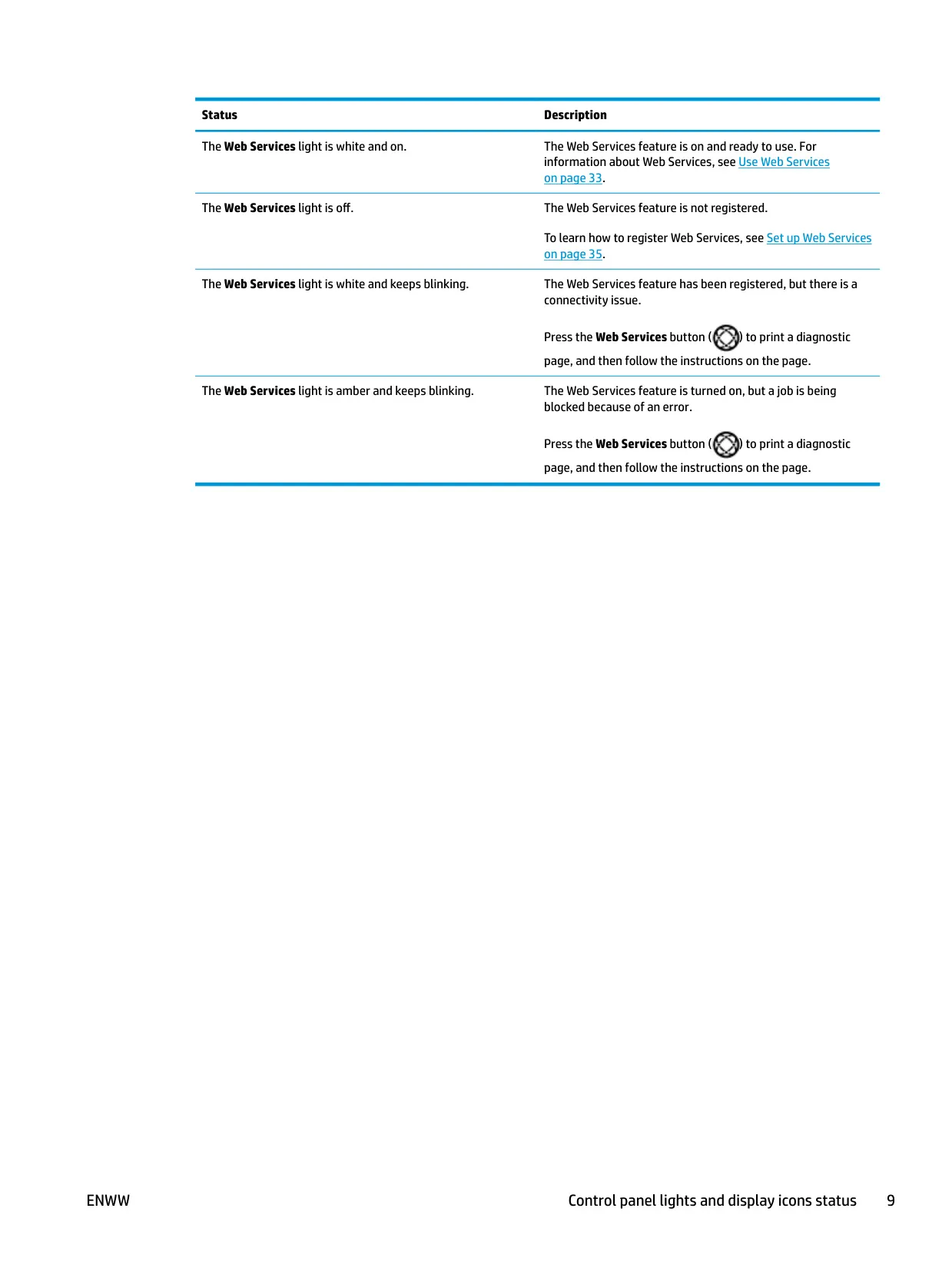
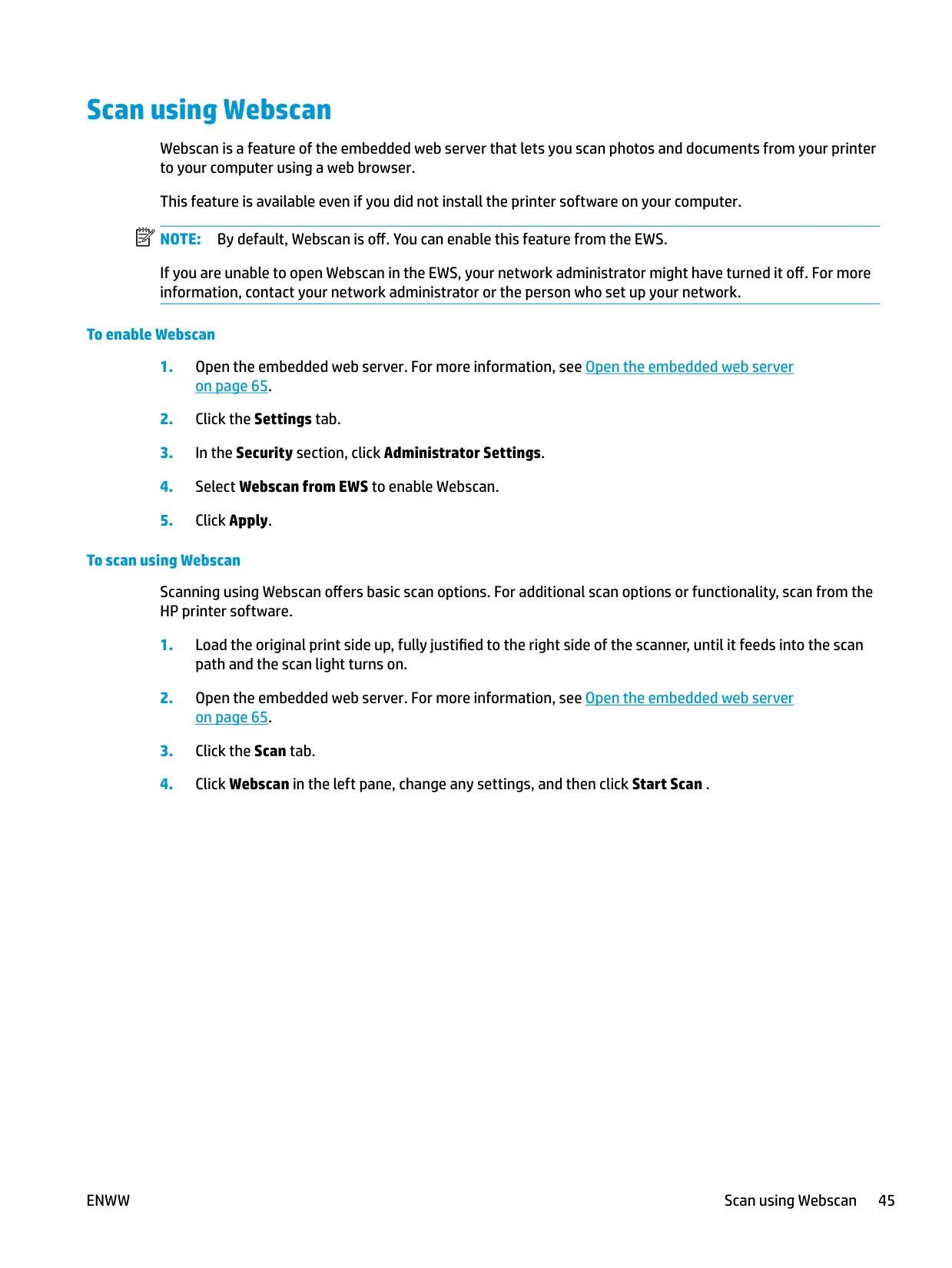
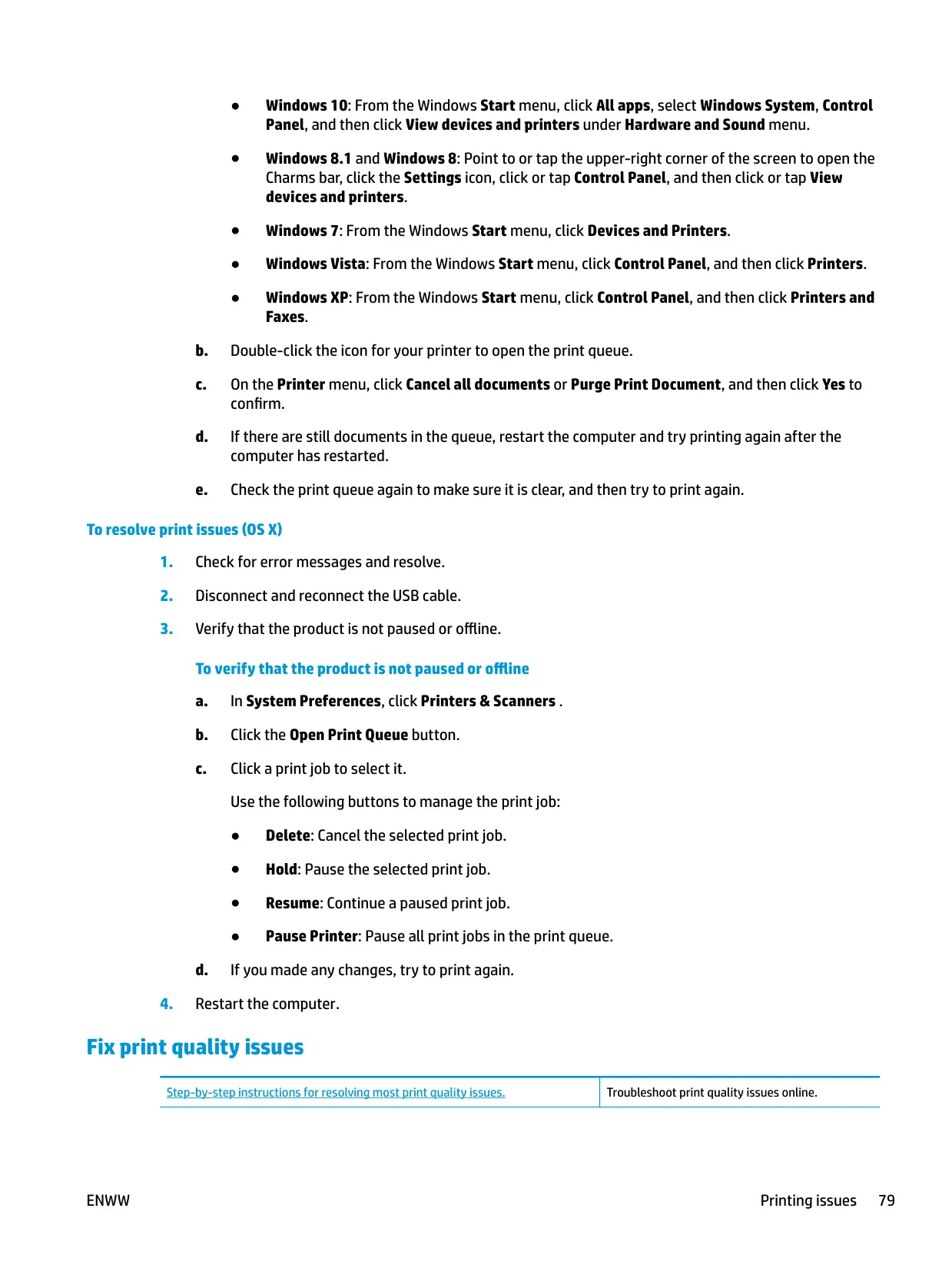
Quiet Mode slows printing to reduce noise without lowering print quality. It only applies to Normal quality printing on plain paper and is off by default. The printer also offers Web Services with HP ePrint, which lets you print by emailing documents to the printer's own email address. Webscan lets you scan from a web browser without installing any software. For deeper diagnostics, Windows users can run the HP Print and Scan Doctor.
The Windows driver includes useful layout tools: pages per sheet, booklet printing with left or right binding, page borders, odd or even page selection, and HP Real Life Technologies for sharper images. You can save your own printing shortcuts for jobs you repeat often. The Print in Grayscale option lets you print with black ink only or in high-quality grayscale. Maximum dpi printing is available for photo paper, but it is slower and uses more disk space.
For cartridge care, the printer can run in single cartridge mode when only the black or only the tri-color cartridge is installed. Alignment, cleaning, and diagnostic pages are available in the printer toolbox. HP advises always turning the printer off with the Power button so the cartridges don't dry out. Don't leave cartridges outside the printer for more than 30 minutes. By default, Wi-Fi Direct runs in Automatic mode without a password, so HP suggests switching to Manual mode if you need more security.
Frequently Asked Questions (FAQs)
Can't find the answer you need? Here are some frequently asked questions about the HP Deskjet 3772 Printer, and we answer them below.

