
Redthunder K10 Keyboard Instruction Manual

Redthunder K10 Keyboard






Redthunder K10 Keyboard Instructions
Here we offer the Redthunder K10 Keyboard manual completely free and in English. We have cataloged this manual in the Keyboards section on Manualverse, and it has been rated by 1 users with an average rating of 5. If you have any specific questions about Redthunder K10 Keyboard, we suggest checking the Frequently Asked Questions (FAQs) section of this manual.
Product Images


Redthunder K10 Keyboard Specifications
| Feature | Specification |
|---|---|
| Keyboard Model | K10 |
| Companion Mouse Model | M10 |
| Product Type | Wireless keyboard and mouse combo |
| Connection Method | 2.4GHz Wireless (one shared USB receiver, plug and play) |
| Keyboard Working Current | 145mA |
| Mouse Working Current | 6mA |
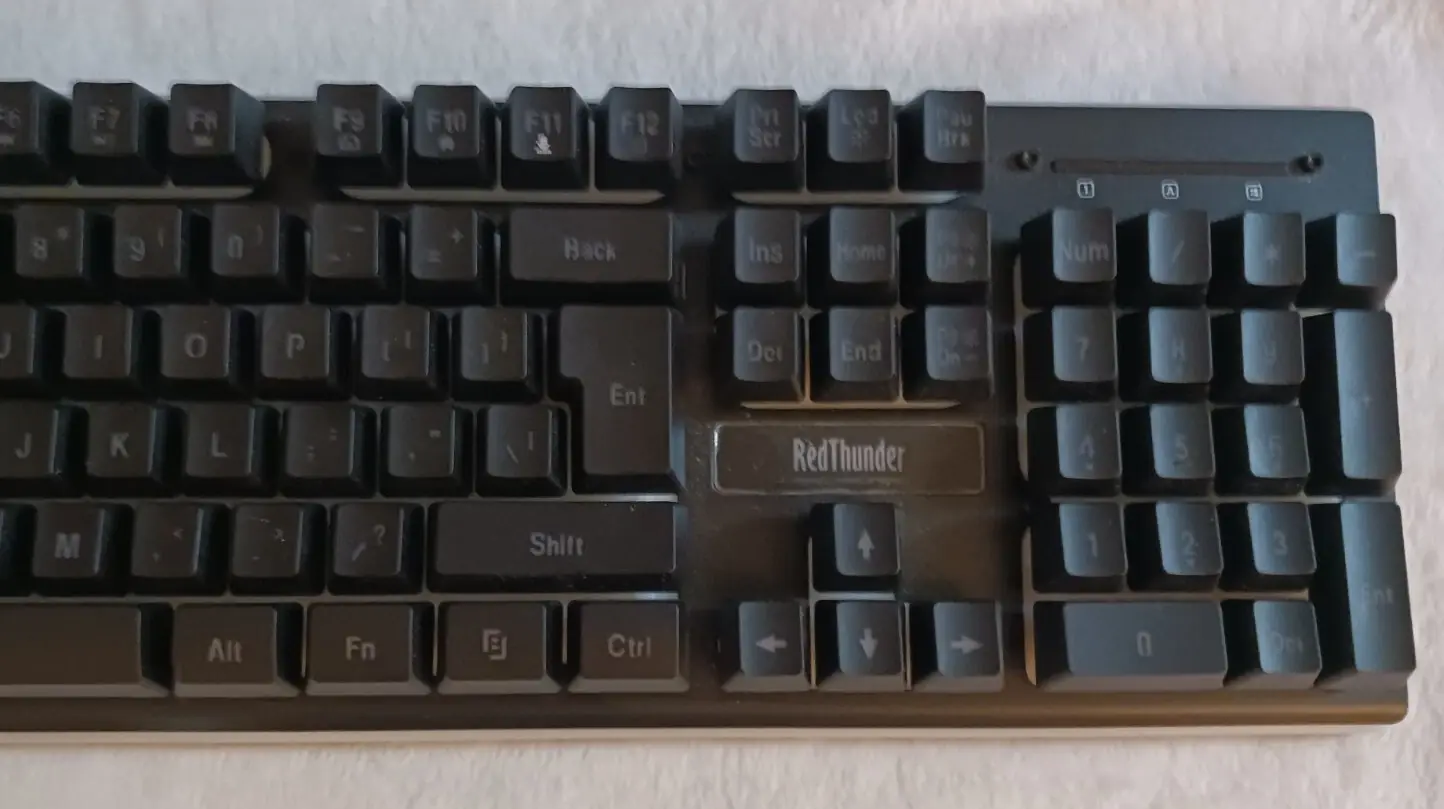
| Keyboard Key Number | 104/105 keys |
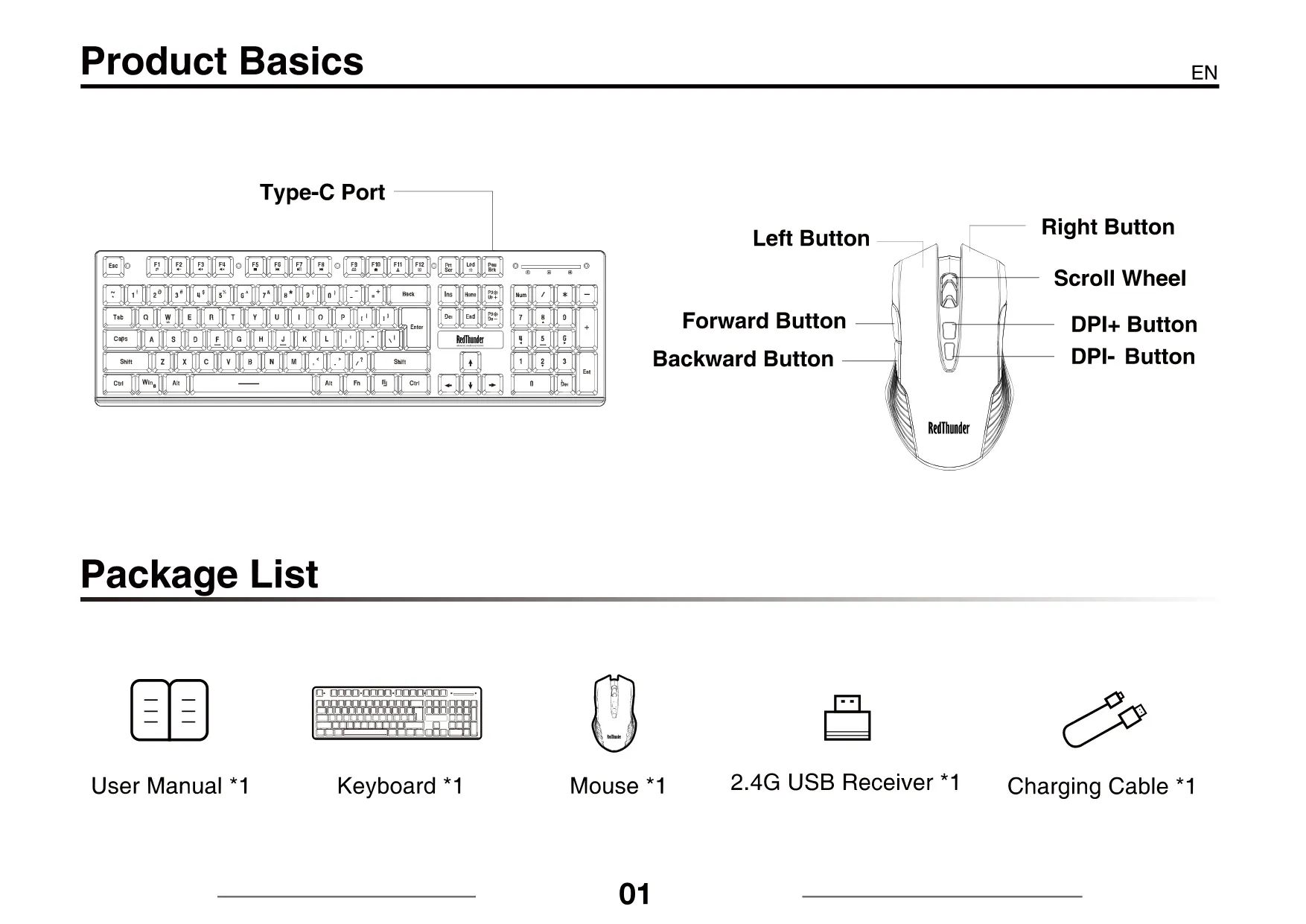
| Mouse Button Number | 7 (Left, Right, Scroll Wheel, Forward, Backward, DPI+, DPI-) |
| Keyboard Size | 439 x 134 x 38 mm (17.3 x 5.3 x 1.5 in) |
| Mouse Size | 127 x 72 x 40 mm (5 x 2.8 x 1.6 in) |
| Keyboard Battery Capacity | 3000mAh rechargeable |
| Mouse Battery Capacity | 800mAh rechargeable |
| Keyboard Charging Time | 6 hours |
| Mouse Charging Time | 4 hours |
| Charging Port | Type-C (keyboard and mouse) |
| Recommended Charger | DC 5V (computer USB port recommended) |
| Recommended Charging Temperature | 10–25°C |
| Keyboard Automatic Sleep Time | 2 minutes |
| Mouse Automatic Sleep Time | 1 minute |
| Pairing Distance | Within 10 cm, free of obstructions |
| Package Contents | Keyboard x1, Mouse x1, 2.4G USB Receiver x1, Charging Cable x1, User Manual x1 |
| Brand Owner | Shenzhen Honglei E-commerce CO. Ltd |
Redthunder K10 Keyboard Details
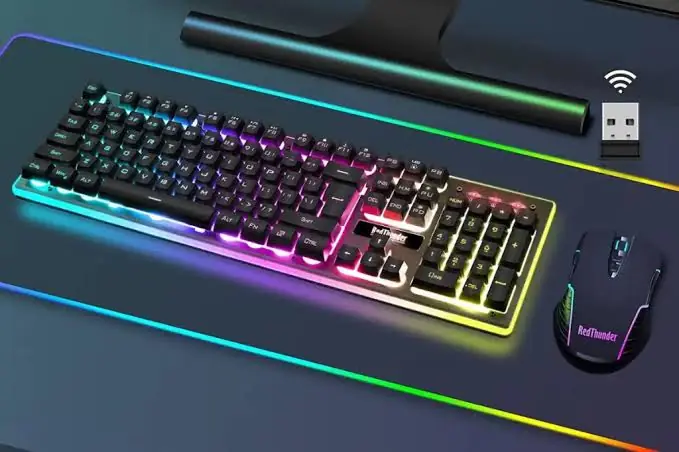
The Redthunder K10 is supplied as a combo with the M10 mouse. Both devices use a single 2.4G USB receiver, which is stored in a compartment on the bottom of the keyboard so it is less likely to get lost. The charging cable is packed at one end of the mouse box. To start using the set, take the receiver out of the keyboard, turn on the power switches on both devices, and plug the receiver into your computer.
The keyboard has a set of backlight controls. Dedicated combinations turn the backlight on or off, change the lighting color, set the speed of the breathing effect, and adjust brightness. The mouse is different: its RGB lighting cycles on its own and cannot be customized. On the mouse, the bottom switch has three positions. ON turns the mouse on with the lights off, and LED turns it on with the lights on.
The keyboard also has functions aimed at gaming. A WIN key lock disables the Windows key so it can't minimize a game by accident. Another combination swaps the WASD keys with the arrow keys, which helps with titles or layouts that expect one or the other. The keyboard also offers 12 multimedia combination keys for playback and system shortcuts. On the mouse, the forward and backward side buttons and the DPI+ and DPI- buttons let you change pointer sensitivity quickly.
The set is paired at the factory. If you need to pair it again, charge the devices, keep them within 10 cm of the receiver, and stay away from routers and Bluetooth devices. For the keyboard, set the switch to ON and hold the pairing key combination until the indicator flashes. For the mouse, hold the wheel and right button until the RGB lights flash. In both cases, wait 3 to 5 seconds and then plug in the receiver.
The manual includes charging advice to help the batteries last. Avoid high-voltage, fast-charging or non-certified adapters, and check the cable and ports for damage, debris or loose connections. Heat speeds up battery aging and cold reduces battery activity. If the devices sit unused for a long time and the battery won't charge, the manual suggests charging slowly at a 3V to 4V low voltage with a weak current for about 2 hours to restore battery voltage.
The troubleshooting section lists common causes of problems. These include a receiver that isn't plugged in, damaged USB ports, a knocked or shifted receiver, interference from microwave ovens and routers, low or aging batteries, and extreme temperatures. Delayed key presses usually mean the battery is low or the computer has too many programs open. Dirt tends to collect under the keys and around the scroll wheel, buttons and optical sensor, so clean these areas regularly with a lint-free non-woven cloth or cleaning putty.
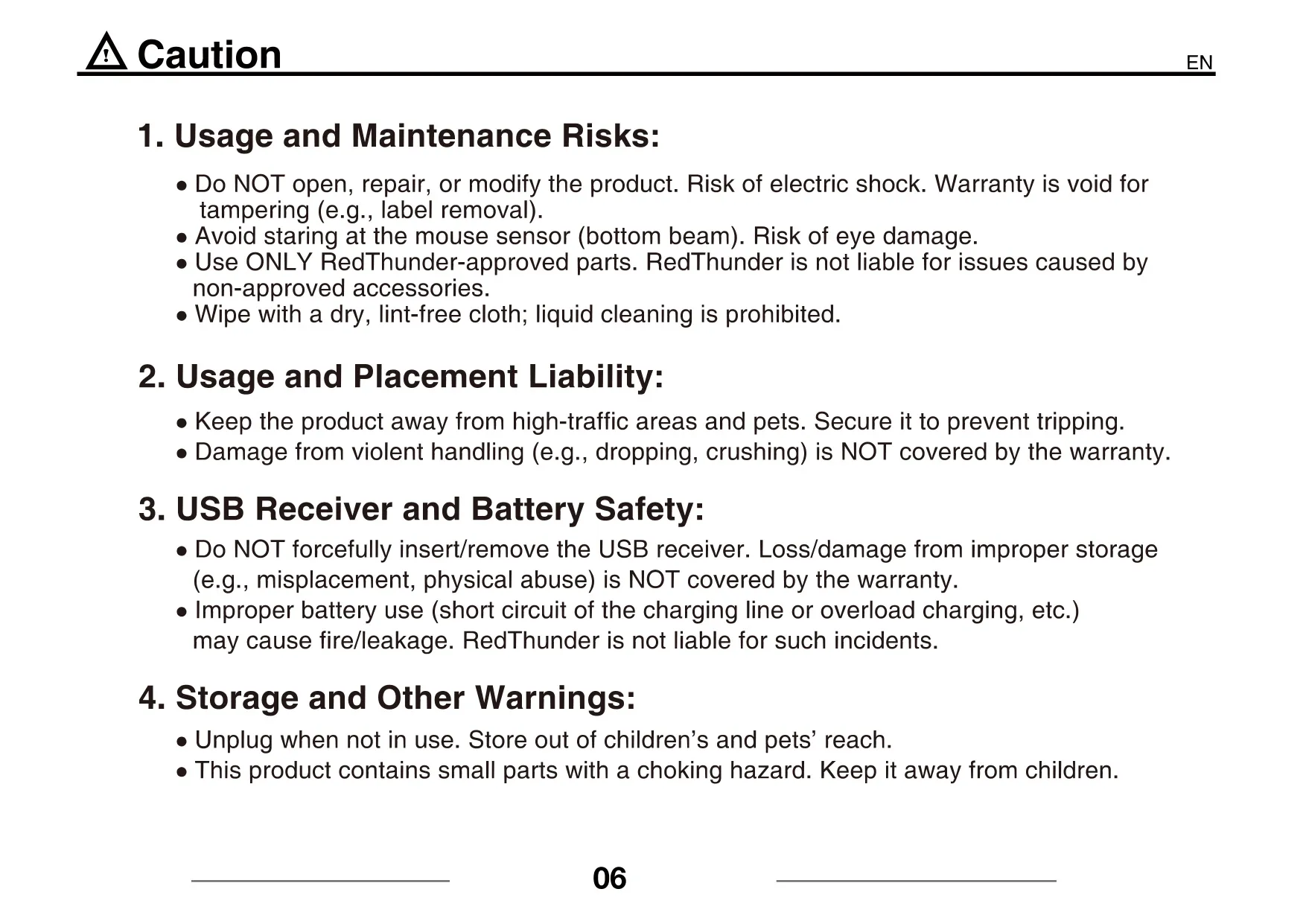
The safety notes say the product must not be opened or modified, and tampering, such as removing labels, voids the warranty. Don't stare into the mouse sensor. Use only RedThunder-approved parts and clean with a dry cloth, never liquid. The warranty does not cover damage from dropping or crushing, or from forcing the receiver in or out. The set contains small parts, so keep it away from children and pets.
Frequently Asked Questions (FAQs)
Can't find the answer you need? Here are some frequently asked questions about the Redthunder K10 Keyboard, and we answer them below.